



Ultrawide vs Dual Monitor: Which Setup Is Better for Productivity, Gaming and Work?
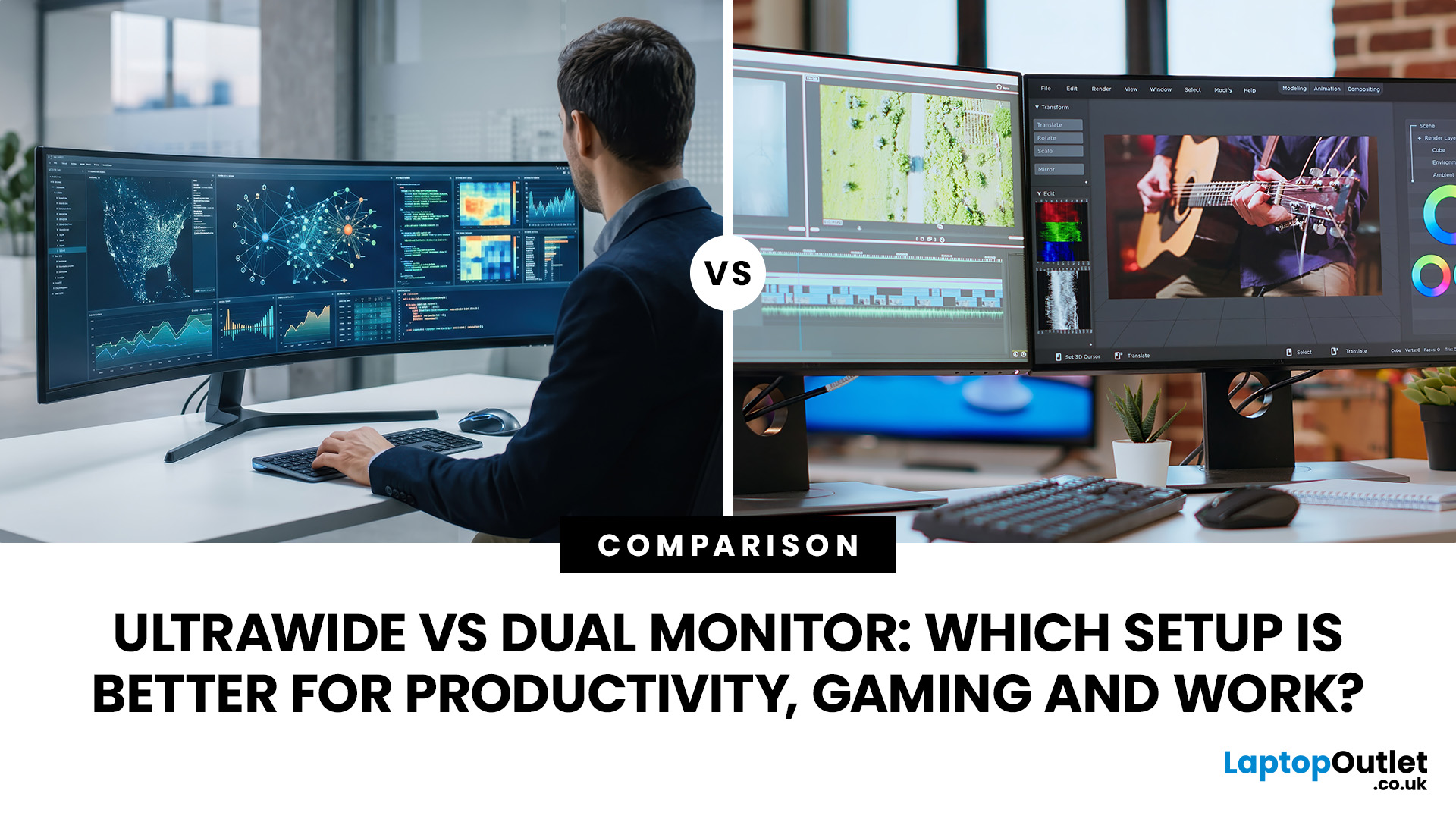
Stuck choosing between an ultrawide vs dual monitor setup? The right pick can totally change how you work, game, and multitask every day. A single ultrawide screen gives you that clean, seamless, cinematic vibe with zero bezel breaks, while dual monitors are all about flexibility and serious multitasking power. In this guide, we break down productivity, gaming performance, comfort, cost, and hardware needs so you can figure out which setup actually fits your workflow and desk life best. Let’s find your perfect screen setup.
Pros and Cons Summary Table
|
SETUP |
ADVANTAGES |
LIMITATIONS |
|---|---|---|
| Ultrawide | Seamless workspace, no centre bezel, fewer cables and immersive supported games | Higher cost, demanding resolutions and possible compatibility issues |
| Dual monitors | Clear task separation, flexible orientation and staged upgrades | Bezels, more cables and ports, and a wider footprint |
When an Ultrawide Monitor is the Better Choice
Choose an ultrawide for a continuous workspace, immersive gaming and cleaner cabling. It is particularly effective for timelines, wide spreadsheets and three-window layouts, making it a practical option if you need one monitor for work and gaming. The ultrawide monitor pros and cons vary by model, so compare curvature, pixel density, adjustment and connectivity before choosing the best widescreen monitor.
When Dual Monitors Make More Sense
Choose dual monitors when you need strong task separation, a portrait display or a lower-cost upgrade using an existing screen. Individual panels are also easier to replace later.
Ultrawide vs Dual Monitors: What's the Core Difference?
How an Ultrawide Monitor Works (Single Panel, Wide Aspect Ratio)
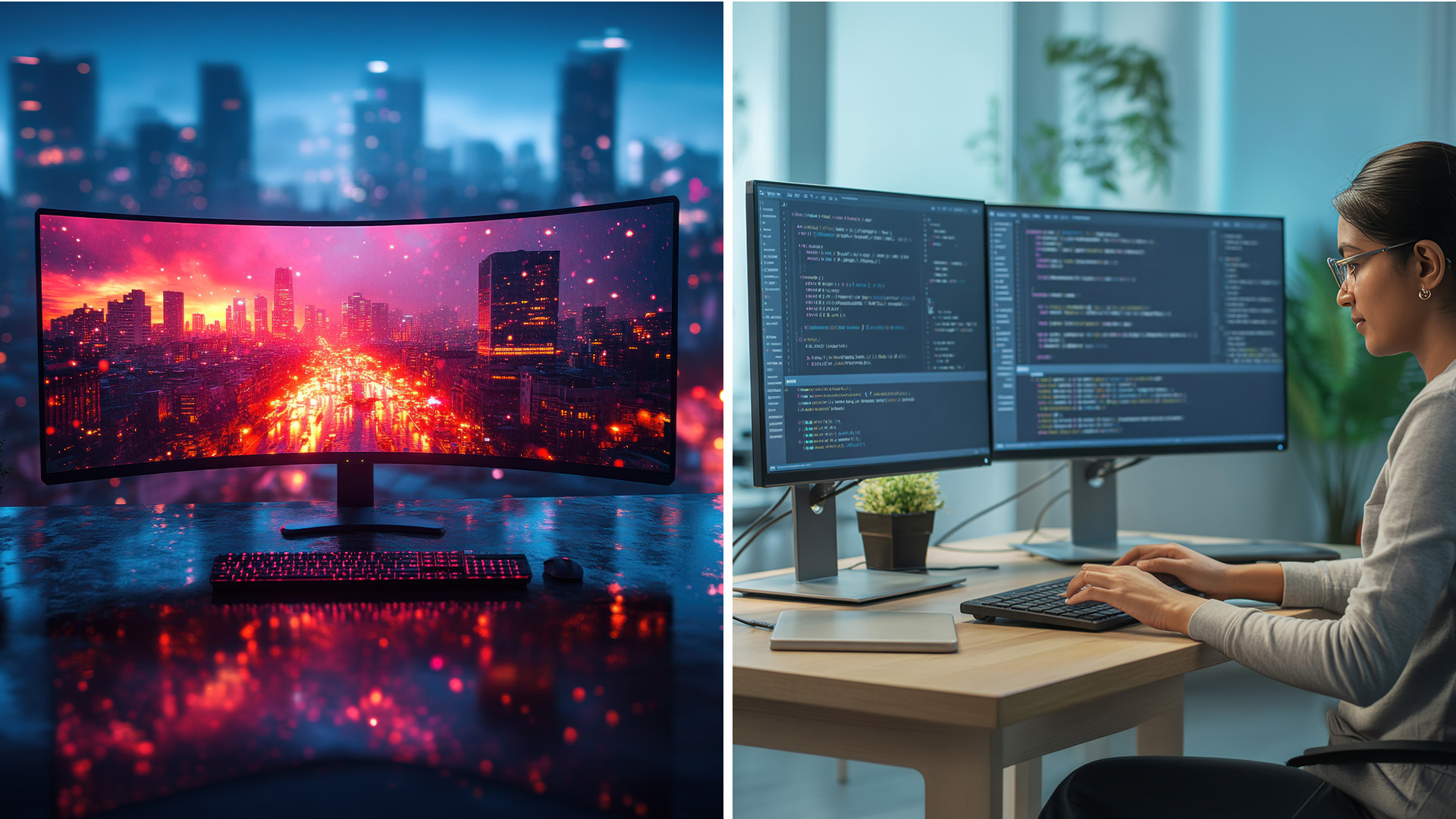
An ultrawide uses one extended panel, usually with a 21:9 aspect ratio. A 32:9 super ultrawide stretches further and can resemble two standard 16:9 screens without a central bezel. Common options include 2560 × 1080, 3440 × 1440 and 5120 × 1440. The right screen resolution depends on panel size and graphics performance, so choosing the right resolution and refresh rate is important when comparing different monitor setups.
How a Dual Monitor Setup Works (Two Separate Displays)
A dual monitor setup extends your desktop across two displays. You can keep email or reference material on one dual monitor screen while using the other for your main document, game, or spreadsheet. The panels can match, or you can place a secondary screen vertically for coding, long documents, chat, and dashboards.
Once you have chosen your screens, our guide on how to set up dual monitors explains how to connect, arrange and configure them for a smoother everyday workflow.
Screen Real Estate Comparison: Resolution, Aspect Ratio & Bezels
Ultrawide screens feel continuous, while a double screen monitor arrangement creates two defined work zones. Compare total pixels, not only diagonal size, and understand how monitor size is measured when judging how much physical screen space each setup provides. Two 1440p displays offer more pixels than a typical 3440 × 1440 ultrawide, but need more width, cables and ports.

Ultrawide vs Dual Monitors for Productivity and Multitasking
Window Management and App Snapping on Ultrawide Screens
Windows 11 Snap Layouts can divide a wide panel into predefined zones and restore related apps as a group. This creates a practical multitasking workflow for writing, research and editing. For many users, a 34-inch 3440 × 1440 model is the best ultrawide for productivity because it balances workspace and readable text.
Multitasking Across Two Separate Displays
Two screens create natural boundaries. You can maximise one application per display, which helps when comparing files, monitoring messages or keeping a video call visible.
Which Setup Reduces Eye and Neck Strain During Work?
Neither format is automatically healthier. Comfort depends on positioning, text size, viewing distance and which area you use most. Keep your main work directly ahead and avoid repeatedly turning towards a distant secondary screen. OSHA advises placing the monitor in front and at least 20 inches away.
Display settings matter alongside physical positioning. These monitor eye-care and ergonomic setup tips explain how features such as brightness control, Reader Mode and flicker reduction may support more comfortable viewing.
Ultrawide vs Dual Monitors for Gaming
Immersion and Field of View on Ultrawide Displays
A supported 21:9 display widens the field of view (FOV), making racing games, simulators, RPGs and cinematic titles feel more expansive. Compare gaming ultrawide displays at Laptop Outlet when you want a wider gaming view without bezels between panels.
Refresh Rate, Response Time and Panel Options for Gamers
The best ultrawide gaming monitor should match your PC. Check refresh rate, response behaviour, adaptive synchronisation, panel type and resolution together. An LG ultrawide monitor for gaming may offer OLED or IPS options. Higher ultrawide resolutions require more GPU power than standard 1080p.
Game Compatibility Issues with Ultrawide Aspect Ratios
Many modern PC games support 21:9, but some menus, cutscenes and older titles may show black bars, crop the image or return to 16:9. GPU scaling can preserve the original aspect ratio by adding side bars rather than stretching unsupported content. Check your favourite games before buying.
Competitive Gaming Setup: Why Some Pros Still Prefer Dual Monitors
Competitive players often run the game on a fast 16:9 display and use the second for chat, streaming controls or system monitoring. This avoids compatibility concerns and makes very high refresh rates easier to prioritise.

Ultrawide vs Dual Monitors for Remote Work and Professional Use
Best Setup for Video Calls, Documents and Spreadsheets
Dual screens suit meetings because one panel can show participants while the other holds notes or documents. An ultrawide is cleaner for large spreadsheets and side-by-side files. Explore widescreen monitors for work when you want more room without adding another stand and display cable.
Best Setup for Developers, Editors and Designers
Developers may prefer landscape and portrait displays together. Video editors benefit from a continuous ultrawide timeline, while designers should prioritise colour accuracy and pixel density over screen count. A quality ultrawide curved monitor can keep wide creative interfaces connected. Compare curved screens for work and gaming if your desk has enough depth.
Best Setup for Trading, Data Analysis and Finance Roles
Dual monitors let you dedicate one display to live data and another to analysis or communication. A 32:9 panel provides a continuous alternative without a bezel gap. For dense dashboards, large-screen monitors reduce window switching, but text must remain sharp at your preferred scaling.
Cost, Desk Space, and Setup Complexity
Price Comparison: One Ultrawide vs Two Monitors
Two affordable 24-inch screens may cost less than a premium 34-inch or 49-inch ultrawide. Reusing an existing monitor also makes upgrades cheaper. An affordable ultrawide monitor still offers value when one panel and simpler cabling matter most. The best ultrawide monitor should be judged by its complete specification, not size alone.
Desk Space, Cable Management and Mounting Considerations
An ultrawide normally needs fewer cables, although its stand may be deep. Dual monitors require more width and alignment, but monitor arms can reclaim desk space. A portable dual monitor is useful for travel or temporary hybrid work, though it is less comfortable than a permanent desktop arrangement.
GPU and Port Requirements for Each Setup
A second display creates little CPU demand during ordinary office use. GPU load depends more on combined resolution, refresh rate and rendered content.
Check the HDMI, DisplayPort or USB-C outputs supported by your computer and dock. DisplayPort Multi-Stream Transport can send separate streams through one compatible connection, but every device must support the intended resolution and refresh rate.
How to Decide Which Setup Fits Your Needs
Decision Checklist Based on Use Case, Budget and Space
Choose an ultrawide if you want one uninterrupted canvas, play games with good 21:9 support and prefer fewer cables. Consider high-resolution 4K monitors when sharp text, detailed design work or 16:9 media matters more than width.
Choose dual displays for mixed orientations, easier budgeting or a dedicated communication screen. Measure your desk, check available ports and confirm that your PC supports the total resolution at your required refresh rate.
If you are still balancing screen space, price and everyday usability, our guide explains whether an ultrawide monitor is worth buying in 2026.

Final Verdict: Ultrawide or Dual Monitors?
In the ultrawide vs dual monitor decision, neither option wins every category. An ultrawide offers a clean, seamless view for creative timelines, broad spreadsheets and compatible games. Dual monitors provide stronger task separation, simpler upgrades and more freedom to mix display types.
When comparing ultrawide vs two monitors, focus on your daily workflow rather than the largest advertised screen. Review your applications, games, desk dimensions, ports and GPU capability, then compare suitable models at Laptop Outlet.

FAQs
Is ultrawide better than dual monitor for gaming and work?
An ultrawide is better for seamless multitasking and immersive supported games. Dual monitors are better for separating applications, mixing orientations and keeping secondary tools visible.
Do dual monitors improve productivity?
They can when your work involves comparing information, monitoring communication or using several applications. Benefits are smaller when your task requires deep focus in one window.
Do dual monitors affect CPU?
Ordinary desktop use adds little CPU demand because graphics hardware manages display output. Active video, animation and demanding applications can increase total system workload.
Do two monitors use more GPU power than one ultrawide monitor?
Not necessarily. Demand depends mainly on combined pixel count, refresh rate and rendered content. Two 1440p screens can require more display bandwidth than one 3440 × 1440 ultrawide.
Is an ultrawide monitor equivalent to two monitors?
A 32:9 screen can resemble two 16:9 displays together, while a 21:9 model is narrower. An ultrawide removes the centre bezel but is still one panel.
Related Articles

Last Updated: October 12, 2026
Last Updated: August 25, 2026
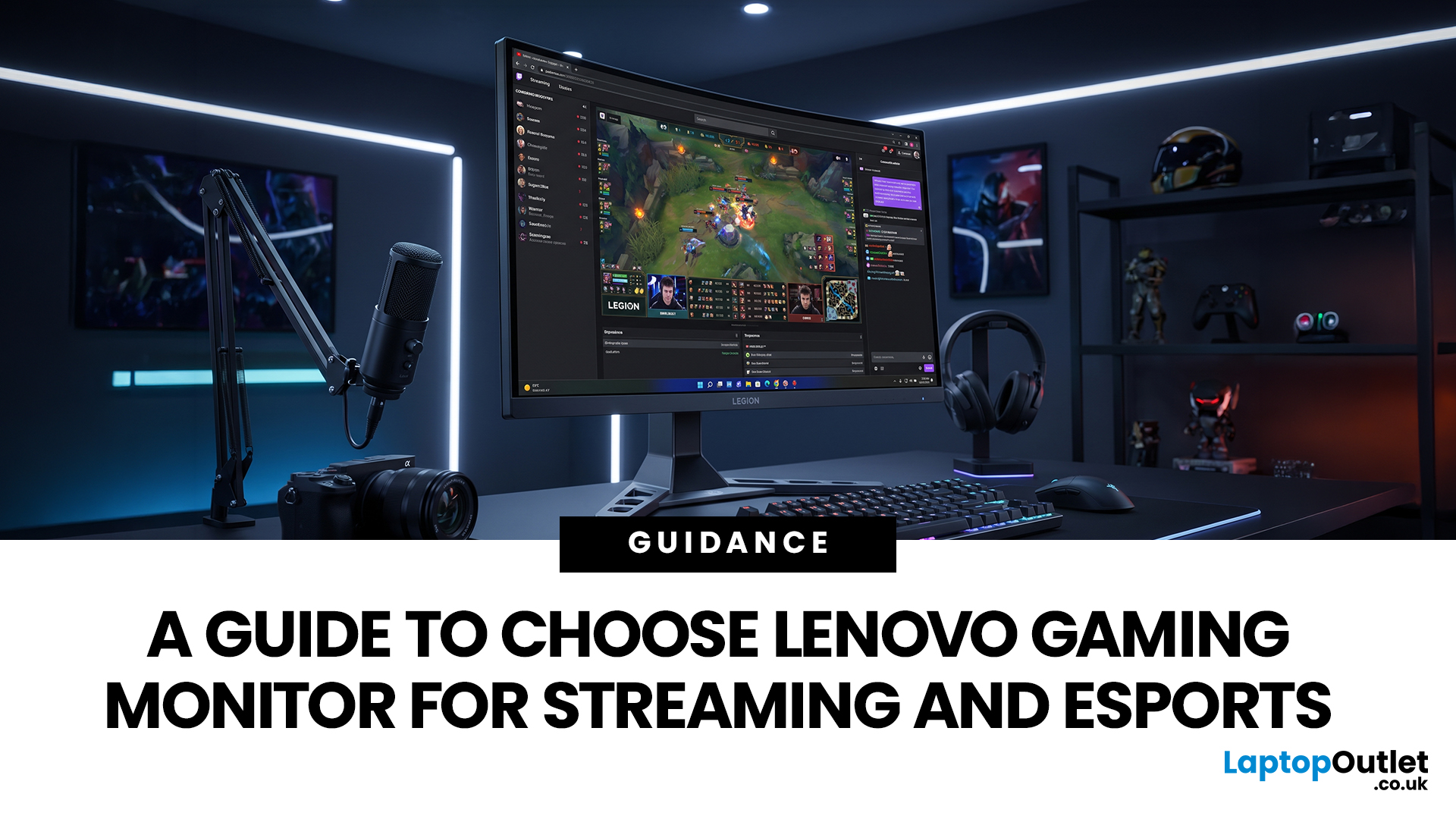
Quick answer: The best Lenovo gaming monitor for streaming and esports is the one your PC can drive consistently at its native resolution while it also handles your broadcast workflow. For many mixed-use setups, a 27-inch QHD display at 165Hz to 180Hz is the balanced choice. A 24.5-inch or 27-inch Full HD screen at 240Hz or above prioritises competitive speed, while a 34-inch UWQHD display at 165Hz to 180Hz provides more room for a single-screen streaming workspace.
Those are useful profiles, not universal rules. Your real decision depends on sustained frame rate, encoder load, game genre, desk space and whether OBS, chat and alerts live on the same display. A monitor does not encode the stream, and a 240Hz panel does not make viewers receive a 240fps broadcast. It changes the experience in front of you, which can still matter greatly during competitive play.
Last Updated: September 03, 2026
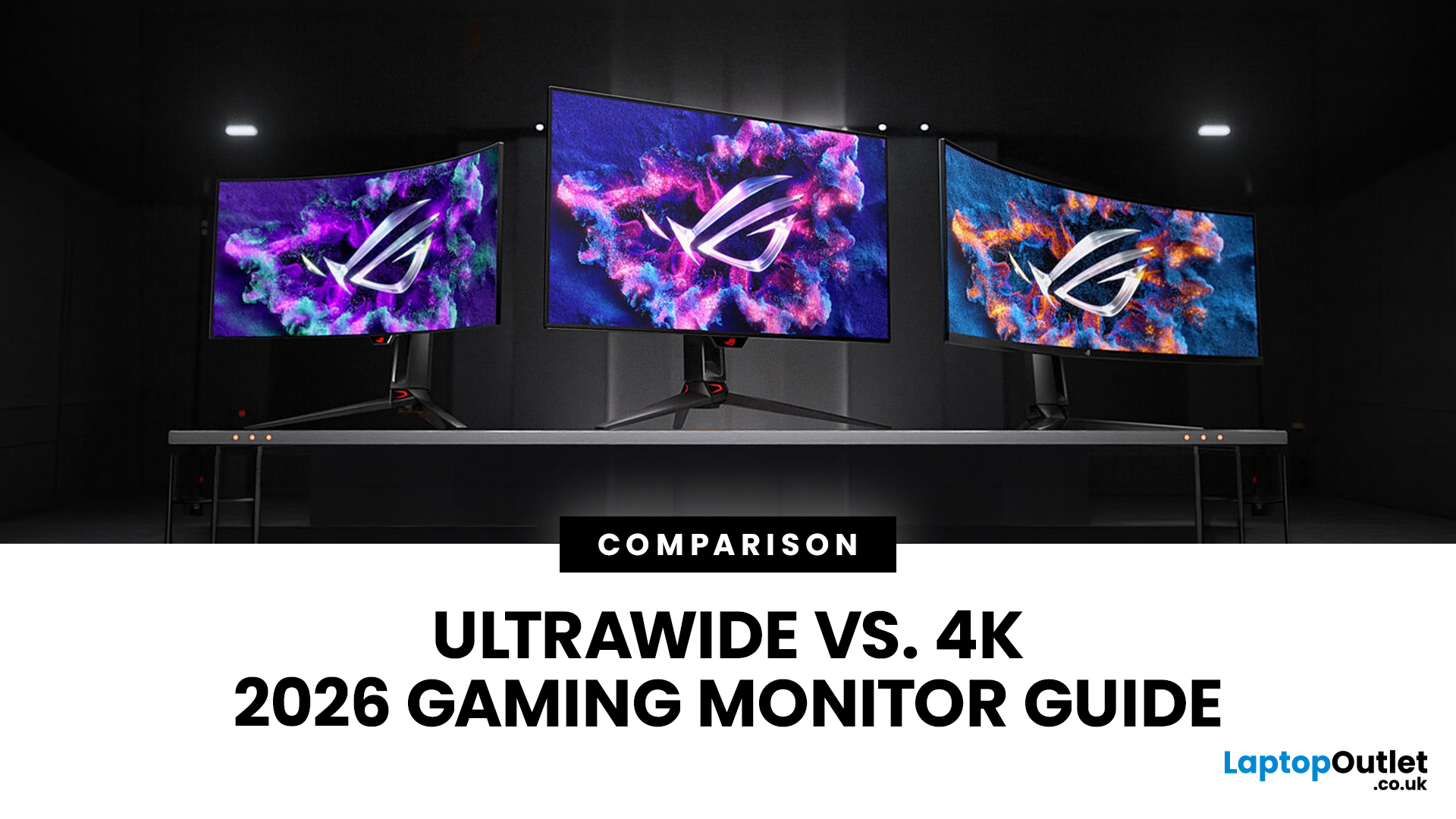
Choosing between an Ultrawide vs 4K monitor is one of the biggest decisions for gamers upgrading their setup in 2026. Both options can transform your gaming experience, but they do it in very different ways. The right choice depends on your games, GPU, desk space and budget, as well as whether you prioritise immersive gameplay or sharper resolution. This gaming monitor guide compares ultrawide and 4K displays across performance, game genres, GPU requirements, refresh rates, response time, and overall value.
Ultrawide vs 4K Monitor: Quick Comparison
| Feature | Ultrawide Gaming Monitor | 4K Gaming Monitor |
| Best for | Immersion, racing, RPGs, simulators, multitasking | Sharp visuals, AAA games, console gaming, creative use |
| Common aspect ratio | 21:9 or 32:9 | 16:9 |
| Main strength | Wider field of view | Higher pixel density |
| Image sharpness | Very good, especially at 3440 x 1440 | Excellent at 3840 x 2160 |
| GPU demand | Moderate to high | Very high |
| Competitive gaming | Good with high refresh rate | Good, but harder to drive |
Last Updated: July 16, 2026
Last Updated: September 24, 2026
Last Updated: July 30, 2026
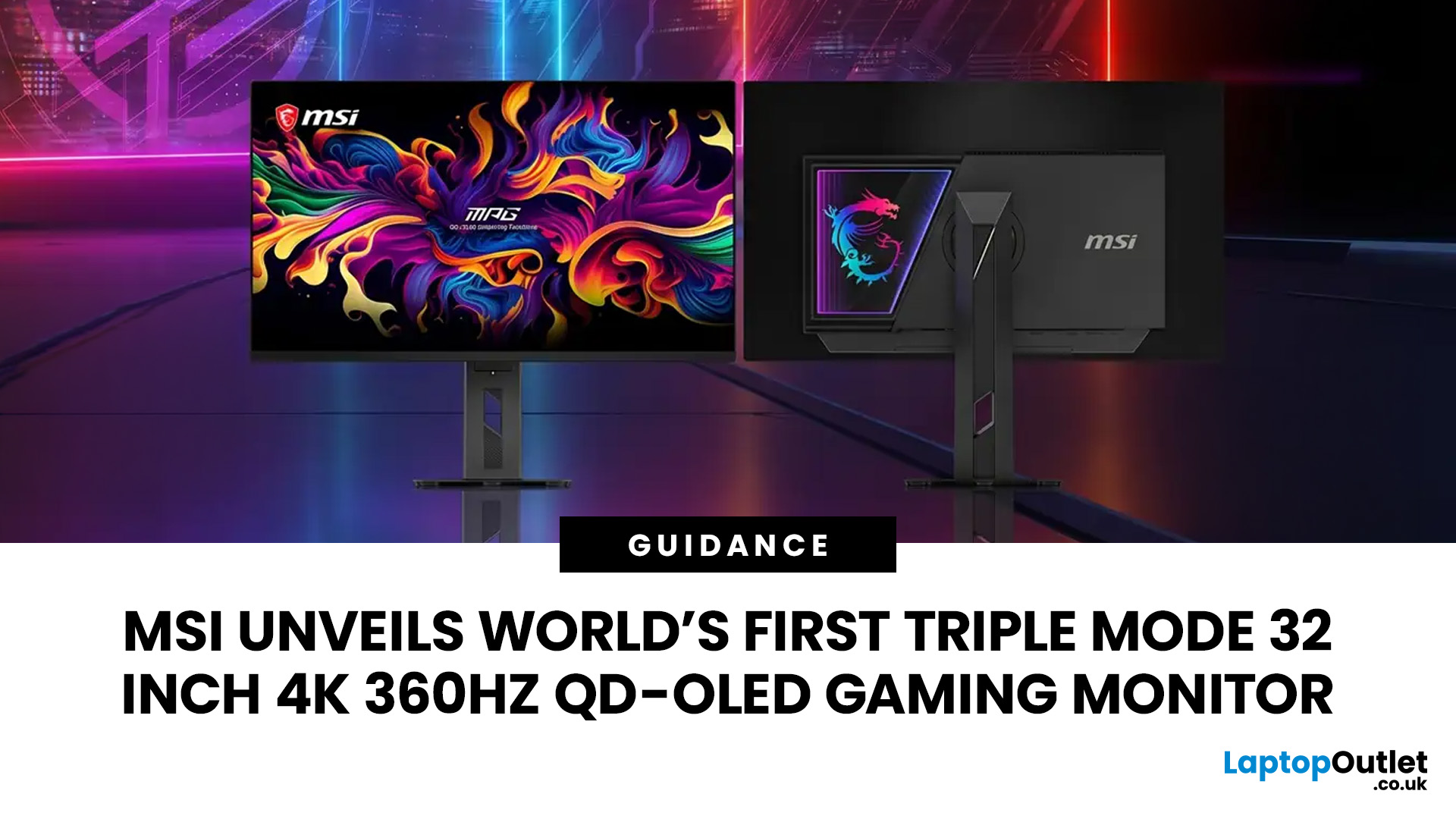
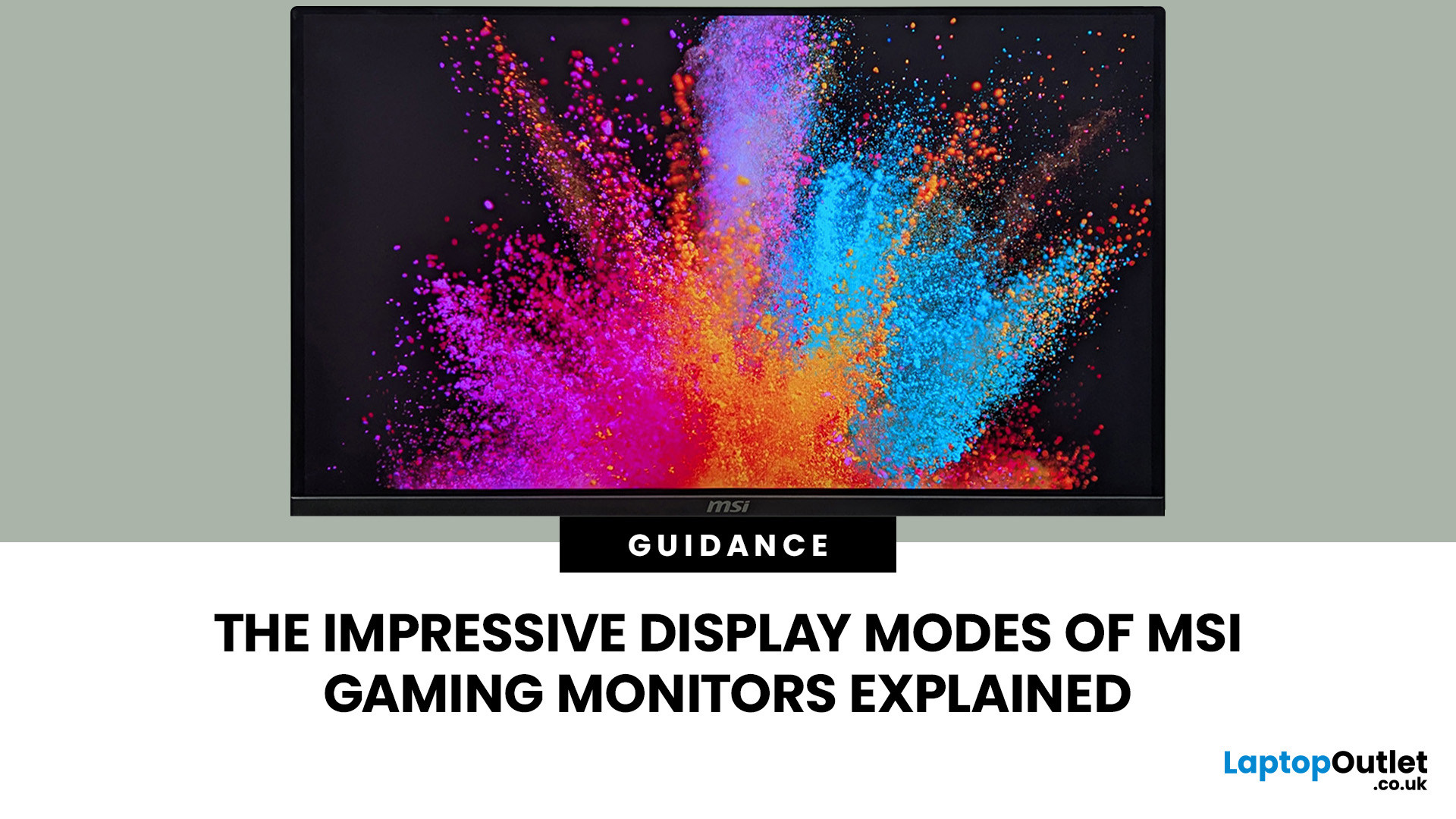
MSI has revealed a gaming monitor that sounds almost unreal on paper: a 32 inch 4K monitor with a 360Hz refresh rate, QD-OLED visuals, and a Triple Mode feature that lets gamers switch between different resolution and speed settings. Officially known as the MSI MPG OLED 322URDX36 (MSI lists the panel at 31.5 inches, though it's widely rounded to 32 inches), this display was unveiled ahead of COMPUTEX 2026 and is designed for players who want sharp 4K detail, ultra-smooth motion, and flexible performance in one premium screen.
For years, gamers had to choose between resolution and speed. A 4K monitor gave better image quality, while a lower-resolution, high-refresh-rate screen gave smoother competitive gameplay. MSI's new Triple Mode gaming monitor aims to close that gap, letting users move between 4K 360Hz, 1440p 520Hz, and Full HD 680Hz depending on the game, their hardware, and personal preference.
That makes it one of the most interesting display announcements for serious PC gamers,
Last Updated: August 11, 2026
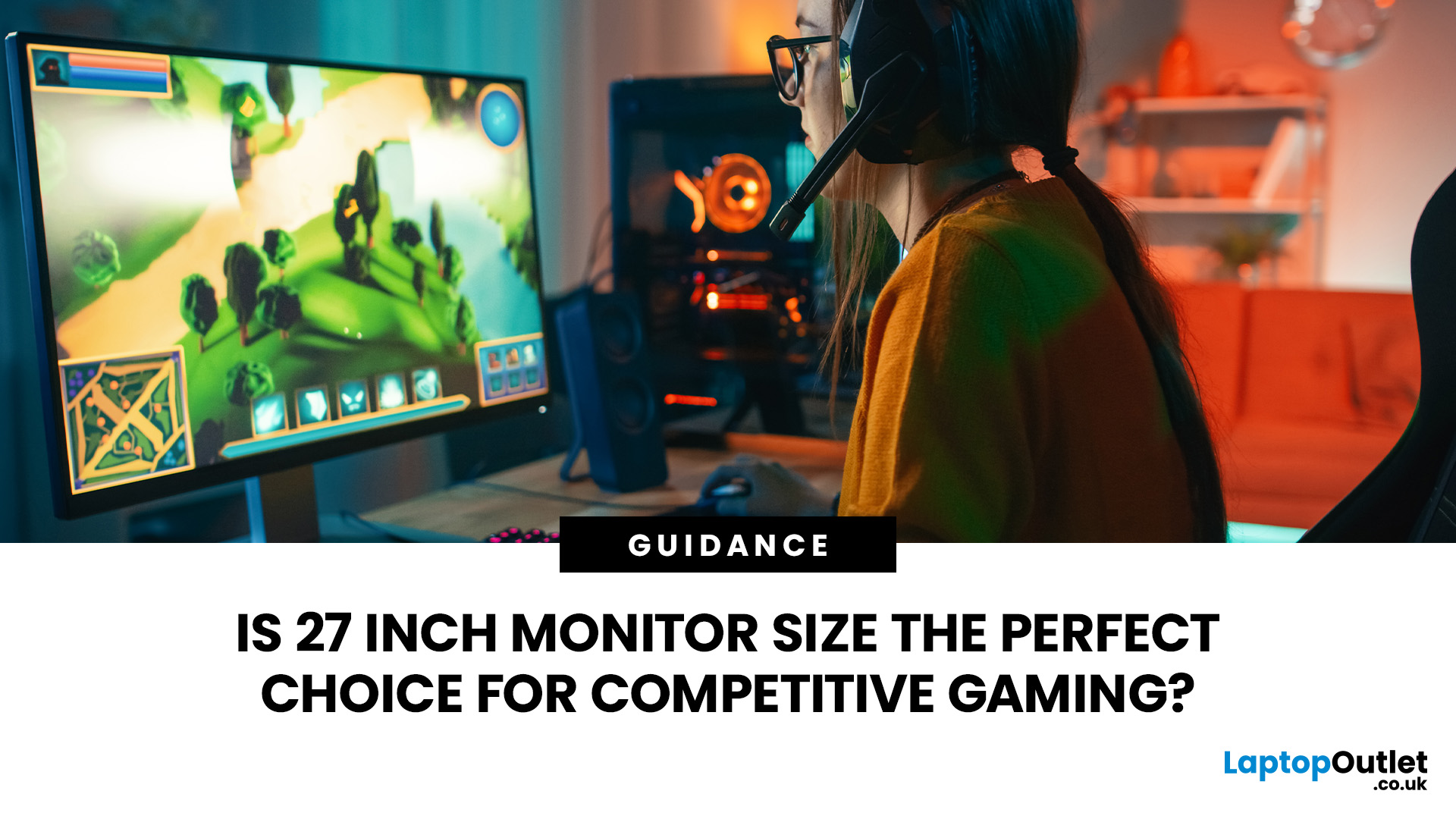
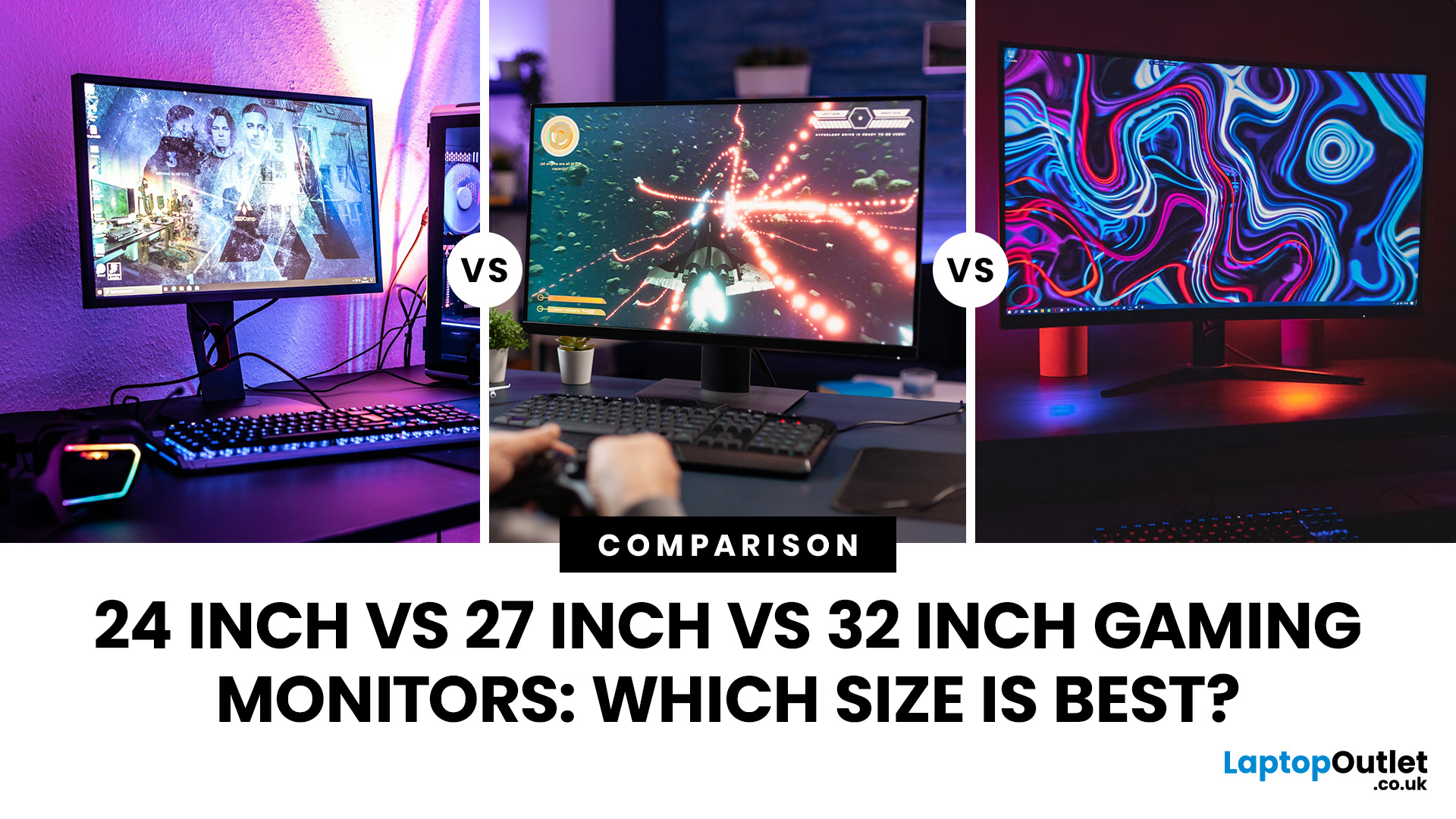
Picking the best gaming monitor size isn’t just about going big or going home. Your screen size actually changes how your games look, feel, and perform. A 24-inch setup is clutch for competitive play, a 27-inch hits that sweet spot between clarity and immersion, and a 32-inch screen? That’s where things get seriously cinematic.
Size alone isn’t the whole story. Resolution, desk space, refresh rate, and what you actually play all matter. This gaming monitor size comparison breaks down 24, 27, and 32-inch displays so you can find your perfect match.
24 Inch vs 27 Inch vs 32 Inch Gaming Monitors: Quick Comparison
The following table provides a quick overview of how the three most popular gaming monitor sizes compare.
| Feature | 24-Inch Monitor | 27-Inch Monitor | 32-Inch Monitor |
| Recommended resolution | 1920 × 1080 | 2560 × 1440 | 2560 × 1440 or 3840 × 2160 |
| Best suited to | Competitive gaming | Mixed gaming and everyday use | Immersive and cinematic gaming |
| Typical desk requirement | Small | Medium | Large |
| Graphics |
Last Updated: October 26, 2026
Last Updated: September 03, 2026
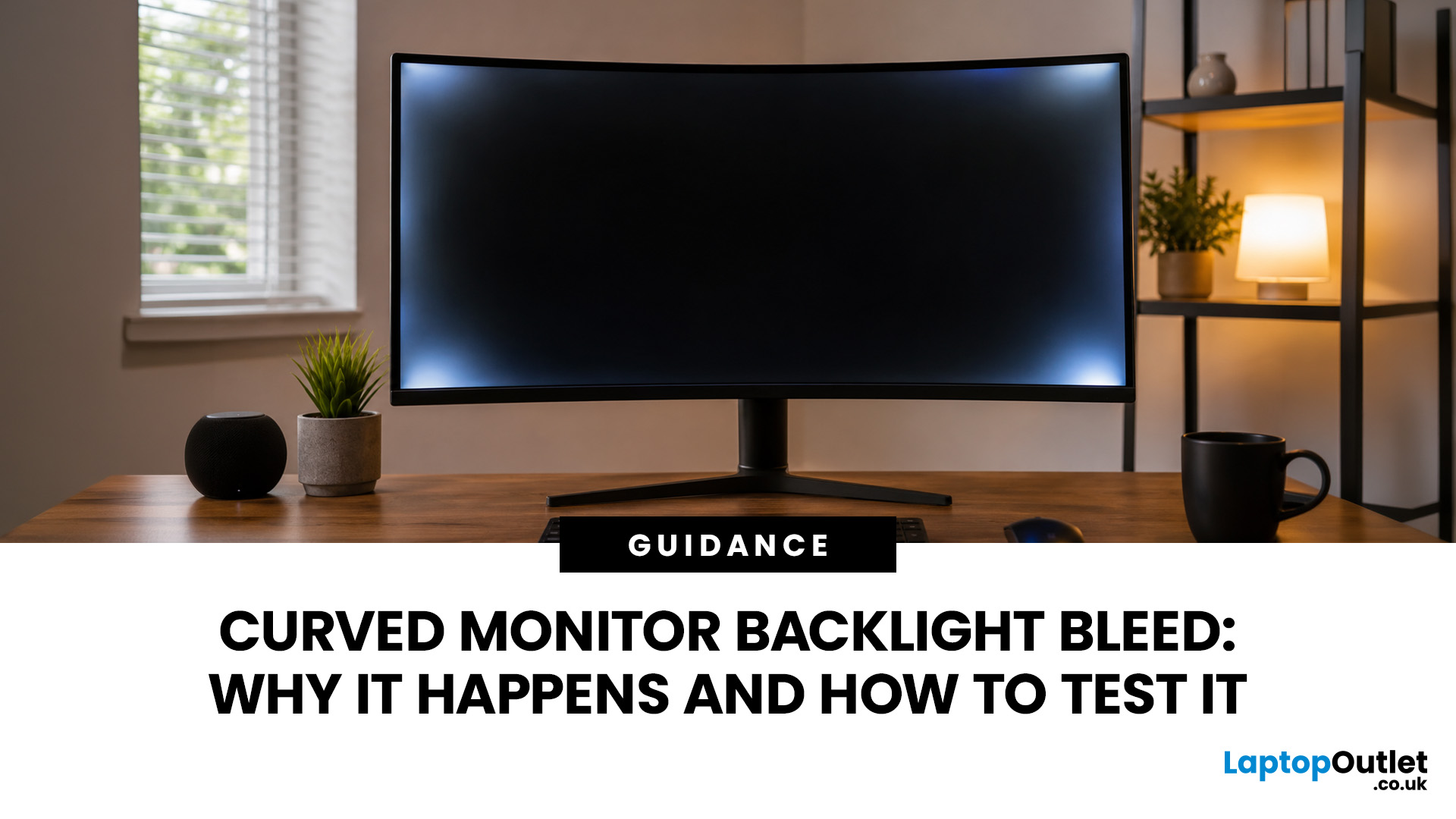
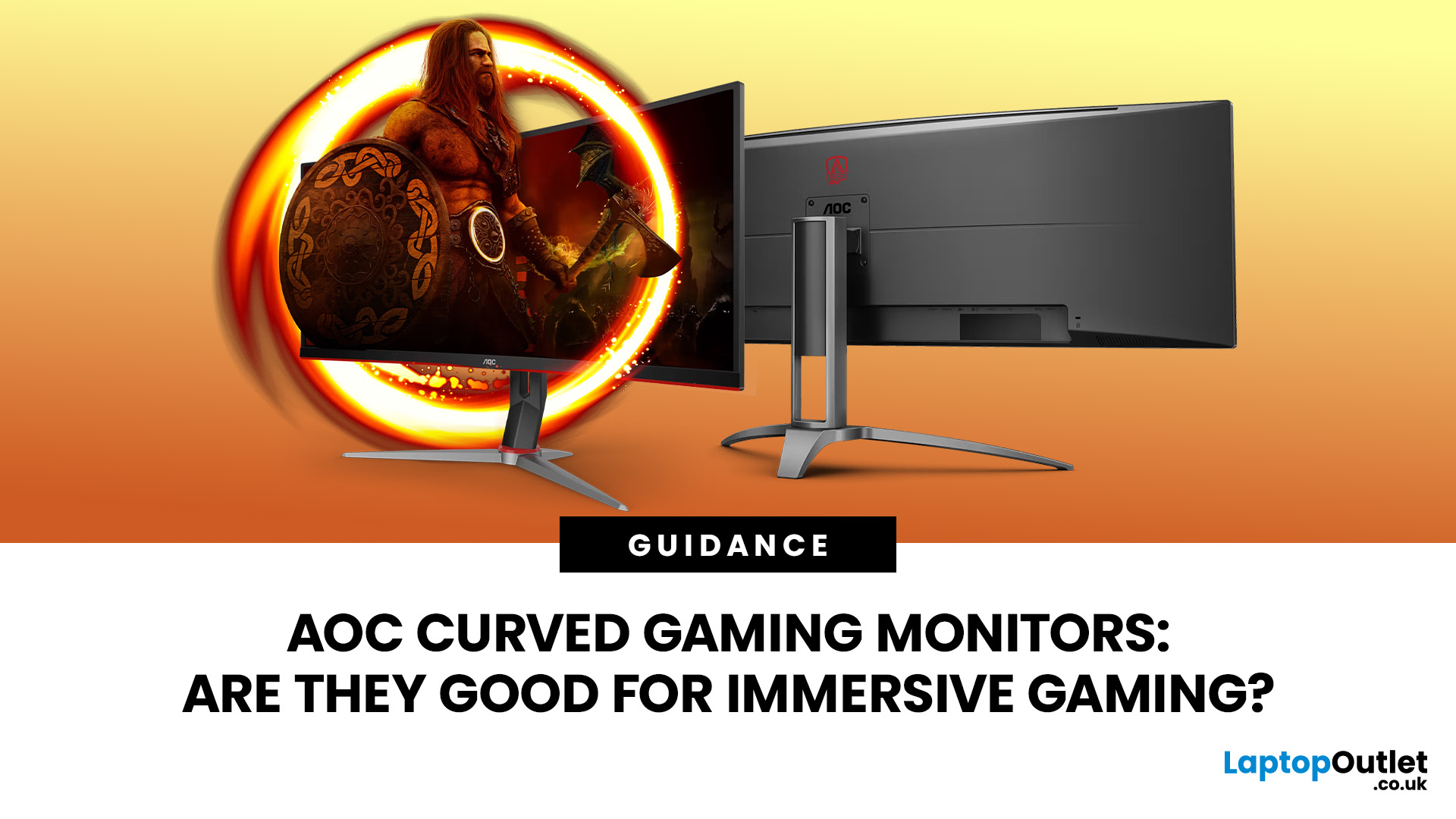
An AOC curved gaming monitor can be a strong choice for immersive gaming, especially if you play racing, simulation, RPG, open-world or cinematic single-player games. The curved screen helps draw more of the display into your natural field of view, which can make gameplay feel more engaging on larger panels. For many PC gamers, the sweet spot is a 27-inch or 32-inch high-resolution QHD monitors. For maximum immersion, an AOC 34 curved gaming monitor or another ultrawide curved gaming monitor can offer a wider, more cinematic view.
Are AOC Curved Gaming Monitors Good for Immersive Gaming?
Yes, AOC curved gaming monitors can be good for immersive gaming, but the experience depends on three things:
- Screen size
- Resolution
- Refresh rate
A curved display is most effective when the screen is large enough for the curve to matter. On a 24-inch screen, the curve may feel subtle. On a 32-inch or 34-inch screen, it becomes much more noticeable because the edges of the panel sit further into your peripheral
Published: July 27, 2026

