



How to Choose the Best Lenovo Gaming Monitor for Streaming & Esports in 2026
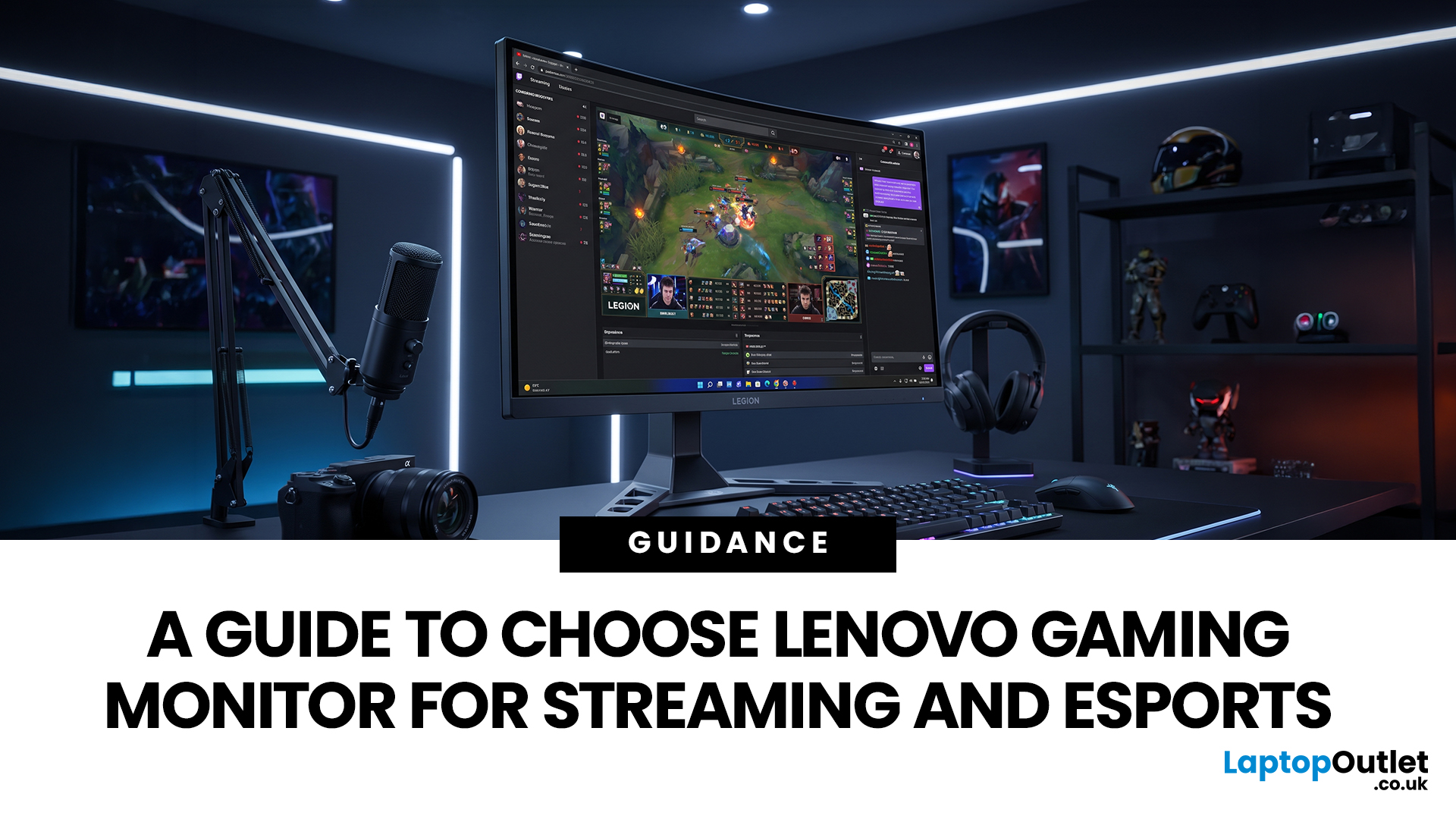
Quick answer: The best Lenovo gaming monitor for streaming and esports is the one your PC can drive consistently at its native resolution while it also handles your broadcast workflow. For many mixed-use setups, a 27-inch QHD display at 165Hz to 180Hz is the balanced choice. A 24.5-inch or 27-inch Full HD screen at 240Hz or above prioritises competitive speed, while a 34-inch UWQHD display at 165Hz to 180Hz provides more room for a single-screen streaming workspace.
Those are useful profiles, not universal rules. Your real decision depends on sustained frame rate, encoder load, game genre, desk space and whether OBS, chat and alerts live on the same display. A monitor does not encode the stream, and a 240Hz panel does not make viewers receive a 240fps broadcast. It changes the experience in front of you, which can still matter greatly during competitive play.
Lenovo Gaming Monitor Profiles at a Glance
|
Workflow |
Screen profile |
Resolution and refresh |
Why it fits |
|
Ranked FPS with occasional streaming |
24.5–27-inch, flat 16:9 |
Full HD, 240Hz+ |
Keeps the full play area easy to scan and reduces GPU load when chasing high frame rates. |
|
Gaming and regular live streaming |
27-inch, flat 16:9 |
QHD, 165–180Hz |
Balances sharp gameplay, usable workspace and realistic performance demands. |
|
One-screen streaming desk |
34-inch curved 21:9 |
UWQHD, 165–180Hz |
Adds horizontal room for tools, although game support and capture framing need checking. |
|
Streaming plus video editing |
27–32-inch, colour-controlled panel |
QHD or 4K, 144Hz+ |
Prioritises preview and editing space while retaining smooth gameplay. |
Use the table to choose a direction, then verify the exact Lenovo model, port and cable support before ordering. Specifications can vary across products, regions and connection types.
1. Begin With the Streaming Workflow You Actually Use
A display that makes sense for a tournament-style setup may be awkward for a creator who needs a live preview, chat, alerts, audio controls and a browser visible at the same time. Start with the arrangement on your desk.
Single PC and One Monitor
A single display keeps the desk simple, but the screen has to serve two jobs. A 27-inch QHD monitor offers a useful middle ground for full-screen play and quick task switching. A 34-inch ultrawide can hold more tools alongside the game, although some titles and capture layouts do not use 21:9 cleanly. Test how the game, OBS preview and chat will fit before deciding that wider is automatically better.
Single PC and Two Monitors
This is often the easiest streaming layout to manage. Put the game on the fastest display and reserve the second screen for OBS, chat, alerts and performance monitoring. The secondary monitor does not need to match the main screen’s maximum refresh rate, but similar scaling and sensible physical alignment make moving windows between them less distracting.
Dual PC or Capture-Card Setup
Check the entire signal path: gaming PC output, capture-card input and pass-through, streaming PC input, monitor port and cable. The monitor may support a high refresh rate that the capture path cannot pass through at the same resolution. Confirm these combinations from the capture-card and monitor documentation rather than assuming the highest number applies to every port.
2. Match Refresh Rate to Sustained Frame Rate
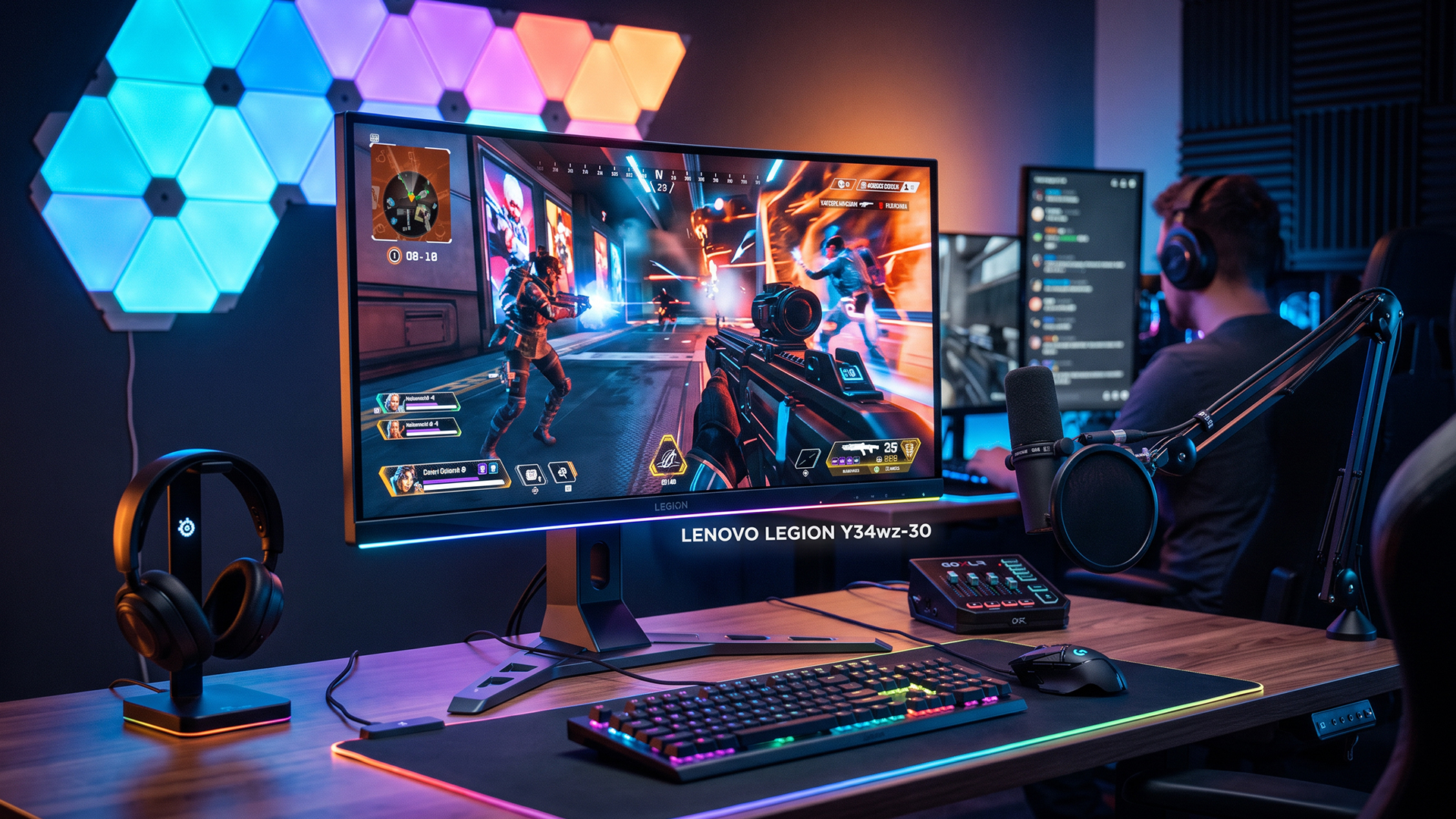
Refresh rate is how often the panel can update each second. The practical benefit appears when the PC can produce frames at a similar pace and the display is actually configured to use the intended rate. Higher refresh can improve motion clarity and reduce the wait for a new frame, but it cannot create frames the GPU is not rendering.
|
Refresh rate |
Time per refresh |
Practical interpretation |
|
60Hz |
16.67ms |
A baseline for desktop work; visibly less fluid for fast competitive motion. |
|
144Hz |
6.94ms |
A major step up for mainstream PC gaming. |
|
165Hz |
6.06ms |
A practical high-refresh target for mixed gaming and streaming. |
|
180Hz |
5.56ms |
Extra headroom where the PC can sustain it. |
|
240Hz |
4.17ms |
Most useful when competitive games run consistently at very high frame rates. |
The times above are simple 1,000 ÷ Hz intervals. They describe display refresh timing, not total system latency, which also includes the game engine, CPU, GPU, input device and monitor processing.
If esports performance is the priority and your system regularly produces very high frame rates, you can compare high-refresh 240Hz monitors for competitive PC play. If your frame rate varies or streaming reduces headroom, a stable 165Hz or 180Hz experience can be more useful than an unstable chase for a higher peak.
After connecting the screen, use Microsoft’s guide to checking and changing refresh rate in Windows. A monitor can remain at 60Hz in the operating system even when the panel and cable support more.
3. Balance Resolution Against Gaming and Encoding Headroom
Resolution affects sharpness and GPU workload. Streaming also needs processing capacity, so the highest resolution on a specification sheet is not automatically the best competitive choice.
- Full HD (1920 × 1080): easier to drive at high frame rates and well suited to compact competitive screens. It provides less desktop space for production tools.
- QHD (2560 × 1440): a strong balance on a 27-inch panel, with noticeably sharper text and game detail than Full HD without the full workload of 4K.
- UWQHD (3440 × 1440): adds horizontal space for a one-monitor workflow and immersive games. It asks more of the GPU than standard QHD and needs careful capture framing.
- 4K UHD (3840 × 2160): useful for detailed single-player games and editing, but demanding when high frame rate and live encoding are both priorities.
Use actual in-game performance rather than a broad GPU tier label. If your current system cannot hold the intended frame rate while OBS is active, lower the game resolution or graphics settings, or plan the display upgrade alongside a Lenovo gaming desktop PC built for high-frame-rate play.
4. Pick a Screen Size and Aspect Ratio That Support Awareness
24.5 to 25 Inches for Focused Competitive Play
A compact 16:9 screen keeps most of the action within the central field of view and pairs naturally with Full HD. It can be a strong fit for shooters, smaller desks and players who value easy visual scanning over a large cinematic canvas.
27 Inches for a Balanced Main Display
At normal desk distance, 27 inches provides more workspace without becoming difficult to scan. QHD is usually the sharper pairing, while Full HD can make sense when maximum frame rate matters more than pixel density.
34 Inches for a Single-Screen Production Layout
A 34-inch 21:9 display gives the stream operator room for more windows and can suit racing, simulation and open-world games. Before committing, check desk depth, game support and the broadcast crop. You can explore curved gaming monitors for single-screen streaming desks to compare the format across brands and specifications.
5. Choose the Lenovo Panel for the Work You See, Not the Stream Viewers Receive
A monitor affects what you see while playing, monitoring and editing. It does not directly improve the digital game feed sent by capture software. Viewers receive the encoded output, not the panel’s physical contrast or refresh rate. Colour and contrast still matter because they influence your judgements, and they matter on camera if the display itself appears in the shot.
- IPS: usually the safest all-round option for wide viewing angles, consistent colour and fast gaming. Contrast is commonly lower than VA in a dark room.
- VA: often delivers stronger native contrast and is common in curved ultrawides. Motion behaviour varies by panel and overdrive tuning, so do not judge it by panel type alone.
- OLED: combines very fast pixel transitions with deep black levels. It costs more and needs sensible care around static interfaces used for long sessions. Check the exact product’s protection features and warranty terms.
For clip editing, thumbnails and consistent previews, look for a usable sRGB mode, adjustable colour temperature and predictable gamma rather than a vague “wide colour” claim. A wider gamut can look impressive but overly saturated if it is not managed correctly.
6. Treat Response Time and Variable Refresh Rate as a Pair
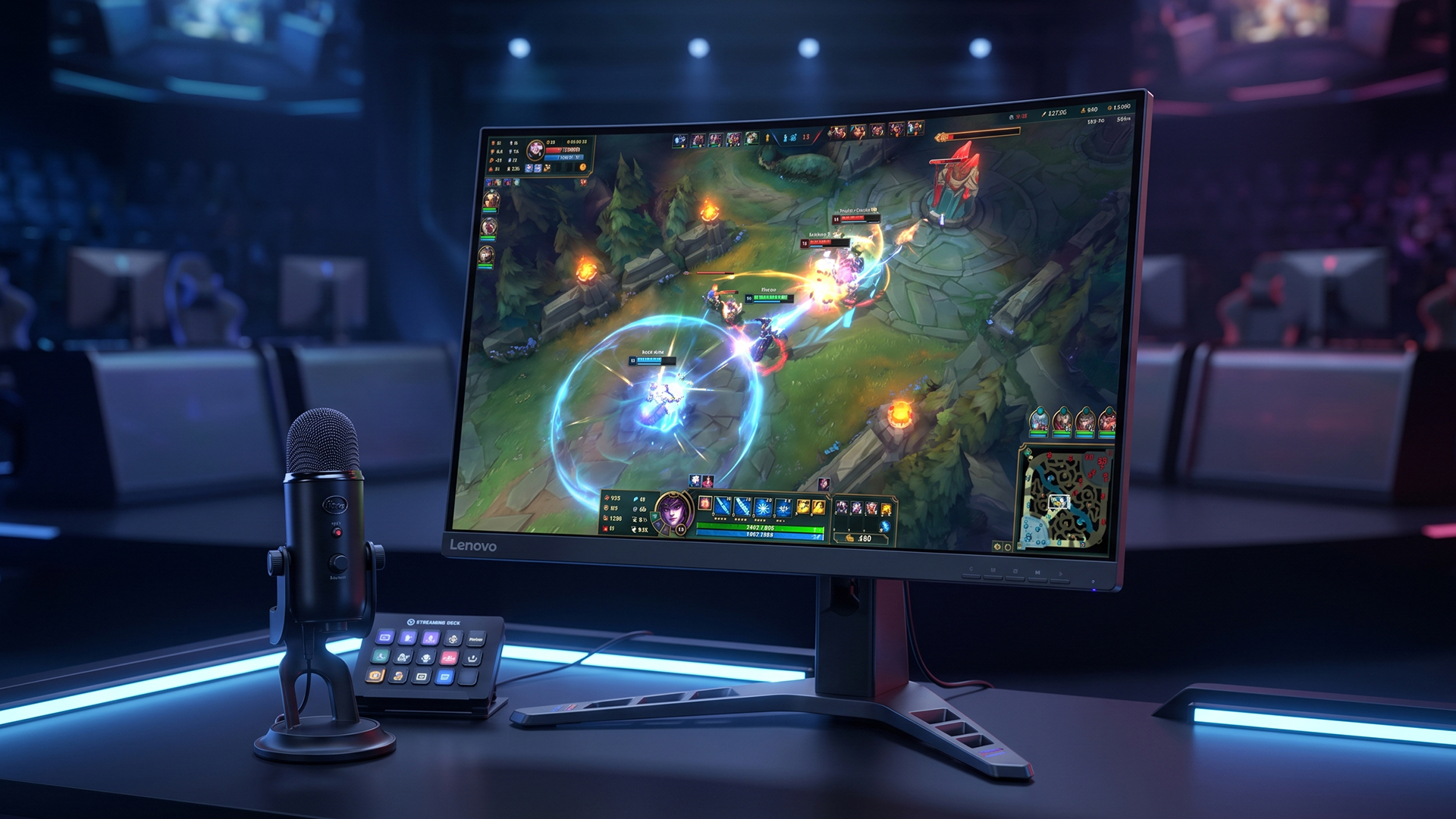
Quoted response-time figures are not always measured in the same way. Grey-to-grey and MPRT describe different things, and the fastest overdrive setting can introduce inverse ghosting or bright trails. Look for sensible motion across the refresh rates you will actually use, not only the smallest advertised number.
Variable refresh rate (VRR) allows a compatible display to adjust its timing within a supported range as frame output changes. This can reduce tearing and make fluctuating performance feel steadier. Compatibility is model-, GPU- and port-specific.
For NVIDIA systems, follow the official G-SYNC setup instructions and confirm whether the individual display is validated as G-SYNC Compatible. AMD users can use the official FreeSync configuration guide, which also advises checking the monitor’s on-screen settings and supported connection.
7. Check Ports Against the Whole Streaming Signal Path
Do not choose a monitor from refresh rate and resolution alone. The intended combination must work over the port you plan to use.
- DisplayPort: often the straightforward choice for high-refresh PC gaming, subject to the version and cable.
- HDMI: useful for PCs, consoles and capture devices. Verify the exact resolution, refresh rate, VRR and pass-through support.
- USB-C: can simplify compatible laptop setups, but power delivery, display bandwidth and USB data capability vary by model.
- USB hub or KVM: can reduce cable switching in dual-PC workflows. Confirm whether the feature is built in and how it behaves between inputs.
- Audio output: helpful when sound follows the active video input, although most competitive streamers use a headset or dedicated audio interface.
Lenovo lists features such as USB-C, HDMI 2.1, DisplayPort 1.4, KVM functions and Lenovo Accessory and Display Manager across selected Legion displays on its official Legion monitor overview. These are family-level examples, not a promise that every Lenovo gaming monitor includes them. Always confirm the live product specification.
8. Build a Streaming Workspace That Keeps Controls Visible
For regular streaming, the monitor layout should reduce the number of times you leave the game or cover important controls. A second screen is not mandatory, but it can keep chat, stream health, alerts and audio levels visible without crowding the main display.
OBS recommends starting with its Auto-Configuration Wizard, adding the appropriate sources and running a test recording or stream before going live.
If you use an ultrawide main screen, build a test scene at the platform canvas you intend to publish. Check for stretching, letterboxing, cropped HUD elements and tiny text. If a 16:9 broadcast is the goal, decide whether the game will run in a 16:9 window or whether the extra width will remain outside the captured area.
9. Use This Five-Minute Shortlist Test
- Record the frame-rate range you actually sustain in your main competitive games while your streaming software is open.
- Choose the workflow: one monitor, two monitors or a dual-PC capture path.
- Select the lowest resolution that still gives you the clarity and workspace you genuinely need.
- Choose a refresh-rate tier your system can use consistently instead of paying only for a peak number.
- Verify VRR, port, cable, capture-card pass-through, stand adjustment and desk fit on the exact product listing and manual.
- Run a private test stream or recording and check game motion, preview colour, audio meters, chat visibility and dropped frames before the first public session.
10. Configure the Monitor Properly After Purchase
- Connect the monitor using a cable and port rated for the target resolution and refresh rate.
- Set the native resolution and intended refresh rate in Windows, then confirm the in-game display mode.
- Enable FreeSync, G-SYNC or compatible VRR only where the monitor, GPU and connection support it.
- Start with a balanced overdrive mode. If you see bright trails or obvious dark smearing, compare the next lower setting.
- Choose an accurate SDR preset for normal streaming and editing. Use HDR only when the game, monitor, operating system and capture workflow are configured for it.
- Run OBS Auto-Configuration, make a short local recording and review it on another device. The recording is a better check of what viewers receive than the gaming monitor alone.
Common Buying Mistakes to Avoid
- Buying 240Hz without checking sustained FPS: peak refresh is valuable only when the rest of the system can feed it often enough.
- Assuming a 1ms claim settles motion quality: measurement methods and overdrive behaviour differ.
- Choosing 4K only because it is the largest number: the extra load can work against a high-frame-rate esports target.
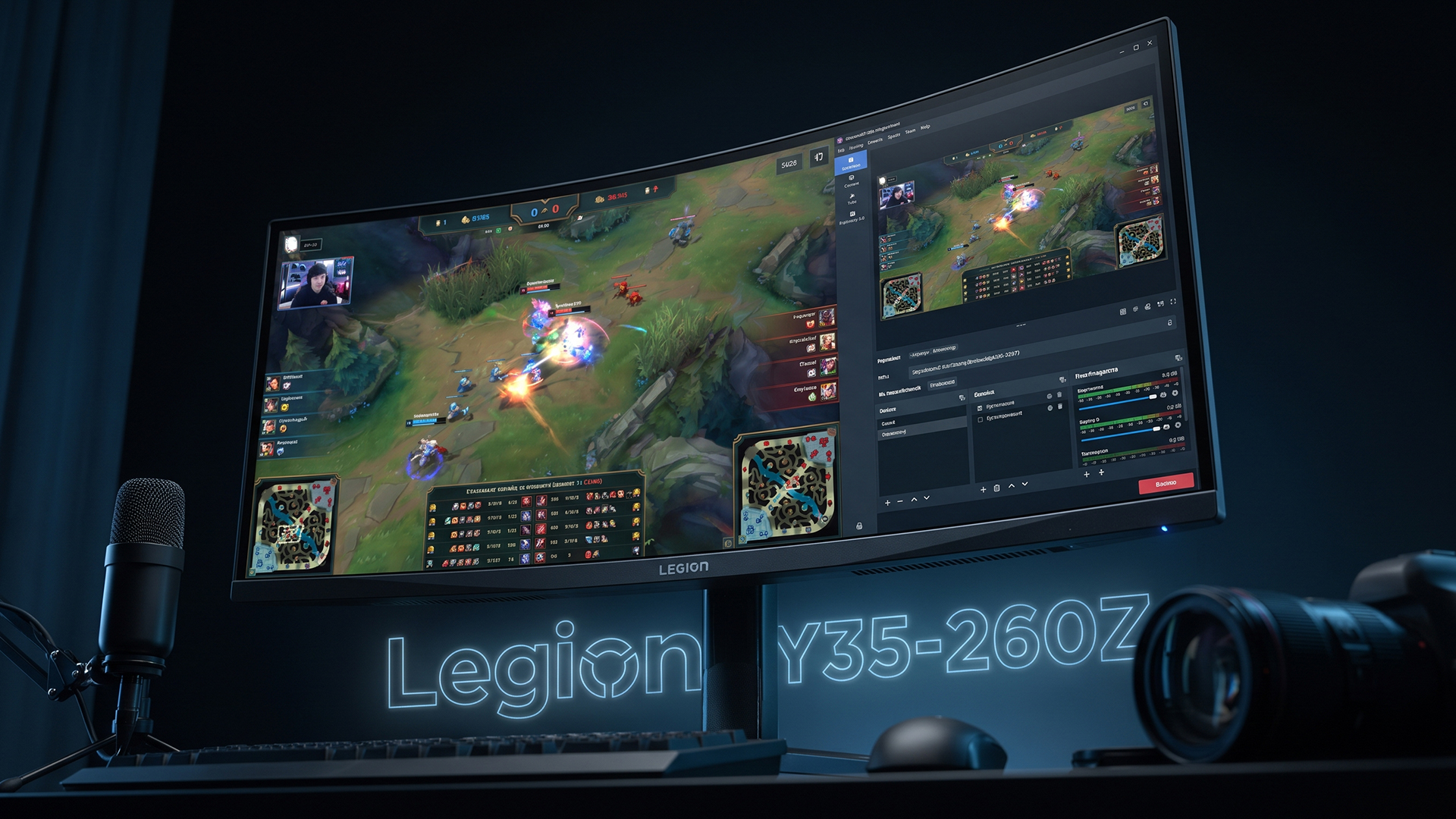
- Treating ultrawide as automatically better for streaming: more desktop space can complicate capture framing and game compatibility.
- Ignoring the selected Windows refresh rate: a high-refresh monitor can still operate at a lower setting.
- Expecting viewers to see the panel refresh rate: broadcast smoothness depends on the stream’s output frame rate, bitrate, encoder and playback conditions.

Choose the Workflow First, Then the Monitor
The right Lenovo gaming monitor for streaming and esports is not simply the one with the highest refresh rate or resolution. It is the display that fits the games you play, the frame rate your PC sustains while encoding, the controls you need to see and the connections your setup can support.
Once you know which screen profile fits, browse Lenovo gaming monitors for streaming and competitive PC setups and verify the live specification, included stand, ports, condition and warranty on the individual listing before ordering.
Technical review note: Guidance was checked against official Lenovo, Microsoft, NVIDIA, AMD and OBS documentation on 18 August 2026. Product features and software interfaces can change, so confirm the exact model manual and current support page during publication reviews.

What people Also Ask about Lenovo Gaming Monitors
Is 165Hz enough for streaming and esports?
Yes for many players. A stable 165Hz display is a strong fit for competitive and general gaming, especially when the PC does not sustain 240fps while streaming. Players who consistently produce much higher frame rates may benefit from 240Hz or above.
Is Full HD or QHD better for an esports stream?
Full HD reduces GPU demand and can help a system reach higher frame rates. QHD gives a sharper 27-inch image and more desktop space. Choose based on tested performance while the encoder is active, not the game running by itself.
Do I need two monitors to stream?
No. One monitor can work with careful scene and window management. Two screens are more convenient because the game can remain on the main display while OBS, chat and alerts stay visible on the second.
Is a curved Lenovo monitor good for esports?
It can be, but curvature is not an esports performance feature by itself. Competitive players often prefer a smaller flat 16:9 display for easy scanning, while curved ultrawides are more useful for immersion and one-screen production space.
Will a 240Hz monitor make my stream look smoother to viewers?
Not by itself. A 240Hz display can make local gameplay feel smoother, but viewers receive the frame rate and bitrate configured in the streaming platform and encoder.
Does the monitor’s colour accuracy affect the live stream?
The panel does not change the digital frames captured from the game. It affects how accurately you judge colour, brightness and contrast while monitoring or editing. It also matters if the monitor is physically visible on camera.
Which port should I use for a Lenovo gaming monitor?
Use the port that supports your target resolution, refresh rate and VRR on the exact model. DisplayPort is common for high-refresh PCs, while HDMI is common for consoles and capture hardware. The version, cable and connected device all matter.
Related Articles

Published: April 28, 2026
If you spend the better part of your working day staring at a screen, you already know what digital eye strain feels like. That dull ache behind your eyes, the heaviness by mid-afternoon, the headache that creeps in by the end of a long session. You are not alone in that, and it is not just "screen time." It is often a combination of poor monitor settings, bad posture, and a setup that was never properly dialled in.
The good news is that LG has put real thought into tackling these problems at the hardware and software level. This guide walks you through every LG monitor eye care feature worth knowing about, how to set your screen up properly, and which models are genuinely worth considering if comfort is a priority for you.
Why Do Eye-Care and Ergonomics Actually Matter with Modern Monitors?
You might think that modern screens are already comfortable enough out of the box. The reality is that even a high-quality monitor, poorly positioned and left on factory settings, can cause very real
Last Updated: September 01, 2026
If you want smooth gameplay without jumping straight into premium OLED pricing, Acer Nitro gaming monitors are one of the easiest ranges to shortlist. Acer positions the Nitro line as a gaming family with options for fast-paced play, ultrawide immersion and richer colour, while Our Acer monitor range backs that up with Full HD, QHD, curved and ultrawide Nitro models aimed at buyers who want value, not just spec-sheet flexing.
That is exactly why Acer Nitro monitors UK shoppers keep coming back to the series. The range is broad enough to cover casual desk gaming, PS5 and Xbox setups, and entry-level PC esports, but it still stays realistic on price compared with high-end Predator and OLED alternatives. Nitro models from compact 23.8-inch Full HD panels up to 34-inch curved UWQHD displays, with refresh rates running from 120Hz to 240Hz.
Are Acer Nitro Gaming Monitors Good for Budget Gaming?
Yes. For casual gaming, console play and entry-level PC builds, Acer Nitro sits in a very practical
Last Updated: July 06, 2026
you are shopping for Acer Predator gaming monitors, you are usually not looking for a basic panel. You are looking for speed, image quality and a monitor that genuinely fits the kind of games you play. For some buyers, that means a fast 27-inch display for ranked shooters and esports titles. For others, it means a bigger 4K panel for high-detail single-player games. And for enthusiasts building the kind of setup that makes every desk photo look dramatic, it means an ultrawide or super-ultrawide screen that turns a gaming PC into the centrepiece of the room.
That is why Predator remains such an interesting range. Acer's broader monitor line covers different budgets and uses cases, but the Predator family is where Acer pushes harder on premium gaming features like OLED and QD-OLED panels, very high refresh rates, ultrawide formats and esports-level response times.
If you want the simple answer: Why choose Acer Predator monitor
Here is the short version.
- For competitive esports and fast shooters,
Last Updated: May 20, 2026
HDR is one of those monitor specs that sounds instantly premium. You see it on gaming monitors, 4K displays, creator screens, and even some budget monitors. But here’s the plot twist: not every HDR monitor gives you that “wow, this looks unreal” experience.
Some HDR displays look bright, rich and cinematic. Others technically support HDR but barely look different from standard mode. Bit awkward. So, what is HDR on a monitor, how does it work, and is HDR actually worth paying for? This complete HDR monitor explained guide breaks it all down in plain English, so you can shop smarter and avoid getting finessed by shiny spec labels.
What Does HDR Mean on a Monitor?
HDR stands for High Dynamic Range.
On a monitor, HDR is designed to show a wider range of brightness, contrast and colour than a standard SDR display. In simple terms, it helps bright areas look brighter, dark areas look deeper and colours look richer when you are watching or playing HDR-supported content.
So, when someone asks,
Last Updated: August 24, 2026
Buying a monitor should be simple. Pick a screen, plug it in, done. Except the second you start shopping, you’re hit with Full HD, QHD, 4K Ultra HD, 60Hz, 144Hz, 240Hz, IPS, VA, response time, HDMI, DisplayPort and about 47 other things that sound like they belong in a sci-fi film.
So, let’s make it easy.
This monitors & displays guide breaks down the two specs that matter most for most buyers: resolution and refresh rate. Whether you’re building a gaming setup, upgrading your home office, sorting a uni desk, editing content or just replacing an old screen that’s seen better days, this guide will help you choose the right monitor without getting finessed by big numbers.
Quick Answer: What Resolution and Refresh Rate Should You Choose?
Here’s the no-stress version.
| What You Use it For | Best Resolution | Best Refresh Rate | Best Monitor Type |
| Everyday browsing, emails and admin | Full HD | 60Hz–100Hz | Budget monitor |
| Studying or home office work | Full HD or QHD | 75Hz–120Hz | Productivity monitor |
| Multitasking |
Last Updated: August 24, 2026
One screen is fine. Two screens? That is where your setup starts feeling seriously organised. Whether you are working from home, studying, gaming, editing, coding or just tired of switching between 27 tabs every five seconds, a dual monitor setup can make your desk feel cleaner and your workflow feel smoother.
The good news is that learning how to set up dual monitors is not as complicated as it sounds. You just need the right monitors, the correct cables or adapters, and a few display settings adjusted properly. This complete guide explains how to connect two monitors, how to set up dual monitors on Windows, how to set up dual monitors with a laptop, and how to get the best layout for work, study, gaming and everyday use.
How Do You Set Up Dual Monitors?
Here is the simple version.
To set up dual monitors, connect both screens to your laptop or desktop PC using HDMI, DisplayPort, USB-C, Thunderbolt or a compatible docking station. Then open your display settings, choose Extend these displays
Last Updated: September 03, 2026
Ultrawide monitors look seriously clean on a desk. One big screen, loads of horizontal space, fewer bezels, and that “main character workstation” vibe. But are they actually useful, or are they just a pricey way to make your setup look dramatic?
If you are asking, “is an ultrawide monitor worth it?”, the answer is: yes, for the right person. An ultrawide screen monitor can be a massive upgrade for multitasking, gaming, editing, streaming, and hybrid work. But it is not the perfect choice for everyone. This complete ultrawide monitor buying guide breaks down the benefits, drawbacks, best use cases and key specs to check before you buy.
Are Ultrawide Monitors Worth it in 2026?
Yes, ultrawide monitors are worth it in 2026 if you want more horizontal workspace, better multitasking, immersive gaming or a cleaner alternative to dual monitors. They are especially worth it for:
- Hybrid workers
- Multitaskers
- Gamers
- Video editors
- Designers
- Streamers
- Coders
- Finance and dashboard users
- Anyone who wants
Last Updated: May 20, 2026
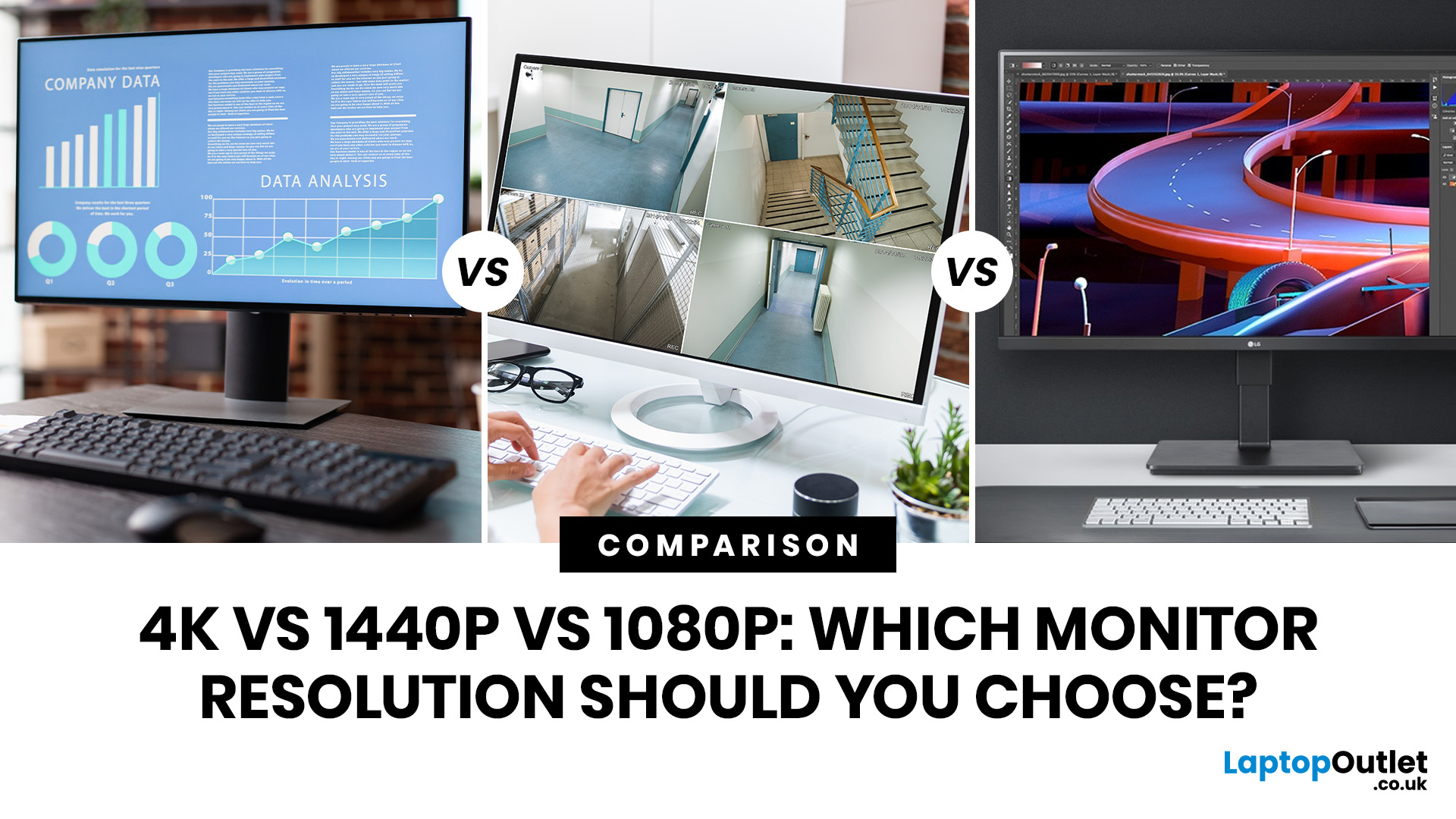
Choosing a monitor resolution should be simple, right? You pick a screen, plug it in, and get on with your day. Except the moment you start shopping, you get hit with 1080p, 1440p, QHD, 4K, Ultra HD, scaling, refresh rates and a whole lot of spec-sheet chaos.
So, which one should you actually buy?
This guide breaks down the 4K vs 1440p vs 1080p monitor debate in plain English. Whether you need a screen for gaming, work, studying, streaming, editing or a bit of everything, we’ll help you choose the right resolution without overpaying for pixels you do not need.
Quick Answer: 1080p vs 1440p vs 4K Monitor
Here’s the no-drama answer.
| User Type | Best Resolution | Why |
| Budget buyers | 1080p / Full HD | Affordable, reliable and easy to run |
| Students | 1080p or 1440p | Good value with enough clarity for study |
| Home office users | 1440p / QHD | Sharper text and better multitasking |
| Hybrid workers | 1440p or 4K | More screen space for apps and documents |
| Casual gamers | 1080p or 1440p | Good mix of smoothness, price and quality |
Last Updated: June 10, 2026
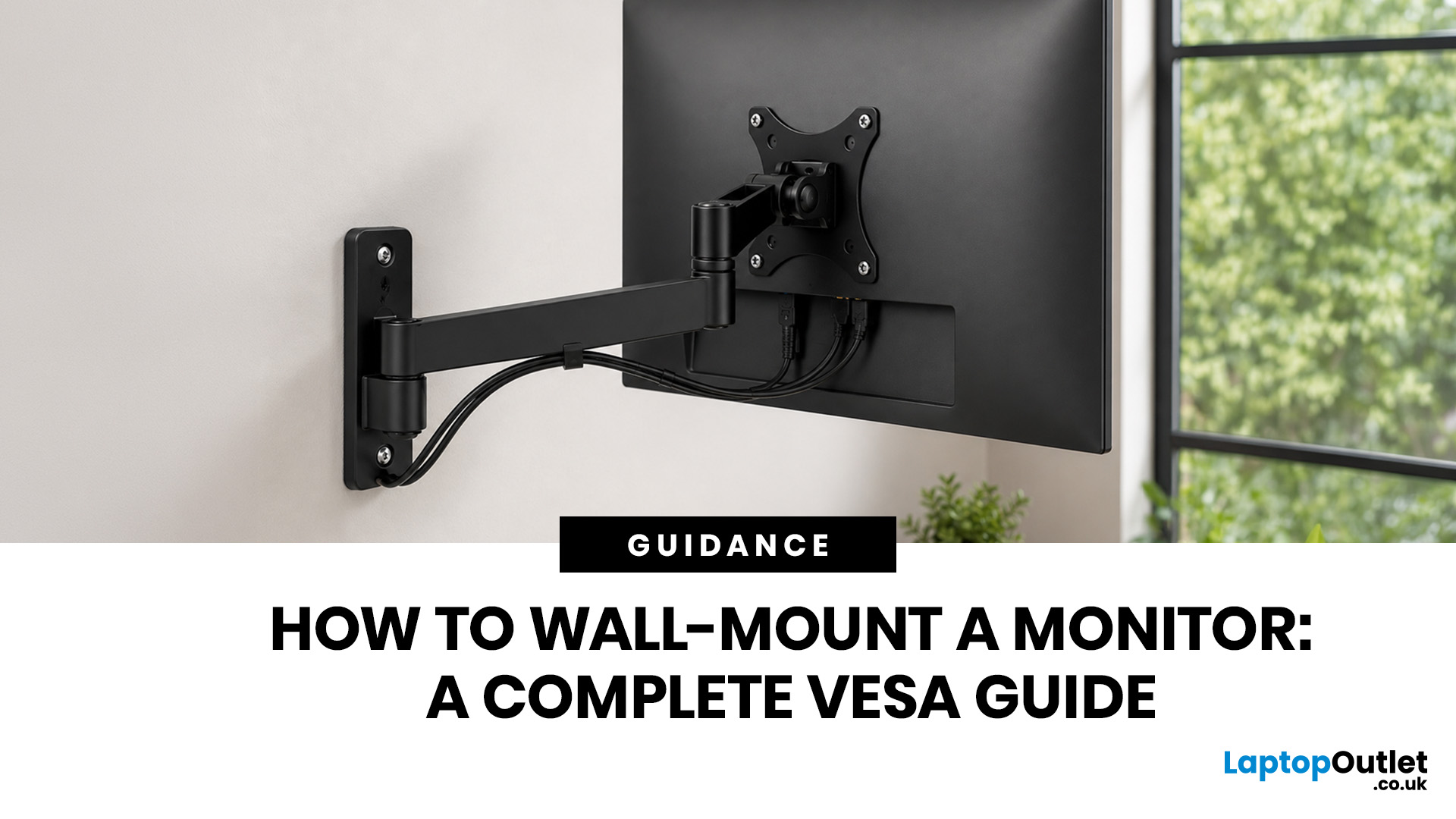
Quick Answer: Wall-mounting a monitor is worth it if you want to save desk space, improve posture and create a cleaner setup. Before you start, check that your monitor supports VESA mounting, confirm the correct VESA mounting pattern, choose a wall mount that supports your monitor’s weight, and make sure your wall can safely hold it. This VESA mount monitor guide explains what VESA mounting is, how to check compatibility, what tools you need, and how to wall mount a monitor safely step by step.
Wall-mounting a monitor can make your setup look instantly cleaner. No bulky stand. More desk space. Better cable management. A screen that actually sits at the right height instead of forcing your neck into questionable positions. Before you grab a drill and start making holes in the wall like you’re on a home renovation show, there are a few things to check. Not every monitor can be mounted, not every wall is suitable, and not every mount fits every screen.
What is VESA Mounting?
VESA mounting
Last Updated: June 10, 2026
Quick Answer: Yes, touch screen monitors are worth it if you need a more interactive display for work, business, education, presentations, creative tasks or customer-facing setups. They let you tap, swipe, scroll, zoom and sometimes draw directly on the screen, which can feel much more natural than using only a mouse and keyboard.
A touch screen monitor sounds cool. You can tap apps, swipe through pages, pinch to zoom, sign documents, control presentations and interact with your PC like it is a giant tablet. Very futuristic. Very clean setup energy. But before you spend extra, it is worth asking: should I buy a touch screen monitor, or would a standard display do the job better?
The answer depends on how you use your computer. For business, education, creative work and interactive setups, touch can be genuinely useful. For spreadsheets, typing, gaming and everyday browsing, it may be more of a nice bonus than a must-have. This touch screen monitor buying guide breaks down the benefits,

