



Ultrawide vs 4K Monitor for Gaming: Which One Should You Choose in 2026?
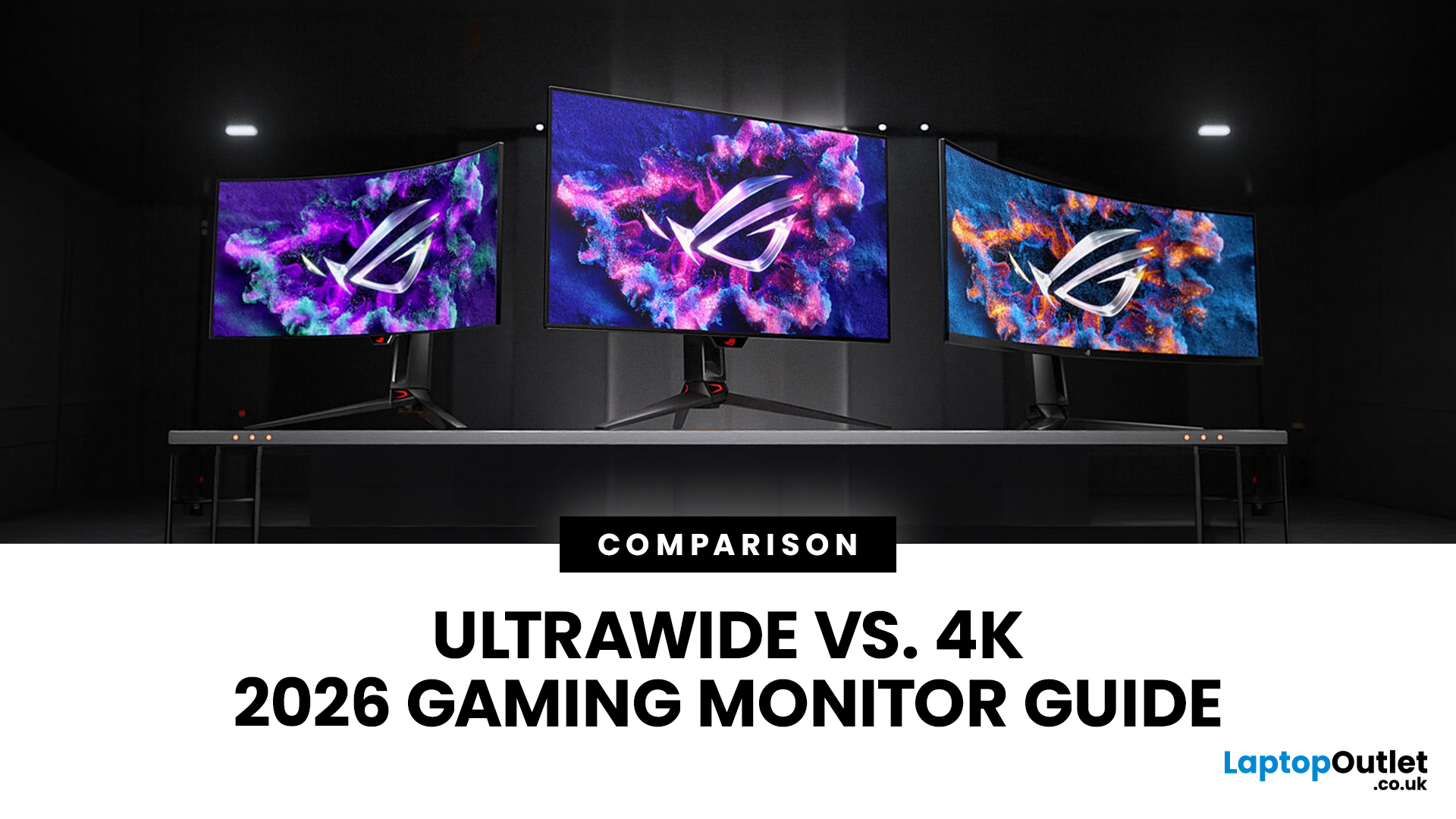
Choosing between an Ultrawide vs 4K monitor is one of the biggest decisions for gamers upgrading their setup in 2026. Both options can transform your gaming experience, but they do it in very different ways. The right choice depends on your games, GPU, desk space and budget, as well as whether you prioritise immersive gameplay or sharper resolution. This gaming monitor guide compares ultrawide and 4K displays across performance, game genres, GPU requirements, refresh rates, response time, and overall value.
Ultrawide vs 4K Monitor: Quick Comparison
|
Feature |
Ultrawide Gaming Monitor |
4K Gaming Monitor |
|
Best for |
Immersion, racing, RPGs, simulators, multitasking |
Sharp visuals, AAA games, console gaming, creative use |
|
Common aspect ratio |
21:9 or 32:9 |
16:9 |
|
Main strength |
Wider field of view |
Higher pixel density |
|
Image sharpness |
Very good, especially at 3440 x 1440 |
Excellent at 3840 x 2160 |
|
GPU demand |
Moderate to high |
Very high |
|
Competitive gaming |
Good with high refresh rate |
Good, but harder to drive at high FPS |
|
Desk space |
Needs wider desk |
Easier to fit in standard setups |
|
Best buyer |
Gamers who want immersion |
Gamers who want maximum detail |
In simple terms, ultrawide is usually better for immersion, while 4K is usually better for sharpness. Neither is automatically the “best” option for every gamer.
What Makes an Ultrawide Gaming Monitor Different?
An Ultrawide gaming monitor uses a wider screen format than a standard 16:9 display. Most ultrawide monitors use a 21:9 aspect ratio, while some larger super ultrawide models use 32:9.
This wider format gives you more horizontal space on screen. In supported games, that means you can see more of the environment without turning the camera as often. It can make racing games, RPGs, open world games, and flight simulators feel more natural and cinematic.
Furthermore, curved ultrawide gaming monitors can improve this further by wrapping the edges of the display slightly towards your eyes. This helps reduce the feeling of stretching across a large screen and can make long gaming sessions more comfortable.
Why Gamers Choose Ultrawide Displays
For many PC gamers, the best ultrawide gaming monitor is not necessarily the largest or most expensive one. It is the model that balances screen size, resolution, refresh rate, response time, and GPU compatibility. An Ultrawide display is a strong choice if you want:
- A wider field of view in supported games
- More cinematic gameplay
- Better multitasking for work, streaming or browsing
- A cleaner alternative to dual monitors
- Strong immersion without needing a full 4K GPU setup
Why 4K Gaming Monitors Still Dominate Sharp Visuals
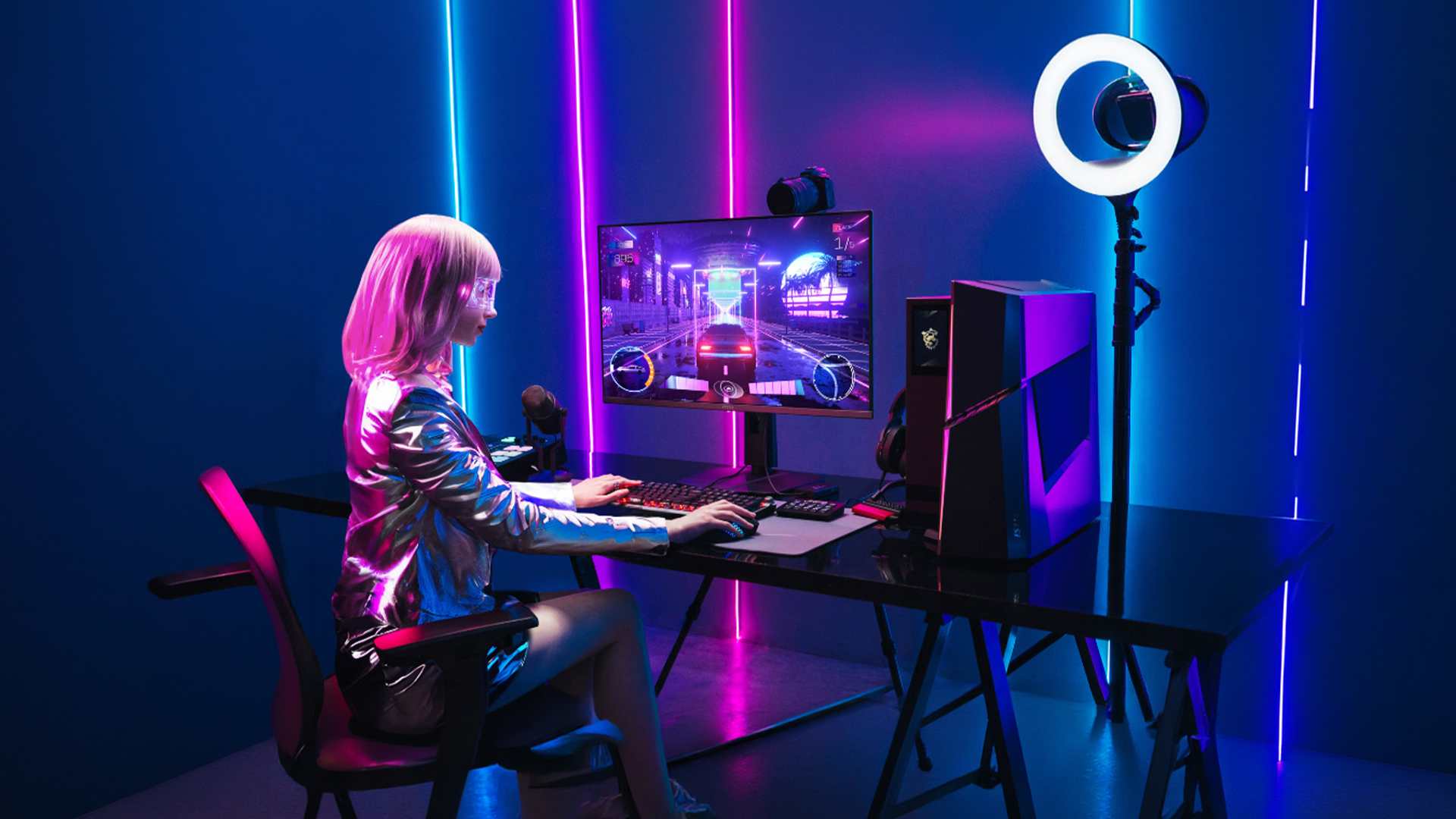
A 4K gaming monitor usually has a resolution of 3840 x 2160 pixels. This gives it four times the pixel count of Full HD and much higher pixel density than many standard gaming monitors.
The biggest advantage is visual clarity. Textures look sharper. Edges appear cleaner. Distant objects are easier to see. In story-driven AAA games, 4K resolution can make landscapes, lighting, characters and effects look more detailed.
A 4K display is also a popular choice for console gaming. Current-generation consoles are designed around 16:9 displays and often target 4K output, making a 4K screen a natural fit.
Why Gamers Choose 4K Resolution
A 4K gaming monitor is ideal if you want:
- Maximum image sharpness
- Crisp details in AAA games
- Strong support for console gaming
- A standard 16:9 screen layout
- A monitor that also works well for films, editing and productivity
Ultrawide vs 4K Monitor for Gaming Performance
Performance is where the Ultrawide vs 4K monitor debate becomes more practical.
The best 4K gaming monitor has around 8.3 million pixels. A common 3440 x 1440 ultrawide monitor has around 5 million pixels. That means 4K asks the GPU to process far more pixels per frame. As a result, 4K gaming is usually more demanding than ultrawide gaming at 3440 x 1440.
This does not mean ultrawide is easy to run. A 144Hz ultrawide monitor still needs a capable GPU, especially in modern AAA titles. However, if you compare 3440 x 1440 ultrawide against 3840 x 2160 4K, the 4K display usually places the heavier load on your graphics card.
Performance Summary
|
Setup |
Pixel Count |
GPU Demand |
|
2560 x 1080 ultrawide |
~2.7M |
Moderate |
|
3440 x 1440 ultrawide |
~5M |
High |
|
3840 x 2160 4K |
~8.3M |
Very high |
|
5120 x 2160 4K ultrawide |
~11M |
Extremely high |
A 4k Ultrawide gaming monitor can offer both width and sharpness, but it is one of the most demanding options. It suits premium gaming PCs with powerful GPUs rather than entry-level systems.
Which Monitor Gives You the Most Immersive Gameplay?
Different game types benefit from different monitor strengths. Here is how ultrawide and 4K compare across popular gaming categories.
FPS Games
For FPS games, refresh rate and response time are usually more important than resolution alone. A high refresh rate gaming monitor with low input lag can feel more responsive than a sharper but slower display.
Ultrawide can offer supported FPS titles, which may help with awareness. However, some competitive games limit ultrawide support to keep matches fair. A 4K monitor gives sharper visuals, but driving 4K at high FPS requires a very strong GPU.
Best choice:
For competitive play, prioritise a fast 144Hz or 165Hz+ panel over resolution. Ultrawide suits casual sessions, and 4K ultra HD monitor suits cinematic single-player shooters.
Racing Games
Racing games are one of the best reasons to choose an ultrawide monitor for gaming. The wider aspect ratio helps you see more of the track, cockpit and surrounding cars. A curved ultrawide gaming monitor can make corners, overtakes and cockpit views feel more natural.
A 4K monitor still looks excellent in racing games, especially with detailed cars, weather effects and track textures. However, it does not offer the same horizontal field of view as ultrawide.
RPG Games
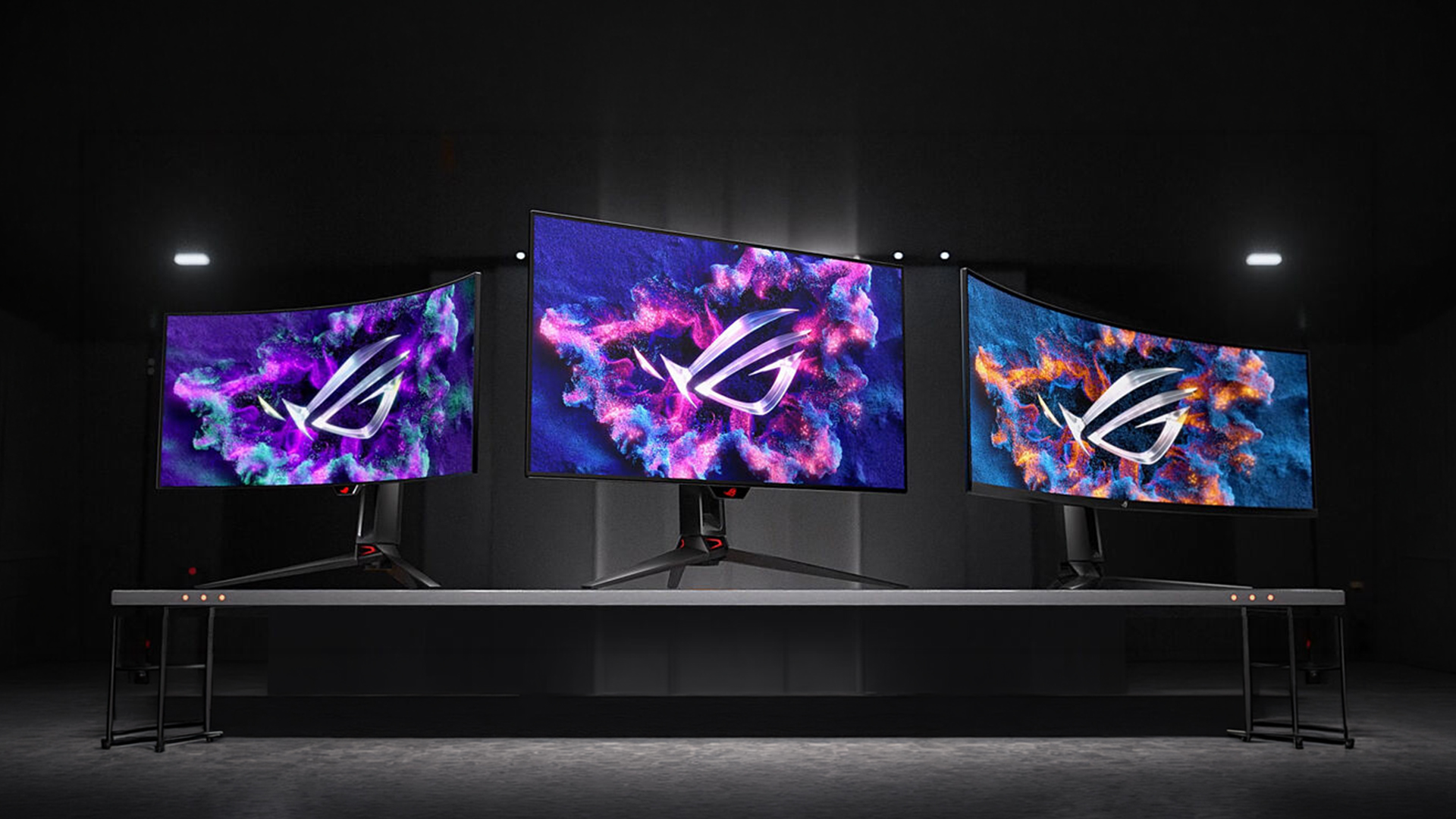
RPGs benefit from both formats. Ultrawide monitors make fantasy worlds feel larger and more cinematic. Wide landscapes, towns and battlefields look impressive when stretched across a 21:9 display.
A 4K gaming monitor makes armour, character models, spell effects and environments look sharper. If you enjoy visually rich single-player RPGs, 4K resolution can make the world feel more detailed.
Open World Games
Open world games are excellent on both monitor types. Ultrawide gives you a broader view of cities, landscapes and roads. It makes exploration feel more cinematic and can reduce the need to move the camera constantly.
4K offers stronger visual clarity. Distant mountains, buildings, foliage and textures look more defined, especially on larger screens.
Flight Simulators
Flight simulators strongly favour ultrawide displays. The extra horizontal space helps with cockpit visibility, instruments and scenery. A curved ultrawide or super ultrawide screen can feel much more natural than a standard 16:9 display.
4K is still excellent for cockpit detail and scenery clarity, but it may not feel as expansive unless you choose a very large display.
Strategy Games
Strategy games benefit from extra screen space. Ultrawide monitors let you see more of the battlefield, map or interface at once. This can make city builders, RTS games and grand strategy titles more comfortable to play.
4K monitors also work well because the higher pixel density keeps small units, text and interface elements sharper. However, some games may require scaling adjustments to keep menus readable.
Which Monitor Should You Pair RTX 4060, RTX 4070 and RTX 5070?
Your graphics card should heavily influence your monitor choice. Buying a premium 4K display is not ideal if your GPU cannot deliver smooth frame rates at 4K resolution.
RTX 4060
The RTX 4060 suits 1080p and lighter 1440p gaming rather than 4K. NVIDIA positions it as a 1080p-focused card. It pairs best with 1080p high-refresh monitors or a 2560 x 1080 ultrawide; running 3440 x 1440 will usually need reduced settings or upscaling.
RTX 4070
The RTX 4070 is a stronger option for 1440p and ultrawide gaming. NVIDIA positioned the RTX 4070 as a GPU that can max out games at 1440p, which makes it a sensible match for 3440 x 1440 ultrawide displays.
RTX 5070
The RTX 5070 is a more future-focused choice for 2026 gaming setups. NVIDIA’s RTX 5070 family uses the newer Blackwell architecture and DLSS 4, while NVIDIA also claims the RTX 5070 offers improved traditional raster performance over the previous generation.
Radeon Alternatives
AMD Radeon cards are also strong options for ultrawide and 4K gaming. The Radeon RX 7800 XT is described by AMD as an “ultimate 1440p” card with 16GB of memory and the ability to jump into 4K, making it a good match for 1440p and ultrawide gaming.
For higher-end 4K gaming, the Radeon RX 7900 XT is positioned by AMD for 4K and beyond, making it more suitable for demanding high-resolution setups. AMD’s newer Radeon RX 9000 Series cards are built on RDNA 4 and aimed at ultra-fast gaming with modern features, while models such as the RX 9070 XT and RX 9060 XT give buyers more current-generation alternatives.
Recommended Graphics Cards for High-Resolution Gaming
|
GPU |
Better Monitor Match |
Notes |
|
RTX 4060 |
1080p or entry ultrawide |
Better for budget gaming than 4K |
|
RTX 4070 |
1440p or 3440 x 1440 ultrawide |
Good balance for ultrawide gaming |
|
RTX 5070 |
Ultrawide or 4K with upscaling |
Stronger 2026-ready option |
|
Radeon RX 7800 XT |
1440p or ultrawide |
Good value for high-resolution PC gaming |
|
Radeon RX 7900 XT |
4K gaming |
Better for demanding 4K setups |
|
Radeon RX 9070 XT |
Ultrawide or 4K |
Modern Radeon option for premium builds |
Ultrawide vs 4K Monitor for Immersive Gameplay
If your main goal is immersion, ultrawide has a clear advantage in many games. The wider screen fills more of your vision, which makes games feel more cinematic and less boxed in.
This is why many players consider a curved ultrawide the best monitor for immersive gaming, especially for racing, simulation, RPG and open world titles.
A 4K display creates immersion differently. Instead of widening your view, it improves detail. The world looks sharper and more refined. This is especially noticeable in visually rich games with high-quality textures, lighting and environments.
Ultrawide vs 4K Monitor for Refresh Rate and Response Time
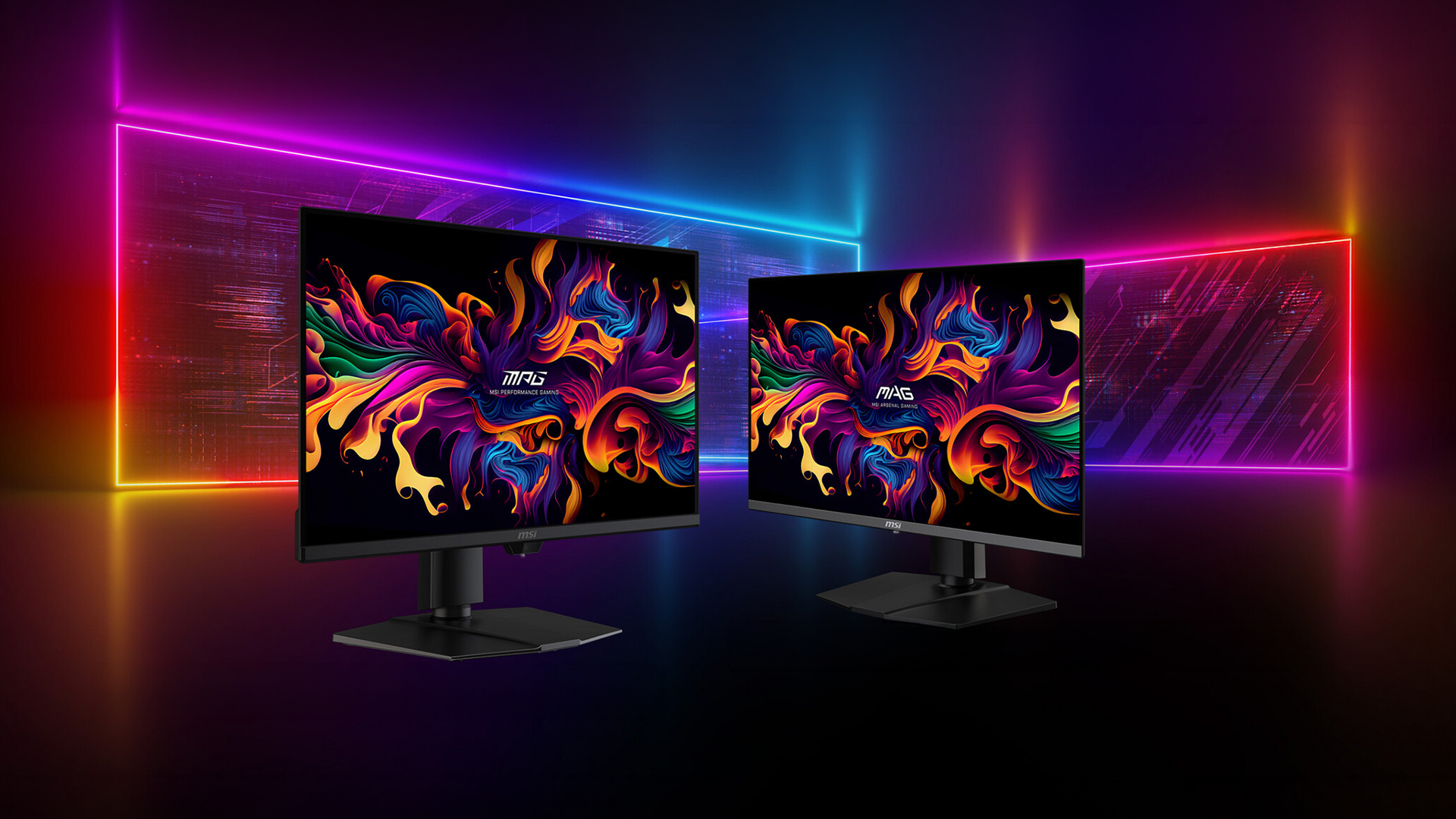
A monitor’s resolution is only part of the gaming experience. Refresh rate and response time are just as important, especially for fast-paced games. A 144Hz gaming monitors can feel much smoother than a 60Hz display. A low response time also helps reduce motion blur and ghosting.
With ultrawide monitors, 144Hz models are widely available and can be easier to drive than 4K at the same refresh rate. With 4K monitors, high refresh rates are available, but they are more demanding and often more expensive.
What Should Gamers Prioritise?
- Competitive gamers should prioritise refresh rate and response time.
- Story gamers should prioritise resolution, panel quality and colour.
- Simulation gamers should prioritise screen size and aspect ratio.
- Console gamers should prioritise 4K, HDMI support and refresh rate.
- Budget gamers should avoid buying more pixels than their GPU can handle.
Curved Ultrawide vs 4K Curved Display: Which Suits Your Setup?
A curved ultrawide gaming monitor often makes more sense than a flat ultrawide because the wide edges sit closer to your natural field of vision. This can make the screen feel more balanced and comfortable.
A 4K curved display can also work well, especially at larger screen sizes. However, the curve is usually less essential on a 16:9 4K monitor than it is on a wide ultrawide display.
A 4k curved screen monitor is worth considering if you want sharp detail, a larger display and a more comfortable viewing angle. For most gamers, though, curved design matters more on ultrawide screens.
Ultrawide vs 4K Monitor for Productivity & Everyday Use
Many buyers use their gaming monitor for work, study, streaming or editing as well as gaming.
An ultrawide display is excellent for productivity because it gives you more horizontal workspace. You can place a browser, document, chat window and streaming software side by side without needing two separate monitors. A 4K monitor is better if you value sharp text, detailed images and creative work. The higher pixel density is useful for photo editing, video editing and reading fine text.

Pros and Cons of Ultrawide Gaming Monitors
Pros
- Wider field of view for a more immersive picture in supported titles
- Great for racing, RPG, strategy and simulator games
- Better multitasking than a standard monitor
- Cleaner than a dual-monitor setup
- Strong option for cinematic PC gaming
Cons
- Not every game supports ultrawide properly
- Larger models need more desk space
- Some competitive games restrict ultrawide advantages
- Super ultrawide models can be expensive
- High refresh rate ultrawide gaming still needs a capable GPU
Pros and Cons of 4K Gaming Monitors
Pros
- Sharper image quality from significantly higher pixel density
- Strong choice for AAA games
- Ideal for PS5 and Xbox Series X gaming
- Great for films, editing and everyday use
- Standard 16:9 support across most games
Cons
- More demanding than most ultrawide resolutions
- High refresh rate 4K monitors can be expensive
- Requires a stronger GPU for smooth performance
- Less horizontal immersion than ultrawide
- Smaller 4K screens may not feel dramatically better unless viewed closely
So, Should You Choose an Ultrawide or 4K Gaming Monitor?
Choose an ultrawide gaming monitor if:
- You play racing games, RPGs, open world games or simulators.
- You want the most cinematic PC gaming experience.
- You like multitasking on one wide screen.
- You have an RTX 4070, RTX 5070, Radeon RX 7800 XT or similar GPU.
- You want strong immersion without the full demand of 4K.
Choose a 4K gaming monitor if:
- You want the sharpest image quality.
- You play AAA games or console games.
- You own a powerful GPU such as an RTX 5070, Radeon RX 7900 XT, RX 9070 XT or better.
- You use your monitor for creative work as well as gaming.
- You prefer a standard 16:9 display.

Wrapping Up
The ultrawide vs 4K monitor choice ultimately depends on whether you prioritise a wider field of view or sharper image quality. Ultrawide gaming monitors deliver immersive, cinematic gameplay and excel in racing, RPGs, open world titles, flight simulators and strategy games, while also supporting multitasking. In contrast, 4K gaming monitors offer superior sharpness, detailed visuals and strong console compatibility, making them ideal for AAA gaming and creative work, though they require a more powerful GPU. For most PC gamers, ultrawide provides balanced performance and value, whereas 4K suits high-end users seeking maximum clarity and visual precision.

In Case You’re Wondering...
Is an ultrawide monitor better than dual monitors?
An ultrawide monitor can be better than dual monitors if you want one clean, continuous display with no bezel gap in the middle. It is excellent for gaming, multitasking and desk organisation. However, dual monitors may still be better if you prefer separating work across two physical screens.
Is an ultrawide monitor good for gaming?
Yes, an ultrawide monitor is very good for gaming, especially if you enjoy immersive gameplay. The wider aspect ratio works particularly well in racing games, RPGs, open world games, strategy games and flight simulators.
What is better for gaming, ultrawide, or dual monitors?
For gaming, ultrawide is usually better than dual monitors because most games are designed to run on one main display. A dual-monitor setup is useful for multitasking, but the bezel between two screens can disrupt gameplay if you try to stretch a game across both.
Are dual monitors better for productivity?
Dual monitors can be better for productivity if you like separating tasks across different screens. However, an ultrawide display can offer a cleaner setup with similar multitasking space, fewer cables and no central bezel.
Related Articles

Last Updated: September 01, 2026
If you want smooth gameplay without jumping straight into premium OLED pricing, Acer Nitro gaming monitors are one of the easiest ranges to shortlist. Acer positions the Nitro line as a gaming family with options for fast-paced play, ultrawide immersion and richer colour, while Our Acer monitor range backs that up with Full HD, QHD, curved and ultrawide Nitro models aimed at buyers who want value, not just spec-sheet flexing.
That is exactly why Acer Nitro monitors UK shoppers keep coming back to the series. The range is broad enough to cover casual desk gaming, PS5 and Xbox setups, and entry-level PC esports, but it still stays realistic on price compared with high-end Predator and OLED alternatives. Nitro models from compact 23.8-inch Full HD panels up to 34-inch curved UWQHD displays, with refresh rates running from 120Hz to 240Hz.
Are Acer Nitro Gaming Monitors Good for Budget Gaming?
Yes. For casual gaming, console play and entry-level PC builds, Acer Nitro sits in a very practical
Last Updated: July 06, 2026
you are shopping for Acer Predator gaming monitors, you are usually not looking for a basic panel. You are looking for speed, image quality and a monitor that genuinely fits the kind of games you play. For some buyers, that means a fast 27-inch display for ranked shooters and esports titles. For others, it means a bigger 4K panel for high-detail single-player games. And for enthusiasts building the kind of setup that makes every desk photo look dramatic, it means an ultrawide or super-ultrawide screen that turns a gaming PC into the centrepiece of the room.
That is why Predator remains such an interesting range. Acer's broader monitor line covers different budgets and uses cases, but the Predator family is where Acer pushes harder on premium gaming features like OLED and QD-OLED panels, very high refresh rates, ultrawide formats and esports-level response times.
If you want the simple answer: Why choose Acer Predator monitor
Here is the short version.
- For competitive esports and fast shooters,
Last Updated: May 20, 2026
HDR is one of those monitor specs that sounds instantly premium. You see it on gaming monitors, 4K displays, creator screens, and even some budget monitors. But here’s the plot twist: not every HDR monitor gives you that “wow, this looks unreal” experience.
Some HDR displays look bright, rich and cinematic. Others technically support HDR but barely look different from standard mode. Bit awkward. So, what is HDR on a monitor, how does it work, and is HDR actually worth paying for? This complete HDR monitor explained guide breaks it all down in plain English, so you can shop smarter and avoid getting finessed by shiny spec labels.
What Does HDR Mean on a Monitor?
HDR stands for High Dynamic Range.
On a monitor, HDR is designed to show a wider range of brightness, contrast and colour than a standard SDR display. In simple terms, it helps bright areas look brighter, dark areas look deeper and colours look richer when you are watching or playing HDR-supported content.
So, when someone asks,
Last Updated: August 24, 2026
Buying a monitor should be simple. Pick a screen, plug it in, done. Except the second you start shopping, you’re hit with Full HD, QHD, 4K Ultra HD, 60Hz, 144Hz, 240Hz, IPS, VA, response time, HDMI, DisplayPort and about 47 other things that sound like they belong in a sci-fi film.
So, let’s make it easy.
This monitors & displays guide breaks down the two specs that matter most for most buyers: resolution and refresh rate. Whether you’re building a gaming setup, upgrading your home office, sorting a uni desk, editing content or just replacing an old screen that’s seen better days, this guide will help you choose the right monitor without getting finessed by big numbers.
Quick Answer: What Resolution and Refresh Rate Should You Choose?
Here’s the no-stress version.
| What You Use it For | Best Resolution | Best Refresh Rate | Best Monitor Type |
| Everyday browsing, emails and admin | Full HD | 60Hz–100Hz | Budget monitor |
| Studying or home office work | Full HD or QHD | 75Hz–120Hz | Productivity monitor |
| Multitasking |
Last Updated: August 24, 2026
One screen is fine. Two screens? That is where your setup starts feeling seriously organised. Whether you are working from home, studying, gaming, editing, coding or just tired of switching between 27 tabs every five seconds, a dual monitor setup can make your desk feel cleaner and your workflow feel smoother.
The good news is that learning how to set up dual monitors is not as complicated as it sounds. You just need the right monitors, the correct cables or adapters, and a few display settings adjusted properly. This complete guide explains how to connect two monitors, how to set up dual monitors on Windows, how to set up dual monitors with a laptop, and how to get the best layout for work, study, gaming and everyday use.
How Do You Set Up Dual Monitors?
Here is the simple version.
To set up dual monitors, connect both screens to your laptop or desktop PC using HDMI, DisplayPort, USB-C, Thunderbolt or a compatible docking station. Then open your display settings, choose Extend these displays
Last Updated: September 03, 2026
Ultrawide monitors look seriously clean on a desk. One big screen, loads of horizontal space, fewer bezels, and that “main character workstation” vibe. But are they actually useful, or are they just a pricey way to make your setup look dramatic?
If you are asking, “is an ultrawide monitor worth it?”, the answer is: yes, for the right person. An ultrawide screen monitor can be a massive upgrade for multitasking, gaming, editing, streaming, and hybrid work. But it is not the perfect choice for everyone. This complete ultrawide monitor buying guide breaks down the benefits, drawbacks, best use cases and key specs to check before you buy.
Are Ultrawide Monitors Worth it in 2026?
Yes, ultrawide monitors are worth it in 2026 if you want more horizontal workspace, better multitasking, immersive gaming or a cleaner alternative to dual monitors. They are especially worth it for:
- Hybrid workers
- Multitaskers
- Gamers
- Video editors
- Designers
- Streamers
- Coders
- Finance and dashboard users
- Anyone who wants
Last Updated: May 20, 2026
Choosing a monitor resolution should be simple, right? You pick a screen, plug it in, and get on with your day. Except the moment you start shopping, you get hit with 1080p, 1440p, QHD, 4K, Ultra HD, scaling, refresh rates and a whole lot of spec-sheet chaos.
So, which one should you actually buy?
This guide breaks down the 4K vs 1440p vs 1080p monitor debate in plain English. Whether you need a screen for gaming, work, studying, streaming, editing or a bit of everything, we’ll help you choose the right resolution without overpaying for pixels you do not need.
Quick Answer: 1080p vs 1440p vs 4K Monitor
Here’s the no-drama answer.
| User Type | Best Resolution | Why |
| Budget buyers | 1080p / Full HD | Affordable, reliable and easy to run |
| Students | 1080p or 1440p | Good value with enough clarity for study |
| Home office users | 1440p / QHD | Sharper text and better multitasking |
| Hybrid workers | 1440p or 4K | More screen space for apps and documents |
| Casual gamers | 1080p or 1440p | Good mix of smoothness, price and quality |
Last Updated: June 10, 2026
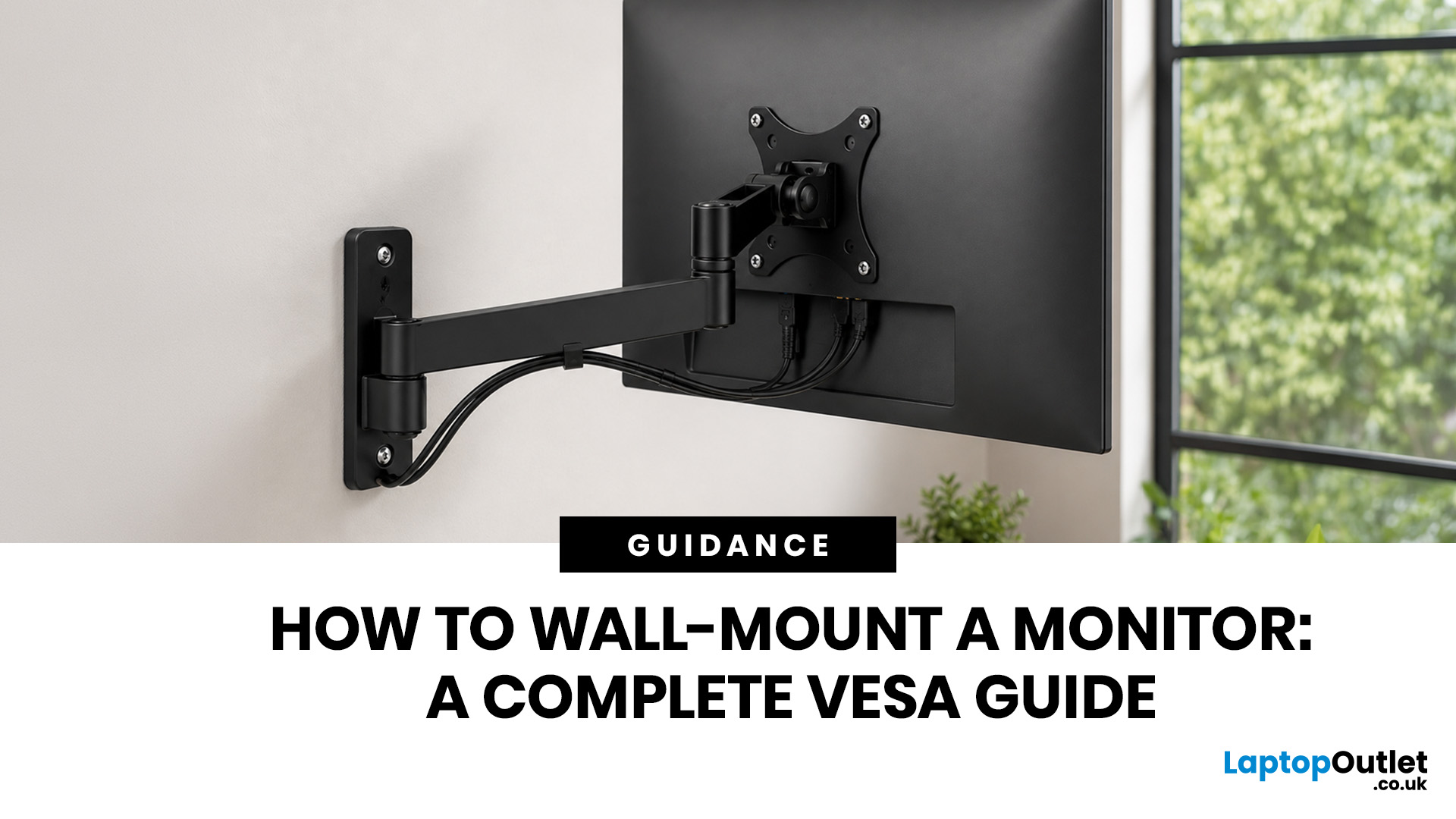
Quick Answer: Wall-mounting a monitor is worth it if you want to save desk space, improve posture and create a cleaner setup. Before you start, check that your monitor supports VESA mounting, confirm the correct VESA mounting pattern, choose a wall mount that supports your monitor’s weight, and make sure your wall can safely hold it. This VESA mount monitor guide explains what VESA mounting is, how to check compatibility, what tools you need, and how to wall mount a monitor safely step by step.
Wall-mounting a monitor can make your setup look instantly cleaner. No bulky stand. More desk space. Better cable management. A screen that actually sits at the right height instead of forcing your neck into questionable positions. Before you grab a drill and start making holes in the wall like you’re on a home renovation show, there are a few things to check. Not every monitor can be mounted, not every wall is suitable, and not every mount fits every screen.
What is VESA Mounting?
VESA mounting
Last Updated: June 10, 2026
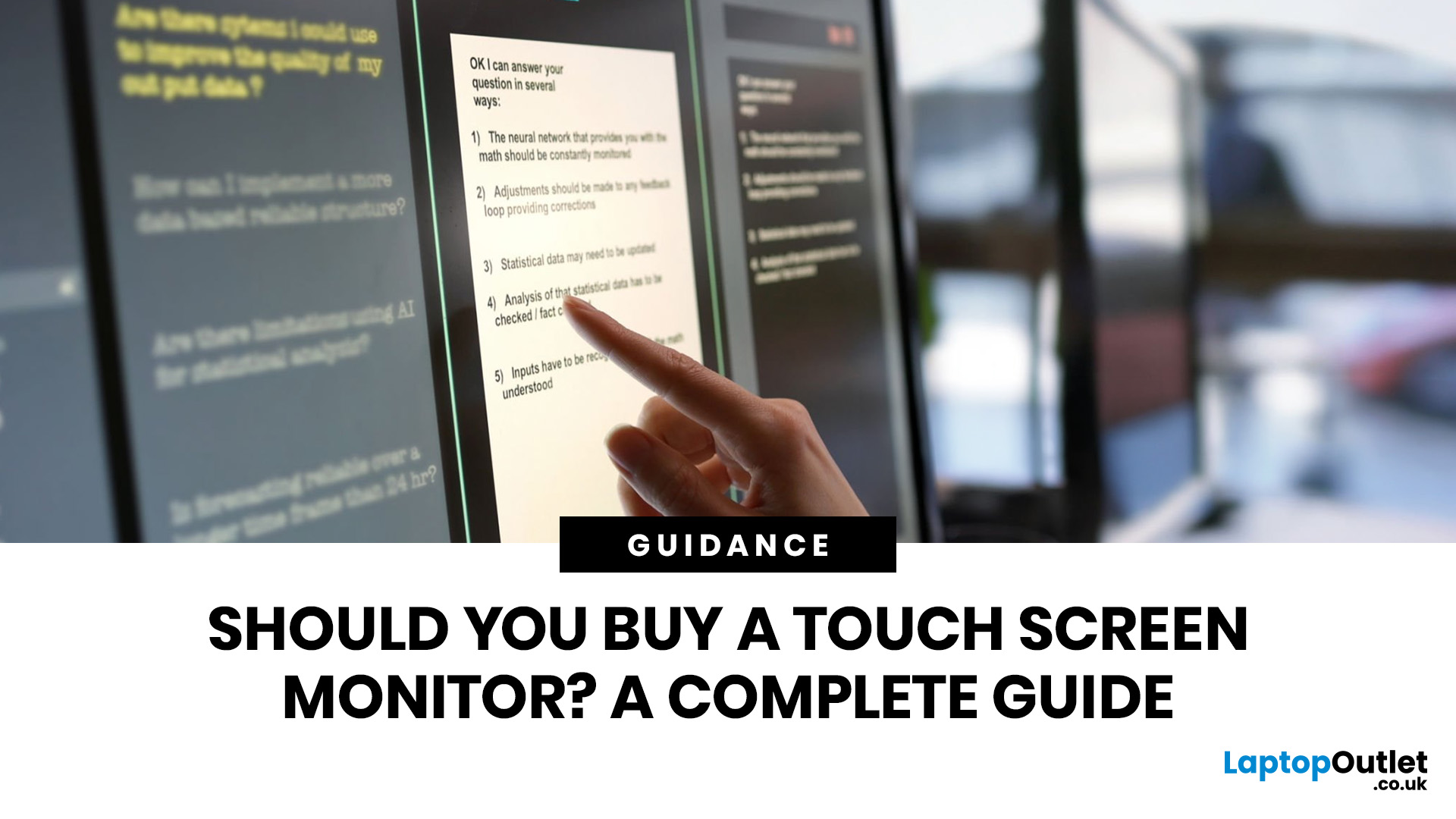
Quick Answer: Yes, touch screen monitors are worth it if you need a more interactive display for work, business, education, presentations, creative tasks or customer-facing setups. They let you tap, swipe, scroll, zoom and sometimes draw directly on the screen, which can feel much more natural than using only a mouse and keyboard.
A touch screen monitor sounds cool. You can tap apps, swipe through pages, pinch to zoom, sign documents, control presentations and interact with your PC like it is a giant tablet. Very futuristic. Very clean setup energy. But before you spend extra, it is worth asking: should I buy a touch screen monitor, or would a standard display do the job better?
The answer depends on how you use your computer. For business, education, creative work and interactive setups, touch can be genuinely useful. For spreadsheets, typing, gaming and everyday browsing, it may be more of a nice bonus than a must-have. This touch screen monitor buying guide breaks down the benefits,
Last Updated: June 10, 2026
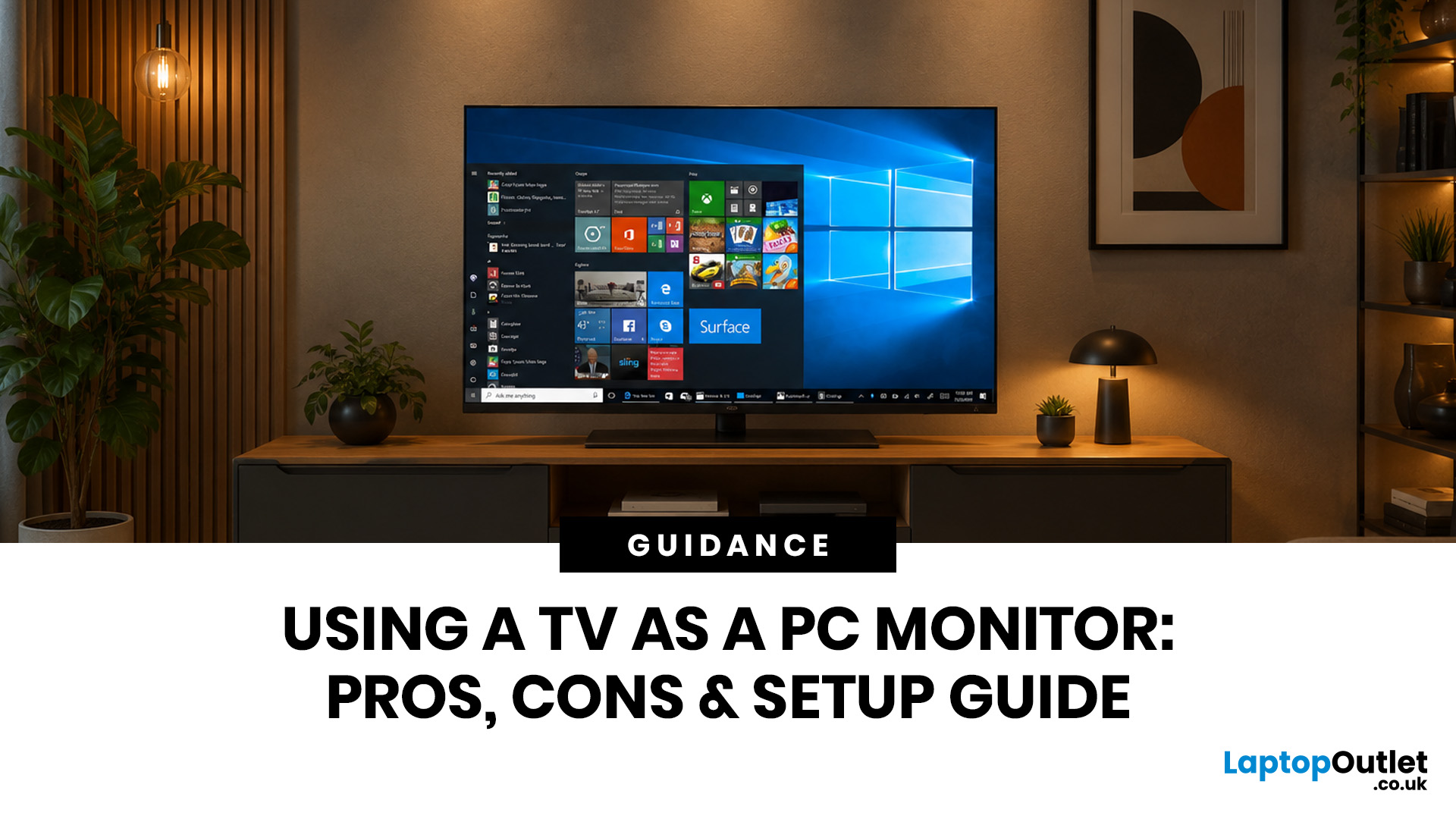
Quick Answer: Yes, you can use TV as PC monitor if your computer and TV have compatible ports, usually HDMI. It works well for films, casual gaming, presentations, sofa browsing and large-screen entertainment. However, using a TV as PC monitor is not always ideal for daily desk work because TVs can have higher input lag, lower pixel density, blurry text up close and fewer ergonomic adjustments than proper monitors. For entertainment and casual use, a TV can be a great option. For work, study, competitive gaming and sharp close-up text, a dedicated monitor is usually the better choice.
Using a big TV as your computer screen sounds like a genius move. Bigger display, built-in speakers, great for Netflix, and you may already have one sitting in the living room. Honestly, it sounds like a setup hack.
Before you plug in your PC and call it a day, there are a few things to know. A TV as computer monitor setup can work brilliantly for some people, especially for media, casual gaming and

