




Blog Categories







September 22, 2026

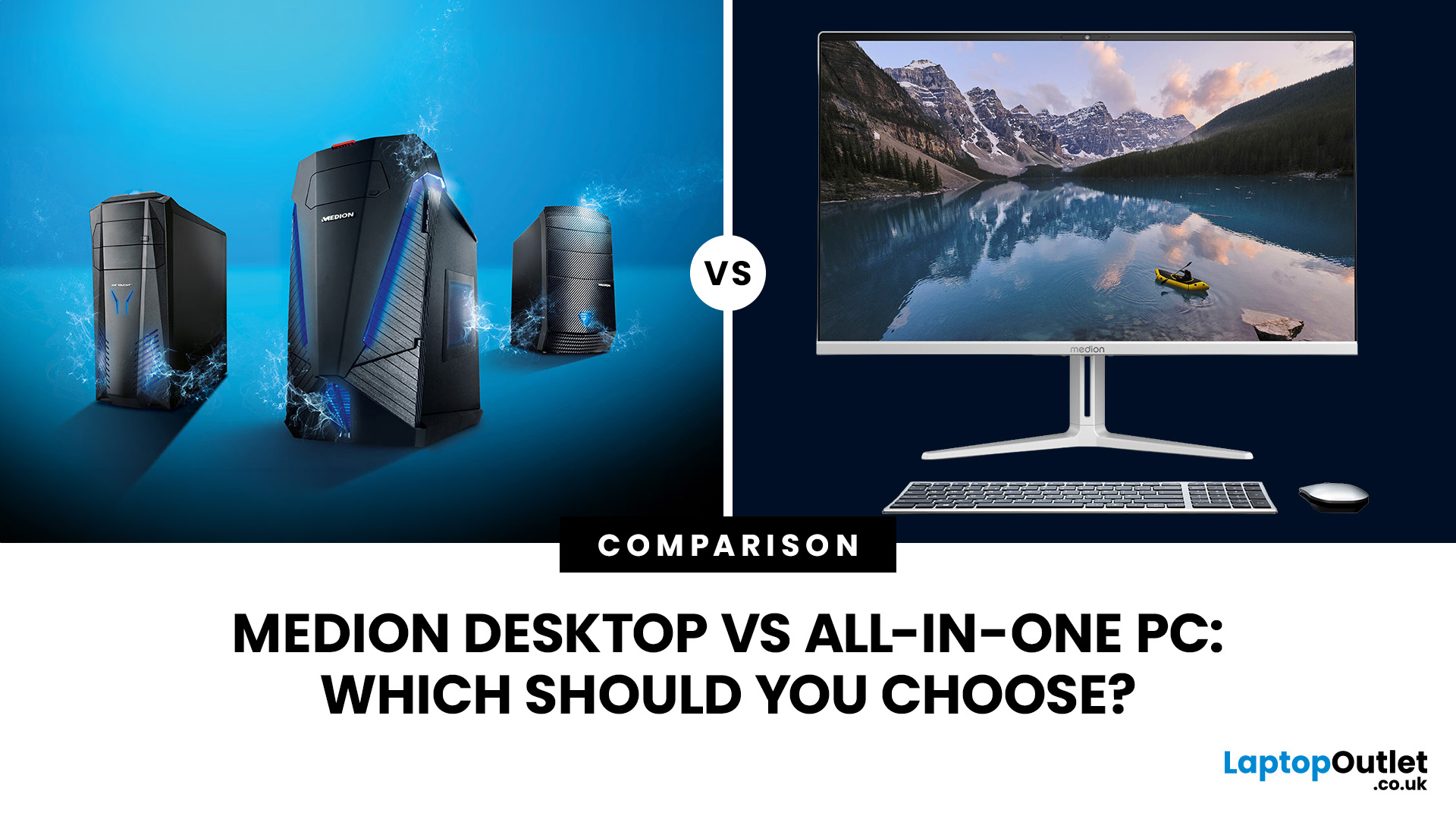
Choosing a Medion computer is not only about processor speed, RAM or storage. Form factor affects desk space, display choice, upgrades, repairs and how easily the system can adapt later.
A Medion desktop PC is usually the better choice if you want greater upgrade flexibility, more display freedom and stronger options for demanding workloads. A Medion all-in-one PC suits users who prioritise a cleaner, space-saving setup with the screen built in. The right choice depends on your performance needs, desk space, upgrade plans and the exact model specifications.
The Medion desktop vs all-in-one PC decision therefore needs more than a simple winner. Both can work well for home, office and family use, but they solve different problems. This guide compares them around real needs so you can choose the setup that fits your space and workload.
Medion Desktop vs All-in-One: The 1-Minute Take
Choose a Medion desktop PC if you want more freedom over the monitor, broader upgrade potential and greater
September 17, 2026
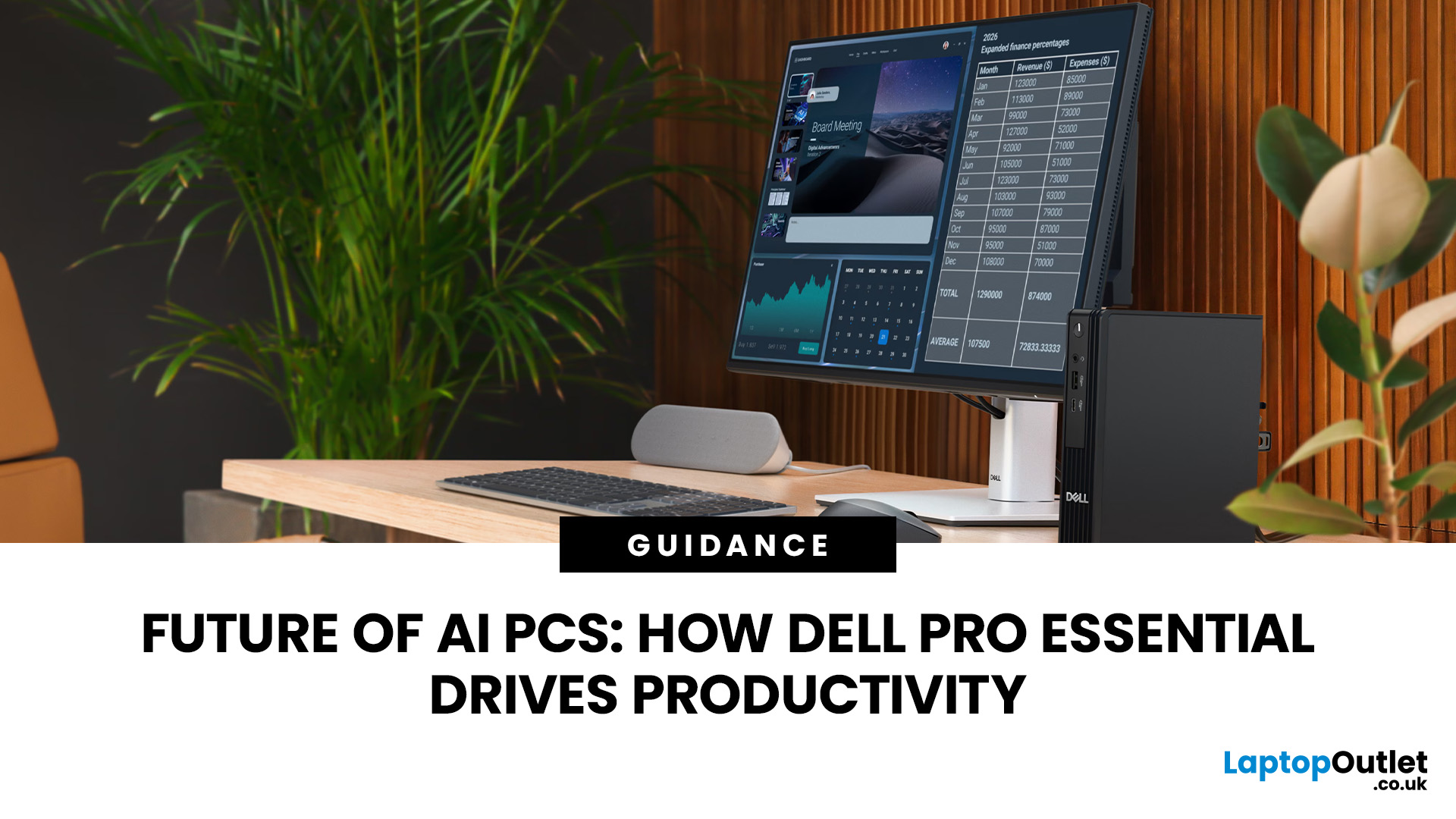
An AI PC differs from a standard business PC by using dedicated hardware, such as an NPU, to accelerate supported AI workloads locally. Standard desktops can still run cloud-based AI services and Microsoft Copilot without an NPU.
Dell Pro Essential desktops are business PCs designed primarily for everyday productivity, not a dedicated AI PC range. Some configurations may include processors with an NPU for on-device AI acceleration, while others do not. Businesses should check the exact processor, NPU capability and workload requirements before deciding between Dell Pro Essential and an AI-ready Dell Pro PC.
For Dell Pro Essential, AI capability depends on the exact processor and configuration. UK businesses should therefore weigh on-device AI needs against everyday performance, security, upgradeability and cost.
What Is an AI PC?
An AI PC is a computer with hardware designed to accelerate artificial intelligence workloads. In addition to the familiar CPU and GPU, many modern AI PCs include
September 15, 2026
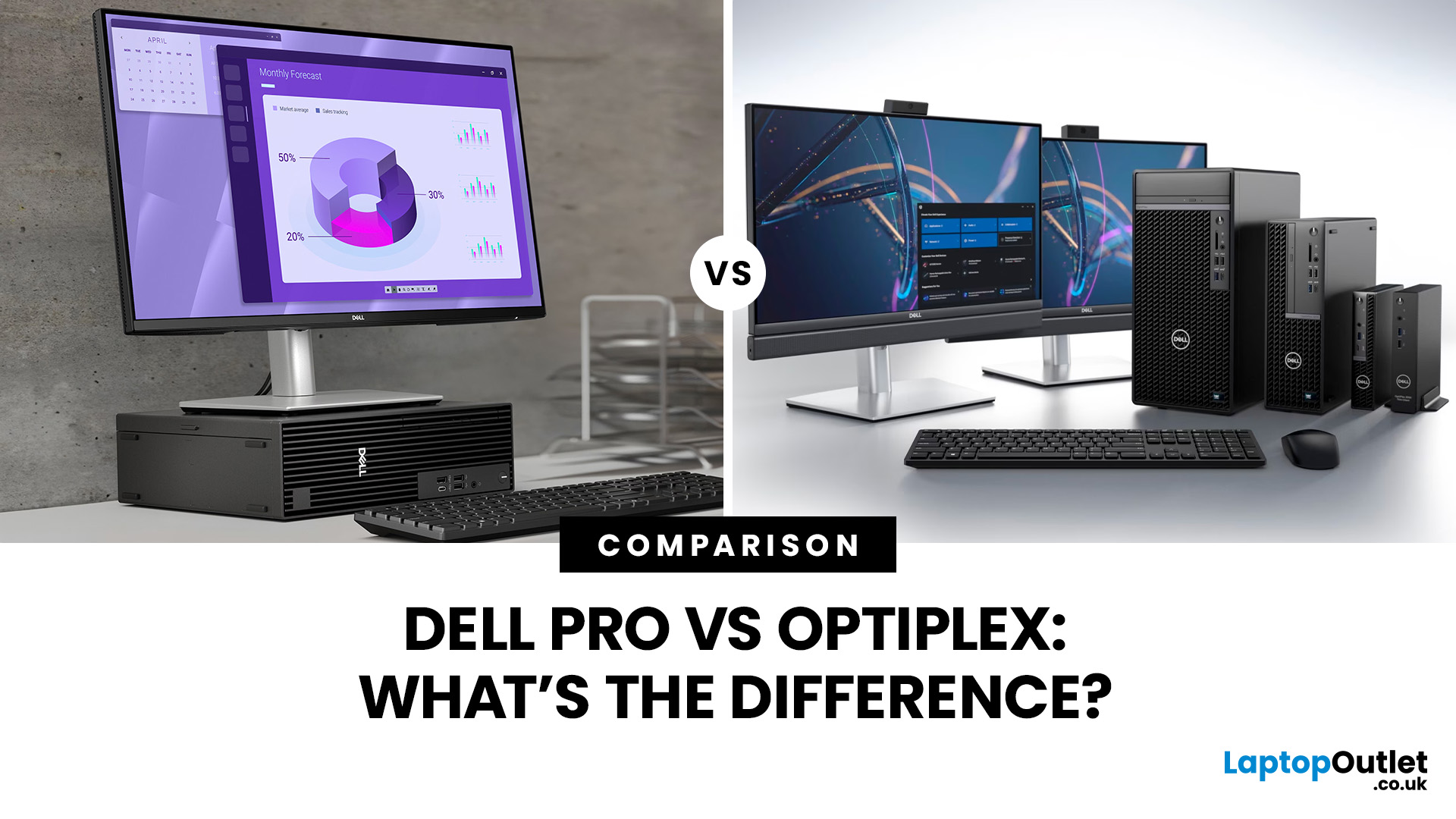
Dell Pro is Dell’s newer professional PC family and has effectively taken over the position previously occupied by OptiPlex for new business desktops.
Dell announced its simplified Dell, Dell Pro and Dell Pro Max portfolio on 6 January 2025. Dell UK now states that OptiPlex desktops are no longer available directly and directs customers towards Dell Pro systems instead.
However, Dell Pro vs OptiPlex is not simply a comparison between a new, faster range and an old, slower one. Recent OptiPlex PCs can still have powerful processors, DDR5 memory, Windows 11 Pro and business security features. The exact model, processor, memory, storage and form factor matter more than the name alone.
Pro vs OptiPlex: Dell Business Computers at a Glance
| Options | Dell Pro | Dell OptiPlex |
| Current status | Dell’s current professional PC family | Legacy business brand no longer sold directly by Dell UK |
| Intended users | Businesses, professional users and managed IT environments | Businesses, offices, education and managed |
August 18, 2026
Choosing the best AMD gaming PC in 2026 is less about buying the fastest processor and more about matching the CPU, GPU, memory and monitor to your target resolution. AMD Ryzen processors scale from efficient integrated-graphics systems for light Full HD gaming to X3D-equipped towers built for demanding AAA titles.
This guide compares six current AMD Ryzen gaming PCs across 1080p, 1440p and 4K use. It explains where each system makes sense, where it has limitations and which games suit its hardware.
Best AMD Gaming PCs at a Glance
The six systems below cover very different levels of gaming performance. That matters because an office-focused PC with integrated graphics should not be judged in the same way as dedicated gaming desktop PCs equipped with RTX graphics.
| PC | Processor | Graphics | RAM | Storage | Best For |
| Lenovo ThinkCentre M75s Gen 2 | Ryzen 5 5600G | Integrated Radeon | 8GB DDR4 | 256GB SSD | Light 1080p gaming |
| Lenovo IdeaCentre AIO 24ARR9 | Ryzen 5 7533HS | Radeon 660M | 16GB DDR5 | 512GB SSD | Casual 1080p |
July 21, 2026
July 21, 2026
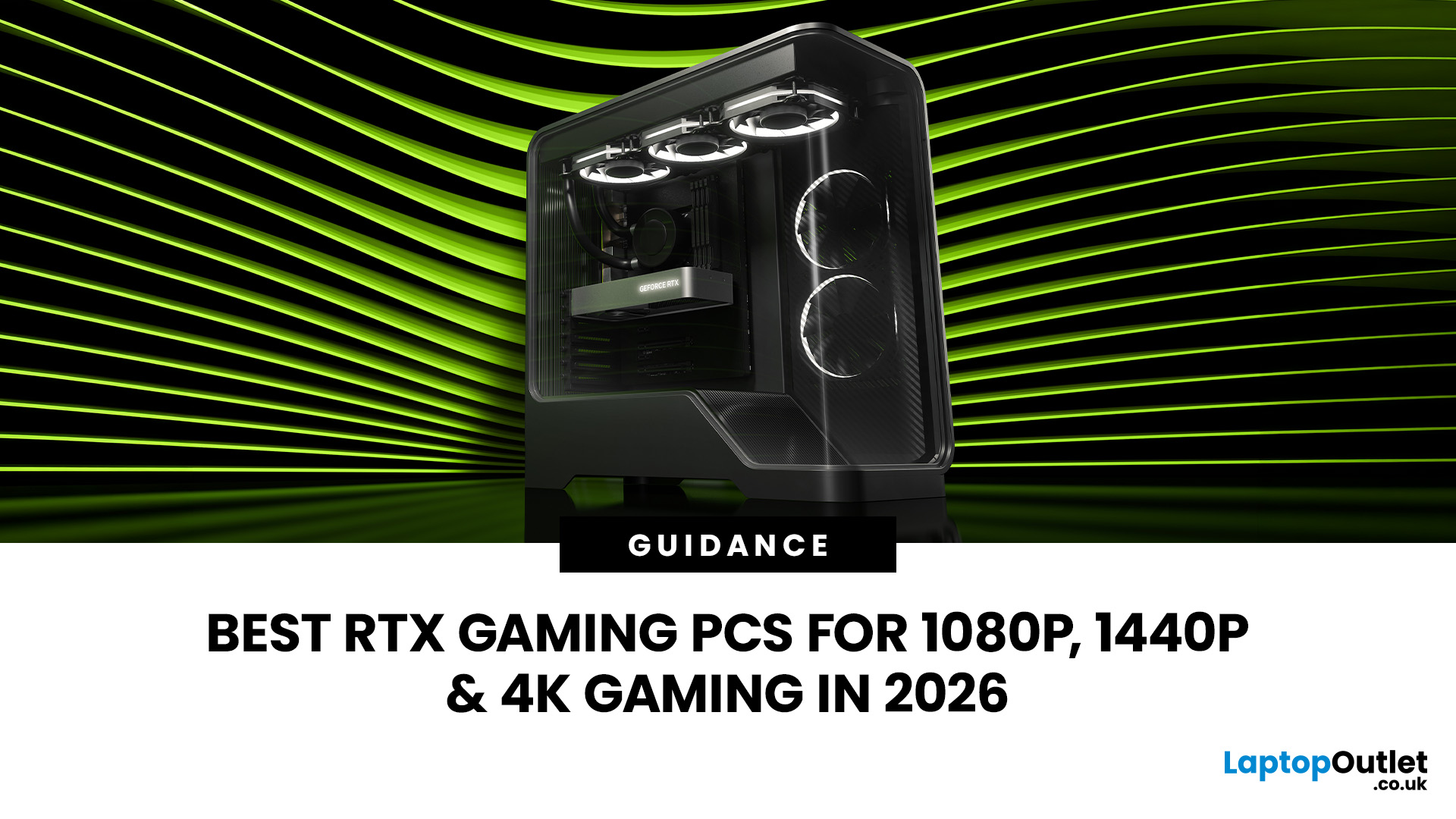
For 1080p, an RTX 5060 is the sensible mainstream pick. For 1440p, step up to an RTX 5060 Ti 16GB or RTX 5070. For 4K, the RTX 5080 is the best-balanced choice for most people, with the RTX 5090 reserved for buyers who genuinely need its 32GB of memory or maximum settings at every resolution.
Picking one of the best RTX gaming PCs isn't about flexing the priciest GPU - it's about matching your rig to your setup and the games you actually play. A competitive player on a 1080p 240Hz display needs strong CPU performance and low latency. Someone playing cinematic single-player games on a 4K screen needs more GPU power, VRAM, and cooling. A 1440p buyer usually wants the strongest balance of image quality, speed, and price.
Getting this right prevents two expensive mistakes: overspending on performance your display can't show, or buying a PC that leans too heavily on generated frames to hit numbers it can't sustain natively. The most common upgrade enquiry we see at Laptop Outlet is from 1080p
September 01, 2026
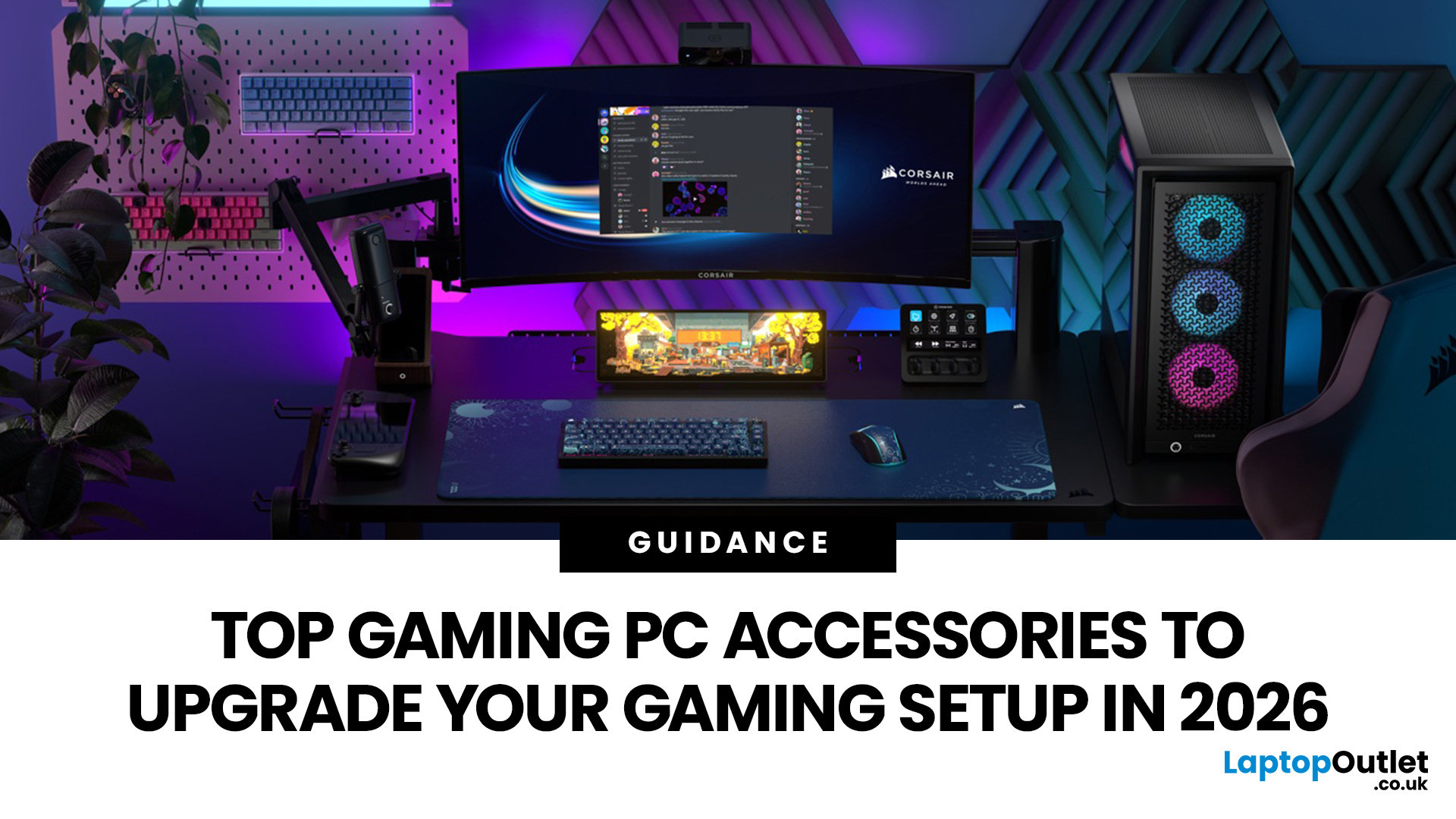
In gaming, your PC is the engine - but your accessories are the steering wheel, tyres, mirrors, and dashboard. You can have all the power in the world, but if your mouse feels sluggish, your monitor looks choppy, your headset misses key sound cues, or your desk is a cable jungle, the whole setup feels off.
Your PC might be built to run the latest games, but your accessories decide how well you actually experience them. A lightweight mouse can sharpen your aim, a mechanical keyboard can clean up your inputs, a gaming headset can help you catch every footstep, and a high refresh rate
September 03, 2026
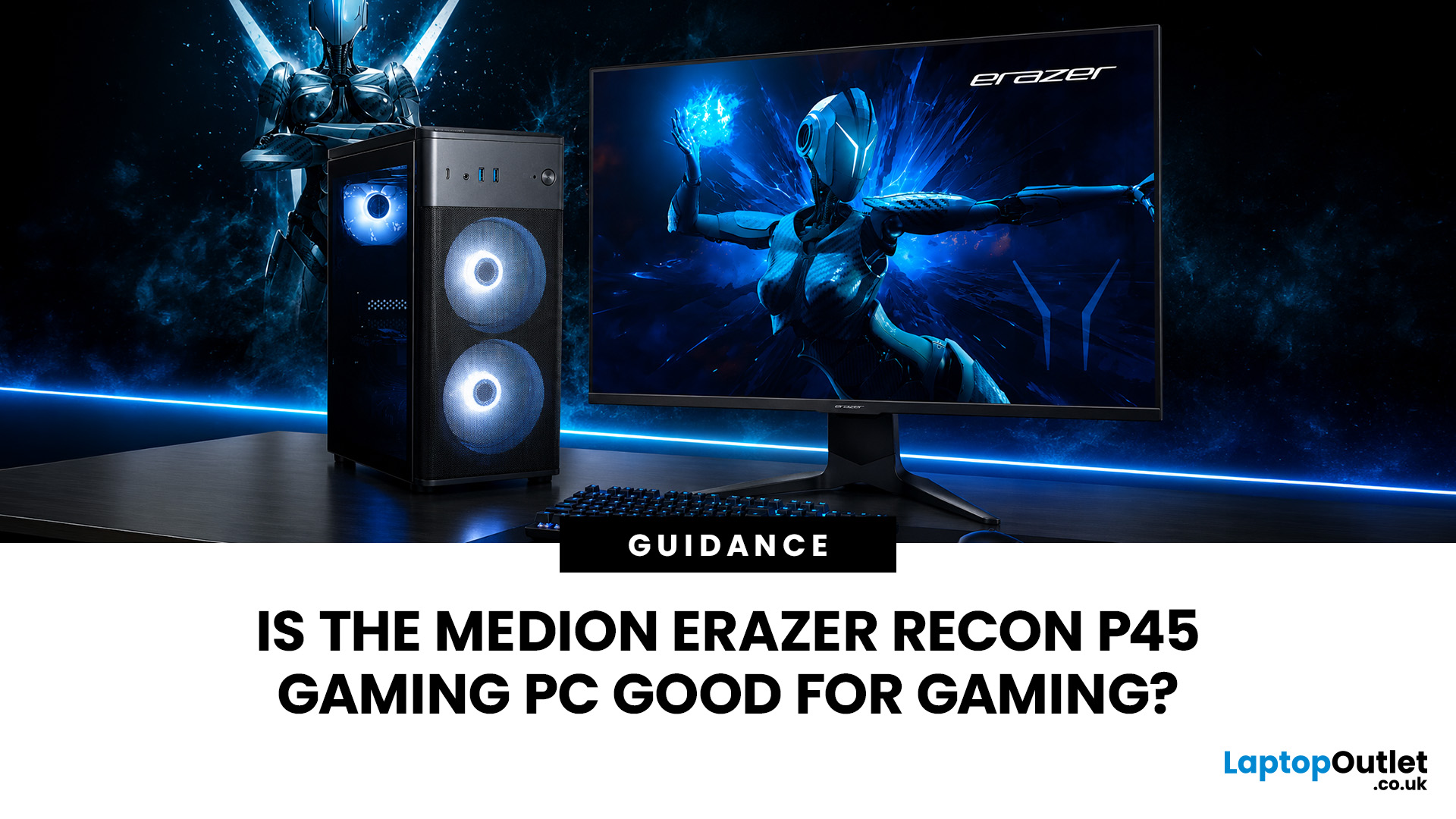
Yes, the Medion Erazer Recon P45 is a good gaming PC for players who want smooth everyday gaming, strong 1080p performance, fast loading times and a ready-to-use desktop without building a PC from scratch.
At Laptop Outlet, current Medion Erazer Recon P45 Gaming PC options include configurations with an AMD Ryzen 5 5500, 1TB SSD, Windows 11 Home, and dedicated NVIDIA RTX graphics, including RTX 5060 and RTX 5050 variants. The RTX 5060 model also includes 32GB RAM in the listed specification, while the RTX 5050 model is listed with 16GB RAM.
Is the Medion Erazer Recon P45 Worth it?
For most UK gamers, the Medion Recon P45 PC makes sense if you want a capable prebuilt gaming desktop that can handle modern games, multitasking, streaming, schoolwork, everyday browsing, and entertainment. It is especially suitable for:
| User Type | Is it a Good Fit? | Why |
| Beginner gamers | Yes | No PC-building knowledge needed |
| 1080p players | Yes | RTX graphics and Ryzen 5 power are well matched |
| Students | Yes | Good for gaming, |
July 13, 2026
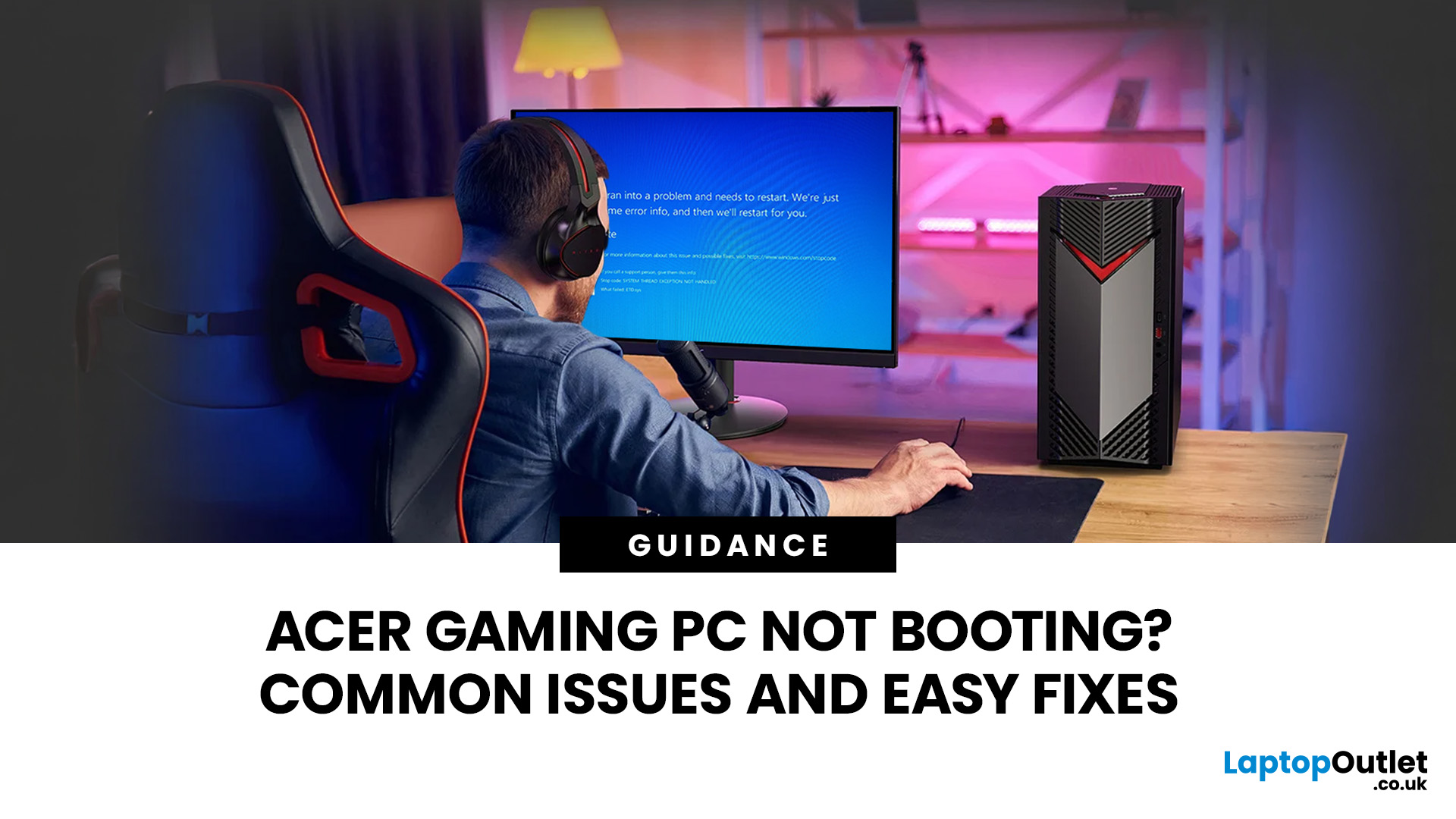
An Acer gaming PC not booting can feel like instant panic mode, especially when you were ready to jump into a game, finish work, or just chill. One minute everything is fine, and the next your PC turns on but no display appears, the monitor says no signal, or the screen stays completely black.
The good news? A PC not booting does not always mean something major is broken. Sometimes it is a loose cable, a monitor input issue, a RAM problem, or a BIOS setting that needs a reset. In this guide, we will walk through the most common Acer desktop startup issues, what they usually mean, and the easy fixes you can try before heading straight to a repair shop.
Is Your Acer PC Actually Not Booting, or is There No Display?
Before you start unplugging parts, it helps to know what problem you are really dealing with. A PC can fail in different ways, and each one points to a different cause.
If your Acer PC is not starting up that means there are no lights, no fans, and no sound at all, it may be a power
June 25, 2026
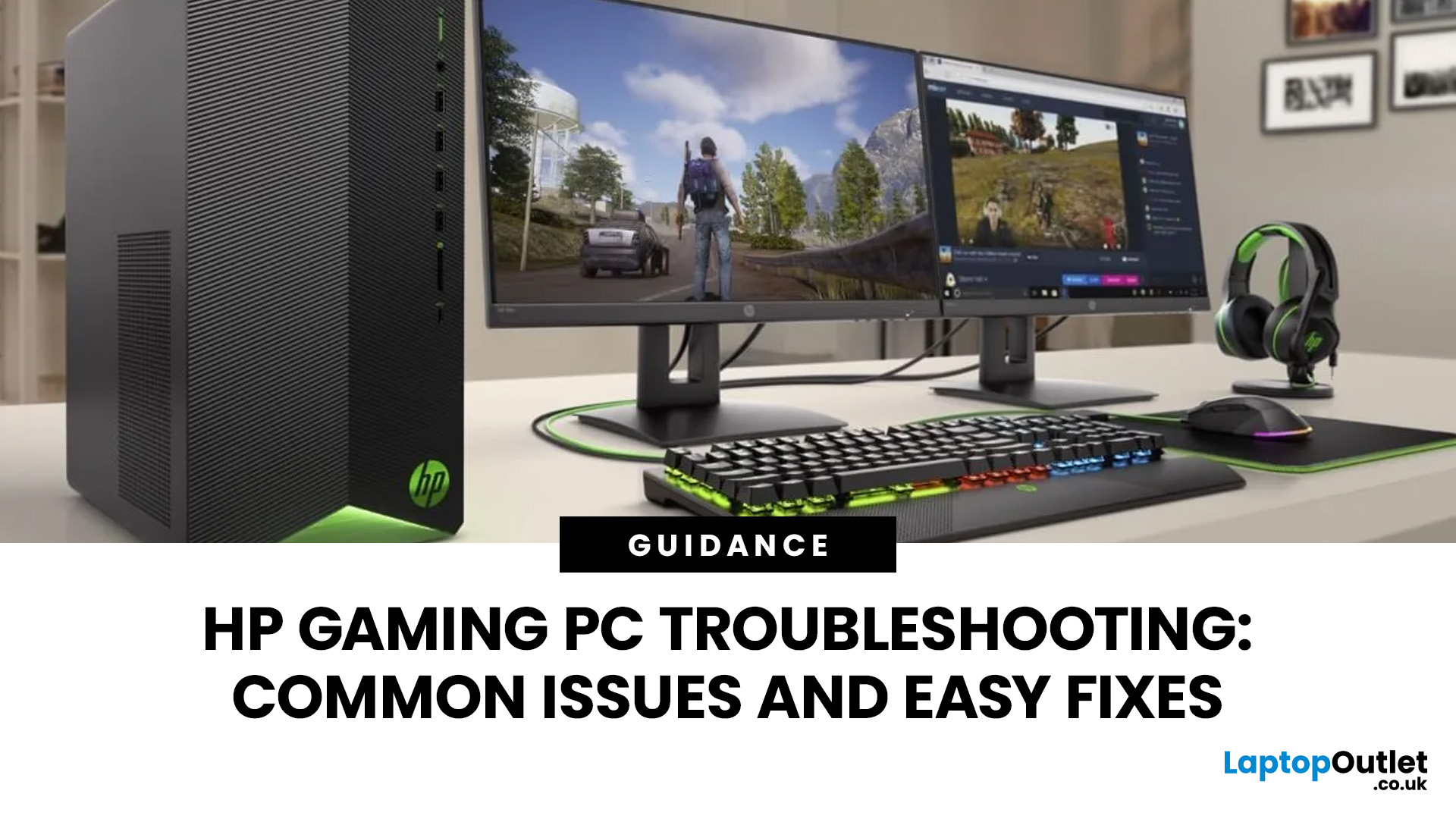
Your HP gaming PC should not feel like a boss fight before the game even loads.
HP gaming PC problems include black screens, overheating, lag, crashes, fan noise, slow performance, and startup failures. Most can be fixed by updating drivers, cleaning dust, improving airflow, freeing storage, and checking power or display connections.
You will also learn when a repair is worth it, when an upgrade makes more sense, and when it might be time to compare newer HP desktop PCs for gaming.
What Are the Most Common HP Gaming PC Problems?
June 15, 2026
Overheating can slow down your PC, crash games, and damage key components. Checking CPU and GPU temperature helps spot heat issues early, compare readings with safe ranges, and choose the right fix, from cleaning vents to upgrading cooling fans, coolers, processors, or graphics cards for smoother everyday performance and overall stability.
Is your laptop sounding like it’s about to take off? Or does your PC randomly slow down, crash, or shut itself off? Yeah, that’s usually not a vibe. It could mean your system is overheating.
Doing a quick check CPU GPU temperature laptop test can help you spot heat issues before they turn into expensive damage. Whether you game, edit videos, stream, or just multitask like a boss, keeping an eye on your processor’s and graphics cards temperature is a smart move.
Here’s how to check both easily.
Signs Your PC or Laptop is Overheating
Your device usually gives you clues before things get serious. Watch out for:
- Loud fans running non-stop
- Sudden lag or freezing
June 15, 2026
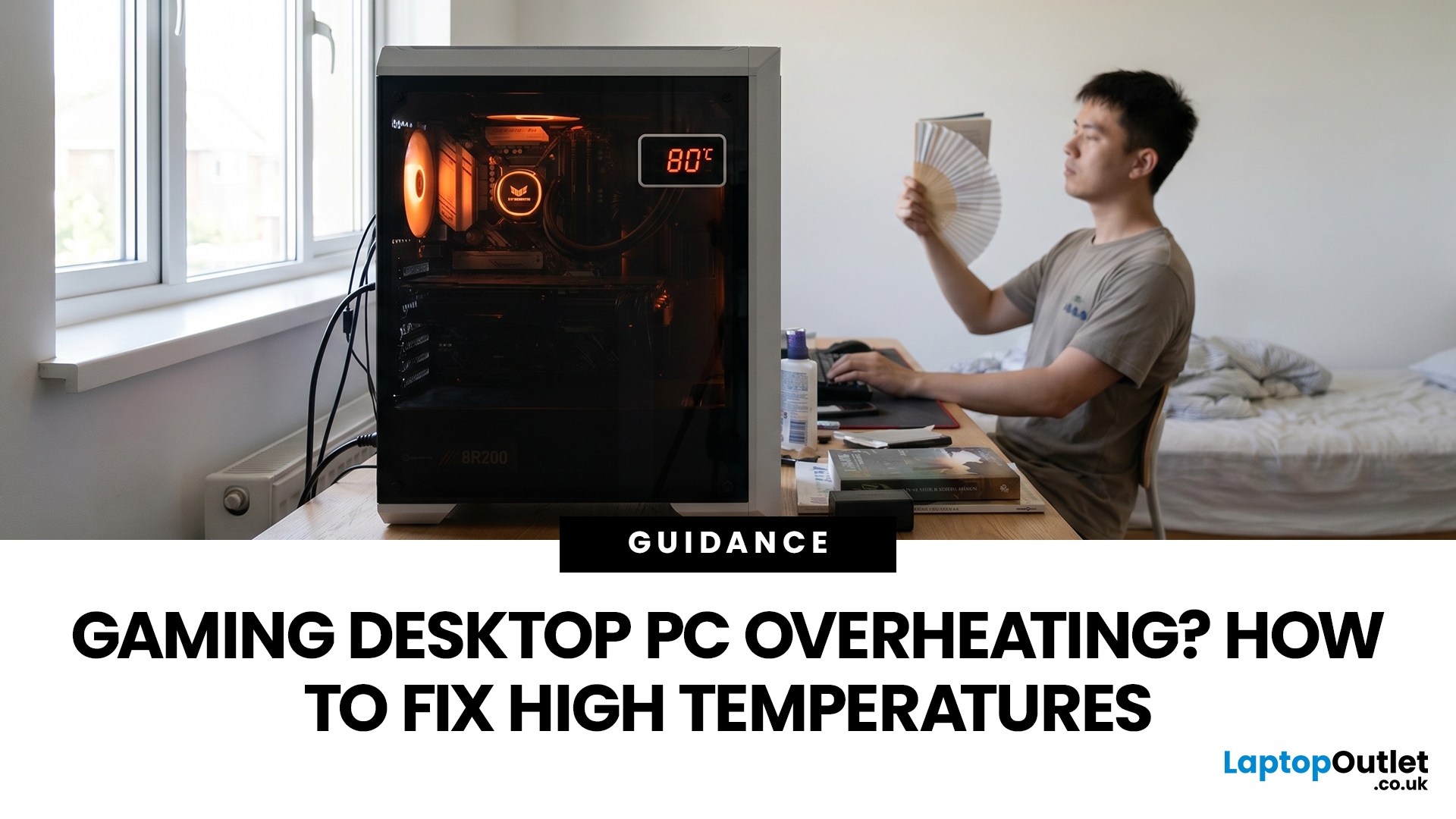
A gaming PC overheating usually comes down to one of five things: blocked airflow, dust build-up, weak cooling, aggressive game settings, or poor contact between the CPU/GPU and its cooler.
| Here is the fast version:
|
Gaming PC Overheating: What It Means and Why It Matters
You’re mid-match. Your FPS is smooth. Then suddenly, the game stutters, the fans sound like a jet engine, and your PC feels like it could toast bread.
That is not “just gaming PC life”.
A hot gaming desktop is normal. An overheating