



How to Set Up Dual Monitors: A Complete Step-by-Step Guide
One screen is fine. Two screens? That is where your setup starts feeling seriously organised. Whether you are working from home, studying, gaming, editing, coding or just tired of switching between 27 tabs every five seconds, a dual monitor setup can make your desk feel cleaner and your workflow feel smoother.
The good news is that learning how to set up dual monitors is not as complicated as it sounds. You just need the right monitors, the correct cables or adapters, and a few display settings adjusted properly. This complete guide explains how to connect two monitors, how to set up dual monitors on Windows, how to set up dual monitors with a laptop, and how to get the best layout for work, study, gaming and everyday use.
How Do You Set Up Dual Monitors?
Here is the simple version.
To set up dual monitors, connect both screens to your laptop or desktop PC using HDMI, DisplayPort, USB-C, Thunderbolt or a compatible docking station. Then open your display settings, choose Extend these displays, arrange the screens in the correct order, and adjust the resolution, scaling, and refresh rate.
|
Step |
What to Do |
Why It Matters |
|
1 |
Check your laptop or PC ports |
Makes sure your device can support two screens |
|
2 |
Choose the right cables or adapters |
HDMI, DisplayPort, USB-C or docking station may be needed |
|
3 |
Connect both monitors |
Each screen needs power and a display connection |
|
4 |
Open display settings |
This lets you control layout, resolution and scaling |
|
5 |
Select Extend these displays |
Gives you one larger workspace |
|
6 |
Arrange your screens |
Makes mouse movement feel natural |
|
7 |
Set your main display |
Chooses where apps, taskbar and menus appear |
|
8 |
Adjust resolution and scaling |
Keeps text sharp and comfortable |
|
9 |
Check refresh rate |
Helps both monitors feel smooth |
That is the basic process. Now let’s go through it properly.
Benefits of Dual Monitors
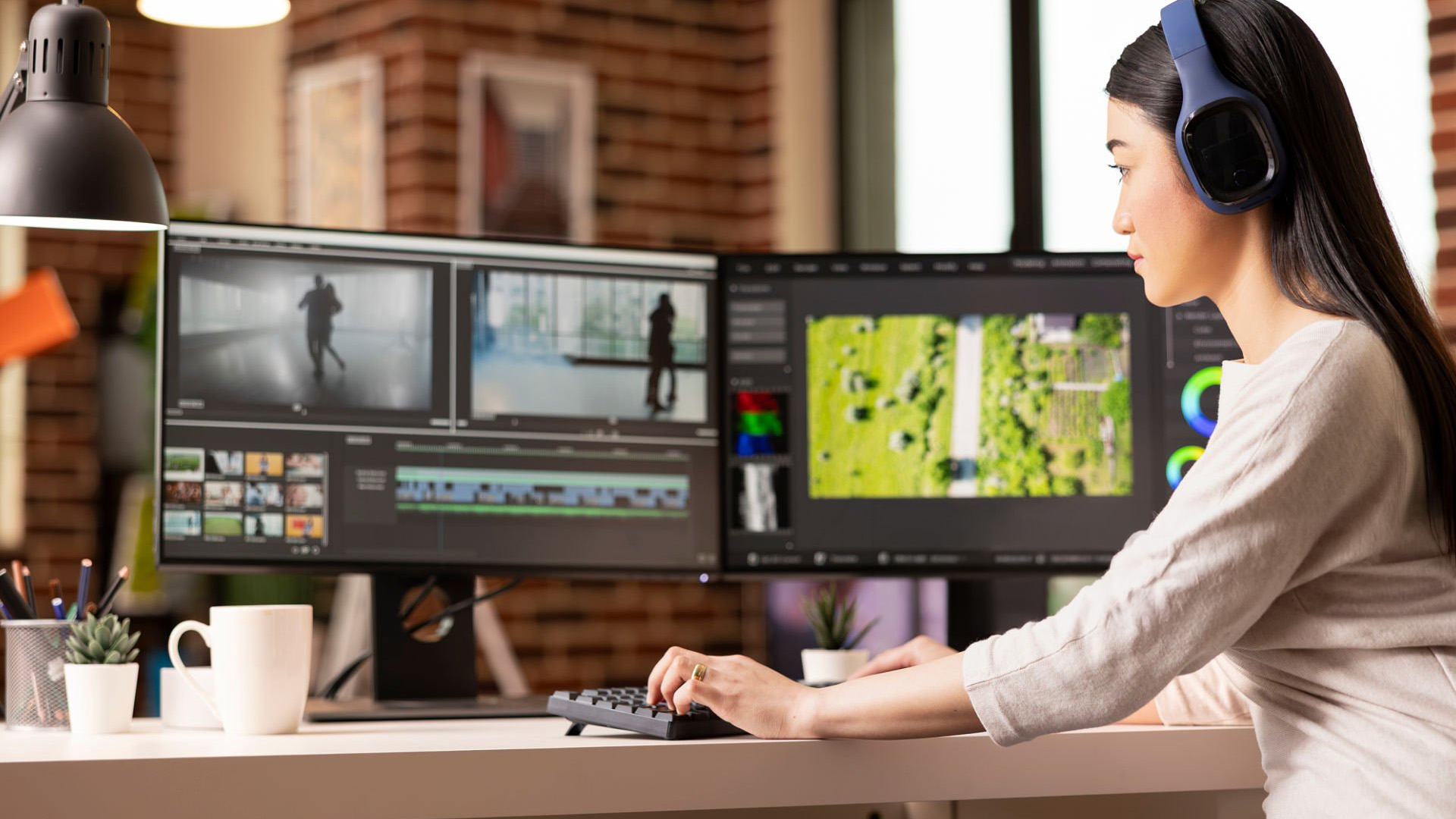
The biggest benefit of dual monitors is simple: more space.
Instead of squeezing everything onto one display, you can spread your apps across two screens. It makes multitasking easier, reduces tab-switching and helps your setup feel less chaotic.
|
User Type |
Benefits of Dual Monitors |
|
Office workers |
Keep email on one screen and documents or spreadsheets on the other |
|
Students |
Watch lectures or research on one display while taking notes on the other |
|
Gamers |
Play on the main monitor and keep Discord, guides or stream chat open |
|
Creators |
Use one screen for editing timelines and the other for previews or tools |
|
Coders |
Code on one screen and test output, browser or documentation on the other |
|
Finance/admin users |
View dashboards, reports and spreadsheets side by side |
|
Hybrid workers |
Turn a laptop into a more comfortable desktop-style workstation |
The benefits of dual monitors are especially noticeable if you work with several apps at once. A second screen can save you from constantly minimising windows, hunting through tabs or dragging apps around. It is also great for laptop users. A laptop screen is useful on the go, but once you are at a desk, adding one or two external monitors makes everything feel more comfortable and professional.
What Do You Need for a Dual Monitor Setup?
Before you start plugging things in, make sure you have the right kit. For a basic dual monitor setup, you may need:
- Two monitors, or one external monitor plus your laptop screen
- A laptop or desktop PC
- Power cables for both monitors
- HDMI, DisplayPort, USB-C, Thunderbolt or VGA cables
- Adapters if your ports do not match
- A docking station if your laptop has limited ports
- Enough desk space
- Optional monitor arms or stands
- Keyboard and mouse for a cleaner laptop setup
If your laptop does not have enough display ports, a docking station can make your dual monitor setup much easier and cleaner. A docking station is especially useful if you use a laptop for hybrid work. Instead of plugging in several cables every time you sit down, you can connect your monitors, keyboard, mouse, Ethernet and other accessories through one hub. Very tidy. Very adult. Very “I have my life together”.
If you are still choosing the right second screen, our full monitor buying guide explains how to compare resolution, refresh rate, screen size and key display features before you buy.
Check Your Laptop or PC Ports First
Before you buy cables or monitors, check which ports your device has. This matters because not every laptop or PC can connect two monitors in the same way.
|
Port |
Common Use |
Notes |
|
HDMI |
Monitors, TVs and laptops |
Very common and easy to use |
|
DisplayPort |
Desktop PCs and gaming monitors |
Good for higher refresh rates and resolutions |
|
USB-C |
Modern laptops and docks |
Can support video, charging and data if compatible |
|
Thunderbolt |
Premium laptops and docks |
Great for high-performance multi-display setups |
|
VGA |
Older monitors and PCs |
Older analogue connection with lower image quality |
|
DVI |
Older desktops and monitors |
Still found on some older hardware |
If you are missing the right cable, adapter or display connector, browse AV accessories before starting your dual-screen setup.
What if Your Laptop Only Has One Port?
This is common, especially with slim modern laptops. If your laptop only has one display output, you still have options:
- Use a USB-C docking station
- Use a Thunderbolt dock
- Use a USB-C to HDMI adapter
- Use a USB-C to DisplayPort adapter
- Use a USB display adapter
- Use your laptop screen plus one external monitor
One thing to note: an HDMI splitter usually duplicates the same image on two monitors. It is not the best option if you want a true extended desktop where each monitor shows different content.
How to Connect Two Monitors to a Desktop PC
A dual monitor set up PC is usually straightforward if your desktop has more than one display output. Follow these steps:
- Turn off your PC and monitors.
- Check the display ports on your graphics card.
- Connect your first monitor using HDMI, DisplayPort or another supported cable.
- Connect your second monitor using another display port.
- Plug both monitors into power.
- Turn on the monitors.
- Turn on your PC.
- Open display settings.
- Choose Extend these displays.
- Arrange your screens and set your main monitor.
If you have a gaming PC, connect your monitors to the graphics card, not the motherboard, where possible. The graphics card ports are usually lower down on the back of the PC case and are the right choice for gaming and higher-resolution displays.
If one screen does not turn on, check the input source on the monitor. Many monitors have multiple inputs, such as HDMI 1, HDMI 2 and DisplayPort. The monitor needs to be set to the port you are actually using.
How to Set Up Dual Monitors with a Laptop
Learning how to set up dual monitors with laptop setups depends on your laptop’s ports. Some laptops can connect to two external displays directly. Others need a docking station or adapter.
|
Laptop Setup |
Best For |
What You Need |
|
Laptop screen + one monitor |
Simple two-screen setup |
One external monitor and one cable |
|
HDMI + USB-C |
Modern laptops |
HDMI cable and USB-C video cable or adapter |
|
USB-C dock |
Clean desk setup |
Docking station with dual display support |
|
Thunderbolt dock |
Premium laptop setups |
Thunderbolt-compatible dock |
|
USB display adapter |
Limited-port laptops |
USB-to-HDMI or USB-to-DisplayPort adapter |
Can You Use Your Laptop Screen as One Monitor?
Yes. This is one of the easiest ways to use dual monitors. For example, you can use:
- Laptop screen for email or chat
- External monitor for documents, browser, editing or main work
This setup is great for students and hybrid workers because it gives you two screens without needing two separate external monitors.
Can You Close the Laptop and Use Two External Monitors?
Yes, but your laptop, dock and operating system need to support it. This is often called clamshell mode. You connect your laptop to two monitors, then use an external keyboard and mouse. It creates a proper desktop-style setup while still using your laptop as the main computer. This setup is clean, but make sure your laptop has good ventilation and stays plugged in if required.
How to Set Up Dual Monitors on Windows
Here is how to set up dual monitors on Windows, especially Windows 10 or Windows 11.
- Connect both monitors to your laptop or PC.
- Right-click on the desktop.
- Select Display settings.
- Click Identify to see which screen is which.
- Drag the display boxes so they match your physical desk layout.
- Scroll to Multiple displays.
- Choose Extend these displays.
- Select your preferred main display.
- Adjust resolution and scaling for each screen.
- Click Apply.
Extend vs Duplicate Displays
|
Display Mode |
What it Does |
Best For |
|
Duplicate |
Shows the same thing on both screens |
Presentations and screen sharing |
|
Extend |
Creates one larger workspace across both screens |
Productivity and multitasking |
|
Second screen only |
Uses only the external monitor |
Laptop desk setups |
|
PC screen only |
Uses only the built-in or main screen |
Single-screen use |
For most people, Extend these displays is the best option. It lets you drag windows between screens and use both monitors as one wider workspace. If both monitors are showing the exact same thing, you are probably in Duplicate mode. Switch to Extend mode in your dual monitor display settings.
Best Display Settings for Dual Monitors
Once both screens are connected, the setup is not quite finished. The real glow-up happens when the settings feel right.
Adjust Resolution
Each monitor should ideally run at its native resolution. That means the resolution it was built for. For example:
- Full HD monitor: 1920 × 1080
- QHD monitor: 2560 × 1440
- 4K monitor: 3840 × 2160
Using the wrong resolution can make text look blurry or stretched.
Adjust Scaling
Scaling controls how big text, icons and windows appear. A Full HD monitor often works well at 100% scaling. A 4K monitor may need 125%, 150% or higher so text does not look tiny. If one monitor looks too small or too large compared with the other, adjust scaling for that specific display.
Match Refresh Rate
If one monitor feels less smooth than the other, check the refresh rate. On Windows, go to:
Settings > System > Display > Advanced display
From there, select each monitor and check the refresh rate. If your monitor supports 75Hz, 100Hz, 144Hz or higher, choose the best available option.
Set the Main Display
Your main display is where the Start menu, taskbar and most apps usually open. Choose the screen you look at most often as your main display. For most dual monitor setups, this is the monitor directly in front of you.
Arrange Monitors Correctly
In display settings, drag the monitor boxes so they match your real desk layout. If your second monitor is on the left, put it on the left in settings. If it is slightly higher, move it slightly higher on screen. This makes your mouse move naturally between displays. No more dragging your cursor into the void and wondering where it went.
For the sharpest dual screen setup, it helps to understand resolution first, so read our 4K vs 1440p vs 1080p monitor guide before choosing your display settings.
Best Monitor Size for a Dual Monitor Setup
Before deciding between 24, 27 or 32 inches, understanding how monitor size is measured can help you judge how much physical space each display will take up.
|
Monitor Size |
Best For |
Notes |
|
23–25 inches |
Compact desks, students, office setups |
Easier to fit side by side |
|
26–28 inches |
Productivity, hybrid work, creative tasks |
More workspace but needs more desk room |
|
32 inches+ |
Specialist setups |
Can feel too large as a dual setup for some users |
23 to 25 Inch Monitors
For compact desks or matching office screens, 23 to 25 inch monitors are a practical choice for dual monitor setups. They are easy to place side by side and work well for office tasks, studying, browsing and general multitasking. This size range is ideal if you want:
- A clean desk setup
- Matching office monitors
- Good value
- Easy positioning
- Less neck movement
26 to 28 Inch Monitors
If you want more workspace without going too large, 26 to 28 inch monitors offer a strong balance for productivity and comfort.
They are great for hybrid work, spreadsheets, creative tasks and users who want a roomier screen experience. Just make sure your desk is wide and deep enough. Two 27-inch monitors side by side can take up a lot of space. If desk space is a concern, comparing an ultrawide vs dual-monitor setup can help you decide whether one wider screen or two separate displays will work better.
Best Setup for Dual Monitors by Use Case
Different users need different layouts. Here is how to create the best dual monitor setup for your workflow.
Best Dual Monitor Setup for Work
For office and hybrid work, two matching 24-inch or 27-inch monitors usually work best. Recommended setup:
- Main monitor centred
- Second monitor angled slightly inward
- Matching resolution if possible
- Adjustable stands or monitor arms
- Docking station for laptops
- Keyboard and mouse centred with the main screen
Use one screen for your main task and the second for email, chat, calendar, notes or reference documents.
Best Dual Monitor Setup for Students
Students can keep things simple. Good options include:
- Laptop screen + one external monitor
- Two affordable 24-inch monitors
- Notes on one screen, lecture or research on the other
- Browser on one screen, assignment on the other
This makes studying feel less cramped and helps you avoid constantly switching between tabs.
Best Dual Monitor Setup for Gaming
For gaming, use your best monitor as the main screen. Recommended setup:
- Main gaming monitor centred
- Secondary monitor to the side
- Game on the main monitor
- Discord, stream chat, guides or browser on the second screen
- High refresh rate on the main gaming display
Avoid splitting one game across two monitors unless the game supports it properly. For most gamers, one main gaming monitor plus one side screen is the cleanest setup.
Best Dual Monitor Setup for Creators
For creators, screen space is everything. Recommended setup:
- Larger or higher-quality monitor as the main screen
- Secondary monitor for tools, preview, folders or notes
- Matching colour settings where possible
- Adjustable stands for comfort
- Enough desk depth for viewing distance
Video editors can keep the timeline on one screen and preview/tools on the other. Designers can keep reference material, layers or file folders open without covering the main canvas.
If you want your dual monitor setup for gaming, streaming or creative work, our HDR monitor guide explains how HDR affects brightness, contrast and colour quality.
Dual Monitor Setup Layout Tips
Once your screens are connected, layout matters. A messy layout can make two monitors feel more annoying than helpful.
Side-by-Side Setup
This is the most common layout. It works best with two matching monitors. Place your main screen directly in front of you and the second monitor to the side, angled slightly inward.
Laptop + Monitor Setup
This is ideal for small desks. Place the external monitor in front of you and keep the laptop slightly to the side. Use the bigger screen as your main display.
Stacked Monitor Setup
A stacked setup places one monitor above another. This can save desk width but may strain your neck if the top screen is too high. It is best for monitoring dashboards, chat, music apps or secondary information.
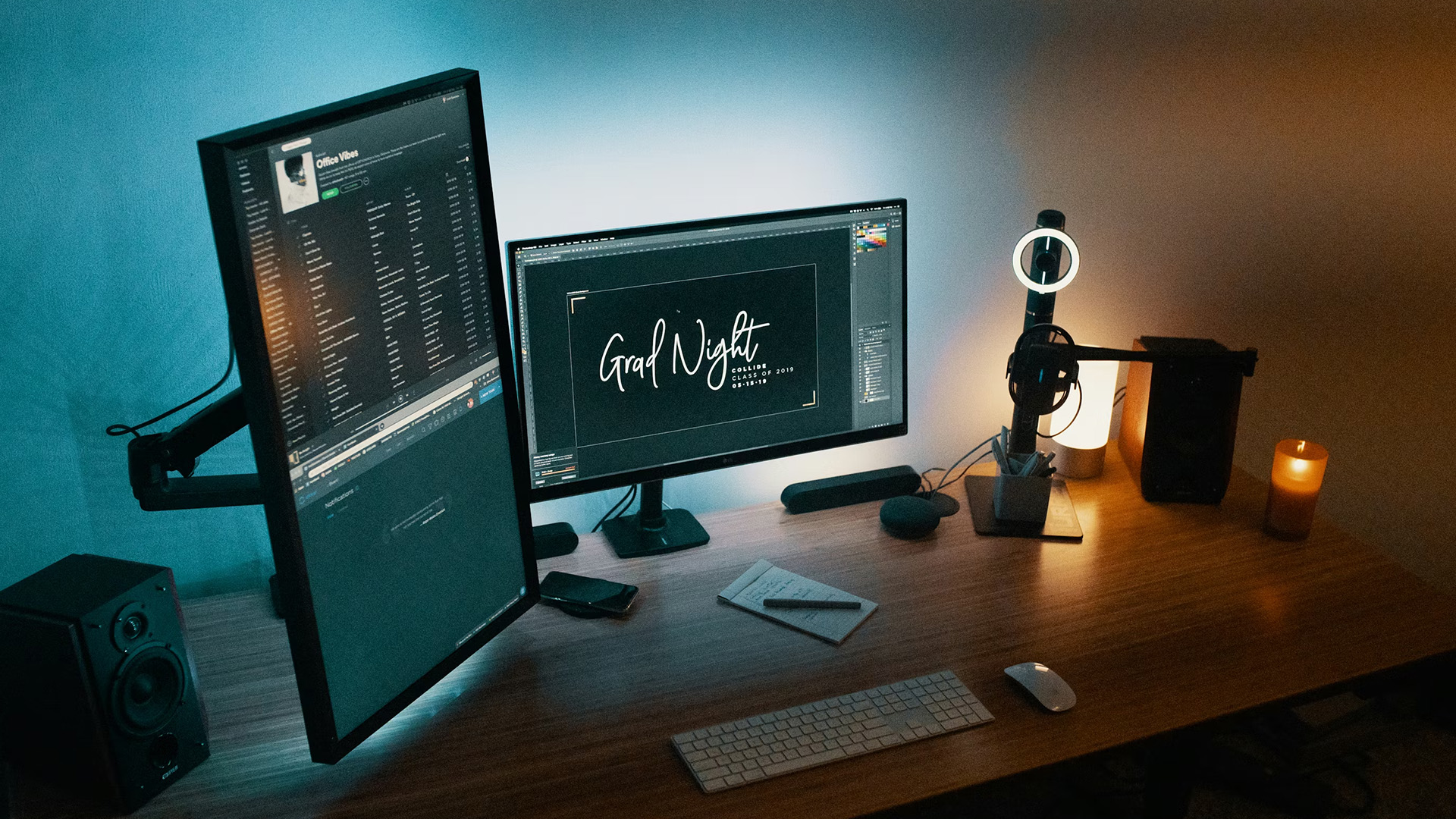
Main + Vertical Monitor Setup
A vertical monitor is seriously underrated. It is great for:
- Coding
- Reading documents
- Long web pages
- Chat apps
- Emails
- Research notes
If you use one monitor vertically, set the rotation in display settings so the screen orientation matches.
Ergonomic Tips
For comfort:
- Keep your main monitor directly in front of you
- Keep the top of the screen around eye level
- Angle the second monitor slightly inward
- Keep both screens at similar brightness
- Avoid placing monitors too close
- Use monitor arms if desk space is tight
- Keep your keyboard and mouse centred with your main screen
A dual monitor setup should make work easier, not turn your neck into a warning sign.
Common Dual Monitor Problems and Fixes
Even a good setup can have a few awkward moments. Here are common problems and how to fix them.
Second Monitor Not Detected
Try these fixes:
- Check the cable connection
- Make sure the monitor is powered on
- Select the correct input source
- Restart your laptop or PC
- Try a different cable
- Click Detect in display settings
- Update graphics drivers
- Check whether your laptop supports two external displays
Mouse Moves the Wrong Way
This means your display arrangement is wrong. Go to display settings and drag the monitor boxes so they match your physical layout.
Both Monitors Show the Same Screen
You are probably using Duplicate mode. Go to display settings and select Extend these displays.
Wrong Resolution
Select each monitor in display settings and choose its recommended resolution.
One Monitor Looks Blurry
Check:
- Resolution
- Scaling
- Cable quality
- Display input
- Refresh rate
- Graphics driver settings
Blurriness often happens when the monitor is not running at its native resolution.
Laptop Does Not Support Two External Displays
Some laptops have limits, even with USB-C. If your laptop cannot run two external monitors directly, use a compatible docking station or check the manufacturer’s display output support.
Common Mistakes to Avoid When Setting Up Dual Monitors
Using the Wrong Cable
Not all cables support every resolution and refresh rate. A poor cable can limit your display quality or stop a monitor from working properly.
Buying Two Monitors That Do Not Match Well
Two very different monitors can feel awkward. Different sizes, resolutions, colours and brightness levels may make the setup feel uneven. They do not need to be identical, but matching monitors usually feel cleaner.
Ignoring Desk Space
Two monitors need width and depth. Measure before buying, especially if you want two 27-inch screens.
Forgetting About a Docking Station
Laptop users often need a dock for a cleaner setup. This is especially true if you want two external monitors, Ethernet, keyboard, mouse and charging through one connection.
Not Adjusting Display Settings
Default settings may duplicate screens, use the wrong resolution or place monitors in the wrong order. Always check your display settings after connecting everything.

Final Checklist: Best Way to Set Up Dual Screen Monitors
Before you call your setup finished, run through this checklist.
|
Step |
Done? |
|
Choose the right monitor size for your desk |
☐ |
|
Check laptop or PC display ports |
☐ |
|
Buy the correct cables or adapters |
☐ |
|
Use a docking station if needed |
☐ |
|
Connect both monitors to power |
☐ |
|
Connect both monitors to your laptop or PC |
☐ |
|
Choose Extend these displays |
☐ |
|
Arrange monitors correctly in settings |
☐ |
|
Set your main monitor |
☐ |
|
Adjust resolution |
☐ |
|
Adjust scaling |
☐ |
|
Check refresh rate |
☐ |
|
Position monitors ergonomically |
☐ |
If you follow these steps, your set up dual screen monitors process should be smooth, practical and much less stressful. A dual monitor setup can make your desk feel cleaner, faster and much easier to use. Whether you are working, studying, gaming or creating content, two screens give you more room to focus without constantly switching windows.
Start with the right monitor size, check your ports, choose the correct cables or docking station, then adjust your display settings properly. Once it is set up, you will wonder how you ever survived with one screen.

Still Got Questions?
How do I set up dual monitors?
Connect both monitors to your laptop or PC, open display settings, choose Extend these displays, arrange the screens correctly, then adjust resolution, scaling and refresh rate.
How do I set up dual monitors on Windows?
Right-click the desktop, open Display settings, select Identify, arrange your screens, choose Extend these displays, then set your main monitor.
How do I connect two monitors to a laptop?
You can connect two monitors to a laptop using HDMI, USB-C, Thunderbolt, a docking station or a USB display adapter, depending on your laptop’s ports and display support.
Can I use my laptop screen as a second monitor?
Yes. You can use your laptop screen alongside one external monitor as a simple dual monitor setup.
Do I need a docking station for dual monitors?
Not always. You need a docking station if your laptop does not have enough display outputs or if you want a cleaner one-cable desk setup.
Related Articles

Last Updated: September 01, 2026
Not all gaming monitors are built the same, and the LG UltraGear range makes that very clear. Whether you're playing for fun on weekends, grinding ranked matches on a mid-range rig, or competing at a serious level, there's a specific UltraGear model that fits your needs.
This LG UltraGear guide breaks down the full lineup by player type so you can make a genuinely informed decision before spending your money.
What Makes LG UltraGear Different from Standard LG Monitors?
LG produces monitors for all sorts of uses, from office work to content creation to home cinema. UltraGear is the gaming-focused sub-brand, and it comes with a noticeably different spec sheet compared to LG's standard displays.
The core differences come down to priorities. Standard LG monitors are built around colour accuracy, ergonomics, and value for office use. UltraGear monitors are tuned for speed, responsiveness, and visual clarity under fast-moving gaming conditions.
In practical terms, this means LG UltraGear gaming
Last Updated: April 28, 2026
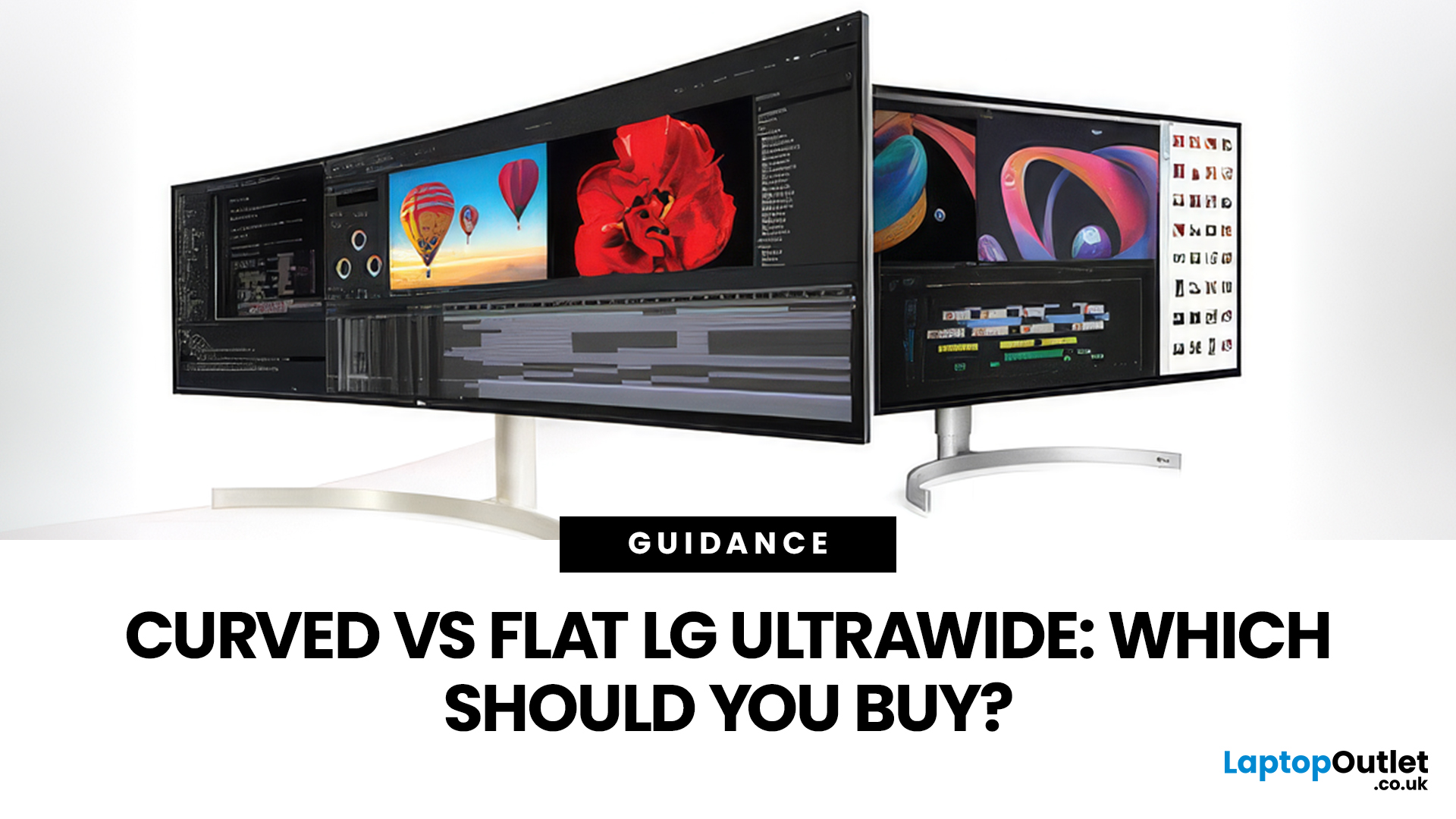
If you're choosing between a curved vs flat LG UltraWide monitor, the decision is more nuanced than it first appears. The right choice depends on what you do, how long you sit at your desk, and the kind of experience you want from your screen.
This guide breaks down every major use case side by side, with a clear verdict for each one, so you can make the right call before you spend your money.
What Makes LG UltraWide Monitors Different?
LG UltraWide monitors use a 21:9 aspect ratio, giving you roughly a third more horizontal screen space than a standard 16:9 display. That extra width is what makes the curved vs flat debate so relevant on these screens specifically.
On standard 26 to 28-inch monitors, the curve debate is largely down to personal preference. But once you hit 34 inches and beyond, the physics of how your eyes scan left-to-right starts to matter. On ultrawide displays of 34 inches or larger, the curvature brings the edges of the screen closer to you, covering more of your
Last Updated: April 14, 2026
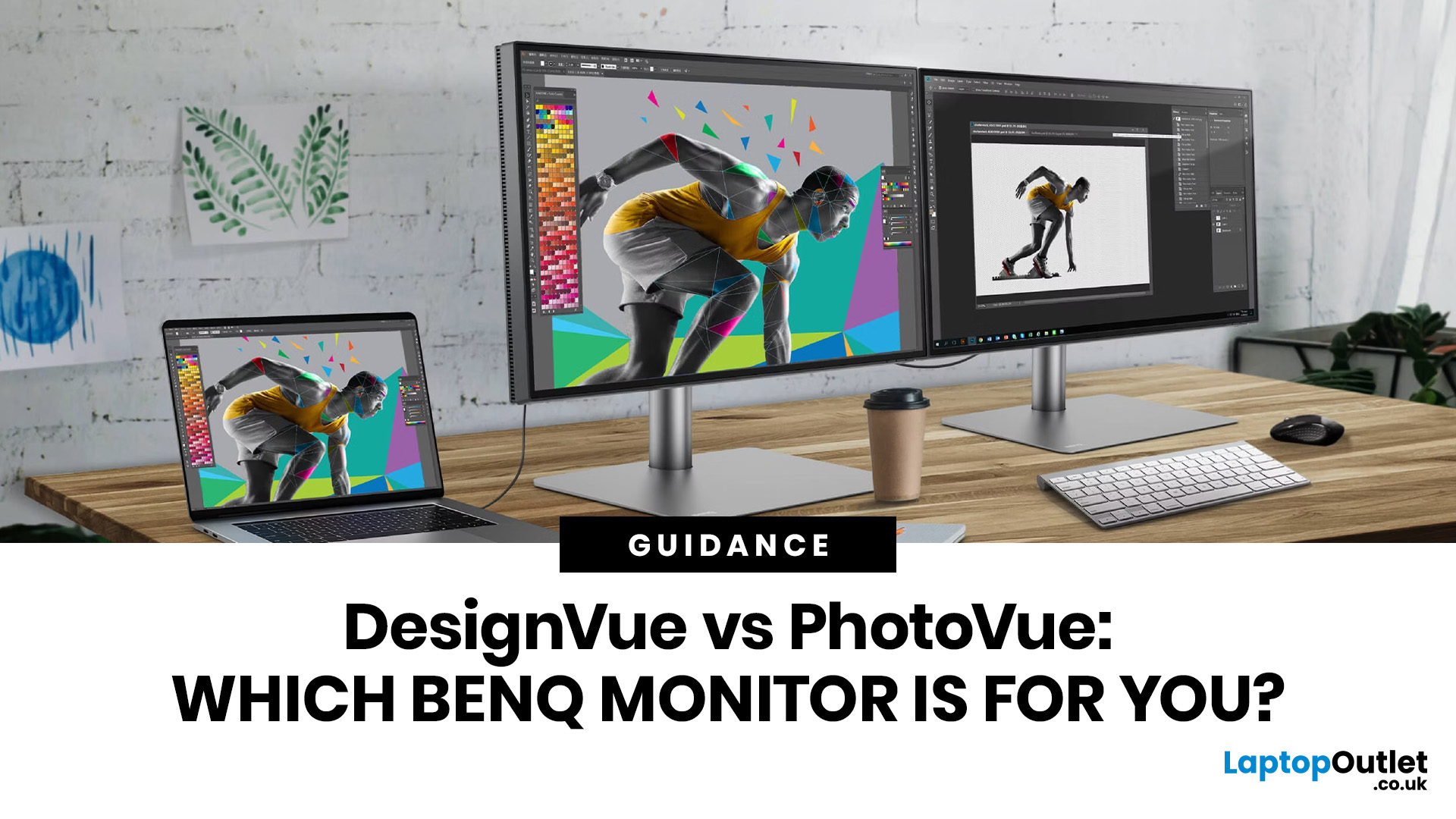
If you work with colour professionally, your monitor is your most critical piece of kit. BenQ monitors for creators are built around one principle: what you see on screen should accurately reflect what you print, publish, or deliver to a client.
Whether you are a photographer editing RAW files, a designer producing brand assets, or a video editor reviewing colour grades, accuracy matters at every stage. BenQ addresses this through two dedicated series: the DesignVue PD range and the PhotoVue SW range.
Each is engineered for a different creative discipline. This guide explains both series, covers the key specs to look for, highlights how they compare, and helps you decide which one fits your workflow best.
BenQ’s Creator Series: DesignVue & PhotoVue SW
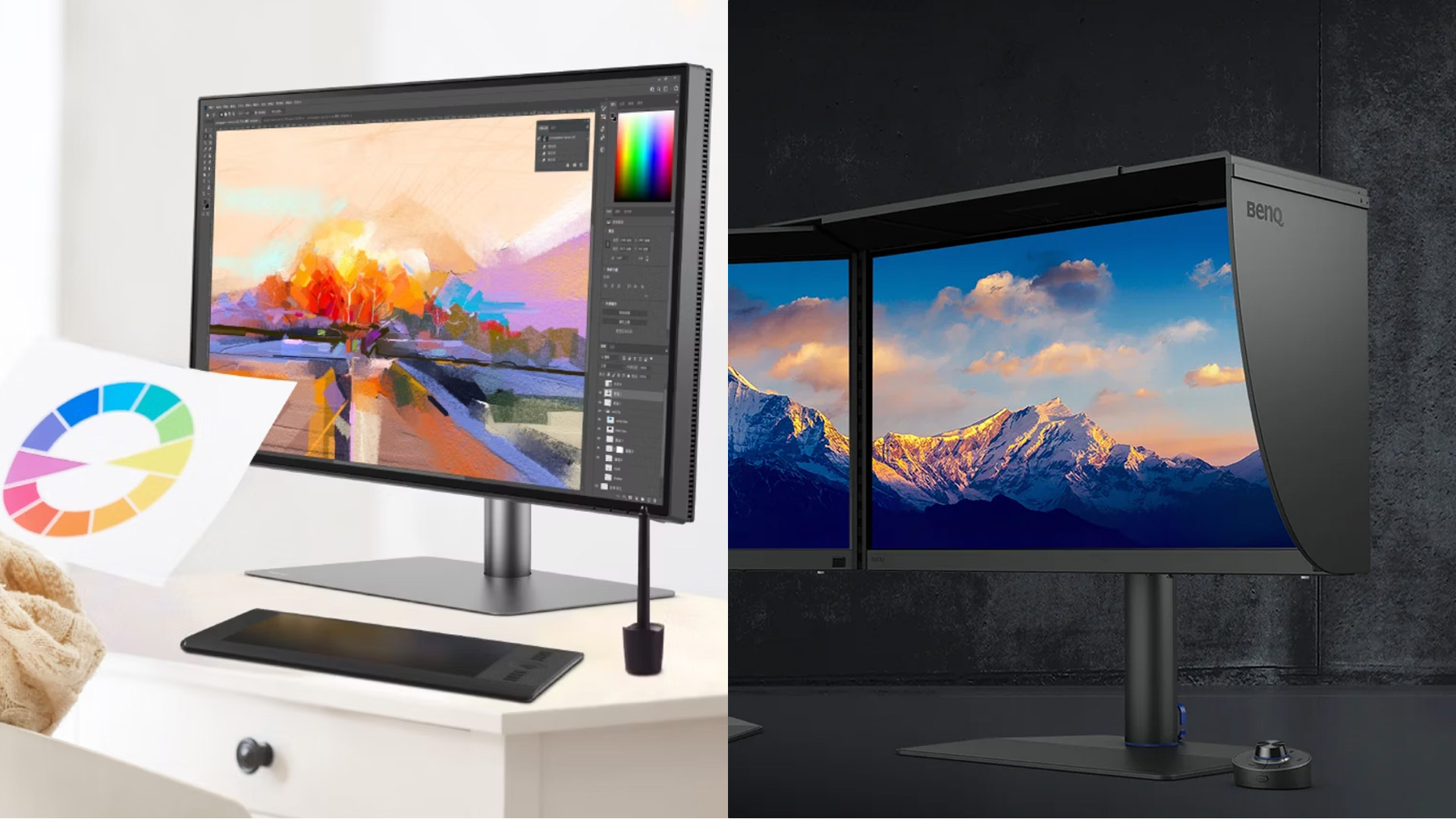
Finding the right BenQ monitors for creators starts with understanding why BenQ separates its professional range into two distinct families, each tailored to a different core workflow. Rather than one catch-all creative

Last Updated: April 14, 2026
If you want reliable colour from a BenQ creative monitor, calibration is not the final polish. It is the foundation. Whether you are editing photos, preparing work for print, designing for web, or reviewing client visuals, the goal is the same: your monitor should show colour in a way that is consistent, repeatable, and appropriate for the job in front of you.
This guide will walk you through how to calibrate a BenQ DesignVue monitor or BenQ PhotoVue monitor, when to use sRGB vs AdobeRGB on BenQ monitors, what hardware calibration changes, and how often you should recalibrate if accurate colour matters to your work.
Why BenQ Monitor Colour Calibration Matters
A high-spec monitor is only one part of colour accuracy. Out of the box, even a very good display may be too bright for print work, set to the wrong colour space for your workflow, or simply drift over time. That is where BenQ monitor colour calibration comes in.
BenQ explains that hardware calibration works by adjusting colour directly
Last Updated: April 28, 2026
Choosing the right monitor format can transform how you work. Whether you are a developer, analyst, designer, or remote professional, your display shapes your entire workflow.
LG UltraWide and DualUp productivity monitors have become a firm favourite across the UK for professionals who need more screen space without the cable clutter of multiple setups.
This guide breaks down how each format performs for coding, content creation, dashboards, and day-to-day productivity, so you can pick the right one for your desk.
Why Screen Format Changes Everything
The shape of your display directly influences how many windows you can manage, how much you need to scroll, and whether your neck stays comfortable after a full working day. It is worth understanding the two non-standard formats LG offers before deciding which suits your setup.
LG monitors come in two distinctive formats: the horizontal 21:9 or 32:9 UltraWide and the vertical 16:18 DualUp. Both give you significantly more usable space than
Last Updated: August 28, 2026
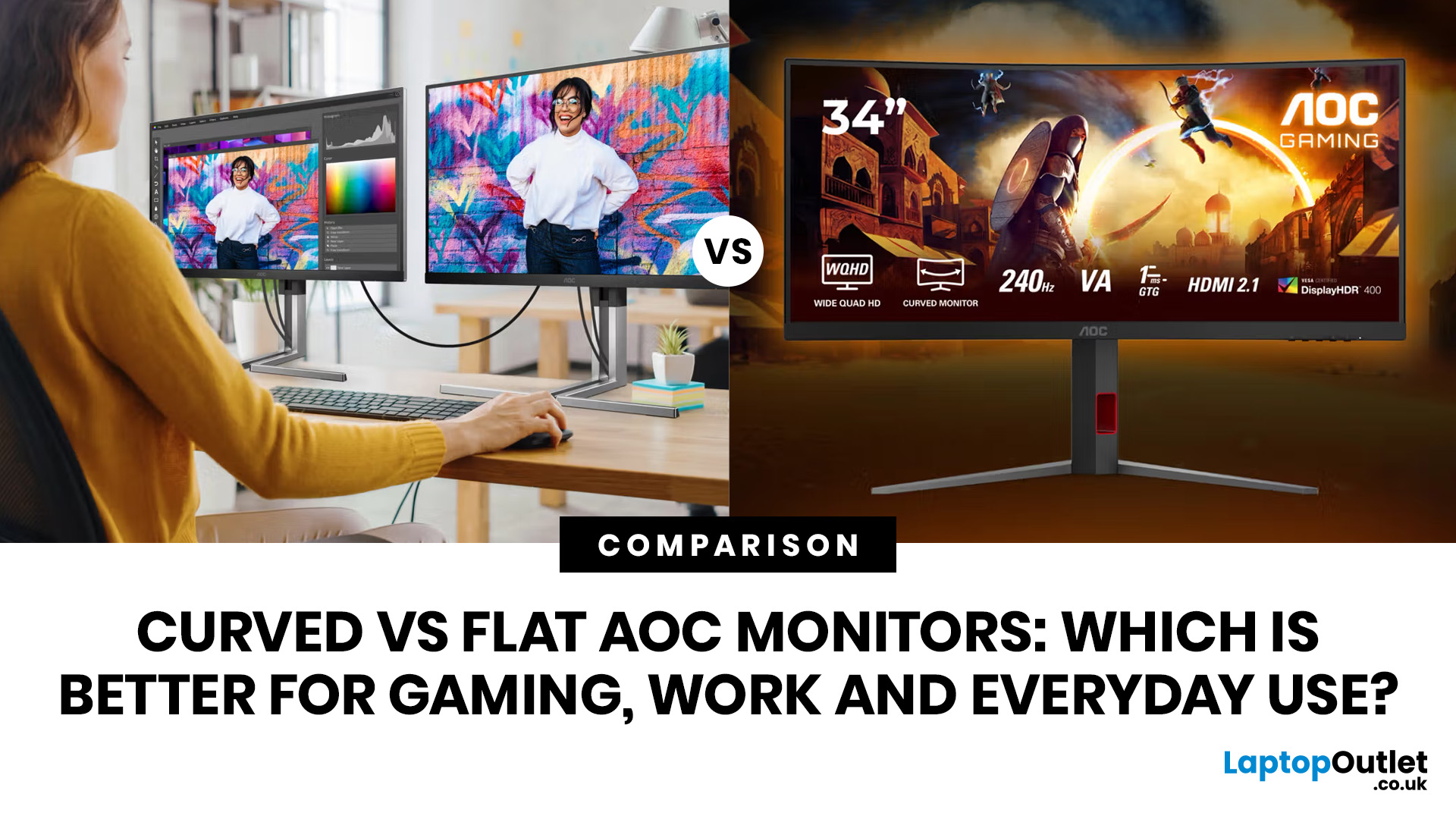
If you are comparing curved vs flat AOC monitors, the right choice depends less on trends and more on how you actually use your screen every day.
For gaming and entertainment, a curved display often feels more immersive, especially in racing games, open-world titles and films. For work, study and general day-to-day use, a flat screen is usually the more practical option because it is easier to position, easier to pair in dual-screen setups and often better suited to documents, spreadsheets and precision-focused tasks.
So, are curved monitors better? Not always. A curved model can be a great upgrade for the right person, but flat screens still make more sense for many buyers.
Here is the simplest way to think about it:
| Use case | Usually the better choice | Why |
| Immersive gaming | Curved | Feels more engaging and cinematic |
| Esports and fast competitive play | Depends | Refresh rate matters more than screen shape |
| Office work and spreadsheets | Flat | Cleaner lines, easier multi-window working |
| Study and everyday |
Published: April 27, 2026
LG UltraFine monitors for creators cover three resolutions: 4K (entry-level colour accuracy), 5K (high pixel density), and 6K (the new UltraFine evo flagship). All prioritise wide colour gamut, IPS panel quality, and clean USB-C or Thunderbolt connectivity.
If you work in photo editing, video production, graphic design, or any colour-critical discipline, LG UltraFine monitors have been a trusted name for years. The right choice depends on your budget, resolution needs, and the software you rely on daily.
What Makes LG UltraFine Monitors Stand Apart for Creative Professionals?
Before going model by model, it helps to understand what the UltraFine brand actually stands for. It is a fundamentally different product category from general office or gaming displays, built around a single non-negotiable: colour and detail accuracy.
The Core Focus: Colour, Calibration, And Pixel Precision
Every UltraFine model ships with wide colour gamut coverage, typically covering 98–99% of the DCI-P3 colour
Published: April 28, 2026
If you spend the better part of your working day staring at a screen, you already know what digital eye strain feels like. That dull ache behind your eyes, the heaviness by mid-afternoon, the headache that creeps in by the end of a long session. You are not alone in that, and it is not just "screen time." It is often a combination of poor monitor settings, bad posture, and a setup that was never properly dialled in.
The good news is that LG has put real thought into tackling these problems at the hardware and software level. This guide walks you through every LG monitor eye care feature worth knowing about, how to set your screen up properly, and which models are genuinely worth considering if comfort is a priority for you.
Why Do Eye-Care and Ergonomics Actually Matter with Modern Monitors?
You might think that modern screens are already comfortable enough out of the box. The reality is that even a high-quality monitor, poorly positioned and left on factory settings, can cause very real
Last Updated: September 01, 2026
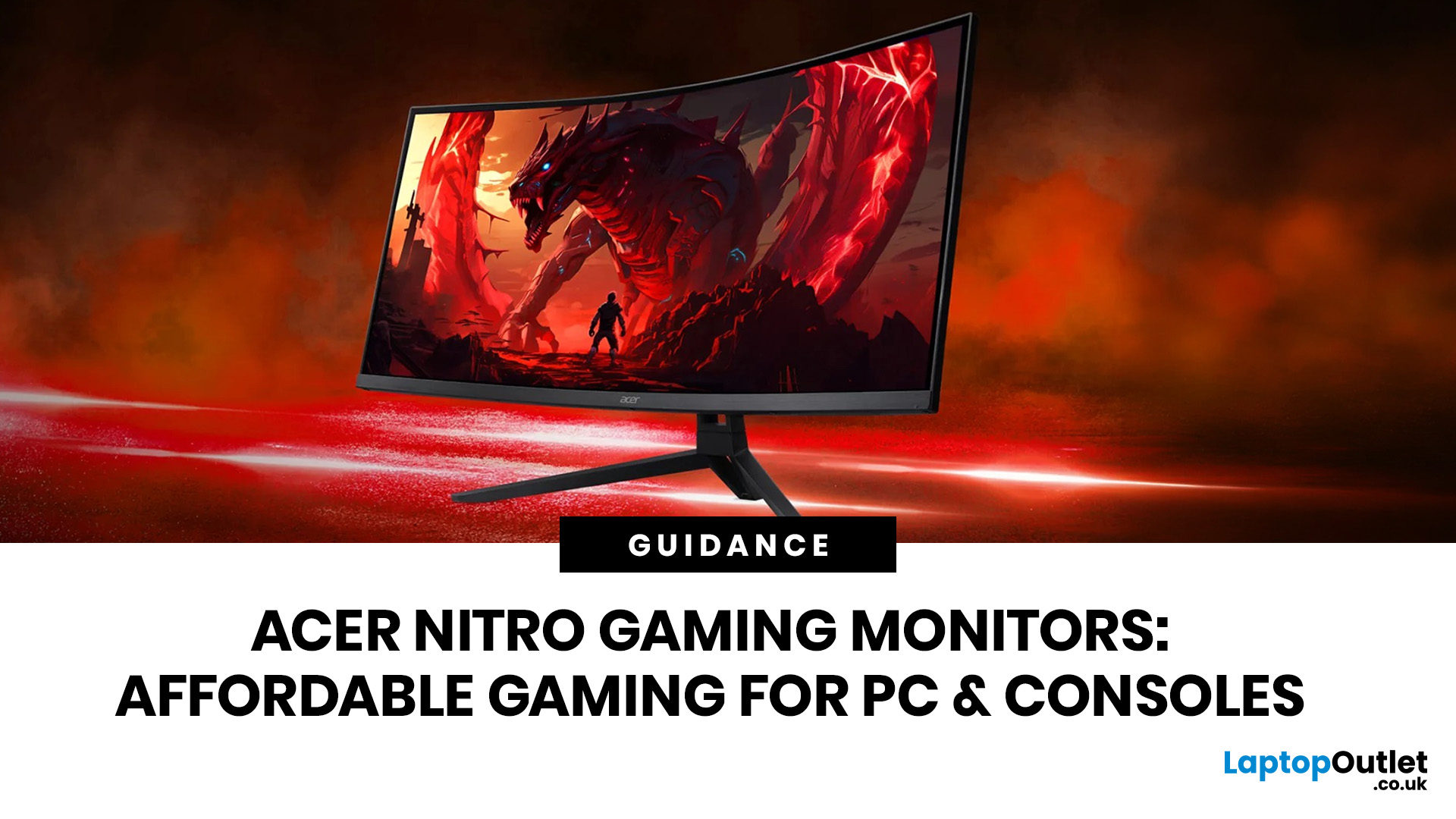
If you want smooth gameplay without jumping straight into premium OLED pricing, Acer Nitro gaming monitors are one of the easiest ranges to shortlist. Acer positions the Nitro line as a gaming family with options for fast-paced play, ultrawide immersion and richer colour, while Our Acer monitor range backs that up with Full HD, QHD, curved and ultrawide Nitro models aimed at buyers who want value, not just spec-sheet flexing.
That is exactly why Acer Nitro monitors UK shoppers keep coming back to the series. The range is broad enough to cover casual desk gaming, PS5 and Xbox setups, and entry-level PC esports, but it still stays realistic on price compared with high-end Predator and OLED alternatives. Nitro models from compact 23.8-inch Full HD panels up to 34-inch curved UWQHD displays, with refresh rates running from 120Hz to 240Hz.
Are Acer Nitro Gaming Monitors Good for Budget Gaming?
Yes. For casual gaming, console play and entry-level PC builds, Acer Nitro sits in a very practical
Last Updated: July 06, 2026
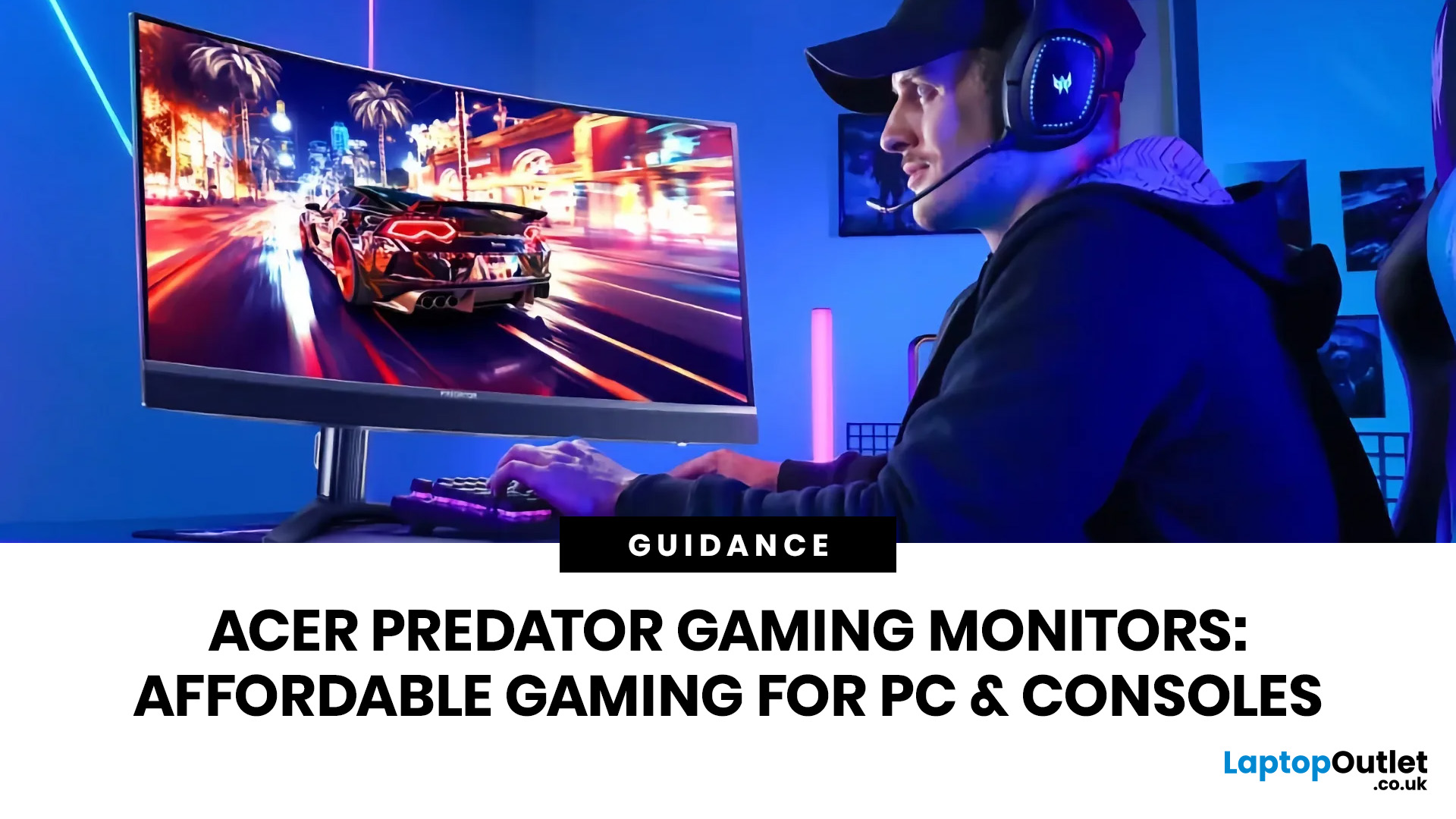
you are shopping for Acer Predator gaming monitors, you are usually not looking for a basic panel. You are looking for speed, image quality and a monitor that genuinely fits the kind of games you play. For some buyers, that means a fast 27-inch display for ranked shooters and esports titles. For others, it means a bigger 4K panel for high-detail single-player games. And for enthusiasts building the kind of setup that makes every desk photo look dramatic, it means an ultrawide or super-ultrawide screen that turns a gaming PC into the centrepiece of the room.
That is why Predator remains such an interesting range. Acer's broader monitor line covers different budgets and uses cases, but the Predator family is where Acer pushes harder on premium gaming features like OLED and QD-OLED panels, very high refresh rates, ultrawide formats and esports-level response times.
If you want the simple answer: Why choose Acer Predator monitor
Here is the short version.
- For competitive esports and fast shooters,

