



Curved Monitor Backlight Bleed: Why It Happens and How to Test It
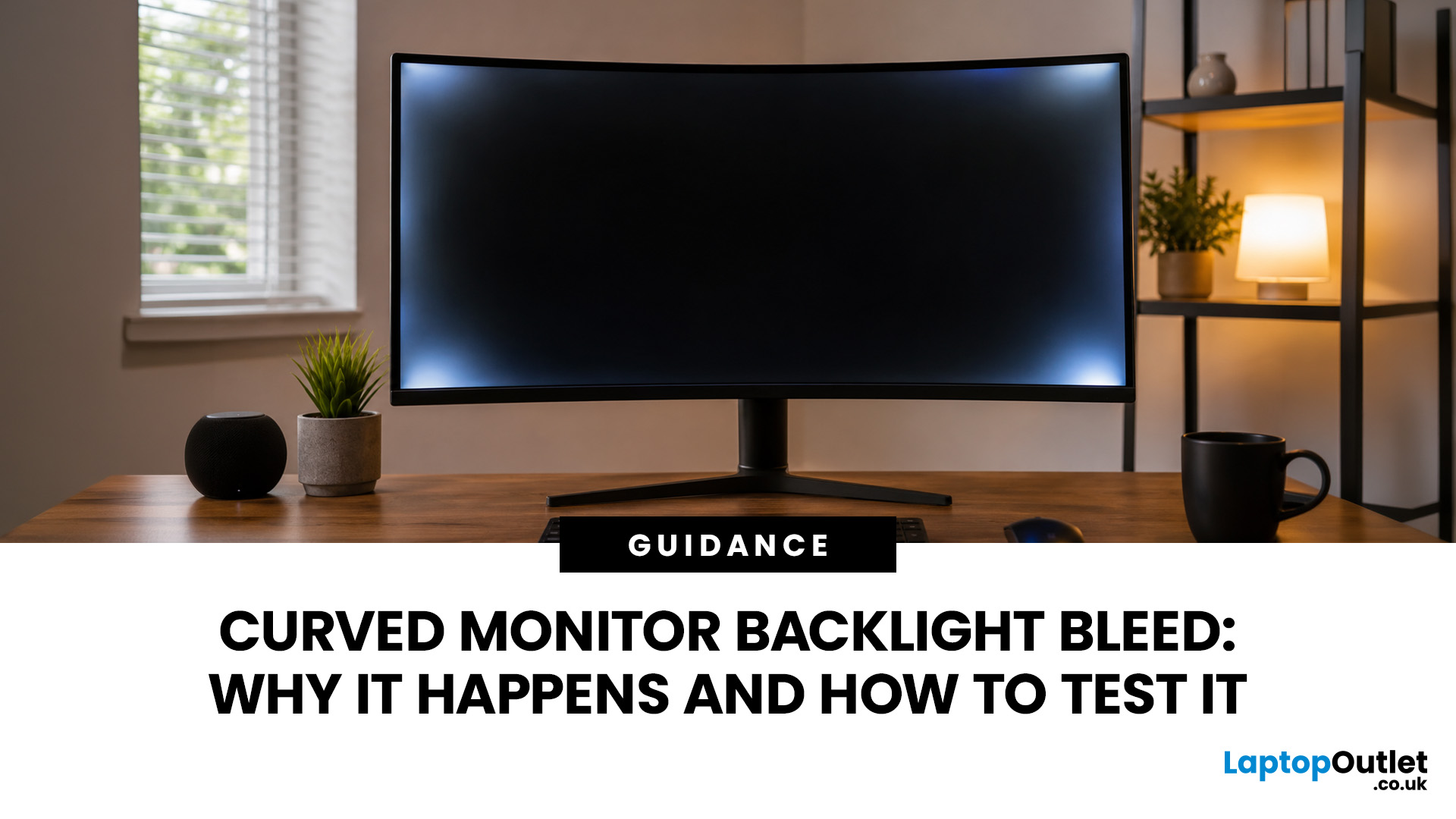
If you have just set up a new curved monitor and spotted pale patches glowing in the corners during a dark loading screen, you are not imagining things. Curved monitor backlight bleed is one of the most common concerns among new monitor owners, and it is often confused with other display quirks such as IPS glow.
The good news is that it is usually simple to check with a quick test, and not every trace of light leakage is worth returning your screen over. This guide explains why backlight bleed happens on curved computer monitors, how to test it properly, and what the common fixes are.
What Is Backlight Bleed, Exactly?
Every standard LCD monitor, curved or flat, is built like a sandwich. A backlight sits at the back, a diffuser spreads that light evenly across the panel, and a liquid crystal layer sits on top to form the image you actually see.
Monitor backlight bleed happens when that structure doesn't seal light in as intended. Instead of staying trapped behind the panel, some of it escapes around the edges or bezel, showing up as pale patches, soft streaks, or a faint glow whenever the screen displays black or very dark content.
It's almost always most obvious in a dim room, during a black loading screen, a letterboxed film, or a dark game menu. Under normal daylight use with typical bright content on screen, mild bleed is often invisible.
Why Are Curved Monitors More Prone to Backlight Bleed?
Curved monitor backlight bleed isn't caused by curvature alone. Flat IPS and VA monitors get regular backlight bleed too, so a curved shape is never the sole explanation for a patchy black screen.
That said, curvature does add a physical variable that flat panels simply don't have to deal with. To bend a rigid glass panel into a curve, manufacturers apply constant tension across the whole sheet. That tension concentrates unevenly, particularly at the four corners, and can subtly shift the alignment of the internal polarising layers.
Display engineering research on curved panels has linked this exact mechanism, stress-related retardation in the glass at the corners, to visible light leakage on black images. It's a known trade-off of the curving process itself, not a sign of sloppy manufacturing on its own.
This is one reason gaming curved screens with a tighter curve rating (a lower "R" number, such as 1000R) can show slightly more edge unevenness than a gently curved 1800R ultrawide of a similar size, all else being equal. The tighter the bend, the more stress is concentrated at the panel's edges.
Even so, this kind of curved gaming monitor light bleed is usually more about assembly precision than the curve being inherently flawed. Panel tolerances, bezel pressure, and handling during transport tend to matter just as much as the shape of the glass.
Common Causes of Curved Monitor Backlight Bleed
|
Cause |
What's happening |
Curved-panel factor |
|
Frame or bezel pressure |
The chassis clamps the LCD stack too tightly in places |
Curvature can make pressure distribution less even across the panel |
|
Panel assembly tolerance |
The backlight, diffuser, and LCD layers aren't perfectly aligned |
Bending the stack adds another alignment variable during manufacturing |
|
Glass stress at the corners |
Curving rigid glass concentrates tension at the four corners |
Unique to curved panels; flat screens don't experience this |
|
Transport and handling |
Knocks or pressure during shipping can shift internal layers |
Larger curved panels are heavier and can flex slightly in transit |
|
Ordinary quality-control variance |
No two panels off the same production line are identical |
Curved panels generally work within a narrower tolerance window |
IPS Glow vs Backlight Bleed vs Clouding: Know the Difference
This is where most buyers get confused, and where returning a perfectly normal monitor (or keeping a genuinely faulty one) tends to happen. Separating IPS glow vs backlight bleed vs clouding correctly saves both frustration and unnecessary returns.
|
Trait |
IPS glow |
Backlight bleed |
Clouding |
|
Where it shows up |
Corners |
Edges or corners, fixed spot |
Patchy areas across the screen |
|
Moves with viewing angle? |
Yes, shifts or fades |
No, stays fixed |
No, stays fixed |
|
Typical colour |
Silvery or slightly warm haze |
Yellow-white or grey patch |
Grey, blotchy "batman logo" shape |
|
Most common on |
IPS computer monitors |
Any LCD/LED-backlit panel |
Mostly VA panels |
|
Normal or a defect? |
A normal optical trait |
Normal in small amounts, defect if severe |
Common and usually tolerated |
The quickest way to tell them apart is to move your head. Sit at your normal distance, look at a full black screen, then shift left, right, up, and down. If the pale patch fades, shifts, or intensifies as you move, that's IPS glow. If the same patch sits in exactly the same spot no matter where you look from, you're seeing genuine backlight bleed or, on a curved VA panel, clouding.
If you're shopping for a new screen and colour accuracy at wide angles matters most to you, it's worth considering IPS computer monitors specifically, since their viewing-angle glow is a well-documented trade-off for their wide, consistent colour performance.
How to Test Your Curved Monitor for Backlight Bleed
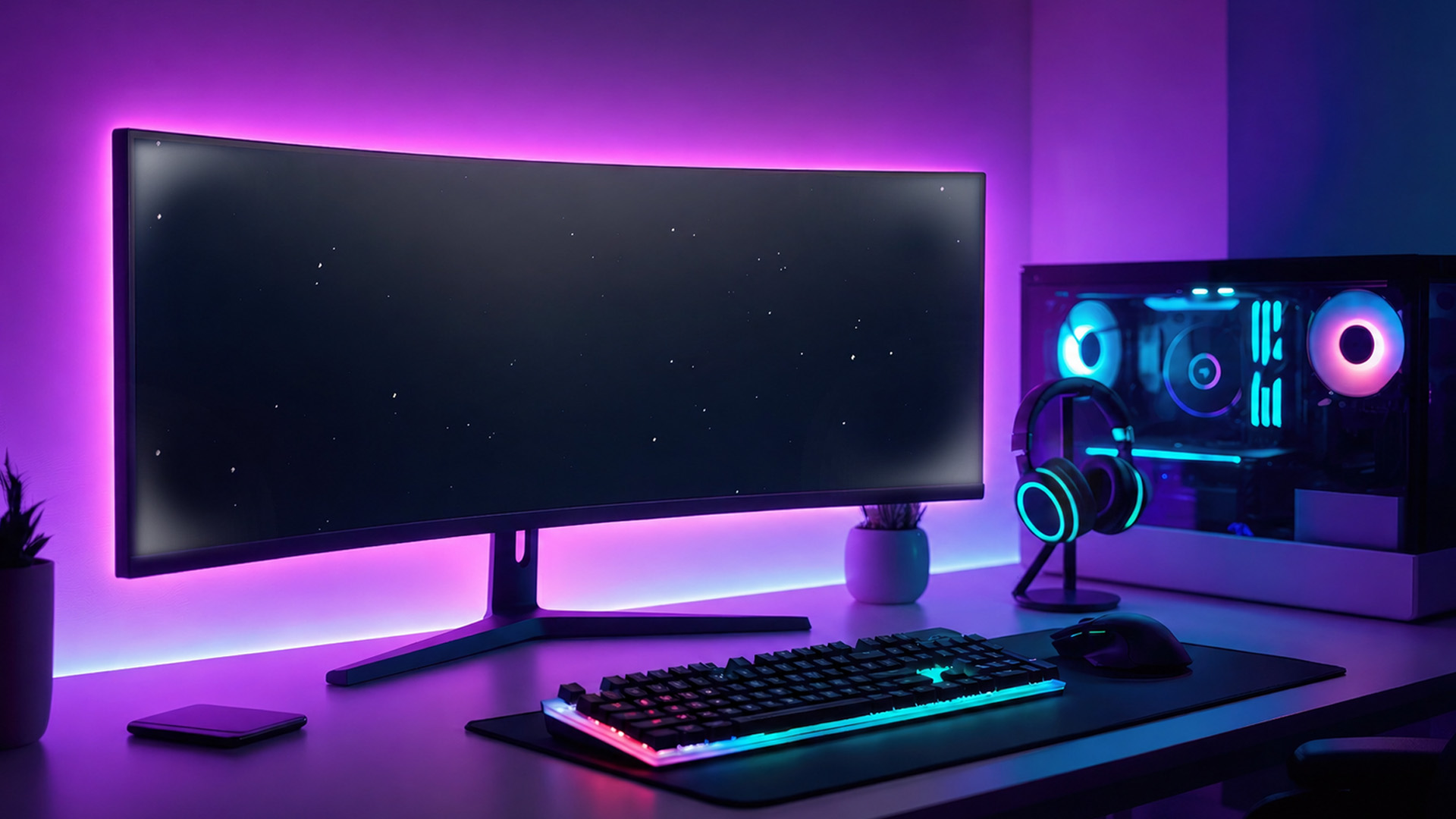
The core of any backlight bleed test is a simple monitor black screen test, but doing it properly makes the result far more meaningful than just glancing at a dark loading screen.
Before You Start
- Let the monitor warm up for 10 to 15 minutes, since panels can shift slightly in brightness as they reach normal operating temperature.
- Sit at your usual viewing distance, with your eyes roughly level with the vertical centre of the screen.
- Test at your normal, everyday brightness first, not the factory-default maximum.
- Dim the room lights for the main test, though it also helps to repeat it with your usual room lighting afterwards.
Step-by-Step Test
- Show a full black image. Use a black desktop wallpaper in fullscreen, a black slide in a presentation app, or any black screen test tool, then go fullscreen so no toolbars or bezel colours interfere.
- Scan the edges and corners from your normal seating position, looking for any patch that looks lighter grey, white or yellowish against the rest of the black.
- Move your head left, right, up and down while watching that patch. If it shifts, grows or shrinks with your movement, it is more likely IPS glow. If it stays pinned to the same spot, it points to backlight bleed.
- Test with real content. Open a dark game menu, a night scene, or a film with black letterbox bars. If a patch only appears on an artificial pure-black test and never in normal content, it may not matter much in practice.
- Repeat at a few brightness levels so you can see how the issue behaves at the settings you would actually use day to day.
|
Brightness |
What to expect |
|
30–50% |
Most mild bleed becomes very hard to notice at this range. |
|
60–80% |
Typical everyday gaming and film brightness; genuine bleed is usually visible here if it's going to show at all. |
|
90–100% |
Even excellent panels can show faint corner glow at maximum brightness, so treat this as a stress test rather than a realistic benchmark. |
What Counts as Acceptable Backlight Bleed on a Curved Monitor?
There's no official industry pass or fail line for monitor screen bleed, but a few practical rules of thumb help you judge your own display fairly.
Generally Acceptable
|
Worth Taking Further
|
If you're checking for curved monitor light bleed before a return window closes, run the test in the section above at your normal brightness rather than maximum, since a worst-case setting can make an otherwise acceptable panel look worse than it is in daily use.
Because there's a genuine subjective element here, the most useful test is simply whether the bleed bothers you during the content you actually use the monitor for, rather than whether it's technically detectable on a synthetic test pattern.
How to Reduce Backlight Bleed on a Curved Monitor
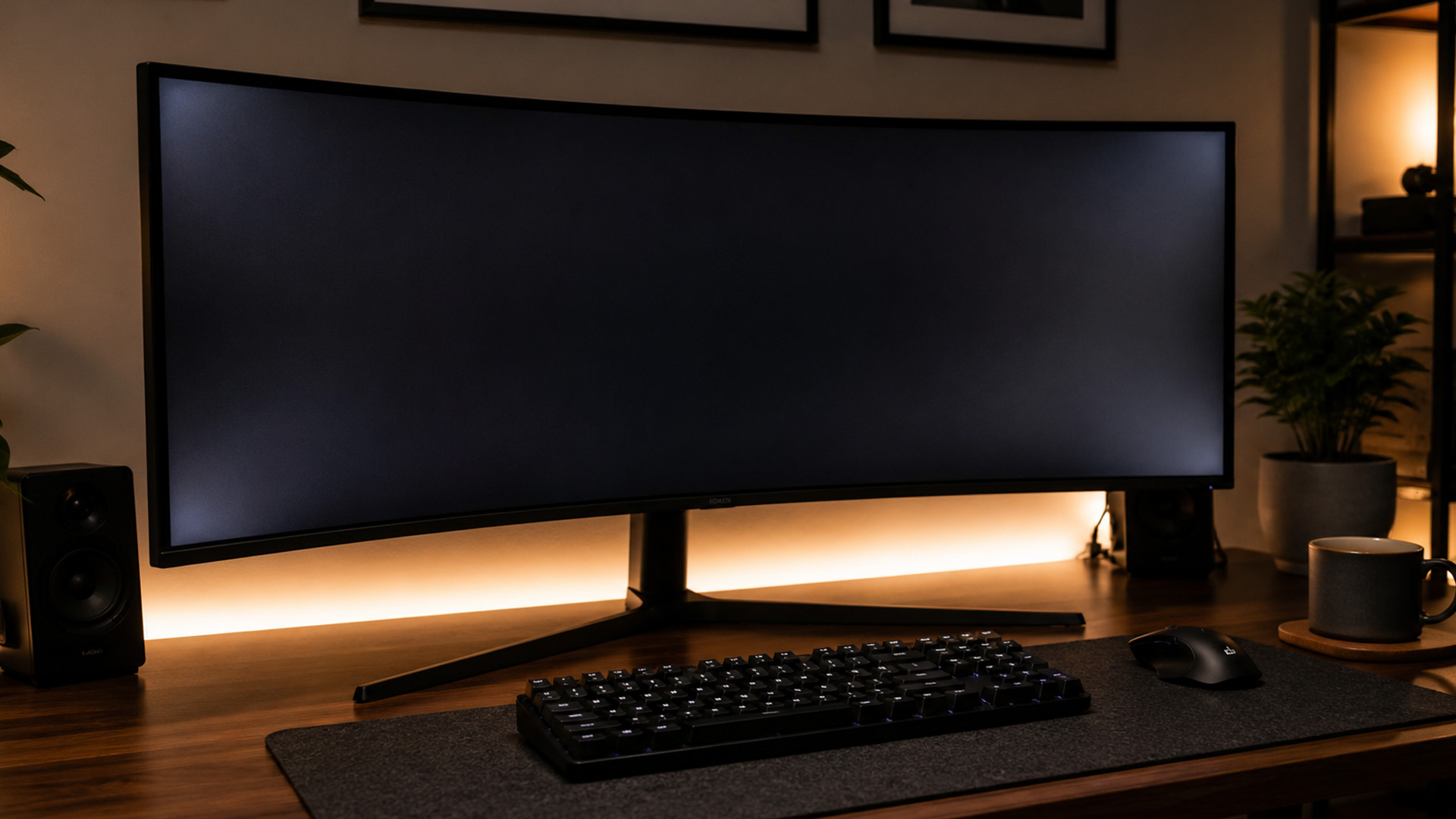
There's no guaranteed backlight bleed curved monitor fix that eliminates the issue completely, since it's a physical characteristic of how the panel was assembled. That said, a few simple adjustments can reduce how noticeable it is day to day.
- Lower your brightness. Bleed is almost always less visible at your normal day-to-day brightness than at 100%.
- Check your stand and VESA mount screws. Overly tight mounting can add pressure to the frame, so gently loosening them slightly, without making the monitor unstable, sometimes helps.
- Use bias lighting. A soft light source behind the monitor, such as an LED strip, reduces the contrast between the black screen and a dark room, which makes light leakage less noticeable to your eyes.
- Give it time. On some units, very slight bleed reduces marginally within the first few weeks of use as the panel and frame settle.
- Avoid pressing on the screen. Physically massaging or pressing the panel is sometimes suggested online, but it carries a real risk of damaging the panel, so we wouldn't recommend trying it.
If none of that helps and the bleed is genuinely distracting during normal use, the more reliable route is checking your return or warranty options rather than attempting a permanent physical fix.
Know Your Rights: Returning a Faulty Curved Monitor in the UK
If your curved monitor shows backlight bleed severe enough to count as a genuine fault rather than normal manufacturing tolerance, UK shoppers have clear statutory protection under the Consumer Rights Act 2015.
- Within the first 30 days of taking ownership, you have a short-term right to reject faulty goods and claim a full refund, without needing to prove the fault existed at the point of sale.
- Between 30 days and six months, the retailer normally gets one opportunity to repair or replace the item first, and the burden of proof that the goods weren't faulty sits with the retailer, not you.
- After six months, the responsibility to show the fault was present at the time of purchase generally shifts to the buyer.
These rights sit with the retailer you bought from, not the monitor's manufacturer, and they apply on top of any additional manufacturer warranty.
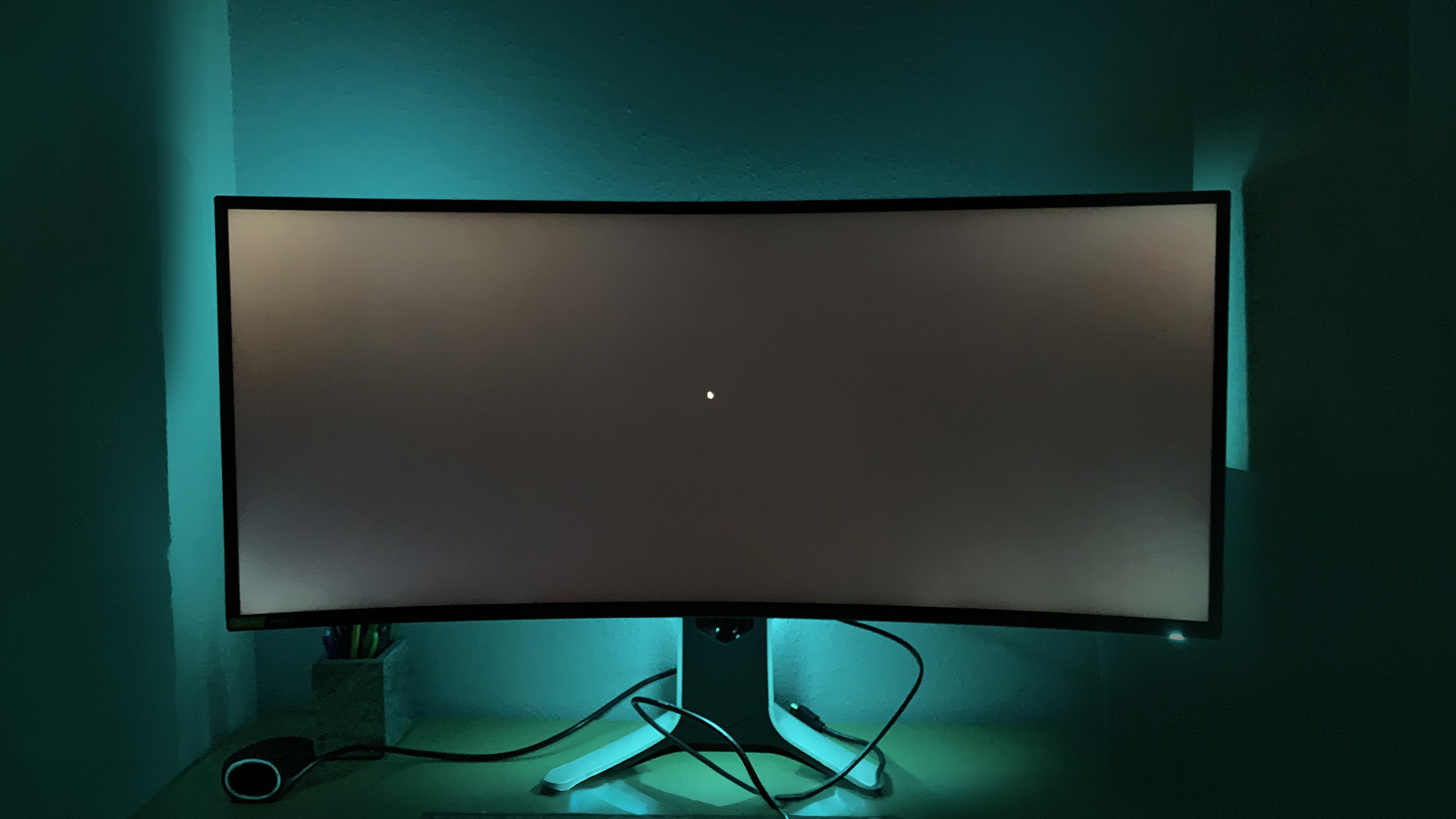
It's worth photographing the bleed clearly, in a dark room, at your normal brightness, as evidence if you do need to raise a claim. Lock your camera's exposure so the photo matches what you actually see with your own eyes, since auto-exposure on phone cameras often exaggerates the effect.
Do OLED and Curved OLED Monitors Get Backlight Bleed?
This question comes up often because premium curved gaming monitors have shifted heavily towards OLED and QD-OLED panels over the past couple of years. The short answer is that traditional backlight bleed does not apply to OLED computer monitors at all.
That is because OLED technology has no separate backlight layer. Each pixel produces and controls its own light, so a pixel that is meant to be black simply switches off completely, with nothing behind it left to leak through.
OLED is not automatically flawless in every other respect, though. Some panels can show unrelated near-black quirks, including:
- Reverse vignetting, where edges look very slightly brighter than the centre in certain content.
- Banding, visible steps between very close shades of dark grey rather than a smooth gradient.
- Temporary image retention, and a longer-term risk of burn-in with static on-screen elements, which most modern OLED monitors now mitigate with pixel-shifting and similar protection features.
None of these are backlight bleed in the technical sense, since there is no backlight to bleed. They are worth knowing about, though, if you are weighing up OLED against a Mini-LED or IPS alternative for a dark-room setup.
Buying Tips to Reduce the Risk Before You Buy
You can't guarantee a perfect panel, since unit-to-unit variation exists even within the best gaming monitors on the market, but a few habits reduce your chances of ending up with a distracting unit.
- Buy from a retailer with a clear, straightforward returns policy, and run your test within that window rather than weeks later.
- Read recent reviews for the specific model, since uniformity can vary between production batches, not just between brands.
- Weigh panel type alongside price. VA panels often show less obvious edge bleed than budget IPS panels, though they can trade this for slower dark-scene transitions.
- If backlight bleed is a dealbreaker for you specifically, an OLED curved monitor sidesteps the issue entirely, at a higher price point.
In the UK, curved monitors span a wide range, from around £150 inc. VAT for entry-level Full HD models up to £800 inc. VAT or more for premium curved OLED or QD-OLED panels. Spending more reduces the odds of a poorly uniform unit, but it doesn't guarantee a bleed-free screen outright, so testing on arrival is worthwhile at any price point.
Not sure if curved 4K is the right step up? Our guide breaks down whether curved 4K gaming monitors are actually worth it, beyond just uniformity concerns.

Putting It All Together
Curved monitor backlight bleed is common, and in small amounts it's a normal side effect of how LCD panels are built and bent, not proof your screen is faulty. The curve itself adds extra stress at the corners during manufacturing, which is why some gaming and ultrawide screens show a touch more edge glow than flat panels.
A ten-minute black-screen test, done at a realistic brightness and viewing distance, is the fairest way to separate normal panel behaviour from a genuine defect. If a patch stays fixed and clearly disrupts everyday use, UK consumer law gives you a straightforward route to a repair, replacement, or refund.

A Few More Things to Know...
How to test backlight bleed monitor?
Open a pure black image full screen, use normal brightness, dim the room slightly, and sit at your usual distance. Look for fixed bright patches at edges or corners, not glow that moves when your viewing angle changes.
What causes backlight bleed on monitors?
Backlight bleed usually comes from uneven pressure, panel assembly tolerances, edge lighting, frame tension, heat, handling damage or ultra-slim bezels. On curved LCD monitors, the wider shape and bend can make small corner leaks easier to notice in dark scenes.
How do you fix a bleeding backlight?
You cannot fully repair backlight bleed at home without risking damage. Safer steps include lowering brightness, using gentle bias lighting, checking the stand is not twisting the frame, removing clips or mounts, and contacting the retailer if it is severe.
What is an acceptable level of backlight bleed on a curved monitor?
An acceptable level is usually light you cannot see during normal use, typical office lighting, regular films or games. If bright fixed patches distract you from content at sensible brightness, or appear uneven from your normal seat, assess return options.
Do OLED curved monitors have backlight bleed?
No. OLED curved monitors do not have traditional backlight bleed because each pixel emits its own light rather than relying on a separate backlight. They can still have other concerns, including image retention risk, pixel uniformity variation and reflections.
Read More
Are Curved Monitors Good for Competitive Gaming?
Why Curved Monitors Are a Game-Changer?
BenQ Eye-Care Monitors Explained: Brightness Intelligence, Low Blue Light & Flicker-Free Tech
Related Articles

Last Updated: July 06, 2026
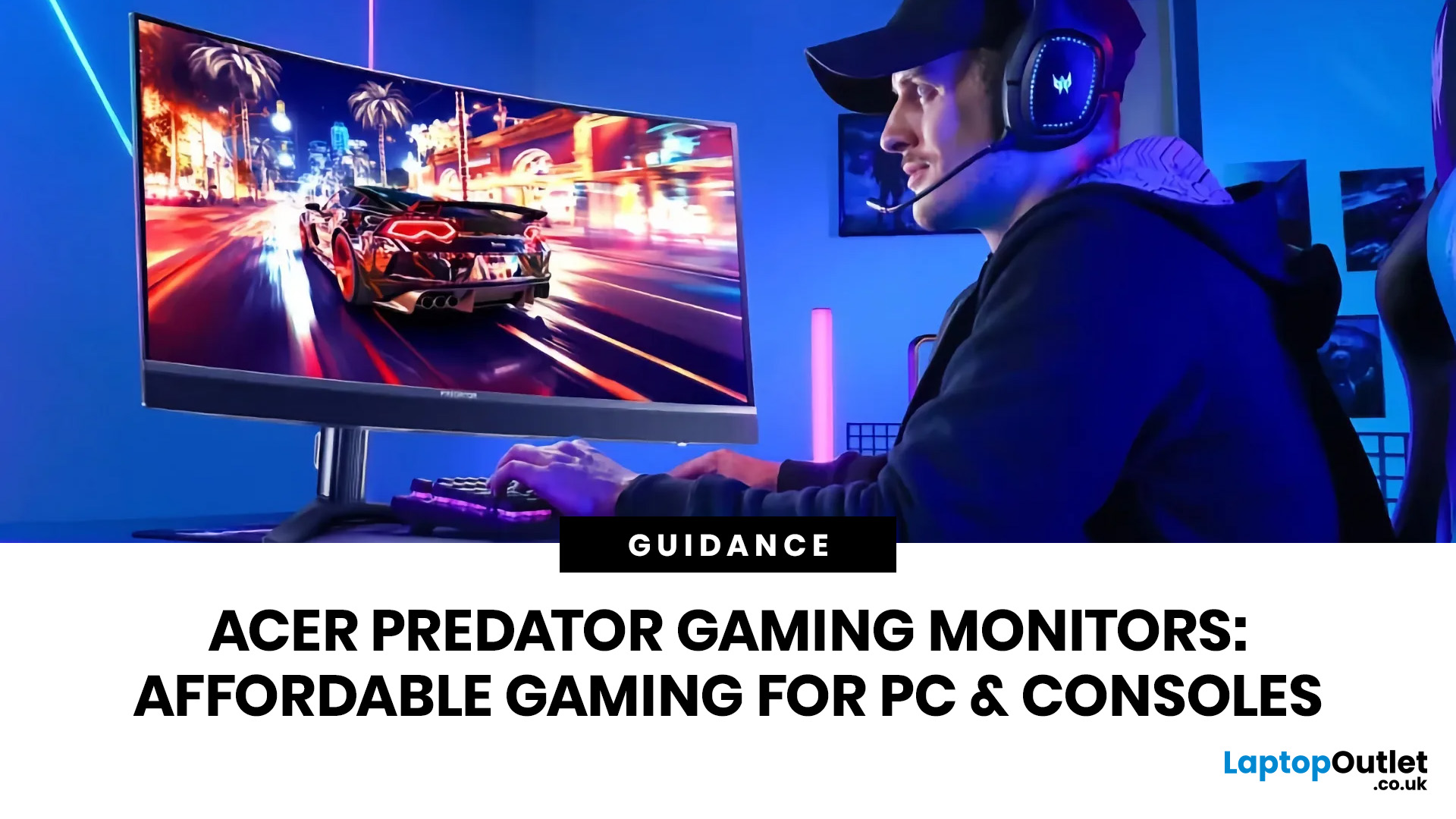
you are shopping for Acer Predator gaming monitors, you are usually not looking for a basic panel. You are looking for speed, image quality and a monitor that genuinely fits the kind of games you play. For some buyers, that means a fast 27-inch display for ranked shooters and esports titles. For others, it means a bigger 4K panel for high-detail single-player games. And for enthusiasts building the kind of setup that makes every desk photo look dramatic, it means an ultrawide or super-ultrawide screen that turns a gaming PC into the centrepiece of the room.
That is why Predator remains such an interesting range. Acer's broader monitor line covers different budgets and uses cases, but the Predator family is where Acer pushes harder on premium gaming features like OLED and QD-OLED panels, very high refresh rates, ultrawide formats and esports-level response times.
If you want the simple answer: Why choose Acer Predator monitor
Here is the short version.
- For competitive esports and fast shooters,
Last Updated: May 20, 2026
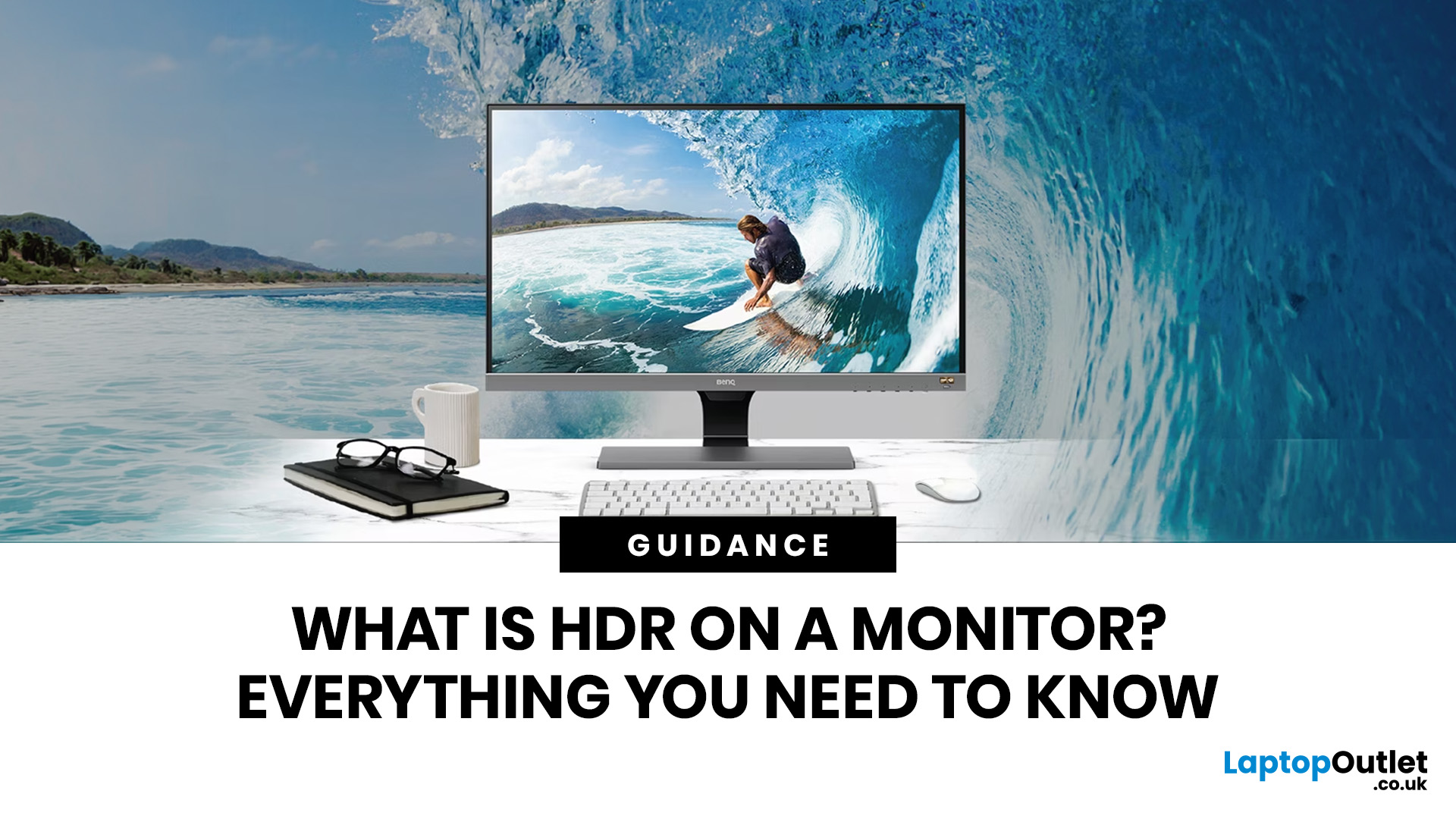
HDR is one of those monitor specs that sounds instantly premium. You see it on gaming monitors, 4K displays, creator screens, and even some budget monitors. But here’s the plot twist: not every HDR monitor gives you that “wow, this looks unreal” experience.
Some HDR displays look bright, rich and cinematic. Others technically support HDR but barely look different from standard mode. Bit awkward. So, what is HDR on a monitor, how does it work, and is HDR actually worth paying for? This complete HDR monitor explained guide breaks it all down in plain English, so you can shop smarter and avoid getting finessed by shiny spec labels.
What Does HDR Mean on a Monitor?
HDR stands for High Dynamic Range.
On a monitor, HDR is designed to show a wider range of brightness, contrast and colour than a standard SDR display. In simple terms, it helps bright areas look brighter, dark areas look deeper and colours look richer when you are watching or playing HDR-supported content.
So, when someone asks,
Last Updated: August 24, 2026
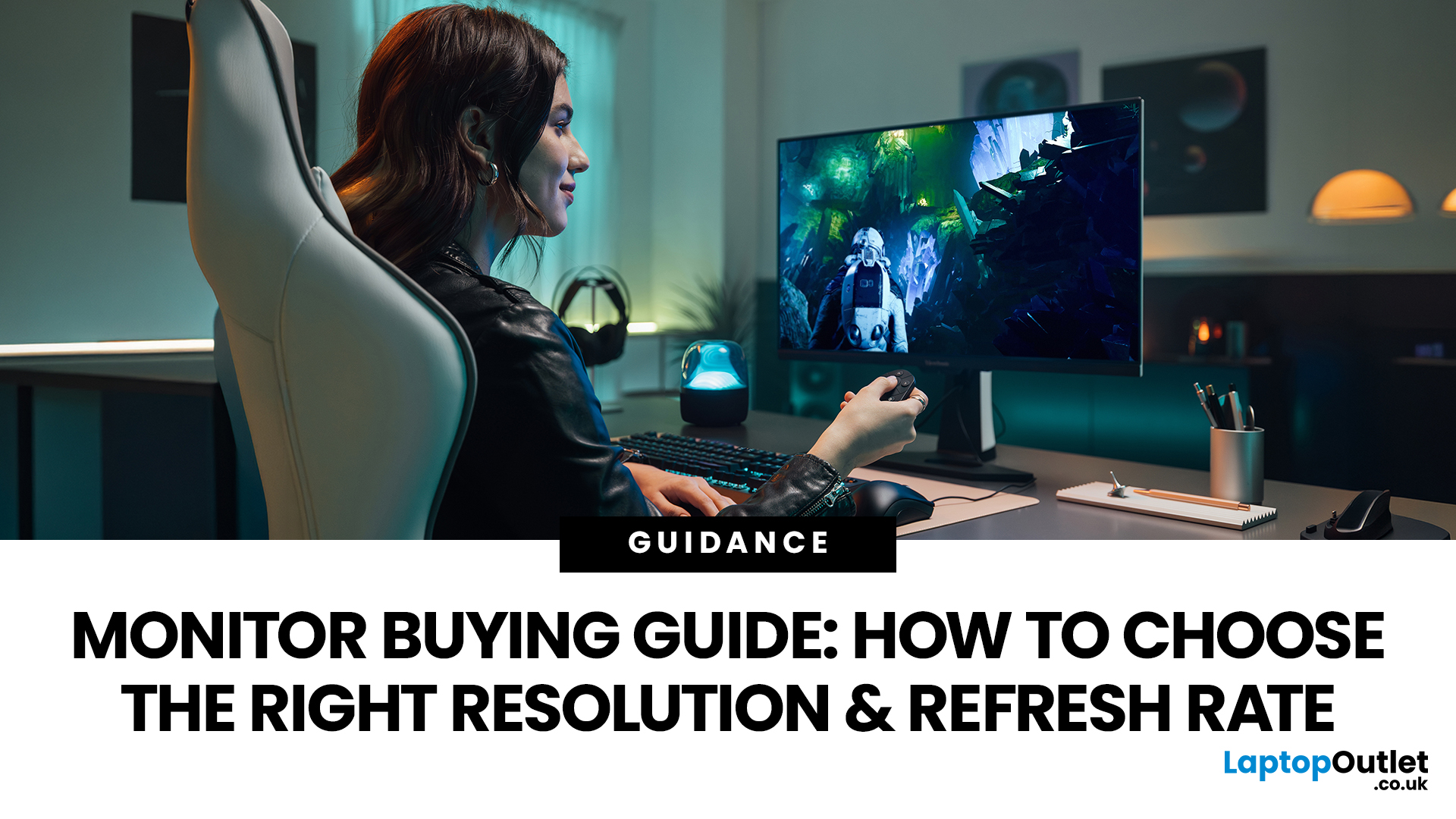
Buying a monitor should be simple. Pick a screen, plug it in, done. Except the second you start shopping, you’re hit with Full HD, QHD, 4K Ultra HD, 60Hz, 144Hz, 240Hz, IPS, VA, response time, HDMI, DisplayPort and about 47 other things that sound like they belong in a sci-fi film.
So, let’s make it easy.
This monitors & displays guide breaks down the two specs that matter most for most buyers: resolution and refresh rate. Whether you’re building a gaming setup, upgrading your home office, sorting a uni desk, editing content or just replacing an old screen that’s seen better days, this guide will help you choose the right monitor without getting finessed by big numbers.
Quick Answer: What Resolution and Refresh Rate Should You Choose?
Here’s the no-stress version.
| What You Use it For | Best Resolution | Best Refresh Rate | Best Monitor Type |
| Everyday browsing, emails and admin | Full HD | 60Hz–100Hz | Budget monitor |
| Studying or home office work | Full HD or QHD | 75Hz–120Hz | Productivity monitor |
| Multitasking |
Last Updated: August 24, 2026
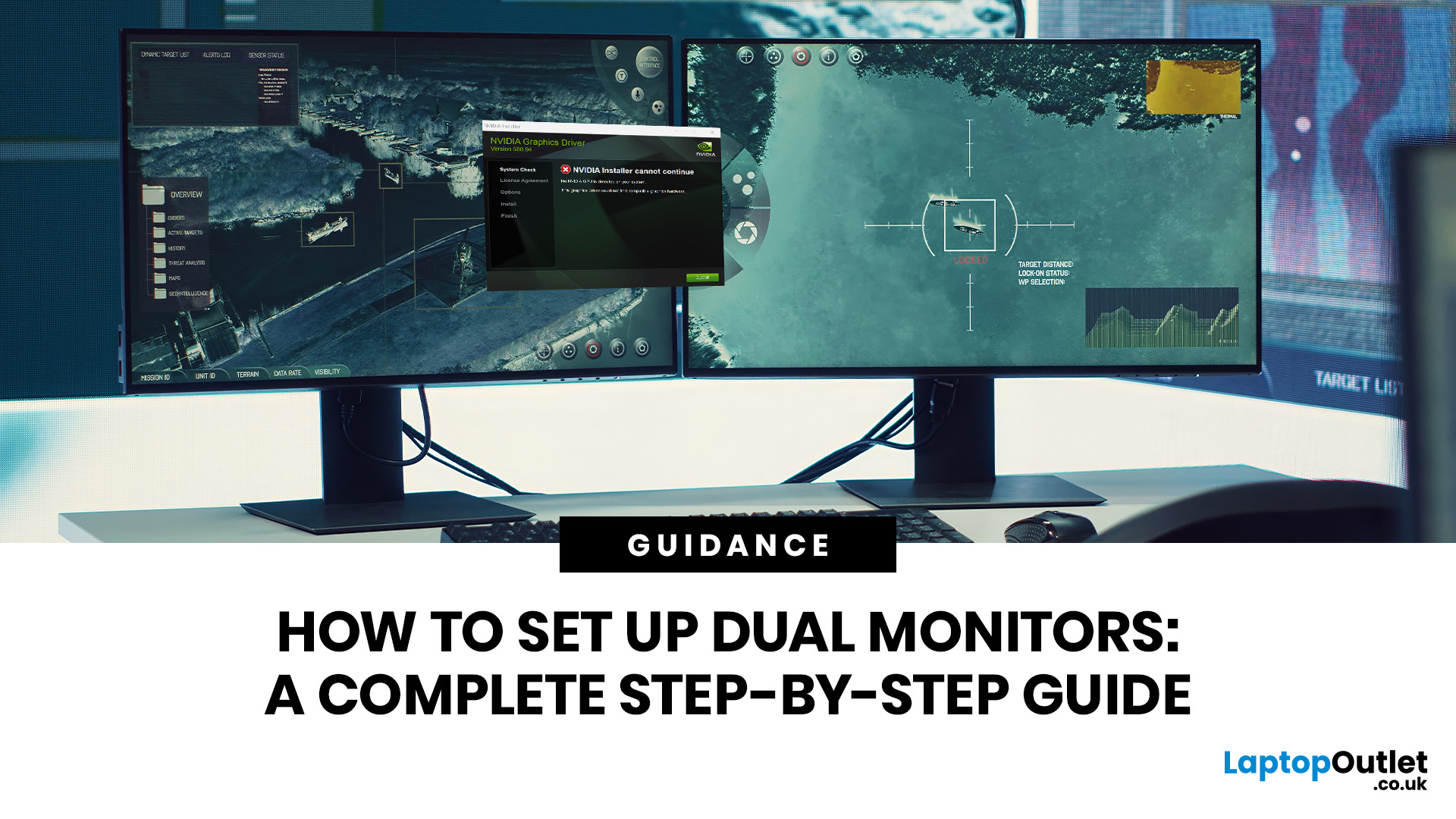
One screen is fine. Two screens? That is where your setup starts feeling seriously organised. Whether you are working from home, studying, gaming, editing, coding or just tired of switching between 27 tabs every five seconds, a dual monitor setup can make your desk feel cleaner and your workflow feel smoother.
The good news is that learning how to set up dual monitors is not as complicated as it sounds. You just need the right monitors, the correct cables or adapters, and a few display settings adjusted properly. This complete guide explains how to connect two monitors, how to set up dual monitors on Windows, how to set up dual monitors with a laptop, and how to get the best layout for work, study, gaming and everyday use.
How Do You Set Up Dual Monitors?
Here is the simple version.
To set up dual monitors, connect both screens to your laptop or desktop PC using HDMI, DisplayPort, USB-C, Thunderbolt or a compatible docking station. Then open your display settings, choose Extend these displays
Last Updated: September 03, 2026
Ultrawide monitors look seriously clean on a desk. One big screen, loads of horizontal space, fewer bezels, and that “main character workstation” vibe. But are they actually useful, or are they just a pricey way to make your setup look dramatic?
If you are asking, “is an ultrawide monitor worth it?”, the answer is: yes, for the right person. An ultrawide screen monitor can be a massive upgrade for multitasking, gaming, editing, streaming, and hybrid work. But it is not the perfect choice for everyone. This complete ultrawide monitor buying guide breaks down the benefits, drawbacks, best use cases and key specs to check before you buy.
Are Ultrawide Monitors Worth it in 2026?
Yes, ultrawide monitors are worth it in 2026 if you want more horizontal workspace, better multitasking, immersive gaming or a cleaner alternative to dual monitors. They are especially worth it for:
- Hybrid workers
- Multitaskers
- Gamers
- Video editors
- Designers
- Streamers
- Coders
- Finance and dashboard users
- Anyone who wants
Last Updated: May 20, 2026
Choosing a monitor resolution should be simple, right? You pick a screen, plug it in, and get on with your day. Except the moment you start shopping, you get hit with 1080p, 1440p, QHD, 4K, Ultra HD, scaling, refresh rates and a whole lot of spec-sheet chaos.
So, which one should you actually buy?
This guide breaks down the 4K vs 1440p vs 1080p monitor debate in plain English. Whether you need a screen for gaming, work, studying, streaming, editing or a bit of everything, we’ll help you choose the right resolution without overpaying for pixels you do not need.
Quick Answer: 1080p vs 1440p vs 4K Monitor
Here’s the no-drama answer.
| User Type | Best Resolution | Why |
| Budget buyers | 1080p / Full HD | Affordable, reliable and easy to run |
| Students | 1080p or 1440p | Good value with enough clarity for study |
| Home office users | 1440p / QHD | Sharper text and better multitasking |
| Hybrid workers | 1440p or 4K | More screen space for apps and documents |
| Casual gamers | 1080p or 1440p | Good mix of smoothness, price and quality |
Last Updated: June 10, 2026
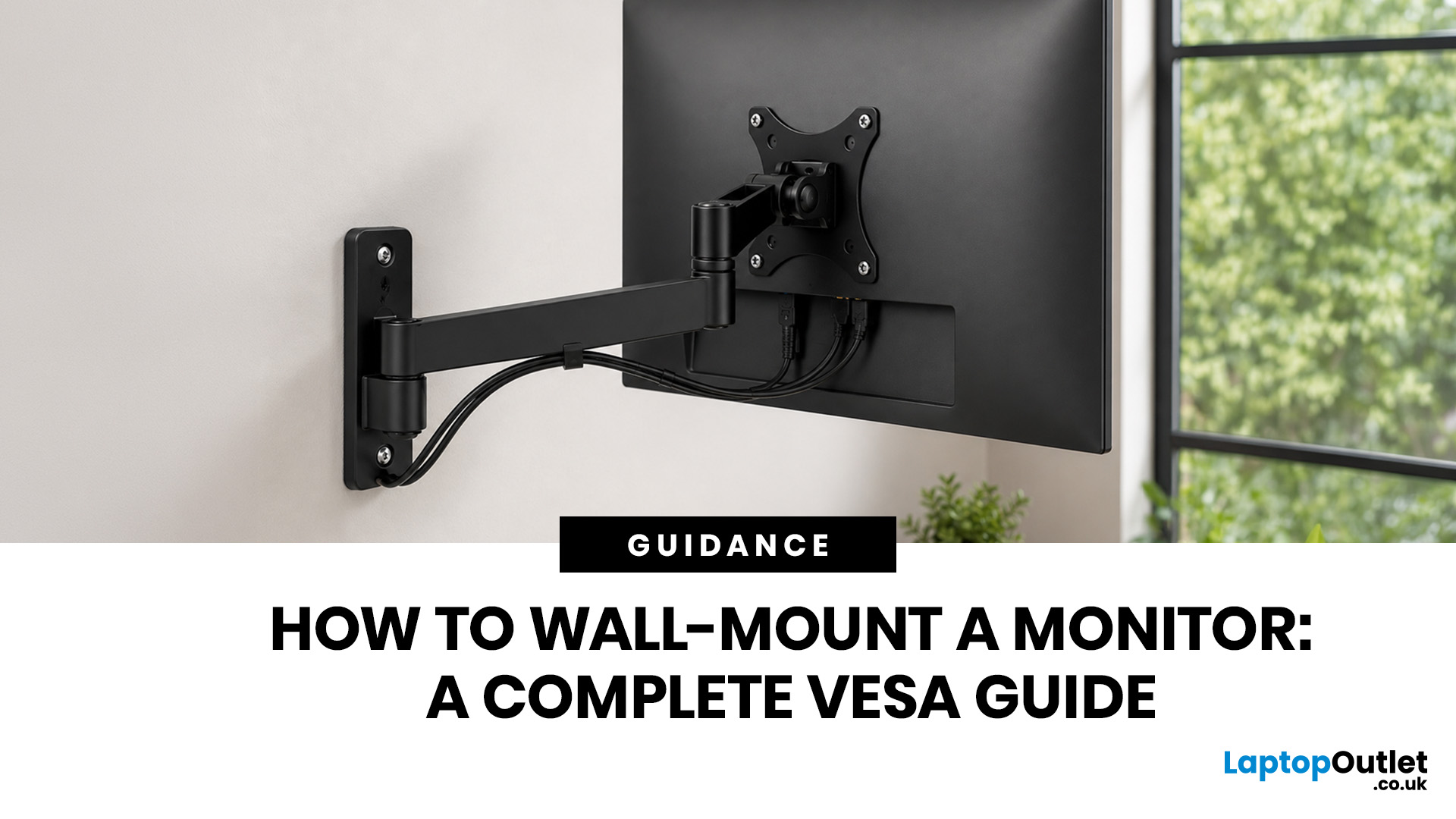
Quick Answer: Wall-mounting a monitor is worth it if you want to save desk space, improve posture and create a cleaner setup. Before you start, check that your monitor supports VESA mounting, confirm the correct VESA mounting pattern, choose a wall mount that supports your monitor’s weight, and make sure your wall can safely hold it. This VESA mount monitor guide explains what VESA mounting is, how to check compatibility, what tools you need, and how to wall mount a monitor safely step by step.
Wall-mounting a monitor can make your setup look instantly cleaner. No bulky stand. More desk space. Better cable management. A screen that actually sits at the right height instead of forcing your neck into questionable positions. Before you grab a drill and start making holes in the wall like you’re on a home renovation show, there are a few things to check. Not every monitor can be mounted, not every wall is suitable, and not every mount fits every screen.
What is VESA Mounting?
VESA mounting
Last Updated: June 10, 2026
Quick Answer: Yes, touch screen monitors are worth it if you need a more interactive display for work, business, education, presentations, creative tasks or customer-facing setups. They let you tap, swipe, scroll, zoom and sometimes draw directly on the screen, which can feel much more natural than using only a mouse and keyboard.
A touch screen monitor sounds cool. You can tap apps, swipe through pages, pinch to zoom, sign documents, control presentations and interact with your PC like it is a giant tablet. Very futuristic. Very clean setup energy. But before you spend extra, it is worth asking: should I buy a touch screen monitor, or would a standard display do the job better?
The answer depends on how you use your computer. For business, education, creative work and interactive setups, touch can be genuinely useful. For spreadsheets, typing, gaming and everyday browsing, it may be more of a nice bonus than a must-have. This touch screen monitor buying guide breaks down the benefits,
Last Updated: June 10, 2026
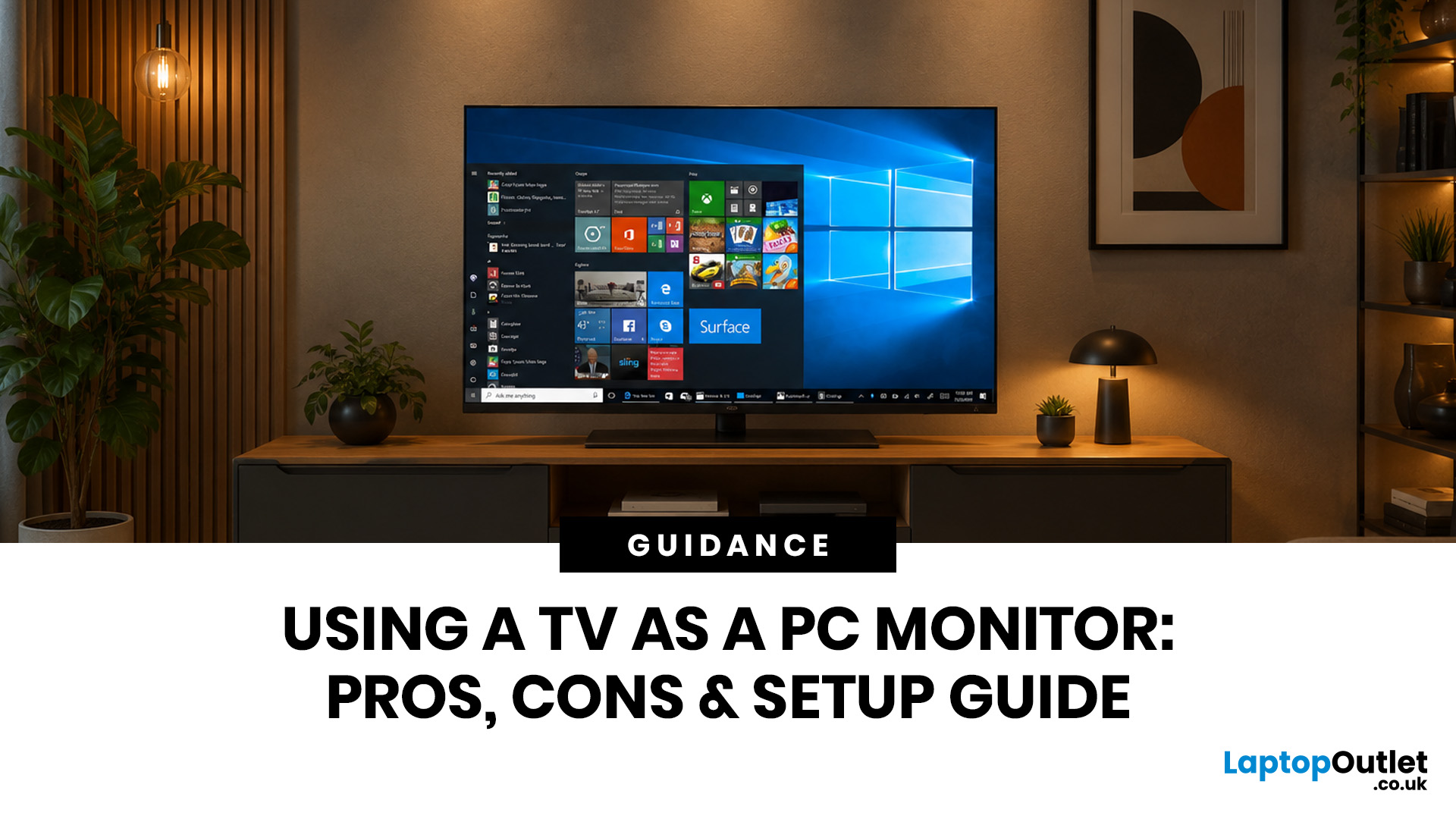
Quick Answer: Yes, you can use TV as PC monitor if your computer and TV have compatible ports, usually HDMI. It works well for films, casual gaming, presentations, sofa browsing and large-screen entertainment. However, using a TV as PC monitor is not always ideal for daily desk work because TVs can have higher input lag, lower pixel density, blurry text up close and fewer ergonomic adjustments than proper monitors. For entertainment and casual use, a TV can be a great option. For work, study, competitive gaming and sharp close-up text, a dedicated monitor is usually the better choice.
Using a big TV as your computer screen sounds like a genius move. Bigger display, built-in speakers, great for Netflix, and you may already have one sitting in the living room. Honestly, it sounds like a setup hack.
Before you plug in your PC and call it a day, there are a few things to know. A TV as computer monitor setup can work brilliantly for some people, especially for media, casual gaming and
Last Updated: October 12, 2026

