



Best Monitors for Work & Play – Complete 2026 Guide

Ever feel like your monitor is silently judging your life choices? One minute, you’re building spreadsheets at light speed, feeling like a productivity ninja. The next, you're rage-quitting a game because your display couldn't keep up during that final boss fight. If that sounds familiar, you aren’t riding solo this trip. Choosing one screen that does both, work or play. without sacrificing comfort or performance is trickier than it sounds.
But here’s the thing: you don’t need two monitors to live two lives. You just need to understand what actually matters when picking a display that can hustle with you during the day and still shine when you're gaming at night. So, if you're juggling between Team calls and tactical shooters or switching from design tools to dungeon crawlers, want to read this part carefully. Because not all pixels are created equal, and no, 4K isn't always the answer.
Don’t worry, we are here to break it down in a simpler way. From panel types and refresh rates to ultrawide temptations and eye-saving tech, I’m walking you through the features that actually make a difference. No fluff, no overhyped tech jargon (to sound cool, because we already are), just what you need to know to find your screen soulmate.
Are you ready? (Yes…Cool.) Let’s decode the specs and build your perfect hybrid setup.
How to Choose the Right Monitor for you (Without Frying Your Brain Over Specs)
No cap, monitor shopping kinda feels like chasing a unicorn, with dead pixels.
Not because there aren't good options (there are tons), but because every product page reads like it was written by a robot with a PhD in pixel density. IPS, VA, 4K, HDR, 165Hz refresh, G-Sync compatible, response time, contrast ratio, HDMI 2.1… It’s a jargon soup, and you’re expected to just “get it.”
But let’s make it stupid simple because you don’t need to know everything, just the stuff that makes a real difference to you. Whether you're dodging bullets in Warzone, editing content, or writing up that terrifying Q4 report, this guide breaks it all down without boring the life out of you.
Panel Types – The Foundation of Your Experience
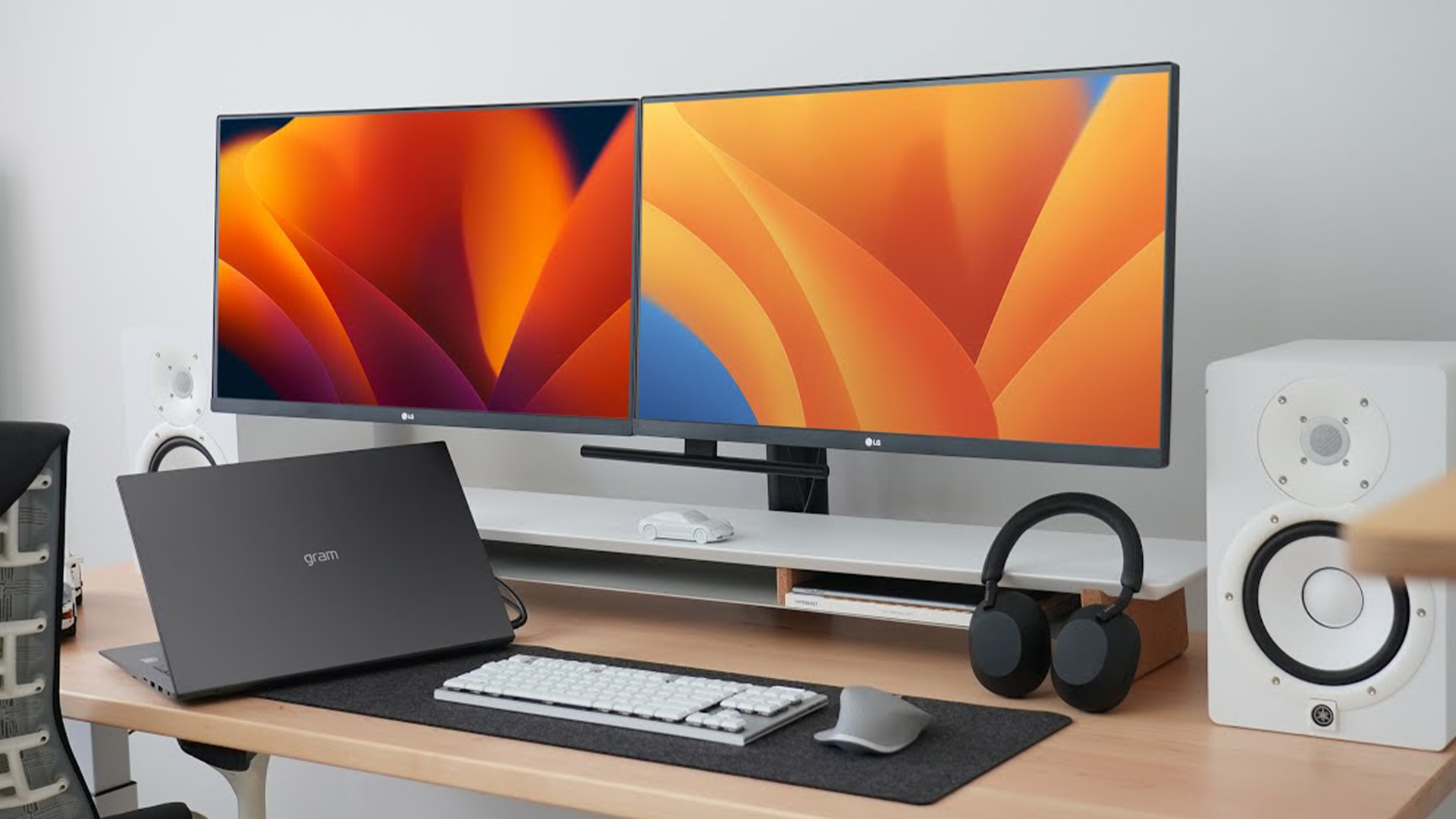
You’ve probably seen terms like IPS, VA, and TN. Here’s how they play out:
- IPS (In-Plane Switching): Amazing colour accuracy and viewing angles. Great for office work, creative tasks, and casual gaming. Slightly slower response time, but unless you're a pro esports player, you won’t notice.
- VA (Vertical Alignment): Deeper blacks, better contrast, awesome for watching content or immersive gaming. But color shifts at angles and may have some ghosting in fast-paced games.
- TN (Twisted Nematic): Super fast, low input lag, but poor colour and viewing angles. Cheap, but honestly? Skip it unless you’re on a tight budget and play only competitive FPS games.
- OLED/QD-OLED: The king of contrast, insane colours, near-instant response times. Pricey, but if you’ve got the budget, it’s like putting your eyes in a spa.
Best for work + play? IPS is the go-to. But if you binge Netflix or play games in low-light rooms, VA could edge out.
Refresh Rate & Response Time – The “Feel” of Speed
If you’ve ever moved your mouse and the screen felt like it was on delay, blame this combo.
- Refresh Rate (Hz): This is how many times your screen updates per second. 60Hz is fine for most work tasks. But for gaming, 144Hz or higher makes a huge difference. Smoother motion, more fluid gameplay, and yes, you’ll literally see enemies sooner.
- Response Time (ms): Measures how fast a pixel can change colour. Lower is better. Under 5ms is decent, but for fast-paced gaming, 1ms or less is the sweet spot.
Warning: High refresh doesn’t always mean high performance unless your gaming desktop PC can output that many frames. (Looking at you, 4K at 144Hz...)
Resolution – Clarity vs. Sanity
More pixels = better clarity, right? Kinda. But there’s a balance to strike.
- 1080p (Full HD): Budget-friendly, easy on your GPU, great for work and casual gaming.
- 4K (UHD): Gorgeous visuals and space for multitasking galore, but you'll need a beefy GPU to game at this res. Also, tiny text issues if you’re not scaling properly.
- Ultrawide & Super Ultrawide: Same vertical resolution, more horizontal space = productivity heaven. Also looks insane in immersive games (racing, flight sims, RPGs).
- 1440p (QHD): The sweet spot for most users. Sharper than 1080p, less demanding than 4K. Great for multitasking and modern games. If you want to buy 4K Ultra HD monitors that balance work and play, our top picks cover the latest and greatest for 2026.
For a work-and-play lifestyle, 1440p or Ultrawide QHD hits the sweet spot in clarity, productivity, and gaming fluidity.
Eye Care, Ergonomics & Productivity Features

You can’t grind 9–5 and raid till midnight without looking after your eyes and back.
- Flicker-Free Tech: Prevents backlight flickering, reduces eye strain.
- Low Blue Light Modes: Reduces the harsh blue hue during late-night sessions. Your circadian rhythm will thank you.
- Ergonomic Stands: Adjustable height, tilt, swivel, and pivot. Your neck and posture will love this.
- USB-C & Built-in Hubs: Fewer cables = cleaner desk. Especially helpful for laptop users.
- Built-in KVM Switch: Have two PCs? One monitor, one keyboard/mouse = seamless switching. Magic.
Don’t sleep on these “boring” features, they’re lowkey game-changers.
Connectivity – Don’t Get Caught Short
- HDMI: Good for most things, but make sure it’s HDMI 2.0 or above for 4K at 60Hz.
- DisplayPort: Preferred for PC gaming, supports higher refresh and resolutions.
- USB-C: Work-life savior. One cable for power, display, peripherals = chef’s kiss.
- Ethernet, Speakers, Audio Jacks: Bonus features depending on your setup.
What You Should Look For
If you mostly - Go For
- Game competitively - 144Hz+, 1ms, DisplayPort, IPS or TN
- Work + game casually - 1440p, 75–144Hz IPS, eye-care tech
- Content creation - IPS/OLED, high color accuracy (sRGB, AdobeRGB), 4K
- Multitask like mad - Ultrawide or dual monitor, USB-C, KVM
- Want eye comfort - Flicker-free, blue light filter, ergonomic stand
Before We Pick the Actual Models
You don’t need to chase the most expensive monitor. You just need the one that matches how you use it. A good display makes work less straining and gaming more immersive, but a great one adapts to your whole day, not just your screen time.
Our Pick of the Best Monitors for Work and Gaming in 2026

We created a list of best monitors for work and gaming through our research and survey. Let's have a look.
Best for Work (with Bonus Gaming Capability)
If you need to juggle between tasks or need to open multiple tabs with better navigation, this is the most suitable option for you:
Koorui E2741A (Work-first, light-gaming ready)
Why it shines for work: 27″ 4K IPS panel, 95 % DCI-P3 colour gamut, HDMI 2.0 + DisplayPort, great for editing, spreading out the tabs, or multitasking. Includes a blue-light filter to keep your eyes refreshed.
And for gaming? Koorui E2741A AMD with FreeSync and a 60 Hz refresh rate make it comfy for casual or chill gaming sessions, or a Netflix break between meetings.
Pros:
- Super-sharp 4K clarity with wide color range
- Clean, straightforward connectivity
- Easy on the eyes with blue-light filter
Cons:
- Only 60 Hz refresh - no slick frame rates for FPS
- Lacks ergonomic stand adjustability (no swivel/pivot)
Pro Tip: A simple, high-res IPS like this can double as a good workhorse and unwinding screen, no need for flashy gamer features if you’re not chasing esports-grade speed.
Best for Gaming (with Some Productivity Flair)
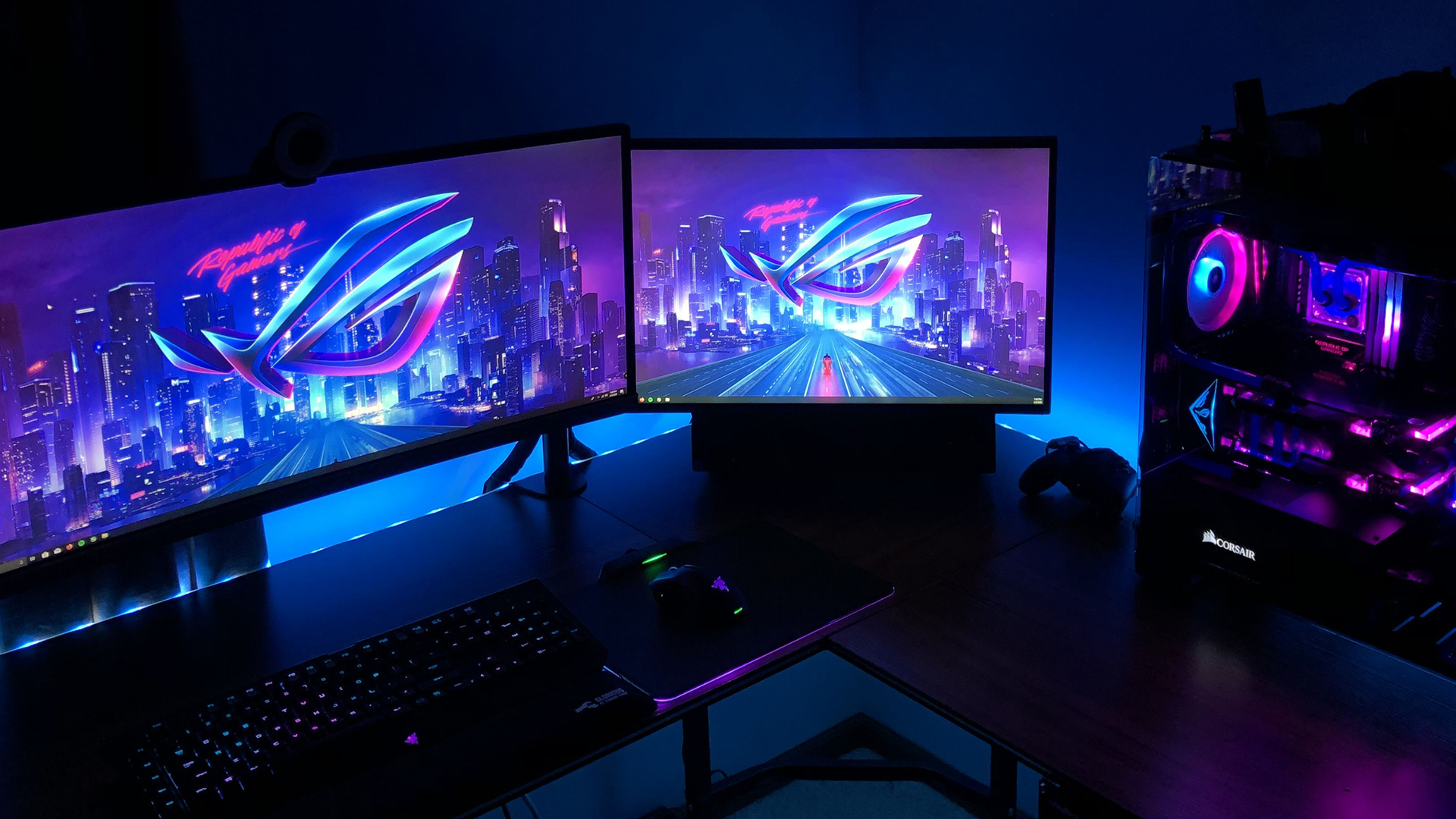
MSI MAG 321CUP QD-OLED (Immersive 4K QD-OLED for work + wow-factor gaming)
32″ 4K QD-OLED curved display with 165 Hz, ultra-fast 0.03 ms response. Gorgeous visuals, deep contrast, and curved immersion, amazing for late-night edits or immersive gameplay doomscrolling.
Pros:
- Superior colour, contrast, and response
- Immersive curved format for both work and play
- True “both worlds” machine - visuals and performance
Cons:
- Premium price tag
- Fewer USB ports and no KVM or USB-C fallback
Pro Tip: If you can swing the price, widescreen monitors give you gorgeous image science for everything, from spreadsheets to space shooters.
Pure Gaming Picks (Fun-focused, Professional use secondary)
- MSI MPG 271QRX QD‑OLED – 1440p OLED, 360 Hz refresh rate (lightning-fast), prime for competitive gamers.
- Samsung Odyssey OLED G9 – For those who love immersive experiences, the best curved monitors like the Samsung Odyssey OLED G9 deliver jaw-dropping field of view and comfort..
- Philips Evnia 34" Curved WQHD 180 Hz - (Note: A bit of a stretch of your formatting, but notable availability on Laptop Outlet.) Great for ultra-immersive gaming and respectable screen real estate for multitasking in one view.
Visual Comparison: Best for Work vs Gaming
|
Use Case |
Monitor |
Key Strengths |
Caveats |
|
Work-focused |
Dell U2725QE |
4K clarity, USB-C/KVM, ergonomics |
Just 60 Hz, not ideal for fast games |
|
Dual-purpose |
MSI MPG 321URX QD-OLED |
OLED visuals, 240 Hz, USB-C, KVM |
Premium price, limited ports |
|
Gaming Value |
Gigabyte M28U |
4K, USB hub, reasonable price |
Basic productivity features |
|
Gaming Value |
LG UltraGear 32GR93U |
4K IPS, reliable refresh rate, accurate colors |
Not OLED-level contrast |
|
Pure Gaming |
MSI MPG 271QRX QD-OLED |
360 Hz, OLED color depth |
Work-focused features absent |
|
Pure Gaming |
Samsung Odyssey OLED G9 |
Giant ultrawide, immersion king |
Less practical for office tasks |
How to Pick Based on Your Priorities
- You’re all about work, with some gaming sprinkled in? Go for the Dell U2725QE.
- Want the best of both worlds, visuals and versatility? The MSI MPG 321URX QD‑OLED is the top-tier pick.
- Focused on gaming but might hop into spreadsheets occasionally? Gigabyte M28U or LG UltraGear deliver solid balance.
- All-in on gaming immersion? The MSI QD‑OLED or Samsung G9 are your dream machines.
Buying Strategy (What to Prioritise and What to Ignore)
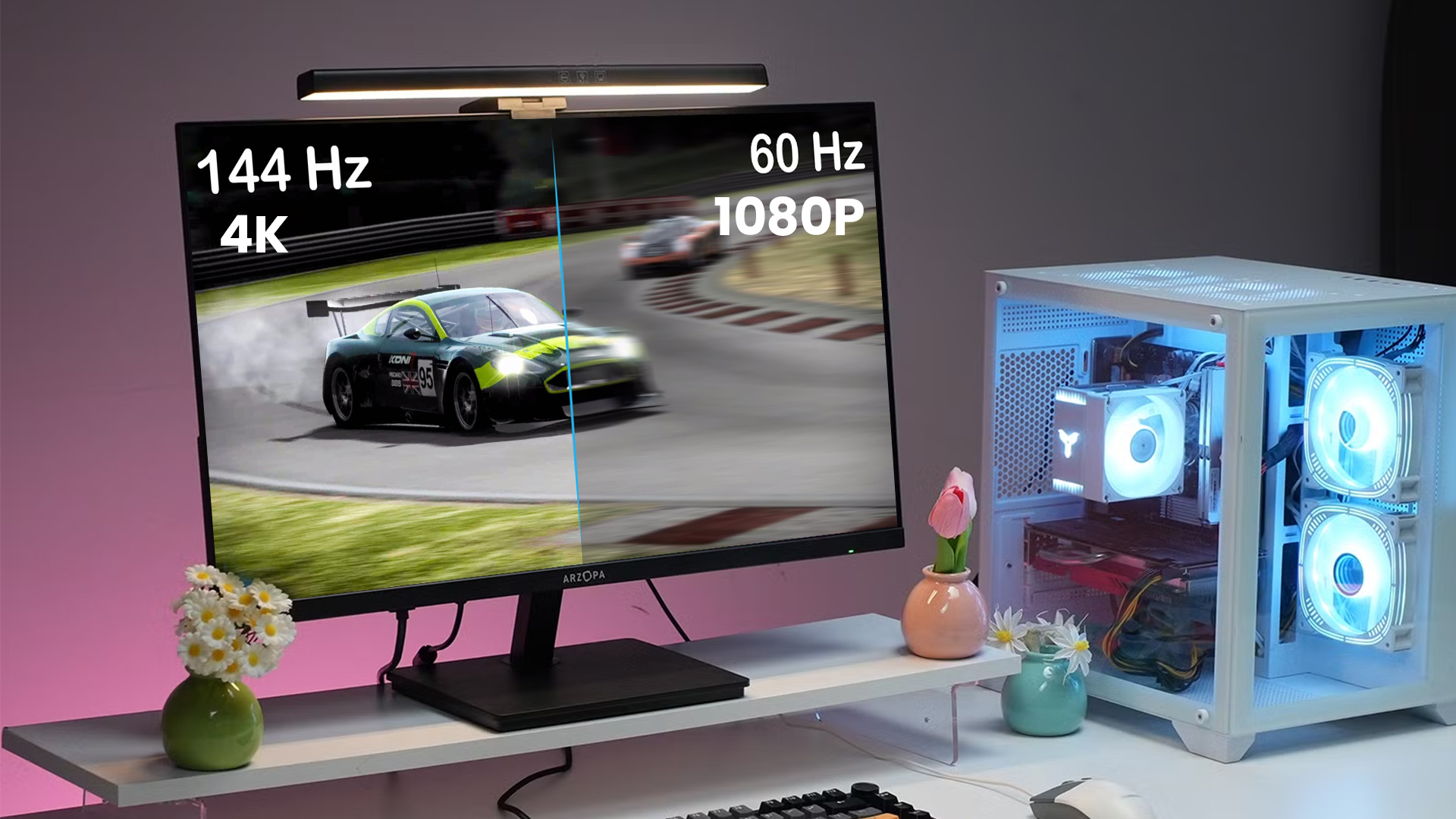
Let’s be honest: buying a monitor can feel like tech FOMO wrapped in a price tag. Every model screams about something, HDR this, OLED that, space-age refresh rates, but here’s the truth...
You don’t need everything. You just need the right features based on how you actually live and work, and our complete monitor buying guide can help you compare resolution, refresh rate, screen size and connectivity in more detail.
Step 1: Know Your Daily Workflow (and Playstyle)
Forget the specs for a second. Ask yourself:
- Do I sit in front of the screen 6+ hours a day?
- Do I work with static images, spreadsheets, code, or video timelines?
- Do I play fast-twitch games (FPS), cinematic RPGs, or casual sims?
- Am I multitasking like a maniac, chat, docs, tabs, streams all open at once?
Why it matters:
- If you multitask like mad, go ultrawide.
- If you care about fine detail (designers, coders, editors), go high-res (1440p or 4K).
- If you do both, look for balance: QHD/144Hz IPS is your sweet spot.
If you play competitively, refresh rate and response time may matter more than resolution. It is also worth comparing dual mode vs standard gaming monitors if you want more flexibility between visual quality and higher refresh rates.
Step 2: Set a Realistic Budget (and Stick to It)
Monitors are long-term investments, but overspending doesn’t guarantee a better experience. If value is a priority, comparing a new vs refurbished monitors can also help you decide where your budget is best spent.
- £150–£250
- Best Use-Case: Basic office use, casual gaming
- What You Can Expect: 1080p, 60–75Hz, solid IPS or VA panel
- £250–£450
- Best Use-Case: Productivity + mid-level gaming
- What You Can Expect: 1440p, 75–165Hz, USB-C, better color accuracy
- £450–£800
- Best Use-Case: High-res multitasking or serious gaming
- What You Can Expect: 4K or 1440p at 144Hz+, HDR, ergonomic design
- £800+
- Best Use-Case: Premium hybrid setup
- What You Can Expect: OLED, 4K/Ultrawide, 240Hz, USB-C/KVM, top-tier visuals
Pro Tip: Instead of splashing out on 4K + high refresh + OLED all at once, pick 2 core priorities (e.g. resolution + USB-C, or high refresh + color depth), and compromise slightly on the third. If you're just starting out or on a tight budget, knowing the Full HD monitors price range (£150–£250) helps you pick reliable options without overspending.
Step 3: Look Beyond the Panel
You’ve picked your resolution and refresh rate, but don’t overlook these sneaky important features:
✔ Ergonomics
- Height adjustment, tilt, and swivel = long-term comfort. Your neck and back aren’t optional accessories.
✔ Port Game
- USB-C with Power Delivery = one cable for display + charging = cleaner desk.
- DisplayPort for high refresh gaming.
- KVM switches = productivity gold if you use two PCs/laptops.
✔ Color Calibration
- sRGB/AdobeRGB coverage is essential if you're working with visuals.
- Factory-calibrated monitors save time and guarantee color accuracy.
✔ Warranty & Panel Guarantee
- Some premium brands offer zero dead pixel guarantees. Not a sexy feature, but a very satisfying one if you’re investing over £500.
Smart Tips You Probably Haven’t Considered
- Don't buy based on "HDR" alone. True HDR (like HDR600+) is rare and meaningful. Many monitors slap the label on without delivering proper brightness or contrast.
- Check your GPU before you buy that 4K/240Hz beast. Can it actually drive those frames? If not, you’re burning cash.
- Ultrawide ≠ 4K. A 3440x1440 ultrawide isn't true 4K but gives fantastic horizontal space for work and stunning immersion for games.
- OLED is amazing—but be honest about your use. Static spreadsheets all day? You might want to avoid burn-in risk unless there's pixel-shifting tech.
Your Buying Decision Matrix
|
Priority |
Go For This |
Avoid This |
|
Fast-paced gaming |
144Hz+, <1ms response, G-Sync/FreeSync |
60Hz IPS with high latency |
|
Professional work |
IPS/4K, USB-C, color accuracy |
TN panels or oversaturated "gamer" displays |
|
Both (hybrid use) |
1440p IPS, 120–165Hz, decent color |
Niche/overpriced OLEDs without practical features |
|
Budget-friendly |
1080p, 75Hz, solid build |
Monitors with gimmicky features at low price |
Think Long-Term, Not Just Flashy
Your monitor isn’t a seasonal gadget. It’s where you do your best work, play your favourite games, and binge every show you "don’t have time for." So take a breath, set your priorities, and choose a display that’ll still feel good a year (or three) from now.
Conclusion:
Your monitor is the unsung hero of your setup. It’s where you win matches, close deals, binge-watch, build dreams, reply to awkward emails, and maybe lose a few arguments on Reddit. You stare at it more than you realize. So choosing the right one? It’s not just a tech upgrade. It’s a quality of life upgrade.
And now? You’ve got the full playbook.
You know how to cut through the spec-sheet noise. You know what refresh rate really matters for, how resolution affects workflow, and why eye care features are more important than RGB flair (unless you’re into that, no judgment).
Most importantly, you know what you need based on how you use your screen.
Whether you're working 9-to-5, gaming 5-to-9, or doing both on the same desk… there’s a monitor out there that fits your world perfectly.
Now’s a good time to stop “window shopping” through comparison lists and start building your dream setup. Whether you're going for an affordable upgrade or a flagship OLED beast, you’ll find some solid options already waiting for you.
Need a shortcut?
You can check out our handpicked collection of gaming monitors, curated for performance, comfort, and serious screen-time value.
No pressure. Just scroll, click, compare, and when it feels right, make the upgrade your eyes (and wrists) will thank you for.
Frequently Asked Questions
Is 4K worth it for office work?
It depends. If your job involves design, spreadsheets, coding, or multitasking, 4K can feel like a productivity superpower. You get sharper text, more screen real estate, and fewer scrolls.
But, If you’re mostly writing emails, working in Word, or attending Zoom calls, 1440p is the more cost-effective sweet spot.
Should I get an ultrawide or dual monitor?
If you’re into multitasking, editing, or gaming + chatting simultaneously, ultrawide gives that cinematic wow factor. But dual monitors win for pure productivity (and they’re cheaper to upgrade one at a time).
Is a curved monitor better for productivity?
Only if it's big enough. Curved screens shine above 32 inches—they help reduce eye movement across a wide screen, especially in ultrawide formats. For anything below 27″? The curve is more of a flex than a feature.
Can I use a gaming monitor for work?
Totally. In fact, many gaming monitors are excellent for work, thanks to high refresh rates (which make scrolling butter smooth), large screen sizes, and great color.
Do I really need 144Hz or more?
If you game regularly, especially FPS, MOBAs, or racing games, yes. Higher refresh = smoother gameplay and faster reaction times.
But for email, Excel, or Netflix? Even 75Hz will feel plenty smooth. If you're buying one monitor for both? Aim for 120Hz–165Hz. It gives you a gaming edge without being overkill for work.
What about monitor lifespan, how long should it last?
A solid monitor should last 5–7 years easily, sometimes longer.
What matters more:
- Go for a reputable brand with good warranty terms.
- Avoid outdated tech (like low-end TN panels or HDMI 1.4-only ports).
- OLED panels are beautiful, but burn-in is still a concern for static content. If you're running Excel 8 hours a day, maybe stick to IPS.
Is it worth waiting for newer models?
If your current screen is holding you back, don’t wait. Yes, new monitors keep coming out, but innovation has slowed a bit. Most 2026 models are refinements, not revolutions.
If you find a monitor that ticks 80–90% of your boxes, at a price you’re okay with, go for it.
Waiting might save you £20… or cost you another six months of eye strain.
| Read More: |
| The Benefits of Dual Monitors: How It Can Improve Your Productivity |
| Best Monitor for Video and Photo Editing |
| Which is Best for Office Work – LED Monitor or OLED Monitor? |
Related Articles

Last Updated: April 06, 2026
Last Updated: March 30, 2026
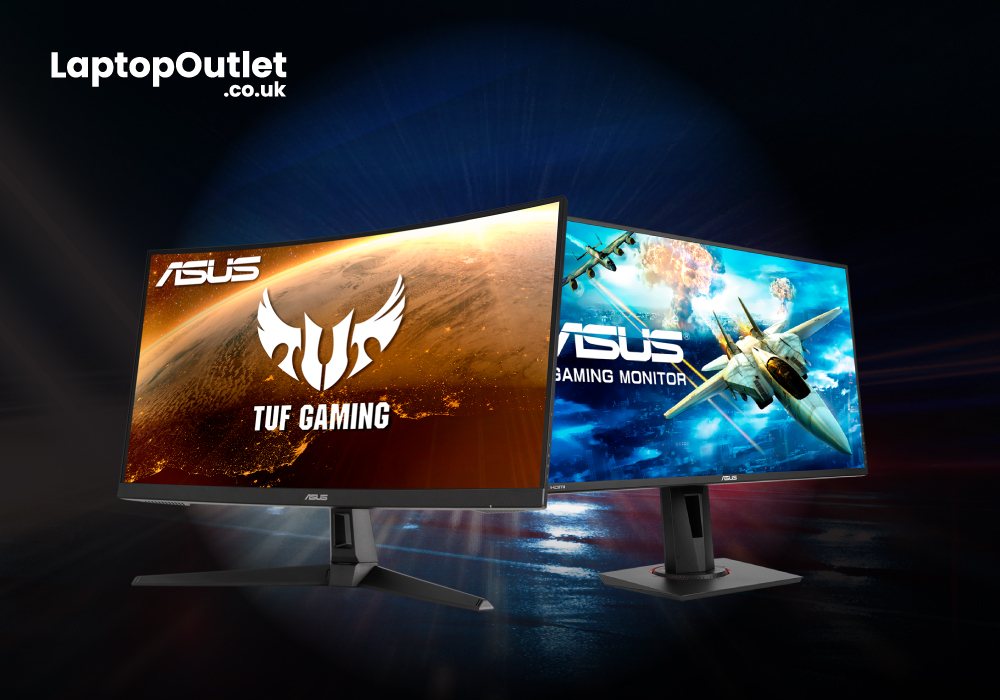
Specifications for gaming monitors and other computer components necessitate sorting through a large number of numbers. It makes purchasing anything computer-related extremely difficult. Although gamers are more tech-savvy than average users, monitors and their technology have become extremely complex. Here's a primer to help you understand the fundamentals so you can find a monitor that will give you the visibility you need when the game is on the line.
Last Updated: August 24, 2026
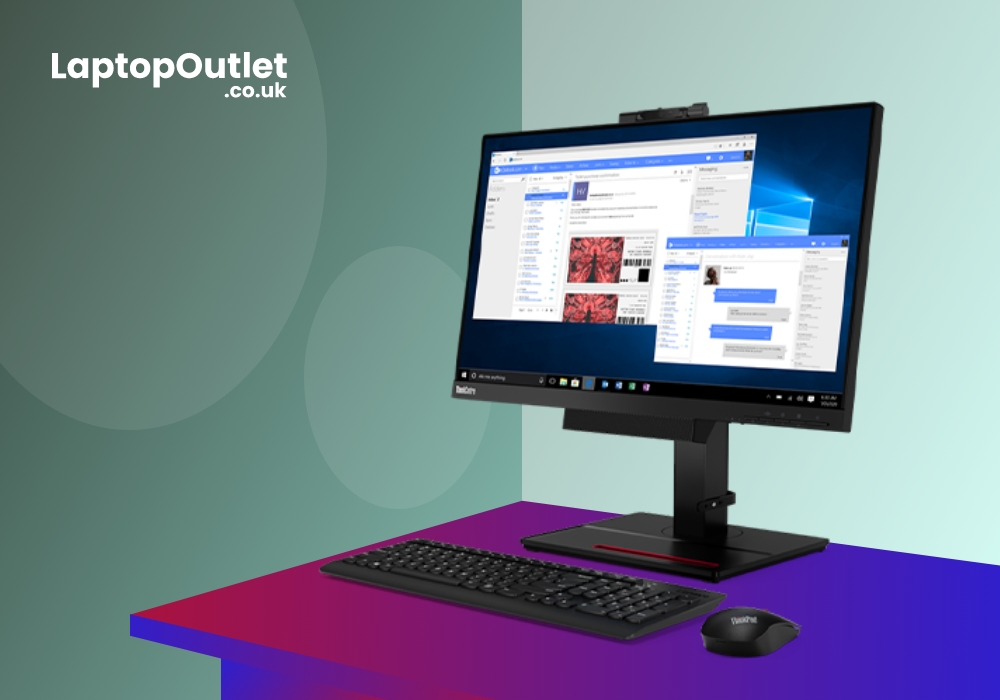
Whether you are a casual viewer or a frequent video meeting expert, you would need a monitor with a good webcam. Having the best monitors with webcam is now becoming common. Previously, there was more focus on a separate HD camera that was used to capture self-video for calling or conferences. But now monitors mostly come pre-installed with webcams. While most people ignore a web camera’s quality; for some, it needs to be real-good.
Working from home has not only become a trend but the need of the current era. With corporations and companies commonly allowing working from anywhere, it is vital to get a good-quality webcam. So, when choosing the right monitor, consider the resolution, refresh rate and connectivity alongside how well the built-in webcam performs.
If you are the one who often has to deal with formal video conferences, webinars, or meetings, you would need to place your hands on the right device. Fret not, we have got you covered with our precise list of best monitors with

Last Updated: February 26, 2026
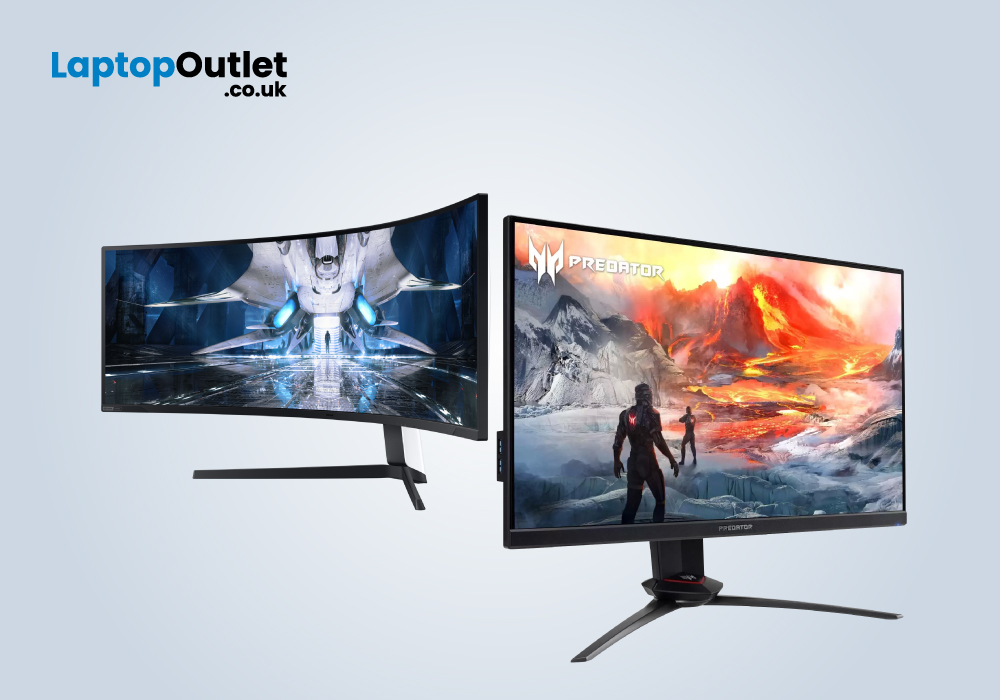
Ultrawide monitors are not for everyone, but for people who multitask and crave increased productivity, ultrawide monitors are the best option to go with. If you are spending half a day on the monitor or many hours each day, ultrawide monitors with immersive displays can be very beneficial. Ultra-wide monitors provide tons of space, which enables content creators, multitaskers, and gamers to increase the efficiency of their work.
If you are planning to upgrade your monitor or find a new monitor, the ultrawide monitor can be a great choice for you. You might need some time to adjust to the extra space offered by the ultra-wide monitor, but once you get used to it, there is no going back.
Difference Between Standard and Ultrawide Monitors:
The main difference between the standard and ultrawide monitors is the aspect ratios. The aspect ratio for the standard monitors is 16:9 and that of ultrawide monitors is 21:9. As the name suggests, ultrawide monitors are horizontally longer. The extra
Last Updated: April 17, 2026
A high refresh rate is often considered more important than resolution or size by many competitive gamers, as it provides smoother gameplay and an advantage over their less-equipped opponents. 240Hz monitors, including those with higher resolutions, are becoming more popular. These monitors tend to prioritise gaming features like low input lag and quick response time, but they sometimes sacrifice picture quality in the process.
Things to consider before buying a 240Hz monitor:
Make sure to weigh out your requirements and workload before choosing to buy a 240Hz monitor. Why do you need a 240Hz monitor? Monitors with higher refresh rates offer detailed and smooth animations. So, if you are a gaming enthusiast and plan to win the gaming battles, 240Hz monitors can give you an advantage in the game. If you play games with intensive graphics, then the extra frames will be wasted. If the game or system doesn’t allow you to take advantage of the extra frames, go for a monitor with a low
Last Updated: August 12, 2026
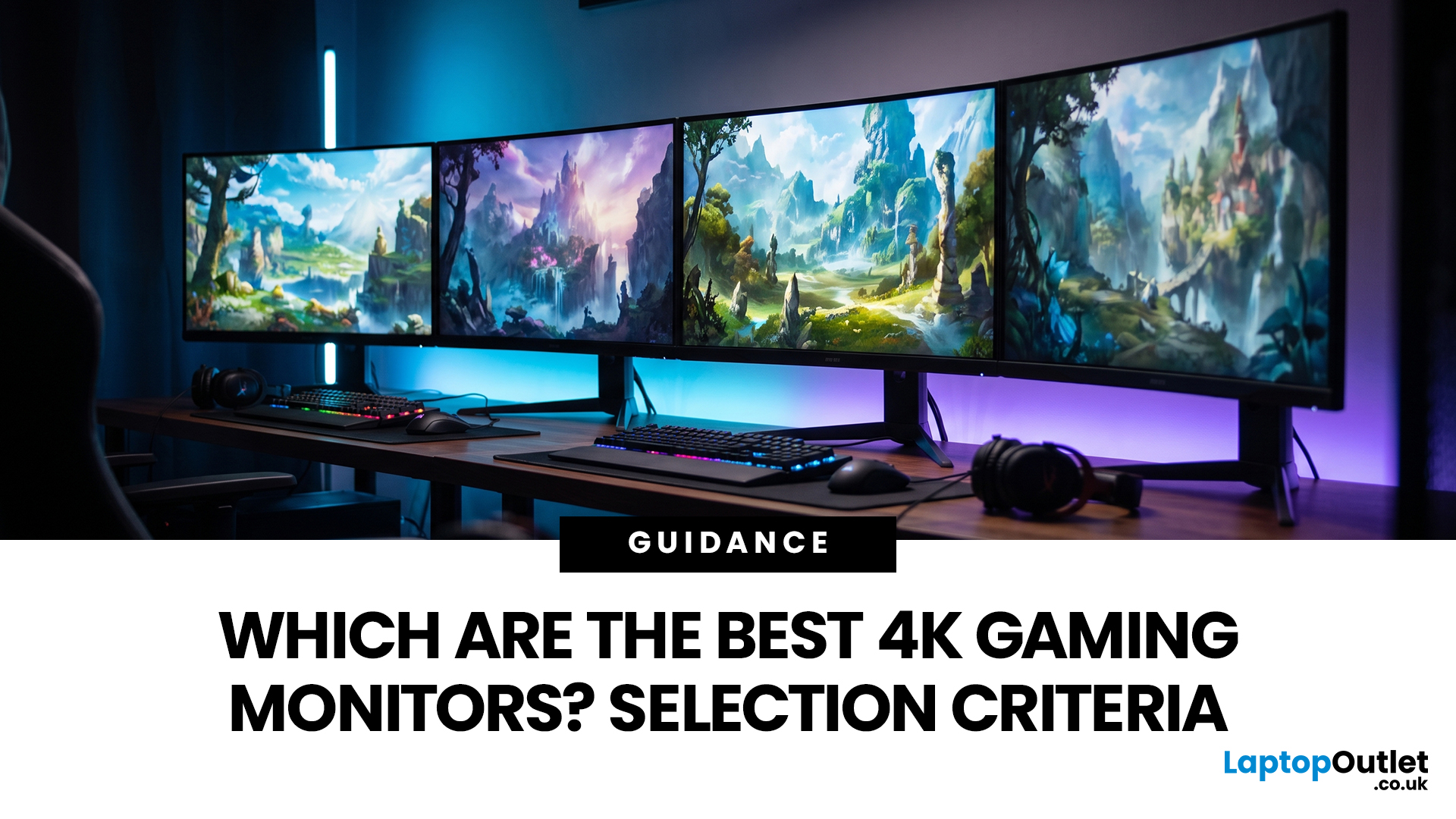
To choose a 4K gaming monitor, start with the device you use, and the frame rates it can realistically deliver. Screen size, refresh rate, panel type, HDR quality, VRR and connectivity matter more than chasing the highest headline specification. PC gamers should check GPU capability, while PS5 and Xbox Series X users should confirm suitable 4K 120Hz support.
A good 4K gaming monitor should suit your hardware, the games you play and your desk rather than simply having the highest numbers on the specification sheet.
That distinction matters more in 2026 because there is now much greater variation between 4K displays. You can find conventional high-refresh IPS screens, OLED and QD-OLED monitors, Mini LED models and dual-mode displays capable of prioritising resolution or refresh rate depending on the game.
Is a 4K Gaming Monitor Right for Your Setup?
A standard 4K UHD monitor has a resolution of 3840 × 2160. That works out at roughly 8.3 million pixels, four times the pixel count of Full HD

