



The Impressive Display Modes of MSI Gaming Monitors Explained
The display modes on MSI gaming monitors let you change the picture for a particular game, creative task or everyday activity without rebuilding every setting manually. A preset may adjust brightness, contrast, saturation, gamma, sharpness, black visibility or colour gamut, although the exact tuning depends on the monitor.
This guide explains the profiles found across recent MSI MAG, MPG and MEG displays as of July 2026. It also separates true picture modes from Night Vision, MSI AI Vision, HDR, motion-blur reduction and multitasking tools, helping you choose settings based on evidence rather than labels before chaning your usual monitor settings.
MSI Display Modes at a Glance
MSI commonly separates presets into Game Mode and Pro Mode menus, although naming and availability vary. Current manuals repeatedly show FPS, Racing, RTS and RPG under gaming, with Eco, User, Anti-Blue, Movie, Office and sRGB under professional controls. Selected premium displays add Premium Color, Adobe RGB, Display P3 and Black-White.
|
Category |
Modes commonly found |
Main purpose |
|
Competitive and genre gaming |
FPS, Racing, RTS, RPG |
Improve visibility or tune colour and clarity for a game type |
|
Entertainment and wide colour |
Premium Color, Movie |
Produce a richer, more cinematic-looking picture |
|
Colour-managed work |
sRGB, Adobe RGB, Display P3 |
Restrict output to a defined colour space |
|
Productivity and comfort |
Office, Anti-Blue, Black-White |
Support text work, warmer viewing or greyscale checking |
|
Energy saving |
Eco |
Reduce brightness and power use |
Availability is not universal. Check the exact OSD list in the model’s manual, particularly when comparing the top MSI gaming monitor range, because a profile on one OLED or Rapid IPS model may be absent or behave differently on another.
MSI also notes that software interfaces and functions can vary by monitor and version.
What Do MSI Monitor Colour Modes Actually Change?
These presets alter image processing, not the game engine. Selecting a profile does not increase your PC’s frame rate, raise the monitor’s refresh rate or guarantee lower input lag.
Those elements are controlled separately through Windows, the graphics driver, the game and settings such as response time, Adaptive-Sync or motion-blur reduction.
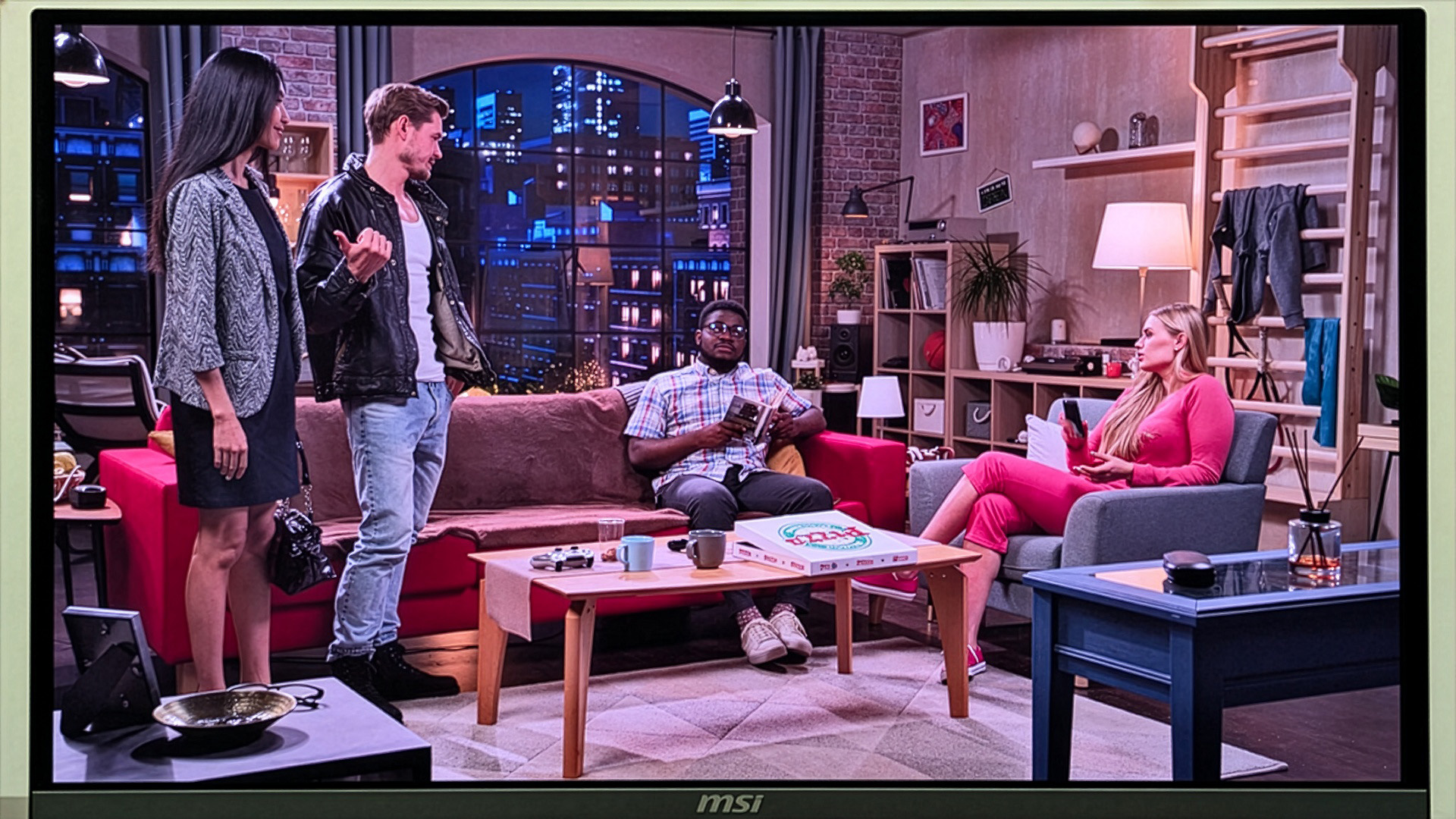
The MSI monitor colour modes can nevertheless make useful details easier to see by changing tonal balance, gamut and edge definition. Some controls may become locked when a preset is active.
Many recent MSI user manuals indicate that settings such as brightness, contrast, colour temperature, sRGB, Night Vision and AI Vision may become unavailable when an HDR signal is detected.
Gaming Display Modes Explained
FPS Mode
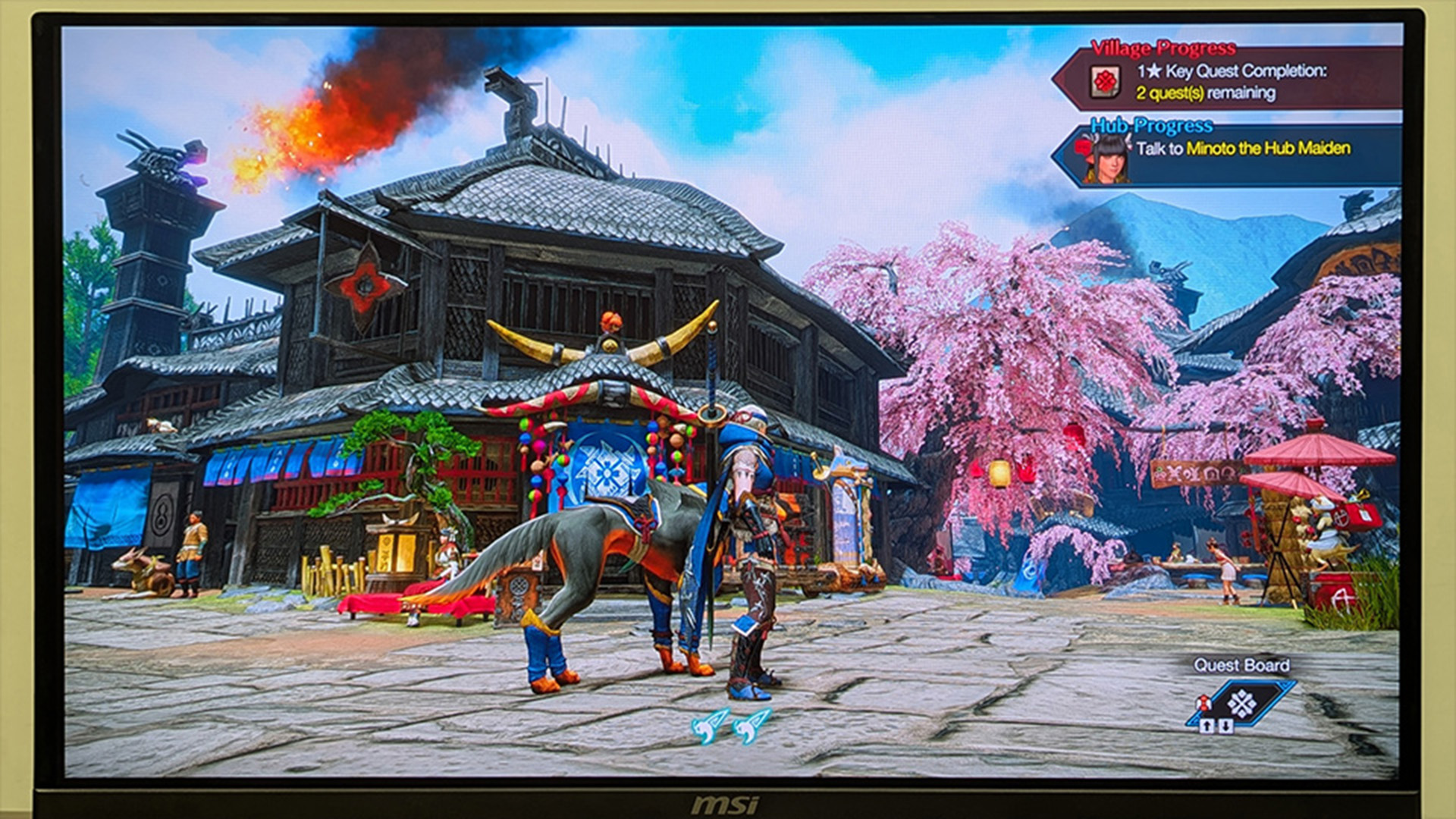
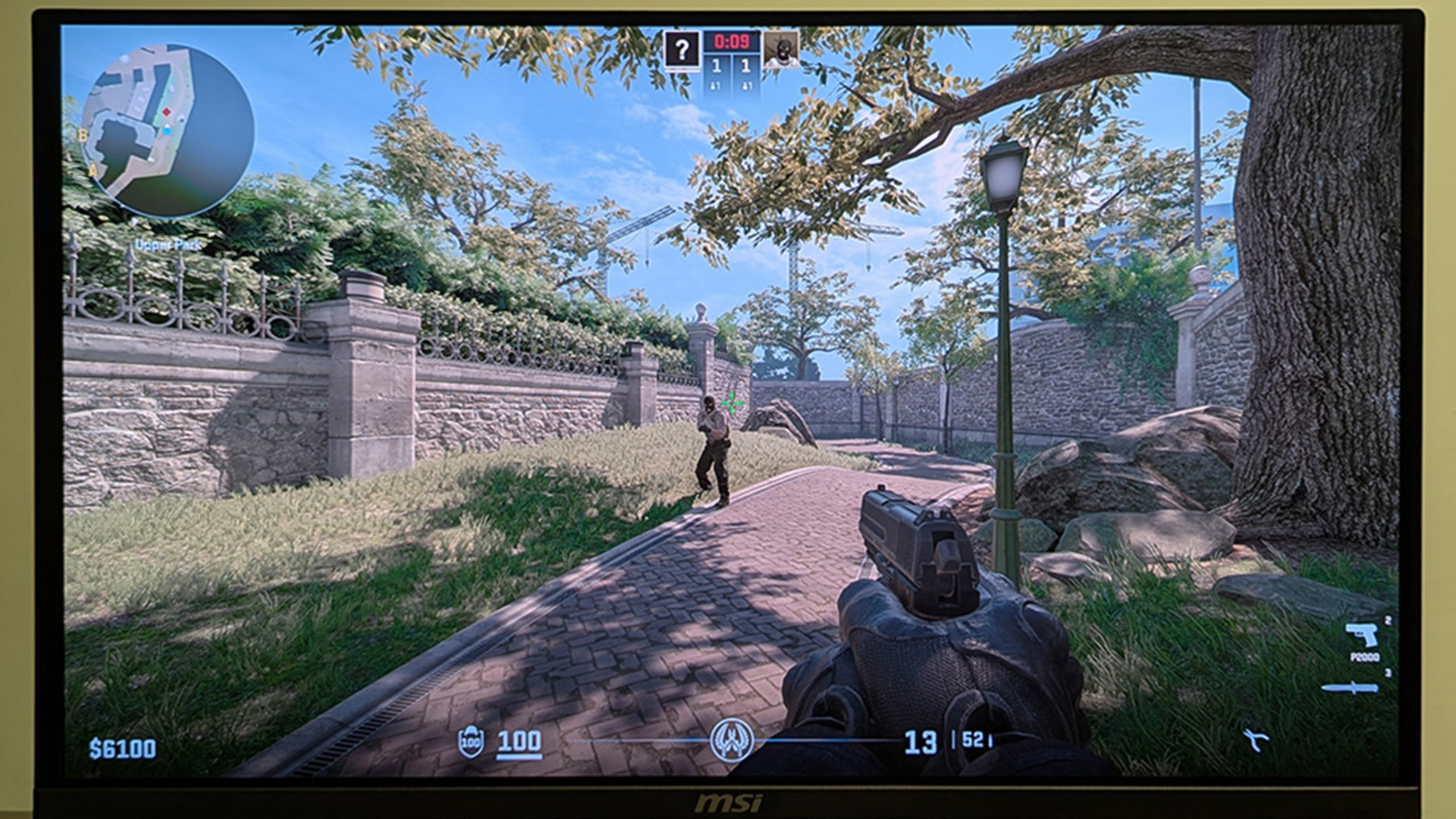
FPS mode is designed for first-person shooters where target separation and shadow visibility matter more than cinematic colour. MSI describes it as reducing saturation while raising brightness and contrast, which can make character outlines and darker corners easier to read.
Exact gamma, black level and sharpness behaviour varies, so check that highlights are not clipped and dark areas do not look grey.
Best for: Counter-Strike 2, Valorant, Call of Duty, Apex Legends and Fortnite.
Recommended for: Competitive players who value visual detection. It does not raise FPS or refresh rate by itself.
Racing Mode
Racing mode targets fast driving games, where road edges, braking markers, vehicles and distant corners need to remain clear during rapid camera movement. MSI says the profile slightly increases saturation and applies image enhancement for detail while avoiding excessive sharpening that could make backgrounds distracting.
Brightness and contrast may also follow a model-specific preset rather than fixed values.
Best for: Forza Motorsport, F1, Assetto Corsa Competizione, Gran Turismo and DiRT Rally.
Recommended for: Racing and simulator fans who prefer lively colour, clear track detail and focus over strict colour accuracy.
RTS Mode
RTS mode is intended for busy strategy maps containing many units, buildings, effects and interface elements. MSI’s current explanation says it increases colour saturation and sharpness so individual objects appear more distinct.
That can improve visual separation, but over-saturated team colours or sharpened text may look unnatural on some panels.
Best for: StarCraft II, Age of Empires IV, Total War, Civilization and Anno.
Recommended for: Strategy players managing crowded battlefields. The RTS mode is a picture treatment only, so it should be judged by readability rather than assumed performance gains.
RPG Mode
RPG mode favours atmosphere, scenery and character presentation rather than maximum competitive visibility. MSI describes it as increasing saturation similarly to RTS while keeping brightness and contrast more balanced.
This can help worlds look vivid without pushing every shadow or highlight as aggressively as a shooter preset. Gamma and colour temperature can still differ between models.
Best for: Cyberpunk 2077, Elden Ring, Final Fantasy, Baldur’s Gate 3 and story-led action RPGs.
Recommended for: Casual gamers who want richer landscapes. Compare it with User or Premium Color if skin tones look too strong.
Check out our guide on how MSI’s first triple-mode 32-inch 4K 360Hz QD-OLED monitor switches between resolution and refresh-rate priorities.
Entertainment and Colour-Space Modes Explained
Premium Color Mode
Premium Color is designed to use more of a wide-gamut panel’s colour capability for an intentionally vibrant image. MSI says it raises saturation beyond standard sRGB presentation, making open worlds, animation and general entertainment look richer.
It may preserve strong contrast and brightness, but it is not automatically the most accurate option for colour-managed work.
Best for: Open-world games, anime, colourful videos and showroom-style visuals.
Recommended for: Viewers who enjoy punchier colour. Creators should use a defined gamut mode and calibration instead, even when Premium Color is factory-tuned to a low Delta E on selected models.
Movie Mode
Movie mode aims to improve perceived depth in films and streaming video. MSI says it enhances saturation while refining black balance and dynamic contrast, helping similarly coloured objects remain distinguishable and retaining more visible shadow detail.
Depending on the panel, the result can look more dramatic than reference-accurate, especially in a dark room.
Best for: Films, YouTube, streaming services and cinematic single-player content.
Recommended for: Movie lovers who prefer a processed, high-impact image. Use the correct HDR setting for genuine HDR material rather than assuming Movie mode converts standard content into HDR.
sRGB Mode
sRGB mode limits a wide-gamut monitor to the standard sRGB colour space, reducing the over-saturation that can occur when ordinary SDR and web content is shown across the panel’s full native gamut.
It is usually the safest starting point for web graphics, general Windows work and games mastered for conventional SDR, although brightness or colour-temperature controls may be locked.
Best for: Web design, standard SDR content and colour consistency.
Recommended for: Creators and users who prefer restrained, familiar colour. Calibration remains advisable for paid colour-critical work.
Adobe RGB Mode
Adobe RGB mode restricts compatible MSI displays to the Adobe RGB (1998) gamut, which is larger than sRGB and was designed for photography and print-oriented colour workflows.
The preset generally changes gamut mapping rather than making the screen simply brighter or more saturated. Accuracy depends on the panel, factory calibration, ambient light and the application’s colour management.
Best for: Photography, image editing and print preparation using Adobe RGB files.
Recommended for: Creators with a managed workflow, suitable ICC profiles and calibrated output. It is rarely the logical choice for ordinary games or untagged web content.
Display P3 Mode
Display P3 mode confines colour to a wide-gamut space using DCI-P3 primaries, a D65 white point and an sRGB-style transfer curve. On supported MSI monitors, it is useful for P3-tagged images, modern device workflows and video projects targeting that gamut.
It should not be confused with a generic “more colourful” setting.
Best for: P3 content creation, compatible video workflows and wide-gamut media review.
Recommended for: Creators working across P3-capable devices. For ordinary SDR games, carefully compare it with sRGB or User because unmanaged content can still appear more visibly over-saturated.
Check out our detailed guide to learn what QD-OLED is and how MSI uses the panel technology in gaming monitors.
Everyday, Comfort and Energy-Saving Modes Explained
Office Mode
Office mode is tuned for documents, spreadsheets, coding and browser-based work. MSI says it lowers brightness to reduce glare and increases contrast to make text appear clearer.
Saturation is usually less important here, while the final comfort level still depends on room lighting, viewing distance, font scaling and the panel’s coating.
Best for: Word processing, spreadsheets, email, coding and research.
Recommended for: Office users spending long sessions with static text. Adjust brightness if the preset remains too bright, and use proper breaks and ergonomics rather than treating a picture mode as complete eye-care protection.
Anti-Blue Mode
Anti-Blue mode reduces blue-light output and gives the picture a warmer, yellowish appearance. Current MSI manuals show that selecting Anti-Blue can force Low Blue Light on, so colour accuracy and neutral whites are deliberately sacrificed.
It is not the same as Night Vision, which raises dark-scene visibility, and it differs from hardware-level Less Blue Light Pro found on certain models.
Best for: Reading and late-evening general use where warm colour is acceptable.
Recommended for: Users who prefer a warmer screen late in the day. Searches for MSI eye care mode generally refer to this profile or Low Blue Light.
Black-White Mode
Black-White mode removes colour and presents the image in greyscale. MSI positions it for e-books, sketching and digital art because removing hue makes luminosity, contrast, form and shadow relationships easier to inspect.
Brightness and gamma may still need manual adjustment, and the mode does not turn a consumer monitor into a calibrated proofing display.
Best for: Reading, monochrome reference, value studies, sketching and checking tonal structure.
Recommended for: Artists, illustrators and users who want fewer colour distractions. Switch back to a colour-managed mode before judging hue, saturation or final export appearance.
Eco Mode
Eco mode prioritises reduced energy use, typically by limiting brightness and reducing the visual impact of the panel. MSI describes it as a factory-default power-saving profile, while a manual specifies Eco as the SDR default and User as the HDR default on that model.
This behaviour should not be assumed across every generation.
Best for: General desktop use, shared spaces and situations where lower power consumption matters.
Recommended for: Users satisfied with a dimmer picture. Increase brightness only as needed for the room, particularly on the latest curved screens for gaming, where size can make an overly bright desktop tiring.
Display-Related MSI Features That Are Not Picture-Profile Modes
These controls affect presentation or gaming assistance, but MSI manuals list them separately from FPS, Racing, sRGB and other profile selections. Support and compatibility vary by model.
|
Feature |
What it does |
Important limitation |
|
Night Vision or A.I. Night Vision |
Lifts background brightness to reveal darker areas, with manual levels or an A.I. option |
Can flatten blacks and is often unavailable during HDR |
|
MSI AI Vision |
Optimises image contrast and background brightness; newer product pages also describe higher overall brightness and saturation |
May disable Night Vision, manual brightness, HDCR or MPRT on certain models |
|
HDR controls |
Use an HDR signal and monitor-specific tone mapping or certified HDR mode |
Many SDR picture controls become unavailable |
|
MPRT Sync or MPRT |
Uses motion-blur reduction at supported refresh rates |
Often reduces brightness and may conflict with VRR, PIP/PBP or AI Vision |
|
Optix Scope |
Magnifies the centre area for aiming |
Can disable Adaptive-Sync, PIP/PBP and motion-blur reduction |
|
PIP/PBP |
Shows two input sources in an inset or side by side |
Commonly disables Adaptive-Sync and some gaming controls |
|
Screen-size modes |
Display Auto, 4:3, 16:9, 21:9, 1:1 or model-specific virtual sizes |
Available ratios and conflicts differ by monitor |
Night Vision and AI Vision are easy to confuse. Night Vision chiefly targets dark-area visibility, whereas MSI AI vision applies broader contrast and brightness processing and, on newer models, may add colour saturation.
HDR is a signal and tone-mapping workflow, not simply another SDR colour preset.
How to Choose the Right Display Mode
Use the table below as a starting point, then compare two or three modes with the same scene. The correct choice should preserve useful detail without crushing blacks, clipping whites, exaggerating skin tones or making text look haloed.
|
Your main task |
Start with |
Compare against |
|
Competitive shooters |
FPS |
User plus Night Vision or AI Vision |
|
Racing games |
Racing |
User or Premium Color |
|
Strategy games |
RTS |
User |
|
Story-led RPGs |
RPG |
Premium Color or User |
|
Standard SDR gaming |
sRGB or User |
Genre preset |
|
Films and streaming |
Movie |
User, or HDR for genuine HDR content |
|
Web and general design |
sRGB |
Calibrated User |
|
Print photography |
Adobe RGB |
Calibrated profile |
|
P3 video or image work |
Display P3 |
Calibrated profile |
|
Documents and coding |
Office |
Eco or User |
|
Warm late-night reading |
Anti-Blue |
Operating-system night-light setting |
|
Lowest practical power use |
Eco |
User at reduced brightness |
For the most reliable result, use the monitor’s native resolution, select the intended refresh rate in the operating system and confirm whether Adaptive-Sync, HDR or MPRT has locked other controls. Picture modes are a starting point, not universal calibration.
How to Change Modes on an MSI Gaming Monitor
Open the on-screen display with the rear or underside Navi Key, then look under Gaming > Game Mode or Professional > Pro Mode. Preview the available profile and press the control to confirm it. Menu wording varies by model.
Compatible displays can also use MSI Gaming Intelligence through a PC connection that includes USB plus HDMI or DisplayPort.
The 2026 MSI software guide says it provides keyboard-and-mouse access to picture modes, application-linked profiles, hotkeys and other supported controls, with features varying by product and software version.

One Monitor, Many Ways to See
MSI gaming monitor display modes provide starting points for different games, media and work, but their names should not be mistaken for universal calibration standards.
FPS, Racing, RTS and RPG prioritise genre-specific visibility or colour, while Premium Color and Movie create a richer presentation. sRGB, Adobe RGB and Display P3 are better suited to defined colour workflows. Office, Anti-Blue, Black-White and Eco support everyday use, warmer viewing, tonal checks or lower power consumption.
Always confirm which display modes your exact model supports, test them in your room and remember that refresh rate, HDR, Adaptive-Sync and response time are separate controls.

A Few More Things Worth Knowing ...
What display modes are available on MSI gaming monitors?
Depending on the model, MSI monitors may offer FPS, Racing, RTS, RPG, Premium Color, Movie, sRGB, Adobe RGB, Display P3, Office, Anti-Blue, Black-White, Eco and User. Always confirm the exact list in the product manual.
Does FPS mode improve gaming performance?
FPS mode can improve perceived enemy and shadow visibility by changing brightness, contrast and saturation. It does not increase the computer’s frame rate, the monitor’s refresh rate or network performance, so any competitive benefit depends on visibility and personal preference.
What is MSI AI Vision?
MSI AI Vision is a separate image-processing feature that optimises contrast and background brightness. On newer supported monitors, MSI also describes enhanced overall brightness and colour saturation. It is not a genre picture profile, and it may lock conflicting controls.
Is MSI’s anti-blue light mode the same as night mode or eye care mode?
No. Anti-Blue warms the image by reducing blue-light output. Night Vision instead brightens dark game areas. “Eye care” is a broader term that may include low-blue-light, anti-flicker, anti-glare and hardware-based technologies, depending on the monitor.
Which MSI display mode is best for colour accuracy?
Start with sRGB for standard web and SDR work, Adobe RGB for managed print photography, or Display P3 for compatible P3 workflows. For professional accuracy, use a supported gamut mode with calibration, an ICC profile and controlled room lighting.
| Read More: |
| Best MSI Monitors 2026: Top Gaming & Creator Picks |
| MSI Graphics Cards for Gaming: Best Performance & Models in the UK |
| AOC, ASUS and MSI Monitors: Best Setting for Gaming |
Related Articles

Last Updated: April 14, 2026
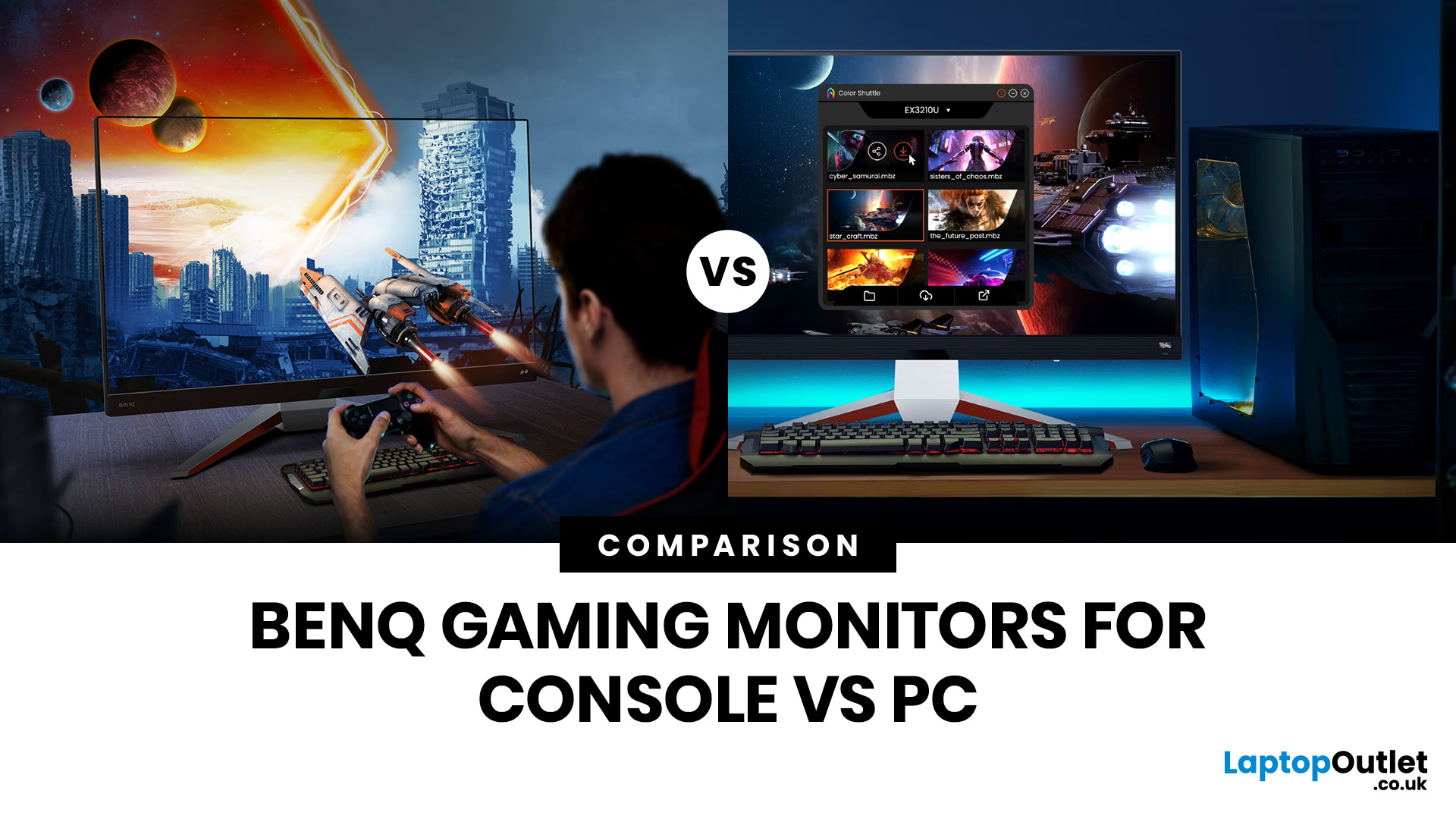
Picking the right gaming monitor is no longer as simple as choosing the biggest screen you can afford. Your setup matters, your platform matters, and the way you play matters even more. A monitor that feels perfect for a competitive PC player might not be the best fit for someone gaming on a PS5 or Xbox Series X.
That’s exactly why choosing the right BenQ gaming monitor for console or PC comes down to more than specs on a product page. You need to think about refresh rate, resolution, connectivity and whether you care more about raw speed or immersive visuals.
BenQ makes that decision easier by offering two clear gaming monitor families. ZOWIE is built for fast, focused competitive PC play, while MOBIUZ is designed for players who want strong performance with more visual depth and better console-friendly features. If you’ve been stuck comparing 1080p, 1440p and 4K, this guide breaks it all down in a way that helps.
Do Console and PC Gamers Need Different BenQ Monitors?
Console and PC
Last Updated: September 01, 2026
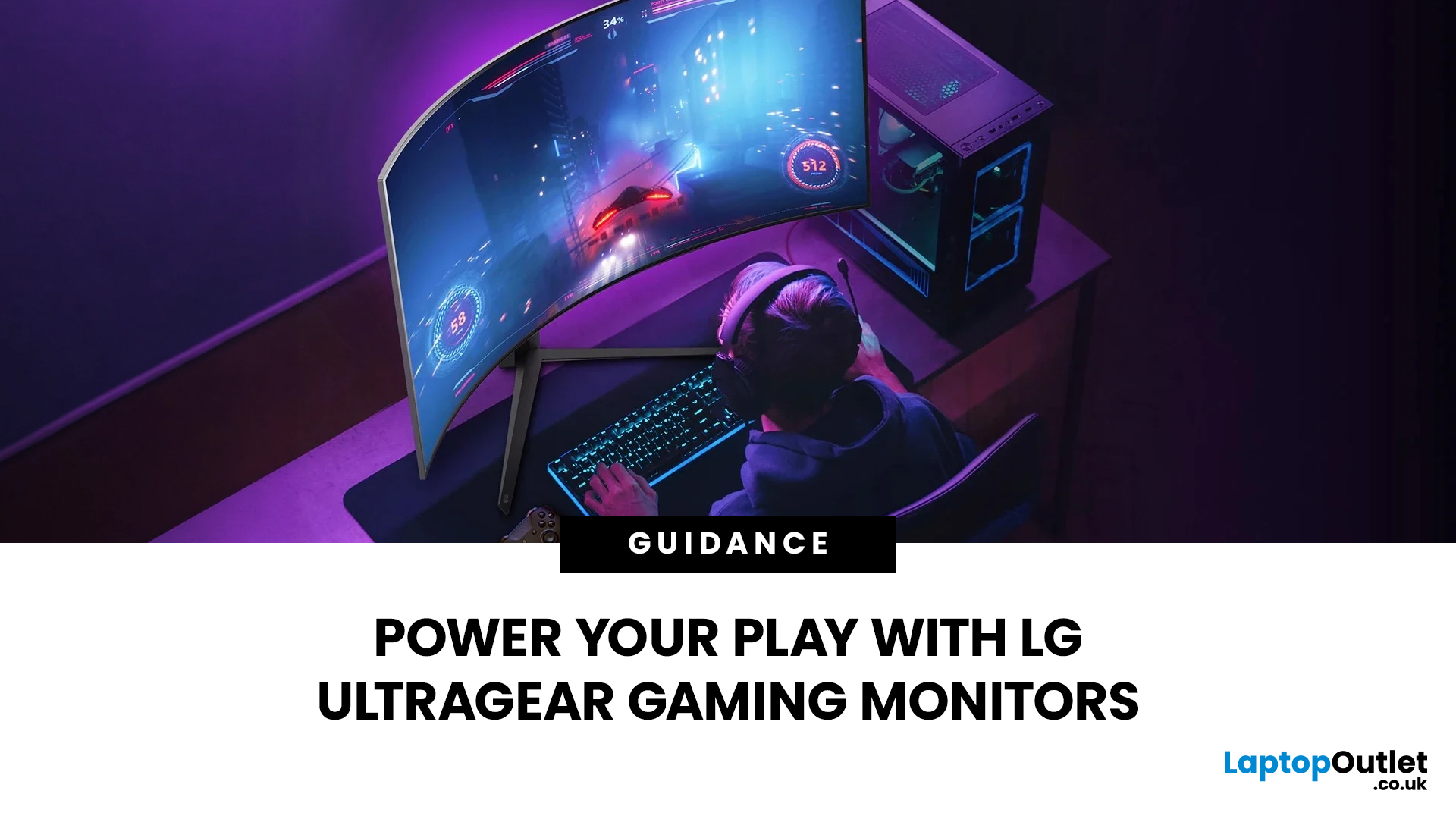
Not all gaming monitors are built the same, and the LG UltraGear range makes that very clear. Whether you're playing for fun on weekends, grinding ranked matches on a mid-range rig, or competing at a serious level, there's a specific UltraGear model that fits your needs.
This LG UltraGear guide breaks down the full lineup by player type so you can make a genuinely informed decision before spending your money.
What Makes LG UltraGear Different from Standard LG Monitors?
LG produces monitors for all sorts of uses, from office work to content creation to home cinema. UltraGear is the gaming-focused sub-brand, and it comes with a noticeably different spec sheet compared to LG's standard displays.
The core differences come down to priorities. Standard LG monitors are built around colour accuracy, ergonomics, and value for office use. UltraGear monitors are tuned for speed, responsiveness, and visual clarity under fast-moving gaming conditions.
In practical terms, this means LG UltraGear gaming
Published: April 27, 2026
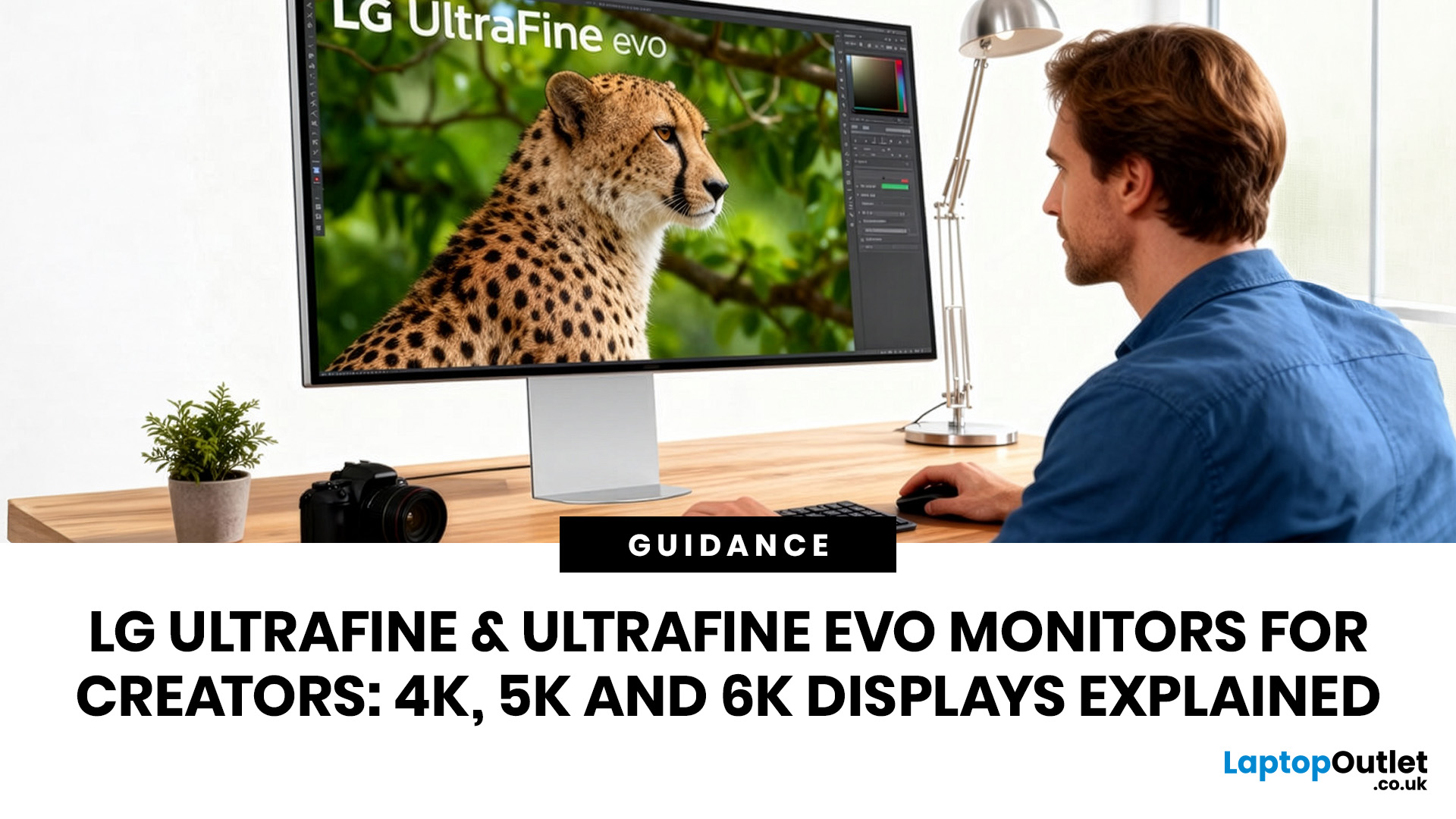
LG UltraFine monitors for creators cover three resolutions: 4K (entry-level colour accuracy), 5K (high pixel density), and 6K (the new UltraFine evo flagship). All prioritise wide colour gamut, IPS panel quality, and clean USB-C or Thunderbolt connectivity.
If you work in photo editing, video production, graphic design, or any colour-critical discipline, LG UltraFine monitors have been a trusted name for years. The right choice depends on your budget, resolution needs, and the software you rely on daily.
What Makes LG UltraFine Monitors Stand Apart for Creative Professionals?
Before going model by model, it helps to understand what the UltraFine brand actually stands for. It is a fundamentally different product category from general office or gaming displays, built around a single non-negotiable: colour and detail accuracy.
The Core Focus: Colour, Calibration, And Pixel Precision
Every UltraFine model ships with wide colour gamut coverage, typically covering 98–99% of the DCI-P3 colour
Last Updated: September 01, 2026
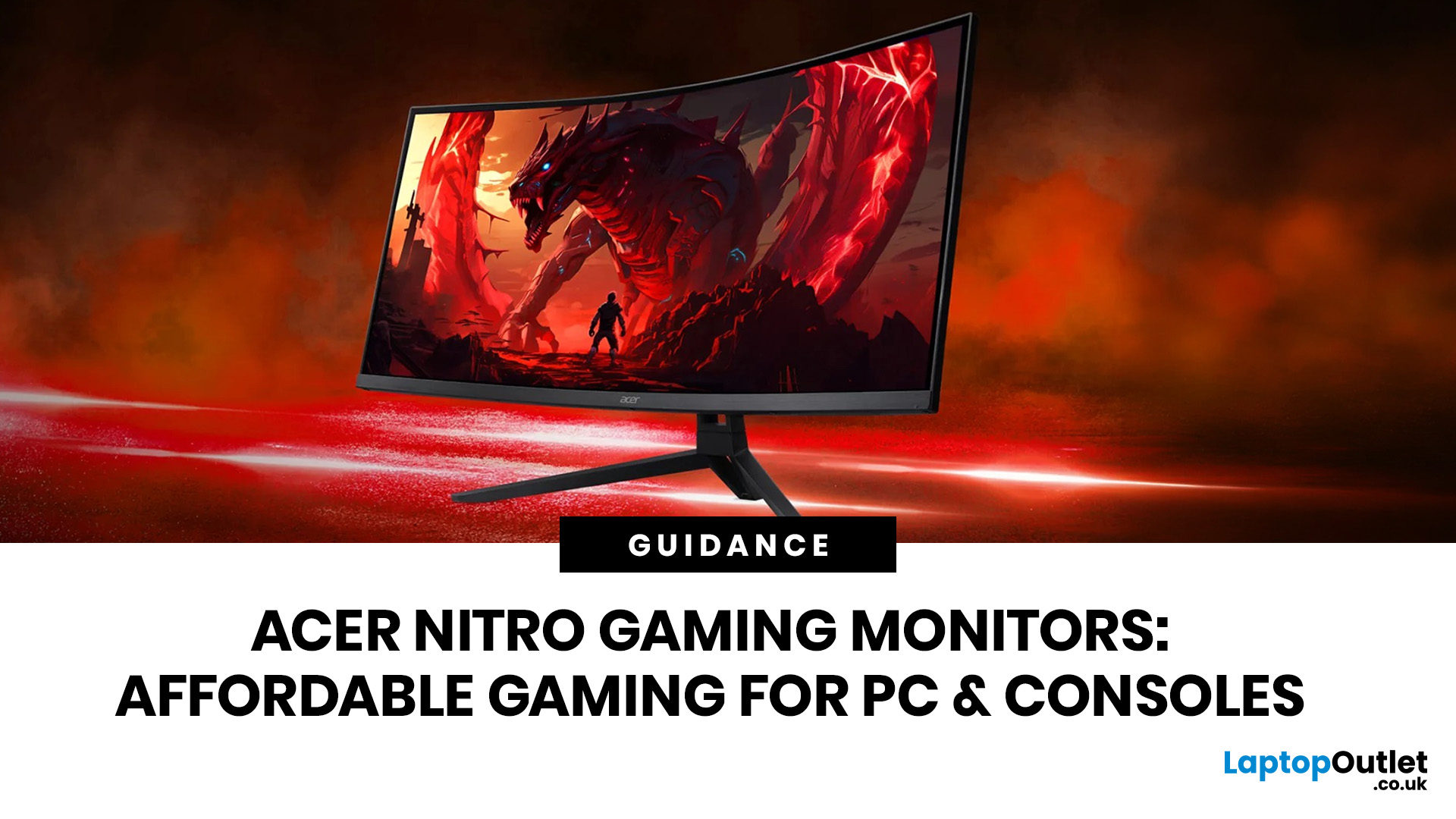
If you want smooth gameplay without jumping straight into premium OLED pricing, Acer Nitro gaming monitors are one of the easiest ranges to shortlist. Acer positions the Nitro line as a gaming family with options for fast-paced play, ultrawide immersion and richer colour, while Our Acer monitor range backs that up with Full HD, QHD, curved and ultrawide Nitro models aimed at buyers who want value, not just spec-sheet flexing.
That is exactly why Acer Nitro monitors UK shoppers keep coming back to the series. The range is broad enough to cover casual desk gaming, PS5 and Xbox setups, and entry-level PC esports, but it still stays realistic on price compared with high-end Predator and OLED alternatives. Nitro models from compact 23.8-inch Full HD panels up to 34-inch curved UWQHD displays, with refresh rates running from 120Hz to 240Hz.
Are Acer Nitro Gaming Monitors Good for Budget Gaming?
Yes. For casual gaming, console play and entry-level PC builds, Acer Nitro sits in a very practical
Last Updated: July 06, 2026
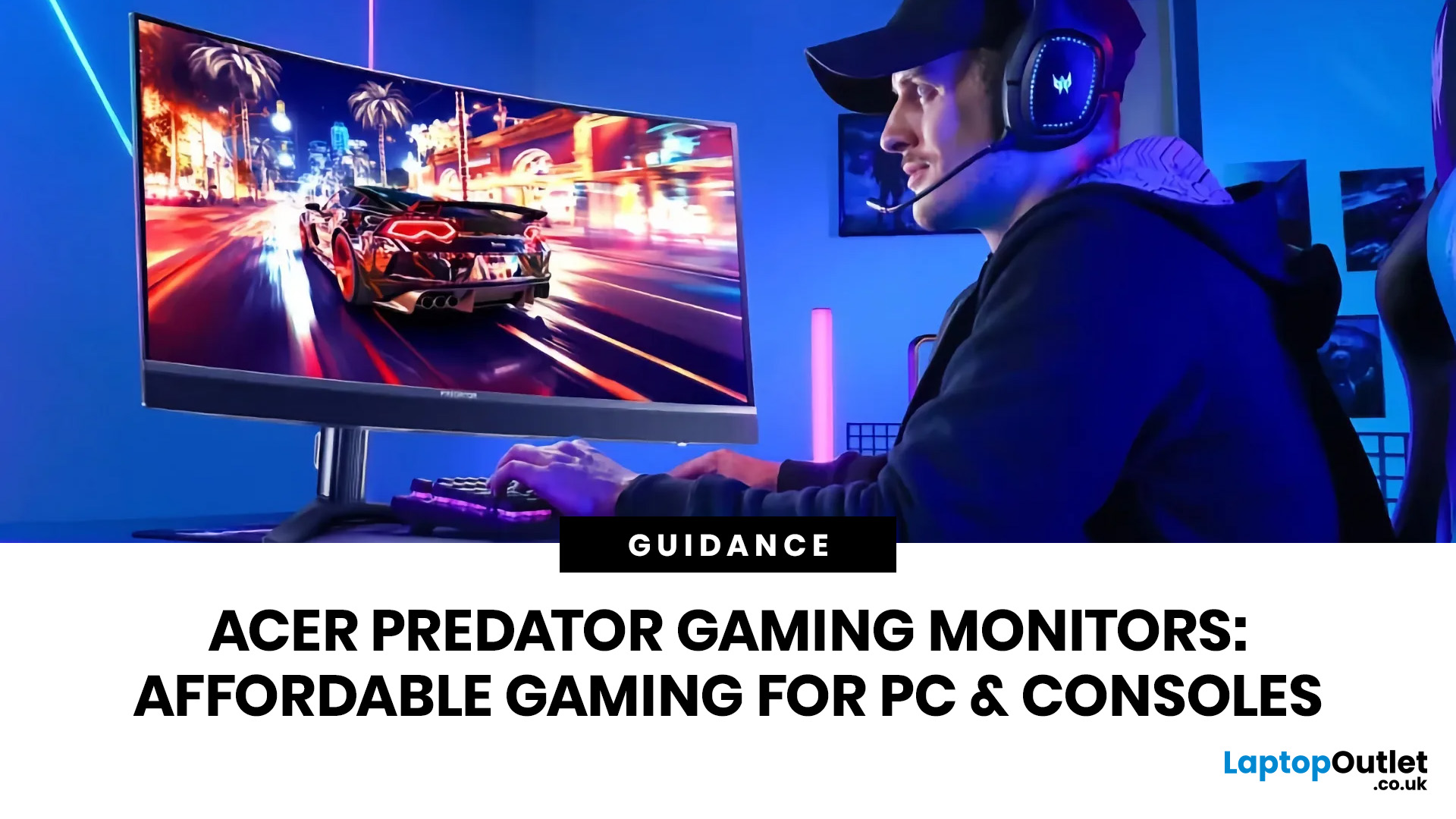
you are shopping for Acer Predator gaming monitors, you are usually not looking for a basic panel. You are looking for speed, image quality and a monitor that genuinely fits the kind of games you play. For some buyers, that means a fast 27-inch display for ranked shooters and esports titles. For others, it means a bigger 4K panel for high-detail single-player games. And for enthusiasts building the kind of setup that makes every desk photo look dramatic, it means an ultrawide or super-ultrawide screen that turns a gaming PC into the centrepiece of the room.
That is why Predator remains such an interesting range. Acer's broader monitor line covers different budgets and uses cases, but the Predator family is where Acer pushes harder on premium gaming features like OLED and QD-OLED panels, very high refresh rates, ultrawide formats and esports-level response times.
If you want the simple answer: Why choose Acer Predator monitor
Here is the short version.
- For competitive esports and fast shooters,
Last Updated: August 24, 2026
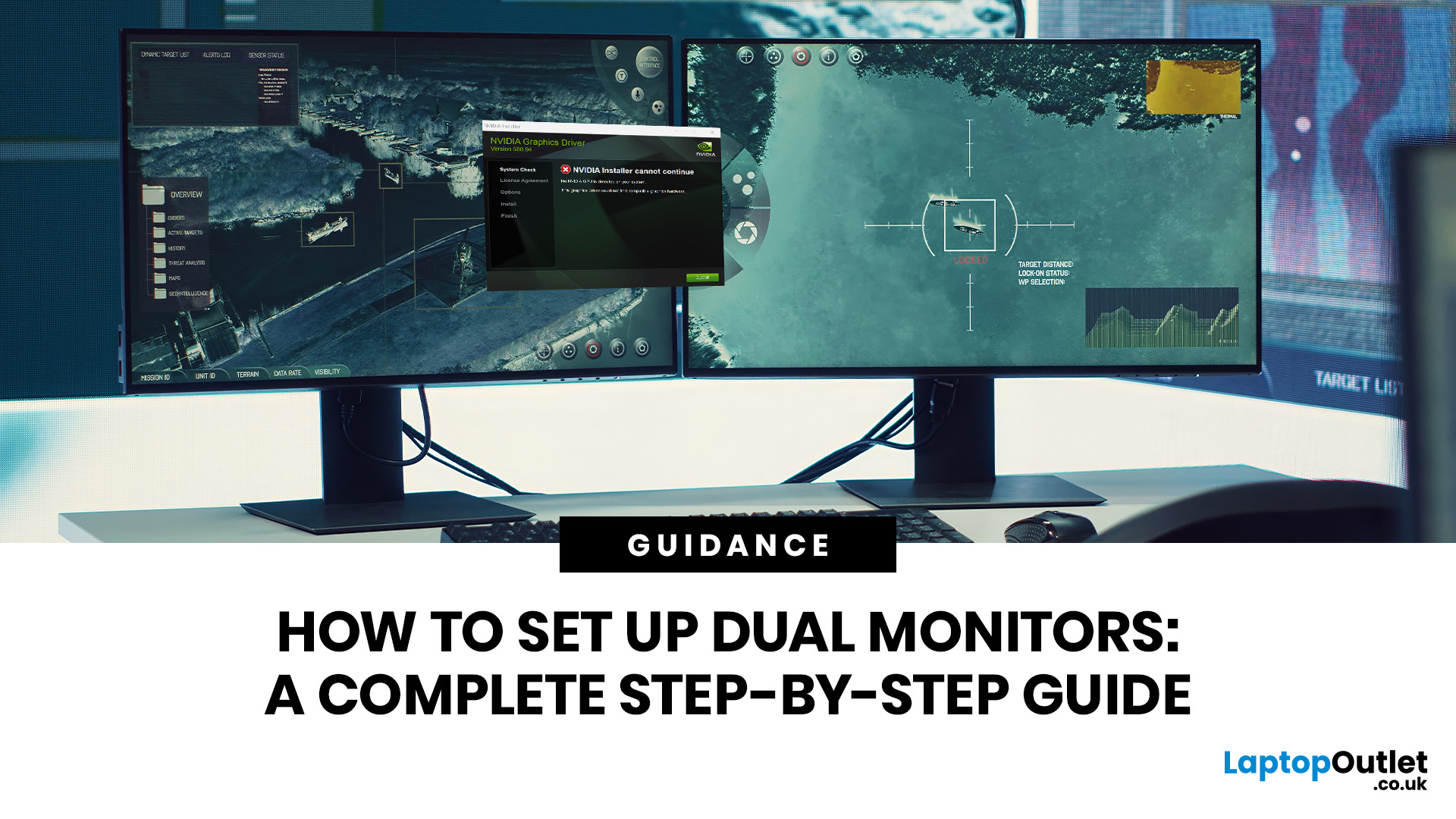
One screen is fine. Two screens? That is where your setup starts feeling seriously organised. Whether you are working from home, studying, gaming, editing, coding or just tired of switching between 27 tabs every five seconds, a dual monitor setup can make your desk feel cleaner and your workflow feel smoother.
The good news is that learning how to set up dual monitors is not as complicated as it sounds. You just need the right monitors, the correct cables or adapters, and a few display settings adjusted properly. This complete guide explains how to connect two monitors, how to set up dual monitors on Windows, how to set up dual monitors with a laptop, and how to get the best layout for work, study, gaming and everyday use.
How Do You Set Up Dual Monitors?
Here is the simple version.
To set up dual monitors, connect both screens to your laptop or desktop PC using HDMI, DisplayPort, USB-C, Thunderbolt or a compatible docking station. Then open your display settings, choose Extend these displays
Last Updated: September 03, 2026
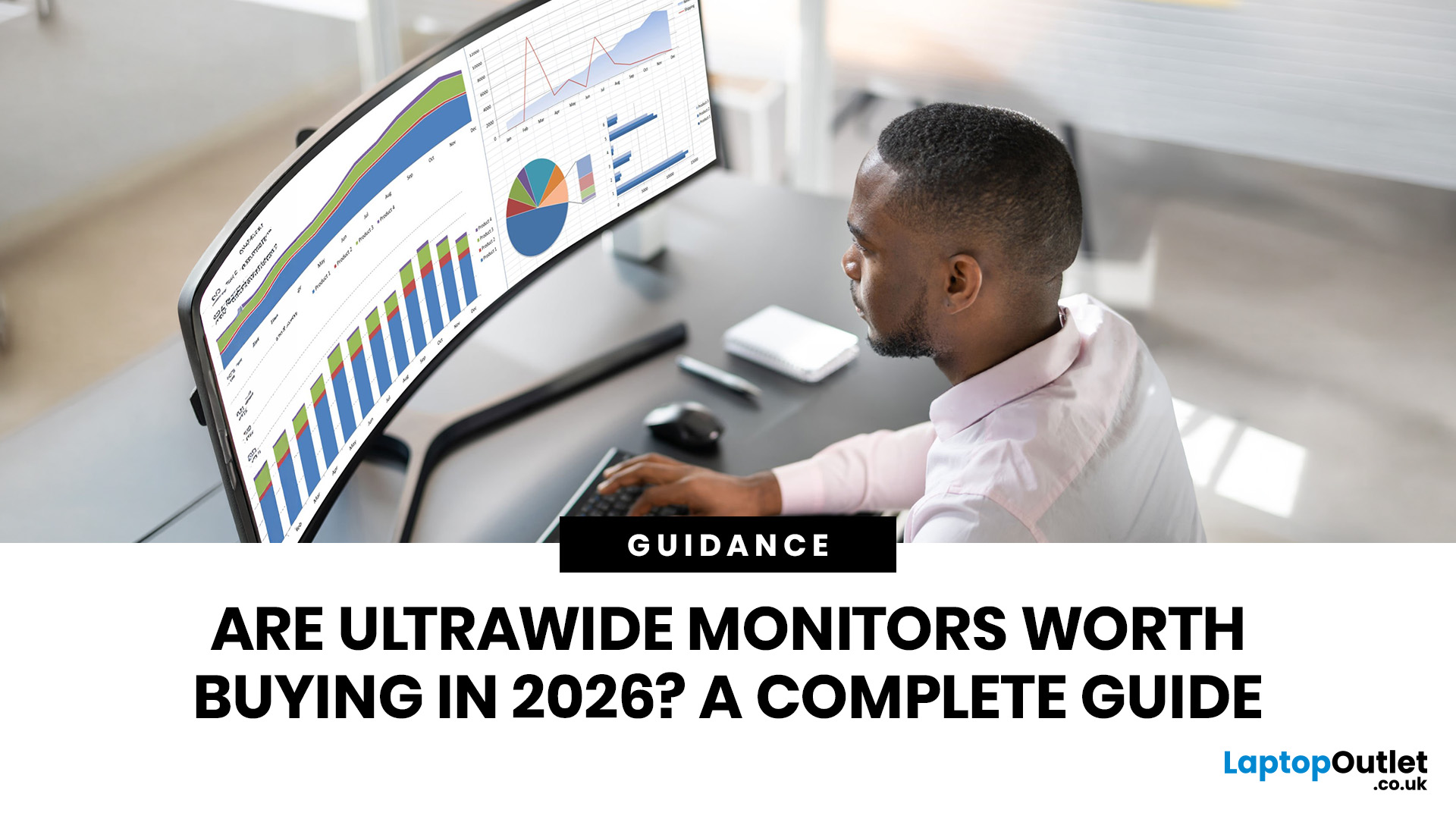
Ultrawide monitors look seriously clean on a desk. One big screen, loads of horizontal space, fewer bezels, and that “main character workstation” vibe. But are they actually useful, or are they just a pricey way to make your setup look dramatic?
If you are asking, “is an ultrawide monitor worth it?”, the answer is: yes, for the right person. An ultrawide screen monitor can be a massive upgrade for multitasking, gaming, editing, streaming, and hybrid work. But it is not the perfect choice for everyone. This complete ultrawide monitor buying guide breaks down the benefits, drawbacks, best use cases and key specs to check before you buy.
Are Ultrawide Monitors Worth it in 2026?
Yes, ultrawide monitors are worth it in 2026 if you want more horizontal workspace, better multitasking, immersive gaming or a cleaner alternative to dual monitors. They are especially worth it for:
- Hybrid workers
- Multitaskers
- Gamers
- Video editors
- Designers
- Streamers
- Coders
- Finance and dashboard users
- Anyone who wants
Last Updated: October 12, 2026
Last Updated: August 25, 2026
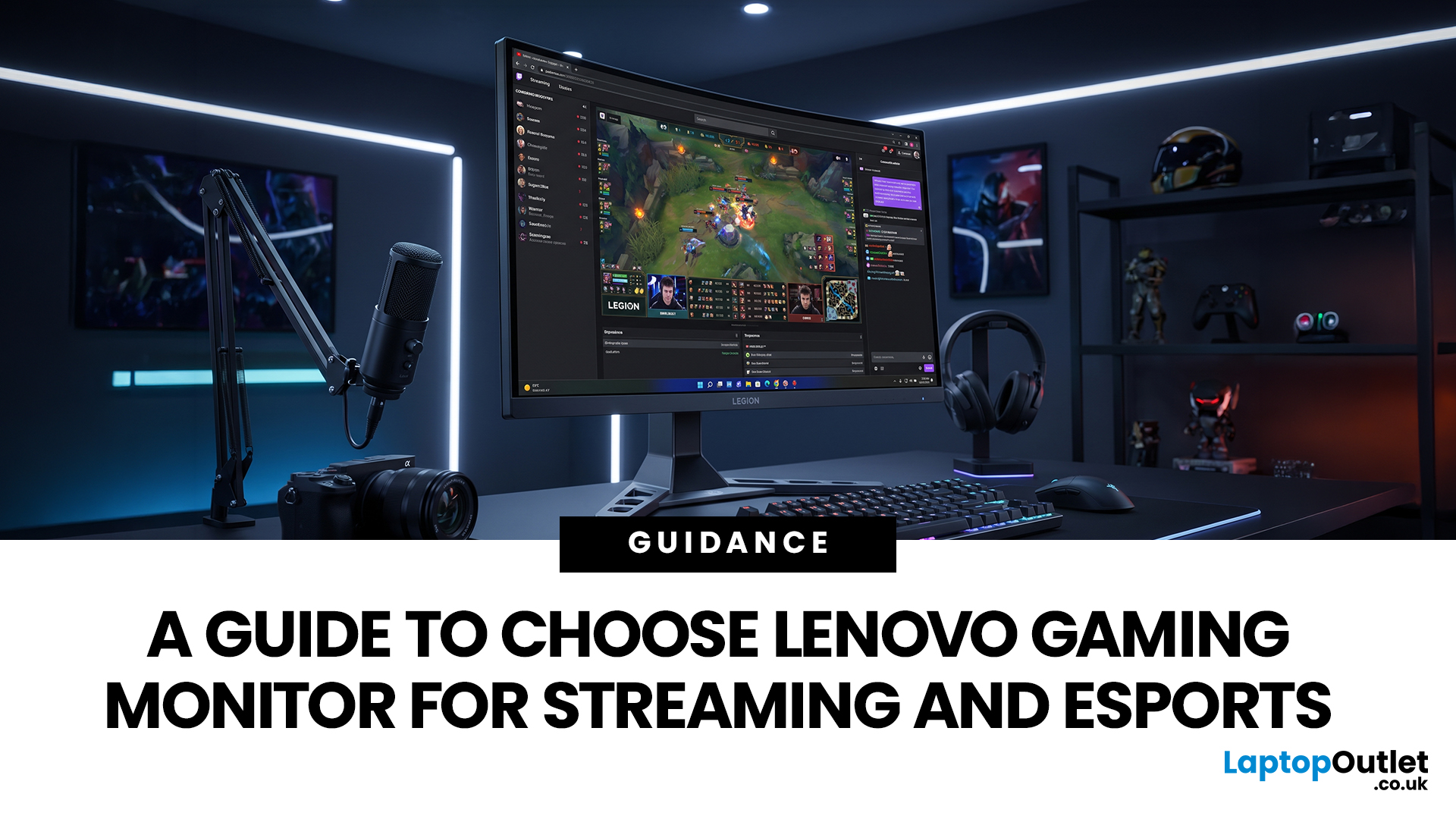
Quick answer: The best Lenovo gaming monitor for streaming and esports is the one your PC can drive consistently at its native resolution while it also handles your broadcast workflow. For many mixed-use setups, a 27-inch QHD display at 165Hz to 180Hz is the balanced choice. A 24.5-inch or 27-inch Full HD screen at 240Hz or above prioritises competitive speed, while a 34-inch UWQHD display at 165Hz to 180Hz provides more room for a single-screen streaming workspace.
Those are useful profiles, not universal rules. Your real decision depends on sustained frame rate, encoder load, game genre, desk space and whether OBS, chat and alerts live on the same display. A monitor does not encode the stream, and a 240Hz panel does not make viewers receive a 240fps broadcast. It changes the experience in front of you, which can still matter greatly during competitive play.
Last Updated: August 11, 2026
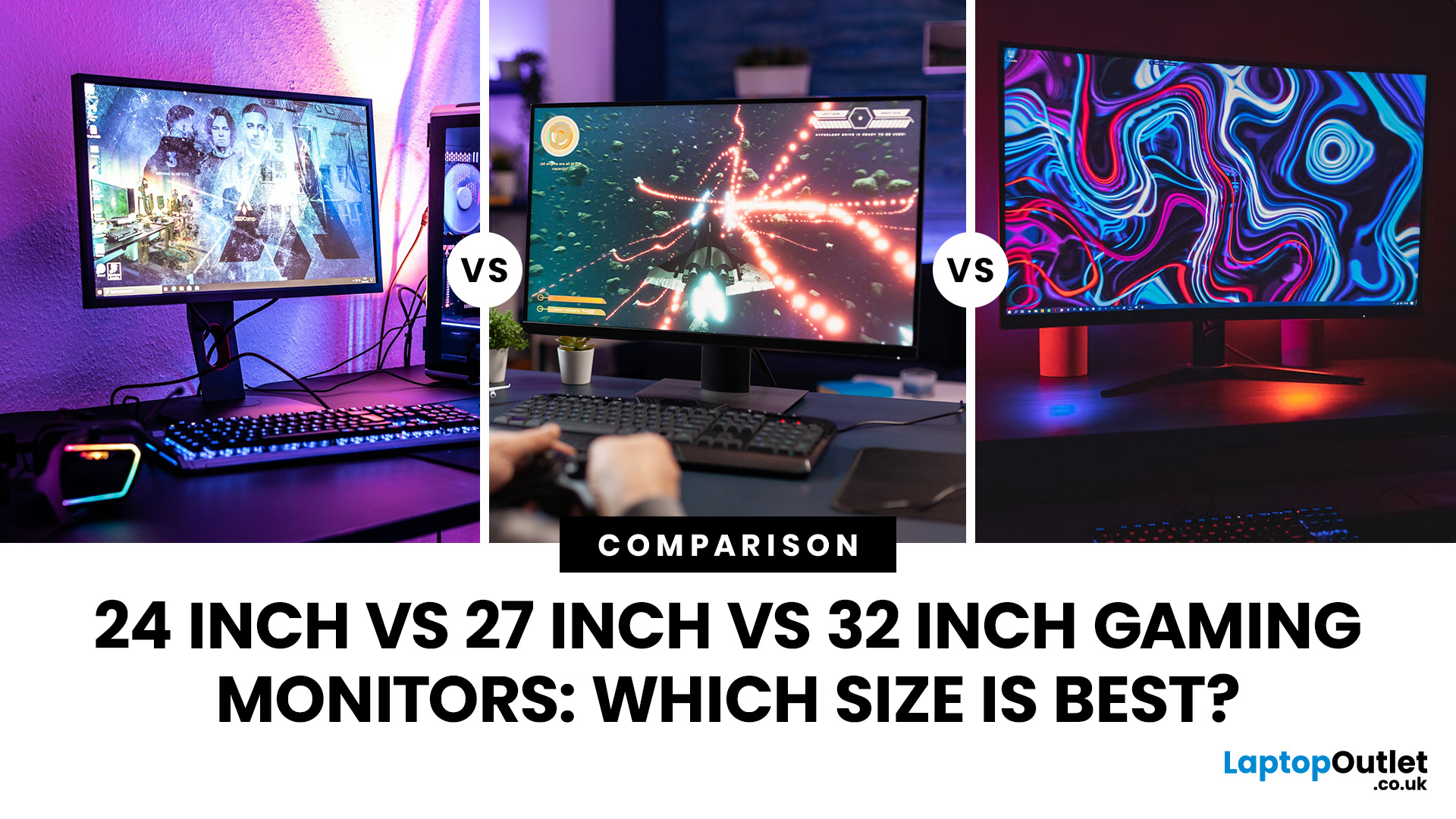
Picking the best gaming monitor size isn’t just about going big or going home. Your screen size actually changes how your games look, feel, and perform. A 24-inch setup is clutch for competitive play, a 27-inch hits that sweet spot between clarity and immersion, and a 32-inch screen? That’s where things get seriously cinematic.
Size alone isn’t the whole story. Resolution, desk space, refresh rate, and what you actually play all matter. This gaming monitor size comparison breaks down 24, 27, and 32-inch displays so you can find your perfect match.
24 Inch vs 27 Inch vs 32 Inch Gaming Monitors: Quick Comparison
The following table provides a quick overview of how the three most popular gaming monitor sizes compare.
| Feature | 24-Inch Monitor | 27-Inch Monitor | 32-Inch Monitor |
| Recommended resolution | 1920 × 1080 | 2560 × 1440 | 2560 × 1440 or 3840 × 2160 |
| Best suited to | Competitive gaming | Mixed gaming and everyday use | Immersive and cinematic gaming |
| Typical desk requirement | Small | Medium | Large |
| Graphics |

