



LG Monitor Eye-Care & Ergonomics: Reader Mode, Flicker-Safe and Setup Tips for Long Days
If you spend the better part of your working day staring at a screen, you already know what digital eye strain feels like. That dull ache behind your eyes, the heaviness by mid-afternoon, the headache that creeps in by the end of a long session. You are not alone in that, and it is not just "screen time." It is often a combination of poor monitor settings, bad posture, and a setup that was never properly dialled in.
The good news is that LG has put real thought into tackling these problems at the hardware and software level. This guide walks you through every LG monitor eye care feature worth knowing about, how to set your screen up properly, and which models are genuinely worth considering if comfort is a priority for you.
Why Do Eye-Care and Ergonomics Actually Matter with Modern Monitors?
You might think that modern screens are already comfortable enough out of the box. The reality is that even a high-quality monitor, poorly positioned and left on factory settings, can cause very real discomfort over time.
Digital eye strain, clinically referred to as Computer Vision Syndrome, affects an estimated 65% of regular computer users. Symptoms include dry and irritated eyes, blurred vision, difficulty focusing, headaches, and neck pain. These are not minor inconveniences. Over months and years, poor screen habits and an ill-adjusted setup compound into real wellbeing issues.
There are two main culprits here. First, the backlight flicker found in many LCD monitors, which happens at a frequency your eyes cannot consciously detect but your brain absolutely registers. Second, blue light emission from the screen, which interferes with melatonin production and contributes to eye fatigue, particularly during evening hours. Add poor physical positioning to the mix, and you have a recipe for chronic discomfort.
LG addresses both issues directly in their eye-care monitors range through dedicated hardware and software tools. Understanding what these features actually do, rather than just that they exist, helps you use them properly.
LG Eye-Care Features Explained
LG builds several distinct comfort-focused technologies into its monitor lineup. These are not just marketing labels. Each one targets a specific cause of eye discomfort, and each works differently. Here is a breakdown of what you need to know about LG Reader Mode and Flicker-Safe, along with the brand's approach to blue light management.
What Is Reader Mode and How Does It Work?
Reader Mode is one of LG's most genuinely useful eye-care features, and it is surprisingly underused by most people who own a monitor that includes it. You access it via the on-screen display (OSD) joystick or through LG's OnScreen Control software on Windows and macOS.
When you activate Reader Mode, the monitor reduces its blue light output and shifts the overall colour temperature towards a warmer, amber-tinged tone. The effect is similar to viewing content on cream-coloured paper rather than a bright white digital screen. Text becomes noticeably easier to read for extended periods, and the harshness of a cold white background disappears.
It is particularly useful for:
- Long reading and writing sessions in word processors or browsers
- Coding and document review for extended periods
- Evening work, when blue light has the most impact on sleep quality
- Anyone prone to tension headaches during screen use
| Tip: Reader Mode does shift colours, so it is not ideal if you are doing colour-sensitive design or photo editing work. Toggle it off for those tasks and back on for reading or writing. |
Many LG monitors with Reader Mode have earned the TÜV Rheinland Low Blue Light certification, meaning the blue light reduction has been independently verified to meet specific thresholds. Look for this badge when choosing a model if eye comfort is your primary concern.
What Is Flicker-Safe and Why Should You Care About It?
Most LCD monitors adjust their brightness by rapidly switching the backlight on and off, a technique known as Pulse Width Modulation or PWM. At lower brightness settings, the flickering happens more frequently. Your eyes cannot consciously see it, but your visual system responds to it nonetheless.
PWM flickering has been linked to headaches, eye fatigue, and in some people, sensitivity reactions akin to photosensitivity. The problem becomes more pronounced the lower you set the brightness, which is ironic given that people often dim their screens to be gentler on their eyes.
LG Flicker-Safe monitor technology solves this by replacing PWM with DC dimming across the full brightness range. Instead of flickering the backlight on and off, the monitor continuously adjusts the current flowing to the backlight, maintaining a constant light output at all brightness levels. The result is a completely stable image with zero PWM flicker.
The practical effect is noticeable, especially if you are someone who has previously struggled with monitor-related headaches. Many LG Flicker-Safe monitors carry the corresponding TÜV Rheinland Flicker Free certification to back up the claim independently.
| Worth knowing: On some LG UltraGear gaming monitors, certain features such as Motion Blur Reduction (ELMB-style) and AMD FreeSync are linked to the backlight technology. Activating motion blur reduction on those models may temporarily override Flicker-Safe. For everyday work and reading, stick to Flicker-Safe on and motion blur off. |
How Do Blue Light Management and Colour Temperature Settings Work Together?
Beyond Reader Mode, many LG monitors offer manual colour temperature adjustment as a separate control within the OSD. This lets you set a warmer display tone without fully activating Reader Mode's blue light filter, giving you a middle ground that suits tasks like general browsing or watching films in a dim room.
Colour temperature is measured in Kelvin (K). Here is a practical reference:
|
Colour Temperature |
Appearance |
Best For |
|
6500K (default/cool) |
Bright white, slightly blue-ish |
Colour work, daylight hours |
|
5500K–6000K |
Neutral white |
General office work |
|
4000K–5000K |
Warm white |
Long reading sessions |
|
3000K–4000K (Reader Mode) |
Amber/paper tone |
Evening use, document reading |
Some LG OnScreen Control profiles also include a custom colour filter option, which allows accessibility adjustments for colour vision deficiencies. This is a useful addition that often goes unnoticed but can make a significant difference to a portion of users.
If you want to know more about getting the most from your LG screen in a multi-monitor or wide-format setup, take a look at the LG UltraWide & DualUp productivity guide for detailed workflow tips.
What Ergonomic Design Features Do LG Monitors Offer?
Software features like Reader Mode and Flicker-Safe can only do so much. If your monitor is too high, too close, or physically immovable, you will still end up with neck pain, shoulder stiffness, and visual fatigue regardless of how well the display is calibrated. LG's ergonomic design features address this directly across its monitor range.
What Do Height, Tilt, Pivot and Swivel Adjustments Actually Give You?
The range of physical adjustments available on a monitor stand determines how accurately you can fit the screen to your body and your desk environment. A tilt-only stand is the most basic option and gives you limited personalisation. A fully adjustable stand with height, tilt, swivel, and pivot gives you near-perfect flexibility.
Here is what each adjustment type does in practice:
- Height adjustment: Lets you raise or lower the panel so the top of the screen sits at or just below your eye level. This is arguably the most important adjustment for preventing neck strain.
- Tilt: Allows you to angle the top of the screen slightly away from or towards you, typically between minus 5 and positive 20 degrees. A slight backward tilt usually improves comfort.
- Swivel: Lets you rotate the monitor left or right on its base without moving the whole stand. Useful for repositioning quickly or sharing the screen briefly with a colleague.
- Pivot: Allows you to rotate the entire panel to portrait orientation (vertical). This is excellent for reading long documents, coding, or working with vertical content.
LG's mid-range and business monitors, particularly within the BA and UltraFine ranges, typically include height adjustment and tilt as standard. The LG Ergo series goes furthest, offering full articulation through a clamp-style stand that attaches to the desk edge and provides extension, pivot, swivel, and height adjustment all in one arm.
Is Using a VESA Arm a Better Option for Ergonomic Flexibility?
Even a monitor with a height-adjustable stand has limits. A VESA-compatible monitor arm removes almost all of them. If your LG monitor supports VESA mounting (most do, at either 75x75mm or 100x100mm patterns), a quality monitor arm is one of the most effective ergonomic upgrades you can make.
Benefits of a monitor arm over a standard stand:
- Frees up significant desk surface area by lifting the monitor off the stand footprint
- Allows much wider range of height and depth adjustment than a factory stand
- Makes it easy to pull the screen closer or push it further away without rearranging your desk
- Enables proper positioning even on desks that are too high or too low for stock stands
- Supports dual-monitor setups with consistent alignment
| Tip: When removing the factory stand to mount a VESA arm, check the monitor's weight against the arm's rated capacity first. Most arms comfortably handle 27-inch monitors, but heavier 32-inch and 34-inch panels need a sturdier arm rated for at least 7–9kg. |
How Should You Set Up Your LG Monitor for Comfortable Work?
Getting the right monitor is only half the job. A well-specced LG eye-care monitor positioned incorrectly and running on wrong settings can still leave you squinting by lunchtime. Here is how to dial in the best LG monitor settings for eye strain and position the screen correctly for your setup.
What Are the Ideal Viewing Distance and Height for Your LG Monitor?
Following the LG monitor height and distance tips below will give you a solid ergonomic starting point. These are based on guidelines from occupational health bodies and optometric research.
|
Setup Element |
Recommended Setting |
Why It Matters |
|
Viewing distance |
50–70cm (roughly arm's length) |
Reduces eye convergence effort and accommodative strain |
|
Screen height |
Top of screen at or just below eye level |
Prevents neck extension; natural downward gaze angle |
|
Tilt angle |
5–10 degrees backward |
Aligns screen with natural head posture when seated |
|
Screen angle (swivel) |
Centred directly in front of you |
Prevents asymmetric neck and shoulder tension |
|
Ambient lighting |
No glare or reflections on screen surface |
Reduces squinting and contrast adaptation effort |
If you wear reading glasses or progressive lenses, you may need to slightly adjust the height downward or increase the viewing distance. Bifocal users in particular benefit from a lower screen position to avoid tilting the head back to use the reading portion of their lenses.
| Tip: Position your monitor so that natural light from a window hits the screen from the side rather than from behind you or directly in front. A screen with anti-glare coating (included on most LG IPS panels) helps significantly, but eliminating direct glare at source is always more effective. |
What Are the Best Brightness, Contrast and Colour Settings for Your LG Monitor?
Factory default settings on most monitors are configured for a brightly lit showroom environment, not a typical home office or workspace. Leaving them unchanged is a common source of unnecessary eye strain.
Here are practical starting-point settings for most LG monitors during typical office use:
- Brightness: Start at 80–100 nits for indoor office conditions. A rough rule is that your screen should appear about as bright as the pages of a book in your room's ambient light. If the screen looks like it is glowing compared to the room, it is too bright.
- Contrast: The default setting (typically 75%) is usually fine. Raising contrast excessively causes text edges to bloom and increases fatigue during reading.
- Colour temperature: Lower the default from 6500K to around 5500K–6000K for general use. Enable Reader Mode or drop towards 4500K–5000K for long reading sessions or evening work.
- Sharpness: Keep this at the default or reduce it slightly. Over-sharpening creates harsh pixel edges that are harder on the eyes over time.
- Gamma: Leave at 2.2 unless you are calibrating for a specific colour workflow.
LG's OnScreen Control software (free download for Windows and macOS) makes profile switching very quick. You can create and save separate profiles for reading, design work, and video watching, then toggle between them without going into the OSD each time.
What Extra Steps Can You Take to Reduce Eye Strain and Fatigue?
Hardware features and settings improvements make a real difference, but they work best alongside a few practical habits. Here are the most evidence-based additions to your routine:
- Follow the 20-20-20 rule: Every 20 minutes, look at something at least 20 feet (roughly 6 metres) away for 20 seconds. This allows the eye muscles that maintain focus to relax fully. Setting a timer helps until it becomes habitual.
- Blink consciously: Screen use significantly reduces blink rate, which leads to dry, irritated eyes. Make a deliberate effort to blink fully and regularly, particularly during intense focus tasks.
- Use bias lighting: Place a soft, warm-toned LED light source behind your monitor (bias lighting). This reduces the contrast between the bright screen and the darker wall behind it, which is a major contributor to eye fatigue in dimly lit rooms.
- Consider the f.lux or Windows Night Light tools: These apply a software-level warm shift to your display during evening hours, complementing your monitor's built-in Reader Mode rather than replacing it.
- Get regular eye tests: Many people working with monitors for long hours are unknowingly slightly long-sighted or have uncorrected astigmatism. Even a minor prescription can reduce strain significantly. The NHS recommends an eye test every two years for adults with no existing issues, and annually if you have concerns.
- Adjust your chair and desk height first: Monitor ergonomics only fully work if your seating position is correct. Your elbows should be at roughly 90 degrees when typing, and your feet should be flat on the floor. Adjusting the monitor to compensate for a poor chair position is a workaround, not a solution.

Maximising Comfort with LG Tech
LG monitor eye care is not a single feature you switch on and forget. It is a combination of hardware decisions (Flicker-Safe backlighting), software tools (Reader Mode, colour temperature adjustment), and physical setup (stand adjustability, viewing distance) that work together to make a genuine difference to how you feel after a long day at the screen.
Flicker-Safe eliminates the invisible PWM flicker that is a common but overlooked cause of headaches and fatigue. Reader Mode reduces blue light and creates a warmer, paper-like display tone that is easier on your eyes during extended reading and writing sessions. Pair those with a properly adjusted stand, correct viewing distance, and a few sensible habits like the 20-20-20 rule, and you have a setup that genuinely protects your comfort over the long term.
Not every LG monitor ships with the full set of eye-care features and ergonomic features, so it is worth checking before you buy. Browse the full LG eye-care monitors range at Laptop Outlet to find the right match for your setup.
To compare all current LG screen options by series, resolution, panel type and price, the LG monitors buying guide 2026 covers the full range in one place.

Just So You Know...
Do LG eye-care features make a real difference to eye strain?
Yes. Flicker-Safe eliminates PWM flicker, a proven headache trigger, while Reader Mode measurably reduces blue light output. Combined, they provide tangible comfort improvement during long screen sessions.
What is the best brightness and colour temperature for long reading sessions?
Set brightness to around 80–100 nits and colour temperature between 4500K and 5500K. Activate Reader Mode for dedicated reading tasks, particularly during evening hours.
Is a larger LG monitor automatically better for comfort?
Not automatically. A larger screen at the correct resolution and viewing distance is better. An oversized monitor too close to your eyes creates more strain, not less.
How high should my LG monitor be positioned on the desk?
Position the top edge of the screen at or just below your natural eye level when seated upright. Your gaze should naturally fall slightly downward towards the screen centre.
Do LG gaming monitors also include eye-care modes?
Yes. Most LG UltraGear gaming monitors include Flicker-Free technology and FreeSync, which also reduces judder-related fatigue. Reader Mode is available on selected gaming models too.
Related Articles

Last Updated: September 01, 2026
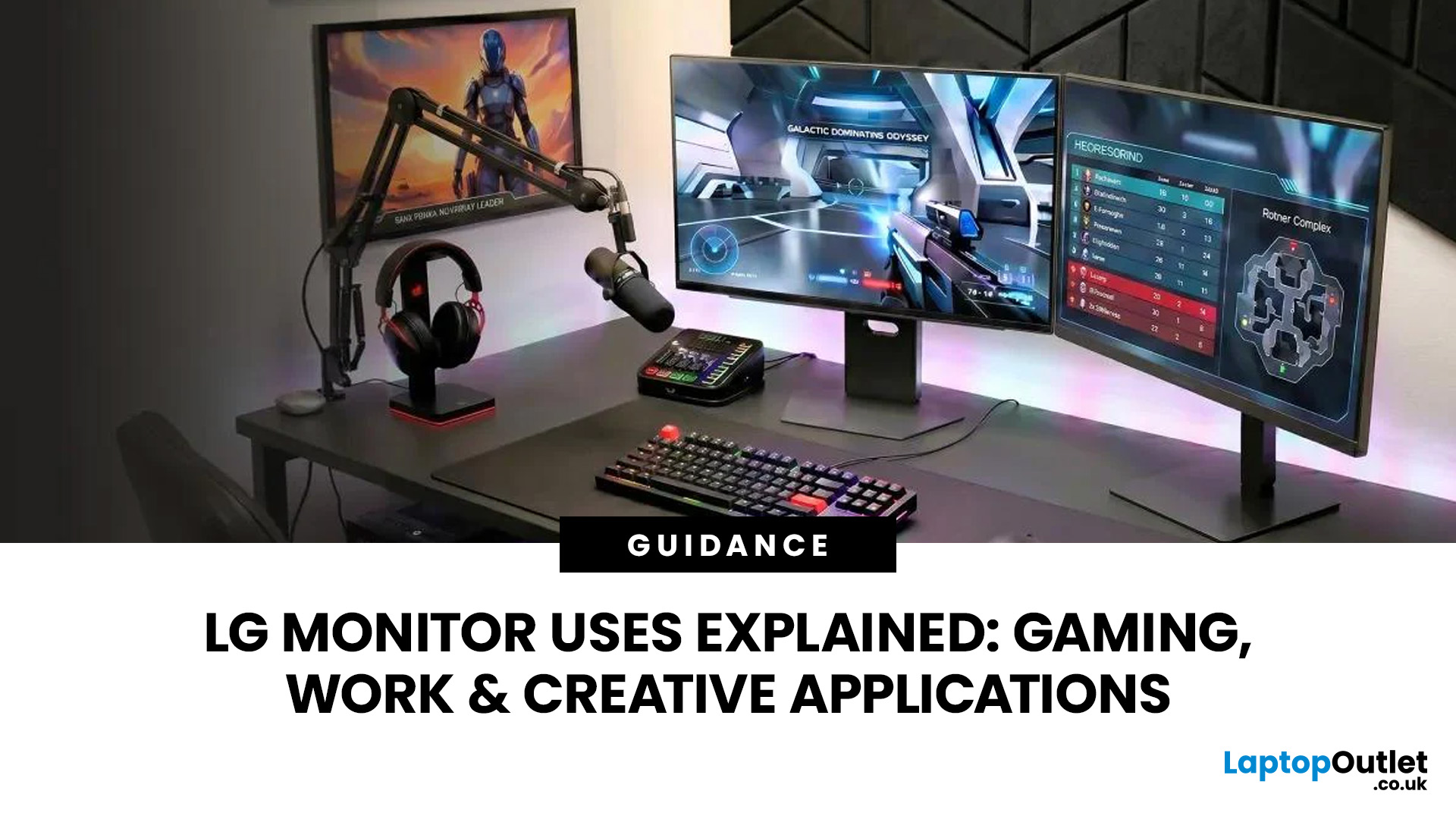
A monitor can suit very different tasks depending on its resolution, refresh rate, panel type, colour performance, screen format, and connectivity. That is why understanding LG monitor uses is more helpful than simply comparing model names or product lines.
For gaming, the priority may be smooth motion and responsiveness. For office work, text clarity, screen space and ergonomics usually matter more. Creative workplaces greater emphasis on colour consistency, detail and a display that can be set up accurately for visual tasks.
This guide explains how LG displays can support gaming, productivity and creative applications, and how the most important display requirements change depending on what you do at your desk.
How LG Monitors Support Gaming
Refresh Rate and Motion Smoothness
Gaming places different demands on a display from office or general home use. Fast-moving scenes, rapid camera movement and competitive play can make refresh rate, response behaviour and motion clarity much more
Last Updated: August 28, 2026
Choosing the best gaming monitor brand can make a huge difference to your gaming experience. Whether you play competitive esports titles, immersive AAA games, or console exclusives on PS5 and Xbox Series X, the right monitor brand delivers smoother performance, better visuals, and long-term reliability.
In the UK gaming market, several brands consistently stand out for quality, innovation, and value. Companies like ASUS, LG, BenQ, AOC, Philips, and iiyama offer gaming monitors across every price range - from affordable 144Hz displays to cutting-edge OLED and 4K panels.
But with so many options available, it’s not always obvious which gaming monitor brand is best for your setup, budget, and gaming style.
Let’s discuss the best gaming monitor brands in the UK, compare their strengths, and help you choose the right one based on resolution, refresh rate, and platform compatibility.
What Makes a Gaming Monitor Brand Worth Buying in 2026?
When comparing the top gaming monitor brands, it’s important
Last Updated: April 14, 2026
Choosing the right monitor can genuinely change how you play. Whether you’re grinding ranked matches, competing in esports, or just kicking back on your console, your display has a direct impact on performance, clarity and overall experience.
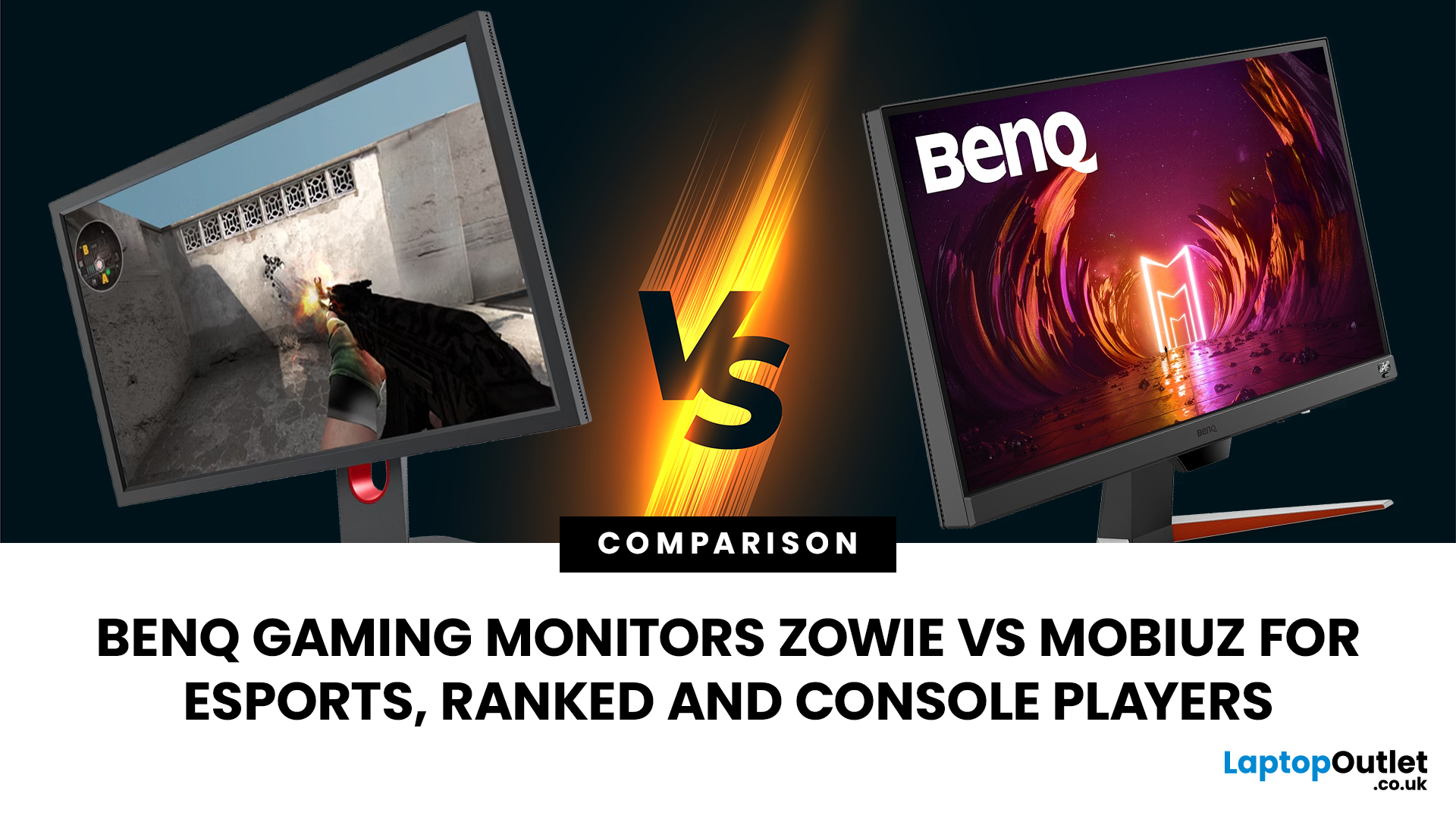
That’s where BenQ gaming monitors stand out. Known for precision engineering and gamer-first features, BenQ offers two standout ranges: ZOWIE and MOBIUZ. But when it comes to BenQ gaming monitors ZOWIE vs MOBIUZ, which one is right for you? Let’s break it down in a way that makes sense for how you play.
BenQ Gaming Monitors Explained
BenQ doesn’t take a one-size-fits-all approach to gaming. Instead, it splits its lineup into two clearly defined categories:
- BenQ ZOWIE esports monitors – built purely for competitive performance
- BenQ MOBIUZ gaming monitors – designed for immersive, all-round gaming
ZOWIE is about speed, precision and winning. MOBIUZ is about visuals, versatility and enjoying the full gaming experience. Both are excellent, but they serve
Last Updated: April 06, 2026
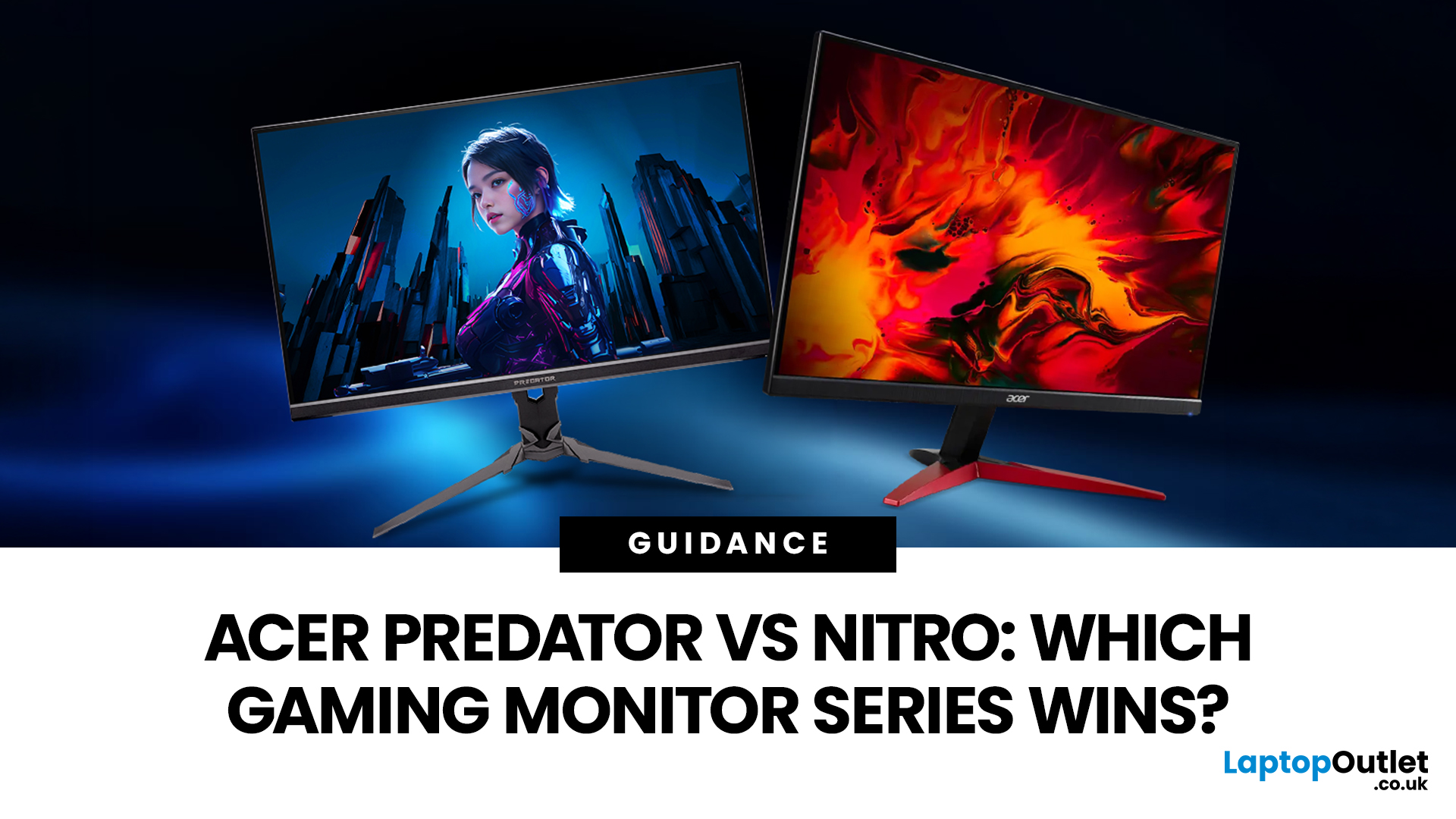
If you are comparing Acer Predator vs Nitro, you are likely at a point where a standard monitor no longer cuts it. Maybe you are upgrading your setup, moving into competitive gaming, or simply trying to get better value for your money.
Acer has made this decision slightly more complex by offering two strong Acer gaming monitor ranges that, at first glance, seem similar. Both support high refresh rates, both look like gaming displays, and both are widely available across the UK.
But once you dig deeper, Predator and Nitro are built for very different types of users. This guide breaks it down properly. No fluff, no brand hype, just a clear explanation of what matters when you are choosing between them.
Why Acer Splits Predator and Nitro in the First Place
Before comparing specs, it helps to understand Acer’s thinking. The company is not just offering two versions of the same product. These are two separate strategies:
- Predator is where Acer pushes performance, display innovation, and premium
Last Updated: April 14, 2026
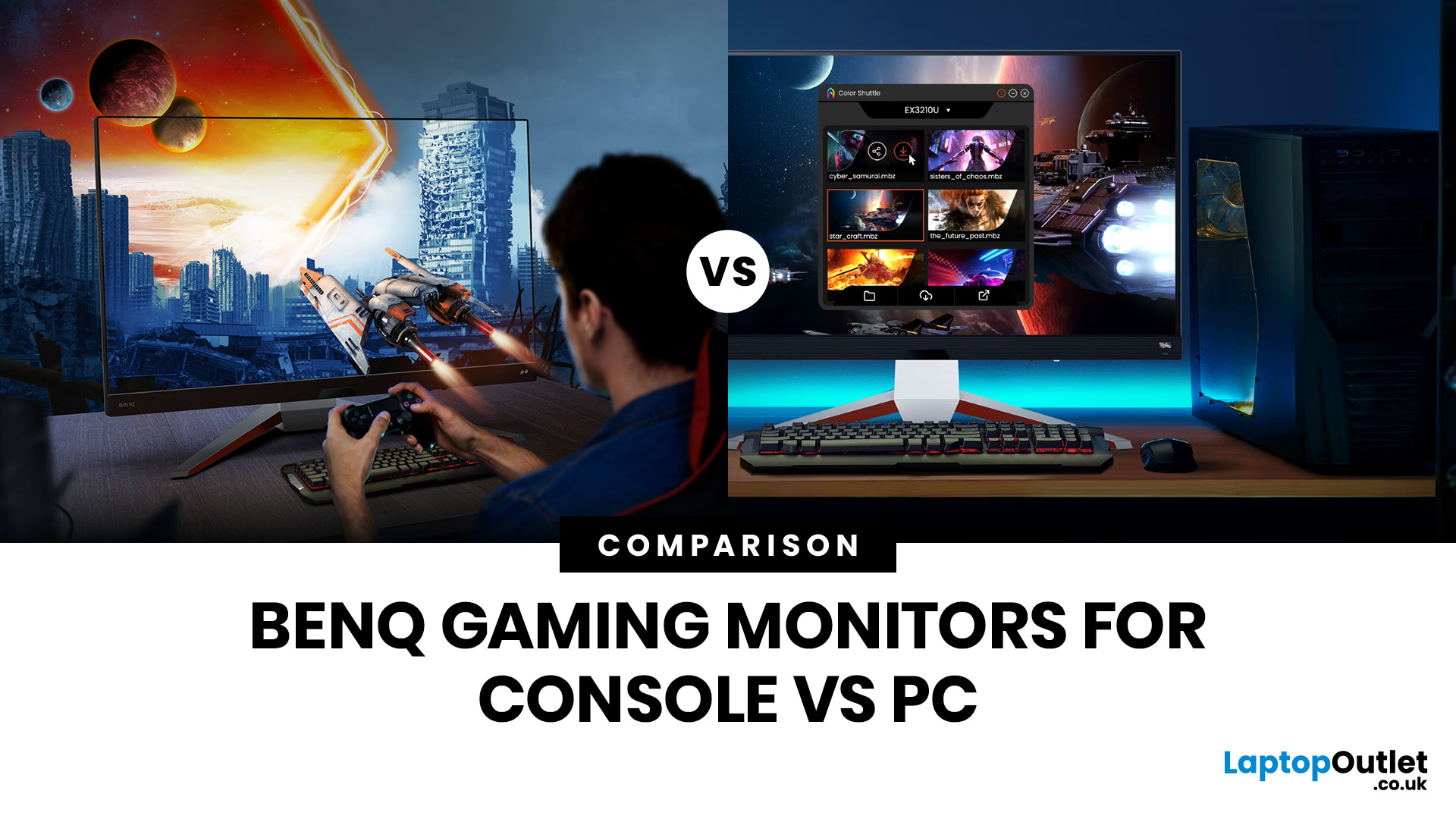
Picking the right gaming monitor is no longer as simple as choosing the biggest screen you can afford. Your setup matters, your platform matters, and the way you play matters even more. A monitor that feels perfect for a competitive PC player might not be the best fit for someone gaming on a PS5 or Xbox Series X.
That’s exactly why choosing the right BenQ gaming monitor for console or PC comes down to more than specs on a product page. You need to think about refresh rate, resolution, connectivity and whether you care more about raw speed or immersive visuals.
BenQ makes that decision easier by offering two clear gaming monitor families. ZOWIE is built for fast, focused competitive PC play, while MOBIUZ is designed for players who want strong performance with more visual depth and better console-friendly features. If you’ve been stuck comparing 1080p, 1440p and 4K, this guide breaks it all down in a way that helps.
Do Console and PC Gamers Need Different BenQ Monitors?
Console and PC
Last Updated: April 28, 2026
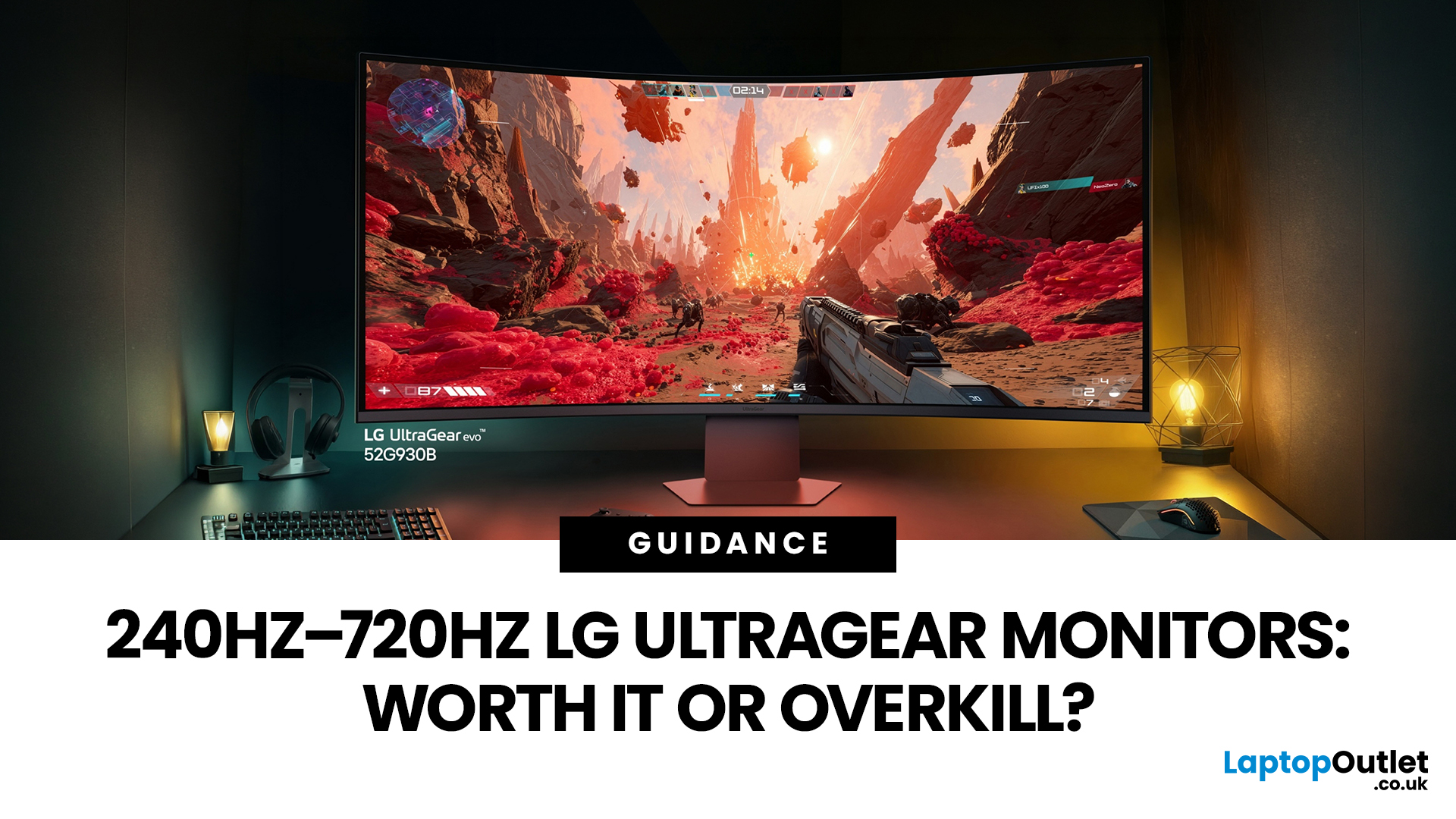
If you've been shopping for a gaming monitor lately, you've probably noticed the numbers getting a bit daft. 240Hz, 330Hz, 480Hz, 540Hz, and now 720Hz.
High refresh LG UltraGear monitors are pushing the boundaries of what gaming displays can do, and the specs are genuinely impressive. But the real question isn't what these monitors can do. It's whether you'll actually notice the difference when you're in the thick of a match.
This guide cuts through the spec sheet jargon and answers what most gamers genuinely want to know: when does a higher refresh rate actually matter, who benefits from it, and which part of the spectrum makes sense for your setup?
What Refresh Rate Actually Does During Gameplay
Refresh rate is one of the most talked-about monitor specs, yet it is also one of the most misunderstood. Before diving into the numbers, it helps to know what is actually happening at the hardware level, because the real-world experience comes from two separate things working together.
A monitor's
Last Updated: September 01, 2026
Not all gaming monitors are built the same, and the LG UltraGear range makes that very clear. Whether you're playing for fun on weekends, grinding ranked matches on a mid-range rig, or competing at a serious level, there's a specific UltraGear model that fits your needs.
This LG UltraGear guide breaks down the full lineup by player type so you can make a genuinely informed decision before spending your money.
What Makes LG UltraGear Different from Standard LG Monitors?
LG produces monitors for all sorts of uses, from office work to content creation to home cinema. UltraGear is the gaming-focused sub-brand, and it comes with a noticeably different spec sheet compared to LG's standard displays.
The core differences come down to priorities. Standard LG monitors are built around colour accuracy, ergonomics, and value for office use. UltraGear monitors are tuned for speed, responsiveness, and visual clarity under fast-moving gaming conditions.
In practical terms, this means LG UltraGear gaming
Last Updated: April 28, 2026
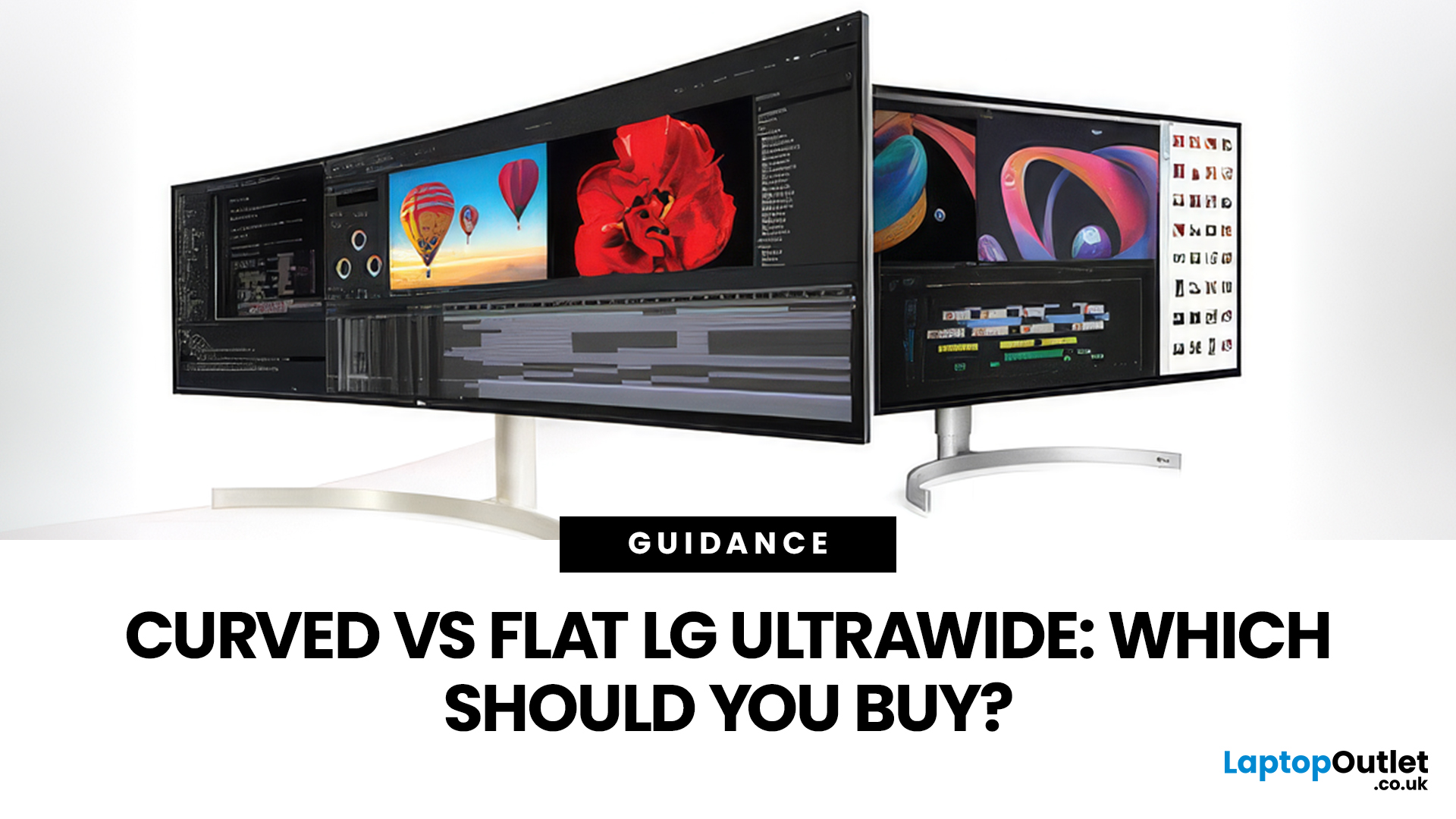
If you're choosing between a curved vs flat LG UltraWide monitor, the decision is more nuanced than it first appears. The right choice depends on what you do, how long you sit at your desk, and the kind of experience you want from your screen.
This guide breaks down every major use case side by side, with a clear verdict for each one, so you can make the right call before you spend your money.
What Makes LG UltraWide Monitors Different?
LG UltraWide monitors use a 21:9 aspect ratio, giving you roughly a third more horizontal screen space than a standard 16:9 display. That extra width is what makes the curved vs flat debate so relevant on these screens specifically.
On standard 26 to 28-inch monitors, the curve debate is largely down to personal preference. But once you hit 34 inches and beyond, the physics of how your eyes scan left-to-right starts to matter. On ultrawide displays of 34 inches or larger, the curvature brings the edges of the screen closer to you, covering more of your
Last Updated: April 14, 2026
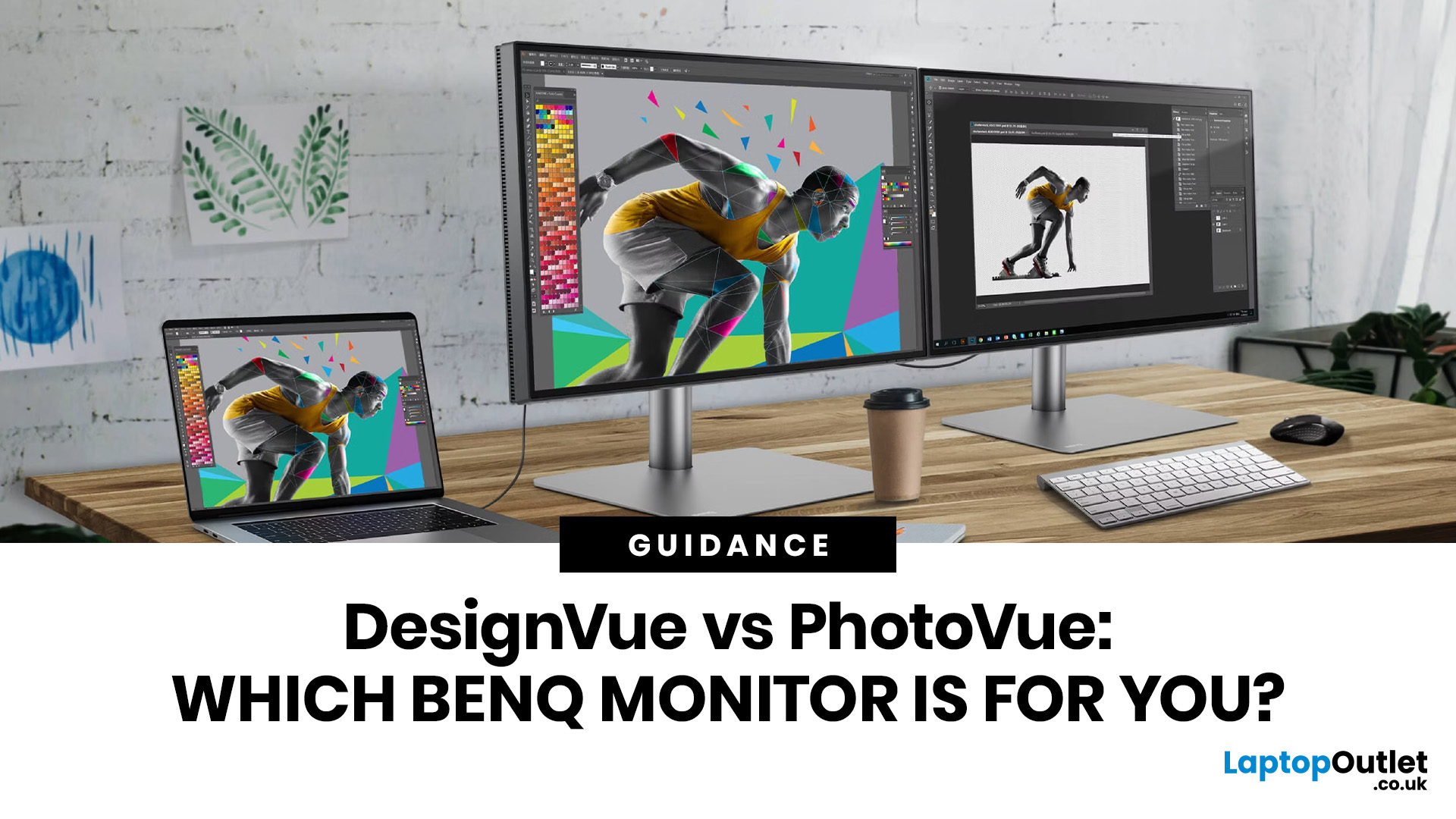
If you work with colour professionally, your monitor is your most critical piece of kit. BenQ monitors for creators are built around one principle: what you see on screen should accurately reflect what you print, publish, or deliver to a client.
Whether you are a photographer editing RAW files, a designer producing brand assets, or a video editor reviewing colour grades, accuracy matters at every stage. BenQ addresses this through two dedicated series: the DesignVue PD range and the PhotoVue SW range.
Each is engineered for a different creative discipline. This guide explains both series, covers the key specs to look for, highlights how they compare, and helps you decide which one fits your workflow best.
BenQ’s Creator Series: DesignVue & PhotoVue SW
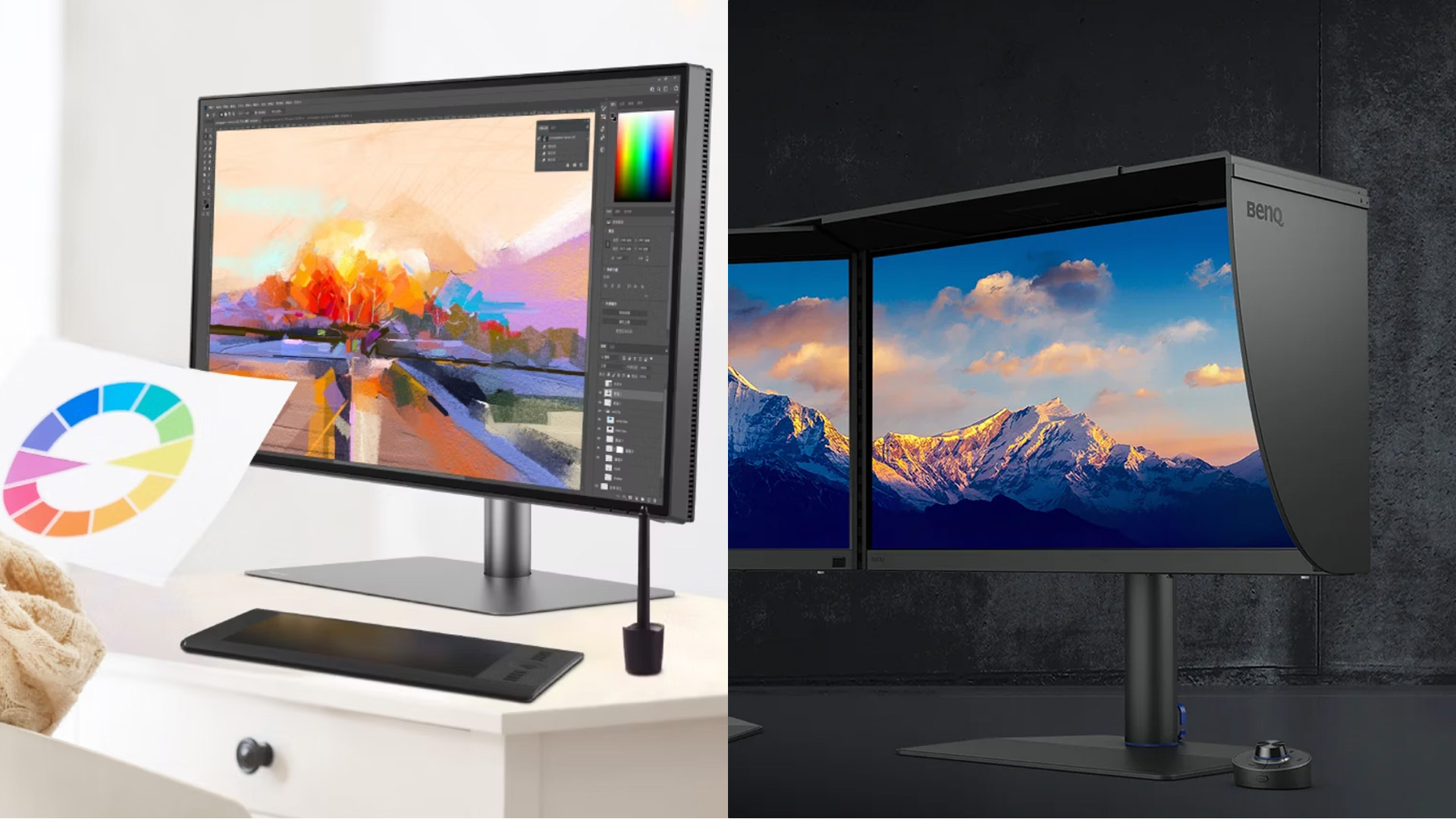
Finding the right BenQ monitors for creators starts with understanding why BenQ separates its professional range into two distinct families, each tailored to a different core workflow. Rather than one catch-all creative
Last Updated: April 14, 2026
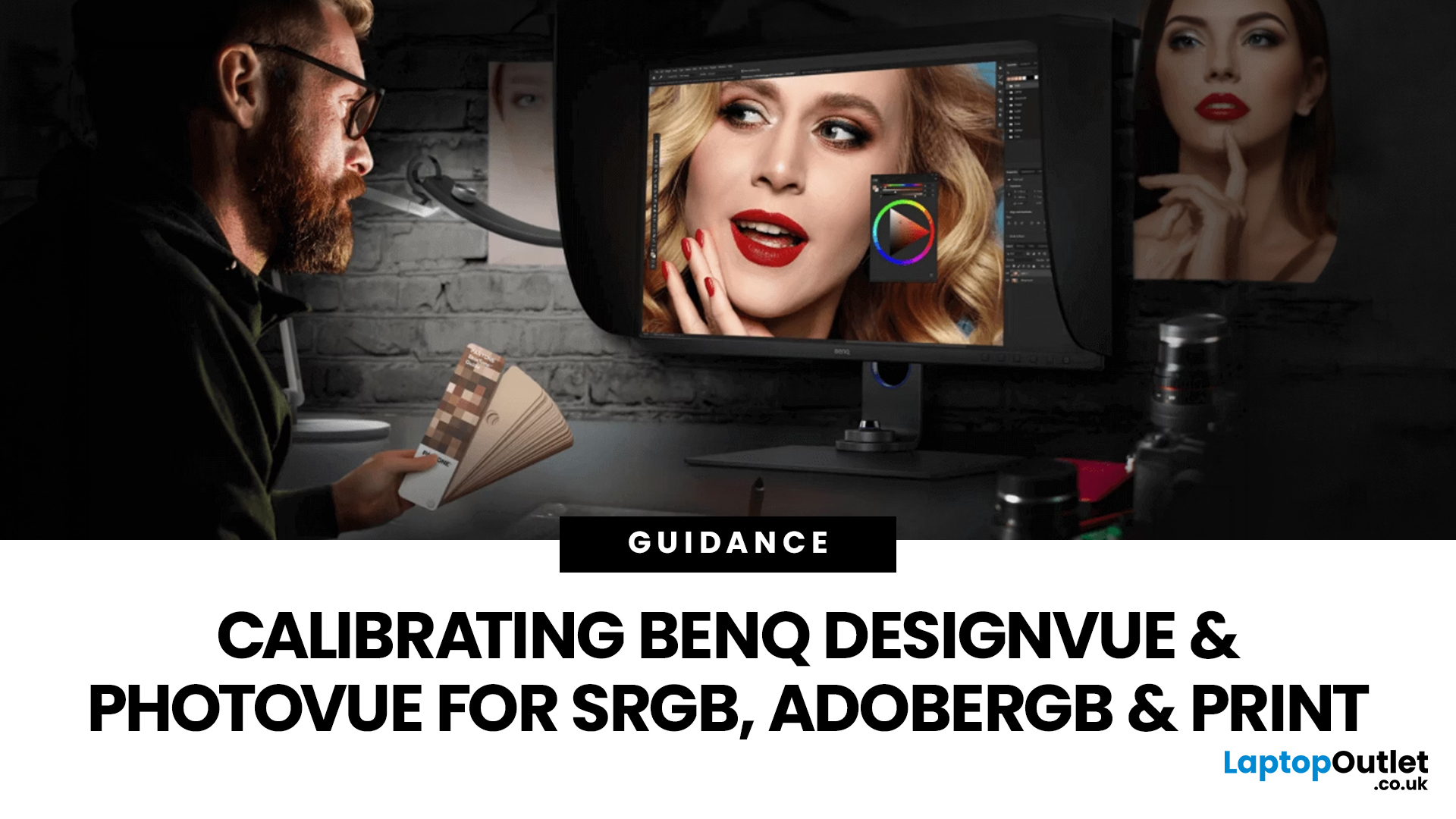
If you want reliable colour from a BenQ creative monitor, calibration is not the final polish. It is the foundation. Whether you are editing photos, preparing work for print, designing for web, or reviewing client visuals, the goal is the same: your monitor should show colour in a way that is consistent, repeatable, and appropriate for the job in front of you.
This guide will walk you through how to calibrate a BenQ DesignVue monitor or BenQ PhotoVue monitor, when to use sRGB vs AdobeRGB on BenQ monitors, what hardware calibration changes, and how often you should recalibrate if accurate colour matters to your work.
Why BenQ Monitor Colour Calibration Matters
A high-spec monitor is only one part of colour accuracy. Out of the box, even a very good display may be too bright for print work, set to the wrong colour space for your workflow, or simply drift over time. That is where BenQ monitor colour calibration comes in.
BenQ explains that hardware calibration works by adjusting colour directly

