



24 Inch vs 27 Inch vs 32 Inch Gaming Monitors: Which Size is Best?
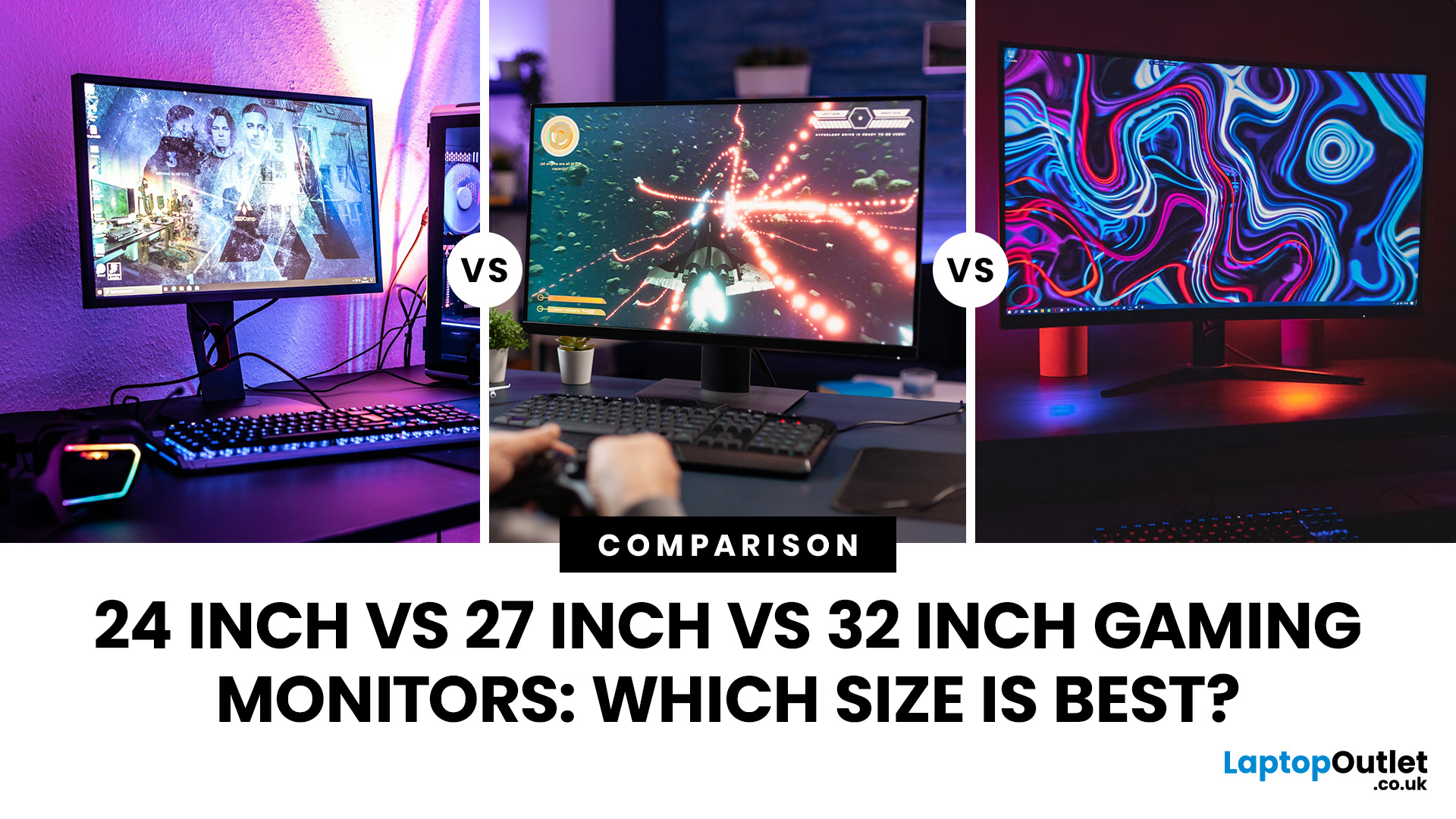
Picking the best gaming monitor size isn’t just about going big or going home. Your screen size actually changes how your games look, feel, and perform. A 24-inch setup is clutch for competitive play, a 27-inch hits that sweet spot between clarity and immersion, and a 32-inch screen? That’s where things get seriously cinematic.
Size alone isn’t the whole story. Resolution, desk space, refresh rate, and what you actually play all matter. This gaming monitor size comparison breaks down 24, 27, and 32-inch displays so you can find your perfect match.
24 Inch vs 27 Inch vs 32 Inch Gaming Monitors: Quick Comparison
The following table provides a quick overview of how the three most popular gaming monitor sizes compare.
|
Feature |
24-Inch Monitor |
27-Inch Monitor |
32-Inch Monitor |
|
Recommended resolution |
1920 × 1080 |
2560 × 1440 |
2560 × 1440 or 3840 × 2160 |
|
Best suited to |
Competitive gaming |
Mixed gaming and everyday use |
Immersive and cinematic gaming |
|
Typical desk requirement |
Small |
Medium |
Large |
|
Graphics card demand |
Low |
Moderate |
Moderate to high |
|
Immersion level |
Moderate |
High |
Very high |
|
Image sharpness |
Strong at 1080p |
Strong at 1440p |
Strongest at 4K |
|
Typical viewing distance |
Around 50–70 cm |
Around 60–80 cm |
Around 70–100 cm |
|
General price range |
Entry-level to mid-range |
Mid-range to premium |
Mid-range to premium |
For most players, a 27-inch 1440p display is the safest all-round recommendation. A 24-inch model is better suited to competitive gaming and compact desks, while 32-inch monitors are designed for users who value size, immersion and visual impact.
Why Gaming Monitor Size Matters
Your chosen gaming screen size influences far more than the amount of space occupied on your desk. It affects visibility, comfort, image sharpness, and your ability to follow fast-moving action.
Field of View and Immersion
A larger display occupies more of your natural field of view. This can make virtual environments feel more convincing, particularly in racing games, flight simulators, role-playing games and open-world adventures.
A 32-inch monitor can make landscapes, vehicles and cinematic sequences feel considerably more engaging than they would on a smaller screen. However, sitting too close to a large display may force you to move your eyes or head frequently to see interface elements positioned near the corners.
A 24-inch screen is easier to take in at a glance. Although it may not provide the same cinematic effect, it can help players maintain awareness of the entire game area.
Visibility During Competitive Play
Competitive gamers often prefer high-performance gaming displays measuring approximately 24 or 25 inches. At a normal desktop viewing distance, the entire image remains within the central field of vision, reducing the need for excessive eye movement.
This is one reason the best monitor size for FPS games is frequently considered to be 24 inches. Enemies, health indicators, ammunition counters, and minimaps can all be monitored without repeatedly looking across a wide panel. Larger screens can still be used for competitive gaming, but players may need to sit farther away to maintain the same level of visual awareness.
Pixel Density and Image Sharpness
Pixel density describes how closely the pixels are packed together on a display. When the same resolution is spread across a larger screen, individual pixels become easier to notice. For example:
- A 24-inch 1080p monitor offers approximately 92 pixels per inch.
- A 27-inch 1440p monitor offers approximately 109 pixels per inch.
- A 32-inch 1440p monitor offers approximately 92 pixels per inch.
- A 32-inch 4K monitor offers approximately 138 pixels per inch.
This is why 1080p suits a 24-inch screen, 1440p suits a 27-inch screen and 4K is particularly effective at 32 inches.
Desk Space and Viewing Distance
A larger monitor requires more than additional desk width. Its stand may also be deeper, positioning the screen closer to the user than expected.
Before choosing a display, measure the usable width and depth of your desk. A 24-inch model works well in compact spaces, while a 32-inch display is better suited to a deep desk that allows sufficient viewing distance.
Is a 24-Inch Gaming Monitor Right for You?
A 24-inch screen remains one of the most practical choices for PC gaming. It is compact, affordable and well matched with 1080p resolution.
Advantages of a 24-Inch Gaming Monitor
A 24 inch computer monitor also places less pressure on desk space, making it suitable for bedrooms, student accommodation, shared workspaces and compact gaming areas. Other advantages include:
- Lower purchase prices than many larger alternatives
- Excellent image quality at 1080p
- Lower graphics card requirements
- Wide availability of high-refresh-rate models
- Easier achievement of high frame rates
- Comfortable visibility during competitive matches
Competitive players frequently choose smooth 144Hz gaming screens because the increased refresh rate can improve motion clarity and responsiveness without requiring an oversized display.
Disadvantages of a 24-Inch Gaming Monitor
The compact dimensions can also be limiting. A 24-inch display may feel less immersive when playing cinematic adventures, racing games, or detailed role-playing titles. It provides less room for multitasking and may feel restrictive when editing videos, managing several applications or working with large spreadsheets.
Although higher-resolution 24-inch models exist, 4K resolution generally provides limited practical value at this size unless the monitor is also being used for specialist design or professional work.
Best Resolution for a 24-Inch Monitor
For most users, 1920 × 1080 is the ideal resolution for a 24-inch monitor. It produces a sharp image while remaining relatively easy for a graphics card to run.
A 1080p setup is particularly appealing to players who value frame rate over visual detail. It allows mid-range and even some entry-level gaming systems to deliver strong performance in esports titles.
Who Should Choose a 24-Inch Gaming Monitor?
A 24-inch model is best suited to:
- Competitive FPS and esports players
- Users with small or shallow desks
- Gamers working with a limited budget
- Players using entry-level or mid-range graphics cards
- Anyone prioritising refresh rate and response time over immersion
Is a 27-Inch Gaming Monitor the Best All-Round Choice?
For many PC users, gaming setup with 27-inch displays represent the ideal middle ground. It offers noticeably more screen space than a 24-inch monitor without becoming difficult to view at a normal desktop distance.
The debate over a 24 inch vs 27 inch gaming monitor often comes down to competitive focus versus versatility. A 24-inch monitor is compact and performance-orientated, while a 27-inch model delivers greater immersion and more usable desktop space.
Advantages of a 27-Inch Gaming Monitor
This provides enough space for games to feel immersive while remaining manageable on most medium-sized desks. Its key advantages include:
- Greater visual impact than a 24-inch monitor
- Excellent compatibility with 1440p resolution
- More desktop space for productivity
- Suitability for competitive and story-driven games
- Extensive choice of refresh rates and panel types
- Comfortable size for streaming, browsing and content creation
Disadvantages of a 27-Inch Gaming Monitor
A 27-inch display requires more room than a 24-inch model. It may feel too large on a shallow desk, particularly when the stand cannot be moved backwards.
Resolution also matters. A 27-inch 1080p monitor has a lower pixel density than a 24-inch 1080p display, meaning text and fine details may look less defined at close range.
Moving to 1440p solves this problem, but it increases the workload placed on the graphics card. Players may need to reduce graphics settings or upgrade their hardware to maintain high frame rates.
Accurate Resolution for a 27-Inch Monitor
A resolution of 2560 × 1440 is widely considered the ideal match for a 27" gaming monitor. It provides a clear improvement in sharpness over 1080p while remaining easier to run than 4K.
A 27 inch 4k monitor provides even greater detail and can be an excellent option for single-player gaming, content creation and professional tasks. However, the performance demands of native 4K gaming are considerably higher.
For most users, a 27-inch 1440p monitor with a refresh rate of at least 144Hz delivers the strongest balance of image quality, responsiveness and hardware requirements.
Who Should Choose a 27-Inch Gaming Monitor?
A 27-inch monitor is suitable for:
- Players who enjoy several gaming genres
- Users who combine gaming with work or study
- Gamers who want greater immersion without an oversized display
- Systems equipped for 1440p gaming
- Streamers and content creators who need more workspace
When deciding between a 24 inch or 27 inch monitor for gaming, choose 24 inches when competitive visibility and affordability are the priorities. Choose 27 inches when you want a more versatile screen that can handle gaming, entertainment and productivity.
Is a 32-Inch Gaming Monitor Too Large?
A 32-inch gaming monitor can provide an impressive experience, but it is not suitable for every desk or every type of player.
The larger panel fills more of your vision and can make environments feel expansive. It is particularly effective for games that emphasise atmosphere, exploration, and realistic vehicle control.
Advantages of a 32-Inch Gaming Monitor
Portable 32-inch productivity and gaming monitors offer:
- A highly immersive gaming experience
- Excellent visibility of environmental details
- More room for productivity and multitasking
- A cinematic format for story-driven games
- Strong compatibility with 4K resolution
- A comfortable option for console gaming from a greater distance
Disadvantages of a 32-Inch Gaming Monitor
The most obvious drawback is the amount of space required. A 32-inch model can overwhelm a small desk and may feel uncomfortable when positioned too close to the user. Other potential disadvantages include:
- More eye and head movement during fast games
- Higher prices for premium specifications
- Greater graphics demands at 4K
- Reduced sharpness when using 1080p
- Lower pixel density at 1440p than on a 27-inch screen
A 32-inch monitor can work for competitive games, but it is rarely the first choice for serious esports players.
Do You Need Flat or Curved at 32 Inches?
A 32 inch curved monitor can make the outer edges of the display feel closer to the user, creating a more consistent viewing experience across the screen.
Curvature becomes more useful as screen size increases. On a 32-inch display, it can improve immersion in racing games, simulators and first-person adventures. It may also reduce the sense that the corners are positioned too far from the viewer.
A flat screen remains preferable for some professional design tasks, shared viewing environments and users who simply dislike curved panels.
Best Resolution for a 32-Inch Monitor
A 4K resolution of 3840 × 2160 is the strongest option for a 32-inch display. It produces detailed visuals and makes full use of the larger physical area.
A 32-inch 1440p monitor is still a viable alternative. It requires less graphics power than 4K and offers a pixel density similar to a 24-inch 1080p screen. The image may not look as refined as 4K, but it can provide better gaming performance at a lower cost.
Using 1080p on a 32-inch desktop monitor is generally less desirable because individual pixels and softer edges may become visible at a normal viewing distance.
Who Should Choose a 32-Inch Gaming Monitor?
A 32-inch monitor is best suited to:
- Racing and simulation enthusiasts
- Players of RPGs and open-world games
- Users seeking a cinematic gaming experience
- Console players sitting farther from the display
- People with large or deep desks
- Buyers wanting one screen for gaming, media and productivity
24 Inch vs 27 Inch Gaming Monitor: Which is Better?
When comparing a 24 inch vs 27 inch gaming monitor, consider how close you sit and which types of games you play. A 24-inch model is better for:
- Competitive shooters
- Small desks
- 1080p gaming
- Lower-cost systems
- Maximum frame rates
A 27-inch model is better for:
- Mixed gaming genres
- 1440p resolution
- Greater immersion
- Productivity and multitasking
- Long-term versatility
27 vs 32 Inch Monitor: Which Should You Choose?
The 27 vs 32 inch monitor comparison is primarily about balance versus immersion.
Choose 27 inches when:
- You sit relatively close to the display
- You play competitive and single-player games
- You want strong 1440p performance
- You have a medium-sized desk
Choose 32 inches when:
- Immersion is your main priority
- You play racing, simulation or open-world games
- You want to game at 4K
- You have sufficient viewing distance
- You need more space for productivity
How Resolution Changes the Best Gaming Monitor Size
Resolution and physical size should always be considered together. A large display with insufficient resolution can look less detailed than a smaller screen with the same number of pixels.
1080p Gaming
The ideal size for 1080p is generally 24 inches. At this size, the image remains sharp enough for gaming and everyday desktop use.
Although 1080p is available on 27-inch and 32-inch monitors, the reduced pixel density can make fine details appear softer.
1440p Gaming
The best size for 1440p is usually 27 inches. This combination offers detailed visuals, a comfortable working area and manageable graphics requirements.
A 32-inch 1440p display is also suitable for users who prefer a larger image and do not sit extremely close to the screen. It provides performance advantages over 4K, although its pixel density is lower.
4K Gaming
4K resolution works well at both 27 and 32 inches.
At 27 inches, it produces very high pixel density and exceptionally sharp text. At 32 inches, the additional resolution is easier to appreciate because details are displayed across a larger physical area.
Gamers balancing high-resolution visuals with competitive refresh rates can explore Dual Mode vs Standard Gaming Monitors: Which One Should You Choose? to understand how each display type suits different gaming priorities.
What is the Best Monitor Size for Different Game Genres?
The best gaming monitor size depends partly on the games you play most often.
Competitive FPS and Esports Games
A 24-inch monitor is generally the best monitor size for FPS games. It keeps all important action within the player’s immediate field of view and works well with high-refresh-rate 1080p gaming.
Games such as Counter-Strike, Valorant, Rainbow Six Siege and Overwatch reward fast reactions and clear visual awareness. A smaller panel can support these priorities better than an oversized screen.
Battle Royale and Multiplayer Games
Both 24-inch and 27-inch monitors work well for battle royale and online multiplayer titles.
A 24-inch display supports quick reactions, while a 27-inch 1440p monitor can make distant characters and environmental details easier to distinguish. The better choice depends on whether you prioritise maximum frame rates or additional clarity.
RPG and Open-World Games
For role-playing and open-world games, 27-inch and 32-inch monitors are preferable.
Larger displays make landscapes, characters and cinematic sequences feel more engaging. A 32-inch 4K monitor is especially effective for visually detailed single-player games, provided the system can deliver suitable performance.
Racing and Simulation Games
A 32-inch display is an excellent choice for racing and simulation titles. The increased screen area creates a stronger sense of scale and makes cockpit views feel more convincing. Curved screens can further improve immersion by bringing the outer edges of the image closer to the player’s natural viewing angle.
Strategy and Management Games
Strategy, construction and management games benefit from additional screen space. A 27-inch or 32-inch display can show more interface elements, maps and units without making the image feel cramped. Higher resolutions are also valuable because they allow more information to remain visible at once.
Console Gaming
For console gaming at a desk, a 27-inch monitor offers a practical balance. A 32-inch monitor is more suitable when the player sits farther away or wants a more television-like experience. Players using current-generation consoles should also consider 4K support, HDMI 2.1 connectivity, variable refresh rate compatibility and high-refresh-rate operation.
Does Monitor Size Affect Gaming Performance?
Physical monitor size does not directly affect frame rate. Resolution is the factor that changes how hard the graphics card must work.
A 24-inch 1080p screen and a 32-inch 1080p screen place a similar rendering workload on the graphics card because both display the same number of pixels. However, the image will appear less sharp on the larger monitor. In general:
- 1080p places the lowest demand on the graphics card.
- 1440p provides better detail with moderate performance requirements.
- 4K produces the sharpest image but places the highest demand on the system.
Refresh rate also matters. A monitor operating at 144Hz can display up to 144 frames per second, but the gaming system must produce a sufficiently high frame rate to use that capability fully.
Other Features to Consider Beyond Screen Size
Screen size is important, but it should not be the only factor in your decision.
Refresh Rate
Refresh rate determines how many times the monitor can update its image each second.
A 60Hz display is adequate for basic use, but 144Hz or 165Hz is generally preferable for modern gaming. Competitive players may benefit from 240Hz, 360Hz or higher, provided their systems can generate matching frame rates.
Response Time
Response time describes how quickly pixels can change from one colour to another. Slow pixel transitions can create visible smearing or ghosting during movement. Fast response performance is particularly important for shooters, racing games and other fast-paced genres.
Panel Type
IPS, VA and OLED panels each offer different strengths.
IPS panels usually provide strong colour accuracy, wide viewing angles and balanced gaming performance. VA panels generally deliver higher contrast and deeper black levels, although some models may show more motion smearing.
OLED monitors offer exceptional contrast, near-instantaneous pixel response and precise control over dark scenes. Modern premium OLED displays are therefore well suited to users who prioritise cinematic picture quality and rapid response performance.
Adaptive Sync
Adaptive sync matches the monitor’s refresh rate to the frame rate produced by the graphics card. This can reduce screen tearing and make inconsistent frame rates feel smoother. Common technologies include AMD FreeSync and NVIDIA G-SYNC compatibility.
Connectivity
Check that the monitor has the connections required by your PC, laptop or console.
DisplayPort is commonly used for high-refresh-rate PC gaming, while HDMI is widely used across both PCs and consoles. HDMI 2.1 is particularly relevant for high-refresh-rate 4K console gaming. In addition, USB-C can also be useful for users who connect laptops and want video, data and power delivery through one cable.
How to Choose the Best Gaming Monitor Size for Your Desk
Desk dimensions can determine which monitor size feels comfortable.
Small Desks
A 24-inch monitor is the safest option for a small desk. It requires less width and can be viewed comfortably at a shorter distance. A monitor arm may help create additional room for a keyboard, mouse and other accessories.
Medium-Sized Desks
A 27-inch monitor works well on most medium-sized desks. It offers more visual space without overwhelming the setup. This size is particularly practical for users who switch between gaming, working and general browsing throughout the day.
Large and Deep Desks
A 32-inch monitor is best placed on a deep desk that allows the user to sit farther from the screen. Positioning the display too close may make interface elements near the edges uncomfortable to view. Greater distance allows the whole screen to fit more naturally within the user’s field of vision.
A broader gaming monitor selection guide can help place screen size alongside panel type, refresh rate, response time and connectivity when comparing complete monitor specifications.

Conclusion
Choosing the best gaming monitor size involves more than just screen dimensions. It should match your resolution, desk space, viewing distance, hardware and gaming style. A 24-inch monitor is ideal for competitive play, offering speed and affordability. A 27-inch display provides a balanced mix of clarity, immersion and versatility, making it the most popular choice. A 32-inch monitor delivers a more cinematic experience but needs more space and stronger hardware, especially for 4K. For most gamers, a 27-inch 1440p monitor is the best starting point, while competitive players may prefer 24-inch and immersive gamers may opt for 32-inch displays.

What Different Gamers Ask
Is a 27-inch monitor better than 24-inch for FPS games?
A 27-inch monitor offers greater immersion and sharper detail at 1440p, but a 24-inch model is often better for competitive FPS games because the whole screen stays within your central vision, helping you track action more quickly.
What resolution should I pair with a 27-inch gaming monitor?
For a 27-inch gaming monitor, 2560 × 1440 is the best all-round resolution. It provides excellent sharpness, more detail than 1080p and lower graphics demands than 4K, making it ideal for high-refresh-rate gaming.
What monitor size is best for a small desk?
A 24-inch monitor is usually best for a small desk because it requires less width and viewing distance. It also leaves more room for your keyboard, mouse and accessories, especially when paired with a compact stand or monitor arm.
Does monitor size affect gaming performance?
Monitor size alone does not affect frame rates; resolution does. A 24-inch and 32-inch monitor running at the same resolution require similar graphics power, although the larger screen may appear less sharp because its pixels are spread farther apart.
Is a larger gaming monitor always better?
No. A larger screen can improve immersion, but it also requires more desk space and a longer viewing distance. It may be less convenient for competitive play, particularly when the user cannot see the entire display without moving their eyes or head.
Read More:
4K vs 1440p vs 1080p: Which Monitor Resolution Should You Choose?
Are Ultrawide Monitors Worth Buying in 2026? A Complete Guide
Best Gaming Monitor Brands for Gaming in the UK (2026): Top Picks by Budget & Specs
Related Articles

Last Updated: September 01, 2026
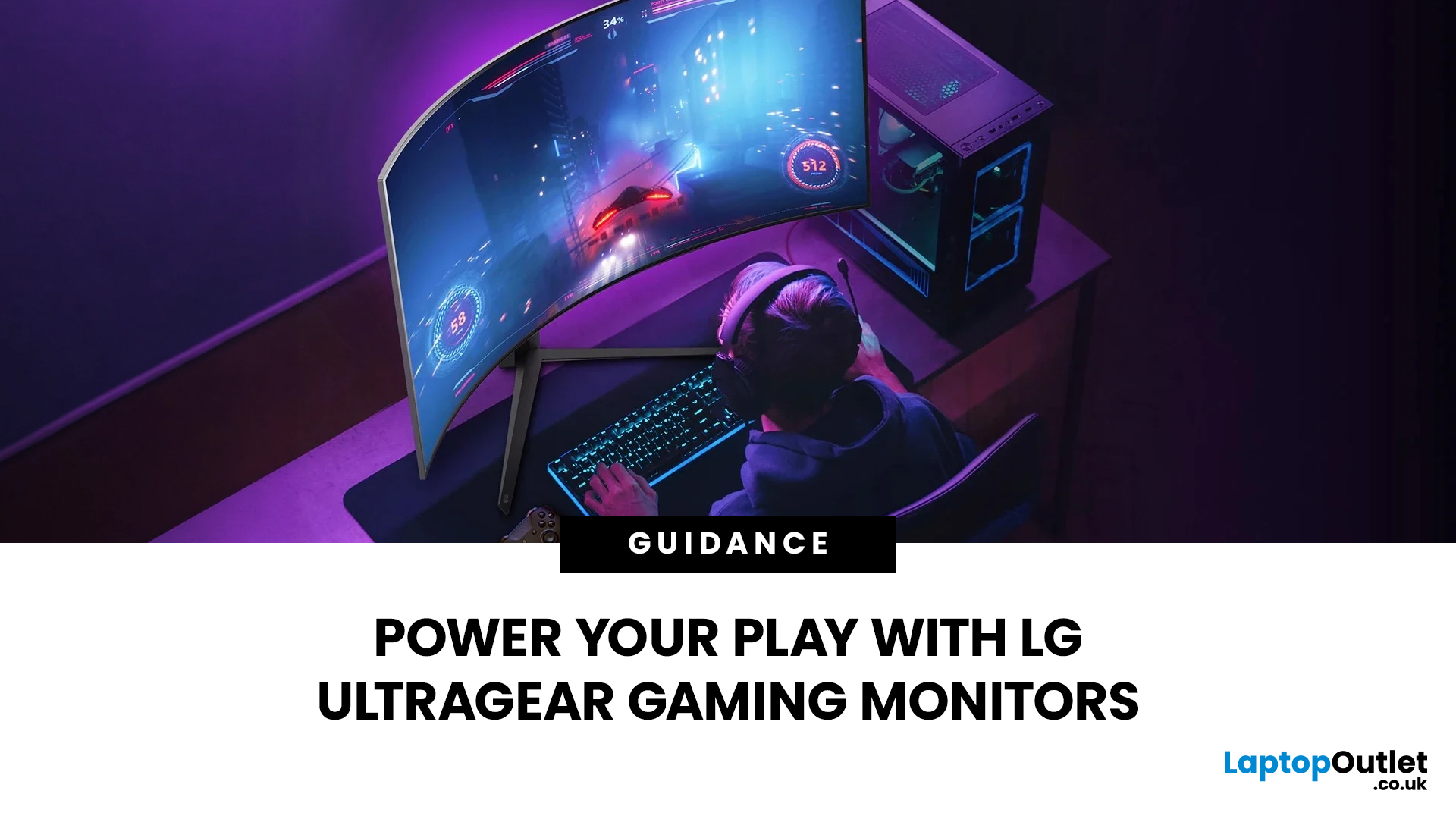
Not all gaming monitors are built the same, and the LG UltraGear range makes that very clear. Whether you're playing for fun on weekends, grinding ranked matches on a mid-range rig, or competing at a serious level, there's a specific UltraGear model that fits your needs.
This LG UltraGear guide breaks down the full lineup by player type so you can make a genuinely informed decision before spending your money.
What Makes LG UltraGear Different from Standard LG Monitors?
LG produces monitors for all sorts of uses, from office work to content creation to home cinema. UltraGear is the gaming-focused sub-brand, and it comes with a noticeably different spec sheet compared to LG's standard displays.
The core differences come down to priorities. Standard LG monitors are built around colour accuracy, ergonomics, and value for office use. UltraGear monitors are tuned for speed, responsiveness, and visual clarity under fast-moving gaming conditions.
In practical terms, this means LG UltraGear gaming
Last Updated: April 28, 2026
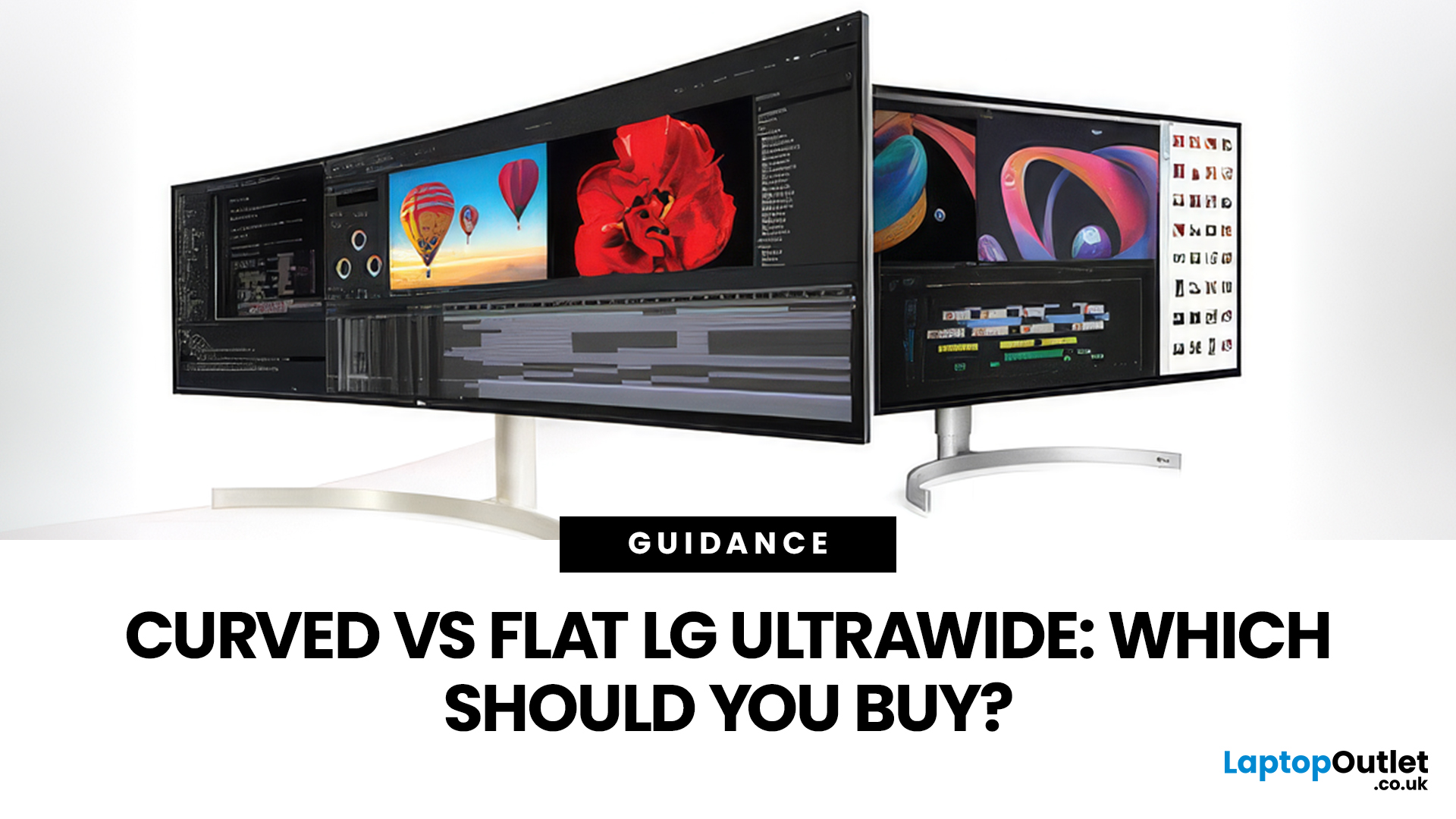
If you're choosing between a curved vs flat LG UltraWide monitor, the decision is more nuanced than it first appears. The right choice depends on what you do, how long you sit at your desk, and the kind of experience you want from your screen.
This guide breaks down every major use case side by side, with a clear verdict for each one, so you can make the right call before you spend your money.
What Makes LG UltraWide Monitors Different?
LG UltraWide monitors use a 21:9 aspect ratio, giving you roughly a third more horizontal screen space than a standard 16:9 display. That extra width is what makes the curved vs flat debate so relevant on these screens specifically.
On standard 26 to 28-inch monitors, the curve debate is largely down to personal preference. But once you hit 34 inches and beyond, the physics of how your eyes scan left-to-right starts to matter. On ultrawide displays of 34 inches or larger, the curvature brings the edges of the screen closer to you, covering more of your
Last Updated: April 14, 2026
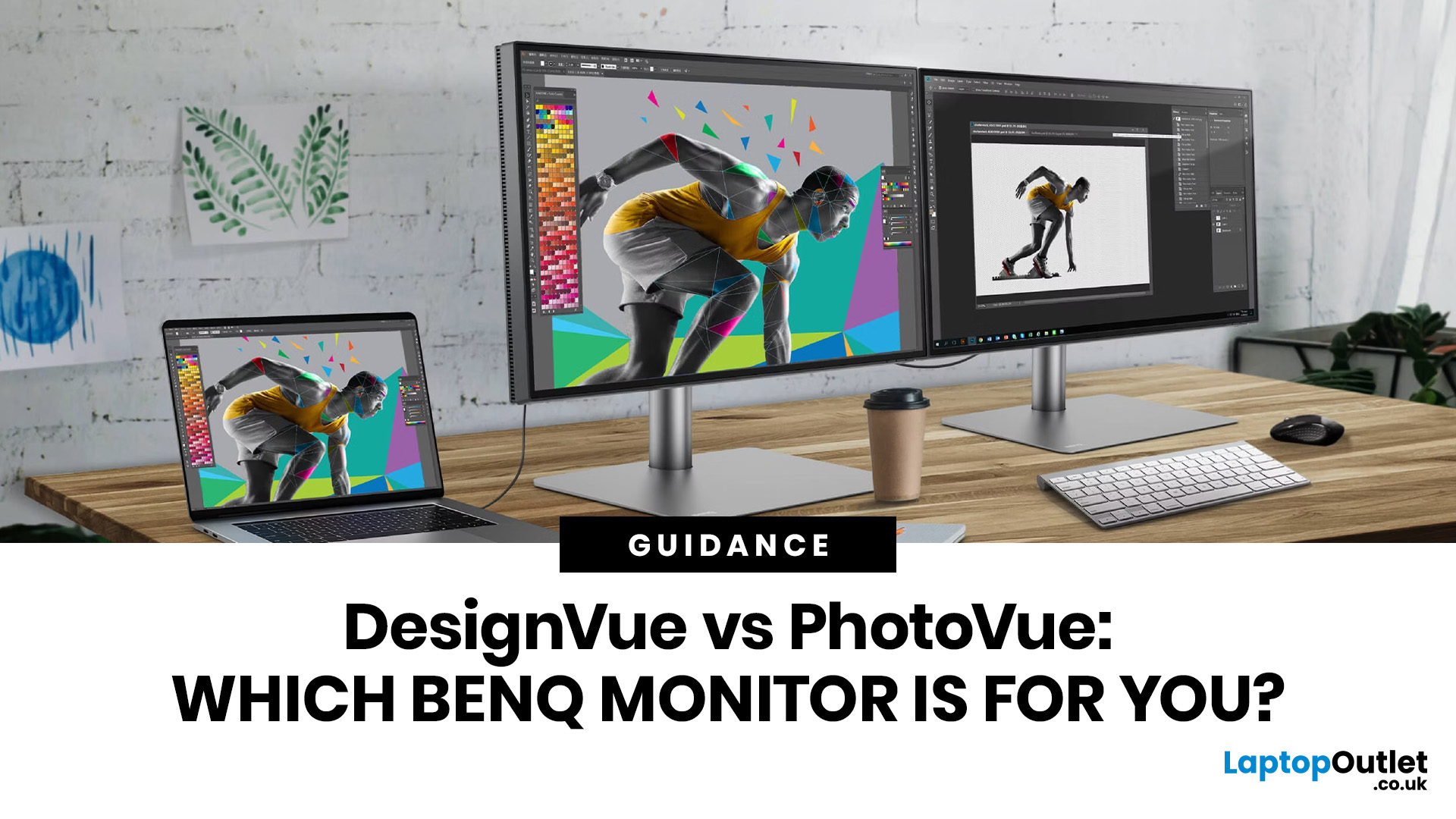
If you work with colour professionally, your monitor is your most critical piece of kit. BenQ monitors for creators are built around one principle: what you see on screen should accurately reflect what you print, publish, or deliver to a client.
Whether you are a photographer editing RAW files, a designer producing brand assets, or a video editor reviewing colour grades, accuracy matters at every stage. BenQ addresses this through two dedicated series: the DesignVue PD range and the PhotoVue SW range.
Each is engineered for a different creative discipline. This guide explains both series, covers the key specs to look for, highlights how they compare, and helps you decide which one fits your workflow best.
BenQ’s Creator Series: DesignVue & PhotoVue SW
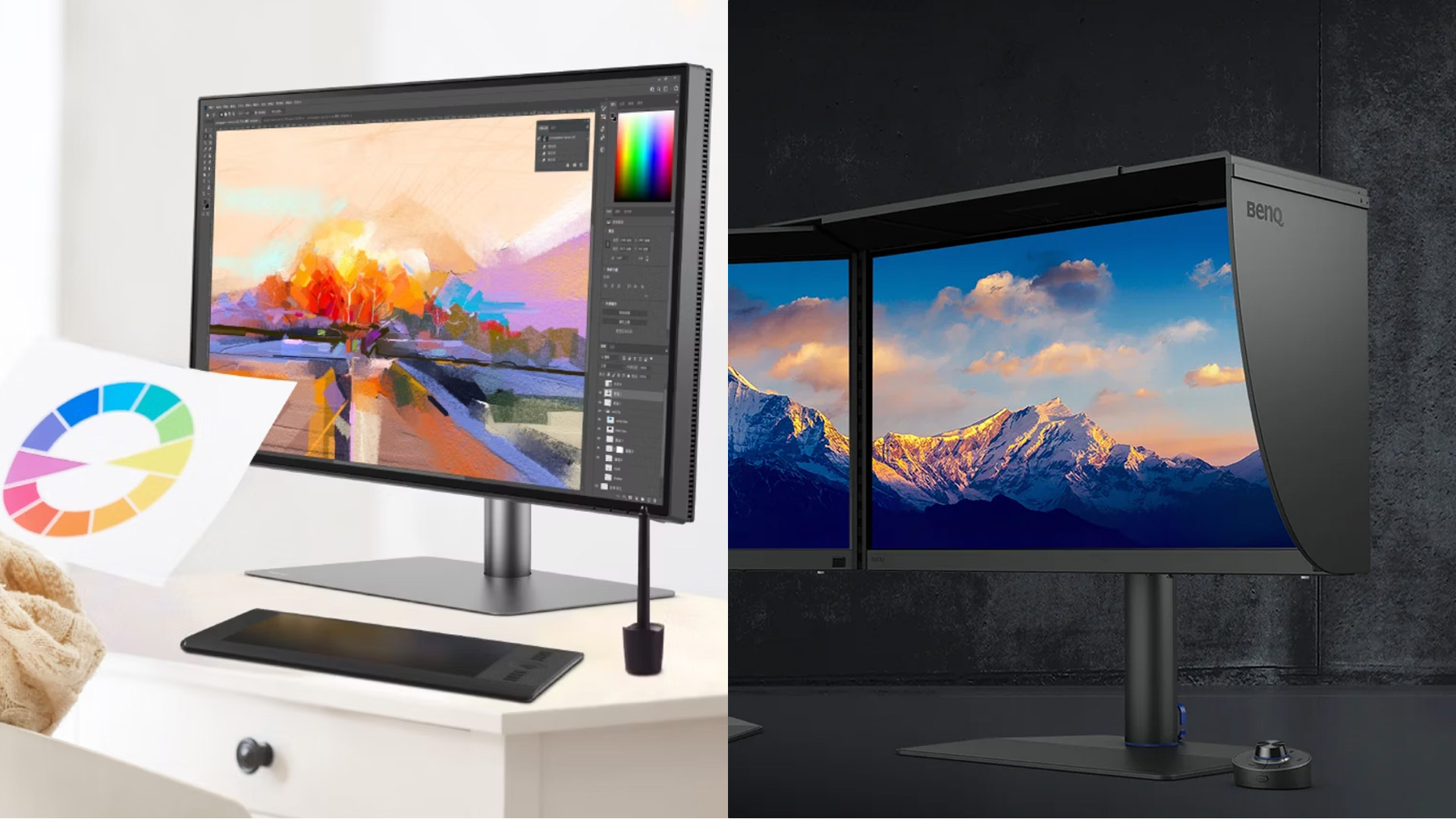
Finding the right BenQ monitors for creators starts with understanding why BenQ separates its professional range into two distinct families, each tailored to a different core workflow. Rather than one catch-all creative
Last Updated: April 14, 2026
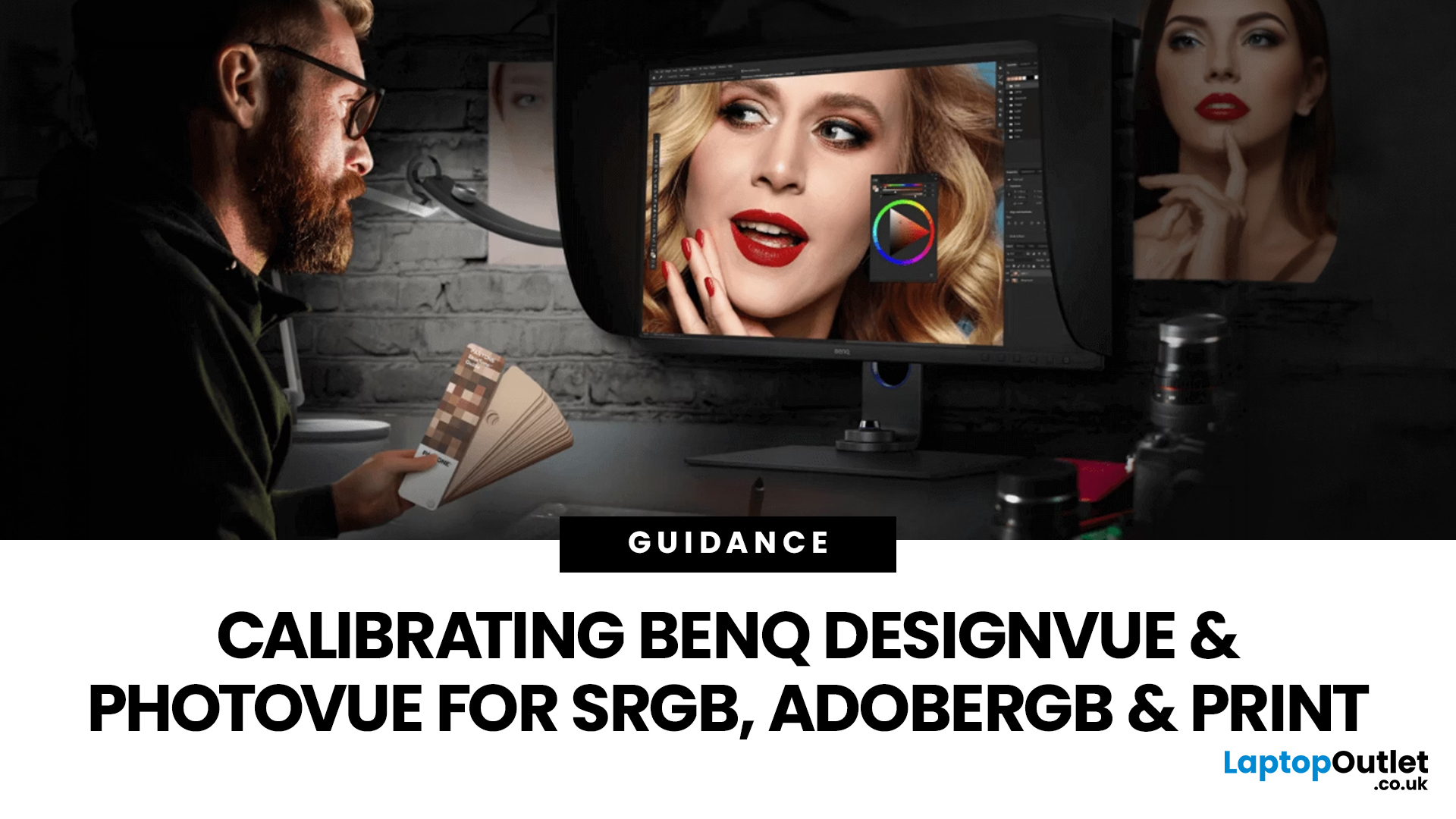
If you want reliable colour from a BenQ creative monitor, calibration is not the final polish. It is the foundation. Whether you are editing photos, preparing work for print, designing for web, or reviewing client visuals, the goal is the same: your monitor should show colour in a way that is consistent, repeatable, and appropriate for the job in front of you.
This guide will walk you through how to calibrate a BenQ DesignVue monitor or BenQ PhotoVue monitor, when to use sRGB vs AdobeRGB on BenQ monitors, what hardware calibration changes, and how often you should recalibrate if accurate colour matters to your work.
Why BenQ Monitor Colour Calibration Matters
A high-spec monitor is only one part of colour accuracy. Out of the box, even a very good display may be too bright for print work, set to the wrong colour space for your workflow, or simply drift over time. That is where BenQ monitor colour calibration comes in.
BenQ explains that hardware calibration works by adjusting colour directly
Last Updated: April 28, 2026
Choosing the right monitor format can transform how you work. Whether you are a developer, analyst, designer, or remote professional, your display shapes your entire workflow.
LG UltraWide and DualUp productivity monitors have become a firm favourite across the UK for professionals who need more screen space without the cable clutter of multiple setups.
This guide breaks down how each format performs for coding, content creation, dashboards, and day-to-day productivity, so you can pick the right one for your desk.
Why Screen Format Changes Everything
The shape of your display directly influences how many windows you can manage, how much you need to scroll, and whether your neck stays comfortable after a full working day. It is worth understanding the two non-standard formats LG offers before deciding which suits your setup.
LG monitors come in two distinctive formats: the horizontal 21:9 or 32:9 UltraWide and the vertical 16:18 DualUp. Both give you significantly more usable space than
Last Updated: August 28, 2026
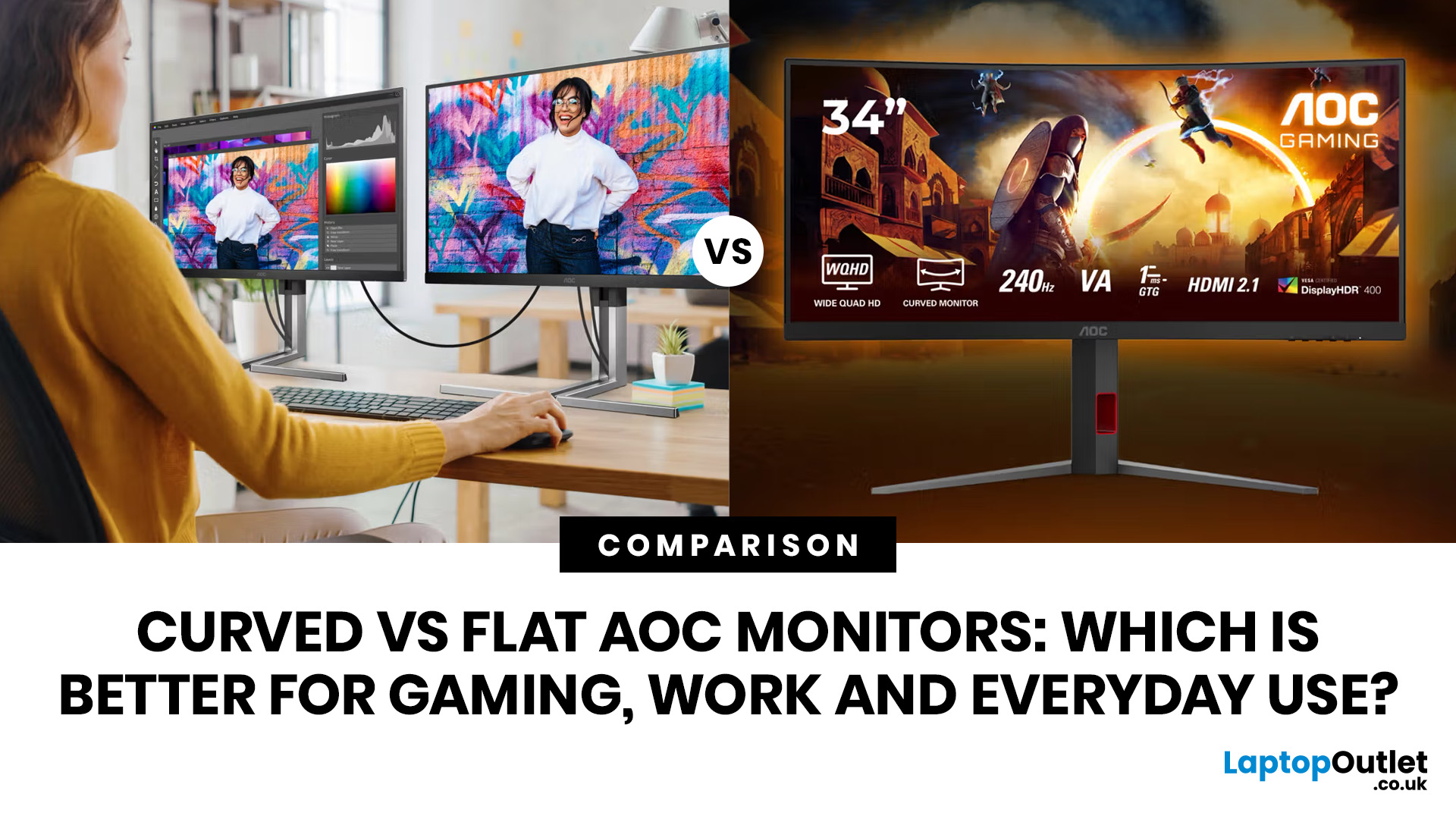
If you are comparing curved vs flat AOC monitors, the right choice depends less on trends and more on how you actually use your screen every day.
For gaming and entertainment, a curved display often feels more immersive, especially in racing games, open-world titles and films. For work, study and general day-to-day use, a flat screen is usually the more practical option because it is easier to position, easier to pair in dual-screen setups and often better suited to documents, spreadsheets and precision-focused tasks.
So, are curved monitors better? Not always. A curved model can be a great upgrade for the right person, but flat screens still make more sense for many buyers.
Here is the simplest way to think about it:
| Use case | Usually the better choice | Why |
| Immersive gaming | Curved | Feels more engaging and cinematic |
| Esports and fast competitive play | Depends | Refresh rate matters more than screen shape |
| Office work and spreadsheets | Flat | Cleaner lines, easier multi-window working |
| Study and everyday |
Published: April 27, 2026
LG UltraFine monitors for creators cover three resolutions: 4K (entry-level colour accuracy), 5K (high pixel density), and 6K (the new UltraFine evo flagship). All prioritise wide colour gamut, IPS panel quality, and clean USB-C or Thunderbolt connectivity.
If you work in photo editing, video production, graphic design, or any colour-critical discipline, LG UltraFine monitors have been a trusted name for years. The right choice depends on your budget, resolution needs, and the software you rely on daily.
What Makes LG UltraFine Monitors Stand Apart for Creative Professionals?
Before going model by model, it helps to understand what the UltraFine brand actually stands for. It is a fundamentally different product category from general office or gaming displays, built around a single non-negotiable: colour and detail accuracy.
The Core Focus: Colour, Calibration, And Pixel Precision
Every UltraFine model ships with wide colour gamut coverage, typically covering 98–99% of the DCI-P3 colour
Last Updated: September 01, 2026
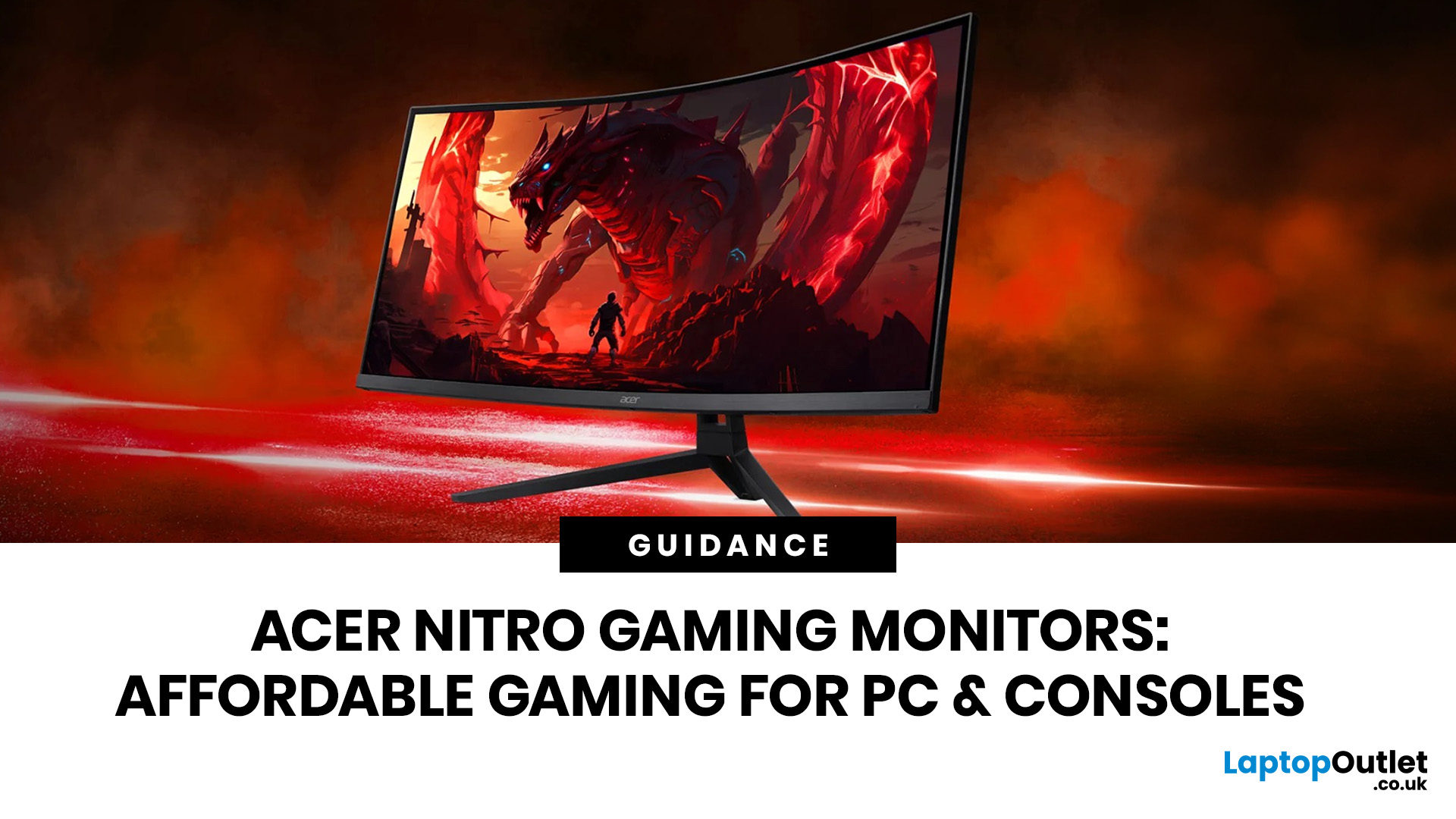
If you want smooth gameplay without jumping straight into premium OLED pricing, Acer Nitro gaming monitors are one of the easiest ranges to shortlist. Acer positions the Nitro line as a gaming family with options for fast-paced play, ultrawide immersion and richer colour, while Our Acer monitor range backs that up with Full HD, QHD, curved and ultrawide Nitro models aimed at buyers who want value, not just spec-sheet flexing.
That is exactly why Acer Nitro monitors UK shoppers keep coming back to the series. The range is broad enough to cover casual desk gaming, PS5 and Xbox setups, and entry-level PC esports, but it still stays realistic on price compared with high-end Predator and OLED alternatives. Nitro models from compact 23.8-inch Full HD panels up to 34-inch curved UWQHD displays, with refresh rates running from 120Hz to 240Hz.
Are Acer Nitro Gaming Monitors Good for Budget Gaming?
Yes. For casual gaming, console play and entry-level PC builds, Acer Nitro sits in a very practical
Last Updated: July 06, 2026
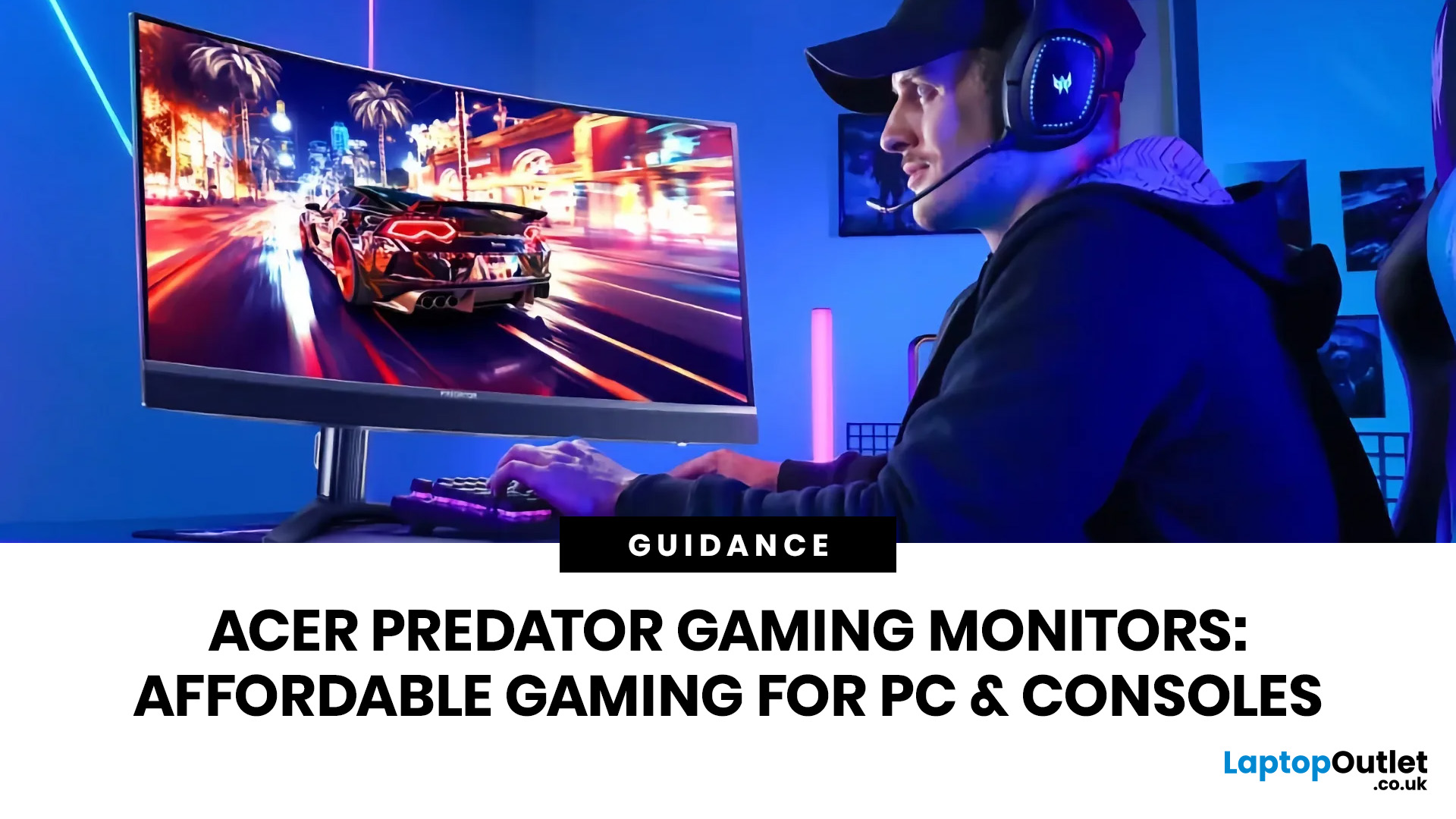
you are shopping for Acer Predator gaming monitors, you are usually not looking for a basic panel. You are looking for speed, image quality and a monitor that genuinely fits the kind of games you play. For some buyers, that means a fast 27-inch display for ranked shooters and esports titles. For others, it means a bigger 4K panel for high-detail single-player games. And for enthusiasts building the kind of setup that makes every desk photo look dramatic, it means an ultrawide or super-ultrawide screen that turns a gaming PC into the centrepiece of the room.
That is why Predator remains such an interesting range. Acer's broader monitor line covers different budgets and uses cases, but the Predator family is where Acer pushes harder on premium gaming features like OLED and QD-OLED panels, very high refresh rates, ultrawide formats and esports-level response times.
If you want the simple answer: Why choose Acer Predator monitor
Here is the short version.
- For competitive esports and fast shooters,
Last Updated: August 24, 2026
One screen is fine. Two screens? That is where your setup starts feeling seriously organised. Whether you are working from home, studying, gaming, editing, coding or just tired of switching between 27 tabs every five seconds, a dual monitor setup can make your desk feel cleaner and your workflow feel smoother.
The good news is that learning how to set up dual monitors is not as complicated as it sounds. You just need the right monitors, the correct cables or adapters, and a few display settings adjusted properly. This complete guide explains how to connect two monitors, how to set up dual monitors on Windows, how to set up dual monitors with a laptop, and how to get the best layout for work, study, gaming and everyday use.
How Do You Set Up Dual Monitors?
Here is the simple version.
To set up dual monitors, connect both screens to your laptop or desktop PC using HDMI, DisplayPort, USB-C, Thunderbolt or a compatible docking station. Then open your display settings, choose Extend these displays

