



Office Printer Buying Guide: How to Choose the Right One
Quick Answer: To choose the right office printer, identify your monthly print volume, preferred print type (colour or mono), and whether you need scanning or copying. Laser printers suit high-volume offices, inkjet printers work well for colour-heavy or lower-volume tasks, and all-in-one models offer the best flexibility. Always factor in running costs, connectivity, and paper handling alongside the upfront price.
Picking the wrong printer for your office is an easy mistake to make, and a surprisingly costly one. Between the upfront price, ink or toner costs, paper handling, and connectivity options, there is a lot more to consider than most people realise.
This office printers buying guide covers everything you need to make a confident, well-informed decision in 2026. Whether you are kitting out a home office, a small business, or a large corporate workspace, we have got you covered.
What Types of Office Printer Are There?
Understanding the different categories of printers for office use is your first step. Each type suits different workloads, budgets, and output needs. Getting this wrong is where most buyers go wrong from the start.
Here is a breakdown of the main categories you will find when exploring available printer options:
Inkjet Printers
Inkjet printers work by spraying tiny droplets of liquid ink directly onto paper. They are ideal for producing high-quality colour prints, images, and documents with rich detail.
Inkjet printers for everyday office use tend to have lower upfront costs, making them attractive for smaller businesses or home offices. However, their running costs can be higher per page if you print in large volumes.
- Best for: Colour-heavy documents, graphics, photographs, and lower-volume printing
- Typical speed: 5–20 pages per minute (ppm) for standard documents
- Ink type: Liquid cartridges or ink tank systems
|
Tip: If you print colour documents regularly but in modest volumes, look for an inkjet with an ink tank system (sometimes called EcoTank or MegaTank). These significantly reduce your cost per page compared to standard cartridges. |
Laser Printers
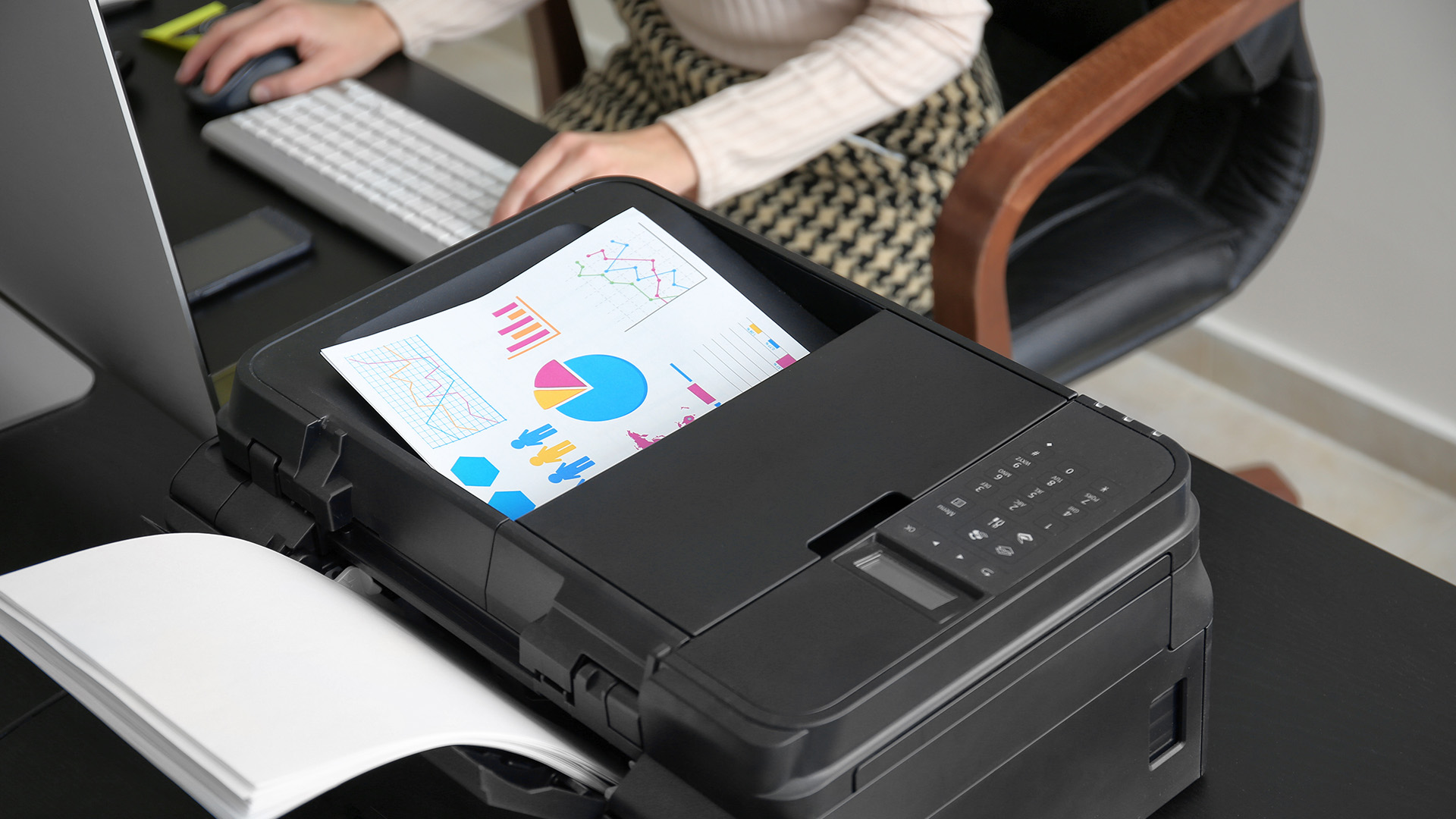
Laser printers use a toner cartridge and a heated drum to fuse powdered ink onto paper. They are quicker, more durable, and significantly cheaper per page for high-volume mono printing.
For busy offices that churn through paperwork daily, efficient laser printing options are usually the smart long-term investment. They handle large print runs without fuss, and toner cartridges last considerably longer than ink cartridges.
- Best for: High-volume mono printing, fast turnaround, text-heavy documents
- Typical speed: 20–50 ppm for mono laser models
- Toner lifespan: 1,500–20,000 pages depending on cartridge type
All-in-One Printers (AIOs)
All-in-one printers, also known as multifunction printers, combine printing, scanning, copying, and often faxing into a single device. They are the most versatile option and a popular choice for small-to-medium offices that want to consolidate their equipment.
All-in-one office printers come in both inkjet and laser variants, so you get the flexibility of the format with the print technology that suits your workflow best.
- Best for: Small businesses, home offices, versatile workloads
- Features included: Print, scan, copy (and sometimes fax)
- Connectivity: Usually Wi-Fi, USB, and sometimes Ethernet or NFC
|
Good to Know: A mono laser AIO is often the best all-round pick for a small business office. It handles volume, scans documents digitally, and has a low cost per page, all without taking up too much desk space. |
For a deeper look at each category, check out the complete guide to office printer types to match the right technology to your exact workflow.
How Do Office Printers Work?
Knowing how office printers work helps you understand why certain specs matter and what to expect from your printer day-to-day. The technology differs significantly between inkjet and laser models.
How Inkjet Printers Work
Inkjet printers use a printhead that moves across the page, firing microscopic droplets of liquid ink through tiny nozzles. Each droplet is placed with precision to form text, graphics, or photographs.
Modern inkjets can produce remarkable detail, which is why they remain popular for colour printing. The trade-off is that ink can dry out if the printer sits unused for long periods, and nozzles may clog, leading to print quality issues.
How Laser Printers Work
Laser printers use a laser beam to draw an image onto a photosensitive drum. This drum then attracts powdered toner, which is transferred to paper and fused into place using heat from a fuser unit.
The result is sharp, smudge-resistant text that dries instantly. Because there is no liquid involved, laser prints are also more water-resistant and better suited to handling during office workflows.
How All-in-One Printers Work
AIO printers integrate a flatbed or automatic document feeder (ADF) scanner alongside the print engine. The scanner uses a CCD or CIS sensor to capture images or text digitally, which can then be sent to your PC, email, cloud storage, or printed directly.
Some models also include OCR (optical character recognition) software, which converts scanned text into editable digital documents. This is a very useful feature for document-heavy workflows.
What Should You Look for When Choosing an Office Printer?
There are numerous spec points to evaluate and knowing which ones matter for your use case is what separates a good purchase from a regrettable one.
When choosing an office printer, work through each of the following criteria methodically before making a decision.
Print Speed (PPM)
Print speed is measured in pages per minute (ppm). For a solo home office worker, 10–15 ppm is perfectly adequate. For a busy team office, you want 30 ppm or more for mono printing.
Do bear in mind that manufacturers often quote the fastest possible speeds, which are achieved only under ideal conditions. Real-world speeds for duplex (double-sided) or colour prints are typically 30–50% slower.
Print Quality (DPI)
Resolution is measured in dots per inch (DPI). For standard office documents and text, 600 DPI is more than sufficient. For detailed graphics, presentations, or colour output, look for 1200 DPI or higher.
Inkjet printers generally offer higher DPI for colour work, while laser printers produce crisper, more consistent text at standard resolutions.
Monthly Duty Cycle
The monthly duty cycle tells you the maximum number of pages a printer is designed to handle in one month without being overstressed. A small-office printer might have a duty cycle of 15,000 pages per month, whilst a workgroup model could handle 80,000 or more. Always choose a printer whose duty cycle comfortably exceeds your actual expected monthly volume.
Connectivity Options
Modern offices need flexible connectivity. Look for a combination of the following:
- Wi-Fi: Wireless printing from any device on the network
- Ethernet (RJ-45): Wired network connection for stable, shared office use
- USB: Direct connection from a single computer
- Wi-Fi Direct: Useful for device-to-printer connections without joining the main office network
- Cloud printing (Apple AirPrint, Mopria): Print from anywhere with an internet connection
- Bluetooth / NFC: Handy for quick, cable-free printing from mobile devices
- USB host port: Print directly from a USB flash drive without a PC
|
⚠️ Watch Out: Some budget printers omit Ethernet entirely, relying solely on Wi-Fi. If your printer will be shared across a large team or placed in a server room, a wired Ethernet connection is far more reliable and secure than Wi-Fi alone. |
Paper Handling and Tray Capacity
Paper handling capabilities directly affect how much time your team spends fussing over the printer. Key things to check include:
- Input tray capacity: Standard printers hold 150–250 sheets; workgroup models can hold 500+ sheets
- Paper size support: Most handle A4 as standard; some also manage A3, envelopes, labels, or card stock
- Bypass tray: Useful for feeding odd-sized or special media without disturbing the main tray
Operating System and Driver Support
Make sure the printer is fully compatible with your operating system, whether that is Windows 11, macOS Tahoe 26, or a Linux distribution. Check the manufacturer's driver page and read user reviews to confirm there are no known compatibility headaches.
Scanning Resolution and ADF Capacity
If scanning is a regular part of your workflow, pay close attention to scanner resolution (measured in DPI) and whether the model includes an ADF. For office document scanning, 300 DPI is the standard minimum; for archiving or detailed document capture, 600 DPI or above is recommended.
ADF capacity varies from 20 sheets on entry-level models to 100+ sheets on workgroup printers. If you regularly scan multi-page contracts, invoices, or reports, a higher ADF capacity will save your team a significant amount of time.
Once you have chosen your model, read the office printer installation guide to get set up quickly and avoid common configuration mistakes.
What Are the Key Features of Office Printers?
Understanding office printers features in detail helps you separate the must-haves from the nice-to-haves. Not every feature is worth paying extra for, but some can genuinely transform your office productivity.
Duplex Printing
Automatic duplex printing prints on both sides of the page without you having to manually flip the paper. This alone can cut your paper consumption by up to 50%, which adds up to meaningful savings in a busy office.
Always look for automatic duplex rather than manual duplex. Manual duplex requires you to reload paper halfway through the job, which is time-consuming and prone to errors.
Touchscreen Control Panel
A colour touchscreen control panel makes it far easier to navigate settings, initiate scan-to-email jobs, adjust paper settings, and troubleshoot errors. Entry-level printers tend to use basic button controls or small mono displays, whilst mid-to-high-end models offer intuitive 2.7-inch to 4.3-inch touchscreens.
Mobile and Cloud Printing
Support for Apple AirPrint, Mopria Print Service, and manufacturer apps (such as HP Smart, Brother iPrint&Scan, or Canon PRINT) allows your team to print directly from smartphones and tablets. This is increasingly essential in modern hybrid working environments.
Cloud print functionality lets authorised users send print jobs from anywhere, which is genuinely useful if your team works flexibly between home and office.
Security Features
Office printers handle sensitive business documents daily, yet printer security is often an afterthought. In 2026, with cyber threats increasingly targeting networked office hardware, this deserves serious attention.
Key security features to look for include:
- PIN-protected printing (pull printing): Jobs are held until the user enters a PIN at the device, preventing sensitive documents from sitting in the output tray
- User authentication: Restricts who can use the printer and which features they can access
- Network encryption: Ensures print data is transmitted securely across the office network
- Firmware updates: Regular updates patch security vulnerabilities; check the manufacturer's update cadence
- Hard drive encryption: Some printers store print jobs internally; encrypted storage protects that data
- IP filtering: Restricts printer access to specific IP addresses on your network
- Secure print release: Allows documents to be released only when the authorised user is physically at the device
- Admin password controls: Helps prevent unauthorised changes to printer settings
- Data overwrite or storage wipe features: Important for multifunction printers with internal storage
|
⚠️ Security Alert: The UK's National Cyber Security Centre (NCSC) lists unsecured printers as a common entry point for network breaches. Always change the default admin password on any networked printer before it goes live in your office. |
Ink or Toner Subscription Services

Services such as HP Instant Ink, Brother InkBenefit Plus, and Epson ReadyPrint use Wi-Fi to monitor your ink levels and automatically dispatch new cartridges before you run out. These subscription models can be cost-effective for consistent monthly print volumes, though you should always compare the per-page cost against buying cartridges outright.
Energy Efficiency and Eco Modes
Energy Star-certified printers use significantly less electricity than non-certified models. With UK electricity costs remaining high in 2026, an energy-efficient printer can noticeably reduce your office running costs over time.
Look for printers with automatic sleep modes, low wattage in standby, and duplex printing enabled by default. Many modern business printers also have a toner-save mode for internal documents where quality is not critical.
Comparing the Advantages and Disadvantages of Office Printers
To help you decide if a new device is right for your workspace, the table below breaks down the primary advantages and potential drawbacks of modern office printers.
|
Office Printer Advantages |
Office Printer Disadvantages |
|---|---|
|
Convenience: Staff can print documents instantly without leaving the building. |
High Upfront Cost: Commercial-grade printers are expensive to purchase or lease. |
|
Security: Keeping sensitive documents in-house reduces the risk of data leaks. |
Ongoing Maintenance: Regular servicing and repairs are needed to prevent breakdowns. |
|
Speed: Modern office printers handle large volumes of pages very quickly. |
Cost of Consumables: Ink, toner, and specialised drums are significant recurring expenses. |
|
Versatility: Most units can also scan, copy, and fax (All-in-One functionality). |
Paper Waste: Ease of access often leads to unnecessary printing and lost documents. |
|
Professional Quality: High-end printers produce crisp text and accurate colours for reports. |
Physical Space: Large office printers take up significant floor space in the workplace. |
|
Media Handling: They can print on various sizes, from envelopes to A3 posters. |
Energy Consumption: Keeping machines on standby 24/7 increases electricity bills. |
|
Document Finishing: Many models can automatically staple, hole-punch, or fold papers. |
Technical Issues: Paper jams and connectivity errors can disrupt the working day. |
|
Cost Per Page: High-volume laser printers often cost less per page than home inkjet models. |
Environmental Impact: Used cartridges and high paper use contribute to landfill waste. |
The benefits of office printers extend well beyond simply producing physical copies; they improve team workflow and support a professional image. However, the disadvantages of office printers are just as important to consider when you are choosing a printer. Balancing the convenience of in-house production against the ongoing technical and operational demands is the key to a successful investment.
Running into problems with your current setup? Our guide to office printer issues covers the most common faults and how to fix them quickly.
How Much Does an Office Printer Cost?
Understanding the true office printer cost means looking well beyond the shelf price. Here's a breakdown of everything you need to factor in.
Upfront Hardware Cost
|
Printer Category |
Entry Level |
Mid Range |
High End |
|---|---|---|---|
|
Mono Laser |
£80 to £150 |
£150 to £350 |
£350 to £800 |
|
Colour Laser |
£180 to £300 |
£300 to £700 |
£700 to £2,000+ |
|
Inkjet (Standard) |
£50 to £100 |
£100 to £250 |
£250 to £500 |
|
Inkjet (EcoTank) |
£200 to £300 |
£300 to £450 |
£450 to £700 |
|
All-in-One Inkjet |
£80 to £150 |
£150 to £350 |
£350 to £700 |
|
All-in-One Laser |
£150 to £300 |
£300 to £600 |
£600 to £1,500 |
Running Costs: Ink and Toner
This is where the real money goes. Inkjet cartridges can cost £30-£90 per set but may only yield 100-300 pages. Laser toner typically costs £60-£160 per set but can yield 1,000-3,000 pages for standard cartridges, with high-yield options extending much further.
- Inkjet (standard cartridge): 10-20p per colour page
- Inkjet (ink tank/EcoTank): As low as 0.7p per colour page
- Mono laser: 1-3p per black page
- Colour laser: 4-8p per colour page
Hidden and Ongoing Costs
- Paper: Standard 80gsm A4 paper costs around £4-£7 per 500-sheet ream
- Drum replacements: Laser printers use a separate drum unit that needs replacing every 10,000-30,000 pages (£30-£100+)
- Maintenance kits: High-volume printers may require periodic maintenance kits
- Energy costs: An office laser printer uses roughly 400-500W when printing; look for Energy Star certified models
- Service and repair: Factor in warranty coverage and support availability
|
⚠️ Don't Make This Mistake Never buy a printer based on sticker price alone. A £70 inkjet that costs 15p per colour page will cost you far more over 12 months than a £200 laser that prints at 3p per page if your team prints regularly. |
Which Office Printer Is Right for Your Business Size?
The best approach to choosing an office printer depends heavily on the number of people sharing it and how much they print each day. Here is a practical size-based guide.
Solo Worker or Home Office (1-2 People)
A compact all-in-one inkjet or entry-level laser printer is more than enough. Look for Wi-Fi connectivity, a reasonable print speed, and low standby energy consumption. You are unlikely to need an ADF or high-capacity trays at this scale.
Budget: £60 to £180. Recommended monthly volume: under 200 pages.
Small Office (3-10 People)
A mid-range all-in-one laser printer is ideal here. You need something that can handle a shared workload without constant cartridge changes or paper refills. Duplex printing and a 250-sheet tray are non-negotiable at this size.
Budget: £150 to £400. Recommended monthly volume: 200 to 1,000 pages.
Medium Business (10-50 People)
At this scale, you are looking at a dedicated workgroup laser printer or a high-end all-in-one with a large-capacity feeder and networking capabilities. Security features and user authentication become more important here.
Budget: £400 to £1,500. Recommended monthly volume: 1,000 to 10,000 pages.
Large Enterprise (50+ People)
Enterprise-grade multifunction printers (MFPs) with 500-1,000 sheet trays, cloud integration, advanced security, and managed print service compatibility are the right fit. These often connect to document management systems and workflow automation tools.
Budget: £1,500 and above, or a managed monthly contract. Recommended monthly volume: 10,000+ pages.
|
Sizing Tip: Always buy slightly above your current needs. If your team is growing or your print volume fluctuates seasonally, a printer with headroom for extra capacity will serve you far better than one you outgrow within a year. |
Which Brands Are Worth Considering for UK Offices?

Brand reputation matters when it comes to driver support, consumables availability, and after-sales service. Here is a quick overview of the leading printer brands in the UK office market.
|
Brand |
Known For |
Best Suited To |
|---|---|---|
|
Reliable workgroup lasers, Instant Ink subscription |
SMEs and corporate offices |
|
|
Durable laser printers, strong business range |
Small to medium offices |
|
|
EcoTank inkjets, low running costs |
Colour-heavy, high-volume users |
|
|
High-quality colour output, photo printing |
Creative and marketing teams |
|
|
Lexmark Printers |
Enterprise-grade laser, robust security features |
Larger corporate environments |
|
Multifunction workgroup printing, enterprise MFPs |
Larger organisations and print-heavy departments |
All six brands are widely available in the UK, offer local driver and firmware support, and carry warranties covering the standard 12-month period.
| Tip: Buying a refurbished business printer from a reputable UK retailer like Laptop Outlet can save you 30-50% compared to buying new, while still getting a fully tested, reliable machine. |

Find Your Ideal Office Printer Today
Choosing the right printer does not need to be complicated, but it does require a bit of careful thought. This office printers buying guide has walked you through everything that matters, from print technology and speed to running costs, security, and environmental impact. The key is to match the printer to your actual workload rather than opting for the cheapest or most feature-rich model on the shelf.
Ready to take the next step? Explore the full range of best office printers for business use, where you will find inkjet, laser, and all-in-one models to suit every business size and budget.

Common Queries on Business Printers...
What is the best type of printer for a small office?
A mono laser all-in-one printer is typically the best choice, offering fast printing, low running costs, reliable performance, and convenient scan and copy functions.
Is a laser printer or inkjet better for office use?
Laser printers suit high-volume, text-heavy offices best. Inkjets are better for lower volumes or where quality colour output is regularly needed.
Can office printers be a security risk?
Yes. Networked printers can be a vulnerability if unsecured. Always change default passwords, update firmware, and enable authentication features from day one.
How do I reduce ink costs on my office printer?
Use high-yield cartridges, enable duplex printing, set draft mode as default, and consider an ink tank printer for the lowest possible cost per page.
What connectivity should I look for in an office printer?
Wi-Fi and Ethernet are essential for shared office environments. Mobile printing support such as Apple AirPrint or Mopria is a valuable bonus for hybrid teams.
What print resolution is good enough for office documents?
600dpi is sufficient for standard text and reports. For professional graphics or detailed colour output, look for at least 1,200dpi print resolution.
| Read More |
| Laser Printers vs All-in-One Printers: Which Is Best for You? |
| Top 10 Ways to Save Money on Printer Ink in 2026 |
| What to Look for When Buying a Refurbished Printer? |
Related Articles

Last Updated: May 05, 2026
HP printers are reliable, but even the best machines throw a wobble from time to time. The good news is that the vast majority of issues are easy to resolve on your own. This guide will show you how to fix common HP printer problems without calling a professional. Whether you've got an HP OfficeJet, DeskJet, LaserJet, or ENVY, many of the checks below apply across the range.
What Are the Most Common HP Printer Problems?
Before diving into individual fixes, it helps to know what you are actually dealing with. HP printers, from compact home models to full office workhorses, tend to run into the same handful of issues time and again.
Here is a quick overview of the most frequently reported HP printer problems and what typically causes them:
| Problem | Most Likely Cause |
| Printer not printing | Stuck print queue, offline status, driver fault |
| Paper jam | Overfilled tray, worn rollers, torn paper fragments |
| Printer showing offline | Wi-Fi dropout, incorrect default printer setting |
| Blank or faded pages |
Last Updated: May 05, 2026
Quick Answer: Inkjet printers offer high colour quality, a compact design, and a lower upfront price, making them ideal for homes, students, creative projects, and light office use. The main disadvantages are higher ink costs on cartridge models, slower print speeds, possible ink smudging, and printhead maintenance when the printer sits unused.
Choosing a printer sounds simple until you start comparing ink costs, print speed, colour quality, maintenance, and the difference between inkjet and laser models. For many UK homes, students, hybrid workers, and small offices, an inkjet printer still makes a lot of sense. It is usually compact, affordable to buy, and strong at printing colour documents, photos, homework, labels, and everyday paperwork.
The part that needs more thought is the long-term cost. Some inkjet printers are cheap upfront, but can become expensive when you replace cartridges often. Others, such as refillable ink tank models, cost more upfront but may suit regular printing
Last Updated: May 06, 2026
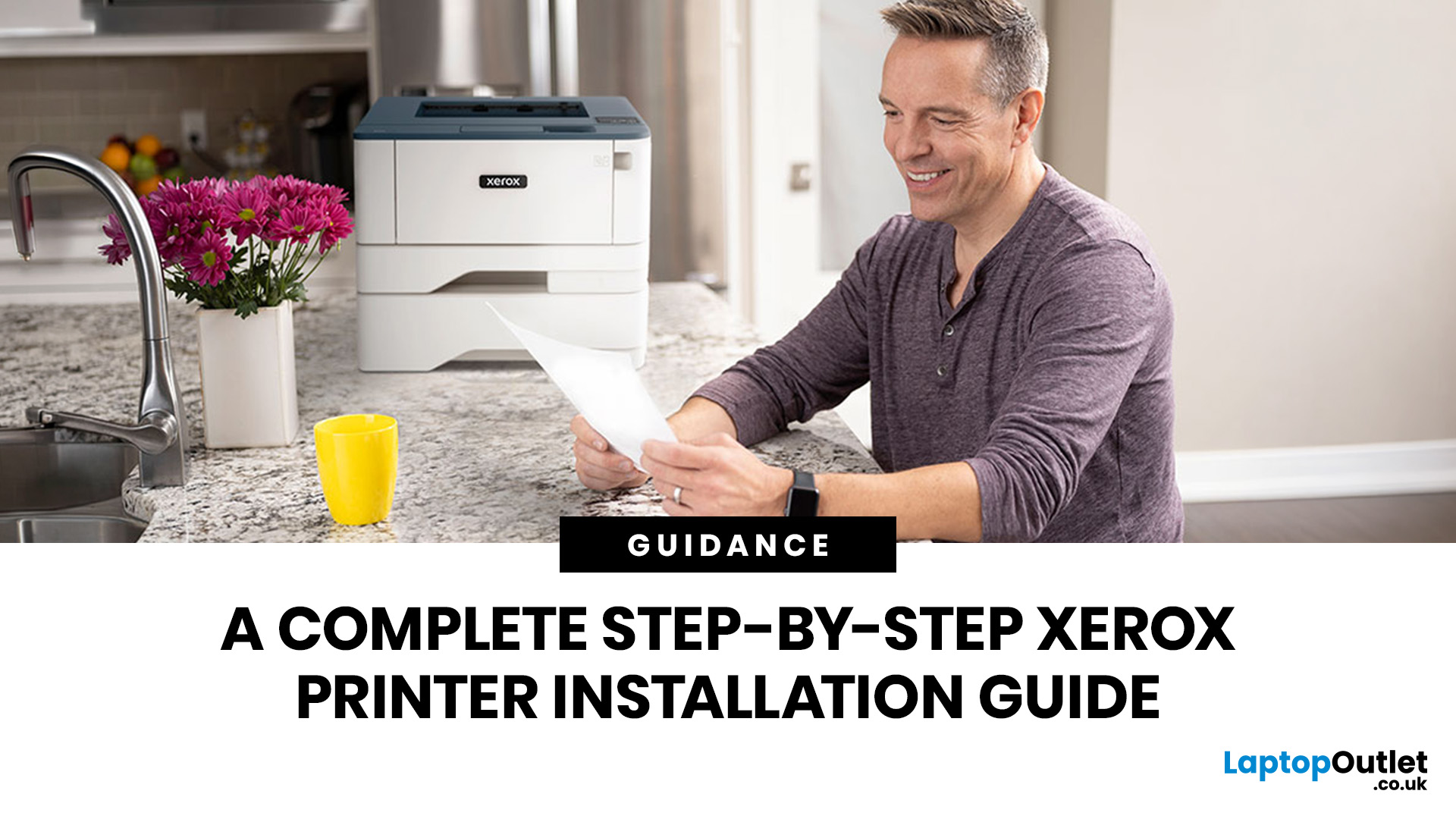
Xerox has been making printers for over 50 years, and their modern range is some of the most capable kit available for home and office use. However, even the best printer is useless if it's not set up correctly. This complete Xerox printer installation guide walks you through every method, every platform, and the most common problems you're likely to run into (with fixes), so you can get set up quickly and get on with your day.
1. What Do You Need Before Starting a Xerox Printer Installation?
A smooth installation begins well before any cable is plugged in or software is run. Taking five minutes to gather the right items and verify your system compatibility saves considerably more time than troubleshooting avoidable errors later.
What Hardware and Consumables Do You Need?
- Your Xerox printer with all packaging materials and shipping tape removed
- Power cable (supplied in the box)
- USB cable (Type-A to Type-B) for direct USB setups -- note that Xerox does not always include this in
Last Updated: July 07, 2026
Quick Answer: The main types of printers are inkjet, laser, multifunction (all-in-one), and label printers. Inkjet printers are great for photos and colour printing at home. Laser printers suit high-volume office use. Multifunction printers combine printing, scanning, and copying. Label printers handle specialist tasks like shipping labels. The right choice depends on your print volume, budget, and intended use.
Choosing the right printer feels overwhelming when you are faced with so many options. Inkjet or laser? All-in-one or dedicated? It is easy to spend money on a printer that simply does not match your needs. This guide cuts through the noise. We'll cover the various types of printers in detail. By the end, you will know exactly which printer fits your home, business, or creative needs.
What Are the Main Types of Printers Available Today?
There are several categories of printers commonly available to UK buyers, each designed with a different use case in mind. Understanding what
Last Updated: July 09, 2026
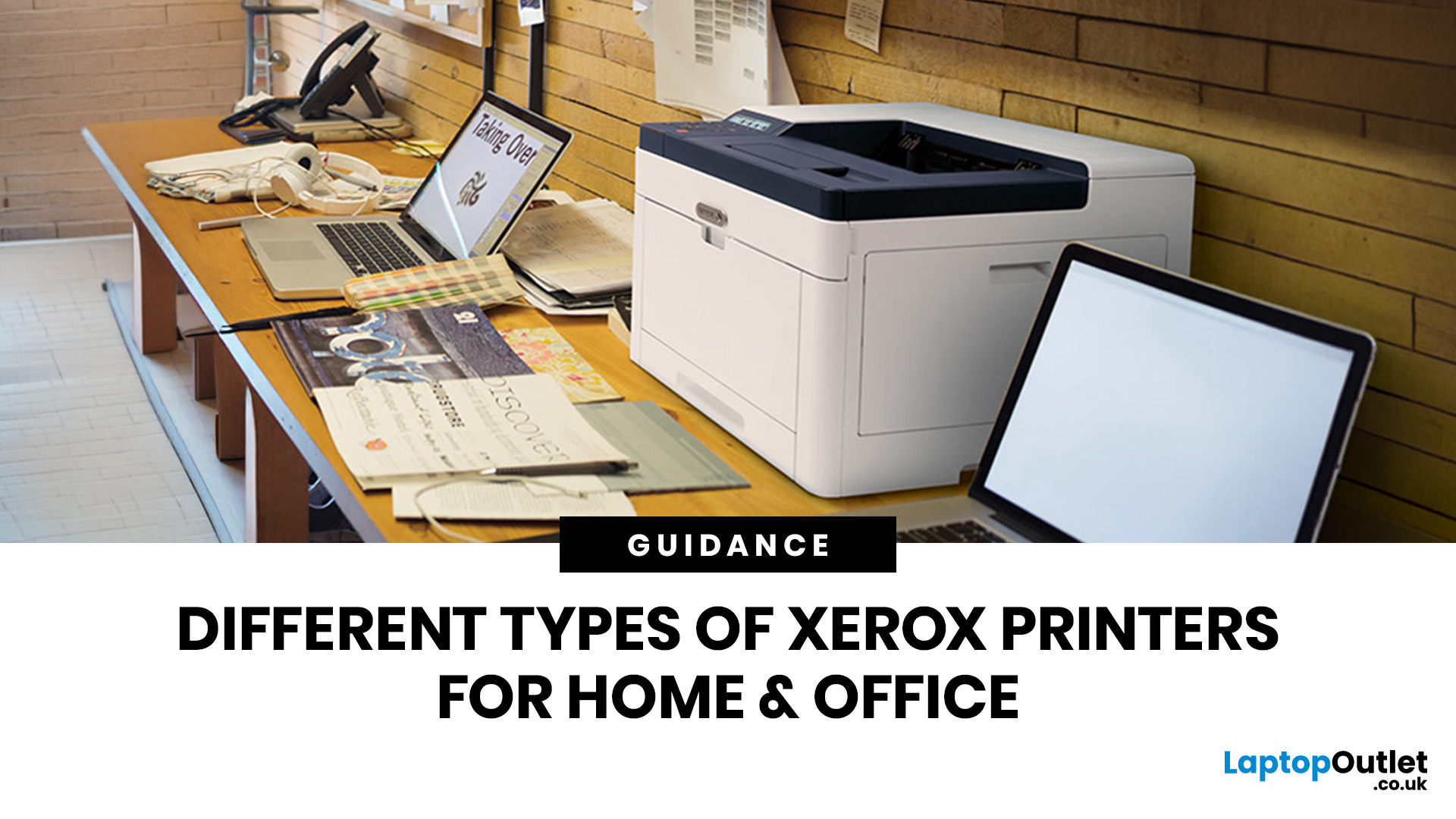
If you are comparing Xerox printer types, the easiest way to narrow it down is to start with how you print. For home use and light admin, compact mono, or colour laser models usually make the most sense. For small teams and busier desks, multifunction and office-focused Xerox models are often the better fit. Our current Xerox range reflects that clearly, with mono laser, colour laser, multifunction and VersaLink options aimed at home working, small businesses and larger office environments.
This guide breaks down the different Xerox printers that matter most, what each type is best at, and how to choose the right one without overbuying.
Which Xerox Printer Type Should You Choose?
If you mainly print forms, invoices, and text-heavy documents, mono laser is the strongest place to start. Xerox mono laser models are for straightforward document printing and regular office use, while other Xerox models are a fit for small to medium businesses and home working.
If you need colour for reports,
Last Updated: May 12, 2026
Buying a printer in 2026 should be straightforward, but with dozens of models, technologies, and pricing traps to navigate, it can feel overwhelming. This complete printers buying guide cuts through the noise and helps you find exactly what you need, at the right price, for your home, home office, or business.
What Is a Printer and What Does It Do?
A printer is a hardware device that takes digital data from a computer, phone, or tablet and reproduces it as a physical document or image on paper. It bridges the gap between the digital and physical worlds and remains one of the most widely used pieces of office and home technology in the UK.
Modern printers do a great deal more than simply print text. Today's models can scan documents, copy pages, send faxes, print directly from USB drives, and even connect to cloud services. Whether you need to print a single boarding pass or thousands of invoices each month, there is a printer designed precisely for that purpose.
Whether you are looking
Published: May 07, 2026
Most Xerox printer problems come from paper jams, low toner, incorrect paper settings, outdated drivers, network issues or print-quality settings. Start by restarting the printer, checking the paper tray, confirming toner levels, matching the paper type in the driver, and looking up any Xerox printer error codes in the official Xerox support portal.
Xerox printers are built for reliable document printing, but even a good printer can have a bad day. One minute everything is fine, the next your Xerox printer is offline, paper is stuck halfway through, prints look faded, or a random fault code appears on the display. Annoying? Absolutely. Usually fixable? Also, yes.
This guide covers the most common Xerox printer issues, what causes them, and how to fix them without panicking. It is written for everyday users, home offices and small businesses that need their printer working again quickly.
Quick Xerox printer troubleshooting checklist
Before going deep, try these basics first:
| Problem | Quick |
Last Updated: May 19, 2026
Quick Answer
For a quick HP printer installation, follow this order:
- Place the printer close to your router during setup.
- Connect the power cable and turn the printer on.
- Load plain A4 paper.
- Install the supplied ink cartridges or toner.
- Open the HP app or HP Smart app.
- Choose Set Up a New Printer or Add Printer.
- Connect the printer to your Wi-Fi network.
- Print a test page.
Once that is done, you can print wirelessly from your laptop, phone, tablet, or desktop.
Setting up an HP printer should not feel technical, even when you are doing it for the first time. Most new printers require only a few basic steps: power, paper, ink or toner, Wi-Fi connection, and device setup.
The confusion usually starts when different devices ask for different setup routes. A Windows laptop may ask you to add the printer through Printers & Scanners. A Mac may detect it through AirPrint. A phone may need the HP app. A Chromebook may require you to add it in Chrome OS printer settings. Your printer may also
Last Updated: May 12, 2026
Quick Answer: Choosing the best printer for small business comes down to your print volume, budget, and document types. For mostly text, a laser printer offers fast speeds and low running costs. For colour-rich output, an inkjet is worth a look. If you need to print, scan, and copy, an all-in-one covers every base.
Running a small business means every purchase needs to earn its keep. A printer is no different. Whether you're producing invoices, contracts, client proposals, or marketing materials, finding the best printer for small business use can save you a surprising amount of time, money, and frustration over a year.
The UK printer market in 2026 is packed with options. Getting this decision wrong costs you far more in ink, toner, and paper waste than the device itself. This guide covers everything you genuinely need to know before you buy a printer, from print technology and running costs to connectivity and security.
What Types of Printer Are Available for Small Businesses?
Last Updated: May 12, 2026
Quick Answer: To set up a wireless printer, connect it to your Wi-Fi network using the WPS button, your printer’s touchscreen menu, Wi-Fi Direct, or a temporary USB cable. Then add it on Windows via Settings > Printers & Scanners, or on macOS via System Settings. On mobile, AirPrint handles iPhones automatically, while Android uses the Default Print Service, Mopria, or manufacturer apps. Most setups take under 10 minutes.
Knowing how to set up a wireless printer properly saves you from the frustration of cables, failed connections, and endless troubleshooting. Whether you have just unboxed a brand-new model or are reconnecting an existing one to a new router, this guide walks you through it all.
What Do You Need Before Setting Up a Wireless Printer?
A quick checklist before you begin will save a lot of frustration. Getting these sorted upfront means the setup should go smoothly first time round.
- Your WiFi network name (SSID) and password
- Your printer powered on and within range of

