



Different Types of Xerox Printers for Home & Office
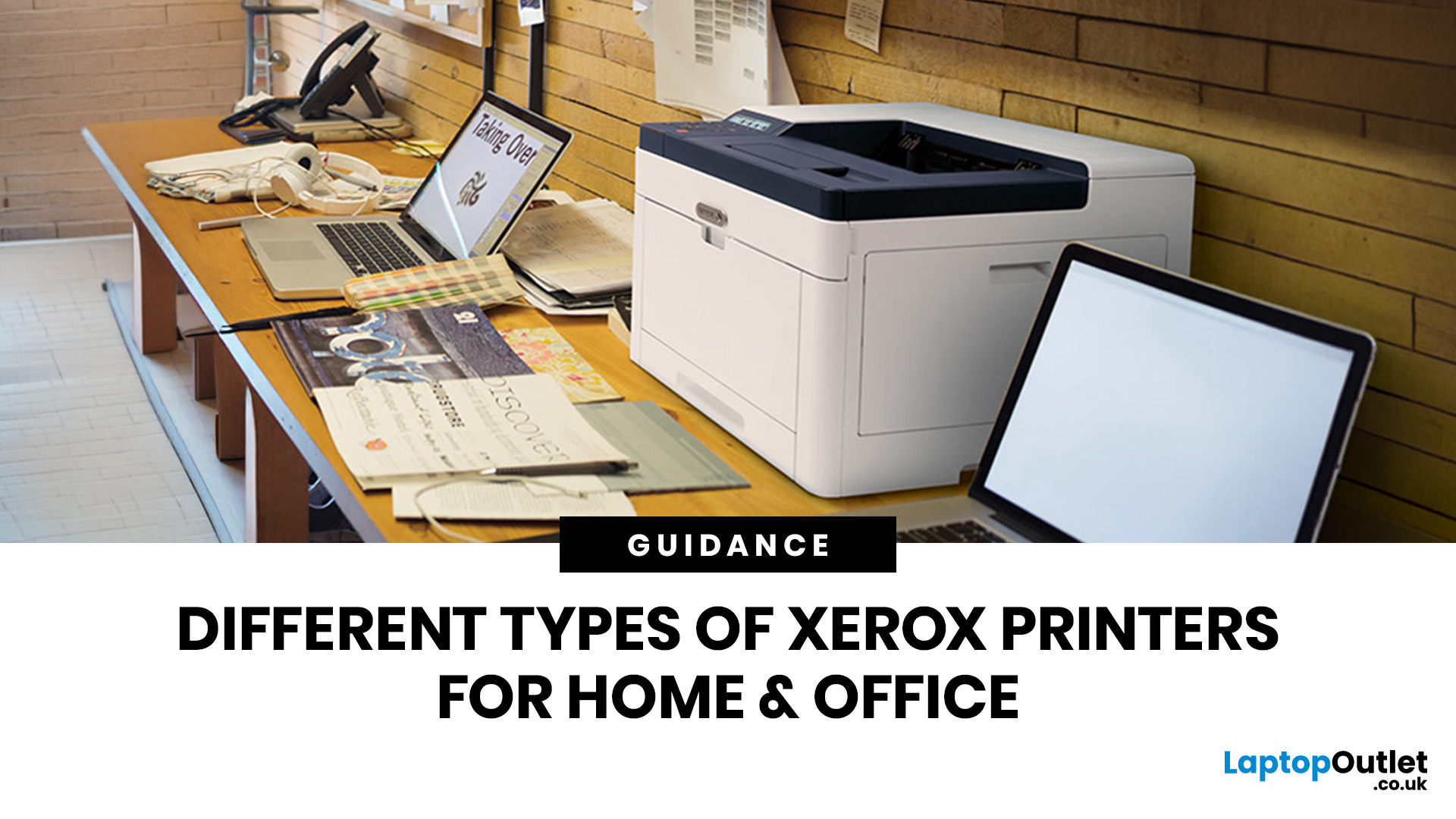
If you are comparing Xerox printer types, the easiest way to narrow it down is to start with how you print. For home use and light admin, compact mono, or colour laser models usually make the most sense. For small teams and busier desks, multifunction and office-focused Xerox models are often the better fit. Our current Xerox range reflects that clearly, with mono laser, colour laser, multifunction and VersaLink options aimed at home working, small businesses and larger office environments.
This guide breaks down the different Xerox printers that matter most, what each type is best at, and how to choose the right one without overbuying.
Which Xerox Printer Type Should You Choose?
If you mainly print forms, invoices, and text-heavy documents, mono laser is the strongest place to start. Xerox mono laser models are for straightforward document printing and regular office use, while other Xerox models are a fit for small to medium businesses and home working.
If you need colour for reports, presentations or customer-facing documents, colour laser is the better choice. They’re for sharp text and vibrant colour, and Xerox positions them as a Wi-Fi colour printer for small to medium businesses and home workers.
If you want one device that can print, scan, copy and sometimes fax, look at Xerox multifunction printer types. For shared teams or higher-volume workflows, the VersaLink range is the step up.
What Types of Xerox Printers are Available?
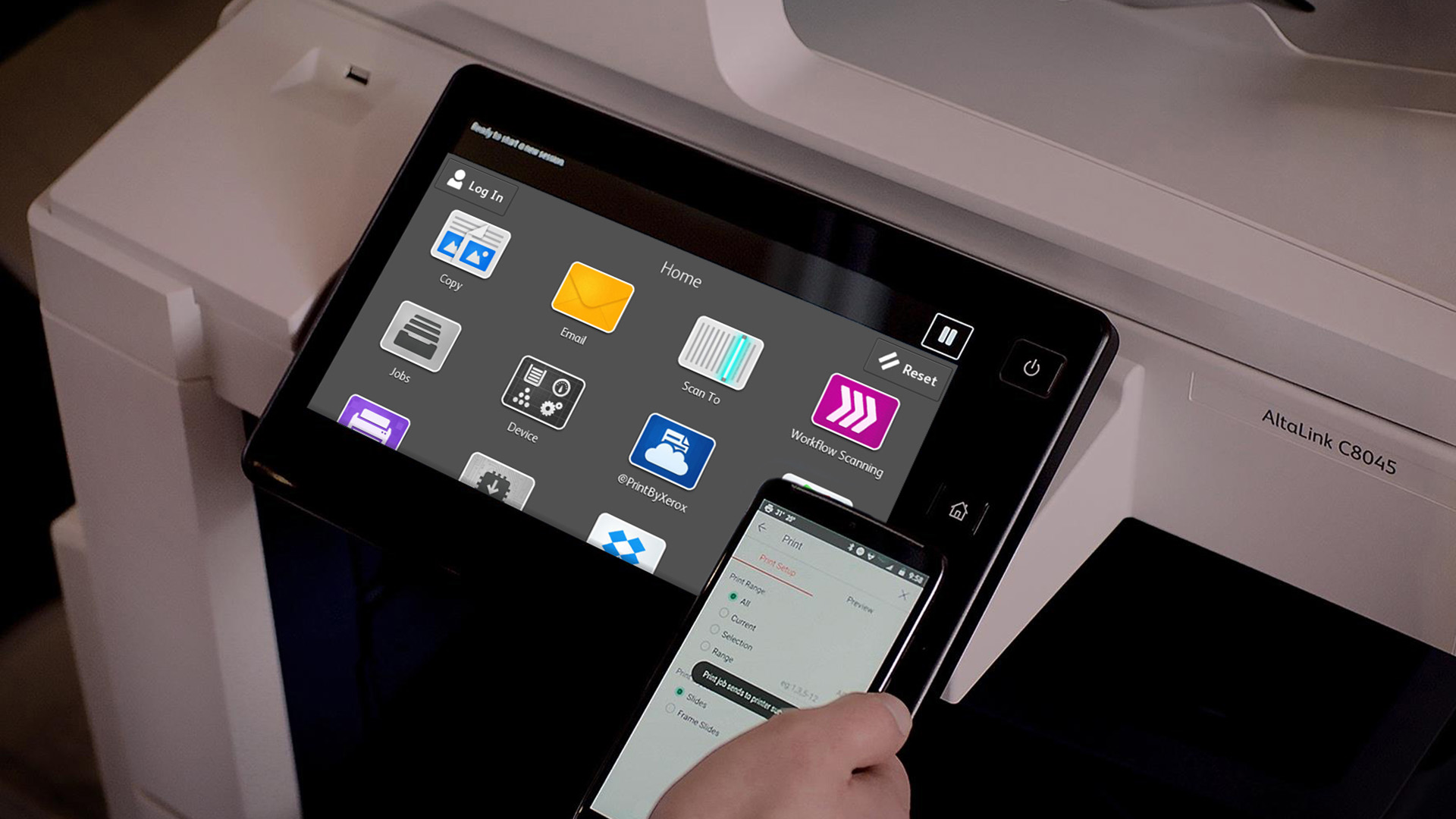
Xerox keeps the range fairly clear, and that helps a lot when you are buying by use case rather than guessing from specs.
|
Xerox printer type |
Best for |
Typical fit |
|
Mono laser printers |
Fast black-and-white document printing |
Home working, admin, invoices, forms |
|
Colour laser printers |
Colour reports and everyday business printing |
Home office, small business, presentations |
|
Multifunction / all-in-one printers |
Print, scan, copy and fax from one device |
Home office, shared desks, small teams |
|
VersaLink and higher-volume models |
Heavier office use and shared workflows |
Busy offices, larger teams, A3 printing |
We group its Xerox range into mono laser, colour laser, multifunction, and higher-volume VersaLink models, and Xerox’s reinforce that split with separate printer and multifunction families for small business and office use. If you want a broader look at the full Xerox range before narrowing it down by use case, our complete guide to Xerox printers breaks down the main models, features, and pricing in more detail.
Mono Laser Xerox Printers: Best for Text-Heavy Everyday Printing
Mono laser is the simplest type of Xerox printer. These are the Xerox office printers that focus on crisp black-and-white output, fast document handling and lower-fuss daily printing.
Models such as the B230 and B310 are well suited to text-heavy workloads and regular office use. B230 is ideal for small to medium businesses or working from home, and the B310 as a fast, compact monochrome printer for small to medium businesses.
That makes mono laser one of the safest answers if you are asking for the best Xerox printer for office use when your output is mostly invoices, reports, contracts, shipping paperwork or day-to-day admin.
Who should choose mono laser?
- Home workers who mostly print documents
- Small offices that do not need colour
- Buyers who want lower-fuss business printing
- Teams focused on speed and clarity over presentation graphics
Colour Laser Xerox Printers: Best for Everyday Business Colour
Colour laser sits in the middle ground between simple document printing and more polished business output. C230 and C320 are practical models for consistent colour across reports, marketing materials and general office use.
This is where a lot of the more affordable xerox printer models start to make sense for real buyers. If you only print colour occasionally, you probably do not need a large office machine. But if colour matters for customer-facing documents, a compact Xerox colour laser can be a much better fit than a mono printer you outgrow after a few weeks.
Who should choose colour laser?
- Small businesses printing presentations and proposals
- Home offices that need better-looking colour documents
- Teams producing handouts, menus or customer documents
- Buyers who want colour without moving into bulky office hardware
Xerox Multifunction Printer Types: Best for Home Office and Shared Desks
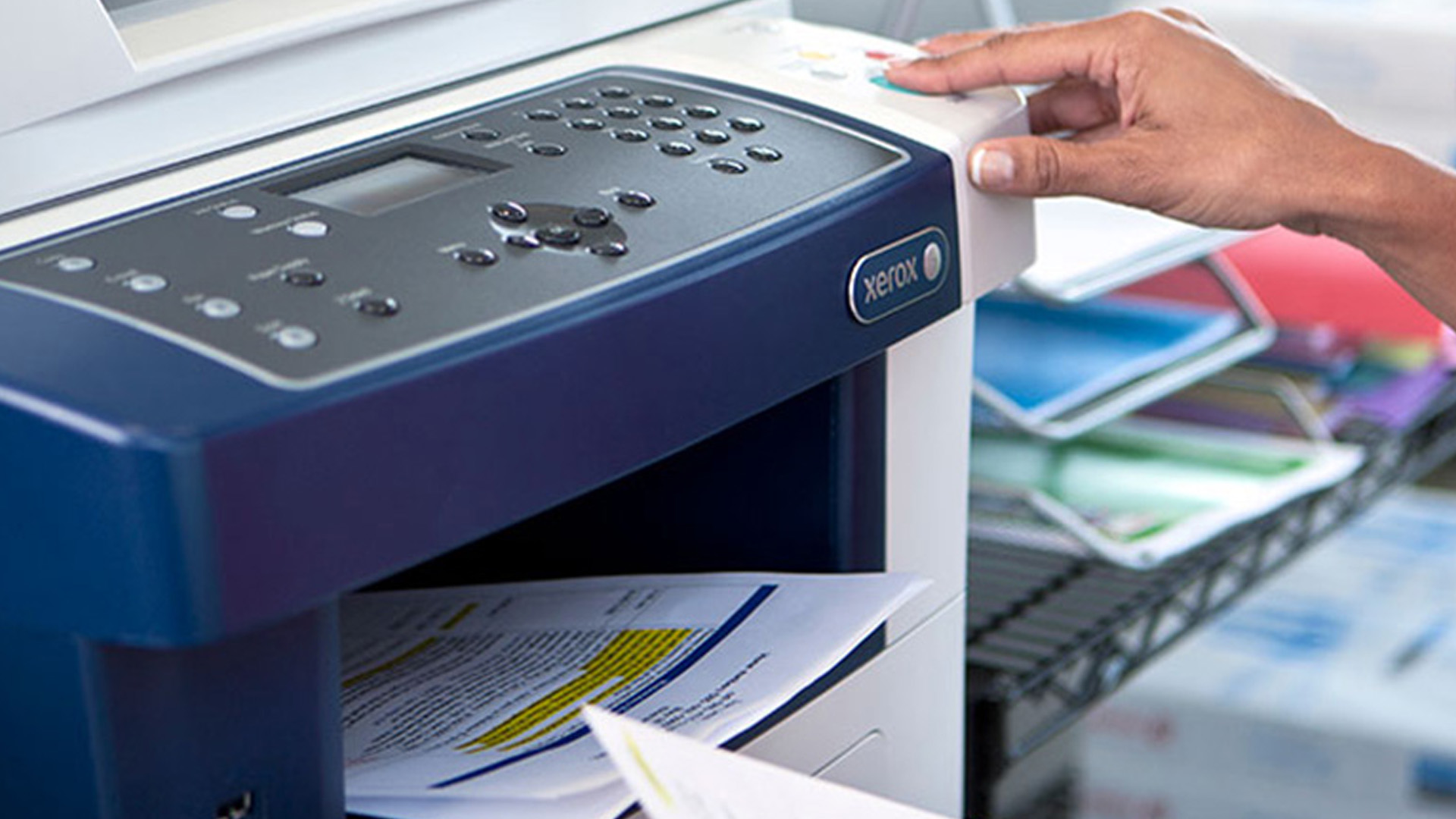
The most practical Xerox multifunction printer types are the ones that replace more than one device at once. C235 and B225 are compact all-in-one options that deliver print, scan, copy and fax without taking over your desk. For many buyers, this is the sweet spot. If you work from home, run a side business, manage regular paperwork or share a printer with a small team, a multifunction Xerox is often the most sensible answer.
Why multifunction often wins
- You can print, scan and copy from one device
- It saves desk space
- It handles admin better than a print-only machine
- It makes home office setups much easier to live with
VersaLink and Higher-Volume Xerox Office Printers
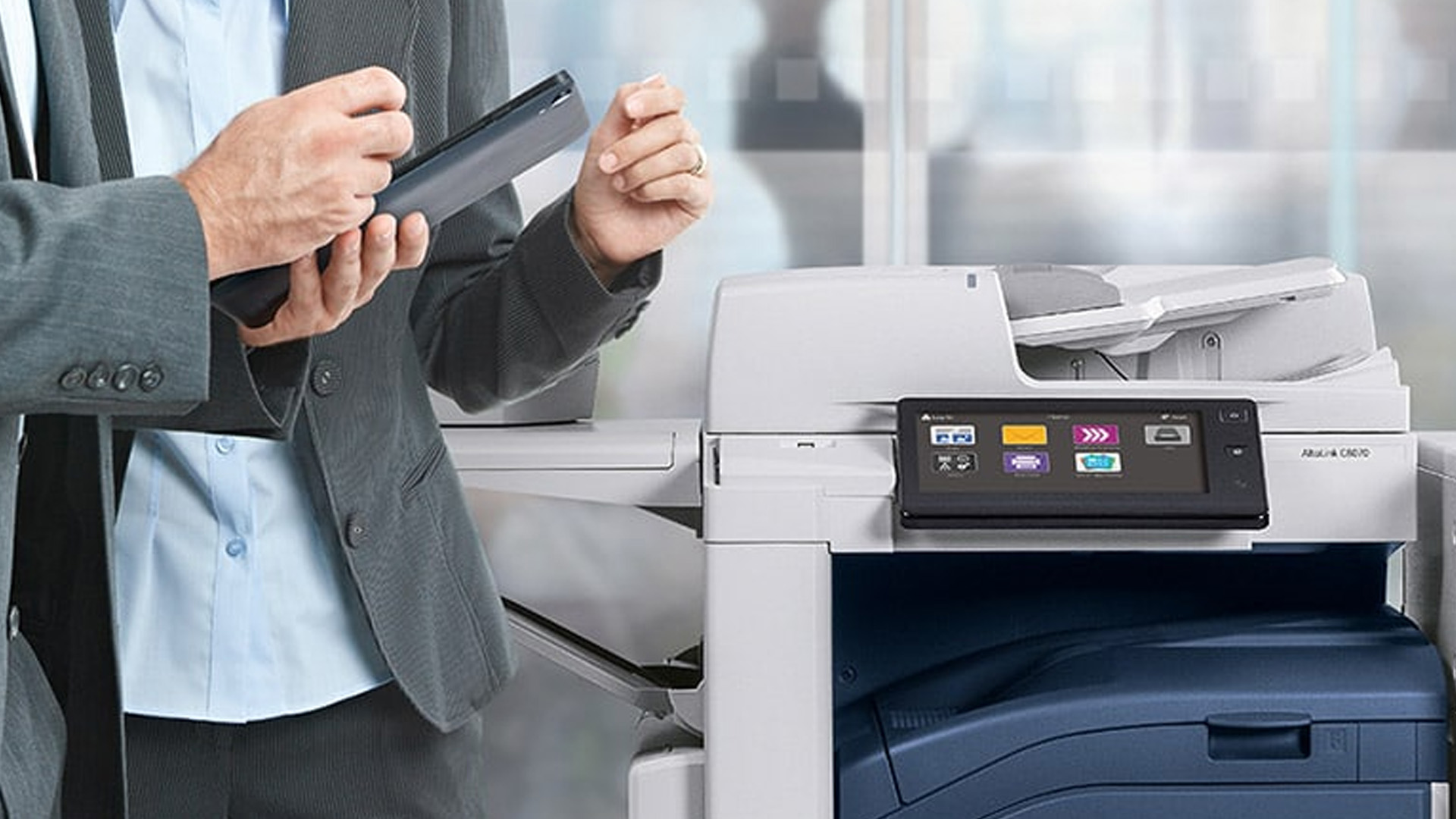
If the B-series and C-series are the compact, practical end of the Xerox range, VersaLink is where things get more office-focused. VersaLink printers are designed for shared office environments and for A3 printing and larger workloads. Models like B415 and C415 as compact but advanced multifunction printers built around ConnectKey technology, with setup tools, mobility features, and productivity-focused workflows.
This is where Xerox starts to feel more like infrastructure than just a desktop printer. If your office needs better paper handling, stronger shared connectivity, security controls, cloud scanning or a touchscreen workflow, VersaLink is usually the right direction.
Who should choose VersaLink?
- Busier offices with multiple users
- Teams printing high volumes regularly
- Workplaces needing scan-to-cloud and workflow tools
- Offices that need stronger security and admin control
Top-Rated Affordable Xerox Printer Models
If your budget matters more than going straight to an advanced office machine, the most useful affordable xerox printer models to keep in mind are the compact B- and C-series devices. A practical shortlist based on current range positioning looks like this:
- Xerox B230 for simple black-and-white home or small office printing
- Xerox B310 for faster mono document output in small business use
- Xerox B225 for mono print, scan and copy in one compact machine
- Xerox C230 for entry-level colour laser printing
- Xerox C235 for colour multifunction use without a large footprint
- Xerox C320 / C325 for businesses needing stronger everyday colour performance
However, if your Xerox printer is already in use and starts acting up, our guide to common Xerox printer problems covers the issues most people run into and how to fix them.
Which Xerox Printer Type Suits Which User?
|
User type |
Best Xerox type |
Why it fits |
|
Home user |
Compact mono or colour laser |
Simple setup, smaller footprint, dependable everyday printing |
|
Home office user |
Multifunction B225 or C235-type model |
Print, scan and copy in one machine |
|
Small business |
B310, C320, C325 or similar |
Better speed and more consistent output |
|
Busy office |
VersaLink |
Stronger workflows, connectivity, admin tools and paper handling |
This is also where it helps to compare wider printer solutions rather than focusing only on one brand. If Xerox is too office-led for your needs, high quality inkjet printers can make more sense for lighter colour use, while printers for home use are a better place to browse if you want something simpler and more compact.
A useful buying guide should say where the range is not the strongest fit too.
If you mainly want photo-first home colour printing, Xerox’s laser-heavy range is not always the most natural starting point. For that, a broader inkjet printer may suit you better. If you need shipping or barcode workflows, label printers are a better match than a standard office printer. And if you know your printing needs are almost entirely business-led, it makes more sense to jump straight into office printing solutions.
That does not weaken Xerox as a brand. It just helps you buy more accurately. If you want to keep your printer running smoothly after setup, our Xerox printer maintenance guide covers toner, cleaning and everyday performance tips worth knowing.
Where to Start if You are Still Unsure
If you want the broadest overview first, start with printer solutions and narrow down by workload. If you already know you want Xerox specifically, the best next stop is the Xerox printer guide, because it already separates mono, colour, multifunction and higher-volume options in a way that mirrors how real buyers shop.

Final Buying Advice
The smartest way to compare Xerox printer types is not by looking for the longest feature list. It is by matching the printer to the job. Mono laser is the safe choice for document-heavy home and office use. Colour laser makes more sense when presentations, reports and customer-facing output matter. Multifunction models are the sweet spot for home office and mixed-use work. VersaLink is where Xerox gets more serious for shared office environments and heavier workflows.
If you want a simple place to start comparing, browse the current range of Xerox printing machines and then widen out into laser printing solutions or office printing solutions depending on how and where you print.

In Case You’re Wondering...
What are the main Xerox printer types?
The main Xerox printer types at Laptop Outlet are mono laser, colour laser, multifunction and higher-volume VersaLink models.
What is the best Xerox printer for office use?
The best Xerox printer for office use depends on workload, but the B310 is a strong mono option for small businesses, while C320 or C325-type models make more sense when you need everyday colour. For heavier shared use, VersaLink is the stronger office choice.
Are Xerox multifunction printer types good for home office use?
Yes. Xerox multifunction models such as the B225 and C235 are a strong fit for home office setups because they combine print, scan, copy and sometimes fax in one compact device.
Are Xerox printers good for home use?
Yes, Xerox printers are good and practical options for home printing and everyday admin.
Which Xerox printers are the most affordable?
The most affordable Xerox printer models are usually the compact B-series and entry C-series machines, such as the B230, B225, B310, C230 and C235, depending on current stock and deals.
| Read More: |
| Guide to Laser Printers: How They Work, Benefits, Uses, and What to Buy |
| Laser Printers vs All-in-One Printers: Which is Best for You? |
| What to Look for When Buying a Refurbished Printer? |
Related Articles

Last Updated: April 22, 2026
Laser printers are built for sharp text, fast output, and dependable running costs, but they still need routine care to stay reliable year after year. Dust, paper debris, toner residue, worn feed parts, and poor storage habits can all shorten a printer’s life long before any major component actually fails.
The good news is that laser printer maintenance does not need to be complicated. A sensible routine can help reduce smudging, paper jams, streaks, faded print, and unnecessary consumable waste. It can also help you maintain stable print quality for longer, which matters whether you are printing coursework at home, handling household paperwork, or managing documents in a busy office.
This guide covers the practical side of laser printer cleaning and long-term care, including how to clean a laser printer safely, what to check regularly, how to handle toner and drum maintenance, and when maintenance stops making sense, and replacement becomes the smarter choice. If you are still weighing
Last Updated: April 21, 2026
Setting up an all-in-one printer is usually much easier than people expect. The part that trips most users up is not the printer itself, but the order. If you prepare the hardware first, connect it the right way, and install the correct software in the right place, most all-in-one printer setup jobs are straightforward.
This guide walks through how to set up an all-in-one printer step by step, including USB, Wi-Fi, and network setup, driver installation, scanning setup, and the small configuration choices that make the printer easier to live with long term. If you are installing a multifunction printer at home, in a home office, or for a small team, this is the practical setup flow that saves the most time.
What is an All-in-One Printer Setup?
An all-in-one printer setup is the process of getting a multifunction printer ready to print, scan, copy, and in some cases fax. That means more than plugging it in and printing one test sheet. A proper setup also includes network access, driver
Last Updated: July 06, 2026
If your printer is acting up, the short answer is this: most all in one printer problems are fixable without replacing the whole machine. The fastest wins usually come from checking the connection, clearing the print queue, confirming the right printer is selected, inspecting paper loading, and running the built-in cleaning or alignment tools before assuming the hardware has failed. Microsoft, Brother, Epson, Canon, and HP all point users toward those same basics first, which is a strong sign that the smartest troubleshooting is usually methodical, not dramatic.
That is exactly what this guide is here to do. Instead of giving you random fixes with no logic behind them, this article breaks down the most common all-in-one printer issues, shows what each symptom usually means, and explains the best way to fix it. So, whether your machine is offline, feeding paper badly, refusing to scan, printing faded documents, or suddenly producing blank pages like it has given up on communication,
Published: April 24, 2026
If you want an all-in-one printer to last, the best approach is simple: keep it clean, use the built-in maintenance tools properly, and deal with small print-quality issues before they turn into bigger faults. Good all in one printer maintenance is less about deep cleaning every week and more about doing the right checks at the right time.
For most homes and small offices, that means cleaning the scanner glass and document feeder areas regularly, using printhead cleaning only when print quality drops, keeping paper and supplies in good condition, and not treating laser and inkjet models the same way. That last point matters. A multifunction printer cleaning routine for an inkjet is not the same as multifunction printer care for a laser model with a separate drum unit.
The Best Way to Keep an All-in-One Printer Working Well
The simplest all-in-one printer maintenance guide starts with routine care, not emergency fixes. Keep dust off the exterior, keep the scanner glass and ADF strip clean,
Published: April 24, 2026
An all-in-one printer is a machine that lets you print, scan, copy, and sometimes fax from one device. It is designed to save space, reduce setup hassle, and handle everyday home or office tasks without needing separate equipment.
An all-in-one printer, sometimes called a multifunction printer or MFP, combines multiple jobs into one device. Retailer and manufacturer guidance broadly agrees on the core value proposition: one device, less clutter, fewer cables, and a more streamlined workflow for home and office users.
Nobody wakes up thinking, “You know what would absolutely change my life today? A printer.” And yet, the second you need to print a return label, scan a signed document, copy schoolwork, or send a form to the office, your printer suddenly becomes the main character.
That is exactly why these all-in-one printers guide exists. We explain how all-in-one printers work, their key features, the main types, their benefits, costs, setup, maintenance, and how to choose the best one
Last Updated: June 10, 2026
The best HP printer depends on what you print, how often you print, whether you need scanning or copying, and how much you want to spend on ink or toner. For home users, an HP inkjet or all-in-one printer is usually the best choice. For offices and small businesses, HP OfficeJet, LaserJet or multifunctional printers are better for speed, reliability and heavier workloads.
Buying a printer can feel confusing because HP offers many different models for different users. Some are made for simple home printing. Some are designed for students and families. Others are built for small businesses, offices, shipping labels, high-volume printing or professional document handling. That is why choosing the right printer is not just about finding the cheapest model. It is about understanding your print habits, running costs, space, connectivity and long-term needs.
This HP printer guide 2026 will take you from basic printer knowledge to more advanced buying terms, so whether you are buying your first

Last Updated: July 06, 2026
Buying one of the many HP printers for small business setups out there sounds easy until you start comparing them properly. Some are better for fast document printing, some are built for scanning and colour work, and some save you more money over time. The trick is not buying the fanciest one. It is buying the one that suits your workload. This guide walks through the HP printer types that make the most sense for home offices, small teams, and day-to-day business use.
Which HP Printer Type Should a Small Business Choose?
- If your business prints mixed colour documents, scans paperwork regularly and needs one compact machine, go for an HP all-in-one in the OfficeJet Pro range. OfficeJet Pro printers are best for higher-volume printing and all-around productivity in a home or home office, which is exactly the kind of workload many sole traders, hybrid workers and small teams deal with.
- If your business prints lots of text-heavy documents and speed matters more than photo-quality colour, choose
Last Updated: June 10, 2026
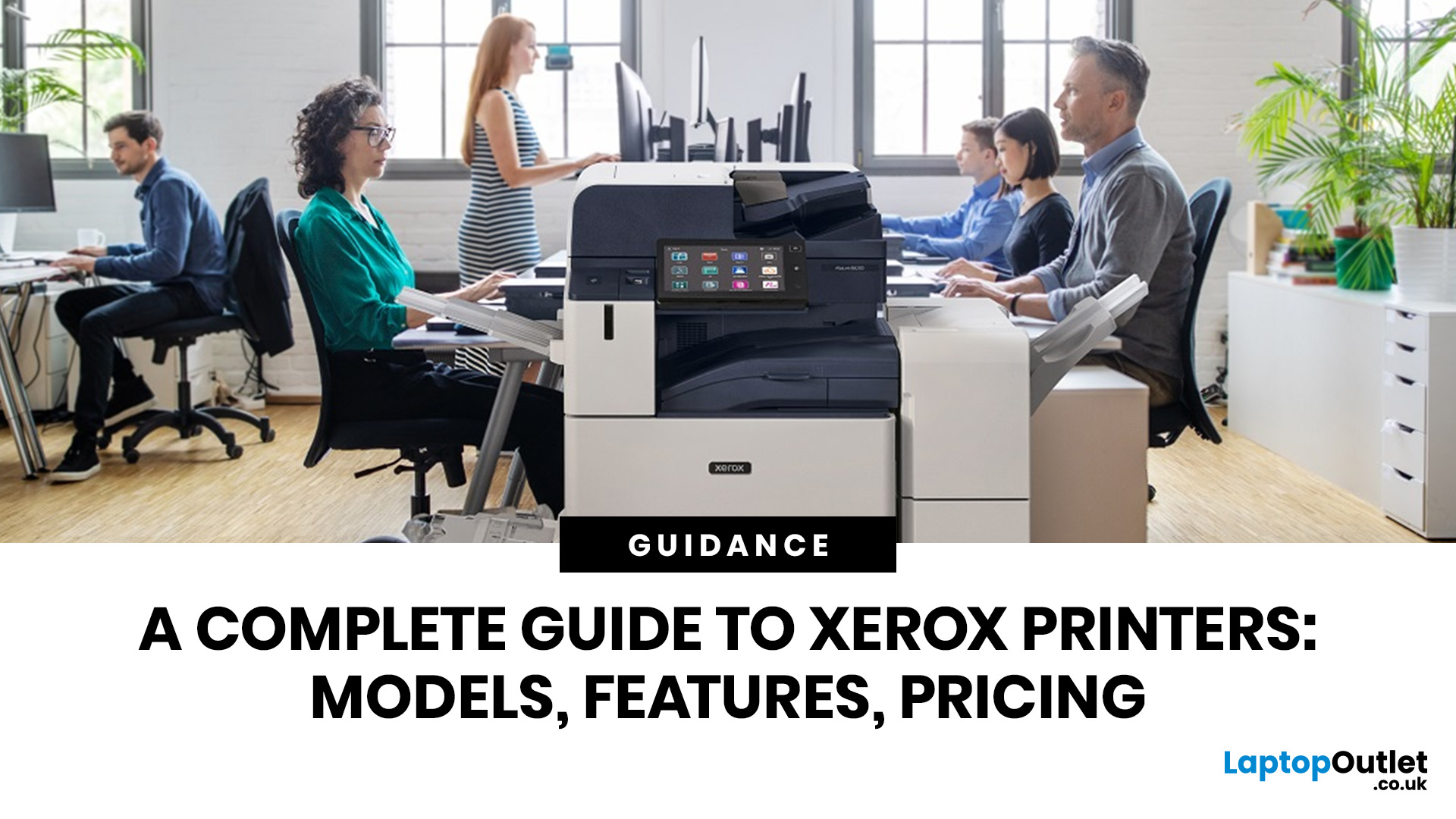
A Xerox printer is a document printer or multifunction device designed for reliable office, business, and home printing. Most modern Xerox printers focus on laser or LED printing, fast document output, strong security, mobile printing and multifunction features such as scanning, copying, faxing and cloud connectivity.
Xerox is a trusted name in business printing, best known for office printers, copiers and multifunction devices. While the brand is still strongly linked with photocopying, modern Xerox printers do much more than copy documents.
Today’s Xerox devices can print, scan, copy, fax, support mobile and cloud printing, manage user access and help businesses control print costs. Many models also include Wi-Fi, reliable paper handling, security features and easy touchscreen controls.
If you are comparing printers, looking for a Xerox printer, or trying to understand whether Xerox is right for your home or office, this guide breaks everything down in simple words.
What is a Xerox
Last Updated: May 05, 2026
HP printers are reliable, but even the best machines throw a wobble from time to time. The good news is that the vast majority of issues are easy to resolve on your own. This guide will show you how to fix common HP printer problems without calling a professional. Whether you've got an HP OfficeJet, DeskJet, LaserJet, or ENVY, many of the checks below apply across the range.
What Are the Most Common HP Printer Problems?
Before diving into individual fixes, it helps to know what you are actually dealing with. HP printers, from compact home models to full office workhorses, tend to run into the same handful of issues time and again.
Here is a quick overview of the most frequently reported HP printer problems and what typically causes them:
| Problem | Most Likely Cause |
| Printer not printing | Stuck print queue, offline status, driver fault |
| Paper jam | Overfilled tray, worn rollers, torn paper fragments |
| Printer showing offline | Wi-Fi dropout, incorrect default printer setting |
| Blank or faded pages |
Last Updated: May 05, 2026
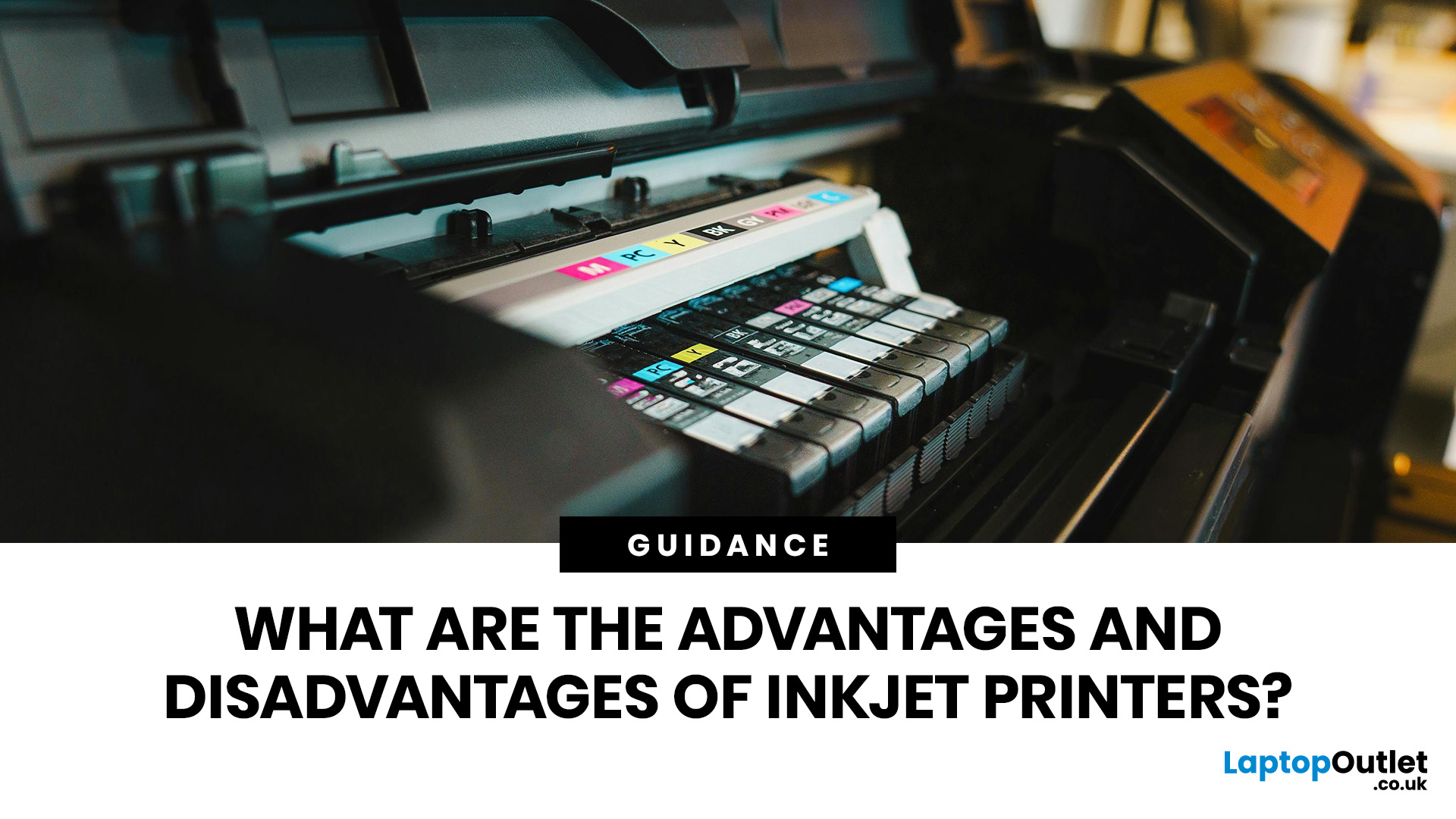
Quick Answer: Inkjet printers offer high colour quality, a compact design, and a lower upfront price, making them ideal for homes, students, creative projects, and light office use. The main disadvantages are higher ink costs on cartridge models, slower print speeds, possible ink smudging, and printhead maintenance when the printer sits unused.
Choosing a printer sounds simple until you start comparing ink costs, print speed, colour quality, maintenance, and the difference between inkjet and laser models. For many UK homes, students, hybrid workers, and small offices, an inkjet printer still makes a lot of sense. It is usually compact, affordable to buy, and strong at printing colour documents, photos, homework, labels, and everyday paperwork.
The part that needs more thought is the long-term cost. Some inkjet printers are cheap upfront, but can become expensive when you replace cartridges often. Others, such as refillable ink tank models, cost more upfront but may suit regular printing

