



7 Common Office Printer Problems and How to Fix Them
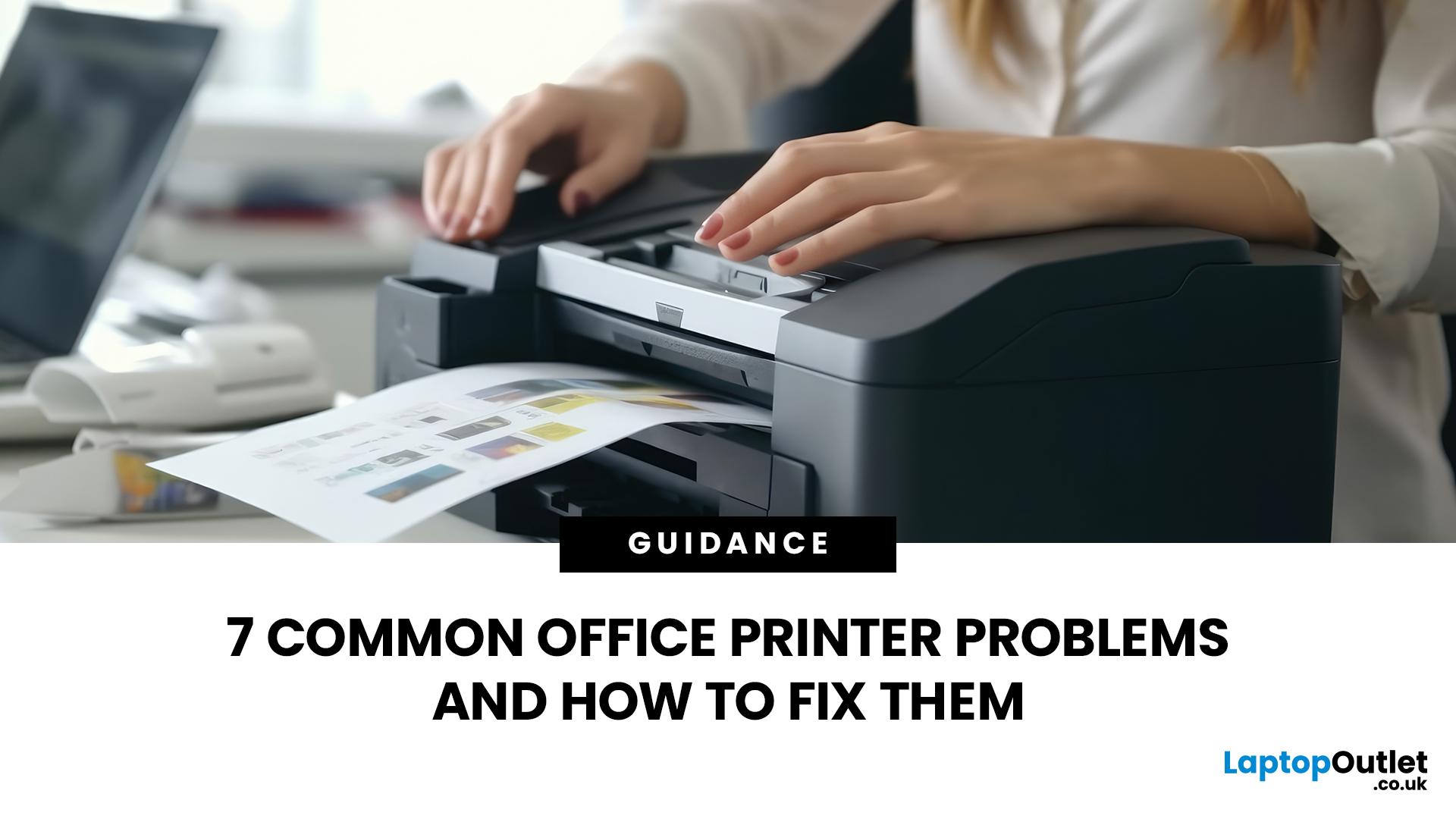
The most common office printer problems are: paper jams, the printer showing as offline, faded or streaky prints, smudged or blurry output, ghosting (faint duplicate images), wrinkled or curled pages, and slow printing. Most can be fixed without a technician by checking connections, clearing jams carefully, updating drivers, and replacing low ink or toner cartridges promptly.
This guide walks you through the seven most common office printer issues and exactly how to fix them, regardless of whether you use an HP, Brother, Epson, Canon, Xerox, or any other brand.
Problem 01 – Office Printer Paper Jams
Paper jams are one of the most reported office printer problems. They happen when a sheet gets stuck in the feed path and blocks any further printing. Common causes include overfilled trays, damp or wrinkled paper, misaligned guides, and worn feed rollers.
There is also the frustrating "ghost jam", where the printer displays a jam error even though no paper is visibly stuck. This is usually caused by a tiny paper fragment sitting near a sensor, or a paper-detection tab that has become stuck in the triggered position.
How To Clear a Paper Jam Safely
- Switch the printer off and unplug it from the mains.
- Open every access point: the front cover, rear panel, and cartridge access area.
- Use a torch to inspect rollers, sensors, and along the full paper path.
- Grip any stuck paper with both hands and pull it slowly in the direction of the paper path (usually straight out towards you from the front, or out from the rear tray).
- Check rubber feed rollers for paper scraps. Wipe them gently with a slightly damp, lint-free cloth and allow to dry for around ten minutes before closing covers.
- For a ghost jam, remove all ink or toner cartridges, power the printer off and back on, then reinstall cartridges. On many models, this resets the jam sensor.
- If the error persists, use short bursts of compressed air (can held upright) to clear dust and micro-fragments from inside the paper path.
Prevent Future Jams
- Never overfill the paper tray. Check your model's maximum sheet capacity in the user manual.
- Fan paper before loading it to prevent sheets sticking together.
- Store paper flat in a sealed ream wrapper away from humidity.
- Align paper guides snugly against the stack without squeezing it.
- Use paper that matches the printer's recommended weight and size (typically 80gsm for most UK offices).
Problem 02 – Printer Showing as Offline or Not Responding
When your computer reports that the printer is offline, it does not necessarily mean the printer itself is broken. It typically means your computer has lost communication with it. This is one of the most common office printer errors, and it is especially prevalent after a Windows update, a Wi-Fi dropout, or a router restart that may have changed the printer's IP address.
Common triggers include a stalled Print Spooler service, a stuck print job in the queue, a wrong default printer setting, or the "Use Printer Offline" mode being accidentally enabled in Windows.
Step-by-Step Fix for Windows 11
- Go to Settings > Bluetooth & devices > Printers & scanners.
- Click your printer, then select Open print queue.
- In the print queue, click Printer in the top menu. Confirm that Use Printer Offline is not ticked. If it is, click it to untick it.
- Delete all stuck jobs from the queue, then send a single one-page test print.
- Back in Printers & scanners, toggle Let Windows manage my default printer to Off and then set your printer as the default manually.
- If the issue persists, go to Settings > System > Troubleshoot > Other troubleshooters, find Printer in the list, and click Run.
Step-by-Step Fix for macOS
- Open System Settings > Printers & Scanners.
- Click your printer and select Open Print Queue.
- Click Resume if the queue is paused, and delete any stuck jobs.
- If the printer still appears offline, delete it from the list and re-add it using the plus (+) button.
|
Tip: If your printer comes back online briefly after a restart and then drops off again every few days, this points to a network addressing issue rather than a printer fault. Consider giving the printer a static IP address in your router settings to prevent this. |
Quick Reference: Offline Printer Causes and Fixes
|
SYMPTOM |
LIKELY CAUSE |
QUICK FIX |
|
Printer offline after Windows update |
Driver conflict or spooler stall |
Run Windows Printer Troubleshooter; reinstall driver |
|
Printer offline after router restart |
IP address changed |
Restart printer; assign static IP in router |
|
Offline on all computers |
Printer sleep mode or frozen firmware |
Full power cycle (off at mains for 60 sec) |
|
Offline on one computer only |
Driver or queue issue on that machine |
Delete and re-add printer on that device |
Problem 03 – Faded Prints, Streaks, or Horizontal Lines
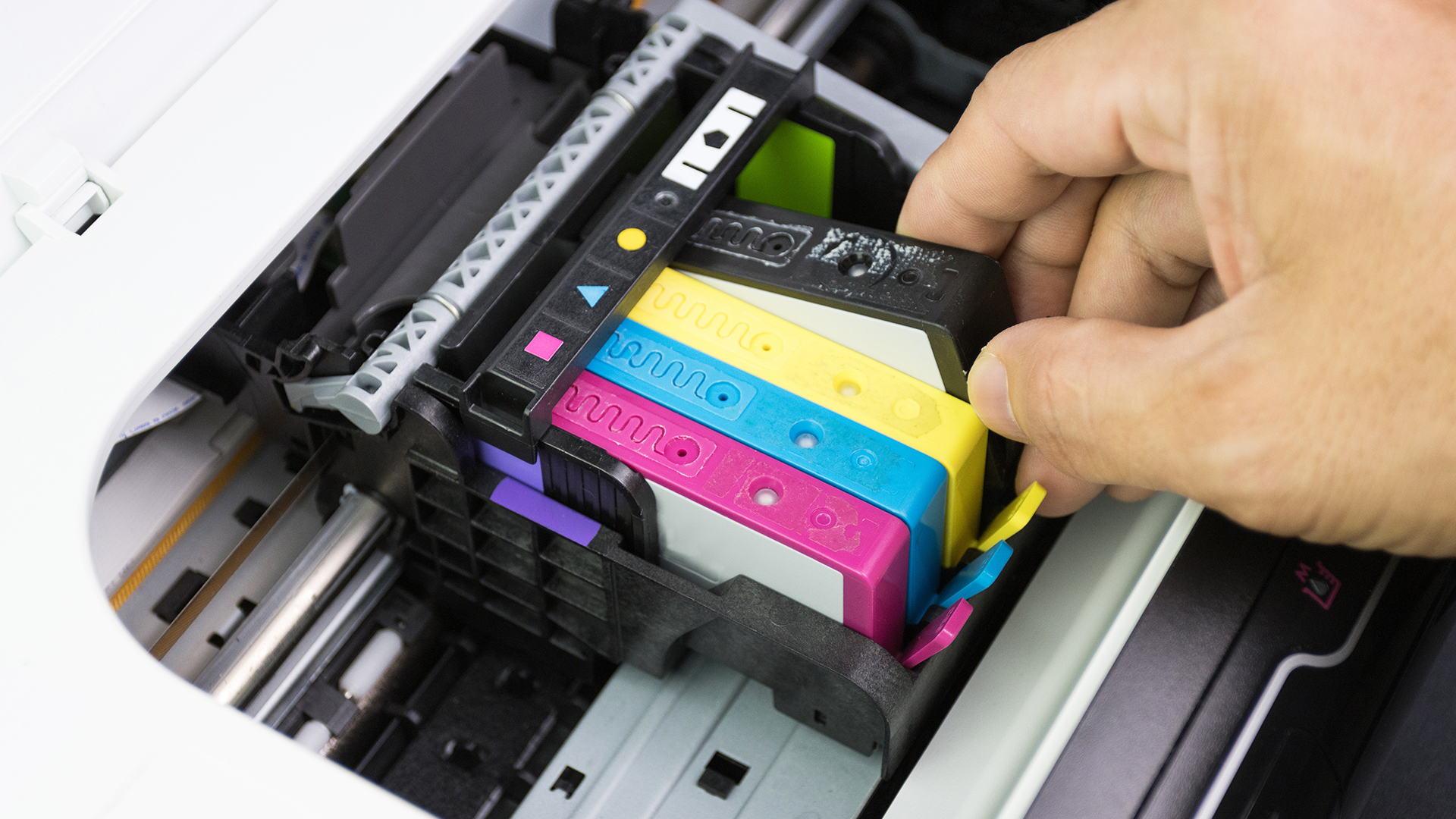
Office printer faded prints and streaked output are among the most common print quality complaints. On inkjet printers, this is usually a sign of low ink levels, blocked nozzles, or a dried-out cartridge. On laser printers for busy offices, a low or unevenly distributed toner cartridge is the most frequent culprit.
Streaks and horizontal lines can also be caused by a dirty print head, a failing drum unit (laser), or using paper that is incompatible with your printer model.
For Inkjet Printers
- Check ink levels via your printer software or the control panel.
- Run the print head cleaning utility (found in printer preferences or on the printer's touchscreen). Run this once or twice, no more, as it uses a significant amount of ink.
- If nozzles are blocked, print a nozzle check pattern to identify which colour is affected.
- If a cartridge is nearly empty or dried out, replace it. In the UK, genuine replacement cartridges typically cost between £8 and £25 depending on the brand and yield.
- Avoid leaving the printer unused for weeks at a time; this dries out the print head nozzles.
For Laser Printers
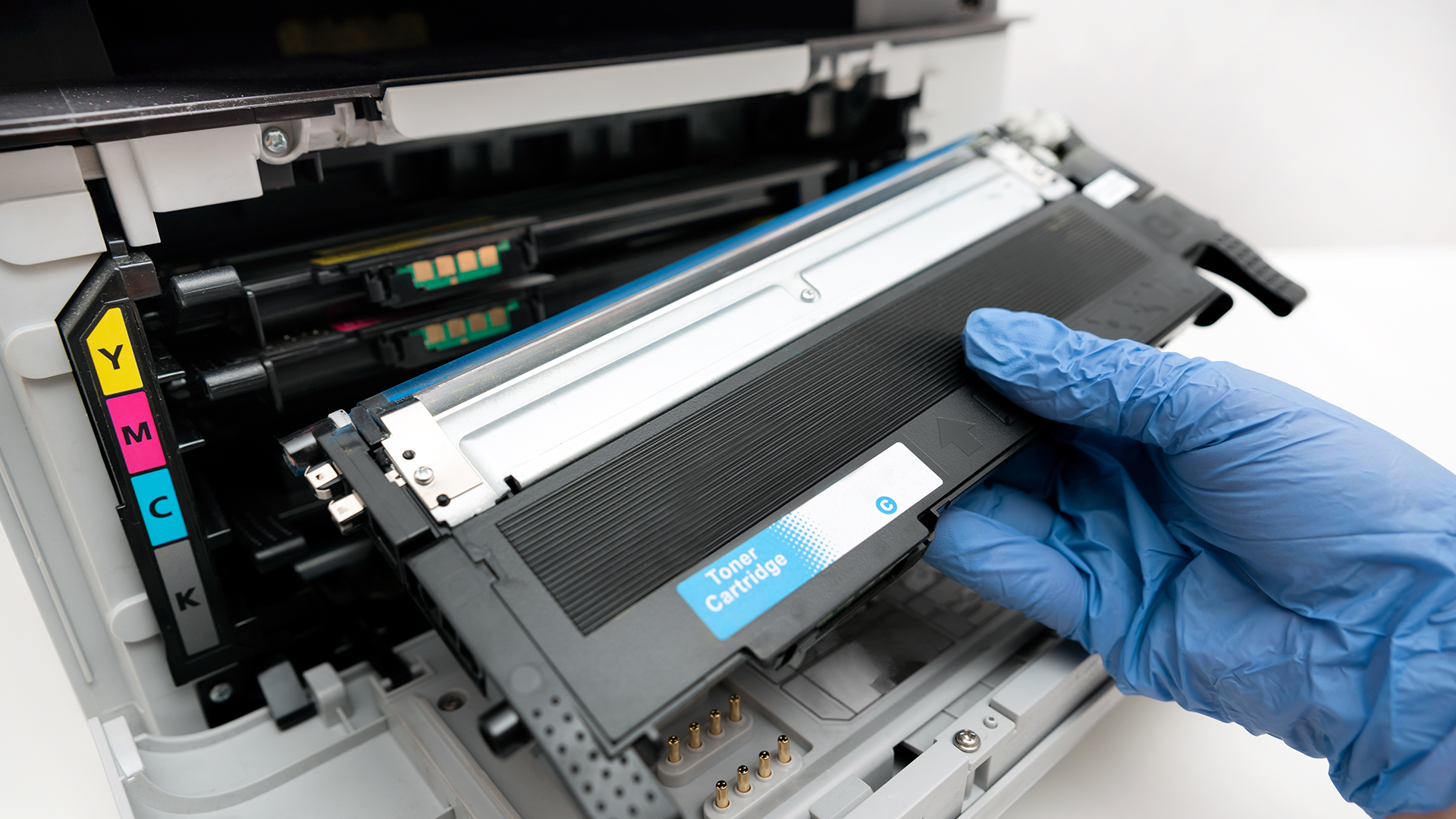
- Remove the toner cartridge and gently rock it from side to side to redistribute the remaining toner. Reinstall and test print.
- If fading continues, the toner is genuinely low and needs replacing.
- Check the drum unit for visible marks or scratches. A damaged drum causes consistent streaks at regular intervals down the page.
- Run the printer's internal cleaning page if one is available (check the manual or control panel menu).
|
Tip: Always use paper recommended by your printer's manufacturer. Cheap or incompatible paper can cause poor toner adhesion on laser printers, resulting in streaky and faded office printer printing quality. |
Problem 04 – Smudged Prints or Blurry Documents
Office printer smudged prints and blurry documents issue is frustrating, particularly when the content is important. On inkjet printers for everyday office use, smudging usually means the ink has not dried properly, either because the wrong paper type is being used or the print has been handled too quickly after printing. On laser printers, smudging is almost always a fuser unit problem.
Inkjet Smudging: Causes and Fixes
- Wrong paper type: Glossy ink can stay wet on plain paper. Switch to paper recommended for your printer type.
- Paper handled too soon: Leave prints to dry for at least 30 seconds before handling, longer for high-coverage colour pages.
- Overly saturated colour settings: In your print settings, reduce colour saturation or switch to a "plain paper" media profile.
- Dirty print head or carriage rail: Use a lint-free cloth lightly dampened with distilled water to clean the carriage rail and wipe excess ink from around the print head contact area.
Laser Printer Smudging: Causes and Fixes
- Fuser unit fault: The fuser melts toner onto the page using heat. If it is worn, toner will smear when touched. Run a cleaning page first. If smudging persists, the fuser may need replacing.
- Wrong media setting: Heavy or glossy paper may require a higher fuser temperature. In the printer driver, select the correct media type for the paper you are using.
- Damp paper: Moisture in paper prevents toner adhesion. Store paper in a cool, dry place and avoid leaving a part-used ream on the tray for extended periods.
Your office printer printing blurry documents (as opposed to smudging) may also be a print resolution issue. Check your print settings and ensure you are not printing at a reduced DPI. Most laser printers offer 600 DPI as standard, with 1200 DPI available for fine detail.
Problem 05 – Ghosting: Faint Duplicate Images on the Page
Ghosting is when a faint, lighter copy of text or an image from elsewhere on the page appears as a shadow or repeat pattern. It is most common in laser printers and can be particularly noticeable on documents with a mix of dark and light areas. This is a distinct office printer error that is often confused with fading.
The root cause is almost always a worn or faulty component that cannot fully release toner between print cycles, or one that picks up residual toner and reapplies it to the page.
Most Common Causes of Ghosting
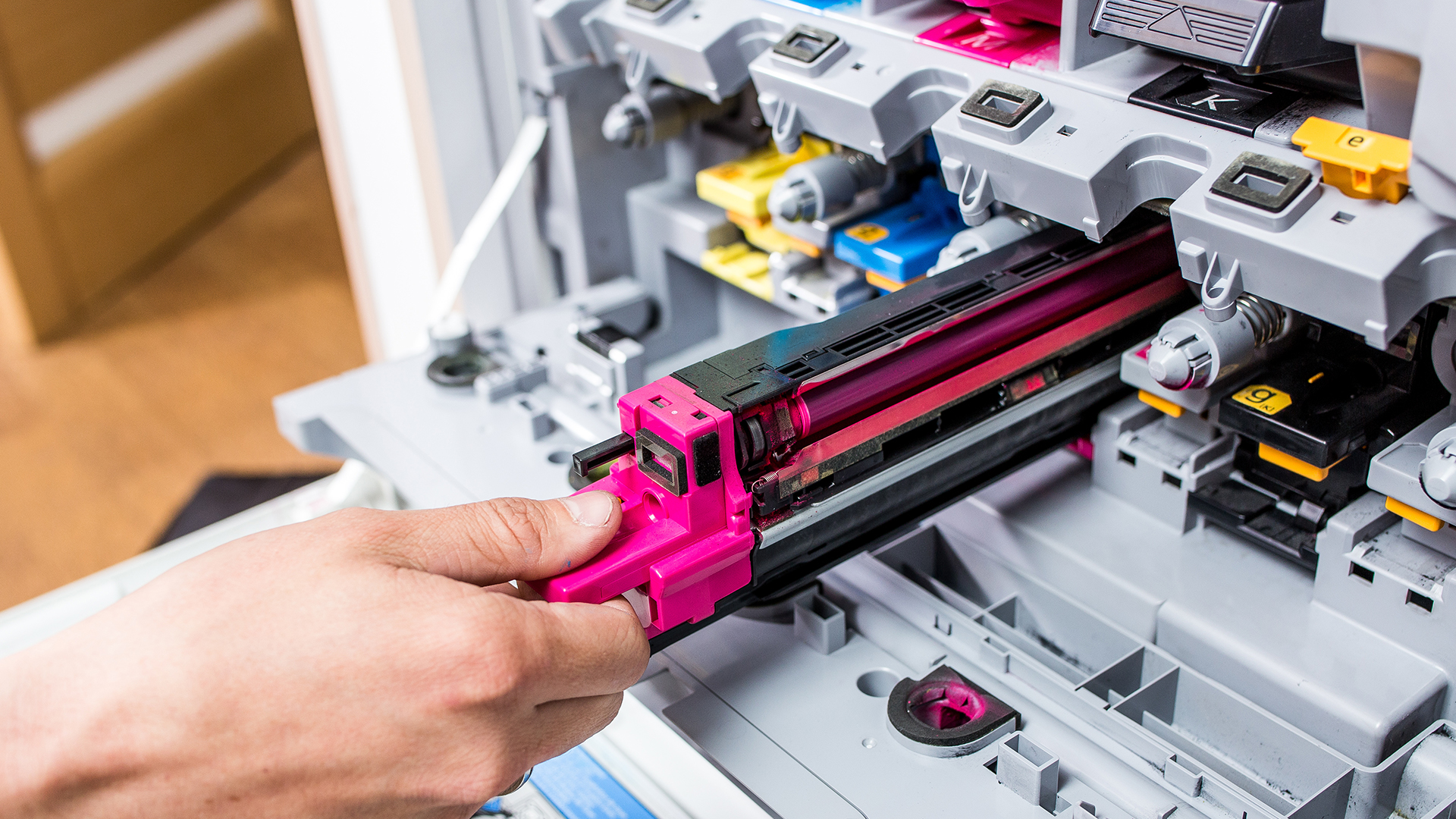
- Worn imaging drum: The drum has a finite lifespan (typically 10,000 to 30,000 pages for office models). When the drum is old or scratched, it retains residual charge and attracts stray toner.
- Faulty fuser unit: A worn fuser roller picks up toner and redeposits it slightly further down the page.
- Low-quality or third-party toner: Toner that clumps or does not distribute evenly can cause repeat ghost marks.
- High office humidity: Toner can clump and stick to components in damp environments, causing random ghost marks on multiple sheets.
How To Fix Ghosting Step by Step
- Run the printer's internal cleaning cycle (if available in the menu or via a cleaning sheet).
- Check the drum unit's page count in the printer menu or software. If it has reached or exceeded the manufacturer's recommended limit, replace it.
- Swap the toner cartridge for a fresh one, preferably a genuine or reputable compatible cartridge.
- Lower the print density setting slightly in the printer driver. This reduces toner usage per page and can eliminate faint duplicates.
- If ghosting persists after replacing the drum and toner, the fuser unit is likely the cause and may need professional replacement.
- If your office is damp, keep the printer away from windows and consider a small dehumidifier nearby.
|
Warning: Do not attempt to open or repair a fuser unit yourself. It operates at high temperatures and can cause burns. Contact your printer manufacturer's service team or a qualified repair technician. |
Problem 06 – Wrinkled, Curled, or Creased Pages
Pages that come out of the printer wrinkled, curled, or creased are a clear sign that something is affecting the paper during its journey through the machine. This is often an environmental issue rather than a hardware fault, though worn rollers and incorrect media settings can also be responsible.
Common Causes
|
CAUSE |
PRINTER TYPE |
FIX |
|---|---|---|
|
Damp or humid paper |
All |
Store paper sealed, away from heat sources and damp areas |
|
Fuser running too hot |
Laser |
Select correct media type in driver (e.g. "Plain Paper 80gsm") |
|
Using paper outside recommended weight range |
All |
Check manual; most office printers handle 60–90gsm standard paper |
|
Worn pressure rollers |
All |
Have rollers inspected or replaced by a technician |
|
Paper loaded against the grain |
All |
Load paper with its natural curl face-down in the tray |
Quick Fixes to Try Now
- Remove the paper from the tray and fan it thoroughly to separate sheets and remove moisture.
- Check that the media type in your printer driver matches the paper you are using.
- If you are printing on heavier paper (90gsm+), use the manual feed slot rather than the main paper tray, as this provides a straighter paper path.
- For persistent curling on laser-printed pages, allow prints to cool on a flat surface rather than a curved output tray.
|
Tip: UK offices tend to experience higher humidity in winter due to central heating. Keep paper stored in its original sealed packaging and only take out what you need for the day's printing. |
Problem 07 – Printer is Extremely Slow
A printer that works but takes several minutes per page is a genuine productivity problem in a busy office. Slow printing is usually a software or settings issue rather than a hardware fault, and it is one of the easier office printer troubleshooting fixes to carry out.
Most Common Reasons and Fixes
- High print quality setting: Printing at maximum DPI is much slower. In print settings, switch from "Best" or "Photo" quality to "Standard" or "Normal" for everyday documents. This alone can reduce print time significantly.
- Printing over Wi-Fi with a weak signal: Move the printer closer to your router, or use an Ethernet cable for faster and more stable data transfer.
- Outdated printer driver: Visit your printer manufacturer's support page and download the latest driver for your model and operating system. Drivers are updated regularly and old versions can cause slow processing.
- Large file size: Complex PDFs with embedded high-resolution images can slow processing time considerably. Where possible, flatten the PDF before printing or reduce image resolution.
- Print Spooler overloaded: If multiple large jobs have been sent and are queuing, clear the print queue and resend only what is needed.
- Toner save or economy mode: Some printers default to toner-save mode, which can actually slow the print process on certain models. Check printer settings and disable it if not needed.
- Low RAM on older models: Older printers with limited onboard memory struggle with complex graphics. Consider upgrading to a current model if this is a persistent issue.
|
Tip: If you regularly print large batches of documents, a laser printer will generally outperform an inkjet by a considerable margin. Most modern mono laser printers produce upwards of 30 pages per minute (ppm) for plain text. |
At a Glance: 7 Office Printer Problems and Fixes
Use this table as a quick reference next time your printer plays up.
|
# |
PROBLEM |
MOST LIKELY CAUSE |
FIRST FIX TO TRY |
|---|---|---|---|
|
1 |
Paper jam |
Misaligned paper, overfull tray, worn rollers |
Power off, remove paper slowly along feed direction, check rollers |
|
2 |
Offline / not responding |
Lost network connection, stalled spooler, stuck job |
Untick "Use Printer Offline" in Windows; clear queue; power cycle |
|
3 |
Faded or streaked prints |
Low ink/toner, clogged nozzles, worn drum |
Run print head clean (inkjet) or redistribute toner (laser); replace cartridge |
|
4 |
Smudged or blurry output |
Wrong paper, wet ink, fuser fault |
Check media type setting; run fuser cleaning page; replace fuser if needed |
|
5 |
Ghosting |
Worn drum, faulty fuser, humid environment |
Replace drum unit; swap toner; lower print density setting |
|
6 |
Wrinkled or curled pages |
Damp paper, wrong media setting, worn rollers |
Check paper storage; set correct paper type in driver; use manual feed for heavy stock |
|
7 |
Slow printing |
High quality setting, weak Wi-Fi, outdated driver |
Switch to standard quality; update driver; use Ethernet instead of Wi-Fi |
Looking to buy a new office printer but don’t know where to start? Our buying guide to office printers covers everything from print volume and running costs to connectivity and paper handling, helping you make the right choice first time.
When to Call a Technician or Buy a New Printer
Most printer problems can be fixed with basic troubleshooting. However, repeated faults may mean the machine needs professional repair — or that replacing it would be more cost-effective.
Call a technician if:
- Paper jams keep returning after you have cleaned the rollers, checked the tray, and used the correct paper.
- Ghosting continues even after replacing the toner and drum unit.
- Smudging will not stop, especially on laser models, as this may point to a faulty fuser.
- Error codes keep appearing after restarting or resetting the printer.
- Pages come out wrinkled or creased despite using dry, correctly loaded paper.
- Internal parts need replacing, such as feed rollers, sensors, drums, or fusers.
Consider buying a new printer if:
- Repair costs are too high, especially if the repair is close to half the cost of a replacement.
- Your printer is several years old and faults are becoming more frequent.
- Print speeds are too slow for your daily workload.
- Running costs are increasing because of expensive ink, toner, or replacement parts.
- Connectivity feels outdated, such as unreliable Wi-Fi or limited mobile printing support.
- Your printing needs have changed, for example if your team now handles larger print volumes.
For hybrid workers or smaller teams, modern printers for home use can be a practical choice when printing needs are light.
If you need something more robust for daily business tasks, printers for office use are usually better suited to regular document handling and faster output.
For workplaces that also need scanning, copying, wireless printing, and multi-user access, all-in-one office printers may offer better long-term value.
As a simple rule, if your printer is costing more time and money than it saves, upgrading is often the smarter option. This fits naturally before the existing conclusion, which already mentions ageing printers and printer upgrades.
Less Downtime, More Printing
Office printer problems are a routine part of working life, but the vast majority do not require a call-out or expensive repair. By understanding what causes each issue, from paper jams and offline errors to faded prints and ghosting, you can fix office printer issues quickly and get back to work.
The most effective preventative measure is good printer maintenance: store paper correctly, keep the machine clean, update drivers regularly, and replace consumables before they run out entirely. If your current printer is ageing and office printer errors are becoming more frequent, it may be time to consider an upgrade.
Laptop Outlet stocks a wide selection of printers suited to every office size and budget. Browse available printer options today and find the right fit for your team.
While We’re on the Subject…
How to fix an office printer quickly?
To fix office printer problems quickly, restart the printer, clear the print queue, check the paper tray, confirm the printer is online, and make sure ink or toner levels are not low. If print quality is poor, run a cleaning cycle and check the paper type. For repeated jams, ghosting, or smudging, inspect the rollers, drum, or fuser.
Why does my printer say "Offline" or "Not Responding"?
Your computer has lost communication with the printer. Check that "Use Printer Offline" is not ticked in Windows print settings, clear the print queue, and restart both the printer and your computer to restore the connection.
How do I fix a paper jam properly?
Switch off and unplug the printer first. Open all access panels, pull jammed paper slowly in the direction of the paper path, then wipe rollers with a damp lint-free cloth. Never yank paper backwards as this leaves fragments inside.
Why are my prints coming out faded, streaked, or with lines?
Low ink or toner is the most common cause. On inkjets, run a print head cleaning cycle. On laser printers, gently shake the toner cartridge to redistribute it. Replace cartridges if levels are critically low or if cleaning does not help.
Why is a faint duplicate of my text (ghosting) appearing on the page?
Ghosting on laser printers is usually caused by a worn imaging drum or a faulty fuser unit. Check the drum's page count, replace it if at its limit, and lower the print density setting in the printer driver as a temporary measure.
Why are my pages coming out wrinkled or curled?
Damp paper or an incorrect media type setting are the most likely causes. Store paper in sealed packaging, select the correct paper type in your printer driver, and use the manual feed slot for heavier stock to minimise curling.
| Read More |
| A Complete Guide to the Different Types of Office Printers |
| How to Install and Set Up an Office Printer (Step-by-Step Guide) |
| How to Choose the Right Printer for Your Needs? |
Related Articles

Last Updated: May 13, 2026
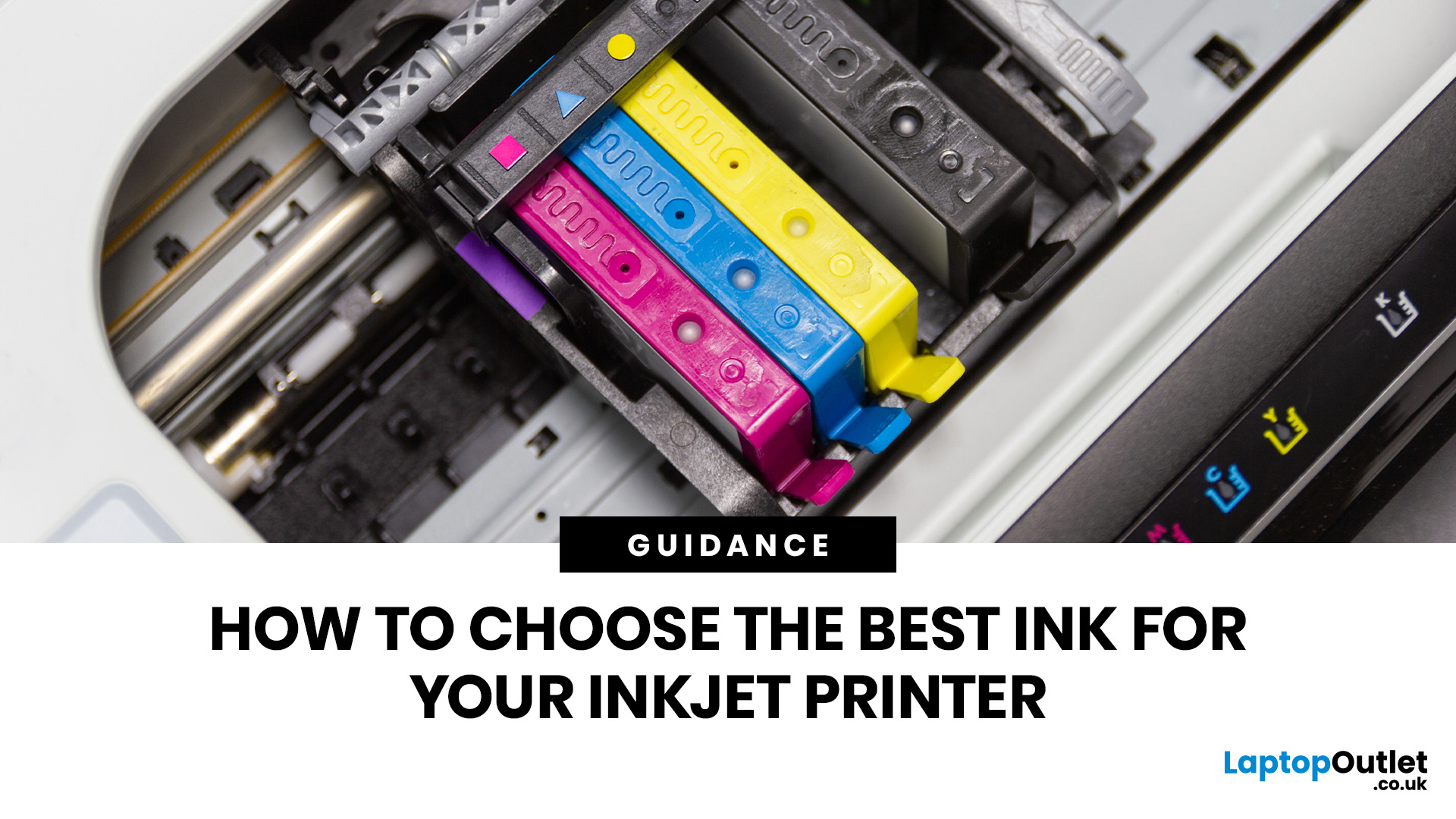
Quick Answer: Choose ink that matches your exact printer model first. Then decide whether you need original cartridges, compatible cartridges, remanufactured cartridges, refill ink, or bottled ink for an ink tank printer.
For sharp documents, pigment ink is usually the stronger choice. For bright photos and colourful images, dye-based ink often gives richer colour. You should not buy ink only because it is cheap. Check the cartridge number, page yield, ink type, printer warranty position, return policy, and whether you print often enough to justify XL, refillable, or subscription ink.
Introduction
Buying ink sounds simple until you see original cartridges, compatible cartridges, remanufactured cartridges, refill kits, XL cartridges, ink bottles, dye ink, pigment ink, and subscription plans. The wrong choice can leave you with poor print quality, blocked cartridges, warning messages, or higher running costs than expected.
You do not need to understand every technical detail to make a
Last Updated: July 06, 2026
Quick Answer: To choose the right office printer, identify your monthly print volume, preferred print type (colour or mono), and whether you need scanning or copying. Laser printers suit high-volume offices, inkjet printers work well for colour-heavy or lower-volume tasks, and all-in-one models offer the best flexibility. Always factor in running costs, connectivity, and paper handling alongside the upfront price.
Picking the wrong printer for your office is an easy mistake to make, and a surprisingly costly one. Between the upfront price, ink or toner costs, paper handling, and connectivity options, there is a lot more to consider than most people realise.
This office printers buying guide covers everything you need to make a confident, well-informed decision in 2026. Whether you are kitting out a home office, a small business, or a large corporate workspace, we have got you covered.
What Types of Office Printer Are There?
Understanding the different categories of printers for
Last Updated: May 25, 2026
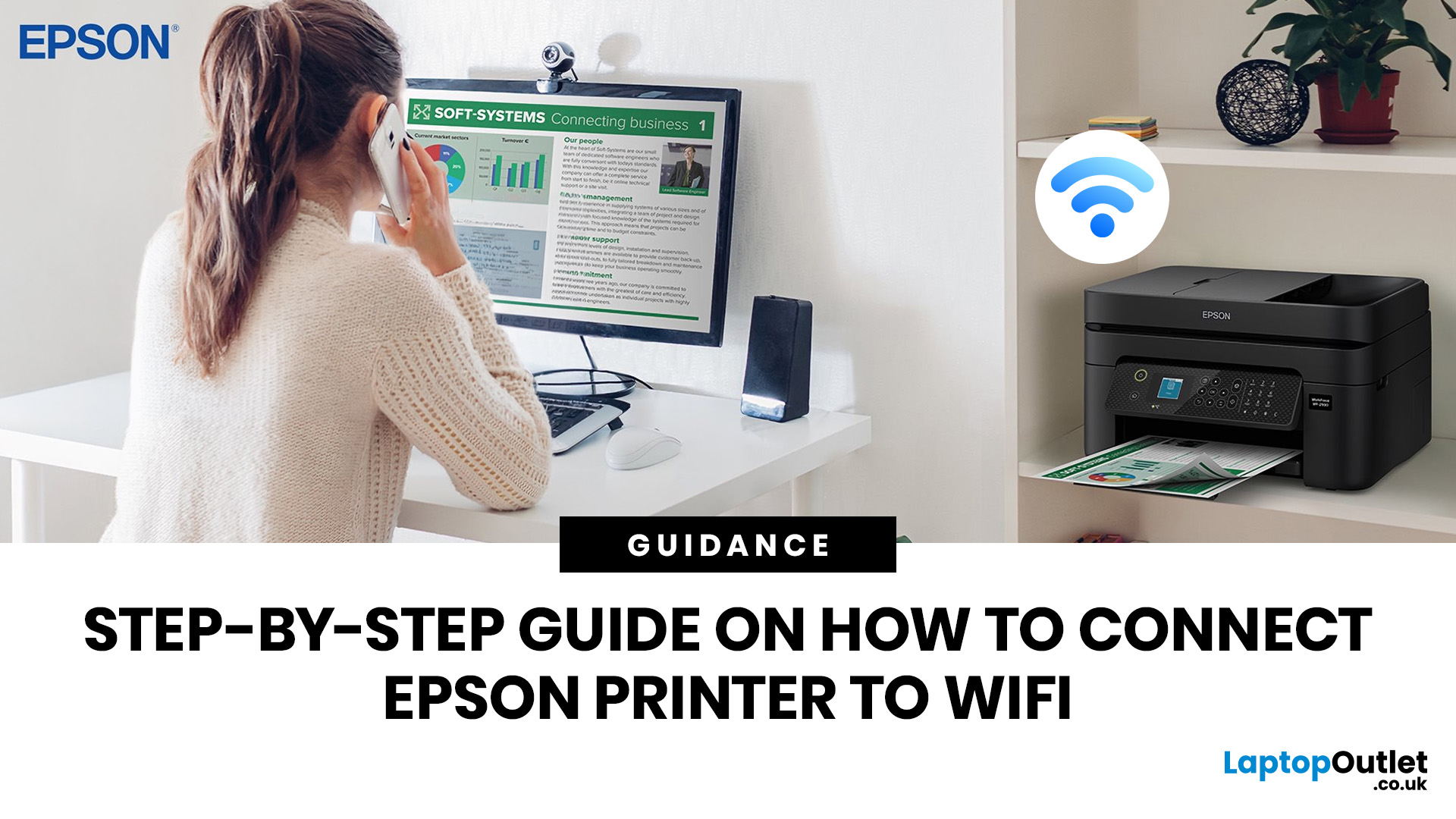
To connect an Epson printer to WiFi, turn on the printer, open its WiFi or Network Settings, select WiFi Setup Wizard, choose your network name, enter the WiFi password and confirm the connection. If your Epson printer has no screen, use Epson Smart Panel, WPS, Epson setup software or a temporary USB setup method, depending on your model. Always keep your WiFi name and password ready before starting.
Trying to set up a printer and watching it refuse to connect is a very specific kind of pain. You just want to print one document, and suddenly your Epson printer is acting like it has trust issues with your router.
This guide explains how to connect Epson printer to WiFi in simple steps, whether your model has a screen, works through WPS, needs the Epson Smart Panel app, or requires setup software on Windows or Mac. We will also cover what to do if your Epson printer is not connecting to WiFi, because let’s be honest, that is usually where the drama starts.
Before You Start: What You Need
Last Updated: June 08, 2026
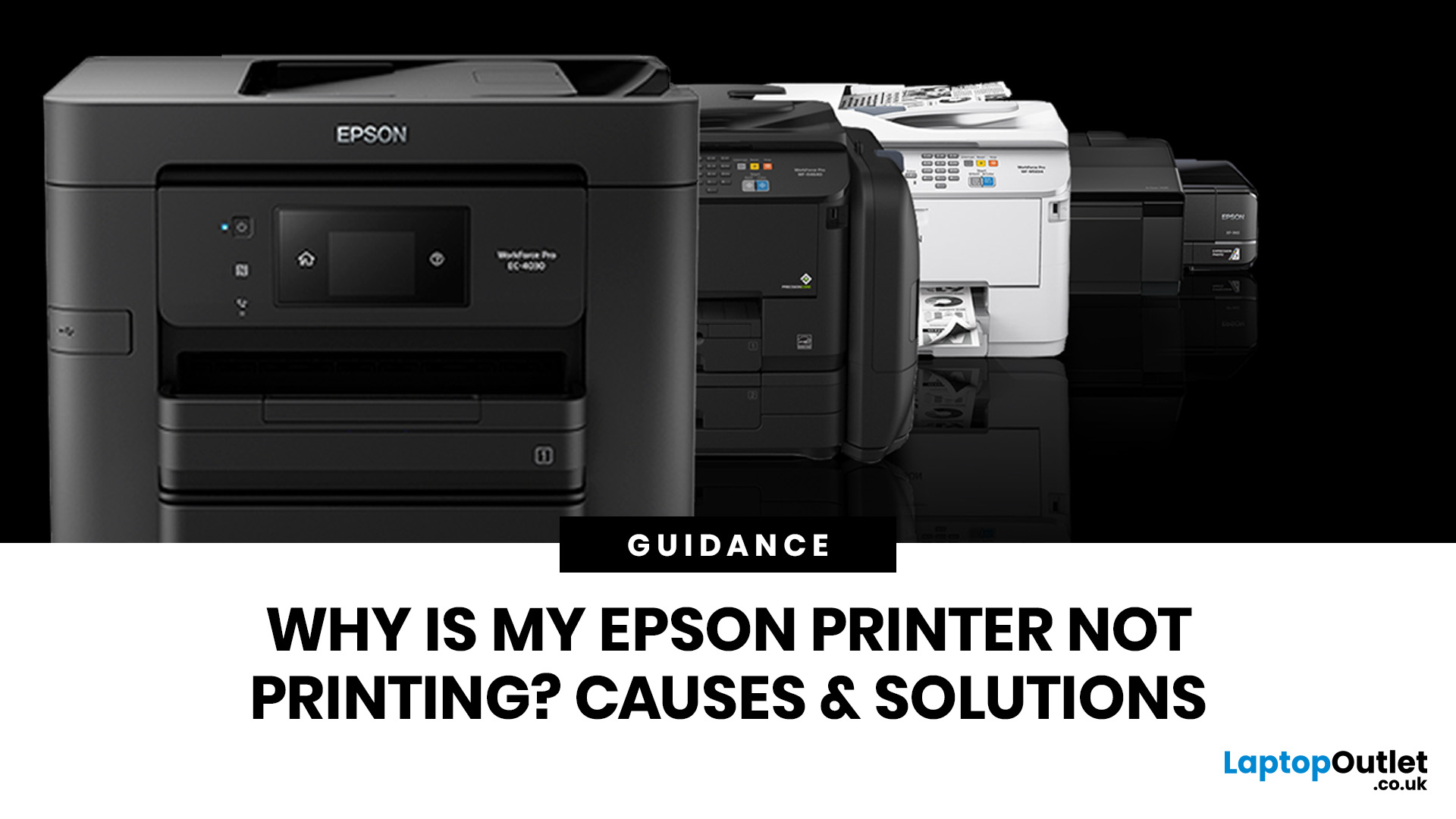
If your Epson printer is not printing, the problem is usually caused by low ink, clogged print heads, offline settings, connection issues, stuck print jobs, or outdated drivers. Most Epson printer problems can be fixed with simple troubleshooting steps such as checking cartridges, cleaning the print head, clearing the print queue, updating drivers, or resetting the printer.
An Epson printer not printing can be frustrating, especially when you need an important document, return label, invoice, or school assignment right away. The good news is that most Epson printer problems are not as serious as they first seem. In many cases, the issue comes down to low ink, clogged nozzles, offline settings, a weak connection, or a stuck print queue.
So, if you are wondering, “Why is my Epson printer not printing?”, this guide will walk you through the most common causes and simple ways to fix Epson printer issues at home. Before you think about replacing your printer, try these easy Epson printer troubleshooting
Last Updated: June 10, 2026
Epson is one of the most popular printer brands for UK homes, students, hybrid workers, small offices and creative users. Choosing the right Epson printer depends on how often you print, what you print, and how much you want to spend long term. For occasional home use, an affordable Epson inkjet printer is a solid pick. For regular printing, Epson EcoTank offers better running value with refillable ink tanks. If you need scanning, copying and mobile printing, choose a wireless all-in-one Epson printer for the easiest everyday setup.
Buying a printer should be simple. You want to print, scan, copy, maybe send something from your phone, and not spend half your life decoding ink cartridges like it is a secret side quest. That is where Epson printers come in. The brand covers compact inkjet printers, refillable EcoTank printers, wireless all-in-one models, photo printers and business-friendly options.
This Epson printer guide breaks down how Epson printers work, how to choose an Epson printer,
Last Updated: June 10, 2026
Label printers are practical, reliable, and incredibly useful when they work as expected. Whether you use one for shipping labels, barcodes, product tags, warehouse labels, office organisation, or home storage, a good label printer can save time and keep everything running smoothly.
Like any printer, label printers can occasionally run into problems. You may find your label printer not printing, producing faded labels, jamming midway through a job, or printing blurry labels that are difficult to scan. These label printer issues can be frustrating, especially when you need quick and accurate prints for business operations.
The good news is that many label printer common problems are easy to fix once you know what is causing them. In this guide, we’ll walk you through the top seven label printer errors users often face and show you how to solve them with simple, practical steps. This guide covers seven common label printer issues, explains what causes them, and shows you how to solve them
Last Updated: June 09, 2026
The main types of label printers are direct thermal, thermal transfer, inkjet, and laser. Direct thermal printers use heat-sensitive paper with no ink or ribbon, making them ideal for short-term labels like shipping and receipts. Thermal transfer printers use a wax or resin ribbon for durable, long-lasting labels. Inkjet and laser printers can print onto standard label sheets and work well for colour-rich or low-volume tasks. The right choice depends on your print volume, label durability requirements, and budget.
Whether you are running a small e-commerce shop, managing a busy warehouse, or simply trying to get your home office organised, choosing the right label printer can make a real difference. There are several label printer types on the market, each suited to different tasks, environments, and budgets.
This guide breaks down all the major types of label printers, explains how each technology works, and helps you figure out which one is the right fit for your needs.
Label Printer
Published: June 11, 2026
You are printing shipping labels, barcode labels, address stickers, product tags, file labels, or office labels. Setting up a label printer properly from the start saves time and avoids annoying print errors later.
This label printer setup guide walks you through every step in a clear, beginner-friendly way, so you can install, configure, and start printing labels without guessing your way through the manual.
Why Label Printer Setup Guide Matters
A label printer may look like a plug-and-play device, but the setup still matters. If the printer driver is wrong, the labels may print sideways. If the label size
Last Updated: June 15, 2026
Choosing the right label printer doesn’t have to be complicated. This label printers guide makes it easy to understand the main features, costs, label printer types, and how to choose a label printer that fits your home, office, or business needs.
Whether you’re organising your home office, printing parcel labels, managing stock, creating barcodes, or simply keeping things neat, the right label printer can save time and make everything look more professional.
In this
Last Updated: June 15, 2026
If your Epson prints look faded, streaky, patchy, or show missing colours, the print head may be clogged. You can usually fix this by running a nozzle check, using the built-in print head cleaning tool, and printing a test page to check the results.
Let’s be honest: when your Epson printer starts printing faded text, weird lines, missing colours, or completely blank pages, it feels like the printer has chosen chaos. But before you assume it is broken or start shopping for a new one, there is one simple thing you should check first: The Print Head.
If you are wondering how to clean an Epson print head, you are in the right place. Most print quality issues happen because the print head nozzles are clogged with dried ink. The good news? You can usually fix this with built-in print head cleaning tools, and you do not need to be a tech expert to do it. In this guide, you will learn what an Epson print head does, why it gets clogged, how to clean it properly, and what to do if your printer

