



How to Set Up a Wireless Printer: Step-by-Step Guide
Quick Answer: To set up a wireless printer, connect it to your Wi-Fi network using the WPS button, your printer’s touchscreen menu, Wi-Fi Direct, or a temporary USB cable. Then add it on Windows via Settings > Printers & Scanners, or on macOS via System Settings. On mobile, AirPrint handles iPhones automatically, while Android uses the Default Print Service, Mopria, or manufacturer apps. Most setups take under 10 minutes.
Knowing how to set up a wireless printer properly saves you from the frustration of cables, failed connections, and endless troubleshooting. Whether you have just unboxed a brand-new model or are reconnecting an existing one to a new router, this guide walks you through it all.
What Do You Need Before Setting Up a Wireless Printer?
A quick checklist before you begin will save a lot of frustration. Getting these sorted upfront means the setup should go smoothly first time round.
- Your WiFi network name (SSID) and password
- Your printer powered on and within range of your router
- A laptop, PC, phone, or tablet to connect from
- The printer manufacturer's driver or app (recommended for full features)
- A USB cable, only if your printer has no touchscreen and no WPS button
| Tip: Most modern printers include a wireless setup wizard built right into the menu. Check your printer's display or quick-start guide before doing anything else. It will point you in the right direction immediately. |
How Do You Connect a Wireless Printer to Your WiFi Network?
Before adding the printer to any device, it needs to be connected to your WiFi network. There are four main ways to do this, and the right one depends on your printer model.
Method 1: Use the WPS Button (Quickest Option)
WPS stands for WiFi Protected Setup. If your router has a WPS button, this is by far the fastest method available.
- Press the WPS button on your router until the WPS light starts blinking.
- Within two minutes, press the WiFi or WPS button on your printer.
- Wait for the wireless light on your printer to stop flashing and stay solid. That means it is connected.
Watch Out: Not all printers support WPS. If your printer doesn't have a WPS or WiFi button, skip to Method 2 or Method 3. Check your printer's user manual or the manufacturer's website to confirm.
Method 2: Use the Printer's Touchscreen or Menu
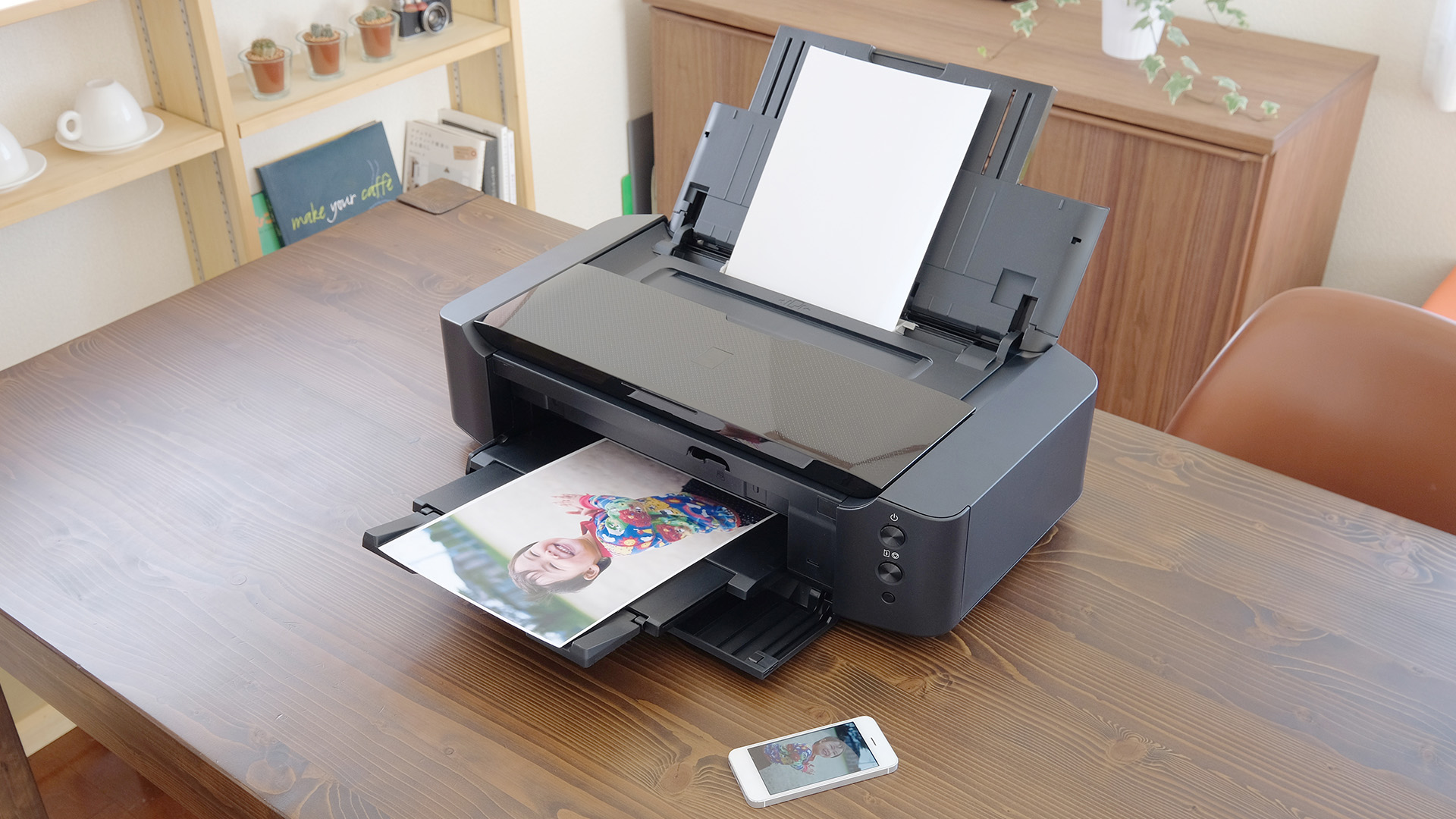
Most mid-range and premium printers have a built-in display where you can navigate WiFi settings directly. This is the most reliable method for printers that support it.
- On your printer's screen, go to Settings or Network.
- Select Wireless Setup Wizard or WiFi Setup.
- Choose your WiFi network name from the list that appears.
- Enter your WiFi password using the on-screen keyboard. Double-check it carefully.
- Confirm and wait for the connection to complete. A solid WiFi icon means success.
Many popular models, including Canon and Epson printers, include a clear, well-designed touchscreen that makes this process very straightforward. If you're shopping for a new printer, a built-in screen is well worth having.
Method 3: Use a USB Cable to Connect First, Then Switch to Wireless
If your printer has no screen and no WPS support, temporarily plug it into your computer via USB. The printer's setup software, downloaded from the manufacturer's website, will then guide you through switching to a wireless connection. Once on WiFi, you can disconnect the USB cable entirely.
Method 4: Use Wi-Fi Direct
Some printers support Wi-Fi Direct, which lets your phone, laptop, or tablet connect directly to the printer without using your main router. This is useful if you are printing in a temporary workspace, student room, or small office where you do not have access to the main Wi-Fi network.
- Enable Wi-Fi Direct from your printer’s network settings menu.
- Find the printer’s Wi-Fi Direct name and password on the printer screen or network information page.
- On your laptop, phone, or tablet, open Wi-Fi settings and connect to the printer’s Wi-Fi Direct network.
- Open the document or photo you want to print and select the printer from the print menu.
| Useful to Know: WiFi Direct is handy, but for everyday home or office printing, connecting the printer to your main WiFi network is usually better because multiple users can access it more easily. |
How Do You Set Up a Wireless Printer on Windows 10 and Windows 11?
Once your printer is on the same WiFi network or local network as your PC, adding it to Windows is very straightforward. The process is nearly identical on both Windows 10 and Windows 11.
Step-by-Step: How to Set Up Printer via Windows Settings
- Press Windows key + I to open Settings.
- Go to Bluetooth & Devices (Windows 11) or Devices (Windows 10).
- Click Printers & Scanners.
- Click Add a printer or scanner and wait while Windows searches your network.
- When your printer appears in the list, click it and select Add Device.
- Windows downloads and installs the driver automatically. The printer is now ready to use.
| Tip: If your printer doesn't appear in the list, click "The printer that I want isn't listed." You can then add it manually using its IP address. We cover exactly how to do that in the troubleshooting section below. |
Should You Install the Driver Manually?
Windows installs a basic driver automatically, which is fine for straightforward printing. However, installing the full driver package from the manufacturer's website unlocks extra tools, including ink level monitoring, scan settings, and print queue management.
Head to the HP, Epson, Canon, or Brother support site, search your exact model number, and download the latest driver for your version of Windows. This is always better than using a bundled CD, which is likely to be out of date. Modern printers for office and home use will have easy driver downloads available on the manufacturer's support page.
Remember, if you have an older printer, Windows may not install everything automatically. In that case, downloading the official driver directly from the manufacturer is the safest option.
How Do You Set Up a Wireless Printer on macOS?
Apple makes wireless printer setup impressively smooth, particularly with AirPrint-compatible models. Most printers sold in the UK today support AirPrint, which means no separate driver installation is needed at all.
Step-by-Step: How to Add a Printer on Recent macOS Versions
- Click the Apple menu (top-left corner) and go to System Settings.
- Select Printers & Scanners from the left-hand sidebar.
- Click the Add Printer, Scanner or Fax button (the plus icon at the bottom).
- Your Mac searches the network. Select your printer from the list.
- Click Add. macOS configures the driver automatically.
These steps apply to recent macOS versions, including Sonoma, Sequoia, and Tahoe. On older macOS versions such as Ventura or Monterey, the process is nearly identical but may be found under System Preferences rather than System Settings.
| If the Printer Doesn't Appear: Make sure the printer and your Mac are on the same WiFi network or local network. If your router uses separate 2.4GHz and 5GHz network names, connect both devices to the same network name during setup. Many printers only support 2.4GHz WiFi. A quick restart of both the printer and Mac usually sorts this out. |
How To Connect Printer to iPad or iPhone?
If your printer supports AirPrint, your iPhone or iPad will usually find it automatically. There is no manual setup, no app to download, and no driver to install.
Using AirPrint on iPhone and iPad
- Make sure your iPhone/iPad and printer are on the same WiFi network.
- Open a document, photo, email, or webpage you want to print.
- Tap the Share button (the square with an upward arrow).
- Scroll down and tap Print.
- Tap Printer and select your wireless printer from the list.
- Choose your settings, such as number of copies and colour preference, then tap Print.
| Useful to Know: If your printer does not appear in the AirPrint list, it may need a firmware update. Also check that your iPhone or iPad is not connected to a guest network, VPN, or mobile hotspot that blocks local printer discovery. The HP Smart app and Epson iPrint also offer handy extras such as scanning, ink monitoring, and remote printing from anywhere. |
How To Connect a Printer to WiFi On Android?
Android devices use either the built-in Default Print Service or manufacturer-specific print plugins. The exact steps vary slightly depending on your Android version and phone brand, but the process is broadly the same across devices.
Menu names may vary depending on whether you use a Samsung, Google Pixel, Xiaomi, OnePlus, Motorola, or another Android device.
Step-by-Step: Using the Default Print Service (Android 8 and Above)
- Make sure your phone and printer are on the same WiFi network.
- Go to Settings on your Android device.
- Search for Printing, or navigate to Connected Devices > Connection Preferences > Printing.
- Tap Default Print Service and toggle it on.
- Your phone will search for nearby printers. Select yours from the list.
- To print, open a file, tap the three-dot menu, and choose Print.
Setting Up a Printer Using Manufacturer Apps on Android
For extra functionality, download your printer brand's dedicated app. HP Smart works with HP models, Epson iPrint covers Epson devices, and Canon PRINT Inkjet handles Canon printers. All are free on Google Play.
The Mopria Print Service app (also free on Google Play) adds universal wireless print support across most brands and is well worth installing if you switch between different printers.
How Do You Set Up a Wireless Printer via Bluetooth?
Some compact or portable printers connect via Bluetooth rather than WiFi. This is most common with label printers and small photo printers. Here's how to pair one quickly.
- Put your printer into Bluetooth pairing mode (refer to the manual for the exact button or menu option).
- On your device, go to Settings > Bluetooth and make sure Bluetooth is enabled.
- Your printer's name will appear in the list of available devices. Tap or click it to pair.
- Once paired, the printer appears in your list of available printers whenever Bluetooth is on.
Bluetooth printers typically have a shorter range than WiFi models, around 10 metres. Keep your device nearby for a reliable connection during printing.
Which Wireless Printer Connectivity Method Is Right for You?
Not sure which connection method to use? This comparison covers the main options at a glance.
|
Setup Method |
Best For |
Range |
Multiple Users |
Ease of Setup |
|
WiFi (WPS or Menu) |
Home and office printing |
Full home/office range |
Yes |
Very easy |
|
Bluetooth |
Portable and compact printers |
~10 metres |
Limited (1 to 2 devices) |
Easy |
|
USB then WiFi |
Printers with no screen or WPS |
N/A during setup only |
Yes, once on WiFi |
Moderate |
|
AirPrint (iOS/macOS) |
Apple device users |
Full WiFi range |
Yes |
Extremely easy |
|
Mopria (Android) |
Android device users |
Full WiFi range |
Yes |
Easy |
|
Wi-Fi Direct |
Temporary or direct device-to-printer printing |
Short to medium range |
Limited |
Easy |
Choosing the right connection ensures your printer for home use or office hub remains accessible to everyone. Select the method that matches your hardware for a seamless, cable-free experience.
Common Wireless Printer Problems and How to Fix Them
Even with a perfect setup, things can go wrong. Here are the most common wireless printer issues faced by UK users, covered one by one with accurate solutions.
Problem 1: Printer Shows as Offline
Your printer is switched on and connected to WiFi, but your computer insists it's offline. This is one of the most frequently reported printer headaches.
- Go to Settings > Printers & Scanners, click your printer, and select "Open print queue."
- Click Printer in the menu bar and untick Use Printer Offline.
- If the option is greyed out, restart both the printer and your router, then try again.
- Check the printer hasn't connected to a guest network or lost its WiFi connection entirely.
Problem 2: Printer Not Found During Setup
Your computer or phone can't detect the printer on the network at all, even though the printer appears to be connected.
- Confirm both the printer and your device are on the same Wi-Fi network or local network.
- If your router has separate 2.4GHz and 5GHz network names, connect both devices to the same network name during setup. This is especially important because many printers only support 2.4GHz Wi-Fi.
- Check that the printer is not on a guest network, as guest Wi-Fi often blocks device discovery.
- Temporarily disable any VPN on your laptop, phone, or tablet if the printer does not appear.
- Add the printer manually using its IP address. Find the IP in the printer's Network Settings menu (print a network configuration page if needed).
- On Windows, go to Add Printer > "The printer I want isn't listed" > "Add a printer using a TCP/IP address" and type the IP in.
Problem 3: Print Jobs Stuck in the Queue
Documents pile up and nothing prints. The queue is jammed and clearing it from the normal menu doesn't work.
- On Windows, press Windows key + R, type services.msc, and press Enter.
- Find Print Spooler, right-click it, and select Restart.
- Then navigate to C:\Windows\System32\spool\PRINTERS and delete any files inside the folder (do not delete the folder itself). This clears the jammed queue.
- On Mac, go to System Settings > Printers & Scanners, open your printer's queue, and delete any stuck jobs manually.
Problem 4: Poor Print Quality or Blank Pages
The printer connects and appears to print, but the output is faded, streaky, or completely blank.
- Run a print head cleaning cycle from the printer's maintenance menu. Most printers have this built in.
- Check ink or toner levels in the manufacturer's app or on the printer's own display.
- If using an inkjet, dried nozzles are the most common culprit. Run two to three cleaning cycles if needed, then print a test page.
- If pages print blank after a new cartridge, make sure you've removed the protective tape from the cartridge before installing it.
Problem 5: Printer Keeps Disconnecting from WiFi
The printer connects to WiFi fine but drops off the network after a short time, or every time it's switched back on.
- Assign the printer a static IP address via your router's settings using DHCP reservation. This locks the printer to a specific IP so the router never reassigns it.
- Update the printer's firmware via the manufacturer's app or the printer's own settings menu. Firmware updates often fix WiFi stability bugs.
- Move the printer physically closer to your router if the signal is weak. Walls, particularly thick stone ones common in older UK homes, can significantly reduce WiFi signal strength.
- If your router uses WPA3-only security, check whether your printer supports it. Some older printers may need WPA2 or WPA2/WPA3 mixed mode to connect reliably.
Problem 6: Outdated or Failing Driver
The printer driver fails to install correctly, or an old driver causes unexpected errors and print failures.
- Go to Settings > Bluetooth & Devices > Printers & Scanners, click your printer, and select Remove device.
- Open Device Manager, expand Print queues, right-click the old driver, and choose Uninstall device.
- Visit the manufacturer's support website, search your exact model number, and download the latest full driver for your version of Windows.
Problem 7: Mac Won't Recognise the Printer
The printer appears to be connected to WiFi and shows a solid signal, but it simply doesn't appear in macOS Printers & Scanners.
- Delete the printer from System Settings > Printers & Scanners and re-add it fresh.
- If it still doesn't appear, right-click inside the printers list and select Reset printing system. This removes all printers and lets you start clean.
- Update your printer's firmware, as older firmware versions are a known cause of AirPrint compatibility problems on newer macOS releases.
Problem 8: Wireless Printer Not Working on Android
Your Android phone can't find or connect to the wireless printer, even when both are on the same WiFi network.
- Download the Mopria Print Service app from Google Play and enable it in your phone's Printing settings. It supports nearly all wireless printer brands.
- Check that the print plugin for your specific brand (HP Print Service Plugin, Epson Print Enabler, and so on) is installed and enabled.
- Forget and rejoin the WiFi network on your phone, then try printing again.
- Check that your Android phone is not using mobile data, a VPN, or a guest Wi-Fi network when trying to print.
|
Problem |
Most Likely Cause |
Quick Fix |
|
Printer shows offline |
Lost WiFi or offline mode enabled |
Untick "Use Printer Offline" in print queue |
|
Printer not found |
Different WiFi band or network |
Add via IP address; check network bands match |
|
Queue jammed |
Stuck print job |
Restart Print Spooler; clear spool folder |
|
Blank or faded pages |
Dry nozzles / low ink |
Run print head cleaning; check cartridge levels |
|
Drops WiFi repeatedly |
Dynamic IP changing |
Set static IP via router DHCP reservation |
|
Driver errors |
Old or corrupt driver |
Uninstall fully; download latest from manufacturer |
|
Mac won't detect printer |
AirPrint or firmware issue |
Reset printing system; update printer firmware |
|
Android can't connect |
Missing print plugin |
Install Mopria Print Service from Google Play |
Which Type of Printer Works Best for Wireless Printing?
If you're still choosing a printer, picking the right type upfront saves you hassle later. Different printers have different strengths, and some are better suited to wireless home/office setups than others.
- Inkjet Printers: Excellent for photos and colour documents. Ideal for households that print a mix of content. Browse the best inkjet printers if photo quality matters to you.
- Laser Printers: Best for high-volume black-and-white printing. Faster per page and cheaper to run long-term for text documents. See our range of laser printers for office-ready options.
- All-In-one Printers (AIOs): Combine printing, scanning, copying, and sometimes faxing in one unit. An all in one printer is the most versatile choice for most UK households and small businesses.
For the easiest wireless setup, look for a printer with built-in Wi-Fi, AirPrint, Mopria support, a clear display screen, and an official mobile app. These features make setup quicker and reduce the chance of connection problems later.
Reliable HP printers are among the most popular choices across both home and office setups in the UK, thanks to strong driver support, wide AirPrint and Mopria compatibility, and straightforward wireless setup. Other popular brands include Brother, Canon, Epson, and Xerox.
Not sure which printer suits your needs and budget? Check out our printer selection guide to find the right model for you.

Get Printing Today
Learning how to set up a wireless printer is much simpler than most people expect. Whether you are on Windows 10 or 11, macOS, iPhone, iPad, or Android, the steps are clear and quick once you know what you are doing. The single most important thing is making sure your printer and your device are on the same Wi-Fi network or local network before you begin.
If your printer does not appear, the most common causes are guest Wi-Fi, VPNs, outdated firmware, incorrect Wi-Fi passwords, or older printers that only support 2.4GHz networks.
Ready to find the perfect wireless printer? Browse the full range of printers at Laptop Outlet, with trusted brands, competitive UK pricing, and fast delivery available.

Just So You Know...
Why can't my computer find my wireless printer?
Both devices must be on the same Wi-Fi network or local network. Restart the printer and router, then search again in your device’s printer settings to detect it. Also check that neither device is connected to a guest Wi-Fi network or VPN.
How do I set up a wireless printer on Windows 11?
Go to Settings, then Bluetooth & Devices, then Printers & Scanners, and click Add a Printer or Scanner. Select your printer when it appears on screen. If it does not appear, add it manually using the printer’s IP address.
How do I set up a wireless printer on a Mac?
Go to Apple menu, System Settings, then Printers and Scanners. Click the plus icon, select your printer from the list, and click Add to finish.
How to connect my phone to printer?
Connecting a phone to a printer involves ensuring both devices are on the same Wi-Fi network. For Android, enable the Default Print Service in settings; for iPhone, use AirPrint.
Why does my wireless printer keep going offline?
The printer may be losing its WiFi connection. Assign a static IP via your router's DHCP settings, or update the printer firmware to resolve ongoing disconnections.
Do I need to install a printer driver for wireless setup?
Not always. Windows and macOS often install basic drivers automatically. For full features, download the official driver from the manufacturer's website directly to your computer.
How do I fix a wireless printer that won't print?
Clear the print queue, restart the Print Spooler service on Windows, and confirm the printer is not set to offline mode in your Printers and Scanners settings. Also check ink or toner levels, firmware updates, and whether your printer is still connected to Wi-Fi.
How to set up a wireless printer on a Chromebook?
Connect the printer and Chromebook to the same Wi-Fi network, then go to Settings > Advanced > Print and scan > Printers. Select your printer and save it for future printing.
| Read More |
| A Complete Guide to the Different Types of Printers |
| How to Choose the Best Printer for Small Business |
| Why Is My Printer Not Working? Easy Fixes for Common Issues |
Related Articles

Last Updated: June 10, 2026
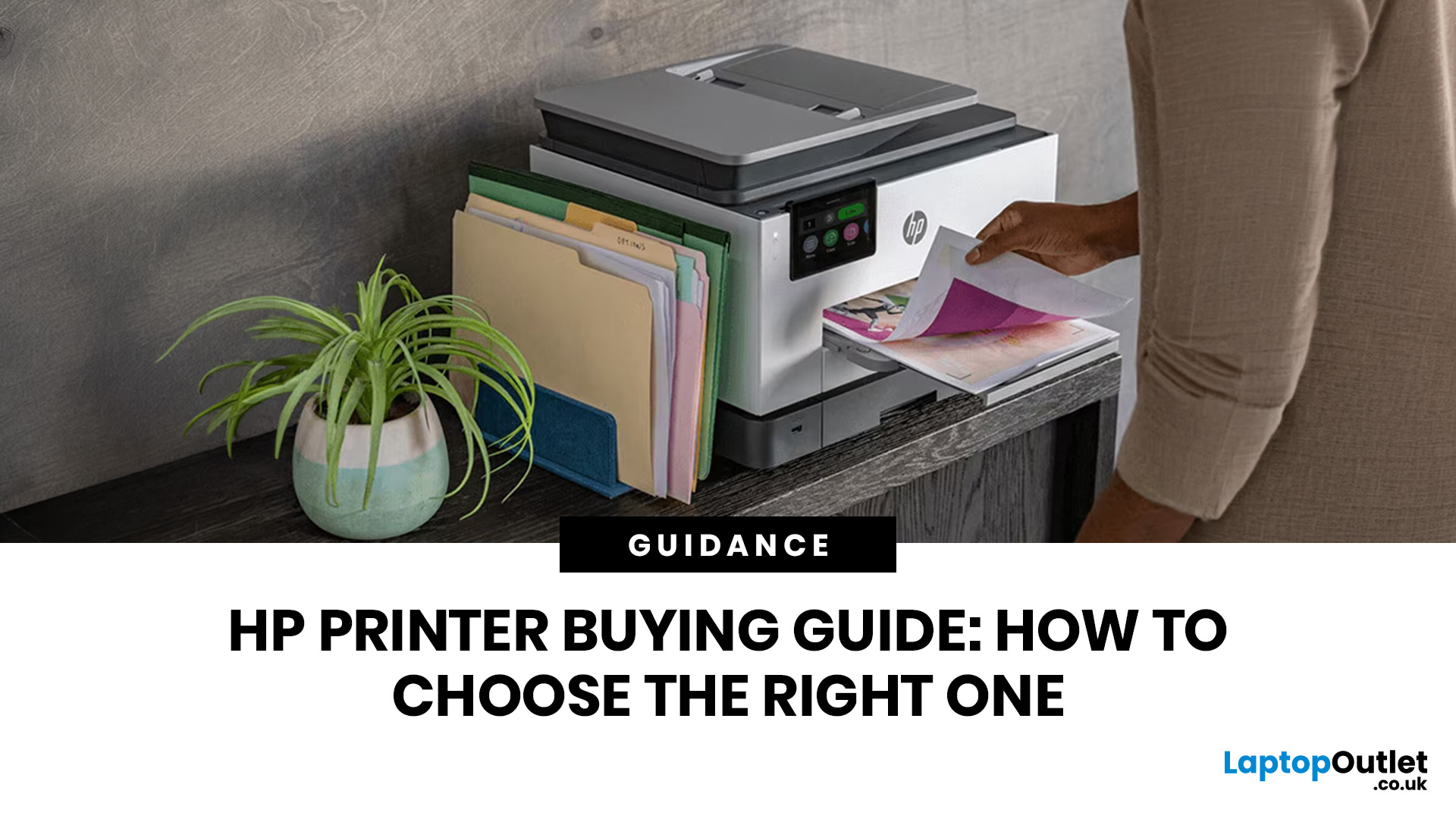
The best HP printer depends on what you print, how often you print, whether you need scanning or copying, and how much you want to spend on ink or toner. For home users, an HP inkjet or all-in-one printer is usually the best choice. For offices and small businesses, HP OfficeJet, LaserJet or multifunctional printers are better for speed, reliability and heavier workloads.
Buying a printer can feel confusing because HP offers many different models for different users. Some are made for simple home printing. Some are designed for students and families. Others are built for small businesses, offices, shipping labels, high-volume printing or professional document handling. That is why choosing the right printer is not just about finding the cheapest model. It is about understanding your print habits, running costs, space, connectivity and long-term needs.
This HP printer guide 2026 will take you from basic printer knowledge to more advanced buying terms, so whether you are buying your first

Last Updated: July 06, 2026
Buying one of the many HP printers for small business setups out there sounds easy until you start comparing them properly. Some are better for fast document printing, some are built for scanning and colour work, and some save you more money over time. The trick is not buying the fanciest one. It is buying the one that suits your workload. This guide walks through the HP printer types that make the most sense for home offices, small teams, and day-to-day business use.
Which HP Printer Type Should a Small Business Choose?
- If your business prints mixed colour documents, scans paperwork regularly and needs one compact machine, go for an HP all-in-one in the OfficeJet Pro range. OfficeJet Pro printers are best for higher-volume printing and all-around productivity in a home or home office, which is exactly the kind of workload many sole traders, hybrid workers and small teams deal with.
- If your business prints lots of text-heavy documents and speed matters more than photo-quality colour, choose
Last Updated: June 10, 2026
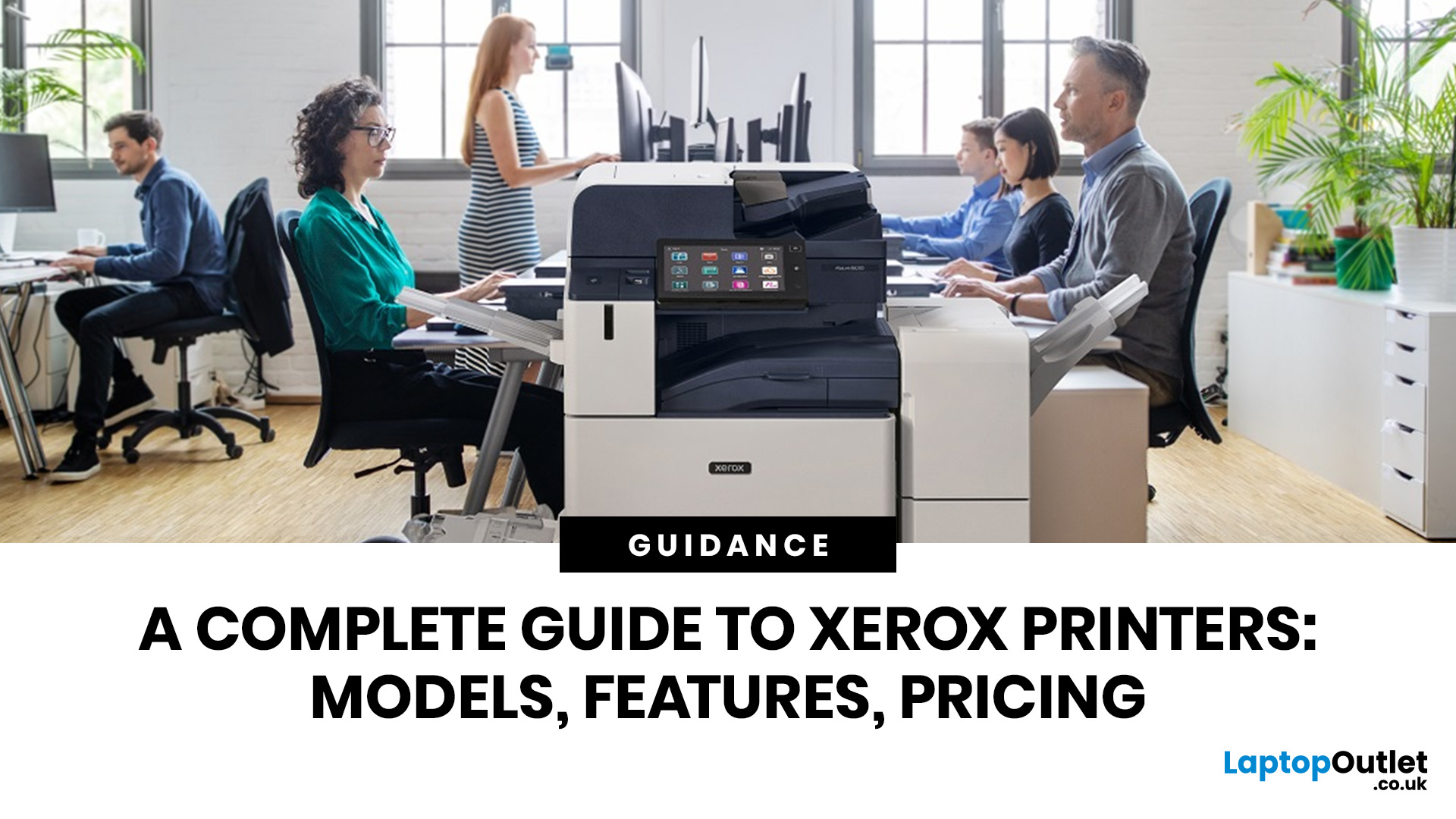
A Xerox printer is a document printer or multifunction device designed for reliable office, business, and home printing. Most modern Xerox printers focus on laser or LED printing, fast document output, strong security, mobile printing and multifunction features such as scanning, copying, faxing and cloud connectivity.
Xerox is a trusted name in business printing, best known for office printers, copiers and multifunction devices. While the brand is still strongly linked with photocopying, modern Xerox printers do much more than copy documents.
Today’s Xerox devices can print, scan, copy, fax, support mobile and cloud printing, manage user access and help businesses control print costs. Many models also include Wi-Fi, reliable paper handling, security features and easy touchscreen controls.
If you are comparing printers, looking for a Xerox printer, or trying to understand whether Xerox is right for your home or office, this guide breaks everything down in simple words.
What is a Xerox
Last Updated: May 05, 2026
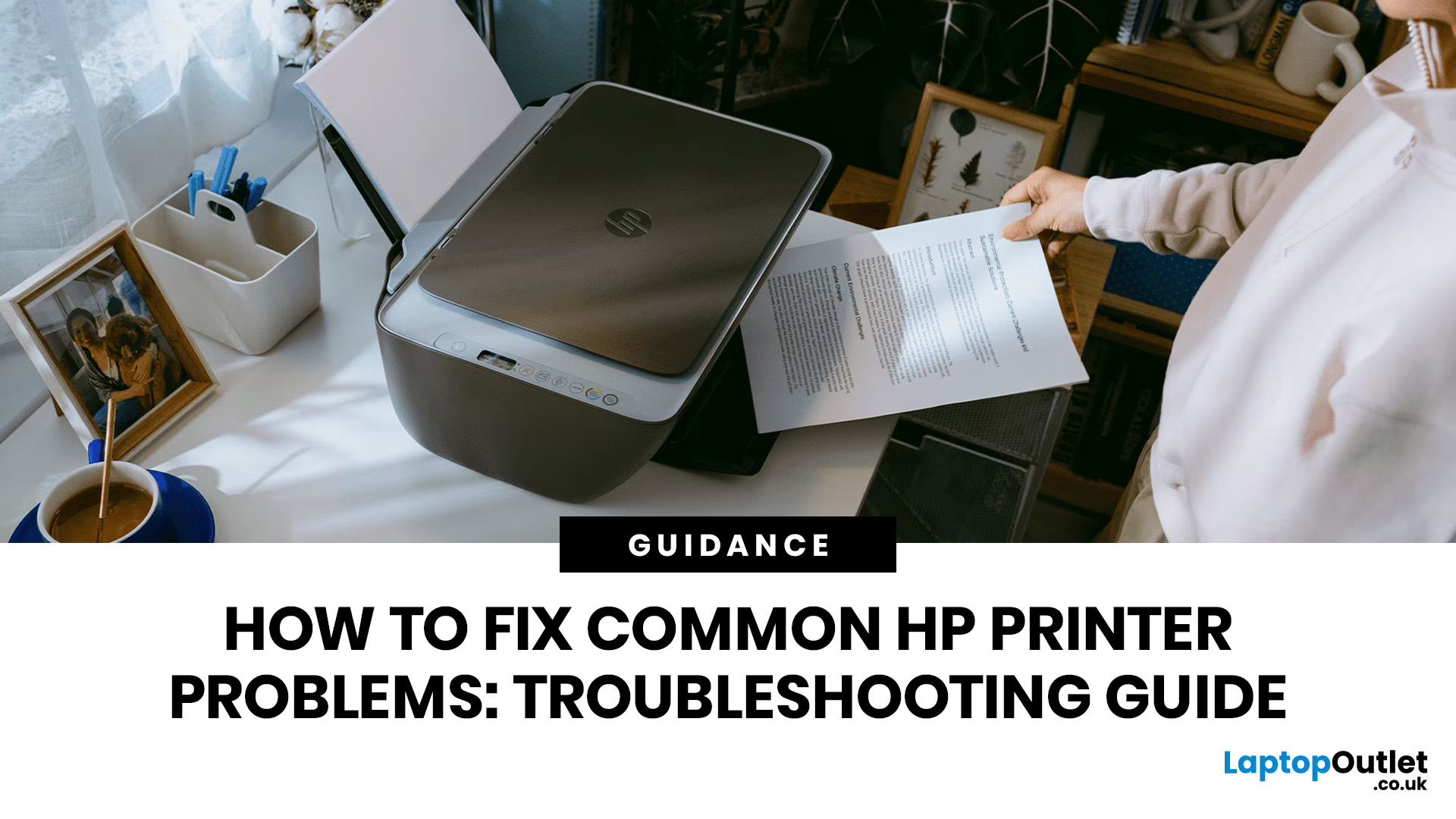
HP printers are reliable, but even the best machines throw a wobble from time to time. The good news is that the vast majority of issues are easy to resolve on your own. This guide will show you how to fix common HP printer problems without calling a professional. Whether you've got an HP OfficeJet, DeskJet, LaserJet, or ENVY, many of the checks below apply across the range.
What Are the Most Common HP Printer Problems?
Before diving into individual fixes, it helps to know what you are actually dealing with. HP printers, from compact home models to full office workhorses, tend to run into the same handful of issues time and again.
Here is a quick overview of the most frequently reported HP printer problems and what typically causes them:
| Problem | Most Likely Cause |
| Printer not printing | Stuck print queue, offline status, driver fault |
| Paper jam | Overfilled tray, worn rollers, torn paper fragments |
| Printer showing offline | Wi-Fi dropout, incorrect default printer setting |
| Blank or faded pages |

Last Updated: May 05, 2026
Quick Answer: Inkjet printers offer high colour quality, a compact design, and a lower upfront price, making them ideal for homes, students, creative projects, and light office use. The main disadvantages are higher ink costs on cartridge models, slower print speeds, possible ink smudging, and printhead maintenance when the printer sits unused.
Choosing a printer sounds simple until you start comparing ink costs, print speed, colour quality, maintenance, and the difference between inkjet and laser models. For many UK homes, students, hybrid workers, and small offices, an inkjet printer still makes a lot of sense. It is usually compact, affordable to buy, and strong at printing colour documents, photos, homework, labels, and everyday paperwork.
The part that needs more thought is the long-term cost. Some inkjet printers are cheap upfront, but can become expensive when you replace cartridges often. Others, such as refillable ink tank models, cost more upfront but may suit regular printing
Last Updated: May 06, 2026
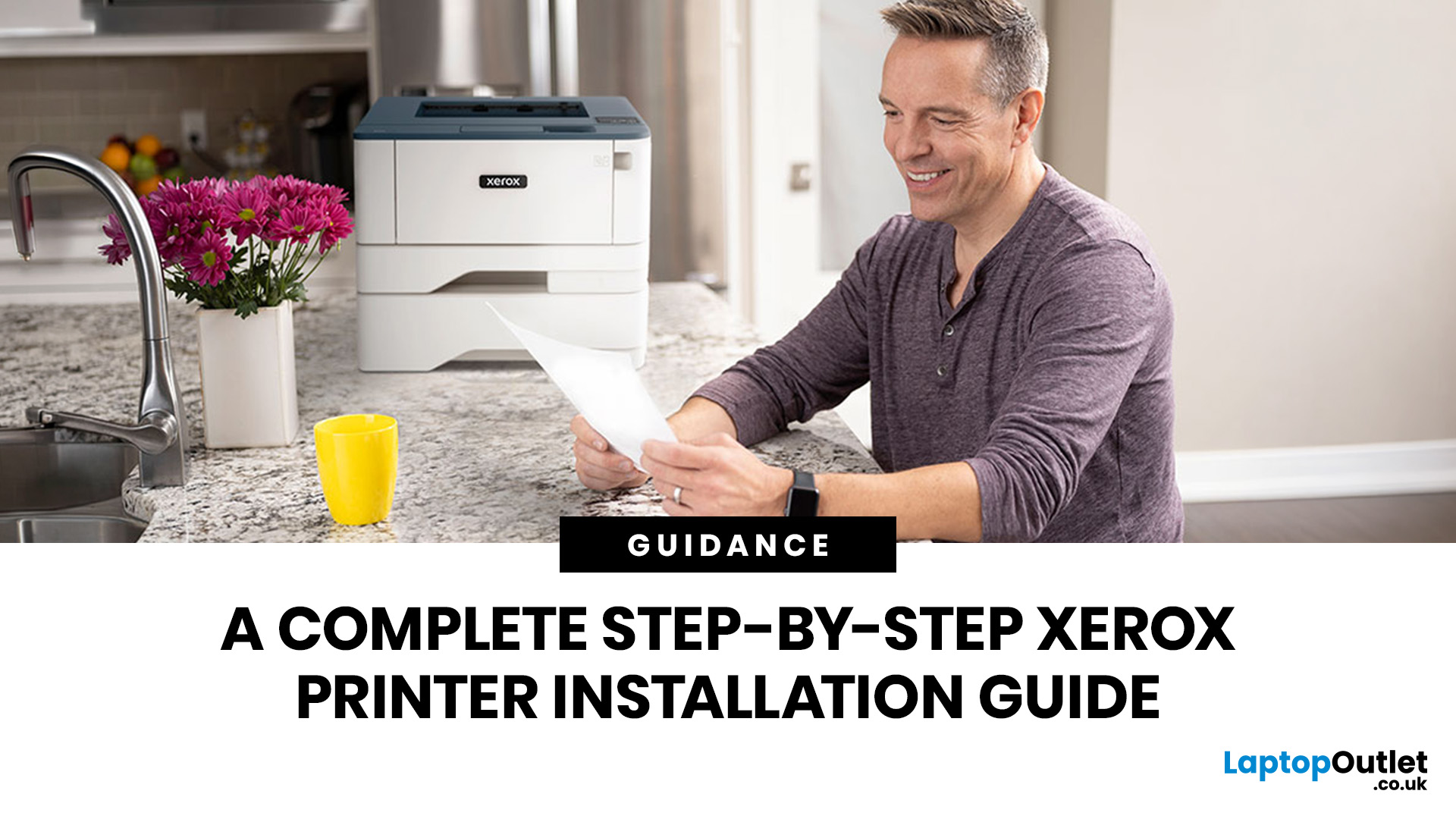
Xerox has been making printers for over 50 years, and their modern range is some of the most capable kit available for home and office use. However, even the best printer is useless if it's not set up correctly. This complete Xerox printer installation guide walks you through every method, every platform, and the most common problems you're likely to run into (with fixes), so you can get set up quickly and get on with your day.
1. What Do You Need Before Starting a Xerox Printer Installation?
A smooth installation begins well before any cable is plugged in or software is run. Taking five minutes to gather the right items and verify your system compatibility saves considerably more time than troubleshooting avoidable errors later.
What Hardware and Consumables Do You Need?
- Your Xerox printer with all packaging materials and shipping tape removed
- Power cable (supplied in the box)
- USB cable (Type-A to Type-B) for direct USB setups -- note that Xerox does not always include this in
Last Updated: July 07, 2026
Quick Answer: The main types of printers are inkjet, laser, multifunction (all-in-one), and label printers. Inkjet printers are great for photos and colour printing at home. Laser printers suit high-volume office use. Multifunction printers combine printing, scanning, and copying. Label printers handle specialist tasks like shipping labels. The right choice depends on your print volume, budget, and intended use.
Choosing the right printer feels overwhelming when you are faced with so many options. Inkjet or laser? All-in-one or dedicated? It is easy to spend money on a printer that simply does not match your needs. This guide cuts through the noise. We'll cover the various types of printers in detail. By the end, you will know exactly which printer fits your home, business, or creative needs.
What Are the Main Types of Printers Available Today?
There are several categories of printers commonly available to UK buyers, each designed with a different use case in mind. Understanding what
Last Updated: July 09, 2026
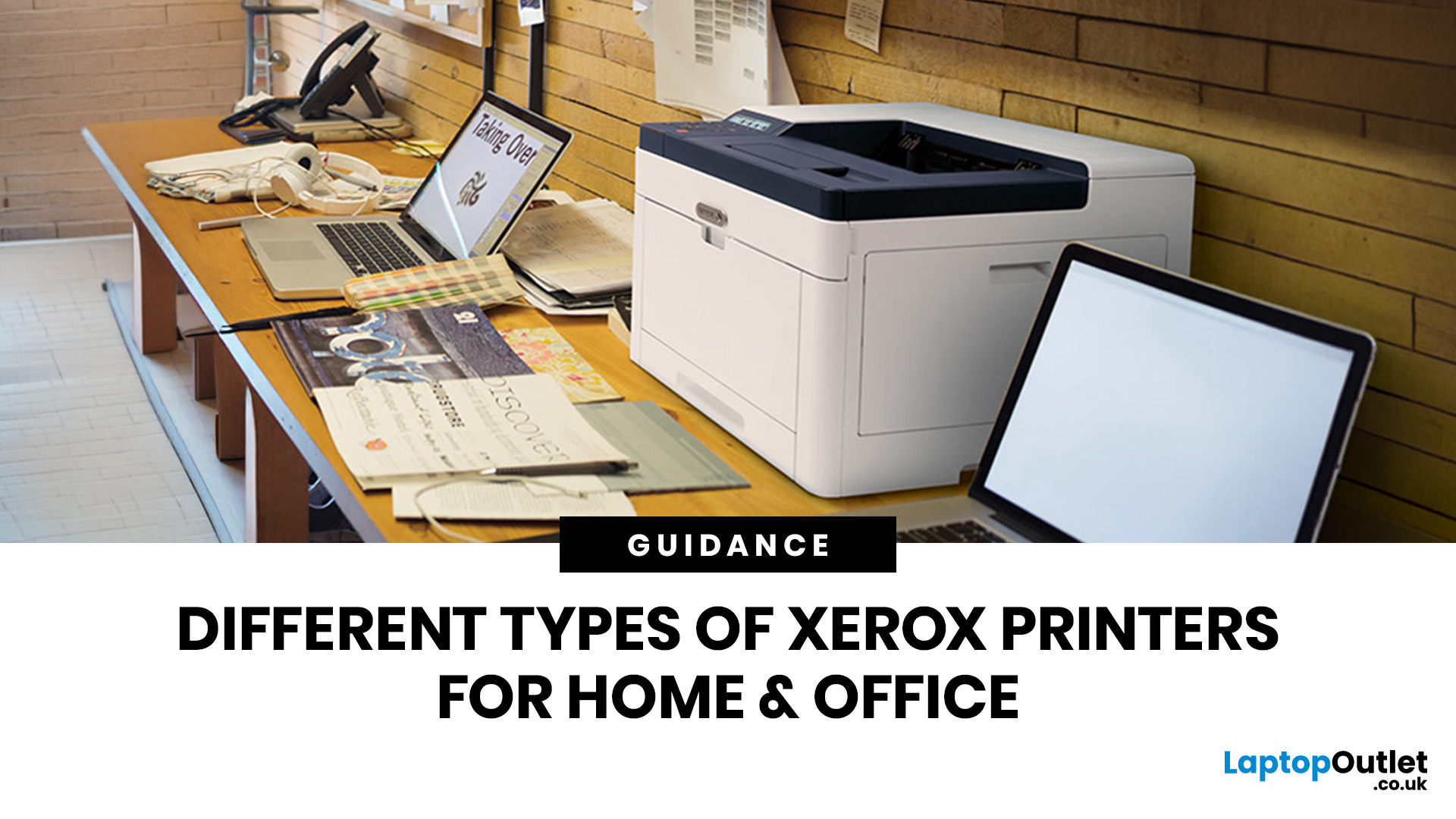
If you are comparing Xerox printer types, the easiest way to narrow it down is to start with how you print. For home use and light admin, compact mono, or colour laser models usually make the most sense. For small teams and busier desks, multifunction and office-focused Xerox models are often the better fit. Our current Xerox range reflects that clearly, with mono laser, colour laser, multifunction and VersaLink options aimed at home working, small businesses and larger office environments.
This guide breaks down the different Xerox printers that matter most, what each type is best at, and how to choose the right one without overbuying.
Which Xerox Printer Type Should You Choose?
If you mainly print forms, invoices, and text-heavy documents, mono laser is the strongest place to start. Xerox mono laser models are for straightforward document printing and regular office use, while other Xerox models are a fit for small to medium businesses and home working.
If you need colour for reports,
Last Updated: May 12, 2026
Buying a printer in 2026 should be straightforward, but with dozens of models, technologies, and pricing traps to navigate, it can feel overwhelming. This complete printers buying guide cuts through the noise and helps you find exactly what you need, at the right price, for your home, home office, or business.
What Is a Printer and What Does It Do?
A printer is a hardware device that takes digital data from a computer, phone, or tablet and reproduces it as a physical document or image on paper. It bridges the gap between the digital and physical worlds and remains one of the most widely used pieces of office and home technology in the UK.
Modern printers do a great deal more than simply print text. Today's models can scan documents, copy pages, send faxes, print directly from USB drives, and even connect to cloud services. Whether you need to print a single boarding pass or thousands of invoices each month, there is a printer designed precisely for that purpose.
Whether you are looking
Published: May 07, 2026
Most Xerox printer problems come from paper jams, low toner, incorrect paper settings, outdated drivers, network issues or print-quality settings. Start by restarting the printer, checking the paper tray, confirming toner levels, matching the paper type in the driver, and looking up any Xerox printer error codes in the official Xerox support portal.
Xerox printers are built for reliable document printing, but even a good printer can have a bad day. One minute everything is fine, the next your Xerox printer is offline, paper is stuck halfway through, prints look faded, or a random fault code appears on the display. Annoying? Absolutely. Usually fixable? Also, yes.
This guide covers the most common Xerox printer issues, what causes them, and how to fix them without panicking. It is written for everyday users, home offices and small businesses that need their printer working again quickly.
Quick Xerox printer troubleshooting checklist
Before going deep, try these basics first:
| Problem | Quick |

