



A Complete Guide to the Different Types of Office Printers
The main types of office printers are inkjet, laser, multifunction (all-in-one), and large-format printers. Inkjets handle colour-rich documents at a lower upfront cost. Laser printers deliver fast, sharp text at a lower cost per page. Multifunction devices combine printing, scanning, and copying in one unit. Large-format printers are used for oversized output such as technical drawings and marketing materials.
Choosing the right printer for your office can feel surprisingly complicated once you start looking at the options available. This guide will have office printer types explained, covering how each works, what it is genuinely best for, its practical pros and cons, and a few standout models to consider in 2026.
1. Inkjet Printers
What Is an Inkjet Printer?
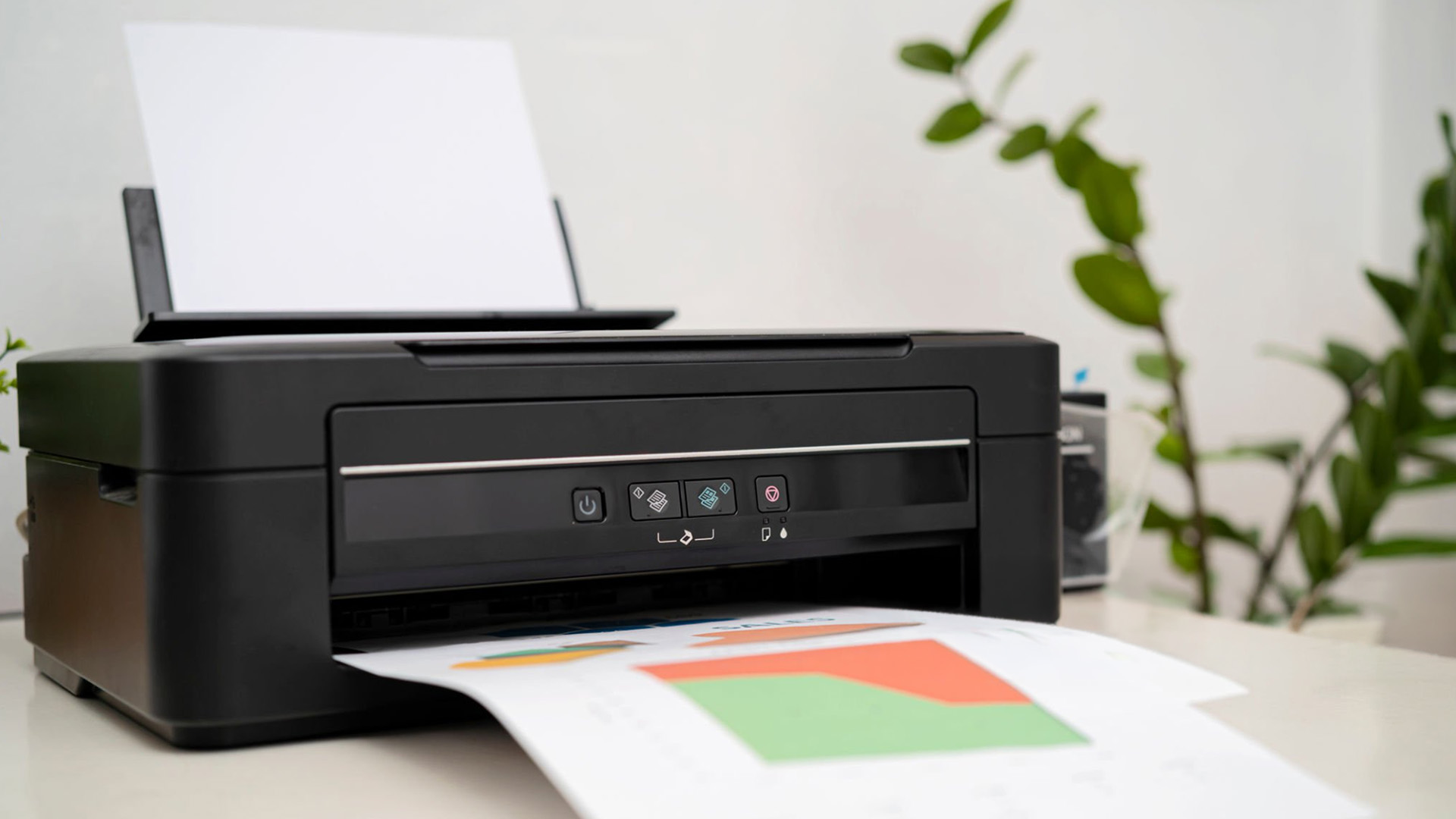
An inkjet printer works by firing tiny droplets of liquid ink directly onto paper through microscopic nozzles. The print head moves back and forth across the page, placing ink with high precision to build up the final image or text. Most consumer and small-office inkjets use separate colour cartridges (typically cyan, magenta, yellow, and black).
A growing number of models now use refillable ink tank systems instead of standard cartridges. Brands such as Epson EcoTank and Canon PIXMA MegaTank (also sold as the MAXIFY GX series) fill large built-in reservoirs from inexpensive ink bottles, dramatically cutting the cost per page. These are particularly popular in UK small offices where print volumes are moderate but savings on consumables matter.
|
Best for: Small offices, home offices, businesses that print marketing materials, brochures, or colour-heavy documents; creative or design-focused teams; anyone printing photographs or mixed-media content. |
Pros and Cons
|
PROS OF INKJET PRINTERS |
CONS OF INKJET PRINTERS |
|---|---|
|
|
|
Tip: If your office prints infrequently, an inkjet with standard cartridges may result in wasted ink through automatic cleaning cycles. An ink tank model, or switching to a laser printer, tends to be a better option for sporadic print needs. |
Ink Cartridge vs Ink Tank: Which Should You Choose?
Traditional cartridge-based inkjets keep upfront costs low but can be expensive to run if you print regularly. Ink tank models cost more to buy but can print thousands of pages from a single set of ink bottles, making them significantly cheaper over time. For a small office printing several hundred pages per month, an ink tank printer can pay for itself quickly.
Notable Models to Consider (2026)✔️ Canon MAXIFY GX6150 – Strong current Canon MegaTank business model, positioned for high-volume, low-cost office printing with refillable tanks. ✔️ Canon MAXIFY GX2051 – Compact 4-in-1 MegaTank model for large-volume business documents with affordable ink bottle replacements. ✔️ HP OfficeJet Pro 9125e – Current HP OfficeJet Pro option with print/copy/scan/fax, 250-sheet input tray and up to 22/18 ppm black/colour speeds. ✔️ Epson EcoTank ET-5800 series – Epson positions its business EcoTank range around laser-like features, Wi-Fi/Ethernet/fax/mobile printing, up to 25 ppm, high-capacity trays and low running costs. |
Looking at affordable inkjet printers for your workspace? Laptop Outlet stocks a range of inkjet models suited to home offices and small business use.
2. Laser Printers
What Is a Laser Printer?
A laser printer uses a focused laser beam to draw the document onto a photosensitive drum. The drum attracts powdered toner, which is then transferred to the paper and fused in place using heat. The result is fast, precise, and dry the moment it leaves the machine.
Laser printers come in two main forms: monochrome (black and white only) and colour. Monochrome laser printers are among the most cost-effective options available for high-volume text printing. Colour laser printers add three additional toner cartridges (cyan, magenta, and yellow) alongside the black, allowing them to reproduce graphics and text in colour, though at a higher cost per page than mono.
|
Best for: Offices with high print volumes; environments where speed matters; businesses printing mainly text documents, invoices, reports, and forms; shared printers for teams; anyone who needs consistent output without worrying about ink drying out. |
Pros and Cons
|
PROS OF LASER PRINTERS |
CONS OF LASER PRINTERS |
|---|---|
|
|
|
Worth knowing: UK energy costs remain elevated in 2026. If your printer runs all day, a laser printer's energy consumption during fusing is worth factoring into your total running cost. Look for Energy Star-certified models, which use significantly less electricity in standby mode. |
Monochrome vs Colour Laser: Which Makes More Sense?
If the vast majority of your printing is black and white text, a monochrome laser printer is typically the better value. The toner yield is higher, the cost per page is lower, and the device itself is generally cheaper to buy. On the other hand, a colour model is considered the best type of printer for office use when you regularly need to produce colour reports, presentations, or marketing materials in-house.
Notable Models to Consider (2026)✔️ Brother HL-L9470CDN – Brother lists it as an enterprise-level A4 colour laser with up to 40 ppm, expandable paper capacity up to 2,600 sheets, NFC and secure print features. ✔️ HP Color LaserJet Pro MFP 4302fdw – HP positions it as a compact colour LaserJet Pro for business workteams of up to 10 users. ✔️ Brother MFC-L2860DW – Brother lists it as an A4 mono laser all-in-one with automatic two-sided printing, fax, ADF and mobile connectivity. ✔️ Brother MFC-L3760CDW – Good for small offices, but describe it as colour LED, not strictly laser, because Brother’s UK page calls it a colour LED all-in-one printer. |
Considering laser printers for office use? Laptop Outlet carries the both monochrome and colour laser models from Brother, HP, and Canon.
3. Multifunction (All-in-One) Printers
What Is a Multifunction Printer?
A multifunction printer (MFP), also called an all-in-one printer, combines a printer, a flatbed scanner, and a photocopier in a single unit. Many models also include a fax function. Rather than buying and managing separate devices, a single MFP handles most of the document tasks a modern office requires.
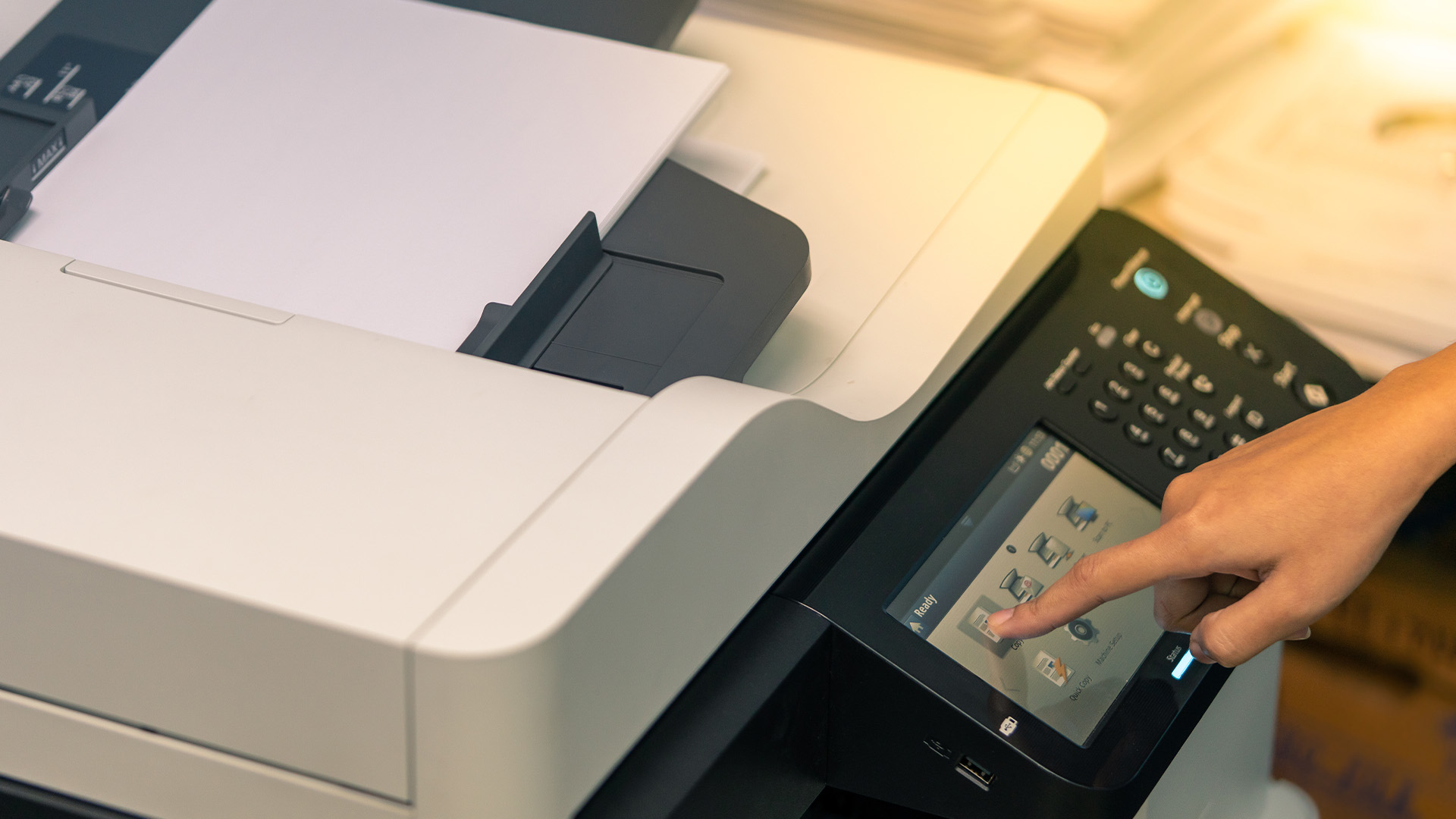
Multifunction devices are available in both inkjet and laser versions. Entry-level models handle basic print, copy, and scan tasks. Higher-end business MFPs add automatic document feeders (ADF), duplex (double-sided) scanning, large paper capacity, network connectivity, cloud integration, and advanced security features. This makes them one of the most practical options for the majority of office environments.
|
Best for: Offices of most sizes; teams sharing a single device; businesses that regularly scan, copy, or fax alongside standard printing; workplaces wanting to reduce the number of separate devices. |
Single-Function vs Multifunction: What Is the Difference?
A single-function printer does one thing only: print. A multifunction printer adds scanning and copying as standard, and often faxing. This is not just a matter of convenience. For offices that regularly deal with contracts, invoices, or correspondence, having scan and copy capabilities on the same networked device saves time and desk space.
The trade-off is that MFPs are generally larger and cost more upfront than a single-function printer. They also have more components that could, in theory, require servicing over time. For most offices, however, the added versatility makes them well worth the extra investment.
Key Features to Look for in a Business MFP
- Automatic Document Feeder (ADF): Allows you to scan or copy a stack of pages without manually placing each one on the glass. A duplex ADF scans both sides in a single pass.
- Paper capacity: For a shared office printer, aim for at least 250 sheets input capacity. 500 sheets is preferable for teams of four or more.
- Duplex printing: Automatic two-sided printing reduces paper usage significantly.
- Wi-Fi and Ethernet: Both should be standard on any business MFP in 2026 to allow flexible wired and wireless network connections.
- Cloud and mobile printing: Support for Apple AirPrint, Mopria Print Service, Windows Print, ChromeOS native printing, and manufacturer mobile apps matters if team members print from phones, tablets, or Chromebooks.
- Scan to email/folder: Useful for digitising documents and routing them directly without touching a PC.
Pros and Cons
|
PROS OF AIO PRINTERS |
CONS OF AIO PRINTERS |
|---|---|
|
|
Notable Models to Consider (2026)✔️ HP OfficeJet Pro 9730e – HP lists it as a wide-format model with print and scan across sizes up to A3/11x17, dual 250-sheet trays and single-pass two-sided ADF. ✔️ Canon MAXIFY GX6150 – Strong fit for small businesses wanting high-volume refillable tank printing and lower total cost of ownership. ✔️ HP Color LaserJet Pro MFP 4302fdw – Better for a busier office or team environment than lower-end colour laser models. ✔️ Brother MFC-L2860DW / MFC-L2960DW – Good for offices that mainly print invoices, forms, letters and internal documents. |
Ready to browse all-in-one printers for business needs? Laptop Outlet carries a range of MFP models across inkjet and laser, from compact home-office units to shared business workhorses.
4. Large-Format Printers
What Is a Large-Format Printer?
A large-format printer (sometimes called a wide-format printer or plotter) is designed to print on paper wider than standard A4 or A3 sheets. These printers typically handle paper up to A1 (594 x 841mm), A0 (841 x 1189mm), or even larger roll formats measured in inches (commonly 24 inch or 36 inch).
Most large-format printers use inkjet technology, applying ink at very high resolution across wide sheets or rolls of paper, vinyl, or specialist media. They are distinct from office-grade A3 printers, which are simply larger standard printers. True large-format printers are built specifically for oversized output and often accept both cut-sheet and roll-fed paper.
|
Best for: Architecture, engineering, and construction (AEC) firms printing CAD drawings and technical plans; marketing and design studios producing posters and large graphics; GIS professionals printing maps; businesses that want to manage their own large-print production in-house rather than outsourcing to a print shop. |
Types of Large-Format Printer
- Technical/CAD plotters: Optimised for precision line drawings, blueprints, schematics, and maps. Typically use dye-based or pigment inks and prioritise sharp lines over photographic colour accuracy. Common in engineering and architectural offices.
- Graphics printers: Designed for high-quality colour output including posters, banners, POS displays, and photographic prints. Use more ink cartridges (often six or more colours) and support a wider range of specialist media.
- Eco-solvent and UV printers: Used by commercial print businesses and sign makers. Print on non-porous materials including vinyl and rigid boards. Generally not found in standard office environments.
Pros and Cons
|
PROS OF LARGE-FORMAT PRINTERS |
CONS OF LARGE-FORMAT PRINTERS |
|---|---|
|
|
Worth considering: If your office only prints large-format documents occasionally, outsourcing to a local print shop is often more cost-effective than purchasing a dedicated plotter. Large-format printers make most sense when the volume justifies the hardware and consumable costs.
Notable Models to Consider (2026)✔️ HP DesignJet T850 36-inch / A0 – HP lists the T850/T870/T950 series as combining A1/D and A3/B printing in one device without manual switching between roll and sheet media. ✔️ Canon imagePROGRAF TC-21M – Good if the office needs scanning as well as large-format output; Canon positions the TC-21M as a small-space large-format innovation. ✔️ Epson SureColor SC-T3100M – Epson describes it as an easy-to-use 3-in-1 large-format solution with a small footprint. ✔️ Epson SureColor SC-T5100M – Epson describes this as a 3-in-1 large-format solution for print, copy and scan, with straightforward maintenance and easy media/ink replacement. |
Quick Comparison: All Four Business Printer Types at a Glance
Not sure which type is right for your office? This table covers the key differences across the four main categories so you can weigh them side by side.
|
PRINTER TYPE |
BEST PRINT QUALITY FOR |
TYPICAL SPEED |
RUNNING COST |
UPFRONT COST |
BEST SUITED TO |
|---|---|---|---|---|---|
|
Inkjet (Cartridge) |
Photos, colour graphics |
10–20 ppm |
Moderate to high |
Low (£40–£150) |
Home offices, occasional colour printing |
|
Inkjet (Ink Tank) |
Photos, colour, mixed docs |
10–20 ppm |
Very low per page |
Medium (£150–£350) |
Small offices with moderate colour print volumes |
|
Laser (Monochrome) |
Sharp black text |
25–48 ppm |
Low per page |
Low–medium (£80–£250) |
Offices printing high volumes of text documents |
|
Laser (Colour) |
Text, colour graphics |
20–35 ppm |
Medium (colour toner) |
Medium–high (£200–£600+) |
Shared office printers, mixed document needs |
|
Multifunction (MFP) |
Varies by print engine |
Varies |
Varies |
Medium–high |
Most offices; print, scan, copy, and fax combined |
|
Large-Format |
Large technical drawings, posters |
Varies (some <30 sec/A1) |
Higher (ink & media) |
High (£500–£3,000+) |
AEC, design studios, mapping professionals |
All pricing ranges are approximate retail figures in the UK as of 2026 and will vary by retailer, model, and configuration.
Still working out through office printer comparison? Our office printer selection guide walks through exactly how to match a printer to your workload, paper needs, and budget.
Office Printer Security: What You Need to Know
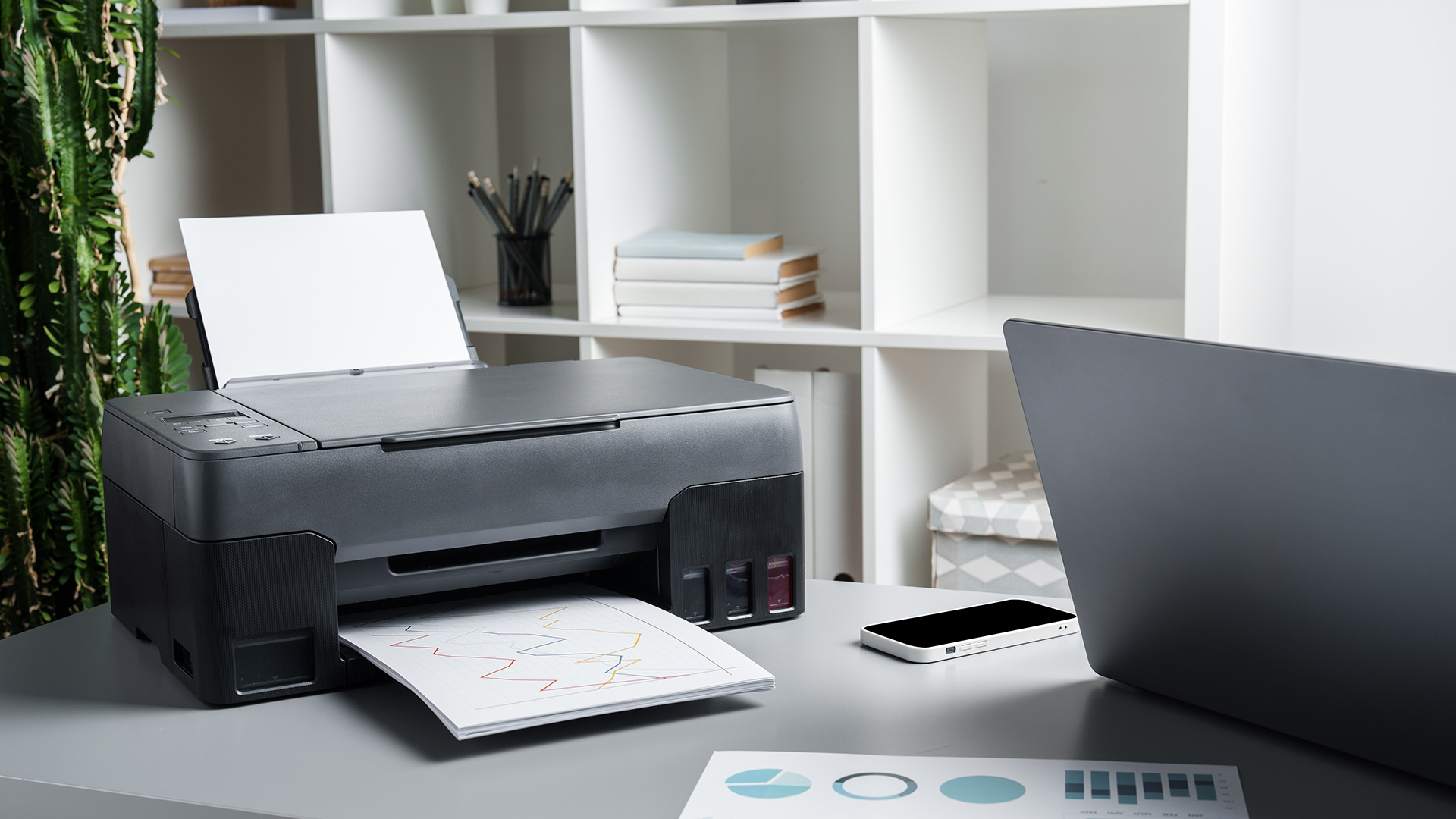
Security is an area that many offices overlook when thinking about printers. Modern office printers are not simply output devices. They run operating systems, store documents on internal hard drives, connect to your office network, and often support cloud services and remote management. That makes them potential targets in a way that older, standalone printers were not.
Quocirca’s print security research has repeatedly found that print-related data loss remains common, with its 2024 report putting the figure at 67% of organisations. A compromised printer can be used as an entry point into the wider network, and devices left running with default passwords or unpatched firmware are particularly at risk.
Common Printer Security Risks
- Default admin credentials: Many printers still ship with factory-set usernames and passwords that are publicly known. Changing these immediately is one of the most important steps you can take.
- Unpatched firmware: Security updates for printer firmware are often delayed or skipped entirely, leaving known vulnerabilities open. Check manufacturer support policies before buying, as some vendors provide only three years of security updates.
- Stored print jobs: Many printers retain copies of documents in internal memory. If the device is not regularly cleared or the storage is not encrypted, this data can be accessed by anyone with physical or network access to the printer.
- Unclaimed print jobs: Sensitive documents left sitting in the output tray present a physical security risk, particularly in shared office environments.
- Open network ports: Without proper configuration, printers can be accessed remotely from outside the internal network.
- GDPR compliance: In the UK, data breaches involving unsecured printers can result in ICO fines. A compromised printer that has processed personal data is a compliance risk as well as a security one.
Basic Steps to Improve Printer Security
- Change default admin passwords on every printer during initial setup
- Keep printer firmware updated through the manufacturer's portal or managed print service
- Enable PIN or badge-based secure print release so jobs only print when the correct user is present
- Enable encrypted data transmission over the network
- Enable encrypted storage on printers that hold print jobs internally
- Include printers in your IT asset inventory and security audit cycles, not just office services
- Wipe printer storage securely before decommissioning any device
|
Note: This is a broad overview of printer security considerations. For specific guidance relevant to your network setup or UK regulatory obligations, it is worth speaking with an IT security professional or managed print services provider. |
Looking for reliable office printing solutions that include security features as standard? Laptop Outlet stocks business-grade printers from HP, Brother, Epson, and Canon, many of which include built-in security controls such as PIN printing and network encryption.
How To Choose the Right One Among Different Types of Printers for Office Use
Now that you understand different office printers, it is worth briefly pulling together the key questions to ask before you buy. Getting this right from the start will save you money on consumables and prevent frustration later.
|
YOUR SITUATION |
RECOMMENDED TYPE |
|---|---|
|
You mainly print text documents and invoices in high volumes |
Monochrome laser or colour laser MFP |
|
You need to print photos, brochures, or colourful marketing materials |
Inkjet (ink tank model recommended for volume) |
|
You need to scan, copy, and print from one shared device |
Multifunction printer (laser for volume, inkjet for colour) |
|
You print technical drawings, architectural plans, or large posters |
Large-format printer / plotter |
|
You print infrequently and need a reliable device that won’t dry out |
Monochrome laser (toner does not dry out) |
|
You want the lowest possible cost per page over time |
Ink tank inkjet or monochrome laser |
|
You have limited desk space in a small office |
Compact inkjet MFP or compact mono laser MFP |
Planning for a home setup rather than a shared office? Laptop Outlet also has a range of models if you want to buy home printers suited to lighter everyday use.

Which Type Wins for Your Office?
Understanding the different types of office printers is the most important first step in making a purchase you won't regret.
- Inkjet printers offer versatility and strong colour output at a lower upfront cost.
- Laser printers deliver speed, reliability, and lower cost per page for text-heavy workloads.
- Multifunction printers combine printing, scanning, and copying in a single device, making them the practical choice for most offices.
- Large-format printers serve specialist needs around technical drawings and oversized output.
Whichever type of printer you choose, factor in running costs, monthly print volume, and security needs alongside the headline price.
Need a hand finding the best printers for every need from compact home-office units to full business workhorses? Browse the full printer range at Laptop Outlet.

A Quick Heads-Up...
What are the different types of office printers?
The main types of office printers are inkjet, laser, multifunction (all-in-one), and large-format printers. Each suits different workloads, budgets, and output requirements, from everyday documents to oversized technical drawings.
What is the main difference between laser vs inkjet office printers?
Laser printers use dry toner powder that is fused to the page with heat, making them ideal for fast, text-heavy printing. Conversely, inkjet variants use liquid ink sprayed onto the page. Inkjets are ideal for vibrant graphics, whereas lasers provide cheaper running costs for bulk office documents
What is the best type of printer for a small business?
A multifunction laser printer tends to be the most practical choice for small businesses, offering printing, scanning, and copying in one device with reliable performance and manageable running costs over time.
Can office printers be a security risk?
Yes. Networked office printers store documents, connect to your network, and run firmware that can contain vulnerabilities. Unsecured devices with default passwords or outdated firmware present a genuine cybersecurity and GDPR compliance risk.
What is the difference between a single-function and a multifunction printer?
A single-function printer only prints. A multifunction printer adds a scanner and photocopier, and often a fax, in a single device, making it more versatile for offices handling a range of document tasks daily.
| Read More |
| 7 Common Office Printer Problems and How to Fix Them |
| How to Install and Set Up an Office Printer (Step-by-Step Guide) |
| A Complete Guide to the Different Types of Printers |
Related Articles

Last Updated: May 13, 2026
Quick Answer: Choose ink that matches your exact printer model first. Then decide whether you need original cartridges, compatible cartridges, remanufactured cartridges, refill ink, or bottled ink for an ink tank printer.
For sharp documents, pigment ink is usually the stronger choice. For bright photos and colourful images, dye-based ink often gives richer colour. You should not buy ink only because it is cheap. Check the cartridge number, page yield, ink type, printer warranty position, return policy, and whether you print often enough to justify XL, refillable, or subscription ink.
Introduction
Buying ink sounds simple until you see original cartridges, compatible cartridges, remanufactured cartridges, refill kits, XL cartridges, ink bottles, dye ink, pigment ink, and subscription plans. The wrong choice can leave you with poor print quality, blocked cartridges, warning messages, or higher running costs than expected.
You do not need to understand every technical detail to make a
Last Updated: July 06, 2026
Quick Answer: To choose the right office printer, identify your monthly print volume, preferred print type (colour or mono), and whether you need scanning or copying. Laser printers suit high-volume offices, inkjet printers work well for colour-heavy or lower-volume tasks, and all-in-one models offer the best flexibility. Always factor in running costs, connectivity, and paper handling alongside the upfront price.
Picking the wrong printer for your office is an easy mistake to make, and a surprisingly costly one. Between the upfront price, ink or toner costs, paper handling, and connectivity options, there is a lot more to consider than most people realise.
This office printers buying guide covers everything you need to make a confident, well-informed decision in 2026. Whether you are kitting out a home office, a small business, or a large corporate workspace, we have got you covered.
What Types of Office Printer Are There?
Understanding the different categories of printers for
Last Updated: May 25, 2026
To connect an Epson printer to WiFi, turn on the printer, open its WiFi or Network Settings, select WiFi Setup Wizard, choose your network name, enter the WiFi password and confirm the connection. If your Epson printer has no screen, use Epson Smart Panel, WPS, Epson setup software or a temporary USB setup method, depending on your model. Always keep your WiFi name and password ready before starting.
Trying to set up a printer and watching it refuse to connect is a very specific kind of pain. You just want to print one document, and suddenly your Epson printer is acting like it has trust issues with your router.
This guide explains how to connect Epson printer to WiFi in simple steps, whether your model has a screen, works through WPS, needs the Epson Smart Panel app, or requires setup software on Windows or Mac. We will also cover what to do if your Epson printer is not connecting to WiFi, because let’s be honest, that is usually where the drama starts.
Before You Start: What You Need
Last Updated: June 08, 2026
If your Epson printer is not printing, the problem is usually caused by low ink, clogged print heads, offline settings, connection issues, stuck print jobs, or outdated drivers. Most Epson printer problems can be fixed with simple troubleshooting steps such as checking cartridges, cleaning the print head, clearing the print queue, updating drivers, or resetting the printer.
An Epson printer not printing can be frustrating, especially when you need an important document, return label, invoice, or school assignment right away. The good news is that most Epson printer problems are not as serious as they first seem. In many cases, the issue comes down to low ink, clogged nozzles, offline settings, a weak connection, or a stuck print queue.
So, if you are wondering, “Why is my Epson printer not printing?”, this guide will walk you through the most common causes and simple ways to fix Epson printer issues at home. Before you think about replacing your printer, try these easy Epson printer troubleshooting
Last Updated: June 10, 2026
Epson is one of the most popular printer brands for UK homes, students, hybrid workers, small offices and creative users. Choosing the right Epson printer depends on how often you print, what you print, and how much you want to spend long term. For occasional home use, an affordable Epson inkjet printer is a solid pick. For regular printing, Epson EcoTank offers better running value with refillable ink tanks. If you need scanning, copying and mobile printing, choose a wireless all-in-one Epson printer for the easiest everyday setup.
Buying a printer should be simple. You want to print, scan, copy, maybe send something from your phone, and not spend half your life decoding ink cartridges like it is a secret side quest. That is where Epson printers come in. The brand covers compact inkjet printers, refillable EcoTank printers, wireless all-in-one models, photo printers and business-friendly options.
This Epson printer guide breaks down how Epson printers work, how to choose an Epson printer,
Last Updated: June 10, 2026
Label printers are practical, reliable, and incredibly useful when they work as expected. Whether you use one for shipping labels, barcodes, product tags, warehouse labels, office organisation, or home storage, a good label printer can save time and keep everything running smoothly.
Like any printer, label printers can occasionally run into problems. You may find your label printer not printing, producing faded labels, jamming midway through a job, or printing blurry labels that are difficult to scan. These label printer issues can be frustrating, especially when you need quick and accurate prints for business operations.
The good news is that many label printer common problems are easy to fix once you know what is causing them. In this guide, we’ll walk you through the top seven label printer errors users often face and show you how to solve them with simple, practical steps. This guide covers seven common label printer issues, explains what causes them, and shows you how to solve them
Last Updated: June 09, 2026
The main types of label printers are direct thermal, thermal transfer, inkjet, and laser. Direct thermal printers use heat-sensitive paper with no ink or ribbon, making them ideal for short-term labels like shipping and receipts. Thermal transfer printers use a wax or resin ribbon for durable, long-lasting labels. Inkjet and laser printers can print onto standard label sheets and work well for colour-rich or low-volume tasks. The right choice depends on your print volume, label durability requirements, and budget.
Whether you are running a small e-commerce shop, managing a busy warehouse, or simply trying to get your home office organised, choosing the right label printer can make a real difference. There are several label printer types on the market, each suited to different tasks, environments, and budgets.
This guide breaks down all the major types of label printers, explains how each technology works, and helps you figure out which one is the right fit for your needs.
Label Printer
Published: June 11, 2026
You are printing shipping labels, barcode labels, address stickers, product tags, file labels, or office labels. Setting up a label printer properly from the start saves time and avoids annoying print errors later.
This label printer setup guide walks you through every step in a clear, beginner-friendly way, so you can install, configure, and start printing labels without guessing your way through the manual.
Why Label Printer Setup Guide Matters
A label printer may look like a plug-and-play device, but the setup still matters. If the printer driver is wrong, the labels may print sideways. If the label size
Last Updated: June 15, 2026
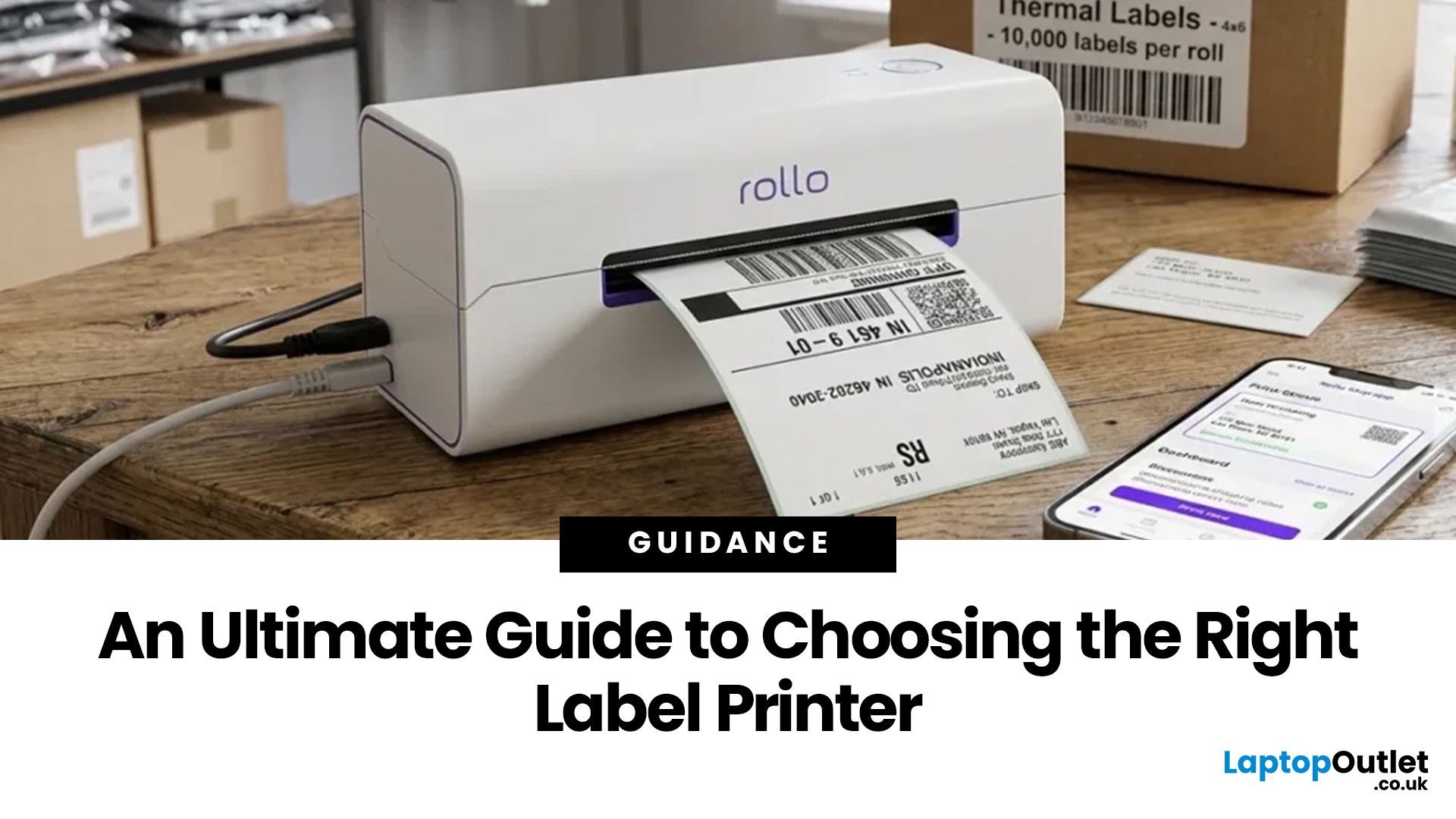
Choosing the right label printer doesn’t have to be complicated. This label printers guide makes it easy to understand the main features, costs, label printer types, and how to choose a label printer that fits your home, office, or business needs.
Whether you’re organising your home office, printing parcel labels, managing stock, creating barcodes, or simply keeping things neat, the right label printer can save time and make everything look more professional.
In this
Last Updated: June 15, 2026
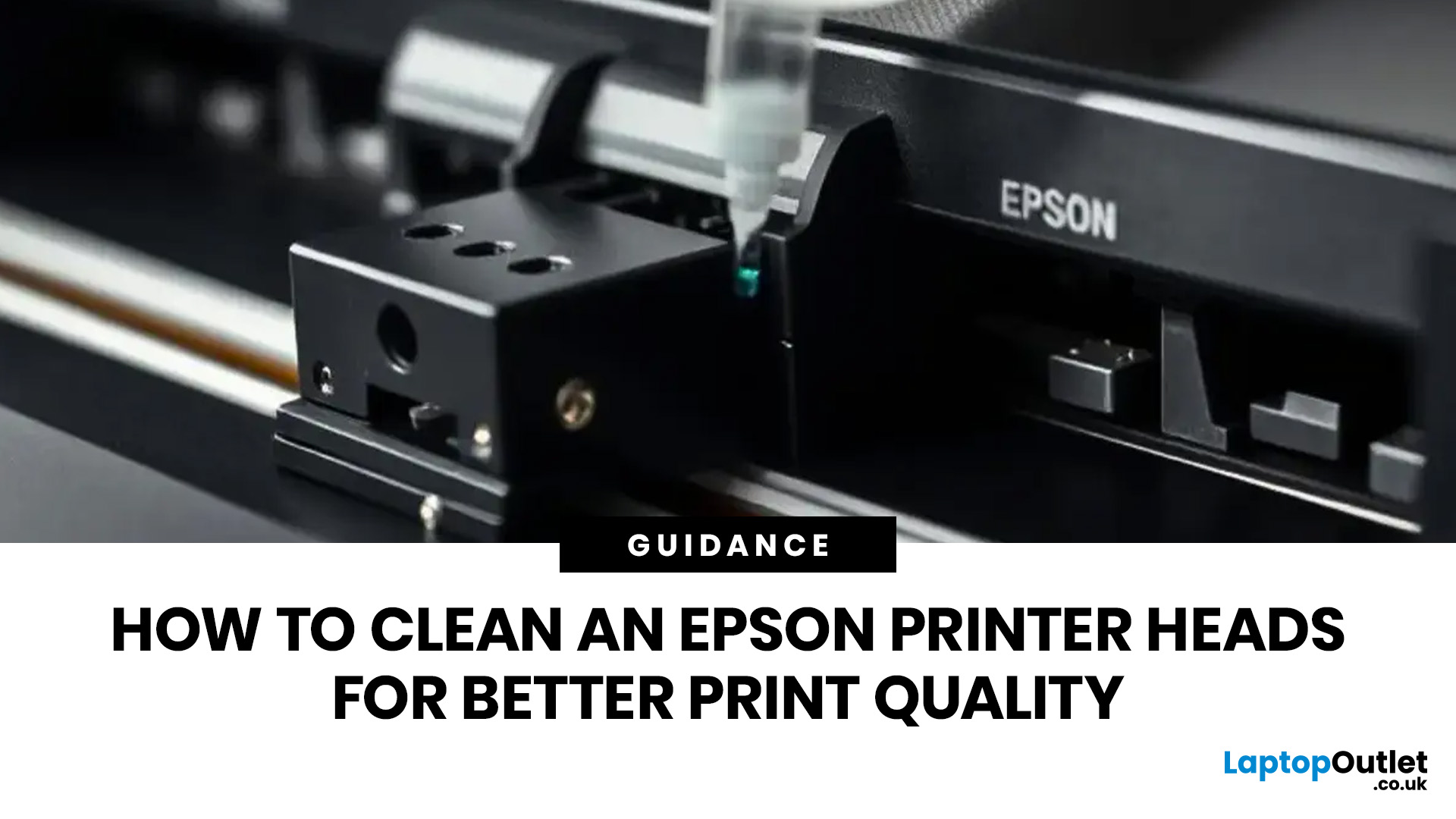
If your Epson prints look faded, streaky, patchy, or show missing colours, the print head may be clogged. You can usually fix this by running a nozzle check, using the built-in print head cleaning tool, and printing a test page to check the results.
Let’s be honest: when your Epson printer starts printing faded text, weird lines, missing colours, or completely blank pages, it feels like the printer has chosen chaos. But before you assume it is broken or start shopping for a new one, there is one simple thing you should check first: The Print Head.
If you are wondering how to clean an Epson print head, you are in the right place. Most print quality issues happen because the print head nozzles are clogged with dried ink. The good news? You can usually fix this with built-in print head cleaning tools, and you do not need to be a tech expert to do it. In this guide, you will learn what an Epson print head does, why it gets clogged, how to clean it properly, and what to do if your printer

