



How to Install and Set Up an Office Printer (Step-by-Step Guide)
Office printer setup starts with unboxing and placing the printer, loading paper, installing ink or toner, connecting it by USB, Ethernet, or Wi-Fi, adding it in Windows 11 or Apple settings, then printing a test page. For offices, also set admin passwords, default paper rules, secure print options, firmware updates, and a simple maintenance routine before sharing it with staff securely.
Getting a new printer out of the box is the easy part. The part that trips most people up is knowing exactly what to do next, in the right order, across different operating systems and connection types. If you are in the same situation, don’t worry. This office printer setup guide will take you through the complete process from start to finish. Let’s get started.
Before You Start: Office Printer Setup Checklist
Good preparation prevents most installation problems. Before you begin your office printer initial setup, gather the basics and decide who will manage the printer after it goes live.
|
WHAT TO PREPARE |
WHY IT MATTERS |
PRACTICAL TIP |
|---|---|---|
|
Printer power cable and a safe socket |
The first setup routine can take several minutes and should not be interrupted. |
Avoid extension leads if the printer has a high power draw, especially for larger laser models. |
|
USB or Ethernet cable, if needed |
Some offices prefer wired connections for stable shared printing. |
Budget roughly £5 to £15 for a basic USB printer cable and around £3 to £12 for a short Ethernet cable. |
|
Office Wi-Fi name and password |
A wireless printer must join the same network as the laptop, desktop, iPhone, or iPad. |
Use the business network, not a guest network, unless your IT policy says otherwise. |
|
Administrator access |
Driver installation, firewall prompts, and default printer changes may need admin approval. |
Ask IT before starting if the device is managed through Microsoft Intune, Jamf, or another platform. |
|
Ink, toner, and paper |
The printer may run an alignment, charging, or calibration routine during setup. |
Use the paper size your office actually needs, usually A4 in the UK. |
|
Printer model name and serial number |
These help you find the correct support page, firmware, and driver if automatic setup fails. |
Take a quick photo of the rear or underside label before placing the printer. |
Small-office tip: If you are replacing an old device, print or export the old printer's network details first. A record of the IP address, paper settings, and scanning destination can save a lot of time.
|
If you are still choosing the right device before installation, read our office printer guide to match printer type, monthly print volume, connectivity, and running costs to your workspace before starting setup. |
Choose the Right Connection Type for Your Office
Your connection choice affects speed, reliability, troubleshooting, and how easy it is for staff to use the printer. For most workplaces, Ethernet or managed Wi-Fi is better than passing a USB cable around the room.
|
CONNECTION TYPE |
BEST FOR |
PROS |
WATCH OUT FOR |
|---|---|---|---|
|
USB |
One desk, one computer, temporary setup, or troubleshooting |
Simple, quick, and does not rely on Wi-Fi. |
Not ideal for shared teams unless the connected computer is always on and sharing is configured. |
|
Ethernet |
Shared office printers, reception desks, finance teams, and print-heavy spaces |
Stable, easier to manage, less affected by weak wireless signals. |
The printer needs to sit near a router, switch, or network wall port. |
|
Wi-Fi |
Flexible layouts, small offices, hybrid desks, and areas without network cabling |
No long cables, works with laptops and mobile devices on the same network. |
Signal strength, guest networks, VPNs, and 2.4 GHz versus 5 GHz settings can cause discovery issues. |
|
AirPrint |
Apple users on Mac, iPhone, iPad, or Apple Vision Pro |
No additional drivers needed for AirPrint-supported printers. |
The printer and Apple device must be on the same network, and the printer must support AirPrint. |
|
Bluetooth or Wi-Fi Direct |
Occasional direct printing where a network is not available |
Useful for short-term or single-user printing. |
Usually not the best option for a shared office because access control and range can be limited. |
If you are setting up a printer for more than two people, choose Ethernet where possible. If the layout makes cabling awkward, use Wi-Fi but place the printer close enough to the Wi-Fi router or access point for a steady signal.
|
If your current device regularly drops from Wi-Fi, struggles with shared use, or takes too long to process jobs, it may be worth comparing professional office printers before spending more time troubleshooting the same connection issues. |
Step 1: Unbox, Place, and Prepare the Printer
Start with the physical setup. This part sounds basic, but missed packing tape, loose toner seals, or the wrong paper guides are common reasons an office printer reports errors on the first print.
Unbox it carefully
- Lift the printer from the box using two people if it is heavy.
- Remove all transit tape, cardboard inserts, foam, and plastic strips.
- Open the main covers, paper tray, scanner lid, rear access panel, and cartridge area to check for hidden packaging.
- Keep the box for a short while in case the printer has to be moved or returned.
Place it in the right spot
- Choose a flat, stable surface that can support the printer's weight.
- Leave space around vents and rear panels so heat can escape and paper can feed properly.
- Keep inkjet printers away from strong heat, as ink can dry out faster.
- Keep laser printers away from cramped shelves, as they need airflow during longer print runs.
- Avoid placing shared printers in public waiting areas if confidential documents are printed.
Install ink or toner
For an inkjet printer, install each cartridge or tank bottle in the correct colour slot. For a laser printer, remove the toner cartridge seal, gently rock the toner if the manual says so, then click it firmly into place.
Load A4 paper, slide the paper guides so they touch the stack without bending it, then power on the printer. Let the printer finish its first-time routine before pressing buttons or sending a print job.
Important: Never pull protective seals after a toner cartridge is installed unless the manual instructs you to do that. Loose toner can be messy and difficult to clean from carpets or clothing.
|
For mixed workspaces that print letters, returns labels, invoices, and colour documents, office inkjet printers can suit lighter daily workloads when placed carefully and maintained properly. |
Step 2: Connect the Printer by USB, Ethernet, or Wi-Fi
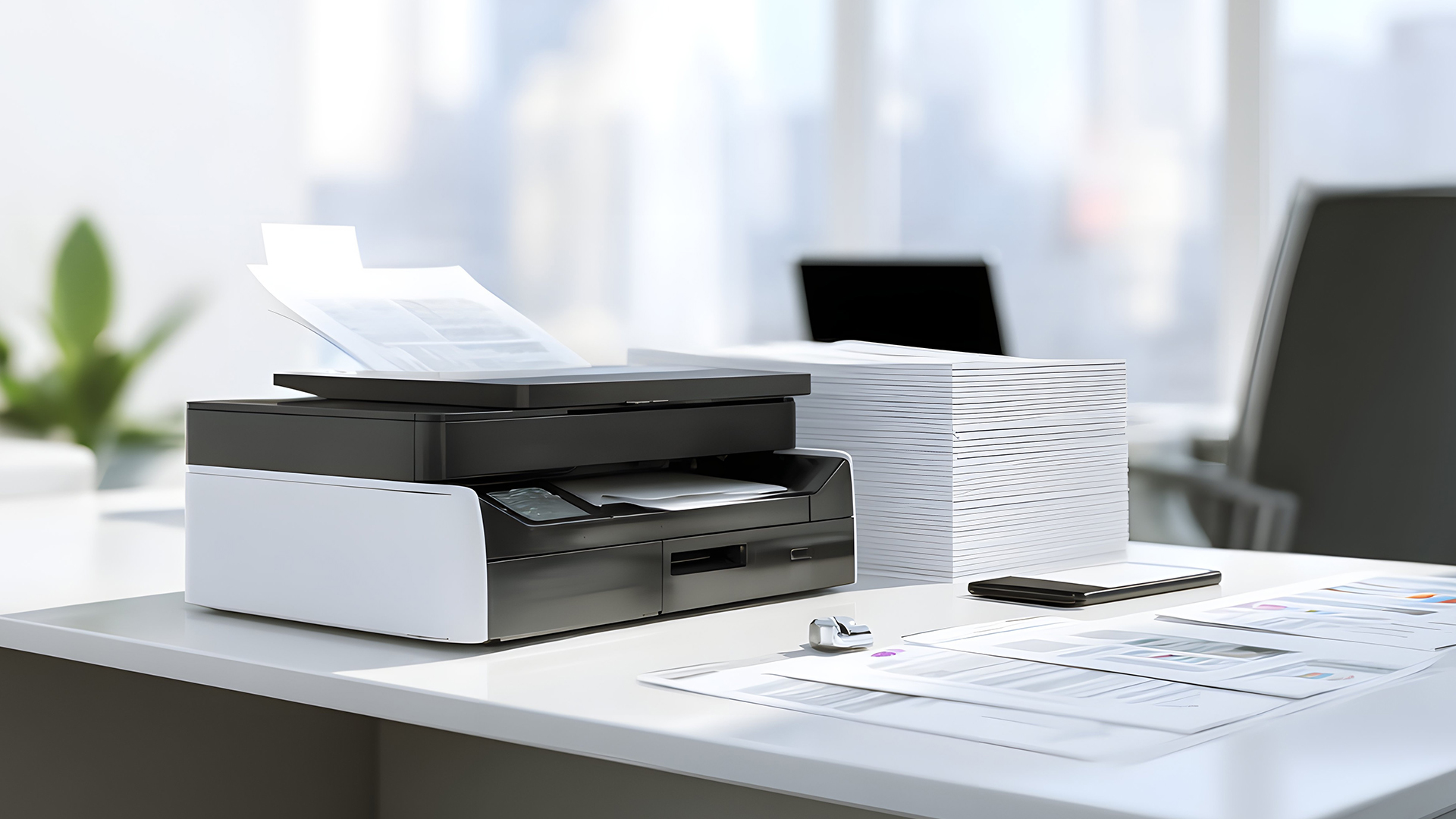
This is the main office printer installation stage. Pick one connection method first, finish it fully, then move on to device setup.
Option A: USB setup for one computer
- Turn on the printer and wait until it is ready.
- Connect the USB cable to the printer and the desktop computer.
- On Windows 11, allow Windows a moment to detect and install the device.
- On Mac, open System Settings > Printers & Scanners if the printer does not appear automatically.
- Print a test page before installing extra software.
USB is useful for a single reception PC, a till-adjacent workstation, or as a fallback when Wi-Fi setup will not behave. It is not ideal for a growing office where several people need direct access.
Option B: Ethernet setup for shared office printing
- Connect one end of an Ethernet cable to the printer.
- Connect the other end to a router, network switch, or live wall socket.
- Wait for the printer's network light or status screen to confirm a connection.
- Print a network configuration page from the printer menu, if available.
- Note the IP address, as you may need it for manual setup.
For busy teams, ask IT to reserve the printer's IP address in the router or DHCP server. This helps stop the printer changing address later, which is a common reason for the dreaded printer offline message.
Option C: Wi-Fi setup for cable-free office printing
- Put the printer within good range of the office router or access point.
- Open the printer's Network, Wireless, or Wi-Fi Setup menu.
- Select the correct office Wi-Fi name.
- Enter the Wi-Fi password carefully, checking capital letters and symbols.
- Confirm the printer says connected, online, or ready.
- Print a wireless network report if the printer offers one.
Some printers also allow setup through a temporary USB connection or a temporary printer Wi-Fi network. Follow the printer's on-screen prompts and switch your laptop or Mac back to the normal office Wi-Fi once setup is complete.
WPS note: Wi-Fi Protected Setup can be quick if your printer and router both support it. In offices, check your IT policy first, as some businesses disable WPS and prefer manual Wi-Fi setup for control.
Step 3: Add the Printer in Windows 11
Windows 11 can install many modern printers automatically, especially when they use standard network printing. If automatic setup works, you may only need to check settings and print a test page.
Install office printer step by step on Windows 11
- Make sure the printer is turned on and connected by USB, Ethernet, or the same Wi-Fi network as the PC.
- Select Start > Settings > Bluetooth & devices > Printers & scanners.
- Choose Add device next to Add a printer or scanner.
- Wait for Windows to search. This can take a few moments on busy networks.
- Select your printer, then choose Add device.
- Open the printer entry and print a test page.
If the printer is not listed in Windows 11
- Choose the option for the printer you want not being listed, if shown.
- Select a manual option such as adding by TCP/IP address or hostname.
- Enter the printer's IP address from the network report.
- Use the recommended driver if Windows offers one.
- If print quality options, duplexing, or scanning are missing, install the latest software from the printer maker.
For Copilot+ PCs and other Windows on ARM devices, some manufacturer installers may not work as expected. If that happens, use Windows 11's built-in add-printer process first, then follow any updated guidance from the printer maker.
Windows 11 also includes a more modern approach to printing called Windows protected print mode. It is designed around Windows Ready Print and Mopria-certified printers, but some older third-party driver features and some scanner functions may need checking before it is enabled in a business.
|
For teams printing large documents, reports, or regular paperwork, high-speed laser printers may reduce waiting time and keep shared Windows 11 print queues moving more smoothly. |
Step 4: Set Up the Printer on Mac, iPhone, and iPad
Apple devices rely heavily on AirPrint for simple, driverless printing. AirPrint works from iPhone, iPad, Mac, and some other Apple devices when the printer supports it and both devices are on the same network.
Add an office printer on macOS
- Connect the printer to the same Wi-Fi or wired network as the Mac.
- Open Apple menu > System Settings > Printers & Scanners.
- Select Add Printer, Scanner or Fax.
- Choose the printer from the list and select Add.
- Use AirPrint if available.
- If the printer is not visible, add it by IP address using the supported protocol shown in the manual, often IPP or AirPrint.
If the printer needs a brand-specific scanning utility or finishing feature, download the latest compatible software from the manufacturer's official support page. Avoid old CD installers unless the manufacturer specifically says they are still suitable for your Mac version.
Set up printing from iPhone or iPad on iOS and iPadOS
- Check that the printer supports AirPrint.
- Connect the iPhone or iPad to the same Wi-Fi network as the printer.
- Open the document, email, webpage, or image you want to print.
- Tap the share icon or app menu, then choose Print.
- Select the office printer.
- Choose copies, page range, colour options, and paper size where available.
- Tap Print.
If the printer does not appear on an iPhone or iPad, check the Wi-Fi network first. Guest Wi-Fi, VPN settings, disabled Bonjour or mDNS discovery, and unsupported printers are common causes. If your Apple devices print fine but office PCs do not, the issue is probably Windows discovery, drivers, or network policy.
|
If your team needs printing, scanning, and copying from several devices, comparing the best all-in-one printers can help you choose a setup that works across laptops, Macs, iPhones, and iPads. |
Step 5: Install or Update Printer Drivers
Modern printer setup is increasingly driverless, but drivers still matter when you need scanning, finishing, secure release, advanced colour controls, stapling, booklet printing, or accounting codes.
Use this rule: try built-in support first, then install official software only when needed. That keeps the setup cleaner and reduces the chance of installing unnecessary tools.
When you may need a driver
- The printer appears, but only basic printing options are available.
- Duplex printing, trays, colour profiles, or secure print settings are missing.
- The scanner on a multifunction printer is not detected.
- The printer uses a print server, accounting system, or managed business queue.
- The device is older and does not support AirPrint, IPP Everywhere, Mopria, or Windows Ready Print properly.
Safe office printer driver installation
- Find the exact printer model on the printer label or settings page.
- Go to the printer manufacturer's official UK support page.
- Choose the correct operating system, such as Windows 11, macOS, iOS, or iPadOS support guidance.
- Download the latest full driver, print driver, scan driver, or utility only if it matches your need.
- Close open documents before installing.
- Run the installer with admin permission if requested.
- Restart the computer if the installer asks you to.
- Print and scan a test document after the restart.
Avoid risky downloads: Do not install drivers from pop-up adverts, random driver sites, or unknown update tools. Printer drivers run close to the operating system, so use the manufacturer, Windows Update, Apple software update routes, or your IT team.
For the smoothest office printing setup, keep a note of which driver was used, who installed it, and whether scanning or finishing features were tested. This helps when another laptop is added later.
|
If an older printer needs unsupported drivers, repeated manual fixes, or missing scan tools, checking affordable printers may be more practical than relying on outdated software for everyday office printing. |
Step 6: Configure Office Printer Settings
The printer may work after installation, but it is not fully ready for the office until defaults are sensible. Good defaults reduce waste, help protect documents, and make printing more predictable.
Recommended office printer configuration steps
|
SETTING |
SUGGESTED DEFAULT |
WHY IT HELPS |
|---|---|---|
|
Paper size |
A4 |
Matches typical UK business documents and prevents scaling problems. |
|
Duplex printing |
On, if your team approves it |
Cuts paper use for drafts, reports, and internal paperwork. |
|
Colour mode |
Mono by default, colour when needed |
Helps manage running costs on shared devices. |
|
Print quality |
Normal for everyday documents |
Balances speed, quality, and consumable use. |
|
Default tray |
Main A4 tray |
Stops jobs being sent to envelopes, labels, or letterhead by mistake. |
|
Secure print or PIN release |
On for confidential teams |
Reduces the risk of personal or client data being left in the output tray. |
|
Admin password |
Change from default immediately |
Prevents casual or unauthorised setting changes. |
|
Firmware updates |
Enable notifications or schedule checks |
Updates can include stability fixes and security patches. |
For shared printers, limit who can change network, scan-to-email, address book, and admin settings. If your business handles personal data, train staff not to leave paperwork unattended at the printer.
If your default settings are mainly mono, duplex, and document-heavy, check running costs before replacing hardware. For smaller workspaces, affordable home printers may be enough when print volume is low.
Step 7: Print, Scan, and Share a Test Job
Testing is the final setup step, not an optional extra. A printer that handles one test page today is less likely to cause panic when a meeting pack, invoice, or delivery note is needed later.
Run these test checks
- Print a test page: Confirm the printer wakes, receives the job, and prints clearly.
- Print from a real app: Try Word, Excel, Google Docs, Outlook, a PDF viewer, or the app your staff actually use.
- Check duplex: Print a two-page document to confirm double-sided settings work.
- Check colour: Print a simple colour logo if colour output matters.
- Test scanning: If it is a multifunction printer, scan to the computer, email, shared folder, or cloud destination your team will use.
- Test mobile printing: Print once from an iPhone or iPad if Apple devices are used in the workplace.
- Test from a second computer: This confirms the printer is shared correctly across the network.
Save the printer name in a simple format, such as Accounts Printer, Reception Printer, or Warehouse Labels. Clear names reduce staff errors when several printers appear in the print menu.
Troubleshooting: What to Do If Office Printer Setup Fails
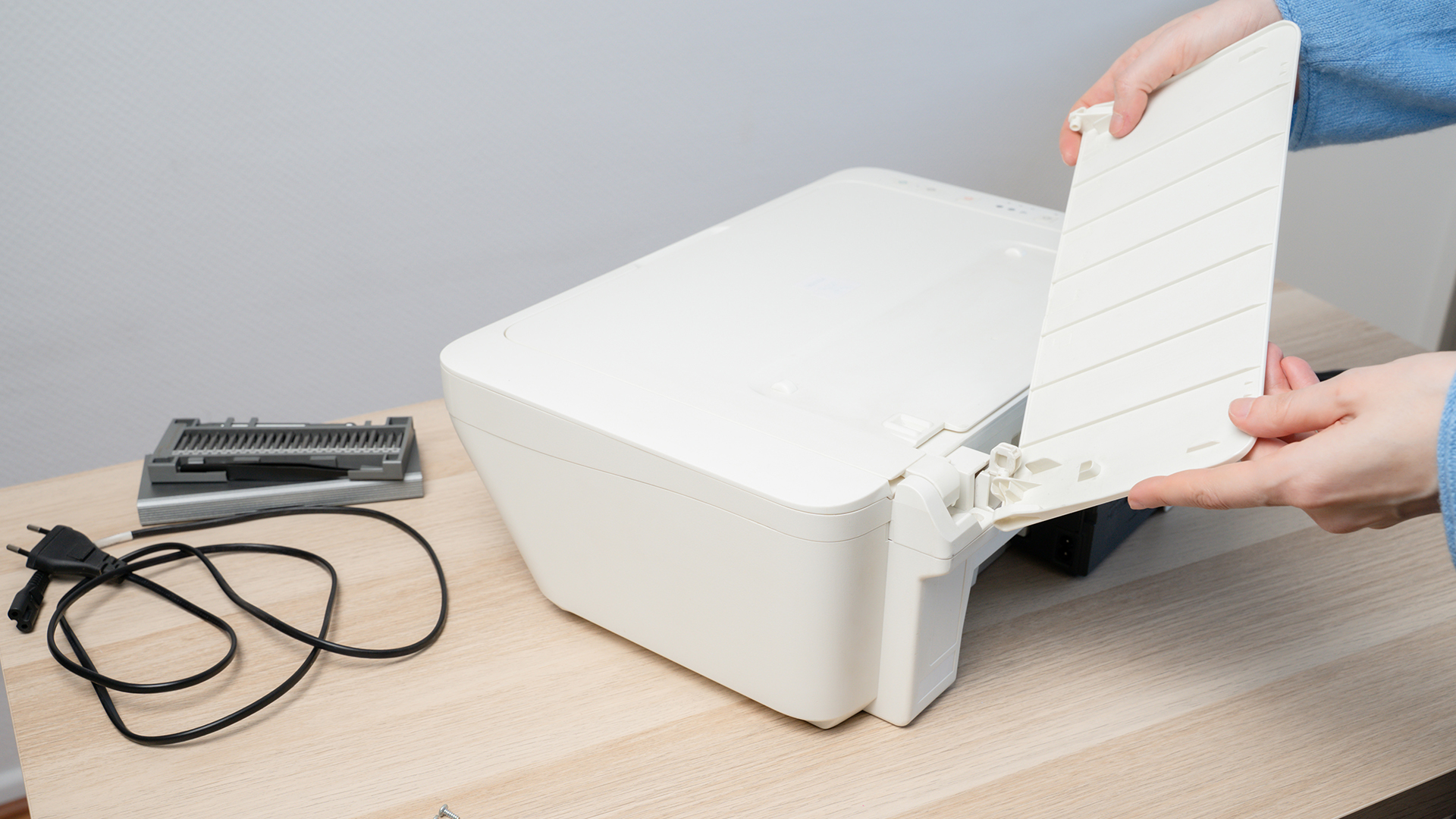
Failed setup usually comes down to connection, discovery, drivers, permissions, or printer state. Work through the checks in order instead of changing everything at once.
Printer not found on Windows 11
- Confirm the printer and PC are on the same network.
- Restart the printer, router, and PC.
- Check the printer's network report for an IP address.
- Add the printer manually by IP address.
- Temporarily disconnect from VPN if your company policy allows it, as some VPNs block local device discovery.
- Check whether Windows protected print mode is enabled and whether the printer is compatible.
Printer not found on Mac, iPhone, or iPad
- Make sure the Apple device and printer are on the same Wi-Fi network.
- Check that the printer supports AirPrint if you are using iOS or iPadOS.
- Restart the printer and Apple device.
- Disable guest network isolation if IT confirms that is appropriate.
- On Mac, try adding the printer by IP address using IPP or AirPrint where supported.
Driver installation fails
- Remove any failed printer entry from the printer list.
- Restart the computer before trying again.
- Download a fresh installer from the manufacturer's official support page.
- Check that you selected the right operating system version.
- Use Windows Update or built-in AirPrint if the full installer is not compatible.
- Ask IT to install the driver if local admin rights are blocked.
Printer says offline
- Check the printer is awake, not in an error state, and has paper.
- Confirm the cable is connected or Wi-Fi is still active.
- Print a network report and compare the IP address with the one saved on the computer.
- Reserve the printer's IP address in the router or DHCP server to stop changes.
- Clear stuck jobs from the print queue.
Print quality is poor after setup
- Run print head alignment on inkjet printers.
- Run nozzle cleaning if inkjet lines or missing colours appear.
- Check toner is seated correctly on laser printers.
- Use the correct paper type in the printer settings.
- Update firmware if the issue looks like a known bug rather than a consumable problem.
Quick recovery route: If nothing works, remove the printer from the computer, restart the printer, restart the router, restart the computer, add the printer by IP address, then install only the official driver or utility you actually need.
Office Printer Maintenance After Installation
Setting up an office printer is only the first job. A light maintenance routine keeps the printer available, secure, and easier to troubleshoot.
Weekly checks
- Check paper levels and keep paper dry, flat, and dust-free.
- Look for stuck jobs in the print queue.
- Print one page from rarely used inkjet printers to help reduce nozzle clogging.
- Wipe scanner glass with a suitable lint-free cloth if scans show marks.
Monthly checks
- Check ink or toner levels before they run out during a busy day.
- Review error logs if the printer has a web admin page.
- Clean accessible paper feed rollers if jams are becoming frequent.
- Check default print settings, especially after driver updates.
Quarterly checks
- Check for firmware updates from the manufacturer.
- Confirm the admin password is still controlled by the right person.
- Disable unused features such as Bluetooth, direct Wi-Fi, or remote printing if your office does not need them.
- Review secure print rules for teams handling payroll, HR, contracts, medical, finance, or customer data.
- Confirm the printer is still covered by warranty, care pack, or maintenance support if business-critical.
Keep a simple printer record
Create a small record for the printer and store it with your IT notes. Include model, serial number, location, IP address, admin owner, driver used, firmware date, cartridge or toner codes, warranty details, and setup date.
This record is useful when adding new staff laptops, replacing routers, ordering consumables, or diagnosing repeated paper jams. It also means one person leaving the business does not take all printer knowledge with them.
Security Tips for Shared Office Printers
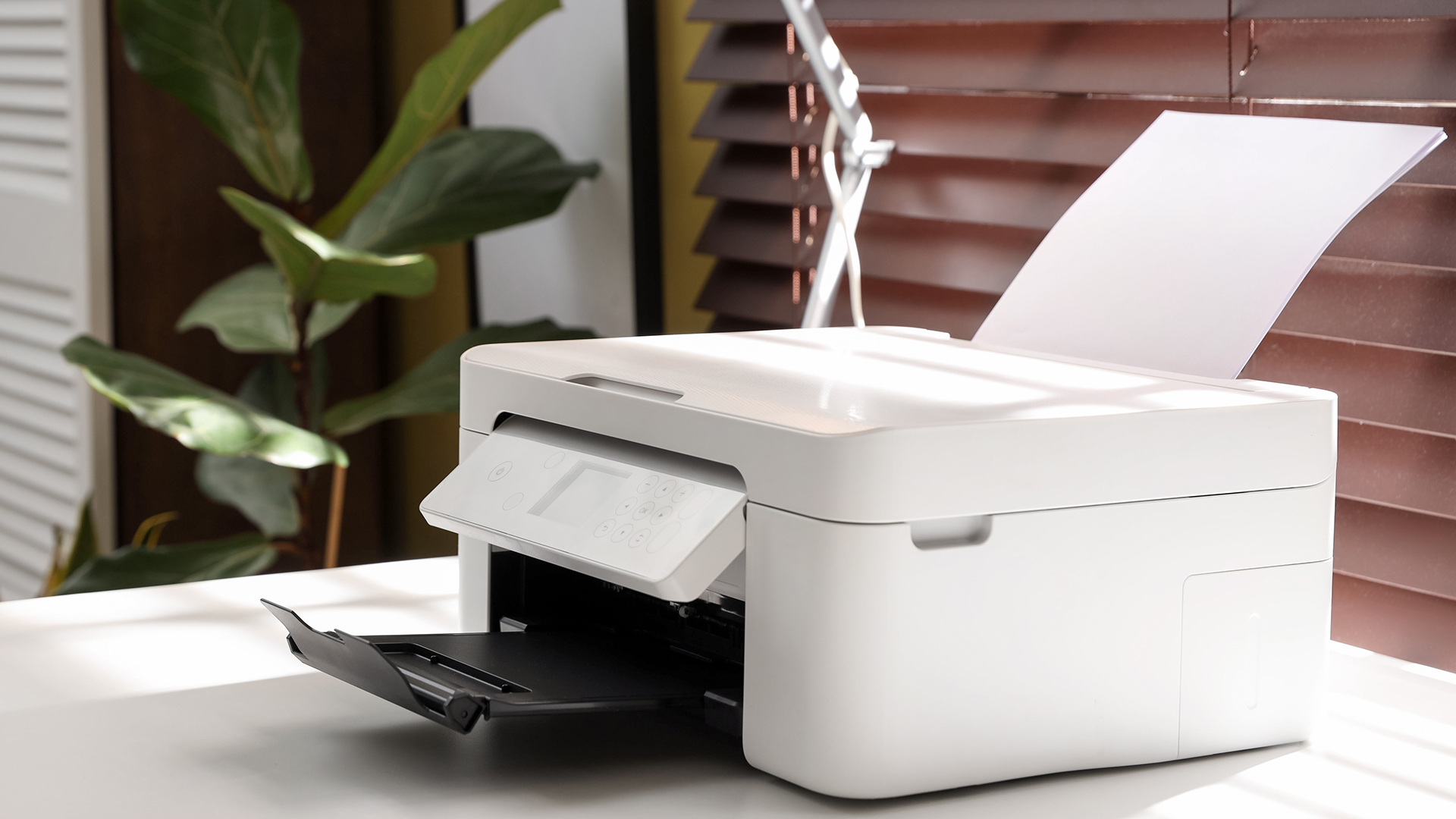
Printers are connected devices, so treat them as part of your office IT setup. Basic security habits are not dramatic, but they do reduce avoidable risk.
- Change the default admin password during setup.
- Install firmware updates from the manufacturer.
- Use secure print release for sensitive teams.
- Keep the printer on a trusted business network, not an open guest network.
- Disable unused services, ports, and direct wireless features.
- Restrict who can access web admin settings.
- Train staff to collect confidential printouts straight away.
- Remove stored address book entries and scan destinations before recycling or reselling a printer.
For businesses handling personal data, printing habits should be part of staff training. Even a perfect technical setup can be undermined if payslips, customer records, or contracts are left in a shared output tray.

Ready, Set, Print!
A clean, well-planned office printer setup makes a genuine difference to how smoothly your working day runs. By preparing the hardware properly, choosing the right connection method, installing the correct driver, and configuring your print preferences, you can have most printers up and running in under 10 minutes.
Regular maintenance after installation keeps the device in good health and avoids the disruption of unexpected breakdowns. Whether you are running a busy shared office or a compact home workspace, the steps in this printer installation guide apply to virtually any modern inkjet, laser, or MFP device on the market.

Let's Sort Out Any Hiccups...
How to install and set up an office printer step by step?
Unbox the printer, remove transit tape, load paper, install ink or toner, connect by USB, Ethernet, or Wi-Fi, add it in Windows 11 or Apple settings, install updates, then print a test page.
How do I install drivers in office printer?
For office printer driver setup, try Windows Update or AirPrint first. If features are missing, download the latest driver from the printer maker's official support page, match your operating system, then restart and test.
How do I troubleshoot a failed office printer installation?
Check power, cables, Wi-Fi, IP address, and admin rights. Remove failed printer entries, restart the printer, router, and computer, update drivers, clear the print queue, then add the printer manually by IP address.
What are the best connectivity options for an office printer?
Ethernet is usually best for shared office printers because it is stable and easy to manage. Wi-Fi suits flexible layouts, USB suits one desk, and AirPrint is handy for Apple devices.
How do I maintain an office printer after installation?
Keep firmware updated, use the right paper, clean rollers, replace ink or toner before it runs dry, review print queues, run alignment or calibration, and check security settings every few months.
How to install wireless office printer for business?
Place the printer near the router, use its wireless setup menu, choose the office Wi-Fi, enter the password, confirm the connection, add it on each device, set secure defaults, then test printing.
| Read More |
| 7 Common Office Printer Problems and How to Fix Them |
| A Complete Guide to the Different Types of Office Printers |
| How to Choose the Right Printer for Your Needs? |
Related Articles

Last Updated: May 25, 2026
To connect an Epson printer to WiFi, turn on the printer, open its WiFi or Network Settings, select WiFi Setup Wizard, choose your network name, enter the WiFi password and confirm the connection. If your Epson printer has no screen, use Epson Smart Panel, WPS, Epson setup software or a temporary USB setup method, depending on your model. Always keep your WiFi name and password ready before starting.
Trying to set up a printer and watching it refuse to connect is a very specific kind of pain. You just want to print one document, and suddenly your Epson printer is acting like it has trust issues with your router.
This guide explains how to connect Epson printer to WiFi in simple steps, whether your model has a screen, works through WPS, needs the Epson Smart Panel app, or requires setup software on Windows or Mac. We will also cover what to do if your Epson printer is not connecting to WiFi, because let’s be honest, that is usually where the drama starts.
Before You Start: What You Need
Last Updated: June 08, 2026
If your Epson printer is not printing, the problem is usually caused by low ink, clogged print heads, offline settings, connection issues, stuck print jobs, or outdated drivers. Most Epson printer problems can be fixed with simple troubleshooting steps such as checking cartridges, cleaning the print head, clearing the print queue, updating drivers, or resetting the printer.
An Epson printer not printing can be frustrating, especially when you need an important document, return label, invoice, or school assignment right away. The good news is that most Epson printer problems are not as serious as they first seem. In many cases, the issue comes down to low ink, clogged nozzles, offline settings, a weak connection, or a stuck print queue.
So, if you are wondering, “Why is my Epson printer not printing?”, this guide will walk you through the most common causes and simple ways to fix Epson printer issues at home. Before you think about replacing your printer, try these easy Epson printer troubleshooting
Last Updated: June 10, 2026
Epson is one of the most popular printer brands for UK homes, students, hybrid workers, small offices and creative users. Choosing the right Epson printer depends on how often you print, what you print, and how much you want to spend long term. For occasional home use, an affordable Epson inkjet printer is a solid pick. For regular printing, Epson EcoTank offers better running value with refillable ink tanks. If you need scanning, copying and mobile printing, choose a wireless all-in-one Epson printer for the easiest everyday setup.
Buying a printer should be simple. You want to print, scan, copy, maybe send something from your phone, and not spend half your life decoding ink cartridges like it is a secret side quest. That is where Epson printers come in. The brand covers compact inkjet printers, refillable EcoTank printers, wireless all-in-one models, photo printers and business-friendly options.
This Epson printer guide breaks down how Epson printers work, how to choose an Epson printer,
Last Updated: June 10, 2026
Label printers are practical, reliable, and incredibly useful when they work as expected. Whether you use one for shipping labels, barcodes, product tags, warehouse labels, office organisation, or home storage, a good label printer can save time and keep everything running smoothly.
Like any printer, label printers can occasionally run into problems. You may find your label printer not printing, producing faded labels, jamming midway through a job, or printing blurry labels that are difficult to scan. These label printer issues can be frustrating, especially when you need quick and accurate prints for business operations.
The good news is that many label printer common problems are easy to fix once you know what is causing them. In this guide, we’ll walk you through the top seven label printer errors users often face and show you how to solve them with simple, practical steps. This guide covers seven common label printer issues, explains what causes them, and shows you how to solve them
Last Updated: June 09, 2026
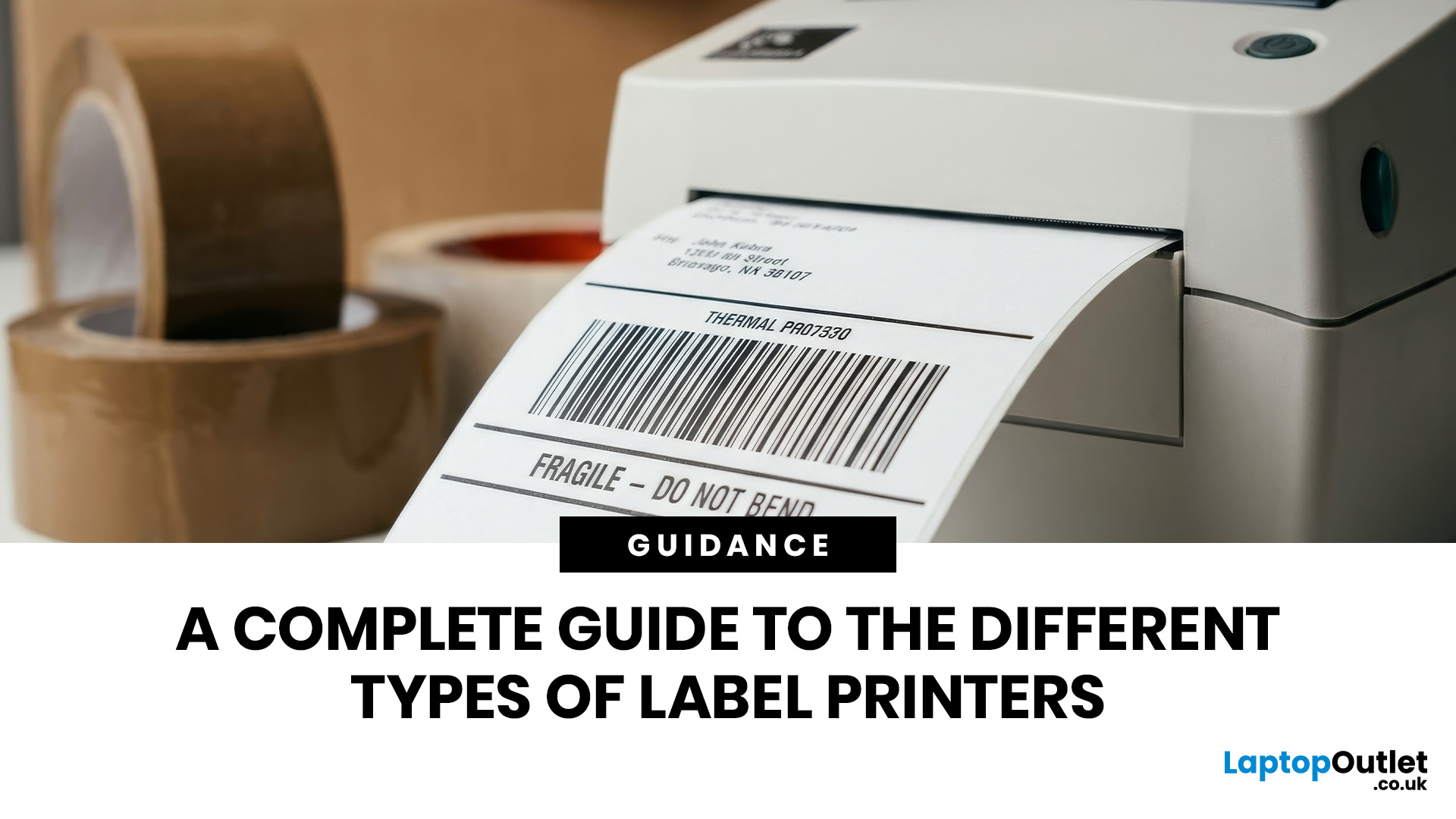
The main types of label printers are direct thermal, thermal transfer, inkjet, and laser. Direct thermal printers use heat-sensitive paper with no ink or ribbon, making them ideal for short-term labels like shipping and receipts. Thermal transfer printers use a wax or resin ribbon for durable, long-lasting labels. Inkjet and laser printers can print onto standard label sheets and work well for colour-rich or low-volume tasks. The right choice depends on your print volume, label durability requirements, and budget.
Whether you are running a small e-commerce shop, managing a busy warehouse, or simply trying to get your home office organised, choosing the right label printer can make a real difference. There are several label printer types on the market, each suited to different tasks, environments, and budgets.
This guide breaks down all the major types of label printers, explains how each technology works, and helps you figure out which one is the right fit for your needs.
Label Printer
Published: June 11, 2026
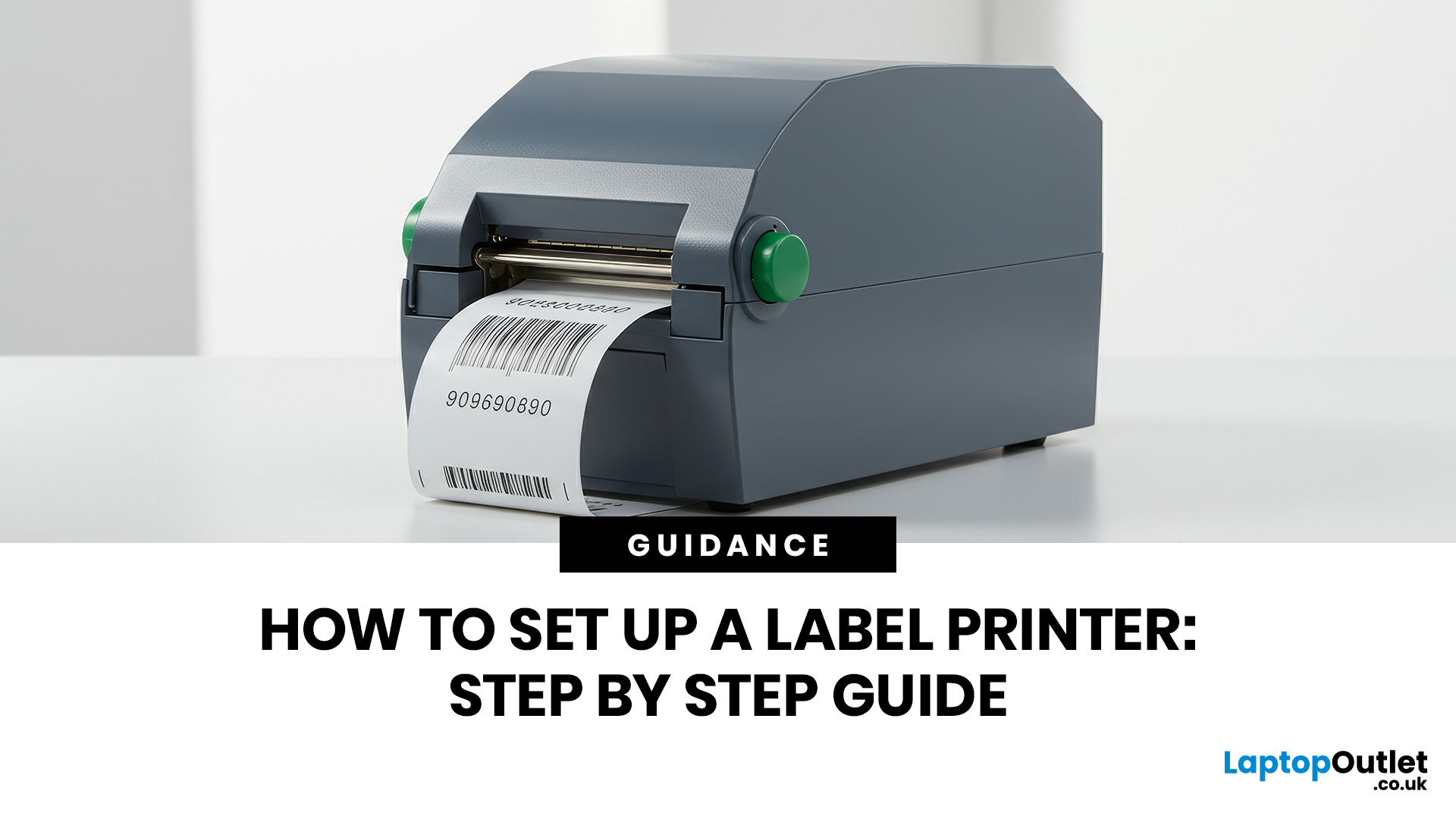
You are printing shipping labels, barcode labels, address stickers, product tags, file labels, or office labels. Setting up a label printer properly from the start saves time and avoids annoying print errors later.
This label printer setup guide walks you through every step in a clear, beginner-friendly way, so you can install, configure, and start printing labels without guessing your way through the manual.
Why Label Printer Setup Guide Matters
A label printer may look like a plug-and-play device, but the setup still matters. If the printer driver is wrong, the labels may print sideways. If the label size
Last Updated: June 15, 2026
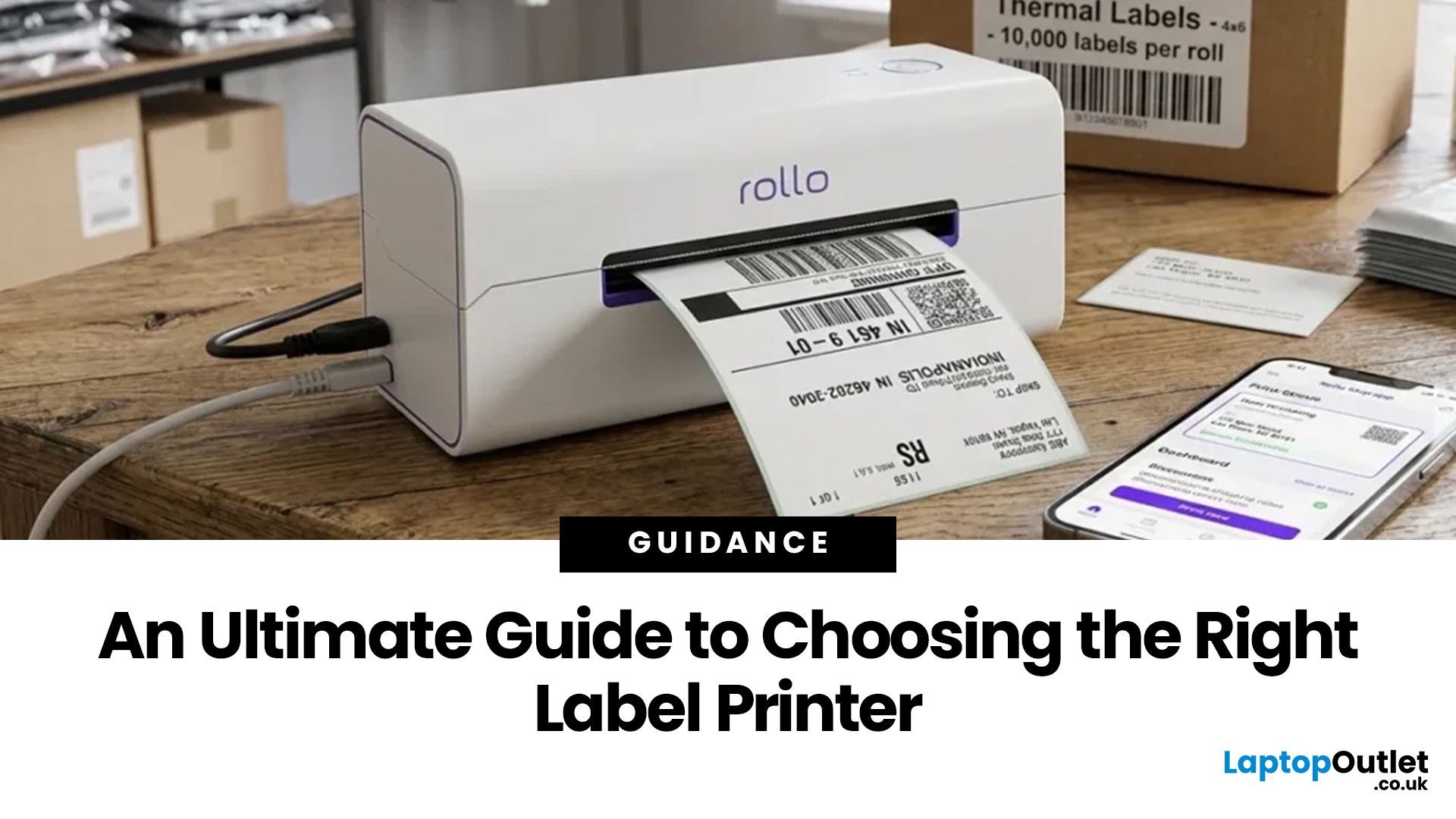
Choosing the right label printer doesn’t have to be complicated. This label printers guide makes it easy to understand the main features, costs, label printer types, and how to choose a label printer that fits your home, office, or business needs.
Whether you’re organising your home office, printing parcel labels, managing stock, creating barcodes, or simply keeping things neat, the right label printer can save time and make everything look more professional.
In this
Last Updated: June 15, 2026
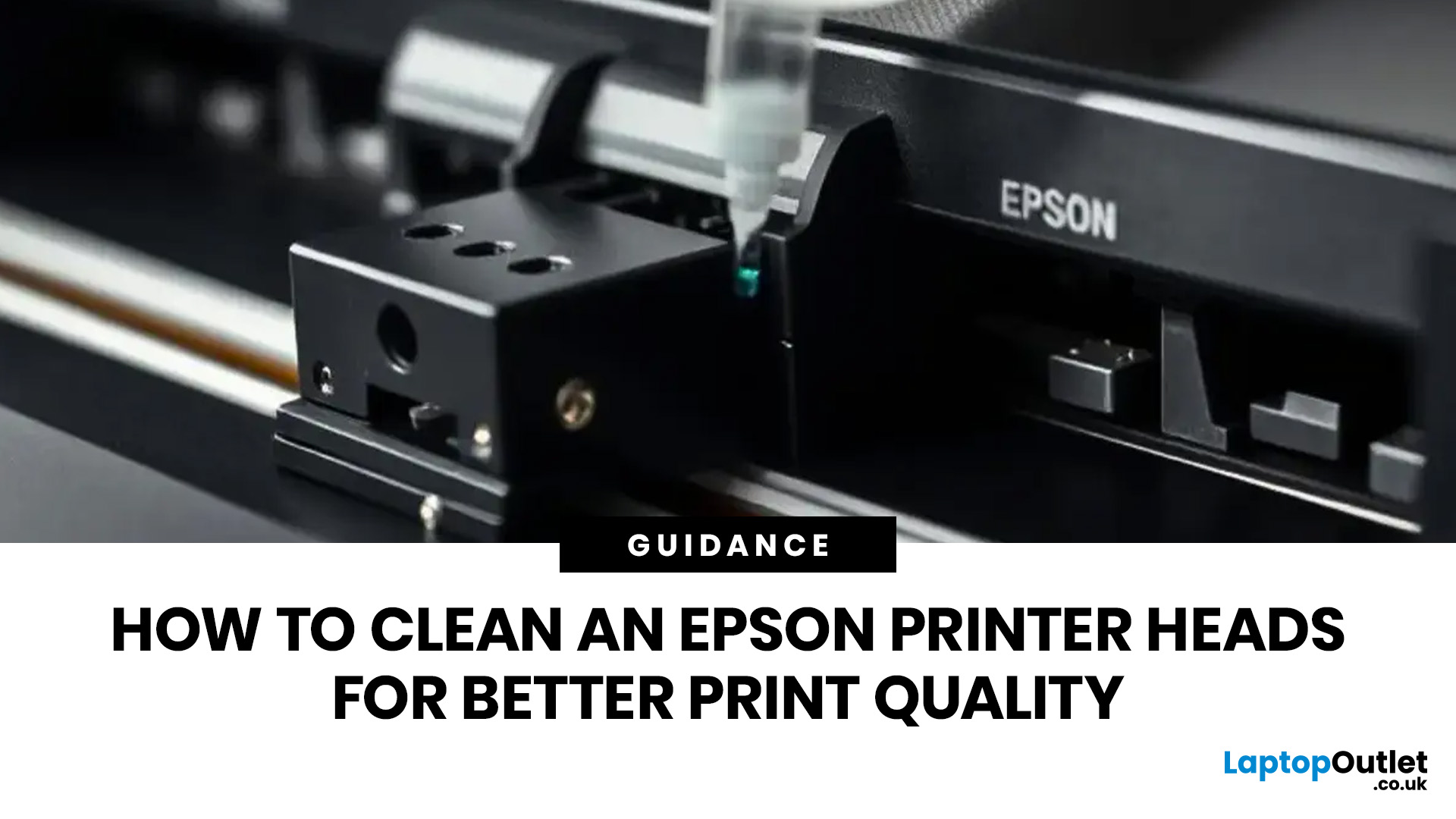
If your Epson prints look faded, streaky, patchy, or show missing colours, the print head may be clogged. You can usually fix this by running a nozzle check, using the built-in print head cleaning tool, and printing a test page to check the results.
Let’s be honest: when your Epson printer starts printing faded text, weird lines, missing colours, or completely blank pages, it feels like the printer has chosen chaos. But before you assume it is broken or start shopping for a new one, there is one simple thing you should check first: The Print Head.
If you are wondering how to clean an Epson print head, you are in the right place. Most print quality issues happen because the print head nozzles are clogged with dried ink. The good news? You can usually fix this with built-in print head cleaning tools, and you do not need to be a tech expert to do it. In this guide, you will learn what an Epson print head does, why it gets clogged, how to clean it properly, and what to do if your printer
Last Updated: June 30, 2026
Your document is ready, your deadline is real, and your printer has chosen chaos.
When your home printer is not working, even a simple print job can turn into a frustrating delay. From offline errors and paper jams to driver issues and connection problems, most home printer problems have quick fixes once you know where to look.
This guide explains the common causes and practical steps to get your printer working again.
Last Updated: June 30, 2026
A printer sounds simple… until you need one.
Then suddenly you are comparing inkjet vs laser, cartridges vs ink tanks, print speed, Wi-Fi, duplex printing, scanners, toner, photo quality, paper sizes and running costs. And the worst part? The cheapest printer on the shelf can become the most expensive one after a few months of ink refills.
This home printers guide is here to make the decision easier.
Whether you are buying for schoolwork, hybrid working, family documents, shipping labels, retail paperwork

