



How to Fix Common HP Printer Problems: Troubleshooting Guide
HP printers are reliable, but even the best machines throw a wobble from time to time. The good news is that the vast majority of issues are easy to resolve on your own. This guide will show you how to fix common HP printer problems without calling a professional. Whether you've got an HP OfficeJet, DeskJet, LaserJet, or ENVY, many of the checks below apply across the range.
What Are the Most Common HP Printer Problems?
Before diving into individual fixes, it helps to know what you are actually dealing with. HP printers, from compact home models to full office workhorses, tend to run into the same handful of issues time and again.
Here is a quick overview of the most frequently reported HP printer problems and what typically causes them:
|
Problem |
Most Likely Cause |
|
Printer not printing |
Stuck print queue, offline status, driver fault |
|
Paper jam |
Overfilled tray, worn rollers, torn paper fragments |
|
Printer showing offline |
Wi-Fi dropout, incorrect default printer setting |
|
Blank or faded pages |
Low ink, clogged printhead, protective tape left on |
|
Streaks or smudging |
Dirty printhead, misaligned cartridges, wrong paper type setting |
|
Error codes on display |
Firmware issue, hardware fault, connection problem, model-specific fault |
|
Slow printing |
Print quality set too high, network congestion |
|
Cartridge not recognised |
Dirty contacts, incompatible or non-genuine cartridge, firmware compatibility check |
|
Scanner not working |
Driver conflict, USB issue, HP Smart app glitch, missing full-feature software |
Recognising your issue in that list is the first step. If your printer is showing an error code on its display or in the HP Smart app, use the reference table below to decode it immediately before working through the relevant fix section.
What Do Common HP Printer Error Codes Mean?
HP printers display error codes on their screens or via the HP Smart app when something goes wrong. Error codes vary across HP printer families. Use the following table as a general guide.
|
Error Code |
Applies To |
What It Means |
Quick Fix |
|
E0 |
Selected DeskJet and ENVY inkjet models |
Cartridge issue, setup issue, or model-specific alert |
Reseat cartridges, check setup instructions, and confirm the exact code on HP Support |
|
E1 / E2 |
Selected DeskJet and ENVY inkjet models |
Often a paper-size mismatch or paper-setting issue on some models |
Check the paper loaded in the tray matches the paper size selected in the print settings |
|
E3 / E4 |
Selected DeskJet and ENVY inkjet models |
Carriage jam, paper jam, or obstruction depending on the model |
Clear the paper path, check the carriage area, remove any obstruction, then reset the printer |
|
0x6100004a |
OfficeJet, ENVY (inkjet) |
General hardware or ink system fault |
Remove cartridges, hard reset, reinstall cartridges |
|
Ink System Failure |
OfficeJet, ENVY (inkjet) |
Ink system or printhead fault |
Hard reset, reseat cartridges, clean printhead |
|
Supply Problem |
Most inkjet models |
Cartridge not recognised |
Clean contacts, confirm protective tape removed |
|
13.x |
LaserJet Pro, OfficeJet Pro |
Paper jam |
Remove jammed paper, check for torn fragments |
|
49 / 49.xxxx |
LaserJet, PageWide and some OfficeJet Pro models |
Firmware, print-job, communication, or accessory-related error |
Restart printer, clear print queue, disconnect unnecessary accessories, and update firmware |
|
79 / 79.xxxx |
LaserJet and OfficeJet Pro models |
Internal firmware error or firmware compatibility issue |
Disconnect from network, restart, clear jobs, then update firmware if the issue returns |
|
59.F0 |
LaserJet Enterprise |
Transfer Belt (ITB) fault |
Reset toner and fuser; replace ITB if persistent |
For any error code not listed here, enter your exact printer model number and the code into the search bar at support.hp.com for model-specific, step-by-step guidance.
Why Is My HP Printer Not Printing?
Your HP printer usually stops printing because of a lost connection, a stuck print job, the wrong default printer setting, or a driver problem. Start with the simple checks below before assuming there is a hardware fault.
Is the Printer Powered On and Properly Connected?
It sounds obvious, but a loose power cable or a disconnected USB lead is behind more "my printer is not working" calls than anything else. Check both ends of every cable.
- For USB printers: unplug the cable and reconnect it firmly at both the printer and PC end. Try a different USB port if nothing changes.
- For wireless printers: check the Wi-Fi light on the printer. A solid light means it is connected. A flashing or absent light means it is not.
- Plug the printer directly into a mains socket rather than an extension lead or multi-socket adapter, as surge protectors can sometimes cause power irregularities that confuse the printer.
Is There a Stuck Print Job Clogging the Queue?
A single failed print job can block every document that comes after it, making it look as though the printer has given up entirely. This is one of the most common causes of HP printer not working issues.
To clear the print queue on Windows:
- Open Settings > Bluetooth & Devices > Printers & Scanners.
- Click your HP printer and select Open Print Queue.
- Right-click any document listed and choose Cancel.
- If jobs are stuck and will not cancel, open Services (search in the Start menu), find Print Spooler, right-click and choose Restart.
- Once the spooler restarts, the queue should clear.
On a Mac: Go to System Settings > Printers & Scanners, select your printer, and click the queue icon to delete any stuck jobs.
Is the Correct Printer Set as the Default?
If you have ever connected a second printer, installed a PDF printer, or reinstalled your HP, Windows may have quietly switched your default device. This means every print job goes to the wrong place.
- Go to Settings > Bluetooth & Devices > Printers & Scanners.
- Click your HP printer.
- Select Set as Default.
- Disable "Let Windows manage my default printer" if it is toggled on, as this setting can override your preference.
How Do You Fix HP Printer Paper Jams?
To fix an HP printer paper jam, turn the printer off, unplug it, remove jammed paper slowly in the direction of the paper path, and check for small torn fragments around the rollers and carriage area. Never force the paper out, as this can damage the mechanism.
How to Remove a Paper Jam Safely
- Check the input tray first. Remove all the paper and look for any sheets that have partially fed in at an angle.
- Open the rear access panel (if your model has one) and gently pull out any visible paper using both hands, pulling slowly in the direction of the paper path.
- Open the cartridge access door and inspect the carriage area for torn scraps. Use a torch to check in hard-to-see corners.
- Remove the paper tray completely and look underneath for small fragments near the feed rollers.
- Once cleared, reload the paper tray with a fresh, properly fanned stack and reconnect the printer.
- If your printer still shows a jam error after clearing, do a power reset: unplug it from the wall for 60 seconds, then plug it back in and power it on.
Warning: Never use sharp objects to remove jammed paper, and never pull paper backward against the direction of the feed path. This risks damaging the rollers and printhead mechanism.
Why Does My HP Printer Keep Getting Paper Jams?
If jams are happening repeatedly, the cause is usually one of the following:
- Overfilled paper tray. Every HP printer has a maximum capacity printed inside the tray (typically 100 to 250 sheets). Do not exceed it.
- Mixed paper types. Loading different weights or sizes of paper in the same tray causes misfeeds.
- Worn or dirty pick-up rollers. The rubber rollers that grab paper from the tray lose grip over time. Clean them with a lint-free cloth lightly dampened with distilled water, rotating them as you go.
- Wrong paper size. Make sure the paper guides in the tray sit snugly against the stack without gripping it too tightly.
- Damp or damaged paper. Store paper in a dry environment and discard any sheets that have become wavy or stuck together.
Regularly printing at least one page a week also helps keep the paper path components moving freely and in good condition.
Why Is My HP Printer Showing as Offline?
"HP printer offline" is one of the most common HP printer problems to fix in wireless printers. It does not necessarily mean the printer is broken. It usually means your computer has lost communication with it, often after a router restart, a power cut, or a Windows update.
The fix depends on whether you are using a USB or wireless connection, and whether the issue is in Windows or the printer itself.
How to Fix an HP Printer Showing Offline in Windows 10 and 11
Step 1: Check the "Use Printer Offline" setting
- Go to Settings > Bluetooth & Devices > Printers & Scanners.
- Select your HP printer and open the Print Queue.
- Click Printer in the menu bar at the top.
- If Use Printer Offline has a tick next to it, click it to untick and bring the printer back online.
Step 2: Restart the printer and router
Turn off your printer, wait 30 seconds, then turn it back on. While it restarts, also reboot your Wi-Fi router. Once both are back up, wait a further minute for them to re-establish the connection.
Step 3: Remove and re-add the printer
If the above does not help, remove the printer from Windows entirely and add it fresh:
- Go to Settings > Bluetooth & Devices > Printers & Scanners.
- Select your printer and choose Remove Device.
- Click Add a Printer or Scanner and follow the on-screen setup.
How to Reconnect an HP Printer to Wi-Fi After a Router Change
If you have recently changed your broadband provider or replaced your router, your printer is still connected to the old network and needs reconnecting to the new one.
- On HP OfficeJet, OfficeJet Pro, and ENVY models with a touchscreen, navigate to Settings > Wireless Settings > Wireless Setup Wizard on the printer's control panel. Select your new Wi-Fi network name (SSID) and enter the password. On simpler HP DeskJet models (such as the 2700 and 4100 series) that have no screen, use the HP Smart app on your phone or PC instead: open the app, select Add Printer, and follow the wireless setup prompts.
- Wait for the wireless light to turn solid, confirming connection.
- On Windows, the HP Smart app will detect the reconnected printer automatically once it is back on the network.
If your printer keeps dropping offline, consider assigning it a static IP address through your router settings. This prevents the router from changing the printer's IP address after restarts, which is a common cause of recurring offline problems.
Why Is My HP Printer Printing Blank Pages or Poor-Quality Output?
When you send a print job and get back a blank page, a page full of streaks, or faded text that is barely readable, the problem is nearly always with the ink system. This covers everything from genuinely empty cartridges to dried-out printheads and misaligned nozzles.
Troubleshooting HP printer issues of this type is methodical: start with the cartridges and work your way through to the printhead.
Is the Cartridge Empty, or Is the Protective Tape Still On?
Before running any maintenance routines, check the basics:
- Check ink levels via the HP Smart app or through Control Panel > Devices and Printers > right-click your printer > Printing Preferences. Do not rely solely on the warning light on the printer itself, as it can lag behind the actual level.
- Check for protective tape. New cartridges ship with a strip of orange or clear plastic tape over the ink nozzles. If it is still on, no ink will reach the paper.
- Reseat the cartridges. Open the cartridge door, remove each one, and push it firmly back in until it clicks. Poor contact between cartridge and printer is a surprisingly common cause of blank pages.
How to Clean HP Printheads
Clogged printheads are the leading cause of streaky, faded, or patchy prints on HP inkjet printers. If you do not use your printer every week, ink dries inside the nozzles and blocks them.
Via the HP Smart App or printer software (recommended first step):
- Open the HP Smart app or go to Control Panel > Devices and Printers.
- Right-click your printer and select Printer Properties > Maintenance (the exact label varies by model).
- Select Clean Printhead and follow the on-screen instructions.
- Print a test page when the cycle finishes. If quality is still poor, run a second cleaning cycle. Run a maximum of three cycles before trying the manual method.
Manual printhead cleaning (for stubborn clogs):
- Turn off the printer and unplug it. Open the cartridge access door.
- Remove the cartridges and set them on a clean cloth.
- Use a lint-free cloth lightly dampened with distilled water only (not tap water, which contains minerals) to gently wipe the copper contacts on each cartridge.
- Clean the corresponding contacts inside the printer carriage with the same cloth.
- For a deeply clogged removable printhead (found on OfficeJet Pro and PhotoSmart models), soak just the nozzle plate in warm distilled water in a shallow dish for 10 to 15 minutes, then blot dry with a lint-free cloth.
Note: HP DeskJet and entry-level ENVY models have the printhead built into each ink cartridge, so there is no separate printhead to remove. On these models, simply replacing the affected cartridge resolves a deep clog. - Allow everything to dry for at least 10 minutes before reinstalling the cartridges and powering the printer back on.
Tip: Use your printer at least once a week, even if it is just printing a test page. This keeps ink flowing through the nozzles and is the single best thing you can do to prevent clogging.
How to Fix Streaks, Smudging, and Misaligned Text
If the print quality is off but the ink levels are fine, the printhead may need realigning after cleaning.
- In the HP Smart app or your printer's control panel, go to Setup > Printer Maintenance > Align Printhead.
- The printer will print an alignment page and automatically calibrate itself.
- If text still looks blurry or shifted, repeat the alignment once more.
For smudged or wet-looking prints, check that your paper type setting matches the paper you are actually using. Printing on plain paper with the setting on "Photo Paper" will cause the printer to lay down far more ink than the paper can absorb.
How Do You Fix HP Printer Driver and Software Issues?
An outdated, corrupted, or incompatible driver is behind a surprisingly large number of HP printer faults. If your printer hardware seems fine but it simply will not cooperate with your computer, the driver is the first place to look.
This is especially common after a major Windows update, such as the periodic feature updates in Windows 11, which can overwrite or break existing printer drivers.
How to Update or Reinstall HP Printer Drivers
Option 1: Use the HP Smart App
Download the HP Smart app from the Microsoft Store. It detects your printer, installs the correct driver automatically, and keeps it updated.
Option 2: Manual driver download
- Visit support.hp.com and enter your exact printer model number.
- Download the latest full-feature driver for your version of Windows or macOS.
- Before installing, go to Settings > Bluetooth & Devices > Printers & Scanners, remove your existing printer completely, and also uninstall the old HP software via Control Panel > Programs > Uninstall a Program.
- Restart your computer, then run the new driver installer.
Option 3: Windows Update
Go to Settings > Windows Update > Advanced Options > Optional Updates and look for any printer-related driver updates from HP listed there.
How Do You Fix HP Ink Cartridge Problems?
Ink cartridge issues are among the most frustrating HP printer printing problems because the error messages are not always clear about what is actually wrong. Here are the most common cartridge problems and how to sort them out.
Printer Is Not Recognising a New Cartridge
- Remove the cartridge and check that all orange protective tape and plastic tabs have been fully removed.
- Clean the gold or copper contacts on the cartridge with a dry, lint-free cloth. Do not use water on the contacts themselves.
- Clean the matching contacts inside the printer carriage with the same cloth.
- Reinsert the cartridge firmly until it clicks into place.
- If the printer still will not recognise it, try a different cartridge to check whether the issue is the cartridge itself or the printer.
"Only Use Genuine HP Ink" Warning
Some HP printers display a warning when a non-HP cartridge is installed. This is a firmware-level check. You can typically dismiss the warning and continue printing, but be aware that third-party or refilled cartridges can cause print quality issues. They may not automatically void your printer warranty, but damage caused by third-party or refilled cartridges is unlikely to be covered by HP. For best results, always use genuine HP ink.
Cartridge Is Listed as Empty but Still Has Ink
HP's low-ink warnings are triggered by page-count tracking rather than a direct sensor reading of ink volume, so they can fire before the cartridge is truly empty. You can often get a reasonable number of additional pages by acknowledging the warning and continuing to print. However, running a cartridge completely dry can damage the printhead, so do not push it too far.
How Do You Fix HP Printer Wi-Fi and Network Connectivity Problems?
Wireless HP printers are wonderfully convenient until the Wi-Fi decides not to cooperate. Beyond the offline fix covered earlier, there are a few more specific network issues worth knowing about.
Printer Connects to Wi-Fi but Still Will Not Print Wirelessly
This usually happens when the printer and your computer are on different networks, or when one device is connected to a guest network, mesh extender, VPN, or separate router band that cannot communicate with the printer.
- Print a Network Configuration Page from the printer's control panel (usually under Settings > Wireless > Network Configuration). Check the IP address and the SSID it is connected to.
- On your PC, check which network you are connected to. Both must be on the same router and the same network name.
- Most HP consumer inkjet printers, including the DeskJet, ENVY, and standard OfficeJet ranges, support 2.4GHz only and cannot connect to a 5GHz band at all. If your router broadcasts both bands under different names, connect the printer to the 2.4GHz network. Higher-end OfficeJet Pro and LaserJet Pro models may support both bands; check your printer's specifications if you are unsure.
How to Set a Static IP Address for an HP Printer
A static IP prevents your router from reassigning a new IP address to the printer after every restart, which is a common cause of recurring "printer offline" or "printer not found" errors.
- Find your printer's current IP address from the Network Configuration Page.
- Log in to your router's admin panel (usually at 192.168.1.1 or 192.168.0.1 in your browser).
- Find the DHCP Reservation or Static IP Assignment section.
- Assign the printer's MAC address (also listed on the Network Configuration Page) a fixed IP address.
- Save the settings and restart both the router and printer.
Alternatively, you can set a manual IP directly on the printer via the HP Embedded Web Server (EWS), accessible by entering the printer's current IP address into your browser's address bar on a device connected to the same network.
HP Printer Keeps Disconnecting from Wi-Fi
If your printer drops off the network regularly, try the following:
- Move the printer closer to the router or use a Wi-Fi extender if it is in a distant room.
- Disable Wi-Fi Direct if it is turned on and not in use, as it can sometimes interfere with standard wireless printing.
- Check for firmware updates via the HP Smart app, as HP periodically releases fixes for known wireless stability issues.
- Avoid placing the printer next to thick walls, cordless phones, microwaves, or other devices that may interfere with wireless signal strength.
Why Is My HP Printer Printing So Slowly?
Slow printing is rarely a sign of a serious fault. It is usually a settings issue that takes less than a minute to fix.
- Check the print quality setting. "Best" or "Maximum DPI" modes are much slower than "Normal" or "Draft." For everyday documents, "Normal" quality is perfectly adequate and significantly faster. Change this in Printer Properties > Paper/Quality.
- Turn off duplex (double-sided) printing if you do not need it, as processing time is doubled.
- Clear a large print queue. If many jobs are queued, the printer processes them in sequence. Sending large files in batches rather than all at once can improve perceived speed.
- Check network speed for wireless printing. If other devices on your Wi-Fi are consuming a lot of bandwidth, print jobs may transfer slowly. Try printing via USB temporarily to see if that resolves it.
- Restart the printer and your computer. Memory build-up in both can slow processing over time.
For users who only print occasionally, affordable HP printers in the DeskJet, ENVY, or entry-level LaserJet ranges may offer better value than repairing an older, slower model.
How Do You Fix HP Printer Scanning Problems?
If your HP all in one printer prints fine but will not scan, the cause is almost always a driver or software problem rather than a hardware fault.
- Reinstall the full-feature driver, not just the basic driver. The basic driver supplied by Windows may only handle printing; scanning usually requires the full HP software package from the HP website or the HP Smart app.
- Use the HP Smart app for scanning. It is more reliable than older HP scanning utilities and is fully supported on Windows 10, Windows 11, and recent macOS versions.
- Check USB connections if you are scanning via cable. A loose or damaged USB cable can allow intermittent communication, so reconnect the cable firmly or test with another cable.
- On macOS, check that the HP Smart app or scanning software has the required permissions under System Settings > Privacy & Security.
- On Windows, check that Windows Image Acquisition (WIA) is running by opening Services and confirming the service is set to Automatic or Manual and is not disabled.
If none of the above resolves the issue, try scanning from a different application, such as Windows Fax and Scan, to rule out a fault with the HP Smart app itself rather than the printer hardware or driver.
When Should You Give Up on an HP Printer?
Tried all fixes for HP printer problems? Not every problem is worth fixing. Sometimes a repair costs more than a replacement, or the fault is simply beyond what you can reasonably address at home.
Signs It Is Time to Replace Your HP Printer
- Repair cost exceeds 50% of a new printer's price. If a printhead replacement, fuser unit, or drum costs more than half the price of a comparable new model, buying new makes more financial sense.
- Multiple faults occurring simultaneously. When a printer develops paper jam issues, connectivity problems, and print quality faults at the same time, it usually indicates general wear across several components.
- Spare parts are no longer available. HP typically supports printers for around five years after they are discontinued. After that, finding genuine replacement parts becomes difficult and expensive.
- Firmware support has ended. Older HP printers that no longer receive firmware updates may develop compatibility problems with new operating systems, particularly after major Windows 11 updates.
- The printer is more than seven to ten years old. Consumer inkjet printers are generally designed with a lifespan of around 5 to 7 years under typical home use. After that, component degradation is ongoing and increasingly hard to manage.
- Ink costs more than a new printer. If the combined cost of replacement cartridges approaches or exceeds the cost of a newer, more ink-efficient model, upgrading is the smarter choice.
If you're looking for something reliable to replace an ageing model, it's worth checking out printers for home use. If print volume is your main concern, reliable inkjet printers and laser printers both offer strong long-term cost efficiency.
For help choosing the right replacement, check out our detailed guide to buying an HP printer for a full breakdown of models and features. It will help you choose the right HP printer for your needs.

Getting Your HP Printer Back on Track
Most HP printer errors come down to a handful of fixable causes: a stuck print queue, a dropped Wi-Fi connection, a clogged printhead, or an outdated driver.
Work through the relevant section in this guide methodically, use the HP Smart app as your first-line diagnostic tools, and you will resolve the vast majority of faults without spending a penny.
If repairs are no longer viable, Laptop Outlet stocks a wide range of best printers to fix common HP printer problems for good, with competitive UK pricing and fast delivery across the country.

In Case You Missed It...
Why won't my HP printer print even though it is showing as connected?
A stuck print job or incorrect default printer setting is usually the cause. Clear the print queue and confirm your HP printer is set as the default device in Windows Settings.
How do I get my HP printer back online?
Open the print queue in Windows, click Printer in the menu bar, and uncheck "Use Printer Offline." Then restart both the printer and your router.
Why is my HP printer printing blank pages?
Blank pages usually mean empty ink cartridges, protective tape left on a new cartridge, or clogged printheads. Check ink levels and reseat the cartridges first.
How do I fix an HP printer paper jam when there is no paper stuck?
This is a false jam error. Reset the printer by unplugging it for 60 seconds. Clean the pickup rollers and check for small torn paper fragments near the sensors.
How do I update my HP printer firmware?
Open the HP Smart app, select your printer, go to Printer Settings, and check for firmware updates. Alternatively, visit support.hp.com, enter your model, and download the latest firmware manually.
When should I replace my HP printer instead of repairing it?
If repair costs exceed 50% of a new printer's price, parts are unavailable, or the printer is over seven years old with multiple faults, replacing it is usually the more sensible and cost-effective choice.
Related Articles

Last Updated: April 22, 2026
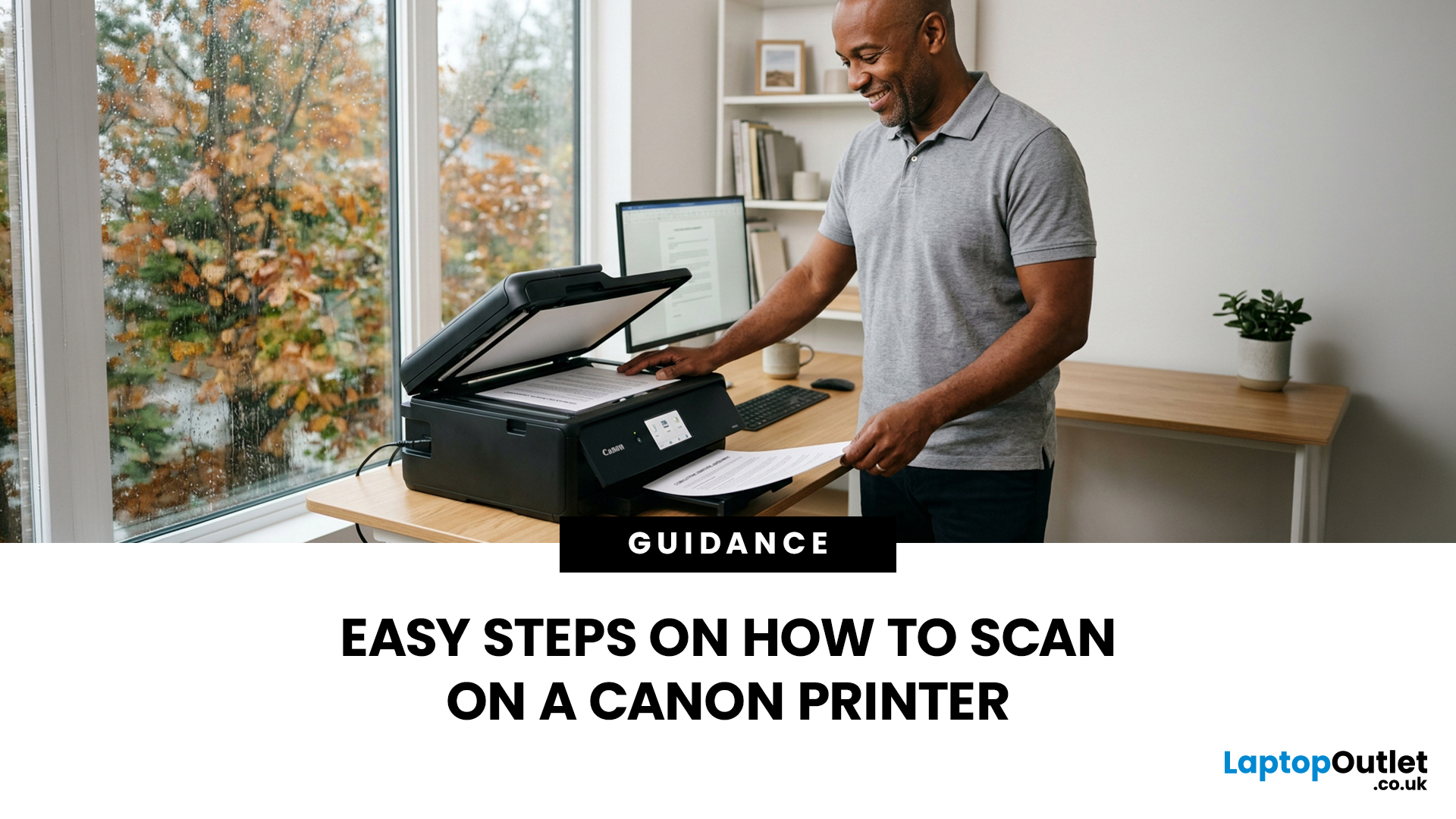
Canon makes some of the most popular multipurpose printers on the market, and for good reason. They're reliable, straightforward to use, and the scanning function is genuinely one of the better ones you'll find on a home or office printer. But if you've never used it before, staring at the control panel wondering where to start is a perfectly normal experience.
This guide covers everything you need to know to scan a document on a Canon printer, whether you're on Windows, Mac, or going straight from the printer itself. No fluff, just the steps that actually work.
Get These Things Sorted Before You Start
You don't need much to get going, but skipping these checks is how people end up wasting twenty minutes troubleshooting something obvious.
Make sure your Canon printer is switched on and connected to your computer, either by USB or over Wi-Fi. If it's a wireless connection, both your printer and computer need to be on the same network. Also confirm that your Canon drivers are installed.
Last Updated: April 22, 2026
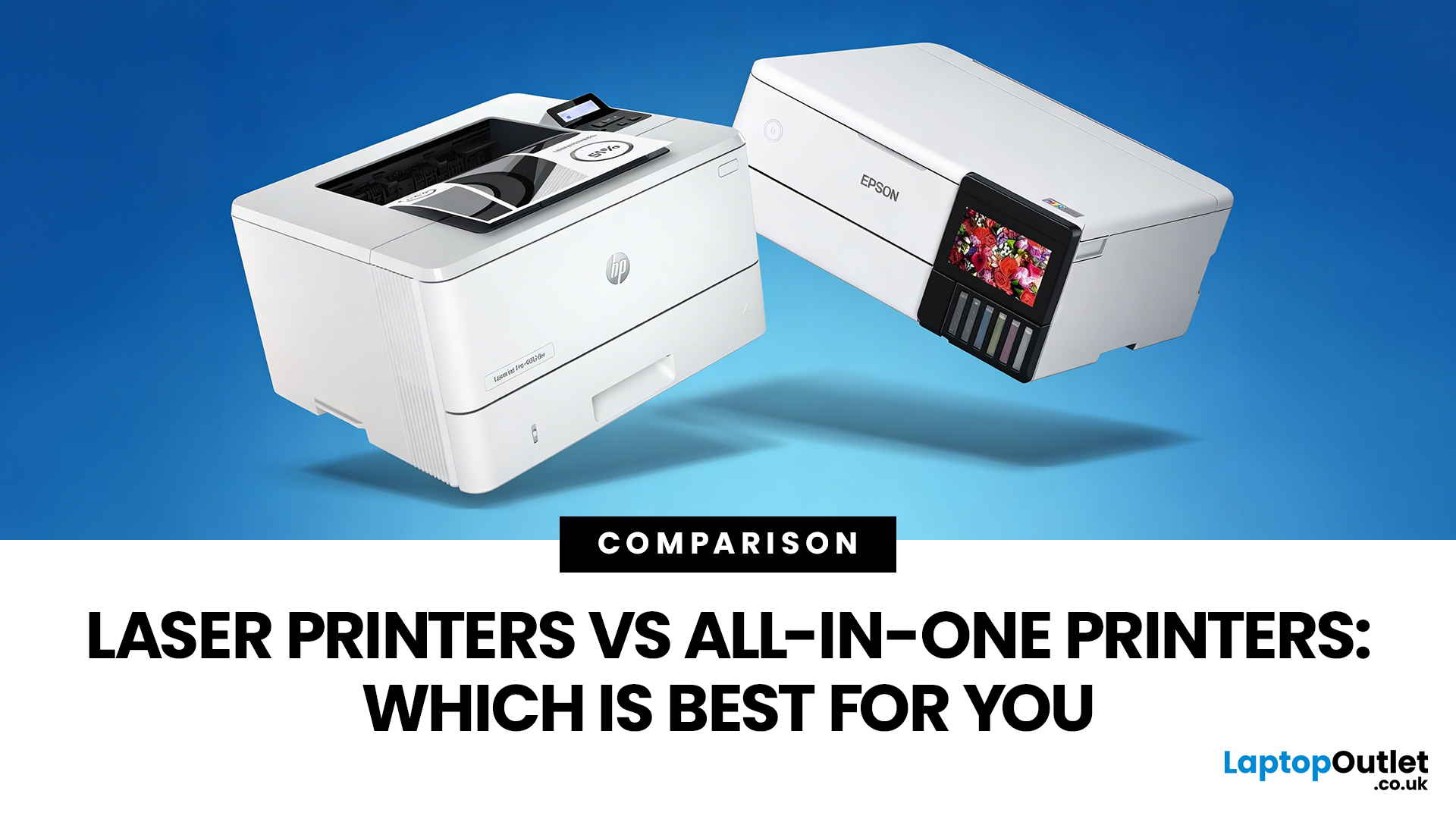
Choosing between Laser printers vs all-in-one printers sounds simple until you realise the two terms do not describe the same thing.
A Laser printer refers to the way the printer works. An all-in-one printer refers to the machine's capabilities, usually printing, scanning, and copying in one unit. That means some all-in-one printers are Laser models, while others are inkjet. So, when people compare all-in-one vs Laser printers, what they are really trying to work out is whether they need stronger print performance or broader day-to-day flexibility.
For some buyers, the Laser is the clear winner. For others, an all-in-one makes far more sense. The right choice depends on how often you print, what you print most, and whether scanning and copying matter as much as printing itself.
If your priority is fast document printing, crisp text and lower running costs over time, a Laser model is usually the smarter fit. If you want one machine that can handle household paperwork, scanning, copying and

Last Updated: April 22, 2026
If most of your printing revolves around invoices, reports, coursework, labels, forms, shipping documents, and everyday admin, a Laser printer usually makes more sense than many buyers first realise. A lot of people still think of Laser printers as large, office-only machines built for big companies, but that view is out of date. Today, you can find compact monochrome models for home desks, colour models for presentation-heavy work, and multifunction machines that print, scan, copy, and fax without dominating your space.
That matters because the right Laser printer can save time every week, keep text consistently sharp, reduce day-to-day hassle, and lower running costs when your workload is document-heavy. The wrong one can leave you paying extra for features you never use or relying on a machine that isn't actually built for the way you print.
This guide explains how Laser printers work, where they perform best, the main advantages and disadvantages to weigh up, and which features matter

Published: April 13, 2026
Inkjet printers are one of the most widely used printing solutions across UK homes, students, and small offices. They are affordable, versatile, and capable of producing high-quality colour output. But if you have used one for any length of time, you already know they can also be frustrating.
From faded prints to clogged nozzles and random error messages, inkjet printer problems are common. The good news is that most of these issues are not serious faults. In many cases, they are caused by usage habits, maintenance gaps, or simple setup errors. This guide goes beyond quick fixes. It explains why these problems happen, how to fix them properly, and how to prevent them in the future so your printer stays reliable long-term.
Why Inkjet Printer Problems Are So Common
To understand inkjet printer troubleshooting, you need to understand how these printers work in real use. Unlike laser printers, inkjet printers rely on liquid ink. That ink is pushed through extremely small nozzles to create
Last Updated: April 14, 2026
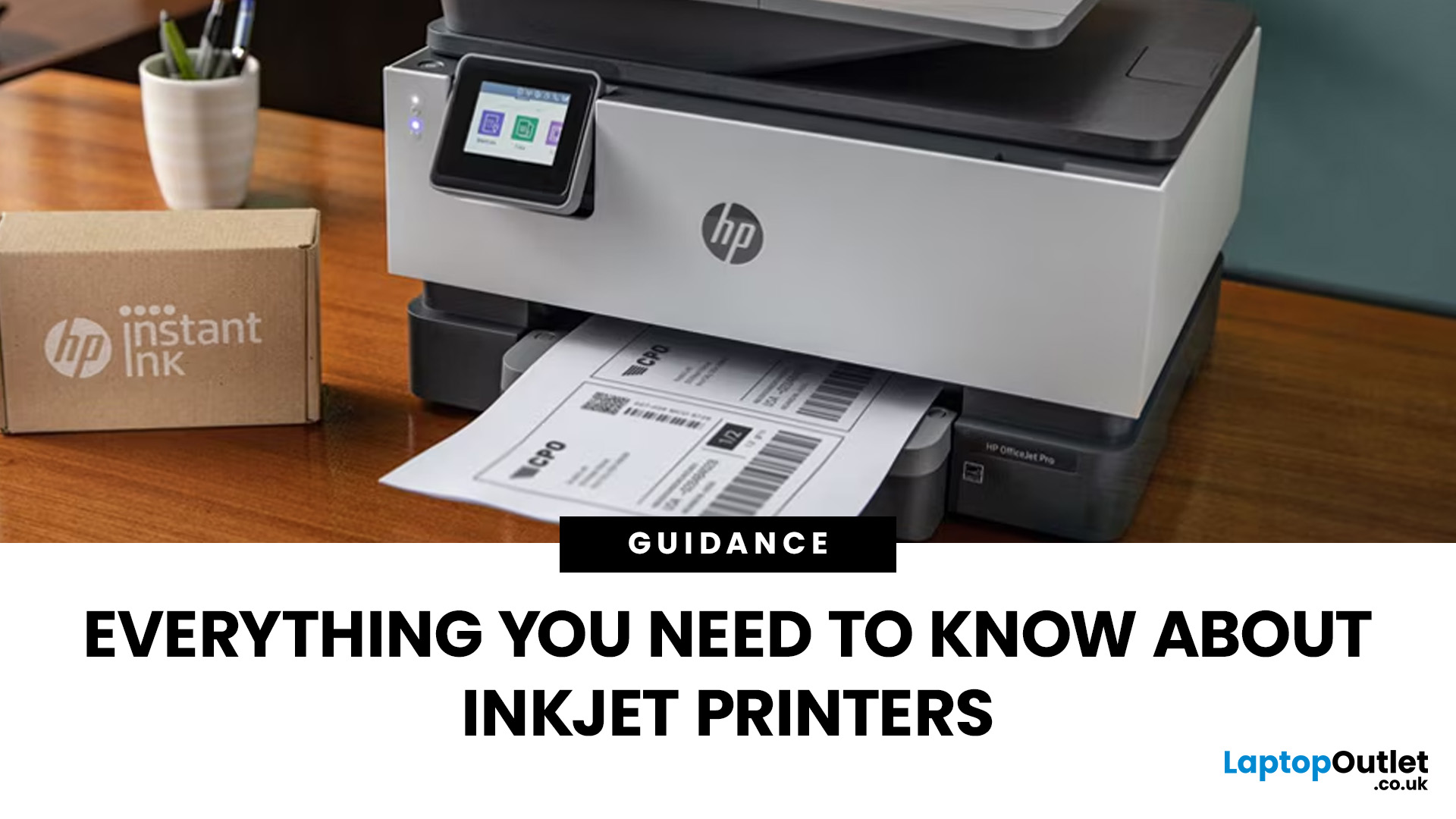
Buying a printer sounds simple until you start comparing print types, running costs, features, and maintenance. That is usually where inkjet models come into the picture. They are widely used, available at different price points, and often marketed as flexible printers for home and small office use. Even so, many buyers still have the same questions: what is an inkjet printer, how does it work, and is it the right fit for the way you print?
This inkjet printer guide breaks it down properly. It covers how inkjet printers work, the main types available, the real cost of ownership, how they compare with laser options, and what you need to know before buying one. Whether you need a printer for occasional homework, colour documents, creative work, or general home use, understanding the strengths and limits of inkjet printing makes it much easier to choose well.
What is an Inkjet Printer?
When people ask what is an inkjet printer, the simplest answer is that it is the most common type of printer
Last Updated: July 06, 2026
Laser printers are built for sharp text, fast output, and lower long-term running costs, but even reliable machines can develop faults. Smudged pages, streaks, repeated paper jams, faded print, offline errors, slow printing, and ghosting are common laser printer problems that occur in homes, student setups, and busy offices alike. The good news is that many laser printer issues can be diagnosed and fixed without calling support straight away.
This guide covers practical laser printer troubleshooting for the problems people hit most often, what usually causes them, and the steps worth trying before you replace parts or upgrade the printer.
If you want a clearer picture of how laser printers work before you start diagnosing faults, read our complete guide to laser printers, including how they work, where they perform best, and who should buy one.
A Quick Diagnostic Table for Common Laser Printer Problems
Before getting into the details, start here. In most cases, the symptom points you towards
Last Updated: April 22, 2026
Laser printers are built for sharp text, fast output, and dependable running costs, but they still need routine care to stay reliable year after year. Dust, paper debris, toner residue, worn feed parts, and poor storage habits can all shorten a printer’s life long before any major component actually fails.
The good news is that laser printer maintenance does not need to be complicated. A sensible routine can help reduce smudging, paper jams, streaks, faded print, and unnecessary consumable waste. It can also help you maintain stable print quality for longer, which matters whether you are printing coursework at home, handling household paperwork, or managing documents in a busy office.
This guide covers the practical side of laser printer cleaning and long-term care, including how to clean a laser printer safely, what to check regularly, how to handle toner and drum maintenance, and when maintenance stops making sense, and replacement becomes the smarter choice. If you are still weighing
Last Updated: April 21, 2026
Setting up an all-in-one printer is usually much easier than people expect. The part that trips most users up is not the printer itself, but the order. If you prepare the hardware first, connect it the right way, and install the correct software in the right place, most all-in-one printer setup jobs are straightforward.
This guide walks through how to set up an all-in-one printer step by step, including USB, Wi-Fi, and network setup, driver installation, scanning setup, and the small configuration choices that make the printer easier to live with long term. If you are installing a multifunction printer at home, in a home office, or for a small team, this is the practical setup flow that saves the most time.
What is an All-in-One Printer Setup?
An all-in-one printer setup is the process of getting a multifunction printer ready to print, scan, copy, and in some cases fax. That means more than plugging it in and printing one test sheet. A proper setup also includes network access, driver
Last Updated: July 06, 2026
If your printer is acting up, the short answer is this: most all in one printer problems are fixable without replacing the whole machine. The fastest wins usually come from checking the connection, clearing the print queue, confirming the right printer is selected, inspecting paper loading, and running the built-in cleaning or alignment tools before assuming the hardware has failed. Microsoft, Brother, Epson, Canon, and HP all point users toward those same basics first, which is a strong sign that the smartest troubleshooting is usually methodical, not dramatic.
That is exactly what this guide is here to do. Instead of giving you random fixes with no logic behind them, this article breaks down the most common all-in-one printer issues, shows what each symptom usually means, and explains the best way to fix it. So, whether your machine is offline, feeding paper badly, refusing to scan, printing faded documents, or suddenly producing blank pages like it has given up on communication,
Published: April 24, 2026
If you want an all-in-one printer to last, the best approach is simple: keep it clean, use the built-in maintenance tools properly, and deal with small print-quality issues before they turn into bigger faults. Good all in one printer maintenance is less about deep cleaning every week and more about doing the right checks at the right time.
For most homes and small offices, that means cleaning the scanner glass and document feeder areas regularly, using printhead cleaning only when print quality drops, keeping paper and supplies in good condition, and not treating laser and inkjet models the same way. That last point matters. A multifunction printer cleaning routine for an inkjet is not the same as multifunction printer care for a laser model with a separate drum unit.
The Best Way to Keep an All-in-One Printer Working Well
The simplest all-in-one printer maintenance guide starts with routine care, not emergency fixes. Keep dust off the exterior, keep the scanner glass and ADF strip clean,

