



10 Common Xerox Printer Problems and How to Fix Them
Most Xerox printer problems come from paper jams, low toner, incorrect paper settings, outdated drivers, network issues or print-quality settings. Start by restarting the printer, checking the paper tray, confirming toner levels, matching the paper type in the driver, and looking up any Xerox printer error codes in the official Xerox support portal.
Xerox printers are built for reliable document printing, but even a good printer can have a bad day. One minute everything is fine, the next your Xerox printer is offline, paper is stuck halfway through, prints look faded, or a random fault code appears on the display. Annoying? Absolutely. Usually fixable? Also, yes.
This guide covers the most common Xerox printer issues, what causes them, and how to fix them without panicking. It is written for everyday users, home offices and small businesses that need their printer working again quickly.
Quick Xerox printer troubleshooting checklist
Before going deep, try these basics first:
|
Problem |
Quick fix |
|
Printer offline |
Restart printer, router and computer |
|
Paper jam |
Remove paper carefully and reload tray |
|
Faded prints |
Check toner, disable toner saver mode |
|
Blurry printing |
Check paper type and print-quality settings |
|
Error code |
Search the exact code on Xerox support |
|
Slow printing |
Reduce file size or check network strength |
|
Wi-Fi issues |
Reconnect printer to network |
|
Smudges or streaks |
Clean printer and check toner/drum |
|
Scanner not working |
Reinstall driver or check scan settings |
|
Repeated faults |
Update firmware or contact support |
Xerox’s official support portal provides drivers, documentation, FAQs and product-specific help, so it should always be your first source for model-specific fixes.
1. Xerox printer is offline
One of the most common Xerox printer problems is the printer showing as offline even when it is turned on. This usually means your computer, network or printer software cannot communicate with the device.
Common causes
- Weak Wi-Fi signal
- Printer connected to the wrong network
- Router issue
- Outdated driver
- Printer set to “Use Printer Offline”
- IP address conflict
- Sleep mode or power-saving issue
How to fix it
Start simple. Turn the printer off, wait around 30 seconds, then turn it back on. Restart your computer and router too. If the printer is wireless, make sure it is connected to the same Wi-Fi network as your laptop or desktop.
On Windows, open printer settings and check that the Xerox printer is set as the default printer. Also, make sure “Use Printer Offline” is not enabled. If the issue continues, reinstall the Xerox driver from the official Xerox support page rather than relying on an old driver already installed on your computer.
Prevention tip
For business users, Ethernet is often more stable than Wi-Fi. If your Xerox printer sits in an office and serves multiple users, a wired network connection can reduce random offline errors.
2. Xerox printer paper problem or repeated paper jams
A Xerox printer paper problem is usually caused by the paper, tray settings or loading method. Xerox says repeated paper jams can happen when unsupported paper is used, paper settings are wrong, paper is loaded incorrectly, tray guides are not adjusted properly, or paper condition and humidity are poor.
Common causes
- Paper loaded incorrectly
- Paper tray overfilled
- Wrong paper size selected
- Wrong paper type selected
- Damp or curled paper
- Torn paper inside the printer
- Tray guides too loose or too tight
- Unsupported paper weight
How to fix it
First, remove the jammed paper slowly and carefully. Do not yank it out, because torn scraps can stay inside and cause another jam. Follow the jam clearance instructions shown on the Xerox control panel if your model displays them.
Next, remove the paper stack from the tray. Fan the paper, check for curled or damaged sheets, and reload it neatly. Make sure the tray guides sit against the paper edges without bending the paper. Then check that the paper size and paper type selected on the printer match the paper loaded in the tray.
Xerox UK also recommends using a new ream of paper if jams continue, because paper can absorb moisture in humid conditions.
Prevention tip
Store paper in its wrapper until needed. Keep it away from damp rooms, radiators and direct sunlight. Paper condition matters more than most people think.
3. Xerox printer faded prints
Xerox printer faded prints are usually linked to toner, print settings, paper type or maintenance parts. Xerox’s official faded-print guidance recommends checking that genuine Xerox toner is being used, making sure toner saver mode is not enabled, confirming the correct paper type in the print driver, checking tray settings, and replacing toner if levels are low.
Common causes
- Low toner
- Toner saver mode enabled
- Wrong paper type selected
- Poor-quality or damp paper
- Drum or fuser wear
- Non-genuine or incompatible toner
- Printer needs calibration or maintenance
How to fix it
Check the toner level first. If it is low, replace it. If toner is not low, open your print settings and make sure the quality mode is not set to draft, economy or toner saver. These settings reduce toner use, but they can make documents look pale.
Next, check the paper type. If you are printing on thick paper but the driver is set to plain paper, the printer may not apply toner correctly. Match the paper settings in both the printer tray and the print driver.
If faded prints continue, print a test page or print-quality page from the printer menu. Xerox recommends using print-quality test pages before deeper troubleshooting on some models.
Prevention tip
Use the right toner for your Xerox model and avoid storing paper in damp conditions.
4. Xerox printer blurry printing
Xerox printer blurry printing or fuzzy text can make documents look unprofessional. Xerox’s support guidance for blurry or fuzzy output recommends checking whether the defect also appears when copying, adjusting contrast, confirming the paper type matches the settings, ensuring paper is within specification, checking tray guides and using a fresh ream of paper if needed.
Common causes
- Wrong paper type selected
- Low-quality paper
- Moisture in paper
- Incorrect print-quality settings
- Dirty printer components
- Toner or drum issue
- File resolution too low
- Driver problem
How to fix it
Print a test document from another app. If only one file looks blurry, the file itself may be low resolution. If every print looks blurry, check the printer settings.
Make sure the selected paper type matches the paper loaded in the tray. For example, if using heavier paper, choose the correct media type in the driver. Also make sure the paper guides are properly aligned.
If your printer can copy, make a copy directly from the scanner glass. If the copy is also blurry, the issue is likely inside the printer. If the copy is sharp but computer prints are blurry, the issue may be the driver, file or print settings.
Prevention tip
Do not mix different paper types in the same tray. It causes feed and print-quality issues.
5. Xerox printer error codes
Xerox printer error codes are there to point you towards the problem area. They may relate to paper, toner, fuser, network, scanner, software or hardware. Xerox explains that fault messages warn about conditions that prevent printing or degrade printing performance, while alert messages may show conditions such as low supplies or open doors.
Common causes
- Paper jam
- Door open
- Low toner
- Tray mismatch
- Fuser issue
- Network fault
- Software fault
- Hardware fault
How to fix it
Write down the exact code. Do not guess. Xerox fault codes can be very specific, and many models display codes in set formats. Xerox support notes that some fault codes are shown in formats such as two digits followed by three digits, or other model-specific patterns.
Search the exact code on Xerox’s official support site. Some codes can be cleared by correcting settings, closing doors or restarting the printer. Xerox’s support guidance says configuration problems should be resolved by changing the relevant selection, while software or system problems may require powering the printer off and on; persistent faults may need service advice.
Prevention tip
Do not repeatedly restart a printer that shows the same serious fault code. If it keeps coming back, search the code or contact support.
6. Xerox printer prints slowly
Slow printing is one of those Xerox printer issues that can waste loads of time in an office. It may not mean the printer is broken. It may simply be processing a large file, using high-quality settings or struggling with network traffic.
Common causes
- Large PDF or image-heavy file
- High-resolution print settings
- Weak Wi-Fi
- Old driver
- Printer memory limitations
- Multiple users printing at once
- Duplex printing enabled
- Complex colour document
How to fix it
Try printing a simple one-page document. If that prints quickly, the problem is probably the file rather than the printer. Large PDFs, graphics-heavy presentations and high-resolution images take longer to process.
Switch from high-quality mode to standard mode for everyday documents. If you are printing over Wi-Fi, try moving the printer closer to the router or using Ethernet. For offices, Ethernet is usually the better option.
Also check whether the driver is up to date. Xerox provides drivers and product support through its official support portal.
Prevention tip
Use standard print quality for internal documents and save high-quality mode for final client-facing prints.
7. Xerox printer not connecting to Wi-Fi
Wi-Fi problems are common with all printer brands, not just Xerox. The printer may be too far from the router, connected to the wrong network, blocked by security settings or using outdated firmware.
Common causes
- Weak wireless signal
- Wrong Wi-Fi password
- Router changed or reset
- Printer on guest network
- Firewall or security settings
- Outdated firmware
- IP address conflict
How to fix it
First, confirm the Wi-Fi network name and password. If your router has both 2.4GHz and 5GHz networks, check which one your Xerox model supports. Many printers work more reliably on 2.4GHz because it has better range.
Restart the router and printer. Then reconnect the printer through its wireless setup menu. If the printer still will not connect, print a network configuration page if your model supports it. This can show the current IP address and connection status.
If you are setting up from scratch, use Xerox’s official support resources to find the correct setup guide and driver for your model.
Prevention tip
Avoid placing the printer in a corner, cupboard or far away from the router. Printers need stable signal too.
8. Xerox printer smudges,streaksor lines on paper
Smudges, streaks and lines are usually print-quality problems. Xerox’s image-quality troubleshooting guidance recommends comparing the problem with print-quality examples or tables and following the matched corrective action.
Common causes
- Toner cartridge issue
- Drum or imaging unit problem
- Fuser problem
- Dirty paper path
- Damp paper
- Incorrect paper type
- Worn maintenance parts
How to fix it
Start by printing a test page. If the mark repeats in the same place on every page, it may be linked to a roller, drum, or fuser. If the smudge appears randomly, check the paper and toner.
Remove and gently reseat the toner cartridge if your model allows it. Check for spilt toner inside the printer, but do not touch internal components unnecessarily. Use the printer’s built-in cleaning or maintenance tools if available.
If the issue appears only when copying or scanning, clean the scanner glass. A small mark on the glass can look like a line on every copy.
Prevention tip
Keep the printer covered or in a cleaner area if the room is dusty. Dust and paper debris can affect print quality.
9. Xerox scanner or copier is not working
If you use an all-in-one printer, scanner and copier issues can be just as frustrating as print problems. The printer may print fine but refuse to scan, fail to send scans to email, or produce poor copies.
Common causes
- Scanner driver missing
- Scan software not installed
- Network path changed
- Email settings changed
- Dirty scanner glass
- Document feeder jam
- App permissions blocked
- Firmware or driver issue
How to fix it
If copies look poor, clean the scanner glass and automatic document feeder strip. Dust, fingerprints and tiny marks can create lines or blurry copies.
If scanning to a computer does not work, reinstall the Xerox driver and scanning software from Xerox support. If scan-to-email fails, check SMTP settings, email password changes and network access.
If your device is older or constantly unreliable, it might be worth comparing modern all in one printer options with stronger scanning and wireless features.
Prevention tip
Clean the scanner glass regularly, especially in offices where many people scan ID documents, forms or receipts.
10. Xerox printer keeps having the same problem
If the same issue keeps coming back, the cause may be deeper than a quick fix. Repeated jams, constant faded printing, recurring fault codes or frequent connection failures can point to poor paper handling, worn consumables, old firmware, incorrect setup or a device that no longer matches your workload.
Common causes
- Printer is overloaded for its intended use
- Worn rollers or maintenance parts
- Old toner or drum
- Incorrect paper storage
- Outdated firmware
- Poor network setup
- Printer is too old for current workload
How to fix it
Look for patterns. Does the issue happen with one tray only? One paper type? One computer? One file? One user? That tells you where to focus.
Update drivers and firmware through Xerox support. Replace consumables if they are near end of life. If repeated faults continue, contact Xerox support or a qualified technician.
If your print volume has grown, the honest fix may be an upgrade. A small printer used like a busy office machine will eventually struggle. In that case, compare office printers for business, laser printing solutions, or Reliable Xerox printers designed for heavier workloads.
When should you repair, replace or upgrade?
Not every printer problem means you need a new machine. But not every printer is worth repairing either.
Repair the printer if:
- it is a newer model
- the issue is minor
- toner and parts are still affordable
- it matches your workload
- support and drivers are still available
Replace the printer if:
- the same fault keeps returning
- repairs cost too much
- it is too slow for your needs
- it lacks Wi-Fi, scanning or security features
- consumables are hard to find
- your business has outgrown it
If you are unsure how to choose an Xerox printer, start by checking your monthly print volume, whether you need colour, and whether you need scan/copy features.
Xerox printer troubleshooting prevention tips
A little maintenance goes a long way.
|
Prevention habit |
Why it helps |
|
Use the right paper |
Reduces jams and blurry prints |
|
Store paper properly |
Prevents moisture-related issues |
|
Update drivers |
Fixes compatibility problems |
|
Keep firmware current |
Improves stability and security |
|
Use correct toner |
Helps print quality and reliability |
|
Clean scanner glass |
Prevents copy and scan lines |
|
Avoid overfilling trays |
Reduces paper feed issues |
|
Restart occasionally |
Clears minor software glitches |
|
Check error codes early |
Prevents bigger problems |
Xerox support recommends using model-specific documentation and official support tools for deeper troubleshooting.

Final thoughts
Most Xerox Printer problems are easier to fix when you approach them calmly and logically. Start with the basics: power, paper, toner, driver, network and settings. Then check the exact fault message or error code using Xerox’s official support resources.
For faded prints, check toner, paper type and toner saver mode. For blurry printing, check paper settings and print quality. For repeated paper jams, check paper condition, tray guides and media settings. For error codes, search the exact code rather than guessing.
And if your Xerox printer keeps causing problems despite proper troubleshooting, it may be time to upgrade to a printer that better fits your workload.

FAQs
Why does my Xerox printer keep jamming?
A Xerox printer may keep jamming because of unsupported paper, incorrect tray settings, badly loaded paper, poorly adjusted tray guides or damp paper. Xerox lists these as common causes of repeated paper jams.
Why are my Xerox prints faded?
Faded Xerox prints are often caused by low toner, toner saver mode, incorrect paper settings, wrong tray configuration or worn maintenance parts. Xerox recommends checking toner, print quality mode and paper settings first.
How do I fix blurry printing on a Xerox printer?
Check that the paper type loaded in the tray matches the paper type selected in the driver and control panel. Xerox also recommends testing whether the same defect appears when copying, checking paper condition and using a fresh ream if needed.
What do Xerox printer error codes mean?
Xerox printer error codes identify faults or alert conditions. Some codes relate to configuration problems, while others may point to system, software or hardware faults. Xerox recommends checking the exact code and using official support guidance for that model.
How do I troubleshoot a Xerox printer that is offline?
Restart the printer, router and computer. Make sure the printer is connected to the correct network, set as the default printer and not marked as offline. If needed, reinstall the correct Xerox driver from the official Xerox support portal.
Related Articles

Last Updated: July 06, 2026
If your printer is acting up, the short answer is this: most all in one printer problems are fixable without replacing the whole machine. The fastest wins usually come from checking the connection, clearing the print queue, confirming the right printer is selected, inspecting paper loading, and running the built-in cleaning or alignment tools before assuming the hardware has failed. Microsoft, Brother, Epson, Canon, and HP all point users toward those same basics first, which is a strong sign that the smartest troubleshooting is usually methodical, not dramatic.
That is exactly what this guide is here to do. Instead of giving you random fixes with no logic behind them, this article breaks down the most common all-in-one printer issues, shows what each symptom usually means, and explains the best way to fix it. So, whether your machine is offline, feeding paper badly, refusing to scan, printing faded documents, or suddenly producing blank pages like it has given up on communication,

Published: April 24, 2026
If you want an all-in-one printer to last, the best approach is simple: keep it clean, use the built-in maintenance tools properly, and deal with small print-quality issues before they turn into bigger faults. Good all in one printer maintenance is less about deep cleaning every week and more about doing the right checks at the right time.
For most homes and small offices, that means cleaning the scanner glass and document feeder areas regularly, using printhead cleaning only when print quality drops, keeping paper and supplies in good condition, and not treating laser and inkjet models the same way. That last point matters. A multifunction printer cleaning routine for an inkjet is not the same as multifunction printer care for a laser model with a separate drum unit.
The Best Way to Keep an All-in-One Printer Working Well
The simplest all-in-one printer maintenance guide starts with routine care, not emergency fixes. Keep dust off the exterior, keep the scanner glass and ADF strip clean,
Published: April 24, 2026
An all-in-one printer is a machine that lets you print, scan, copy, and sometimes fax from one device. It is designed to save space, reduce setup hassle, and handle everyday home or office tasks without needing separate equipment.
An all-in-one printer, sometimes called a multifunction printer or MFP, combines multiple jobs into one device. Retailer and manufacturer guidance broadly agrees on the core value proposition: one device, less clutter, fewer cables, and a more streamlined workflow for home and office users.
Nobody wakes up thinking, “You know what would absolutely change my life today? A printer.” And yet, the second you need to print a return label, scan a signed document, copy schoolwork, or send a form to the office, your printer suddenly becomes the main character.
That is exactly why these all-in-one printers guide exists. We explain how all-in-one printers work, their key features, the main types, their benefits, costs, setup, maintenance, and how to choose the best one
Last Updated: June 10, 2026
The best HP printer depends on what you print, how often you print, whether you need scanning or copying, and how much you want to spend on ink or toner. For home users, an HP inkjet or all-in-one printer is usually the best choice. For offices and small businesses, HP OfficeJet, LaserJet or multifunctional printers are better for speed, reliability and heavier workloads.
Buying a printer can feel confusing because HP offers many different models for different users. Some are made for simple home printing. Some are designed for students and families. Others are built for small businesses, offices, shipping labels, high-volume printing or professional document handling. That is why choosing the right printer is not just about finding the cheapest model. It is about understanding your print habits, running costs, space, connectivity and long-term needs.
This HP printer guide 2026 will take you from basic printer knowledge to more advanced buying terms, so whether you are buying your first

Last Updated: July 06, 2026
Buying one of the many HP printers for small business setups out there sounds easy until you start comparing them properly. Some are better for fast document printing, some are built for scanning and colour work, and some save you more money over time. The trick is not buying the fanciest one. It is buying the one that suits your workload. This guide walks through the HP printer types that make the most sense for home offices, small teams, and day-to-day business use.
Which HP Printer Type Should a Small Business Choose?
- If your business prints mixed colour documents, scans paperwork regularly and needs one compact machine, go for an HP all-in-one in the OfficeJet Pro range. OfficeJet Pro printers are best for higher-volume printing and all-around productivity in a home or home office, which is exactly the kind of workload many sole traders, hybrid workers and small teams deal with.
- If your business prints lots of text-heavy documents and speed matters more than photo-quality colour, choose
Last Updated: June 10, 2026
A Xerox printer is a document printer or multifunction device designed for reliable office, business, and home printing. Most modern Xerox printers focus on laser or LED printing, fast document output, strong security, mobile printing and multifunction features such as scanning, copying, faxing and cloud connectivity.
Xerox is a trusted name in business printing, best known for office printers, copiers and multifunction devices. While the brand is still strongly linked with photocopying, modern Xerox printers do much more than copy documents.
Today’s Xerox devices can print, scan, copy, fax, support mobile and cloud printing, manage user access and help businesses control print costs. Many models also include Wi-Fi, reliable paper handling, security features and easy touchscreen controls.
If you are comparing printers, looking for a Xerox printer, or trying to understand whether Xerox is right for your home or office, this guide breaks everything down in simple words.
What is a Xerox
Last Updated: May 05, 2026
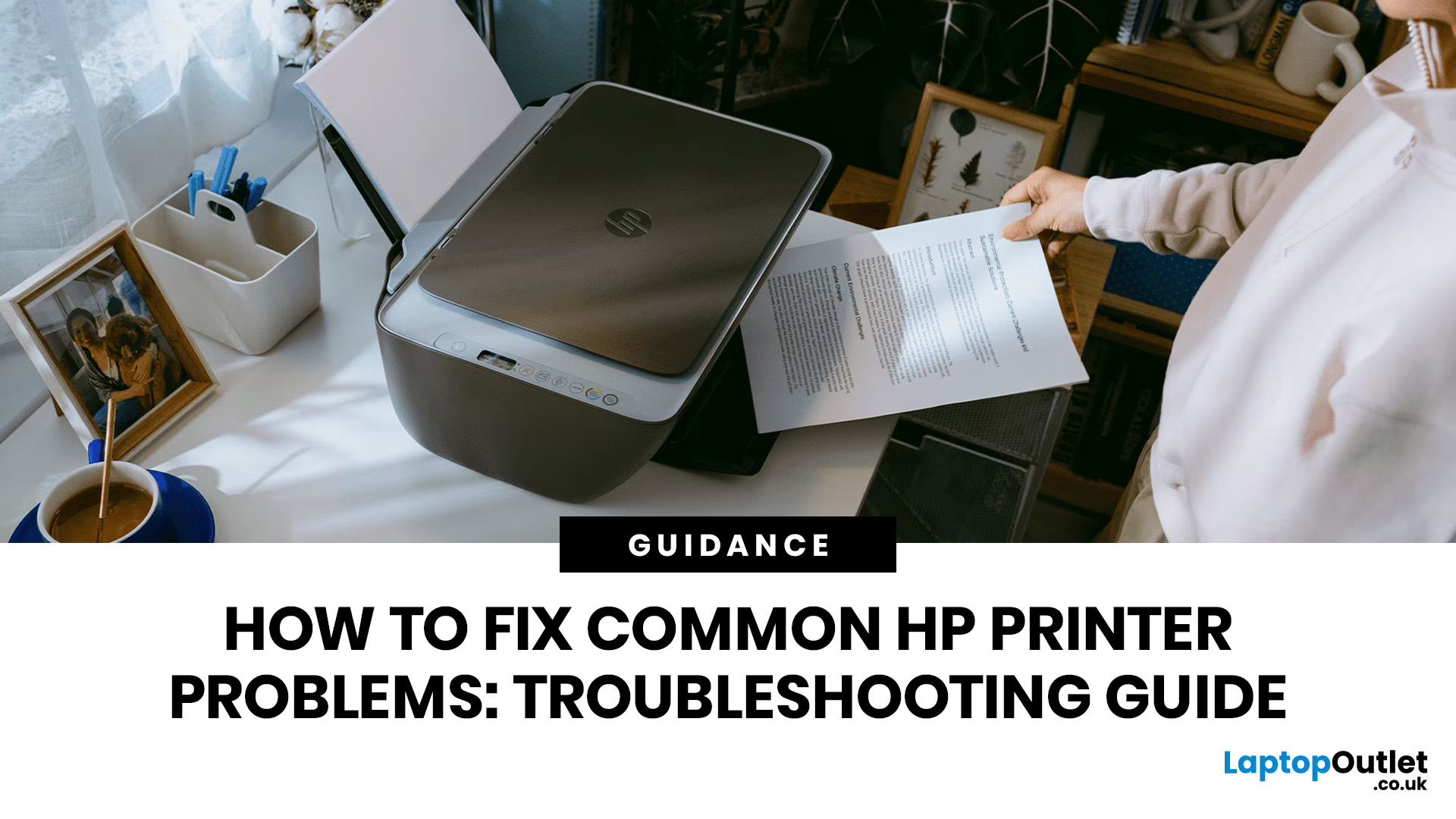
HP printers are reliable, but even the best machines throw a wobble from time to time. The good news is that the vast majority of issues are easy to resolve on your own. This guide will show you how to fix common HP printer problems without calling a professional. Whether you've got an HP OfficeJet, DeskJet, LaserJet, or ENVY, many of the checks below apply across the range.
What Are the Most Common HP Printer Problems?
Before diving into individual fixes, it helps to know what you are actually dealing with. HP printers, from compact home models to full office workhorses, tend to run into the same handful of issues time and again.
Here is a quick overview of the most frequently reported HP printer problems and what typically causes them:
| Problem | Most Likely Cause |
| Printer not printing | Stuck print queue, offline status, driver fault |
| Paper jam | Overfilled tray, worn rollers, torn paper fragments |
| Printer showing offline | Wi-Fi dropout, incorrect default printer setting |
| Blank or faded pages |

Last Updated: May 05, 2026
Quick Answer: Inkjet printers offer high colour quality, a compact design, and a lower upfront price, making them ideal for homes, students, creative projects, and light office use. The main disadvantages are higher ink costs on cartridge models, slower print speeds, possible ink smudging, and printhead maintenance when the printer sits unused.
Choosing a printer sounds simple until you start comparing ink costs, print speed, colour quality, maintenance, and the difference between inkjet and laser models. For many UK homes, students, hybrid workers, and small offices, an inkjet printer still makes a lot of sense. It is usually compact, affordable to buy, and strong at printing colour documents, photos, homework, labels, and everyday paperwork.
The part that needs more thought is the long-term cost. Some inkjet printers are cheap upfront, but can become expensive when you replace cartridges often. Others, such as refillable ink tank models, cost more upfront but may suit regular printing
Last Updated: May 06, 2026
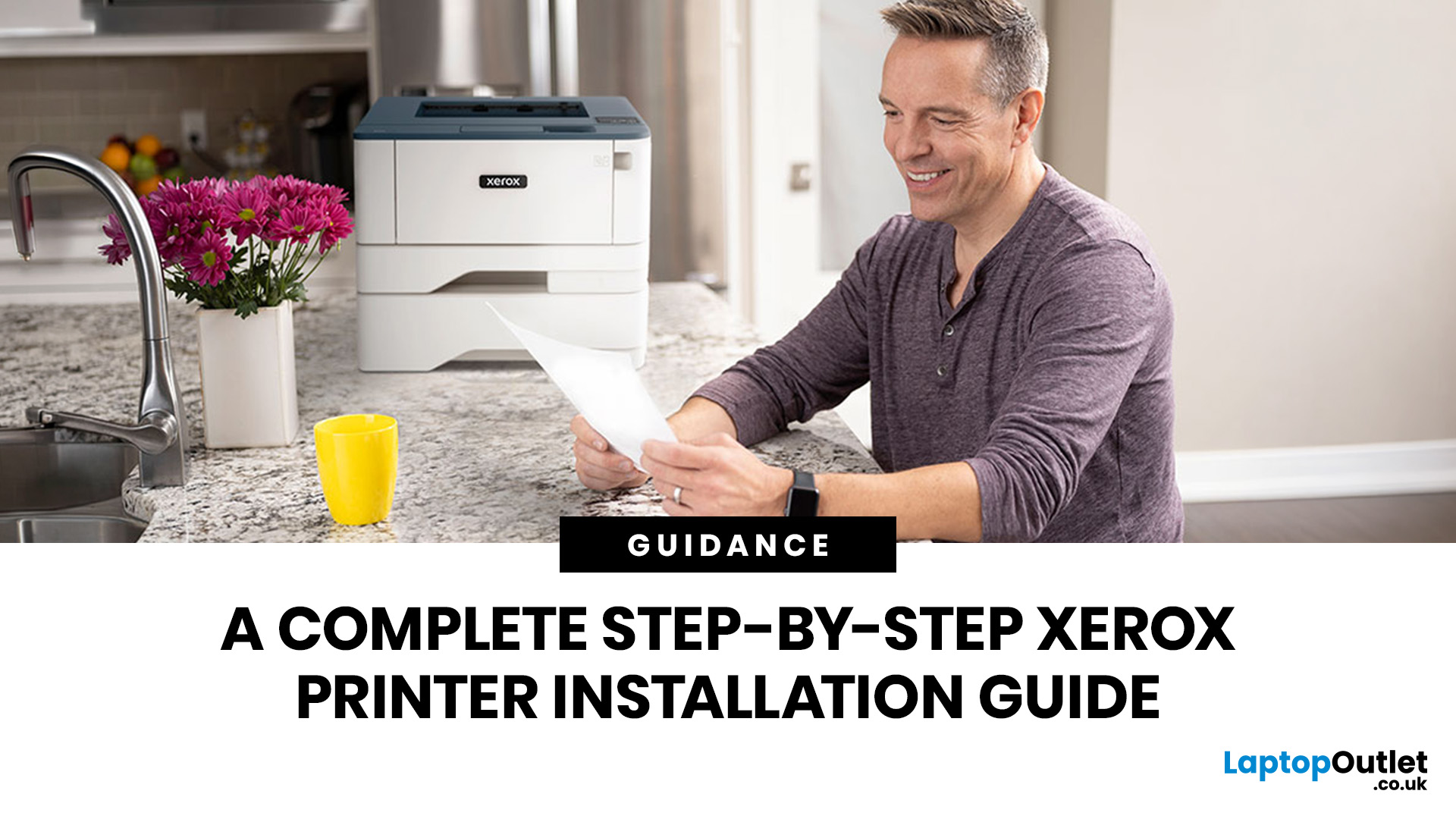
Xerox has been making printers for over 50 years, and their modern range is some of the most capable kit available for home and office use. However, even the best printer is useless if it's not set up correctly. This complete Xerox printer installation guide walks you through every method, every platform, and the most common problems you're likely to run into (with fixes), so you can get set up quickly and get on with your day.
1. What Do You Need Before Starting a Xerox Printer Installation?
A smooth installation begins well before any cable is plugged in or software is run. Taking five minutes to gather the right items and verify your system compatibility saves considerably more time than troubleshooting avoidable errors later.
What Hardware and Consumables Do You Need?
- Your Xerox printer with all packaging materials and shipping tape removed
- Power cable (supplied in the box)
- USB cable (Type-A to Type-B) for direct USB setups -- note that Xerox does not always include this in
Last Updated: July 07, 2026
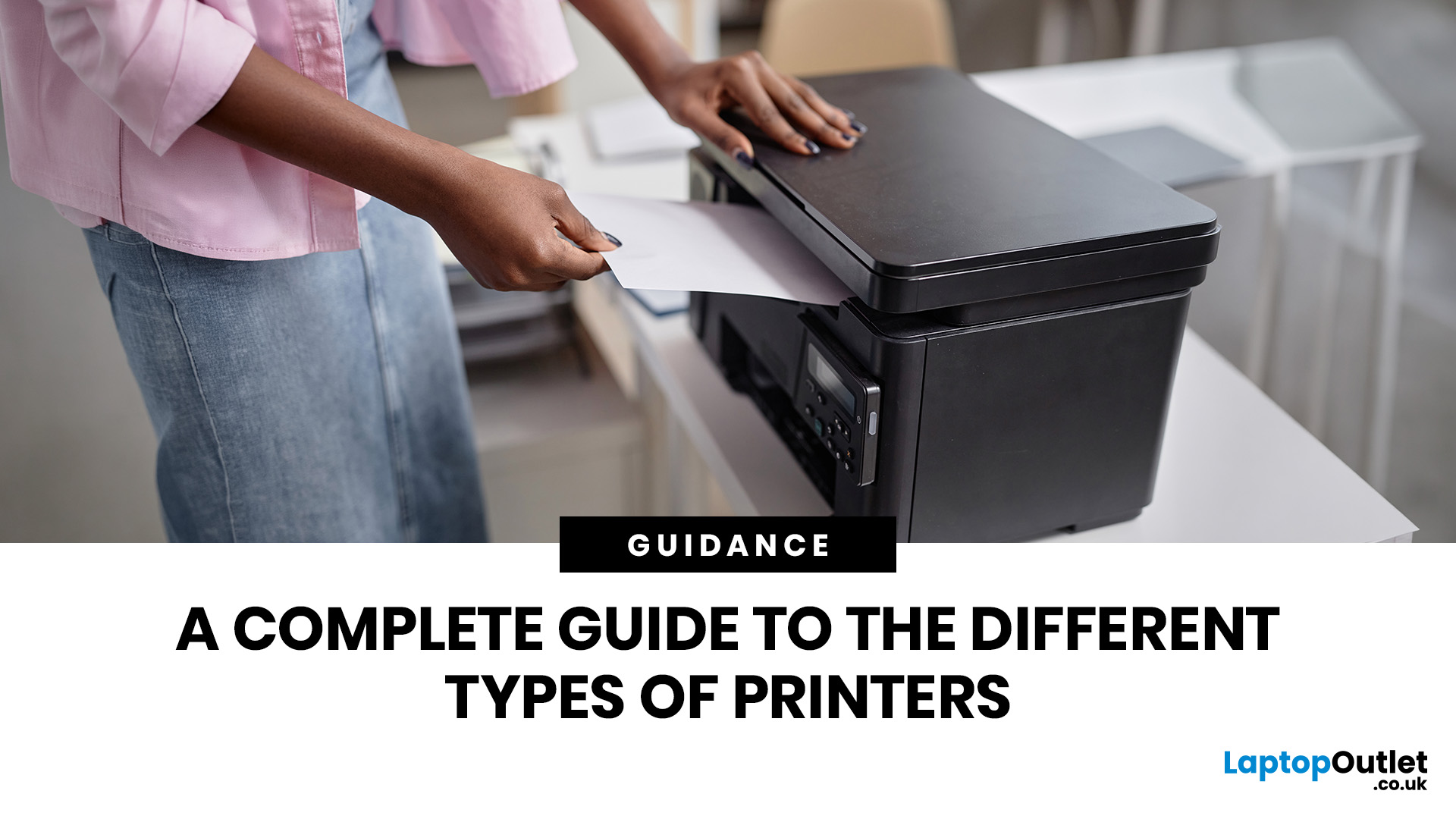
Quick Answer: The main types of printers are inkjet, laser, multifunction (all-in-one), and label printers. Inkjet printers are great for photos and colour printing at home. Laser printers suit high-volume office use. Multifunction printers combine printing, scanning, and copying. Label printers handle specialist tasks like shipping labels. The right choice depends on your print volume, budget, and intended use.
Choosing the right printer feels overwhelming when you are faced with so many options. Inkjet or laser? All-in-one or dedicated? It is easy to spend money on a printer that simply does not match your needs. This guide cuts through the noise. We'll cover the various types of printers in detail. By the end, you will know exactly which printer fits your home, business, or creative needs.
What Are the Main Types of Printers Available Today?
There are several categories of printers commonly available to UK buyers, each designed with a different use case in mind. Understanding what

