



What to Look for When Buying a Refurbished Printer?
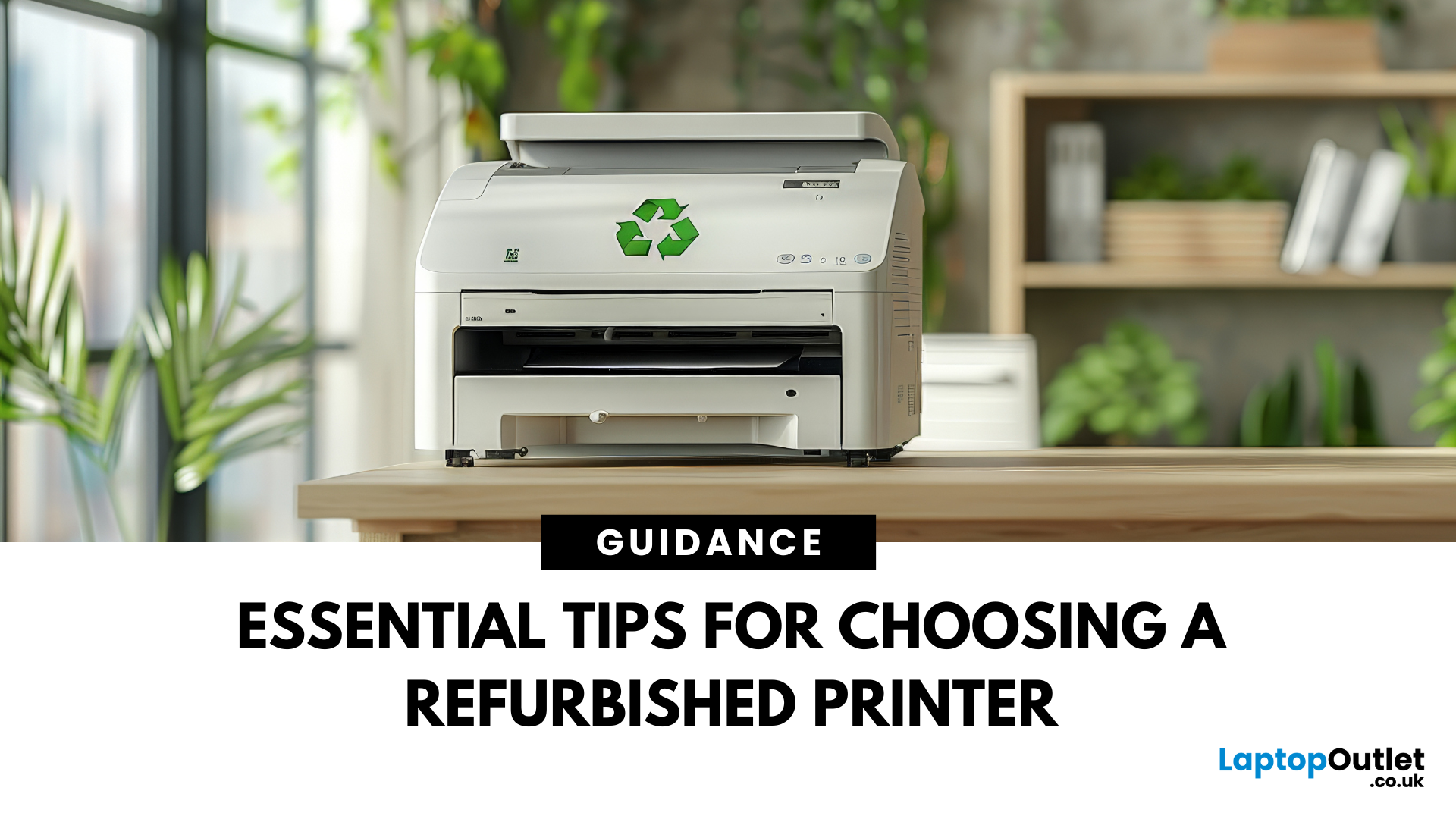
Printers might not get the same hype as laptops or smartphones, but for students, professionals, small businesses, and even home offices; they're essential. Whether it’s printing out coursework, client contracts, shipping labels, or your child’s homework, a reliable printer is still a core part of modern-day convenience.
But buying a brand-new printer can quickly become expensive, especially if you want high-speed printing, scanning, copying, or colour capabilities. That’s where buying a refurbished printer becomes a smart alternative. A refurbished printer can save you a considerable amount of money without compromising performance or quality if you know what to look for.
In this guide, we’ll walk you through everything you should consider before buying a refurbished printer, from print quality and page yield to connectivity and warranty.
What to Look for When Buying a Refurbished Printer – A Complete Breakdown
Buying a refurbished printer can deliver excellent value, but you need to look beyond just the price tag. Below is a detailed checklist that will help you choose the right refurbished printer based on performance, functionality, and suitability for your needs.
Know the Type: Inkjet vs Laser – Which One’s Right for You?
The first step is deciding between an inkjet printer and a laser printer.
Refurbished Inkjet Printers
These use liquid ink sprayed directly onto the page. They’re best suited for:
-
Colour-rich documents such as photos, school projects, and visual reports.
-
Low- to moderate-volume printing, typically up to a few hundred pages per month.
Ideal for home users, students, and creatives, refurbished inkjet printers are usually compact and cost less upfront. However, ink cartridges can be pricey and may need frequent replacement if you print often.
Refurbished Laser Printers
Laser printers use toner powder and a heated fuser to create text and images. They’re known for:
-
Fast, crisp black-and-white printing, perfect for bulk jobs or text documents.
-
Lower cost per page, especially for mono printing.
Laser models are highly efficient for offices and small businesses. Refurbished laser printers tend to be bulkier, but their long-term operating cost is often lower than inkjets.
If you need a colour-capable yet office-grade printer, consider a refurbished Canon colour laser model (Refurbished Canon i-SENSYS LBP631Cw Colour Laser Printer)or an HP Colour LaserJet All-in-One.
Print Quality & Page Yield – Don’t Settle for Smudges
Print quality is non-negotiable. Always review:
-
Print resolution, listed in DPI (dots per inch). A standard range of 600–1200 DPI is suitable for documents, while photo printing benefits from 2400+ DPI.
-
Whether the refurbished unit has been tested for alignment, ink flow, and nozzle clogging (inkjets) or toner distribution and fuser performance (lasers).
Page Yield
This refers to how many pages you can print before needing a refill. A high page yield:
-
Reduces running costs
-
Prevents mid-assignment cartridge changes
-
Ensures smoother productivity for high-volume environments
If you're printing large reports, look for a refurbished laser model with 1,000+ page yield per toner cartridge.
Condition & Grading – Know What You’re Paying For
Not all refurbished printers are in the same condition. At Laptop Outlet, you’ll always see clear grading, so you can match the printer’s appearance and wear level to your budget.
| Grade | Description |
| New Open Box | Unused item, only opened or repackaged. Pristine condition, typically with all original accessories. |
| Refurbished – Excellent | Minimal to no cosmetic marks. Fully tested and certified. Ideal for professional users or offices. |
| Refurbished – Very Good | Some surface marks or casing scratches. 100% functional. Suitable for home or school use. |
| Refurbished – Good | Visible signs of wear. Still completely functional. Perfect for backup or secondary setups. |
Always confirm if the print head, rollers, and feeder mechanisms have been tested, reset, and cleaned.
Cartridge & Toner Compatibility – Avoid Costly Surprises
Even the best refurbished printer becomes expensive if its ink or toner is rare or overpriced.
Before buying, check:
-
Cartridge model numbers: Make sure replacements are readily available.
-
Compatibility with third-party or refilled cartridges: Some printers only accept official brand ink.
-
Included cartridges: Many refurbished printers come with starter or partial-capacity cartridges. Know what’s bundled.
For example, an HP All-in-One model that uses HP 305 cartridges will be easier and cheaper to maintain than a discontinued unit requiring out-of-stock toner.
Here is our top pick: Buy Now
Connectivity Options – Wired vs Wireless?
A modern printer should adapt to your work environment; whether that’s a home study or a hybrid office.
Look for:
-
Wi-Fi-enabled printers for wireless printing from laptops, phones, or tablets.
-
Bluetooth support for quick mobile connection.
-
Apple AirPrint, Google Cloud Print (if supported), and Mopria certification for app-based printing.
-
USB 2.0 or 3.0 ports for older desktop setups.
Ethernet ports if you’re integrating the printer into a network of shared office devices.
Explore Laptop Outlet to find the best Refurbished Wireless Printers.
Multifunction Capabilities – Print, Scan, Copy (and Maybe Fax)
Refurbished All-in-One printers provide added functionality that goes beyond basic printing.
Key features include:
-
Flatbed scanner for copying ID cards, textbooks, or artwork
-
Document feeder for scanning or copying multi-page documents
-
Faxing (less common but still used in some legal/medical fields)
These are ideal for teachers, university students, small business owners, or anyone working with physical paperwork.
Recommended: Refurbished HP All-in-One printers deliver excellent value and functionality for home offices.
Print Speed & Duty Cycle – Keep Up with Your Workload
If you’re printing high volumes regularly, speed and durability are critical.
Key Metrics:
-
Print speed (PPM): Pages per minute. Inkjets average 10–15 ppm (colour), while lasers offer 20–35+ ppm.
-
Duty cycle: Maximum number of prints a printer can handle monthly. Always buy a printer rated for higher than your average monthly need.
For example, if you print 1,000 pages/month, go for a printer with a 2,000–5,000 duty cycle for better longevity.
Warranty & After-Sales Support – Protect Your Investment
Even when buying refurbished, your device should come with reliable post-sale coverage.
Laptop Outlet offers:
-
6 to 12 months warranty on refurbished printers
-
Professional testing and quality assurance
-
Dedicated UK-based customer service
-
Return or exchange options in case of defects
This gives you the confidence of a safe purchase, with the savings of a refurbished model.
Seller Reputation – Always Buy from Trusted Retailers
Avoid unverified sellers or online listings without support. Choose retailers who:
-
Disclose full printer specs and grading details
-
Offer direct customer support and warranty
-
Clearly list return and refund policies
Laptop Outlet is a trusted name in refurbished tech. Every printer undergoes detailed inspection, reset, cleaning, and performance checks before it’s listed online.
Bonus Features – Convenience and Efficiency
Depending on your needs, here are some additional features worth considering:
-
Duplex printing – automatic double-sided printing saves paper
-
Touchscreen interface – for easier navigation through settings
-
Compact design – important for home setups or shared desks
-
Energy efficiency – ENERGY STAR certified printers use less power
-
Quiet mode – for noise-sensitive environments
A compact HP or Canon wireless printer with auto-duplex and energy-saving features could be the ideal combination of performance and practicality.
Conclusion: Print Smarter with the Right Refurbished Choice
Buying a refurbished printer isn’t just a way to save money; it’s a strategic choice that combines performance, value, and sustainability. Whether you're looking for a compact inkjet for occasional home use, a fast and efficient laser printer for office work, or a multifunction all-in-one for scanning and copying, the right refurbished printer can deliver everything you need without the premium price tag.
The key is knowing what to look for: printer type, print quality, page yield, condition grading, connectivity, and warranty support. And just as important is where you buy it from.
At Laptop Outlet, every refurbished printer is professionally tested, clearly graded, competitively priced, and backed by a warranty. You’ll find top models from leading brands like HP, Canon, and more, including refurbished wireless printers, refurbished Canon colour printers, and refurbished HP all-in-one printers; all available online with fast UK delivery and customer support you can count on.
Explore the full range at Laptop Outlet’s Refurbished Printers and choose the smart way to print powerful performance, trusted quality, and impressive savings.
| Read More: |
| Best Printers for Home Use in 2025 |
| How to Choose the Right Printer for Your Needs |
| What is the best printer for photos? |
Related Articles

Last Updated: June 18, 2026
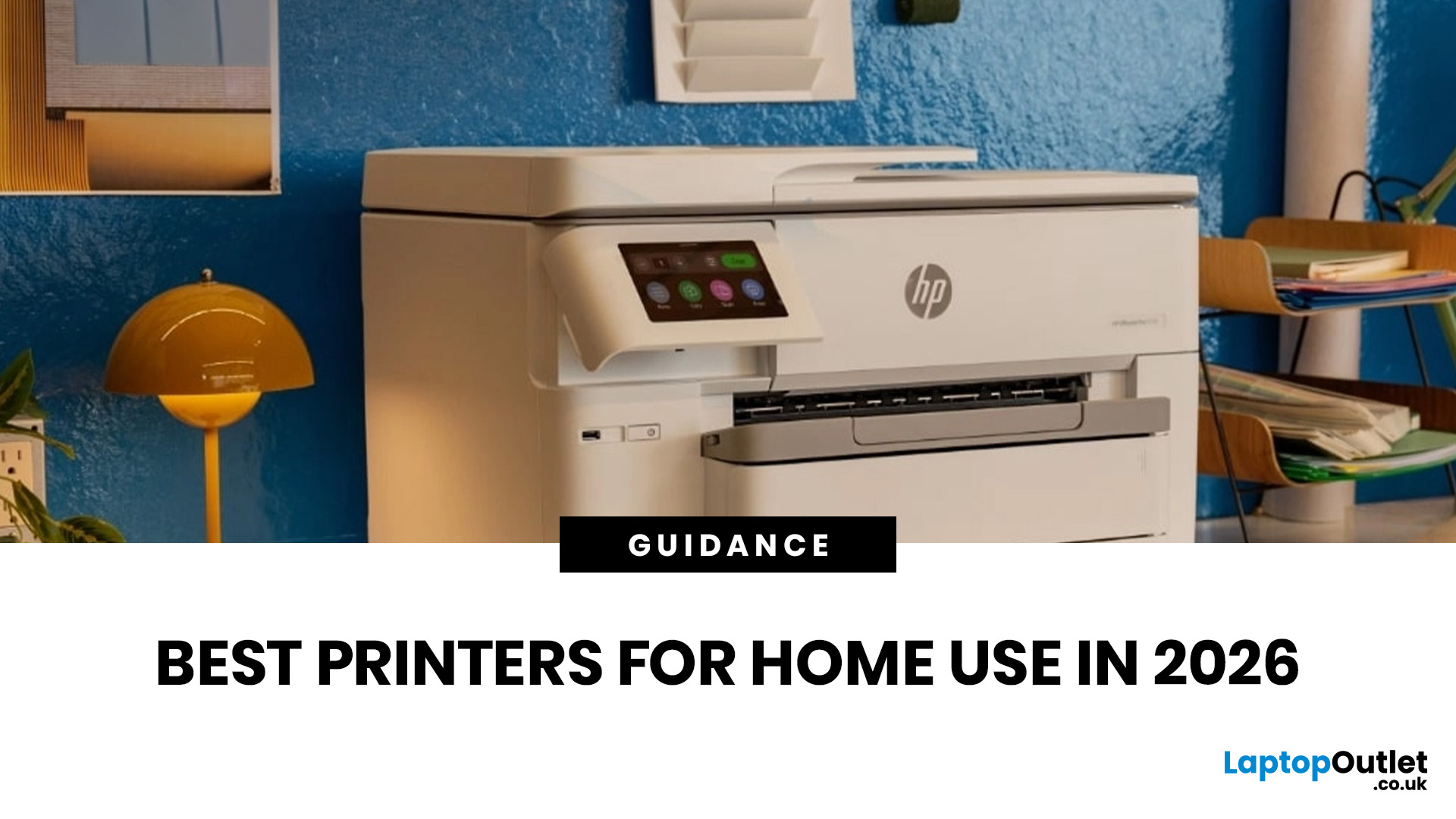
Buying the best home printer can seem overwhelming; the market is flooded with multiple brands offering a host of features. You must determine which printer suits your needs by looking at their specifications, running a comparison among different models, and making the final selection. Remember, we have a wide variety of exceptional printer models, so set aside ample time for this task.
However, if you are short on time, which we assume you are, just read this blog. It provides a curated list of the best computer printers for home use. They are suitable for everyday printing, especially at home, delivering professional-standard results. So, let’s look at them.
Types of Printers: Inkjet vs. Laser
Before you choose the right printer, it helps to know about inkjet and laser printers, the two main printer types. The following comparison will assist you in choosing the right type for your needs:
| Feature | Inkjet Printers | Laser Printers |
| Usage | Colour printing (photos, graphics) | Fast, high-volume |
Last Updated: June 10, 2026
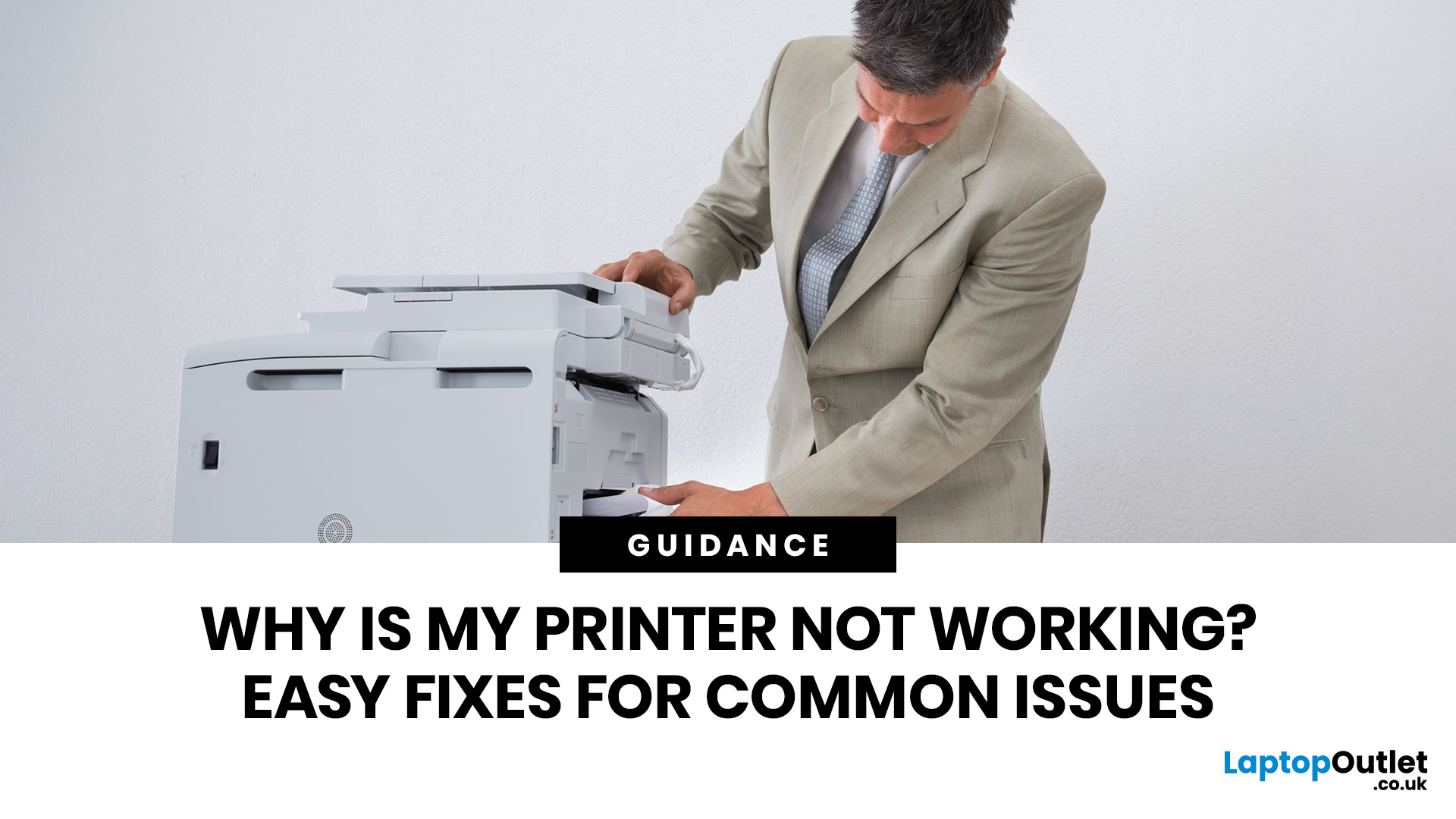
Quick Answer: If your printer is not working, start by checking it is powered on, connected to the correct Wi-Fi network, and set as the default printer. Clear any stuck print jobs from the queue, update or reinstall the printer driver, and restart the Print Spooler service on Windows. On Mac, reset the printing system via System Settings. Most printer problems are solved within minutes with these steps.
A ‘printer not working’ issue is one of the most common tech complaints in UK homes and offices. The good news? Most printer problems are surprisingly easy to fix once you know where to look. This guide covers every major printer fault, with accurate, step-by-step fixes for both Windows 11 and macOS.
What Should I Check First When My Printer Stops Working?
Before diving into software fixes, run through this 60-second physical checklist. You would be surprised how often the simplest things are the actual culprit.
- Power: Is the printer switched on and showing a ready or

Last Updated: October 03, 2025
Wireless Printing Made Easy
No more messy cables or complicated setups—connecting your HP printer to Wi-Fi lets you print from anywhere at home or work. Whether you’ve got a new printer or you’re reconnecting, this guide shows you exactly how to get it done.
What You’ll Need
Before you start, make sure you have:
- An HP wireless printer
- Wi-Fi network name (SSID) and password
- A laptop, PC, or smartphone connected to the same Wi-Fi network
How to Connect HP Printer to Wi-Fi – Step by Step
1. Use HP Auto Wireless Connect (For Compatible Models)
- Plug in and turn on your printer
- On your computer, install the HP Smart app or visit 123.hp.com
- Follow on-screen instructions to connect your printer to Wi-Fi automatically
Pro Tip: This is the easiest option if your printer supports it—no need to enter Wi-Fi credentials manually.
2. Use the Printer’s Control Panel (Manual Setup)
- Press the Wi-Fi or Wireless icon on your printer’s screen
- Go to Settings > Wireless Setup Wizard
Last Updated: April 02, 2026
Why You Need Your Printer’s IP Address
Whether you’re setting up a new device, troubleshooting, or connecting wirelessly—knowing your printer’s IP address is essential. It’s how your laptop or phone finds and communicates with the printer over Wi-Fi. Here’s how to find it in a few simple steps.
How to Find a Printer’s IP Address
1. Check the Printer’s Display Screen (If Available)
- Most modern printers display their network settings.
- Press Menu or Settings on the printer
- Navigate to Network Settings > Wi-Fi Settings
- Look for IP Address
2. Print a Network Configuration Page
- Many printers allow you to print a page showing their network information.
- Go to Settings > Network > Print Network Configuration
- Look for the IPv4 Address or IP Address section on the printout
3. Find Printer IP Address on Windows
- Click Start > Settings > Devices > Printers & Scanners
- Select your printer > Manage > Printer Properties
- Go to the Ports tab and look for the IP address
Alternatively:

Last Updated: April 03, 2026
Mobile Printing Made Simple
Need to print a document, photo, or ticket from your phone? You don’t need to transfer files to a laptop first. Mobile printing lets you print directly from your smartphone or tablet to a wireless printer—fast and hassle-free. Here’s how to do it on both iPhone and Android.
What You’ll Need
Before you start:
- A Wi-Fi-enabled printer
- Your smartphone or tablet
- Both devices connected to the same Wi-Fi network
How to Print from an iPhone (iOS)
1. Use Apple AirPrint
Most modern printers support AirPrint, Apple’s built-in wireless printing feature.
Steps:
- Open the document, photo, or webpage you want to print
- Tap the Share icon (box with arrow)
- Tap Print
- Select your printer from the list
- Choose print settings (number of copies, pages, etc.)
- Tap Print
2. Use the Printer Manufacturer’s App
- If your printer doesn’t support AirPrint:
- Download the manufacturer’s app (e.g., HP Smart, Canon PRINT, Epson iPrint)
- Follow the in-app instructions

Last Updated: April 03, 2026
Printer Offline? Let’s Fix That.
You hit print—and your computer tells you the printer is offline. Frustrating, right? Whether you’re using Windows or macOS, this common error usually has a simple fix. Let’s explore the reasons why your printer might say it’s offline and how to get it back online.
1. What Does “Printer Offline” Mean?
It means your computer can’t communicate with the printer. This could be due to:
- Connection issues (Wi-Fi, USB, or cable)
- Printer being powered off or asleep
- Incorrect default printer settings
- Outdated or corrupted drivers
It doesn’t always mean your printer is broken—just that the computer can’t detect it.
2. Check the Printer Connection
- Ensure the printer is powered on
- Check Wi-Fi or Ethernet connections
- If using USB, confirm the cable is securely plugged in
- Try restarting the printer and your computer
3. Set the Printer as Default (Windows)
Sometimes your computer sends the job to a different printer.
Steps:
- Go to Settings
Last Updated: April 03, 2026
Printing Without Ink?
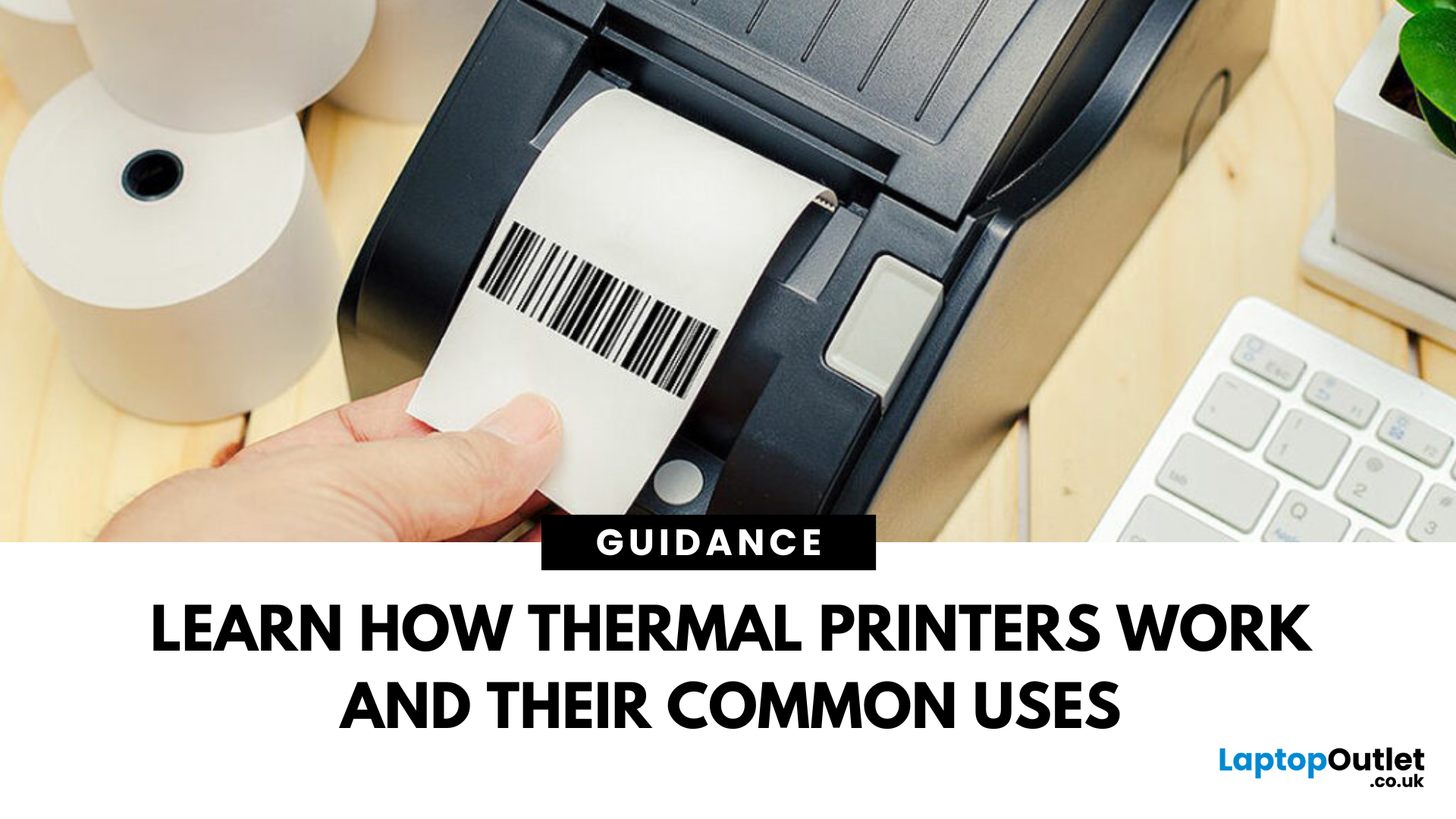
If you’ve ever received a receipt, shipping label, or wristband ticket, you’ve probably used a thermal printer—even if you didn’t know it. But what is a thermal printer, and how is it different from regular printers? Here’s a simple breakdown.
What Is a Thermal Printer?
A thermal printer creates images by applying heat directly to special heat-sensitive paper. Unlike inkjet or laser printers, it doesn’t use ink, toner, or ribbons (in most cases).
It’s fast, quiet, and ideal for high-volume printing environments like retail or logistics.
How Do Thermal Printers Work?
Direct Thermal (DT):
- Heat is applied to chemically treated paper
- The heat darkens the paper where applied
- No ink or ribbon required
Thermal Transfer (TT):
- Heat transfers ink from a ribbon onto the paper or label
- More durable than direct thermal printing
What Are Thermal Printers Used For?
- Retail: Receipts, price tags
- Logistics: Shipping labels, barcodes
- Healthcare: Wristbands,
Last Updated: June 15, 2026
Want to preserve precious memories or showcase creative work? Nothing quite matches the beauty of a beautifully printed photograph. Whether you’re an aspiring photographer, a creative hobbyist, or simply someone who values high-quality photo prints, choosing the right printers for photos can make all the difference.
But with so many options on the market, the big question remains: What is the best photo printer?
In this guide, we’ll explore some of the finest photo printers available today, comparing their features, print quality, and usability. Each photop/picture printer in our list caters to different needs, from everyday photo enthusiasts to professional creators seeking gallery-worthy prints.
Canon PIXMA G650: Best for High-Volume Printing
Who is it for?
For creative users who need bulk photo printing without sacrificing quality, the Canon PIXMA G650 is a smart and sustainable choice.
Top Features:
-
Refillable ink tanks drastically lower per-photo cost.
-
Massive yield of up to

