



Printer Buying Guide: How to Choose the Right Printer
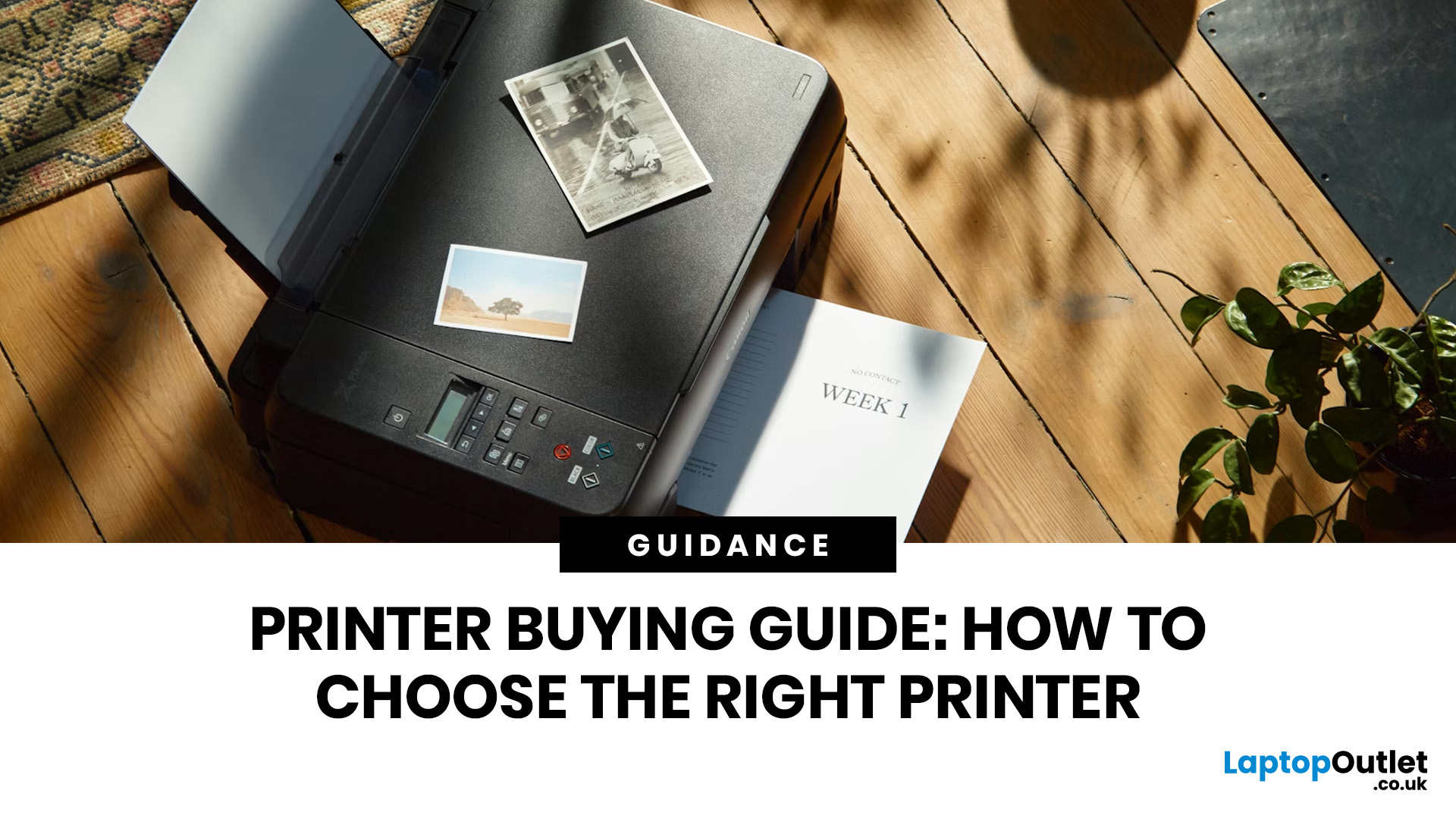
Buying a printer in 2026 should be straightforward, but with dozens of models, technologies, and pricing traps to navigate, it can feel overwhelming. This complete printers buying guide cuts through the noise and helps you find exactly what you need, at the right price, for your home, home office, or business.
What Is a Printer and What Does It Do?
A printer is a hardware device that takes digital data from a computer, phone, or tablet and reproduces it as a physical document or image on paper. It bridges the gap between the digital and physical worlds and remains one of the most widely used pieces of office and home technology in the UK.
Modern printers do a great deal more than simply print text. Today's models can scan documents, copy pages, send faxes, print directly from USB drives, and even connect to cloud services. Whether you need to print a single boarding pass or thousands of invoices each month, there is a printer designed precisely for that purpose.
Whether you are looking for a simple home model or a heavy-duty business machine, you can browse the full range of best printers at Laptop Outlet to compare models side by side.
What Are Printers Actually Used For?
Understanding the uses of printers helps you narrow down which type and model suits your life. People in the UK use printers far more than many realise, across home, education, and professional settings.
Here are the most common reasons people buy a printer in 2026:
- Home Use: Printing forms, recipes, coupons, tickets, school letters, and the occasional photo.
- Students: Essays, revision notes, reading materials, and coursework submissions.
- Home Office: Contracts, invoices, reports, proposals, and client correspondence.
- Small Business: High-volume documents, marketing materials, receipts, and professional letterheads.
- Photography: High-resolution photo prints from cameras or smartphones, greetings cards, and art prints.
- Creative Projects: Crafts, stickers, labels, art projects, and custom packaging for small makers.
Knowing what a printer is used for in your specific situation is the first step to making the right purchase. A photographer and an office manager have very different needs, and a single model rarely serves both equally well.
1. What Do You Actually Need from a Printer?
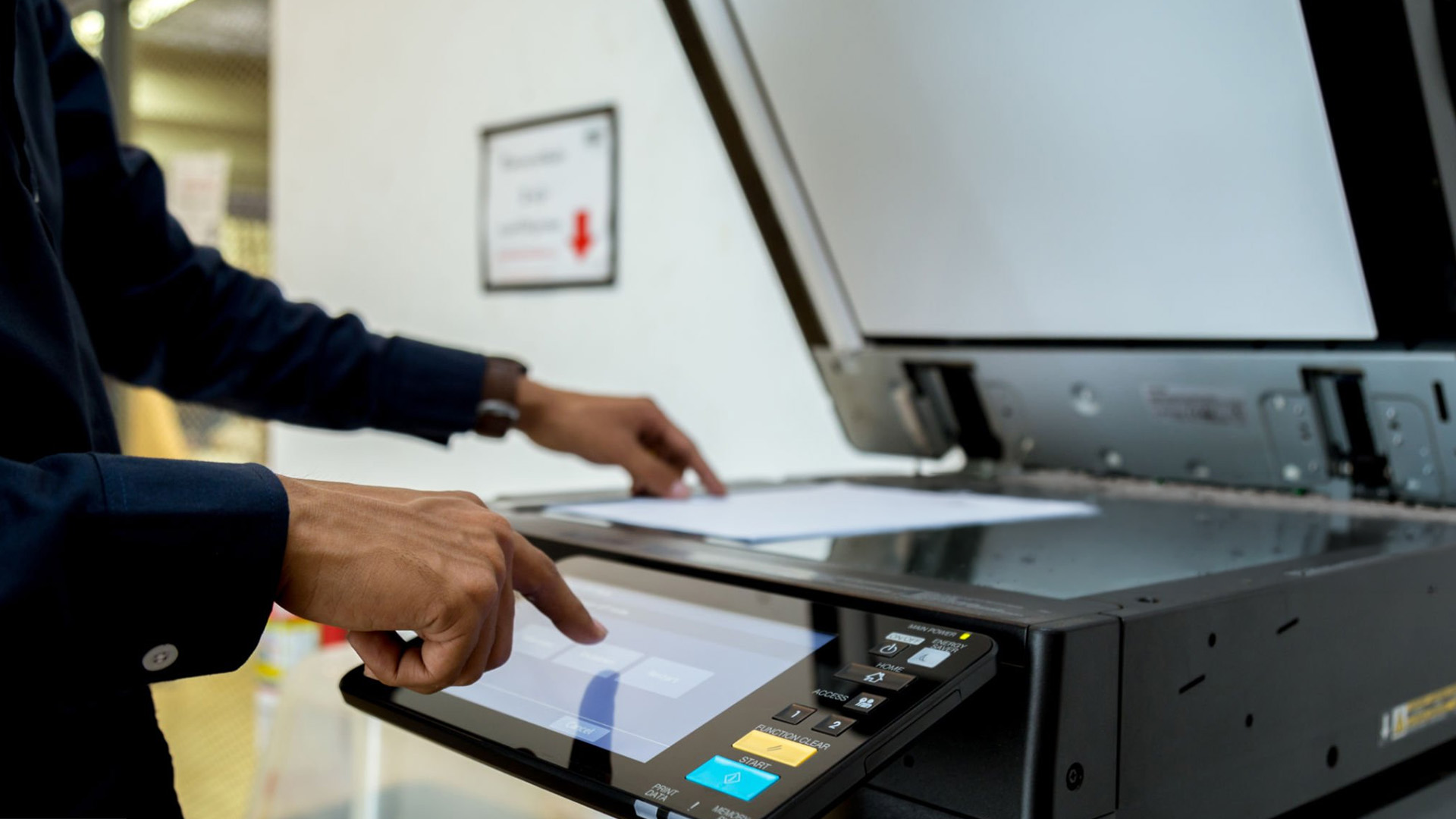
Before you look at a single model or spec sheet, get clear on your needs. Many people overspend on features they will never use or buy too cheaply and end up with a machine that cannot keep up. Ask yourself these five questions.
1.1 How Often and How Much Will You Print?
Print volume is arguably the most important factor when choosing a printer. Someone who prints 10 pages a month has very different needs to a busy office printing 1,000 pages a week.
- Light (under 50 pages/month): An entry-level inkjet will do the job perfectly well.
- Moderate (50 to 300 pages/month): Consider an ink tank printer or a mono laser to keep running costs down.
- Heavy (300 to 1,000 pages/month): A laser printer is a much more cost-effective choice at this volume.
- Very heavy (1,000+ pages/month): A business-grade laser with a high duty cycle is essential. Consumer models will fail quickly at this volume.
|
⚠️ Warning Do not underestimate your monthly print volume. Most people print more than they think, especially in a home office environment. Picking too small a printer means expensive cartridge replacements and a shorter machine lifespan. |
1.2 What Kind of Content Will You Print?
The type of output you need directly affects which technology you should choose. Text-only printing and photographic printing are handled very differently.
- Mostly text documents: Laser printers produce sharper, faster, and cheaper text than inkjets at scale.
- Mixed documents with colour: A colour laser or mid-range inkjet handles this well.
- High-quality photos: An inkjet with at least 4 colour cartridges (ideally 6 or more) gives the best photo output.
- Graphic-heavy marketing materials: Colour laser or a professional inkjet gives you both speed and quality.
- Labels, envelopes, thick media: Check paper handling specs carefully; not all printers can manage non-standard media.
1.3 How Many People Will Use This Printer?
A printer shared between multiple people or departments needs to be networked, robust, and have a higher duty cycle than a personal printer. Single-user home printers are rarely built for the stress of a shared office environment.
- 1 person: A USB or basic Wi-Fi printer is perfectly sufficient.
- 2 to 5 people (home or small office): Wi-Fi or wired Ethernet network connectivity is important. Look for an all-in-one with good wireless range.
- 5+ people (office/business): Choose a printer with wired Ethernet, a large paper tray, and a duty cycle that matches your total team output.
1.4 Do You Need Scanning, Copying, or Faxing?
If you only need to print, a standard single-function printer saves money and desk space. If you regularly need to scan documents, copy paperwork, or occasionally send faxes, a multifunction model saves you buying separate devices.
- Print only: Single-function printer, typically cheaper and more compact.
- Print + scan + copy: Most home and office users benefit from all in one printers (AIOs).
- Fax: Still used in some legal, medical, and public sector roles. Some laser AIOs include fax as standard.
- Automatic Document Feeder (ADF): Useful if you regularly scan or copy multi-page documents. It feeds pages automatically rather than requiring you to place each page manually.
2. How Do Printers Work? The Technology Behind the Print
Understanding how printers work makes it much easier to choose the right type. You do not need to become an engineer, but knowing the basics helps you match the technology to your tasks.
What Is Actually Inside a Printer?
When people ask what is in a printer, they are often surprised by how much goes into a compact box. Here are the core components:
- Print head: In inkjet models, this is the component that sprays ink droplets onto paper. It moves back and forth across the page.
- Ink cartridges or toner cartridges: Inkjets use liquid ink. Laser printers use dry toner powder fused to paper by heat.
- Drum unit: Found in laser printers. The laser beam etches an image onto the drum, which picks up toner and transfers it to the paper.
- Fuser unit: A heated roller in laser printers that permanently bonds the toner to the paper, which is why laser-printed pages are warm when they come out.
- Paper feed mechanism: Rollers and a tray that pick up, move, and guide paper through the printer correctly.
- Motherboard / controller: Processes the print job data sent from your device and manages all printer functions.
- Connectivity modules: USB, Wi-Fi, Bluetooth, or Ethernet chips that allow the printer to receive print jobs from devices.
|
Tip Knowing the internal components helps you understand maintenance costs. Drum units in laser printers, for example, are sometimes separate from toner cartridges and add to the long-term running cost. |
3. Inkjet vs. Laser vs. Ink Tank: Which Technology Is Right for You?
The three main printing technologies each have clear strengths and weaknesses. Picking the wrong one is the single biggest mistake buyers make, and it costs them money year after year.
Inkjet Printers
Inkjet printers use tiny nozzles to spray microscopic droplets of liquid ink directly onto the paper. They excel at producing rich, vibrant colour and photographic output that laser printers simply cannot match.
- Best for: Home use, occasional printing, photographs, mixed colour output
- Upfront cost: Low, typically from £40 to £150
- Running cost: Can be high if cartridges are used. Individual ink cartridges cost £10 to £30 each and print relatively few pages.
- Print quality: Excellent for colour and photos. Good for everyday text documents.
- Speed: Moderate. Typically 5 to 20 PPM for standard documents.
- Watch out for: Ink drying out in the print head if the printer is left unused for weeks, leading to blockages and costly clean cycles.
Laser Printers
Laser printers use a laser beam to create an electrostatic image on a drum, which picks up dry toner powder and fuses it to the paper using heat. The result is sharp, smudge-proof text that is ideal for document-heavy environments.
- Best for: Offices, high-volume printing, text documents, businesses
- Upfront cost: Mono laser from £70 to £180; colour laser from £160 to £450+
- Running cost: Significantly lower per page. A toner cartridge typically prints 1,000 to 5,000 pages, far more than an ink cartridge.
- Print quality: Outstanding for text. Colour laser output is good but cannot match inkjet for photo-quality colour.
- Speed: Fast. Most produce 20 to 40+ PPM for mono printing.
- Watch out for: Higher initial cost; colour toner replacements can be expensive; not ideal for printing photos on glossy paper.
Ink Tank / EcoTank Printers
Ink tank printers replace traditional cartridges with large, refillable reservoirs of ink filled from inexpensive bottles. Brands like Epson (EcoTank), Canon (MegaTank), and HP (Smart Tank) lead this category in the UK.
- Best for: Regular home or office users who print moderate-to-high volumes in colour
- Upfront cost: Higher than standard inkjets, typically £150 to £350+
- Running cost: Very low. A set of ink bottles costs £12 to £40+ and can print thousands of pages.
- Print quality: Equivalent to inkjet. Excellent for colour and photos.
- Speed: Similar to inkjet, typically 10 to 15 PPM.
- Watch out for: Higher upfront price; the savings only kick in if you print regularly. Best suited to those printing at least 50 to 100 pages per month.
|
Factor |
Inkjet |
Laser |
Ink Tank |
|
Upfront Price |
£40 to £150 |
£70 to £450+ |
£150 to £350+ |
|
Running Cost/Page (mono) |
3p to 8p |
0.5p to 2p |
0.3p to 1p |
|
Running Cost/Page (colour) |
8p to 20p |
5p to 15p |
1p to 3p |
|
Photo Quality |
Excellent |
Fair |
Excellent |
|
Text Quality |
Good |
Excellent |
Good |
|
Print Speed |
Moderate |
Fast |
Moderate |
|
Idle Risk |
Ink dries out |
Low risk |
Possible clogging |
|
Paper Media Versatility |
High |
Limited |
High |
|
Best For |
Casual home users |
Offices, businesses |
Regular family/office |
|
Quick Rule of Thumb Print fewer than 50 pages a month? Go inkjet. Print 50 to 300 pages? Consider an ink tank. Print 300+ pages? A laser printer saves you real money over time. |
Not sure which technology suits you? Read our guide on different types of printers to compare all available options in detail before you decide.
4. What Key Features Should You Lookfor When Buying a Printer?
This is where the detail matters. Understanding the best printer features and what the specifications actually mean puts you firmly in control when comparing models. Do not let spec sheets intimidate you; here is what each one actually means for your printing experience.
4.1. Print Speed: PPM and IPM Explained
Print speed is measured in pages per minute (PPM) for laser printers or images per minute (IPM) for inkjets. It tells you how many pages the printer can produce in one minute under typical conditions.
- Mono PPM: The speed when printing black-and-white text only. This is almost always the headline figure quoted by manufacturers.
- Colour PPM: Typically 2 to 4 times slower than mono. Always check this separately if you print colour regularly.
- First page out time (FPOT): How long it takes to print the first page from a cold or sleeping state. For occasional printing, this matters more than raw PPM.
|
User Type |
Recommended Mono PPM |
Notes |
|
Home / Casual |
5 to 10 PPM |
Perfectly adequate for occasional use |
|
Home Office / Student |
15 to 25 PPM |
Reduces waiting time for multi-page documents |
|
Small Office (2 to 5 users) |
25 to 35 PPM |
Handles multiple users without bottlenecks |
|
Business / Workgroup |
35+ PPM |
Essential for high-demand environments |
|
⚠️Watch Out Manufacturer PPM figures are measured under optimal, lab conditions using simple text documents. Real-world speeds are typically 30 to 50% lower, especially for mixed text and image documents. Always look for independent test results where possible. |
4.2. Print Resolution: What Does DPI Mean?
Resolution is measured in dots per inch (DPI). It describes how many individual ink or toner dots the printer places within one inch of the page. Higher DPI means finer detail and smoother gradients.
- 600 x 600 DPI: Adequate for everyday text documents and basic office printing.
- 1200 x 1200 DPI: The standard for quality text and sharp vector graphics. Suitable for most home and office needs.
- 2400 x 1200 DPI or higher: Needed for photo-quality inkjet printing. Produces smooth gradients and fine detail in images.
- 4800 x 1200 DPI or above: Found in dedicated photo printers. Overkill for text but excellent for photography enthusiasts.
|
Practical Advice For pure text printing, anything above 600 DPI makes little visible difference. For photos, look for at least 2400 x 1200 DPI. Do not pay extra for ultra-high DPI if you only print documents. |
4.3. Duty Cycle and Recommended Monthly Volume
The duty cycle is the maximum number of pages a printer can physically handle per month without causing excessive wear. This is a ceiling figure, not a target. The recommended monthly volume, usually listed separately, is what the manufacturer suggests you print to maintain reliability and longevity.
- A typical budget home inkjet might have a duty cycle of 1,000 pages/month but a recommended volume of just 50 to 100 pages/month.
- A business laser printer might have a duty cycle of 50,000 pages/month with a recommended volume of 1,500 to 3,000.
- Always aim to stay within the recommended volume, not just under the maximum duty cycle. Consistently pushing the duty cycle maximum will shorten the printer's lifespan significantly.
|
⚠️ Critical Point Buying a home printer for office use because it is cheaper is a false economy. If your monthly volume exceeds the recommended limit, you will face frequent breakdowns, premature failure, and higher repair or replacement costs. |
4.4. Paper Capacity and Paper Handling
Paper capacity tells you how many sheets the printer can hold at once before you need to refill. For home users, a 100-sheet tray is usually fine. For an office, insufficient paper capacity means constant interruptions to refill.
- Input tray (main): Where you load paper. Standard home printers hold 60 to 150 sheets; office models hold 250 to 500 sheets or more.
- Output tray: Where printed pages collect. Some compact printers have small output trays that can overflow if you are printing large batches.
- Multi-purpose tray / bypass tray: A secondary slot for special media like envelopes, labels, card stock, or headed notepaper.
- Automatic Document Feeder (ADF): If scanning or copying multi-page documents is important, look for an ADF. It feeds pages automatically, saving you having to place each one manually on the flatbed.
- Duplex ADF: Even better than a standard ADF; it scans both sides of a page automatically in one pass.
Paper Sizes Supported
Most UK printers handle A4 as the standard. Check whether the model you are considering also handles:
- A4 (standard)
- A5 (half sheet)
- A3 (double A4)
- Letter (US)
- Envelopes (DL, C5)
- Labels
- Card Stock
- Photo Paper (4"×6", 5"×7")
|
Tip If you use headed letterhead paper, having a separate bypass tray is extremely valuable. You can keep plain paper in the main tray and load headed paper in the bypass without having to switch between them constantly. |
4.5. Duplex Printing: Why Does It Matter?
Duplex printing means the printer can automatically print on both sides of a sheet of paper. It sounds simple, but it has a meaningful impact on paper consumption and costs.
- Manual duplex: The printer prints one side, pauses, and asks you to flip the paper over. Fiddly and time-consuming.
- Automatic duplex: The printer flips the paper internally and prints both sides without any intervention. This is the feature worth looking for.
- Savings: Printing a 100-page document double-sided uses 50 sheets instead of 100. At around £5 per 500-sheet ream, automatic duplex pays for itself quickly in any moderate-use environment.
|
✅ Recommendation Automatic duplex printing should be considered essential for any home office or business printer. It reduces paper use by up to 50%, cuts costs, and is better for the environment. |
4.6. Multifunction (All-in-One) Printers: Are They Worth It?
A multifunction printer (MFP) combines a printer, scanner, and copier in one unit. Most modern buyers opt for these because they consolidate devices, save desk space, and are often only marginally more expensive than a standalone printer.
- Printer + Scanner + Copier: The standard MFP combination. Covers the needs of most home and office users.
- Fax: Available on select models. Still relevant in legal, healthcare, and public sector environments.
- Flatbed scanner: Lifts to reveal a glass bed for scanning books, passports, or oddly shaped items that would not feed through an ADF.
- Scan resolution: For document scanning, 300 to 600 DPI is ideal. For archiving photos or artwork, look for 1200 DPI or higher.
4.7. Security Features: Often Overlooked, Always Important
Printer security is critically underestimated in many small businesses and home offices. A networked printer that lacks security controls is a genuine vulnerability.
- Secure Print / PIN printing: Jobs sit in the printer's memory until the user enters a PIN at the device. Prevents sensitive documents sitting unattended in the output tray.
- User authentication: Requires users to log in before printing or scanning. Essential for multi-user environments with sensitive data.
- TLS/SSL encryption: Encrypts data sent over the network to the printer, preventing interception.
- HTTPS admin panel: Ensures the printer's web-based management interface is accessed over a secure connection.
- Firmware update support: Regular manufacturer updates patch security vulnerabilities. Choose brands with a strong track record of post-sale firmware support.
- Hard disk wiping: Higher-end models that store jobs on an internal drive should support secure erasure to protect sensitive data.
- IP address filtering / firewall: Restricts which devices on the network can communicate with the printer.
|
⚠️ Business Owners: Take Note Under UK GDPR, a networked printer storing or transmitting personal data is considered part of your data processing infrastructure. Failing to adequately secure it could place you in breach of your obligations. Choose models with proper security features and keep firmware up to date. |
4.8. Physical Features and Design Considerations
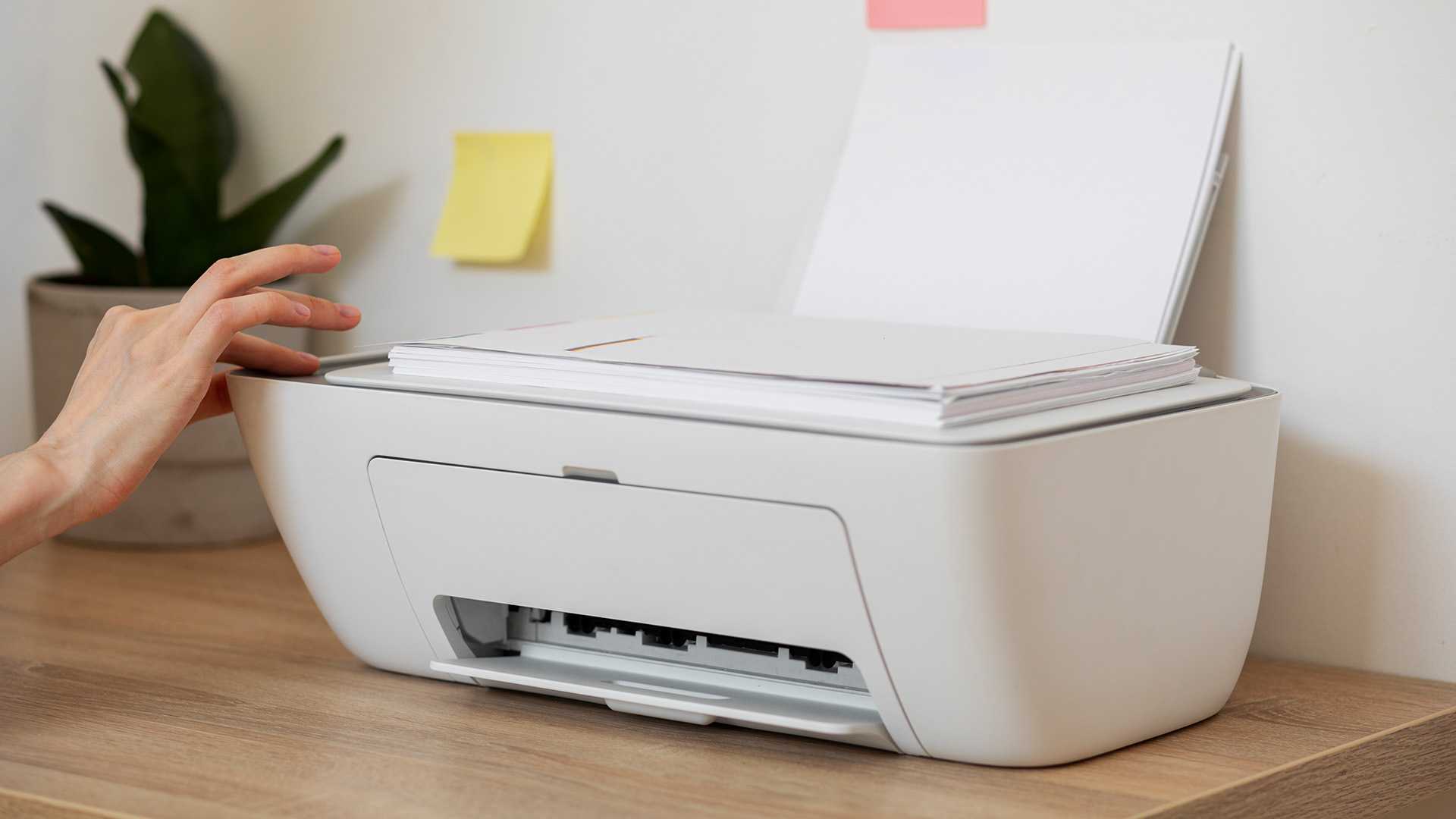
The physical design of a printer matters more than many buyers realise, especially in home environments where desk space is at a premium.
- Footprint: Compact printers are better for home use. Office printers can be larger but should fit your available desk or printer stand space. Always check dimensions before ordering.
- Weight: Relevant if you need to move the printer regularly or if it will be placed on a lightweight shelf.
- Control panel: A touchscreen is more intuitive than physical buttons for navigating menus, especially on all-in-one models with scan and copy functions.
- Display size: Even a small 2.7-inch colour touchscreen makes a significant difference for scanning, copying, and adjusting settings without using a computer.
- Consumables access: Check how the cartridges or toner are replaced. Some models require pulling the printer partially out from a shelf to swap cartridges. Front-loading access is far more convenient.
- Energy efficiency: Look for ENERGY STAR certification or comparable energy-efficiency credentials. Modern printers have low-power sleep modes, which matter especially for office environments where machines run all day.
4.9. Noise Levels: How Loud Are Printers?
Printer noise is measured in decibels (dB) and is worth considering if the printer will be in a quiet home, bedroom, or open-plan office. Laser printers tend to be louder than inkjets due to the fuser unit and ventilation fan.
|
Printer Type |
Typical Noise Level |
Environment Suitability |
|
Budget Inkjet |
40 to 48 dB |
Home, bedroom, quiet study |
|
Photo Inkjet |
40 to 50 dB |
Home, creative studio |
|
Ink Tank Printer |
42 to 52 dB |
Home office, small business |
|
Mono Laser |
50 to 58 dB |
Dedicated office space |
|
Colour Laser |
52 to 60 dB |
Office, back room |
|
Business Laser (high volume) |
58 to 65 dB |
Dedicated print room |
For context, 50 dB is roughly equivalent to a quiet conversation. 60 dB is similar to background restaurant noise. If you are placing a printer next to your desk in a shared space, an inkjet with a noise level under 50 dB is considerably more considerate.
If your printer starts making unusual noises or printing poorly, our dedicated guide on how to fix common printer errors walks you through the most frequent issues and how to resolve them yourself.
5. What Connectivity and Mobility Options Should You Look For?
How you connect to your printer has a direct impact on convenience, speed, and sharing capability. In 2026, wireless connectivity is essentially standard on all but the cheapest entry-level models.
Wired Connections
- USB: Direct cable connection between your computer and printer. Fast and reliable but limits you to one computer unless you unplug and swap. Fine for single-user home setups.
- Ethernet (RJ45): Connects the printer to your local network via a cable. More stable than Wi-Fi for busy offices with multiple users. Recommended for business environments.
Wireless Connections
- Wi-Fi: The most popular option for home and small office use. Allows any device on your network to send print jobs wirelessly. Look for dual-band Wi-Fi (2.4 GHz and 5 GHz) for the most stable connection.
- Wi-Fi Direct: Lets you connect your phone or laptop directly to the printer without going through your home router. Useful when you are away from your usual network.
- Bluetooth: Less common but useful for occasional printing from mobile devices without a network connection.
- NFC (Near Field Communication): Tap your smartphone against the printer to connect and print instantly. Convenient for mobile printing in small offices.
Mobile and Cloud Printing
- Apple AirPrint: Print wirelessly from any iPhone, iPad, or Mac to a compatible printer with no driver installation required. Widely supported by HP, Canon, Epson, and Brother.
- Mopria Print Service: The equivalent for Android devices. If you have an Android phone or tablet, check that your printer is Mopria-certified.
- HP Smart / Epson Smart Panel / Canon PRINT: Manufacturer apps for iOS and Android that allow printing, scanning, and printer management directly from your smartphone.
- Cloud printing: Services like Google Cloud Print have been discontinued, but manufacturers now offer their own cloud print portals. For HP users, older printers may support HP ePrint, but many newer HP printers use HP Smart and Print Anywhere instead, so check the exact model before buying.
- USB memory stick / SD card: Some inkjet printers include a USB port or SD card slot for printing directly from storage media without a computer. Useful for photographers.
|
Tip If you regularly need to print from your smartphone, make sure the printer supports both AirPrint (for Apple devices) and Mopria (for Android). Most mid-range and above models in 2026 support both, but always double-check before purchasing. |
Once your printer arrives, our step-by-step printer setup guide takes you through unboxing, installing drivers, and connecting to Wi-Fi so you can start printing in minutes.
6. How Much Does a Printer Cost in the UK?
One of the most common questions: how much for printer do I actually need to spend? The answer depends on your needs, but there is a model at every budget.
|
Budget Range |
What You Get |
Best For |
|
Under £50 |
Basic inkjet, print only or basic AIO, limited features on the cheapest models |
Very occasional printing, students on a tight budget |
|
£50 to £100 |
Inkjet AIO with Wi-Fi, mobile printing, reasonable photo quality |
Home users, light home office, families |
|
£100 to £200 |
Better inkjet AIO, entry ink tank printers, mono laser AIO |
Moderate home/office use, students, small businesses on a budget |
|
£200 to £350 |
Mid-range ink tank, colour laser AIO, duplex, Ethernet |
Home office, small businesses, frequent users wanting low running costs |
|
£350 to £600 |
High-capacity laser AIO, fast speeds, large paper trays, security features |
Small to medium businesses, high-volume environments |
|
£600+ |
Workgroup laser, A3 capability, advanced ADF, enterprise security |
Medium to large businesses, print-intensive industries |
|
Note All prices are approximate retail prices inclusive of VAT and should be checked against live UK product listings before publication. |
7. What Is the True Total Cost of Owning A Printer?
The purchase price is only part of what a printer costs you. The ongoing total cost of ownership (TCO) includes consumables, energy, and maintenance, and in many cases it far exceeds the initial purchase price over three to five years.
Ink and Toner: The Biggest Ongoing Cost
Consumables are where printer manufacturers make much of their profit. Understanding the true cost per page before you buy a printer is one of the most important steps.
|
Consumable Type |
Typical UK Cost |
Approx. Page Yield |
Cost Per Page |
|
Standard ink cartridge (mono) |
£8 to £15 |
150 to 300 pages |
4p to 8p |
|
XL ink cartridge (mono) |
£12 to £20 |
400 to 600 pages |
2p to 5p |
|
Standard ink cartridge (colour) |
£10 to £18 |
100 to 250 pages |
6p to 18p |
|
Ink bottle (ink tank printer) |
£8 to £14 per individual colour, or more for multi-bottle sets |
3,000 to 7,000+ pages |
0.2p to 1p |
|
Mono laser toner |
£20 to £60 |
1,500 to 5,000 pages |
0.5p to 2p |
|
Colour laser toner (set of 4) |
£80 to £200 |
1,000 to 3,500 per colour |
3p to 12p |
|
Drum unit (laser) |
£30 to £80 |
12,000 to 30,000 pages |
0.1p to 0.5p |
Should You Buy Own-Brand or Compatible Cartridges?
Compatible (third-party) cartridges can cost up to 70% less than genuine OEM cartridges and are widely available in the UK. However, there are important caveats to be aware of.
- Quality varies significantly between compatible brands. Reputable suppliers like Printerinks, Ryman, and Viking provide decent quality; unbranded marketplace alternatives can be unreliable.
- Print head clogging risk: Low-quality compatible inks can clog inkjet print heads. This can result in costly cleaning cycles or permanent damage.
- Printer warranties: Using compatible cartridges does not automatically remove your statutory consumer rights, but manufacturers may refuse warranty claims if they can show that a third-party cartridge caused the fault. Check the warranty terms for the specific printer model.
- Firmware lock-out: Some HP, Epson, and Canon printers have received firmware updates that block compatible cartridges. Research your specific model before committing to a compatible supply strategy.
|
Money-Saving Tip Always buy XL or high-yield cartridges where possible. Even though they cost more upfront, the cost per page is substantially lower than standard cartridges. Over a year of regular printing, this saves a considerable amount. |
Paper Costs
Paper is an easy cost to overlook. A standard 500-sheet ream of 80 gsm A4 white paper costs around £3 to £6 in the UK. At moderate print volumes of 200 pages per month, you will use roughly 5 reams per year, adding £15 to £30 to your annual running costs.
- Duplex printing: As noted earlier, printing double-sided halves your paper consumption immediately.
- Recycled paper: Compatible with most inkjet and laser printers. Check the printer's specification sheet for the minimum paper weight supported (usually 60 gsm) and maximum (usually 120 to 160 gsm for most home printers).
- Photo paper: Glossy 10x15 cm photo paper costs around £10 to £20 per 100 sheets. Specialist inkjet photo paper delivers significantly better results than plain paper for photographs.
Energy Costs
With UK electricity prices remaining elevated into 2026, it is worth paying attention to a printer's power consumption. Look for ENERGY STAR-certified or energy-efficient models, which meet strict efficiency standards and have automatic low-power sleep modes.
- Inkjet printers in standby mode typically consume 1 to 4 watts.
- Laser printers in standby mode consume 3 to 10 watts due to the fuser keeping at temperature.
- Active printing draws 300 to 600 watts for a laser printer, and 10 to 30 watts for an inkjet.
- For most home users, electricity adds only £1 to £5 per year to running costs. For a high-volume office laser running all day, this can reach £30 to £60 per year.
Maintenance Costs
Most printers require minimal maintenance beyond consumable replacements, but there are additional components that occasionally need replacing.
- Drum unit (laser): Typically lasts 12,000 to 30,000 pages before needing replacement. Cost: £30 to £80.
- Waste ink pad (inkjet): Inkjet printers accumulate waste ink in an absorbent pad. Once full, the printer may display an error and stop functioning. Some models allow this to be replaced or reset. Cost varies, but professional servicing typically runs £40 to £80.
- Fuser unit (high-volume laser): In workgroup-level printers, the fuser unit may need replacing after 100,000 to 200,000 pages. Cost: £60 to £150.
- Roller replacement: Feed rollers can wear out over time, causing paper jams. A roller replacement kit costs £10 to £30 and is usually user-installable.
Five-Year TCO: A Practical Example
To illustrate, here is a comparison of the approximate five-year total cost of ownership for three different printer types, based on a typical moderate home/office user printing 150 pages per month (1,800 pages per year).
|
Cost Component |
Standard Inkjet |
Ink Tank Printer |
Mono Laser |
|
Upfront purchase price |
£70 |
£220 |
£120 |
|
Ink/Toner (5 years) |
~£450 |
~£80 |
~£120 |
|
Paper (5 years) |
~£50 |
~£50 |
~£50 |
|
Energy (5 years) |
~£8 |
~£10 |
~£20 |
|
Maintenance (est.) |
~£50 |
~£20 |
~£30 |
|
Total 5-Year Cost |
~£628 |
~£380 |
~£340 |
|
✅ Key Takeaway The cheap inkjet is by far the most expensive printer to own over five years. An ink tank or mono laser costs less overall, despite a higher purchase price. Always think in terms of total cost, not just the sticker price. |
Which Printer Brands Are Best in the UK (2026)?
The UK printer market is dominated by a handful of well-established brands, each with its own strengths and weaknesses. Here is a straightforward breakdown to help you decide.
Best for: All-round home & office
The UK's one of best-selling printer brands. Excellent software (HP Smart app), broad model range from budget to enterprise, and strong retail support. Watch out for HP+ subscription models that restrict third-party ink.
Best for: Ink tank & photo printing
Makers of the popular EcoTank range, ideal for regular users seeking low running costs. Also produce excellent photo printers. Good UK warranty and service network.
Best for: Business & office laser printing
Brother is often favoured for dependable office and small-business laser printers, with a strong mono laser range, useful duplex support, and competitively priced toner across many models.
Best for: Photo & home printing
Canon's PIXMA range is a firm favourite with home users and photographers. Excellent colour reproduction, good mobile printing support, and the MegaTank range competes well with Epson EcoTank.
Best for: Enterprise & large office
Primarily focused on business and enterprise customers. Known for workgroup laser printers with advanced document management, strong security features, and high-volume reliability.
|
After-Sales Support in the UK |
Quick Comparison: Which Printer Should You Choose?
Still not sure which direction to go? Use this summary table to match your situation to the right printer type.
|
Your Situation |
Recommended Choice |
Budget (approx.) |
|
I print occasionally at home (under 50 pages/month) |
Budget inkjet AIO (HP, Canon, Epson) |
£40 to £80 |
|
I print photos and home documents regularly |
Mid-range inkjet AIO or ink tank |
£80 to £200 |
|
I am a student needing to print essays and notes |
Budget inkjet or mono laser AIO |
£50 to £120 |
|
I run a home office printing 100 to 300 pages/month |
Ink tank AIO or mono laser AIO (Brother, Epson) |
£120 to £250 |
|
I need colour printing for marketing materials |
Colour laser AIO or mid-range inkjet |
£150 to £350 |
|
I run a small business with 3 to 10 staff |
Colour or mono laser AIO with Ethernet (Brother, HP) |
£200 to £500 |
|
I need to print large-format (A3) documents or posters |
Wide-format inkjet (Epson, Canon) |
£200 to £600+ |
|
I want the lowest possible running costs |
Ink tank printer (Epson EcoTank, Canon MegaTank) |
£150 to £300 |

Wrap Up Your Printer Search
This printers buying guide has walked you through everything you need to make a confident, informed decision. Start by defining your print volume, content type, and budget. Then match those needs to the right technology: inkjet for casual home use and photos, laser for fast and cost-effective document printing, and ink tank for regular users who want the lowest running costs available.
Pay close attention to the total cost of ownership, not just the shelf price, and never underestimate the value of automatic duplex printing, wireless connectivity, and proper security features. Whether you are picking up a simple home model or a robust business workhorse, use this guide as your reference, and browse the full range at Laptop Outlet to find the right printer at the right price.

Vital Details for Your Decision...
What type of printer is best for home use?
An inkjet or ink tank printer is best for home use, offering affordable upfront cost and versatility for documents and occasional photos.
Is laser printer better than an inkjet for an office?
Yes. Laser printers are better for high-volume office use due to faster speeds, lower running costs, and consistently sharp text output.
How much does a decent printer cost in the UK?
Decent UK printers start from around £30 for basic inkjets, £80 to £150 for mid-range models, and £100 to £300 for laser printers.
What does PPM mean on a printer?
PPM stands for pages per minute. It measures how many pages a printer produces per minute under standard, typically mono text-only, conditions.
What is duplex printing?
Duplex printing automatically prints on both sides of a sheet of paper, saving paper and reducing costs. It is ideal for long documents and reports.
Are ink tank printers worth it?
Yes, if you print regularly. Ink tank printers have higher upfront costs but dramatically lower running costs thanks to cheap, high-yield ink bottles.
What is the duty cycle on a printer?
A duty cycle is the maximum number of pages a printer can handle per month without causing excessive wear or reducing its lifespan significantly.
Can I connect a printer to Wi-Fi?
Yes. Most modern printers include built-in Wi-Fi, allowing wireless printing from laptops, smartphones, and tablets without a USB cable connection.
Which printer brand is most reliable in the UK?
Brother, HP, Epson, and Canon are consistently rated most reliable in the UK for home and office use, with strong after-sales support available.
What is the difference between multifunction and standard printers?
A multifunction printer combines printing, scanning, copying, and sometimes faxing into one device, whereas a standard printer only prints.
| Read More |
| Best Printers for Home Use in 2026 |
| Top 10 Brother Printers for Home and Office Use in 2026 |
| Guide to Laser Printers: How They Work, Benefits, Uses, and What to Buy |
Related Articles

Last Updated: April 21, 2026
Setting up an all-in-one printer is usually much easier than people expect. The part that trips most users up is not the printer itself, but the order. If you prepare the hardware first, connect it the right way, and install the correct software in the right place, most all-in-one printer setup jobs are straightforward.
This guide walks through how to set up an all-in-one printer step by step, including USB, Wi-Fi, and network setup, driver installation, scanning setup, and the small configuration choices that make the printer easier to live with long term. If you are installing a multifunction printer at home, in a home office, or for a small team, this is the practical setup flow that saves the most time.
What is an All-in-One Printer Setup?
An all-in-one printer setup is the process of getting a multifunction printer ready to print, scan, copy, and in some cases fax. That means more than plugging it in and printing one test sheet. A proper setup also includes network access, driver
Last Updated: July 06, 2026
If your printer is acting up, the short answer is this: most all in one printer problems are fixable without replacing the whole machine. The fastest wins usually come from checking the connection, clearing the print queue, confirming the right printer is selected, inspecting paper loading, and running the built-in cleaning or alignment tools before assuming the hardware has failed. Microsoft, Brother, Epson, Canon, and HP all point users toward those same basics first, which is a strong sign that the smartest troubleshooting is usually methodical, not dramatic.
That is exactly what this guide is here to do. Instead of giving you random fixes with no logic behind them, this article breaks down the most common all-in-one printer issues, shows what each symptom usually means, and explains the best way to fix it. So, whether your machine is offline, feeding paper badly, refusing to scan, printing faded documents, or suddenly producing blank pages like it has given up on communication,
Published: April 24, 2026
If you want an all-in-one printer to last, the best approach is simple: keep it clean, use the built-in maintenance tools properly, and deal with small print-quality issues before they turn into bigger faults. Good all in one printer maintenance is less about deep cleaning every week and more about doing the right checks at the right time.
For most homes and small offices, that means cleaning the scanner glass and document feeder areas regularly, using printhead cleaning only when print quality drops, keeping paper and supplies in good condition, and not treating laser and inkjet models the same way. That last point matters. A multifunction printer cleaning routine for an inkjet is not the same as multifunction printer care for a laser model with a separate drum unit.
The Best Way to Keep an All-in-One Printer Working Well
The simplest all-in-one printer maintenance guide starts with routine care, not emergency fixes. Keep dust off the exterior, keep the scanner glass and ADF strip clean,
Published: April 24, 2026
An all-in-one printer is a machine that lets you print, scan, copy, and sometimes fax from one device. It is designed to save space, reduce setup hassle, and handle everyday home or office tasks without needing separate equipment.
An all-in-one printer, sometimes called a multifunction printer or MFP, combines multiple jobs into one device. Retailer and manufacturer guidance broadly agrees on the core value proposition: one device, less clutter, fewer cables, and a more streamlined workflow for home and office users.
Nobody wakes up thinking, “You know what would absolutely change my life today? A printer.” And yet, the second you need to print a return label, scan a signed document, copy schoolwork, or send a form to the office, your printer suddenly becomes the main character.
That is exactly why these all-in-one printers guide exists. We explain how all-in-one printers work, their key features, the main types, their benefits, costs, setup, maintenance, and how to choose the best one
Last Updated: June 10, 2026
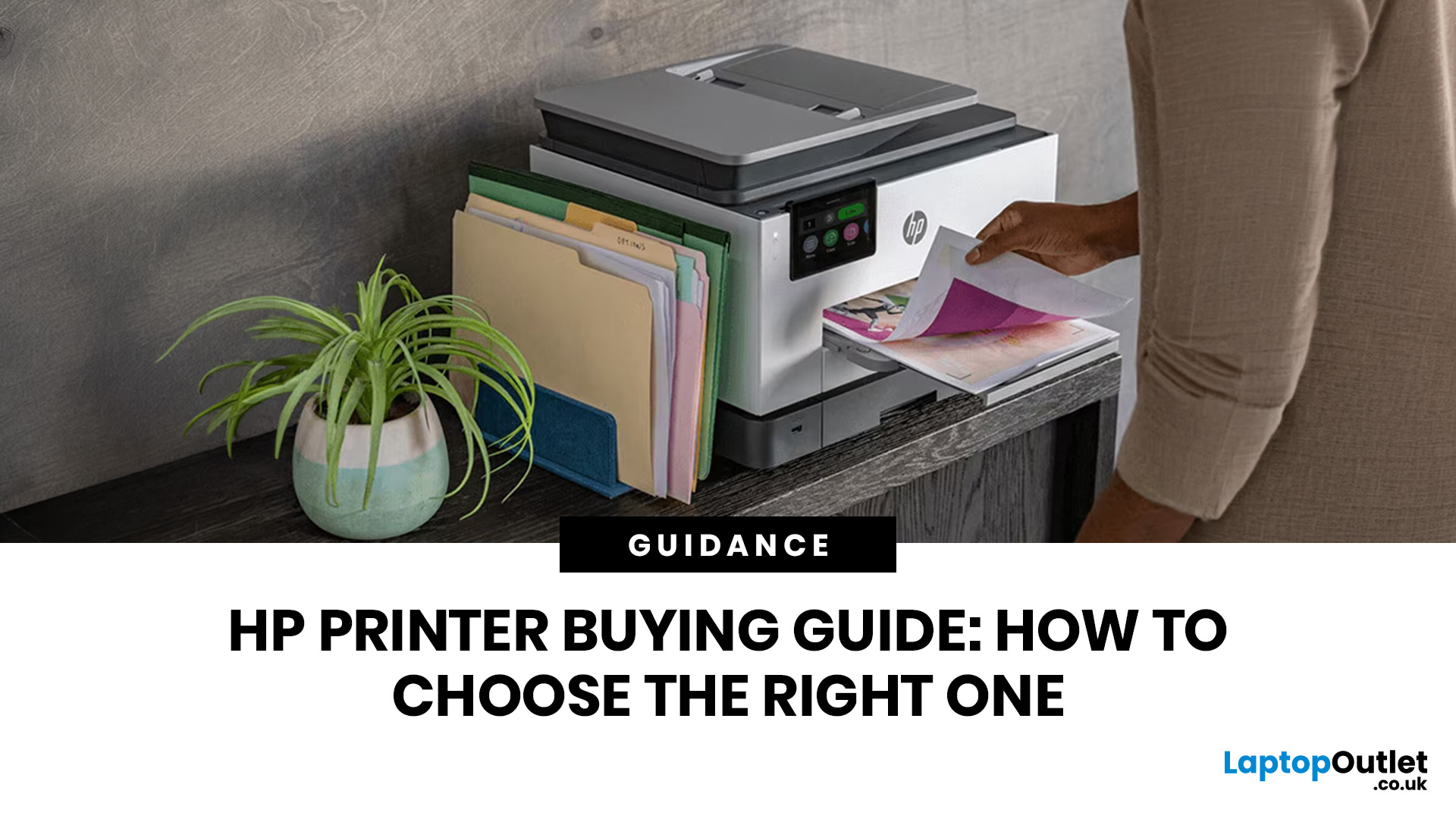
The best HP printer depends on what you print, how often you print, whether you need scanning or copying, and how much you want to spend on ink or toner. For home users, an HP inkjet or all-in-one printer is usually the best choice. For offices and small businesses, HP OfficeJet, LaserJet or multifunctional printers are better for speed, reliability and heavier workloads.
Buying a printer can feel confusing because HP offers many different models for different users. Some are made for simple home printing. Some are designed for students and families. Others are built for small businesses, offices, shipping labels, high-volume printing or professional document handling. That is why choosing the right printer is not just about finding the cheapest model. It is about understanding your print habits, running costs, space, connectivity and long-term needs.
This HP printer guide 2026 will take you from basic printer knowledge to more advanced buying terms, so whether you are buying your first
Last Updated: July 06, 2026
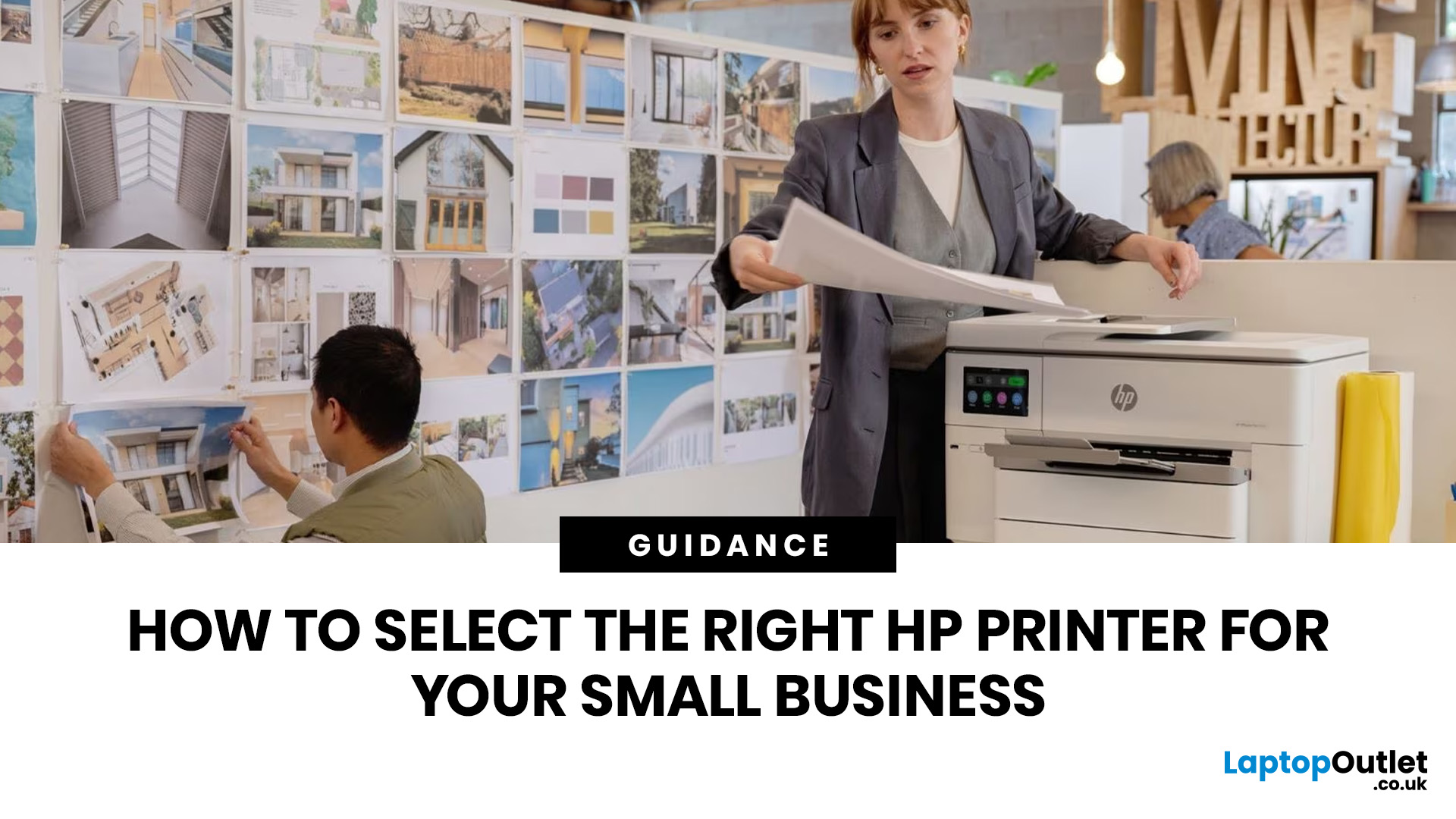
Buying one of the many HP printers for small business setups out there sounds easy until you start comparing them properly. Some are better for fast document printing, some are built for scanning and colour work, and some save you more money over time. The trick is not buying the fanciest one. It is buying the one that suits your workload. This guide walks through the HP printer types that make the most sense for home offices, small teams, and day-to-day business use.
Which HP Printer Type Should a Small Business Choose?
- If your business prints mixed colour documents, scans paperwork regularly and needs one compact machine, go for an HP all-in-one in the OfficeJet Pro range. OfficeJet Pro printers are best for higher-volume printing and all-around productivity in a home or home office, which is exactly the kind of workload many sole traders, hybrid workers and small teams deal with.
- If your business prints lots of text-heavy documents and speed matters more than photo-quality colour, choose
Last Updated: June 10, 2026
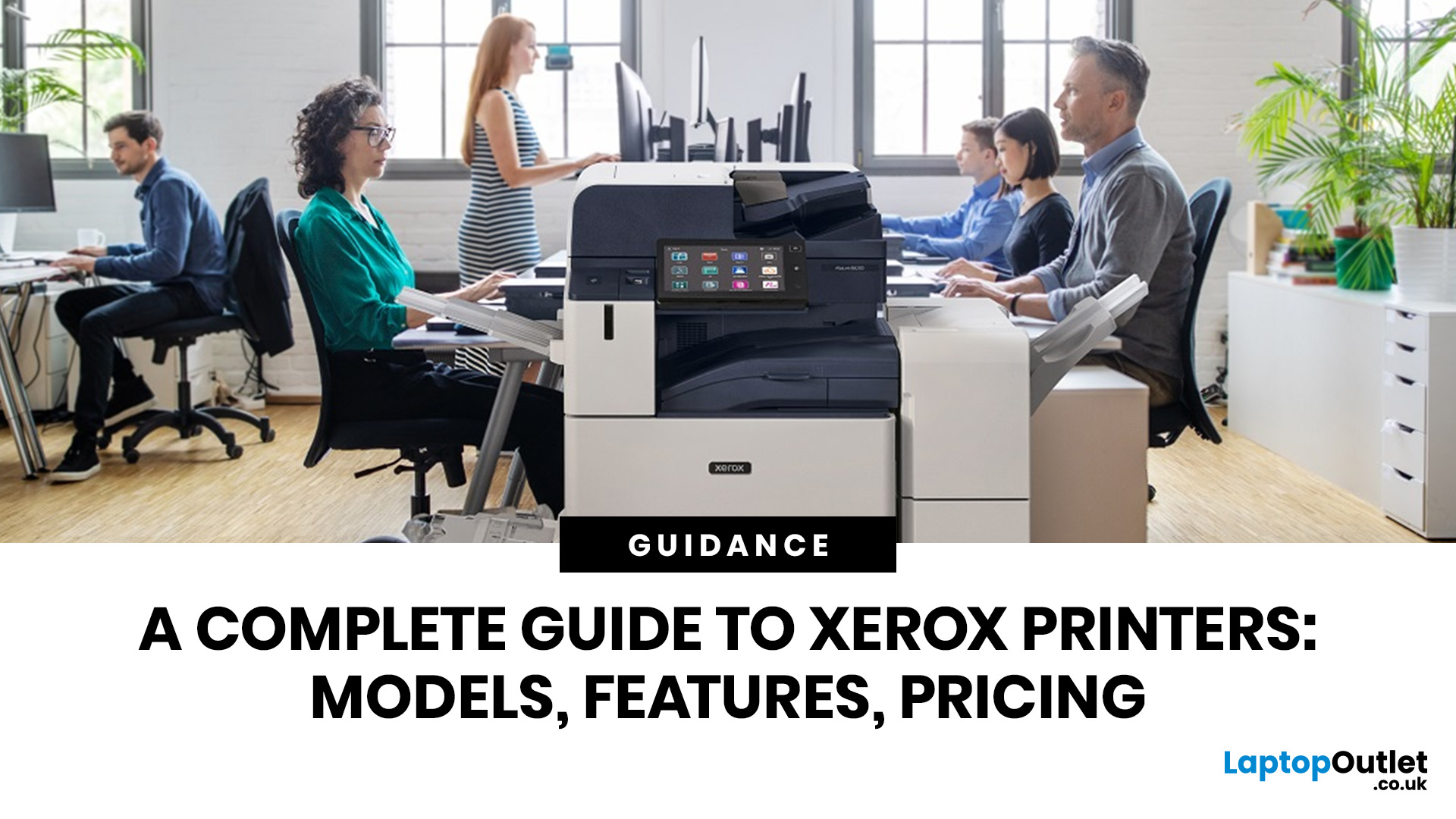
A Xerox printer is a document printer or multifunction device designed for reliable office, business, and home printing. Most modern Xerox printers focus on laser or LED printing, fast document output, strong security, mobile printing and multifunction features such as scanning, copying, faxing and cloud connectivity.
Xerox is a trusted name in business printing, best known for office printers, copiers and multifunction devices. While the brand is still strongly linked with photocopying, modern Xerox printers do much more than copy documents.
Today’s Xerox devices can print, scan, copy, fax, support mobile and cloud printing, manage user access and help businesses control print costs. Many models also include Wi-Fi, reliable paper handling, security features and easy touchscreen controls.
If you are comparing printers, looking for a Xerox printer, or trying to understand whether Xerox is right for your home or office, this guide breaks everything down in simple words.
What is a Xerox
Last Updated: May 05, 2026
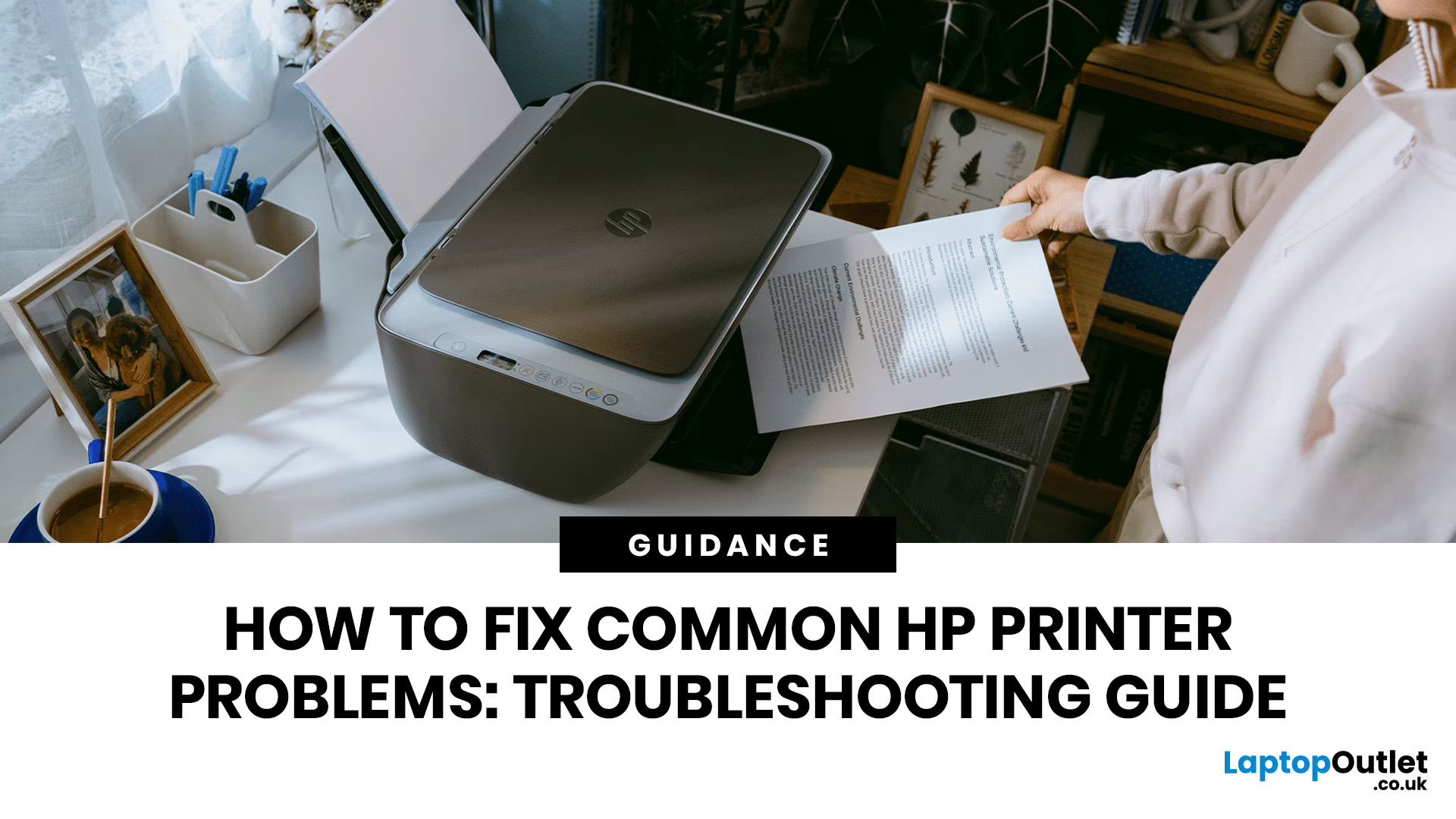
HP printers are reliable, but even the best machines throw a wobble from time to time. The good news is that the vast majority of issues are easy to resolve on your own. This guide will show you how to fix common HP printer problems without calling a professional. Whether you've got an HP OfficeJet, DeskJet, LaserJet, or ENVY, many of the checks below apply across the range.
What Are the Most Common HP Printer Problems?
Before diving into individual fixes, it helps to know what you are actually dealing with. HP printers, from compact home models to full office workhorses, tend to run into the same handful of issues time and again.
Here is a quick overview of the most frequently reported HP printer problems and what typically causes them:
| Problem | Most Likely Cause |
| Printer not printing | Stuck print queue, offline status, driver fault |
| Paper jam | Overfilled tray, worn rollers, torn paper fragments |
| Printer showing offline | Wi-Fi dropout, incorrect default printer setting |
| Blank or faded pages |
Last Updated: May 05, 2026
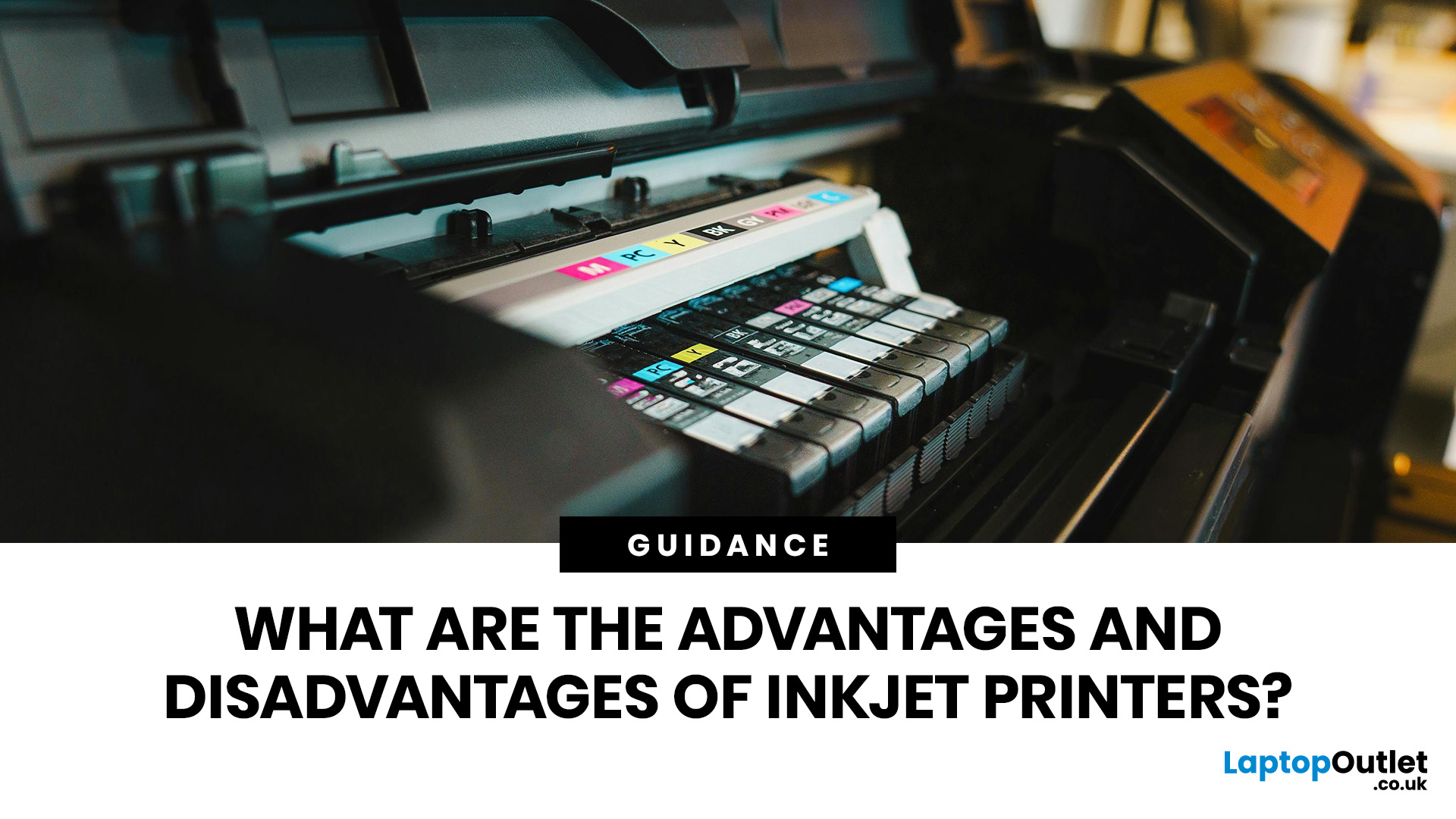
Quick Answer: Inkjet printers offer high colour quality, a compact design, and a lower upfront price, making them ideal for homes, students, creative projects, and light office use. The main disadvantages are higher ink costs on cartridge models, slower print speeds, possible ink smudging, and printhead maintenance when the printer sits unused.
Choosing a printer sounds simple until you start comparing ink costs, print speed, colour quality, maintenance, and the difference between inkjet and laser models. For many UK homes, students, hybrid workers, and small offices, an inkjet printer still makes a lot of sense. It is usually compact, affordable to buy, and strong at printing colour documents, photos, homework, labels, and everyday paperwork.
The part that needs more thought is the long-term cost. Some inkjet printers are cheap upfront, but can become expensive when you replace cartridges often. Others, such as refillable ink tank models, cost more upfront but may suit regular printing
Last Updated: May 06, 2026
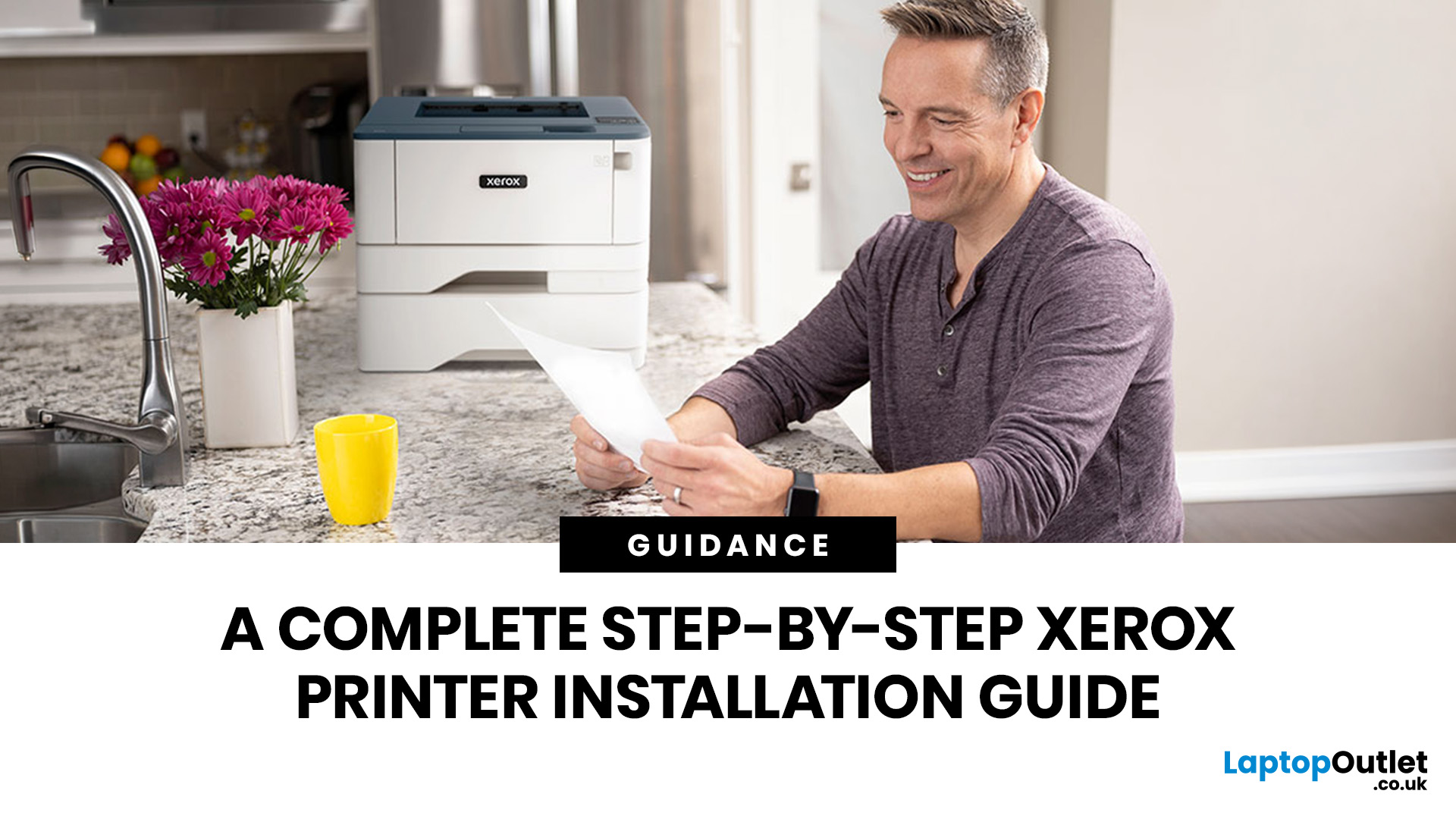
Xerox has been making printers for over 50 years, and their modern range is some of the most capable kit available for home and office use. However, even the best printer is useless if it's not set up correctly. This complete Xerox printer installation guide walks you through every method, every platform, and the most common problems you're likely to run into (with fixes), so you can get set up quickly and get on with your day.
1. What Do You Need Before Starting a Xerox Printer Installation?
A smooth installation begins well before any cable is plugged in or software is run. Taking five minutes to gather the right items and verify your system compatibility saves considerably more time than troubleshooting avoidable errors later.
What Hardware and Consumables Do You Need?
- Your Xerox printer with all packaging materials and shipping tape removed
- Power cable (supplied in the box)
- USB cable (Type-A to Type-B) for direct USB setups -- note that Xerox does not always include this in

