



How to Set Up Your HP Printer: Easy Installation Guide
Quick Answer
For a quick HP printer installation, follow this order:
- Place the printer close to your router during setup.
- Connect the power cable and turn the printer on.
- Load plain A4 paper.
- Install the supplied ink cartridges or toner.
- Open the HP app or HP Smart app.
- Choose Set Up a New Printer or Add Printer.
- Connect the printer to your Wi-Fi network.
- Print a test page.
Once that is done, you can print wirelessly from your laptop, phone, tablet, or desktop.
Setting up an HP printer should not feel technical, even when you are doing it for the first time. Most new printers require only a few basic steps: power, paper, ink or toner, Wi-Fi connection, and device setup.
The confusion usually starts when different devices ask for different setup routes. A Windows laptop may ask you to add the printer through Printers & Scanners. A Mac may detect it through AirPrint. A phone may need the HP app. A Chromebook may require you to add it in Chrome OS printer settings. Your printer may also disappear during setup if it is on the wrong network, too far from the router, or no longer in Wi-Fi setup mode.
This guide walks you through setting up HP printers in a clear, practical way. You will learn how to install HP printer software, connect your printer to Wi-Fi, add it to a laptop, use USB when Wi-Fi setup is not working, print from your phone, restore Wi-Fi setup mode, and solve common setup issues.
You will also get useful buying advice on ink, XL cartridges, compatible ink, refillable ink tanks, home printers, office printers, and all-in-one printers, so you can choose the right HP printer setup for how you actually print.
If you are still deciding which model to buy, start with our how to choose the right HP printer guide before setup.
Before you start: what you need
Before you install HP printer software or start connecting HP printer models to Wi-Fi, gather everything you need. This avoids most first-time setup problems.
|
What you need |
Why it matters |
|
Wi-Fi network name and password |
You need these for most wireless setup methods. |
|
Laptop, phone, tablet or desktop |
This is the device you will use to add and test the printer. |
|
HP app or HP Smart app |
This helps with guided setup, drivers, scanning, and printer management. |
|
Paper |
Many printers need paper loaded before alignment or test printing. |
|
Ink cartridges or toner |
Setup may not be completed properly without the correct supplies installed. |
|
Printer model number |
Useful for drivers, cartridge compatibility and troubleshooting. |
|
USB cable, optional |
Helpful when Wi-Fi setup fails, or you want a direct connection. |
Place the printer on a flat surface with enough space around it. Keep it close to your router during setup, even when you plan to move it later. A weak Wi-Fi signal is one of the most common reasons a printer fails to appear.
How to set up an HP printer using the HP app
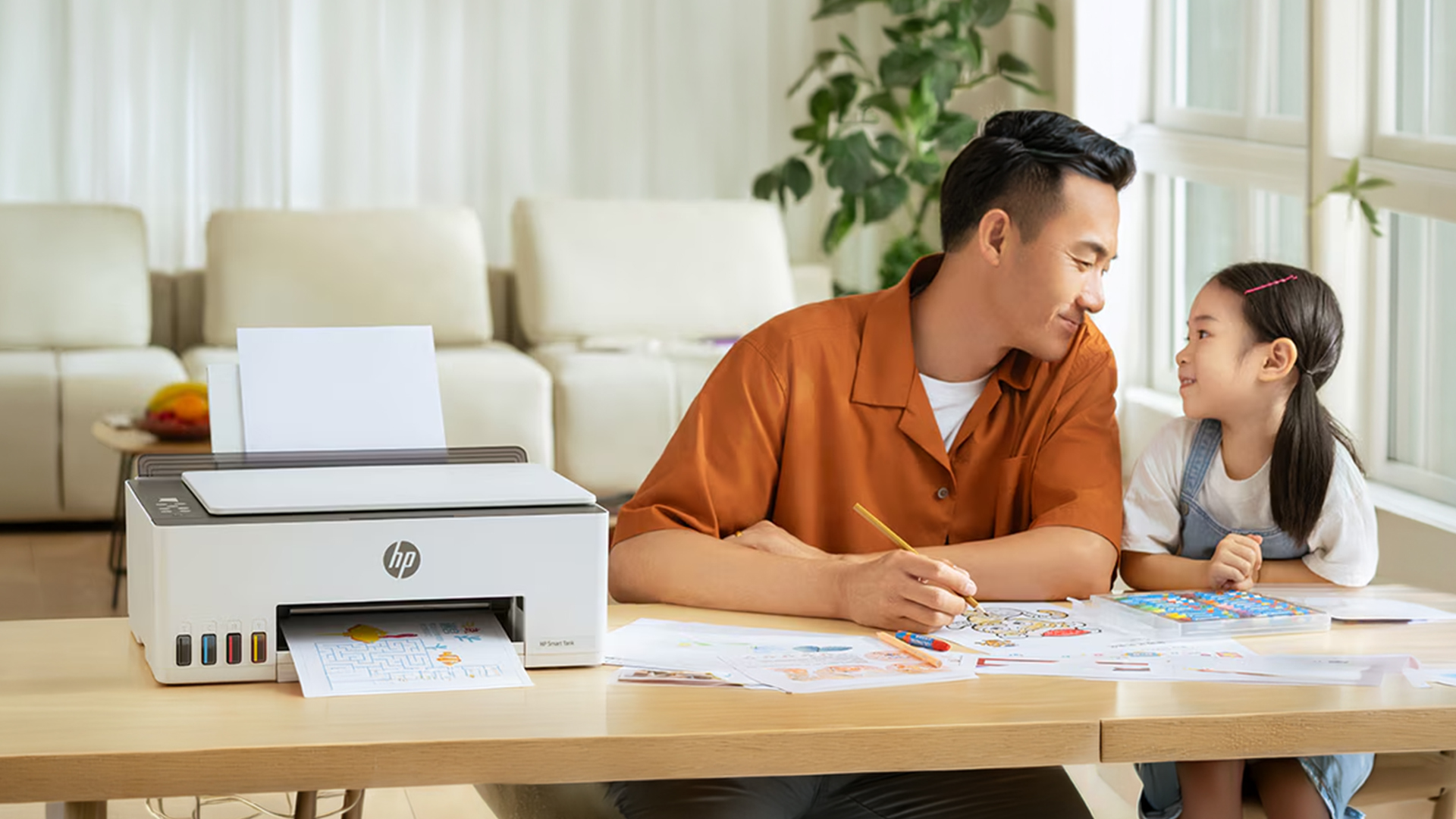
The HP app is the easiest setup method for most users. It helps detect the printer, connect it to Wi-Fi and install the software needed for printing and scanning. HP’s official setup page recommends using an HP print app to set up and use an HP printer.
Follow these steps:
- Turn on your printer.
- Make sure your laptop or phone is connected to your home or office Wi-Fi.
- Open the HP app or HP Smart app.
- Select Add Printer or Set Up a New Printer.
- Choose your printer when it appears.
- Enter your Wi-Fi password when asked.
- Wait for the app to complete the connection.
- Print a test page.
This is usually the best answer to “how to set up an HP printer” because it handles most of the technical steps for you.
How to connect an HP printer to Wi-Fi?
To connect an HP printer to Wi-Fi, use the HP app, WPS or the printer’s control panel. The app is the best for most people. WPS is useful when your printer and router support it. The control panel method is useful when your printer has a screen.
Method 1: Connect the HP printer to Wi-Fi using the app
Use this method when you are setting up a new printer or reconnecting after changing broadband providers.
- Put the printer near the router.
- Open the HP app.
- Tap or click Add Printer.
- Select your printer.
- Choose your Wi-Fi network.
- Enter your Wi-Fi password.
- Wait until the wireless light becomes steady.
- Print a test page.
Method 2: Connect the HP printer using WPS
WPS lets you connect some printers to Wi-Fi without typing the network name or password. HP says WPS can quickly connect supported printers via the push-button method, though not all routers support it.
Use WPS like this:
- Turn on your printer.
- Press the WPS button on your router.
- Press the Wireless or WPS button on your printer within the required time.
- Wait for the Wi-Fi light to turn steady.
- Add the printer to your laptop or phone.
This is useful only when your printer and router both support WPS and you have forgotten your Wi-Fi password.
Method 3: Connect the HP printer from the printer screen
Some HP printers have a touchscreen or display menu. You can connect from the printer itself.
- Open Settings, Wireless, or Network Setup on the printer.
- Select Wireless Setup Wizard.
- Choose your Wi-Fi network.
- Enter your password.
- Confirm the connection.
- Add the printer to your device.
This method is helpful when the app cannot find your printer, but the printer screen still works normally.
How to connect an HP printer to a laptop
To connect an HP printer to a laptop, first connect both the printer and the laptop to the same Wi-Fi network. Then add the printer through the HP app or through your laptop’s printer settings.
|
Laptop type |
Best setup route |
|
Windows laptop |
HP app, then Windows Printers & scanners |
|
MacBook |
HP app or AirPrint |
|
Chromebook |
ChromeOS printer settings |
|
Laptop without stable Wi-Fi |
USB cable |
|
Shared office laptop |
Wi-Fi or Ethernet printer setup |
How to set up an HP printer on Windows
For Windows, start with the HP app. Once the printer is connected to Wi-Fi, you can also add it through Windows settings.
- Open Settings.
- Go to Bluetooth & devices.
- Select Printers & scanners.
- Click Add device.
- Choose your HP printer.
- Print a test page.
Microsoft Support says Windows supports most printers out of the box, and many printers install automatically when connected directly. It also notes that updated drivers may be available through Windows Update.
How to set up an HP printer on a Mac
On a Mac, connect your printer and MacBook to the same Wi-Fi network first. Then use the HP app or add the printer through System Settings.
- Open System Settings.
- Go to Printers & Scanners.
- Click Add Printer, Scanner or Fax.
- Select your HP printer.
- Add it and print a test page.
Apple Support notes that most popular printers can print wirelessly from a Mac without downloading extra printer software. AirPrint also lets compatible Apple devices print without installing drivers.
How to set up an HP printer on a Chromebook
Chromebooks can print with compatible printers connected to the internet or by USB cable. Google also notes that Chromebooks do not currently support Bluetooth printing.
Use this route:
- Connect your HP printer to Wi-Fi or USB.
- Open Chromebook Settings.
- Search for Printers.
- Choose Add printer.
- Select your printer.
- Save it and print a test page.
How to install an HP printer with a USB
USB is the simplest wired setup. Use it when Wi-Fi is unreliable, your router is too far away, or you only need to print from one laptop or desktop. You can connect your HP via USB through these steps:
- Turn on the printer.
- Connect the USB cable to the printer.
- Connect the other end to your laptop or desktop.
- Wait for your device to detect the printer.
- Open the HP app or printer settings.
- Add the printer.
- Print a test page.
USB is reliable, but it is not the best option when several people need to print from the same printer. For shared use, Wi-Fi or Ethernet is usually better.
How to connect an HP printer using Ethernet
Ethernet is a wired network connection. It is useful for office printers, reception desks, shared workspaces, and small businesses where stable printing matters more than cable-free setup.
Use Ethernet like this:
- Plug an Ethernet cable into the printer.
- Connect the other end to your router or network switch.
- Turn on the printer.
- Add the printer through the HP app or your device settings.
- Print a test page.
Ethernet is a good choice for office printers because it avoids weak Wi-Fi signals and provides multiple users with a stable network path to the same printer.
How to print from your phone or tablet
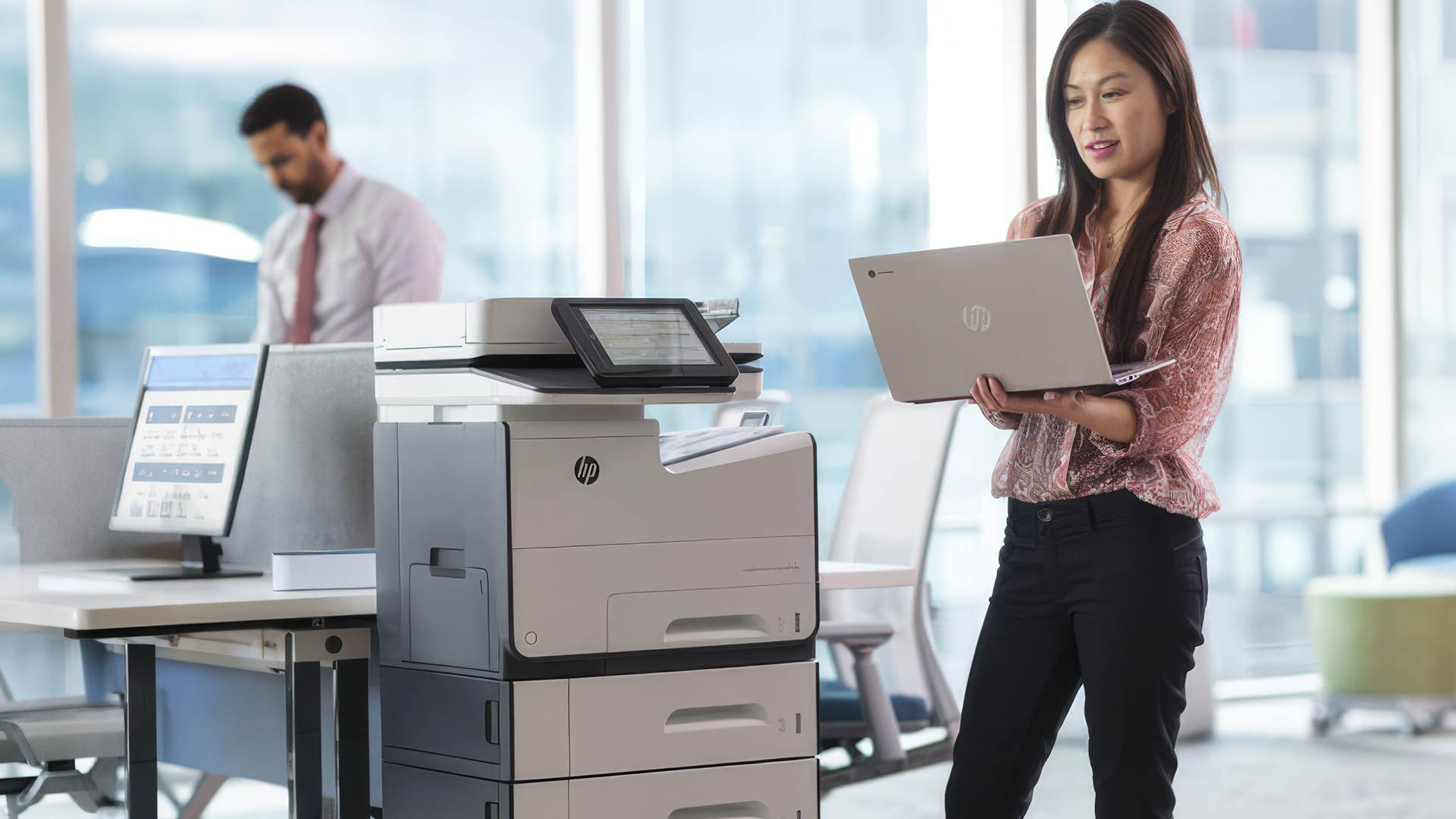
Once your HP printer is connected to Wi-Fi, you can print from your phone or tablet through the HP app, AirPrint or your device’s print menu.
Print from iPhone or iPad
- Connect your iPhone or iPad to the same Wi-Fi network as the printer.
- Open the file, photo, email or webpage.
- Tap the share icon.
- Choose Print.
- Select your HP printer.
- Tap Print.
Print from Android
- Install the HP app.
- Add your printer.
- Open the file or image you want to print.
- Tap the menu or share option.
- Choose Print.
- Select your printer.
- Send the print job.
What is Wi-Fi Direct on an HP printer?
Wi-Fi Direct lets you print wirelessly without connecting to your main router. HP says Wi-Fi Direct is available on most HP printers released after 2014 and does not require an internet connection to send print jobs wirelessly to the printer.
Use Wi-Fi Direct when:
- You are on a guest network.
- You are in student accommodation.
- Your router blocks printer discovery.
- You need temporary direct printing.
- You do not want to join the printer to the main network.
Wi-Fi Direct is useful, but it isn't always the best everyday setup. For regular home or office use, normal Wi-Fi is usually easier because all your devices stay connected to the same network.
Which connection method should you choose?
|
Connection type |
Best for |
Main benefit |
Watch out for |
|
HP app over Wi-Fi |
Most home users |
Easy guided setup |
Needs good Wi-Fi signal |
|
WPS |
Quick router-based setup |
No password typing |
Not supported by all routers |
|
Printer screen setup |
Printers with displays |
No app required |
Menus vary by model |
|
USB |
One laptop or desktop |
Stable and simple |
Not ideal for sharing |
|
Ethernet |
Office printers |
Reliable shared connection |
Needs cable and supported printer |
|
Wi-Fi Direct |
Guest or temporary printing |
No router required |
Less convenient for daily use |
Why is my HP printer not showing up?
Your HP printer may not show up because it is not in setup mode, your device is on a different Wi-Fi network, the signal is weak, the router is using a guest network, or a VPN is blocking discovery.
Try this first:
- Restart your printer.
- Restart your laptop or phone.
- Move the printer closer to the router.
- Check that both devices are connected to the same Wi-Fi network.
- Turn off VPN temporarily during setup.
- Open the HP app again.
- Restore Wi-Fi setup mode when needed.
How to restore Wi-Fi setup mode on an HP printer
Restore Wi-Fi setup mode when your printer was connected to an old router, you changed broadband provider, the HP app cannot find the printer, or the wireless light keeps flashing.
The exact button combination depends on your printer model. Many models use the Wireless button, the Cancel button, the Information button, or a network reset option on the printer screen. HP’s official restore setup page gives model-specific instructions, so check your model before pressing and holding buttons.
After restoring setup mode:
- Wait for the wireless light to blink.
- Open the HP app.
- Choose Add Printer.
- Select your printer.
- Enter the new Wi-Fi password.
- Print a test page.
Do not reset the whole printer unless the support instructions say so. You usually only need to reset the network setup.
Common HP printer installation problems and fixes
|
Problem |
Likely cause |
What you should do |
|
Printer not found |
Setup mode expired |
Restore Wi-Fi setup mode and add it again. |
|
Wi-Fi light keeps flashing |
Printer is not connected |
Reconnect through the HP app or printer screen. |
|
Laptop cannot find printer |
Devices are on different networks |
Put both on the same Wi-Fi. |
|
Phone cannot print |
Printer not added to app |
Add the printer in the HP app. |
|
USB printer not working |
Cable, port or driver issue |
Try another USB port and reinstall through printer settings. |
|
Printer says offline |
Network drop or sleep issue |
Restart printer, router and device. |
|
Print job stuck |
Queue problem |
Clear the print queue and restart the printer. |
|
Ink error appears |
Wrong cartridge or protective tape |
Check cartridge number and reinstall correctly. |
A simple restart solves many setup problems. Turn off the printer, wait 30 seconds, restart your router, then try again from the HP app or your device settings. If your printer still shows offline, refuses to connect to Wi-Fi, keeps dropping from your laptop or shows cartridge errors, you may need a deeper fix. Our fix common HP printer problems guide covers the most common HP printer issues after setup.
How to install ink cartridges during HP printer setup?
Most HP inkjet printers need ink cartridges installed before the setup can finish. Open the cartridge access area, wait for the carriage to stop, remove the protective tape from each cartridge, and click the cartridges into the correct slots.
Check the cartridge number carefully. Cartridges can look similar but still be made for different printer models. HP provides page-yield tools for Original HP Supplies and notes that cartridges included with a new printer may have different page yields from replacement cartridges.
Ink choices after setup: original, compatible, XL, refill and tank
Once your printer is working, your next cost is ink or toner. This matters because the cheapest printer is not always the cheapest printer to run.
|
Ink option |
What it means |
Best for |
What to check |
|
Original HP ink |
Ink made for your printer model |
Reliable quality and compatibility |
Cartridge number and page yield |
|
Compatible ink |
Third-party cartridge made to fit |
Lower upfront cost |
Reviews, return policy and firmware compatibility |
|
XL cartridge |
Higher-capacity cartridge |
Regular home or office printing |
Cost per page, not only cartridge price |
|
Refill ink bottle |
Bottled ink for refillable tank printers |
High-volume printing |
Whether your printer is designed for bottles |
|
Ink tank printer |
Printer with refillable ink tanks |
Families, students and frequent colour printing |
Higher upfront printer price |
|
Recycled cartridge option |
Cartridge recycling or remanufacturing route |
Eco-conscious users |
Quality guarantee and recycling process |
Eco-friendly ink and cartridge recycling
Do not throw used cartridges straight into general waste when a recycling route is available. HP runs the Planet Partners programme in the UK for recycling ink and toner cartridges, and HP says returned cartridges are recycled into new products rather than ending up in oceans or landfill.
A practical aftercare routine is simple:
- Keep the empty cartridge packaging.
- Replace the cartridge when print quality drops or ink runs out.
- Check whether the cartridge can be recycled.
- Use an official recycling programme or a trusted recycling route.
- Keep spare ink only for cartridges that you know match your printer.
How to choose the right HP printer before setup
The easiest printer to set up is the one that matches how you actually print. Before buying, think about where the printer will sit, how many people will use it, whether you need scanning and how often you expect to replace ink.
|
You need |
Best printer type |
Helpful Laptop Outlet category |
|
Simple everyday printing |
compact wireless printer |
|
|
Familiar setup and broad choice |
HP printer |
|
|
Colour documents and homework |
inkjet printer |
|
|
Printing, scanning and copying |
All-in-one printer |
|
|
Shared workplace printing |
Business or network printer |
Best printer setup by user type
|
User type |
Setup you should choose |
Why it works |
|
Home user |
HP app plus Wi-Fi |
Easy for laptops, phones and tablets |
|
Student |
Wi-Fi or USB |
Flexible for coursework and shared accommodation |
|
Hybrid worker |
Wi-Fi plus mobile printing |
Useful for documents, labels and forms |
|
Family |
All-in-one printer over Wi-Fi |
Good for homework, scanning and copying |
|
Small office |
Ethernet or strong Wi-Fi |
Better for shared use and reliability |
|
Occasional user |
USB or simple Wi-Fi |
Lower setup complexity |
HP printer setup checklist
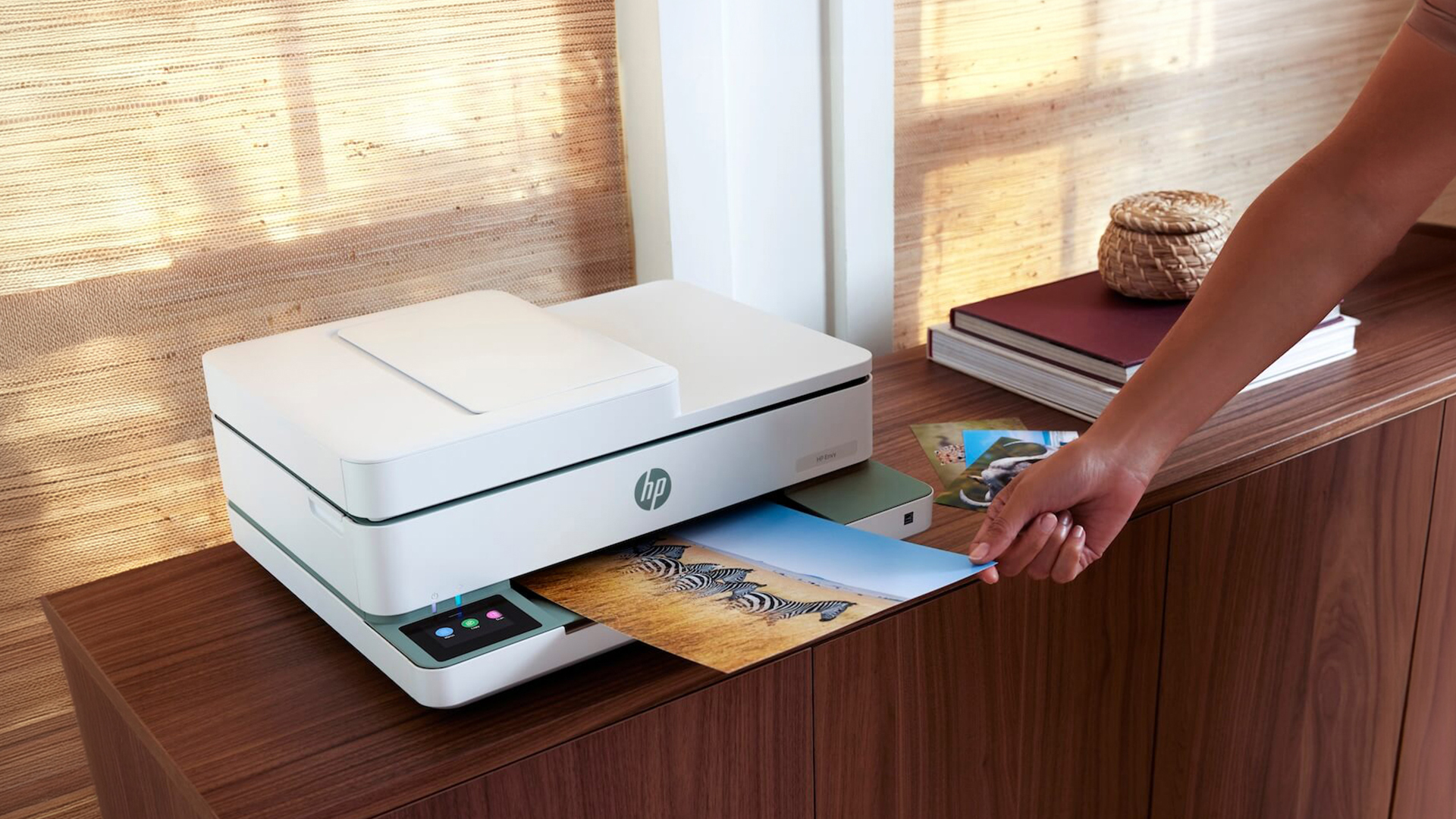
Use this checklist before you finish setup.
|
Setup step |
Done? |
|
Printer unpacked and placed on a flat surface |
Yes/No |
|
Power cable connected |
Yes/No |
|
Paper loaded correctly |
Yes/No |
|
Ink or toner installed |
Yes/No |
|
Printer connected to Wi-Fi, USB or Ethernet |
Yes/No |
|
HP app installed where needed |
Yes/No |
|
Printer added to laptop, phone or desktop |
Yes/No |
|
Test page printed |
Yes/No |
|
Spare ink or toner compatibility checked |
Yes/No |
|
Recycling route checked for used cartridges |
Yes/No |

Final thoughts
Setting up an HP printer is straightforward when you follow the right order: prepare the printer, connect it to Wi-Fi, add it to your laptop or phone, and print a test page. The HP app is the easiest route for most users, while Windows, macOS, AirPrint, USB, Ethernet, and Wi-Fi Direct give you extra options when your setup is different.
Once your printer is working, consider the bigger picture, too. The right printer should match how often you print, where you print, how many devices need access, and how much you want to spend on ink over time.

People Also Ask
How do I set up my HP printer for the first time?
Plug in the printer, load paper, install the cartridges, open the HP app, choose Set Up a New Printer, connect it to Wi-Fi, then print a test page. This is the simplest first-time setup for most modern HP printers.
How do I connect my HP printer to Wi-Fi?
Use the HP app, select Add Printer, choose your printer, and enter your Wi-Fi password. Place the printer near the router during setup to reduce connection problems.
How do I add an HP printer to my laptop?
Connect the printer to the same Wi-Fi network as your laptop. On Windows, use Settings > Bluetooth & devices > Printers & scanners. On Mac, use System Settings > Printers & Scanners.
Can I install an HP printer without the app?
Yes, many printers can be added through Windows or macOS printer settings. The HP app is still useful because it can install drivers, manage scanning, and help with troubleshooting.
Why is my HP printer not connecting to Wi-Fi?
The most common reasons are a weak signal, an incorrect Wi-Fi password, an expired setup mode, VPN interference, or the laptop and printer being on different networks. Restart the printer and restore Wi-Fi setup mode when needed.
Can I connect an HP printer with a USB instead of Wi-Fi?
Yes. Connect a USB cable between the printer and your laptop or desktop, then add the printer through the HP app or your operating system’s printer settings.
What is Wi-Fi Direct on an HP printer?
Wi-Fi Direct lets your phone, laptop, or tablet connect directly to the printer without using your main router. It is useful for temporary printing, guest printing, or networks where printer discovery is restricted.
Do I need original HP ink?
You do not always have to use original ink, but original cartridges are designed for compatibility and consistent quality. Compatible cartridges can be cheaper, though performance and reliability may vary.
Are XL ink cartridges worth it?
XL cartridges are usually worth considering when you print regularly. They cost more upfront but hold more ink, so you replace them less often.
Should I buy an inkjet, laser, or all-in-one printer?
Choose an inkjet for colour documents and home printing, a laser printer for frequent text-heavy printing, and an all-in-one printer for scanning, copying, and printing.
Related Articles


Last Updated: April 22, 2026
If most of your printing revolves around invoices, reports, coursework, labels, forms, shipping documents, and everyday admin, a Laser printer usually makes more sense than many buyers first realise. A lot of people still think of Laser printers as large, office-only machines built for big companies, but that view is out of date. Today, you can find compact monochrome models for home desks, colour models for presentation-heavy work, and multifunction machines that print, scan, copy, and fax without dominating your space.
That matters because the right Laser printer can save time every week, keep text consistently sharp, reduce day-to-day hassle, and lower running costs when your workload is document-heavy. The wrong one can leave you paying extra for features you never use or relying on a machine that isn't actually built for the way you print.
This guide explains how Laser printers work, where they perform best, the main advantages and disadvantages to weigh up, and which features matter
Last Updated: April 14, 2026
Buying a printer sounds simple until you start comparing print types, running costs, features, and maintenance. That is usually where inkjet models come into the picture. They are widely used, available at different price points, and often marketed as flexible printers for home and small office use. Even so, many buyers still have the same questions: what is an inkjet printer, how does it work, and is it the right fit for the way you print?
This inkjet printer guide breaks it down properly. It covers how inkjet printers work, the main types available, the real cost of ownership, how they compare with laser options, and what you need to know before buying one. Whether you need a printer for occasional homework, colour documents, creative work, or general home use, understanding the strengths and limits of inkjet printing makes it much easier to choose well.
What is an Inkjet Printer?
When people ask what is an inkjet printer, the simplest answer is that it is the most common type of printer
Last Updated: April 22, 2026
Laser printers are built for sharp text, fast output, and dependable running costs, but they still need routine care to stay reliable year after year. Dust, paper debris, toner residue, worn feed parts, and poor storage habits can all shorten a printer’s life long before any major component actually fails.
The good news is that laser printer maintenance does not need to be complicated. A sensible routine can help reduce smudging, paper jams, streaks, faded print, and unnecessary consumable waste. It can also help you maintain stable print quality for longer, which matters whether you are printing coursework at home, handling household paperwork, or managing documents in a busy office.
This guide covers the practical side of laser printer cleaning and long-term care, including how to clean a laser printer safely, what to check regularly, how to handle toner and drum maintenance, and when maintenance stops making sense, and replacement becomes the smarter choice. If you are still weighing
Last Updated: April 21, 2026
Setting up an all-in-one printer is usually much easier than people expect. The part that trips most users up is not the printer itself, but the order. If you prepare the hardware first, connect it the right way, and install the correct software in the right place, most all-in-one printer setup jobs are straightforward.
This guide walks through how to set up an all-in-one printer step by step, including USB, Wi-Fi, and network setup, driver installation, scanning setup, and the small configuration choices that make the printer easier to live with long term. If you are installing a multifunction printer at home, in a home office, or for a small team, this is the practical setup flow that saves the most time.
What is an All-in-One Printer Setup?
An all-in-one printer setup is the process of getting a multifunction printer ready to print, scan, copy, and in some cases fax. That means more than plugging it in and printing one test sheet. A proper setup also includes network access, driver
Last Updated: July 06, 2026
If your printer is acting up, the short answer is this: most all in one printer problems are fixable without replacing the whole machine. The fastest wins usually come from checking the connection, clearing the print queue, confirming the right printer is selected, inspecting paper loading, and running the built-in cleaning or alignment tools before assuming the hardware has failed. Microsoft, Brother, Epson, Canon, and HP all point users toward those same basics first, which is a strong sign that the smartest troubleshooting is usually methodical, not dramatic.
That is exactly what this guide is here to do. Instead of giving you random fixes with no logic behind them, this article breaks down the most common all-in-one printer issues, shows what each symptom usually means, and explains the best way to fix it. So, whether your machine is offline, feeding paper badly, refusing to scan, printing faded documents, or suddenly producing blank pages like it has given up on communication,
Published: April 24, 2026
If you want an all-in-one printer to last, the best approach is simple: keep it clean, use the built-in maintenance tools properly, and deal with small print-quality issues before they turn into bigger faults. Good all in one printer maintenance is less about deep cleaning every week and more about doing the right checks at the right time.
For most homes and small offices, that means cleaning the scanner glass and document feeder areas regularly, using printhead cleaning only when print quality drops, keeping paper and supplies in good condition, and not treating laser and inkjet models the same way. That last point matters. A multifunction printer cleaning routine for an inkjet is not the same as multifunction printer care for a laser model with a separate drum unit.
The Best Way to Keep an All-in-One Printer Working Well
The simplest all-in-one printer maintenance guide starts with routine care, not emergency fixes. Keep dust off the exterior, keep the scanner glass and ADF strip clean,
Published: April 24, 2026
An all-in-one printer is a machine that lets you print, scan, copy, and sometimes fax from one device. It is designed to save space, reduce setup hassle, and handle everyday home or office tasks without needing separate equipment.
An all-in-one printer, sometimes called a multifunction printer or MFP, combines multiple jobs into one device. Retailer and manufacturer guidance broadly agrees on the core value proposition: one device, less clutter, fewer cables, and a more streamlined workflow for home and office users.
Nobody wakes up thinking, “You know what would absolutely change my life today? A printer.” And yet, the second you need to print a return label, scan a signed document, copy schoolwork, or send a form to the office, your printer suddenly becomes the main character.
That is exactly why these all-in-one printers guide exists. We explain how all-in-one printers work, their key features, the main types, their benefits, costs, setup, maintenance, and how to choose the best one
Last Updated: June 10, 2026
The best HP printer depends on what you print, how often you print, whether you need scanning or copying, and how much you want to spend on ink or toner. For home users, an HP inkjet or all-in-one printer is usually the best choice. For offices and small businesses, HP OfficeJet, LaserJet or multifunctional printers are better for speed, reliability and heavier workloads.
Buying a printer can feel confusing because HP offers many different models for different users. Some are made for simple home printing. Some are designed for students and families. Others are built for small businesses, offices, shipping labels, high-volume printing or professional document handling. That is why choosing the right printer is not just about finding the cheapest model. It is about understanding your print habits, running costs, space, connectivity and long-term needs.
This HP printer guide 2026 will take you from basic printer knowledge to more advanced buying terms, so whether you are buying your first

Last Updated: July 06, 2026
Buying one of the many HP printers for small business setups out there sounds easy until you start comparing them properly. Some are better for fast document printing, some are built for scanning and colour work, and some save you more money over time. The trick is not buying the fanciest one. It is buying the one that suits your workload. This guide walks through the HP printer types that make the most sense for home offices, small teams, and day-to-day business use.
Which HP Printer Type Should a Small Business Choose?
- If your business prints mixed colour documents, scans paperwork regularly and needs one compact machine, go for an HP all-in-one in the OfficeJet Pro range. OfficeJet Pro printers are best for higher-volume printing and all-around productivity in a home or home office, which is exactly the kind of workload many sole traders, hybrid workers and small teams deal with.
- If your business prints lots of text-heavy documents and speed matters more than photo-quality colour, choose
Last Updated: May 05, 2026
HP printers are reliable, but even the best machines throw a wobble from time to time. The good news is that the vast majority of issues are easy to resolve on your own. This guide will show you how to fix common HP printer problems without calling a professional. Whether you've got an HP OfficeJet, DeskJet, LaserJet, or ENVY, many of the checks below apply across the range.
What Are the Most Common HP Printer Problems?
Before diving into individual fixes, it helps to know what you are actually dealing with. HP printers, from compact home models to full office workhorses, tend to run into the same handful of issues time and again.
Here is a quick overview of the most frequently reported HP printer problems and what typically causes them:
| Problem | Most Likely Cause |
| Printer not printing | Stuck print queue, offline status, driver fault |
| Paper jam | Overfilled tray, worn rollers, torn paper fragments |
| Printer showing offline | Wi-Fi dropout, incorrect default printer setting |
| Blank or faded pages |

