



A Complete Step-by-Step Xerox Printer Installation Guide
Xerox has been making printers for over 50 years, and their modern range is some of the most capable kit available for home and office use. However, even the best printer is useless if it's not set up correctly. This complete Xerox printer installation guide walks you through every method, every platform, and the most common problems you're likely to run into (with fixes), so you can get set up quickly and get on with your day.
1. What Do You Need Before Starting a Xerox Printer Installation?
A smooth installation begins well before any cable is plugged in or software is run. Taking five minutes to gather the right items and verify your system compatibility saves considerably more time than troubleshooting avoidable errors later.
What Hardware and Consumables Do You Need?
- Your Xerox printer with all packaging materials and shipping tape removed
- Power cable (supplied in the box)
- USB cable (Type-A to Type-B) for direct USB setups -- note that Xerox does not always include this in the box
- Ethernet cable (Cat 5e or Cat 6) for wired network setups
- Toner cartridge or drum unit appropriate for your specific model
- A4 paper loaded into the correct tray before powering on
- Your Wi-Fi password to hand if setting up wirelessly
What Are the System Requirements?
|
Requirement |
Windows |
macOS |
|
Operating System |
Windows 10 (64-bit) or Windows 11 |
macOS 12 Monterey or later recommended |
|
Free Disk Space |
At least 1 GB |
At least 500 MB |
|
RAM |
4 GB minimum |
4 GB minimum |
|
Internet Connection |
Required for driver download |
Required for driver download |
|
USB Port |
USB-A or USB-C with adaptor |
USB-A or USB-C with adaptor |
|
Network |
2.4 GHz or 5 GHz Wi-Fi / Ethernet |
2.4 GHz or 5 GHz Wi-Fi / Ethernet |
|
Administrator Rights |
Required for driver installation |
Required (admin password needed) |
|
Locate Your Model Number First: Your exact model number appears on a label on the inside of the front cover or on the rear panel. You will need this when downloading drivers from support.xerox.com. An incorrect model number produces an incompatible driver and the installation will fail. |
2. How Do You Unbox and Set Up a Xerox Printer Correctly?
Incorrect physical setup is one of the most overlooked causes of early printer faults. Many users rush through unboxing and later encounter print quality problems, paper jams, or connectivity issues that trace back directly to steps skipped here. All reliable Xerox printers ship with protective shipping restraints that must be fully removed before first use.
Step-by-Step Unboxing Instructions
- Remove all packaging tape and shipping restraints. These are typically orange or blue and are found inside all paper trays, the toner access panel, and around the drum unit. Leaving even one in place can damage the machine or jam the paper path.
- Place the printer on a firm, level surface with at least 10 cm of clearance on all sides for ventilation. Avoid direct sunlight, heat vents, and areas with high humidity.
- Install the toner cartridge or drum unit. Open the front access panel, remove the cartridge from its foil packaging, and shake it gently side to side five or six times to distribute toner evenly. Slide it firmly into the housing until it clicks. Never touch the green drum surface with bare hands.
- Load paper into the main tray. Fan the paper stack before loading to prevent multi-feeds. Adjust the guides snugly against the paper edges without bowing the stack. Do not fill beyond the MAX line marked inside the tray.
- Connect the power cable to the printer and then directly to a wall socket. A surge-protected extension lead is acceptable; avoid daisy-chaining power strips as voltage fluctuations can cause hardware faults.
- Power on the printer using the main power button. Allow the full warm-up cycle to complete. On VersaLink and C-Series models with a touchscreen, the panel displays a Home screen or a first-run Setup Wizard when ready.
- Complete the initial setup wizard if prompted. Newer Xerox models display a wizard asking you to set language, date, time, and an administrator password. Complete this before installing any software on your computer.
|
Do Not Connect the USB or Ethernet Cable Yet: On Windows, connecting the cable before the installer prompts you is a common cause of driver conflicts. The installer will tell you exactly when to connect. On macOS, connect the USB cable only after the driver package has been fully installed. |
3. Which Connection Type Should You Choose for Your Xerox?
Xerox printers support three primary connection methods plus Wi-Fi Direct. The right choice depends on your environment, how many users need access, and whether cable-free placement matters to you. Offices running multiple printers will almost always benefit most from a wired Ethernet connection for reliability and speed.
|
Connection Type |
Best For |
Speed |
Shared Access |
Setup Complexity |
|
USB (Direct) |
Single user, home desk |
Fast (local) |
No |
Low |
|
Wired Ethernet |
Office, high-volume, multiple users |
Very Fast |
Yes |
Medium |
|
Wireless Wi-Fi |
Home network, flexible placement |
Fast (signal-dependent) |
Yes |
Medium |
|
Wi-Fi Direct |
Mobile printing without a router |
Moderate |
Limited (one at a time) |
Low |
|
Wi-Fi Direct: Many modern Xerox models support Wi-Fi Direct, which creates a direct wireless link between your device and the printer without needing a router. This is useful when your main network is unavailable, but it is not a substitute for a full network connection in a shared environment. |
4. How Do You Install Xerox Printeron Windows and macOSvia USB?
A USB connection is the simplest way to complete a Xerox printer installation for a single computer. The printer communicates directly with your machine, bypassing network configuration entirely. It is the preferred connection for most affordable home printers used at a single desk.
USB Setup on Windows
- Ensure the printer is fully powered on and the warm-up cycle is complete.
- Do not connect the USB cable yet.
- Download the Xerox Smart Start Driver Installer or the PCL6/PostScript driver package from support.xerox.com (see Section 7 for full details).
- Right-click the installer and select Run as administrator. Click Yes at the UAC prompt.
- Accept the End User Licence Agreement (EULA).
- When asked to select a connection type, choose USB Connection.
- When the installer instructs you to connect the cable, plug the USB-B end into the printer and the USB-A end into your computer. If the Windows Found New Hardware Wizard appears, click Cancel and let the Xerox installer manage the process.
- The installer will detect the device and complete driver installation automatically. Click Done.
USB Setup on macOS
- Download and install the Xerox Print Driver for macOS from support.xerox.com (see Section 8 for details).
- Once the driver package has finished installing, connect the USB cable between the printer and your Mac.
- macOS should detect the printer automatically and add it to your Printers and Scanners list.
- If it does not appear, go to System Settings > Printers and Scanners and click the + button to add it manually.
|
USB 2.0 vs USB 3.0: Xerox printers accept both USB 2.0 and USB 3.0 Type-B cables. A USB 3.0 cable is backward compatible and works without any issues. If your computer only has USB-C ports, use a USB-C to USB-A adaptor with a standard USB A-to-B cable. |
5. How Do You Connect a Xerox Printer to a Wired Network?
Connecting your Xerox printer to a wired Ethernet network makes it accessible to every computer on that network simultaneously. This is the most stable and reliable setup for shared environments. It is also the standard approach for IT teams managing multiple printers for office use across a building or floor.
- Connect one end of a Cat 5e or Cat 6 Ethernet cable to the RJ-45 port on the rear of the printer. Plug the other end into a spare port on your router or network switch.
- Power on the printer. Most Xerox devices obtain an IP address automatically via DHCP within 30 to 60 seconds. A network connection icon appears on the status display once this is complete.
- Print a Configuration Report to confirm the assigned IP address:
Device > About > Information Pages > Configuration Report > Print
The printer's IP address is listed under the Network Setup section of this report. Note it down as you will need it during driver installation.
- Verify the connection by entering the printer's IP address into a web browser on any computer on the same network. The Xerox Embedded Web Server (EWS) interface should load, confirming the printer is reachable on the network.
- Proceed to Section 7 (Windows) or Section 8 (macOS) to install drivers, selecting Network or TCP/IP Connection when prompted.
|
Assign a Static IP Address: In a shared office, always assign a static IP so the printer address does not change when the router restarts. Log into the Xerox Embedded Web Server (enter the current IP in a browser on the same network) and navigate to Connectivity > Ethernet > IPv4. Change the mode from DHCP to Static and enter your chosen IP, subnet mask, and gateway. |
6. How Do You Connect a Xerox Printer to Wi-Fi?
Most current Xerox printers include built-in Wi-Fi. Wireless setup removes the need for a network cable and allows flexible placement, making it popular in homes and open-plan offices alike.
Method 1: Using the Touchscreen Control Panel (Recommended)
- On the printer's control panel, navigate to Device > Connectivity > Wi-Fi.
- Enable Wi-Fi if it is toggled off.
- Select Wi-Fi Setup and wait 20 to 30 seconds for the printer to scan available networks.
- Select your network name (SSID) from the list.
- Enter your Wi-Fi password using the on-screen keyboard. Passwords are case-sensitive. Tap OK or Connect.
- A confirmation message and Wi-Fi connected icon appear on screen once the link is established.
- Print a Configuration Report to confirm the IP address assigned over Wi-Fi.
Method 2: WPS Push Button (Quickest Method)
- On the printer, navigate to Device > Connectivity > Wi-Fi > Wi-Fi Setup > WPS.
- Select Push Button Method.
- Within two minutes, press the WPS button on your router (usually on the rear or side panel).
- The printer and router negotiate the connection automatically. A confirmation message appears when done.
Method 3: Via the Xerox Embedded Web Server
If the printer is temporarily connected via Ethernet and you want to migrate to Wi-Fi, configure wireless credentials through the EWS. Open a browser, enter the printer's current IP address, then navigate to Connectivity > Wireless and enter your network details. This is common in IT-managed deployments.
|
5 GHz Compatibility: Some older Xerox models support only 2.4 GHz Wi-Fi. If your router broadcasts both bands under one name (band steering), the printer may fail to connect. Check your printer's specification sheet. If needed, create a separate 2.4 GHz network name on your router and connect the printer to that. |
7. How Do You Install Xerox Printer Drivers on Windows?
Even if Windows detects your Xerox printer and installs a generic driver automatically, downloading the full Xerox driver package is strongly recommended. The official driver unlocks the complete feature set: duplex printing, booklet layout, secure print, toner-save modes, and scan-to-email on multifunction models.
This is just as important whether you are setting up a monochrome laser or exploring inkjet printing solutions -- the right driver makes all the difference.
How Do You Download the Correct Windows Driver?
- Go to support.xerox.com in a web browser.
- Enter your printer's exact model number in the search field.
- Select your product from the results, then click Drivers and Downloads.
- Select your operating system (Windows 10 or Windows 11) and architecture (64-bit in almost all cases).
- Choose your driver type from the table below.
- Download the installer file to your computer.
|
Driver Type |
Best Use Case |
Key Features |
|
PCL6 (Recommended) |
Office documents, spreadsheets, emails |
Fast processing, broad app compatibility, duplex |
|
PostScript (PS) |
Design files, PDFs, high-fidelity colour output |
Better colour accuracy, font precision |
|
Global Print Driver (GPD) |
IT admins managing multiple Xerox devices |
Single driver works across multiple models |
|
V4 Product-Specific Driver |
Modern devices on Windows 10/11 |
Works with Xerox Print and Scan Experience app |
|
Mobile Express Driver |
Users printing from multiple network locations |
Auto-discovers printers on any visited network |
How Do You Run the Windows Installer?
- Right-click the downloaded .exe file and select Run as administrator.
- Click Yes at the UAC prompt.
- Accept the Licence Agreement and click Next.
- Select your connection type: USB, Network (IP Address), or Wireless.
- For network installs, the installer scans your subnet for Xerox printers. Select yours from the list or click Don't See Your Printer? and enter its IP address manually.
- Choose Quick Install to automatically install the recommended driver, or Advanced Install to choose your PDL (PCL6 or PostScript), optionally install TWAIN/WIA scan drivers, and add the Xerox Print and Scan Experience app.
- Wait for driver files to copy and the printer queue to be created. This typically takes two to four minutes.
- When prompted, print a test page to confirm the setup.
- Click Done.
|
Xerox Print and Scan Experience (Windows Store App): On Windows 10 and 11, the V4 driver installs alongside the Xerox Print and Scan Experience app from the Microsoft Store. This provides an enhanced print settings interface within supported applications. If the app does not appear after installation, search for it directly in the Microsoft Store and install it from there. |
How Do You Verify the Installation on Windows?
- Open Settings > Bluetooth and Devices > Printers and Scanners.
- Your Xerox printer should appear with a status of Ready.
- Click the printer, then select Printer Properties and click Print Test Page.
- To make it your default printer, toggle Set as default printer in the same settings screen.
|
Manual Add Printer Method: If the installer cannot discover your printer, use the Windows Add Printer Wizard. Go to Control Panel > Devices and Printers > Add a Printer, click The printer that I want isn't listed, select Add a printer using a TCP/IP address or hostname, and enter the IP address from your Configuration Report. |
8. How Do You Install Xerox Printer Drivers on macOS?
macOS handles Xerox printer installation differently from Windows. Apple provides native AirPrint support for most current Xerox models, enabling basic printing without a separate download. For access to the full feature set, installing the dedicated Xerox Print Driver for macOS is the recommended approach.
Option A: AirPrint (Quick Setup)
- Ensure the printer is connected to the same Wi-Fi or wired network as your Mac.
- Go to System Settings > Printers and Scanners.
- Click the + (Add Printer) button.
- Your Mac scans the network. Select your Xerox printer from the list.
- Under Use, select AirPrint or Secure AirPrint.
- Click Add.
|
AirPrint Limitations: AirPrint covers standard print jobs but does not expose Xerox-specific options such as booklet printing, secure print release, custom paper sizes, finisher settings, or job accounting. Install the full Xerox driver if any of these features matter to you. |
Option B: Full Xerox Print Driver for macOS
- Visit support.xerox.com, search your model, and click Drivers and Downloads.
- Select macOS from the operating system dropdown.
- Download the .dmg or .pkg file for your model.
- Open the downloaded file and run the installer package inside it.
- Follow the prompts and enter your Mac administrator password when requested.
- Once installation is complete, go to System Settings > Printers and Scanners > +.
- Select your Xerox printer. Under Use, choose the Xerox driver from the dropdown rather than AirPrint.
- Click Add.
How Do You Verify the macOS Installation?
- Open any document and press Cmd + P.
- Confirm your Xerox printer appears in the printer dropdown.
- Click Show Details to verify that Xerox-specific options (paper type, duplex, colour mode) appear, confirming the full driver is active rather than AirPrint.
9. How Does the Xerox Smart Start Installer Work?
Xerox Smart Start is Xerox's official automated installation tool for Windows 10 and Windows 11. It discovers your printer, downloads the correct driver from Xerox.com, and guides you through setup with a streamlined wizard. It is the method Xerox recommends for most users and the one that requires the least technical knowledge.
How Do You Use Xerox Smart Start?
- Go to support.xerox.com and search for your model number.
- Under Drivers and Downloads, find and download Xerox Smart Start -- Driver Installer.
- Right-click the downloaded XeroxSmartStart.exe and select Run as administrator. Click Yes at the UAC prompt.
- Click Agree to accept the EULA.
- Smart Start automatically scans your local subnet for Xerox printers using SNMP. It also checks subnets used by any existing printers on your system.
- Select your printer from the discovered list. If it does not appear, click Don't See Your Printer? and enter the printer's IP address or hostname manually.
- Choose your installation type (see table below).
- Click Install. If a shield icon appears on the button, a UAC elevation is required -- this is normal. Click through and supply administrator credentials when prompted.
- Smart Start downloads the driver from Xerox.com and configures the printer queue automatically.
- Print a test page when offered, then click Done.
|
Install Type |
What It Does |
Best For |
|
Quick Install |
Automatically installs the recommended print driver based on OS and model. Does not install scan drivers. |
Home users and most general office users |
|
Advanced Install |
Lets you choose PDL (PCL6 or PostScript), optionally install TWAIN/WIA scan drivers, and the Xerox Print and Scan Experience app. Smart Start recommends optimal options. |
Power users, IT administrators, multifunction users who need scanning |
|
No Internet During Installation? If Smart Start cannot download drivers due to network restrictions, download the driver .zip file directly from Xerox.com instead. Extract it, then use the Windows Add Printer Wizard with Have Disk to point manually to the extracted driver.inf file. |
10. What Is the Xerox Easy Assist App and How Does It Help?
The Xerox Easy Assist (XEA) App is a free mobile application for iOS and Android that allows you to set up, monitor, and manage your Xerox printer from your smartphone. It is often the quickest route to getting a new Xerox device onto your Wi-Fi network without typing passwords on a small touchscreen.
|
2025 Update: Following the Xerox and Lexmark business combination, the Xerox Easy Assist App now also supports select Lexmark printers. The app also includes Xerox's AI assistant called Solver, which provides real-time printer troubleshooting support directly within the app without requiring a phone call to support. |
What Can the Xerox Easy Assist App Do?
- Guide you through unboxing with step-by-step video instructions from the packaging QR code
- Set up Wi-Fi automatically by scanning a QR code on the printer's control panel, transferring credentials without manual password entry
- Send driver download links to your email so you can install print and scan drivers on any computer with a single click
- Monitor toner levels and reorder genuine Xerox supplies without leaving the app
- Display printer status including paper tray levels, error codes, and readiness state
- Print and scan documents directly from your phone
- Access the Solver AI chatbot for live, guided troubleshooting
How Do You Set Up the Xerox Easy Assist App?
- Search for Xerox Easy Assist in the Apple App Store (iOS) or Google Play Store (Android) and install it free. Alternatively, scan the QR code on the printer's packaging box with your smartphone camera to go directly to the correct download.
- Open the app, accept the EULA, and tap Unbox a New Printer or Set Up a New Printer.
- Select your printer model from the list.
- Tap Connect to My Printer. On the printer's control panel, select Show QR Code. Scan this second QR code through the XEA app.
- Your smartphone and printer temporarily share the same wireless network to exchange setup data.
- Complete the general settings in the app (admin password, date/time, connectivity, paper size), then tap Complete Setup.
- The printer connects to your Wi-Fi network automatically. The app confirms when setup is complete.
|
Send Driver Links by Email: Tap Set Up Computer inside the app, enter your email address, and the app will send a direct download link for the exact print and scan drivers suited to your model and operating system. This is particularly useful when setting up a printer for someone else or across multiple computers. |
11. Can You Install a Xerox Printer on a Chromebook?
Yes. Chromebooks support Xerox printers through CUPS (Common Unix Printing System), which is built into ChromeOS. No separate driver download is required for most current Xerox models.
How Do You Add a Xerox Printer to ChromeOS?
- Ensure your Xerox printer is connected to the same Wi-Fi or wired network as your Chromebook.
- Open Settings (click the clock in the bottom-right corner, then the gear icon).
- Scroll to Advanced > Printing > Printers.
- Click Add Printer. ChromeOS scans the network and may auto-detect your Xerox device.
- If detected, select it from the list and click Add.
- If not detected, click Add Manually, enter the printer's IP address, and select IPP as the protocol, using the address format:
ipp://<Printer IP Address>/ipp/print
|
IPP Everywhere: All current Xerox printers support the IPP Everywhere standard, which allows ChromeOS, Linux, and other non-Windows operating systems to print without manufacturer-specific drivers. Advanced features such as stapling or booklet layout are not available through CUPS on ChromeOS, but standard printing and basic options work reliably. |
12. How Do You Print from a Mobile Device After Installation?
Once your Xerox printer is on the network, printing from smartphones and tablets is straightforward. Here is how to print via mobile:
Printing from an iPhone or iPad (AirPrint)
- Ensure your Xerox printer and iPhone/iPad are on the same Wi-Fi network.
- Open the document, photo, or webpage you want to print.
- Tap the Share icon and select Print.
- Tap Printer and select your Xerox from the list.
- Adjust copies, page range, and colour settings, then tap Print.
Printing from Android (Mopria or Xerox Plugin)
- Ensure the printer is on the same network as your Android device.
- Go to Settings > Connected Devices > Connection Preferences > Printing.
- Enable Default Print Service or Mopria Print Service (download free from Google Play if not present).
- Open any app, tap the menu, and select Print.
- Choose your Xerox printer and send the job.
|
Mobile Platform |
Print Method |
App Required |
Xerox Features Available |
|
iOS / iPadOS |
AirPrint / Secure AirPrint |
None (built in) |
Basic print settings |
|
Android |
Mopria Print Service |
Mopria (free, Google Play) |
Basic print settings |
|
iOS and Android |
Xerox Easy Assist App |
Xerox Easy Assist (free) |
Print, scan, supply management, Solver support |
|
Android |
Xerox Print Service Plugin |
Xerox Print Service Plugin (free) |
Secure print, custom paper sizes, advanced options |
13. How Do You Run Your First Xerox Test Print?
Running a test print immediately after installation confirms that the full chain from hardware through connection, driver, and software is functioning correctly. Skipping this step means any issue surfaces unexpectedly during real work rather than being caught and resolved during setup.
Test Print from Windows
- Open Settings > Bluetooth and Devices > Printers and Scanners.
- Click your Xerox printer, then click Printer Properties.
- Click Print Test Page. A Windows test page should print within a few seconds.
Test Print from macOS
- Open TextEdit, type a few words, then press Cmd + P.
- Confirm your Xerox printer is selected and click Print.
Configuration Report from the Printer
Printing a Configuration Report from the control panel is the most thorough test, as it confirms the printer is functional and that all network parameters are correctly set. Keep this page for reference, particularly if you ever need to contact Xerox UK support.
Device > About > Information Pages > Configuration Report > Print
|
Test the Scanner Too: On a multifunction model, test scanning immediately after installation. On Windows, open the Xerox Print and Scan Experience app or Windows Scan. On macOS, go to System Settings > Printers and Scanners, select your Xerox, and click Open Scanner. If scanning does not work, reinstall using Smart Start Advanced Install and ensure the TWAIN/WIA scan driver option is selected. |
14. Should You Update Your Xerox Printer Firmware After Installation?
Yes. Firmware is the embedded software controlling the printer's hardware functions. Xerox releases regular firmware updates to fix bugs, close security vulnerabilities, improve Wi-Fi stability, and introduce new features.
Updating immediately after installation is best practice across all printer types, whether you run a laser multifunction, a colour desktop device, or even label printers for businesses -- all benefit from up-to-date firmware.
How Do You Check the Current Firmware Version?
The firmware version is printed on the Configuration Report (under Software Version). You can also check it directly on the printer:
Device > About > Software Version
How Do You Update Xerox Firmware via the Embedded Web Server?
- Go to support.xerox.com, find your model, and go to Drivers and Downloads.
- Under the Firmware category, download the latest firmware file for your model.
- In a browser, enter your printer's IP address to open the Embedded Web Server.
- Navigate to System > Software Update (or Firmware Update depending on model).
- Click Browse, select the downloaded firmware file, and click Install Software.
- The printer applies the update and restarts automatically. This takes two to five minutes. Do not power off the printer during this process.
Automatic Updates via Xerox Remote Services
Xerox devices can be configured to check for and apply firmware updates automatically. In the EWS, navigate to System > Xerox Online Services or Remote Services and enable automatic updates if available for your model. This is the recommended approach for businesses that want current firmware without manual effort.
|
Never Power Off During a Firmware Update: Interrupting a firmware update can corrupt the device's embedded software, potentially requiring a service engineer visit to resolve. Where possible, apply firmware updates over a wired Ethernet connection rather than Wi-Fi to minimise the risk of a dropped connection mid-update. |
15. What Are the Most Common Xerox Printer Installation Issues and How Do You Fix Them?
Even with careful preparation, issues arise. The following covers the most frequently reported problems during and after Xerox printer software installation, with actionable fixes. This section addresses issues that most competing guides do not cover.
Printer Not Found During Installation
Confirm that the printer and your computer are on the same subnet (both connected to the same router). Temporarily disable your Windows Firewall and antivirus during installation, then re-enable afterwards. For USB installs, try a different USB port or a known-good cable. Restart both the printer and computer, then rerun the installer as administrator.
Driver Installation Fails or Rolls Back
This typically indicates a conflict with a previously installed driver. Open Device Manager > Print Queues, uninstall any existing Xerox entries, then go to Control Panel > Programs > Uninstall a Program and remove prior Xerox driver software. Restart your computer and rerun the installer as Administrator. Never run the installer from a network drive or a compressed folder.
Printer Shows as "Offline" After Installation
Right-click the printer in Settings and select See what's printing > Printer > Use Printer Online. If the issue persists, the printer's IP address has changed (common with DHCP). Check the current IP via a fresh Configuration Report, then update it: right-click the printer, select Printer Properties > Ports > Configure Port, and enter the correct IP. Assign a static IP (Section 5) to prevent this recurring.
Wi-Fi Connection Drops Repeatedly
Check signal strength at the printer's location. Walls, metal furniture, and microwave ovens cause significant 2.4 GHz interference. Move the printer closer to the router or use a wired connection. Confirm the printer is connecting to 2.4 GHz if it is an older model. If the router's DHCP lease time is very short, the printer may lose its IP address unexpectedly -- assigning a static IP resolves this.
Print Jobs Stuck in the Queue on Windows
Press Win + R, type services.msc, and press Enter. Find Print Spooler, right-click, and select Restart. Open the print queue and delete stuck jobs. If jobs immediately reappear, navigate to C:\Windows\System32\spool\PRINTERS, delete all files inside the folder (not the folder itself), then restart the Print Spooler service again.
Poor Print Quality After Installation
Incorrect paper type in the driver is the most common cause. Open Printing Preferences and match the paper type to what is physically loaded. Running a cleaning cycle helps with streaking or banding on laser models: go to Device > Support > Cleaning on the control panel. Also confirm the toner cartridge was shaken before installation and all protective tape removed from the drum unit.
Printer Disappears from macOS After a System Update
A macOS major version update can remove or invalidate printer drivers. Go to System Settings > Printers and Scanners, delete the existing Xerox entry, then re-add it. If the driver is missing, download the latest macOS package from support.xerox.com, reinstall it, then re-add the printer -- selecting the Xerox driver rather than AirPrint.
Scan Not Working After Driver Installation on Windows
Quick Install in Smart Start does not include scan drivers. Run Smart Start again, choose Advanced Install, and ensure the TWAIN/WIA scan driver option is ticked. Alternatively, open the Xerox Print and Scan Experience app from the Windows Start menu and use the Install Printers function to add the scan component. Also verify scan-to-PC is enabled in the EWS under Apps > Scan to PC.
Printer Installed But Not Printing in Specific Applications
Some older 32-bit applications can conflict with 64-bit print drivers. Confirm the driver itself is functional by printing a test page from Printer Properties. If that works, the issue is application-specific. In the affected application, try selecting the printer via File > Print Setup manually rather than relying on the system default.
Quick-Reference Troubleshooting Table
|
Symptom |
Likely Cause |
First Fix to Try |
|
Printer not found |
Network / firewall / USB issue |
Restart printer; disable firewall temporarily |
|
Driver install fails |
Old driver conflict or missing admin rights |
Uninstall old driver; run installer as Administrator |
|
Printer offline |
IP address changed |
Update port IP; assign static IP address |
|
Wi-Fi dropping |
Signal / band mismatch / DHCP lease |
Move closer to router; assign static IP; check 2.4 GHz |
|
Jobs stuck in queue |
Print Spooler frozen |
Restart Print Spooler; clear spool folder |
|
Poor print quality |
Wrong paper type in driver |
Match paper type in Printing Preferences; run cleaning cycle |
|
Disappeared on macOS |
macOS update removed driver |
Delete printer entry; reinstall driver; re-add printer |
|
Scan not working |
Scan driver not installed |
Rerun Smart Start: Advanced Install with TWAIN/WIA ticked |
|
App-specific print failure |
32-bit app / 64-bit driver conflict |
Reselect printer via File > Print Setup in the app |

You Are Ready to Print
A successful Xerox printer installation comes down to three fundamentals: preparing the machine and your system before connecting anything, choosing and installing the right driver for your model and operating system, and selecting the connection type that fits your setup and usage pattern.
Do not overlook two steps that most guides skip entirely: updating the printer firmware immediately after setup and downloading the Xerox Easy Assist App. Both make a meaningful difference to long-term reliability and ease of management, particularly in shared environments.
If persistent issues fall outside the troubleshooting section, Xerox UK support is available through support.xerox.com. The Solver AI chatbot, available through the Easy Assist App and directly on xerox.com, can diagnose many common problems in real time without requiring a phone call. Xerox UK's freephone support line is also available at 0800 169 6343.
From crisp documents to professional digital archiving, Laptop Outlet offers the best printers and high-resolution scanners for any task. Browse our full range today at the best prices.
For more help choosing the right device, read our Xerox printer tips and guide, covering popular models, key features, pricing, and tips for home or office use.

Just So You Know...
How to set up a Xerox printer without a CD?
Download the Xerox Smart Start Driver Installer free from support.xerox.com. Search your exact model number, click Drivers and Downloads, and run the installer. No disc is needed.
Why won't my Xerox printer connect to Wi-Fi?
Check your Wi-Fi password is correct and case-sensitive. Confirm your router broadcasts 2.4 GHz if your model does not support 5 GHz. Restart both the router and printer, then retry the Wi-Fi setup from the control panel.
How do I find my Xerox printer's IP address?
Print a Configuration Report via Device > About > Information Pages > Configuration Report on the printer's control panel. The IP address is listed under the Network Setup section of the printed report.
Can I install a Xerox printer on a Mac without downloading a driver?
Yes. macOS supports AirPrint natively for most current Xerox models. Go to System Settings > Printers and Scanners, click the Plus button, and add your printer selecting AirPrint as the driver for basic functionality.
How do I add a Xerox printer to Windows 11?
Download and run Xerox Smart Start from support.xerox.com, selecting your connection type during setup. Alternatively, go to Settings > Bluetooth and Devices > Printers and Scanners, click Add Device, and follow the on-screen steps.
Why is my Xerox printer showing as offline after installation?
The printer's IP address has most likely changed. Print a Configuration Report to find the current IP, then update the port in Printer Properties > Ports > Configure Port. Assigning a static IP address prevents this from recurring.
How do I update Xerox printer firmware after installation?
Download the latest firmware file from support.xerox.com for your model. Log into the Xerox Embedded Web Server (enter the printer's IP in a browser) and navigate to System > Software Update to apply it.
Related Articles

Last Updated: April 14, 2026
Buying a printer sounds simple until you start comparing print types, running costs, features, and maintenance. That is usually where inkjet models come into the picture. They are widely used, available at different price points, and often marketed as flexible printers for home and small office use. Even so, many buyers still have the same questions: what is an inkjet printer, how does it work, and is it the right fit for the way you print?
This inkjet printer guide breaks it down properly. It covers how inkjet printers work, the main types available, the real cost of ownership, how they compare with laser options, and what you need to know before buying one. Whether you need a printer for occasional homework, colour documents, creative work, or general home use, understanding the strengths and limits of inkjet printing makes it much easier to choose well.
What is an Inkjet Printer?
When people ask what is an inkjet printer, the simplest answer is that it is the most common type of printer
Last Updated: July 06, 2026
Laser printers are built for sharp text, fast output, and lower long-term running costs, but even reliable machines can develop faults. Smudged pages, streaks, repeated paper jams, faded print, offline errors, slow printing, and ghosting are common laser printer problems that occur in homes, student setups, and busy offices alike. The good news is that many laser printer issues can be diagnosed and fixed without calling support straight away.
This guide covers practical laser printer troubleshooting for the problems people hit most often, what usually causes them, and the steps worth trying before you replace parts or upgrade the printer.
If you want a clearer picture of how laser printers work before you start diagnosing faults, read our complete guide to laser printers, including how they work, where they perform best, and who should buy one.
A Quick Diagnostic Table for Common Laser Printer Problems
Before getting into the details, start here. In most cases, the symptom points you towards
Last Updated: April 22, 2026
Laser printers are built for sharp text, fast output, and dependable running costs, but they still need routine care to stay reliable year after year. Dust, paper debris, toner residue, worn feed parts, and poor storage habits can all shorten a printer’s life long before any major component actually fails.
The good news is that laser printer maintenance does not need to be complicated. A sensible routine can help reduce smudging, paper jams, streaks, faded print, and unnecessary consumable waste. It can also help you maintain stable print quality for longer, which matters whether you are printing coursework at home, handling household paperwork, or managing documents in a busy office.
This guide covers the practical side of laser printer cleaning and long-term care, including how to clean a laser printer safely, what to check regularly, how to handle toner and drum maintenance, and when maintenance stops making sense, and replacement becomes the smarter choice. If you are still weighing
Last Updated: April 21, 2026
Setting up an all-in-one printer is usually much easier than people expect. The part that trips most users up is not the printer itself, but the order. If you prepare the hardware first, connect it the right way, and install the correct software in the right place, most all-in-one printer setup jobs are straightforward.
This guide walks through how to set up an all-in-one printer step by step, including USB, Wi-Fi, and network setup, driver installation, scanning setup, and the small configuration choices that make the printer easier to live with long term. If you are installing a multifunction printer at home, in a home office, or for a small team, this is the practical setup flow that saves the most time.
What is an All-in-One Printer Setup?
An all-in-one printer setup is the process of getting a multifunction printer ready to print, scan, copy, and in some cases fax. That means more than plugging it in and printing one test sheet. A proper setup also includes network access, driver
Last Updated: July 06, 2026
If your printer is acting up, the short answer is this: most all in one printer problems are fixable without replacing the whole machine. The fastest wins usually come from checking the connection, clearing the print queue, confirming the right printer is selected, inspecting paper loading, and running the built-in cleaning or alignment tools before assuming the hardware has failed. Microsoft, Brother, Epson, Canon, and HP all point users toward those same basics first, which is a strong sign that the smartest troubleshooting is usually methodical, not dramatic.
That is exactly what this guide is here to do. Instead of giving you random fixes with no logic behind them, this article breaks down the most common all-in-one printer issues, shows what each symptom usually means, and explains the best way to fix it. So, whether your machine is offline, feeding paper badly, refusing to scan, printing faded documents, or suddenly producing blank pages like it has given up on communication,
Published: April 24, 2026
If you want an all-in-one printer to last, the best approach is simple: keep it clean, use the built-in maintenance tools properly, and deal with small print-quality issues before they turn into bigger faults. Good all in one printer maintenance is less about deep cleaning every week and more about doing the right checks at the right time.
For most homes and small offices, that means cleaning the scanner glass and document feeder areas regularly, using printhead cleaning only when print quality drops, keeping paper and supplies in good condition, and not treating laser and inkjet models the same way. That last point matters. A multifunction printer cleaning routine for an inkjet is not the same as multifunction printer care for a laser model with a separate drum unit.
The Best Way to Keep an All-in-One Printer Working Well
The simplest all-in-one printer maintenance guide starts with routine care, not emergency fixes. Keep dust off the exterior, keep the scanner glass and ADF strip clean,
Published: April 24, 2026
An all-in-one printer is a machine that lets you print, scan, copy, and sometimes fax from one device. It is designed to save space, reduce setup hassle, and handle everyday home or office tasks without needing separate equipment.
An all-in-one printer, sometimes called a multifunction printer or MFP, combines multiple jobs into one device. Retailer and manufacturer guidance broadly agrees on the core value proposition: one device, less clutter, fewer cables, and a more streamlined workflow for home and office users.
Nobody wakes up thinking, “You know what would absolutely change my life today? A printer.” And yet, the second you need to print a return label, scan a signed document, copy schoolwork, or send a form to the office, your printer suddenly becomes the main character.
That is exactly why these all-in-one printers guide exists. We explain how all-in-one printers work, their key features, the main types, their benefits, costs, setup, maintenance, and how to choose the best one
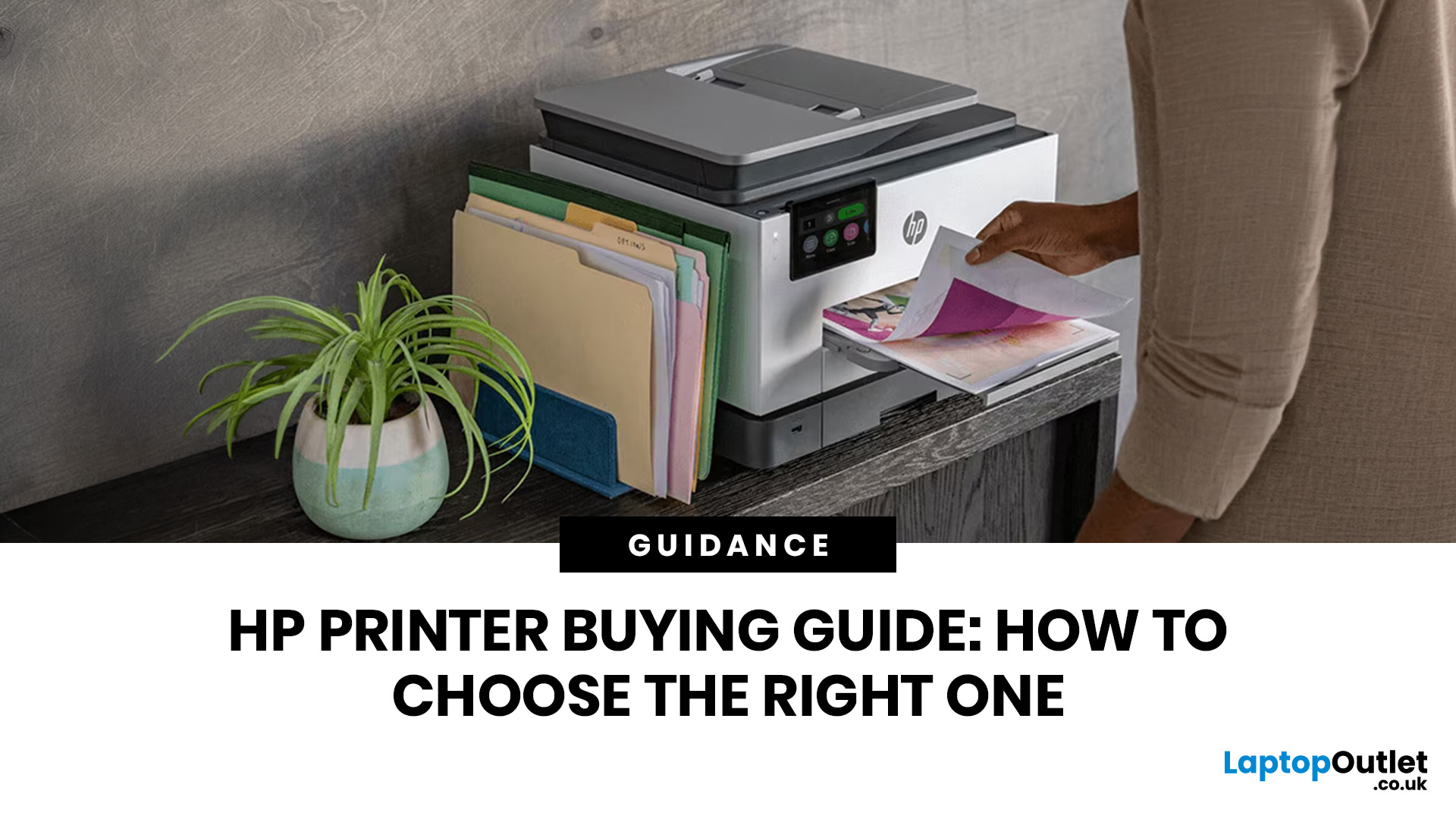
Last Updated: June 10, 2026
The best HP printer depends on what you print, how often you print, whether you need scanning or copying, and how much you want to spend on ink or toner. For home users, an HP inkjet or all-in-one printer is usually the best choice. For offices and small businesses, HP OfficeJet, LaserJet or multifunctional printers are better for speed, reliability and heavier workloads.
Buying a printer can feel confusing because HP offers many different models for different users. Some are made for simple home printing. Some are designed for students and families. Others are built for small businesses, offices, shipping labels, high-volume printing or professional document handling. That is why choosing the right printer is not just about finding the cheapest model. It is about understanding your print habits, running costs, space, connectivity and long-term needs.
This HP printer guide 2026 will take you from basic printer knowledge to more advanced buying terms, so whether you are buying your first

Last Updated: July 06, 2026
Buying one of the many HP printers for small business setups out there sounds easy until you start comparing them properly. Some are better for fast document printing, some are built for scanning and colour work, and some save you more money over time. The trick is not buying the fanciest one. It is buying the one that suits your workload. This guide walks through the HP printer types that make the most sense for home offices, small teams, and day-to-day business use.
Which HP Printer Type Should a Small Business Choose?
- If your business prints mixed colour documents, scans paperwork regularly and needs one compact machine, go for an HP all-in-one in the OfficeJet Pro range. OfficeJet Pro printers are best for higher-volume printing and all-around productivity in a home or home office, which is exactly the kind of workload many sole traders, hybrid workers and small teams deal with.
- If your business prints lots of text-heavy documents and speed matters more than photo-quality colour, choose
Last Updated: June 10, 2026
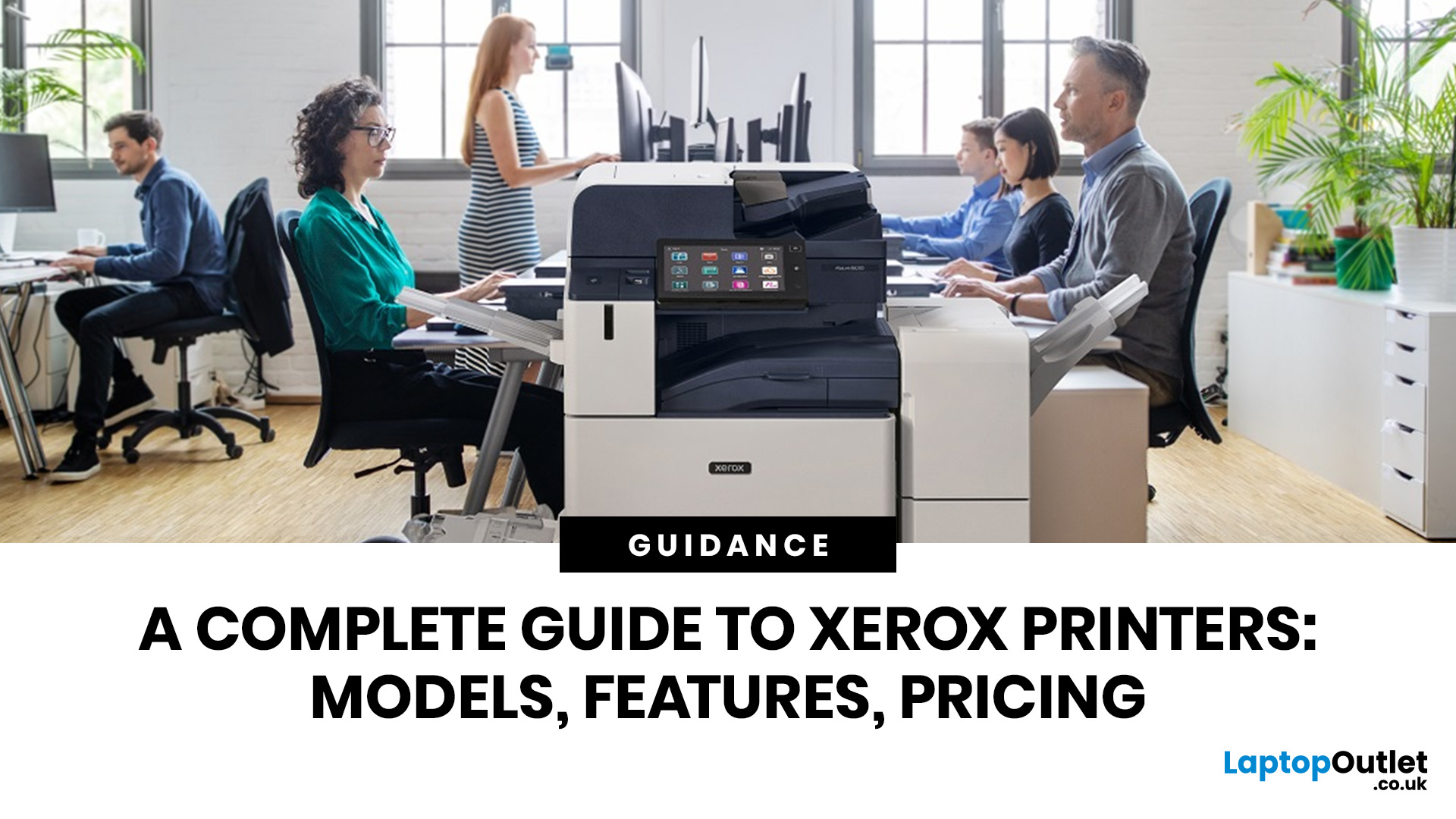
A Xerox printer is a document printer or multifunction device designed for reliable office, business, and home printing. Most modern Xerox printers focus on laser or LED printing, fast document output, strong security, mobile printing and multifunction features such as scanning, copying, faxing and cloud connectivity.
Xerox is a trusted name in business printing, best known for office printers, copiers and multifunction devices. While the brand is still strongly linked with photocopying, modern Xerox printers do much more than copy documents.
Today’s Xerox devices can print, scan, copy, fax, support mobile and cloud printing, manage user access and help businesses control print costs. Many models also include Wi-Fi, reliable paper handling, security features and easy touchscreen controls.
If you are comparing printers, looking for a Xerox printer, or trying to understand whether Xerox is right for your home or office, this guide breaks everything down in simple words.

