



HP OMEN Laptop Fan Noise: Why It's So Loud and How to Fix It
HP OMEN laptops use powerful processors and dedicated graphics, so their cooling systems can become clearly audible during gaming and other demanding work. Some HP OMEN fan noise is normal, but constant noise at idle, grinding or repeated overheating deserves attention. This guide explains how to identify the sound, diagnose the cause and choose a safe fix across the top HP OMEN laptop range.
|
HP OMEN Fan Noise: Quick Answer Loud fan noise is normal while an OMEN laptop starts, updates, games, renders or runs a demanding AI task. HP says a brief fan surge for about five to twenty seconds at startup can be normal, while Performance mode deliberately increases fan speed to manage higher CPU and GPU power and temperature. Investigate an HP OMEN loud fan when it remains noisy during light use, produces mechanical sounds or appears with weak airflow, throttling or shutdowns. Many cases improve after reducing background load, changing settings, updating HP software and BIOS, restoring airflow or cleaning vents. Grinding, clicking or a non-spinning fan usually needs inspection. Quick Facts
|
Is Loud HP OMEN Fan Noise Normal?
Loud airflow is expected when the cooling system is removing heat from the processor and graphics chip. It becomes less normal when the same noise continues during simple tasks, occurs with low temperatures or changes into a harsh mechanical sound.
When Fan Noise Is Expected During Startup and Gaming
HP laptops built for gaming can raise fan speed quickly as power and temperature change. Normal situations include:
- Boot-up: A brief surge during initial hardware checks.
- Windows updates: Installation and indexing can raise system activity.
- Gaming: The CPU and GPU sustain higher power.
- Rendering: Encoding and 3D work maintain heavy load.
- AI workloads: Local tasks may heavily use the CPU or GPU.
When Fan Noise at Idle May Indicate a Problem
Persistent noise at idle is worth checking after Windows has finished starting and the laptop has had several minutes to settle. The system may still be processing updates, synchronising files or scanning in the background, but sustained high temperatures or high CPU usage suggests the machine is not truly idle.
Dust around the intake or exhaust can also restrict airflow. If temperatures are modest but the sound includes clicking, scraping or uneven vibration, the issue may be physical rather than workload-related.
Identify the Type of HP OMEN Fan Noise
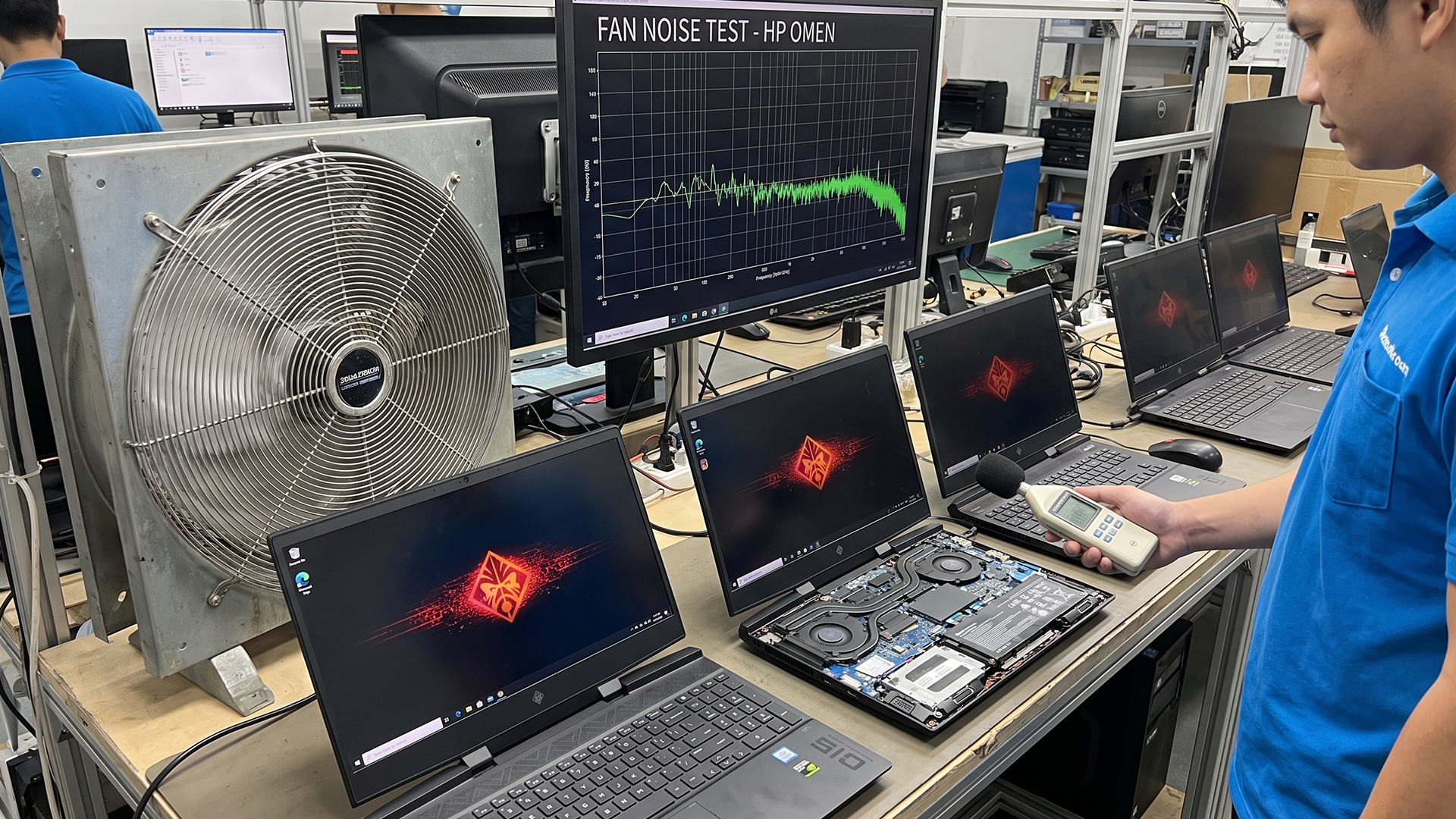
The sound pattern helps separate normal airflow from a mechanical or electrical issue. Listen from a safe distance, note whether it changes with workload and check whether air is leaving each exhaust vent.
HP OMEN Fan Noise Symptoms and What They Usually Mean
|
Noise |
Likely source |
Serious? |
|
Loud airflow |
High fan speed during a heavy workload |
Usually no |
|
Pulsing or repeated surging |
Fan curve reacting to changing temperature |
Usually no |
|
Buzzing |
Vibration, debris, a loose part or electrical noise |
Maybe |
|
Grinding |
Worn or damaged fan bearing |
Yes |
|
Clicking |
Fan blade contacting debris, a cable or the housing |
Yes |
|
High-pitched whine |
Electrical coil whine rather than airflow |
Usually harmless if performance and temperatures are normal |
Constant Whooshing or Fans Running at Full Speed
A smooth, steady whoosh usually means the fans are moving a large volume of air. It is common under sustained gaming load and in Performance mode. It becomes unusual when it continues on the desktop with low CPU and GPU activity, or when the laptop remains hot after the workload ends.
Fan Speed Repeatedly Rising and Falling
A regular rise and fall often follows a temperature threshold in the fan curve. Short background tasks can push a component above that threshold, then the fan slows once heat drops.
Very rapid cycling, especially at idle, can also indicate unstable background load or a control issue that needs diagnosis.
Buzzing, Rattling, Grinding or Screeching
A laptop fan buzzing noise can be electrical or mechanical, so check whether its pitch changes with fan speed. An OMEN fan rattling noise often sounds uneven or vibrates through the chassis.
An OMEN fan grinding noise is harsher and may indicate bearing wear, blade contact or internal debris. Stop demanding workloads if airflow also weakens.
Fan Noise or Coil Whine: How to Tell the Difference
Fan noise is mechanical airflow or rotation. Coil whine is a high-frequency electrical tone created when components vibrate as current changes, and it often follows frame rate or electrical load rather than fan speed. Manufacturers generally describe moderate coil whine as a characteristic of high-power electronics.
|
Fan noise |
Coil whine |
|
Mechanical airflow or vibration |
Electrical squeal or chirp |
|
Changes with fan speed |
Often changes with FPS or load |
|
Comes from a fan or vent |
Usually comes from power components |
What Causes an HP OMEN Fan to Get So Loud?
An OMEN fan becomes louder when the cooling system must remove more heat, when airflow is restricted or when the fan itself is no longer running smoothly. Several causes can overlap, especially on an older machine.
High CPU or GPU Load
Gaming, video editing, software compilation, 3D work and some AI applications can keep the CPU or GPU near high utilisation for long periods. More electrical power becomes heat, so the firmware raises fan speed.
HP specifically notes that OMEN Performance mode can run the CPU and GPU at higher capacity and increases fan speed to compensate for higher temperatures and power levels.
Performance Mode or an Aggressive Fan Profile
OMEN Gaming Hub can expose Balanced, Performance and other controls depending on the exact model. Performance mode prioritises gaming output and dynamically allocates more power, which can create more heat and fan noise.
Manual fan or thermal controls are available only on supported systems, so two OMEN laptops may behave differently even when both use the same app version.
Blocked Vents, Dust and Restricted Airflow
OMEN laptops draw cool air through intake openings and expel heated air through side or rear vents. A duvet, carpet, lap or soft sofa can obstruct those openings. HP warns that prolonged airflow restriction can cause overheating and potential damage.
Dust can also collect around vents and heatsink fins, forcing gaming laptop cooling fans to run faster for the same amount of cooling.
Background Applications and Windows Processes
A laptop can appear idle while software is using the processor, graphics, storage or network connection. Common examples include:
- Windows Update downloading or installing files
- OneDrive synchronising folders
- Steam downloading, patching or verifying games
- Antivirus or Windows Security scans
- Browsers with many active tabs, extensions or video streams
Microsoft notes that background apps consume power and that Task Manager can reveal high CPU, memory or disk use.
Outdated BIOS, Drivers or OMEN Gaming Hub
Fan behaviour depends on firmware, system drivers and OMEN software communicating correctly. A BIOS or embedded controller update may contain thermal-management changes for a specific model, while current graphics and chipset drivers can improve power-state behaviour.
OMEN Gaming Hub itself is updated through Microsoft Store, and HP advises keeping drivers current before performance testing. Availability and effects vary by product.
Worn Fan Bearings or Loose Cooling Components
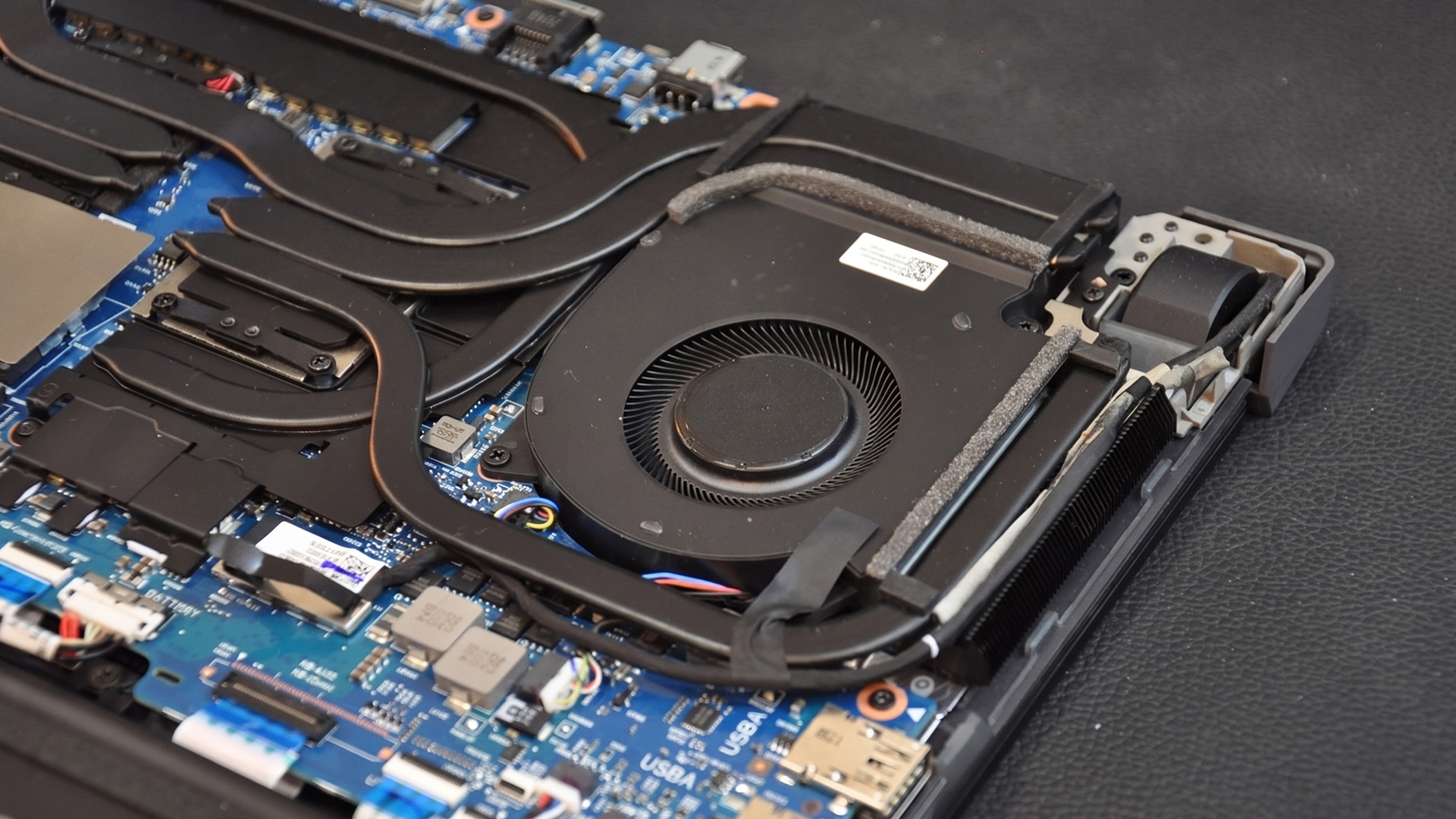
Small laptop fans rotate at high speed, so bearing wear can create grinding, scraping or irregular vibration. A loose screw, shifted cable, damaged blade or debris near the fan can create clicking or rattling.
Heat cycles and long operating hours can make existing wear more noticeable. These sounds differ from smooth airflow because they remain tied to rotation, worsen at certain speeds or come from one side of the chassis.
How to Reduce HP OMEN Fan Noise
To fix HP OMEN fan noise safely, start with reversible checks before cleaning internally or arranging repair. Test the laptop after each step so you know which change made a difference.
1. Restart the Laptop and Check Task Manager
Restart Windows, wait several minutes, then press Ctrl + Shift + Esc to open Task Manager. In Processes, sort by CPU, GPU, memory and disk usage.
Close only applications you recognise and no longer need. Do not end unfamiliar Windows services at random. Microsoft recommends using Task Manager to identify heavy processes and unnecessary startup apps.
2. Move the Laptop to a Hard, Flat Surface
Place the OMEN on a desk or another rigid, level surface. Keep the underside, rear edge and side vents clear.
Do not use it directly on bedding, a cushion, thick fabric or carpet because these surfaces can block intake openings and trap hot exhaust air. HP specifically warns that cloth surfaces can restrict airflow and contribute to overheating.
A stand may improve clearance, but it should support the chassis securely and must not cover vents.
3. Let the Laptop Cool and Inspect the Air Vents
Shut the laptop down, disconnect the charger and allow it to cool. Inspect the vents with a light without inserting tools. Look for compacted dust, pet hair or an object covering the intake.
After restarting, compare airflow from the left, right and rear exhaust areas, remembering that vent placement and fan count vary by model. Weak airflow from one side combined with high temperature or mechanical noise is more concerning than loud but strong, even airflow.
4. Adjust Performance Settings in OMEN Gaming Hub
Open OMEN Gaming Hub, select your device and check Performance Control, Thermal Control or the equivalent page. Choose a quieter profile for everyday work.
HP describes Balanced mode as a compromise between performance, temperature and fan speed, while Performance mode prioritises gaming output. Available modes, labels and manual controls differ by model.
|
Mode or profile |
Typical fan noise |
Typical performance effect |
|
Eco or quiet profile, where available |
Very low |
Lower sustained power and performance |
|
Balanced |
Moderate |
Strong all-round performance |
|
Performance |
High |
Maximum or near-maximum available performance |
Avoid forcing a very low manual speed during a demanding task. Use HP OMEN fan control options only within the ranges provided for your laptop.
5. Change the Windows Power Mode
Go to Settings > System > Power & battery > Power mode and select Balanced or Best power efficiency for light work. Windows power mode affects how aggressively the system pursues performance and can reduce background power use.
It does not directly override every firmware fan rule, but lower component power can reduce heat and, in turn, lower HP OMEN fan speed.
Return to a higher-performance mode when a game or professional workload genuinely needs it.
6. Update Windows, Drivers and OMEN Gaming Hub
Install pending Windows updates from Settings > Windows Update. Then use HP Support Assistant or the official HP driver page for your exact product number, rather than a generic third-party driver utility.
Update OMEN Gaming Hub through Microsoft Store > Library > Get updates. Microsoft states that Windows updates provide current fixes, while Store updates deliver the latest app versions.
Restart after updates and check whether the idle fan pattern changes.
7. Check for an HP BIOS Update
Use HP Support Assistant or the support page for the precise OMEN model and product number. Read the release information, connect the AC adaptor and install only a BIOS supplied by HP.
Check whether the model's release notes also mention EC firmware, because package contents vary. HP warns that an incorrect BIOS installation can stop the computer starting, so do not interrupt the process or use firmware intended for another model.
8. Clean the Vents Safely
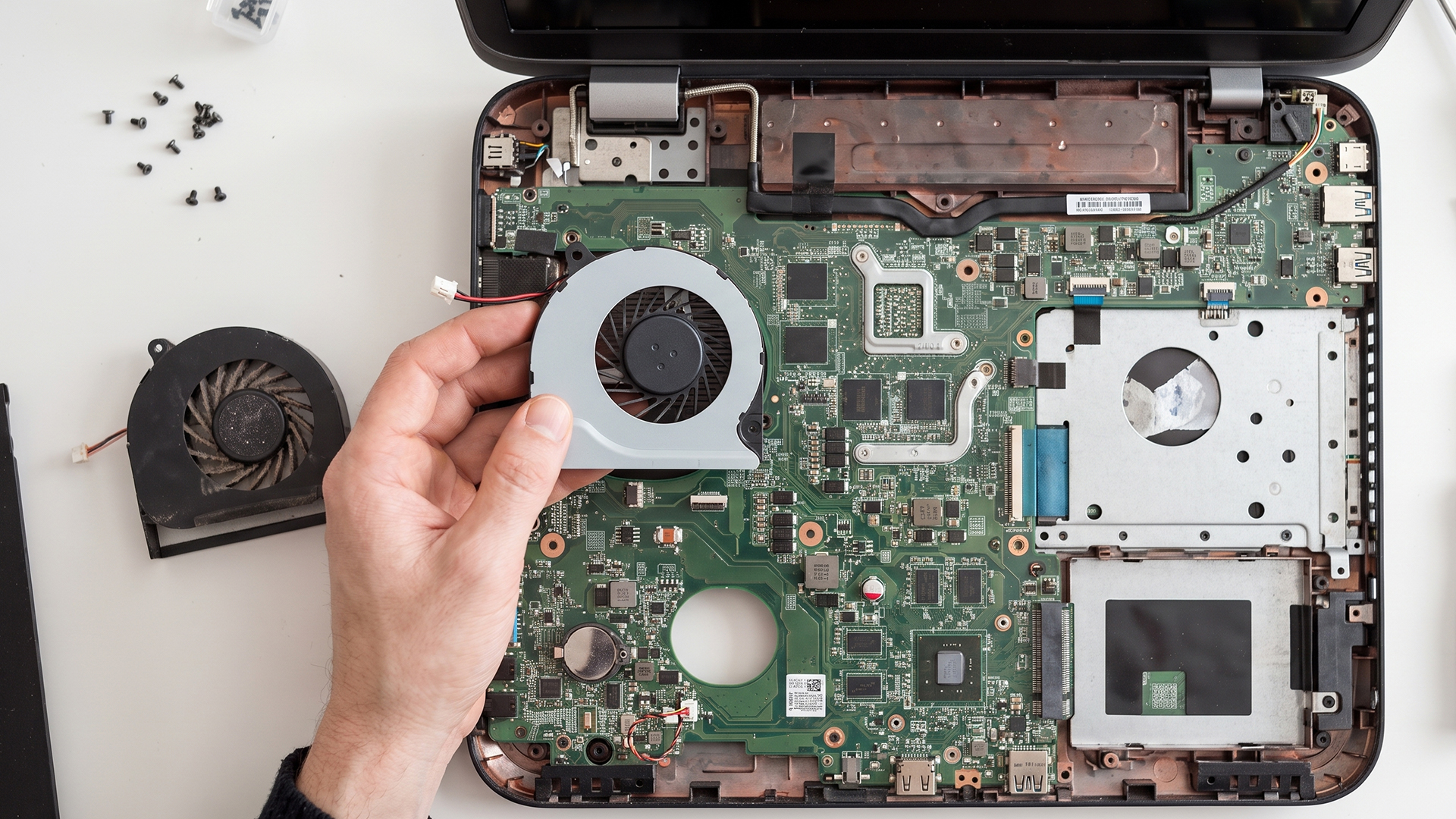
HP says external cooling vents can be cleaned without opening the notebook. Shut down, unplug the laptop and use compressed air to dislodge dust from the vents.
For model-specific internal work, consult a reliable guide on how to clean an HP OMEN laptop fan and the Maintenance and Service Guide for that exact product.
Do:
- Hold the fan still only if it is already safely accessible and you are competent to open the laptop.
- Use short, controlled bursts of compressed air with the can upright.
- Clean external vents regularly and work in a well-ventilated area.
Do not:
- Use a vacuum cleaner on internal components.
- Blow continuously into the vents or spin the fan at excessive speed.
- Open the laptop if you are unsure about the service procedure, battery disconnection or warranty implications.
Reduce Fan Noise While Gaming Without Losing Much Performance
Gaming fan noise is mainly driven by sustained CPU and GPU power. Small settings changes can cut heat output while preserving most of the visual quality and responsiveness.
- Cap the frame rate: Set a sensible limit close to the display refresh rate or the performance level you actually need. Rendering unused frames can increase GPU load and electrical noise.
- Enable DLSS, FSR or XeSS: In supported games, these technologies reconstruct a higher-resolution image from a lower internal resolution, improving performance and potentially reducing the native rendering workload. Their availability depends on the game and graphics hardware.
- Lower shadow quality: Shadows can be expensive to render, while dropping one preset often has a smaller visual impact than reducing textures.
- Reduce ray tracing: Ray-traced reflections, lighting and shadows can substantially increase GPU demand. Use a lower preset or disable selected effects.
- Enable V-Sync where appropriate: V-Sync can stop the GPU rendering beyond the display refresh rate, although competitive players may prefer an in-game frame cap or variable refresh rate to manage latency.
- Close unnecessary apps: Pause downloads, browser video, recording tools and background launchers that are not needed during the session.
- Use headphones for immersion: Headphones can make normal airflow less distracting, but they should never be used to ignore grinding, clicking or overheating warnings.
Tip: Reducing one or two high-cost settings and setting a realistic frame-rate cap can noticeably reduce fan demand with little visible loss in image quality.
What Not to Do When Your HP OMEN Fan Is Loud
The cooling system protects expensive components, so the aim is to remove unnecessary heat or correct a fault, not silence the fans at any cost.
- Do not block the air vents. Restricting airflow raises internal temperature and can make the fans work harder.
- Do not place the laptop on a duvet. Soft material can cover underside intakes and recirculate hot air.
- Do not disable the fans. Unsupported fan utilities or extreme manual curves can remove thermal protection and cause throttling or shutdowns.
- Do not ignore grinding noises. A mechanically failing fan can lose airflow even if it still spins intermittently.
- Do not use Performance mode constantly without a reason. It is useful for demanding work, but light tasks rarely need its higher power and thermal targets.
- Do not delay relevant BIOS updates indefinitely. Use only the correct HP update and follow its instructions, especially when release notes or HP support guidance address thermal behaviour.
- Do not apply oil, lubricant or household cleaner through a vent. These products can contaminate the fan, board or heatsink.
- Do not remove the heatsink casually. Incorrect reassembly, thermal material application or screw tension can worsen temperatures.
Still Loud? Check for Overheating or Fan Failure
If the basic fixes do not help, compare the laptop under idle and gaming conditions. Look for heat, throttling, weak airflow or one fan behaving oddly.
Compare Fan Behaviour at Idle and Under Load
Restart the laptop and leave it on the desktop for ten minutes without active downloads. Record fan sound, CPU usage and temperatures.
Run a familiar game for a consistent period and record them again. More noise under load is expected. Maximum fan behaviour in both tests needs further diagnosis.
Monitor CPU and GPU Temperatures
OMEN Gaming Hub System Vitals can display CPU and GPU usage and temperature, although readings vary by system. Use this table as a diagnostic guide, not a universal specification. Maximum junction temperatures are processor-specific.
|
Usage |
Broad CPU temperature reference |
|
Idle after background work settles |
35–50°C |
|
Everyday use |
45–70°C |
|
Gaming or sustained heavy work |
70–90°C |
|
Sustained around or above 95°C |
Investigate, especially with throttling |
Brief spikes matter less than sustained readings. Check the exact processor specification before treating one number as a safety limit.
Look for Thermal Throttling and Performance Drops
Thermal throttling reduces processor power or clock speed near a model-specific limit. Look for falling clock speed, frame-rate loss and high temperature after several minutes under load.
Intel and AMD link temperature, power and performance, with protection acting near the processor's defined limit.
Run HP Hardware Diagnostics
Open HP PC Hardware Diagnostics Windows and start with the Fast Test. If no fault appears but symptoms remain, run the Extensive Test.
HP recommends these tools for confirming failures and supporting a repair case. Record any failure ID.
Determine Whether One Fan or Both Fans Are Affected
Use Fan Monitor in OMEN Gaming Hub if supported, then compare sound and airflow at each exhaust. Never insert objects into a vent.
Grinding, no airflow or a different pitch on one side may indicate one fan assembly.
When Does an HP OMEN Fan Need Repair or Replacement?
Repair becomes appropriate when the problem is mechanical, airflow has failed or safe software and maintenance steps do not restore normal cooling. Continuing to load a laptop with a failing fan can increase throttling and shutdown risk.
Signs the Cooling Fan May Be Failing
The HP OMEN cooling fan should be inspected when you notice:
- Grinding or scraping that follows fan speed
- Repeated clicking from one side of the chassis
- A fan that does not spin or produces no exhaust airflow
- A fan error or cooling warning during startup
- Overheating despite clear vents and reasonable software load
- Noise that worsens rapidly over days or weeks
- Visible blade damage after the laptop has been opened by a qualified person
Back up important files before arranging service if the system is unstable.
Warranty Service or Professional Repair?
Check the serial number on HP's UK warranty checker, then run diagnostics and save any failure ID. HP's repair portal can use diagnostic information to start or support a repair case.
If the laptop is in warranty, contact HP before opening it. If it is out of warranty, choose a repairer experienced with the exact OMEN model and ask whether the fan, heatsink and thermal materials will be inspected together.
Is It Better to Repair or Upgrade the Laptop?
A fan replacement is often sensible when the laptop otherwise performs well, the battery and display are healthy, and the repair cost is proportionate to its value. Consider replacement when several major parts are failing, performance no longer meets your needs or repair approaches the value of a suitable newer system.
For quieter office-focused use, the latest HP ProBook notebooks may suit different priorities, while an OMEN remains the stronger fit for sustained gaming graphics. Compare workload needs rather than replacing a repairable gaming laptop solely because normal load noise is audible.
How to Stop HP OMEN Fan Noise Returning
Long-term fan control depends on keeping airflow clear, avoiding unnecessary high-power modes and maintaining current software. A short monthly check is easier than diagnosing a heavily clogged or unstable system later.
Keep the Intake and Exhaust Vents Clear
Use the laptop on a hard surface and leave space around rear and side exhausts. Remove dust from external vents before it forms a dense layer.
Homes with pets, smoke or high dust levels may need more frequent checks than cleaner environments.
Use Balanced Settings for Everyday Tasks
Balanced mode is normally the best starting point for browsing, documents, streaming and light creative work. Switch to Performance mode for workloads that benefit from it, then return to Balanced afterwards.
This reduces unnecessary sustained power without disabling the cooling system.
Review Background Applications Regularly
Check Task Manager for startup apps, launchers, sync tools and browser processes that run without a clear benefit. Disable only items you recognise.
Windows also provides per-app background activity controls for supported applications.
Keep System Software Updated
Install stable Windows updates, HP-supplied drivers, current OMEN Gaming Hub releases and model-specific BIOS updates. Read release information and avoid unofficial firmware.
Updates are preventive maintenance, but they cannot repair a worn bearing or physically blocked heatsink.
Best-practices checklist
✓ Clean external vents every few months, or sooner in dusty rooms.
✓ Keep BIOS, drivers, Windows and OMEN Gaming Hub updated.
✓ Avoid blocking intake and exhaust airflow.
✓ Monitor temperatures and performance trends rather than one brief spike.
✓ Use Performance mode only when the workload needs it.
✓ Close unnecessary background apps and downloads.

When Fan Noise Is Normal and When It Isn't
HP OMEN fan noise is often normal during gaming, rendering, updates and other demanding workloads because the cooling system is responding to higher CPU and GPU heat. It is less normal when maximum airflow continues at idle, temperatures remain high after activity stops or the sound becomes a buzz, click, rattle or grind.
The most effective fixes are to identify heavy processes, restore clear airflow, use Balanced settings, update Windows and HP software, install the correct BIOS and clean external vents safely. Monitor temperatures and compare idle behaviour with a repeatable load before assuming the fan has failed.
Seek professional repair when airflow is weak, a fan does not spin, a startup fan error appears, the laptop shuts down or mechanical noise persists. Early inspection can prevent a small fan fault from becoming a wider cooling problem.

A Few More Things to Know...
Why is my HP OMEN fan loud when I am not gaming?
Windows may be installing updates, synchronising OneDrive, scanning for malware or running launchers and browsers. Check Task Manager after startup settles. Persistent noise with low usage may indicate restricted airflow, an unsuitable performance profile, outdated firmware or a fan fault.
How do I control the fan speed on an HP OMEN laptop?
Open OMEN Gaming Hub and look for Performance Control, Thermal Control or Fan Control. Options vary by model. Use Balanced for everyday work, and do not force low fan settings during gaming or another sustained high-power workload.
Is it safe to keep using an HP OMEN with a loud fan?
Smooth airflow during demanding work is generally safe when temperatures and performance remain stable. Stop heavy use and arrange diagnosis if you hear grinding, feel little exhaust airflow, see a fan error, experience shutdowns or observe sustained throttling.
What does a grinding and rattling noise from an HP OMEN fan mean?
Grinding commonly suggests bearing wear or blade contact, while rattling may involve debris, vibration or a loose component. Neither is normal airflow. Back up important files, avoid demanding workloads and have the cooling assembly inspected promptly.
Why does my HP OMEN fan keep speeding up and slowing down?
The fan curve may be reacting to brief temperature changes from background tasks, game loading or CPU boost behaviour. Check Task Manager and temperatures. Rapid cycling at idle also justifies checking power mode, OMEN Gaming Hub, drivers and BIOS.
Related Articles

Last Updated: July 21, 2026
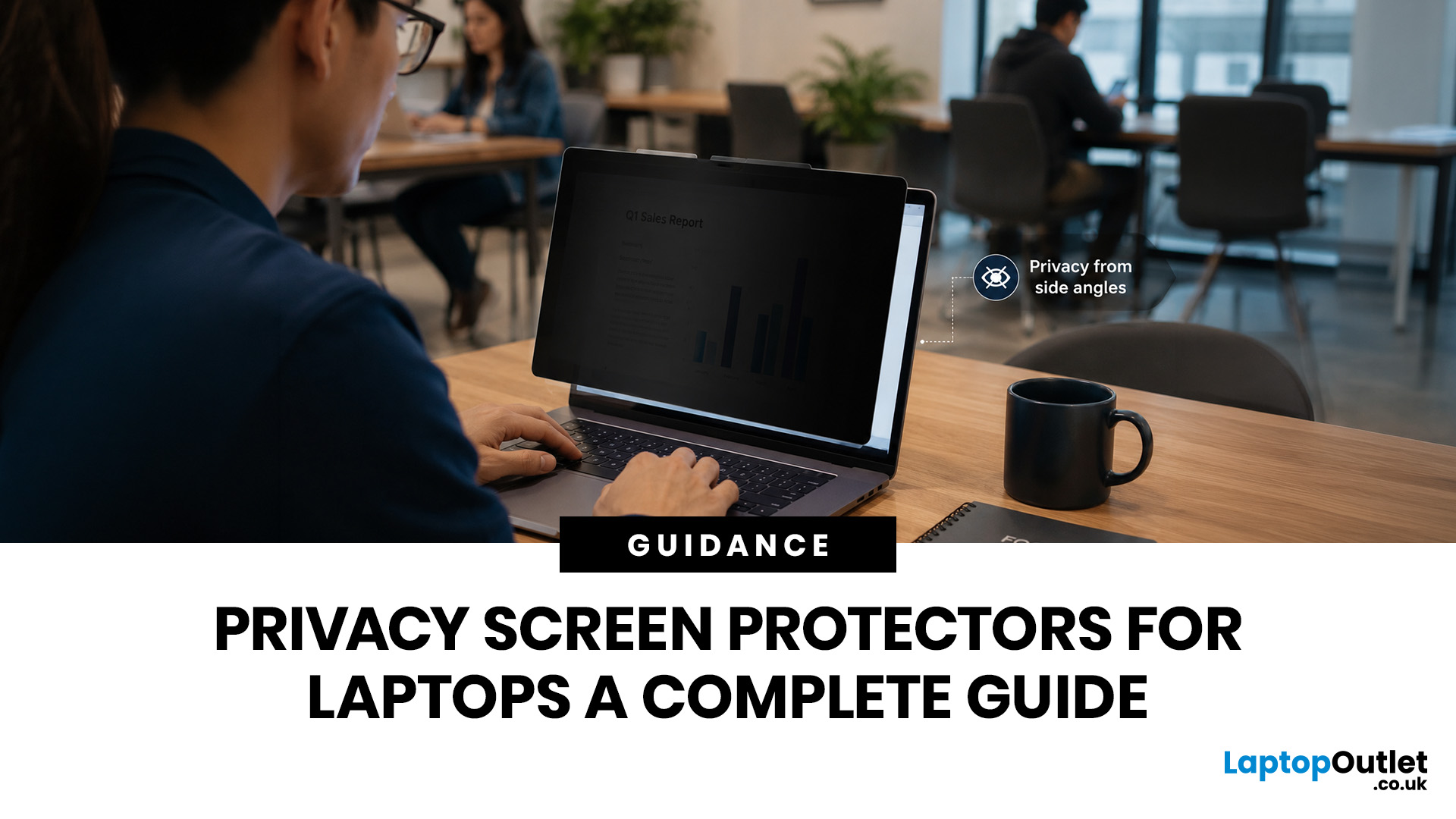
Using your laptop in public is normal now. Cafés, trains, airports, libraries, lecture halls, shared offices, the laptop comes everywhere. But if the person sitting next to you can casually read your emails, bank details, work chats or assignments, that is not exactly ideal.
That is where privacy screen protectors laptops come in. Whether you are a student, business user, commuter or hybrid worker, this guide explains how privacy screens work, their benefits, disadvantages, types and whether they are actually worth buying.
How Does a Privacy Screen Protector Work?
Most laptop privacy screens use tiny vertical filter layers, often called micro-louvres. These work a bit like blinds. When you look at the laptop straight on, you can see the display clearly. When someone looks from the side, the filter blocks the view.
This is also how laptops and notebooks privacy screens work in everyday spaces. If you are working on a train, someone sitting beside you should find it much harder to read your
Last Updated: July 22, 2026
Last Updated: July 27, 2026
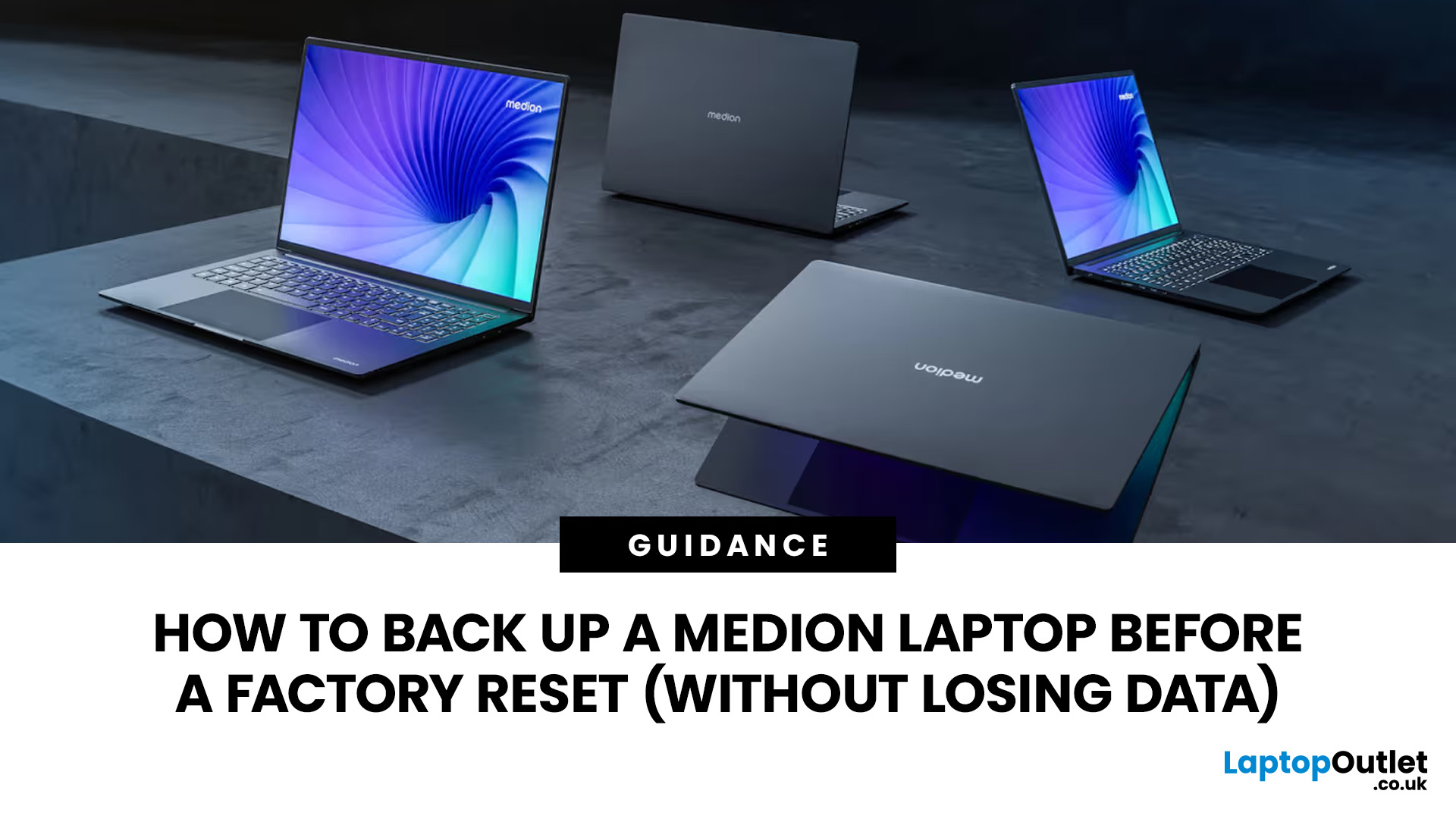
Before you reset MEDION laptop settings or reinstall Windows, copy your personal files to an external drive and create a second copy with Windows Backup and OneDrive or another drive.
Check Desktop, Documents, Downloads, Pictures, Videos, email archives, browser data, game saves and application folders. Open several files directly from the backup to confirm that they work.
Save your BitLocker recovery key, record essential applications and licences, then safely eject and disconnect the external drive before starting the reset.
A factory reset can solve persistent Windows problems, but it may remove applications, settings and personal files. Even when you choose Keep my files, treat it as a recovery option rather than a substitute for a verified backup.
Last Updated: July 23, 2026
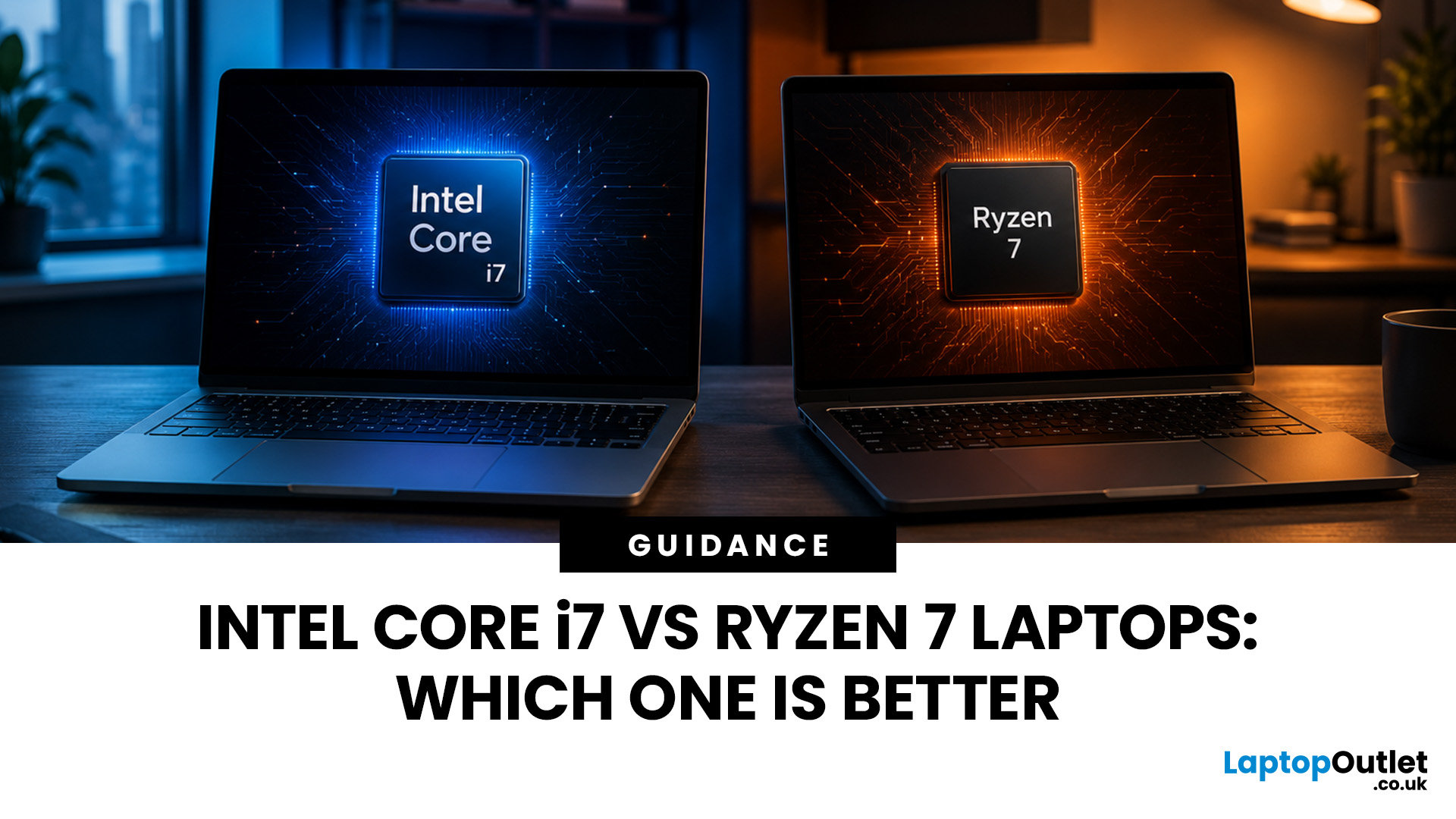
Neither processor family is automatically better. An Intel Core i7 laptop is often a strong choice for demanding productivity, supported video workflows and high-powered gaming configurations. A Ryzen 7 laptop can be especially attractive for efficient multitasking, capable integrated graphics and specification value.
When comparing an i7 vs Ryzen 7 laptop, the exact processor number matters more than the badge. A Core i7 U-series processor designed for a lightweight laptop is not equivalent to a Core i7 H-series gaming chip. The same applies to Ryzen 7 U, HS and HX processors.
For the broader brand-level differences, read our AMD vs Intel laptop guide. This guide goes deeper into the Core i7 and Ryzen 7 performance tier.
Intel Core i7 vs Ryzen 7 Laptops: Quick Answer
| Your priority | Better starting point | What to check |
| Everyday office work | Either | RAM, battery, screen and price |
| Heavy multitasking | Either | Exact CPU model, cooling and at least 16GB RAM |
| Gaming with dedicated graphics | Either | GPU |
Last Updated: September 03, 2026
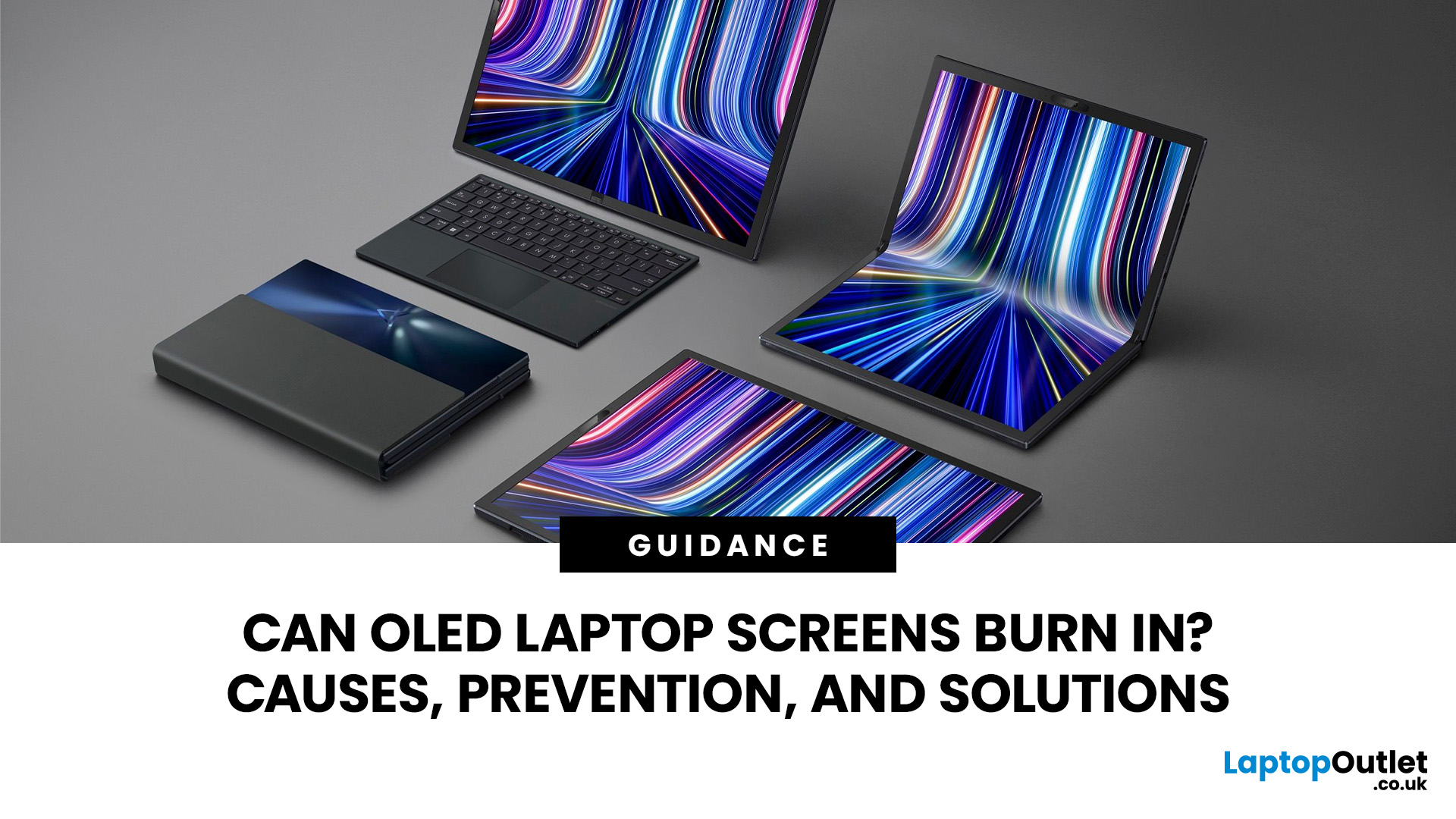
Yes, OLED laptop screens can develop permanent burn-in, but it is unlikely to happen quickly during normal, varied use. Risk increases when the same bright interface elements remain in one position for long periods, particularly at high brightness.
Modern OLED laptops reduce the risk through pixel shifting, automatic dimming and pixel-refresh routines. However, no OLED panel is completely immune.
For buyers considering laptops with OLED screen, burn-in is a manageable long-term consideration rather than a reason to avoid OLED. Sensible settings let you enjoy deep blacks, rapid response times and exceptional contrast while protecting the display.
For help comparing suitable models, see our guide to the best OLED laptops for work, gaming and creative use, covering options for different workloads and performance needs.
What Is OLED Screen Burn-In?
OLED screen burn in is a permanent shadow, outline or colour change caused by some pixels ageing faster than others.
OLED is a self-emissive display.
Published: July 27, 2026
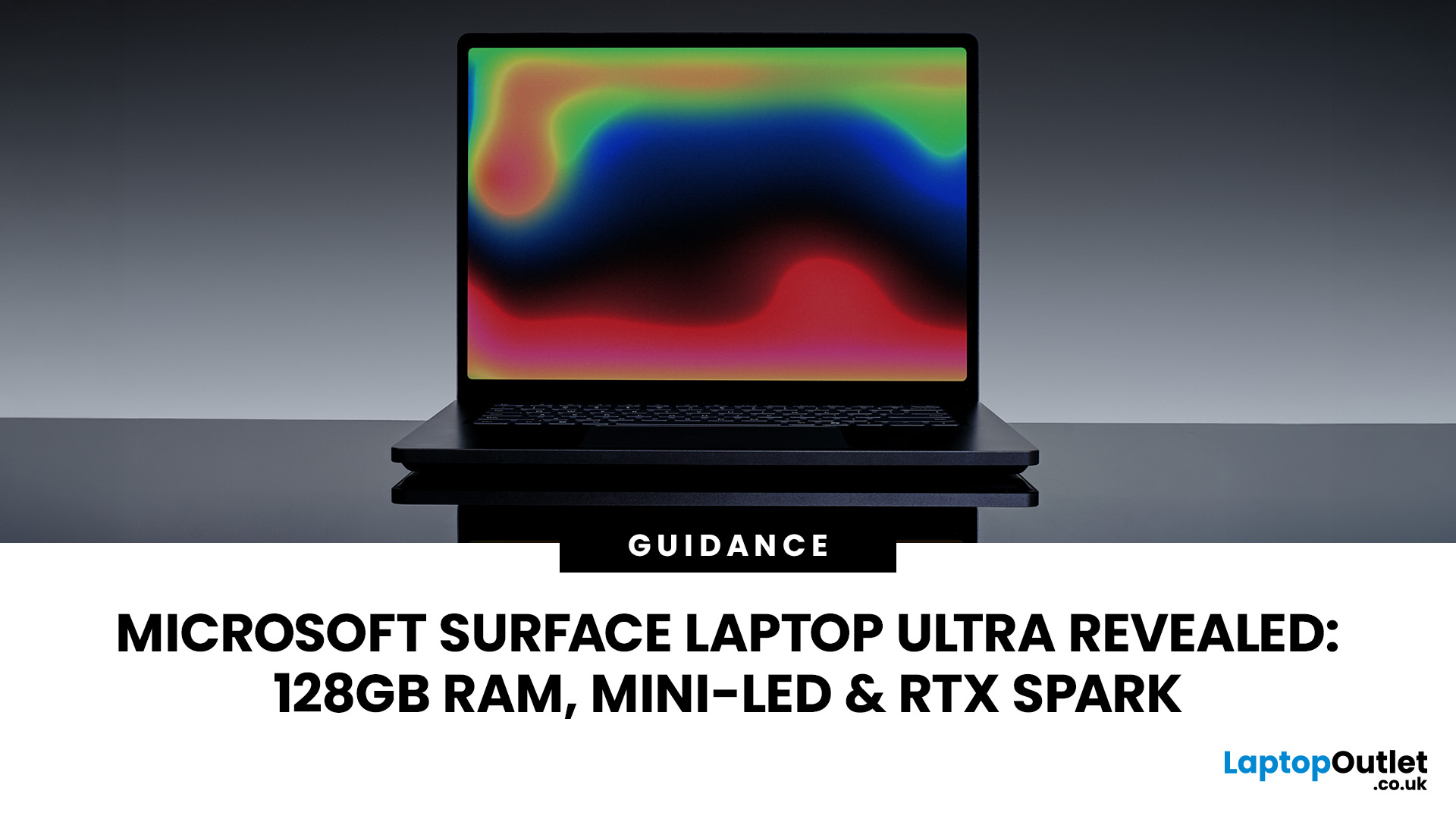
The Surface Laptop Ultra is Microsoft’s boldest laptop yet, built for local AI, 3D work, coding and demanding creative projects. It combines NVIDIA RTX Spark, Blackwell graphics, full CUDA support, and up to 128GB of unified memory, giving it serious workstation-level potential in a much slimmer design.
The 15-inch Mini-LED PixelSense Ultra display, upgraded cooling, and wider port selection make it even more appealing for power users. The only catch is that the exact UK price, full configurations and release date are still under wraps.
Microsoft Surface Ultra Specs at a Glance
The confirmed Microsoft Surface Ultra specs place the device above Microsoft’s conventional

Last Updated: August 06, 2026
Published: July 27, 2026
Last Updated: August 06, 2026
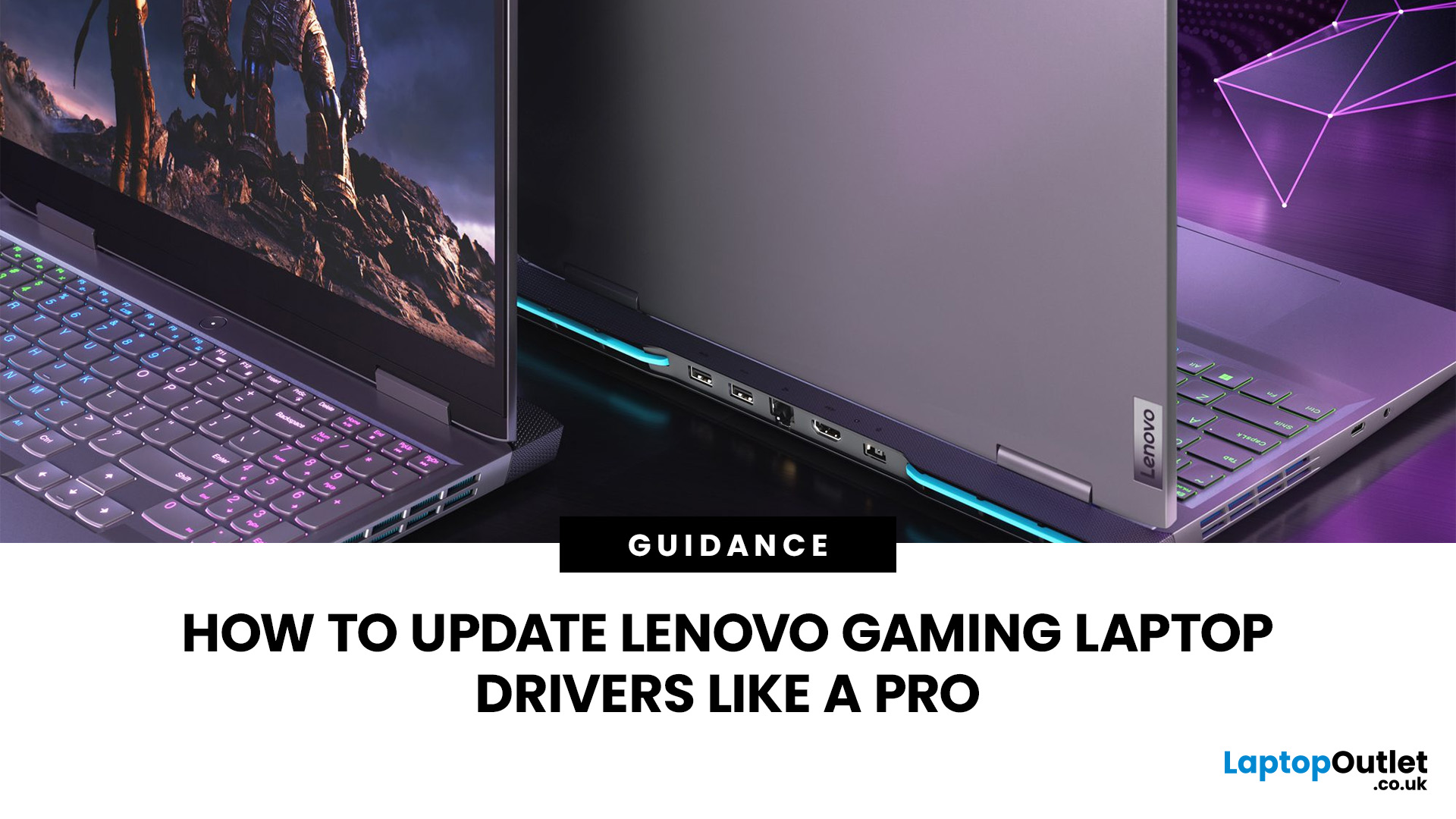
A safe Lenovo drivers update should begin with Lenovo Vantage or Lenovo Support, followed by Windows Update and, when needed, the official NVIDIA or AMD graphics software. Using these trusted sources helps ensure that chipset, graphics, audio, network, firmware and system drivers are matched to your specific Lenovo Legion or LOQ laptop.
Updating drivers can fix hardware problems, improve compatibility with newer games and address security or stability issues. However, installing every available update immediately is not always necessary. Graphics drivers often change frequently, while BIOS and firmware updates require more caution.
This guide explains how to check your current versions, install Lenovo laptop drivers safely and recover if an update causes problems. The same general process can also apply to professional Lenovo laptops for work, although gaming systems require additional attention to graphics and performance-related drivers.
Quick Driver Update Order
For most Lenovo gaming
Last Updated: July 28, 2026

