



How to Clean Laptop Fans and Vents: Easy DIY Methods
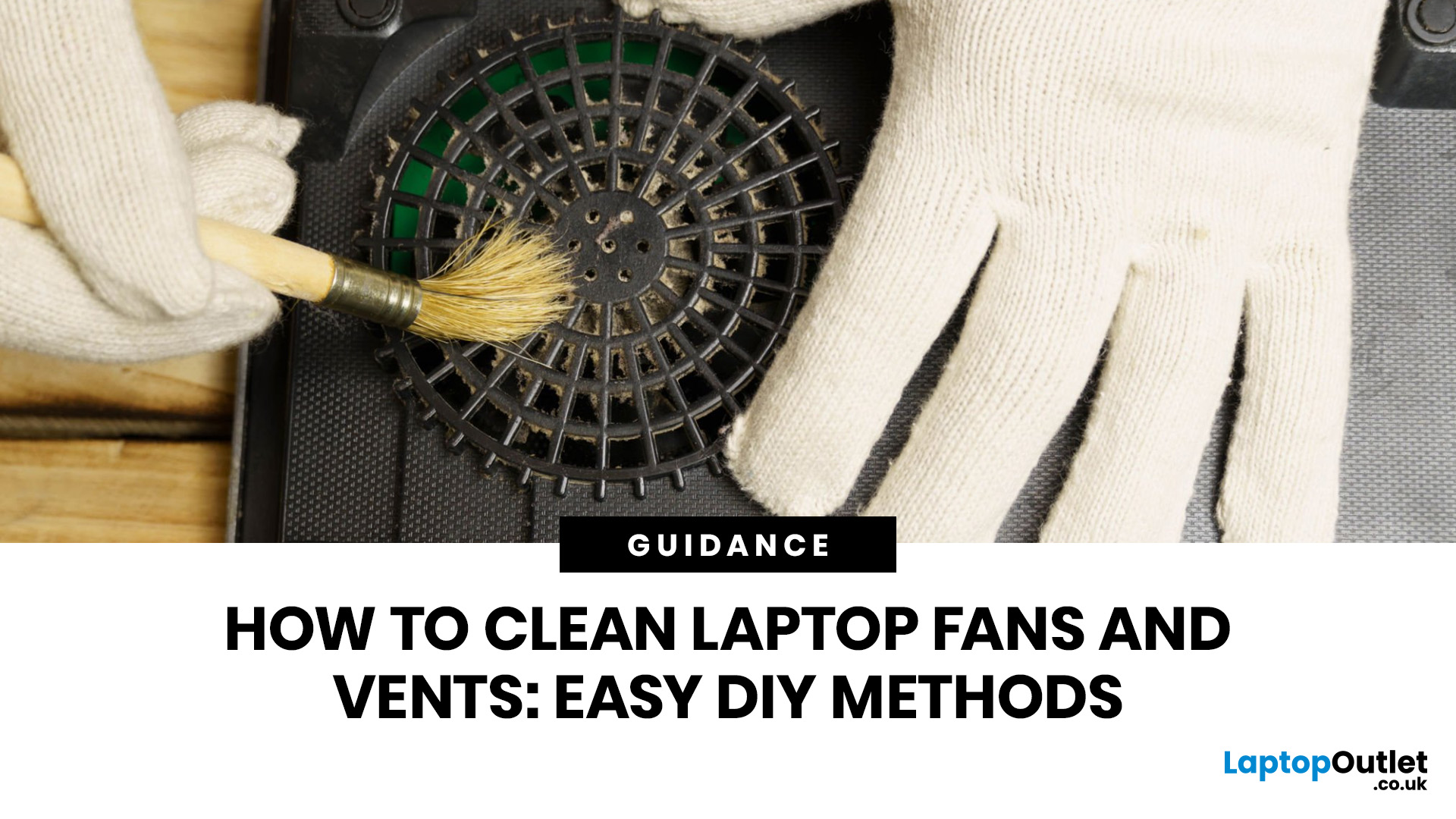
A thin layer of dust can make your laptop work harder than it should. When vents get blocked, heat stays trapped inside, the fan spins louder, and performance can drop during everyday tasks.
The simple tip? Start from the outside. In most cases, you can clean laptop fan vents safely with a soft brush, a microfibre cloth, and short bursts of compressed air - no risky disassembly needed.
This easy DIY guide shows you how to clean laptop fan and vent areas, what to avoid, and when it is smarter to call a professional.
Quick Checklist: How to Clean Laptop Fan Safely
Use this simple checklist whenever you clean the laptop:
- Shut down the laptop fully
- Unplug the charger and accessories
- Let the laptop cool
- Find the real vents
- Brush away visible dust
- Use compressed air in short bursts
- Keep the air can upright
- Avoid spinning the fan too fast
- Wipe the exterior gently
- Restart and check temperature and noise
This is the safest routine for most users who want to clean the laptop without opening it.
Why Laptop Fans and Vents Get Dirty
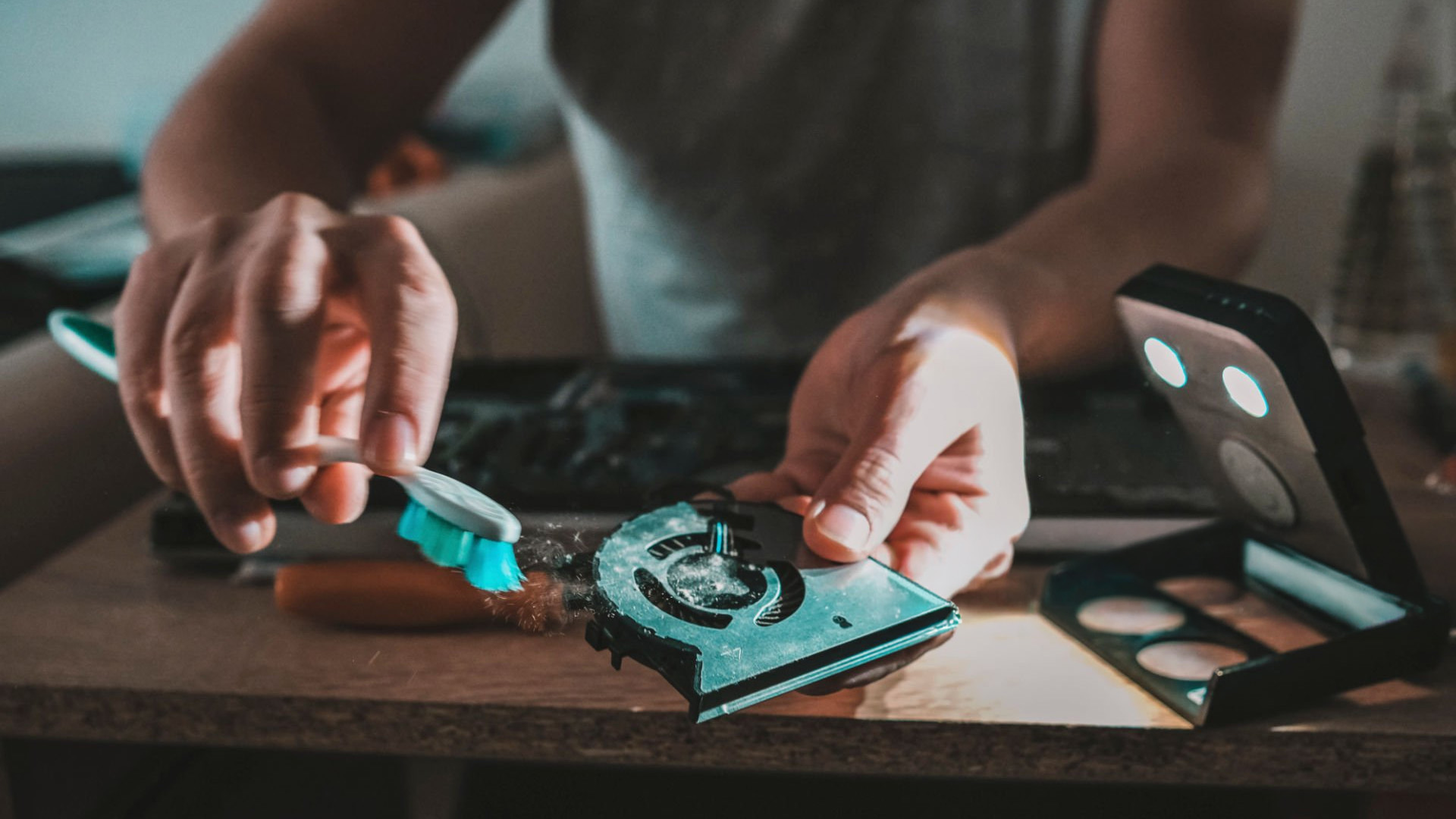
Your laptop fan works quietly in the background to push warm air out of the device and pull cooler air in. The vents give that air somewhere to move. When the vents are clear, the cooling system can do its job. When dust, hair, lint, pet fur, or crumbs block the airflow, heat gets trapped inside.
This is especially common if you use your laptop on beds, sofas, carpets, or dusty desks. Soft surfaces can block the vents and feed more fibres into the cooling system. Over time, the fan on laptop models may spin faster and louder because it is trying harder to cool the machine.
You may need cleaning of laptop fans and vents if you notice:
- The laptop feels hot underneath or near the keyboard
- The fan laptop noise is louder than usual
- The laptop slows down during everyday work
- The device shuts down unexpectedly
- The battery drains faster because the fan is working harder
- You see dust around the vent openings
- Warm air does not seem to come out properly
A little dust is normal. A thick layer of dust is not. If your laptop has not been cleaned for months or years, airflow may be restricted.
Before You Start: Safety Comes First
Before learning how to clean a fan in a laptop, it helps to understand what not to do. Many laptops are damaged not by dust, but by rushed cleaning.
Here are the most important safety rules:
- Turn the laptop off completely. Do not clean it while it is sleeping, charging, or running.
- Unplug the charger and all must have accessories. Remove USB devices, memory cards, external drives, and cables.
- Let the laptop cool down. If it feels hot, wait until it returns to room temperature.
- Never spray liquid into vents. Moisture can damage internal parts.
- Do not use a household vacuum directly on vents. Static electricity and strong suction can create problems.
- Do not force open the case. If the bottom panel does not come off easily, stop.
- Avoid spinning the fan too fast. A fan that spins wildly from compressed air can be damaged.
If you are nervous, that is okay. You can still clean the laptop fan safely from the outside. Even on i5 laptops for multitasking, this basic maintenance can help improve airflow and performance. You only need to open the laptop if you are confident, your warranty allows it, and your model is designed for access.
Tools You Need to Clean Laptop Fan and Vents
You do not need a repair shop full of tools. For basic DIY laptop fan cleaning, gather:
- A can of compressed air
- A soft microfibre cloth
- A small soft brush
- Cotton swabs
- A wooden toothpick or plastic tool for gentle dust removal
- Isopropyl alcohol for external surfaces only
- A small screwdriver, only if opening the bottom panel is safe for your model
- A clean, flat workspace
Compressed air is usually the most useful tool for clearing vents. Use it in short bursts, not one long blast. Keep the can upright and do not shake it while spraying. If cold liquid comes out, stop and let the can settle.
A soft brush can help loosen dust around the vent openings. A microfibre cloth helps clean the laptop body without scratching it. When fan cleaning does not lower temperatures, thermal paste laptop replacement is one of the next things to consider.
Step-by-Step: How to Clean Laptop Fan Without Opening the Laptop
This is the safest method for most users. It is ideal if you want to know how to clean laptop fan areas but do not want to remove screws or open the device.
Step 1: Shut Down and Unplug Everything
Turn off the laptop fully. Do not simply close the lid. Unplug the charger, mouse, external keyboard, headphones, USB drives, and anything else connected.
Place the laptop on a clean table in good lighting. If the laptop has been running hot, give it time to cool.
Step 2: Find the Vents
Look around the sides, back edge, and bottom of the laptop. Most laptops have intake vents underneath and exhaust vents along the back or side. Some gaming and workstation models have several vent areas.
Be careful not to confuse speaker grills with vents. Speaker grills often look similar but are not part of the cooling system. If you are unsure, check the user manual or search for your exact laptop model.
If your device still feels hot after cleaning the vents, the issue may go beyond dust. Our guide on laptop overheating explains the common causes and quick fixes.
Step 3: Brush Away Loose Dust
Use a soft brush to gently clean visible dust from the outside of the vents. Brush away from the openings instead of pushing dirt deeper inside.
Do not use force. If dust is stuck, loosen it slowly. A toothpick or plastic tool can help lift visible lint from the vent's edges, but do not push the tool deep into the vent.
Step 4: Use Compressed Air in Short Bursts
Hold the laptop so the vent is easy to access. Keep the compressed air upright. Spray short bursts into the vent openings from a small distance.
Use one- or two second bursts, then pause. This gives dust time to move out and reduces the chance of moisture or pressure problems.
If you can see the fan through the vent, avoid making it spin too fast. You can gently hold it still with a plastic tool if the design allows safe access, but do not poke blindly into the laptop.
Step 5: Change Angles and Repeat
Dust can hide in corners. Spray from different angles around the vent area, still using short bursts. You may see dust coming out from another vent. That is normal.
Do not overdo it. The aim is to improve airflow, not blast the laptop until every invisible particle is gone.
Step 6: Wipe the Exterior
Use a dry microfibre cloth to wipe the laptop body, keyboard area, and vent surroundings. If you use isopropyl alcohol, apply a small amount to the cloth, not directly to the laptop.
Never let liquid drip near ports, keys, or vents.
Step 7: Restart and Listen
After cleaning, wait a few minutes before turning the laptop back on. Start it up and listen to the fan. A cleaner cooling system may sound quieter, though it can still get louder under heavy tasks like gaming, video editing, or working on laptops for content creation with many browser tabs.
Check whether the laptop feels cooler during normal use. If the fan is still very loud, there may be deeper dust inside, old thermal paste, software issues, or a failing fan.
Sometimes heat and performance issues are linked to software, not dust. It is also worth checking how to update drivers on Windows.
How to Clean CPU Fan Laptop Internally
If external cleaning does not help, you may be wondering how to clean CPU fan laptop parts from the inside. This can be more effective, but it also carries more risk.
Only try internal cleaning if:
- Your laptop warranty allows it
- You have the right screwdriver
- You can safely remove the bottom cover
- You are comfortable handling delicate electronics
- You know where the battery is and how to avoid damaging cables
If any of this feels uncertain, it is better to ask a technician, especially for professional business laptops where reliability is important. There is no shame in protecting your device.
Step 1: Check the Manual First
Before opening anything, search for your laptop model’s service manual or manufacturer guide. Some laptops are easy to access. Others are glued, clipped tightly, or designed in a way that makes opening risky.
If you use a MacBook, premium ultrabook, or very slim notebook, internal access can be more complicated. In that case, professional cleaning may be safer.
Step 2: Remove the Bottom Panel Carefully
Power off the laptop, unplug it, and place it upside down on a soft cloth. Remove the screws and keep them organised. Some screws may be different lengths, so remember where each one came from.
Lift the bottom panel gently. If it does not come off, do not force it. Hidden clips or screws may still be holding it in place.
Step 3: Disconnect the Battery if Recommended
Many repair guides suggest disconnecting the internal battery before working near components. This reduces the risk of accidental power issues. However, do not pull-on battery cables unless you know how they detach.
Step 4: Hold the Fan Still
When cleaning the internal fan, stop it from spinning freely. A fast-spinning fan can generate stress on the bearings or motor. Use a plastic tool or cotton swab to hold the fan gently in place.
Step 5: Remove Dust Gently
Use compressed air in short bursts to blow dust away from the fan blades and heatsink area. A soft brush can help loosen thick dust. Do not use water. Do not scrape the blades. Do not bend anything.
If there is a thick dust mat near the heatsink, lift it carefully with tweezers or a plastic tool. This kind of blockage can severely restrict cooling.
Step 6: Close the Laptop Properly
Once the area is clean, reconnect anything you disconnect, replace the bottom panel, and tighten the screws gently. Do not overtighten them.
Turn the laptop on and check if the fan sounds normal. If you hear grinding, rattling, or buzzing, the fan may need replacement rather than cleaning.
How Often Should You Clean Your Laptop Fan?
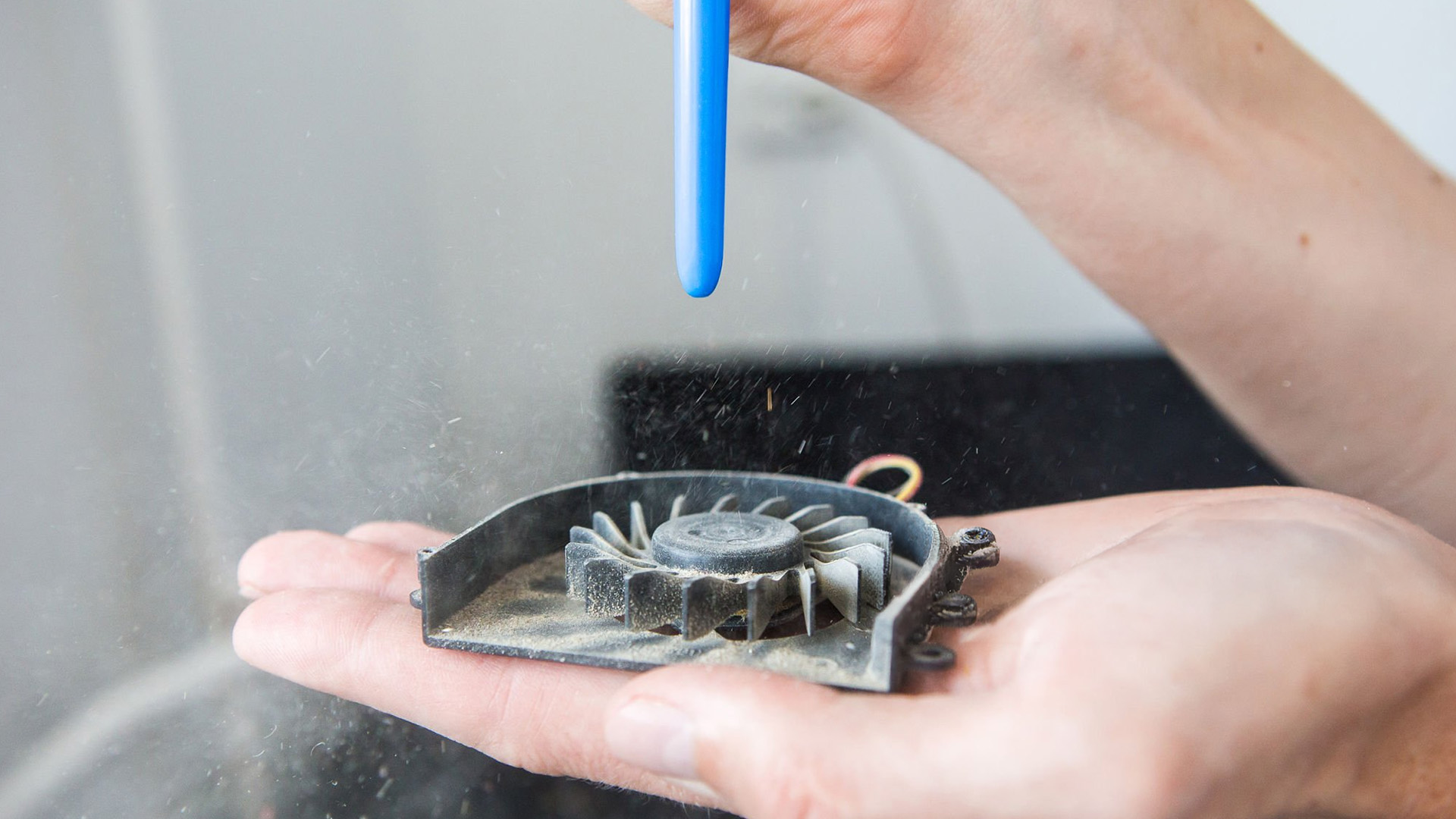
There is no perfect schedule for everyone. It depends on how and where you use your laptop.
As a general guide:
- Clean external vents every 2 to 3 months
- Clean more often if you have pets, carpets, or a dusty room
- Check vents monthly if your laptop runs hot
- Consider internal cleaning every 12 months if the laptop is heavily used
- Clean sooner if the fan suddenly becomes loud or the laptop overheats
If you use your laptop for demanding work, such as editing, design, coding, gaming, or content creation, heat management becomes even more important. People using laptops for content creation often push the CPU and GPU harder, so clear vents can make a noticeable difference.
What Is the Best Way to Clean Laptop Fan Areas?
The best way to clean laptop fan areas depends on how dirty the laptop is and how confident you are.
For most people, the best method is:
- Power off and unplug the laptop
- Brush visible dust away from vents
- Use compressed air in short bursts
- Wipe the exterior with a microfibre cloth
- Test the fan and temperature
This method is simple, low-risk, and effective for regular maintenance.
Internal cleaning is best when dust is trapped deep inside, but it should be done carefully. If you are not confident that your affordable laptop will turn into a budget breaching incident, professional cleaning is safer than accidental damage.
What Not to Do When Cleaning a Laptop Fan
A few common mistakes can turn a simple cleaning job into an expensive repair.
- Do not use a hairdryer. Heat and strong airflow can damage components or push dust deeper inside.
- Do not use a wet cloth near vents. Moisture and electronics do not mix.
- Do not spray cleaning liquid into the keyboard, fan, ports, or vents.
- Do not use a household vacuum directly on the laptop. If you want to clean the desk around the laptop, that is fine. But avoid placing the vacuum nozzle against the device.
- Do not open the laptop with metal tools if plastic tools are safer.
- Do not ignore strange noises. A grinding or clicking fan may be worn out, not dirty.
- Do not keep using the laptop on a bed or blanket after cleaning. That may block airflow again.
How to Keep Your Laptop Cooler After Cleaning
Cleaning helps, but daily habits matter too. If the fan on laptop models has to fight blocked airflow every day, dust will return quickly.
Try these habits:
- Use the laptop on a hard, flat surface
- Avoid beds, blankets, pillows, and thick fabric
- Keep the desk clean
- Leave space around the vents
- Do not stack papers near the exhaust area
- Use a laptop stand to improve airflow
- Keep pets away from the keyboard and vents
- Shut down the laptop when carrying it in a bag
You can also use a cooling pad or stand if your laptop runs warm during heavy tasks. Good must-have laptop accessories, such as stands, cooling pads, external keyboards, and cleaning kits, can make laptop care easier.
How to Clean a Laptop Computer Exterior
Since you are already cleaning the vents, it is a good time to clean the laptop body too. If you are wondering how to clean a laptop computer safely, focus on gentle tools and minimal moisture.
Use a microfibre cloth for the outer shell, palm rest, and touchpad. For stubborn marks, slightly dampen the cloth with water or isopropyl alcohol. The cloth should be damp, not wet.
Clean around the keyboard with a soft brush or compressed air. Hold the laptop at an angle so crumbs and dust can fall out. Do not spray liquid between the keys.
If the laptop is very dirty, clean small sections slowly instead of soaking the surface.
How to Clean Laptop Computer Screen
Many people also search for how to clean a laptop computer screen while cleaning the rest of the device, especially when using modern laptops with AI features that rely on clear display performance for everyday tasks. The screen needs extra care because it scratches easily.
Turn the laptop off. Use a clean microfibre cloth and wipe gently in small circles. If dry wiping is not enough, lightly dampen the cloth with screen-safe cleaner or distilled water. Never spray cleaner directly onto the screen.
Avoid paper towels, tissues, rough cloths, window cleaner, bleach, or strong household sprays. These can damage the screen coating.
A clean screen is easy to enjoy, but damage is different. For cracks or display issues, check our advice on laptop screen repair.
How Do I Wipe My Laptop?
The phrase “how do I wipe my laptop” can mean two different things.
If you mean physically wiping the laptop, use a microfibre cloth and a small amount of safe cleaner on the cloth. Keep liquid away from vents, ports, and the keyboard.
If you mean erase data and reset the laptop, that is a separate process. Cleaning the fan and vents will not remove files, accounts, passwords, or personal data. Before wiping data, back up important files and follow the reset instructions for your operating system.
If you are wiping your laptop because files are missing, pause before resetting it. You may still be able to recover deleted files.
When Cleaning Is Not Enough
Sometimes a dusty fan is only part of the problem. If your laptop still overheats after cleaning, consider these possibilities:
- Too many apps are running in the background
- Browser tabs are using too much memory
- The laptop is old and the thermal paste has dried out
- The fan is failing
- The heatsink is clogged internally
- Malware or unwanted software is using system resources
- The laptop is not powerful enough for your workload
If you prefer a specific brand, you can explore the best Acer laptops to buy for value-focused options, or premium Apple laptops if you want a macOS device with strong build quality.
Signs You Should Call a Professional
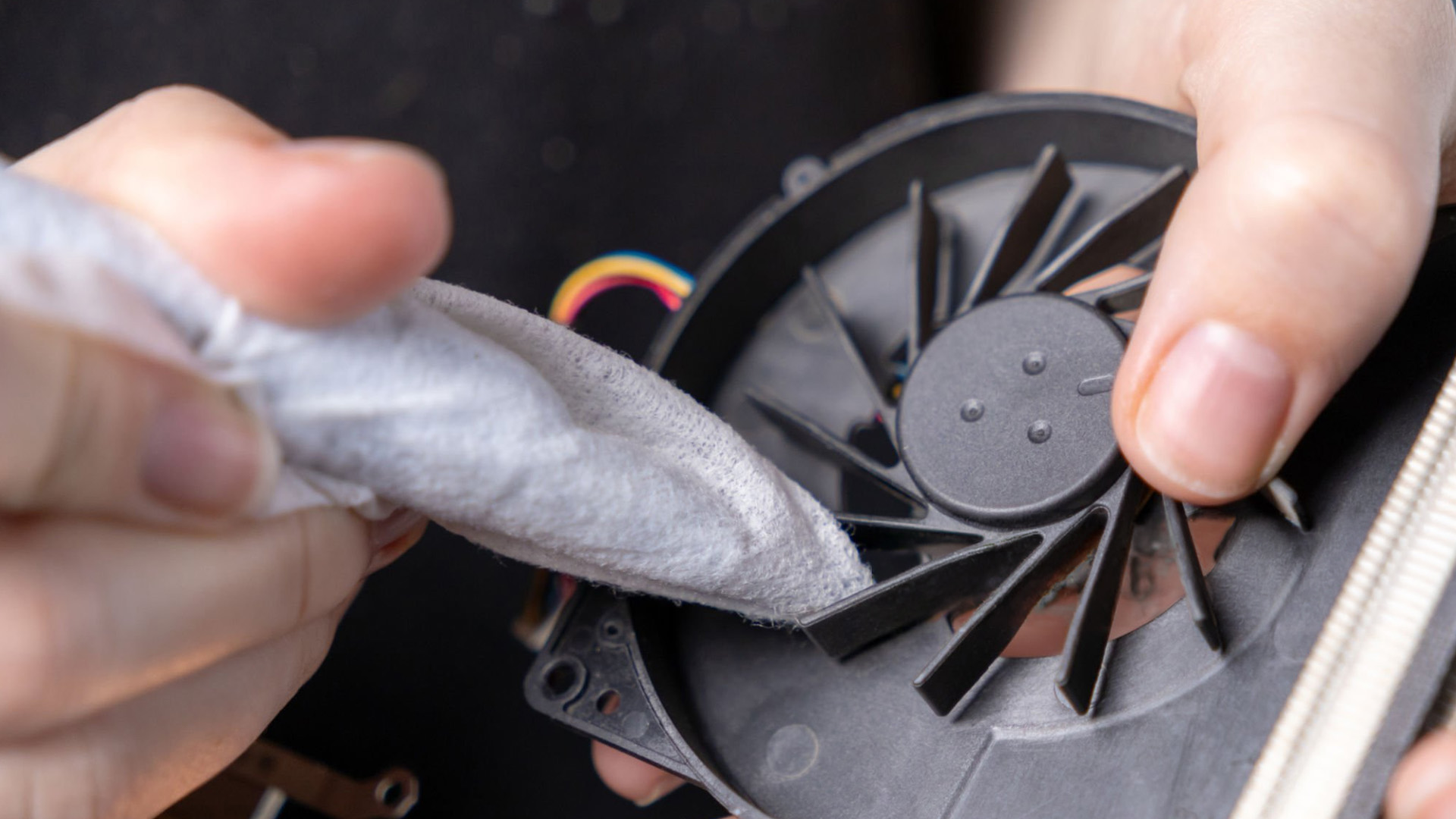
DIY cleaning is helpful, but it has limits. Get professional support if:
- The laptop shuts down from overheating
- The fan makes grinding, rattling, or scraping sounds
- You smell burning or see smoke
- The laptop is under warranty and opening it may void coverage
- You spilled liquid near the vents or keyboard
- You cannot remove the bottom cover safely
- The laptop still overheats after external cleaning
- The fan does not spin at all
A technician can open the laptop properly, clean the heatsink, check the fan, replace thermal paste, and spot problems you may not see from the outside.

Final Thoughts
Learning how to clean laptop fan and vent areas is one of the simplest ways to care for your device. You do not need to be a technician to do the basics. You only need patience, the right tools, and a gentle approach.
Start with external cleaning. Remove visible dust, use compressed air carefully, and keep the vents clear during daily use. If the laptop still overheats, do not force things. A professional clean may protect the device better than a risky repair attempt.
Your laptop works hard for you every day. A few minutes of careful cleaning can help it breathe easier, run cooler, and stay reliable for longer.

Still Having Questions?
How do you clean a laptop fan without opening it?
Turn off and unplug the laptop. Use a soft brush to remove visible dust from the vents, then use compressed air in short bursts to clear the vent openings. Keep the can upright and avoid long sprays. This is the easiest way to clean laptop fan areas safely from the outside.
Can I clean laptop fan with a vacuum cleaner?
It is better not to place a household vacuum directly against laptop vents. Vacuums can create static electricity and strong suction. A soft brush and compressed air are safer for most DIY laptop fan cleaning.
How do I know if my laptop fan needs cleaning?
Your laptop may need cleaning if it feels hotter than usual, the fan is constantly loud, performance drops, or you see dust around the vents. If warm air is not leaving the laptop properly, the vents may be blocked.
How to clean notebook fan safely?
The safest method is to clean the vents externally first. Turn the notebook off, unplug it, brush away visible dust, and use compressed air in short bursts. Only open the notebook if you are confident and your model allows safe access.
Can dust damage a laptop?
Yes. Dust can block airflow, trap heat, and make the fan work harder. Over time, heat can affect performance and may shorten the life of internal components.
Why is my fan on laptop still loud after cleaning?
The laptop may still be hot because of background apps, blocked internal heatsink fins, old thermal paste, or a worn fan. If cleaning the vents does not help, a deeper inspection may be needed.
Is it safe to open a laptop to clean the fan?
It can be safe if you know your model, have the right tools, and follow a proper guide. However, some laptops are difficult to open and may have warranty restrictions. If you are unsure, choose professional cleaning.
How often should I clean my laptop fan?
Clean the external vents every few months. Clean more often if you use the laptop in dusty spaces, around pets, or on fabric surfaces. Heavy users may need internal cleaning once a year.
| Read More |
| Why Your Laptop Is Overheating (How to Fix it Fast) |
| Laptop Screen Repair: How Much it Costs and When to Replace? |
| How to Recover Deleted Files and Data: Step-by-Step Guide |
Related Articles


Last Updated: June 05, 2026
Choosing the right laptops for video editing can feel far more complicated than it should. Some brands focus on AI features; others push gaming specs, and many guides make it sound as though you need a studio-grade machine just to edit a few clips.
In reality, the best laptop depends on the type of editing you do.
A beginner creating YouTube videos, reels, or student projects will not need the same machine as someone working on commercial edits, colour grading in DaVinci Resolve, or handling large 4K client timelines. That is why this guide breaks down the best laptops for video editing by editing level, workflow, and real-world use case.
Whether you need a machine for social content, advanced post-production, or portable editing on the move, these are the options worth considering.
If your creative work also includes Photoshop, Illustrator, or wider Adobe software, it is worth reading our guide to the best laptops for Adobe Creative Cloud apps as well.
What to Look for in Laptops for Video

Last Updated: June 18, 2026
If you are searching for Core i5 Lenovo laptops, you are likely looking for a balance of performance, price, and reliability. And that is exactly where Lenovo stands out in 2026. From affordable everyday machines to durable business devices, Lenovo’s Core i5 lineup covers a wide range of use cases. Whether you need a laptop for work, study, or general productivity, there is a model that fits without pushing into premium pricing.
This guide breaks down the best options available right now, with a focus on real-world usability, value, and what each model is good for.
Why Choose a Lenovo Core i5 Laptop in 2026?
Lenovo continues to be one of the most consistent brands when it comes to mid-range laptops. Its Core i5 models are particularly popular because they offer:
- Reliable everyday performance
- Strong build quality across price ranges
- Good keyboard and typing experience
- Wide choice across business and budget segments
For most users, a Core i5 processor is more than enough for:
- Office work

Last Updated: May 01, 2026
By the end of 2025, buying a laptop had become a bigger decision than ever. Global PC shipments climbed to more than 270 million units in 2025, with the final quarter alone reaching 71.5 million units.
On the surface, that sounds like good news: more innovation, more models, more choice. But for buyers, it also means more noise. Bigger spec sheets, bolder marketing claims, AI-ready labels everywhere, and a growing chance of paying for power you do not need or missing the features you actually do.
That is what makes choosing a laptop in 2026 tricky. The best option is not always the most expensive, the most powerful, or the newest on the page. It is the one that fits the way you work, study, stream, create, or game without compromise.
This guide cuts through the clutter and helps you choose with confidence. So, get yourself ready to buy the laptop you are looking for.
How to Choose the Right Laptop in 2026
If you want the quick answer, here’s how to choose the right laptop without overthinking

Published: April 14, 2026
Remote work is no longer a temporary perk. In 2026, it has become a steady work pattern for many UK employees, and the laptop has effectively turned into the main workplace tool, meeting room, and travel companion rolled into one.
That shift is changing what people prioritise when they buy. Price still matters, but buyers are more likely to pay for reliability, better video-call hardware, stronger security, and a setup that works just as well at home as on the train.
Hybrid Work is Pushing Standards Up, Not Down
UK hybrid working is best understood as a long-term rebalancing rather than a short-lived trend. In Great Britain, the Office for National Statistics has shown how hybrid working varies across demographic groups, reinforcing that it is embedded unevenly but persistently across the workforce rather than disappearing.
Employer practice points in the same direction. The CIPD’s research on flexible and hybrid working practices reports that a large share of organisations have hybrid
Last Updated: May 06, 2026
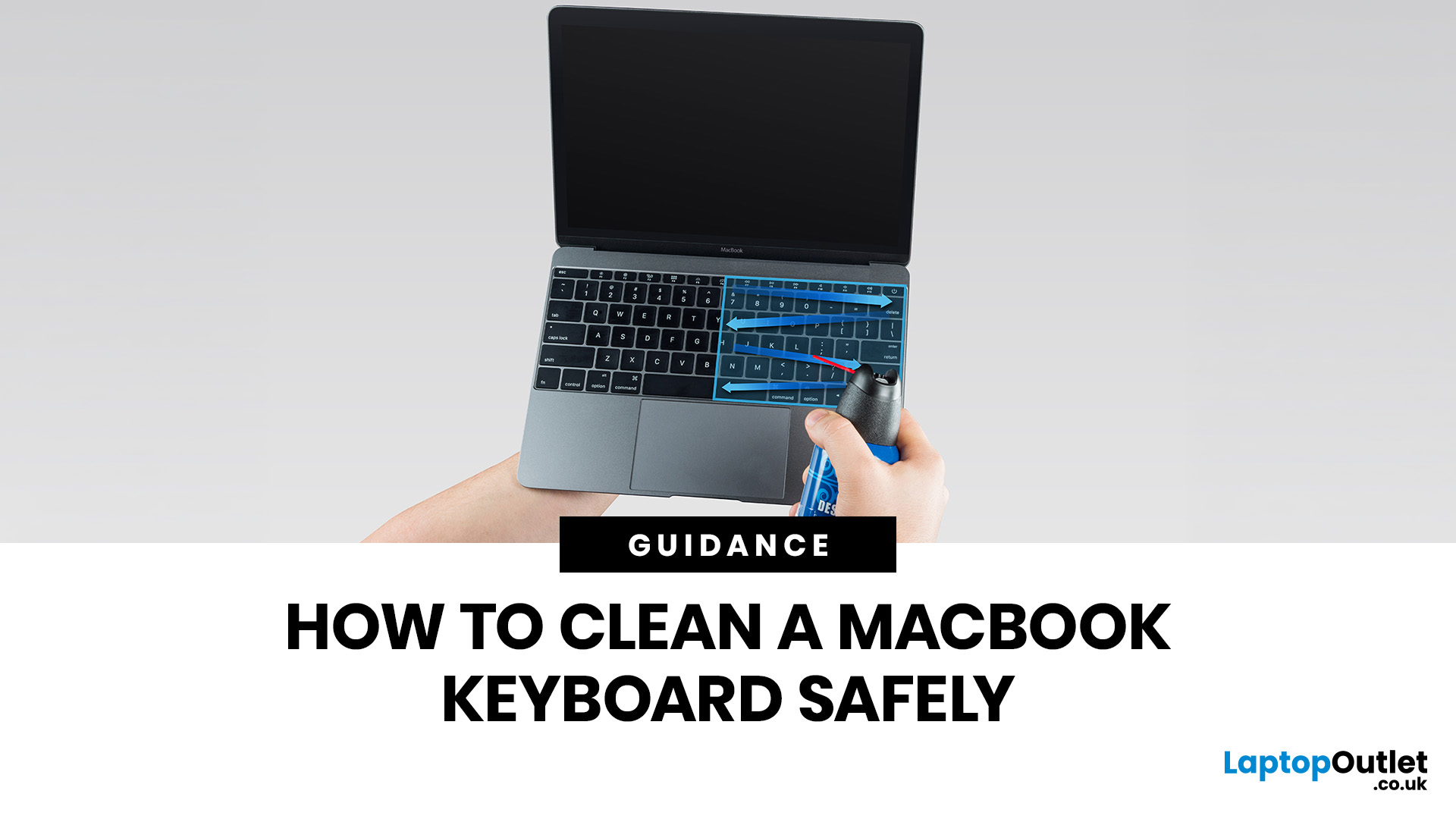
MacBook keyboard cleaning is simple when you do it the Apple-safe way: shut the laptop down, unplug it, use a soft lint-free cloth, keep moisture out of the openings, and never spray cleaner directly onto the keyboard. If you need to disinfect the surface, Apple says you can gently wipe off the hard, non-porous exterior, including the keyboard, with a 70 per cent isopropyl alcohol wipe, a 75 per cent ethyl alcohol wipe, or a disinfectant wipe.
That is the short version. The longer version matters because MacBook keyboards are not built for chaotic cleaning energy. Too much liquid, the wrong cleaner, or one “quick” spray straight onto the keys can turn a dusty keyboard into an expensive repair story. We will discuss today how to clean a Mac keyboard properly, how to remove dirt from MacBook keys, when compressed air makes sense, what not to use, and when a keyboard issue is no longer a cleaning job.
Quick Answer: How Can We Clean a MacBook Keyboard Safely?
The safest way to clean a MacBook

Last Updated: July 09, 2026
The best lightweight Lenovo laptops in 2026 are not all trying to do the same job. If we want the lightest premium 14-inch option, Lenovo’s Yoga Slim 7i Ultra Gen 11 Aura Edition stands out at 975g with a 75Wh battery. If business travel comes first, the ThinkPad X1 Carbon Gen 13 Aura Edition is still one of the strongest all-round choices thanks to its sub-1kg starting weight on some configs, proper business-grade connectivity, and classic ThinkPad focus.
That matters because buyers looking for ultraportable Lenovo laptops usually care about more than one thing at once: low carry weight, reliable battery life, enough ports to avoid living off dongles, and a screen that still feels good after a full day of work, study or travel. In this guide, we break down the best current Lenovo options for commuters, students, professionals, creators and home users, using Lenovo’s own 2026-era spec sheets first and independent reviews where they add useful trade-offs.
What Counts as a Genuinely Lightweight
Last Updated: May 06, 2026
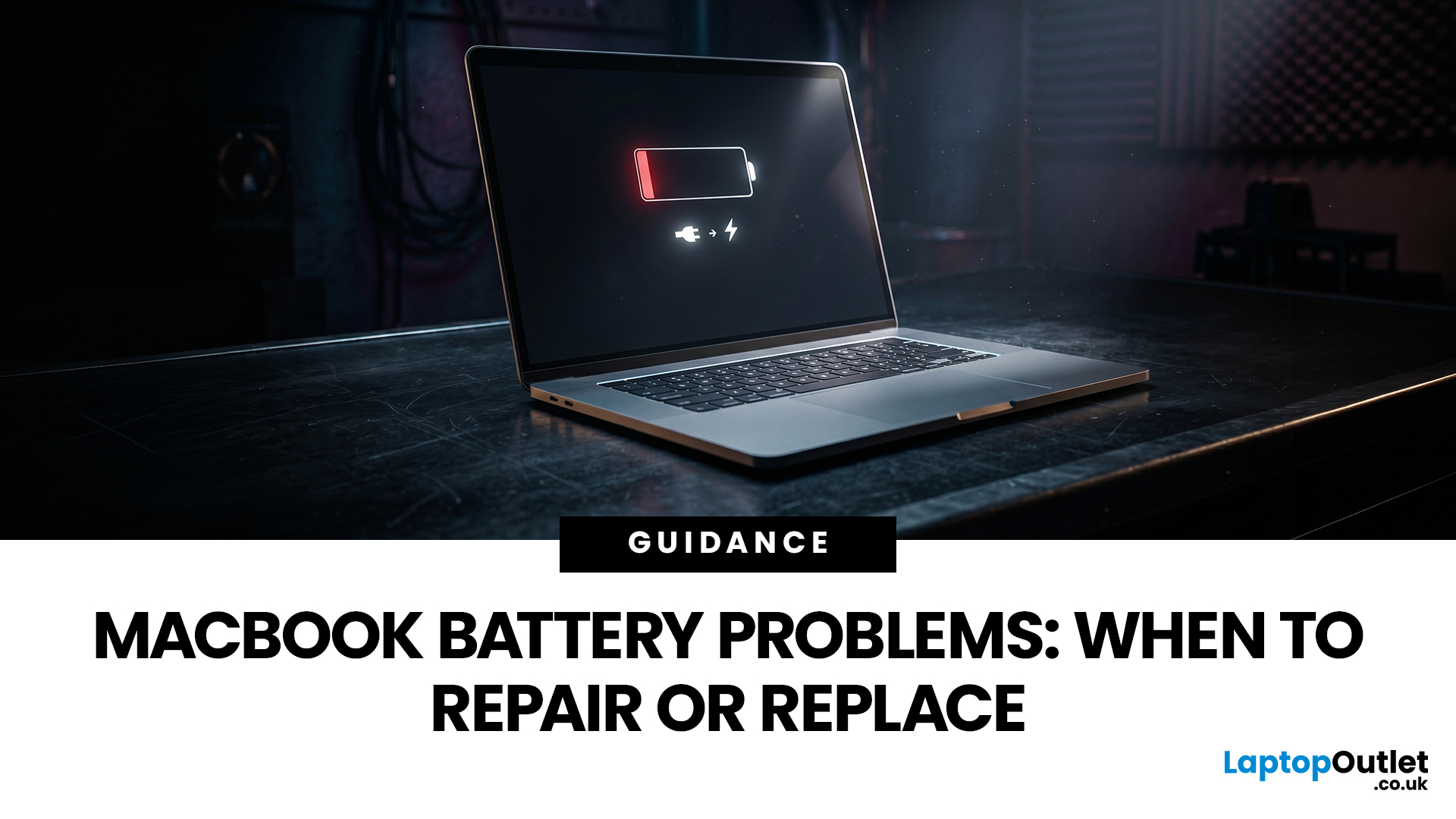
MacBook battery issues do not always mean it is time for a replacement. Sometimes your battery is genuinely wearing out, but sometimes the real problem is heat, charging habits, background apps, or even a charger that is not pulling its weight. That is what makes battery problems so confusing: the symptoms can look dramatic, while the fix might be simple.
In this guide, we will help you figure out what your MacBook is actually trying to tell you. From battery drain and overheating to charging limits and health checks, you will learn how to spot the issue, understand the cause, and decide whether a repair or replacement makes the most sense.
Why MacBook battery issues happen in the first place
MacBook batteries are built with lithium-ion technology, which is great for fast charging and portability, but like every rechargeable battery, they wear down over time. Battery age is not just about how many years you have owned the laptop. It is also shaped by your charging habits, temperature

Last Updated: April 29, 2026
If you want to spend less on a laptop in 2026, the smartest move is to make better buying decisions from the start. That means:
- Buy the right type of laptop for the way you actually use it
- Compare new and refurbished properly
- Avoid machines that look cheap but cost you more later through poor performance, weak battery life, or missing warranty cover.
In the UK, refurbished options can save you a lot when you buy from a reputable retailer, but you still need to check condition grading, warranty, return options, and whether the laptop is genuinely suitable for today’s Windows requirements.
That is the real cheapest way for UK shoppers to buy a laptop they can feel good about. A low headline price only counts as a good deal on laptops if the machine still fits your workload, stays supported, and does not force you into another purchase too soon. This laptop deals & savings guide helps you work that out clearly, without making the process feel more complicated than it needs to be.
Quick Money-Saving

Last Updated: September 02, 2026
Looking to sell or trade in old laptop in the UK and get the most cash for it? This guide covers everything you need to know, from checking your laptop's resale value and wiping your data safely, to choosing the right selling method and avoiding common scams. Follow these steps and you could put a healthy amount back in your pocket.
What Does "Selling vs Trading In" Actually Mean?
Before diving in, it's worth being clear about the difference. Selling your old laptop means listing it yourself and receiving payment from a buyer. Trading in means handing your device to a scheme or retailer in exchange for cash, credit, or a discount off your next purchase.
Both have real merit, and the right option depends on how much time you have, how much you want to earn, and what condition your laptop is in.
How Much Is Your Old Laptop Actually Worth?
The first question most people ask, “how much is my laptop.” The honest answer is: it depends on several factors, but there are reliable ways to estimate
Last Updated: May 22, 2026
A laptop usually overheats because of blocked airflow, dust, heavy apps, dried thermal paste, charging heat, or a faulty fan. To cool it down fast, place it on a hard surface, close demanding programs, clean the vents, switch to Balanced mode, and let it rest. If it keeps overheating or shutting down, it may need internal cleaning, thermal paste replacement, or repair.
Your coffee could be hot, but it doesn't work for a laptop to be honest. A little warmth is normal during gaming, charging, video calls, or heavy work, but if your laptop is overheating, slowing down, shutting off, or making loud fan noise, something needs fixing. This guide explains the fastest laptop overheating fix, why your laptop is running hot, and how to cool it down before the problem gets worse.
First, Is Your Laptop Actually Overheating?
Before you panic, it is important to know the difference between a laptop that is simply warm and a laptop that is truly overheating.
Laptops are compact machines. The processor,

