



How to Back Up a Medion Laptop Before a Factory Reset (Without Losing Data)
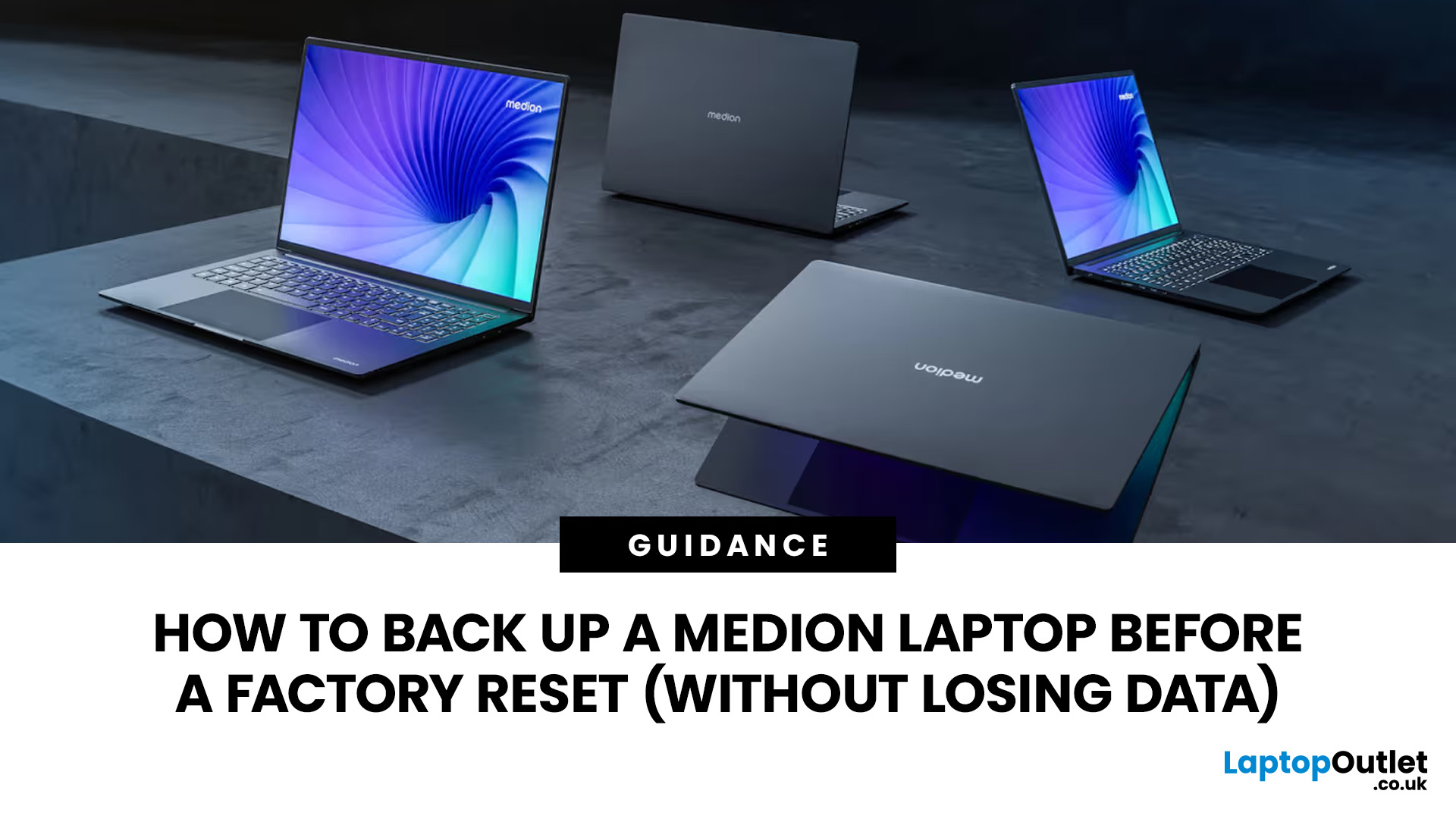
Before you reset MEDION laptop settings or reinstall Windows, copy your personal files to an external drive and create a second copy with Windows Backup and OneDrive or another drive.
Check Desktop, Documents, Downloads, Pictures, Videos, email archives, browser data, game saves and application folders. Open several files directly from the backup to confirm that they work.
Save your BitLocker recovery key, record essential applications and licences, then safely eject and disconnect the external drive before starting the reset.
A factory reset can solve persistent Windows problems, but it may remove applications, settings and personal files. Even when you choose Keep my files, treat it as a recovery option rather than a substitute for a verified backup.
What does a factory reset remove from a MEDION laptop?
Windows offers two main Reset this PC options:
- Keep my files reinstalls Windows and is intended to preserve personal files, but it removes installed applications and resets Windows settings.
- Remove everything removes personal files, applications and settings.
Back up important data and save the BitLocker recovery key before choosing either option.
The Cloud download and Local reinstall settings do not decide whether files are retained. They decide where Windows obtains its installation files.
|
Reset setting |
Personal files |
Installed apps |
Settings |
Best suited to |
|
Keep my files |
Intended to remain |
Removed |
Reset |
Troubleshooting while retaining documents and photos |
|
Remove everything |
Removed |
Removed |
Removed |
Selling, donating, recycling or starting again |
|
Cloud download |
Depends on the reset option |
Depends on the reset option |
Depends on the reset option |
Reinstalling when local Windows files may be damaged |
|
Local reinstall |
Depends on the reset option |
Depends on the reset option |
Depends on the reset option |
Reinstalling without a large download |
When selling or recycling the laptop, review the Clean data setting. It makes deleted files harder to recover, but it is a consumer feature rather than a certified data-sanitisation process.
Some MEDION models include manufacturer-specific recovery tools or startup-button combinations. Use the MEDION support portal to identify the device by its MSN number and obtain the correct manual.
The basic backup process is similar across older models and the latest MEDION laptops, although recovery menus, partitions and bundled software can differ.
Do you need to reset the laptop?
Before beginning MEDION laptop recovery, consider whether a less destructive repair could solve the problem.
On supported Windows 11 systems, open:
Settings > System > Recovery > Fix problems using Windows Update > Reinstall now
This reinstalls the current version of Windows while retaining personal files, installed applications and settings. Back up important files before using it.
You can also try:
- Windows Update
- Startup Repair
- System Restore
- Safe Mode
- Removing a recently installed driver or application
- The affected application’s repair function
If these options do not solve the problem, continue with the backup and reset process.
Prepare before backing up
Keep the MEDION laptop connected to its mains charger, close open applications and check that the backup destination has enough space.
Some useful laptop accessories for this task include an external drive, the mains adaptor and any required USB adaptor. Keep a second drive for irreplaceable data.
Do not keep the only backup on another partition of the laptop’s internal SSD. Before copying, compare the folder size under Properties with the external drive’s free space, confirm your Microsoft account details and locate your BitLocker recovery key.
Windows laptops for work may be managed by an employer, school or another organisation. Do not reset a managed device without approval because encryption keys, security policies, backups and software licences may be controlled by the IT team.
What should you back up?
A complete MEDION laptop data backup should cover more than Documents and Pictures.
|
Data category |
Locations or checks |
Why it is commonly missed |
|
Personal folders |
Desktop, Documents, Downloads, Pictures, Videos, Music, Favourites |
Downloads and Desktop are often overlooked |
|
Other accounts |
C:\Users\AccountName |
Each account has separate personal folders |
|
Project folders |
Custom folders on C:, D: or another internal drive |
They may sit outside standard Windows libraries |
|
Cloud folders |
OneDrive, Dropbox, Google Drive |
Files may be online-only or still synchronising |
|
Email data |
Outlook data files, exported mail and local archives |
Some archives exist only on the laptop |
|
Browser data |
Bookmarks, profiles, tabs and extensions |
Browser synchronisation may be disabled |
|
Application data |
Databases, templates, presets and catalogues |
Data may be stored in custom folders or AppData |
|
Games |
Save files, mods, screenshots and settings |
Not every game supports cloud saves |
|
Security items |
BitLocker keys, SSH keys and certificates |
Losing them can block access after the reset |
|
Software records |
Installers, licence keys and subscriptions |
Windows does not reinstall every programme |
Do not copy shortcuts and assume that they are original files. Right-click a shortcut, open Properties, or follow it to find the actual file.
Avoid restoring the entire AppData folder over a clean Windows installation. It may contain damaged settings, caches and version-specific files. Back up only the application data you understand and follow the software provider’s instructions.
Which backup method is best?
For most people, the safest arrangement is:
- A complete manual copy on an external drive.
- A second verified copy in a cloud account or on another drive.
This is the most reliable way to back up laptop files before a reset because it reduces the risk of a missed folder, failed drive or incomplete cloud synchronisation.
|
Method |
Protects well |
May miss |
Best use |
|
Manual external-drive copy |
Selected folders, custom locations and local archives |
Anything you forget to copy |
A visible, portable backup before a reset |
|
Windows Backup and OneDrive |
Selected folders, supported settings, Wi-Fi details and app records |
Unsupported app data and unselected folders |
Restoring files and supported settings during setup |
|
File History |
Libraries, selected folders and previous file versions |
Folders outside protected locations |
Regular local file backups |
|
Recovery Drive |
Windows recovery tools |
Personal files |
Opening repair tools when Windows will not start |
|
System image |
A broad system snapshot |
Files added after the image |
Advanced full-system recovery |
A Recovery Drive is not a personal-file backup.
Method 1: backup MEDION laptop files to an external drive
An external drive is the clearest backup method because you can inspect copied folders and open files directly.
For smaller collections, portable USB storage may be suitable; high-capacity external hard drives are usually more practical for large photo, video, gaming or work archives.
1. Connect and identify the drive
Connect the external drive and open: File Explorer > This PC
Note the drive letter and available space. Create a clearly named folder, such as: MEDION-Backup-2026-07-20
Use Copy, not Move. Copying leaves the original files on the laptop until you are ready to reset it.
2. Copy standard personal folders
For every relevant Windows account, copy:
- Desktop
- Documents
- Downloads
- Pictures
- Videos
- Music
- Favourites
- Saved Games, where present
Check other user profiles under: C:\Users\AccountName
3. Find data stored elsewhere
Check the root of C:, any D: partition, work or study folders, media projects, coding repositories, virtual machines, games and application-specific project locations. In File Explorer, search for file types such as *.docx, *.xlsx, *.pdf, *.jpg and *.mp4.
Do not assume that another internal partition will remain untouched. Manufacturer recovery tools may handle internal drives differently.
4. Export application-specific information
Close applications before copying databases or project files.
Check and export:
- Browser bookmarks
- Outlook archives
- Accounting databases
- Password-manager recovery details
- Creative-software presets
- Virtual-machine files
- Game saves and mods
- Specialist application projects
For Microsoft Outlook, check whether important mail is stored in an online mailbox or a local PST archive. A local archive may exist only on the laptop.
5. Verify and disconnect the drive
Wait until copying has finished. Open the backup folder and confirm that recent files are present.
Test several files directly from the external drive, then use: System tray > Safely Remove Hardware and Eject Media
Disconnect the drive before starting the reset.

Method 2: create a Windows 11 backup with OneDrive
A Windows 11 backup is useful when the laptop starts normally and you use a personal Microsoft account.
Windows Backup uses OneDrive for selected folders and can remember supported settings, Wi-Fi details, passwords, accessibility options, accounts, personalisation and installed-application information.
Create the backup
- Open Start.
- Search for Windows Backup.
- Open the application.
- Sign in with the Microsoft account you will use after the reset.
- Expand Folders.
- Enable the folders you want to protect, including Desktop, Documents, Pictures, Videos and Music.
- Expand the settings categories and enable the items you want Windows to remember.
- Select Back up.
Leave the laptop connected to the internet until the backup completes.
A free Microsoft account has limited OneDrive storage. If your files exceed the available capacity, use an external drive or reduce the selected folders.
What Windows Backup may not save
Windows Backup is not a full clone. It can miss files outside selected OneDrive folders, local email archives, unsupported databases, game modifications and excluded project folders. Desktop applications may need to be downloaded and installed again.
Verify OneDrive
Open the OneDrive icon in the notification area and resolve any paused synchronisation, sign-in, storage-limit, file-name or upload warnings.
Then sign in to OneDrive in a browser, preferably on another device, and open several recent files.
Before copying OneDrive folders to an external drive, make sure online-only files have downloaded. Right-click the required folder and choose: Always keep on this device
A cloud placeholder is not a complete local copy.
Method 3: use File History
File History creates regular backups of Windows libraries and can retain previous versions of files.
To enable it:
- Connect the external drive.
- Open Control Panel.
- Select System and Security.
- Select Save backup copies of your files with File History.
- Choose the correct drive.
- Select Turn on.
- Allow the first backup to finish.
- Test restoring a non-critical file.
File History is not a system image. Keep a separate application list, encryption key and external copy of files outside its protected locations.
Save information that files cannot replace
Before you factory reset MEDION laptop, save the information needed to unlock, reactivate and rebuild Windows.
BitLocker recovery key
The BitLocker recovery key is a 48-digit number used when Windows cannot automatically unlock an encrypted drive.
It may be stored in:
- A Microsoft account
- A work or school account
- A printed copy
- A USB file
- An organisation’s IT system
Confirm that the key ID matches the laptop and store it somewhere accessible without using the MEDION device.
Accounts, applications and model details
Confirm the account used for Windows, OneDrive, Microsoft 365 and Microsoft Store purchases, and make sure you can receive verification codes.
Open Settings > Apps > Installed apps and record essential applications, legitimate licence keys, subscription logins and any deactivation requirements.
Record the MEDION model name, MSN number, serial number and Windows edition. Use the MEDION support portal after the reset if Windows Update does not provide every required driver.
Verify the backup before resetting
A backup is not complete merely because the progress bar reached 100%.
Before resetting:
- Open a recent document, spreadsheet, PDF, photo and video directly from the external drive.
- Check that large files have realistic sizes and are not zero bytes.
- Compare the Properties size and file count of important source and destination folders.
- Confirm that the newest edits appear under Date modified.
- Sign in to OneDrive from another browser or device and open recent files.
- Restore one non-critical item through File History.
- Check every relevant user profile under C:\Users.
- Confirm that the BitLocker key, account details and application list are available without the laptop.
- Safely eject and disconnect the backup drive.
For family photos, legal documents or essential business data, keep a second verified copy in another physical location.
How to back up a MEDION laptop that will not start
Do not begin a factory reset as the first response to a boot failure. Secure valuable files before using Reset this PC or performing a clean installation.
Open Windows Recovery Environment
Windows Recovery Environment, or Windows RE, may open automatically after repeated failed starts.
It includes Startup Repair, System Restore, Reset this PC, Command Prompt, Startup Settings and Uninstall Updates.
You may also open it through: Shift + Restart > Troubleshoot > Advanced options
Try Startup Repair first. System Restore may reverse certain system changes without deleting personal files, although it is not a backup.
Try Safe Mode
From Windows RE, open: Troubleshoot > Advanced options > Startup Settings > Restart
Choose Safe Mode or Safe Mode with Networking. If Windows starts, copy important files to an external drive immediately.
Use recovery media carefully
A Recovery Drive or Windows installation USB can provide access to repair tools.
Choose: Repair your computer
Do not select installation, formatting or reset options until the data has been secured.
Watch for encryption or drive failure
An external SSD enclosure or technician may be able to access a removable drive from another computer. BitLocker-encrypted storage still requires the recovery key.
Stop reset attempts if the storage device is not detected, disconnects repeatedly, reports hardware or file-system errors, or causes frequent freezes.
An SSD has no moving parts and should not make clicking or grinding noises. Those sounds can indicate a failing mechanical hard drive. When valuable data is at risk, stop using the laptop and seek professional assistance.
Reset the MEDION laptop after verification
Once every important file has been checked, you can begin the reset.
Windows 11
Open:
Settings > System > Recovery > Reset PC
Choose:
- Keep my files or Remove everything
- Cloud download or Local reinstall
Windows 10
Open:
Settings > Update & Security > Recovery > Reset this PC > Get started
Read the final summary carefully and check which drives will be affected.
Before selecting Reset, connect the mains charger, disconnect the backup and unrelated USB storage, review what will be removed, check which internal drives are affected and keep the BitLocker key nearby. Do not force the laptop to shut down.
If the model uses a dedicated MEDION factory-recovery process, follow the manual for the exact MSN number. Manufacturer recovery may restore bundled applications, drivers and the original partition structure.
How to restore Medion laptop files after the reset
After Windows setup, install updates through Settings > Windows Update, check Device Manager for missing drivers and use the MEDION support portal where required. Sign in to the same Microsoft and OneDrive accounts, reinstall trusted applications, copy personal files into the appropriate folders and open several restored files before deleting any backup.
Keep the external backup unchanged until you have used the rebuilt laptop for several days and confirmed that documents, photos, email archives, projects, passwords and application data are available.
Common mistakes that cause data loss
Avoid these errors:
- Relying only on Keep my files
- Copying only Documents
- Forgetting Desktop, Downloads or other user accounts
- Assuming cloud icons mean files have uploaded
- Saving the only backup to the internal SSD
- Forgetting email archives or specialist application data
- Leaving the backup drive connected during the reset
- Skipping file-opening and restore tests
- Restoring the entire old AppData folder
- Using MEDION factory recovery without checking model-specific instructions

Backup, test, and verify
The safest way to reset MEDION laptop is to create a backup that you have tested.
Copy important folders and application data to physically separate storage, add a second copy, and save the BitLocker recovery key, account details, application list and MEDION model information.
Open files from the backup and test at least one restoration before resetting. Keep the original backup until the rebuilt laptop and all essential files have worked normally for several days.

Just so you know...
Can I reset a MEDION laptop without losing my files?
You can choose Keep my files, which is intended to preserve personal files while removing installed applications and resetting settings. Create and verify a separate backup first because a reset can fail or miss files stored outside standard locations.
What is the easiest way to back up a MEDION laptop?
Copy Desktop, Documents, Downloads, Pictures, Videos and other important folders to an external drive. Add Windows Backup and OneDrive as a second copy, then open several files before resetting.
Does Windows Backup save everything?
No. It protects selected folders through OneDrive and remembers supported settings and application information. It does not create a complete copy of every desktop application, local archive, database or custom folder.
How do I back up a MEDION laptop that will not start?
Open Windows RE and try Startup Repair or Safe Mode before resetting. Use repair media cautiously. If the drive is encrypted, you may need the BitLocker recovery key. If the drive appears to be failing, stop using it and seek professional assistance.
How do I know that the backup is complete?
Open recent files directly from the external drive, compare important folder sizes and dates, inspect every relevant user profile, confirm that OneDrive files open online and test one File History restoration. Disconnect the verified backup before starting the reset.
| Read More: |
| How to Reset or Restore ASUS Laptops Safely? |
| How to Reset or Restore Surface Laptops Safely? |
| How to Reset or Restore HP Laptops Safely? |
Related Articles

Last Updated: August 25, 2026
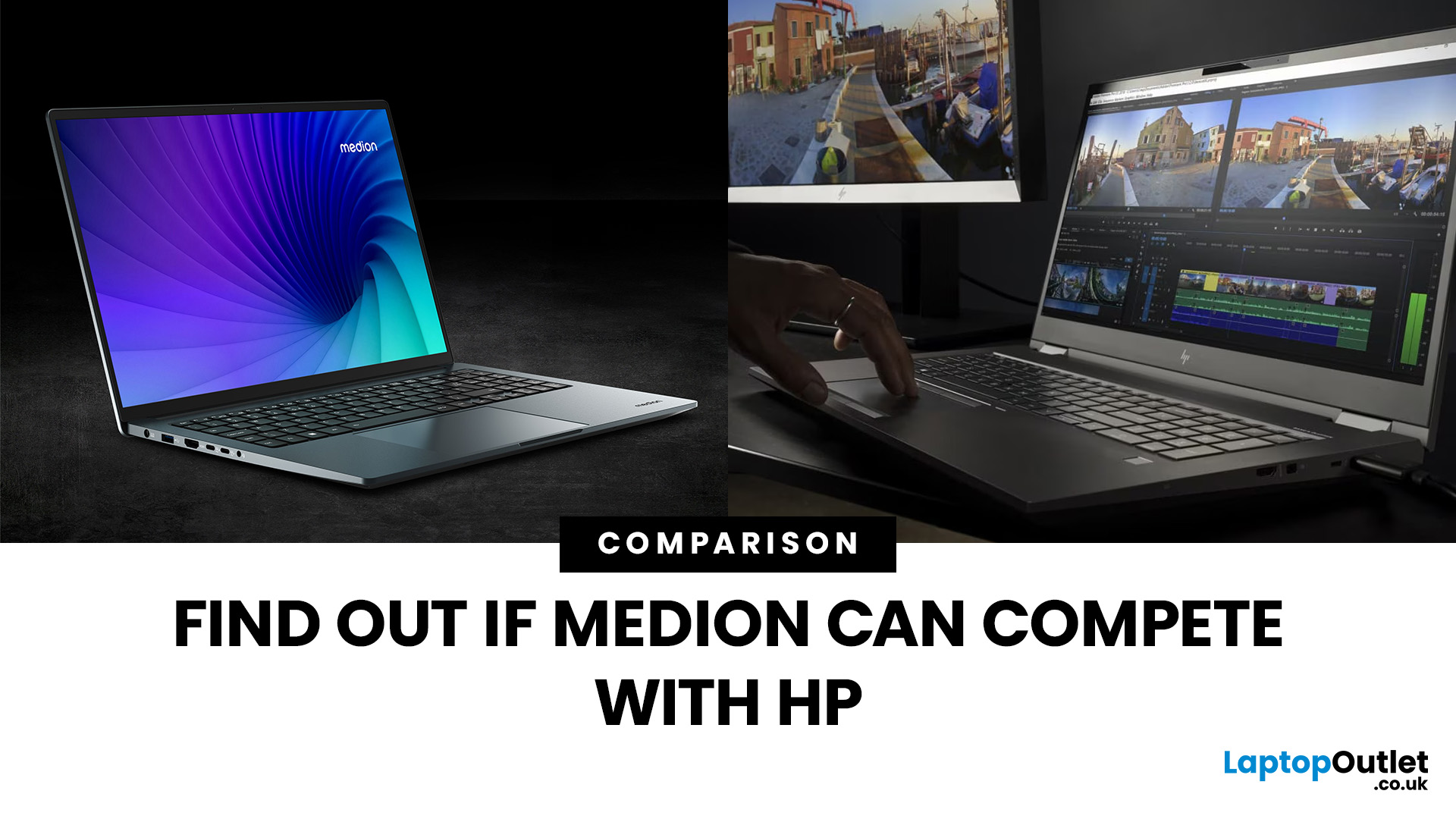
“Everyday user” laptops need to do the basics well; surfing, streaming, document editing, video calls, without breaking the bank. If you’re comparing Medion vs HP laptops, you're comparing two brands that aim to hit that sweet spot: affordability, usability, and decent performance. Medion leans into budget value and basic gaming, while HP offers more variety across entry, mid and upper tiers, often with extra polish.
Let’s dig into what each brand does well, where they fall short, and which is better depending on what you do daily. It will help you decide whether to buy a Medion or HP laptop.
What Is Medion? What Is HP?
- Medion is a German-brand, long known for delivering solid value. Its main UK laptop ranges include AKOYA for general home and office use and ERAZER for gaming. Medion has been part of the Lenovo Group since 2011.
- HP (Hewlett-Packard) is one of the most established laptop makers. Its range covers affordable consumer laptops, premium devices,
Last Updated: June 11, 2026
A laptop power bank is not the same as a phone power bank. A charger may look powerful because it has 20,000mAh or 30,000mAh capacity, but that does not automatically mean it can charge your laptop properly.
| The best laptop power banks in 2026 are USB-C PD models that match your laptop’s wattage. For most users, 65W is enough, while MacBook Pro and creator laptops may need 100W to 140W. Choose at least 20,000mAh for backup power and check the Wh rating before flying. |
For laptops, the most important detail is output wattage. A small phone power bank may only deliver 18W or 22.5W, while many laptops need 45W, 65W, 100W, or more to charge efficiently. That is why choosing the best power bank for laptops is less about picking the biggest number on the box and more about matching the power bank to your laptop’s real charging needs.
In this guide, we explain how to choose a laptop power bank for work, study, commuting, business travel, and everyday use. We will cover wattage, battery capacity,
Last Updated: June 18, 2026
For most buyers in 2026, the best laptop specs are a modern Intel Core Ultra 5/7 or AMD Ryzen AI 5/7 processor, 16GB RAM, 512GB SSD storage, and integrated graphics. Choose 32GB RAM, 1TB storage, and a dedicated GPU if you edit videos, create content, play demanding games, or use professional software.
Buying a new laptop in 2026 can feel confusing, especially when every product page is packed with technical words, numbers, and abbreviations. This processors & specs explained guide breaks everything down in plain English so you can understand what matters before you spend your money.
For most buyers, the four most important laptop components are the CPU, RAM, GPU, and storage. Once you understand these, it becomes much easier to compare models, avoid overspending, and choose a laptop that actually suits your daily needs.
What are Laptop Specs and Why Do They Matter?
Understanding laptop specifications becomes important. Specs affect:
- How fast your laptop feels when opening apps.
- How many
Last Updated: July 09, 2026
Choosing a laptop CPU should not feel like decoding a boss fight.
You open five tabs, see terms like Core Ultra, Ryzen AI, Core i7, Ryzen 7, NPU TOPS, HX, U-series, integrated graphics, and suddenly the simple question - AMD or Intel for laptop? - becomes way more stressful than it should be.
This guide breaks down the Intel vs AMD laptop 2026 debate in plain English. You will learn how AMD Ryzen vs Intel laptop performance compares, which processor types in laptops actually matter, when Intel is the smarter buy, when Ryzen gives better value, and which in-stock Laptop Outlet models are
Last Updated: June 30, 2026
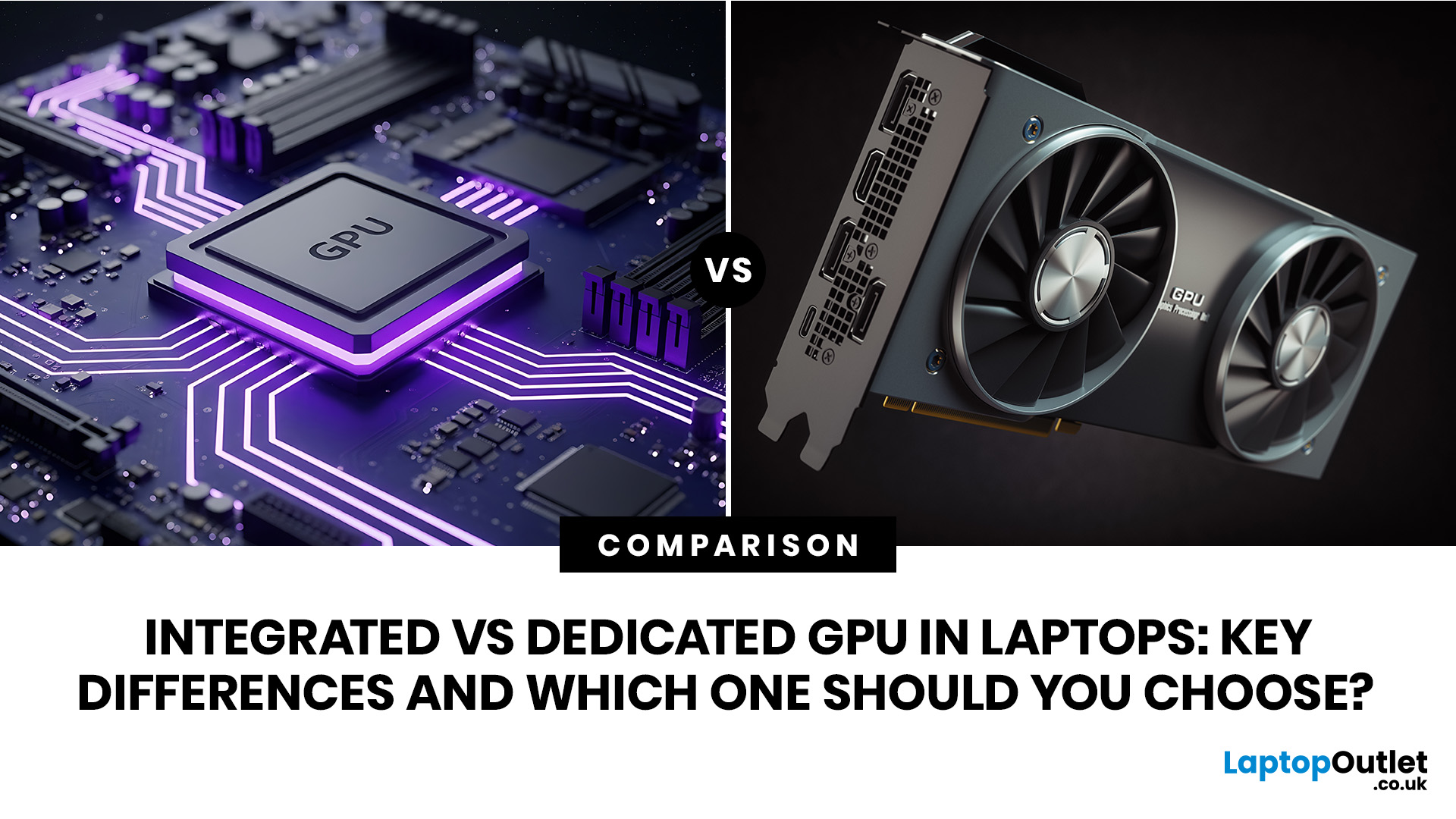
An integrated vs dedicated GPU laptop decision comes down to one simple question: do you need strong graphics performance every day, or do you mostly need a cooler, lighter, longer-lasting laptop for normal work?
For everyday browsing, office work, video calls, streaming, study and light photo editing, integrated graphics are usually enough. For serious gaming, 3D work, video editing, CAD, AI workloads or high-refresh creative work, a laptop with dedicated graphics card hardware is usually the better option.
Quick answer: Integrated vs dedicated GPU explained
Integrated graphics are built into the processor sharing, system memory. They are efficient, affordable and good for everyday laptop use.
A dedicated GPU is a separate graphics processor with its
Last Updated: June 24, 2026
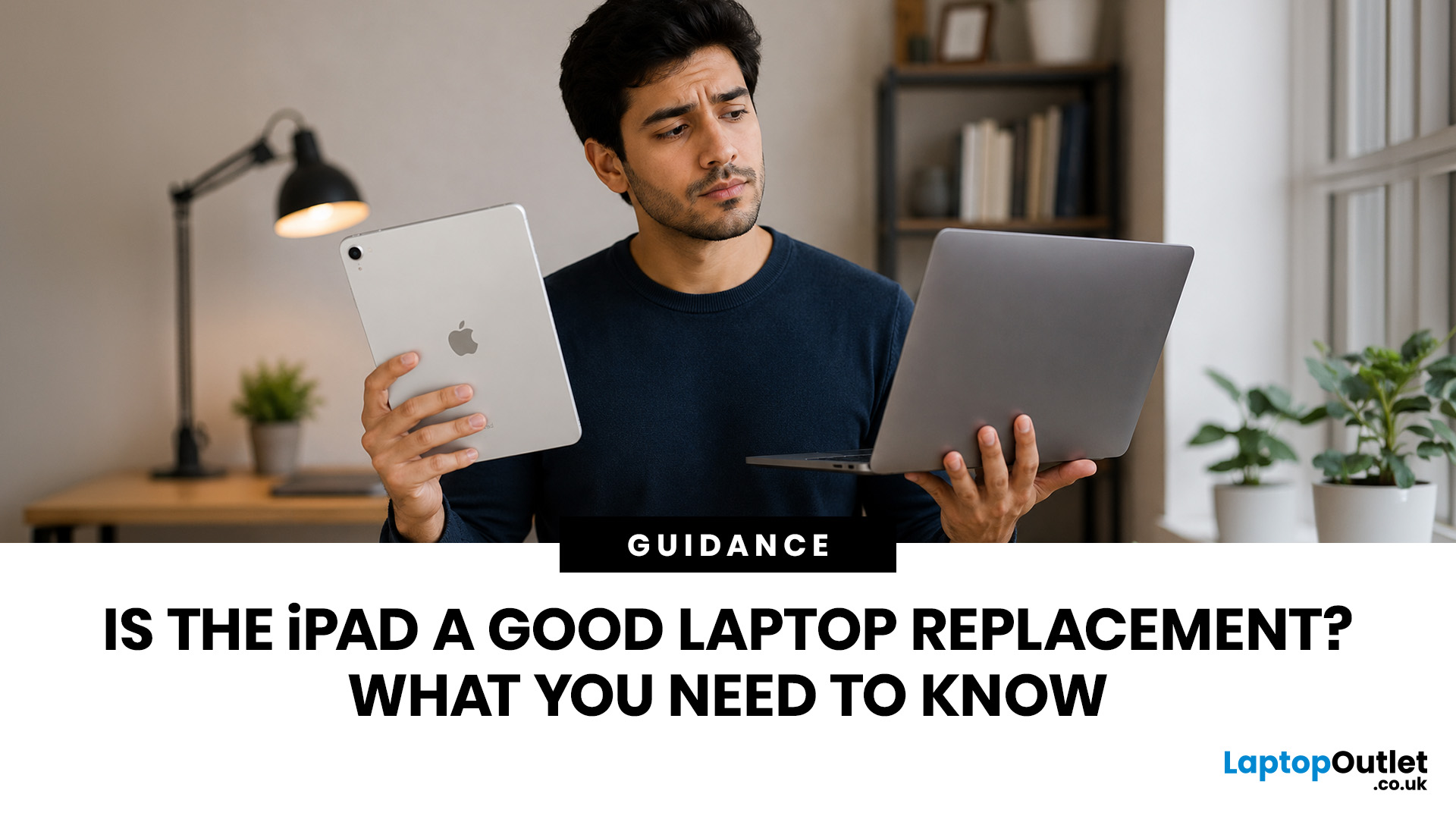
Yes, an iPad can replace a laptop for browsing, emails, documents, video calls, note-taking, and other everyday tasks, especially with a keyboard and accessories. However, laptops remain better for desktop software, coding, advanced spreadsheets and demanding professional workflows. For many users, an iPad is a laptop alternative.
The iPad has evolved from a simple entertainment device into a powerful tool for work, study, and creativity. With support for keyboards, Apple Pencil, multitasking features, and productivity apps, many people now consider it a genuine alternative to a traditional laptop. Whether you are a student, remote worker, creative professional, or frequent traveller, an iPad may be able to handle most of your daily tasks. However, it is not the right choice for everyone. This guide explores the benefits, limitations, and key considerations to help you decide if an iPad can truly replace your laptop.
iPad Laptop Replacement Short Comparison
| TASK | CAN AN IPAD REPLACE A LAPTOP? |
|---|

Last Updated: September 03, 2026
Buying an HP gaming laptop in 2026 can feel like being asked to pick between “save money now” and “avoid regret later.”
Choose HP Victus if you want the best price-to-performance balance for esports, coursework, everyday use, and casual AAA gaming. Choose HP OMEN if you want higher frame rates, better display quality, stronger cooling, and a laptop that feels ready for heavier games over the next few years.
The HP Victus gaming laptop is the value pick: more affordable, more student-friendly, and solid for 1080p gaming. The HP OMEN gaming laptop is the performance pick: stronger cooling, better displays, higher-end GPUs, and more headroom for AAA games, streaming, and long-term use.
So, which one should you actually buy?
HP OMEN vs HP Victus: The Simple Difference
HP uses Victus and OMEN for different types of gamers.
The HP Victus gaming laptop is built for mainstream buyers who want a proper gaming laptop without paying premium money. It usually targets 1080p gaming, 144Hz displays, and

Last Updated: September 03, 2026
Yes, the Medion Erazer Recon P45 is a good gaming PC for players who want smooth everyday gaming, strong 1080p performance, fast loading times and a ready-to-use desktop without building a PC from scratch.
At Laptop Outlet, current Medion Erazer Recon P45 Gaming PC options include configurations with an AMD Ryzen 5 5500, 1TB SSD, Windows 11 Home, and dedicated NVIDIA RTX graphics, including RTX 5060 and RTX 5050 variants. The RTX 5060 model also includes 32GB RAM in the listed specification, while the RTX 5050 model is listed with 16GB RAM.
Is the Medion Erazer Recon P45 Worth it?
For most UK gamers, the Medion Recon P45 PC makes sense if you want a capable prebuilt gaming desktop that can handle modern games, multitasking, streaming, schoolwork, everyday browsing, and entertainment. It is especially suitable for:
| User Type | Is it a Good Fit? | Why |
| Beginner gamers | Yes | No PC-building knowledge needed |
| 1080p players | Yes | RTX graphics and Ryzen 5 power are well matched |
| Students | Yes | Good for gaming, |
Last Updated: September 03, 2026
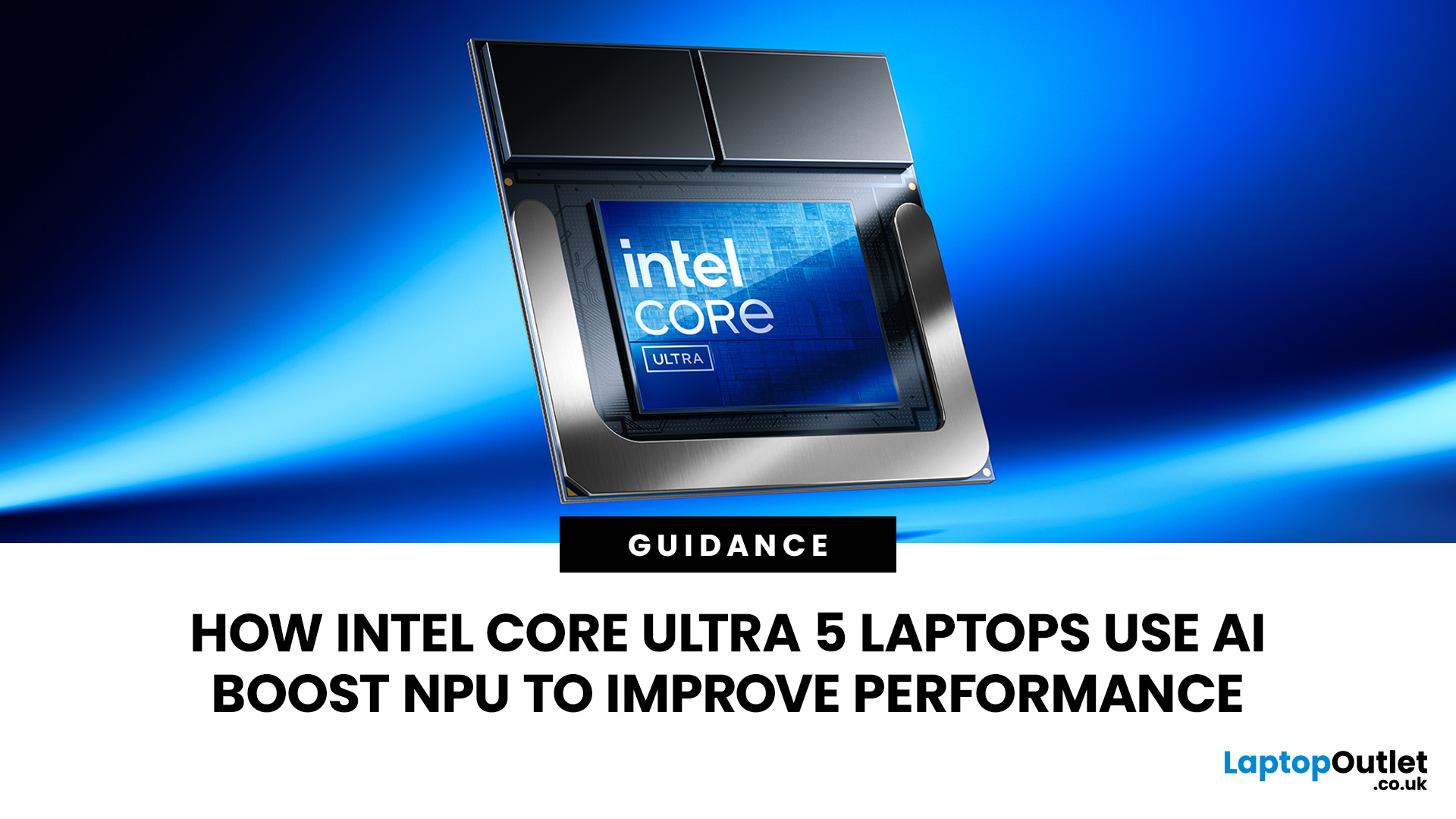
AI is no longer limited to the cloud or research labs. It’s now built into everyday laptops, powering features like clearer video calls, live captions, and smarter editing tools. At the heart of this is the intel core ultra 5 NPU, a dedicated AI engine within the processor that handles machine-learning tasks efficiently. An intel core ultra 5 processor combines CPU, GPU, and NPU, allowing each task to run on the most suitable hardware. This setup improves multitasking and efficiency, though benefits depend on software support and the specific processor model.
What is Intel AI Boost NPU in Core Ultra 5 Laptops?
Intel AI Boost is the name Intel uses for the neural processing hardware integrated into supported Core Ultra processors. It is designed to process AI inference workloads efficiently, particularly tasks that run continuously or repeatedly in the background.
The AI boost NPU complements the CPU and GPU rather than replacing them. It becomes a low-power engine for longer-running AI
Last Updated: September 08, 2026
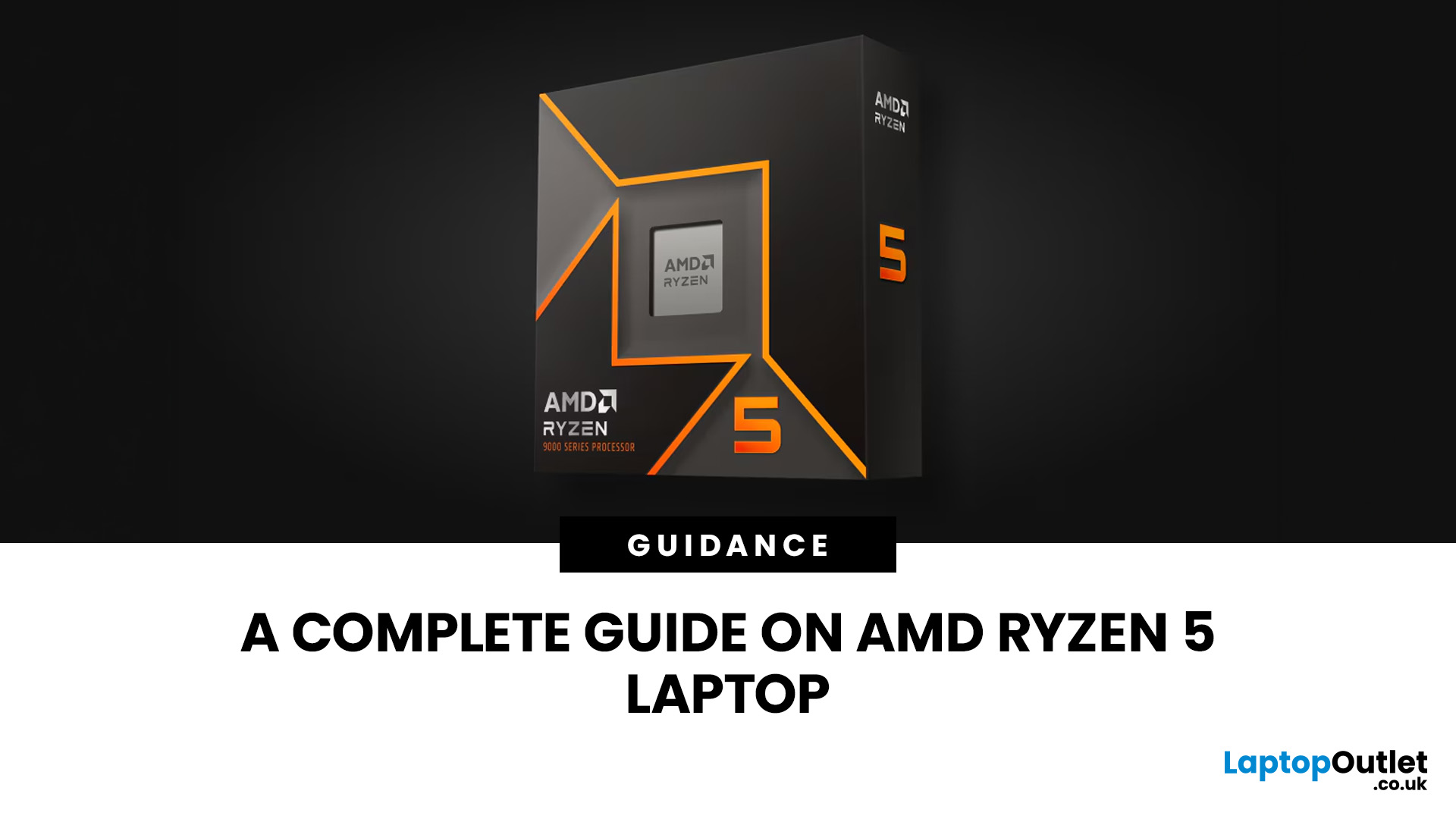
Two laptops can both say AMD Ryzen 5 on the specification sheet and still be built for very different jobs. One may prioritise battery efficiency and portability, while another is designed to sustain more performance for gaming, coding or creative work.
That is why choosing an AMD Ryzen 5 laptop in 2026 means looking beyond the tier name. AMD currently spans several mobile naming families, from Ryzen 7000 and 8000 to newer Ryzen 100, Ryzen 200 and Ryzen AI ranges. The exact processor, power class, memory, graphics, storage and laptop design all influence the experience.
This guide explains how to read those specifications, avoid misleading shortcuts and match the complete configuration to the way you actually use your laptop.
Quick Answer: How to Choose a Ryzen 5 Laptop
For most buyers, the right Ryzen 5 laptop is the one with a balanced specification rather than simply the largest processor number. Start with your main workload, then check the full CPU name, RAM, storage, graphics, display

