



How to Take a Screenshot on an Acer Laptop: 7 Easy Step-by-Step Methods
For most Windows models, press Windows + Shift + S to capture a selected area or Windows + PrtSc to save the full screen automatically. Acer Chromebooks use different ChromeOS shortcuts, covered in Method 7.
The correct method varies because Acer keyboards do not all share one layout. The Print Screen key may appear as PrtSc, PrtScn or Print Scr, share a key with Insert, or be absent on compact models. This guide explains how to take a screenshot on an Acer laptop without relying on one keyboard layout.
Where Is the Screenshot Key on an Acer Laptop?
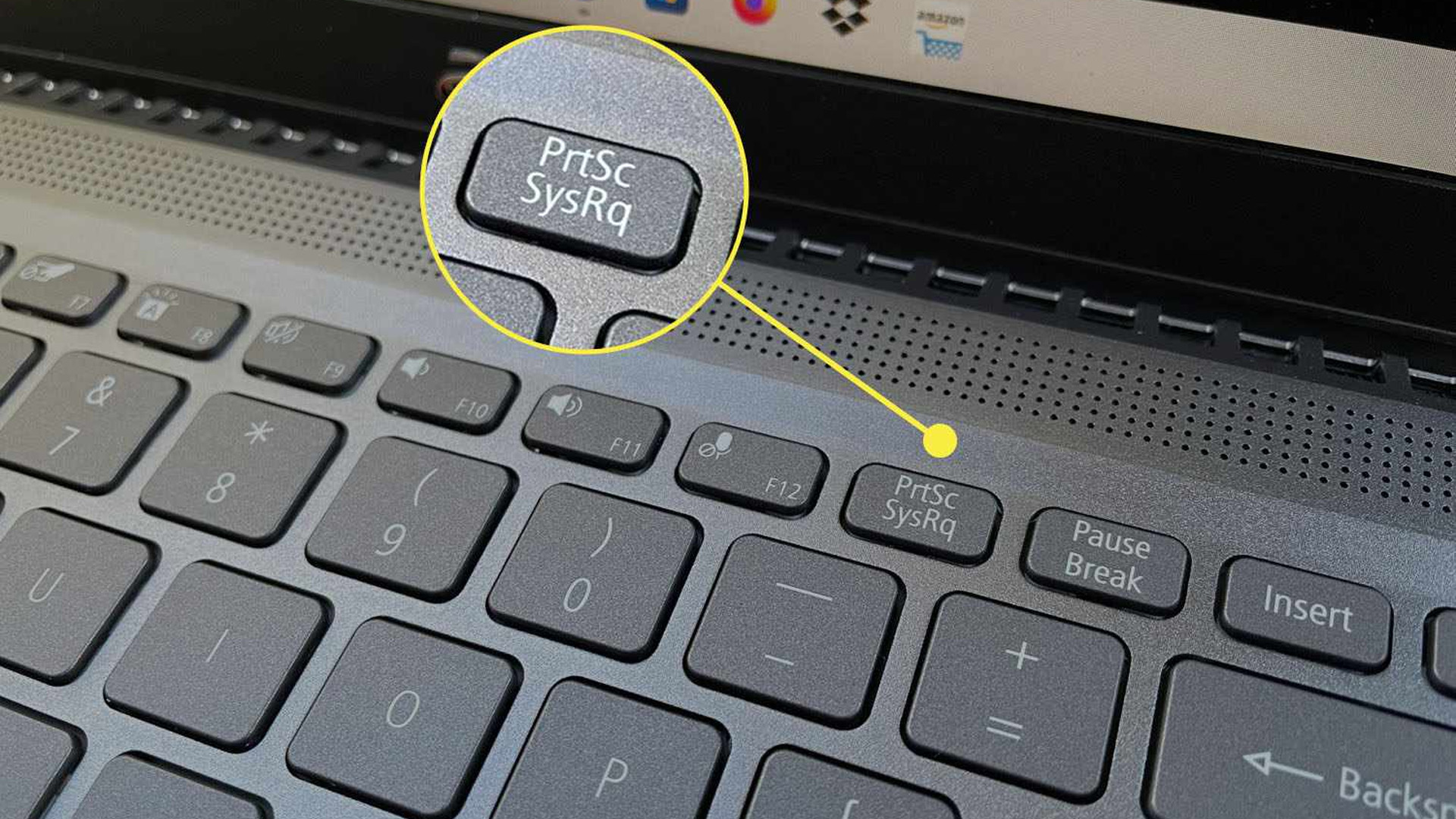
The screenshot key on Acer laptop keyboards usually sits near the upper-right corner, close to Delete, Insert or the function-key row. Look for PrtSc, PrtScn, Prt Scr or a similar label.
If the label is printed as a secondary function, hold Fn while pressing it. The combination differs between Aspire, Swift, Spin, Nitro, Predator and TravelMate keyboards, so check the symbols on your model rather than assuming every Acer laptop screenshot key is identical.
Some Acer laptops, including certain Aspire Lite models, have no dedicated Print Screen key. Acer recommends Windows + Shift + S as the alternative, so a missing screenshot key on Acer laptop models does not prevent screen capture.
These varied layouts reflect some of the design and performance differences that make Acer laptops unique across everyday, business and gaming ranges.
Method 1: Use Windows + Shift + S
This is the best all-round method for taking a screenshot on Acer laptop models running Windows 11 or Windows 10. It is also the most reliable Acer laptop screenshot shortcut when the keyboard has no dedicated Print Screen button.
- Open the page, document or application you want to capture.
- Press Windows + Shift + S together.
- When the screen dims, choose Rectangular, Freeform, Window or Full-screen mode.
- Select the required area.
- Click the notification to crop, annotate, copy or save the image.
This shortcut opens the Snipping Tool overlay and supports four image-capture modes. Current Windows 11 versions can also save Snipping Tool captures automatically to the Screenshots folder, depending on the app settings.
Use this method for an error message, part of a webpage or one specific application. It is often the quickest answer when someone asks how to SS on an Acer laptop without capturing everything else on the display.
Method 2: Open the Snipping Tool App
Opening the full Snipping Tool on an Acer laptop gives more control than the shortcut alone. The Snipping Tool Acer users receive with Windows is particularly helpful for delayed screenshots, annotations and precise framing.
- Select Start and type Snipping Tool.
- Open the application.
- Choose a capture mode.
- Select Delay if you need time to open a menu or tooltip.
- Click New and capture the required area.
- Crop, highlight, draw, copy or save the result.
The current tool supports delayed captures, editing, cropping and text actions. On supported Windows 11 systems, text actions can copy recognised text or quickly redact visible email addresses and phone numbers.
This method suits users of latest Acer business laptops who create instructions, document software issues, or share marked-up images with colleagues.
Method 3: Press the Print Screen Key
The traditional Acer laptop Print Screen method captures the entire visible display.
- Arrange the screen as required.
- Press PrtSc, PrtScn or Print Screen.
- Open Paint, Word, Outlook or another compatible app.
- Press Ctrl + V to paste the screenshot.
- Save the file if needed.
You may need Fn + PrtSc when Print Screen is a secondary key function. Traditionally, pressing PrtSc copies the full display to the clipboard rather than immediately creating an image file. The label may vary between keyboards.
On current Windows 11 installations, PrtSc may open screen snipping instead. To change this behaviour, go to Settings > Accessibility > Keyboard and adjust Use the Print Screen button to open screen snipping.
Choose this method when you want to take a picture on an Acer laptop screen and paste it straight into a document, email or editor.
Method 4: Press Windows + Print Screen
Use Windows + PrtSc when you need a complete screenshot saved automatically. For a full screenshot on Acer laptop devices, this is faster than pasting the image into Paint manually.
- Display the content you want to capture.
- Press Windows + PrtSc.
- If PrtSc is a secondary function, try Windows + Fn + PrtSc.
- Open File Explorer.
- Go to Pictures > Screenshots.
Windows + PrtSc is the standard full-screen saving shortcut, and the usual destination is Pictures > Screenshots. If a device has no PrtSc key, Fn + Windows + Spacebar may work as a hardware-dependent alternative.
This option is useful when taking several screenshots in sequence because each capture becomes a separate file. For a new machine, the Acer laptop deals page includes models with different keyboard sizes and layouts, so check product images when a dedicated screenshot key matters to you.
Method 5: Capture One Window with Alt + Print Screen
Alt + PrtSc captures only the active window, excluding the taskbar, wallpaper and other applications.
- Click the window you want to capture.
- Press Alt + PrtSc.
- Add Fn if Print Screen is a secondary function.
- Open Paint, Word or another suitable app.
- Press Ctrl + V, then save or share the image.
This Acer keyboard screenshot method copies the active window to the clipboard. It is useful when you want a clean image of one programme without exposing other open tabs or desktop content.
If the Acer laptop screenshot key combination does not respond, press Windows + Shift + S and select Window mode. It produces a similarly clean capture without relying on a physical screenshot key.
Method 6: Take a Gaming Screenshot with Xbox Game Bar
Xbox Game Bar can capture supported Windows games and applications while keeping gaming images in a separate folder.
- Open the game or supported application.
- Press Windows + G.
- Find the Capture widget.
- Select the camera icon.
- Alternatively, press Windows + Alt + PrtSc.
- Open the Gallery widget or check Videos > Captures.
Game Bar is available on Windows 11 and Windows 10, although it may need enabling or updating. Protected content can produce a blank capture, and some games may restrict shortcuts. Check Game Bar settings and updates when capture controls fail.
A mouse or external keyboard can make repeated gaming captures more convenient. Some affordable laptop peripherals also include programmable controls that can be assigned to common shortcuts, making them some of the best accessories for Acer laptops used for gaming or content creation.
Method 7: How Do You Screenshot on an Acer Chromebook?
Acer ChromeOS laptops use the Show windows key instead of Windows Print Screen shortcuts. Its icon normally resembles a rectangle with two lines beside it.
For a full-screen capture:
- Press Ctrl + Show windows.
- Wait for the confirmation.
- Open the Files app to find the image.
For a partial screenshot:
- Press Shift + Ctrl + Show windows.
- Choose Screenshot from the toolbar.
- Select partial capture.
- Drag over the required area and choose Capture.
You can also open Quick Settings in the lower-right corner and select Screen capture. If the Chromebook has a dedicated Screenshot key, press it to open the capture tool. Screenshots are automatically copied to the clipboard.
In tablet mode, press Power + Volume down. With an external keyboard that lacks a Show windows key, use Ctrl + Shift + F5 to open Screen Capture.
Many of the same update, restart and input-device checks also apply to general Surface laptop maintenance and troubleshooting, particularly when Windows shortcuts stop responding.
Where Are Screenshots Saved?
The destination depends on the method:
|
Method |
Usual location |
|
Windows + Shift + S |
Clipboard and, with auto-save enabled, Pictures > Screenshots |
|
Snipping Tool |
Pictures > Screenshots or a chosen folder |
|
PrtSc |
Clipboard until pasted |
|
Windows + PrtSc |
Pictures > Screenshots |
|
Alt + PrtSc |
Clipboard until pasted |
|
Xbox Game Bar |
Videos > Captures |
|
Acer Chromebook |
The ChromeOS screenshot folder shown in Files |
If you cannot find a screenshot, search File Explorer for Screenshot. Also check OneDrive > Pictures > Screenshots when OneDrive is backing up your Pictures folder.
What If the Acer Screenshot Shortcut Is Not Working?
If you are asking, “Why can’t I take a screenshot on my Acer laptop?”, first don’t stressed out and press all shortcut keys together. Add Fn if PrtSc shares another function, and check whether Windows has reassigned Print Screen to the Snipping Tool.
When the Acer laptop keyboard is not working properly, open Start, search for On-Screen Keyboard, and use the mouse to select the required keys. Restart the laptop and install pending Windows, Acer utility and keyboard-driver updates if shortcuts remain unresponsive.
Test Windows + Shift + S because it does not require a dedicated Print Screen key. If the physical keyboard is damaged, an external keyboard provides a quick temporary solution. Avoid unknown screenshot extensions when Windows and ChromeOS already include built-in capture tools.
If cursor control is also unreliable, these Acer touchpads troubleshooting steps can help restore normal navigation before you try the screenshot process again.
Which Acer Screenshot Method Is Best?
Use Windows + Shift + S for most tasks because it works with or without PrtSc. Choose Windows + PrtSc for an automatically saved screenshot on Acer laptop devices, Alt + PrtSc for one application window and Xbox Game Bar for gameplay.
Chromebook users should press Ctrl + Show windows for the full display or Shift + Ctrl + Show windows for a selected area.

Final Thoughts
There are seven easy ways to take a screenshot with Acer laptop hardware, and none requires paid software. Windows + Shift + S is the most versatile choice, while Windows + PrtSc is best for saving the entire display immediately. ChromeOS users have equally simple full-screen and partial-capture shortcuts.
Because Acer keyboard layouts differ, look for PrtSc as a main or secondary function and add Fn where necessary. Once the correct combination becomes familiar, taking a screenshot on Acer laptop devices is a quick way to save information, report a problem or securely share what appears on screen. The wider shop Acer products range can also help when matching an Acer laptop with compatible accessories.
| Read More: |
| Acer Touchpad Not Working? Easy Fixes That Actually Work |
| Surface Laptop Maintenance, Optimisation & Troubleshooting |
| What Makes Acer Laptops Unique? Design, Performance & Value |
Related Articles

Last Updated: September 02, 2026
Looking beyond the MacBook Pro in 2026? This guide explores the best high-performance laptop alternatives for creators, developers, designers, and power users who want premium speed, displays, battery life, and value without being locked into Apple’s ecosystem.
If you're searching for the best MacBook Pro alternatives 2026 has to offer, you're not alone. Apple's flagship laptop remains one of the most impressive machines on the market, but it comes at a significant cost, and it isn't the right fit for everyone. Whether you're moving from macOS to Windows, exploring a different ecosystem, or simply want to know your options before spending over £1,500, this guide is for you.
Why Look for MacBook Pro Alternatives in 2026?
Apple's engineering is exceptional, but there are compelling reasons why even dedicated Mac users are reconsidering their options.
Price
The MacBook Pro starts at well over £1,500 in the UK. For many buyers, particularly students, freelancers, and small business owners,

Published: June 04, 2026
Big-screen laptops are becoming essential for UK buyers who want more workspace, stronger performance and immersive entertainment in one device. This 2026 guide compares 16-inch, 17-inch and larger laptops for work, gaming, study and creativity, helping you choose the right model for productivity, portability, battery life and long-term value today.
A larger display gives you more room for spreadsheets, timelines, browser tabs, creative apps, coding windows, and immersive games. Whether you are comparing laptops and notebooks, upgrading your work-from-home setup or searching for a capable gaming machine, large screen laptops now offer a much better balance of performance, display quality and portability than older bulky models.
Why Big Screen Laptops are More Popular Than Ever in 2026
Big-screen laptops are having a strong moment because people expect more from one device. A laptop is no longer used only for emails and web browsing. It may now need to handle video calls, AI meeting notes,
Published: June 04, 2026
Gaming laptops are built to push frames, load heavy worlds, and keep up with long sessions. But when temperatures climb, performance can take a hit. That is where the right cooling setup matters.
A gaming laptop cooling pad can help improve airflow around your laptop, raise it into a better position, and reduce heat build-up during long gaming sessions. For more advanced setups, PC builders may also look at liquid coolers, CPU coolers, and performance cooling fans to keep gaming rigs running cooler and more consistently.
In this guide, we break down the Best laptop cooling pads UK shoppers should look for in 2026, what features actually matter, and the top cooling picks to upgrade your gaming space.
Why Laptop Cooling Matters for Gaming
Gaming pushes your laptop harder than everyday browsing or streaming. The CPU and GPU work together to deliver smooth frame rates, detailed graphics, and fast response times. More power means more heat.
When your laptop gets too hot, it may reduce performance

Last Updated: October 12, 2026
Last Updated: June 11, 2026
A laptop power bank is not the same as a phone power bank. A charger may look powerful because it has 20,000mAh or 30,000mAh capacity, but that does not automatically mean it can charge your laptop properly.
| The best laptop power banks in 2026 are USB-C PD models that match your laptop’s wattage. For most users, 65W is enough, while MacBook Pro and creator laptops may need 100W to 140W. Choose at least 20,000mAh for backup power and check the Wh rating before flying. |
For laptops, the most important detail is output wattage. A small phone power bank may only deliver 18W or 22.5W, while many laptops need 45W, 65W, 100W, or more to charge efficiently. That is why choosing the best power bank for laptops is less about picking the biggest number on the box and more about matching the power bank to your laptop’s real charging needs.
In this guide, we explain how to choose a laptop power bank for work, study, commuting, business travel, and everyday use. We will cover wattage, battery capacity,
Last Updated: June 18, 2026
For most buyers in 2026, the best laptop specs are a modern Intel Core Ultra 5/7 or AMD Ryzen AI 5/7 processor, 16GB RAM, 512GB SSD storage, and integrated graphics. Choose 32GB RAM, 1TB storage, and a dedicated GPU if you edit videos, create content, play demanding games, or use professional software.
Buying a new laptop in 2026 can feel confusing, especially when every product page is packed with technical words, numbers, and abbreviations. This processors & specs explained guide breaks everything down in plain English so you can understand what matters before you spend your money.
For most buyers, the four most important laptop components are the CPU, RAM, GPU, and storage. Once you understand these, it becomes much easier to compare models, avoid overspending, and choose a laptop that actually suits your daily needs.
What are Laptop Specs and Why Do They Matter?
Understanding laptop specifications becomes important. Specs affect:
- How fast your laptop feels when opening apps.
- How many
Last Updated: July 09, 2026
Choosing a laptop CPU should not feel like decoding a boss fight.
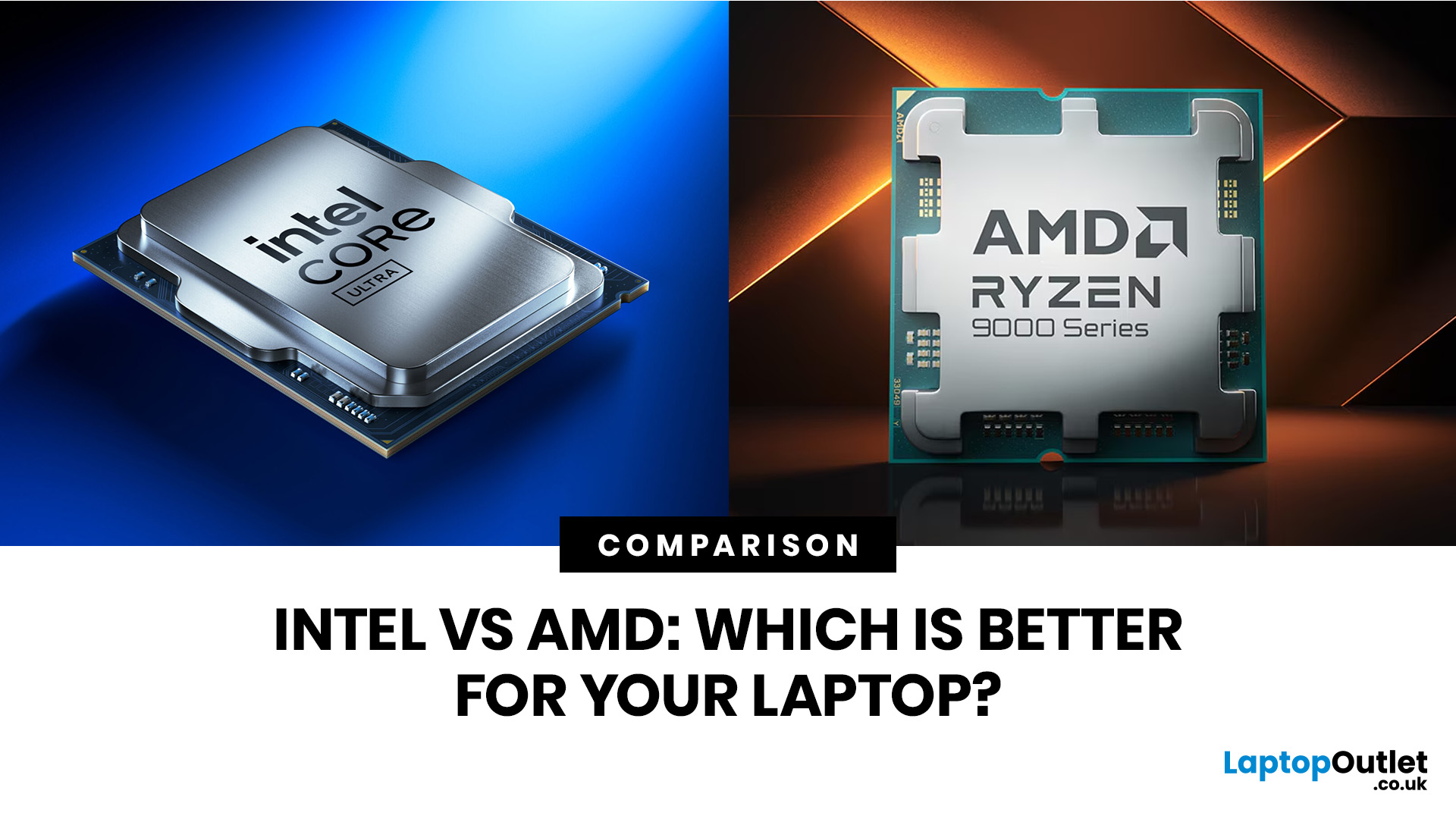
You open five tabs, see terms like Core Ultra, Ryzen AI, Core i7, Ryzen 7, NPU TOPS, HX, U-series, integrated graphics, and suddenly the simple question - AMD or Intel for laptop? - becomes way more stressful than it should be.
This guide breaks down the Intel vs AMD laptop 2026 debate in plain English. You will learn how AMD Ryzen vs Intel laptop performance compares, which processor types in laptops actually matter, when Intel is the smarter buy, when Ryzen gives better value, and which in-stock Laptop Outlet models are
Last Updated: June 30, 2026
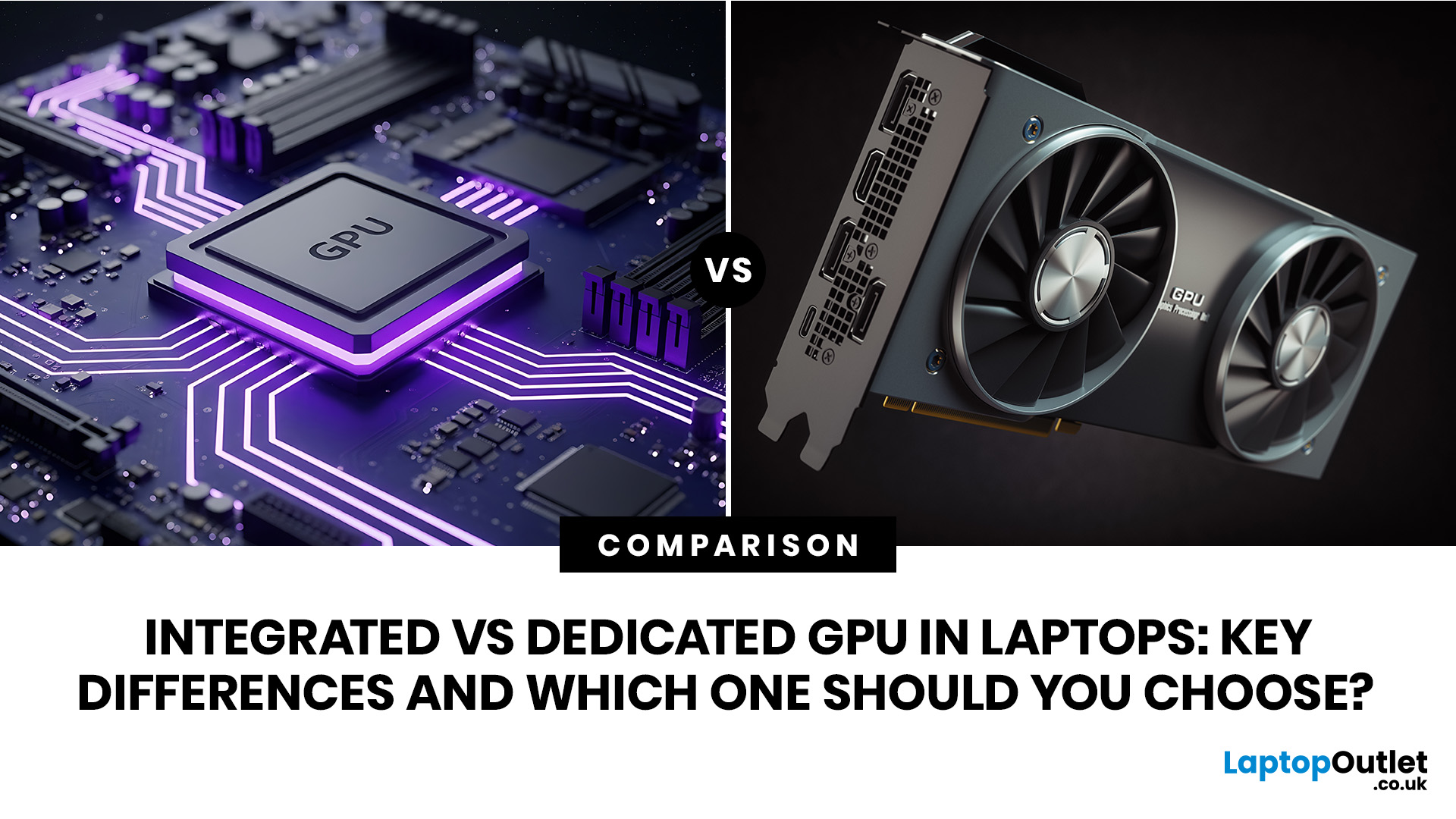
An integrated vs dedicated GPU laptop decision comes down to one simple question: do you need strong graphics performance every day, or do you mostly need a cooler, lighter, longer-lasting laptop for normal work?
For everyday browsing, office work, video calls, streaming, study and light photo editing, integrated graphics are usually enough. For serious gaming, 3D work, video editing, CAD, AI workloads or high-refresh creative work, a laptop with dedicated graphics card hardware is usually the better option.
Quick answer: Integrated vs dedicated GPU explained
Integrated graphics are built into the processor sharing, system memory. They are efficient, affordable and good for everyday laptop use.
A dedicated GPU is a separate graphics processor with its
Last Updated: July 21, 2026
Using your laptop in public is normal now. Cafés, trains, airports, libraries, lecture halls, shared offices, the laptop comes everywhere. But if the person sitting next to you can casually read your emails, bank details, work chats or assignments, that is not exactly ideal.
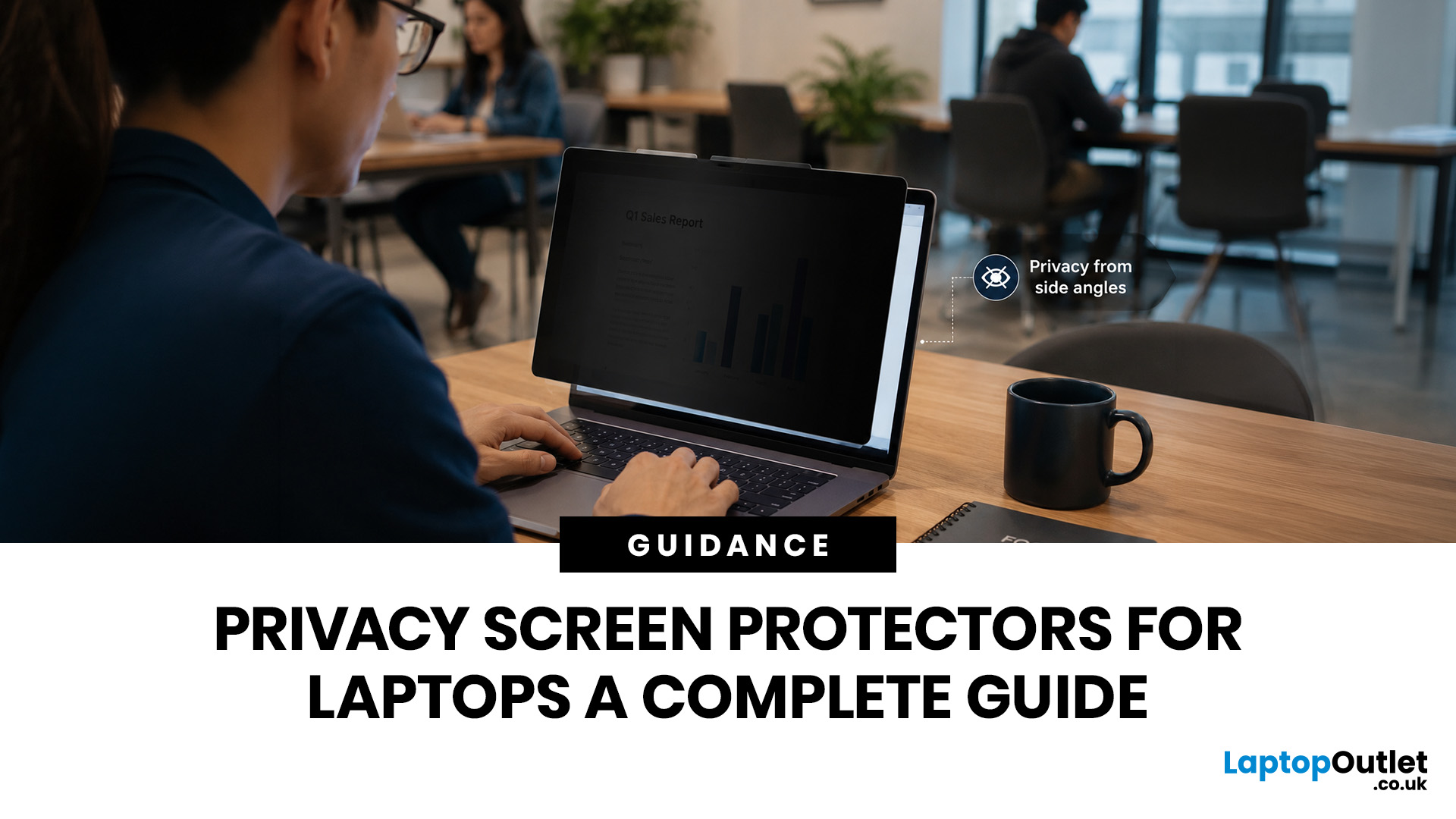
That is where privacy screen protectors laptops come in. Whether you are a student, business user, commuter or hybrid worker, this guide explains how privacy screens work, their benefits, disadvantages, types and whether they are actually worth buying.
How Does a Privacy Screen Protector Work?
Most laptop privacy screens use tiny vertical filter layers, often called micro-louvres. These work a bit like blinds. When you look at the laptop straight on, you can see the display clearly. When someone looks from the side, the filter blocks the view.
This is also how laptops and notebooks privacy screens work in everyday spaces. If you are working on a train, someone sitting beside you should find it much harder to read your
Last Updated: July 22, 2026

