



Lenovo Gaming Laptop Overheating? Fixes & Cooling Tips to Reduce Heat
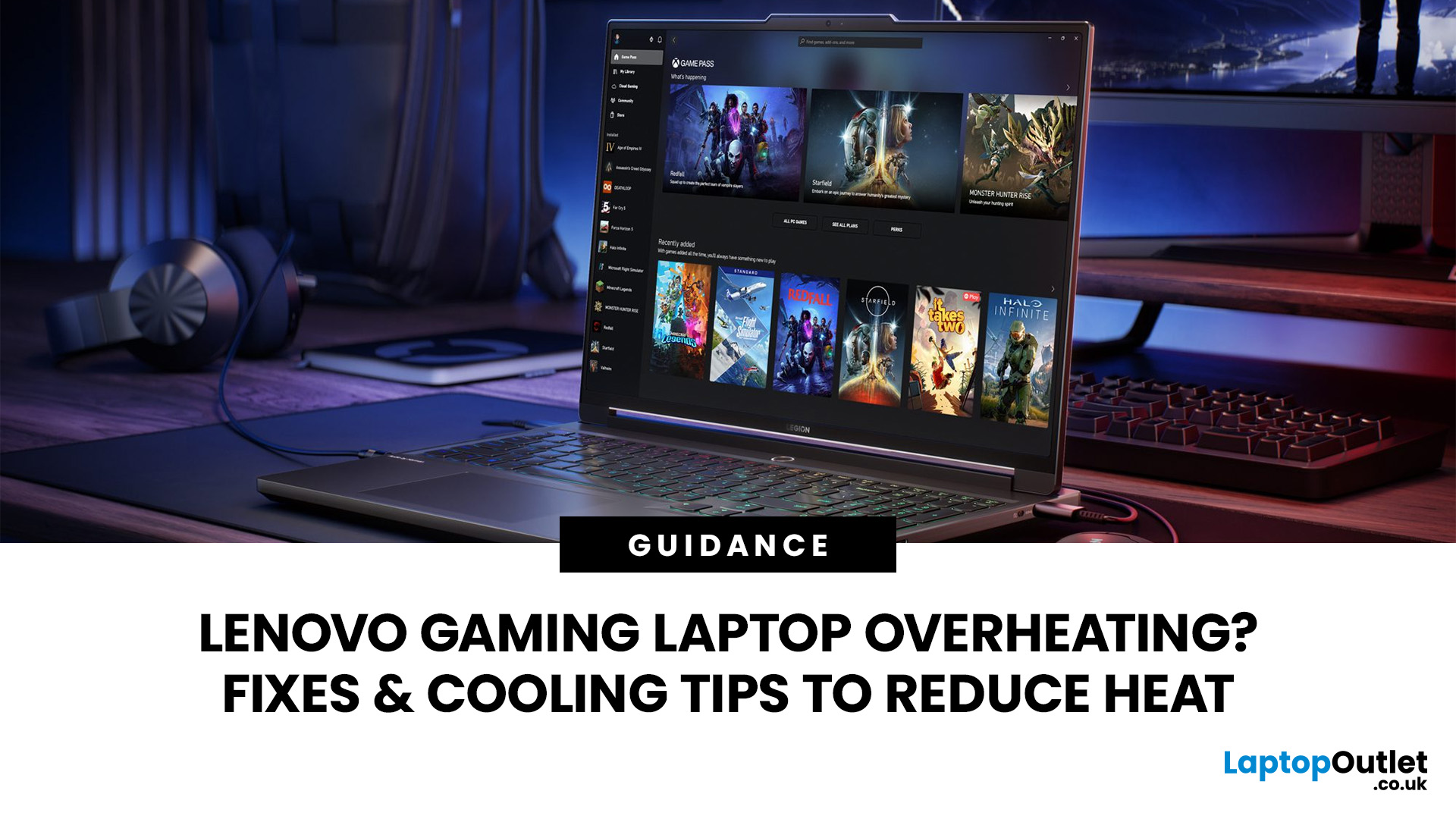
Lenovo laptop overheating is usually caused by blocked vents, dust, demanding games, background apps, unsuitable performance settings, outdated firmware or a worn cooling component. Improve airflow, clean external vents safely, check Lenovo Vantage modes, install approved updates, reduce unnecessary load and monitor temperatures. Persistent throttling, shutdowns or faulty fans require professional diagnosis.
A gaming laptop will feel warm and its fans will become audible under load. That does not automatically mean it is overheating. The warning signs are sustained temperatures near the hardware limit, repeated frame-rate drops, severe fan noise, keyboard hot spots, crashes or unexpected shutdowns. This guide explains how to diagnose Lenovo laptop overheating and apply safe fixes.
Is Your Laptop Actually Overheating or Running Normally?
Gaming laptops run hotter than everyday notebooks because powerful components share a compact cooling system. A hot exhaust area, a warm keyboard and faster fans during gaming do not automatically indicate a Lenovo laptop temperature issue.
Use the following figures as practical estimates, not universal limits:
|
Usage |
Typical CPU reading |
Typical GPU reading |
What it suggests |
|
Idle or light work |
About 40°C to 65°C |
About 35°C to 55°C |
Usually normal, depending on room temperature |
|
Demanding gaming |
About 70°C to 90°C |
About 65°C to 85°C |
Common under sustained load |
|
Warning signs |
Sustained readings near the CPU’s specified maximum |
Sustained readings near the GPU’s thermal limit |
Lenovo thermal throttling, blocked airflow or cooling faults |
Brief CPU peaks into the low or mid-90s may occur on some high-performance models. What matters more is whether temperatures remain near the component’s maximum, performance repeatedly falls, or the laptop shuts down.
Intel and AMD both explain that processors reduce power or performance at their specified thermal limits, but the exact limit differs by chip. Compare temperatures using the same game, settings and room conditions. Cooling behaviour differs across the top Lenovo laptop range because chassis size, power limits and fan design vary.
What Causes Lenovo Gaming Laptop Overheating?
When Lenovo laptop overheating appears, the cause is usually restricted airflow, sustained load or cooling hardware that can no longer remove heat effectively. Identify the cause before changing settings.
Dust Blocking Fans and Air Vents
Dust and fibres collect around vents, fan blades and heatsink fins, reducing airflow and trapping heat. Lenovo advises clearing ventilation areas with compressed air while the computer is switched off.
High CPU and GPU Usage During Gaming
Games can load the CPU and dedicated GPU together. High frame rates, ray tracing, high resolution and uncapped menus increase power and heat, especially when cooling capacity is already limited.
Poor Airflow Around the Laptop
Bottom intakes need open space. Beds, sofas and blankets can seal them, while a rear exhaust placed close to a wall may recirculate hot air. Lenovo recommends a flat, hard surface.
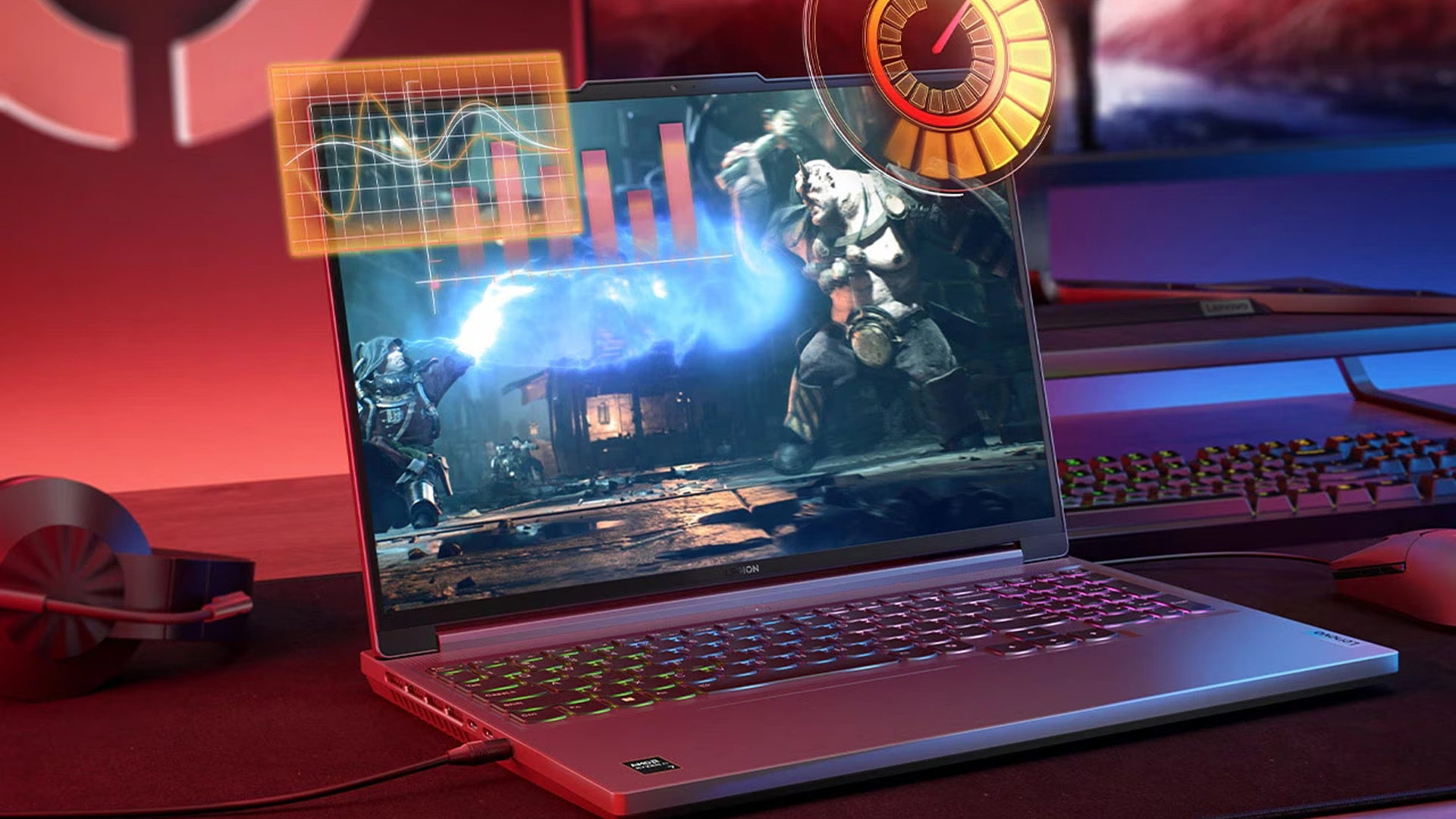
Background Apps Consuming System Resources
Launchers, browser tabs, recording tools, cloud syncing and updates can keep the processor active. Windows confirms that background apps use additional power, while Lenovo recommends Task Manager for identifying high CPU usage.
Outdated BIOS, Drivers or Firmware
Outdated BIOS, embedded-controller firmware or system drivers can sometimes disrupt fan control, power limits and thermal behaviour. Graphics and chipset drivers may affect component load, clock speeds and power use.
Ageing Thermal Paste
Thermal material transfers heat from a chip to its heatsink. Years of heat cycles, poor application or earlier repair work can reduce contact, particularly on an older, heavily used machine.
High Room Temperature
A warm room can make the laptop run hotter because its cooling system draws in surrounding air. Lenovo notes that fan noise may increase when the room temperature exceeds 30°C.
Faulty or Worn Cooling Fans
A damaged bearing, loose connector or obstruction can make a fan rattle, slow down or stop. The Lenovo gaming laptop fan should respond to workload, so silence under heavy gaming needs investigation.
The latest gaming laptops from Lenovo may use advanced thermal modules, but still depend on clear vents, working fans and correct power control.
How to Fix Lenovo Gaming Laptop Overheating
The safest Lenovo laptop overheating fix is a staged process. Start with airflow and software checks, then move to internal servicing only when evidence supports it.
Clean Dust from Fans and Air Vents
Shut down the laptop, unplug it and let it cool. Use short bursts of compressed air across the external intakes and exhausts. To clean laptop air vents, do not insert metal objects or push debris deeper inside.
If airflow remains weak, internal cleaning may be needed. Use the Hardware Maintenance Manual or self-repair guide for the exact machine type. Choose an authorised technician if you are unsure about the battery, fan cables or thermal module.
Optimise Lenovo Vantage Performance Modes
Open Lenovo Vantage or the Lenovo control application supplied with your model and check the available operating modes. On many supported Legion and LOQ laptops, Fn + Q cycles between the available modes.
Balance Mode suits many games because supported models can adjust power dynamically. Performance Mode raises power and fan speed, which can increase heat and noise. Mode names vary by model. Use only options provided for your device.
Update BIOS, Windows and Graphics Drivers
In Lenovo Vantage, open System Update and check approved BIOS, firmware and drivers. Also install relevant Windows updates and the correct official graphics driver.
Keep the charger connected during a BIOS update and never interrupt the process. If a Lenovo BIOS update problem appears, such as a failed installation or a system that no longer starts correctly, stop repeating the update and contact Lenovo support.
Close Background Applications
Open Task Manager with Ctrl + Shift + Esc and sort Processes by CPU, GPU and Power usage. Close recognised applications you do not need and disable unnecessary Startup apps.
Do not end unfamiliar Windows or security processes. If idle usage stays high, run a malware scan and allow pending updates to finish.
Lower In-Game Graphics Settings
Reduce demanding options such as ray tracing, resolution, shadows and view distance. Limiting the frame rate can reduce GPU load when the system is rendering more frames than the display can show.
Change a few settings at a time. Aim for stable performance rather than automatically choosing the lowest preset.
Adjust Windows Power Settings
Go to Settings > System > Power & battery > Power mode and try Balanced instead of Best performance. Microsoft and Lenovo confirm that power modes affect energy use, performance, fan speed and temperature.
Replace Thermal Paste If Needed
A laptop thermal paste replacement may help an older machine that stays hot after cleaning while both fans work. However, thermal modules may cover several components and use pads or specialised compounds.
Incorrect disassembly, mounting pressure or material can worsen temperatures. Follow our step-by-step guide or use professional service, particularly for an in-warranty laptop or complex vapour chamber.
Best Cooling Tips While Gaming
Once the cooling system works correctly, these habits can reduce Lenovo laptop overheating, limit heat build-up and support consistent performance.
Use a Laptop Cooling Pad
A gaming laptop cooling pad can improve airflow when its fans align with the lower intakes. Results vary by chassis and room temperature. It cannot repair blocked heatsink fins, dried paste or a failed internal fan.
Raise the Rear of the Laptop
A stable stand or small rear lift creates more space beneath the intake. Ensure the support does not cover vents or allow the laptop to slide.
Keep Air Intake and Exhaust Vents Clear
Leave open space around the sides and rear. Keep cables, papers and desk accessories away from exhaust outlets, and never place stickers over ventilation holes.
Game in a Cooler Room
Improve room ventilation and keep the laptop away from sunlight, radiators and other heat sources. Cooler intake air gives the system more thermal headroom.
Avoid Soft Surfaces
Use a desk, table, rigid tray or stand. Beds and sofas trap warm air and can block most of the bottom intake.
Monitor Temperatures While Gaming
Use the monitoring tools supported by your model or a reputable hardware-monitoring application to track CPU and GPU temperatures, clocks and utilisation. Lenovo Vantage can also provide thermal modes, updates and diagnostics on supported devices.
External laptop cooling fans should assist the built-in system, not hide an internal fault.
How to Prevent Lenovo Gaming Laptop Overheating
Preventing Lenovo laptop overheating combines maintenance, sensible airflow and occasional monitoring.
Clean the Cooling System Regularly
Inspect vents every few months and clean sooner in dusty rooms or homes with pets. There is no universal schedule. Arrange internal cleaning when airflow weakens or fan noise changes noticeably.
Keep BIOS and Drivers Updated
Check Lenovo Vantage periodically instead of using general driver sites. Read release information, create a backup and avoid BIOS updates during unstable power.
Keep Vents Unblocked
Store and use the laptop so fabric, dust and accessories cannot cover its intakes. Recheck the underside after adding a stand, skin or desk mat.
Limit Background Processes
Remove unused startup tools and avoid unnecessary overlays, launchers and browser workloads while gaming. Do not weaken essential security services.
Monitor Temperatures During Long Gaming Sessions
Watch for changes over time. A gradual rise under the same workload may reveal dust, fan wear or a thermal-interface problem before shutdowns begin.
These airflow habits also protect lightweight Lenovo laptops for everyday use, although their heat and performance profiles differ from Legion and LOQ systems.
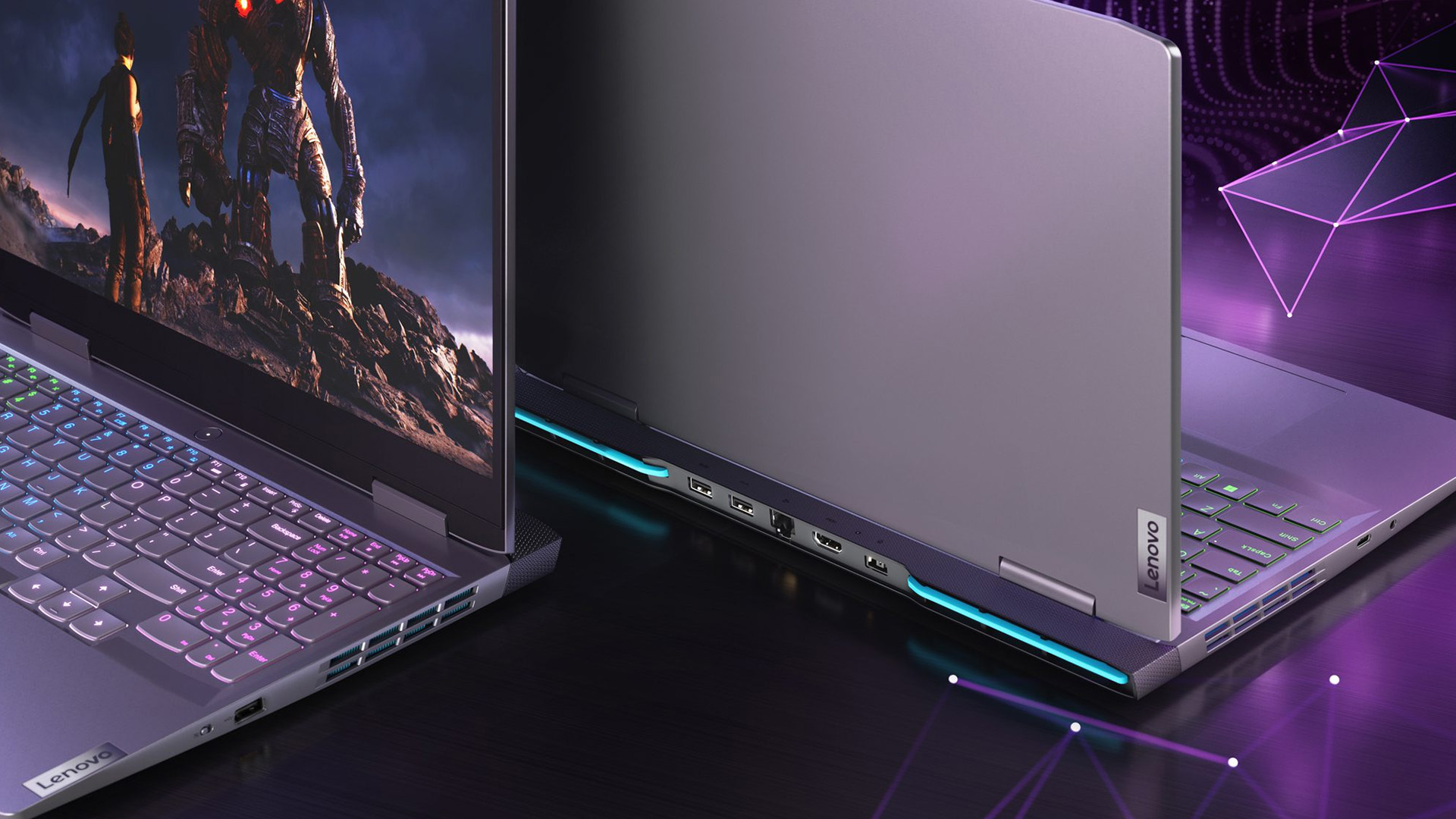
When Should You Seek Professional Repair?
Arrange inspection when symptoms suggest a mechanical, electrical or thermal-module fault. Lenovo Vantage can run hardware diagnostics, but it cannot repair a fan, heatsink, sensor or board.
Temperatures Stay High After Troubleshooting
Seek help when temperatures remain near component limits after cleaning, Balanced mode, official updates and reduced game load. A technician can inspect internal blockage, heatsink contact, heat pipes and sensors.
Fans Are Noisy or Not Spinning Properly
Grinding, scraping, repeated stopping or no airflow from one outlet can indicate bearing or motor failure. Continuing to game may increase throttling and shutdown risk.
Frequent Thermal Throttling or Random Shutdowns
Occasional clock adjustment is normal. Repeated severe frame drops, freezes or power-offs under ordinary gaming loads are not. Intel notes that processors reduce power near their thermal limit and may shut down if thermal control cannot contain heat.
Possible Hardware Damage
Stop using the laptop if you notice a swollen battery, burning smell, melted plastic, liquid exposure or visible damage. Disconnect power where safe and contact Lenovo support or an authorised UK service provider.

Keep Your Lenovo Laptop Running Cooler
A Lenovo laptop overheating concern should be judged by temperatures, performance and stability, not warmth alone. Begin with airflow, external cleaning, background-app checks, suitable Vantage and Windows power modes, official updates and sensible game settings. Use cooling accessories as support, not as a substitute for repair.
If throttling, abnormal fan noise or shutdowns continue, arrange professional inspection. Internal cleaning, fan replacement or thermal servicing may be needed, and these jobs are safer when completed with the correct model documentation and materials.

A Few More Things to Know...
What temperature is too hot for a Lenovo gaming laptop?
Repeated CPU readings around 95°C to 100°C, GPU readings in the high 80s, or temperatures at the component’s stated limit need attention when accompanied by throttling, crashes or shutdowns. Exact thresholds vary by model.
Does replacing thermal paste really fix overheating on Lenovo laptops?
It can help when old or poorly applied paste limits heat transfer. It will not repair a failed fan, blocked heat sink or excessive system load. Because disassembly carries risks, professional replacement is often safer.
Does a cooling pad actually reduce gaming laptop temperatures?
A cooling pad may lower temperatures by improving airflow beneath compatible intake vents. The benefit varies by design and laptop layout. It cannot compensate for internal dust, damaged fans or badly fitted thermal components.
How can I cool down my Lenovo gaming laptop while gaming?
Place it on hard surface, raise the rear, clear every vent, select Balance mode, close background apps, cap the frame rate and lower demanding settings. Stop gaming and seek help if throttling, crashes or shutdowns continue.
Can outdated BIOS or drivers cause overheating?
They can contribute if power management, graphics behaviour or fan control is affected, but they are not the only cause. Install only model-specific Lenovo updates, keep the charger connected and never interrupt a BIOS installation.
| Read More: |
| Lenovo Legion vs LOQ: Which Gaming Laptop is Better in 2026? |
| Common Lenovo Laptop Issues: Quick Solutions & UK Support Pathways |
| How to Check Battery Health of a Lenovo Laptop? |
Related Articles


Last Updated: March 12, 2026
If you’re preparing to dive into Europa Universalis V (EU V), you already know you’re in for hundreds of hours of territory expansion, diplomacy, micro-strategy, and historical sandbox storytelling. Grand strategy titles may not appear graphically intense, but they rely heavily on CPU power, AI simulations, late-game processing, and stable performance during long sessions. With modern visuals, expansions, and large campaign data, reliable hardware becomes essential, especially when comparing the best laptops for Europa Universalis V.
In this guide, we highlight the top gaming laptops for multi gaming, outline the EU V recommended specs laptop needs, and help you choose from the most capable RTX laptops for strategy games available today.
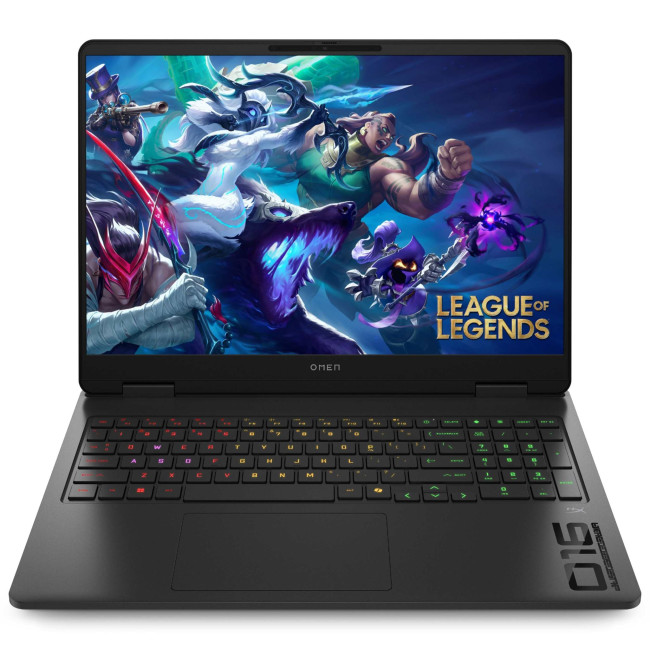
1. HP OMEN Gaming 16 AP0301NA
Technical Specifications
- AMD Ryzen 9 8940HX 16-Core Processor
- 16" WQXGA Display, IPS, 2560 x 1600 Max. Resolution
- 24 GB RAM, 1 TB SSD
- Dedicated NVIDIA RTX 5070 Graphics
- USB 3.2 | HDMI | USB-C
- Black Colour
- 1 Year

Last Updated: June 05, 2026
Football Manager 26 is finally here, built on a new Unity-powered 3D match engine with richer lighting, animations and stadium detail.
The good news? Sports Interactive has kept the minimum specs low, so older systems can still load up the game. The less good news is that the new engine leans more heavily on both CPU and GPU, especially during 3D matches and busy transfer windows.
If you want fast simulations, big databases and smooth 3D on high settings, you need the right hardware. This guide walks through Football Manager 26 recommended specs, then highlights the best gaming laptops and PCs for Football Manager 26 available from Laptop Outlet – from budget-friendly picks to powerhouse rigs.
Which Hardware Matters More for Football Manager 26?
Before choosing your machine, it is vital to understand what Football Manager 26 actually is. It is a detailed management simulation, not a graphics-intensive action game.
When you hit the 'Continue' button, the game is not just rendering a stadium.

Last Updated: February 24, 2026
Looking for the best budget gaming laptops and PCs for Sonic Rumble? You’re in the right place. At Laptop Outlet, we’ve scoured our range of powerful yet affordable gaming laptops, so you can find the perfect gear to jump into Sonic’s newest adventure without breaking the bank. Whether you’re after cheap gaming PC deals Sonic, gaming laptops with entry-level GPUs, or compact rigs that punch above their weight, we’ve got you covered. Let’s dive into the best options that’ll give you smooth gameplay, popping visuals, and long-lasting performance.
Recommended Specs to Play Sonic Rumble
By balancing these core specs, you’ll enjoy Sonic Rumble with the performance it deserves:
Processor (CPU)
A modern multi-core processor (such as Intel Core i5/i7 or AMD Ryzen 5/7) is great for entry-to-mid-range gaming. For high-end gaming, you would need an i9 or AMD Ryzen 9.
Graphics (GPU)
To play Sonic Rumble smoothly, aim for at least an entry-level dedicated GPU, something like NVIDIA’s RTX 4070 or
Last Updated: July 10, 2026
If you’re gearing up to explore the beautifully crafted, action-packed world of Where Winds Meet, choosing the right hardware is just as important as mastering your combat skills. This visually rich open-world action RPG blends fast-paced combat, sweeping landscapes and cinematic storytelling, all of which demand capable, well-balanced hardware.
In this guide, we’ll break down the recommended specs for Where Winds Meet, explain what really matters when it comes to performance, and highlight excellent-value options, including gaming deals for Where Winds Meet that won’t stretch your budget.
Recommended Specs for Where Winds Meet
Before diving into specific systems, let’s outline the core specifications you should be aiming for.
Processor (CPU)
Open-world RPGs rely heavily on CPU performance for AI, physics and world simulation. A modern Intel Core i5 / i7 or AMD Ryzen 5 / 7 is ideal. This ensures stable performance during exploration and combat-heavy sequences.
Graphics Card (GPU)
A dedicated

Last Updated: May 19, 2026
Level up your gaming experience as we head into a brand-new year. If your current rig is struggling with frame drops or long loading times, the New Year gaming laptop deals 2026 at Laptop Outlet are exactly what you need.
2026 is set to be a massive year for the industry, with highly anticipated titles (like GTA VI) pushing the boundaries of realism. To enjoy these games the way developers intended, you need hardware that is built for the future.
We have curated a list of the eight best laptops available for gaming in 2026. These incredible machines offer the ideal blend of power, portability, and price for every type of gamer.
1. ASUS TUF Gaming A16 (FA607NUG-RL116W)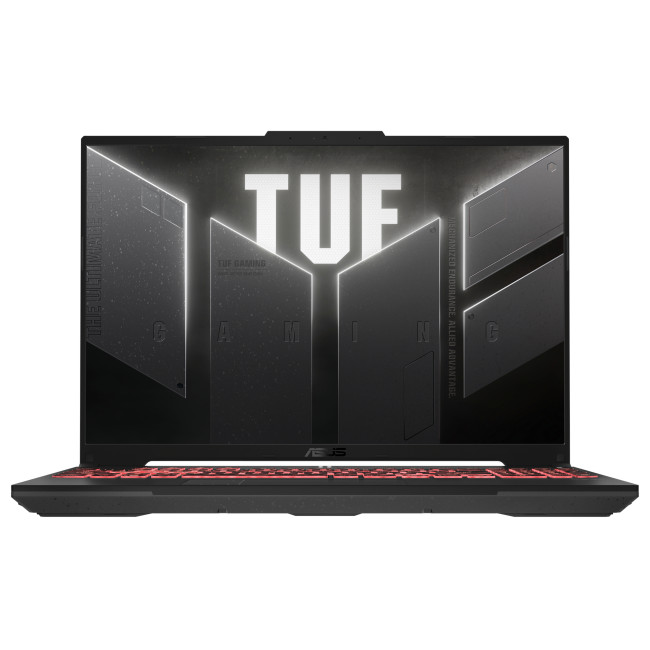
Key Specifications
- Display: 16" FHD+ (1920 x 1200), 144 Hz, IPS
- Processor: AMD Ryzen 7 7445HS Hexa-Core
- Graphics: Dedicated NVIDIA GeForce RTX 4050, 6 GB
- Memory: 16GB DDR5 RAM
- Storage: 512GB SSD
- Connectivity: USB Type-C | USB-A | HDMI | Wi-Fi | Bluetooth | Ethernet
- Battery: 54 Wh
Why You Will Love It
This ASUS TUF

Last Updated: September 03, 2026
Buying an HP gaming laptop in 2026 can feel like being asked to pick between “save money now” and “avoid regret later.”
Choose HP Victus if you want the best price-to-performance balance for esports, coursework, everyday use, and casual AAA gaming. Choose HP OMEN if you want higher frame rates, better display quality, stronger cooling, and a laptop that feels ready for heavier games over the next few years.
The HP Victus gaming laptop is the value pick: more affordable, more student-friendly, and solid for 1080p gaming. The HP OMEN gaming laptop is the performance pick: stronger cooling, better displays, higher-end GPUs, and more headroom for AAA games, streaming, and long-term use.
So, which one should you actually buy?
HP OMEN vs HP Victus: The Simple Difference
HP uses Victus and OMEN for different types of gamers.
The HP Victus gaming laptop is built for mainstream buyers who want a proper gaming laptop without paying premium money. It usually targets 1080p gaming, 144Hz displays, and
Last Updated: July 27, 2026
Before you reset MEDION laptop settings or reinstall Windows, copy your personal files to an external drive and create a second copy with Windows Backup and OneDrive or another drive.
Check Desktop, Documents, Downloads, Pictures, Videos, email archives, browser data, game saves and application folders. Open several files directly from the backup to confirm that they work.
Save your BitLocker recovery key, record essential applications and licences, then safely eject and disconnect the external drive before starting the reset.
A factory reset can solve persistent Windows problems, but it may remove applications, settings and personal files. Even when you choose Keep my files, treat it as a recovery option rather than a substitute for a verified backup.
Last Updated: July 23, 2026
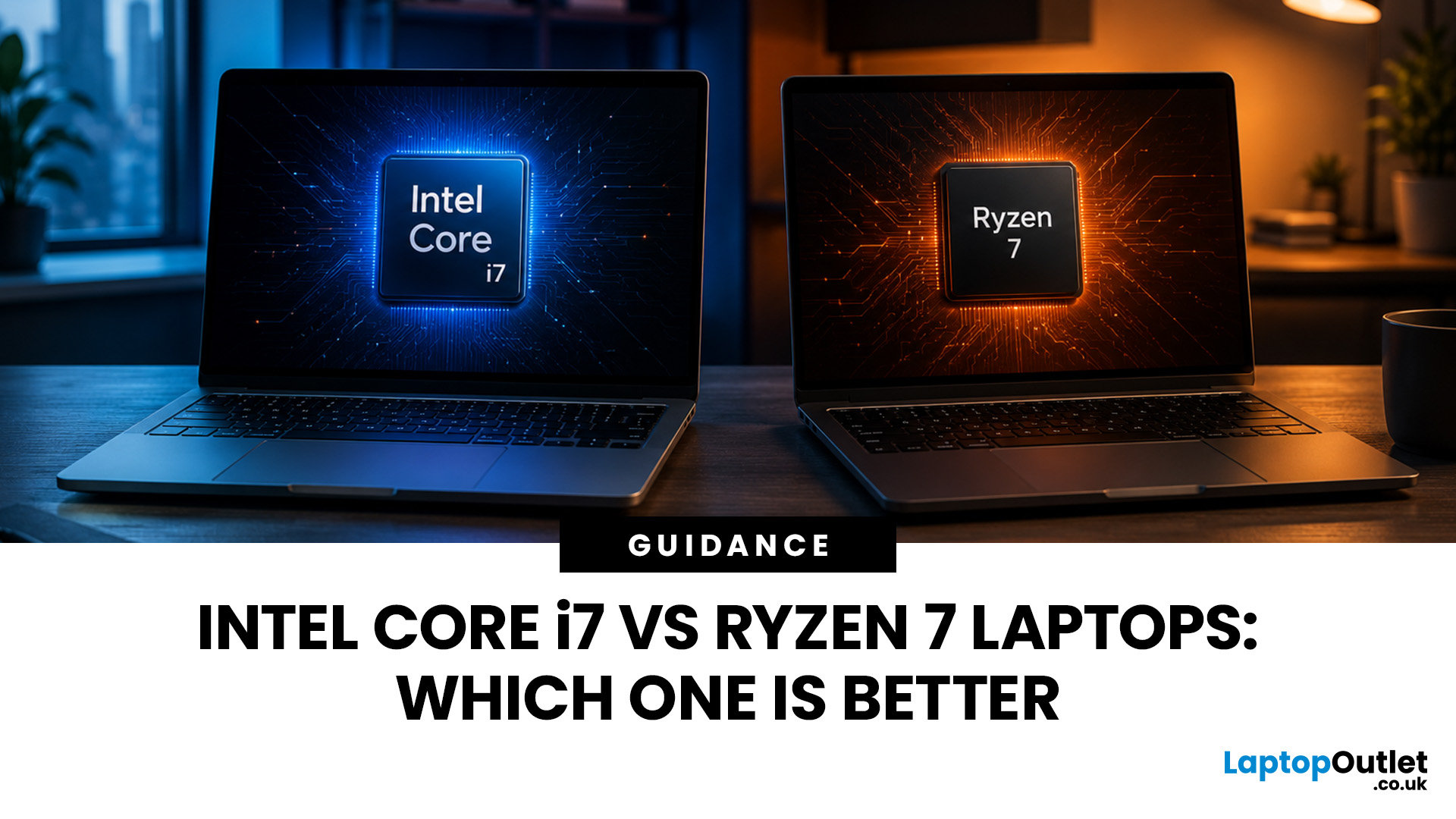
Neither processor family is automatically better. An Intel Core i7 laptop is often a strong choice for demanding productivity, supported video workflows and high-powered gaming configurations. A Ryzen 7 laptop can be especially attractive for efficient multitasking, capable integrated graphics and specification value.
When comparing an i7 vs Ryzen 7 laptop, the exact processor number matters more than the badge. A Core i7 U-series processor designed for a lightweight laptop is not equivalent to a Core i7 H-series gaming chip. The same applies to Ryzen 7 U, HS and HX processors.
For the broader brand-level differences, read our AMD vs Intel laptop guide. This guide goes deeper into the Core i7 and Ryzen 7 performance tier.
Intel Core i7 vs Ryzen 7 Laptops: Quick Answer
| Your priority | Better starting point | What to check |
| Everyday office work | Either | RAM, battery, screen and price |
| Heavy multitasking | Either | Exact CPU model, cooling and at least 16GB RAM |
| Gaming with dedicated graphics | Either | GPU |
Last Updated: September 03, 2026
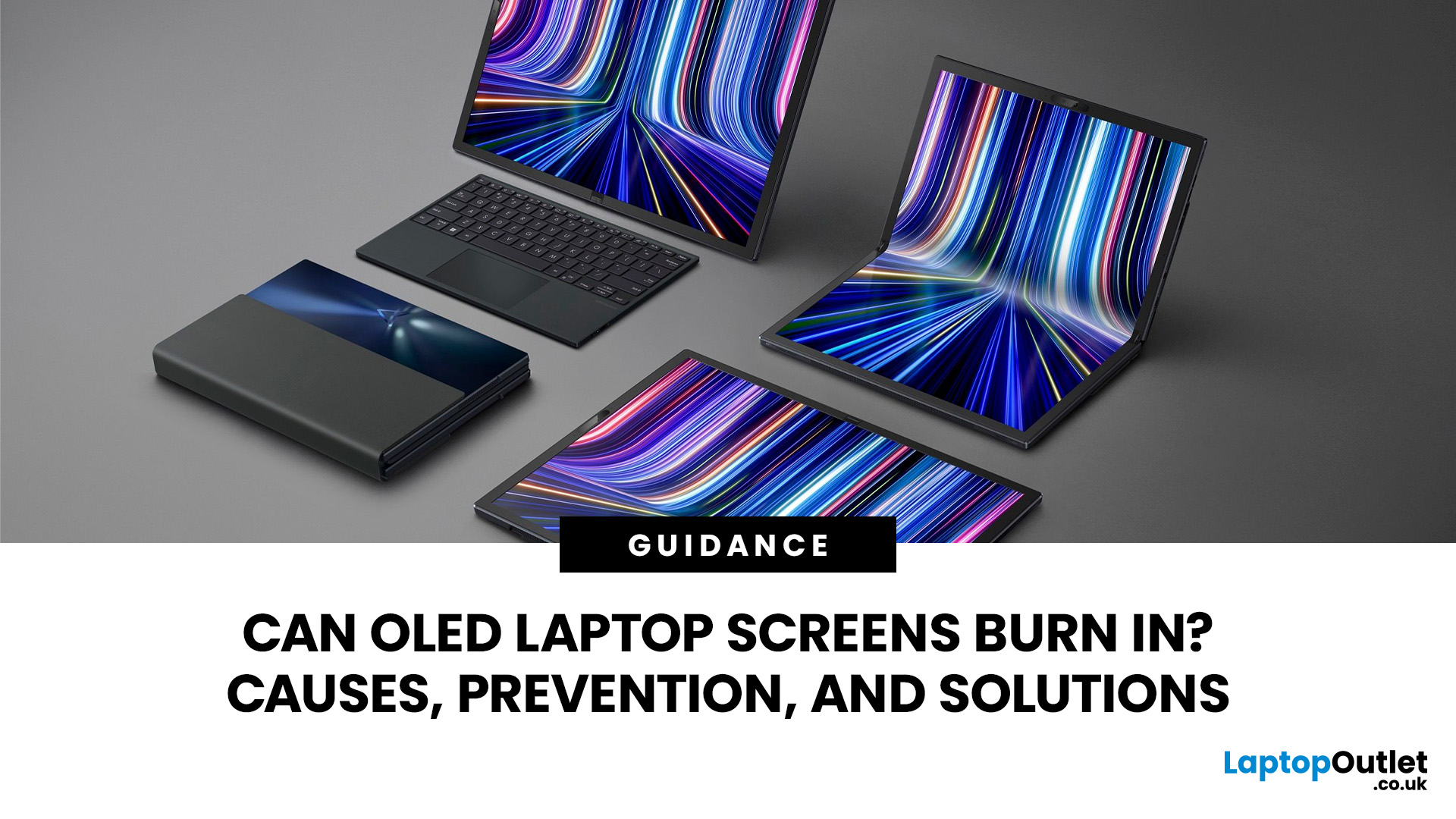
Yes, OLED laptop screens can develop permanent burn-in, but it is unlikely to happen quickly during normal, varied use. Risk increases when the same bright interface elements remain in one position for long periods, particularly at high brightness.
Modern OLED laptops reduce the risk through pixel shifting, automatic dimming and pixel-refresh routines. However, no OLED panel is completely immune.
For buyers considering laptops with OLED screen, burn-in is a manageable long-term consideration rather than a reason to avoid OLED. Sensible settings let you enjoy deep blacks, rapid response times and exceptional contrast while protecting the display.
For help comparing suitable models, see our guide to the best OLED laptops for work, gaming and creative use, covering options for different workloads and performance needs.
What Is OLED Screen Burn-In?
OLED screen burn in is a permanent shadow, outline or colour change caused by some pixels ageing faster than others.
OLED is a self-emissive display.
Published: July 27, 2026
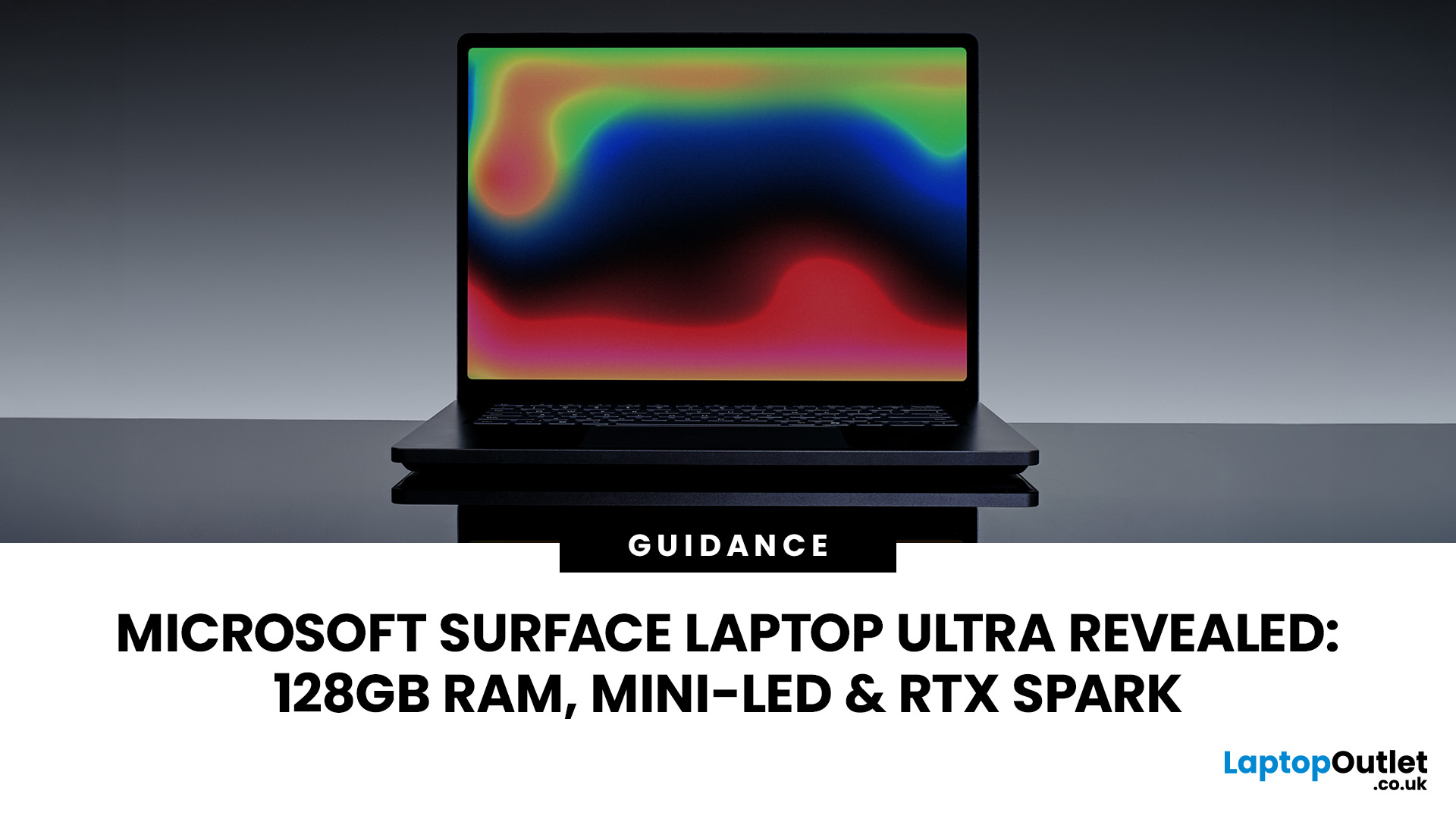
The Surface Laptop Ultra is Microsoft’s boldest laptop yet, built for local AI, 3D work, coding and demanding creative projects. It combines NVIDIA RTX Spark, Blackwell graphics, full CUDA support, and up to 128GB of unified memory, giving it serious workstation-level potential in a much slimmer design.
The 15-inch Mini-LED PixelSense Ultra display, upgraded cooling, and wider port selection make it even more appealing for power users. The only catch is that the exact UK price, full configurations and release date are still under wraps.
Microsoft Surface Ultra Specs at a Glance
The confirmed Microsoft Surface Ultra specs place the device above Microsoft’s conventional

