



How to Clean an HP Omen Laptop Fan: Remove Dust & Improve Cooling
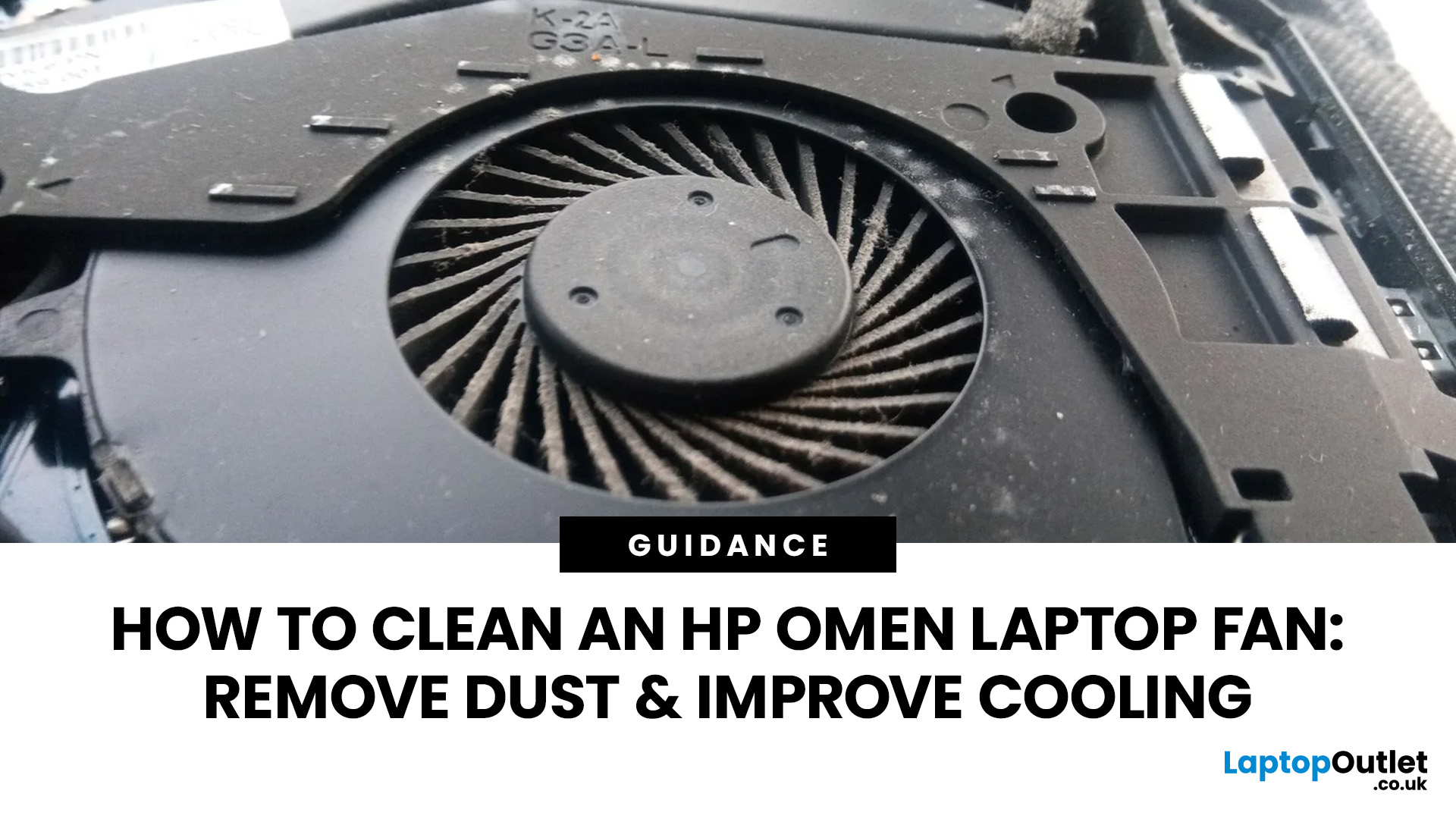
An HP OMEN laptop moves plenty of air during gaming and other demanding work. That airflow can draw dust, lint and pet hair towards its intake vents. As debris builds up, cooling may become louder, airflow can weaken and sustained performance can suffer.
The safest approach is to start with external cleaning. Only remove the bottom cover when deeper cleaning is necessary and you have checked the service instructions for your exact OMEN model. This guide covers both methods, essential safety precautions and post-cleaning checks.
Why HP OMEN Fan Cleaning Matters
Gaming laptops generate considerable heat because the processor and dedicated graphics chip can remain under heavy load for long periods. Their fans draw cooler air through the chassis and push warm air across the heatsink fins towards the exhausts.
Effective laptop fan dust removal prevents debris from reducing the space available for air to pass through. A thin layer of dust may only increase noise, while a compacted blockage can weaken cooling and affect sustained performance.
The same principle applies to other affordable HP gaming laptops, including Victus models, although their internal layouts and opening procedures may differ. Cleaning restores normal airflow where dust is the cause, but it cannot repair damaged bearings, cracked fan blades or poor thermal contact.
Check Your Exact HP OMEN Model Before Opening It
The old and latest HP OMEN laptops, including the Omen 15, Omen 16, Omen 17, and the slim Omen Transcend, do not share the same chassis. Different sizes and generations can have different screws, clips, cables and cooling assemblies.
Find the product name and product number before removing any screws. These details may appear on the underside label, in HP Support Assistant or after pressing Fn + Esc in Windows on supported models.
Use the product number to locate the correct maintenance and service guide. Confirm:
- The correct screw positions and lengths
- Whether screws are captive or fully removable
- The recommended point for releasing the bottom cover
- The location and direction of the battery connector
- Whether any cables sit close to the cover
- Whether the fans are accessible without removing the heatsink
Do not rely on a teardown for a similar-looking model. One misplaced clip, hidden screw or cable can turn routine maintenance into an expensive repair.
Signs You Need to Clean HP OMEN Fan
Dust-related cooling problems usually develop gradually. Consider cleaning when several of these signs appear together:
- Visible dust around the underside, side or rear vents
- Weak or uneven airflow from an exhaust
- Fan noise that has increased over several months
- Higher temperatures during familiar games
- Frame-rate drops after extended gaming
- Unusual heat during light tasks
- Fans that remain fast after demanding software closes
- Unexpected thermal shutdowns
Dust can contribute to HP OMEN thermal throttling, where the processor or graphics chip reduces its operating speed to control heat. However, throttling may also result from demanding settings, high room temperatures, background applications, old thermal material or a failing cooling component.
Listen to the type of noise. A smooth rushing sound usually means the fans are moving air quickly. Clicking, scraping, grinding or rattling may indicate a worn bearing, loose cable or damaged blade. Cleaning can remove loose debris, but it will not repair mechanical damage.
What You Need to Clean an HP OMEN Laptop Fan
For external cleaning, prepare:
- Compressed air or an electronics air duster
- A soft, clean brush
- A dry microfibre cloth
- A bright light
For internal cleaning, you may also need:
- The correct precision screwdriver
- A plastic opening tool
- A screw organiser
- An anti-static wrist strap
- The service guide for your exact model
Some accessories for HP laptops, such as stands or cooling pads, can improve clearance during everyday use, but they do not replace cleaning when dust has already entered the cooling system.
Avoid household vacuum cleaners, hairdryers, metal prying tools and liquid cleaners near the vents. Never spray lubricant into a fan. A noisy bearing normally needs fan replacement rather than oil.
Safety Steps Before Cleaning an HP OMEN Laptop
When cleaning HP OMEN laptop cooling components, power and static precautions matter as much as dust removal.
Shut Windows down fully instead of using sleep or hibernation. Disconnect the charger, USB devices, external displays and every other accessory. Place the laptop on a clean, stable and well-lit surface, then let it cool to room temperature.
Avoid carpets, bedding and fabrics that create static or shed fibres. After unplugging the laptop, holding the power button for around 15 seconds can help discharge residual power. This does not replace disconnecting the internal battery when the chassis is open.
Photograph the screw positions and cable routing during disassembly. Stop if the laptop has a swollen battery, liquid damage or a panel that does not release as described in the service guide.
Method One: Clean the Fan Without Opening the Laptop
External cleaning is the best starting point for routine maintenance. It is also suitable when you do not feel confident removing the bottom panel.
Step 1: Identify the Intake and Exhaust Vents
Turn the closed laptop over and inspect the underside. Large grilles underneath commonly act as air intakes, while warm air usually exits through vents at the rear or sides.
Some perforated areas may cover speakers rather than cooling openings. Check the service guide when the layout is unclear.
Step 2: Remove Loose Surface Dust
Use a dry, soft brush to loosen dust around the grilles. Brush outwards so the debris moves away from the laptop rather than deeper inside it.
Wipe the casing with a microfibre cloth. Do not insert cotton buds, toothpicks, screwdrivers or other objects through a vent.
Step 3: Clean the Air Vents with Compressed Air
To clean HP OMEN air vents, keep the compressed-air can upright and hold the nozzle a short distance from the opening. Apply short, controlled bursts rather than a continuous spray.
Aim across each vent at an angle. Long direct blasts can push debris deeper into the chassis or spin the fan unnecessarily fast. Move between the intake and exhaust openings so loosened dust has a route out.
Stop if the can becomes extremely cold, releases moisture or begins spraying liquid propellant. Allow it to return to room temperature before continuing.
Step 4: Inspect the Openings Again
Use a light to check whether visible dust remains. Repeat the process only where needed. External cleaning can clear surface build-up, but it may not remove debris packed between the fan and the cooling fins.
Method Two: Clean Inside an HP OMEN Laptop
Only open the laptop when external cleaning has not restored airflow, visible debris remains inside or the maintenance guide confirms that the fans are safely accessible.
Step 1: Remove the Bottom Cover
Place the closed laptop upside down on a clean microfibre cloth. Remove the specified screws and keep them arranged in a pattern matching their original positions. Similar-looking screws may have different lengths.
Use a plastic tool at the opening point stated in the service guide. Release the clips gradually around the edge. Never force a metal screwdriver into the seam. Lift the cover slowly and stop if it catches on a clip or cable.
Step 2: Disconnect the Internal Battery
Locate the battery connector using the service diagram. Disconnect it in the stated direction and pull on the connector rather than the wires.
Once disconnected, avoid touching exposed circuitry. If the battery looks swollen, distorted, punctured or damaged, stop immediately and arrange professional inspection.
Step 3: Inspect the Cooling System
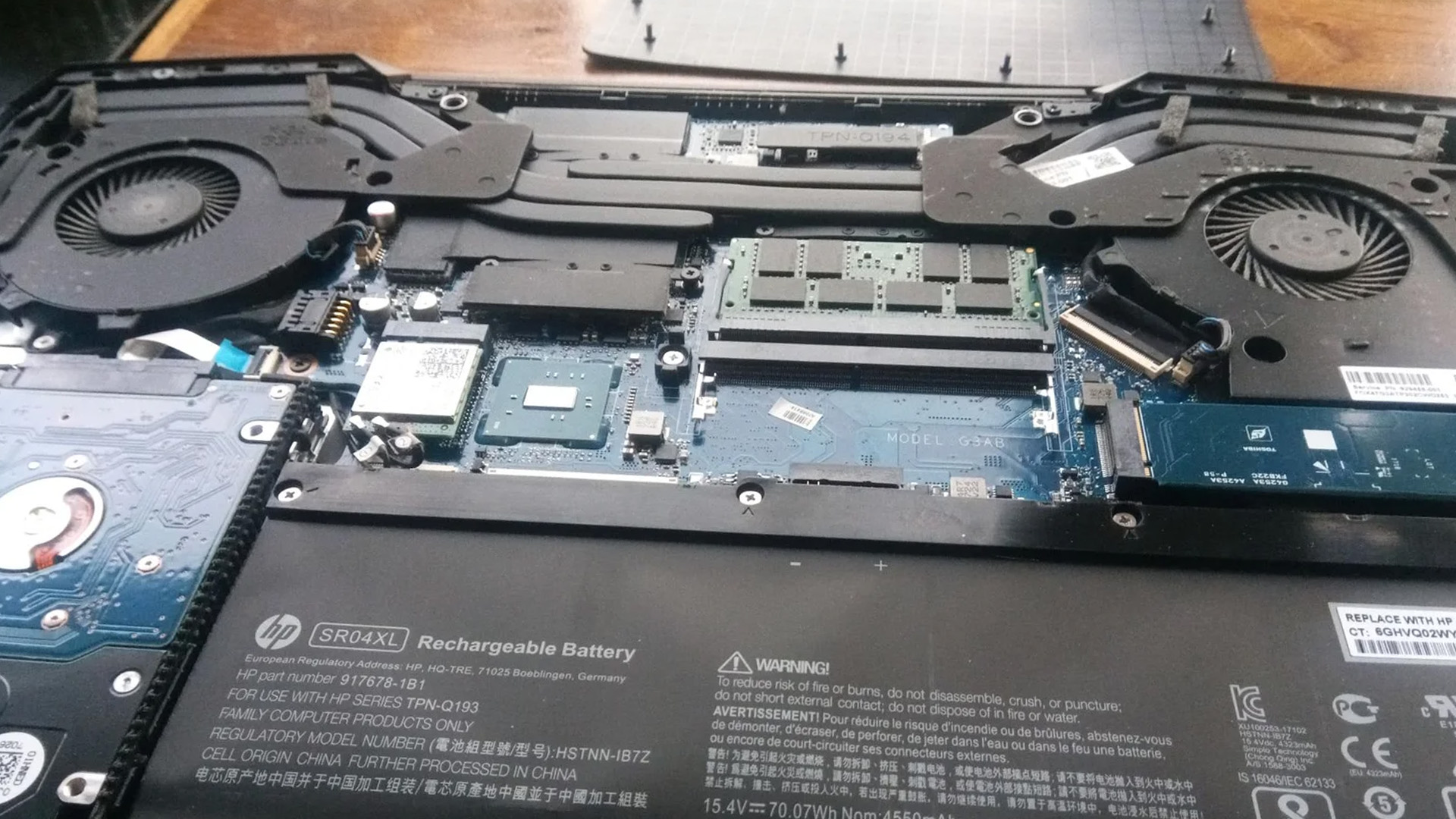
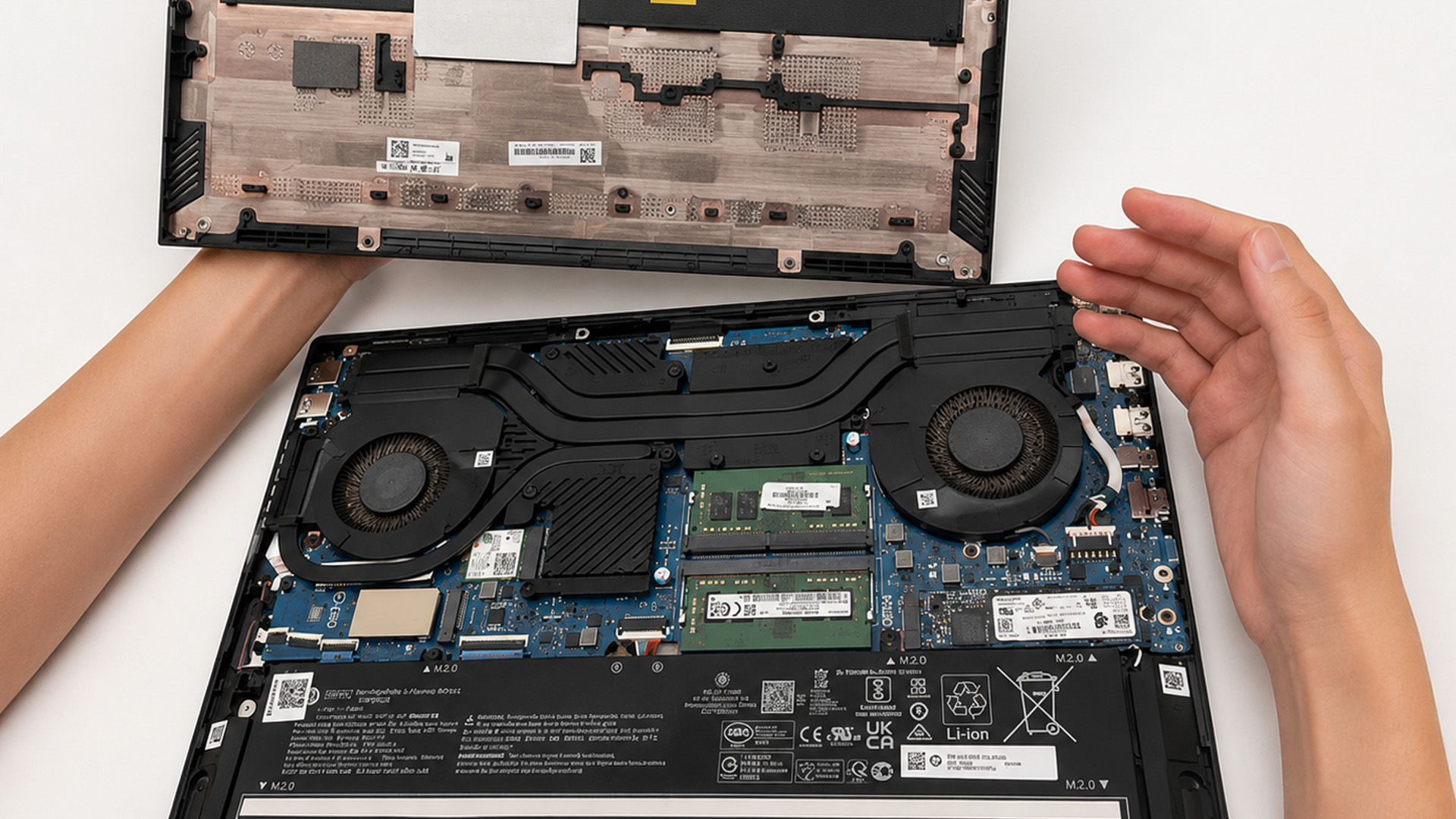
Most OMEN gaming laptops use two blower-style fans positioned beside heatsink fin stacks. Heat pipes carry heat from the processor and graphics chip to the fin stacks, while the fans move air through the fins and out of the chassis.
Inspect the system for:
- Dust coating the fan blades
- Lint around the fan intakes
- Hair caught around the fan housings
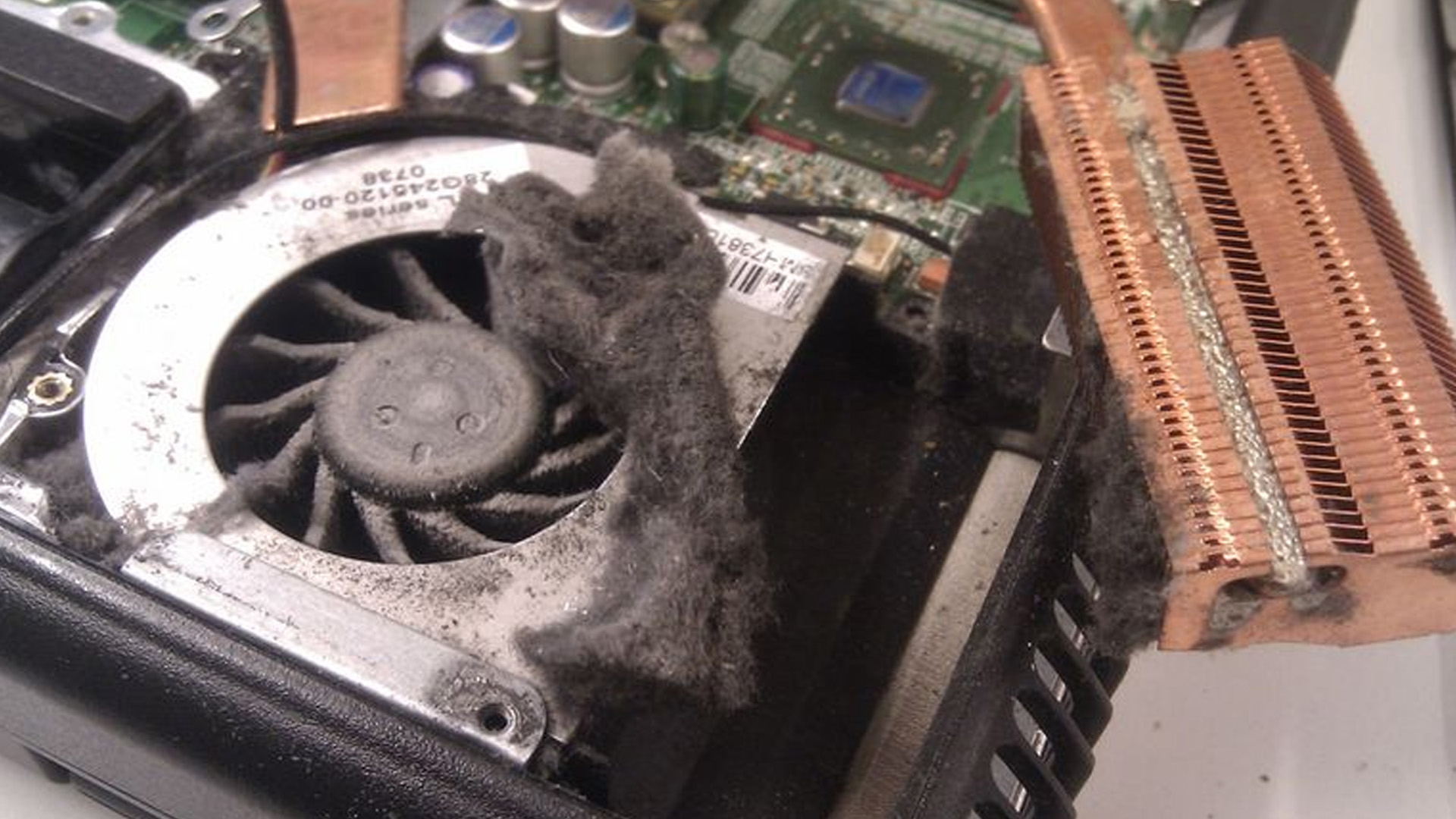
- Compacted debris where the fans discharge air into the fin stacks
- Loose or displaced cables near the fan housings
- Cracked blades or signs of rubbing
The HP OMEN cooling system may appear clean from above while still containing compacted dust between a fan outlet and the adjacent fin stack. This hidden blockage can significantly restrict airflow.
Step 4: Clean the Fans and Cooling Fins
Loosen debris with a soft brush and work towards an open edge of the chassis. When the fan hub is safely accessible, hold it gently to prevent excessive spinning. Do not press on the blade tips.
Use brief bursts of air to clear the blades, fan housing and fin stack. Direct dust out of the laptop rather than across the motherboard, and keep the nozzle away from small components and connectors.
Do not remove the fan, heat pipes or heatsink unless the service procedure requires it. Removing the thermal assembly can disturb thermal paste and pads, creating extra work and increasing the risk of poor contact during reassembly.
Step 5: Inspect and Reassemble
Remove loose fibres, dust and tools from the chassis. Check that no cable can touch a fan blade.
Reconnect the battery as instructed, refit the bottom panel and press around the edges until the clips sit correctly. Return every screw to its original position and tighten it gently without applying excessive force.
Check HP OMEN Airflow After Cleaning
Reconnect the charger and start the laptop. The first startup may take slightly longer after the battery has been disconnected.
Check the HP OMEN airflow by confirming that air exits from the expected rear or side vents. Listen for smooth operation. A brief rise in fan speed at startup can be normal, but scraping, clicking, vibration or repeated stopping needs investigation.
Where supported, open OMEN Gaming Hub and review the selected performance mode, fan behaviour and temperatures. Compare the results using the same game, settings, room conditions and test duration as before cleaning.
Open Task Manager as well. A Windows update, browser process, antivirus scan or game launcher can keep the processor busy and make the fans run quickly even when the cooling system is clean.
HP PC Hardware Diagnostics may help identify hardware faults. On supported systems, press Esc repeatedly during startup and then F2 to open the UEFI diagnostics menu.
Common HP OMEN Fan-Cleaning Mistakes
Avoiding a few common mistakes can make HP OMEN fan cleaning safer and help prevent accidental damage to the cooling system.
Using a Household Vacuum
Household vacuums can create static and apply strong suction around delicate parts. Use compressed air or a purpose-made electronics duster instead.
Spraying Compressed Air Continuously
Long sprays can release cold propellant or moisture. Use brief bursts and keep the can upright.
Allowing the Fan to Free-Spin
Compressed air can make a fan rotate too quickly. Keep external bursts short and steady the hub during internal cleaning when it is safe to do so.
Forcing the Bottom Panel
If the cover will not lift, a screw or clip may still be engaged. Recheck the model-specific guide rather than applying more force.
Removing the Heatsink Unnecessarily
Fan cleaning and thermal-paste replacement are separate jobs. Removing the thermal assembly adds risk and should not be treated as a routine cleaning step.
Assuming Every Loud Fan Is Dirty
Demanding games, Performance mode, updates and background software can all raise fan speed. Grinding or clicking may indicate damage rather than dust.
How Often Should You Clean an HP OMEN Laptop Fan?
There is no fixed schedule for every user. Inspect the external vents every few months and clean them when dust becomes visible or airflow begins to weaken.
Systems used around pets, smoke, fabric fibres or workshop dust may need more frequent attention. The same is true for portable HP notebooks that are regularly used on sofas, beds or other surfaces that obstruct the underside vents.
Reduce future dust build-up by:
- Using the laptop on a hard, flat surface
- Keeping the underside and rear vents clear
- Cleaning the desk regularly
- Avoiding beds, blankets and carpet
- Leaving space behind the exhausts
- Storing the laptop in a clean sleeve or bag
- Keeping pets away from the intake area
- Checking the vents before long gaming sessions
A laptop stand can improve clearance, while a cooling pad may help in some setups. Neither will remove an internal blockage or repair a faulty fan.
When Should You Use a Professional Repair Service?
Arrange professional inspection when:
- The fan grinds, scrapes or fails to spin
- The laptop displays a fan-related startup error
- The battery appears swollen
- The laptop shuts down repeatedly after cleaning
- Airflow remains weak despite clear vents
- Temperatures rise rapidly during light use
- The bottom cover requires steps you are not confident completing
- The fan or thermal module needs replacement
- Liquid has entered the laptop
- Cleaning could conflict with support or warranty conditions
A technician can remove compacted dust, test both fans, inspect the heatsink and replace failed components. This is safer than continuing to run an overheating laptop with mechanical fan noise.

Keep Your HP OMEN Running Cool
Safe HP OMEN fan cleaning should always begin outside the chassis. Shut the laptop down, clear visible dust with a soft brush and use compressed air in short bursts.
For deeper cleaning, follow the service guide for the exact model, disconnect the battery correctly and avoid disturbing the thermal assembly. Test noise, temperatures and airflow after reassembly. Cleaning can restore cooling when dust is the cause, but damaged fans, swollen batteries and persistent overheating need professional attention.

Useful Things to Know...
Can I Clean My HP OMEN Fan Without Opening the Laptop?
Yes. Turn it off, unplug it and clear the vents with a soft brush and brief bursts of compressed air. Internal cleaning may be needed if debris is packed against the cooling fins.
Can I Use a Vacuum to Clean an HP OMEN Laptop Fan?
Avoid household vacuums because they can create static and apply excessive suction. Use compressed air or an electronics air duster instead.
Why Is My HP OMEN Fan Still Loud After Cleaning?
The laptop may be running in Performance mode, installing updates or handling a demanding background task. Loud mechanical noise can also come from a worn bearing, damaged blade, blocked heatsink or poor thermal contact.
Should I Replace the Thermal Paste While Cleaning the Fan?
Not routinely. Thermal-paste replacement requires heatsink removal and may disturb thermal pads. Only proceed when there is a confirmed thermal issue and you have the correct model-specific instructions.
How Do I Know Whether My HP OMEN Fan Is Damaged?
Grinding, scraping, repeated clicking, weak airflow or a fan that does not spin can indicate damage. Stop intensive use until the problem has been inspected.
Will HP OMEN Fan Cleaning Improve Gaming Performance?
It can help when dust is restricting airflow and causing heat-related performance reduction. Cleaning will not increase the laptop’s normal hardware capability, but it may restore more consistent cooling during long gaming sessions.
Related Articles

Last Updated: May 07, 2026
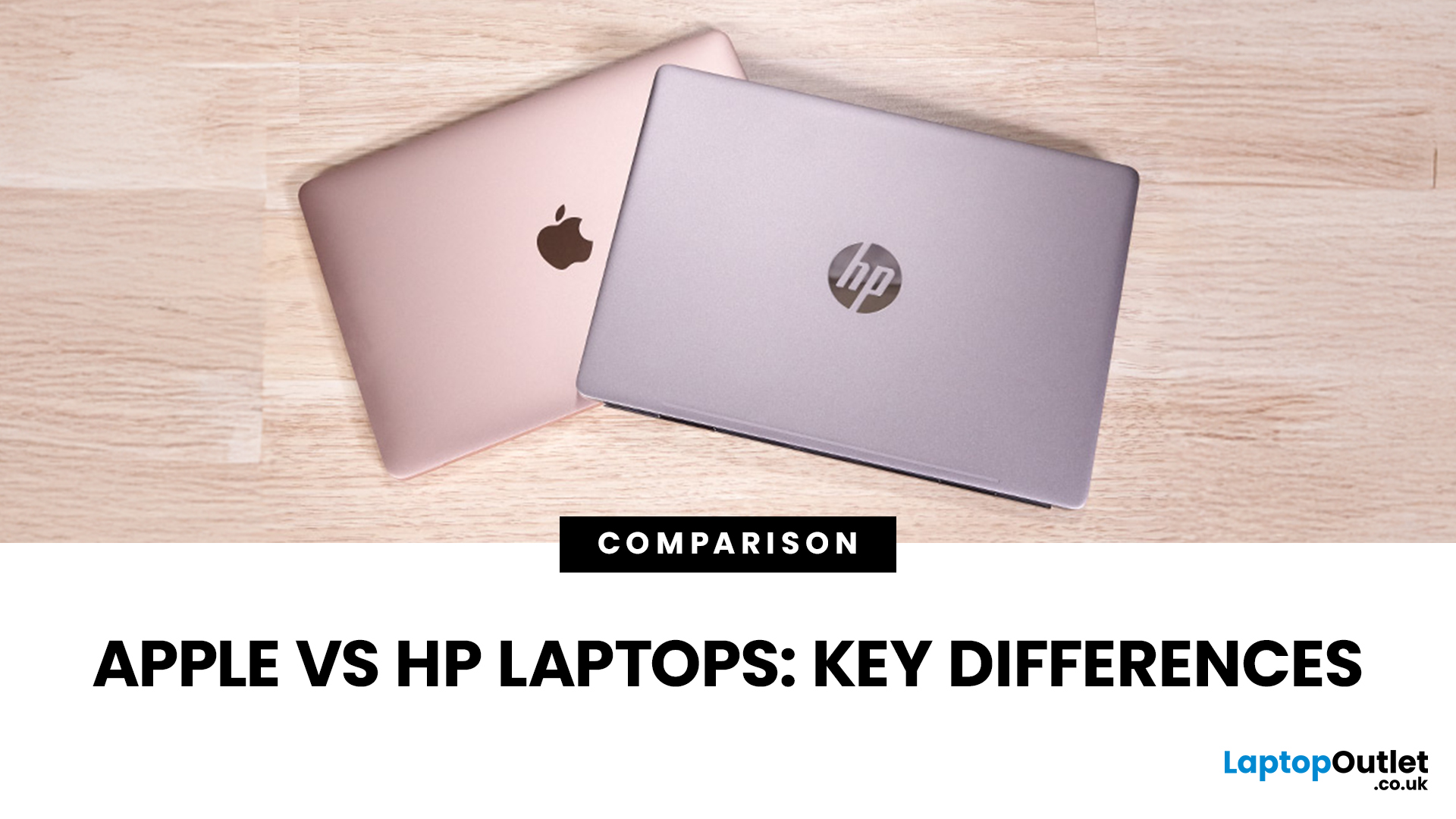
When it comes to buying a new laptop in 2025, the debate comes down to Apple vs HP laptops. Apple’s MacBook Air and Pro have become the go-to choice for creatives, professionals, and fans of the Apple ecosystem, while HP dominates the Windows world with a massive range of laptops that fit every budget, from student-friendly notebooks to workstation beasts like the ZBook.
So, which one is actually right for you? Let’s dive into a head-to-head comparison of Apple vs HP laptops, covering design, performance, battery life, price, and everyday usability, so you can confidently pick the laptop that matches your lifestyle.
Apple vs HP Laptops: Key Differences
| Feature | Apple MacBook (Air & Pro) | HP Laptops |
| Operating System | macOS (integrated with iPhone/iPad ecosystem) | Windows 11 / ChromeOS depending on model |
| Design & Build | Premium aluminium, minimalist, lightweight | Wide range: From budget plastic builds to premium Spectre |
| Performance | Apple Silicon (M2/M3 chips – high efficiency) | Intel Core Ultra, |
Last Updated: August 25, 2026
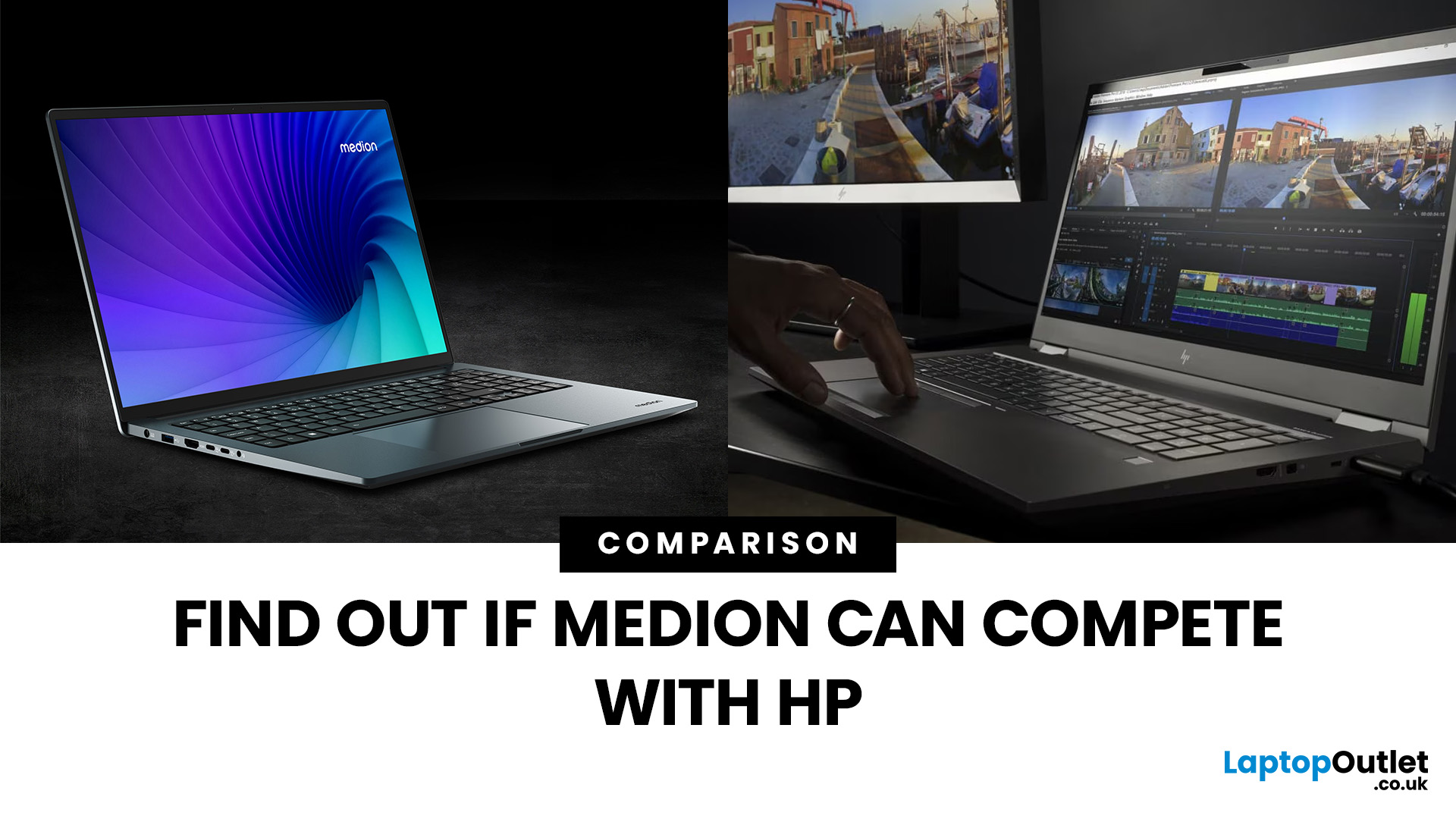
“Everyday user” laptops need to do the basics well; surfing, streaming, document editing, video calls, without breaking the bank. If you’re comparing Medion vs HP laptops, you're comparing two brands that aim to hit that sweet spot: affordability, usability, and decent performance. Medion leans into budget value and basic gaming, while HP offers more variety across entry, mid and upper tiers, often with extra polish.
Let’s dig into what each brand does well, where they fall short, and which is better depending on what you do daily. It will help you decide whether to buy a Medion or HP laptop.
What Is Medion? What Is HP?
- Medion is a German-brand, long known for delivering solid value. Its main UK laptop ranges include AKOYA for general home and office use and ERAZER for gaming. Medion has been part of the Lenovo Group since 2011.
- HP (Hewlett-Packard) is one of the most established laptop makers. Its range covers affordable consumer laptops, premium devices,

Last Updated: February 19, 2026
New year, new goals and let’s be honest, maybe a laptop that doesn’t sound like it’s about to take off every time you open a browser. If an upgrade is on your 2026 checklist, New Year Laptop Deals are one of the smartest (and calmest) times to buy.
Unlike peak sales seasons where everything disappears in minutes, New Year brings steady, genuinely good discounts across cheap laptops, premium models, gaming machines, and even business-grade devices. Whether you’re shopping for work, study, gaming, or just everyday life, this is where value really shows up.
In this guide, we’ll break down the best laptops New Year deals, highlight savings on ASUS, HP, Lenovo, and explain how to choose the right laptop—without drowning in specs or hype.
Why New Year Is the Best Time to Buy a Laptop

While Black Friday grabs attention, January quietly delivers better long-term value. Retailers clear remaining stock, refresh product lines, and offer strong discounts across multiple categories.
Here’s why New

Last Updated: April 28, 2026
Struggling to find HP laptop deals that don’t feel overpriced, outdated, or just not worth it? Yeah — scrolling through endless specs, inflated prices, and “fake” discounts can be frustrating, especially when you just need a laptop that actually works for study, work, or everyday life.
The problem? Too many laptops either cost way too much or cut corners where it matters. Slow performance, tiny storage, poor screens, not the vibe. And when you’re on a budget, finding reliable HP laptops UK shoppers can trust shouldn’t feel like a gamble.
That’s where Laptop Outlet comes in. We’ve rounded up some of the best HP laptops on sale in the UK, with prices starting from just £149.99. From cheap HP laptops for everyday use to powerful business-ready machines, our handpicked HP laptop offers give you serious value without compromising on quality.
HP 15-fc0045na – Everyday Power for You
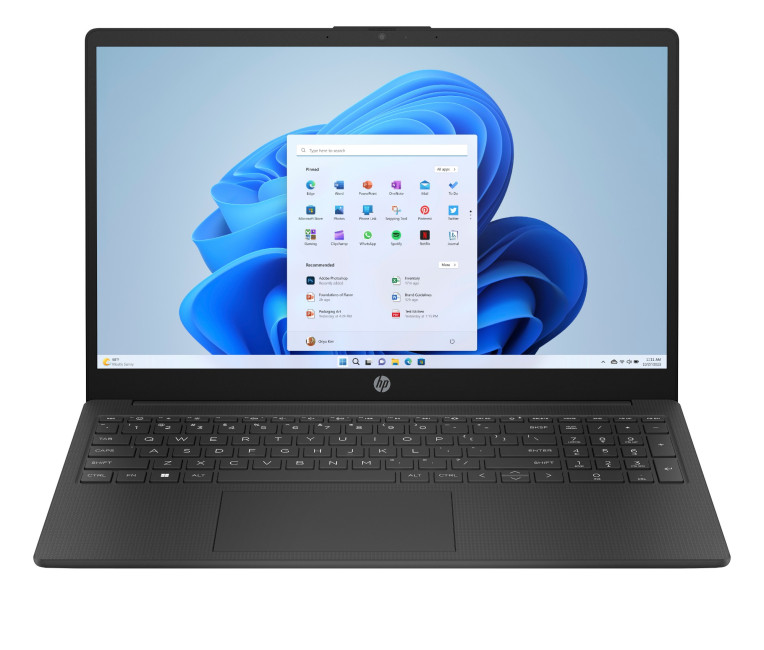
- The HP 15-fc0045na is a well-balanced 15.6-inch laptop that perfectly blends performance with everyday

Last Updated: September 04, 2026
If you’re shopping for a new laptop this year, HP continues to be one of the most reliable and exciting brands to watch. From premium Ultrabooks and powerful gaming machines to flexible 2-in-1 devices built for modern work and study, the latest releases bring something for everyone.
In this guide, we’ll explore the latest HP laptops you shouldn’t miss in 2026, highlighting what makes them stand out, which users they suit best, and why HP remains a top choice for shoppers across the UK. Whether you’re upgrading your home setup, buying for university, or looking for a performance machine that keeps up with your workload, these HP laptop models are worth considering.
Top HP Laptop Models You Can Choose in 2026
The latest HP laptops in 2026 are redefining versatility, performance and AI-enabled productivity across the board. Let’s explore few of them:
HP OmniBook X FlipNGAI 14-fm0005na – Compact AI-Ready Performance
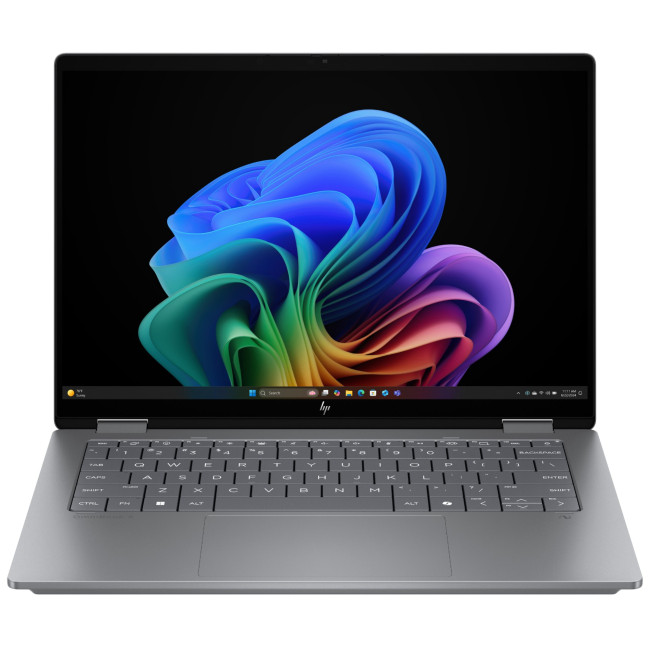
The HP OmniBook X FlipNGAI 14-fm0005na Intel® Core™ Ultra 5 226V

Last Updated: February 13, 2026
Because nothing kills the vibe faster than a laptop, that suddenly decides your fingers are irrelevant.
You sit down. You open your laptop. You’re mentally prepared to be productive (or at least pretend). And then .....boom... your laptop touchpad is not working. Or your laptop keyboard is not working. Or worse… both.
At this point, your laptop isn’t broken; it’s personally offended by you.
Before you rage-buy a new device or spiral into tech despair, here’s the good news: most laptop keyboard problems and touchpad issues are completely fixable. And no, you don’t need a computer science degree or a sacrifice to the tech gods.
This guide is not one of those vague “restart your device” articles and call it a day. This is a deep-dive, all-reasons, all-solutions, no-BS troubleshooting guide, written in human language, with enough detail to actually solve the problem.
We’ll cover:
- Software vs hardware problems (and how to tell the difference)
- Every common and uncommon reason your laptop input

Last Updated: September 03, 2026
Buying an HP gaming laptop in 2026 can feel like being asked to pick between “save money now” and “avoid regret later.”
Choose HP Victus if you want the best price-to-performance balance for esports, coursework, everyday use, and casual AAA gaming. Choose HP OMEN if you want higher frame rates, better display quality, stronger cooling, and a laptop that feels ready for heavier games over the next few years.
The HP Victus gaming laptop is the value pick: more affordable, more student-friendly, and solid for 1080p gaming. The HP OMEN gaming laptop is the performance pick: stronger cooling, better displays, higher-end GPUs, and more headroom for AAA games, streaming, and long-term use.
So, which one should you actually buy?
HP OMEN vs HP Victus: The Simple Difference
HP uses Victus and OMEN for different types of gamers.
The HP Victus gaming laptop is built for mainstream buyers who want a proper gaming laptop without paying premium money. It usually targets 1080p gaming, 144Hz displays, and
Last Updated: August 17, 2026
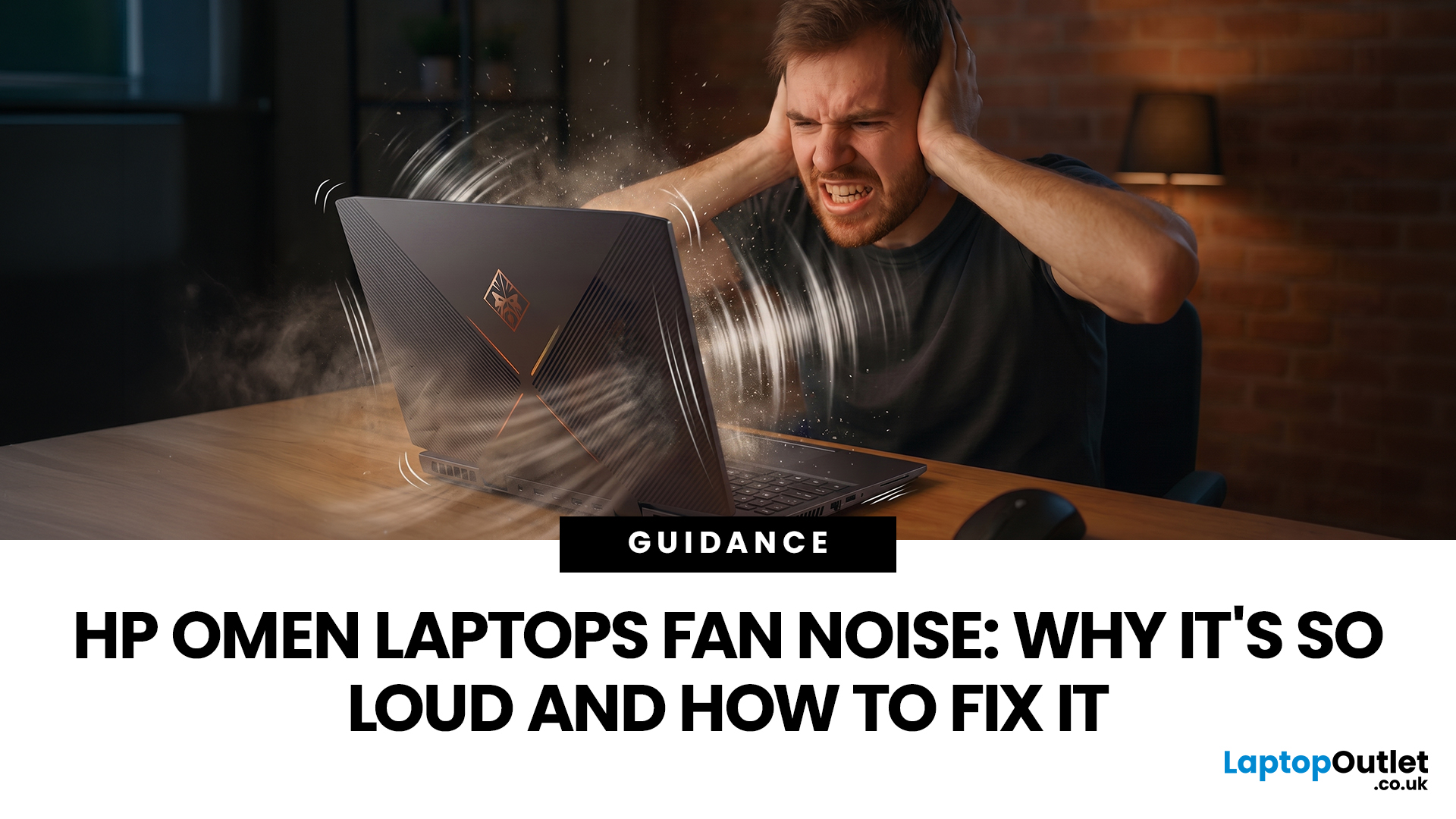
HP OMEN laptops use powerful processors and dedicated graphics, so their cooling systems can become clearly audible during gaming and other demanding work. Some HP OMEN fan noise is normal, but constant noise at idle, grinding or repeated overheating deserves attention. This guide explains how to identify the sound, diagnose the cause and choose a safe fix across the top HP OMEN laptop range.
| HP OMEN Fan Noise: Quick Answer Loud fan noise is normal while an OMEN laptop starts, updates, games, renders or runs a demanding AI task. HP says a brief fan surge for about five to twenty seconds at startup can be normal, while Performance mode deliberately increases fan speed to manage higher CPU and GPU power and temperature. Investigate an HP OMEN loud fan when it remains noisy during light use, produces mechanical sounds or appears with weak airflow, throttling or shutdowns. Many cases improve after reducing background load, changing settings, updating HP software and BIOS, restoring airflow |
Last Updated: August 06, 2026

Last Updated: August 17, 2026

