



How to Update Lenovo Gaming Laptop Drivers Like a Pro
A safe Lenovo drivers update should begin with Lenovo Vantage or Lenovo Support, followed by Windows Update and, when needed, the official NVIDIA or AMD graphics software. Using these trusted sources helps ensure that chipset, graphics, audio, network, firmware and system drivers are matched to your specific Lenovo Legion or LOQ laptop.
Updating drivers can fix hardware problems, improve compatibility with newer games and address security or stability issues. However, installing every available update immediately is not always necessary. Graphics drivers often change frequently, while BIOS and firmware updates require more caution.
This guide explains how to check your current versions, install Lenovo laptop drivers safely and recover if an update causes problems. The same general process can also apply to professional Lenovo laptops for work, although gaming systems require additional attention to graphics and performance-related drivers.
Quick Driver Update Order
For most Lenovo gaming laptops, use this order:
- Save your work and connect the charger.
- Identify the exact laptop model and Windows version.
- Create a Windows restore point.
- Install pending Windows updates.
- Run a Lenovo Vantage driver scan.
- Install Lenovo chipset, power, audio, and network updates.
- Update the NVIDIA or AMD graphics driver if needed.
- Restart the laptop and test your games.
- Install BIOS or firmware updates only after reading their instructions.
Do not use third-party driver-updater programs. Official Lenovo, Microsoft, NVIDIA and AMD tools are safer because they identify supported hardware and provide signed or manufacturer-approved packages.
Why Updating Lenovo Gaming Laptop Drivers Matters
Drivers allow Windows, games and applications to communicate with the hardware inside your laptop. This includes the graphics processor, chipset, Wi-Fi adapter, sound hardware, keyboard controls, touchpad and other system components.
A driver update does not physically increase the power of the laptop. It can, however, improve the way existing hardware works with Windows or specific games.
How outdated drivers affect gaming performance
An outdated graphics driver may lack optimisations or compatibility fixes for a newly released game. Depending on the title and driver version, this can contribute to:
- Games failing to launch
- Visual corruption or flickering
- Unexpected crashes
- Inconsistent frame pacing
- Missing graphics features
- Lower performance in particular games
- Problems after a Windows or game update
Outdated chipset, audio or network drivers can also cause gaming-related problems. Examples include unstable Wi-Fi, audio crackling, Bluetooth headset issues, sleep problems or devices disappearing from Windows.
An old driver is not automatically the cause of low frame rates. High temperatures, demanding graphics settings, background applications, insufficient memory and CPU or GPU limitations can produce similar symptoms.
If frame rates fall mainly after longer gaming sessions, check the cooling system as well, because practical steps to reduce heat and thermal throttling may solve the problem without reinstalling multiple drivers.
Benefits of keeping drivers updated
The main reasons to update are compatibility, reliability, security, and access to supported features.
NVIDIA says its Game Ready Drivers are prepared for new games, updates, and downloadable content. AMD similarly states that graphics updates may provide game support, fixes, performance improvements, and new features. The exact benefit varies between games and driver releases, so an update should not be treated as a guaranteed FPS boost.
Lenovo-provided updates may also contain fixes for model-specific functions such as:
- Power and thermal management
- Hybrid graphics switching
- Keyboard shortcuts
- Battery charging
- USB-C behaviour
- Audio hardware
- Wireless connectivity
- BIOS and embedded controller operation
Which drivers should gamers prioritise?
Prioritise updates according to the problem you are trying to solve:
|
Driver or update |
When it matters most |
|
Graphics driver |
New game support, crashes, graphical errors or missing GPU features |
|
Chipset driver |
System stability, power management and hardware communication |
|
Wi-Fi or Ethernet driver |
High latency, disconnections or missing network hardware |
|
Audio driver |
Crackling, missing sound or microphone problems |
|
Bluetooth driver |
Controller or wireless headset connection issues |
|
Lenovo power management |
Performance modes, charging and sleep behaviour |
|
BIOS or firmware |
A documented security, compatibility or hardware fix |
Avoid updating the BIOS purely because a newer version number exists. Read the update notes and confirm that the package applies to your exact laptop.
Check Your Current Driver Versions Before Updating
Recording the current version makes it easier to confirm whether an installation succeeded and gives you a reference if you need to roll back.
Find installed drivers using Device Manager
To check a driver in Windows 11:
- Right-click Start.
- Select Device Manager.
- Expand the relevant hardware category.
- Right-click the device.
- Select Properties.
- Open the Driver tab.
- Record the driver provider, date and version.
For a Lenovo graphics driver update, expand Display adapters. A gaming laptop with hybrid graphics may show both an integrated Intel or AMD GPU and a dedicated NVIDIA or AMD GPU.
A yellow warning symbol can indicate a device or driver problem, but the absence of a warning does not prove that the newest driver is installed. Device Manager is useful for checking versions and errors, not for performing a complete Lenovo driver scan. Microsoft recommends Windows Update as the normal source for automatically delivered Windows drivers.
Identify your Lenovo gaming laptop model
Do not download a driver based only on a general name such as “Lenovo Legion 5” or “Lenovo LOQ 15”. Different generations can use different processors, wireless adapters, graphics configurations, and BIOS packages. Understanding the differences between Lenovo Legion and LOQ laptops can also help when checking which drivers, firmware and gaming features apply to your specific machine.
You can find the product name, serial number or machine-type model through:
- Lenovo Vantage
- Lenovo’s Detect Product tool
- The label on the underside of the laptop
- Windows System Information
- The BIOS or UEFI setup screen
Lenovo recommends using the serial number or exact product identity to locate the correct support page.
Also check your operating system by opening Settings > System > About. Confirm whether you are using Windows 11 and whether it is a 64-bit installation.
Lenovo may still provide some Lenovo drivers for Windows 10 on older systems, but Microsoft ended free Windows 10 support on 14th October 2025. A supported Windows 11 installation is now the safer long-term platform for compatible gaming laptops.
Create a restore point before installing updates
A restore point can help reverse Windows driver, application and system-setting changes if something goes wrong.
To create one:
- Search Windows for Create a restore point.
- Open System Properties.
- Select the system drive.
- Select Configure if System Protection is disabled.
- Turn on System Protection.
- Select Create.
- Give the restore point a recognisable name.
Microsoft notes that System Protection may not be enabled by default. System Restore can reverse some driver-related changes without deleting personal files.
A Windows restore point does not roll back a failed BIOS update. BIOS installations require separate precautions, including reliable power and the correct model-specific package.
Method 1: Update Drivers Using Lenovo Vantage
Lenovo Vantage is normally the best starting point for a Legion driver update or Lenovo LOQ driver update. It can detect the laptop and present Lenovo-approved drivers, BIOS packages and other system updates intended for that device.
Install or open Lenovo Vantage
Search for Lenovo Vantage from the Start menu. Many Lenovo laptops include it from the factory.
If it is not installed, download Lenovo Vantage from the Microsoft Store rather than an unofficial download website.
After opening it, allow the application to identify your laptop. Menu names can vary slightly between Vantage versions, but the update controls are usually found under Device, System Tools or System Update.
Scan for available driver updates
Open System Update and select Check for Updates.
Lenovo’s current support instructions describe the basic process as:
- Open Lenovo Vantage.
- Select System Update.
- Select Check for Updates.
- Install all updates or select individual packages.
Review the list rather than immediately installing everything. Look for categories such as:
- Critical
- Recommended
- Optional
- BIOS or UEFI
- Firmware
- Chipset
- Audio
- Wireless LAN
- Bluetooth
- Graphics
Prioritise critical and relevant recommended updates. Optional updates may address specific features you do not use.
Install updates and restart the laptop
Close games, launchers and demanding applications before installation. Connect the Lenovo charger and avoid switching performance modes while updates are running.
Install ordinary drivers first. If a BIOS update is also offered, consider installing it separately after the other updates have completed. This makes troubleshooting easier if the laptop behaves differently afterwards.
Restart even when Vantage does not appear to require it. Some driver files and services are not fully replaced until Windows reloads.
Method 2: Update Drivers Through Windows Update
Windows Update installs operating-system patches and many recommended hardware drivers. It is particularly useful for common devices such as audio controllers, Bluetooth adapters, network hardware, and peripherals.
Check for Windows updates
In Windows 11:
- Open Settings.
- Select Windows Update.
- Select Check for updates.
- Download and install the available updates.
- Restart when prompted.
Windows automatically supplies many recommended drivers. Microsoft works with hardware providers to certify drivers before distributing them through Windows Update.
Check optional driver updates
Some drivers are not installed automatically. To find them:
- Open Settings > Windows Update.
- Select Advanced options.
- Open Optional updates.
- Expand Driver updates.
- Select only the relevant packages.
- Choose Download and install.
- Restart the laptop.
Microsoft confirms that optional drivers must be selected manually.
Do not assume every optional driver is newer or better than the Lenovo version already installed. Compare the provider, date and version first. For model-specific power, firmware and hybrid-graphics components, Lenovo Vantage or Lenovo Support is usually the stronger source.
Verify successful installation
After restarting:
- Return to Windows Update and check for updates again.
- Open Device Manager and confirm the new version.
- Check that no warning symbols appear.
- Test Wi-Fi, sound, Bluetooth and external displays.
- Run a familiar game rather than changing several settings at once.
If Windows repeatedly offers the same driver, check Lenovo Vantage and the Lenovo Support page for a model-specific alternative.
Method 3: Download Lenovo Drivers Manually
Manual installation is useful when Vantage cannot detect an update, Windows has been reinstalled, a device is missing or you need a specific earlier driver.
Find drivers through Lenovo Support
Go to the official Lenovo Support website and use Detect Product, or enter the laptop’s serial number or machine-type model.
Open the Drivers & Software area and select the manual update option. Lenovo’s support process lets you filter downloads by component and operating system.
Check:
- Supported laptop models
- Supported Windows version
- Driver release date
- Version number
- Installation instructions
- Changes and fixes
- Known limitations
Avoid downloading a package merely because it's hardware name appears similar.
Install drivers in a sensible order
After reinstalling Windows, use this general order:
- Windows updates
- Chipset and platform drivers
- Lenovo power-management components
- Integrated graphics driver
- Dedicated graphics driver
- Network and Bluetooth drivers
- Audio driver
- Camera, card reader and peripheral drivers
- BIOS or firmware, if required
The integrated graphics driver matters even when the laptop has a dedicated gaming GPU. Many Legion and LOQ systems use hybrid graphics, where both adapters play a role in display output and power management.
Install BIOS and firmware safely
A BIOS update is not a routine application update. An interruption can prevent the laptop from starting correctly.
Before updating:
- Confirm the package matches the exact machine type.
- Read the Lenovo README and change log.
- Connect the original or compatible Lenovo charger.
- Charge the battery.
- Save work and close applications.
- Disconnect unnecessary accessories.
- Confirm that the BitLocker recovery key is accessible.
- Do not shut down or restart the laptop during installation.
Lenovo advises using reliable power and a charged battery because power loss during a BIOS update can corrupt the firmware. Lenovo also warns that a BIOS or recovery action may trigger a request for the BitLocker recovery key.
How to Update NVIDIA or AMD Graphics Drivers
Graphics drivers change more frequently than most Lenovo Windows drivers because new packages may support games, patches and GPU features.
Update NVIDIA drivers using the NVIDIA app
Older tutorials may tell you to use GeForce Experience. NVIDIA has replaced that workflow with the NVIDIA app, which combines driver updates and several features previously spread across GeForce Experience and NVIDIA Control Panel.
To update:
- Open the NVIDIA app.
- Select Drivers.
- Check for an available driver.
- Choose the appropriate driver type.
- Download and install it.
- Restart the laptop if requested.
For gaming, choose a Game Ready Driver. Studio Drivers are primarily intended for users prioritising support and testing for professional creative applications.
You can also download a driver manually from NVIDIA’s official driver page. Select the correct notebook GPU, operating system and driver type.
NVIDIA uses the same driver ecosystem for supported notebook GPUs and the latest GeForce RTX graphic cards, but desktop and laptop hardware should still be identified correctly when selecting a package.
Update AMD Radeon graphics drivers
For an AMD-powered Lenovo gaming laptop:
- Open AMD Software: Adrenalin Edition.
- Open the system or update area.
- Check for updates.
- Review the release notes.
- Download and install the supported package.
- Restart when necessary.
AMD also offers an Auto-Detect and Install tool that checks the Windows version and compatible AMD graphics or chipset hardware.
AMD describes its notebook packages as reference drivers with limited support for system-vendor-specific features. This is why Lenovo’s approved package may sometimes be preferable on a laptop.
When to use Lenovo graphics drivers
Use the Lenovo-provided graphics package when:
- The NVIDIA or AMD installer reports incompatible hardware.
- Hybrid graphics stops working correctly.
- Brightness controls or external outputs fail.
- The laptop develops sleep or wake problems.
- A manufacturer driver causes crashes or screen flickering.
- Lenovo documents a model-specific fix.
- You are restoring the original factory software configuration.
Use NVIDIA Game Ready or current AMD drivers when you require support for a new game, a relevant bug fix or a newer feature, and the package officially supports your laptop GPU.
The newest version number is not always the most stable option for every laptop. Read release notes and keep the previous working installer when possible.
Common Driver Update Problems and Fixes
Driver installation failed
Start with these checks:
- Restart Windows.
- Connect the charger.
- Confirm sufficient storage space.
- Check the exact laptop model.
- Confirm the Windows version.
- Download the installer again.
- Run Lenovo Vantage or Windows Update first.
- Close gaming overlays and hardware-monitoring tools.
- Use an administrator account.
If a manually downloaded package still fails, check its README for prerequisites or supported machine types. Not every fault is caused by a driver, so it is worth checking broader solutions for common Lenovo laptop problems when charging, startup, keyboard or connectivity issues appear at the same time.
Graphics problems appeared after updating
If a game begins crashing or the display flickers:
- Restart the laptop.
- Check whether the issue affects one game or the whole system.
- Reset any GPU overclock or undervolt.
- Disable newly enabled graphics features.
- Reinstall the driver.
- Return to the Lenovo-approved driver if the problem continues.
Do not immediately update several unrelated drivers. Changing one component at a time makes the cause easier to identify.
Roll back a problematic driver
To roll back through Device Manager:
- Right-click Start.
- Open Device Manager.
- Expand the affected category.
- Right-click the device.
- Select Properties.
- Open the Driver tab.
- Select Roll Back Driver.
- Restart Windows.
Microsoft recommends rolling back when a device stopped working after a recent driver update. The button may be unavailable if Windows no longer has the previous package.
You can also use System Restore if the issue began after several related Windows changes.
Fix missing or incompatible drivers
A missing driver often appears as an unknown device or a yellow warning symbol in Device Manager.
Use this order:
- Run Windows Update.
- Check Optional updates.
- Run Lenovo Vantage.
- Enter the serial number on Lenovo Support.
- Install the appropriate chipset or device package.
- Restart the laptop.
Avoid selecting a driver from an unrelated Lenovo model, even if the component name appears identical.
Best Practices for Lenovo Driver Updates
Do not update everything every day
A sensible routine is to:
- Check Windows Update regularly.
- Run Lenovo Vantage around once a month.
- Check the graphics driver before installing a major new game.
- Review a new graphics driver when a game has problems.
- Install urgent security or critical Lenovo updates promptly.
- Leave the BIOS alone unless the update is relevant or recommended.
Driver updates are maintenance tools, not upgrades that must be installed on release day.
Avoid third-party driver updaters
Generic driver tools may identify the wrong hardware revision, install desktop packages on notebook components, or replace Lenovo-customised drivers.
Use:
- Lenovo Vantage
- Lenovo Support
- Windows Update
- NVIDIA app
- AMD Software
- Official Intel tools where appropriate
Do not download drivers from file-sharing pages, pop-up adverts or websites claiming to scan the laptop through a browser.
Treat firmware separately
Firmware controls hardware at a lower level than an ordinary Windows driver. This includes the BIOS, embedded controller and firmware inside certain storage, USB or networking devices.
For firmware updates:
- Read the change log.
- Follow the model-specific instructions.
- Maintain reliable power.
- Do not interrupt the installation.
- Keep the BitLocker recovery key available.
- Avoid installing firmware immediately before important work or a gaming event.
Back up important files
Driver updates should not normally delete personal files, but regular backups protect against hardware failure, Windows corruption and unexpected recovery problems.
Keep valuable files in more than one location, such as an external drive and a trusted cloud service.

Wrapping Up: Update Drivers Without the Guesswork
The best Lenovo drivers update process uses official tools in a controlled order. Start with Windows Update and Lenovo Vantage, then install an NVIDIA or AMD graphics update when it offers a relevant game, compatibility or stability benefit. Use manual Lenovo drivers when an automatic tool misses a device or when you need to restore a manufacturer-approved version.
For a Legion driver update or Lenovo LOQ driver update, always match downloads to the exact machine type. Create a restore point before ordinary driver changes, and take additional power and BitLocker precautions before updating the BIOS.
Well-maintained drivers can help your laptop remain stable and compatible, but they cannot compensate for hardware that no longer meets a game’s requirements. Laptop Outlet lists performance-focused gaming laptops, including affordable Lenovo Legion laptops for gaming, for users considering a wider system upgrade.

Frequently Asked Questions
How do I know which drivers need updating on my Lenovo gaming laptop?
Run System Update in Lenovo Vantage and check Windows Update, including Optional updates. You can compare the listed version with the version under the device’s Properties in Device Manager. Prioritise critical Lenovo updates and drivers connected to an actual problem rather than installing every optional package.
Is Lenovo Vantage enough to update all drivers?
Lenovo Vantage is the best source for many model-specific drivers, BIOS packages and firmware updates, but it may not always provide the newest Game Ready or AMD graphics driver. Windows Update can also deliver drivers for common hardware. Most users should use Vantage, Windows Update and the official GPU application together.
Can outdated drivers reduce FPS in games?
They can affect performance in certain games, particularly when a newer driver contains a game-specific optimisation or compatibility fix. However, outdated drivers are only one possible cause of low FPS. Graphics settings, temperatures, CPU limitations, memory usage and background applications can also reduce performance.
How often should I update drivers on a Lenovo gaming laptop?
Check Windows Update and Lenovo Vantage regularly, such as once a month. Check for a graphics update before playing a major new release or when experiencing a known game problem. BIOS updates should be installed only when they contain a relevant fix, security update or Lenovo recommendation.
| Read More: |
| Lenovo Legion vs LOQ: Best Gaming Laptop for 2026 |
| Lenovo Gaming Laptop Overheating? Fixes & Cooling Tips to Reduce Heat |
| Common Lenovo Laptop Issues: Quick Solutions & UK Support Pathways |
Related Articles

Last Updated: February 26, 2026
DOMINATE THE BATTLEFIELD. UPGRADE YOUR WEAPON.
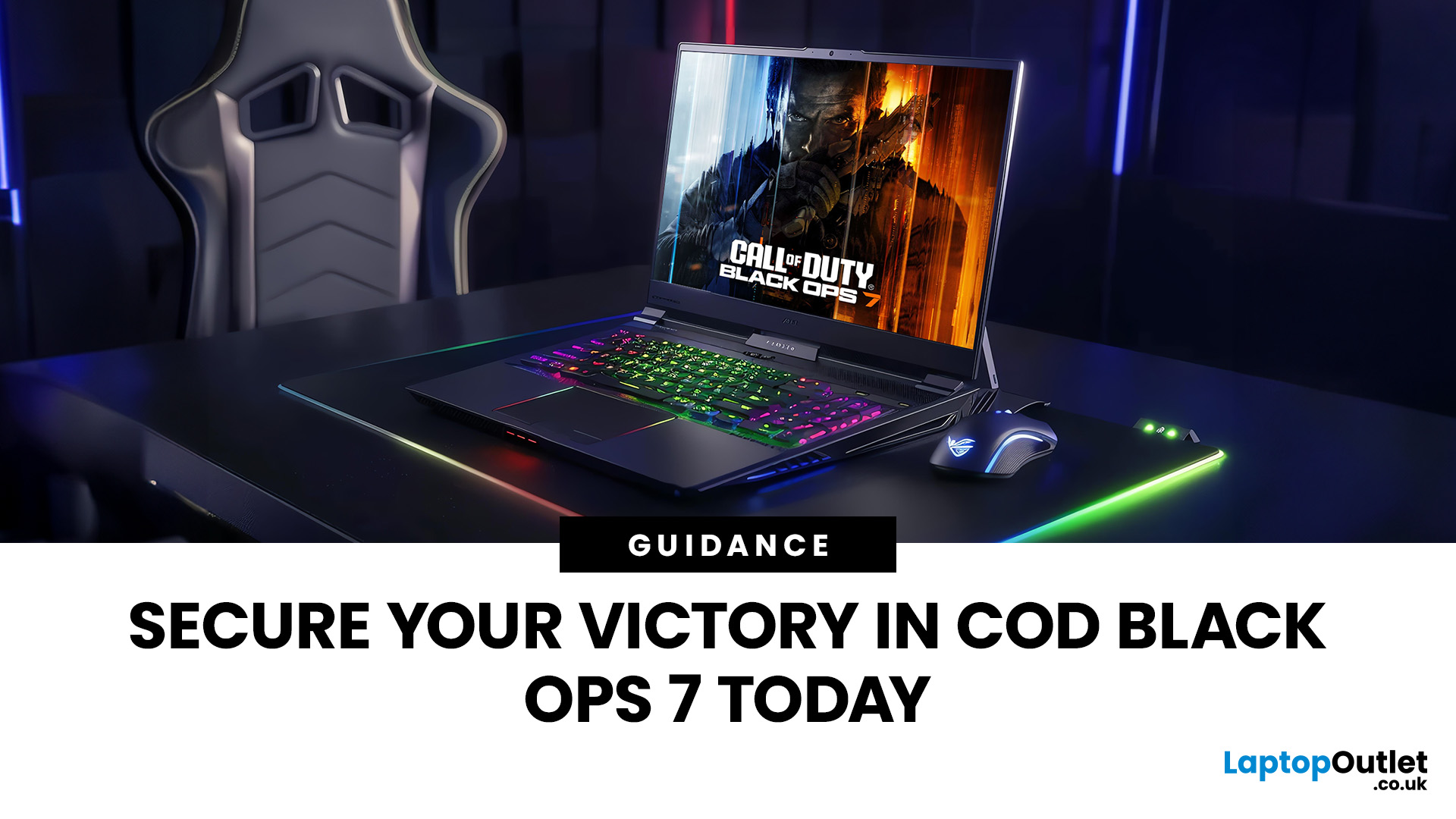
The arrival of Call of Duty: Black Ops 7 is a massive event. This game promises some of the most intense, visually spectacular, and competitive FPS action we’ve seen yet.
To truly dominate the leaderboards, you need more than skill; you need a machine that can keep up. That’s where a high-performance laptop comes in.
To help you secure your victory, we’ve put together 8 best gaming laptops for Call of Duty: Black Ops 7 Season 01. Get ready to experience this game with crystal-clear visuals and lightning-fast frame rates.
Why the Right Gaming Laptop Matters for Black Ops 7
Call of Duty titles are known for their demanding hardware requirements, and Black Ops 7 pushes those boundaries even further. Your laptop needs to render massive maps, intense firefights, and stunning visual effects instantly.
Here is why you need to invest in the right machine:
- Higher FPS: In competitive FPS games, a higher frame rate (FPS) translates directly to a smoother,

Last Updated: March 12, 2026
If you’re preparing to dive into Europa Universalis V (EU V), you already know you’re in for hundreds of hours of territory expansion, diplomacy, micro-strategy, and historical sandbox storytelling. Grand strategy titles may not appear graphically intense, but they rely heavily on CPU power, AI simulations, late-game processing, and stable performance during long sessions. With modern visuals, expansions, and large campaign data, reliable hardware becomes essential, especially when comparing the best laptops for Europa Universalis V.
In this guide, we highlight the top gaming laptops for multi gaming, outline the EU V recommended specs laptop needs, and help you choose from the most capable RTX laptops for strategy games available today.
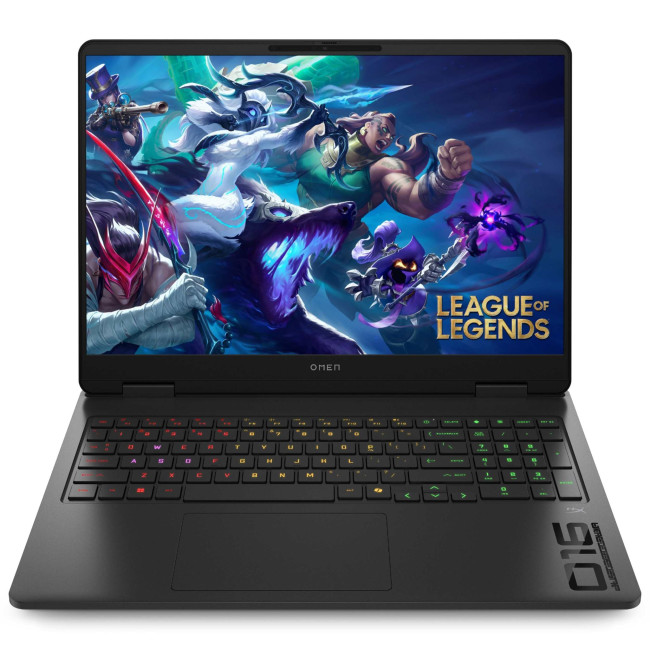
1. HP OMEN Gaming 16 AP0301NA
Technical Specifications
- AMD Ryzen 9 8940HX 16-Core Processor
- 16" WQXGA Display, IPS, 2560 x 1600 Max. Resolution
- 24 GB RAM, 1 TB SSD
- Dedicated NVIDIA RTX 5070 Graphics
- USB 3.2 | HDMI | USB-C
- Black Colour
- 1 Year
Last Updated: June 05, 2026
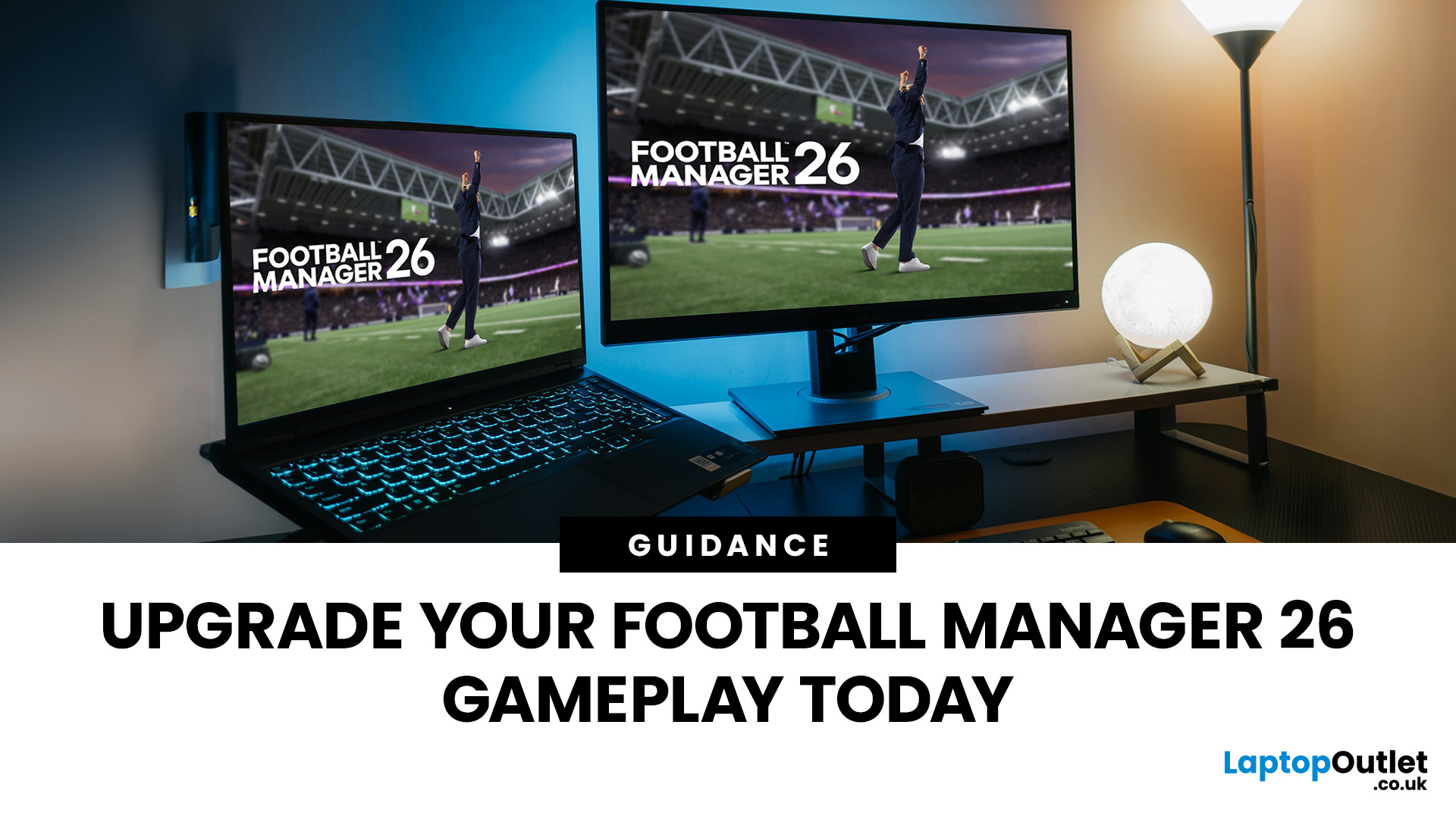
Football Manager 26 is finally here, built on a new Unity-powered 3D match engine with richer lighting, animations and stadium detail.
The good news? Sports Interactive has kept the minimum specs low, so older systems can still load up the game. The less good news is that the new engine leans more heavily on both CPU and GPU, especially during 3D matches and busy transfer windows.
If you want fast simulations, big databases and smooth 3D on high settings, you need the right hardware. This guide walks through Football Manager 26 recommended specs, then highlights the best gaming laptops and PCs for Football Manager 26 available from Laptop Outlet – from budget-friendly picks to powerhouse rigs.
Which Hardware Matters More for Football Manager 26?
Before choosing your machine, it is vital to understand what Football Manager 26 actually is. It is a detailed management simulation, not a graphics-intensive action game.
When you hit the 'Continue' button, the game is not just rendering a stadium.
Last Updated: February 24, 2026
Looking for the best budget gaming laptops and PCs for Sonic Rumble? You’re in the right place. At Laptop Outlet, we’ve scoured our range of powerful yet affordable gaming laptops, so you can find the perfect gear to jump into Sonic’s newest adventure without breaking the bank. Whether you’re after cheap gaming PC deals Sonic, gaming laptops with entry-level GPUs, or compact rigs that punch above their weight, we’ve got you covered. Let’s dive into the best options that’ll give you smooth gameplay, popping visuals, and long-lasting performance.
Recommended Specs to Play Sonic Rumble
By balancing these core specs, you’ll enjoy Sonic Rumble with the performance it deserves:
Processor (CPU)
A modern multi-core processor (such as Intel Core i5/i7 or AMD Ryzen 5/7) is great for entry-to-mid-range gaming. For high-end gaming, you would need an i9 or AMD Ryzen 9.
Graphics (GPU)
To play Sonic Rumble smoothly, aim for at least an entry-level dedicated GPU, something like NVIDIA’s RTX 4070 or
Last Updated: July 10, 2026
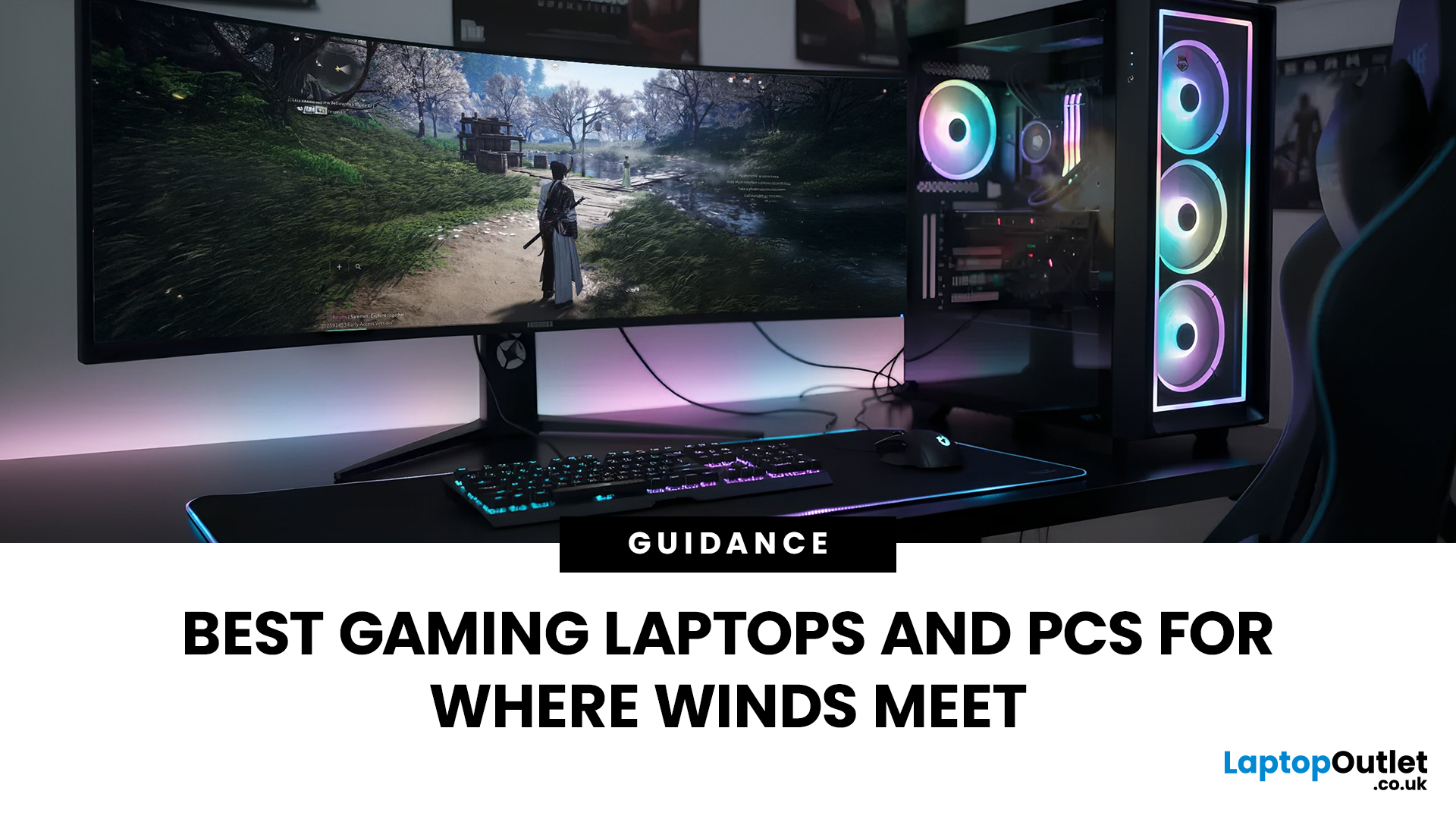
If you’re gearing up to explore the beautifully crafted, action-packed world of Where Winds Meet, choosing the right hardware is just as important as mastering your combat skills. This visually rich open-world action RPG blends fast-paced combat, sweeping landscapes and cinematic storytelling, all of which demand capable, well-balanced hardware.
In this guide, we’ll break down the recommended specs for Where Winds Meet, explain what really matters when it comes to performance, and highlight excellent-value options, including gaming deals for Where Winds Meet that won’t stretch your budget.
Recommended Specs for Where Winds Meet
Before diving into specific systems, let’s outline the core specifications you should be aiming for.
Processor (CPU)
Open-world RPGs rely heavily on CPU performance for AI, physics and world simulation. A modern Intel Core i5 / i7 or AMD Ryzen 5 / 7 is ideal. This ensures stable performance during exploration and combat-heavy sequences.
Graphics Card (GPU)
A dedicated
Last Updated: May 19, 2026
Level up your gaming experience as we head into a brand-new year. If your current rig is struggling with frame drops or long loading times, the New Year gaming laptop deals 2026 at Laptop Outlet are exactly what you need.
2026 is set to be a massive year for the industry, with highly anticipated titles (like GTA VI) pushing the boundaries of realism. To enjoy these games the way developers intended, you need hardware that is built for the future.
We have curated a list of the eight best laptops available for gaming in 2026. These incredible machines offer the ideal blend of power, portability, and price for every type of gamer.
1. ASUS TUF Gaming A16 (FA607NUG-RL116W)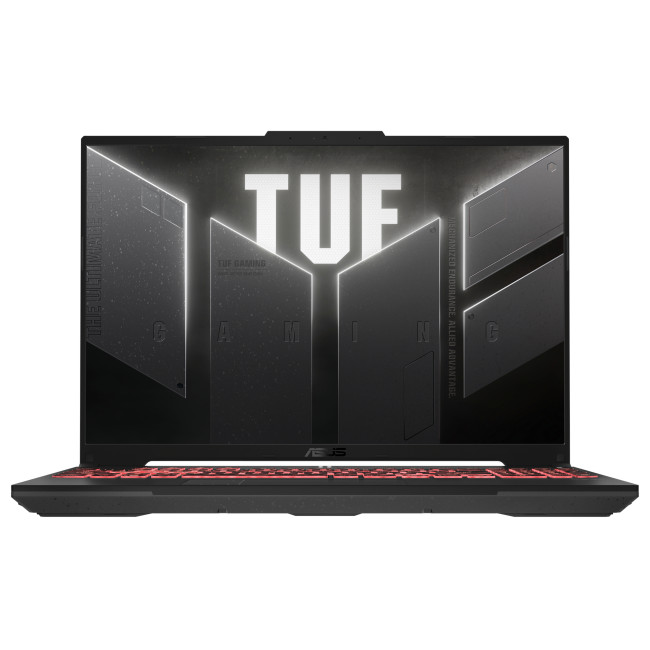
Key Specifications
- Display: 16" FHD+ (1920 x 1200), 144 Hz, IPS
- Processor: AMD Ryzen 7 7445HS Hexa-Core
- Graphics: Dedicated NVIDIA GeForce RTX 4050, 6 GB
- Memory: 16GB DDR5 RAM
- Storage: 512GB SSD
- Connectivity: USB Type-C | USB-A | HDMI | Wi-Fi | Bluetooth | Ethernet
- Battery: 54 Wh
Why You Will Love It
This ASUS TUF

Last Updated: September 03, 2026
Buying an HP gaming laptop in 2026 can feel like being asked to pick between “save money now” and “avoid regret later.”
Choose HP Victus if you want the best price-to-performance balance for esports, coursework, everyday use, and casual AAA gaming. Choose HP OMEN if you want higher frame rates, better display quality, stronger cooling, and a laptop that feels ready for heavier games over the next few years.
The HP Victus gaming laptop is the value pick: more affordable, more student-friendly, and solid for 1080p gaming. The HP OMEN gaming laptop is the performance pick: stronger cooling, better displays, higher-end GPUs, and more headroom for AAA games, streaming, and long-term use.
So, which one should you actually buy?
HP OMEN vs HP Victus: The Simple Difference
HP uses Victus and OMEN for different types of gamers.
The HP Victus gaming laptop is built for mainstream buyers who want a proper gaming laptop without paying premium money. It usually targets 1080p gaming, 144Hz displays, and
Last Updated: July 27, 2026
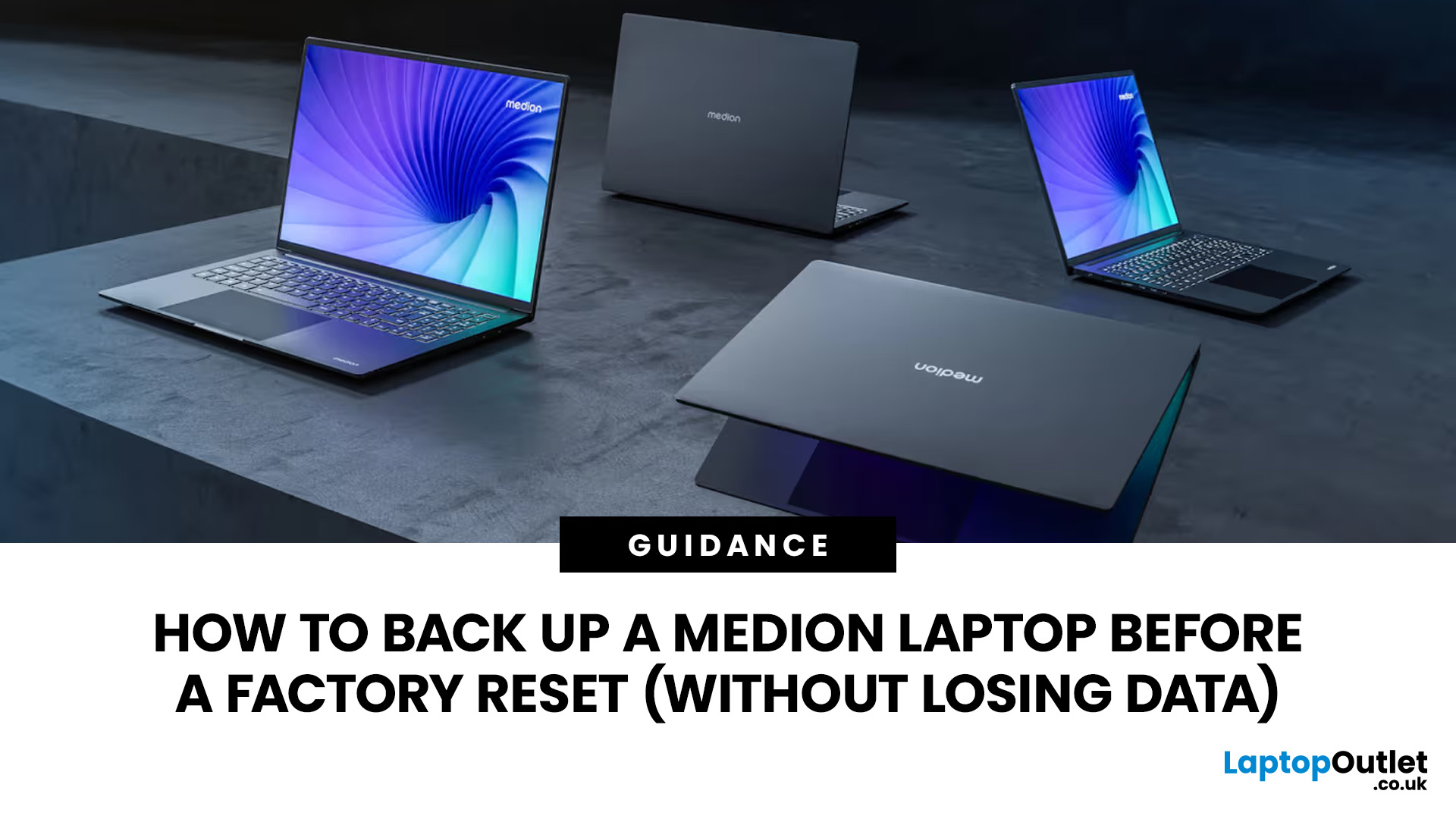
Before you reset MEDION laptop settings or reinstall Windows, copy your personal files to an external drive and create a second copy with Windows Backup and OneDrive or another drive.
Check Desktop, Documents, Downloads, Pictures, Videos, email archives, browser data, game saves and application folders. Open several files directly from the backup to confirm that they work.
Save your BitLocker recovery key, record essential applications and licences, then safely eject and disconnect the external drive before starting the reset.
A factory reset can solve persistent Windows problems, but it may remove applications, settings and personal files. Even when you choose Keep my files, treat it as a recovery option rather than a substitute for a verified backup.
Last Updated: July 23, 2026
Neither processor family is automatically better. An Intel Core i7 laptop is often a strong choice for demanding productivity, supported video workflows and high-powered gaming configurations. A Ryzen 7 laptop can be especially attractive for efficient multitasking, capable integrated graphics and specification value.
When comparing an i7 vs Ryzen 7 laptop, the exact processor number matters more than the badge. A Core i7 U-series processor designed for a lightweight laptop is not equivalent to a Core i7 H-series gaming chip. The same applies to Ryzen 7 U, HS and HX processors.
For the broader brand-level differences, read our AMD vs Intel laptop guide. This guide goes deeper into the Core i7 and Ryzen 7 performance tier.
Intel Core i7 vs Ryzen 7 Laptops: Quick Answer
| Your priority | Better starting point | What to check |
| Everyday office work | Either | RAM, battery, screen and price |
| Heavy multitasking | Either | Exact CPU model, cooling and at least 16GB RAM |
| Gaming with dedicated graphics | Either | GPU |
Last Updated: September 03, 2026
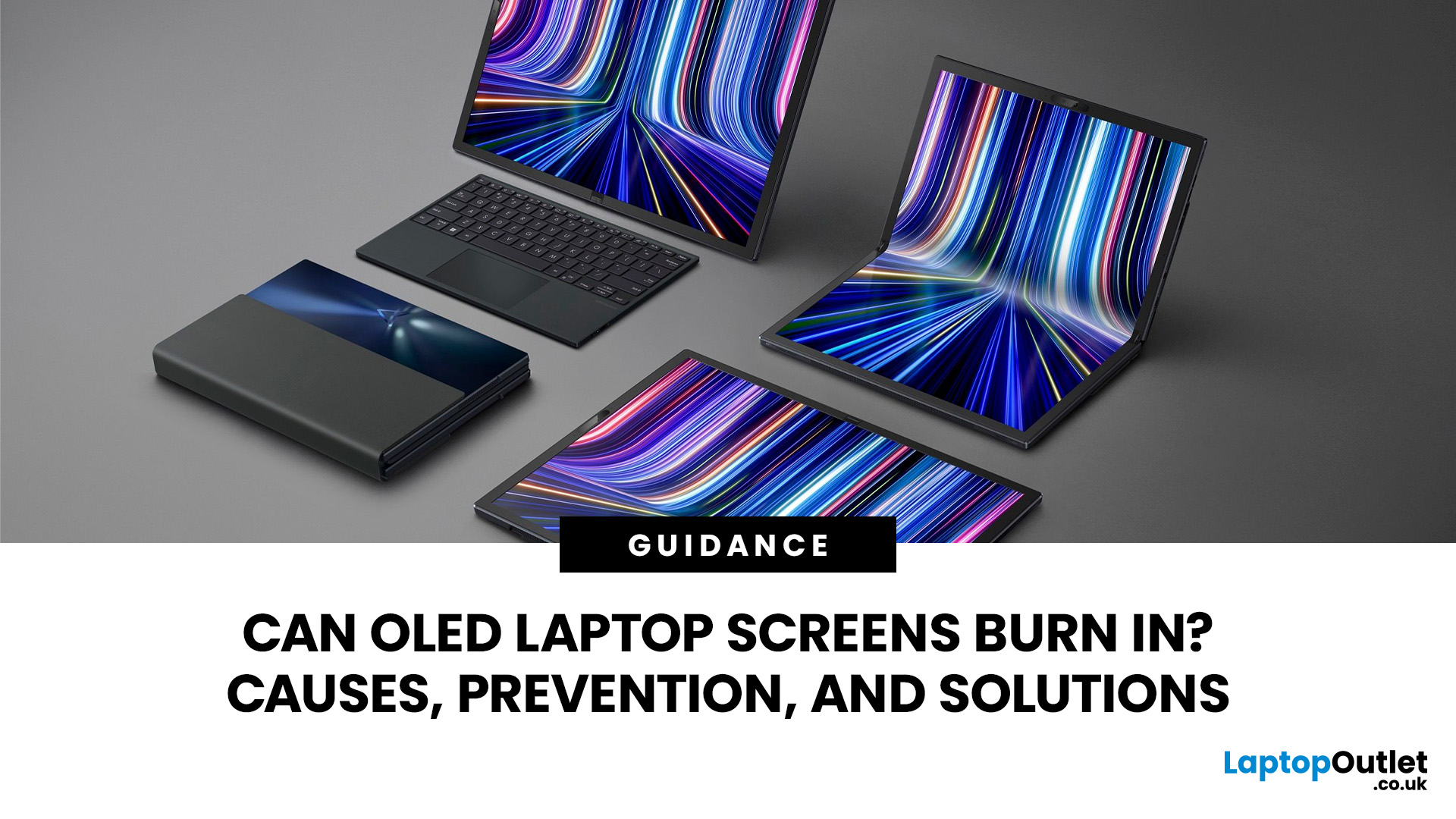
Yes, OLED laptop screens can develop permanent burn-in, but it is unlikely to happen quickly during normal, varied use. Risk increases when the same bright interface elements remain in one position for long periods, particularly at high brightness.
Modern OLED laptops reduce the risk through pixel shifting, automatic dimming and pixel-refresh routines. However, no OLED panel is completely immune.
For buyers considering laptops with OLED screen, burn-in is a manageable long-term consideration rather than a reason to avoid OLED. Sensible settings let you enjoy deep blacks, rapid response times and exceptional contrast while protecting the display.
For help comparing suitable models, see our guide to the best OLED laptops for work, gaming and creative use, covering options for different workloads and performance needs.
What Is OLED Screen Burn-In?
OLED screen burn in is a permanent shadow, outline or colour change caused by some pixels ageing faster than others.
OLED is a self-emissive display.

