



Can OLED Laptop Screens Burn In? Causes, Prevention, and Solutions
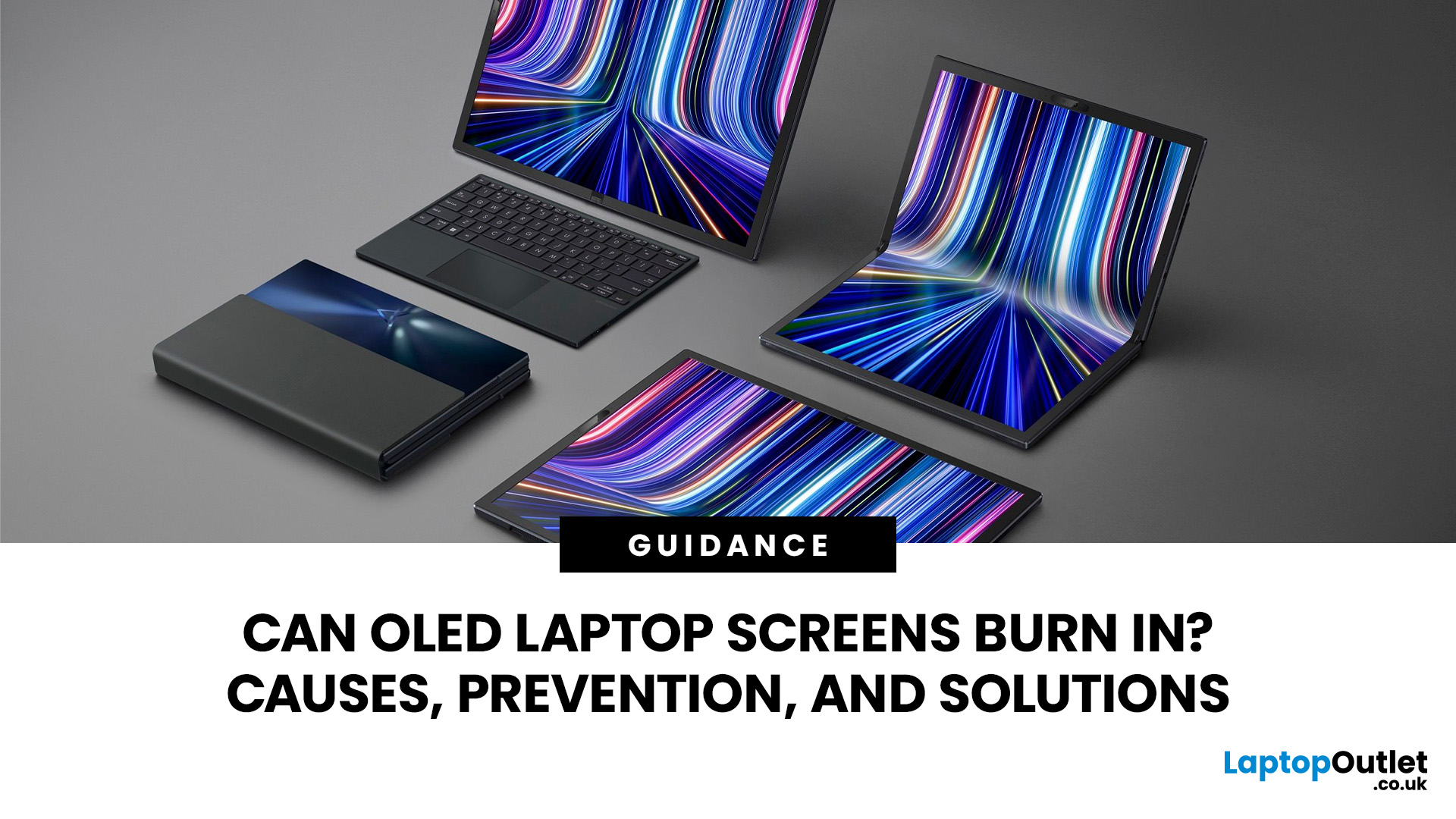
Yes, OLED laptop screens can develop permanent burn-in, but it is unlikely to happen quickly during normal, varied use. Risk increases when the same bright interface elements remain in one position for long periods, particularly at high brightness.
Modern OLED laptops reduce the risk through pixel shifting, automatic dimming and pixel-refresh routines. However, no OLED panel is completely immune.
For buyers considering laptops with OLED screen, burn-in is a manageable long-term consideration rather than a reason to avoid OLED. Sensible settings let you enjoy deep blacks, rapid response times and exceptional contrast while protecting the display.
For help comparing suitable models, see our guide to the best OLED laptops for work, gaming and creative use, covering options for different workloads and performance needs.
What Is OLED Screen Burn-In?
OLED screen burn in is a permanent shadow, outline or colour change caused by some pixels ageing faster than others.
OLED is a self-emissive display. Every pixel creates its own light through pixel-level lighting rather than relying on a shared backlight. This produces precise contrast and true blacks, but each pixel also wears according to how brightly and frequently it is used. Technical research describes OLED as a self-emitting pixel technology.
Although the terms are sometimes used interchangeably, there are differences between OLED and AMOLED laptop screens that can affect how manufacturers describe their display technology.
What Happens During OLED Burn-In?
When a bright, static object repeatedly stays in one location, the pixels displaying it accumulate more wear.
A Windows taskbar, browser toolbar, editing timeline, channel logo, game HUD or spreadsheet grid can therefore age one part of the screen faster than the surrounding area.
Eventually, this uneven OLED panel degradation may appear as:
- A faint ghost image
- A dimmer patch
- An outline of an interface
- Uneven colours
- Reduced brightness in one area
The original picture is not literally trapped in the screen. The affected pixels have simply lost more brightness than neighbouring pixels and can no longer produce an evenly matched image.
Burn-In vs Temporary Image Retention
OLED burn-in is permanent. Temporary OLED image retention usually fades after the screen rests, displays varied content or completes a maintenance cycle.
To test the difference, shut the laptop down, restart it later and display full-screen grey, white, red, green and blue images. A fading mark is probably OLED screen retention. A mark that remains unchanged after rest and approved maintenance may be permanent.
Burn-in results from cumulative, non-uniform pixel use, whereas temporary retention does not necessarily indicate lasting damage.
Can OLED Laptop Screens Really Burn In?
Yes. Organic light-emitting materials gradually lose output as they are used.
However, “possible” does not mean “inevitable”. Mixed browsing, video, gaming and office work spreads pixel use more evenly than displaying the same dashboard or editing interface every day.
How Common Is Burn-In on Modern OLED Laptops?
There is no trustworthy universal burn-in rate. Different laptops use different OLED panels, brightness controls, cooling systems and protection software. User behaviour also varies significantly.
Modern OLED panels are generally more resistant than earlier generations. Manufacturers increasingly include:
- Static-element dimming
- Automatic screen savers
- Pixel compensation cycles
- OLED pixel shifting
- Brightness management
- Pixel refresh tools
A demanding long-term test of a modern OLED monitor found only light visible wear after thousands of hours, despite unusually harsh usage. However, monitor testing cannot guarantee identical results for every laptop panel.
Which Users Are Most at Risk?
Risk is highest for users who display fixed layouts throughout the working day. Examples include:
- Traders using fixed charts
- Developers keeping the same IDE layout
- Video editors with persistent timelines
- Reception and information systems
- CCTV monitoring stations
- Gamers leaving bright HUDs or menus visible
- Office users working in the same spreadsheet template
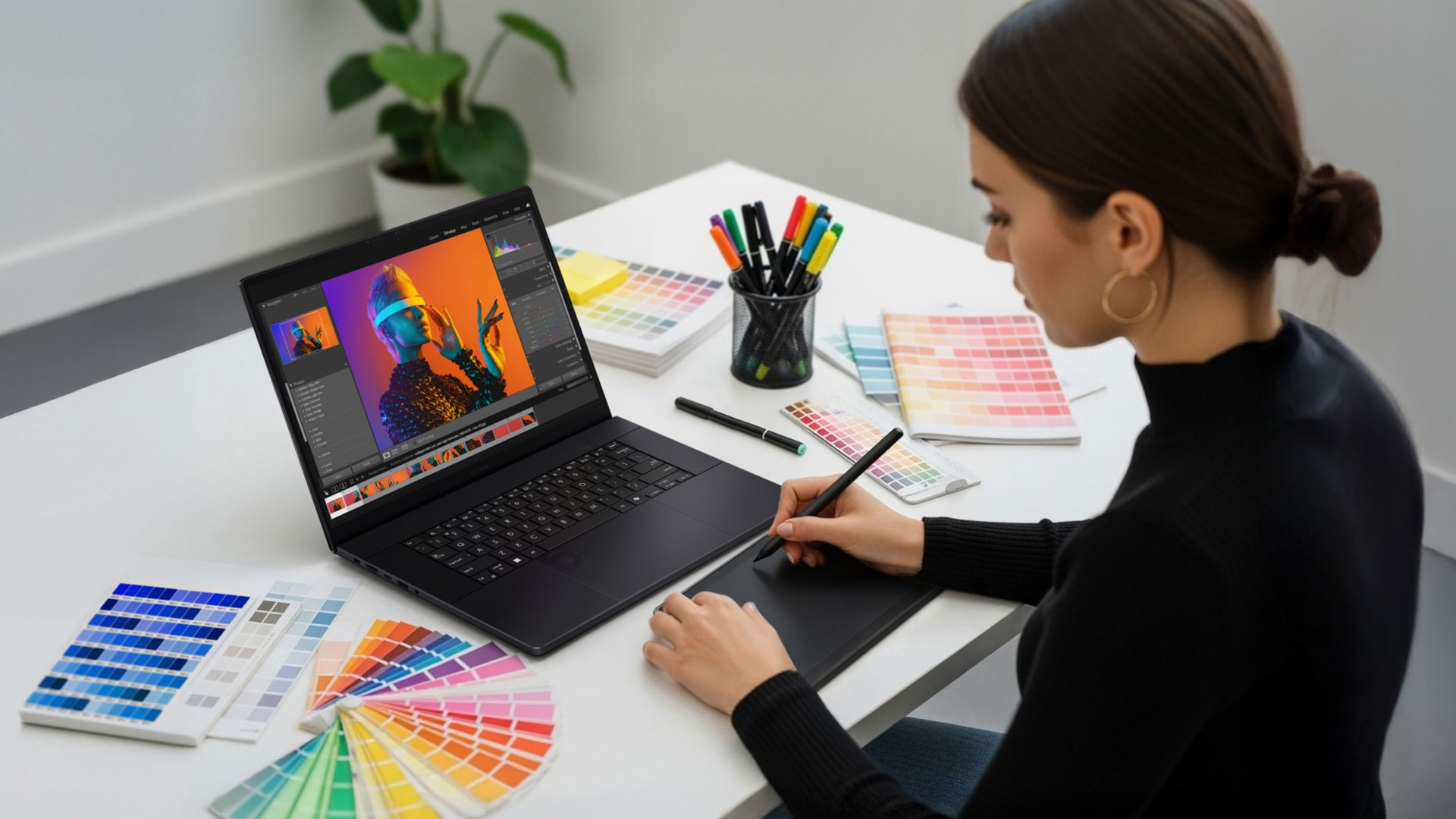
Creators can still use OLED safely, particularly when contrast and colour accuracy matter. Buyers comparing the best professional creator laptops should enable panel-care tools and avoid leaving editing interfaces unchanged overnight.
What Causes OLED Laptop Burn-In?
Static User Interface Elements
Taskbars, desktop icons, browser tabs, menu bars and application panels are common OLED burn in causes because they remain in fixed positions.
Bright white icons against a dark background may create especially concentrated wear because those pixels repeatedly operate at a higher output than the surrounding screen.
High Brightness for Long Periods
Higher brightness makes OLED pixels work harder. This can accelerate the ageing of the organic light-emitting material.
Brief HDR highlights are less concerning because they normally appear for only a short time. The greater risk is leaving a static desktop, spreadsheet or application interface at maximum brightness for several hours every day.
Long Sessions Without Screen Changes
Eight hours of varied video is generally less risky than eight hours displaying the same spreadsheet, dashboard or editing workspace.
Burn-in is cumulative. Repeated exposure over months or years is therefore more important than one ordinary work or gaming session.
Uneven Pixel Usage Over Time
Every OLED screen gradually ages. Burn-in becomes visible when the ageing is uneven enough for one area to appear different from another.
Changing content, moving windows, watching full-screen media and avoiding permanently fixed layouts can distribute pixel use more evenly.
How to Prevent OLED Burn-In
Enable Pixel Refresh Features
Use the manufacturer’s OLED image cleaning, pixel refresh or panel-care tool. These routines compensate for differences in pixel output and may reduce temporary retention or improve screen uniformity.
They cannot rebuild permanently worn organic material.
Allow automatic maintenance cycles to finish, particularly when the laptop requests that it remain connected to power. Avoid repeatedly running intensive manual refresh cycles unless the manufacturer recommends doing so.
Use Auto-Hide Taskbars
The Windows taskbar is one of the most persistent static elements on a laptop screen.
In Windows 11, open:
Settings > Personalisation > Taskbar > Taskbar behaviours
Then enable Automatically hide the taskbar.
The taskbar will remain accessible when you move the pointer to the bottom of the screen. Auto-hiding it is widely recommended for reducing static interface exposure on OLED displays.
Lower Screen Brightness When Possible
Use a comfortable brightness level rather than maximum output by default.
Reducing brightness lowers pixel stress and can improve laptop battery life. You do not need to make the display uncomfortably dim. The objective is simply to avoid unnecessarily high sustained brightness.
Enable Dark Mode
Dark mode reduces the amount of light produced across an OLED screen because black pixels switch off or operate at extremely low output.
It is particularly useful for applications with large white backgrounds, including web browsers, email clients and productivity software.
Dark mode does not completely prevent OLED burn-in, however. Bright icons, text and interface elements can still create uneven wear if they remain fixed for long periods.
Use Screen Timeout and Sleep Settings
Set the display to switch off after a few minutes of inactivity.
A five-minute screen timeout is practical for many users and is more protective than leaving a static desktop wallpaper visible. Businesses may need to select a different timeout to suit security or workflow requirements.
Rotate Wallpapers and Avoid Static Images
Use changing wallpapers, a blank screen saver or a rotating slideshow rather than one bright static background.
Move frequently used windows occasionally and maximise different applications instead of maintaining the same split-screen layout every day.
On gaming laptops with OLED screens, vary the games you play and hide optional HUD elements during particularly long sessions.
The same precautions apply to desktop displays, particularly when comparing the best OLED gaming monitors for long gaming sessions, high refresh rates and HDR content.
Can OLED Burn-In Be Fixed?
Temporary Image Retention Solutions
Try the following steps when dealing with temporary OLED screen retention:
- Close the application that displayed the static image.
- Play varied full-screen content for a short period.
- Reduce screen brightness and let the panel cool.
- Turn the laptop off for 30 to 60 minutes.
- Run the manufacturer-approved pixel refresh or OLED image cleaning tool.
- Update the laptop’s BIOS, graphics driver and control utility.
Avoid third-party “OLED burn in fix” videos that flash colours continuously for several hours.
These videos cannot restore lost pixel capacity. In some cases, they attempt to make wear less visible by ageing other pixels, which may place unnecessary stress on the rest of the panel.
When Burn-In Is Permanent
There is no genuine software-based OLED burn in fix for permanently degraded pixels.
Screen calibration may make general colour drift less noticeable, while professional screen calibration can improve overall colour consistency. However, permanent localised pixel wear normally requires panel replacement.
Contact the manufacturer or retailer when a mark remains visible across different images, colours and system restarts.
Photograph the problem against a neutral grey background and record:
- The laptop model
- The serial number
- When the problem first appeared
- The applications normally used
- Troubleshooting already completed
Does Warranty Cover OLED Burn-In?
Sometimes, but coverage should never be assumed.
Warranty terms vary by manufacturer, model, region, and product category. Some OLED monitor manufacturers explicitly include burn-in protection on selected products, while laptop warranties may classify gradual image to wear differently.
Check the exact UK warranty of wording, duration and exclusions before purchasing or submitting a claim. OLED burn-in coverage remains inconsistent, making model-specific verification essential.
OLED Burn-In Myths vs Facts
Myth: Every OLED Screen Burns in Quickly
Fact: Every OLED panel ages, but normal ageing is not the same as visible burn-in.
Varied content, reasonable brightness and built-in protection features can keep pixel wear sufficiently even that no distracting image appears during the laptop’s useful life.
Myth: Burn-In Happens Within Months
Fact: There is no fixed burn-in timetable.
Brightness, operating temperature, panel generation, workload, static content and protection settings all influence how quickly pixels age. Extreme fixed-image use can cause problems earlier, while many users may never notice visible burn-in.
Myth: OLED Is Not Suitable for Productivity
Fact: OLED can be excellent for productivity, design and media work, but static-heavy workflows require sensible precautions.
Users who display one application interface continuously may prefer IPS. Those prioritising contrast, colour depth, HDR and fast pixel response may find OLED worth the manageable risk.
When comparing high-performance laptops, consider the display alongside processing power, graphics performance, battery life and portability.
OLED vs IPS Displays: Which Is Better for Long-Term Use?
|
Factor |
OLED |
IPS |
|
Image quality |
Perfect blacks, exceptional contrast and rapid response |
Strong all-round quality, although blacks may appear grey |
|
Colour accuracy |
Excellent on calibrated wide-gamut panels |
Excellent on high-quality calibrated panels |
|
Brightness |
Strong highlights, but full-screen output can vary |
Often more consistent with bright white content |
|
Lifespan |
Organic pixels gradually lose output |
Backlight and panel components also age |
|
Burn-in risk |
Possible through cumulative uneven use |
Very low, although temporary persistence can occur |
|
Best use |
Creative work, entertainment and gaming |
Static office work, dashboards and fixed interfaces |
Image Quality
OLED wins for black levels, contrast and motion clarity. Individual pixels can turn off completely, creating dark scenes without visible backlight glow.
Colour Accuracy
Both technologies can offer excellent colour accuracy after calibration. The quality and calibration of the specific panel matter more than the display label alone.
Brightness
IPS often maintains bright full-screen whites more consistently. OLED performs particularly well when displaying dark scenes with small, bright highlights.
Lifespan
A properly maintained modern OLED laptop can last for years. However, the exact OLED screen lifespan depends on brightness, heat, panel design and usage patterns.
IPS panels also age, particularly through backlight degradation, but they are less vulnerable to uneven wear from static interface elements.
Burn-In Risk
IPS is the safer option for permanently fixed applications and dashboards. OLED risk is relatively low during varied everyday use but can never be reduced to zero.
Best Choice by User Type
When following a best OLED laptops for gaming and work guide, choosing between OLED and IPS depends largely on how you plan to use your laptop.
Choose OLED for film and media consumption, photography, graphic design, HDR content creation, and gaming, where deep contrast, vibrant colours, fast response times, and an immersive viewing experience matter most.
Choose IPS for static business applications, fixed monitoring systems, and low-maintenance office environments, particularly when the same interface may remain visible for long periods throughout the day.
Final Thoughts
OLED laptop screens can burn in, but sensible habits make the risk manageable for most users.
Avoid leaving bright static elements visible, use moderate brightness, enable OLED pixel shifting and panel-care tools, hide the taskbar and allow the display to sleep when idle.
Choose according to your real workload rather than avoiding OLED through fear alone. OLED delivers outstanding contrast, colour and responsiveness, while IPS offers greater peace of mind for highly static use.
Whichever display you choose, appropriate settings and maintenance will help preserve image quality throughout the laptop’s lifespan.

FAQs
Can OLED laptop screens permanently burn in?
Yes. Permanent burn-in can occur when certain pixels receive substantially more cumulative use than the surrounding pixels. Displaying varied content and enabling protection features can significantly reduce the risk.
How long does OLED laptop burn-in take to happen?
There is no set number of hours. Brightness, static content, operating temperature, panel design and daily usage all influence how quickly uneven degradation develops.
Does lowering brightness prevent OLED burn-in?
Lowering brightness reduces the risk but does not eliminate it. Combine moderate brightness with varied content, screen timeout settings, OLED pixel shifting and manufacturer-approved refresh features.
What causes OLED screen burn-in on laptops?
The main causes are prolonged static interface elements, sustained high brightness, repeated fixed layouts and uneven pixel usage over time.
Related Articles

Last Updated: September 08, 2026
Two laptops can both say AMD Ryzen 5 on the specification sheet and still be built for very different jobs. One may prioritise battery efficiency and portability, while another is designed to sustain more performance for gaming, coding or creative work.
That is why choosing an AMD Ryzen 5 laptop in 2026 means looking beyond the tier name. AMD currently spans several mobile naming families, from Ryzen 7000 and 8000 to newer Ryzen 100, Ryzen 200 and Ryzen AI ranges. The exact processor, power class, memory, graphics, storage and laptop design all influence the experience.
This guide explains how to read those specifications, avoid misleading shortcuts and match the complete configuration to the way you actually use your laptop.
Quick Answer: How to Choose a Ryzen 5 Laptop
For most buyers, the right Ryzen 5 laptop is the one with a balanced specification rather than simply the largest processor number. Start with your main workload, then check the full CPU name, RAM, storage, graphics, display

Last Updated: August 06, 2026
Published: July 21, 2026
For 1080p, an RTX 5060 is the sensible mainstream pick. For 1440p, step up to an RTX 5060 Ti 16GB or RTX 5070. For 4K, the RTX 5080 is the best-balanced choice for most people, with the RTX 5090 reserved for buyers who genuinely need its 32GB of memory or maximum settings at every resolution.
Picking one of the best RTX gaming PCs isn't about flexing the priciest GPU - it's about matching your rig to your setup and the games you actually play. A competitive player on a 1080p 240Hz display needs strong CPU performance and low latency. Someone playing cinematic single-player games on a 4K screen needs more GPU power, VRAM, and cooling. A 1440p buyer usually wants the strongest balance of image quality, speed, and price.
Getting this right prevents two expensive mistakes: overspending on performance your display can't show, or buying a PC that leans too heavily on generated frames to hit numbers it can't sustain natively. The most common upgrade enquiry we see at Laptop Outlet is from 1080p

Last Updated: July 21, 2026
Last Updated: July 21, 2026
Using your laptop in public is normal now. Cafés, trains, airports, libraries, lecture halls, shared offices, the laptop comes everywhere. But if the person sitting next to you can casually read your emails, bank details, work chats or assignments, that is not exactly ideal.
That is where privacy screen protectors laptops come in. Whether you are a student, business user, commuter or hybrid worker, this guide explains how privacy screens work, their benefits, disadvantages, types and whether they are actually worth buying.
How Does a Privacy Screen Protector Work?
Most laptop privacy screens use tiny vertical filter layers, often called micro-louvres. These work a bit like blinds. When you look at the laptop straight on, you can see the display clearly. When someone looks from the side, the filter blocks the view.
This is also how laptops and notebooks privacy screens work in everyday spaces. If you are working on a train, someone sitting beside you should find it much harder to read your

Last Updated: July 24, 2026
Samsung unveiled the Galaxy Z Fold8 Ultra and Galaxy Z Fold8 at its Galaxy Unpacked event on 22 July 2026. While both belong to its latest foldable range, they target different users. The Fold8 Ultra sticks to the classic book-style design, offering a larger display, advanced cameras and a bigger battery. The standard Fold8 adopts a shorter, wider and lighter design, better suited to landscape use. Notably, the rumoured “Fold8 Wide” name was dropped. This comparison explores their key differences in display, camera, performance, battery, pricing and overall value as everything expected from Samsung Unpacked.
Key Takeaways
- The Galaxy Z Fold8 starts at £1,699, while the Galaxy Z Fold8 Ultra starts at £1,899 in the UK.
- Both phones use the Snapdragon 8 Elite Gen 5 for Galaxy processor, so you do not need the Ultra for flagship performance.
- The Galaxy Z Fold8 is lighter at 201g and uses a distinctive short-and-wide design.
- The Galaxy Z Fold8 Ultra has larger screens, a 200MP main camera, a
Last Updated: August 06, 2026
Last Updated: July 22, 2026
Last Updated: September 03, 2026

Published: July 22, 2026

