



Can a Medion PC Support Multiple Monitors?
Quick answer
Usually, yes. A Medion PC can support two or more monitors if the exact model has enough active display outputs and its graphics hardware supports the number, resolution and refresh rate you need. Check the PC specification, GPU or integrated graphics limits, and each port before buying extra screens, cables or adapters.
A dual-screen setup can help with work, study, gaming and creative tasks, but two Medion desktops may have very different graphics hardware and display connections.
The Short Answer
Before connecting Medion PC monitors, work through this quick compatibility checklist:
- Count the usable HDMI, DisplayPort, USB-C, DVI or other video outputs.
- For USB-C, verify that the port supports video, not just data or charging.
- On an all-in-one, confirm whether an HDMI socket is an input or an output.
How Many Monitors Can a Medion PC Support?
There is no single monitor limit for every Medion desktop. Check the processor or GPU, motherboard design and active outputs on the exact system. When comparing current options, use the specifications on the Medion desktop PCs page rather than assuming the whole range behaves the same way. The available Medion desktop display outputs are only part of the answer.
Integrated graphics
Some Medion home and office PCs use integrated graphics. These can support several displays, but only when the processor, motherboard outputs and Medion system design all support that configuration.
Dedicated graphics
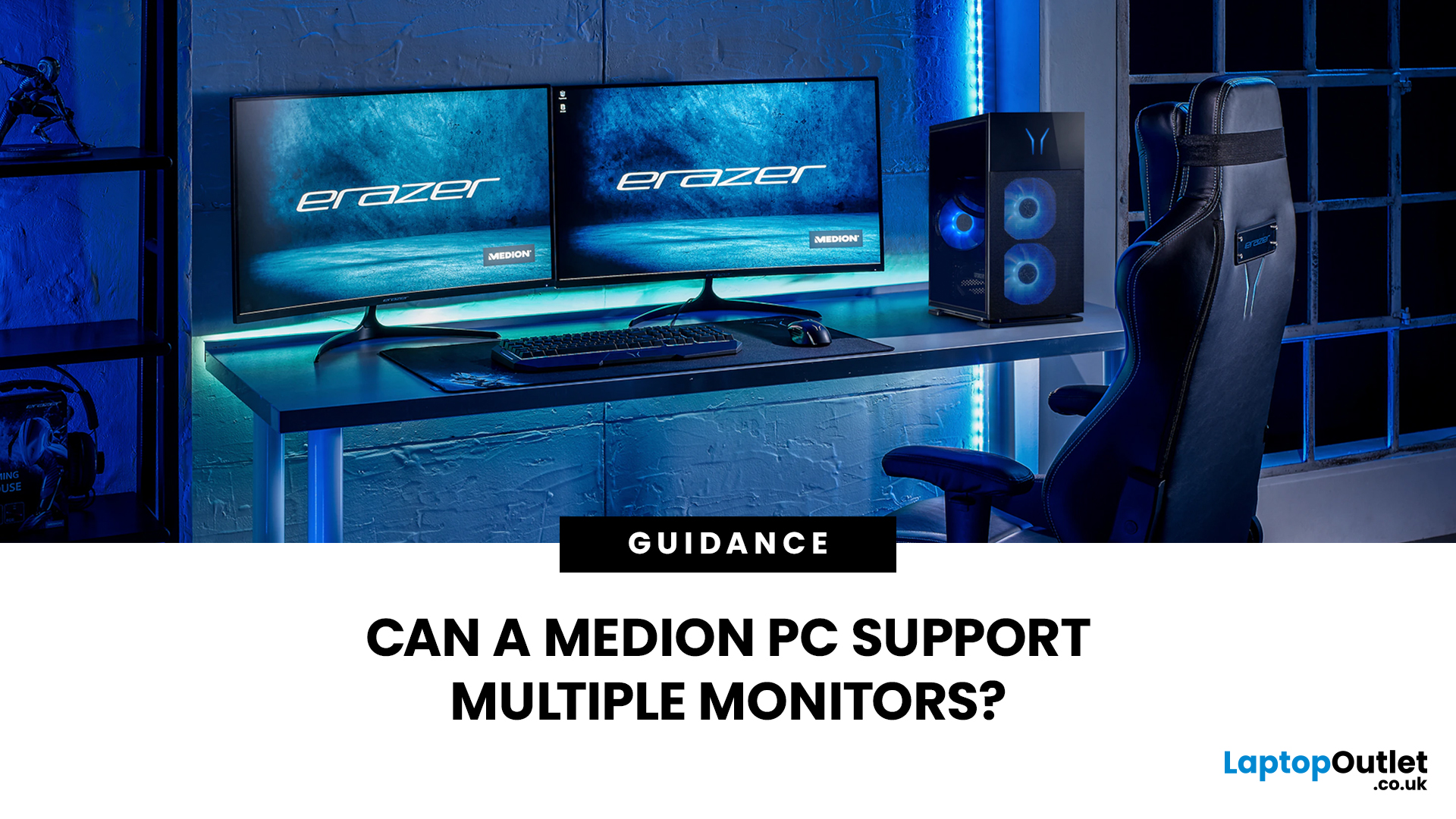
Medion ERAZER systems commonly use dedicated graphics and may provide several HDMI or DisplayPort outputs. Check the exact GPU and connector layout rather than the range name alone. Our guide to Medion ERAZER gaming PCs explains why individual configurations matter.
Resolution and refresh-rate limits
Supporting two monitors does not mean both can run at any resolution or refresh rate. GPU capability, port standard, cable and monitor all matter.
How to Check Your Medion PC’s Display Connections
Look at the rear of the PC, then confirm each connector in the model specification or Medion manual. If the ports are unfamiliar, see our guide to HDMI, DisplayPort, USB-C and VGA. Use this to identify Medion PC monitor ports and active outputs.
|
Port |
Typical cable |
Audio |
Typical use |
What to verify |
|
HDMI |
HDMI to HDMI |
Yes |
Common direct monitor connection |
HDMI version, GPU limit, resolution and refresh rate |
|
DisplayPort |
DP to DP |
Yes |
PC monitors and multi-screen setups |
DP version, bandwidth and MST support |
|
USB-C |
USB-C or adapter |
Usually* |
Displays, docks and adapters |
Video support such as DP Alt Mode, USB4 or Thunderbolt |
|
DVI |
DVI or adapter |
Usually no |
Older digital monitors |
DVI type and resolution limit |
|
VGA |
VGA |
No |
Legacy monitors or projectors |
Analogue output and monitor support |
*USB-C can carry audio when the port and connection support video. The connector shape alone does not confirm display output.
HDMI
HDMI carries digital video and audio. Check the HDMI version and graphics specification before assuming a particular resolution or refresh rate is supported.
DisplayPort
DisplayPort is common on dedicated graphics cards. Some systems also support Multi-Stream Transport, or MST, which can carry several independent display streams through one compatible connection.
USB-C with DisplayPort support
USB-C does not automatically support video. The Medion specification should state a display-capable feature such as DisplayPort Alt Mode, USB4 or Thunderbolt before you rely on it for a monitor.
DVI and older connections
Older Medion PCs may use DVI or VGA. If you need an adapter, confirm that the conversion and required resolution are supported before buying it.
How to Connect Two Monitors to a Medion PC
1. Connect each display
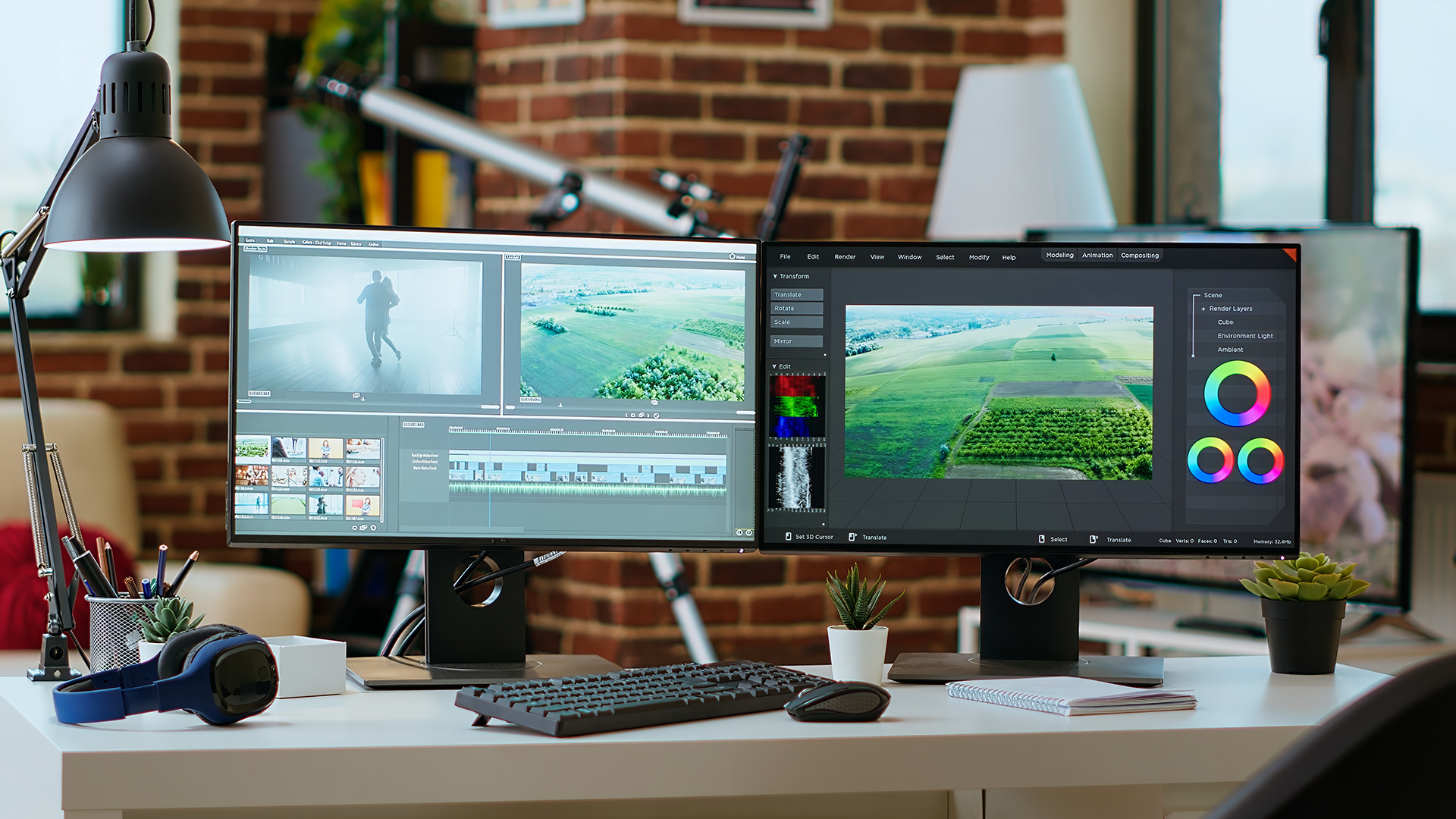
Connect each monitor to a separate supported output and select the correct input on the display. Use a direct cable where possible when troubleshooting. These steps show how to connect two monitors to Medion PC systems safely.
2. Multiple Monitors Windows 11 Setup
Once both screens are powered on, use Windows 11 to detect and arrange them:
- Open Settings > System > Display.
- Select Identify to see which screen is which.
- If a screen is missing, expand Multiple displays and select Detect.
- Drag the numbered screens so they match their physical positions.
- Select the monitor you want to use as the main display.
For a fuller walkthrough of Windows scaling, screen positioning and everyday setup, see our complete dual-monitor setup guide. This also supports a Medion dual monitor setup without repeating generic Windows guidance.
3. Choose Duplicate or Extend mode
Duplicate shows the same picture on both screens. Extend creates a larger Windows workspace and is usually better for multitasking, research, gaming alongside chat or creative work. Extend is usually better for a dual screen computer setup.
4. Arrange screens and select the primary monitor
Arrange the numbered displays so they match your desk, then select the screen you want Windows to treat as the main display.
Connecting Multiple Monitors to a Medion All-in-One PC
Take extra care with all-in-one PCs. An HDMI socket may be an input, an output or one of each, depending on the model.
HDMI IN accepts a signal from another device and cannot send the Medion desktop to a second screen. Check for HDMI IN or HDMI OUT labels and verify the exact manual.
Should You Connect Monitors to the Graphics Card or Motherboard?
If your Medion desktop has a dedicated graphics card, connect monitors to its outputs unless Medion documents another supported configuration. GPU ports usually sit lower on a tower, while motherboard ports sit higher beside USB and Ethernet.
Some PCs can use integrated and dedicated graphics together, but this depends on processor, BIOS and motherboard support. Do not assume both sets of outputs are active.
When Do You Need an Adapter, Dock or DisplayPort MST Hub?
Use an adapter when the PC and monitor use different connections, but confirm its supported resolution and refresh rate.
A compatible docking station can add display connections when the host port supports video. A compatible DisplayPort MST hub can create independent displays. A basic HDMI splitter normally mirrors one signal instead of creating separate Windows desktops.
Common Multi-Monitor Problems and Fixes
Second monitor not detected
Work from the simplest cause to the more technical ones:
- Confirm the monitor has power and the correct input is selected.
- Reseat the cable at both ends.
- Test another known-working
- Try a different active display output on the PC.
- Open Settings > System > Display > Multiple displays > Detect.
- Verify the GPU or integrated graphics display limit and the Medion
Wrong resolution or refresh rate
Check the affected screen under Settings > System > Display, then review Advanced display. If the expected resolution or refresh rate is missing, verify the cable, adapter, port, GPU and monitor specification.
Blank screen after connecting
Test another cable and active output. If you use a dock, adapter or converter, try a direct connection to isolate the source of the problem.
USB-C monitor not working
Check the port specification before replacing the cable. A data-only USB-C port cannot be turned into a native display output simply by using a USB-C-to-HDMI or USB-C-to-DisplayPort cable.
What to Check Before Buying a Multi-Monitor Medion PC
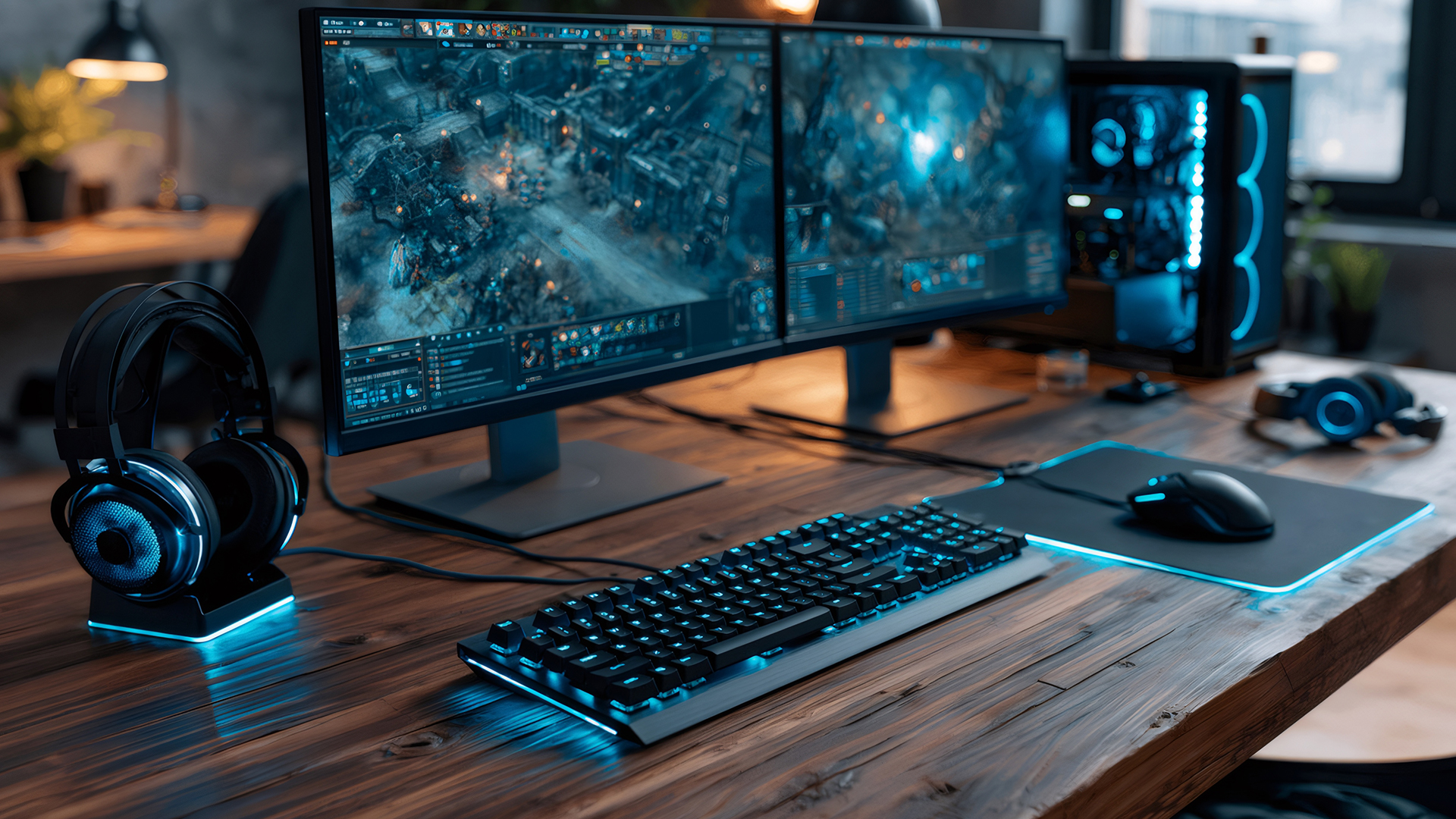
If several screens matter, include connectivity in the buying decision rather than comparing only processor, RAM and storage.
Compare the wider Medion computer range with the desktop PC range. Then match the chosen PC with compatible computer monitors that suit its outputs and performance.

Final Thoughts on Medion PC Monitors
A Medion PC can often support two or more monitors, but the exact hardware decides the limit. Check active outputs, graphics capability, resolution and refresh-rate requirements before buying extra screens or adapters.
Use GPU outputs on dedicated-graphics systems unless documented otherwise, verify HDMI direction on all-in-one models, and never assume USB-C carries video. For a new setup, get Medion PCs with monitors that match the connections you need.

Common Questions About Medion Multi-Monitor Setups
Can every Medion desktop support two monitors?
No. Multi-monitor support varies by model, graphics hardware and available outputs. Some Medion desktops can run several displays, while others may expose fewer active connections. Check the exact specification and graphics limits before adding another monitor.
Can I use HDMI and DisplayPort at the same time?
Often, yes, if both are active outputs from graphics hardware that supports multiple displays. The presence of HDMI and DisplayPort sockets does not by itself guarantee simultaneous operation, so verify the exact PC and GPU specification.
Does USB-C always support video output?
No. USB-C describes the connector shape. The port must also support a display technology such as DisplayPort Alt Mode, USB4 video output or Thunderbolt before it can send an image to a compatible monitor.
Can a Medion all-in-one connect to a second monitor?
Some models can, but check the exact specification first. An all-in-one may have HDMI input, HDMI output or both. Only a supported output can send the Medion PC desktop to an additional external display.
Why is my second monitor not detected in Windows 11?
Check monitor power, the selected input, cable and PC output first. Then open Settings > System > Display > Multiple displays > Detect. If it is still missing, test another cable or port and update the graphics driver.
Can multiple monitors reduce PC performance?
They can add graphics workload, particularly at high resolutions or refresh rates. Normal desktop work is usually light, while gaming, video playback or GPU-heavy applications across several screens can place greater demand on the graphics hardware.
Do I need a dedicated graphics card for two monitors?
Not necessarily. Many integrated graphics processors can support more than one display. The processor, motherboard outputs and Medion system configuration must all support the setup, so verify the exact PC rather than assuming dedicated graphics are required.
| Read More: |
| How to Choose the Right Monitor for Your Graphics Card |
| 4K vs 1440p vs 1080p: Which Monitor Resolution Should You Choose? |
| How to Optimise Your Monitor for Maximum Performance |
Related Articles

Last Updated: August 11, 2026
Published: August 17, 2026
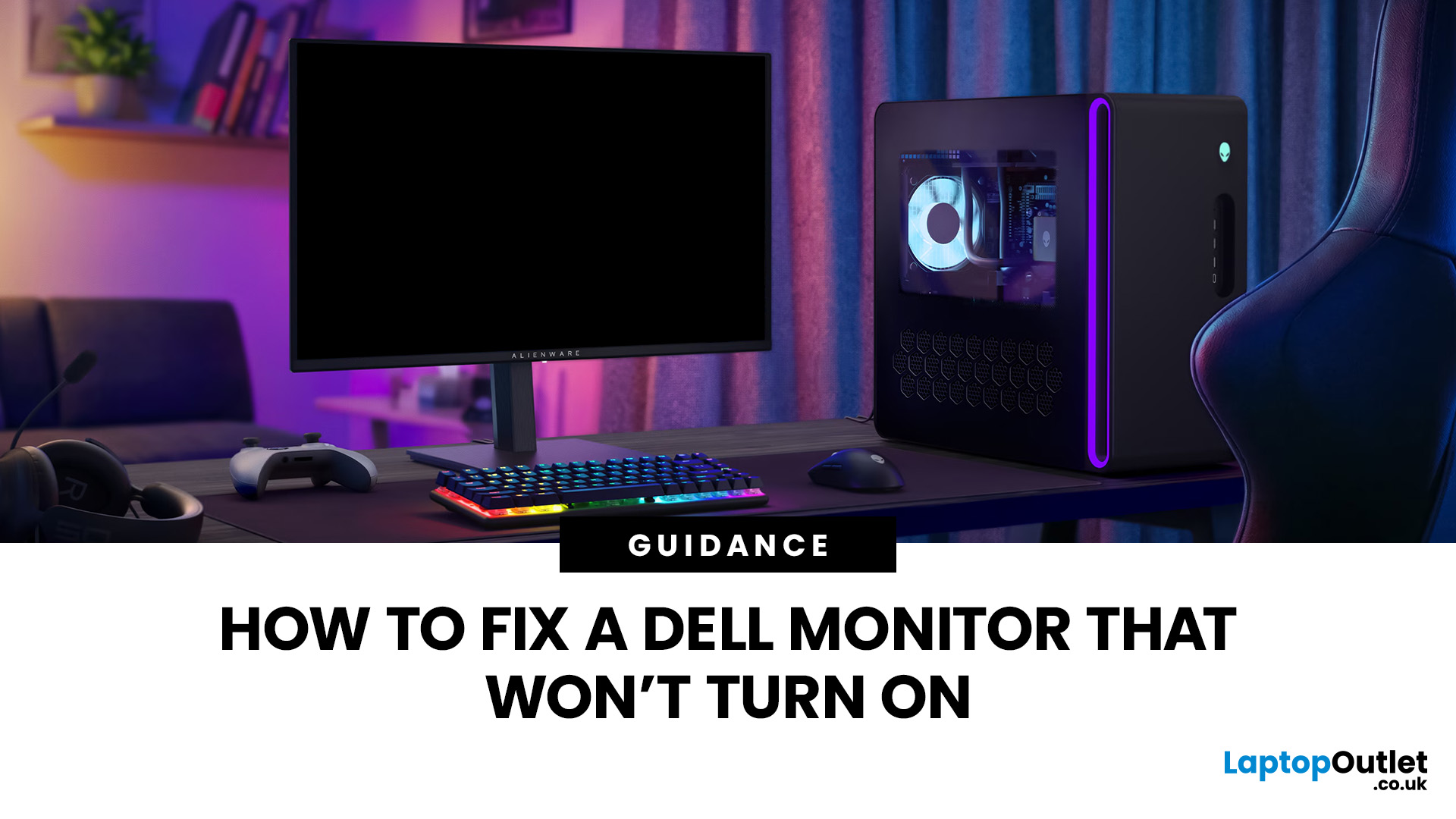
If your Dell monitor won’t turn on, don’t assume the screen is dead straight away. The issue could be as simple as a loose power cable, the wrong input source, or a dodgy HDMI connection.
The key is to identify what your monitor is actually doing. Is there no power light at all? Does the screen stay black even though the power LED is on? Or are you seeing a “No Signal” message?
Let’s work through the checks in the right order so you can find the problem without randomly swapping settings or buying hardware you might not need.
First, Check What Your Dell Monitor is Doing
A Dell monitor not turning on can mean a few different things.
| What You See | What to Check First |
| No power light | Socket, power cable, adapter and monitor power |
| Power light but black screen | Video cable, PC output and monitor diagnostics |
| “No Signal” message | HDMI/DisplayPort connection and input source |
| Screen works briefly then goes blank | PC, graphics connection or display hardware |
Making this distinction matters because a monitor
Last Updated: August 17, 2026
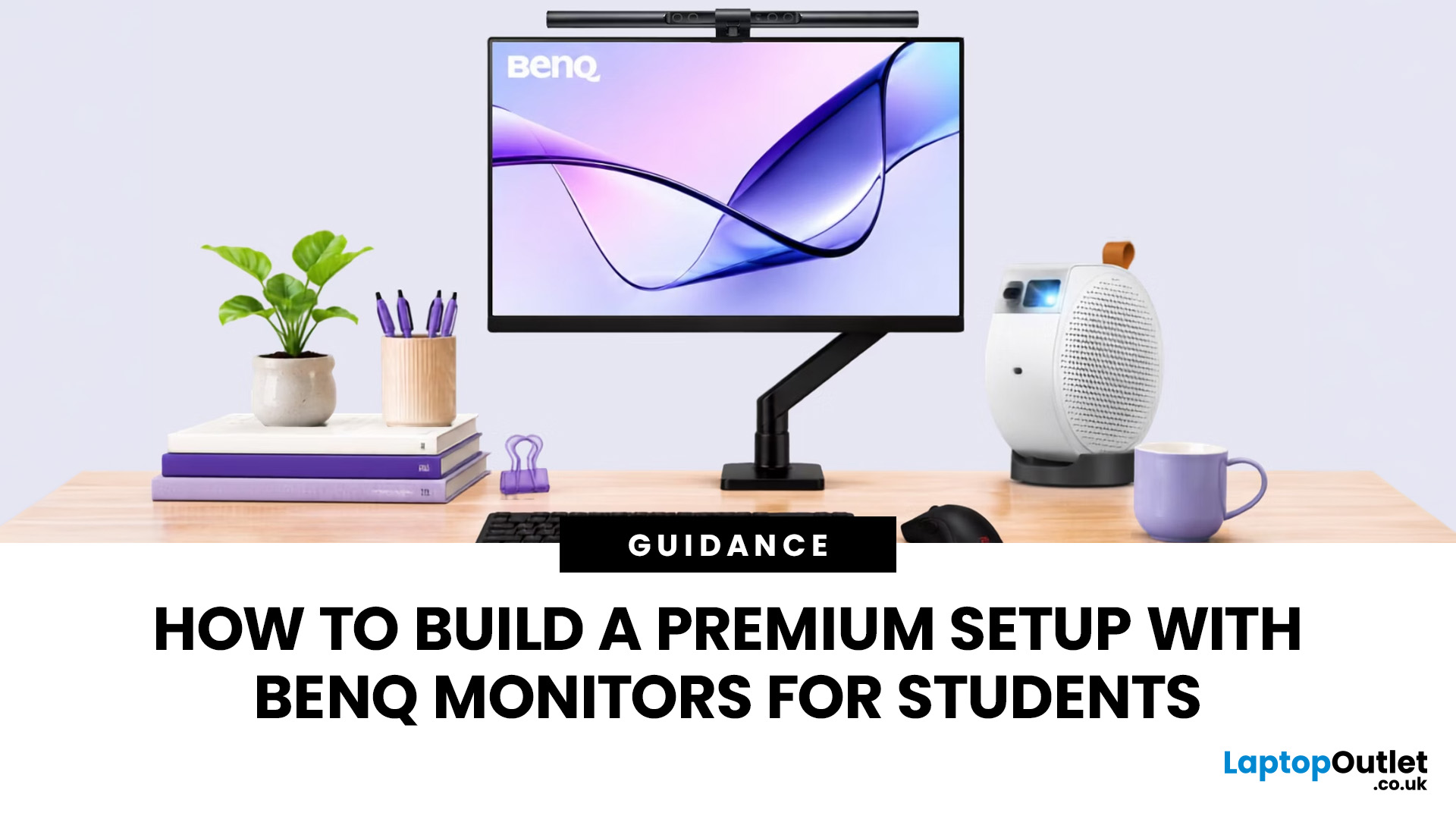
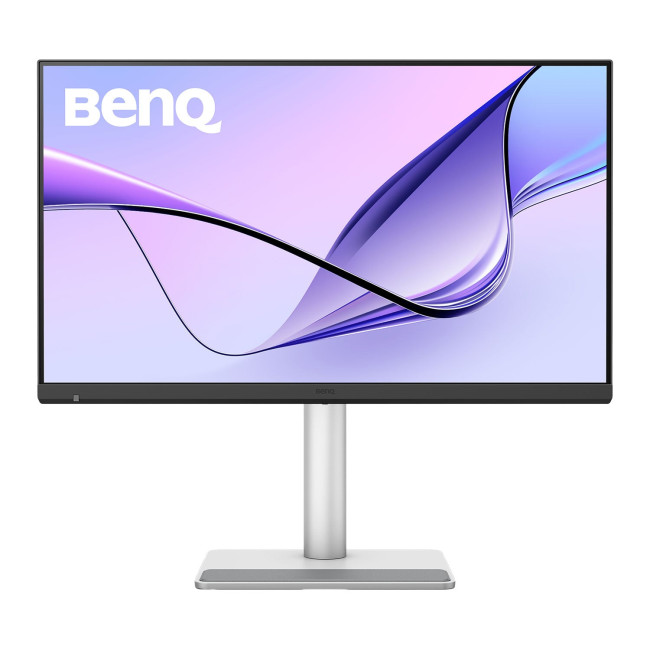
BenQ monitors for students can create a more comfortable and capable workspace for coursework, research, creative projects and downtime. The right display should suit your course, desk space, laptop and daily routine rather than simply offer the highest resolution. For many students, the strongest setup combines clear text, useful screen space, simple connectivity and enough versatility for life beyond studying.
A premium student monitor setup is not defined by one specification. A compact high-resolution screen may work better in university accommodation, while a larger display can make research, timelines and spreadsheets easier to manage. Room lighting, USB-C charging, ergonomics and gaming needs also influence the decision. This guide compares BenQ's Mac-focused MA Series with a faster mixed-use alternative and explains where each approach makes practical sense.
Compare the Best BenQ Monitors for Students in 2026
| Model | Display | Colour and HDR | Laptop Connection | Best Student Use |
|
|
Last Updated: September 03, 2026
Creative work depends on display quality, from colour accuracy to detail clarity.
The best Philips 4K monitors for creative work include the 27E1N1800AE for affordable 4K clarity, the 27E1N1900AE for convenient USB-C laptop connectivity and the curved 328E1CA for a larger editing workspace. A 27-inch IPS model suits most designers and photographers, while a 31.5-inch VA display offers stronger contrast and more room for video timelines. Choose according to colour requirements, connectivity, available desk space and your everyday creative workflow needs.
These 4K monitors deliver four times Full HD resolution for sharper visuals and more workspace, but panel type, colour performance and connectivity are just as important.
This guide highlights the best Philips 4K options for design, video editing and photography. It also highlights key considerations so you can compare different computer monitors for designers more effectively.
Best Philips 4K Monitors at a Glance
| Philips Monitor | Best For |
Published: August 17, 2026
An AOC gaming monitor 27 inch screen gives you plenty of room to play without taking over your whole desk. The key decision is resolution.
The best AOC gaming monitor 27 inch choice for most players is the Q27G42ZE, thanks to its sharp QHD resolution, Fast IPS panel and 240Hz native refresh rate. Choose the C27G4ZXE for competitive 1080p gaming, the Q27G3XMN/BK for stronger HDR, or the AG276UZD for premium 4K QD-OLED visuals. Your ideal model ultimately depends on your GPU, preferred games, target frame rate and available budget, plus your PC or console setup.
Full HD makes high frame rates easier to achieve, while QHD produces a noticeably sharper picture. If your budget and graphics card can go further, 4K QD-OLED delivers another level of detail, colour and contrast.
AOC 27 Inch Gaming Monitors at a Glance
| Model | Resolution | Panel | Refresh Rate | Best For |
| AOC AGON AG276UZD | 3840 × 2160 | QD-OLED | 240Hz | Premium 4K gaming |
| AOC Q27G42ZE | 2560 × 1440 | Fast IPS | 240Hz, 260Hz overclocked | High-refresh QHD |
Published: August 19, 2026
Comparing LCD vs LED monitors? An LED monitor is an LCD that uses energy-efficient LED backlighting, while older LCDs typically use fluorescent CCFL lights.
LED-backlit models are generally slimmer, more efficient and more widely available. However, the LED label alone does not guarantee better colours, smoother gaming or greater eye comfort. Panel type, refresh rate, response time, resolution and brightness all matter too.
LCD vs LED Monitors at a Glance
The main difference between a traditional LCD monitor and an LED monitor is the backlight. A traditional LCD commonly uses CCFL tubes, while an LED monitor uses smaller light-emitting
Last Updated: August 19, 2026
IPS panels are usually the better choice for competitive gaming, wider viewing angles and mixed gaming and creative work. VA panels generally deliver deeper blacks and stronger contrast, making them attractive for immersive games in darker rooms. However, the IPS vs VA panel decision should also consider the monitor’s exact response time, refresh rate, resolution, adaptive sync, and measured performance. Read our complete guide to gaming monitor panels for a full breakdown of IPS vs VA and other display technologies.
IPS vs VA Panels: Quick Comparison
| Feature | IPS Panel | VA Panel |
| Native contrast | Usually lower | Usually higher |
| Black depth | Blacks can appear grey in dark rooms | Deeper blacks in suitable conditions |
| Viewing angles | Wider and more consistent | Narrower, with more off-centre variation |
| Fast-motion clarity | Generally cleaner | Can show dark smearing |
| Colour consistency | Usually strong across the screen | Can change more when viewed off-centre |
| Colour accuracy | Depends on the individual monitor | Depends |
Published: August 24, 2026
Published: August 25, 2026
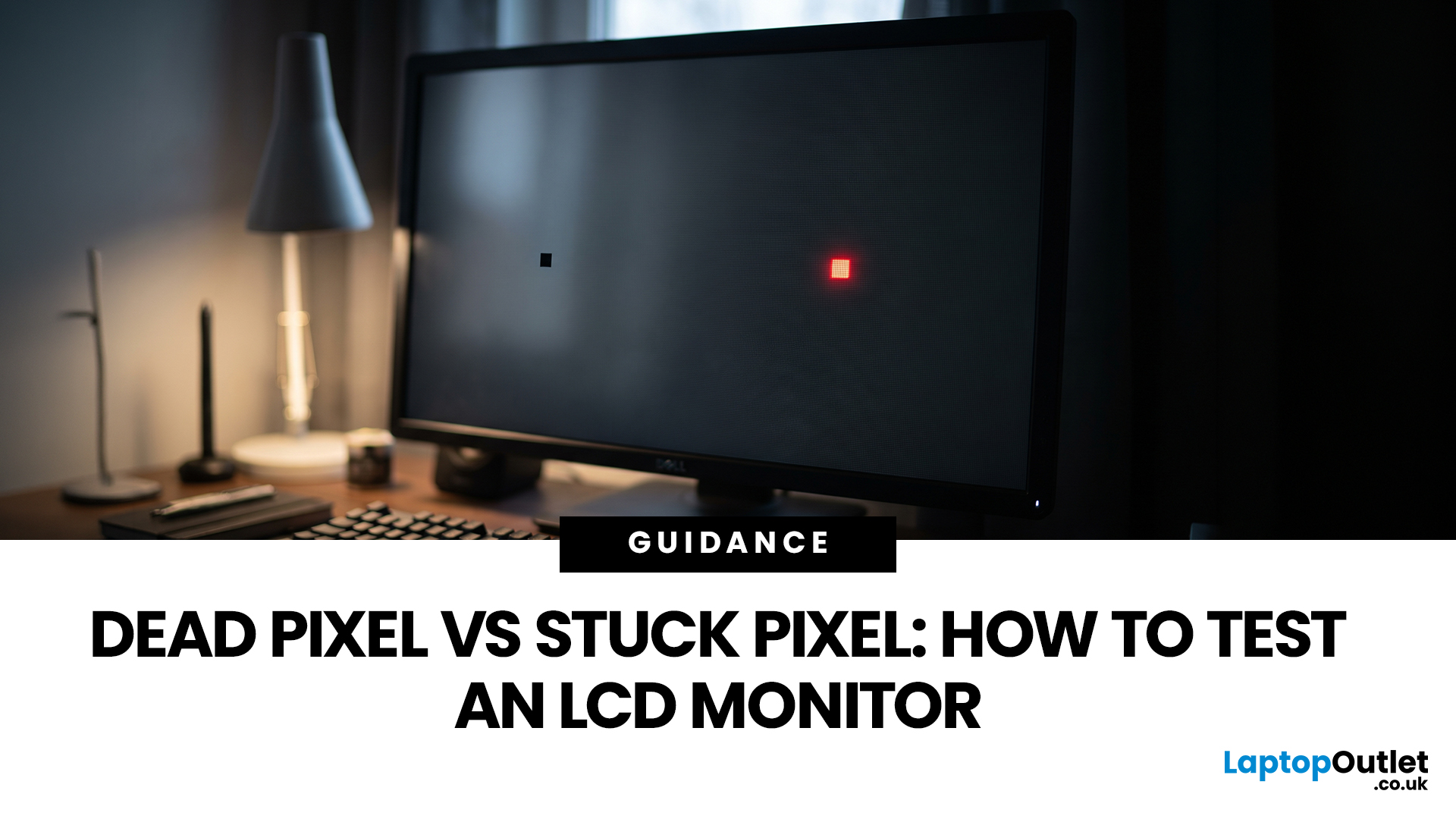
A tiny black, white or coloured dot can be hard to ignore once you notice it on an LCD monitor. The mark may be a pixel fault, a subpixel problem, dust on the panel or an image issue from the connected device.
Understanding dead vs stuck pixel behaviour helps you identify what you are seeing before you try to fix it. This guide explains how the defects differ, what causes them, how to run a safe LCD monitor pixel test, and when repair, return or replacement makes more sense.
How Pixels and Subpixels Work on an LCD Monitor
An LCD screen creates an image from a grid of pixels. A standard colour pixel is normally made from red, green and blue subpixels. By changing how much light each subpixel passes, the display produces different colours.
This structure explains why faults can look different. If all colour components at one position fail to produce the required output, the point may appear black. If only one subpixel remains on or off, the result may look red, green, blue or slightly different
Published: August 25, 2026
Have you ever edited a photo until it looked perfect on your screen, only to see different colours elsewhere? This often comes down to monitor colour accuracy. Delta E measures how closely a display matches true colours, the lower the value, the more accurate the screen. It’s especially important for photographers, designers, and video editors. ViewSonic’s ColorPro range, including models like the VP2766-2K, is factory calibrated for Delta E < 2 accuracy. Here’s what Delta E means and how it compares to sRGB coverage when choosing a monitor.
What Does Delta E Mean on a Monitor?
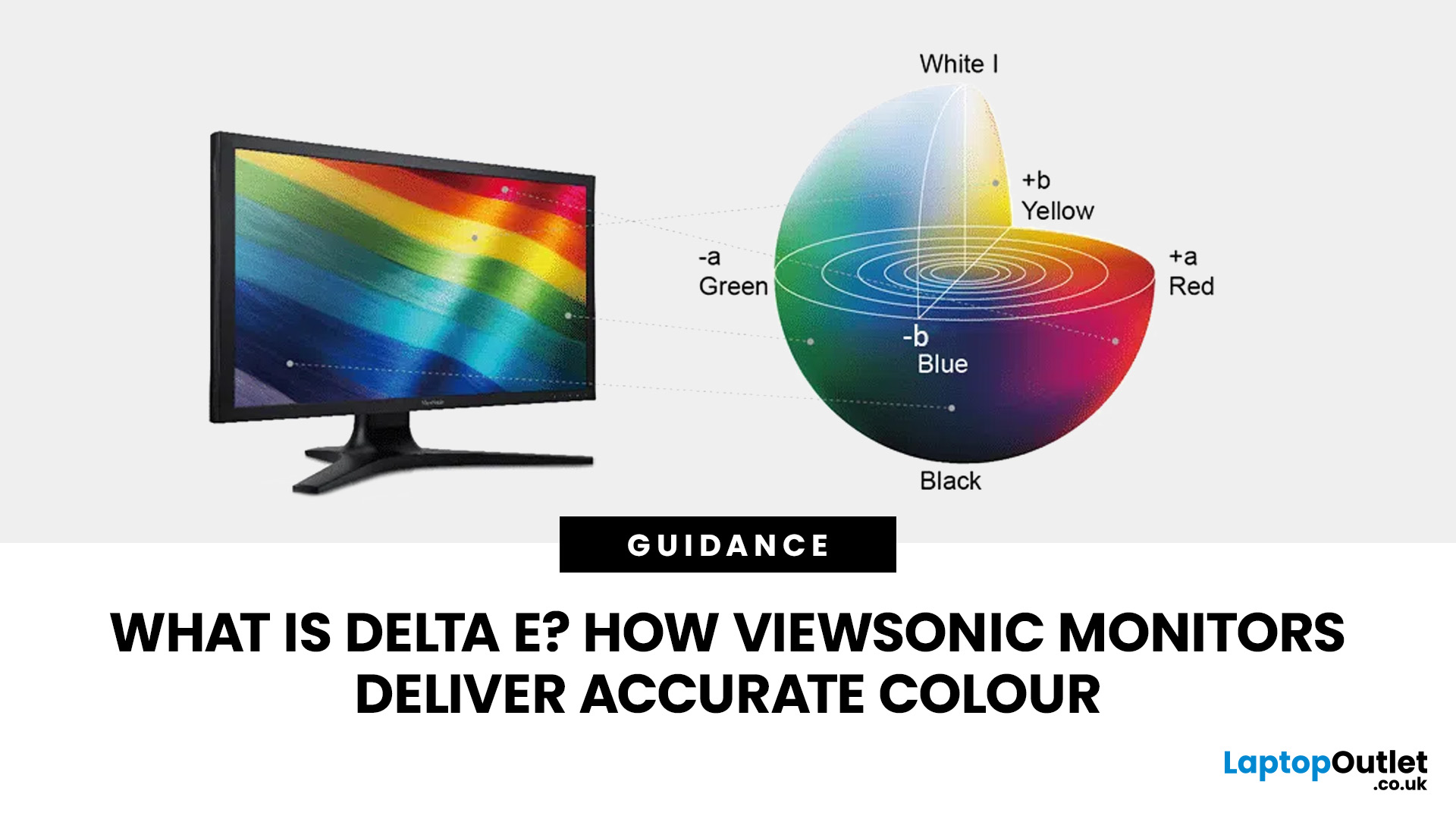
Delta E, written as ΔE, is a colour difference measurement. It calculates how far a reproduced colour differs from a reference colour.
Think of it this way: if your editing software tells the monitor to display a precise shade of red, Delta E helps quantify how closely the red appearing on the screen matches that intended colour.
A Delta E of zero represents no measurable difference between the target and reproduced

