



Choosing the Right Display Cable: HDMI vs DisplayPort vs USB-C vs VGA
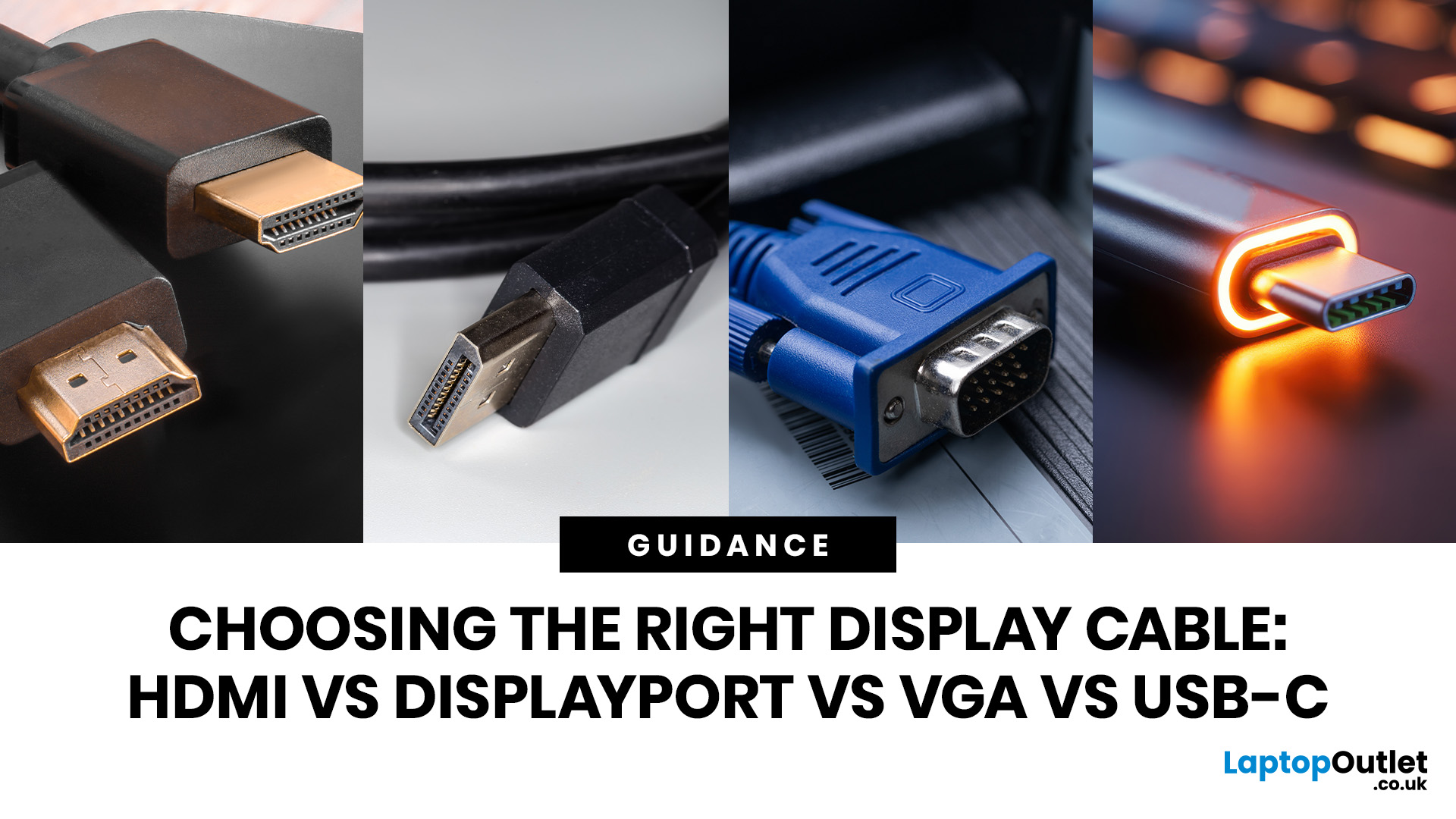
Quick answer: Choosing the right video cable depends on your devices and intended use.
- Use HDMI for TVs, games consoles, soundbars, streaming sticks and home cinema setups.
- Use DisplayPort for gaming PCs, high-refresh monitors and multi-monitor desktop setups.
- Use USB-C with DisplayPort Alt Mode, USB4 or Thunderbolt for modern laptops and docking stations.
- Use VGA only when older hardware or a legacy projector gives you no digital option.
In this guide, we will walk through a clear HDMI vs DisplayPort vs USB-C vs VGA comparison, so you know which one is right for your specific setup, whether that is a gaming rig, a home office, a laptop workstation, or a living room TV.
What Is HDMI? Versions, Features and Best Uses
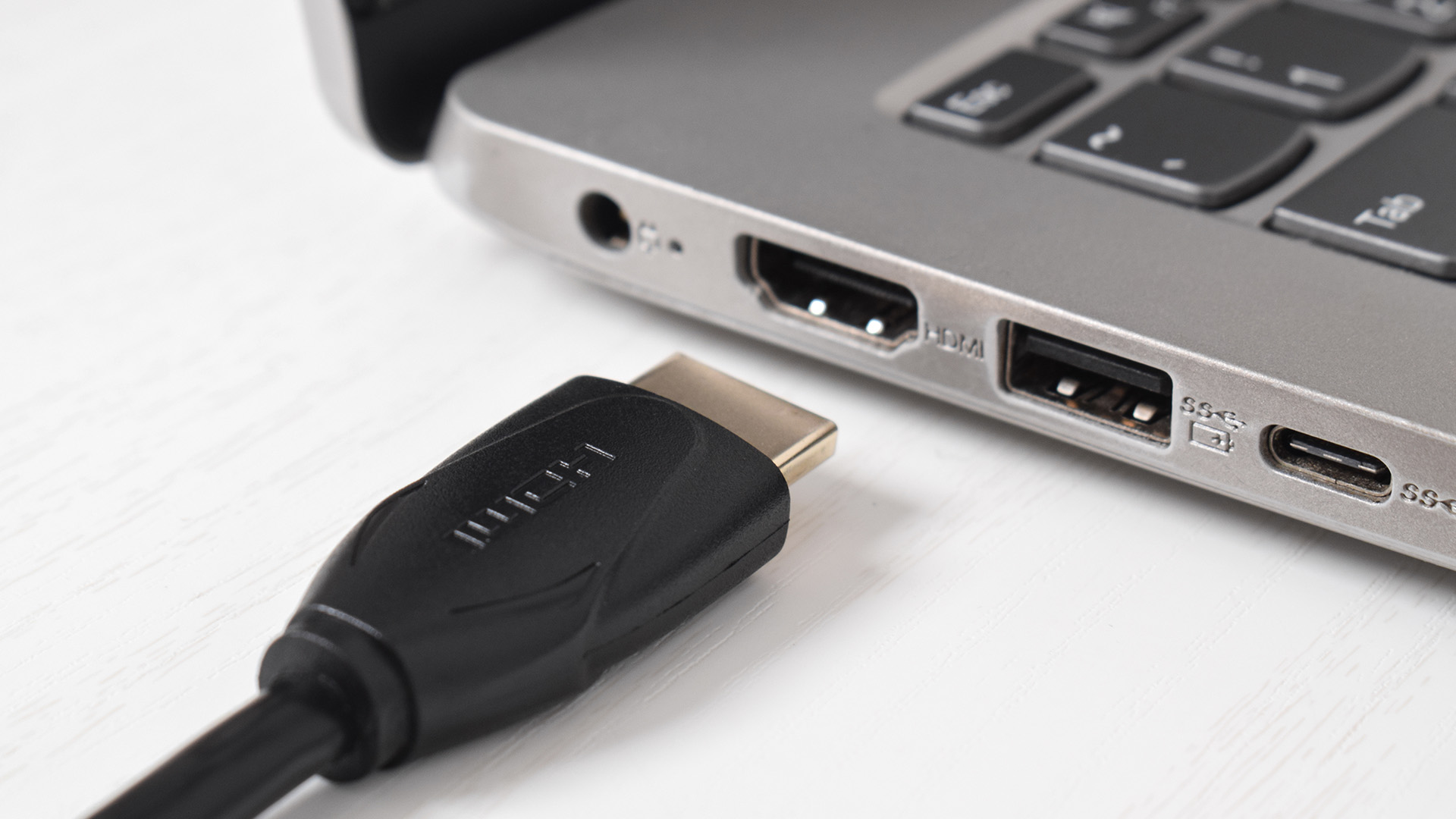
HDMI (High-Definition Multimedia Interface) is the most widely used display connection in the world. You will find it on smart TVs, projectors, games consoles, streaming sticks, soundbars, Blu-ray players, and the majority of laptop docking stations and AV accessories sold in the UK today.
How HDMI Works
HDMI carries both video and audio over a single cable using a digital signal. Because it is a digital standard, it is not susceptible to the image degradation that affects analogue connections like VGA. A single cable handles up to eight channels of audio alongside the video stream, which is why it is the go-to connection for home cinema setups.
HDMI also supports two-way communication through the Consumer Electronics Control (CEC) protocol, letting a single remote control multiple connected devices. This is the feature that lets your TV remote pause a Blu-ray player or switch your soundbar on automatically.
HDMI Versions Explained
|
HDMI VERSION |
MAX BANDWIDTH |
MAX RESOLUTION / REFRESH |
KEY FEATURES |
COMMON ON |
|---|---|---|---|---|
|
HDMI 1.4 |
10.2 Gbps |
4K @ 30Hz / 1080p @ 120Hz |
ARC, 3D, Ethernet channel |
Older TVs, laptops, monitors |
|
HDMI 2.0 |
18 Gbps |
4K @ 60Hz / 1080p @ 240Hz |
HDR10, ARC, wide colour gamut |
Mid-range TVs, monitors, PS4 Pro, Xbox One X |
|
HDMI 2.1 |
48 Gbps |
4K @ 120Hz, 4K @ 144Hz on some monitors, and 8K @ 60Hz depending on device support and compression |
eARC, VRR, ALLM, QMS, QFT, Dynamic HDR |
PS5, Xbox Series X, modern TVs, high-end monitors |
|
HDMI 2.2 (new) |
96 Gbps |
Higher-resolution and higher-refresh-rate formats, including up to 12K and 16K modes where supported |
Ultra96 cable required, LIP (audio sync), enhanced HDR |
Emerging TVs, GPUs, AV hardware and professional displays from 2025/2026 onwards |
Key HDMI 2.1 Features Explained
- eARC (Enhanced Audio Return Channel): Passes lossless audio formats such as Dolby TrueHD, Dolby Atmos, and DTS:X from your TV back to a soundbar or AV receiver over the same HDMI cable. A significant upgrade over standard ARC.
- VRR (Variable Refresh Rate): Synchronises the display’s refresh rate with the frame output of your console or GPU, eliminating screen tearing without the input lag that comes with V-Sync.
- ALLM (Auto Low Latency Mode): Automatically switches your TV or monitor into its lowest-latency “Game Mode” when a compatible gaming device is connected and active.
- Dynamic HDR: Adjusts HDR metadata on a scene-by-scene or frame-by-frame basis, delivering more accurate contrast and colour than the static HDR10 supported by HDMI 2.0.
- QMS (Quick Media Switching): Reduces or eliminates the brief black screen when switching between different frame rates or resolutions.
- LIP (Latency Indication Protocol): A newer HDMI 2.2 feature designed to improve audio/video synchronisation, especially in more complex setups using AV receivers, soundbars, splitters or multiple devices.
HDMI Cable Types: What the Labels Mean
|
CABLE CERTIFICATION |
BANDWIDTH |
SUITABLE FOR |
|---|---|---|
|
Standard HDMI |
Up to ~4.95 Gbps |
1080i/720p, legacy devices |
|
High Speed HDMI |
Up to 10.2 Gbps |
1080p, basic 4K (HDMI 1.4) |
|
Premium High Speed HDMI |
Up to 18 Gbps |
4K @ 60Hz HDR (HDMI 2.0) |
|
Ultra High Speed HDMI |
Up to 48 Gbps |
4K @ 120Hz, 8K, VRR, eARC (HDMI 2.1) |
|
Ultra96 HDMI (new) |
Up to 96 Gbps |
Full-bandwidth HDMI 2.2 applications, including 4K @ 480Hz, 8K @ 240Hz and higher-resolution modes where supported |
| Avoid Cheap “4K Ready” Cables: Plenty of cheap cables claim “HDMI 2.1” or “8K support” without certification. For anything above 4K @ 60Hz, look for the official “Ultra High Speed HDMI” certification logo on the packaging. For full-bandwidth HDMI 2.2 / Ultra96 features, use a certified Ultra96 HDMI cable. Existing Ultra High Speed HDMI cables may still work for lower-bandwidth HDMI 2.2 configurations, but they are limited to 48Gbps. |
HDMI Connector Types
- Standard HDMI (Type A): The full-size connector found on TVs, monitors, and desktop GPUs.
- Mini HDMI (Type C): Found on some tablets and cameras. Needs a Mini HDMI to Standard HDMI cable.
- Micro HDMI (Type D): Used on smartphones and some ultrabooks. Smaller and more fragile than Mini HDMI.
HDMI Pros & Cons
|
HDMI Pros
|
HDMI Cons
|
What Is DisplayPort? Versions, Features and Best Uses
DisplayPort is a display standard developed by VESA (Video Electronics Standards Association) and is primarily found on PC graphics cards, computer monitors, and professional displays. It is the preferred connection type for high-refresh gaming, multi-monitor productivity setups, and colour-critical professional work.
How DisplayPort Works
DisplayPort uses a packet-based transmission system, similar to how data travels across a network. This design gives it significant advantages over HDMI's more traditional stream-based approach, particularly when it comes to bandwidth headroom and multi-monitor support. Full-size DisplayPort connectors commonly include a locking clip, which helps keep the cable secure in desktop and professional installations.
DisplayPort Versions Explained
|
VERSION |
MAX BANDWIDTH |
KEY CAPABILITY |
WHI IT SUITS |
|---|---|---|---|
|
DP 1.2 |
17.28 Gbps |
4K @ 60Hz; MST daisy chaining introduced |
Office users, older setups |
|
DP 1.4 |
25.92 Gbps (32.4 Gbps raw) |
4K @ 120Hz depending on colour depth; 4K @ 144Hz and 8K @ 60Hz commonly rely on DSC |
Mainstream gaming; most current GPUs |
|
DP 2.0 |
Up to 77.37 Gbps |
8K @ 85Hz uncompressed; 4K @ 240Hz |
High-end pro monitors |
|
DP 2.1 |
Up to 80 Gbps raw / 77.37 Gbps usable |
4K @ 240Hz uncompressed on compatible UHBR20 hardware |
Top-tier gaming; next-gen monitors; newer high-end GPUs |
|
DP 2.1b (new) |
Up to 80 Gbps raw / 77.37 Gbps usable |
Introduces DP80LL low-loss active cables for longer UHBR20 cable runs; does not increase DisplayPort bandwidth to 96Gbps |
Future high-end gaming, workstation and professional display setups |
| For Gaming in 2026: DisplayPort 1.4 remains the recommended minimum for serious gaming. It handles 4K at 120Hz and, with DSC compression, supports up to 4K at 144Hz with HDR. DisplayPort 2.1 is now appearing on high-end GPUs like NVIDIA RTX 50-series cards and select high-refresh monitors, opening up 4K at 240Hz without relying on compression. |
DisplayPort's Unique Advantages
There are a couple of things DisplayPort does that HDMI simply cannot match, and they are worth knowing about if you are building a multi-monitor setup or a high-performance PC workstation.
Multi-Stream Transport (MST) and Daisy Chaining: DisplayPort 1.2 and above supports MST, which lets you connect multiple monitors in a chain from a single DisplayPort output on your graphics card. The first monitor connects to the GPU, and a second cable runs from that monitor's DP Out port to the next display. Depending on your GPU and the resolutions used, you can typically run two 4K Ultra HD monitors at 60Hz or up to four 1080p monitors from one DP port. This is not possible over a standard HDMI connection. MST is particularly useful when connecting to laptop docking stations that chain displays off a single Thunderbolt or USB-C port.
Adaptive Sync Support: DisplayPort has native support for AMD FreeSync and NVIDIA G-Sync, which synchronise your monitor's refresh rate with your GPU's frame output to eliminate screen tearing. While HDMI 2.1 now also supports VRR, DisplayPort has had broader adaptive sync support across PC gaming monitors for longer, and the technology is more consistently implemented across PC hardware.
Audio Support: DisplayPort can carry audio as well as video, but HDMI remains the better fit for TVs, AV receivers and soundbars because of consumer AV features such as CEC, ARC and eARC.
DisplayPort Connector Variants
- Full-size DisplayPort: The standard connector on desktop GPUs and most monitors. Has a locking clip for secure connection.
- Mini DisplayPort: A smaller version found on older MacBooks, some Intel NUCs, and certain professional monitors. Carries the same signal as full-size DP.
- USB-C with DP Alt Mode: DisplayPort transmitted over a USB-C connector. Covered in detail in the next section.
DisplayPort Pros & Cons
|
DisplayPort Pros
|
DisplayPort Cons
|
What Is USB-C for Display? Alt Mode, Thunderbolt and Power Delivery
USB-C is a connector shape, not a display standard in itself. What matters is what your USB-C port actually supports underneath. When it comes to connecting a display, you need to know whether your port supports DisplayPort Alt Mode, HDMI Alt Mode, Thunderbolt, or USB4, as these determine what resolution and refresh rate you can achieve.
DisplayPort Alt Mode over USB-C
DisplayPort Alt Mode (DP Alt Mode) is the most common way laptops send video over a USB-C port. When a USB-C port supports DP Alt Mode, it essentially lets the DisplayPort signal travel through the USB-C cable's wires instead of a dedicated DisplayPort connector. A USB-C to DisplayPort cable can carry this signal directly to a monitor without any conversion, which typically results in better quality and fewer compatibility issues than a USB-C to HDMI adapter.
| Critical Check Before You Buy: Not every USB-C port supports video output. A USB-C port may be charge-only or data-only. Before purchasing a USB-C display cable or adapter, check your laptop's spec sheet for "DisplayPort Alt Mode," "DP Alt Mode," "USB4 with video output," or a "Thunderbolt" marking. Look for a small DisplayPort logo (DP) or lightning bolt symbol next to the port on the chassis. |
Thunderbolt 3, 4, and 5
Thunderbolt ports use the USB-C connector and include display output support, making them a reliable option for connecting monitors.
|
PROTOCOL |
TOTAL BANDWIDTH |
MAX DISPLAY OUTPUT |
POWER DELIVERY |
FOUND ON |
|---|---|---|---|---|
|
USB-C (basic) |
Up to 5–10 Gbps |
No display output unless DP Alt Mode, USB4 or Thunderbolt is supported |
Up to 100W or 240W depending on PD support |
Budget and mid-range laptops |
|
USB-C + DP Alt Mode 1.4 |
25.92 Gbps (video) |
4K @ 120Hz / 8K @ 60Hz with DSC |
Up to 100W or 240W on compatible EPR devices |
Most modern mid-range and premium laptops |
|
Thunderbolt 3 / 4 |
40 Gbps total |
Two 4K @ 60Hz monitors or one 8K display |
Up to 100W on many devices |
Intel-based premium laptops, MacBooks |
|
Thunderbolt 5 / USB4 v2 |
80–120 Gbps |
Two 4K @ 144Hz / one 8K @ 120Hz; DP 2.1 capable |
Up to 240W (EPR) |
Latest premium laptops, workstations (2024 onwards) |
The One-Cable Advantage
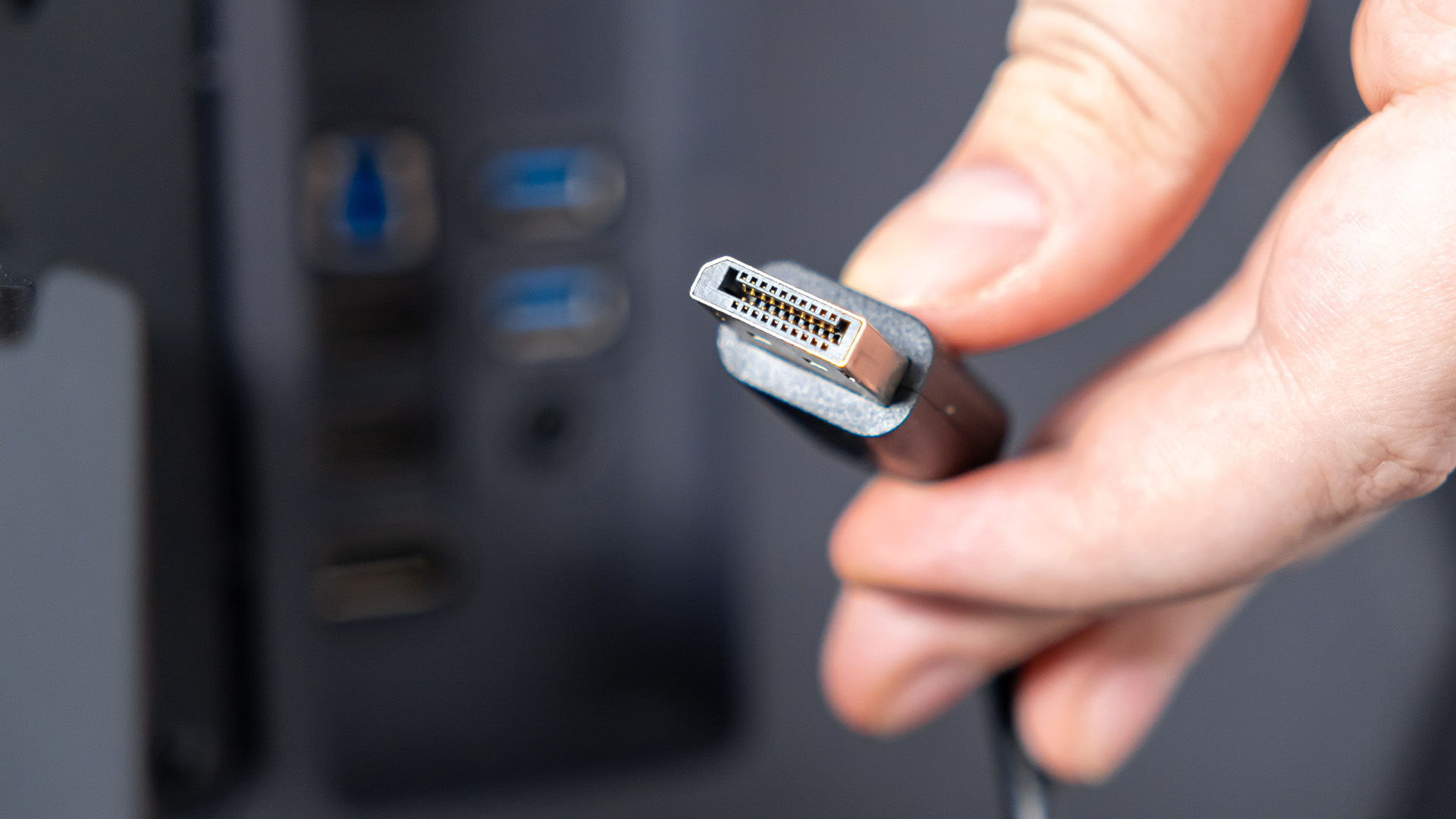
The biggest practical appeal of USB-C with DP Alt Mode is the ability to run a single cable from your laptop to a monitor. That one cable can simultaneously deliver video output at 4K resolution, return data from USB hubs built into the monitor, and charge your laptop at up to 100W (or 240W with USB Power Delivery Extended Power Range). This is why USB-C has become the default connection for modern laptop docking stations sold in the UK, letting you drop your laptop onto a desk and connect to an entire workstation in seconds.
USB-C to HDMI vs USB-C to DisplayPort
When your laptop has a USB-C port with DP Alt Mode and your monitor has HDMI, you will need an adapter. A USB-C to DisplayPort cable is generally the better-quality option because the DisplayPort signal travels natively over the USB-C wires without conversion. A USB-C to HDMI adapter involves converting the signal, which can introduce compatibility issues or limit the maximum refresh rate if the adapter is low quality.
USB-C Pros & Cons for Display Use
|
USB-C Pros
|
USB-C Cons
|
What Is VGA? Should You Still Use It in 2026?
VGA (Video Graphics Array) is an analogue display standard introduced by IBM in 1987. You can recognise it by its blue 15-pin D-sub connector. For decades it was the standard connection on desktop PCs, laptops, and monitors, but it has been phased out of modern consumer hardware in favour of digital standards.
VGA's Limitations
Because VGA carries an analogue signal, it is inherently limited compared to any digital standard. The image quality degrades over longer cable runs, and in most practical modern setups it is best treated as a 1080p or 1920x1200 @ 60Hz legacy option, although actual results depend on the source, display, cable and adapter quality.
It carries no audio, so you need a separate 3.5mm cable for sound. VGA has no support for HDR, wide colour gamuts, or high refresh rates, and leading GPU manufacturers including NVIDIA and AMD removed native VGA support from their cards several years ago.
| When VGA Still Makes Sense: VGA is still relevant in a few specific scenarios: older office projectors that have no other input, legacy desktop PCs from before 2012 that lack HDMI or DisplayPort, industrial or medical equipment with fixed VGA outputs, and educational environments where budget constraints mean older hardware remains in use. In these cases, VGA works fine for standard 1080p or lower resolution output. For anything new, use a digital connection. |
VGA Pros and Cons
|
VGA Pros
|
VGA Cons
|
Full Comparison: HDMI vs DisplayPort vs USB-C vs VGA
Here is a consolidated look at all four connection types side by side, covering the key specifications and features that matter for most buyers in the UK in 2026.
|
FEATURE |
HDMI 2.1 |
DISPLAYPORT 2.1 |
USB-C (DP Alt / TB4) |
VGA |
|---|---|---|---|---|
|
Max Bandwidth |
48 Gbps |
80 Gbps raw / 77.37 Gbps usable |
40 Gbps (TB4) / 80 Gbps (TB5) |
~0.4 Gbps (analogue) |
|
Max Resolution |
10K depending on format and device support |
16K with DSC depending on implementation |
8K+ depending on USB-C protocol and display support |
Usually 1080p/1920x1200 in practical modern use |
|
4K @ 120Hz |
Yes |
Yes |
Yes with compatible DP Alt Mode, USB4 or Thunderbolt hardware |
No |
|
4K @ 240Hz |
With DSC |
Yes on compatible DP 2.1 UHBR hardware |
Yes with TB5 / USB4 v2 or suitable DP Alt Mode implementation |
No |
|
Audio Support |
Yes (up to 7.1 / Atmos) |
Yes, but less AV-focused than HDMI |
Yes |
No |
|
Power Delivery |
No |
No |
Yes (up to 240W) |
No |
|
Data Transfer |
No |
No |
Yes (up to 40–80 Gbps) |
No |
|
Multi-Monitor Daisy Chain |
No |
Yes (MST) |
Yes via Thunderbolt, USB4 docks or DP Alt Mode MST where supported |
No |
|
VRR / Adaptive Sync |
Yes (HDMI 2.1) |
Yes (FreeSync / G-Sync) |
Yes (via DP Alt Mode) |
No |
|
HDR Support |
Yes (Dynamic HDR) |
Yes (HDR10, etc.) |
Yes |
No |
|
eARC |
Yes (HDMI 2.1) |
No |
No |
No |
|
Locking Connector |
No |
Yes |
No (reversible) |
Yes (screw-in) |
|
Found on Consoles |
Yes (PS5, Xbox) |
No |
Not used as the main video output on PS5 / Xbox Series X |
No |
|
Found on TVs |
Yes (all modern TVs) |
No |
Some smart TVs |
Rare (legacy) |
|
Found on PC Monitors |
Yes |
Yes |
Yes (USB-C monitors) |
Legacy monitors only |
|
Typical Cable Cost (UK) |
£8 to £25 (2.1 certified) |
£10 to £35 (2.1) |
£15 to £50 (TB4/5 certified) |
£3 to £8 |
Which Cable Is Best for Your Use Case?
Now that you know what each cable can and cannot do, here is a practical guide to choosing the right one based on your actual setup and goals. Think of this as a recommendation from someone who has seen what goes wrong when the wrong cable is used.
|
Gaming PC + High-Refresh Monitor |
Use DisplayPort 1.4 or 2.1. If you want 144Hz or higher at 1440p or 4K, DisplayPort is the reliable choice. Most dedicated GPUs from NVIDIA and AMD include at least one DisplayPort 2.1 output. G-Sync and FreeSync work most consistently over DisplayPort. |
|
PS5 / Xbox Series X + TV |
Use HDMI 2.1. Both consoles only output over HDMI. For 4K 120Hz and VRR, you need an HDMI 2.1 cable and an HDMI 2.1 port on your TV or gaming monitor. The cable that ships with both consoles is already HDMI 2.1 certified. |
|
Laptop + External Monitor (Clean Desk) |
Use USB-C (DisplayPort Alt Mode or Thunderbolt). A single USB-C cable can carry 4K video, charge the laptop, and pass USB data from peripherals connected to the monitor. Confirm your laptop supports DP Alt Mode or Thunderbolt before buying. |
|
Desktop PC + 4K Ultra HD Monitors (Dual Setup) |
Use DisplayPort 1.4 or 2.1 (MST for daisy chaining). For two 4K displays at 60Hz from a single GPU output, use MST-capable DisplayPort and monitors with DP Out. For two 4K displays at 144Hz or above, use a dedicated DP output to each monitor from the GPU. |
|
Laptop + Smart TV (Watching Content) |
Use HDMI. Most smart TVs only have HDMI inputs. A standard HDMI 2.0 cable is sufficient for 4K 60Hz Netflix or iPlayer streaming. If your laptop has no HDMI port, use a USB-C to HDMI adapter (ensure your USB-C port supports DP Alt Mode). |
|
Graphic Design / Video Editing Workstation |
Use DisplayPort 1.4 or 2.1. Professional colour-accurate monitors typically use DisplayPort. Colour depth, wide gamut support, and the consistent signal quality of DisplayPort make it the standard on professional display panels. USB-C with Thunderbolt is also excellent for laptop-based creative setups. |
|
Presentation / Conference Room (Legacy Projector) |
Use VGA (if no other option), or HDMI with an adapter. If the projector only has VGA in, a VGA cable or a USB-C/HDMI to VGA active adapter is needed. For new projectors, HDMI is standard and the better option. |
|
Home Cinema / Soundbar Setup |
Use HDMI 2.1 with eARC. Connecting a TV to a soundbar or AV receiver benefits enormously from HDMI eARC (Enhanced Audio Return Channel), which supports Dolby Atmos and DTS:X over a single HDMI cable. No other display standard supports eARC. |
|
Office Laptop + Multiple Monitors via Dock |
Use USB-C / Thunderbolt to a laptop docking station. A quality Thunderbolt 4 dock provides multiple HDMI or DisplayPort outputs, Ethernet via network cables, and USB ports from a single USB-C cable to the laptop. Thunderbolt 4 docks reliably support two 4K displays at 60Hz. |
Quick Reference by Connection Available
|
YOU SOURCE DEVICE HAS... |
YOU DISPLAY HAS... |
BEST SOLUTION |
|
DisplayPort |
DisplayPort |
DisplayPort cable (match versions for best performance) |
|
DisplayPort |
HDMI only |
Passive DP-to-HDMI adapter only if the source supports Dual-Mode DisplayPort / DP++; otherwise use an active DisplayPort-to-HDMI adapter |
|
HDMI 2.1 |
HDMI 2.1 |
Ultra High Speed HDMI cable (48 Gbps certified) |
|
HDMI 2.2 full-bandwidth output |
HDMI 2.2 full-bandwidth input |
Certified Ultra96 HDMI cable |
|
USB-C (DP Alt Mode) |
DisplayPort |
USB-C to DisplayPort cable (native, no conversion) |
|
USB-C (DP Alt Mode) |
HDMI only |
USB-C to HDMI active adapter (2.0 or 2.1 rated) |
|
USB-C (charge/data only) |
Any |
Cannot output video directly; use a DisplayLink dock instead |
|
VGA only |
HDMI only |
Active VGA to HDMI converter (not a passive cable; signal conversion required) |
Using Adapters: What Works and What to Avoid
Adapters and converter cables are sometimes unavoidable, particularly when you are connecting older and newer hardware together. However, not all adapters are equal, and the wrong one can limit performance or cause compatibility problems with your AV accessories and network adapters when used in a docking scenario.
Active vs Passive Adapters
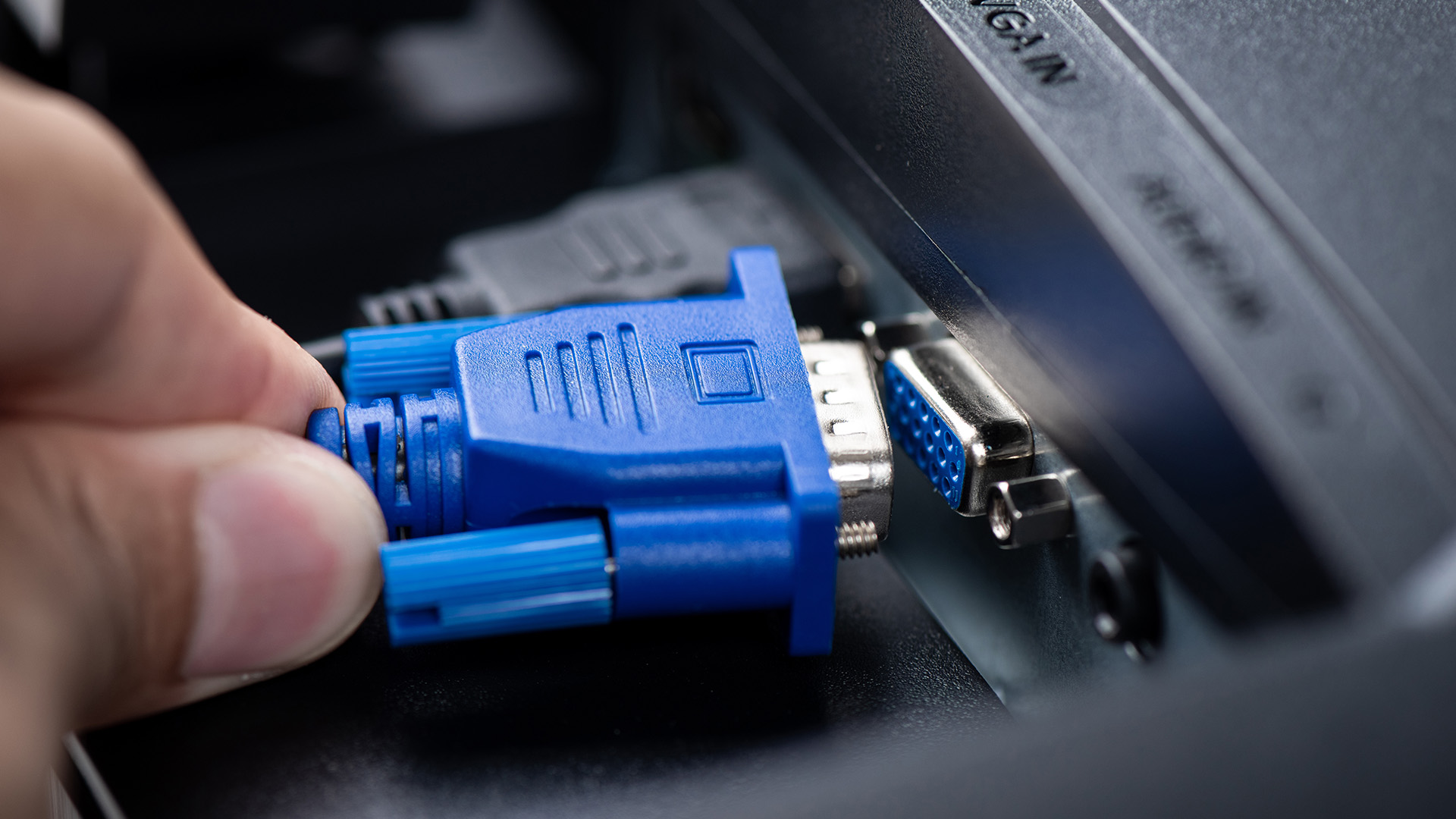
This is the most important distinction to understand. A passive adapter simply reroutes the physical pins of one connector to match another. A passive adapter only works when both sides use the same underlying signal (for example, DisplayPort to single-link DVI, or USB-C to DisplayPort when DP Alt Mode is present). An active adapter contains a chip that actually converts the signal from one format to another.
- DisplayPort to HDMI: A passive DP-to-HDMI adapter can work only when the DisplayPort source supports Dual-Mode DisplayPort, also known as DP++. Passive adapters are usually limited compared with modern active adapters. For 4K 60Hz, HDMI 2.1, high refresh rates, or uncertain compatibility, use an active DisplayPort-to-HDMI adapter.
- HDMI to DisplayPort: Also requires an active, powered adapter. Direction matters here too; an adapter rated HDMI-out to DP-in will not work in reverse.
- VGA to HDMI: Always requires an active converter with its own power source. You are converting analogue to digital, which is a genuine signal conversion process.
- USB-C (DP Alt Mode) to DisplayPort: Can use a passive cable. The DisplayPort signal travels natively over the USB-C wires without any conversion chip needed.
- USB-C (DP Alt Mode) to HDMI: Requires an active adapter. The DP Alt Mode signal needs to be converted to HDMI protocol.
| Resolution and Refresh Rate Limits with Adapters: Even a good active adapter has bandwidth limits. A USB-C to HDMI 2.0 adapter will cap your output at 4K 60Hz regardless of what your laptop and monitor support natively. If you want 4K 120Hz or higher through an adapter, verify it is explicitly rated for HDMI 2.1 or DisplayPort 1.4 bandwidth. Generic or unbranded adapters often underperform their stated specifications. |
Adapter Performance Tips
- Buy adapters from reputable brands with clearly stated version support (e.g. "HDMI 2.1, 48 Gbps").
- For professional or permanent setups, use a laptop docking station with native HDMI and DisplayPort outputs rather than chaining adapters.
- Avoid ultra-cheap cables from unverified sellers for HDMI 2.1; they may not meet the bandwidth spec even if labelled as 2.1.
- When using network cables and network adapters through a USB-C dock, ensure the dock's Thunderbolt or USB4 connection is not already saturated by display bandwidth at high resolutions.
- For fixed office or home desk setups, it is almost always worth investing in a monitor with native ports that match your device rather than relying on a chain of adapters.

No Single Winner, Just the Right Choice
There is no single winner in the HDMI vs DisplayPort vs USB-C vs VGA comparison because each cable is designed for a different context. For most people, the simplest rule is this: use HDMI for TVs and consoles, DisplayPort for gaming PCs and high-refresh monitors, USB-C for modern laptops and docks, and VGA only when legacy equipment leaves you no other choice.

A Few Things to Clear Up...
Is HDMI or DisplayPort better for gaming?
DisplayPort is better for PC gaming at high refresh rates; HDMI 2.1 is essential for consoles like PS5 and Xbox Series X, which have no DisplayPort output.
Can USB-C replace HDMI for connecting a monitor?
Yes, if your USB-C port supports DisplayPort Alt Mode or Thunderbolt. Not every USB-C port outputs video; always check your laptop's specification sheet first.
Does DisplayPort carry audio like HDMI does?
DisplayPort does support audio, but it requires driver configuration and is not as universally implemented as HDMI's built-in multi-channel audio support across consumer devices.
Is VGA still worth using in 2026?
VGA is only worth using if your hardware has no other output. It is limited to 1920x1200 at 60Hz, carries no audio, and cannot support HDR or high refresh rates.
What cable do I need for 4K 144Hz on a gaming monitor?
You need DisplayPort 1.4 (with DSC) or DisplayPort 2.1 for 4K 144Hz. HDMI 2.1 can also achieve this on monitors that support it with an Ultra High Speed HDMI cable.
Which cable is best for a laptop docking station setup?
USB-C with Thunderbolt 4 or USB4 is the best option. It connects one cable to a dock that provides HDMI, DisplayPort, Ethernet, and USB ports simultaneously while charging the laptop.
| Read More: |
| USB Types Explained: USB-A, USB-C, USB 3.2, USB4 and Thunderbolt |
| Do USB to Ethernet Adapters Work? Everything You Need to Know |
| Wi-Fi vs Ethernet: Which Connection Is Better for Laptops? |
Related Articles

Published: November 14, 2025
For years, we’ve juggled a drawer full of tangled cables — micro-USB, Lightning, HDMI, and others. But now, USB-C adoption is changing that.
This small, reversible connector has become the go-to choice for phones, laptops, and even monitors. It promises a single, universal solution for charging, data transfer, and video output.
But are we finally there yet? Let’s explore how close we are to a world of USB-C everything.
What Is USB-C and Why It Matters
USB-C, also known as USB Type-C, is a reversible connector that can handle multiple functions. Introduced in 2014, it was designed to be faster and more versatile than previous USB types.
Key features include:
- Reversible Design: No more flipping the cable to find the right orientation.
- Fast Data Transfer: Up to 40Gbps with USB4 and Thunderbolt 4 support.
- High Power Delivery: Up to 240W, enough to charge large laptops and monitors.
- Multiple Functionality: The same port handles charging, data, and video.
This all-in-one capability is what

Last Updated: January 02, 2026
When you start plugging in devices and suddenly run out of USB slots, the first question that comes to mind is a simple one: how many USB ports does my motherboard actually have?
This is something most users never think about until they hit a limitation. Whether you are building a PC, upgrading an old system, or just trying to understand why you need a USB hub, the answer always comes back to your motherboard USB ports.
The tricky part is that the total number of USB ports is not always obvious at first glance. Some are visible on the back of the PC, others are internal, and some are supported but not even active unless you connect the right headers.
This guide breaks everything down in a practical way and helps you discover how to check the total USB ports supported by your motherboard.
Why Motherboard USB Ports Matter More Than You Think
Motherboard USB ports define how many devices your system can handle directly. That includes keyboards, mice, external drives, webcams, printers
Last Updated: March 12, 2026
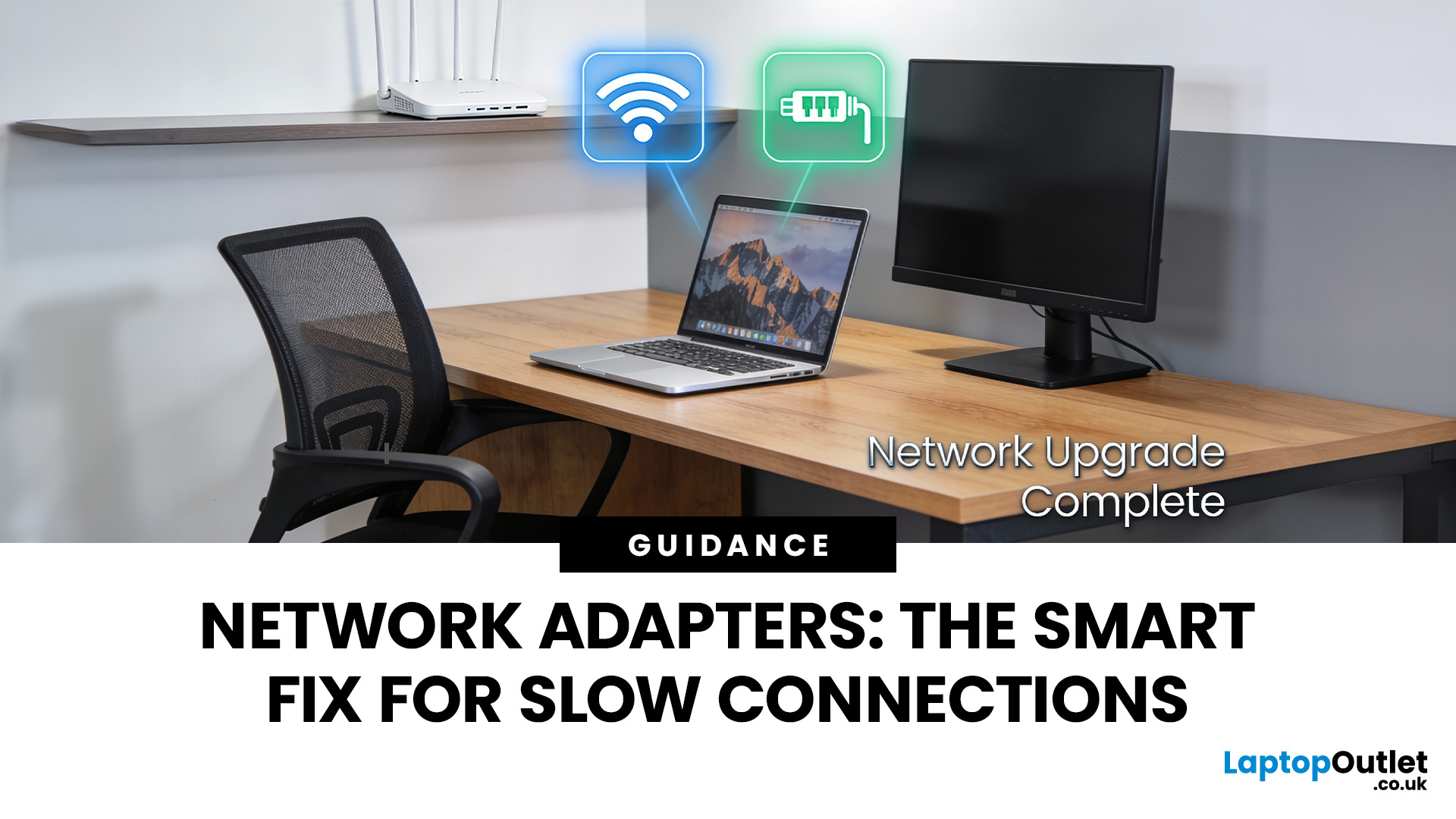
If you’ve ever wondered why your laptop struggles to stay connected while your phone works perfectly on the same Wi-Fi, the answer is often simpler than people expect.
It’s usually the network adapter.
Understanding what is a network adapter, and what it actually does — is the key to fixing many everyday connectivity problems without replacing your router, broadband plan, or entire device.
This section explains network adapters in plain English, with real UK use cases, so you can recognise when an adapter is the missing piece in your home or PC setup.
What Is a Network Adapter, Really?

A network adapter is the component that allows a device to connect to a network, either wirelessly or with a cable.
Every device that accesses the internet has one:
- Laptops and PCs
- Smartphones and tablets
- Smart TVs and consoles
Without a network adapter, a device simply cannot communicate with your router or the wider internet.
Think of the adapter as a translator:
- Your router speaks “network”
- Your device
Last Updated: August 28, 2026
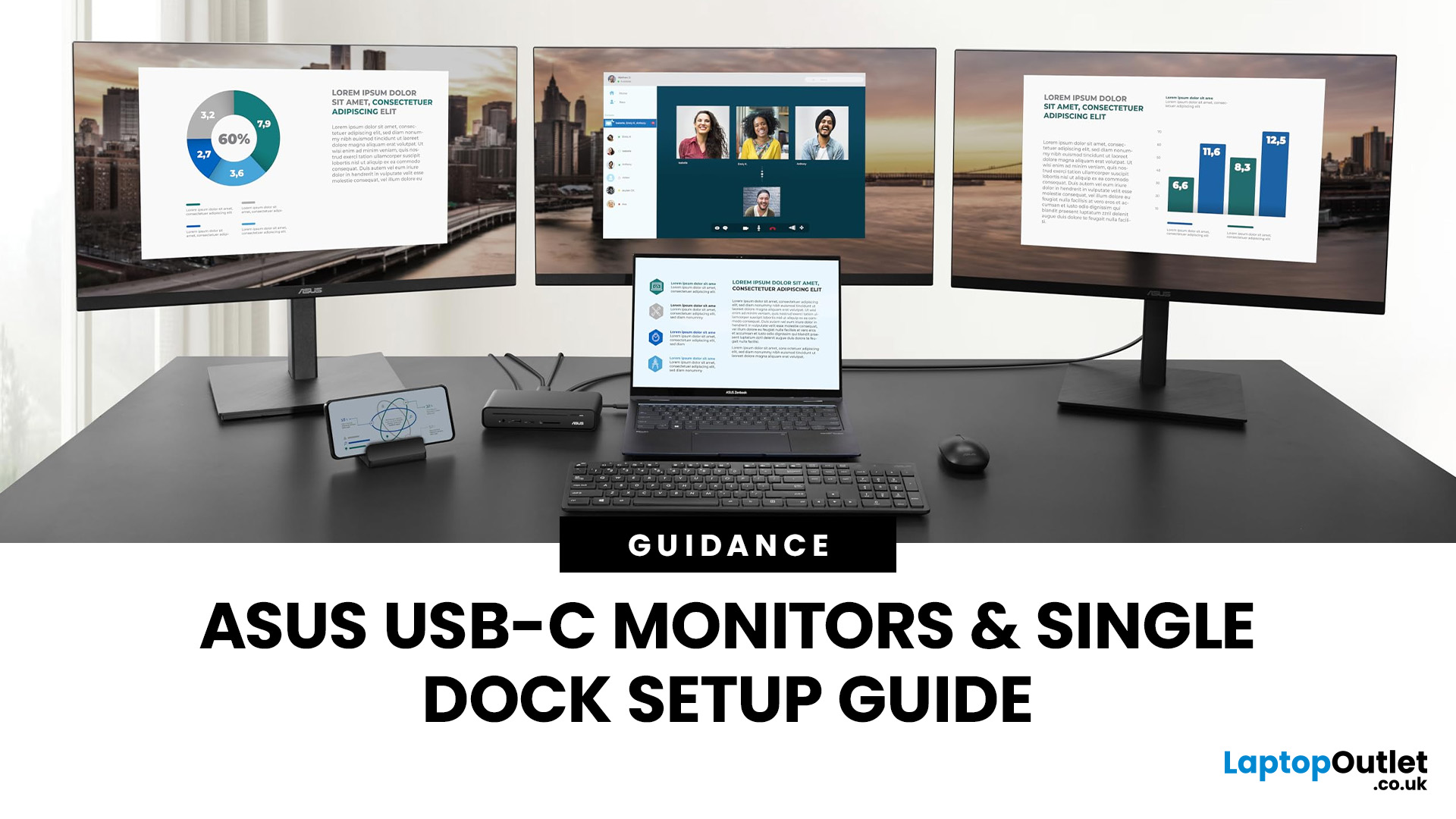
If you’re planning a desk refresh, rolling out new workstations, or managing a hot-desking environment, one question always comes up: how many ASUS USB-C monitors can you realistically run from a single dock? The short answer? It depends.
The long answer? It depends on your laptop’s GPU, the dock’s bandwidth, the monitor resolutions, and whether you’re daisy-chaining or using multiple video outputs.
In this practical IT deployment guide, we’ll break down exactly how ASUS USB-C monitors behave in real-world setups, what limits your configuration, and how to plan a reliable multi-monitor rollout without unpleasant surprises.
How USB-C Video and Power Actually Work
USB-C looks simple. One cable. Power. Video. Data. Done.
But behind that clean setup, there’s a lot happening.
USB-C monitors rely on a feature called DisplayPort Alt Mode. This allows the USB-C cable to carry video signals from your laptop’s GPU directly to the monitor. Many modern docks also use DisplayLink technology, which
Last Updated: May 01, 2026
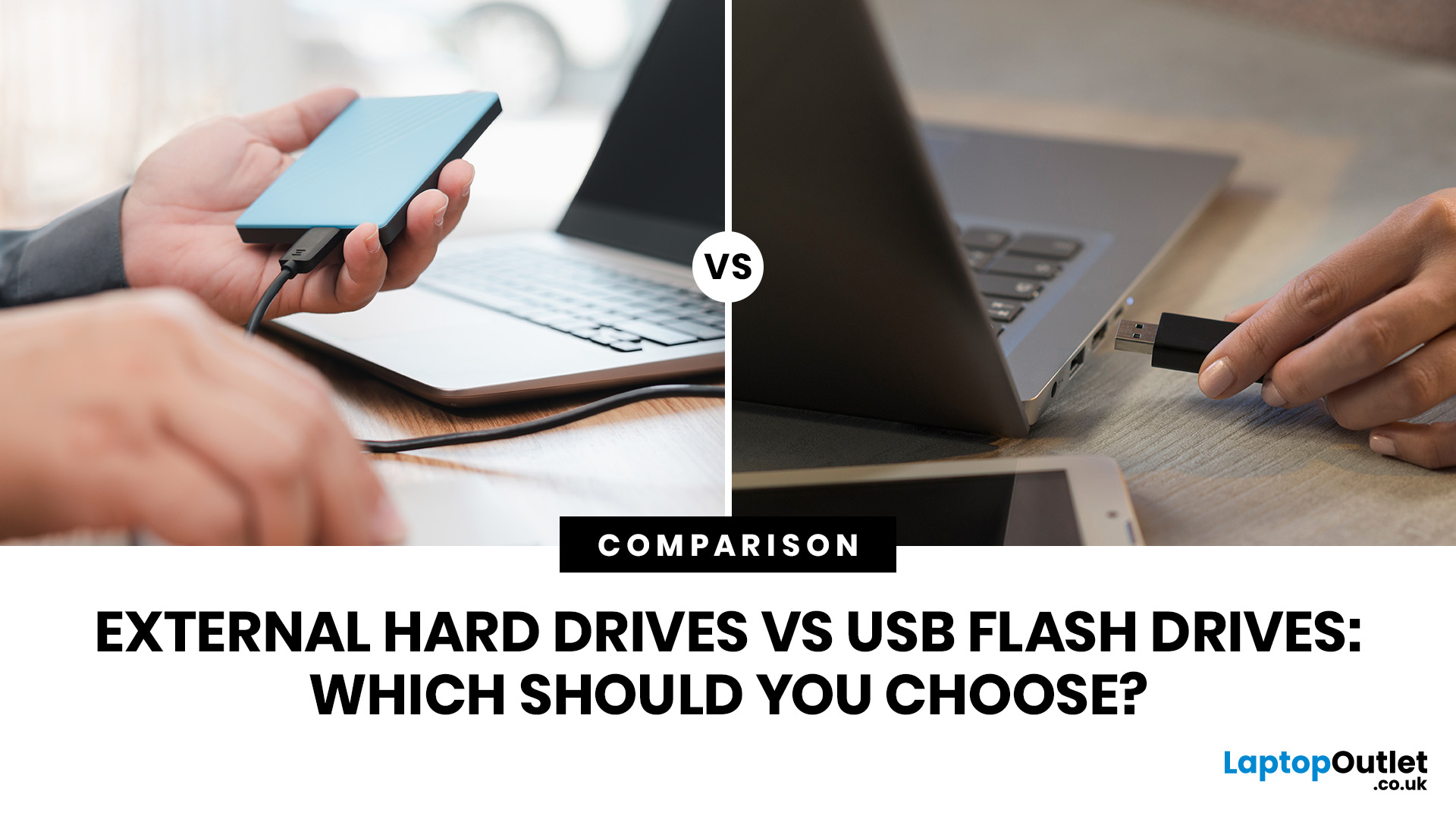
Quick Answer: External hard drives (HDDs/SSDs) are best for high-capacity, long-term storage and backups, offering cheaper cost-per-gigabyte. USB flash drives are superior for portability, quick file transfers, and convenience.
Choosing between an external hard drive vs USB flash drive is one of those decisions that seems simple until you actually try to pick one. Both plug in via USB and store your files, but they are built for very different jobs. This guide covers every key factor of these storage options, so you can make a confident, informed choice.
What is an External Hard Drive?
An external hard drive is a portable storage device that connects to your computer via USB, USB-C, or Thunderbolt. It is designed for large-scale storage, serious backups, and long-term data archiving, offering far greater capacity than most other portable options.
Types of External Hard Drive
There are two main formats to know: hard disk drives (HDDs) and solid-state drives (SSDs).
| External HDD (Hard |
Last Updated: July 15, 2026
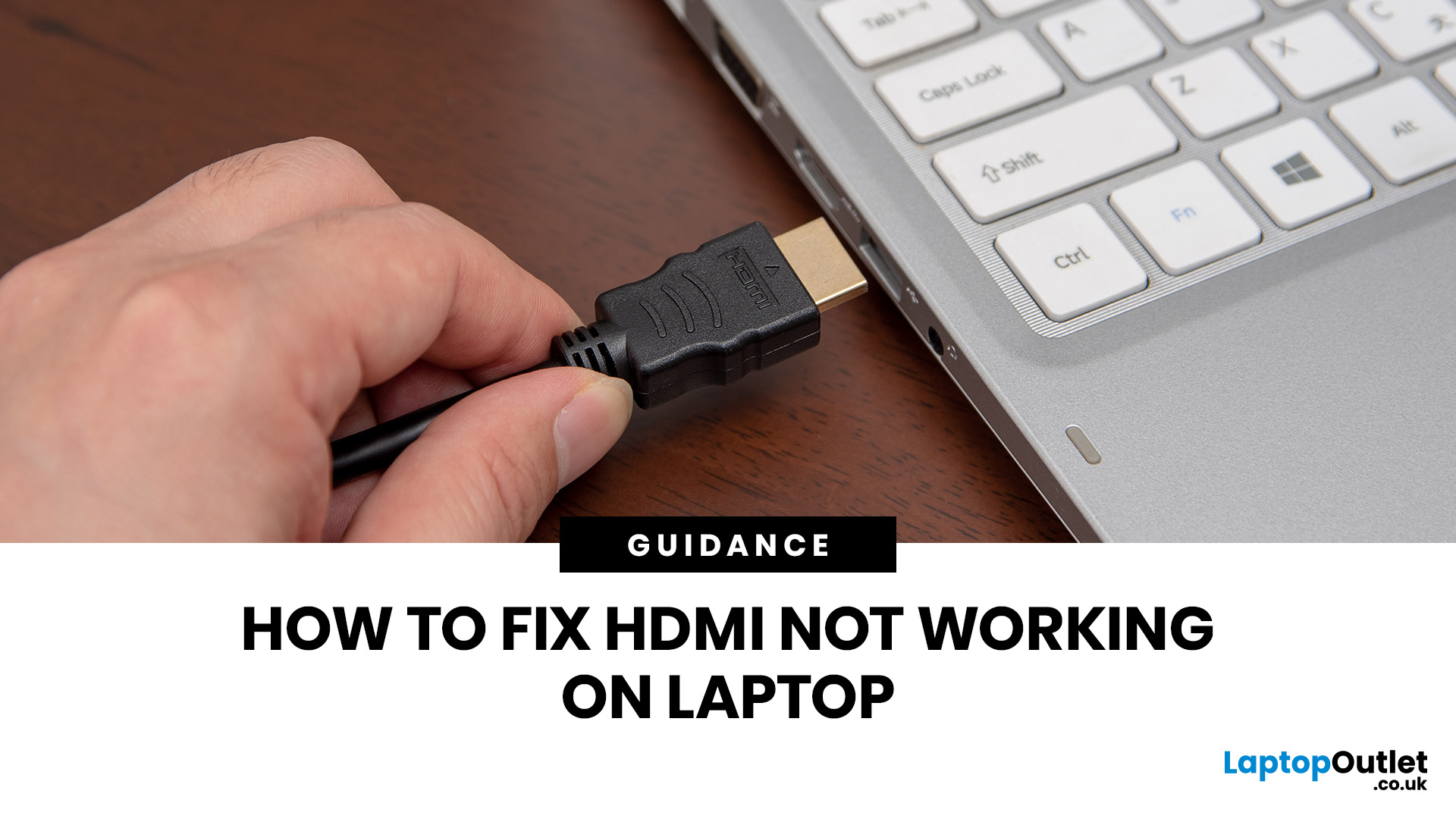
If HDMI is not working on your laptop, start by checking the cable and port for damage, then select the correct input on your monitor or TV. Press Windows + P to choose your display mode. If the screen stays blank, update or reinstall your graphics driver in Device Manager. Most HDMI not working laptop issues are resolved by these steps alone, without needing any specialist help.
There are few things more frustrating than plugging in your HDMI cable and being greeted by a black screen or a "No Signal" message. Whether you are connecting your laptop to a smart TV, an external monitor, or a projector, the issue can almost always be sorted without a trip to a repair shop.
This guide covers most common HDMI not working laptop fixes, from the simplest physical checks right through to driver reinstalls and BIOS settings. Work through the steps in order and you will find your fix quickly.
Why Is Laptop Not Connecting to HDMI?
Before diving into fixes, it helps to understand what causes
Last Updated: July 15, 2026
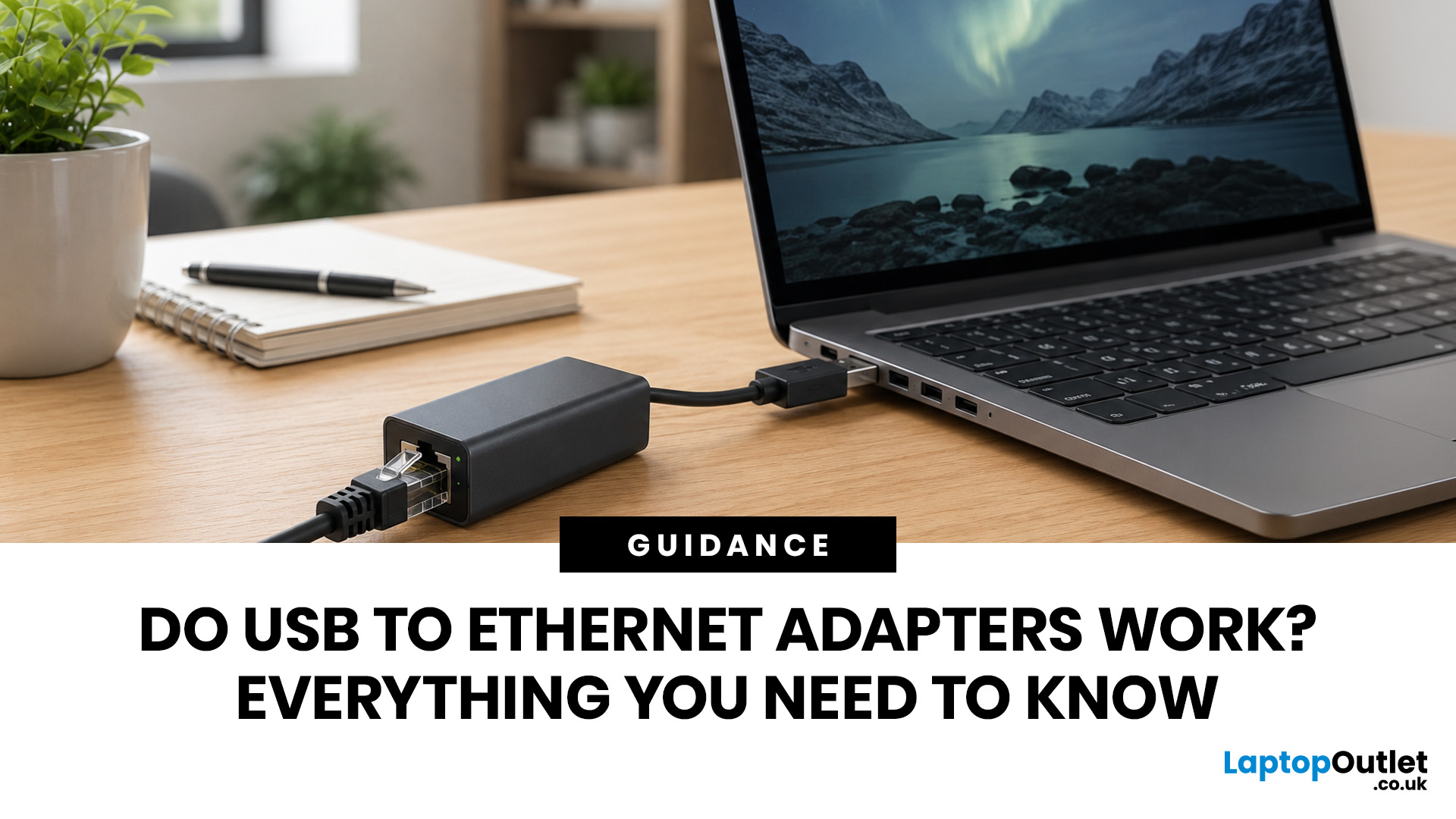
USB to Ethernet adapters do work reliably on many devices, including laptops, tablets, some smart TVs, and selected gaming consoles. They convert a USB port into a wired network connection, offering a more stable connection than WiFi in many situations. Speed depends on the USB version: USB 3.0 models support up to 1Gbps, while USB 2.0 models are limited to around 100Mbps.
This USB Ethernet adapter review gives you a thorough guide to how these adapters work, real-world speeds, operating system compatibility, known limitations, and what to look for before spending your money.
What Is a USB to Ethernet Adapter and How Does It Work?
A USB to Ethernet adapter is a compact dongle that plugs into a USB port and adds an RJ45 Ethernet socket to your device. It bridges the gap for laptops, tablets, and other hardware that ships without a built-in wired network port, which is increasingly common as devices get thinner.
The Technology Behind It
Inside every adapter is a controller chip, most commonly

