



What is Delta E How ViewSonic Monitors Deliver Accurate Colour
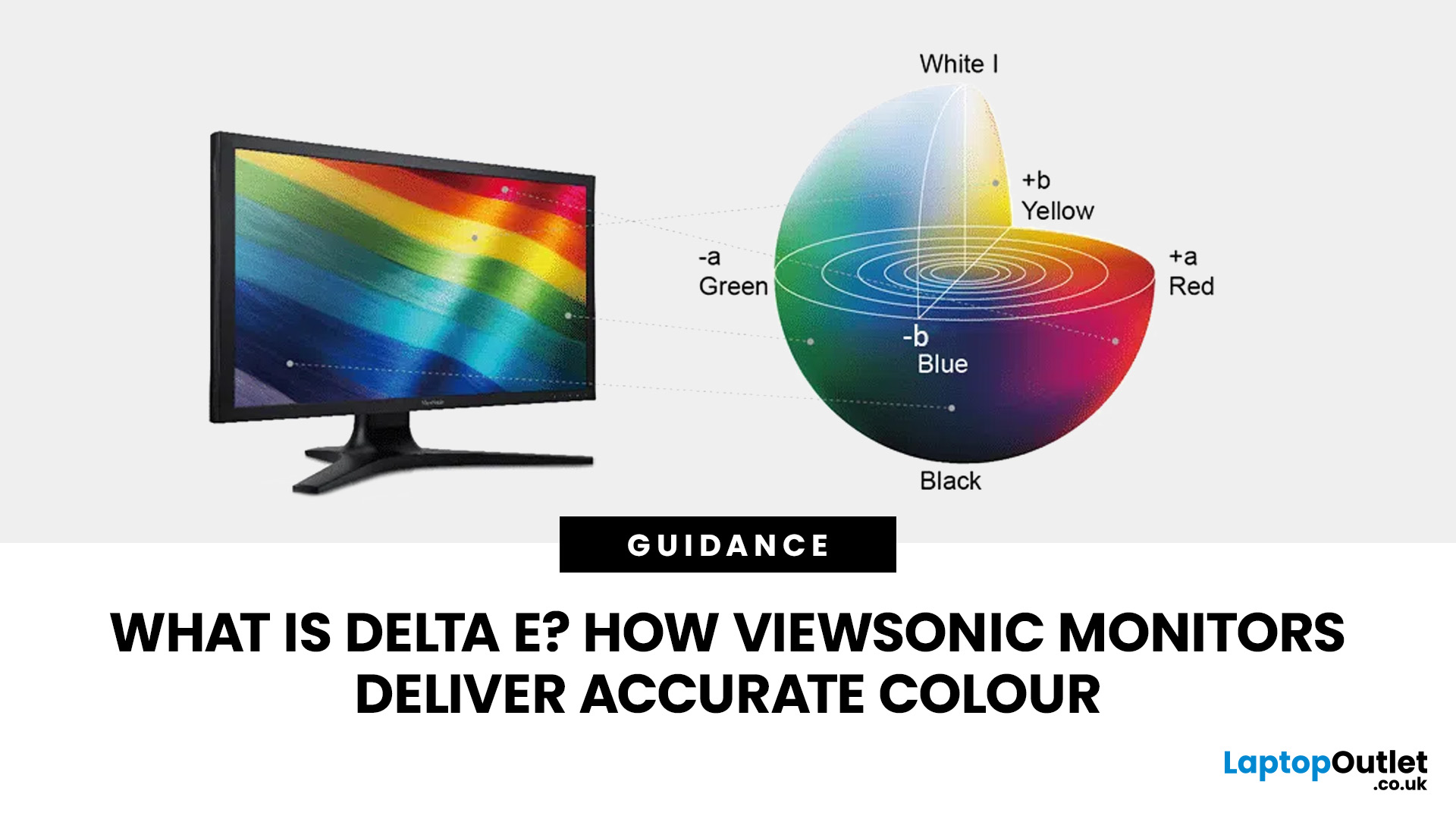
Have you ever edited a photo until it looked perfect on your screen, only to see different colours elsewhere? This often comes down to monitor colour accuracy. Delta E measures how closely a display matches true colours, the lower the value, the more accurate the screen. It’s especially important for photographers, designers, and video editors. ViewSonic’s ColorPro range, including models like the VP2766-2K, is factory calibrated for Delta E < 2 accuracy. Here’s what Delta E means and how it compares to sRGB coverage when choosing a monitor.
What Does Delta E Mean on a Monitor?
Delta E, written as ΔE, is a colour difference measurement. It calculates how far a reproduced colour differs from a reference colour.
Think of it this way: if your editing software tells the monitor to display a precise shade of red, Delta E helps quantify how closely the red appearing on the screen matches that intended colour.
A Delta E of zero represents no measurable difference between the target and reproduced colour. As the number increases, the difference becomes greater. ViewSonic explains that lower Delta E values therefore indicate a closer match between the input colour and the colour reproduced by the display. For practical monitor buying, the figures can be understood broadly like this:
|
Delta E Value |
What it Generally Indicates |
|
0 |
No measurable colour difference |
|
Below 1 |
Extremely small difference that is difficult to perceive |
|
Below 2 |
Very high accuracy suitable for demanding creative work |
|
2–3 |
Small differences may become noticeable depending on the colours and viewing conditions |
|
Higher values |
Increasingly visible differences from the intended colour |
These thresholds should be treated as guidance rather than absolute rules because the Delta E formula, colours being tested and viewing conditions all affect perception. ViewSonic recommends Delta E ≤2 as a strong target for reliable professional display performance.
Why is Delta E Less Than 2 Important?
When you see Delta E less than 2 in a monitor specification, it indicates that the display has been designed to reproduce reference colours with very little measurable deviation.
That can make a real difference when your decisions depend on what you see on screen. A photographer adjusting skin tones, for example, needs confidence that subtle colour changes are coming from the image rather than an inaccurate display. A designer working with brand colours has a similar requirement, while a video editor needs consistency when moving footage between different stages of production.
For everyday browsing, office work or entertainment, extremely low Delta E may not be essential. For colour-critical work, however, it becomes a much more meaningful part of monitor colour accuracy.
What is Delta E 2000?
There is more than one method of calculating Delta E. Earlier approaches include CIE76 and CIE94, while Delta E 2000, also known as CIEDE2000 or ΔE00, uses additional perceptual adjustments to better account for the way people notice differences in lightness, chroma and hue.
This matters because human vision is not equally sensitive to differences across every part of the colour spectrum. Modern professional displays are commonly evaluated using Delta E 2000 because it more closely reflects perceived colour differences than the original calculation.
When comparing two monitors, therefore, do not automatically assume that two advertised Delta E numbers were measured in exactly the same way. Check the manufacturer's methodology or calibration documentation when accuracy is critical to your buying decision.
How is Delta E Measured on a Monitor?
Measuring Delta E requires a known colour reference and a measurement of what the monitor actually displays.
A calibration or measurement system displays a set of reference colours on the screen. A compatible colour-measuring device, typically a colorimeter or spectrophotometer, measures the displayed output. Software can then compare those readings with the intended values and calculate the difference.
ViewSonic's Colorbration+ software, for compatible displays and measurement devices, supports calibration and verification while allowing settings such as colour space, white point, luminance and gamma to be controlled. Its results can also report achieved Delta E alongside other calibration values.
If you depend on accurate colour professionally, measurement is more reliable than adjusting red, green and blue settings simply by eye. If you want to compare the wider range before choosing a colour-focused model, our guide to ViewSonic monitors for work and creative use explains how the main options differ.
Delta E vs sRGB: What is the Difference?
Delta E vs sRGB is not really a question of which one is better because they measure different aspects of display colour performance.
sRGB describes a colour space. When a monitor claims 100% sRGB coverage, it is telling you how much of that specified colour range the display can reproduce.
Delta E tells you something different: how accurately the monitor reproduces the target colours.
A monitor can therefore cover a large percentage of a colour space but still reproduce individual colours inaccurately. Equally, a monitor can provide very low Delta E within a particular colour space without necessarily offering the wider gamut required for another workflow.
For example, the current ViewSonic ColorPro VP2766-2K combines Pantone-validated 100% sRGB coverage with factory-calibrated Delta E < 2 colour accuracy. These specifications complement one another rather than describing the same capability.
How ViewSonic ColorPro Monitors Support Colour Accuracy
The ViewSonic ColorPro family is aimed at creative workflows where colour consistency matters. Rather than relying on a single specification, selected ColorPro displays combine several features that contribute to reliable colour reproduction.
Factory Calibration
Factory calibration gives a professional monitor a known starting point before it reaches your desk.
For example, ViewSonic states that each VP2766-2K is individually factory calibrated and includes a personalised colour calibration report. The model is specified for Delta E < 2 accuracy, giving creators a documented reference for its out-of-box colour performance.
This is especially useful if you need to start colour-sensitive work without manually correcting a new display immediately.
Colour Space Coverage
Low Delta E alone does not tell you how broad a monitor's colour range is. This is why you should consider gamut coverage alongside the ViewSonic Delta E specification.
The VP2766-2K, for example, pairs Delta E < 2 with 100% sRGB coverage and Pantone validation. Other professional ViewSonic models can have different gamut capabilities, so check the specifications of the individual model rather than assuming the entire range is identical.
Hardware Calibration Support
Even a factory-calibrated monitor benefits from having a way to verify and maintain its colour performance.
ViewSonic Colorbration+ supports calibration and profiling on compatible monitors using supported measurement devices. It can control targets including white point, luminance, gamma and colour space and can verify the achieved results afterwards.
That gives you a more repeatable way to correct colour than manually changing settings until the picture simply “looks right”.
Screen Uniformity
Accuracy at the centre of a screen is not the whole story. Colour and brightness should also remain reasonably consistent across the display surface, particularly when you are retouching large images or evaluating flat areas of colour.
ViewSonic uses uniformity correction on selected professional monitors to help improve luminance and colour consistency across the panel.
Does Every ViewSonic Monitor Have the Same Delta E Accuracy?
No. You should not assume that every ViewSonic monitor provides identical Delta E performance.
ViewSonic sells displays for professional creative work, business, everyday computing and gaming, and their specifications vary accordingly. Delta E < 2 is prominently associated with selected ColorPro and other colour-focused models, while different products prioritise different features. ViewSonic's own UK monitor catalogue includes Delta E < 2 as a filterable feature rather than treating it as a universal specification across every display.
If ViewSonic colour accuracy is a priority for you, check the product page for:
- The stated Delta E value
- The Delta E measurement method where available
- Factory calibration
- A supplied calibration report
- sRGB, Adobe RGB or DCI-P3 coverage
- Hardware calibration compatibility
- Panel uniformity features
- The colour modes relevant to your workflow
This is much more useful than buying based on the brand name alone.
Does 4K Resolution Improve Colour Accuracy?
Not automatically.
Resolution and colour accuracy describe different parts of image quality. Monitors with 4K resolution give you more pixels and therefore greater image detail than a lower-resolution display of a similar size. Delta E measures whether the colours shown by those pixels accurately match their intended values.
For photography, design, and video editing, combining high resolution with good colour accuracy can be valuable because you get both fine image detail and trustworthy colour reproduction. However, a 4K label by itself tells you nothing about Delta E. Furthermore, if photography or video production is your main use case, our guide to the best monitors for photo and video editing covers the other specifications worth considering alongside colour accuracy.
Does Delta E Matter for Gaming?
Colour accuracy can improve gaming visuals, particularly in games with detailed environments, carefully graded cinematics or realistic art direction. However, it should not replace gaming-focused specifications such as refresh rate, response characteristics, adaptive sync and suitable resolution.
ViewSonic's UK gaming range includes selected displays advertised with Delta E < 2 capability, showing that gaming performance and good colour reproduction are not necessarily mutually exclusive. The exact specification still depends on the model.
If gaming is your main priority, start with the top gaming displays and balance colour performance against the refresh rate and resolution your PC or console can realistically support.
How to Improve Monitor Colour Accuracy If Colours Look Wrong
If photos, videos or designs do not look consistent between your monitor and other devices, do not immediately start changing individual colour controls. Work through the problem systematically.
1. Select the Correct Colour Mode
Make sure your monitor is using the colour space or preset appropriate for your work. Editing sRGB content while using an unsuitable display mode can make colours appear different from what you expect.
2. Check Brightness, White Point and Gamma
Colour accuracy is not isolated from the rest of the display configuration. White point, luminance and gamma affect how you perceive the image. Compatible ViewSonic monitors allow these calibration targets to be controlled through Colorbration+.
3. Use a Measurement Device for Critical Work
If accuracy affects your professional output, use a compatible colorimeter or spectrophotometer rather than relying solely on your eyes. Colorbration+ supports a range of devices from X-Rite/Calibrite and Datacolor on compatible hardware.
4. Verify the Result
Calibration and verification are different steps. After making corrections, check the achieved Delta E and other targets to confirm that the display is actually performing as intended.
5. Recalibrate When Necessary
Factory calibration gives you a strong starting point, but professional workflows benefit from the ability to check and maintain consistency. ViewSonic specifically positions Colorbration+ as a way to support long-term colour accuracy on compatible ColorPro monitors.
Delta E is only one part of the specification sheet, so use our complete monitor buying guide if you also need help comparing panel type, resolution, refresh rate and connectivity.
How to Choose the Right ViewSonic Monitor for Colour-Sensitive Work
Start with the work you actually do rather than searching for the lowest Delta E number in isolation.
For web design and general digital content, strong sRGB coverage combined with low Delta E can be a sensible foundation. Photographers, print professionals and video creators may need additional gamut coverage or workflow-specific calibration capabilities.
Screen size and resolution also affect usability. A larger workspace can make editing tools easier to manage, while higher resolution helps you inspect fine details. If a medium-sized desktop setup suits you, compare 27-inch monitor options and then narrow the results by resolution, panel type and colour-related specifications.
If ViewSonic is already your preferred brand, Laptop Outlet also offers affordable ViewSonic monitors covering different resolutions and use cases. Check the specifications of each model carefully, particularly if low Delta E or calibration support is essential to your workflow.

Final Thoughts
Delta E gives you a useful way to move beyond subjective descriptions such as “vivid” or “true-to-life” and look at monitor colour accuracy more objectively.
A lower value means a smaller measured difference between the intended colour and the colour your monitor reproduces. For creative work, Delta E below 2 is a useful benchmark, but it should be considered alongside colour-space coverage, calibration, uniformity, resolution and the requirements of your particular workflow.
Selected ViewSonic ColorPro displays combine factory calibration, low Delta E, established colour-space coverage and calibration tools to address those requirements. Just remember that specifications vary between models. Check the individual monitor rather than assuming every ViewSonic display offers identical colour performance.

Still Got Questions
What does Delta E mean on a monitor?
Delta E measures the difference between a reference colour and the colour reproduced by your monitor. The lower the value, the closer the displayed colour is to its intended target. A value below 2 is commonly used as a strong benchmark for professional colour accuracy, although the exact significance also depends on the Delta E formula and testing conditions.
Do all ViewSonic monitors offer the same Delta E accuracy?
No. ViewSonic produces monitors for different purposes, so colour specifications vary by model. Selected ColorPro and other colour-focused displays advertise Delta E < 2 performance, but you should check the individual model's specifications, calibration report and colour-space coverage before buying.
Does calibrating a monitor improve Delta E colour accuracy?
Calibration can improve or restore accuracy when the monitor's current output differs from the intended target. On compatible ViewSonic displays, Colorbration+ can calibrate and profile the monitor and then verify values including colour space, white point, gamma, luminance and Delta E.
How is Delta E measured on a monitor?
A monitor displays known reference colours while a measurement device such as a colorimeter or spectrophotometer records the colours actually produced. Calibration or testing software compares the measured values with the reference values and calculates the colour difference as Delta E. ViewSonic's Colorbration+ follows this type of measurement and verification workflow on supported monitors and devices.
Related Articles

Last Updated: July 07, 2026
Laptops are powerful enough to handle work, study, streaming, gaming and creative tasks, but the right accessories can make a big difference to how comfortable and productive your setup feels. From keyboards and monitors to laptop bags, hubs and stands, choosing the best accessories helps you get more from your device every day.
| The best laptop accessories in 2026 are the ones that make your device more comfortable, productive, portable and easier to use every day. Essential picks include a wireless keyboard and mouse, external monitor, USB-C hub, laptop stand, protective sleeve, mouse pad, webcam, headphones, cooling pad and external storage. Whether you use your laptop for work, study, gaming or travel, the right accessories can turn a basic setup into a more efficient workspace. |
In 2026, laptop users are not just looking for basic add-ons. They want accessories that improve posture, speed up multitasking, protect their devices and create a cleaner desk setup. Whether you are building
Last Updated: August 25, 2026
Quick answer: The best Lenovo gaming monitor for streaming and esports is the one your PC can drive consistently at its native resolution while it also handles your broadcast workflow. For many mixed-use setups, a 27-inch QHD display at 165Hz to 180Hz is the balanced choice. A 24.5-inch or 27-inch Full HD screen at 240Hz or above prioritises competitive speed, while a 34-inch UWQHD display at 165Hz to 180Hz provides more room for a single-screen streaming workspace.
Those are useful profiles, not universal rules. Your real decision depends on sustained frame rate, encoder load, game genre, desk space and whether OBS, chat and alerts live on the same display. A monitor does not encode the stream, and a 240Hz panel does not make viewers receive a 240fps broadcast. It changes the experience in front of you, which can still matter greatly during competitive play.
Last Updated: August 11, 2026
Picking the best gaming monitor size isn’t just about going big or going home. Your screen size actually changes how your games look, feel, and perform. A 24-inch setup is clutch for competitive play, a 27-inch hits that sweet spot between clarity and immersion, and a 32-inch screen? That’s where things get seriously cinematic.
Size alone isn’t the whole story. Resolution, desk space, refresh rate, and what you actually play all matter. This gaming monitor size comparison breaks down 24, 27, and 32-inch displays so you can find your perfect match.
24 Inch vs 27 Inch vs 32 Inch Gaming Monitors: Quick Comparison
The following table provides a quick overview of how the three most popular gaming monitor sizes compare.
| Feature | 24-Inch Monitor | 27-Inch Monitor | 32-Inch Monitor |
| Recommended resolution | 1920 × 1080 | 2560 × 1440 | 2560 × 1440 or 3840 × 2160 |
| Best suited to | Competitive gaming | Mixed gaming and everyday use | Immersive and cinematic gaming |
| Typical desk requirement | Small | Medium | Large |
| Graphics |
Last Updated: August 11, 2026
Last Updated: September 03, 2026
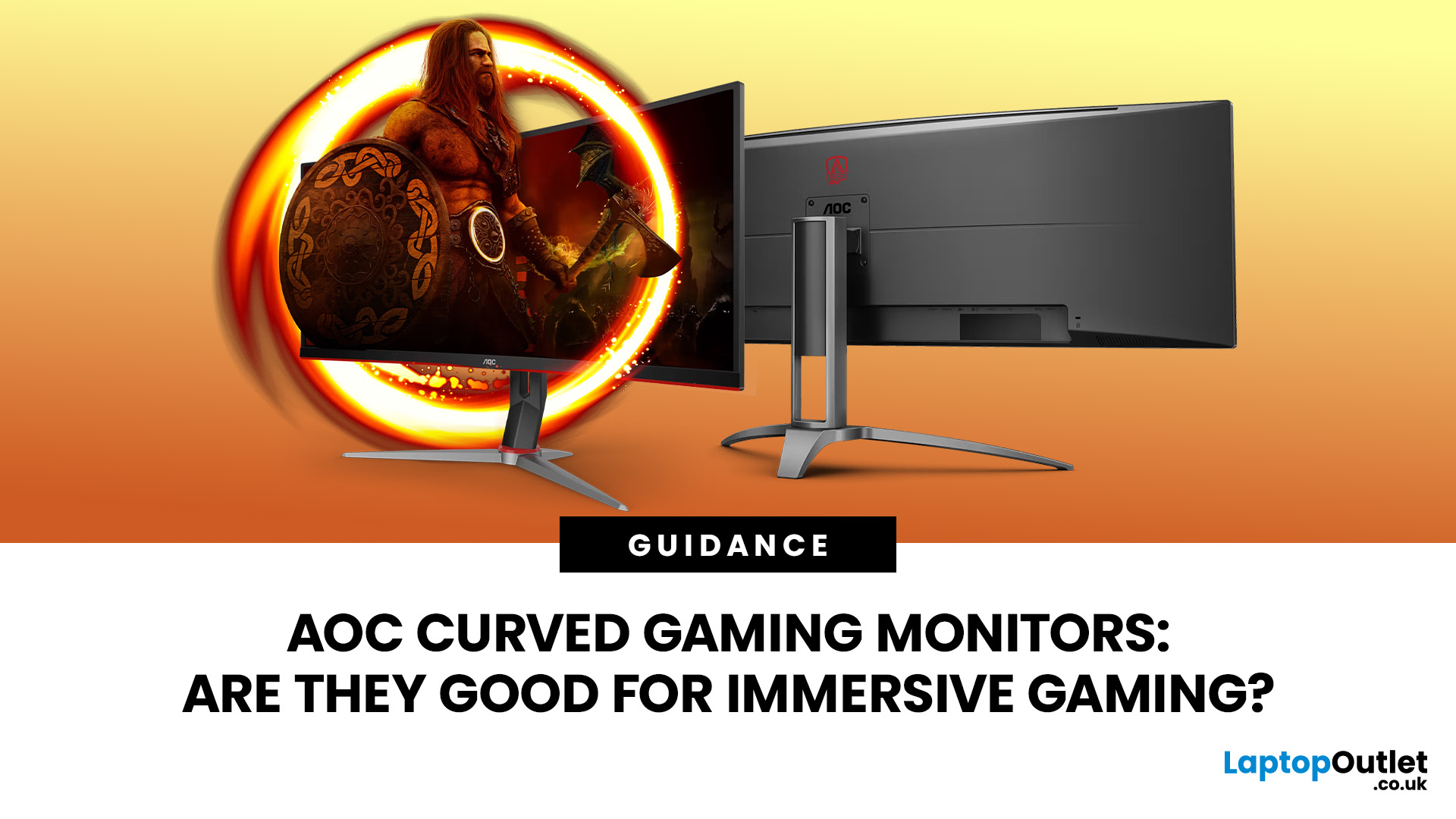
An AOC curved gaming monitor can be a strong choice for immersive gaming, especially if you play racing, simulation, RPG, open-world or cinematic single-player games. The curved screen helps draw more of the display into your natural field of view, which can make gameplay feel more engaging on larger panels. For many PC gamers, the sweet spot is a 27-inch or 32-inch high-resolution QHD monitors. For maximum immersion, an AOC 34 curved gaming monitor or another ultrawide curved gaming monitor can offer a wider, more cinematic view.
Are AOC Curved Gaming Monitors Good for Immersive Gaming?
Yes, AOC curved gaming monitors can be good for immersive gaming, but the experience depends on three things:
- Screen size
- Resolution
- Refresh rate
A curved display is most effective when the screen is large enough for the curve to matter. On a 24-inch screen, the curve may feel subtle. On a 32-inch or 34-inch screen, it becomes much more noticeable because the edges of the panel sit further into your peripheral
Published: July 27, 2026
Last Updated: September 03, 2026
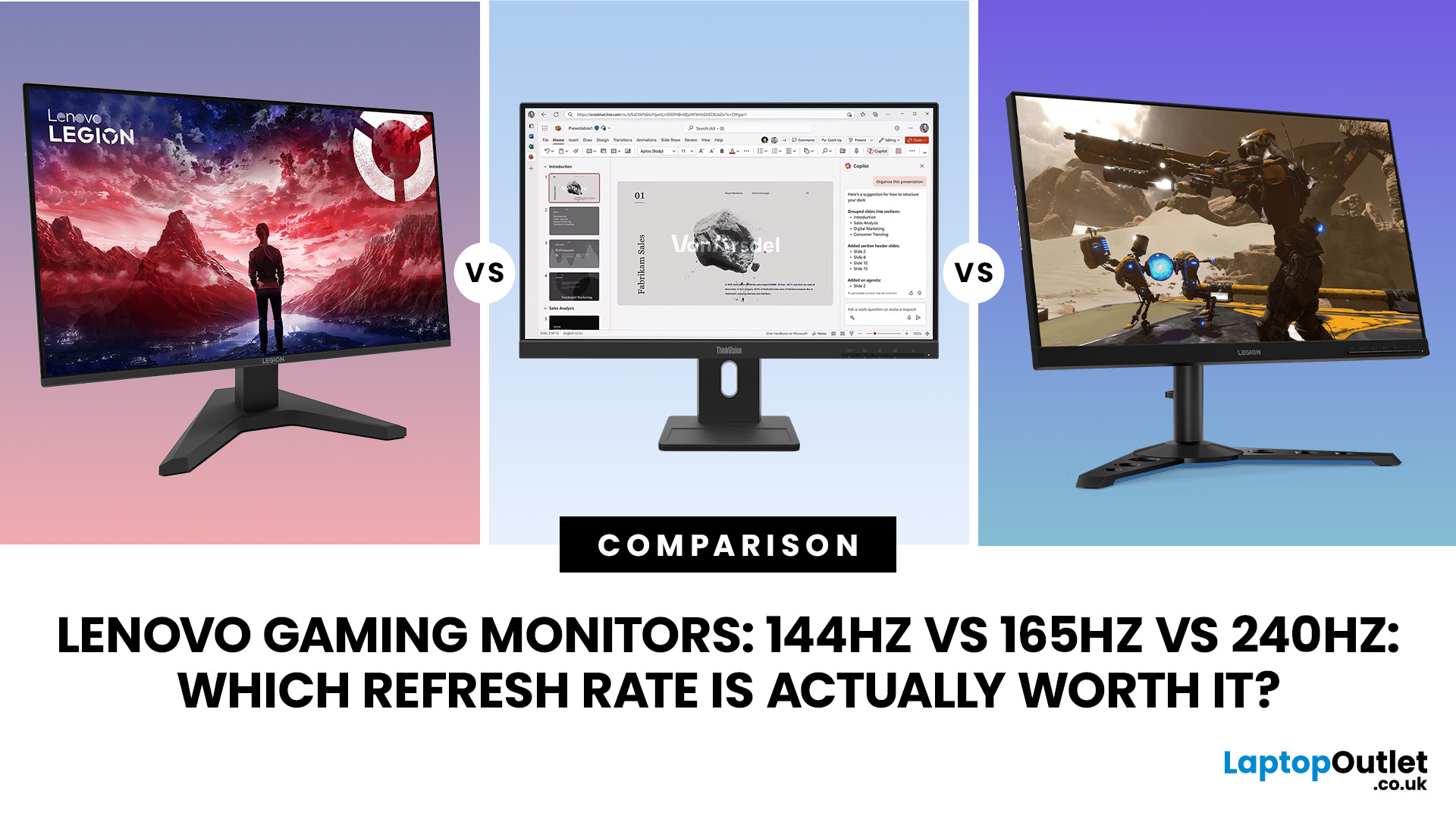
Refresh rate is one of the first specifications you will notice when shopping for a gaming monitor. A higher number promises smoother movement and faster feedback, but that does not automatically mean a 240Hz display is the right choice for your setup.
The best Lenovo monitor refresh rate depends on the games you play, the frame rates your computer can produce and whether you prioritise competitive responsiveness or sharper graphics. A casual player running cinematic games at 70 frames per second will gain little from 240Hz, while a competitive FPS player maintaining more than 200fps may notice a meaningful improvement.
This guide compares 144Hz, 165Hz, and 240Hz Lenovo gaming monitors so you can pay for performance you will actually use.
Quick Answer: Is 144Hz, 165Hz or 240Hz Best?
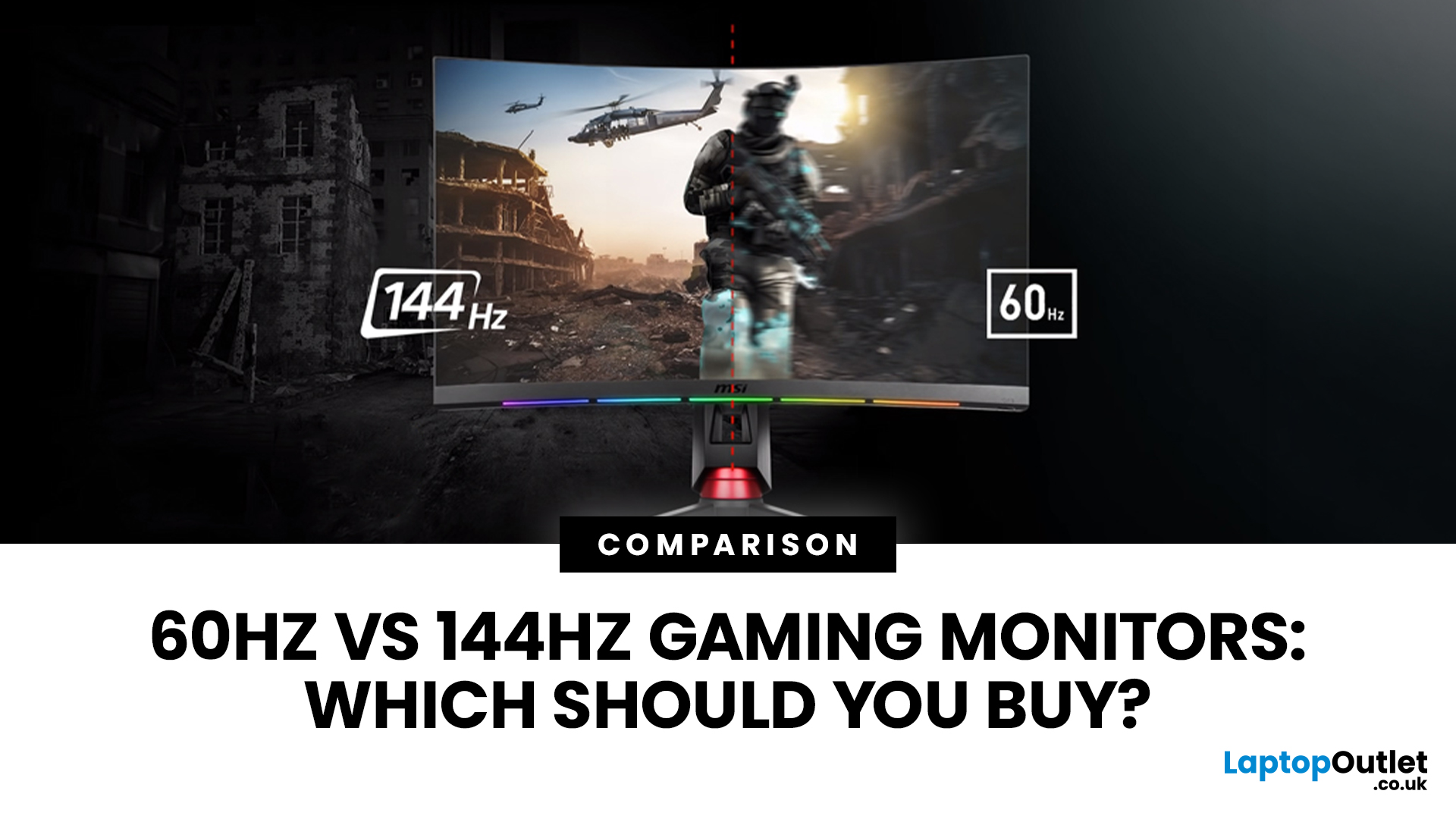
For most PC gamers, 144Hz or 165Hz offers the best balance of smoothness, hardware requirements, and value. Choose 240Hz when you mainly play competitive shooters and your PC can regularly produce close to 240fps
Last Updated: August 11, 2026
Last Updated: August 17, 2026
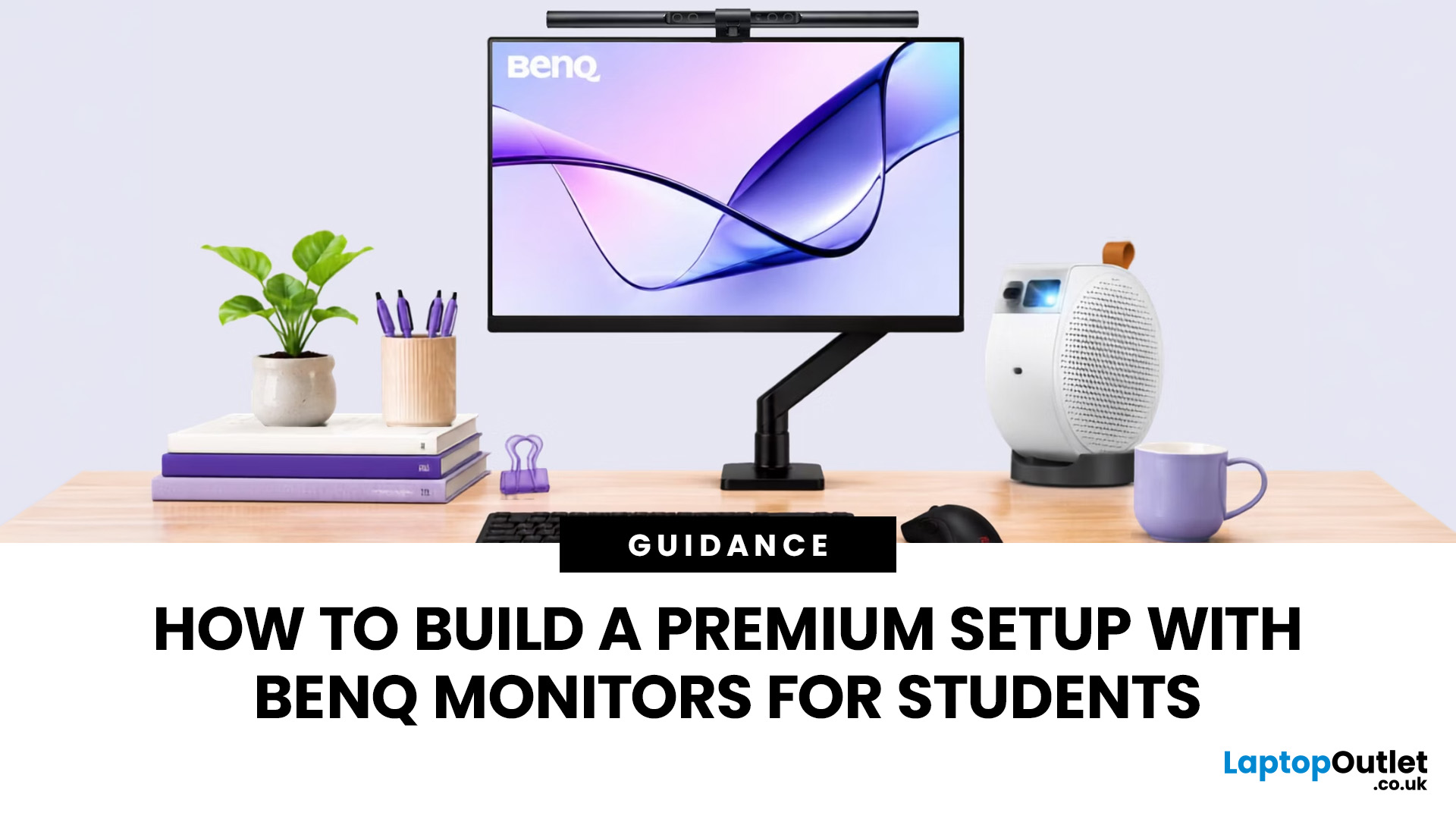
BenQ monitors for students can create a more comfortable and capable workspace for coursework, research, creative projects and downtime. The right display should suit your course, desk space, laptop and daily routine rather than simply offer the highest resolution. For many students, the strongest setup combines clear text, useful screen space, simple connectivity and enough versatility for life beyond studying.
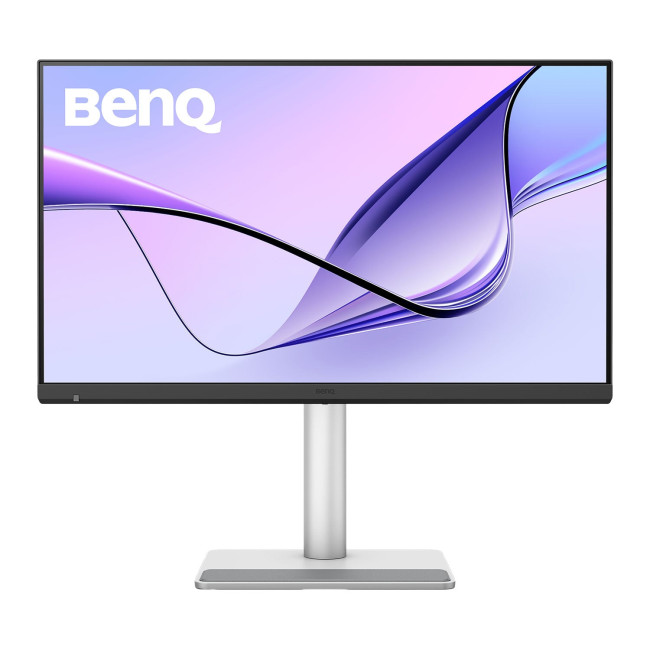
A premium student monitor setup is not defined by one specification. A compact high-resolution screen may work better in university accommodation, while a larger display can make research, timelines and spreadsheets easier to manage. Room lighting, USB-C charging, ergonomics and gaming needs also influence the decision. This guide compares BenQ's Mac-focused MA Series with a faster mixed-use alternative and explains where each approach makes practical sense.
Compare the Best BenQ Monitors for Students in 2026
| Model | Display | Colour and HDR | Laptop Connection | Best Student Use |
|
|
Last Updated: September 03, 2026
Creative work depends on display quality, from colour accuracy to detail clarity.
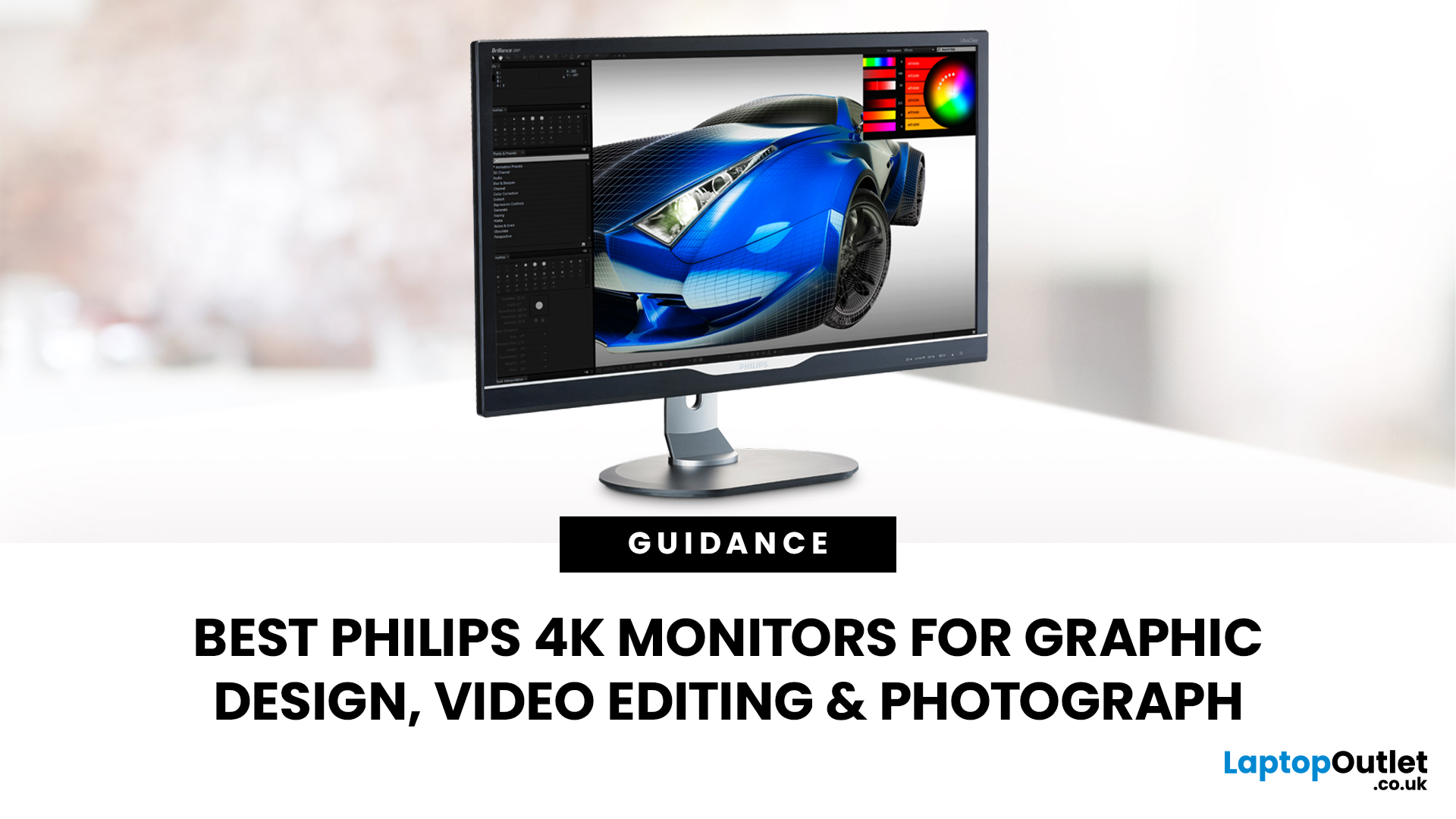
The best Philips 4K monitors for creative work include the 27E1N1800AE for affordable 4K clarity, the 27E1N1900AE for convenient USB-C laptop connectivity and the curved 328E1CA for a larger editing workspace. A 27-inch IPS model suits most designers and photographers, while a 31.5-inch VA display offers stronger contrast and more room for video timelines. Choose according to colour requirements, connectivity, available desk space and your everyday creative workflow needs.
These 4K monitors deliver four times Full HD resolution for sharper visuals and more workspace, but panel type, colour performance and connectivity are just as important.
This guide highlights the best Philips 4K options for design, video editing and photography. It also highlights key considerations so you can compare different computer monitors for designers more effectively.
Best Philips 4K Monitors at a Glance
| Philips Monitor | Best For |

