



How to Build a Premium Setup with BenQ Monitors for Students
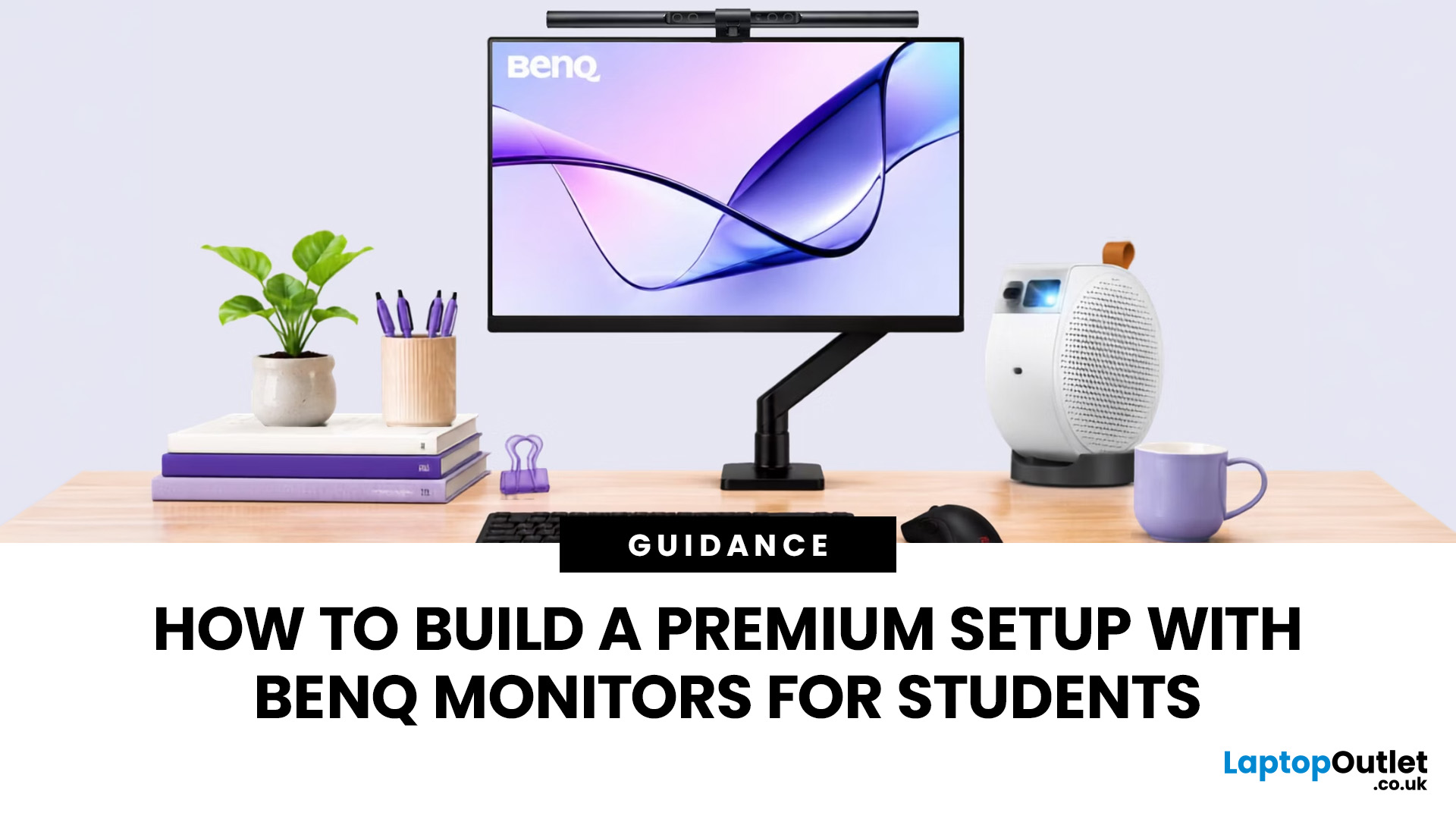
BenQ monitors for students can create a more comfortable and capable workspace for coursework, research, creative projects and downtime. The right display should suit your course, desk space, laptop and daily routine rather than simply offer the highest resolution. For many students, the strongest setup combines clear text, useful screen space, simple connectivity and enough versatility for life beyond studying.
A premium student monitor setup is not defined by one specification. A compact high-resolution screen may work better in university accommodation, while a larger display can make research, timelines and spreadsheets easier to manage. Room lighting, USB-C charging, ergonomics and gaming needs also influence the decision. This guide compares BenQ's Mac-focused MA Series with a faster mixed-use alternative and explains where each approach makes practical sense.
Compare the Best BenQ Monitors for Students in 2026
|
Model |
Display |
Colour and HDR |
Laptop Connection |
Best Student Use |
|
|
27-inch IPS, 5120 × 2880, 70Hz, Nano Gloss |
99% P3, 450 nits, DisplayHDR 400 |
Thunderbolt 4 with up to 96W power delivery |
Detailed design, photography, video editing and other Mac-based creative courses |
|
|
31.5-inch IPS, 3840 × 2160, 60Hz, Nano Gloss |
97% P3, 550-nit typical brightness, DisplayHDR 600 |
USB-C with up to 90W power delivery |
Large timelines, research, spreadsheets and multi-window Mac workflows |
|
|
27-inch IPS, 3840 × 2160, 60Hz, Nano Gloss |
95% P3, 450 nits, DisplayHDR 400 |
USB-C with up to 90W power delivery |
Compact premium Mac setups for general university work and content creation |
|
|
27-inch IPS, 2560 × 1440, 200Hz, matte |
90% P3, 350 nits, HDR10 |
USB-C with up to 65W power delivery |
Studying, gaming, streaming and everyday entertainment on one display |
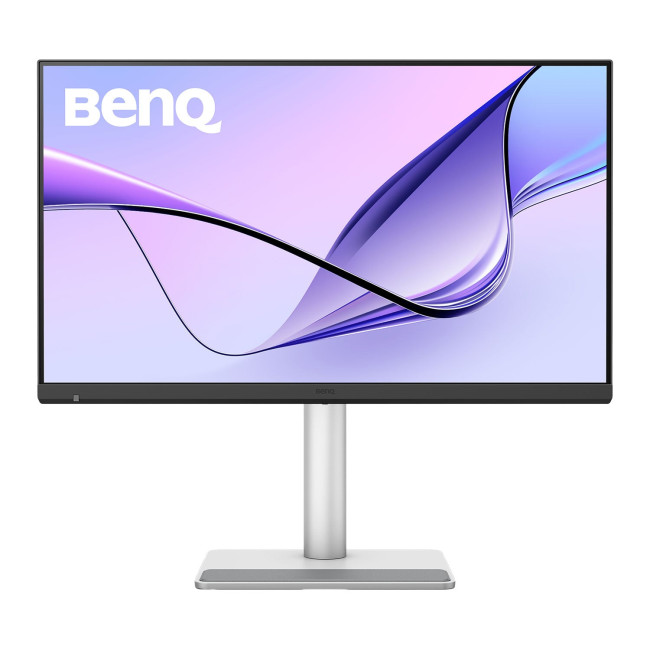
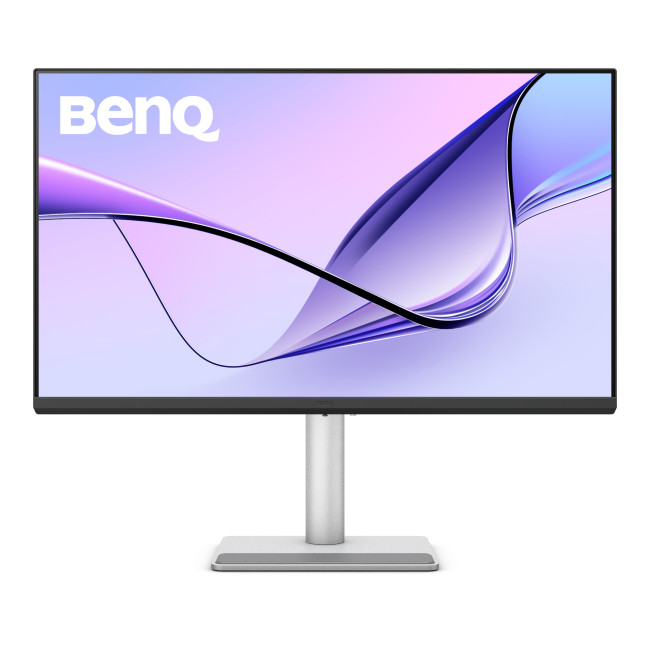
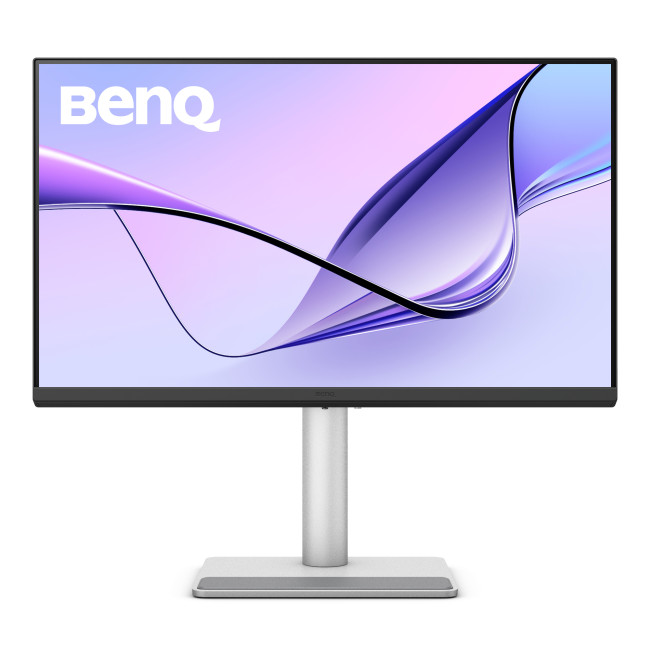
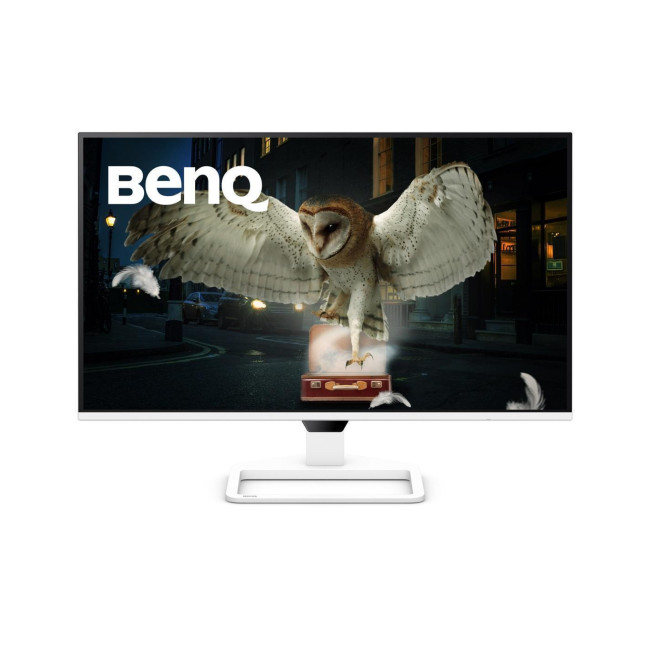
Important: None is automatically right for every student. A design student working mainly in macOS has different priorities from someone who spends the day writing essays and the evening playing competitive games.
BenQ MA270S: The Premium 5K Choice for Mac Creators
The BenQ MA270S 5K glossy monitor uses a 27-inch Nano Gloss IPS panel with 5120 x 2880 resolution and 218 pixels per inch. It covers 99% of the P3 colour gamut, reaches 450 nits and runs at up to 70Hz.
That combination makes fine text, interface elements and high-resolution media appear exceptionally detailed. Students working with photography, illustration, layout design, animation or video can inspect more of a project without relying as heavily on zooming.
Why the MA270S Is a Premium 5K Apple Studio Display Alternative?
The MA270S and Apple's current Studio Display share a 27-inch 5K resolution, a wide P3 colour focus and up to 96W laptop charging. The BenQ also includes a height-adjustable stand, Thunderbolt 4, HDMI 2.1, USB-C, USB-A connections and a KVM switch for controlling two computers with one keyboard and mouse.
However, comparison has limits. Apple's 2026 Studio Display reaches 600 nits and includes Thunderbolt 5, a 12MP camera, microphones and a six-speaker system. The MA270S reaches 450 nits, uses two 3W speakers and has no built-in webcam, so students attending frequent online seminars may need a separate camera or headset.
That makes the BenQ a credible Apple Studio Display alternative for students who value 5K sharpness, Mac-focused colour and broader connectivity more than an integrated conferencing system. It should not be presented as equivalent to Apple's higher-end Studio Display XDR, which targets professional HDR and colour-critical workflows.
Which Mac Creators Benefit Most from the MA270S?
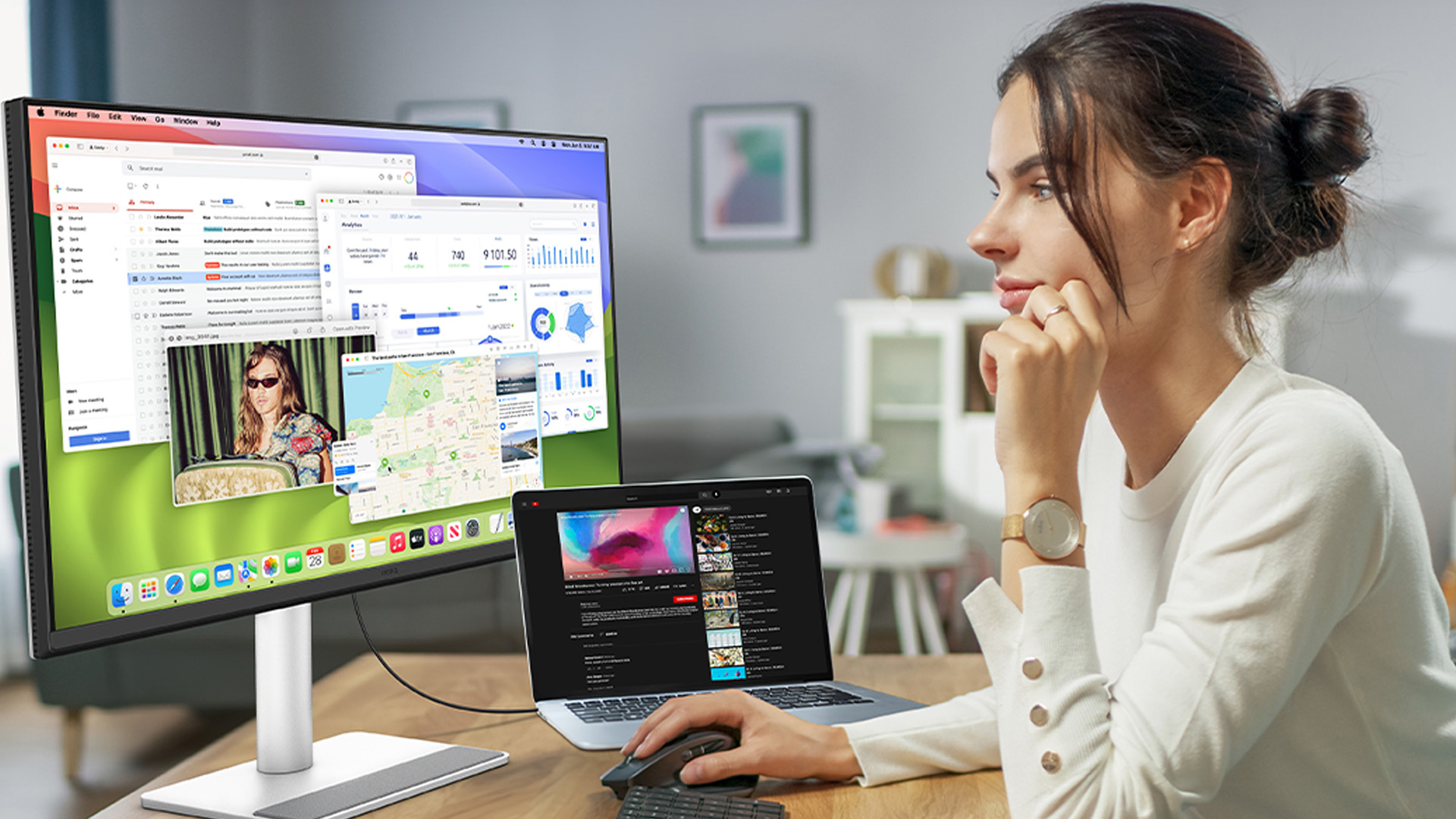
MacBook Pro users can connect through Thunderbolt 4 and receive up to 96W of power from the display. Mac Studio users gain a sharp main canvas for editing, while compatible Mac Pro workflows can use the 5K panel for detailed visual work alongside separate reference equipment where required.
The 70Hz refresh rate feels slightly smoother than a standard 60Hz desktop, but this is not a competitive gaming monitor. Choose it for detail and colour consistency, not very high frame rates or demanding HDR mastering.
BenQ MA320UP and MA270UP: More Accessible Premium Mac Monitors
The 4K MA320UP and MA270UP retain the Mac-focused design of the MA Series while serving different spaces. Both provide an IPS Nano Gloss panel, Display P3 modes, 90W USB-C charging, two HDMI inputs, built-in speakers and adjustable stands.
They are more accessible routes into a premium Mac display setup than the 5K MA270S, but 4K does not produce the same pixel density as 5K at 27 inches. For most coursework, that difference matters less than choosing the right physical size and workflow.
How to Build a Premium Mac Setup for University
Start with the applications you use most. A 32-inch screen can keep a research paper, source material and reference manager visible together, while a 27-inch screen is easier to place on a bedroom desk and keeps the whole desktop within a comfortable field of view.
Then check your lighting. Nano Gloss panels can make colours and contrast look clear, but reflections are easier to notice when the display faces a window or bright lamp. Position the screen at an angle to strong light and avoid buying a glossy monitor solely for its appearance.
Why the MA320UP and MA270UP Pair Well with MacBook Air, MacBook Pro and Mac mini
USB-C can carry the video signal, data and up to 90W of charging through one cable. This creates a clean desk setup with fewer adapters and leaves the MacBook ready to take to lectures.
The connection must support DisplayPort Alt Mode, and the cable must support the required video and power features. A high-performance MacBook Pro may also use more than 90W during sustained intensive work, so check the power requirements of the exact Mac rather than assuming every USB-C connection behaves identically.
Mac mini users can connect through USB-C or HDMI and use the monitor's built-in speakers for everyday audio. MacBook Air users benefit most from the one-cable arrangement because it turns a portable computer into a desktop workspace without a separate dock.
Who Should Choose the BenQ MA320UP?
The 31.5-inch MA320UP provides a larger 4K workspace, 97% P3 coverage, 550-nit typical brightness and VESA DisplayHDR 600. It suits architecture, media, data, engineering and business students who regularly arrange several windows or work with wide timelines and large spreadsheets.
Its size needs planning. The panel is approximately 71cm wide and works better on a deeper desk where you can sit far enough back to view the full screen without repeated head movement.
Who Should Choose the BenQ MA270UP?
The 27-inch MA270UP combines 4K resolution, 95% P3 coverage, 450-nit brightness and DisplayHDR 400 in a smaller footprint. For students who want an accessible premium monitor, it is the more practical MA option for a compact bedroom, shared flat or university accommodation.
It is well suited to writing, coding, presentations, photo work and general content creation. Choose the MA270S instead when maximum text and image sharpness is central to the course, rather than simply desirable.
Why the BenQ MA Series Works Well with Mac
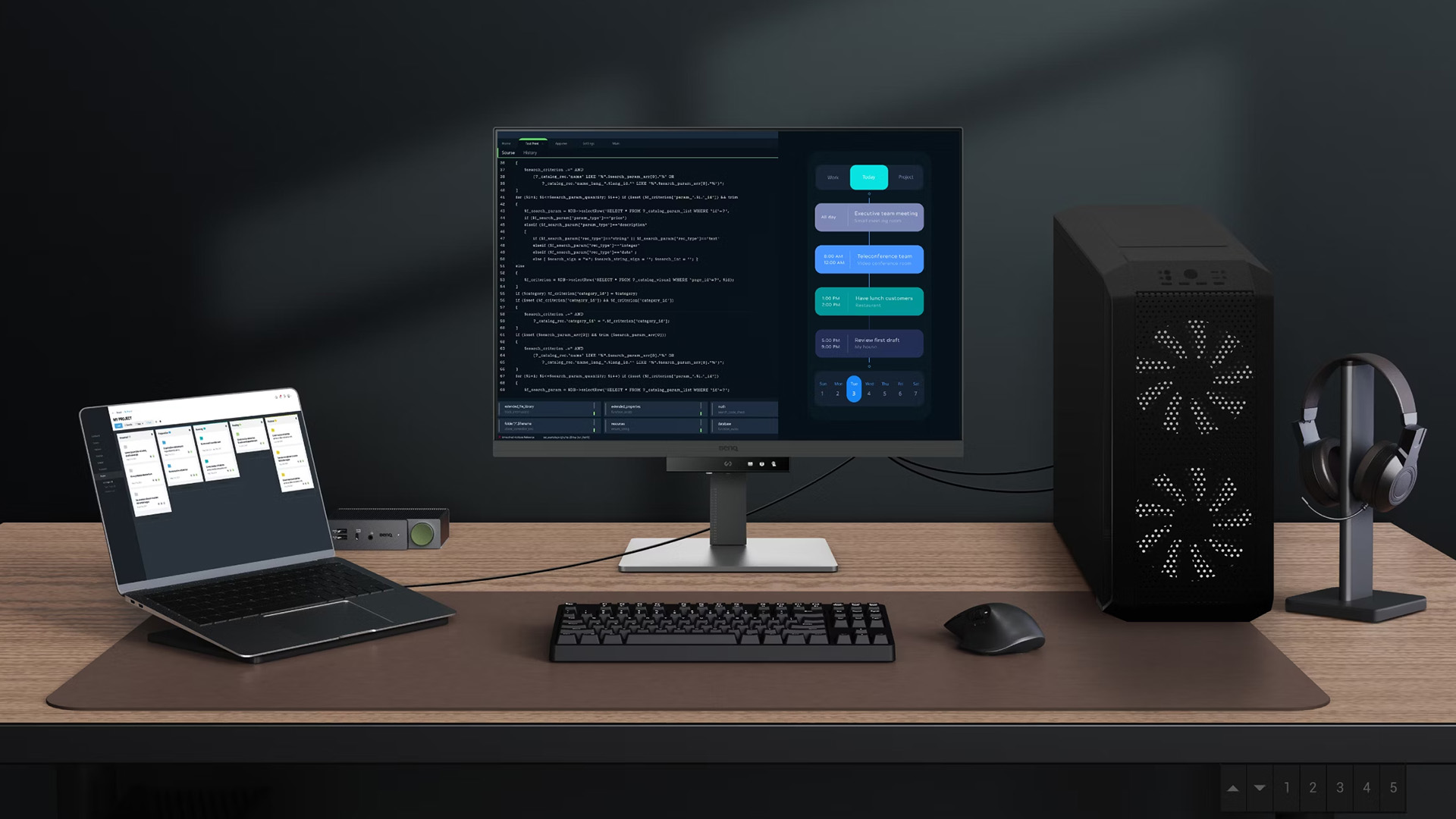
A BenQ MA Series monitor is designed to reduce the visible shift that can occur when content moves from a MacBook display to an external screen. Factory tuning, Display P3 support, M-book mode and ICCsync help create a more consistent Mac-based workflow.
These tools improve convenience, but they do not remove the need for proper calibration in colour-managed degree work. Follow the colour space, brightness and proofing requirements supplied by your course, client or print provider.
Mac Colour Matching with a Premium, Minimalist Look
The MA270S, MA320UP and MA270UP use light-coloured housings and restrained stands that suit a Mac-focused desk. Display Pilot 2 also lets compatible users manage brightness, volume, input sources, desktop partitions and auto-pivot behaviour from macOS.
The useful part is not the matching colour of the hardware. It is the ability to control common display functions without repeatedly navigating the monitor's on-screen menu.
One USB-C Cable for a Cleaner Student Desk
Connect the MacBook to the correct USB-C or Thunderbolt input, then attach supported accessories to the monitor where appropriate. This reduces the number of cables crossing the desk and makes it quicker to disconnect the laptop before class.
Do not assume that any USB-C cable will deliver the monitor's full resolution and charging rate. Use the supplied cable where possible, or choose a certified replacement that supports video, data and the required power delivery.
What Should Students Know Before Choosing a Glossy Panel?
Nano Gloss displays can produce clear detail and strong perceived contrast, but room placement matters. A bright window behind you may appear as a reflection during dark scenes, and a lamp pointed at the panel can be distracting during evening study.
Place the desk perpendicular to a window where possible, control direct light and keep the included cleaning guidance in mind. Students who cannot control a very bright room may find the EW270Q's matte surface easier to live with, even though it has a lower resolution.
How to Choose a BenQ Monitor for Your Course, Desk and Laptop
The right BenQ monitor for university should be chosen in a clear order. Confirm what your laptop can output, match the display to your course software, and then consider desk space, room lighting and gaming. Screen size or resolution alone cannot tell you whether a monitor will suit the complete setup.
|
Technical Check |
What to Look For |
Why It Matters for Students |
|
Resolution and pixel density |
Read resolution alongside screen size and pixels per inch. The options in this guide range from approximately 109 ppi on a 27-inch QHD screen to 218 ppi on a 27-inch 5K screen. |
Higher pixel density produces finer text and image detail. Operating-system scaling still determines how much usable workspace and how large interface elements appear. |
|
Colour space and accuracy |
Use sRGB for standard web and general coursework. P3 is more relevant to Mac-based photography, design and video. Treat gamut coverage and colour accuracy as separate specifications. |
A wide gamut describes the range of colours a monitor can reproduce. It does not confirm that those colours are accurate, so colour-critical students should also check factory calibration and Delta E information. |
|
USB-C video and charging |
Confirm that the laptop supports DisplayPort Alt Mode or Thunderbolt through USB-C. Check the monitor's Power Delivery wattage and use a full-featured cable rated for video and charging. |
The USB-C connector shape does not guarantee display output, data transfer or laptop charging. A charge-only cable or data-only port can leave the screen blank even when the plug fits. |
|
Refresh rate, response time and VRR |
Use 60Hz to 70Hz as a practical baseline for study and creative work. Prioritise a higher refresh rate, low response time and variable refresh rate for fast gaming. |
A 200Hz monitor only reaches its intended motion performance when the laptop or console, graphics hardware, connection and selected input support the required resolution and refresh rate. |
|
Panel finish and room lighting |
IPS supports consistent colour across wider viewing angles. Choose a glossy surface for a controlled lighting setup or a matte surface where windows and overhead lights are difficult to manage. |
Reflections can reduce visibility during long study sessions. Panel finish should therefore match the room rather than being treated as a purely aesthetic choice. |
|
Physical fit and adjustment |
Check the full width, height and stand depth rather than relying on the diagonal screen size. Look for height, tilt, swivel, pivot or VESA mounting according to the available desk. |
A 32-inch screen provides more physical viewing area but needs more desk depth. A well-positioned 27-inch monitor may be more comfortable in compact university accommodation. |
Additional Tips:
- Pixel density is particularly important for text-heavy and visual courses. A 27-inch 4K monitor has roughly 163 ppi, while a 31.5-inch 4K monitor is closer to 140 ppi. The smaller screen therefore renders the same 4K image more densely, while the larger scree gives timelines, spreadsheets and reference material more physical room.
- For assessed photography, design or video work, do not choose a monitor from the P3 percentage alone. Check which colour space your course uses, whether the display is factory calibrated and whether the software workflow is colour managed. Students working mainly with documents, browser tools and online lectures are less likely to benefit from advanced creative specifications.
- Before buying a back-to-school monitor, open the laptop manufacturer's technical specifications and check the maximum external resolution and refresh rate supported by each port. Confirm USB-C video support, charging requirements and the number of external displays the laptop can run.
What If You Study, Game and Stream on the Same Setup?
Students often need one screen to cover several roles. In that situation, smooth motion, speakers, connection flexibility and an easy way to change picture modes can matter more than maximum pixel density.
Why the BenQ EW270Q Is the All-Rounder for Study and Entertainment
The EW270Q combines a 27-inch QHD IPS panel with a 200Hz refresh rate, 1ms response time and AMD FreeSync Premium. Its QHD resolution gives more usable detail than Full HD, while the high refresh rate supports much smoother motion when the connected computer can produce enough frames.
USB-C provides up to 65W power delivery, and the two 5W speakers are useful for lectures, films and casual listening. The display also includes work, study, gaming and cinema-oriented modes, making it easier to move between tasks without rebuilding the setup.
The limitation is resolution. QHD is sharp at 27 inches, but it cannot show the same fine detail as the 4K MA270UP or 5K MA270S. Its 65W charging may also be below the preferred input for some performance laptops during heavy use.
BenQ MA Series or EW270Q: Which One Suits You?
Choose an MA monitor when you work mainly on Mac and care most about high-resolution text, P3-oriented creative workflows and a polished single-cable desktop. The MA270S is the detail-first option, the MA320UP provides more physical space, and the MA270UP balances 4K clarity with a smaller footprint.
Choose the EW270Q when gaming speed and entertainment are equal priorities. It is also the more sensible choice for a mixed Mac, Windows or console setup where Mac-specific colour controls are less important.
How to Build a Clean and Comfortable Student Monitor Setup
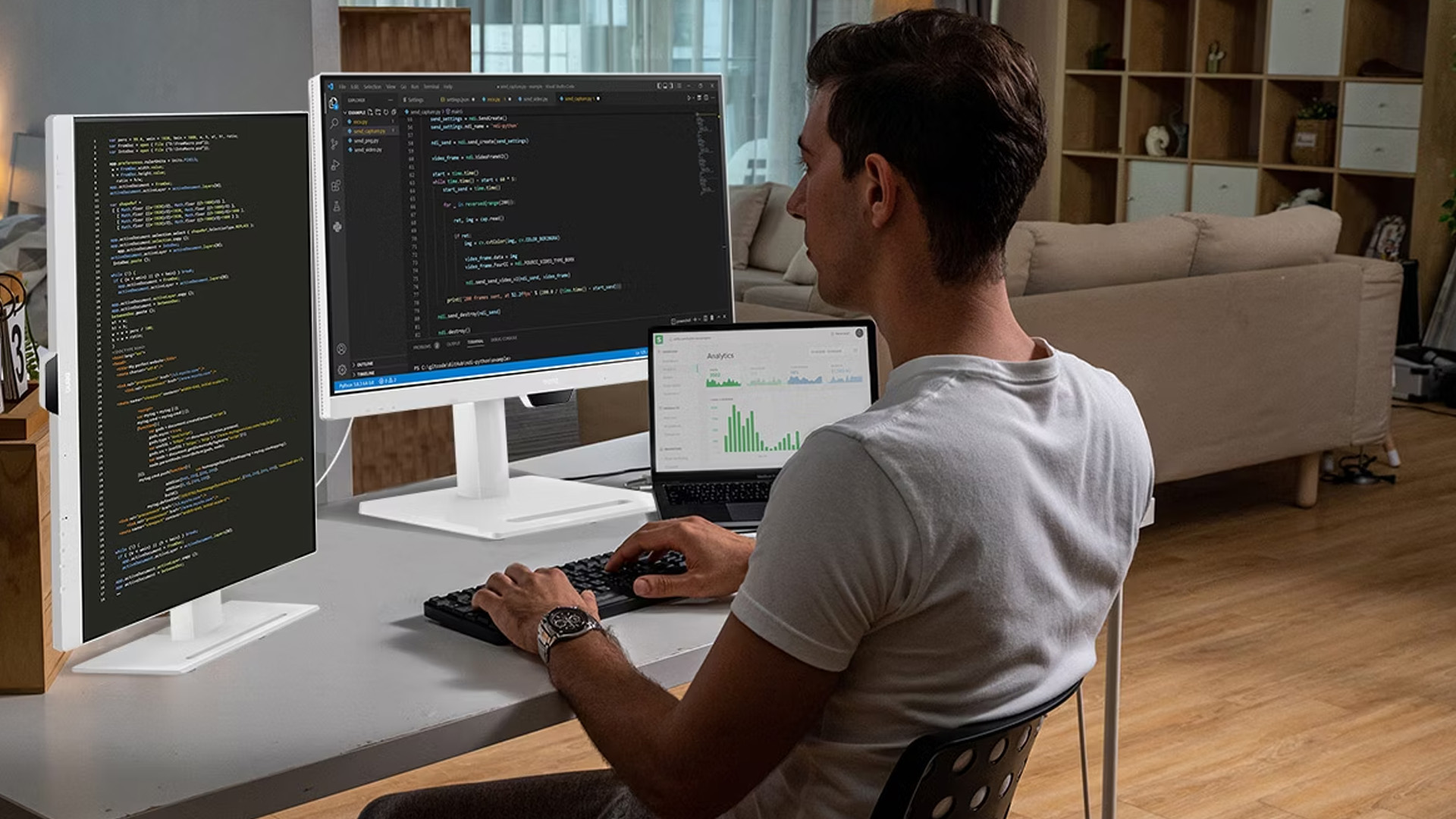
- Measure the desk before choosing a screen. Allow room for the stand, keyboard, notebook and comfortable viewing distance. Do not assume a 32-inch monitor will suit standard student furniture.
- Position the display directly in front of you. Set the top of the screen around eye level and start at approximately an arm's length away, then adjust it for comfortable reading.
- Use a separate keyboard and mouse with a laptop. This lets you raise or move the screen without forcing your hands into an uncomfortable typing position.
- Connect through the most capable port. Use Thunderbolt 4 for the MA270S or a compatible USB-C video connection for the other models. Check the cable specification before troubleshooting resolution or charging problems.
- Set macOS or Windows scaling for readable text. Maximum resolution does not require the smallest possible interface. Choose a scaled setting that keeps text comfortable during long sessions.
- Create separate study and entertainment modes. Use a neutral, consistent mode for coursework and a gaming or cinema mode only when it suits the content.
- Add the missing accessories deliberately. The MA models and EW270Q include speakers, but none of these recommendations includes a webcam. Add one only if your laptop camera cannot serve your usual call setup.

Final Verdict: Which BenQ Monitor Fits Your Student Setup?
Choosing between these BenQ monitors for students comes down to 4 priorities.
Pick the MA270S for 5K creative detail, the MA320UP for a spacious 32-inch 4K workspace, or the MA270UP for a compact premium Mac desk. Choose the EW270Q when study, gaming and streaming carry similar weight. Before ordering, check desk dimensions, room reflections, laptop video support and USB-C power needs. A premium display is worthwhile when its resolution, colour support or connectivity improves the work you do every week, not simply because it has the highest specification.

What Students Need to Know Before Choosing a BenQ Monitor
Are BenQ Monitors Good for Students?
Yes. BenQ offers monitors for writing, research, creative work, gaming and streaming. The important step is matching resolution, size, refresh rate and USB-C charging to your course, laptop and available desk space.
Is a 27-Inch or 32-Inch Monitor Better for University?
Choose 27 inches for a compact student room, sharper pixel density and easier viewing at normal desk distance. Choose 32 inches when you have a deeper desk and regularly use large timelines, spreadsheets or multiple windows.
Is 4K or 5K Better for a MacBook Student Setup?
5K at 27 inches gives exceptionally sharp text and detailed creative previews, while 4K remains highly practical and provides more model choices. Choose 5K for precision-led creative work and 4K for broader university use.
Can a BenQ Monitor Charge a MacBook Through USB-C?
Yes, compatible models can send video, data and power through one cable. The MA270S supplies up to 96W through Thunderbolt 4, the MA320UP and MA270UP provide 90W, and the EW270Q provides 65W.
Which BenQ Monitor Is Best for Studying and Gaming?
The EW270Q is the strongest mixed-use option here because it combines QHD resolution with a 200Hz refresh rate, 1ms response time and FreeSync Premium. Choose an MA model instead when Mac-focused colour, 4K or 5K clarity matters more.
| Read More: |
| What is HDR on a Monitor? Everything You Need to Know |
| How to Set Up Dual Monitors: A Complete Step-by-Step Guide |
| Are BenQ 240Hz Gaming Monitors Worth It? High Refresh Rates Explained |
Related Articles

Last Updated: August 25, 2026
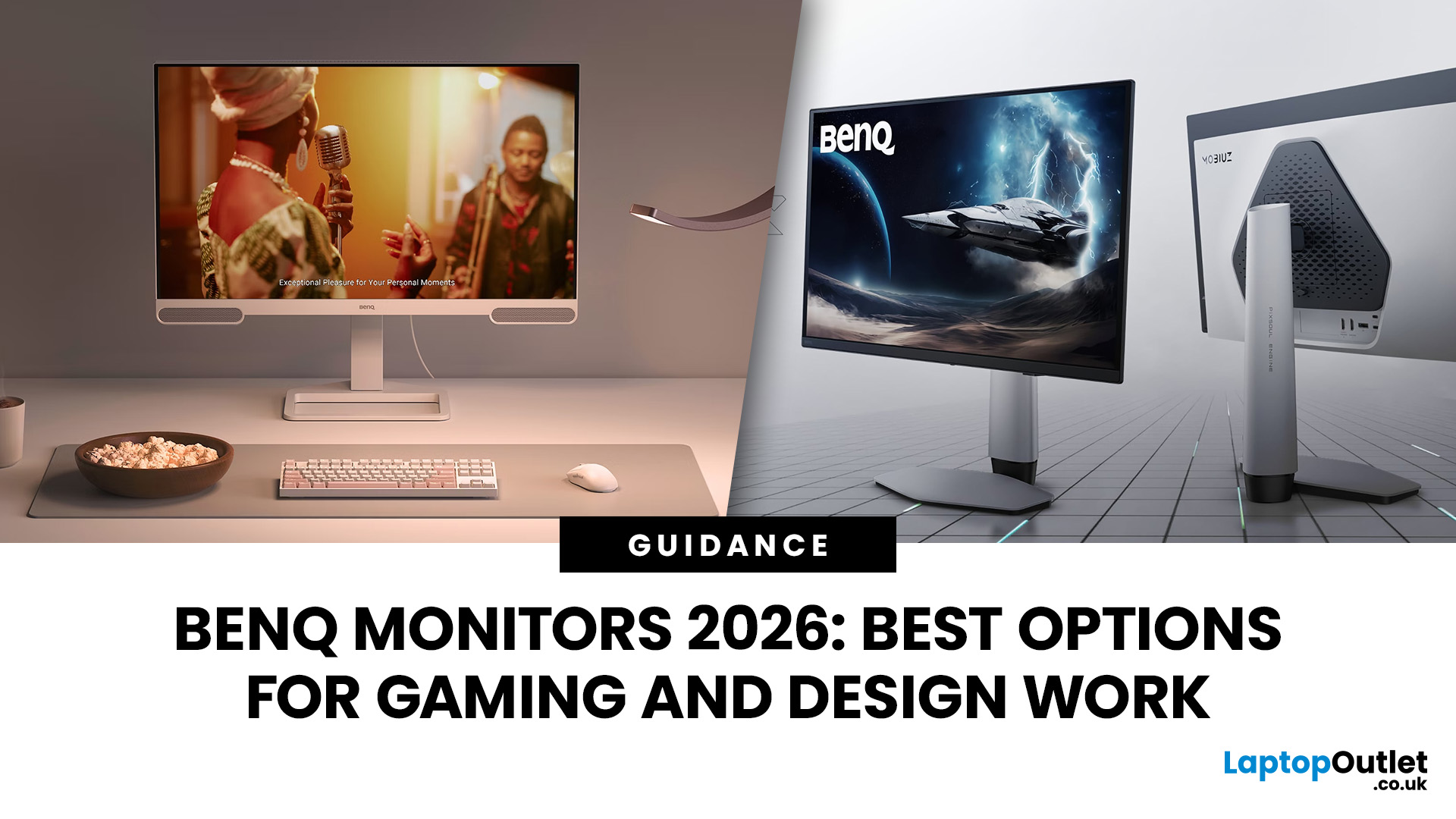
In 2026, BenQ screens for gaming and design stand out as some of the most versatile displays available, combining advanced technology, eye-care features, and excellent build quality. From BenQ gaming monitors designed for esports and AAA titles to BenQ design monitors aimed at creative professionals, the BenQ monitor lineup covers every need. This blog highlights the best BenQ monitors you can buy at Laptop Outlet, with a breakdown of their features, benefits, and why they’re trusted worldwide.
Why Choose BenQ Monitors in 2026?
Before diving into specific models, let’s explore why BenQ remains a top choice for professionals and gamers.
Innovation Across Categories
For competitive players, BenQ gaming monitors now feature refresh rates up to 240Hz, 1ms response times, and adaptive sync technologies like AMD FreeSync Premium and NVIDIA G-Sync compatibility. On the other hand, its design monitors offer factory-calibrated colour accuracy, HDR10 support, and wide gamut coverage (sRGB, AdobeRGB,
Last Updated: August 11, 2026
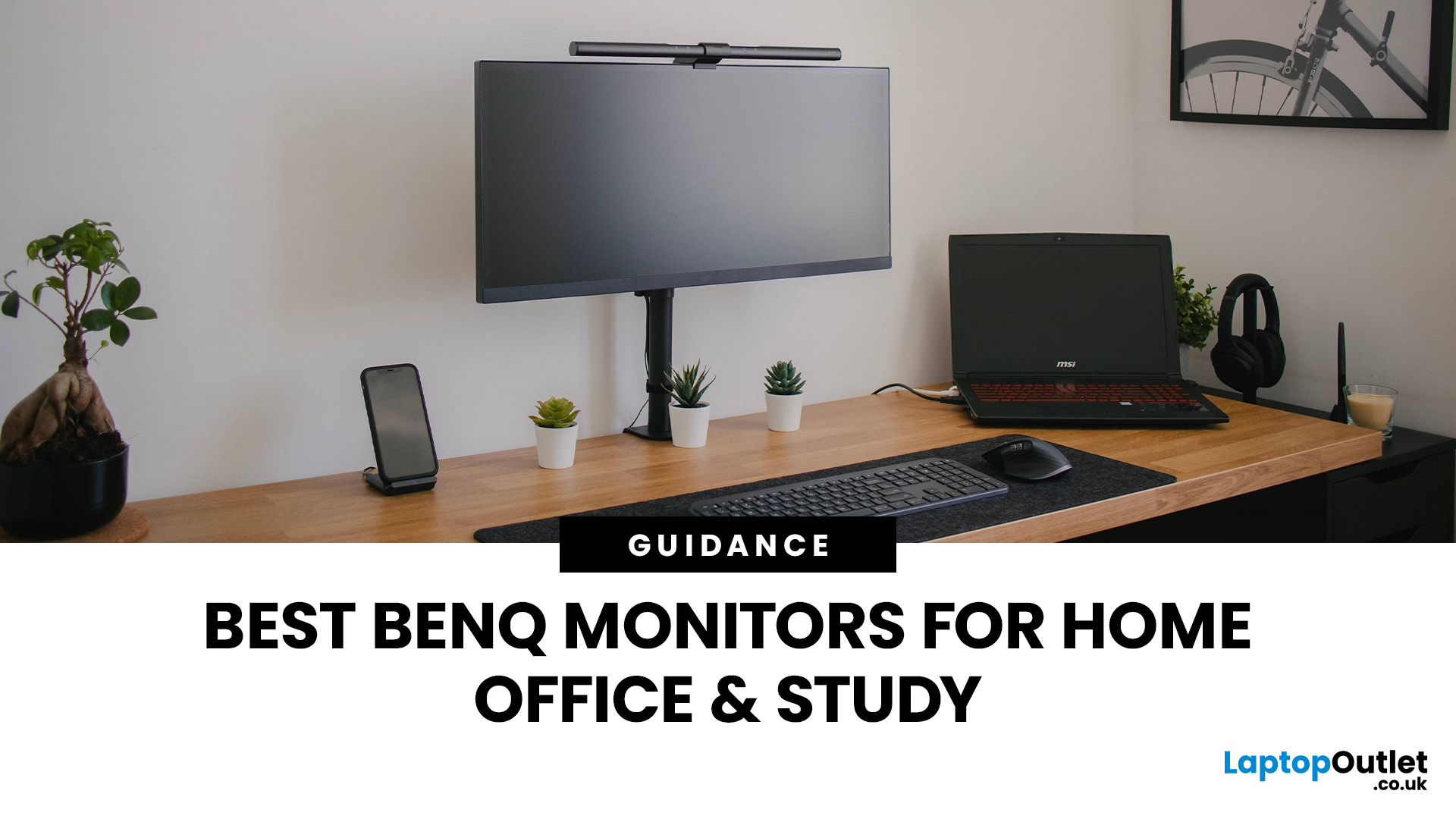
Creating a home workspace that actually makes you want to sit down and get things done starts with one key upgrade: your monitor. Whether you’re fully remote, juggling hybrid life, or deep into study mode, choosing the best BenQ monitor for home office use can seriously level up your focus, comfort and overall productivity.
Let’s be honest! Squinting at a tiny laptop screen for eight hours straight isn’t the vibe. You need space. You need clarity. You need something that doesn’t leave your eyes feeling fried by 4 pm. From compact Full HD screens that fit neatly on smaller desks to powerful 4K displays that handle heavy multitasking like a pro, there’s something for every type of workflow. So if you’re scrolling through BenQ monitors for home office and wondering which one deserves desk space, you’re in the right place.
What Makes a Good Home Office Monitor?
Not all monitors are created equal. A display designed for gaming or entertainment won’t always offer the same comfort and practical
Last Updated: April 14, 2026
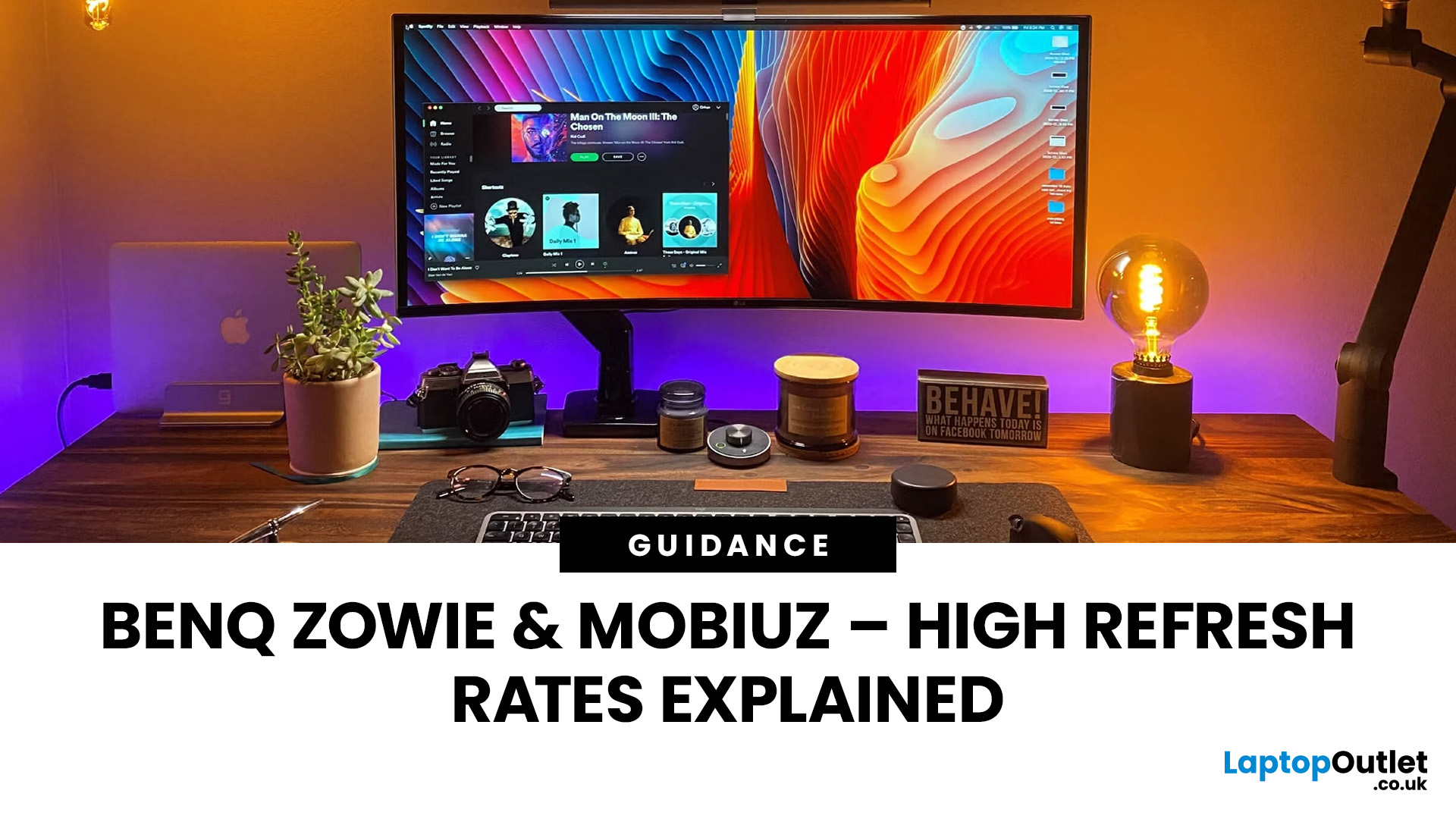
If you’ve been shopping for a competitive gaming display, you’ve probably noticed that BenQ 240Hz gaming monitors are becoming the new standard for serious players. But with so many options available, the big question remains:
Is 240Hz worth it — or is 144Hz still enough?
In this guide, we’ll break down what ultra-high refresh rates change in gameplay, compare 144Hz vs 240Hz BenQ monitor performance, and help you decide whether a BenQ high refresh ZOWIE monitor or a BenQ MOBIUZ high refresh monitor is the right upgrade for you.
Quick Answer — Is 240Hz Worth it?
So, is 240Hz worth it?
For many gamers, the answer is:
- Yes, if you play competitive FPS titles and want the smoothest, fastest response possible
- Maybe, if you play a mix of casual and competitive games
- Not necessarily, if you mostly play single-player or cinematic titles
A jump from 144Hz to 240Hz delivers:
- Smoother motion
- Reduced input delay
- Clearer tracking in fast-paced shooters
That’s why high refresh BenQ gaming monitors are
Last Updated: April 14, 2026
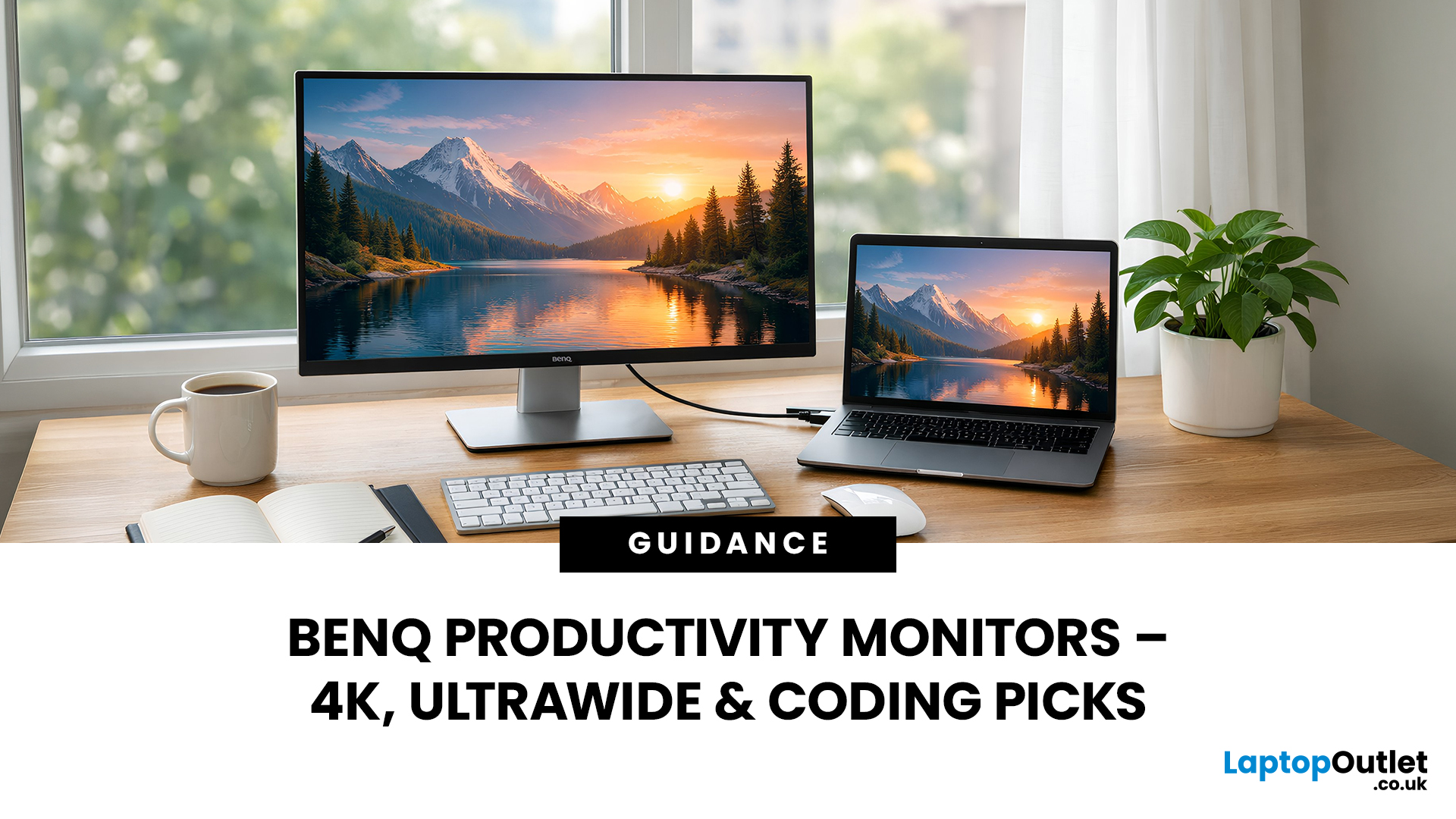
When you spend hours each day working across spreadsheets, dashboards, documents, or lines of code, your monitor becomes more than just a screen. It becomes the centre of your workflow. The right display can make work feel smoother, reduce fatigue, and help you stay focused for longer.
That’s exactly where BenQ productivity monitors stand out. Designed with knowledge workers, developers, and multitaskers in mind, BenQ offers a range of displays built for modern professional demands. Whether you need pixel-perfect clarity, extra-wide space for multiple apps, or coding-specific features, there’s a BenQ option tailored to the way you work.
Why Productivity-Focused Monitors Matter for Knowledge Work
A standard office monitor can get the job done, but knowledge work has evolved. Today’s workflows often involve multiple applications running side by side, detailed content review, long hours of screen time, and constant context switching. That’s why choosing the right monitor is no longer just
Last Updated: August 25, 2026
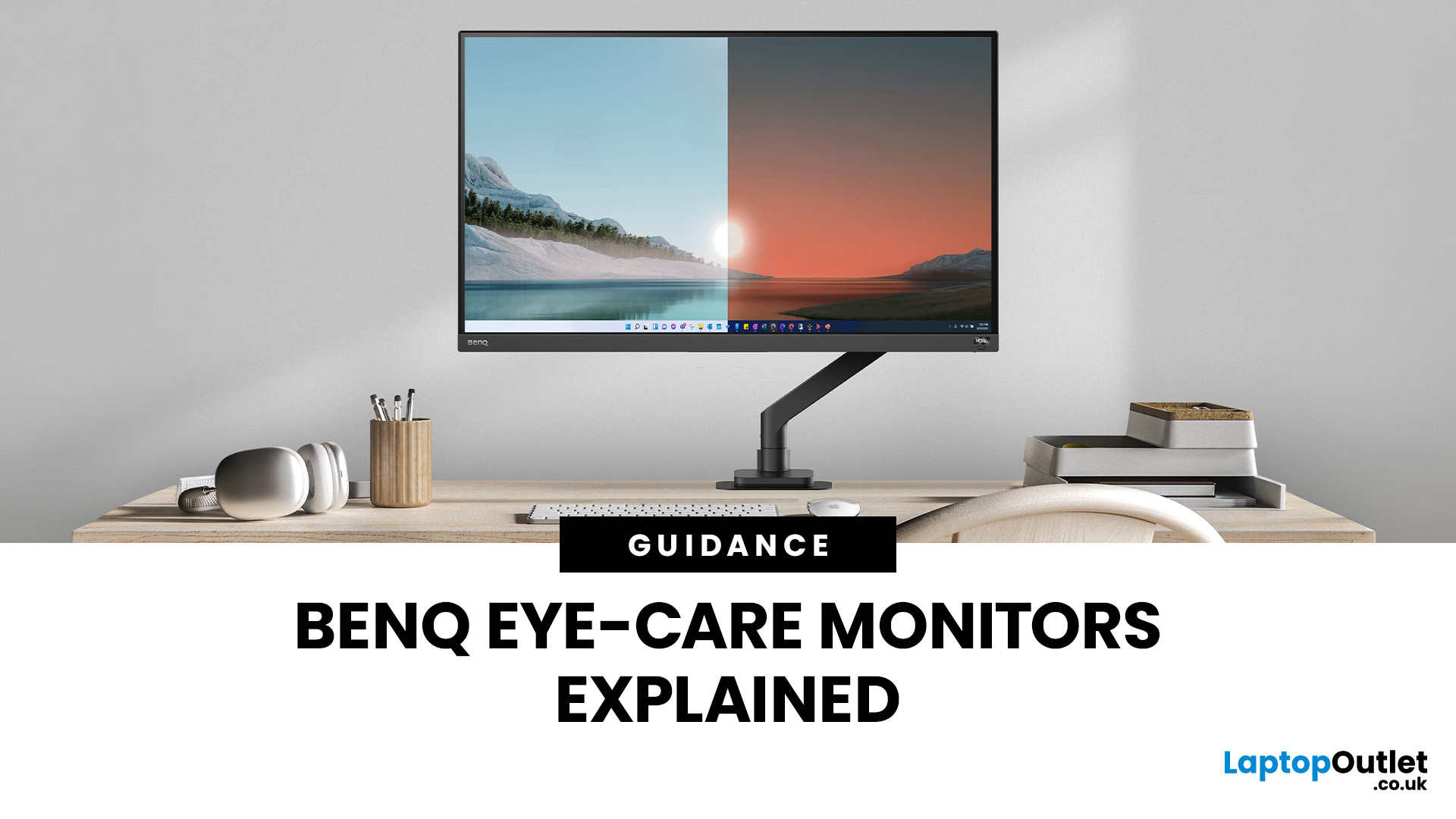
If you spend hours a day on a screen, you’ve probably felt it: tired eyes, headaches, dryness or that slightly gritty end-of-day sensation. While no monitor can solve every cause of screen-related discomfort, BenQ Eye-Care monitors include features designed to make longer sessions more comfortable by managing brightness, reducing flicker and giving you control over blue-heavy light, particularly for evening use.
What BenQ Eye-Care Means: Features and What They’re For
Several BenQ monitor ranges include comfort-focused tools under the Eye-Care umbrella. The exact feature set varies by model, but the typical options include:
- BenQ Brightness Intelligence, sometimes called Brightness Intelligence Plus or B.I.+, to adjust the screen according to your surroundings and displayed content
- Visual Optimizer, the newer name for B.I.+ on supported BenQ monitors, which can adapt brightness and colour temperature
- BenQ Low Blue Light or Low Blue Light Plus modes to reduce blue-heavy light output
- BenQ
Last Updated: August 13, 2026
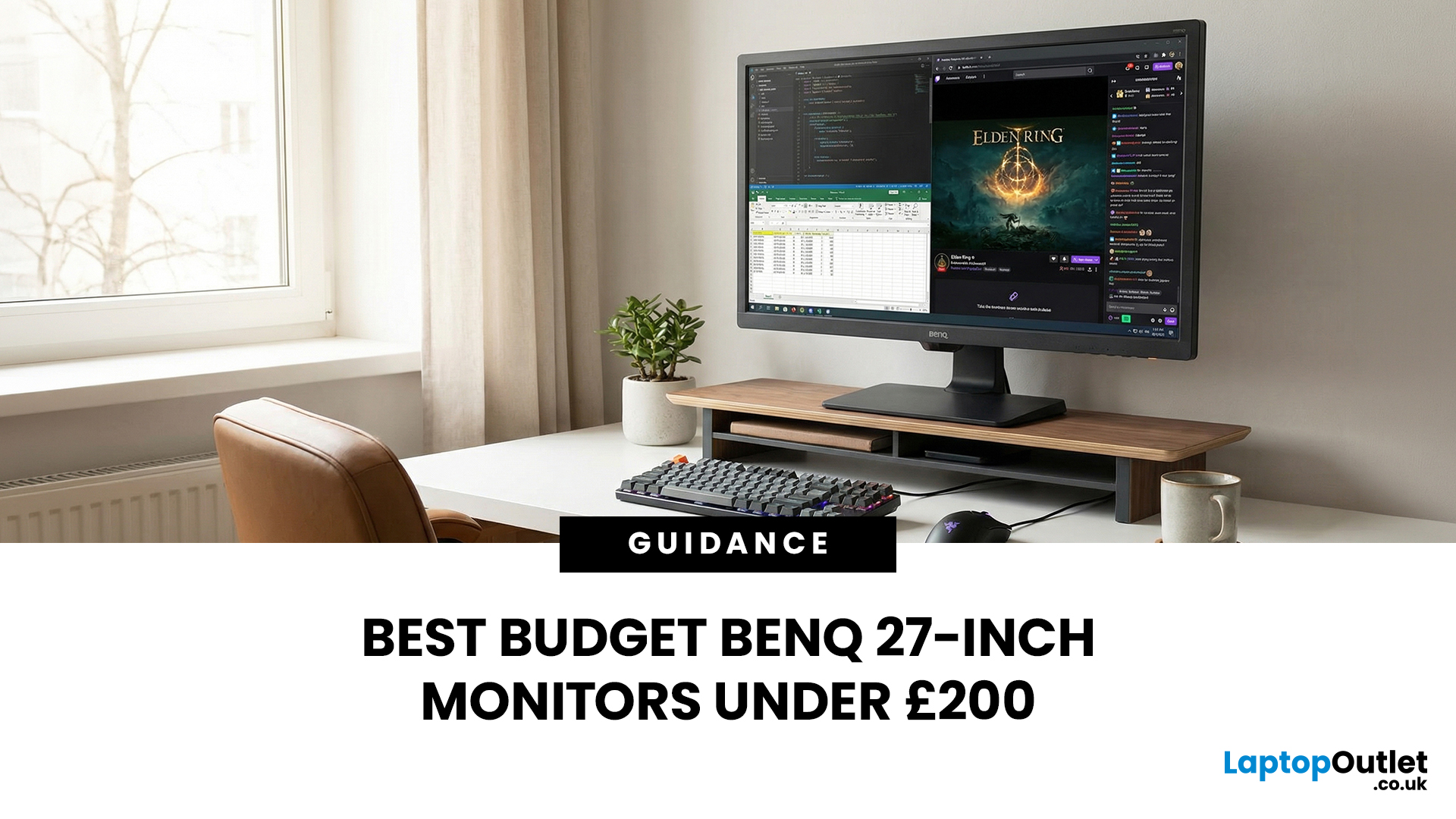
A 27-inch display gives you enough screen space for documents, spreadsheets, online classes, streaming, and gaming without taking over the average desk. Better still, choosing an affordable model no longer means settling for a basic 60Hz or 75Hz screen.
Today’s budget-friendly BenQ range includes Full HD IPS displays with 100Hz and 144Hz refresh rates, eye-care features, built-in speakers, USB-C connectivity, and ergonomic stands on selected models. That gives buyers considerably more choice, whether the priority is office productivity, studying, or smoother casual gaming.
What Can You Expect from a BenQ 27-Inch Monitor Under £200?
The specifications available at this price have improved significantly. Rather than assuming every affordable display will have a low refresh rate and a basic stand, it is better to compare individual models. Features available across the models in this guide include:
- Full HD 1920 x 1080 resolution
- IPS panel technology
- 100Hz or 144Hz refresh rates
- BenQ Eye-Care
Last Updated: August 11, 2026
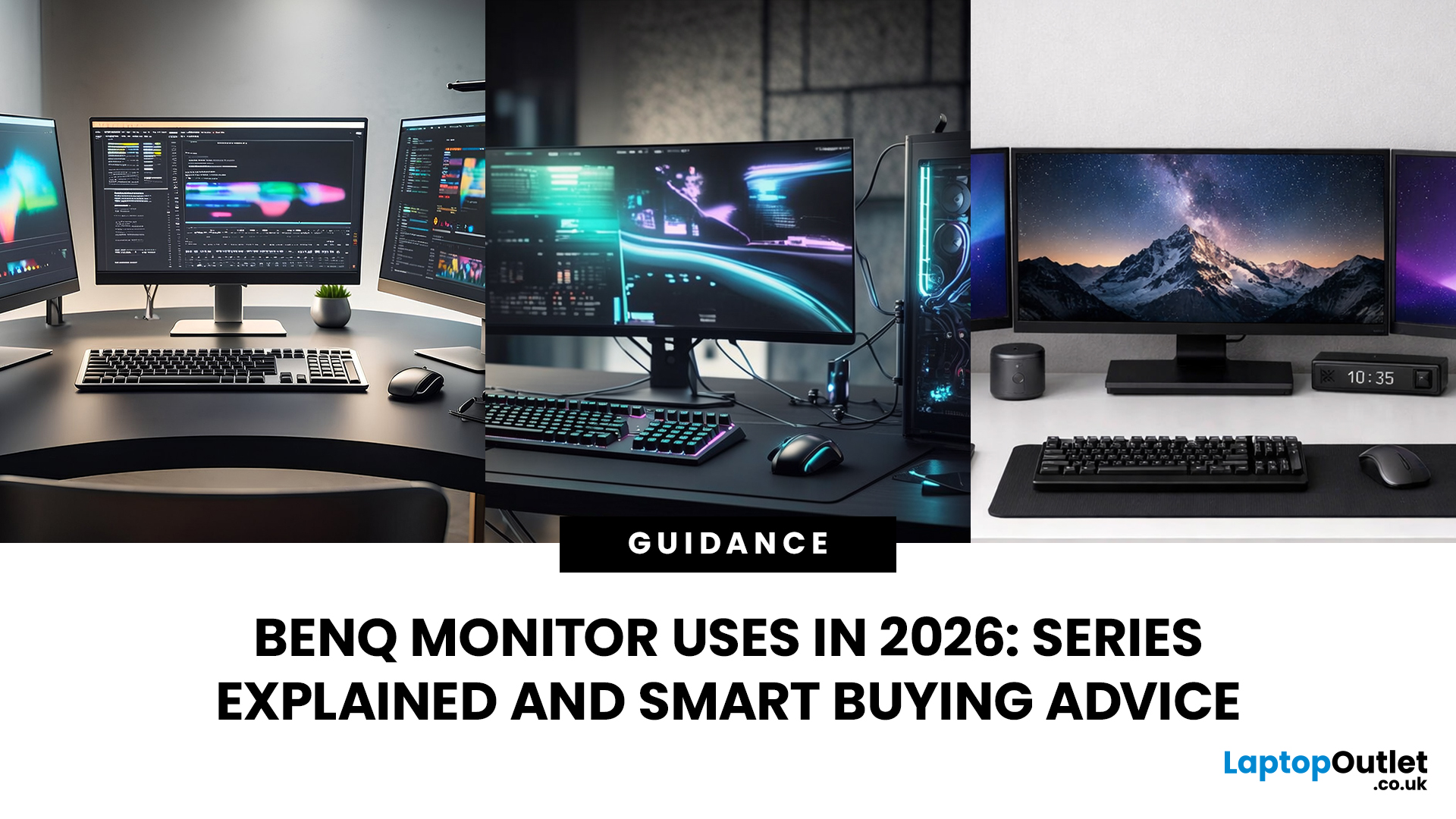
Getting the right monitor is no longer just about picking a size and hoping for the best. In 2026, the best results come from matching the screen to the job. That is where BenQ tends to do well. Instead of trying to make every display “good at everything”, the range is split into clear families built around specific uses: creative colour work, programming and text-heavy productivity, competitive gaming, immersive gaming, and comfortable home office setups.
This guide focuses on BenQ monitors uses in real setups, the key differences between series, and what to look for when you want one monitor for both gaming and work.
BenQ as a Brand in 2026
BenQ is a Taiwan-based electronics brand known globally for displays, including monitors and projectors. The BenQ name is tied to the idea of “Bringing Enjoyment ‘N’ Quality to life,” and the company’s display focus shows up most clearly in how it splits monitors into specialised series instead of pushing one “flagship for everyone.”
That specialisation
Last Updated: April 14, 2026
Choosing the right monitor can genuinely change how you play. Whether you’re grinding ranked matches, competing in esports, or just kicking back on your console, your display has a direct impact on performance, clarity and overall experience.
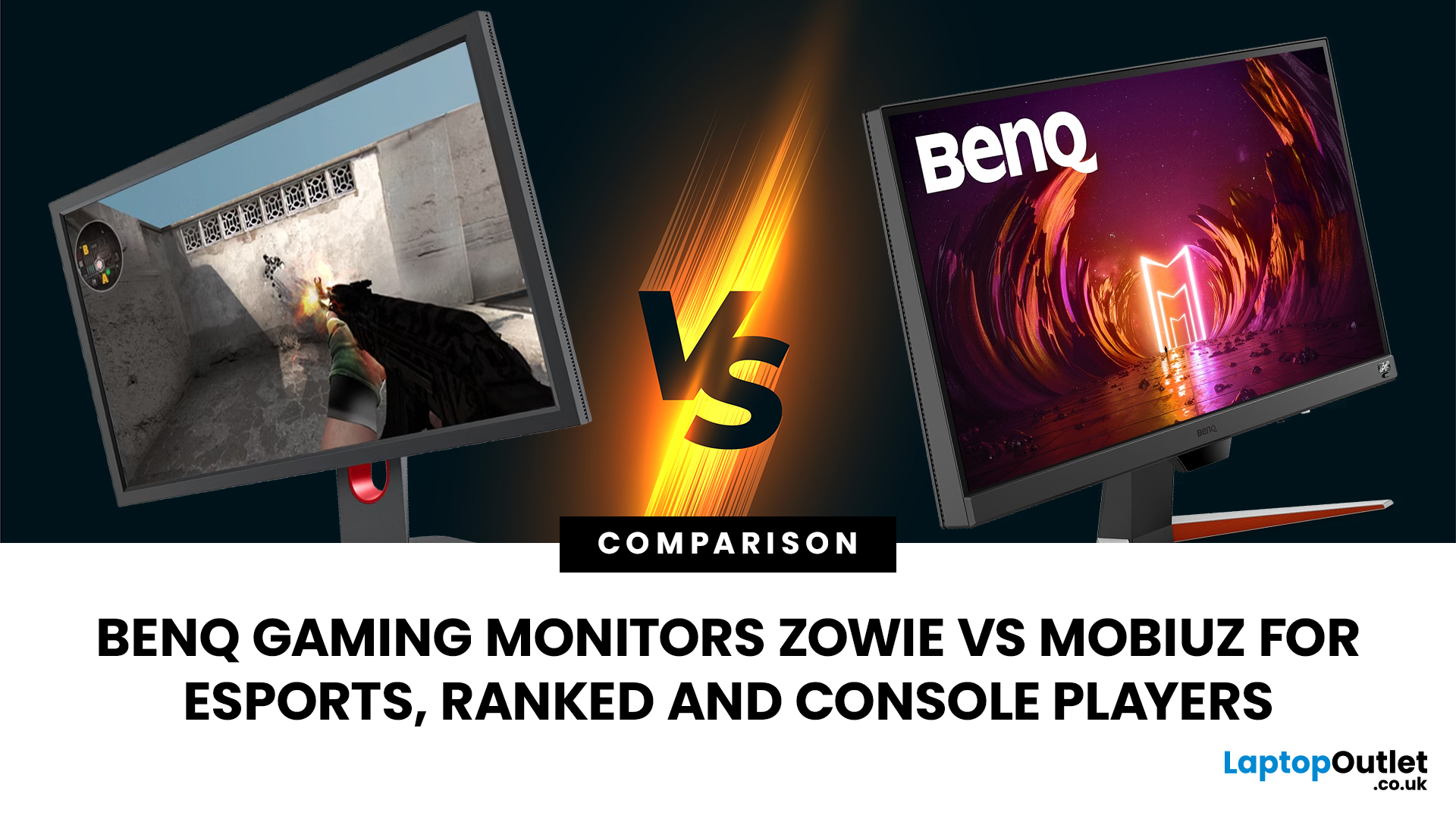
That’s where BenQ gaming monitors stand out. Known for precision engineering and gamer-first features, BenQ offers two standout ranges: ZOWIE and MOBIUZ. But when it comes to BenQ gaming monitors ZOWIE vs MOBIUZ, which one is right for you? Let’s break it down in a way that makes sense for how you play.
BenQ Gaming Monitors Explained
BenQ doesn’t take a one-size-fits-all approach to gaming. Instead, it splits its lineup into two clearly defined categories:
- BenQ ZOWIE esports monitors – built purely for competitive performance
- BenQ MOBIUZ gaming monitors – designed for immersive, all-round gaming
ZOWIE is about speed, precision and winning. MOBIUZ is about visuals, versatility and enjoying the full gaming experience. Both are excellent, but they serve
Last Updated: April 14, 2026
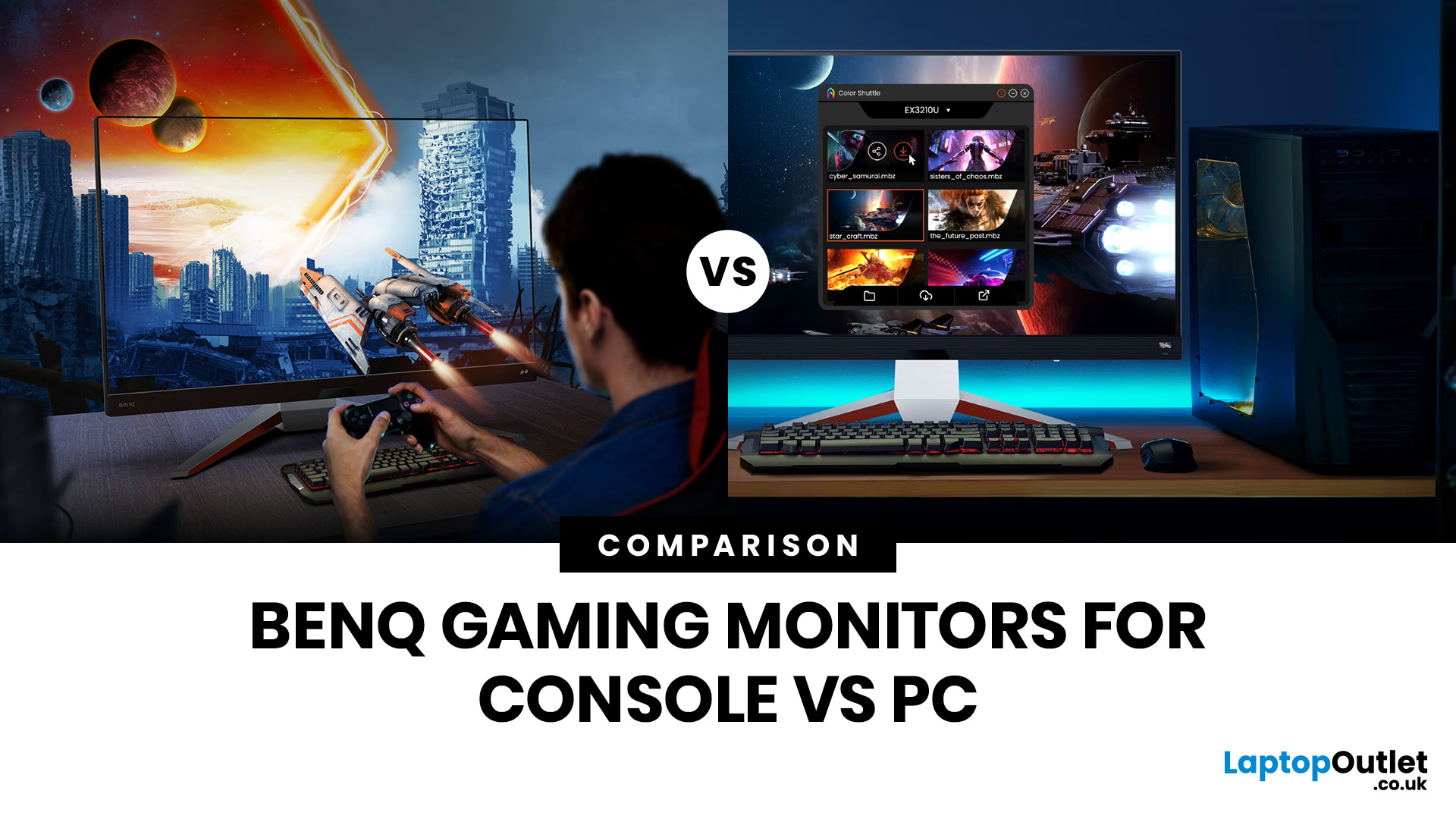
Picking the right gaming monitor is no longer as simple as choosing the biggest screen you can afford. Your setup matters, your platform matters, and the way you play matters even more. A monitor that feels perfect for a competitive PC player might not be the best fit for someone gaming on a PS5 or Xbox Series X.
That’s exactly why choosing the right BenQ gaming monitor for console or PC comes down to more than specs on a product page. You need to think about refresh rate, resolution, connectivity and whether you care more about raw speed or immersive visuals.
BenQ makes that decision easier by offering two clear gaming monitor families. ZOWIE is built for fast, focused competitive PC play, while MOBIUZ is designed for players who want strong performance with more visual depth and better console-friendly features. If you’ve been stuck comparing 1080p, 1440p and 4K, this guide breaks it all down in a way that helps.
Do Console and PC Gamers Need Different BenQ Monitors?
Console and PC
Last Updated: April 14, 2026
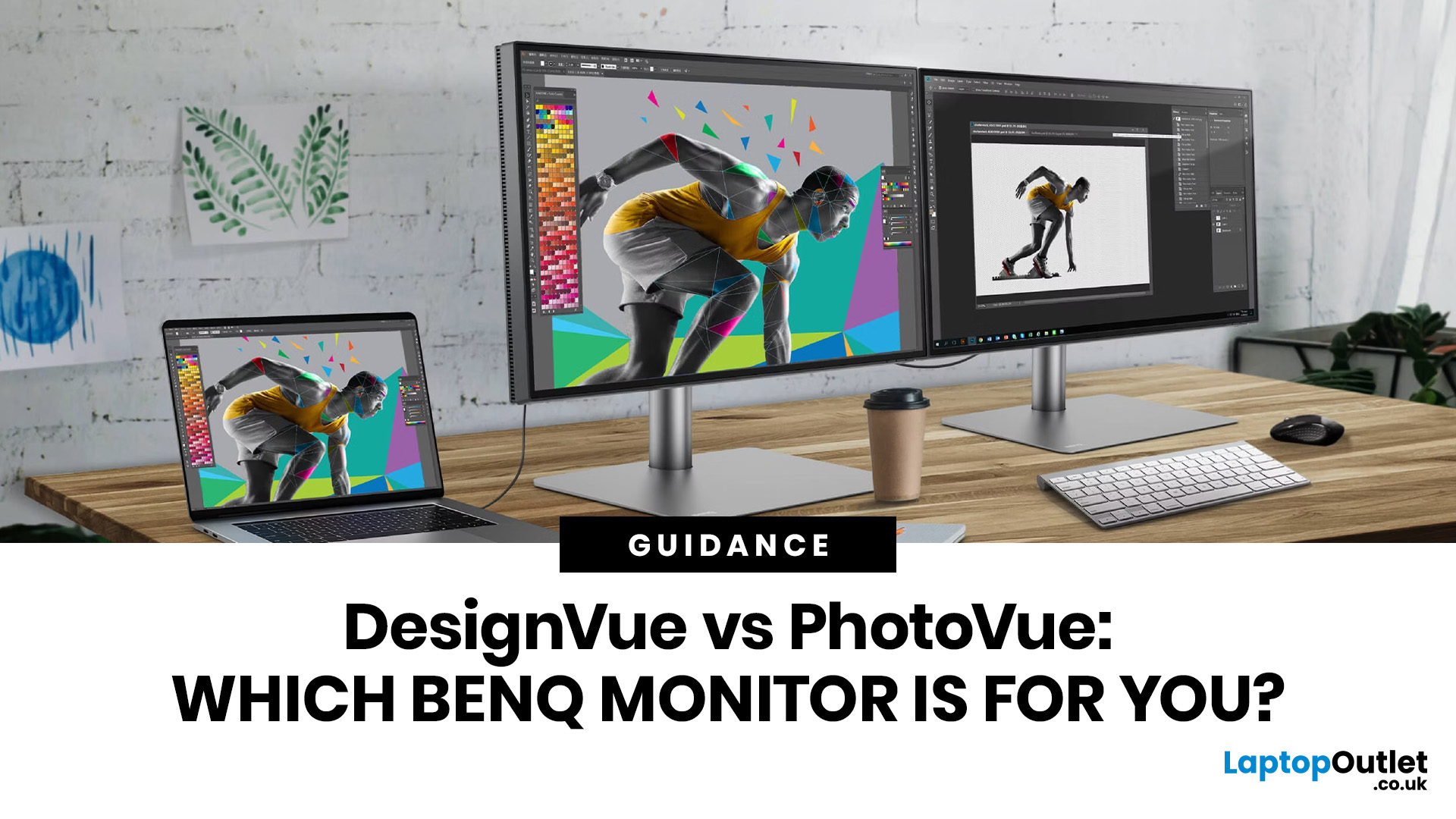
If you work with colour professionally, your monitor is your most critical piece of kit. BenQ monitors for creators are built around one principle: what you see on screen should accurately reflect what you print, publish, or deliver to a client.
Whether you are a photographer editing RAW files, a designer producing brand assets, or a video editor reviewing colour grades, accuracy matters at every stage. BenQ addresses this through two dedicated series: the DesignVue PD range and the PhotoVue SW range.
Each is engineered for a different creative discipline. This guide explains both series, covers the key specs to look for, highlights how they compare, and helps you decide which one fits your workflow best.
BenQ’s Creator Series: DesignVue & PhotoVue SW
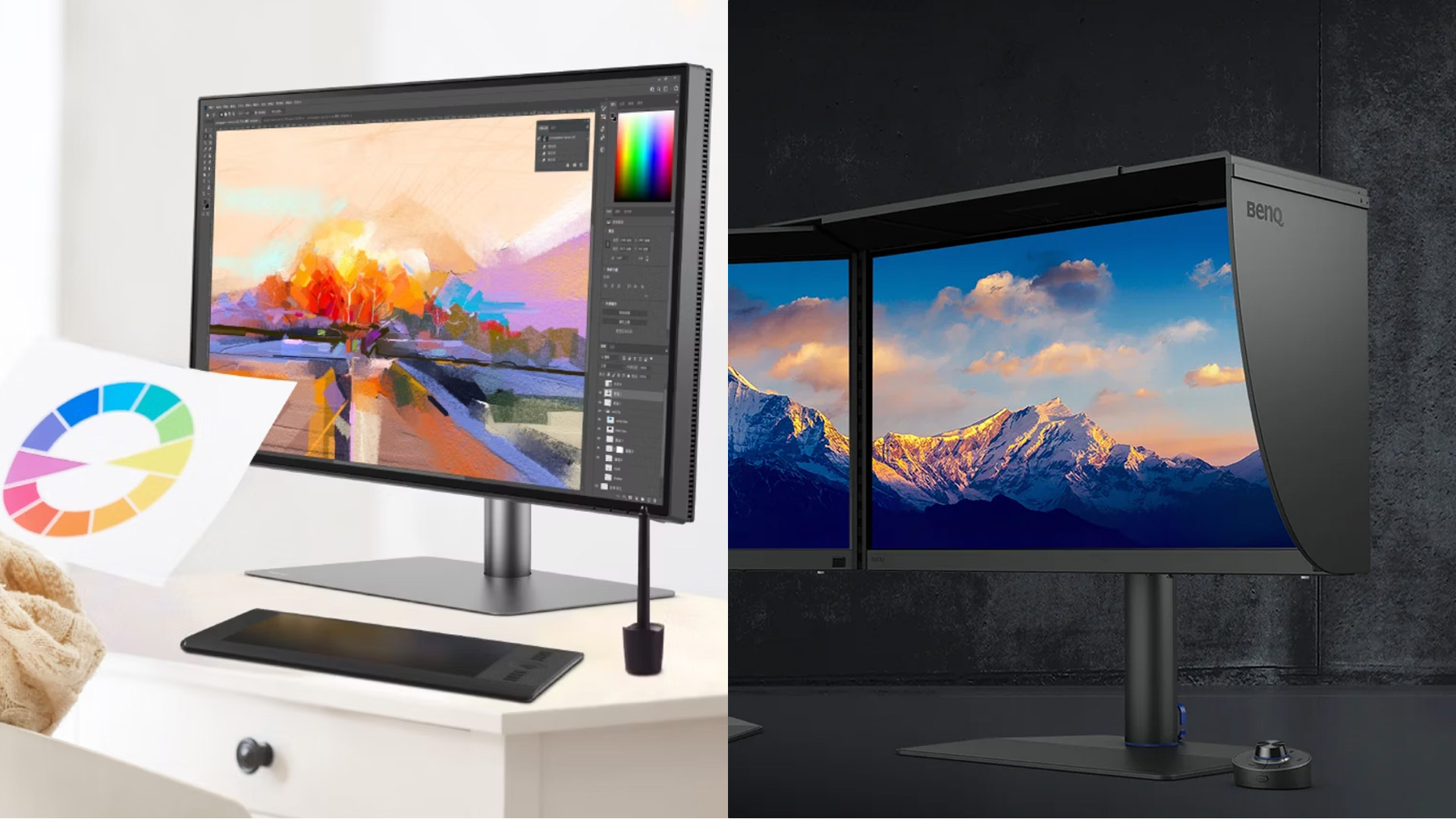
Finding the right BenQ monitors for creators starts with understanding why BenQ separates its professional range into two distinct families, each tailored to a different core workflow. Rather than one catch-all creative

