



How to Fix a Dell Monitor That Won’t Turn On
If your Dell monitor won’t turn on, don’t assume the screen is dead straight away. The issue could be as simple as a loose power cable, the wrong input source, or a dodgy HDMI connection.
The key is to identify what your monitor is actually doing. Is there no power light at all? Does the screen stay black even though the power LED is on? Or are you seeing a “No Signal” message?
Let’s work through the checks in the right order so you can find the problem without randomly swapping settings or buying hardware you might not need.
First, Check What Your Dell Monitor is Doing
A Dell monitor not turning on can mean a few different things.
|
What You See |
What to Check First |
|
No power light |
Socket, power cable, adapter and monitor power |
|
Power light but black screen |
Video cable, PC output and monitor diagnostics |
|
“No Signal” message |
HDMI/DisplayPort connection and input source |
|
Screen works briefly then goes blank |
PC, graphics connection or display hardware |
Making this distinction matters because a monitor with no power needs a completely different fix from one that is powered on but receiving no picture.
How to Fix a Dell Monitor That Won’t Turn On
Start with the simplest checks before moving on to deeper Dell monitor troubleshooting.
1. Check the Power Cable and Socket
If the monitor's power light is completely off, start with the power supply.
Push the power cable firmly into the monitor and wall socket. If your model uses an external power adapter, check both ends of the adapter connection too.
Next, test the socket with another device that you know works. If you're using an extension lead, surge protector or docking setup, temporarily connect the monitor directly to a wall socket. Press the monitor's power button again and check whether the LED responds.
2. Power-Cycle the Monitor
A basic power reset can sometimes clear temporary monitor problems.
Turn the monitor off, disconnect its power cable and unplug any HDMI or DisplayPort connections. Leave everything disconnected briefly, then reconnect the power cable and switch the monitor back on. Once the monitor has powered up, reconnect the video cable.
It's a simple step, but it's worth trying before moving into more advanced monitor troubleshooting.
3. Check Your HDMI or DisplayPort Cable
If the power light is on but you're dealing with a Dell monitor black screen, your power supply may be completely fine. Check the video cable instead.
Unplug the HDMI or DisplayPort cable from both the monitor and computer, then reconnect it securely. Inspect the ports and cable for obvious damage and try another compatible cable if you have one available.
If your PC or monitor has multiple display ports, test another port as well.
For troubleshooting, it's also worth temporarily removing docks, adapters, and converters from the setup. Connecting the monitor directly to the computer makes it easier to identify where the display issue is coming from.
If you're upgrading your desk setup anyway, you can also compare PC monitors with speakers if you want to reduce the number of separate devices on your desk.
4. Make Sure the Correct Input is Selected
Seeing Dell monitor no signal is different from having a dead monitor.
Your display might simply be checking the wrong connection. For example, your PC could be connected through HDMI while the monitor is currently set to DisplayPort.
Open the monitor's on-screen menu, find the input or source setting and select the connection you're actually using. This is one of those fixes that feels almost too easy, but it can solve a surprisingly annoying screen not working problem in seconds.
If you’re considering a replacement after troubleshooting, our Dell Monitors 2026: UltraSharp and Business Displays Reviewed guide compares current Dell options for work, productivity and professional setups.
Dell Monitor Has Power, but the Screen is Black
If your monitor powers on but the display stays black, check whether the computer is actually sending a video signal.
Make sure the PC itself is running and hasn't entered sleep mode. Try waking it with the keyboard or mouse, then restart the computer if nothing changes. If possible, connect the monitor to another laptop, desktop, or compatible device.
If the monitor works normally with another system, you may be looking at a Dell computer display problem rather than a fault with the monitor. The graphics output, video port, operating system or computer hardware could be responsible.
You can also test another monitor with your computer. Laptop Outlet's wider range of monitors for work and home can give you an idea of current display options if you eventually confirm that replacement is necessary.
Run Your Dell Monitor's Built-In Diagnostic Test
Many Dell monitors include built-in diagnostic or self-test features that can help separate a monitor problem from a PC problem.
The exact procedure can vary depending on the model, so check the instructions for your specific display through Dell Support rather than assuming every Dell monitor uses the same button combination.
Generally, the aim is to test whether the screen can display correctly without relying on the computer's video signal.
If the diagnostic screens look normal, your monitor panel is less likely to be the source of the problem. You should then focus on the PC, graphics output, connection, or cable.
If you see lines, distorted colours, missing areas, or other abnormalities during the monitor's own diagnostic test, the fault is more likely to be monitor-related.
If you're comparing panel technologies while assessing your setup, IPS displays are widely used for their consistent colours and viewing angles.
Check Drivers and Monitor Firmware
Software shouldn't be your first move if the monitor shows no power whatsoever.
However, if the monitor turns on and communicates with your PC, checking updates can make sense as part of more advanced troubleshooting.
Look up the exact monitor model on Dell's official support pages and check whether any relevant driver or monitor firmware updates are available.
Only install firmware designed for your specific model. Interrupting a firmware update or installing the wrong package can cause additional problems. This step is mainly relevant when you're trying to fix Dell monitor compatibility, communication or feature issues rather than a completely dead display.
When Should You Stop Troubleshooting?
You shouldn't keep cycling through cables forever if the evidence is pointing towards hardware failure. Consider professional support if:
- The power LED stays off with a verified working socket and cable.
- The monitor repeatedly loses power.
- Built-in diagnostics show visible faults.
- The display has physical or liquid damage.
- You notice unusual heat, electrical noises, or a burning smell.
- Multiple working devices and cables produce the same problem.
Don't open the monitor casing yourself unless you're professionally qualified to repair this type of hardware. Monitor power components can retain dangerous electrical charge even after the device has been unplugged. Check your warranty and contact Dell Support if hardware failure looks likely.

Should You Repair or Replace Your Dell Monitor?
A cable problem, incorrect input source or temporary connection fault isn't a reason to replace the whole display. If the monitor is still under warranty, checking your repair or replacement options should usually come first.
A replacement monitor starts making more sense when the display has confirmed hardware failure, repairs are uneconomical, or the monitor is already old enough that you would benefit from newer ports, a better panel or improved resolution.
If you decide replacement is the better option, you can explore Dell products through Laptop Outlet and compare current devices alongside your existing setup.

Still Got Questions?
Why is my Dell monitor not turning on?
If there is no power light, check the socket, power cable and any external adapter first. If the monitor has power but no image, focus instead on the video cable, selected input and computer output.
How do I fix a Dell monitor that won’t turn on?
Start by testing the power connection and wall socket. Power-cycle the monitor, reconnect the HDMI or DisplayPort cable, select the correct input source and test the display with another device. If the problem continues, run your Dell monitor's built-in diagnostics.
Why is my Dell monitor power light off?
An unlit power LED normally points towards the power side of the setup. Check the wall socket, power cable, external adapter if applicable and monitor power button. If all external power components are working, the monitor itself may have a hardware fault.
What should I do if my Dell monitor has power but no display?
Check the HDMI or DisplayPort cable, confirm the correct input source is selected and make sure the PC is sending a video signal. Testing another cable, computer or monitor can help you identify which device is responsible.
How can I test if my Dell monitor is working properly?
Use the built-in diagnostic or self-test feature available on your Dell monitor. The exact method depends on the model, so check its manual or Dell Support documentation. If the monitor displays its diagnostic screens correctly, the issue may be coming from the computer, graphics output or connection instead.
Related Articles

Last Updated: June 10, 2026
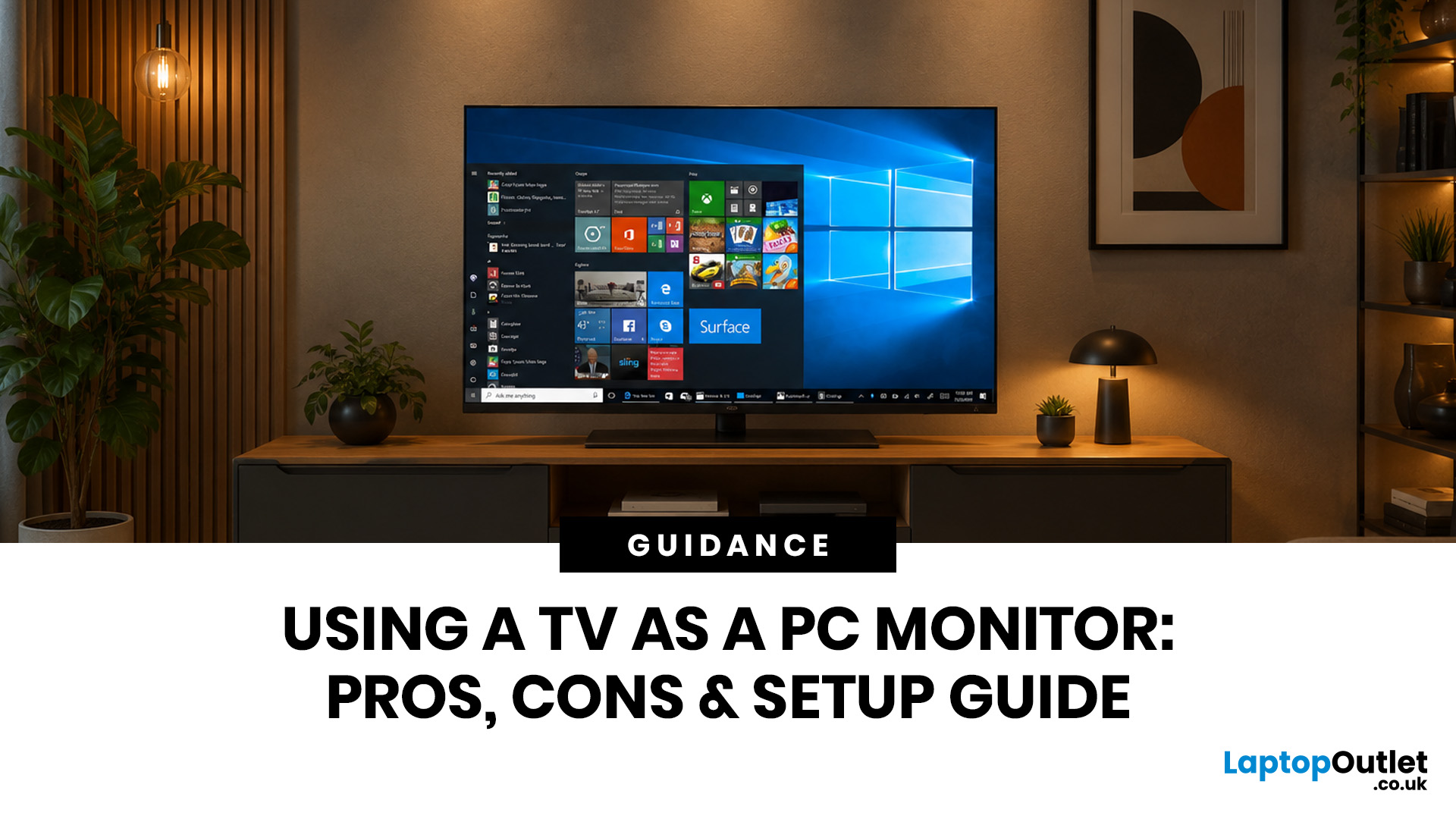
Quick Answer: Yes, you can use TV as PC monitor if your computer and TV have compatible ports, usually HDMI. It works well for films, casual gaming, presentations, sofa browsing and large-screen entertainment. However, using a TV as PC monitor is not always ideal for daily desk work because TVs can have higher input lag, lower pixel density, blurry text up close and fewer ergonomic adjustments than proper monitors. For entertainment and casual use, a TV can be a great option. For work, study, competitive gaming and sharp close-up text, a dedicated monitor is usually the better choice.
Using a big TV as your computer screen sounds like a genius move. Bigger display, built-in speakers, great for Netflix, and you may already have one sitting in the living room. Honestly, it sounds like a setup hack.
Before you plug in your PC and call it a day, there are a few things to know. A TV as computer monitor setup can work brilliantly for some people, especially for media, casual gaming and
Last Updated: July 07, 2026
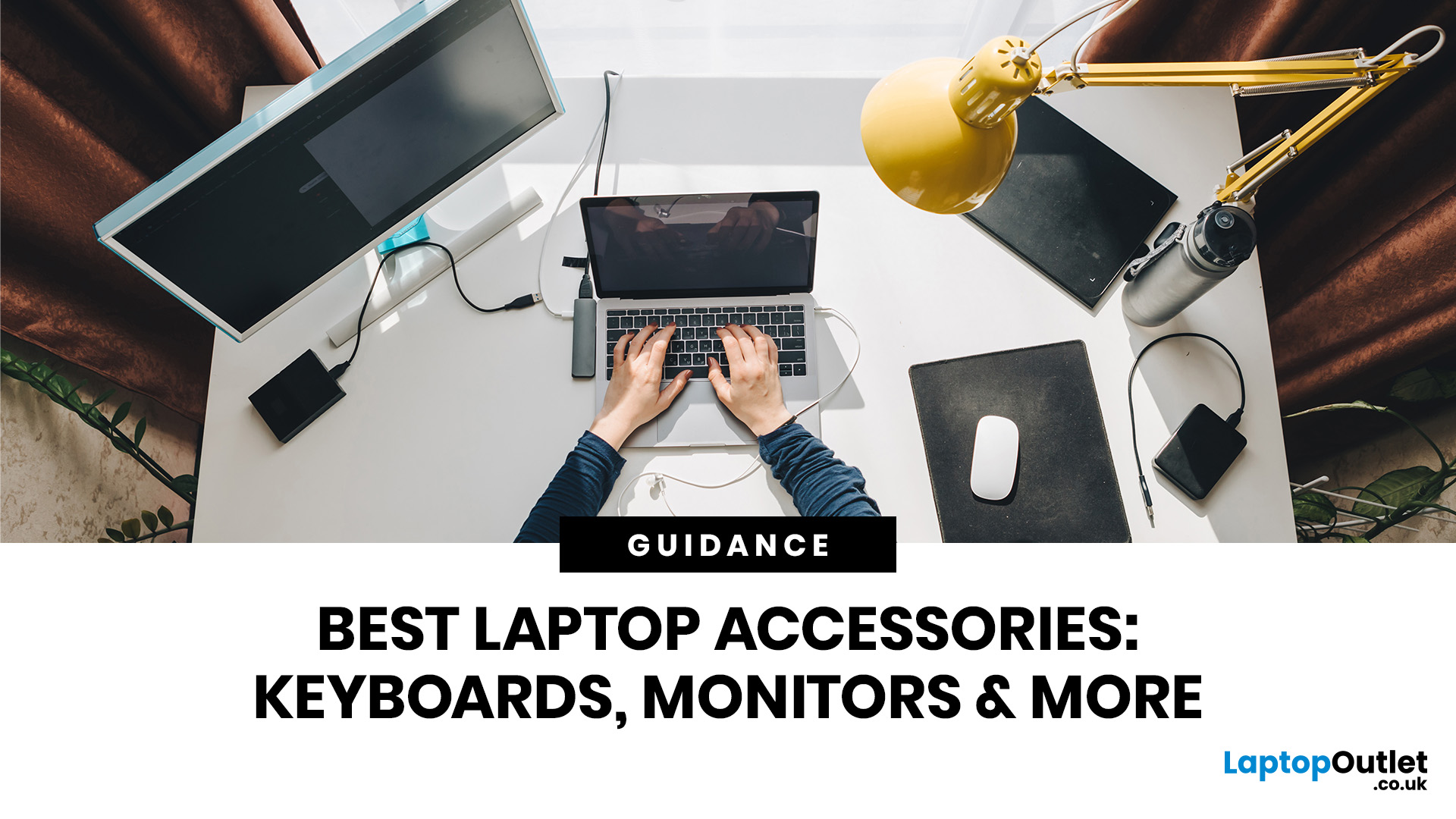
Laptops are powerful enough to handle work, study, streaming, gaming and creative tasks, but the right accessories can make a big difference to how comfortable and productive your setup feels. From keyboards and monitors to laptop bags, hubs and stands, choosing the best accessories helps you get more from your device every day.
| The best laptop accessories in 2026 are the ones that make your device more comfortable, productive, portable and easier to use every day. Essential picks include a wireless keyboard and mouse, external monitor, USB-C hub, laptop stand, protective sleeve, mouse pad, webcam, headphones, cooling pad and external storage. Whether you use your laptop for work, study, gaming or travel, the right accessories can turn a basic setup into a more efficient workspace. |
In 2026, laptop users are not just looking for basic add-ons. They want accessories that improve posture, speed up multitasking, protect their devices and create a cleaner desk setup. Whether you are building
Last Updated: August 25, 2026
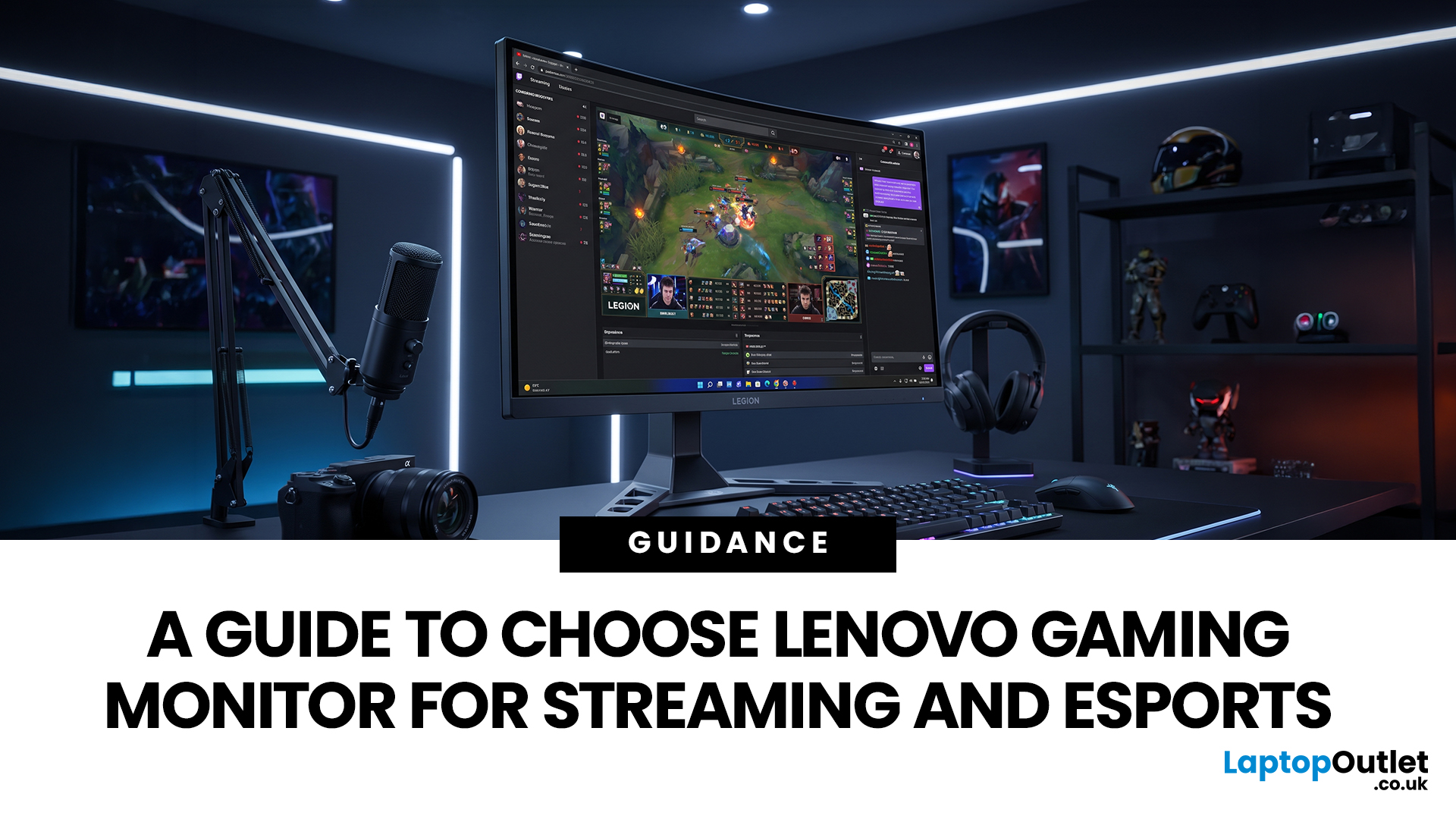
Quick answer: The best Lenovo gaming monitor for streaming and esports is the one your PC can drive consistently at its native resolution while it also handles your broadcast workflow. For many mixed-use setups, a 27-inch QHD display at 165Hz to 180Hz is the balanced choice. A 24.5-inch or 27-inch Full HD screen at 240Hz or above prioritises competitive speed, while a 34-inch UWQHD display at 165Hz to 180Hz provides more room for a single-screen streaming workspace.
Those are useful profiles, not universal rules. Your real decision depends on sustained frame rate, encoder load, game genre, desk space and whether OBS, chat and alerts live on the same display. A monitor does not encode the stream, and a 240Hz panel does not make viewers receive a 240fps broadcast. It changes the experience in front of you, which can still matter greatly during competitive play.
Last Updated: September 03, 2026
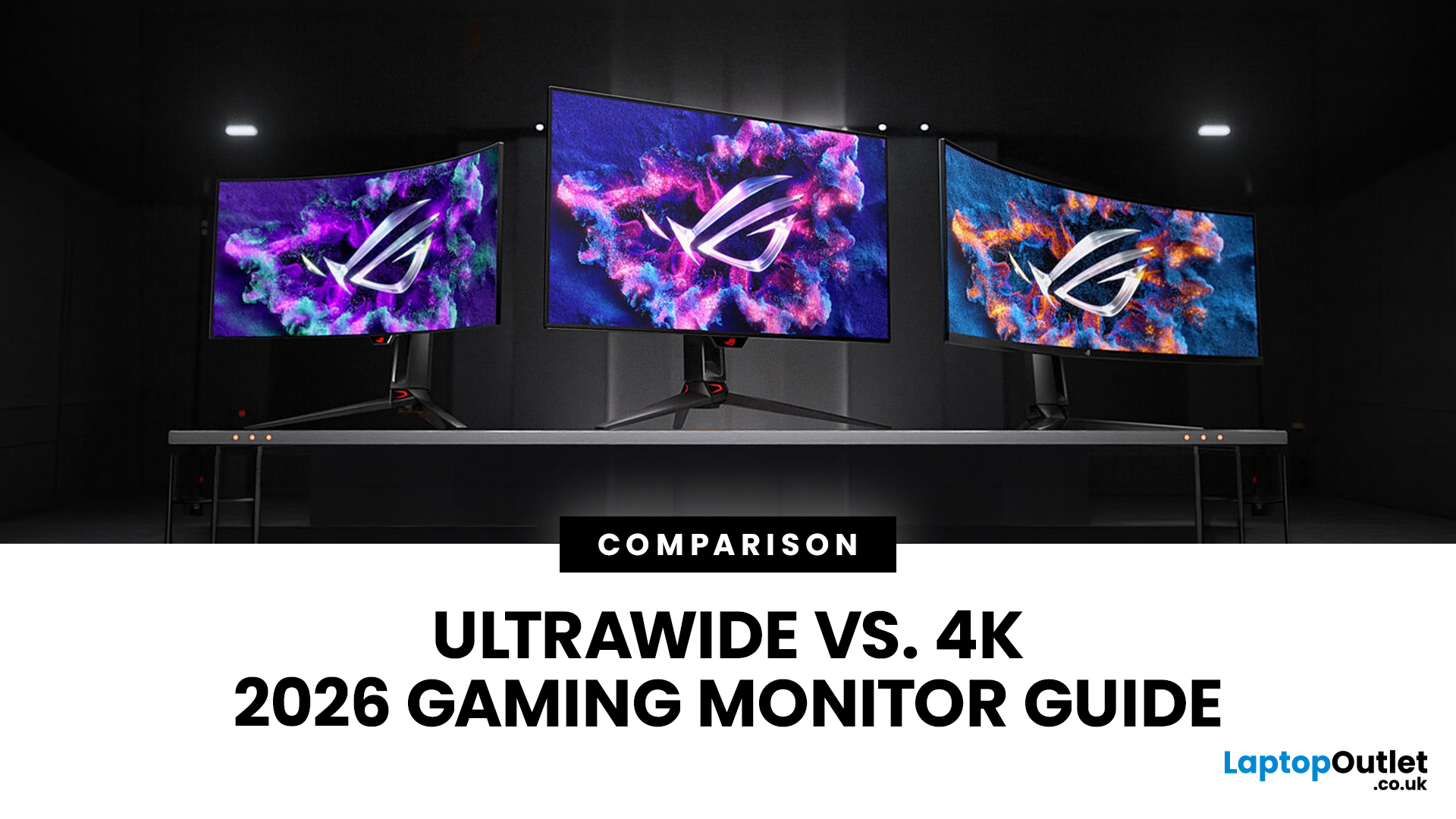
Choosing between an Ultrawide vs 4K monitor is one of the biggest decisions for gamers upgrading their setup in 2026. Both options can transform your gaming experience, but they do it in very different ways. The right choice depends on your games, GPU, desk space and budget, as well as whether you prioritise immersive gameplay or sharper resolution. This gaming monitor guide compares ultrawide and 4K displays across performance, game genres, GPU requirements, refresh rates, response time, and overall value.
Ultrawide vs 4K Monitor: Quick Comparison
| Feature | Ultrawide Gaming Monitor | 4K Gaming Monitor |
| Best for | Immersion, racing, RPGs, simulators, multitasking | Sharp visuals, AAA games, console gaming, creative use |
| Common aspect ratio | 21:9 or 32:9 | 16:9 |
| Main strength | Wider field of view | Higher pixel density |
| Image sharpness | Very good, especially at 3440 x 1440 | Excellent at 3840 x 2160 |
| GPU demand | Moderate to high | Very high |
| Competitive gaming | Good with high refresh rate | Good, but harder to drive |
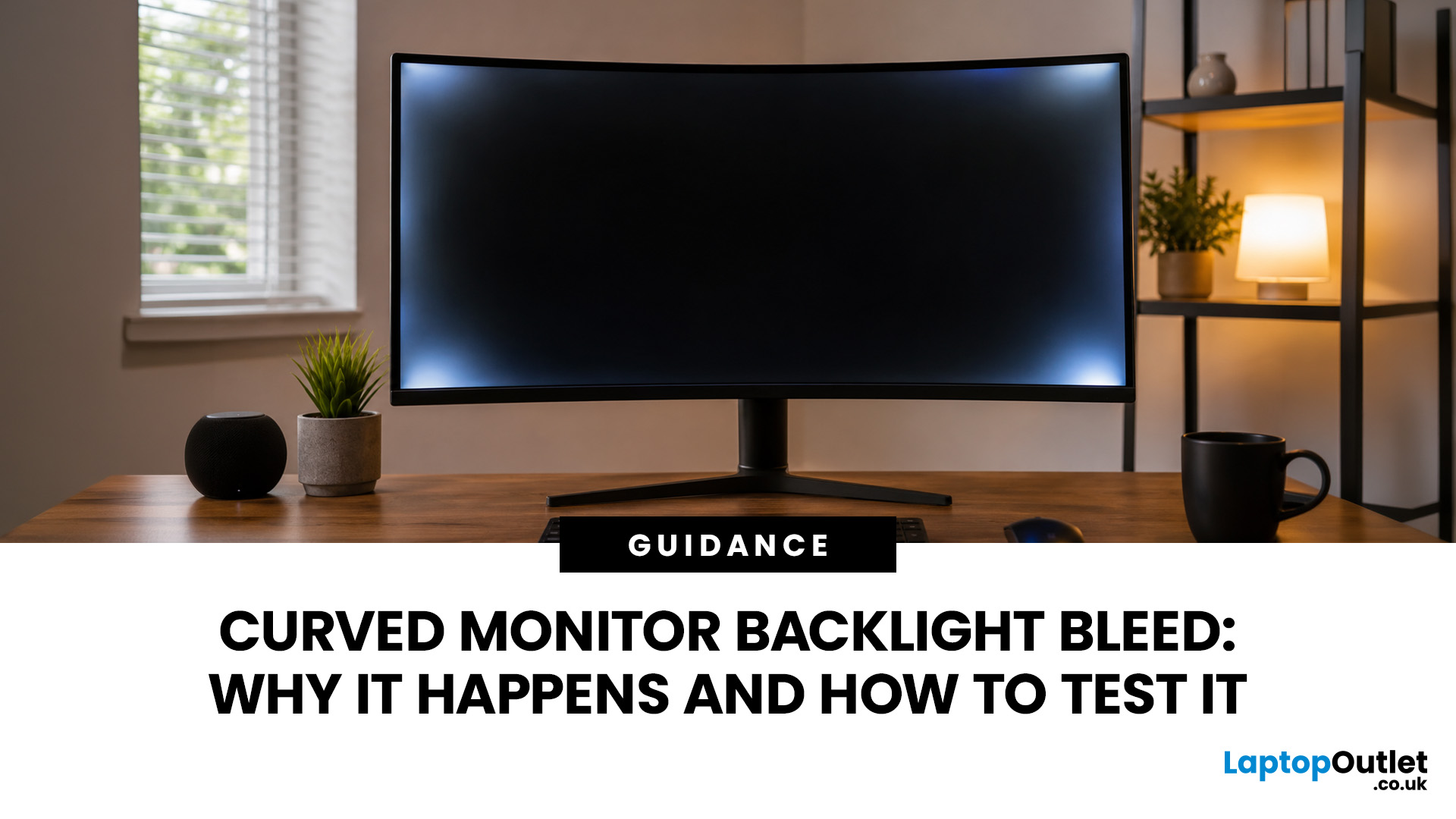
Last Updated: July 16, 2026
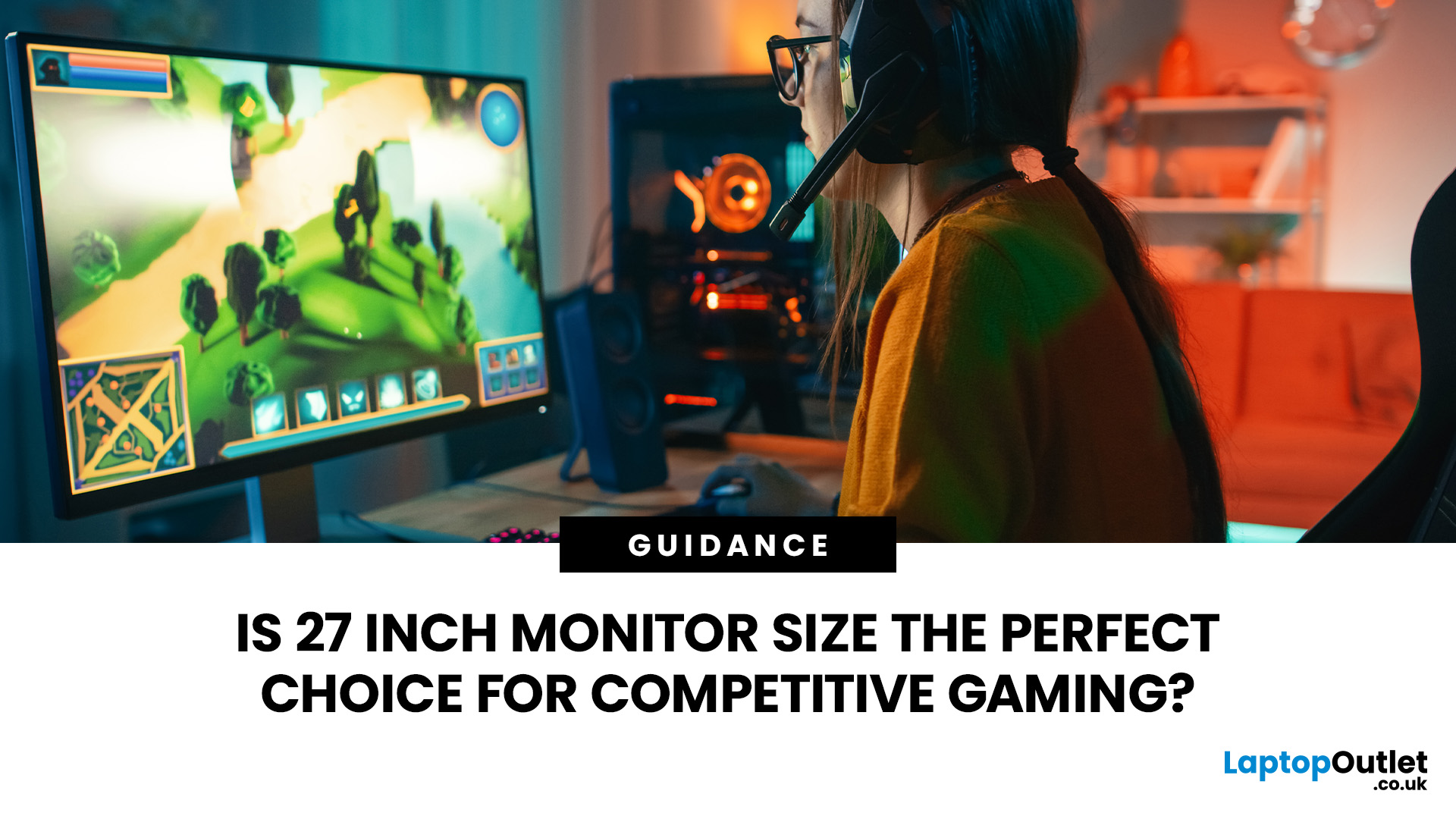
Last Updated: September 24, 2026
Last Updated: July 30, 2026
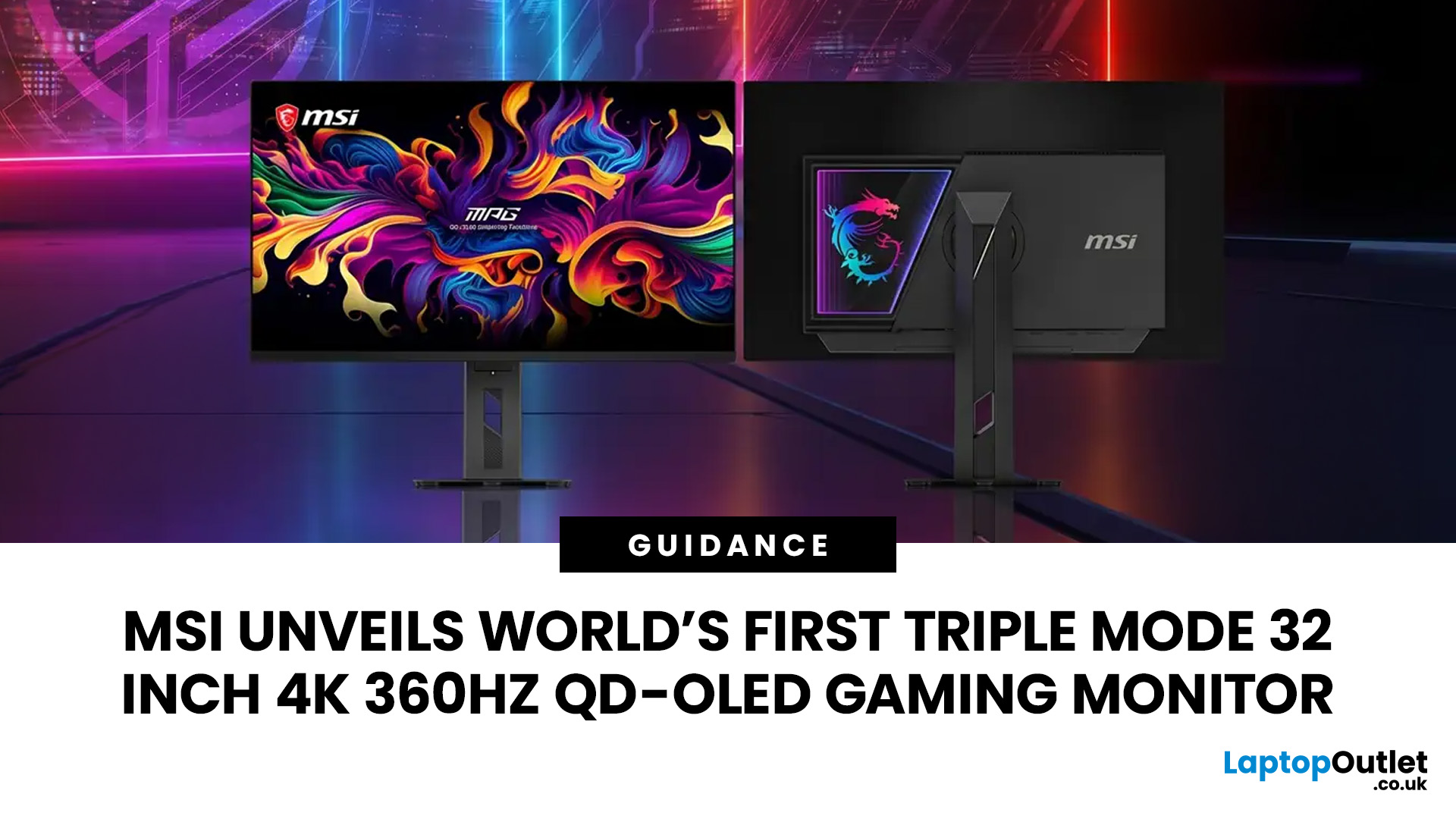
MSI has revealed a gaming monitor that sounds almost unreal on paper: a 32 inch 4K monitor with a 360Hz refresh rate, QD-OLED visuals, and a Triple Mode feature that lets gamers switch between different resolution and speed settings. Officially known as the MSI MPG OLED 322URDX36 (MSI lists the panel at 31.5 inches, though it's widely rounded to 32 inches), this display was unveiled ahead of COMPUTEX 2026 and is designed for players who want sharp 4K detail, ultra-smooth motion, and flexible performance in one premium screen.
For years, gamers had to choose between resolution and speed. A 4K monitor gave better image quality, while a lower-resolution, high-refresh-rate screen gave smoother competitive gameplay. MSI's new Triple Mode gaming monitor aims to close that gap, letting users move between 4K 360Hz, 1440p 520Hz, and Full HD 680Hz depending on the game, their hardware, and personal preference.
That makes it one of the most interesting display announcements for serious PC gamers,
Last Updated: August 11, 2026
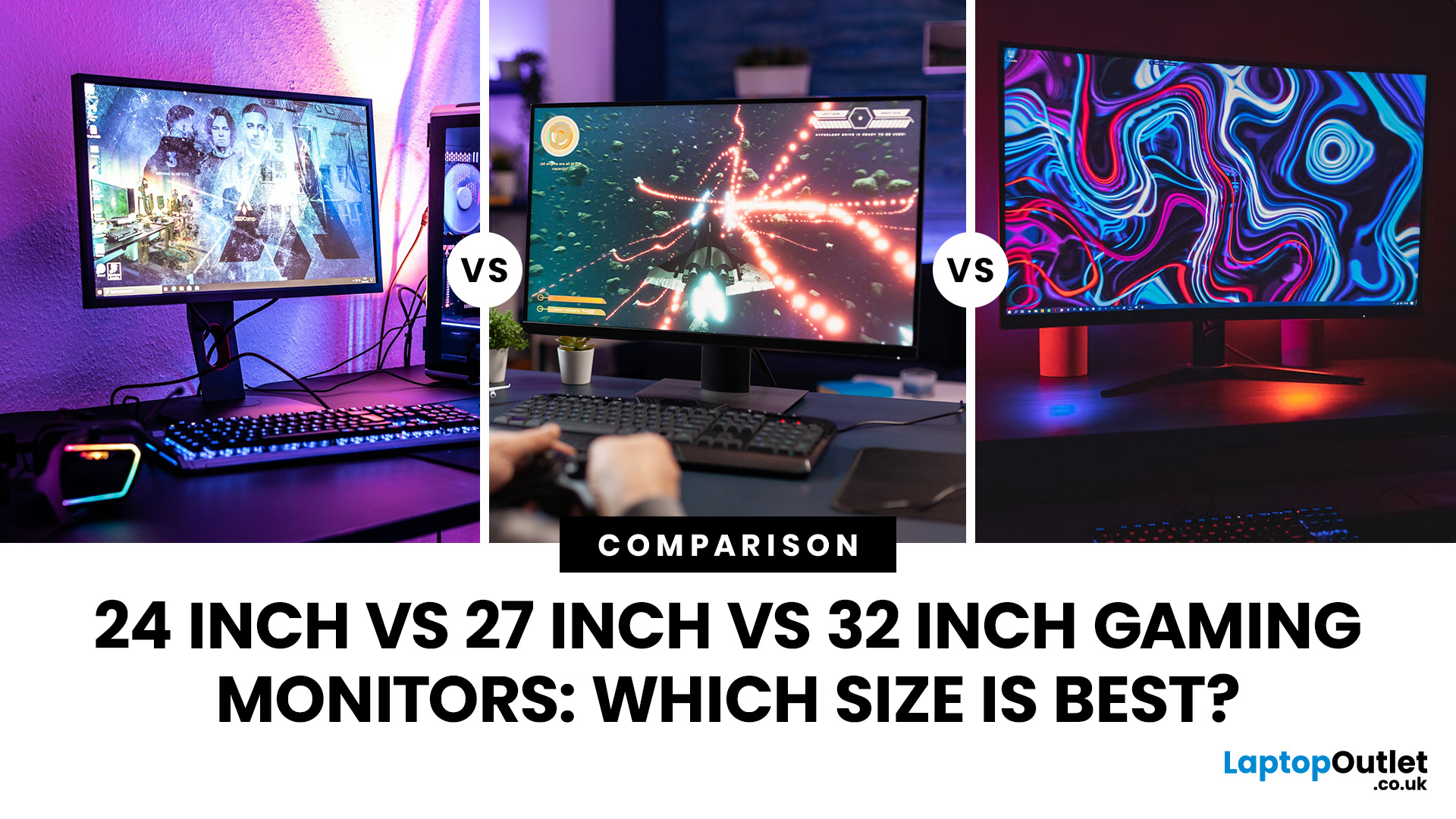
Picking the best gaming monitor size isn’t just about going big or going home. Your screen size actually changes how your games look, feel, and perform. A 24-inch setup is clutch for competitive play, a 27-inch hits that sweet spot between clarity and immersion, and a 32-inch screen? That’s where things get seriously cinematic.
Size alone isn’t the whole story. Resolution, desk space, refresh rate, and what you actually play all matter. This gaming monitor size comparison breaks down 24, 27, and 32-inch displays so you can find your perfect match.
24 Inch vs 27 Inch vs 32 Inch Gaming Monitors: Quick Comparison
The following table provides a quick overview of how the three most popular gaming monitor sizes compare.
| Feature | 24-Inch Monitor | 27-Inch Monitor | 32-Inch Monitor |
| Recommended resolution | 1920 × 1080 | 2560 × 1440 | 2560 × 1440 or 3840 × 2160 |
| Best suited to | Competitive gaming | Mixed gaming and everyday use | Immersive and cinematic gaming |
| Typical desk requirement | Small | Medium | Large |
| Graphics |
Last Updated: August 11, 2026
Last Updated: September 03, 2026
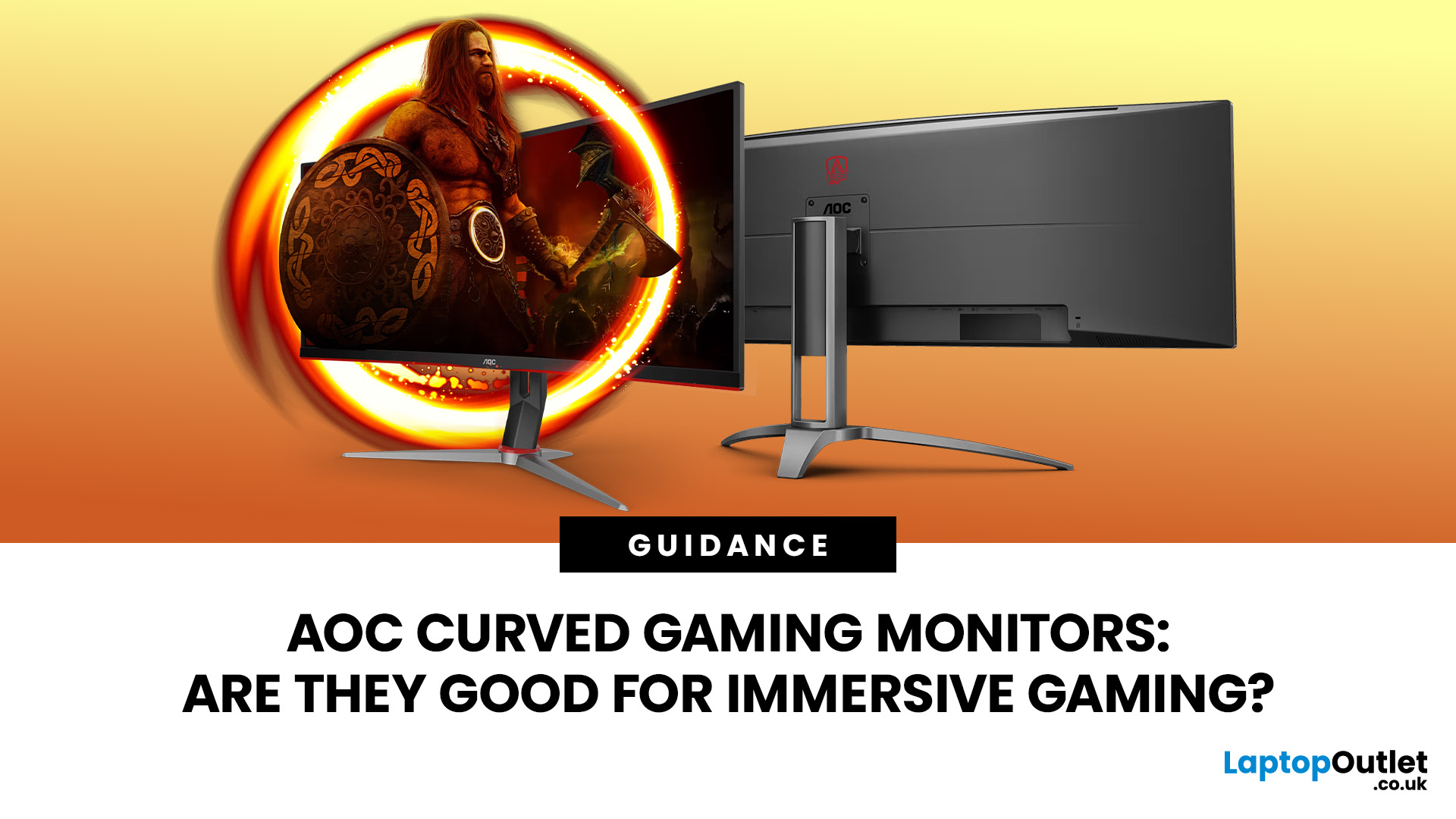
An AOC curved gaming monitor can be a strong choice for immersive gaming, especially if you play racing, simulation, RPG, open-world or cinematic single-player games. The curved screen helps draw more of the display into your natural field of view, which can make gameplay feel more engaging on larger panels. For many PC gamers, the sweet spot is a 27-inch or 32-inch high-resolution QHD monitors. For maximum immersion, an AOC 34 curved gaming monitor or another ultrawide curved gaming monitor can offer a wider, more cinematic view.
Are AOC Curved Gaming Monitors Good for Immersive Gaming?
Yes, AOC curved gaming monitors can be good for immersive gaming, but the experience depends on three things:
- Screen size
- Resolution
- Refresh rate
A curved display is most effective when the screen is large enough for the curve to matter. On a 24-inch screen, the curve may feel subtle. On a 32-inch or 34-inch screen, it becomes much more noticeable because the edges of the panel sit further into your peripheral

