



4K vs 1440p vs 1080p: Which Monitor Resolution Should You Choose?
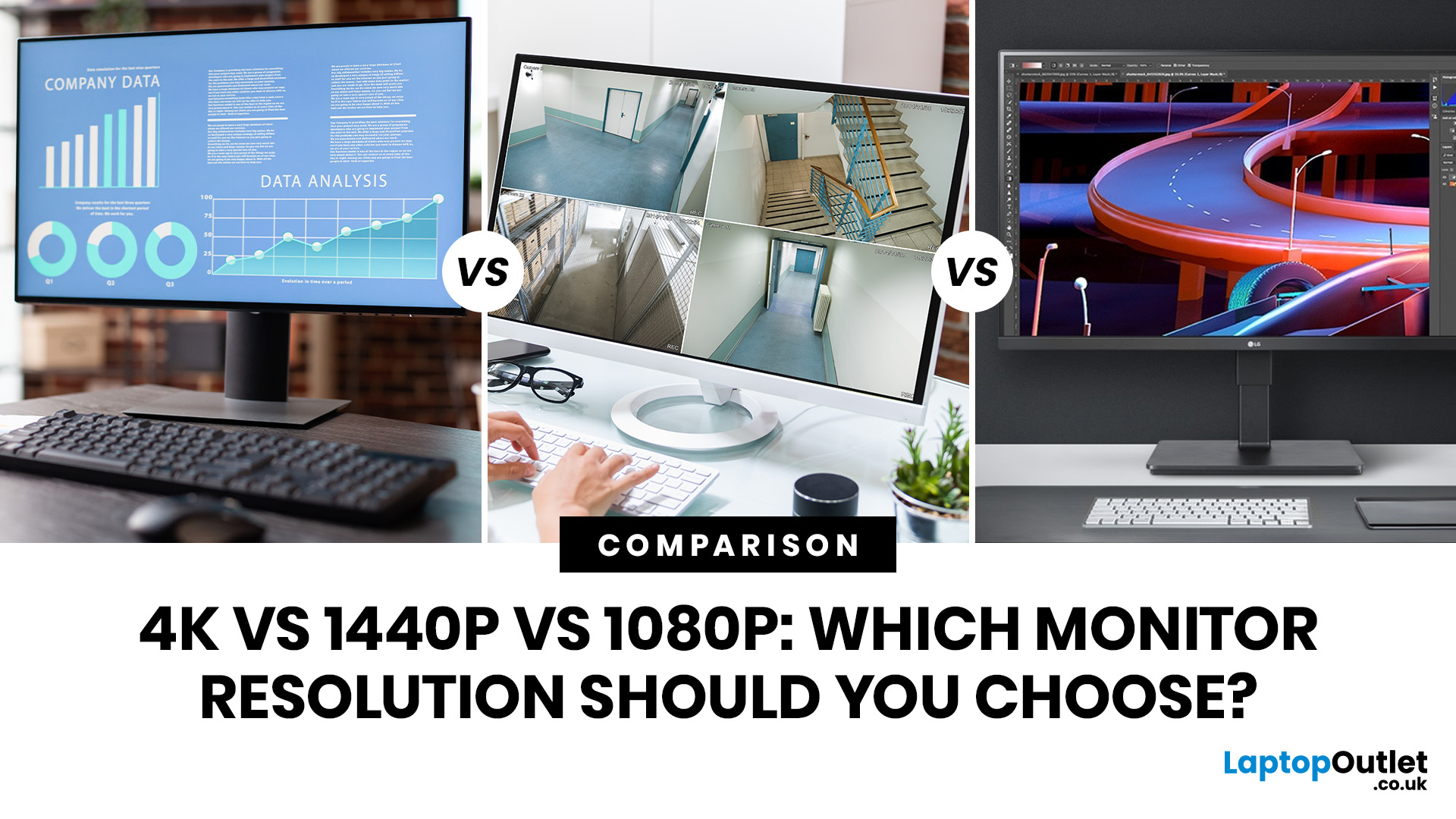
Choosing a monitor resolution should be simple, right? You pick a screen, plug it in, and get on with your day. Except the moment you start shopping, you get hit with 1080p, 1440p, QHD, 4K, Ultra HD, scaling, refresh rates and a whole lot of spec-sheet chaos.
So, which one should you actually buy?
This guide breaks down the 4K vs 1440p vs 1080p monitor debate in plain English. Whether you need a screen for gaming, work, studying, streaming, editing or a bit of everything, we’ll help you choose the right resolution without overpaying for pixels you do not need.
Quick Answer: 1080p vs 1440p vs 4K Monitor
Here’s the no-drama answer.
|
User Type |
Best Resolution |
Why |
|
Budget buyers |
1080p / Full HD |
Affordable, reliable and easy to run |
|
Students |
1080p or 1440p |
Good value with enough clarity for study |
|
Home office users |
1440p / QHD |
Sharper text and better multitasking |
|
Hybrid workers |
1440p or 4K |
More screen space for apps and documents |
|
Casual gamers |
1080p or 1440p |
Good mix of smoothness, price and quality |
|
Competitive gamers |
1080p high refresh rate |
Easier to hit higher frame rates |
|
Creative users |
4K |
Best detail for editing and visual work |
|
Console gamers |
4K |
Best match for premium console visuals |
|
Premium all-round users |
4K |
Sharpest everyday experience |
For most people, 1440p is the sweet spot. It looks much sharper than 1080p but is not as demanding or expensive as 4K.
- Choose 1080p if you want value, speed and a smaller screen.
- Choose 1440p if you want the best balance.
- Choose 4K if you want maximum sharpness and premium visuals.
If you want to compare options, browse our full range of monitors for work, gaming and everyday setups.
What Do 1080p, 1440p and 4K Actually Mean?
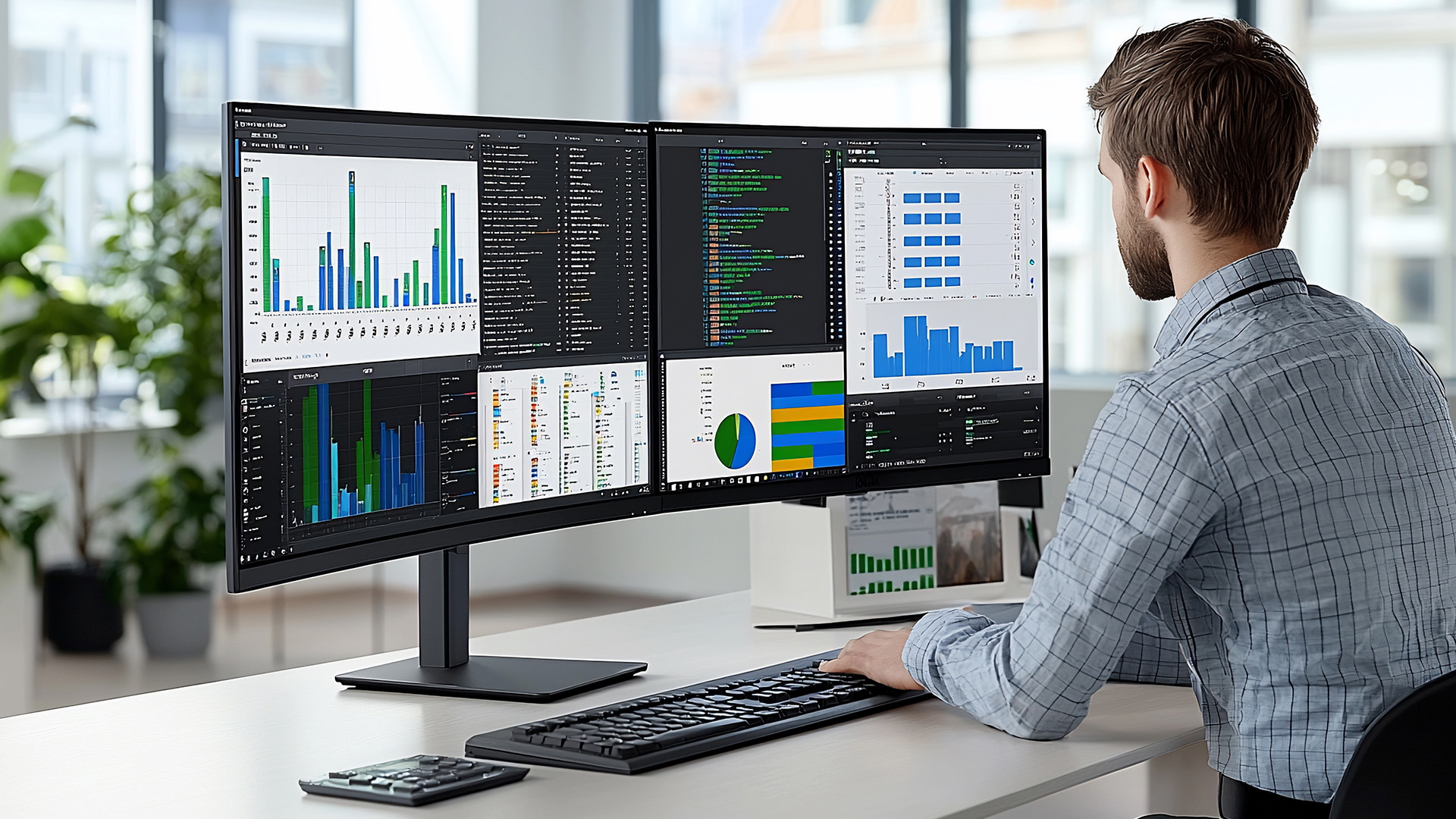
Resolution is the number of pixels on your monitor. Pixels are the tiny dots that create everything you see on screen, from text and icons to videos and games. More pixels usually mean a sharper image, cleaner text and more room to work with multiple windows.
|
Resolution |
Also Called |
Pixel Count |
Best Screen Size |
|
1920 × 1080 |
Full HD / 1080p |
Around 2.1 million pixels |
22–24 inches |
|
2560 × 1440 |
QHD / 1440p |
Around 3.7 million pixels |
27 inches |
|
3840 × 2160 |
4K / Ultra HD |
Around 8.3 million pixels |
27–32 inches+ |
A 1080p monitor is still great for everyday use. A 1440p monitor gives you a sharper, more spacious experience. A 4K computer monitor offers the most detail, especially on larger screens. The key is matching the resolution to your screen size, budget and device performance.
However, resolution is only one part of the buying decision, so if you also want help with refresh rate, panel type and key display specs, read our full monitor buying guide before choosing your next screen.
1080p Monitor: Best for Budget, Speed, and Everyday Use
A 1080p monitor has a resolution of 1920 × 1080 pixels. It is also called Full HD and remains one of the most popular monitor resolutions. A 1080p monitor is not outdated. In fact, it still makes loads of sense if you want something affordable, simple, and easy to run.
Pros of 1080p Monitors
1080p monitors are usually the cheapest option, which makes them great for students, home office users and budget buyers. They are also easier for laptops and PCs to power, especially when gaming.
Because 1080p is less demanding than 1440p or 4K, your system can often produce higher frame rates. That is why many competitive gamers still use 1080p screens with high refresh rates. 1080p is best for:
- Everyday browsing
- Emails and documents
- Online classes
- Office work
- Budget gaming
- Smaller desks
- 22-inch to 24-inch screens
If you want a practical display for work, study or casual use, Full HD monitors still offer excellent value.
Cons of 1080p Monitors
The main downside is sharpness. Compared with 1440p and 4K, 1080p has fewer pixels, so text and images are not as crisp.
This becomes more obvious on larger screens. A 24-inch 1080p monitor can look fine, but a 27-inch or 32-inch 1080p monitor may look less sharp because the pixels are spread over a bigger area.
Who Should Buy a 1080p Monitor?
Choose 1080p if you want the most affordable monitor, use a smaller desk, have a basic laptop or desktop, or care more about smooth gaming performance than ultra-sharp visuals.
For competitive gaming, a 1080p monitor with a high refresh rate can be a smarter choice than a 4K monitor that your PC struggles to run.
1440p Monitor: The Best Balance for Most People
A 1440p monitor has a resolution of 2560 × 1440 pixels. It is also known as QHD, which stands for Quad HD. This is the middle ground between 1080p and 4K, and for many buyers, it is the best overall choice.
Pros of 1440p Monitors
A 1440p monitor looks noticeably sharper than 1080p. Text is cleaner, images have more detail and your desktop feels less cramped. It is especially good on 27-inch screens. At that size, 1440p gives you a strong balance of sharpness and usable workspace without needing the extra power required for 4K.
1440p is great for:
- Hybrid work
- Gaming
- Multitasking
- Studying
- Coding
- Spreadsheets
- Content creation
- 27-inch setups
A 1440p monitor is also a strong gaming choice. It gives you better visuals than 1080p, while still being easier to run than 4K. Pair it with a 144Hz or 165Hz refresh rate and you have a proper all-rounder. For most users who want the best balance between clarity and performance, QHD monitors are a smart middle-ground choice.
Cons of 1440p Monitors
1440p monitors usually cost more than 1080p models. They also require more graphics power for gaming, so older laptops or entry-level PCs may struggle with demanding games at 1440p. They are also not as sharp as 4K, especially for detailed creative work or larger screens.
Who Should Buy a 1440p Monitor?
Choose 1440p if you want a monitor that works well for both productivity and gaming. It is ideal if you want sharper visuals than 1080p but do not want the price or performance demands of 4K. Low-key, 1440p is the “safe but still exciting” choice.
4K Monitor: Best for Sharpness, Creative Work and Premium Setups
A 4K monitor has a resolution of 3840 × 2160 pixels. It is also called Ultra HD. A 4K computer monitor has around four times as many pixels as a 1080p display, which means it can show much more detail.
Pros of 4K Monitors
4K is the sharpest option in this comparison. Text looks crisp, images look detailed and large screens feel much cleaner. 4K is best for:
- Photo editing
- Video editing
- Graphic design
- Watching 4K content
- Premium office setups
- Console gaming
- Large spreadsheets
- 27-inch, 32-inch and larger monitors
If you work with visual content, 4K can be a serious upgrade. It gives you more detail for editing and more space for toolbars, timelines and multiple windows. If maximum sharpness is your priority, 4K monitors are ideal for creative work, premium productivity and high-detail entertainment.
Cons of 4K Monitors
The biggest downside is performance. 4K gaming needs a powerful graphics card, especially if you want high frame rates. 4K monitors also cost more, particularly if you want extra features like high refresh rate, HDR, OLED or USB-C. You may also need display scaling so text and icons do not look too small.
Who Should Buy a 4K Monitor?
Choose 4K if you want maximum detail, use a 27-inch to 32-inch screen, edit photos or videos, watch 4K films, use a PS5 or Xbox Series X, or want a premium setup for work and entertainment. For everyday emails only? It is nice, but probably overkill.
If you are tempted by a large 4K screen, you may also be wondering whether a TV can do the job, so check our guide on using a TV as a PC monitor before deciding.
4K vs 1440p vs 1080p Monitor: Full Comparison
|
Feature |
1080p Monitor |
1440p Monitor |
4K Monitor |
|
Sharpness |
Good on smaller screens |
Very good |
Excellent |
|
Best size |
22–24 inches |
27 inches |
27–32 inches+ |
|
Price |
Lowest |
Mid-range |
Highest |
|
Gaming performance |
Easiest to run |
Balanced |
Most demanding |
|
Productivity |
Basic |
Strong |
Excellent |
|
Creative work |
Limited |
Good |
Best |
|
Streaming |
Good |
Very good |
Best for 4K content |
|
Competitive gaming |
Excellent |
Good |
Only ideal with high-end hardware |
|
Console gaming |
Basic |
Good |
Best |
|
Best for |
Budget and speed |
Balance |
Premium clarity |
The easiest way to think about it is:
- 1080p = value
- 1440p = balance
- 4K = premium clarity
1080p vs 4K Monitor: Is 4K Really That Much Better?
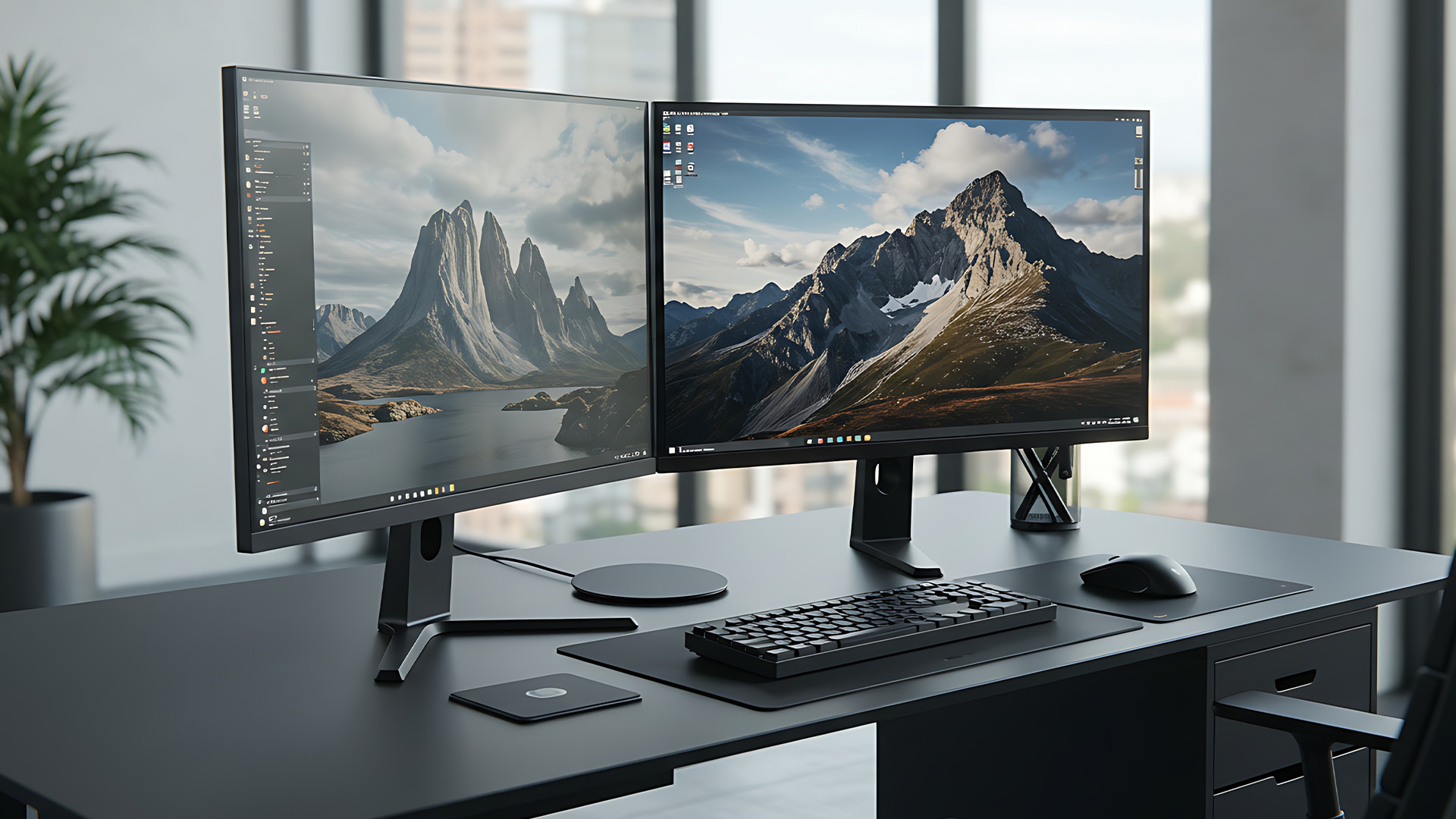
In terms of sharpness, yes. A 4K monitor has four times the pixels of a 1080p monitor, so it can show much finer detail. This difference is most noticeable on larger screens. On a 24-inch monitor, 1080p can still look good. On a 32-inch display, 4K looks far sharper and cleaner.
For work, 4K gives you more screen space and better text clarity. For films and games, it can look more detailed and immersive. However, 1080p still wins for price and performance. If your PC is not powerful, 1080p gaming will usually feel smoother than 4K gaming. A 4K monitor also costs more and may need a better cable or stronger graphics hardware.
So, in the 1080p vs 4K monitor debate, the best choice depends on your priorities.
- Choose 1080p for value and speed.
- Choose 4K for detail and premium visuals.
- Choose 1440p if you want the middle ground.
4K Monitor vs 1440p: Which Is Better?
The 4K monitor vs 1440p question is one of the most common buying decisions.
A 1440p monitor is better if you want balance. It is sharper than 1080p, easier to run than 4K and usually more affordable. For PC gaming, productivity and everyday multitasking, 1440p is often the smarter pick. A 4K monitor is better if you want maximum detail. It is ideal for editing, premium office setups, large screens and console gaming.
So, should you choose a 1440p monitor or 4K?
Choose 1440p if you want:
- Better value
- Strong gaming performance
- A 27-inch monitor
- Smooth frame rates
- Less pressure on your PC
Choose 4K if you want:
- The sharpest image
- A 32-inch monitor
- Better detail for editing
- Premium streaming
- Console gaming
- A high-end setup
For most PC users, 1440p offers better value. For creative users and premium buyers, 4K is worth it.
Can a 4K Monitor Display 1440p?
Yes, a 4K monitor can usually display 1440p.
However, 1440p is not the native resolution of a 4K monitor. A 4K screen has 3840 × 2160 pixels, while 1440p is 2560 × 1440 pixels. Because those numbers do not scale perfectly, 1440p on a 4K monitor may look slightly softer than 1440p on a native 1440p monitor.
So, can you do 1440p on a 4K monitor? Yes. It can be useful, especially for gaming when you want better frame rates than 4K allows. For games, running 1440p on a 4K monitor can still look decent, especially if you use good scaling or upscaling features. But for desktop work, native 4K will usually look cleaner.
What Happens if You Use 1080p on a 4K Monitor?
A 4K monitor can display 1080p, and this is a common setup for gaming performance. As 4K is exactly four times the pixel count of 1080p, scaling can be cleaner than some other non-native resolutions. That said, 1080p on a 4K monitor will still usually look softer than native 4K.
Running 1080p resolution on a 4K monitor can make sense if your PC struggles with 4K gaming. You get smoother performance, but you lose sharpness. For everyday work, it is better to use native 4K with scaling adjusted in your settings. For gaming, 1080p on 4K can be a practical backup.
Can You Use 4K on a 1080p Monitor?
A 1080p monitor cannot physically show true 4K detail.
You may be able to play a 4K video or send a 4K signal to a 1080p monitor, but the screen will downscale the image to fit its 1920 × 1080 pixels. The final image is still limited by the monitor’s actual resolution.
So, 4K on a 1080p monitor does not turn your screen into 4K. It may look slightly cleaner in some situations because of downsampling, but it is not the same as using a real 4K display.
If you want true 4K clarity, you need a 4K monitor.
Can I Connect a 1080p Laptop to a 4K Monitor?
Yes, you can connect many 1080p laptops to a 4K monitor, but it depends on the laptop, port, cable and graphics support. Before buying a 4K display for your laptop, check:
- Does your laptop support 4K external output?
- Does it have HDMI, DisplayPort or USB-C video output?
- Does the port support 4K at 60Hz?
- Does your cable support 4K?
- Are your graphics drivers updated?
- Will your laptop feel smooth when using 4K?
- Do you need display scaling for comfortable text size?
Some laptops can output 4K at 30Hz, while others can do 4K at 60Hz or higher. For office work, 4K at 60Hz is much nicer because movement feels smoother. If your laptop is older or entry-level, a 1440p monitor may be a safer upgrade.
Best Resolution by Screen Size
Screen size matters just as much as resolution. A resolution that looks sharp on a small screen can look stretched on a bigger one.
|
Screen Size |
Best Resolution |
Why |
|
22–24 inches |
1080p |
Affordable and sharp enough at this size |
|
27 inches |
1440p |
Best balance of clarity, space and price |
|
32 inches |
4K |
Keeps text and visuals crisp on a large display |
|
Ultrawide |
Depends on model |
Wider screens use different resolutions |
For a 24-inch monitor, 1080p is still a solid pick. For 27 inches, 1440p is usually the sweet spot. For 32 inches and above, 4K makes more sense because it keeps everything looking sharp. If you are considering a wider setup instead of a standard 16:9 display, our guide on whether ultrawide monitors are worth buying in 2026 explains the pros, cons and best use cases.
Best Resolution for Gaming
Gaming is where resolution gets a bit more personal because performance matters.
1080p for Competitive Gaming
1080p is best if you want high frame rates. It is easier for your PC or laptop to run, which makes it ideal for esports and fast-paced games. Competitive gamers who care more about speed than maximum resolution should compare 240Hz gaming monitors for smoother, faster gameplay.
1440p for Most PC Gamers
1440p is the best choice for many PC gamers. It looks sharper than 1080p but is much easier to run than 4K. A 1440p monitor with a 144Hz or 165Hz refresh rate is a brilliant all-round gaming setup.
4K for Cinematic and Console Gaming
4K is best for cinematic games, story titles, racing games and console gaming. It looks stunning, but it needs more power. If you play on PS5, Xbox Series X or a high-end gaming PC, 4K can be worth it. If you play competitive shooters, you may prefer 1080p or 1440p with a higher refresh rate.
4K controls image sharpness, but HDR affects brightness, contrast and colour, so it is worth reading our full guide on what HDR means on a monitor if you want better picture quality.
Best Resolution for Work, Study and Creative Use
For work and study, sharp text and screen space matter more than raw speed. If you only handle emails, documents and web browsing, 1080p is fine. If you multitask, work with spreadsheets or keep multiple windows open, 1440p is much better.
For creative work, 4K is the strongest option. It gives you more detail for photos, videos and design projects. It is also useful if you edit 4K content because you can view more detail on screen. Coding, spreadsheets and research also benefit from 1440p or 4K because you can fit more on screen without everything feeling cramped. However, if one screen still feels limiting for work, study or multitasking, our dual monitor setup guide shows you how to connect, arrange and optimise two displays properly.
Common Buying Mistakes to Avoid
Buying 4K When Your PC Cannot Handle It
4K is demanding, especially for gaming. If your graphics hardware is not strong enough, you may get lower frame rates and a less smooth experience.
Buying 1080p on a Large Screen
1080p can look fine on 24-inch monitors, but it may look soft on 27-inch or 32-inch screens.
Ignoring Refresh Rate
Resolution controls sharpness, but refresh rate controls smoothness. Gamers should consider both.
Ignoring Ports and Cables
Your monitor might support 4K, but your laptop port or cable might not support the resolution and refresh rate you want.
Paying for 4K When 1440p Would Be Better Value
For many people, 1440p is the smarter choice. It gives a clear upgrade over 1080p without the full cost or performance hit of 4K.

Final Verdict: Which Monitor Resolution Should You Choose?
- Choose 1080p if you want a cheaper monitor, use a 22-inch to 24-inch screen, play competitive games or have a basic laptop or PC.
- Choose 1440p if you want the best balance. It is ideal for 27-inch monitors, hybrid work, gaming, multitasking and sharper everyday use.
- Choose 4K if you want maximum detail. It is best for creative work, large screens, premium productivity, 4K entertainment and console gaming.
The final answer is simple:
1080p is value. 1440p is balance. 4K is premium clarity.
Whether you want a budget-friendly Full HD display, a balanced QHD screen, a sharp 4K monitor or a high refresh rate gaming monitor, Laptop Outlet has options for every setup. Start with what matters most to you: price, performance, sharpness or screen size. Once you know that, choosing between 1080p, 1440p and 4K becomes a whole lot easier.

FAQs
Is a 1440p monitor or 4K monitor better?
A 1440p monitor is better for value, gaming performance and 27-inch setups. A 4K monitor is better for sharpness, creative work, large screens and premium visuals.
Can a 4K monitor display 1440p?
Yes, most 4K monitors can display 1440p, but it may look slightly softer than native 1440p because it is not the monitor’s original resolution.
Can you do 1440p on a 4K monitor?
Yes. You can set a 4K monitor to 1440p in display settings or in a game. This can improve gaming performance.
Does 1080p look bad on a 4K monitor?
1080p on a 4K monitor can look softer than native 4K, but it is still usable. It is often used for gaming when better performance is needed.
Can you use 4K on a 1080p monitor?
A 1080p monitor cannot show true 4K detail. Any 4K signal will be downscaled to fit the 1080p screen.
| Read More |
| How to Wall-Mount a Monitor: A Complete VESA Guide |
| Should You Buy a Touch Screen Monitor? A Complete Guide |
| Should You Buy a Touch Screen Monitor? A Complete Guide |
Related Articles


Last Updated: July 06, 2026
Buying one of the many HP printers for small business setups out there sounds easy until you start comparing them properly. Some are better for fast document printing, some are built for scanning and colour work, and some save you more money over time. The trick is not buying the fanciest one. It is buying the one that suits your workload. This guide walks through the HP printer types that make the most sense for home offices, small teams, and day-to-day business use.
Which HP Printer Type Should a Small Business Choose?
- If your business prints mixed colour documents, scans paperwork regularly and needs one compact machine, go for an HP all-in-one in the OfficeJet Pro range. OfficeJet Pro printers are best for higher-volume printing and all-around productivity in a home or home office, which is exactly the kind of workload many sole traders, hybrid workers and small teams deal with.
- If your business prints lots of text-heavy documents and speed matters more than photo-quality colour, choose
Last Updated: June 10, 2026
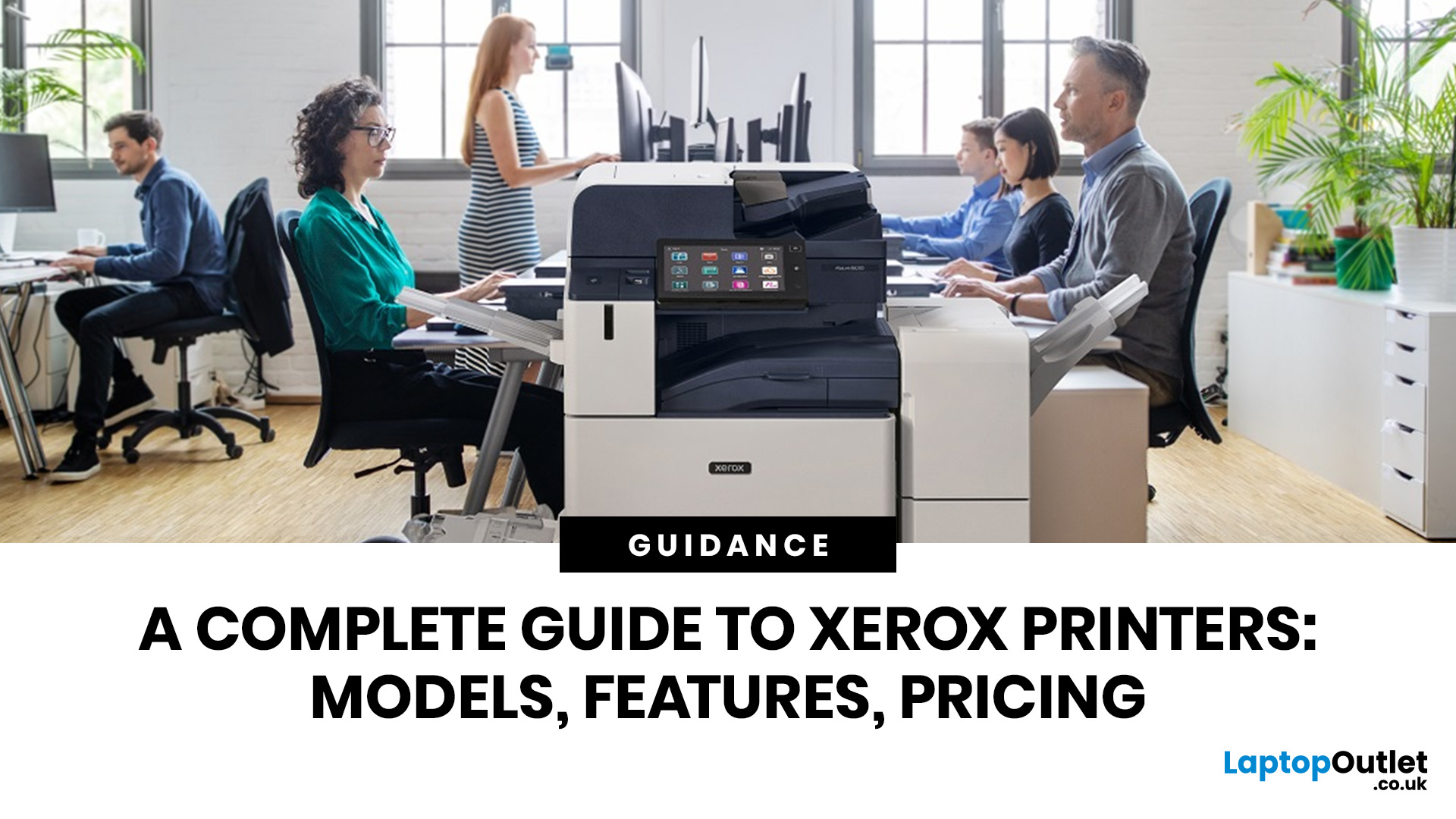
A Xerox printer is a document printer or multifunction device designed for reliable office, business, and home printing. Most modern Xerox printers focus on laser or LED printing, fast document output, strong security, mobile printing and multifunction features such as scanning, copying, faxing and cloud connectivity.
Xerox is a trusted name in business printing, best known for office printers, copiers and multifunction devices. While the brand is still strongly linked with photocopying, modern Xerox printers do much more than copy documents.
Today’s Xerox devices can print, scan, copy, fax, support mobile and cloud printing, manage user access and help businesses control print costs. Many models also include Wi-Fi, reliable paper handling, security features and easy touchscreen controls.
If you are comparing printers, looking for a Xerox printer, or trying to understand whether Xerox is right for your home or office, this guide breaks everything down in simple words.
What is a Xerox
Last Updated: May 05, 2026
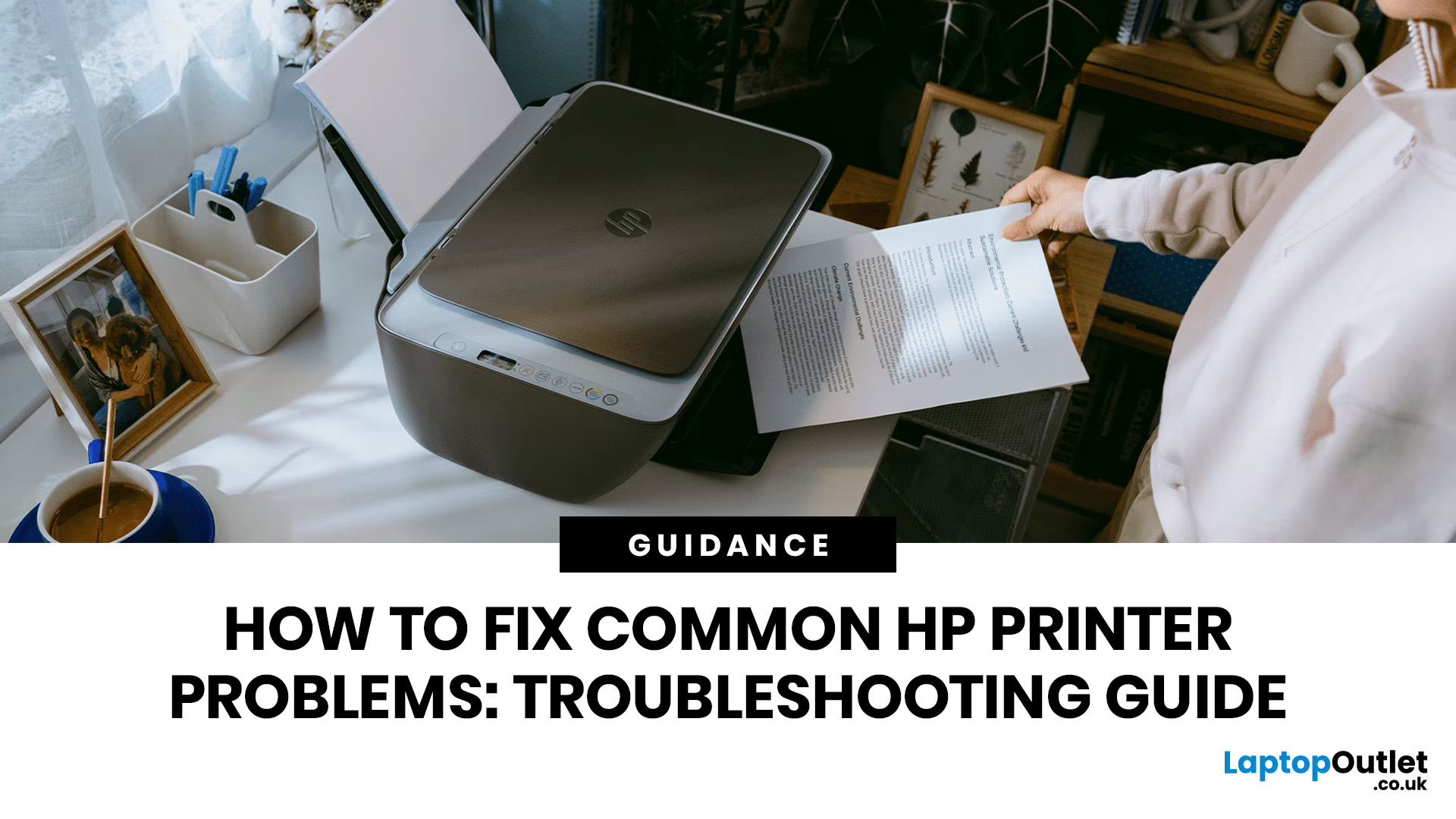
HP printers are reliable, but even the best machines throw a wobble from time to time. The good news is that the vast majority of issues are easy to resolve on your own. This guide will show you how to fix common HP printer problems without calling a professional. Whether you've got an HP OfficeJet, DeskJet, LaserJet, or ENVY, many of the checks below apply across the range.
What Are the Most Common HP Printer Problems?
Before diving into individual fixes, it helps to know what you are actually dealing with. HP printers, from compact home models to full office workhorses, tend to run into the same handful of issues time and again.
Here is a quick overview of the most frequently reported HP printer problems and what typically causes them:
| Problem | Most Likely Cause |
| Printer not printing | Stuck print queue, offline status, driver fault |
| Paper jam | Overfilled tray, worn rollers, torn paper fragments |
| Printer showing offline | Wi-Fi dropout, incorrect default printer setting |
| Blank or faded pages |
Last Updated: May 05, 2026
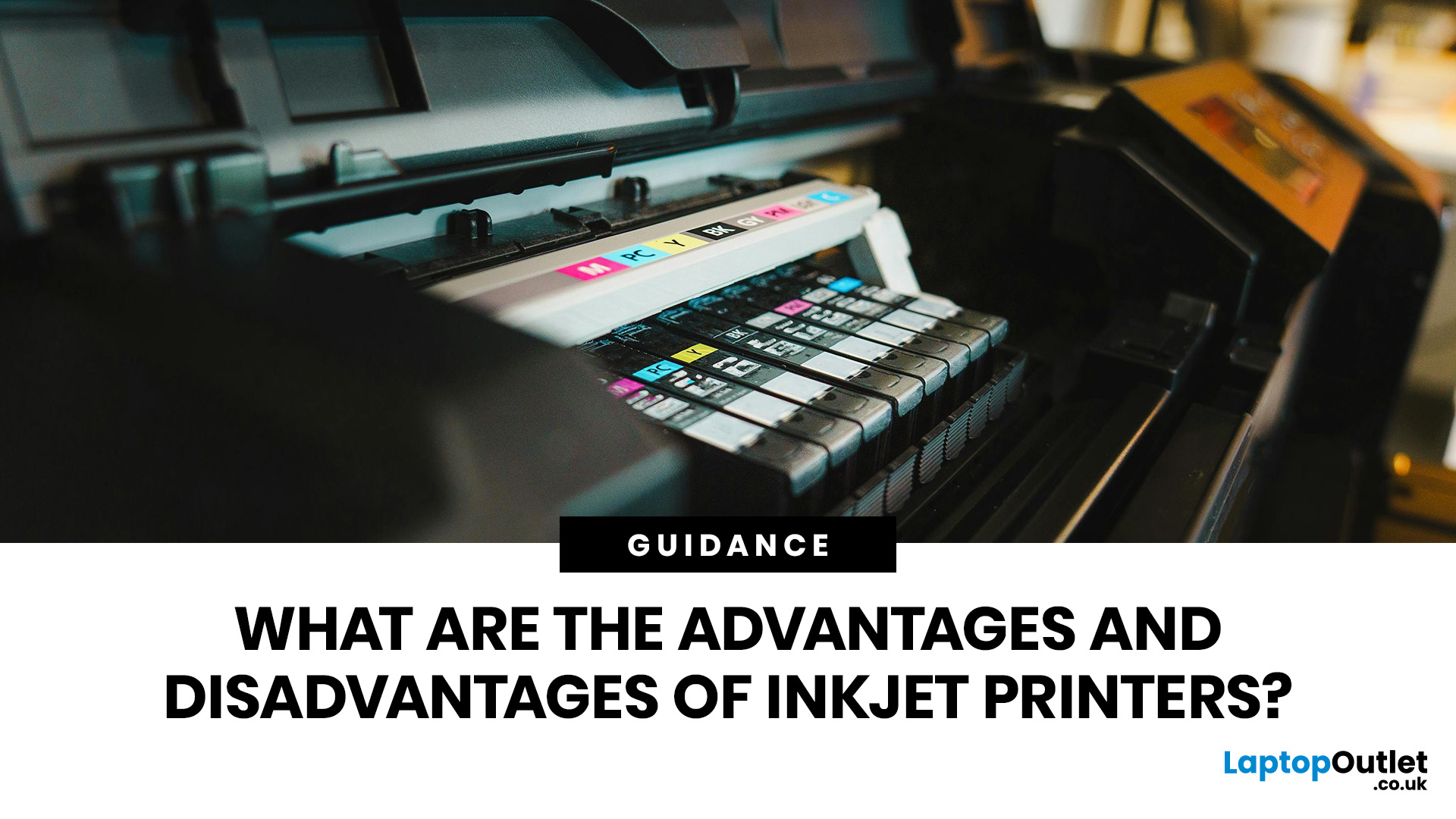
Quick Answer: Inkjet printers offer high colour quality, a compact design, and a lower upfront price, making them ideal for homes, students, creative projects, and light office use. The main disadvantages are higher ink costs on cartridge models, slower print speeds, possible ink smudging, and printhead maintenance when the printer sits unused.
Choosing a printer sounds simple until you start comparing ink costs, print speed, colour quality, maintenance, and the difference between inkjet and laser models. For many UK homes, students, hybrid workers, and small offices, an inkjet printer still makes a lot of sense. It is usually compact, affordable to buy, and strong at printing colour documents, photos, homework, labels, and everyday paperwork.
The part that needs more thought is the long-term cost. Some inkjet printers are cheap upfront, but can become expensive when you replace cartridges often. Others, such as refillable ink tank models, cost more upfront but may suit regular printing
Last Updated: May 06, 2026
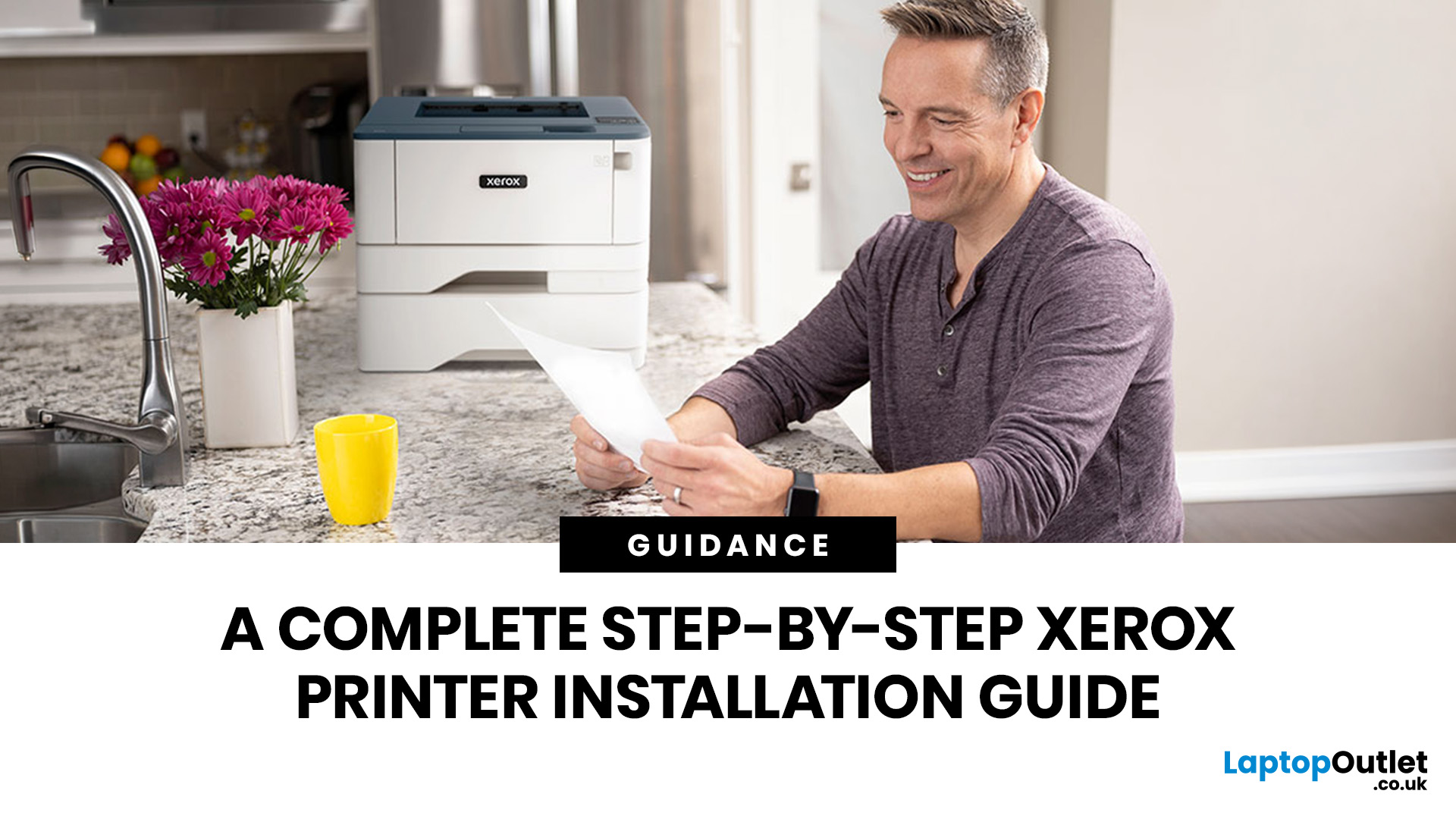
Xerox has been making printers for over 50 years, and their modern range is some of the most capable kit available for home and office use. However, even the best printer is useless if it's not set up correctly. This complete Xerox printer installation guide walks you through every method, every platform, and the most common problems you're likely to run into (with fixes), so you can get set up quickly and get on with your day.
1. What Do You Need Before Starting a Xerox Printer Installation?
A smooth installation begins well before any cable is plugged in or software is run. Taking five minutes to gather the right items and verify your system compatibility saves considerably more time than troubleshooting avoidable errors later.
What Hardware and Consumables Do You Need?
- Your Xerox printer with all packaging materials and shipping tape removed
- Power cable (supplied in the box)
- USB cable (Type-A to Type-B) for direct USB setups -- note that Xerox does not always include this in
Last Updated: July 07, 2026
Quick Answer: The main types of printers are inkjet, laser, multifunction (all-in-one), and label printers. Inkjet printers are great for photos and colour printing at home. Laser printers suit high-volume office use. Multifunction printers combine printing, scanning, and copying. Label printers handle specialist tasks like shipping labels. The right choice depends on your print volume, budget, and intended use.
Choosing the right printer feels overwhelming when you are faced with so many options. Inkjet or laser? All-in-one or dedicated? It is easy to spend money on a printer that simply does not match your needs. This guide cuts through the noise. We'll cover the various types of printers in detail. By the end, you will know exactly which printer fits your home, business, or creative needs.
What Are the Main Types of Printers Available Today?
There are several categories of printers commonly available to UK buyers, each designed with a different use case in mind. Understanding what
Last Updated: July 09, 2026
If you are comparing Xerox printer types, the easiest way to narrow it down is to start with how you print. For home use and light admin, compact mono, or colour laser models usually make the most sense. For small teams and busier desks, multifunction and office-focused Xerox models are often the better fit. Our current Xerox range reflects that clearly, with mono laser, colour laser, multifunction and VersaLink options aimed at home working, small businesses and larger office environments.
This guide breaks down the different Xerox printers that matter most, what each type is best at, and how to choose the right one without overbuying.
Which Xerox Printer Type Should You Choose?
If you mainly print forms, invoices, and text-heavy documents, mono laser is the strongest place to start. Xerox mono laser models are for straightforward document printing and regular office use, while other Xerox models are a fit for small to medium businesses and home working.
If you need colour for reports,
Last Updated: May 12, 2026
Buying a printer in 2026 should be straightforward, but with dozens of models, technologies, and pricing traps to navigate, it can feel overwhelming. This complete printers buying guide cuts through the noise and helps you find exactly what you need, at the right price, for your home, home office, or business.
What Is a Printer and What Does It Do?
A printer is a hardware device that takes digital data from a computer, phone, or tablet and reproduces it as a physical document or image on paper. It bridges the gap between the digital and physical worlds and remains one of the most widely used pieces of office and home technology in the UK.
Modern printers do a great deal more than simply print text. Today's models can scan documents, copy pages, send faxes, print directly from USB drives, and even connect to cloud services. Whether you need to print a single boarding pass or thousands of invoices each month, there is a printer designed precisely for that purpose.
Whether you are looking
Published: May 07, 2026
Most Xerox printer problems come from paper jams, low toner, incorrect paper settings, outdated drivers, network issues or print-quality settings. Start by restarting the printer, checking the paper tray, confirming toner levels, matching the paper type in the driver, and looking up any Xerox printer error codes in the official Xerox support portal.
Xerox printers are built for reliable document printing, but even a good printer can have a bad day. One minute everything is fine, the next your Xerox printer is offline, paper is stuck halfway through, prints look faded, or a random fault code appears on the display. Annoying? Absolutely. Usually fixable? Also, yes.
This guide covers the most common Xerox printer issues, what causes them, and how to fix them without panicking. It is written for everyday users, home offices and small businesses that need their printer working again quickly.
Quick Xerox printer troubleshooting checklist
Before going deep, try these basics first:
| Problem | Quick |
Last Updated: May 19, 2026
Quick Answer
For a quick HP printer installation, follow this order:
- Place the printer close to your router during setup.
- Connect the power cable and turn the printer on.
- Load plain A4 paper.
- Install the supplied ink cartridges or toner.
- Open the HP app or HP Smart app.
- Choose Set Up a New Printer or Add Printer.
- Connect the printer to your Wi-Fi network.
- Print a test page.
Once that is done, you can print wirelessly from your laptop, phone, tablet, or desktop.
Setting up an HP printer should not feel technical, even when you are doing it for the first time. Most new printers require only a few basic steps: power, paper, ink or toner, Wi-Fi connection, and device setup.
The confusion usually starts when different devices ask for different setup routes. A Windows laptop may ask you to add the printer through Printers & Scanners. A Mac may detect it through AirPrint. A phone may need the HP app. A Chromebook may require you to add it in Chrome OS printer settings. Your printer may also

