



How to Use a Laptop as a Second Monitor: Windows 11 Tutorial
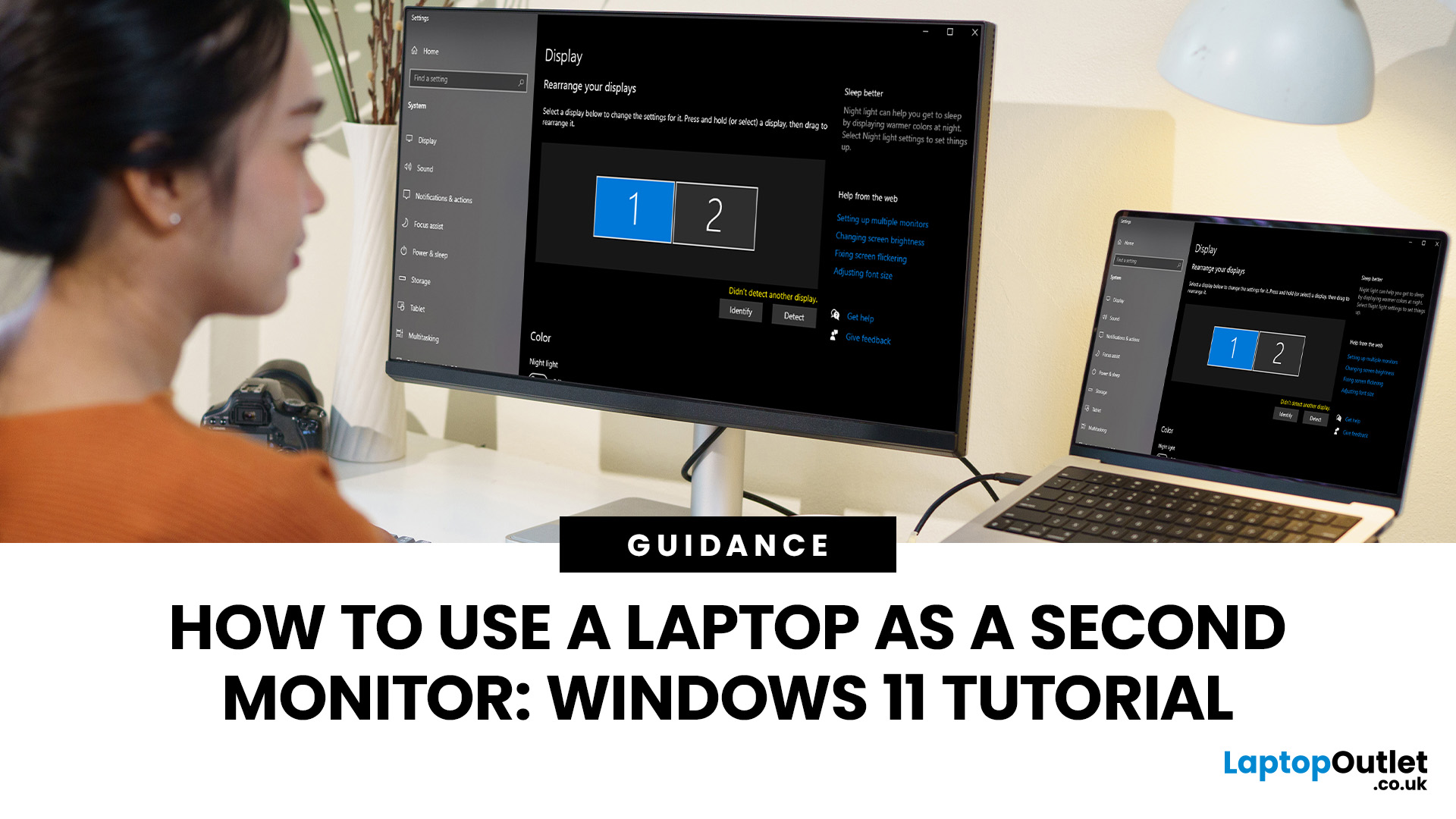
Quick Answer: You can use a Windows 11 laptop as a second monitor wirelessly with Miracast and the Wireless Display feature. Set up the receiving laptop, connect from your main PC with Windows + K , then choose Extend . Standard laptop HDMI ports usually cannot receive video, while USB and non-Miracast setups generally need additional software or hardware.
A spare laptop can give you extra screen space without adding another full-size display to your desk. Windows 11 makes it possible to use a laptop as second monitor wirelessly, provided the computers support the required wireless display features.
This can be handy for keeping email, Teams, documents, research, or monitoring tools open while you work on your main PC. However, there are some important limitations, particularly with HDMI and USB connections. Here is how the setup works and what to do if Windows cannot find your second laptop.
Can You Use a Laptop as a Monitor?
Yes, you can use a laptop as a monitor for another Windows computer, but the connection method matters.
For most Windows 11 systems, the simplest built-in option is Miracast , Microsoft's supported wireless projection technology. It lets your main computer send its desktop to another compatible Windows device.
You can then choose between duplicating your main display and extending the Windows desktop across both screens. This makes an unused laptop particularly useful for secondary applications. An older model could hold your inbox or browser while the main display remains dedicated to your primary workload.
If your ageing machine is no longer suitable, our refurbished laptop models can also provide an affordable way to add another capable Windows device to your setup.
How to Use Laptop as Second Monitor Windows 11
You need to configure the laptop receiving the picture before connecting from your primary computer.
Step 1: Install Wireless Display on the Second Laptop
On the laptop you want to use as the additional screen:
- Open Settings .
- Select System .
- Choose Projecting to this PC .
- Select Optional features when prompted to add Wireless Display.
- Choose View features beside Add an optional feature.
- Search for Wireless Display .
- Tick it and select Next > Install .
Once installation finishes, return to Settings > System > Projecting to this PC and choose the projection permissions you prefer. Microsoft's Wireless Display app is used on Windows 11 version 22H2 and later, so keeping Windows updated is particularly important for this setup.
If your main machine is due for replacement, you can browse our Windows 11 laptop range for systems built around Microsoft's newer operating system.
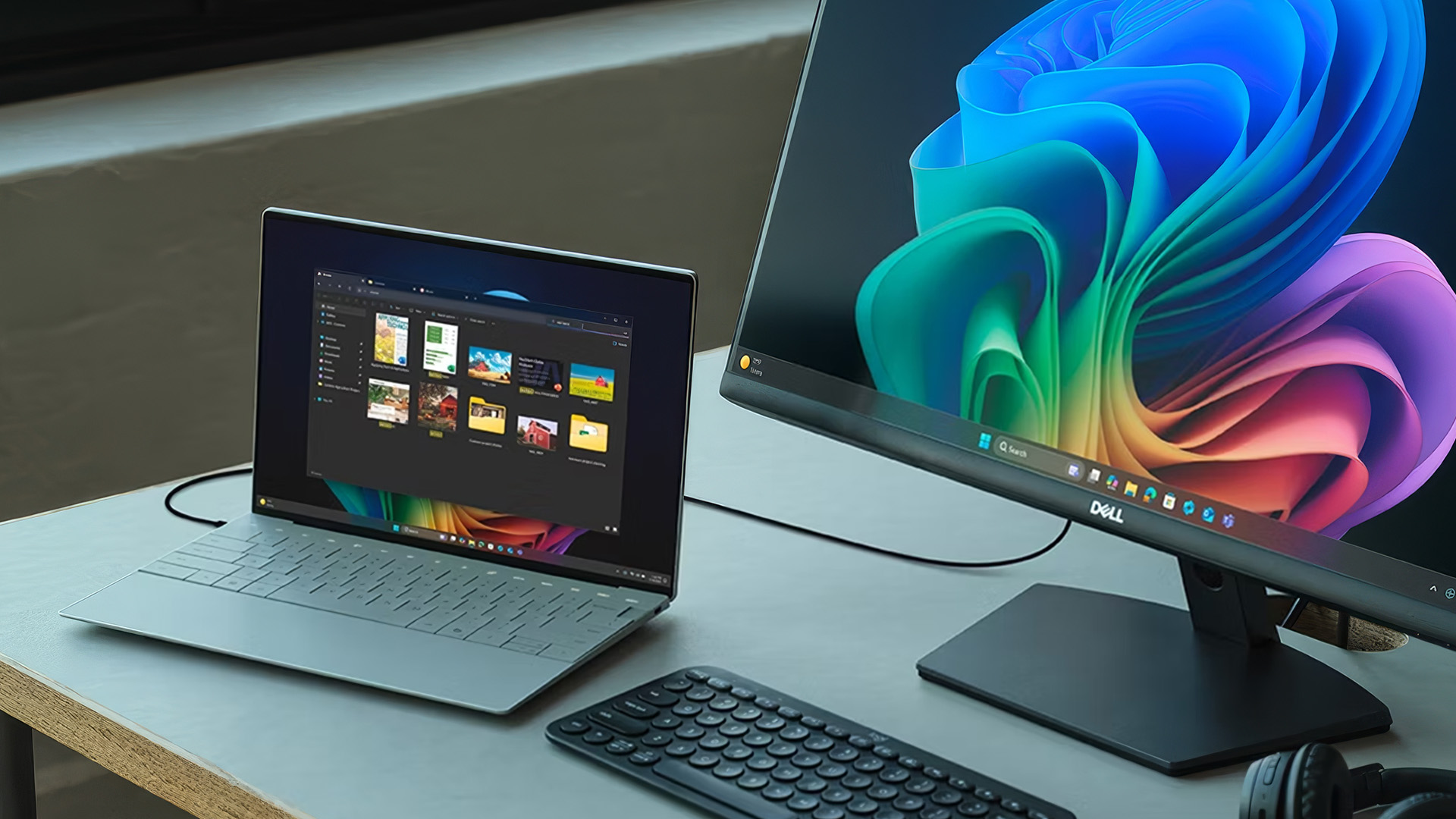
Step 2: Open Wireless Display
Search for Wireless Display from the Windows taskbar on the laptop acting as your second screen. Open the application and leave it running so that the computer is available for projection. Just make sure Wi-Fi is also enabled.
Step 3: Connect from Your Main PC
On the computer you are working from:
- Press Windows key + K .
- Wait for Windows to search for available wireless portable displays.
- Select your second laptop.
- Accept the connection on the receiving laptop if Windows requests permission.
The two computers should now establish a wireless display connection.
Step 4: Set the Laptop to Extend Your Desktop
Press Windows key + P on your main computer. Windows gives you four display modes:
- PC screen only: Uses only your main display.
- Duplicate: Shows the same picture on both screens.
- Extend: Creates additional desktop space across the two screens.
- Second screen only: Displays content only on the connected screen.
Choose Extend if you want to use a second laptop as a monitor rather than simply mirror your existing screen.
You can then go to Settings > System > Display to rearrange the screen positions so that moving your mouse between them feels natural.
How to Use Laptop as Second Monitor Wirelessly
Miracast creates a wireless display connection between compatible devices, making it the most convenient Windows-native approach.
Unlike plugging in a traditional monitor, though, the image has to be encoded, transmitted and processed by the receiving computer. You may therefore notice more latency than with a directly connected display.
For documents, web browsing, chat applications, reference material and office multitasking, that delay is often manageable.
For competitive gaming, colour-critical editing or other latency-sensitive work, one of our dedicated computer monitor options will generally provide a more suitable permanent setup.
Expert Tip: If wireless projection feels sluggish, reduce unnecessary network activity and keep both devices reasonably close together. Updating the Wi-Fi and graphics drivers can also resolve connection and stability problems. The same Windows projection controls can also work with compatible televisions, as explained in our guide to mirroring or casting your screen to a TV.
Can You Use Laptop as Monitor with HDMI?
This is where many setups go wrong. Although most modern laptops have an HDMI socket, it is normally designed as an HDMI output . It sends video from the laptop to a monitor, television or projector.
To use laptop as monitor with HDMI, the laptop itself would need an HDMI input, which is uncommon.
Connecting the HDMI outputs of two ordinary laptops together will therefore not turn one into a second display.
Check your manufacturer's specifications if you are unsure. A rare laptop with genuine HDMI input support may accept an external video signal, but you should not assume that an HDMI connector works in both directions.
If you regularly need extra screen space away from your main desk, portable displays offer a more straightforward wired option without relying on wireless projection. If you are connecting a conventional monitor instead, our HDMI vs DisplayPort vs USB-C vs VGA guide explains which connection makes sense for different display setups.
How to Use Laptop as Second Monitor with USB
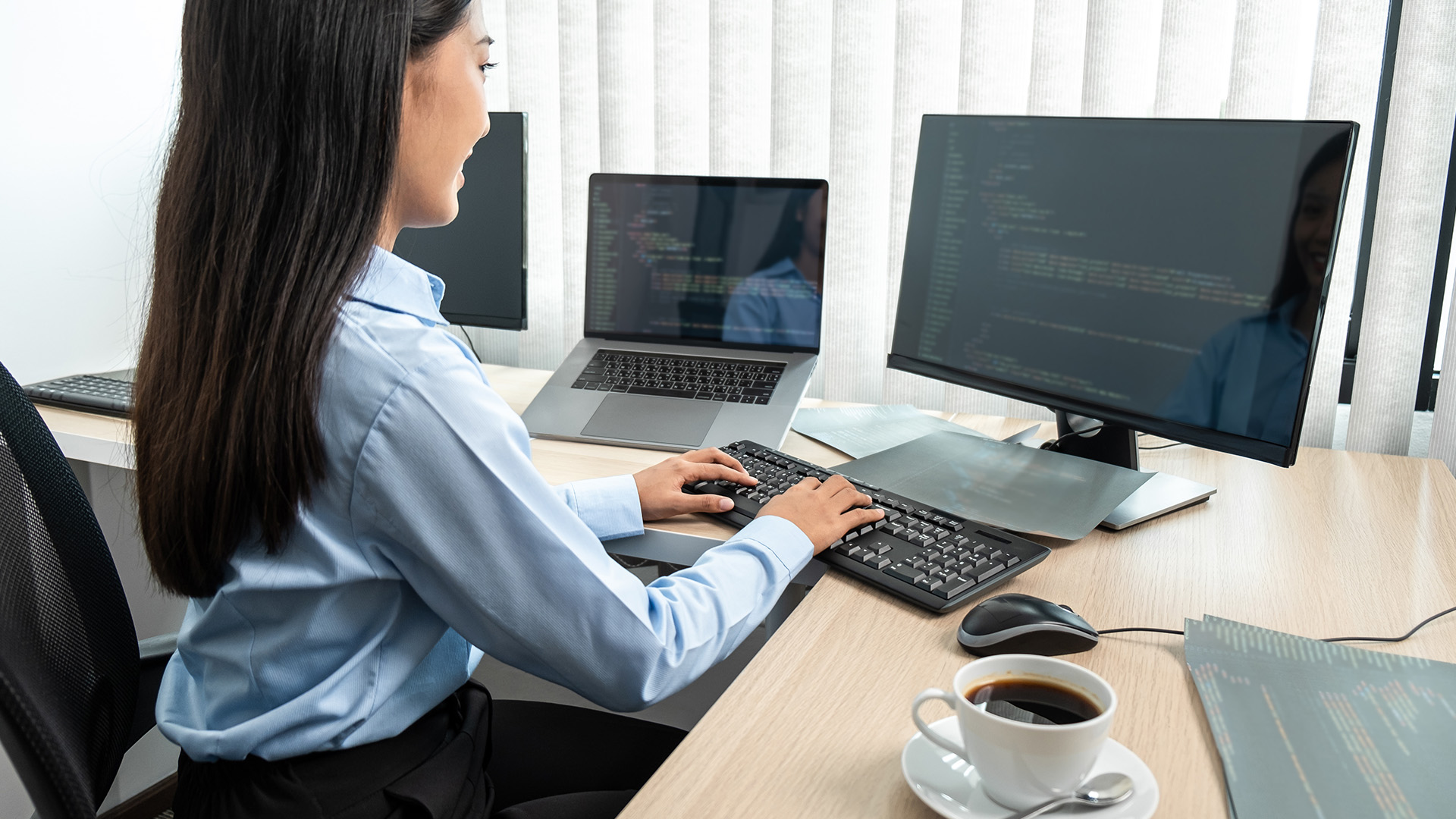
A normal USB cable between two laptops does not automatically create another Windows display. So, how to use laptop as second monitor with USB depends on the hardware or software involved.
Third-party display applications may be able to send screen data between computers through a network or supported USB connection. Another option is a USB video capture device, which accepts a video feed from another computer.
A capture card should not be confused with a native extended monitor connection, however. It normally displays the incoming video inside software and may add processing delay.
If your aim is simply to gain productive desktop space, Windows Wireless Display is usually the cleaner option when both computers support it. Furthermore, If you decide a dedicated display would suit your desk better, our guide to how to set up dual monitors covers connections, Windows settings and screen arrangement step by step.
How to Use Laptop as Second Monitor Without Miracast
If either computer does not support Miracast, Windows' built-in PC-to-PC wireless projection may not work. You still have a few alternatives when considering how to use laptop as second monitor without Miracast:
- Use reputable third-party network display software.
- Use a compatible USB-based display solution.
- Use a capture device if you only need to view another computer's video output.
- Move to a dedicated external monitor for a simpler low-latency setup.
Third-party software can be particularly useful on mixed hardware, but check its security, compatibility, resolution and licensing requirements before installing it on work systems.
Businesses setting up multiple desks may find our business laptops range useful when choosing systems with suitable connectivity, Wi-Fi hardware and display capabilities.
How to Use Laptop as Second Monitor for PC
The same Windows 11 method works when the source computer is a desktop. To use laptop as second monitor for PC, install Wireless Display on the laptop, launch the app and press Windows + K on the desktop PC.
Select the laptop and choose Extend through Windows + P .
Remember that the desktop PC also needs compatible wireless hardware and Miracast support. A desktop connected to the internet purely through Ethernet may still require suitable Wi-Fi hardware for Windows wireless projection. Need more screen space than one spare laptop provides? See how to connect two monitors to a laptop using HDMI, USB-C, DisplayPort and docking solutions.
How to Use Old Laptop as Second Monitor
Before recycling an ageing machine, consider whether you can use old laptop as second monitor instead.
It does not need flagship performance just to display documents, communication apps or reference material. The more important factors are Windows compatibility, working Wi-Fi hardware, functional graphics drivers and Miracast support.
Older machines that cannot run a supported Windows version or Wireless Display reliably may be better suited to third-party display software.
Also consider power consumption, battery condition and screen quality. Keeping a very old laptop permanently running is not always more practical than using an efficient dedicated monitor.
What If Windows 11 Cannot Find the Second Laptop?
If the target laptop does not appear after pressing Windows + K , work through these checks:
- Make sure Wi-Fi is turned on, on both computers.
- Confirm Wireless Display is installed on the receiving laptop.
- Open the Wireless Display app before searching again.
- Check Settings > System > Projecting to this PC and make sure discovery is allowed.
- Install Windows updates.
- Update your graphics and wireless network drivers.
- Restart both computers.
- Remove any previously saved wireless display connection and reconnect it.
You can also press Windows + K to check Miracast support. Windows may tell you that the system requires an external display connection if the necessary wireless-display hardware is unavailable.

Is Using a Laptop as a Second Monitor Worth It?
Using a spare laptop as another display makes sense when you need occasional extra workspace and already have compatible hardware.
Windows 11's Wireless Display feature makes the process relatively simple: configure the receiving laptop, connect through Windows + K , then choose Extend through Windows + P .
Just remember that wireless projection is not identical to connecting a conventional monitor. There can be added latency, while ordinary laptop HDMI ports cannot usually receive video from another PC.
For email, web pages, dashboards, and office applications, however, your spare laptop can become a useful second screen rather than sitting unused.

Does using a laptop as a second monitor affect performance?
It can slightly increase system load because the main PC has to encode and transmit the display while the second laptop receives and renders it. For everyday tasks, the impact is usually minor, but older hardware may feel less responsive.
Can I use a laptop as a second monitor if both devices are on different Wi-Fi networks?
Usually no. Wireless projection works best when both devices can communicate locally and have compatible wireless hardware. Keeping them on the same network environment also helps with discovery and connection reliability.
Can I control the main PC from the second laptop while using it as a monitor?
In some Windows wireless projection setups, input can be allowed from the receiving device, letting its keyboard or mouse interact with the projected PC.
What resolution can I get when using a laptop as a second monitor?
The usable resolution depends on both devices, their graphics hardware, wireless connection quality and Miracast support. Windows may automatically reduce resolution or image quality if the connection cannot maintain a stable higher-resolution stream.
Is a laptop second screen suitable for gaming?
It is better suited to secondary tasks than fast-paced gaming because wireless display connections can introduce noticeable latency. For competitive games or high-refresh-rate play, a directly connected gaming monitor is usually the more responsive option.
| Read More: |
| Which Laptop Accessories Do You Actually Need? |
| Remote Work 2.0: The Tech Setup Professionals Need |
| Laptop Screen Not Working? Common Causes & Quick Fixes |
Related Articles

Last Updated: July 06, 2026
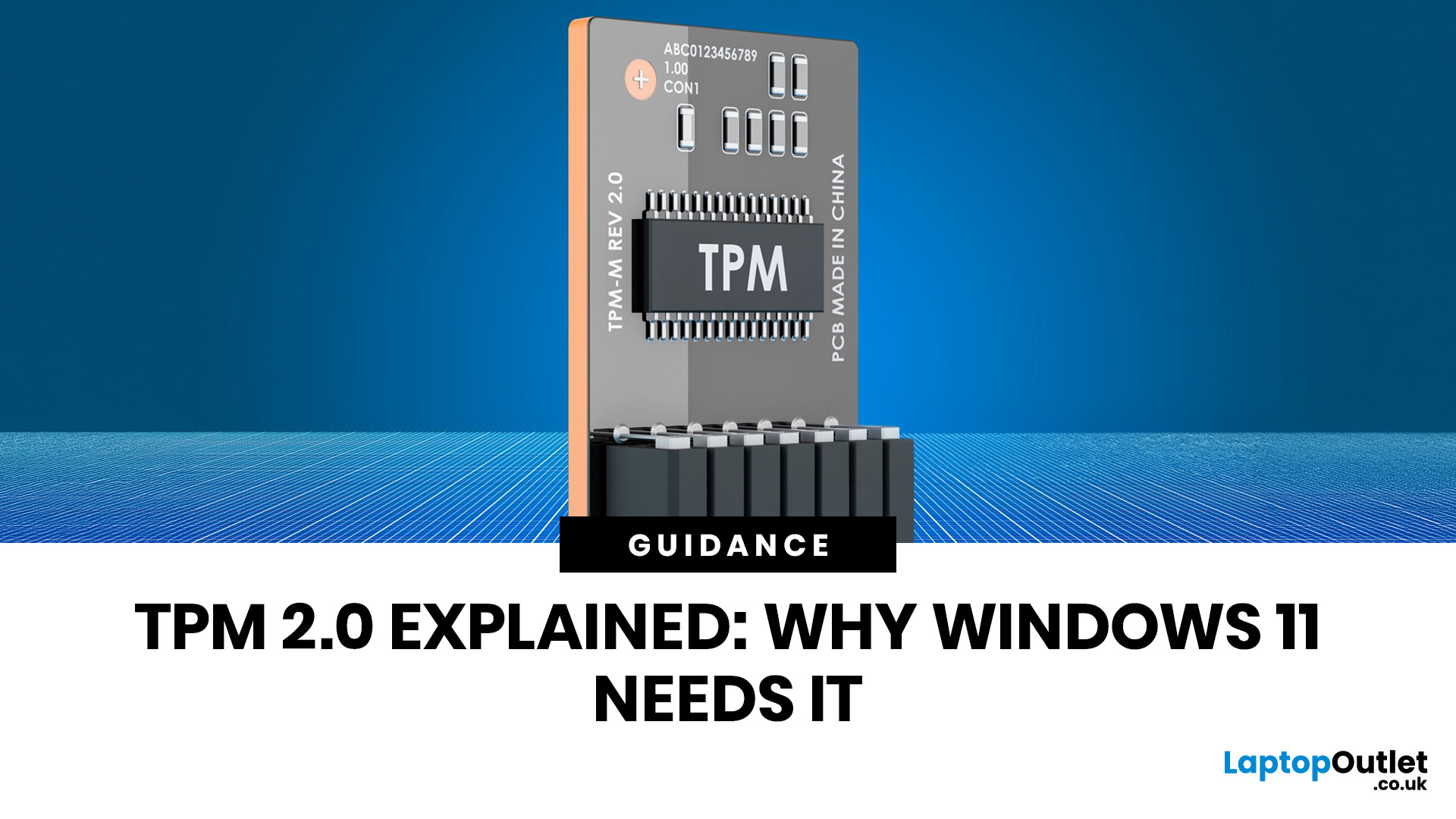
You go to upgrade your PC, everything seems fine, and then Windows 11 drops the digital equivalent of “not you, mate” with a message about TPM 2.0. Suddenly you are searching TPM 2.0 Windows 11, opening BIOS menus you have not touched since the Stone Age, and wondering if your laptop has secretly become ancient overnight. Microsoft’s official Windows 11 minimum requirements still include TPM 2.0, plus UEFI firmware and Secure Boot capability, so this is not some random pop-up glitch. It is part of the platform’s baseline security setup.
If you have been asking what is TPM in computer, do I need TPM for Windows 11, or why this tiny bit of hardware suddenly matters so much, this guide breaks it down in plain English. No jargon soup, no lecture mode, just what TPM is, what it does, why Windows 11 wants it, and what to do if your PC says TPM is missing or disabled.
| Quick answer: TPM 2.0 is a security component built into many modern PCs. It stores cryptographic keys, helps verify system integrity |
Last Updated: July 06, 2026
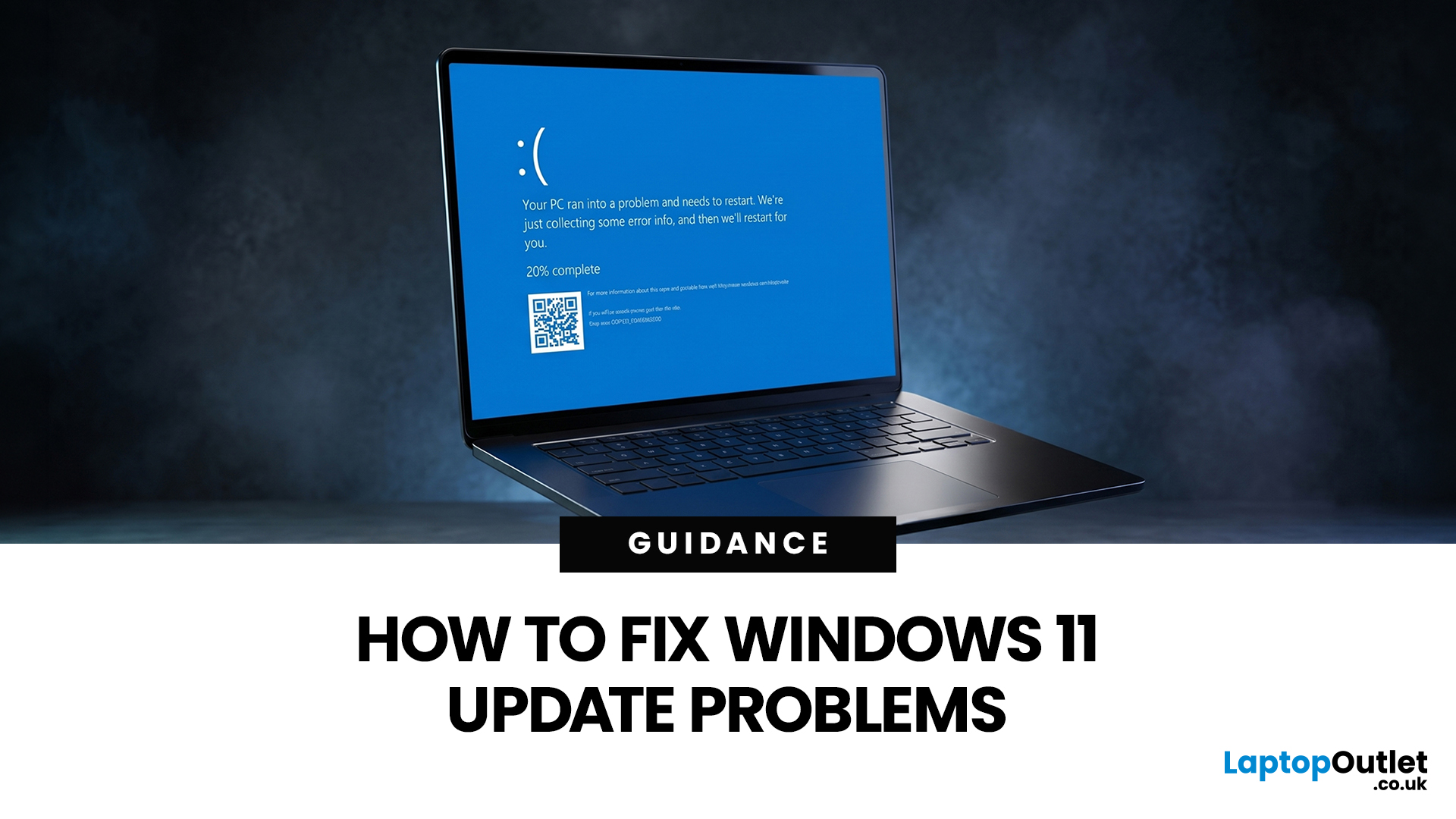
If your PC has decided that today is the day it will freeze at 61%, throw out a random error code, or restart at the worst possible time, you are very much not alone. Windows 11 update issues are one of those annoyingly common problems that can feel dramatic in the moment, but a lot of them are fixable with the right steps.
The good news is that most Windows 11 update problems usually come down to a handful of familiar causes: not enough storage, damaged update files, a disabled service, app conflicts, or a known issue that Microsoft is already tracking. Microsoft’s own support guidance still points users first to the built-in Windows Update troubleshooter and its broader update troubleshooting flow, which is usually the fastest place to start.
Why Windows 11 update fails in the first place
Let’s keep it real: when a Windows 11 update failed message pops up, it does not tell you much. The actual cause is usually one of these:
A Windows 11 update stuck during download or install can be linked
Last Updated: April 27, 2026
Upgrading to Windows 11 is usually the right move if your laptop is eligible and still running Windows 10. The upgrade remains free for eligible Windows 10 PCs, the standard upgrade path keeps your files, and Windows 10 support ended on 14 October 2025, which makes staying on a supported version of Windows far more important in 2026.
In plain terms, this Windows 11 upgrade guide is about making the move safely. We cover the Windows 11 upgrade process step by step, what to check before you start, how to update to Windows 11 through the right method, what happens to your apps and files, and when replacing the laptop makes more sense than forcing the update. The public Windows 11 download page currently lists version 25H2 as the main public release, while version 26H1 is framed around select new devices rather than a routine in-place upgrade path for existing consumer PCs.
What a Windows 11 Upgrade Actually Means
A Windows 11 upgrade is an in-place move from one Windows version to another,
Last Updated: September 02, 2026
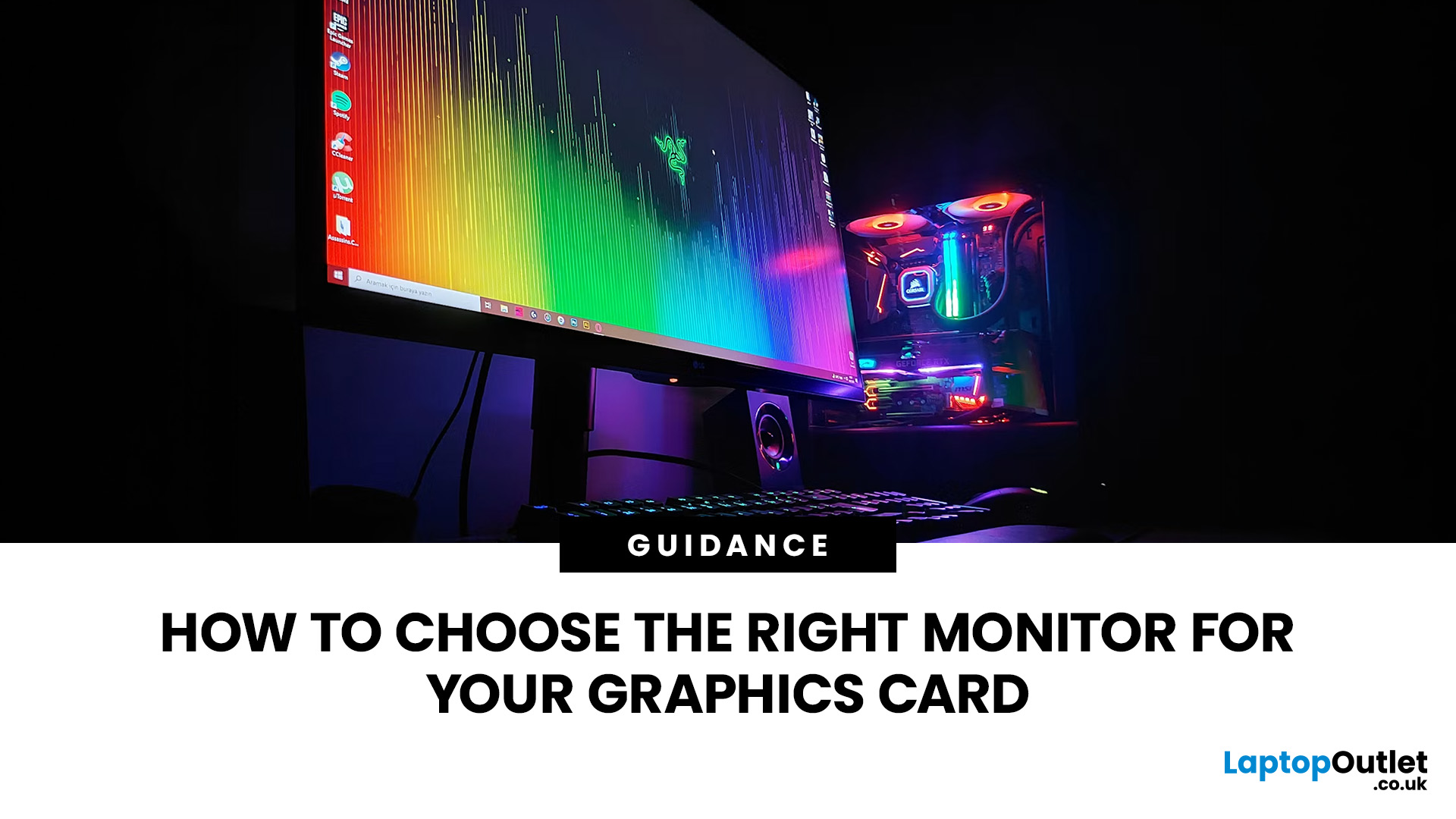
Choosing a monitor is not simply a case of buying the highest resolution or fastest refresh rate you can afford. Your graphics card has to render the resolution, generate enough frames to benefit from the screen’s refresh rate and support the connection needed to carry that signal.
Get those factors right and you can enjoy sharper images, smoother motion and better use of the hardware you already own. Here is how to choose the right monitor for gaming, creative work and everyday use without paying for display performance your PC cannot use.
Quick Answer: How Do You Choose the Right Monitor?
Start with your GPU’s real performance at the resolution you want. Match the monitor’s native resolution and refresh rate to the frame rates your graphics card can realistically deliver, then check variable refresh rate support and display connections. After that, compare panel type, screen size, HDR and other features based on how you use the PC.
For most buyers, resolution should come first, refresh
Published: September 22, 2026
Last Updated: October 15, 2026
Published: October 19, 2026
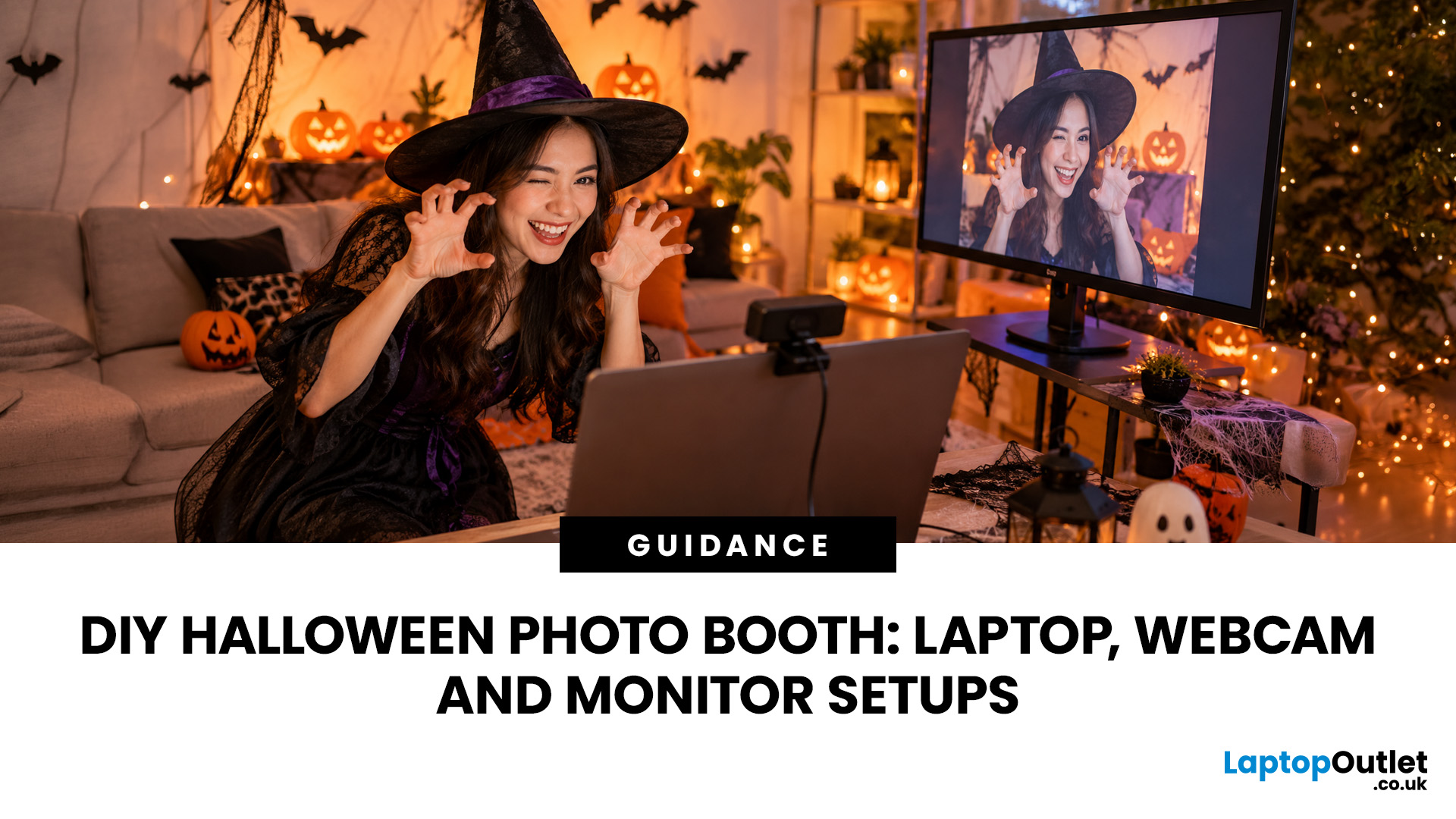
A spooky photo booth gives guests somewhere to show off costumes, try ridiculous poses and leave with photos from the night. Better still, you do not need professional photography equipment to build one.
A laptop, webcam, screen, a little lighting, and a suitably creepy backdrop can turn a spare corner into a working DIY Halloween photo booth. You can keep things simple with your laptop's built-in camera or create a more polished setup using an external webcam and separate monitor. Here is how to put everything together without turning your party into an IT project.
What Do You Need for a Halloween Photo Booth?
The key is making the setup reliable. Guests should be able to walk up, pose and take a picture without adjusting cables or camera settings every time. Start with equipment you may already have:
- Laptop or desktop computer
- Built-in or USB webcam
- Monitor or portable display
- Tripod, webcam mount or stable surface
- LED lamp, ring light or another soft light source
- Halloween backdrop
- Props
Published: October 20, 2026
Michael Myers is back, and this time, he's coming for your gaming setup!
Halloween: The Game brings the terror of Haddonfield to PCs and consoles. With eerie neighbourhoods, unsettling shadows, and a relentless masked killer, every second could mean the difference between escaping and becoming Michael's next victim.
But before you enter the nightmare, there's one thing to check: can your PC or laptop handle it?
We've broken down the official Halloween the game PC requirements, recommended hardware, graphics settings, and practical performance fixes. Whether you're playing on a desktop or gaming laptop, here's how to prepare your system for a night of scares.
Halloween: The Game: What is it About?
Developed by IllFonic, Halloween: The Game is an asymmetrical survival horror experience inspired by John Carpenter's original 1978 film. The game takes you back to Haddonfield, where the seemingly peaceful streets have become Michael Myers' hunting ground.
In its 1v4 multiplayer mode, one player
Last Updated: October 21, 2026
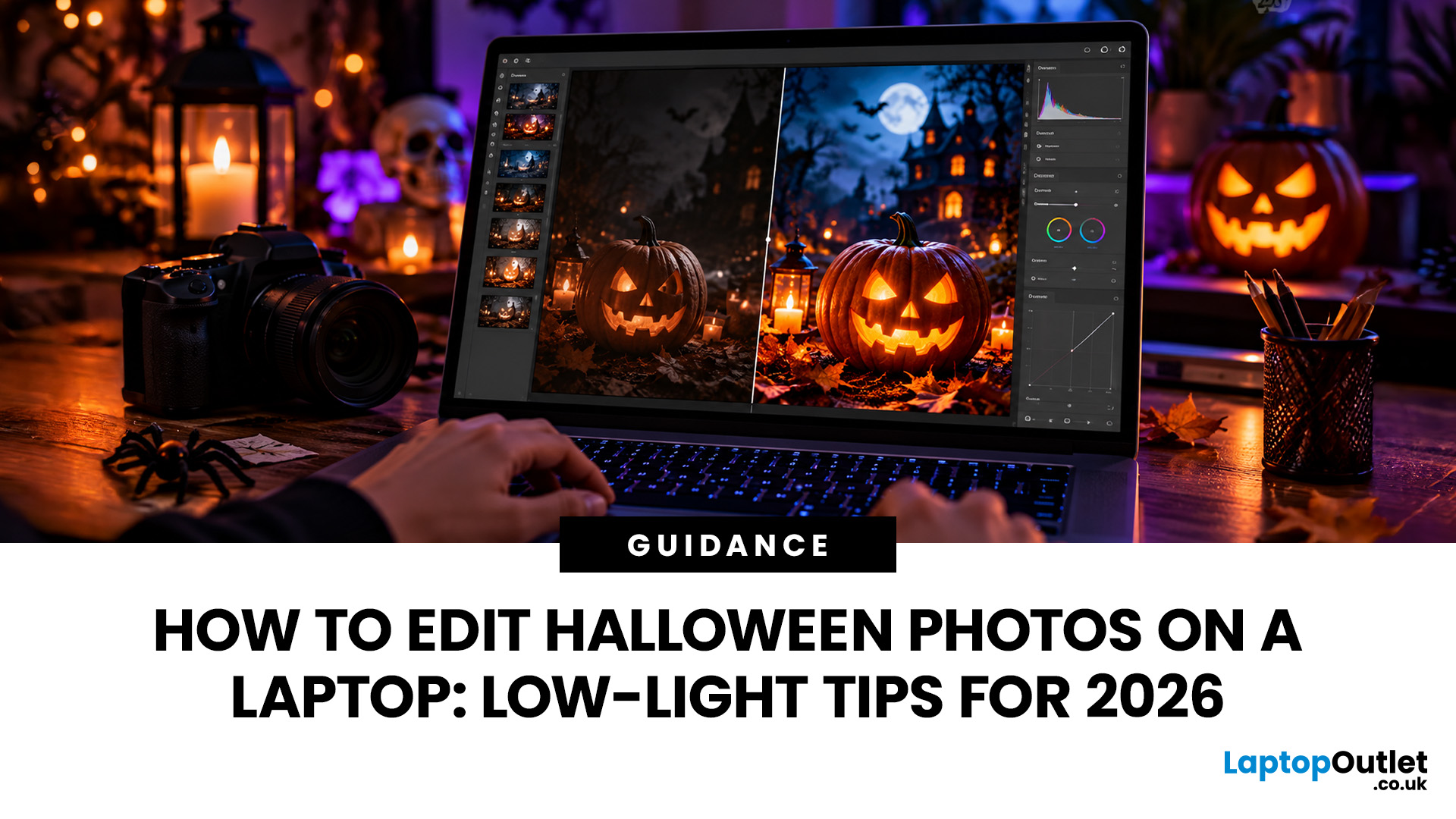
Halloween photographs can be tricky to get right. Glowing pumpkins look brilliant in person, but appear washed out on camera. Costumes lose their detail in dark rooms, while party pictures often turn out grainy or blurry.
Fortunately, you don't need professional photography skills to improve them.
With the right Halloween photo editing techniques, you can brighten dark pictures, reduce unwanted noise and create an eerie atmosphere without ruining the original shot.
This guide explains how to edit low-light photos on your laptop, including practical Lightroom and Photoshop methods, free editing tools and creative effects for Halloween 2026.
Why Do Halloween Photos Look Dark, Grainy or Blurry?
Halloween photographs are often captured in difficult lighting conditions, including candlelit rooms, dark gardens, colourful LEDs and evening parties.
Three common problems affect the results:
- Underexposure: Insufficient light makes faces, costumes and decorations difficult to see.
- Image noise: High
Published: October 21, 2026

