



How to Mirror or Cast Your Screen to a TV: Complete Guide
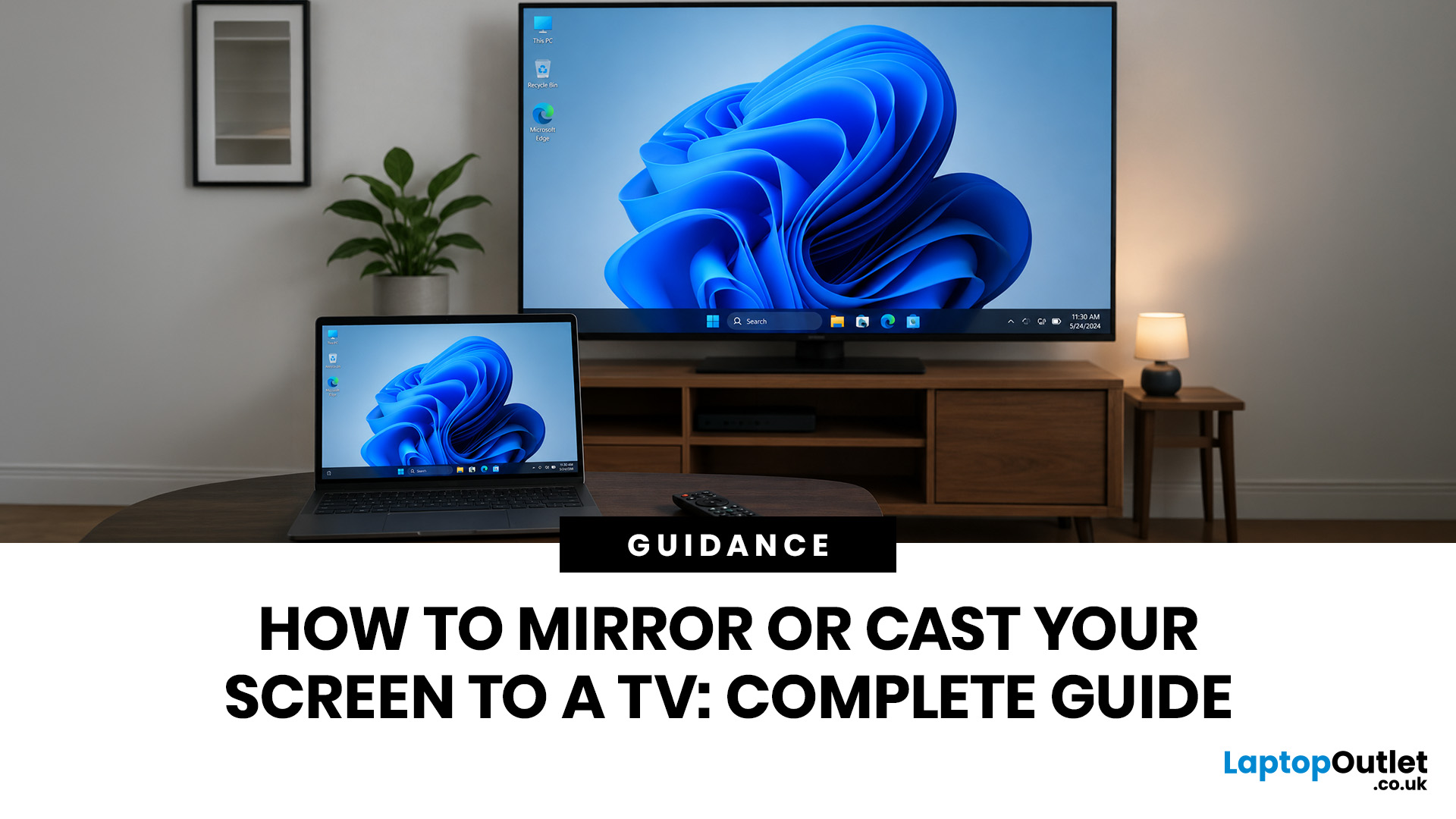
To mirror or cast your screen to a TV, ensure both your device and TV are connected to the same Wi-Fi network. Then, simply use your device's built-in Screen Mirroring or Cast feature (such as AirPlay, Smart View, or Google Cast) and select your TV from the list. For a more stable setup, connect with HDMI, USB-C to HDMI or Lightning to HDMI, depending on your device.
Screen mirroring to TV helps you show a phone, laptop or tablet on a bigger display without handing your device around the room. It is useful for films, photos, work calls, lessons, browsing, gaming and quick family sharing. This guide explains wireless and wired methods for iPhone, iPad, Android, Windows, MacBook and older TVs.
The Best Method by Device: A Quick Glance
The right method depends on your device, TV software and whether you want to show one app or your entire screen. Use this table first.
|
Device or setup |
Best wireless method |
Best wired method |
Good for |
|---|---|---|---|
|
iPhone or iPad |
AirPlay to TV |
Lightning or USB-C to HDMI |
Photos, web pages, video apps, presentations |
|
Android phone or tablet |
Google Cast, Smart View or Miracast |
USB-C to HDMI, if supported |
Apps, documents, family media, lessons |
|
Windows 11 laptop or tablet |
Wireless Display with Miracast |
HDMI or USB-C to HDMI |
Work, browser tabs, slides, second screen use |
|
MacBook or iMac |
AirPlay |
USB-C, Thunderbolt or HDMI adapter |
Creative work, films, web video, extending displays |
|
Older non-smart TV |
Chromecast, Roku or Fire TV device |
HDMI adapter or cable |
Upgrading an older display without replacing it |
Use casting when the app supports it and you want your phone free for other tasks. Use mirroring when everyone needs to see the exact same screen.
A modern smart TV makes the process simpler, but you can still upgrade older TVs with a streaming stick or HDMI adapter.
Screen Mirroring Vs Casting: What Is the Difference?
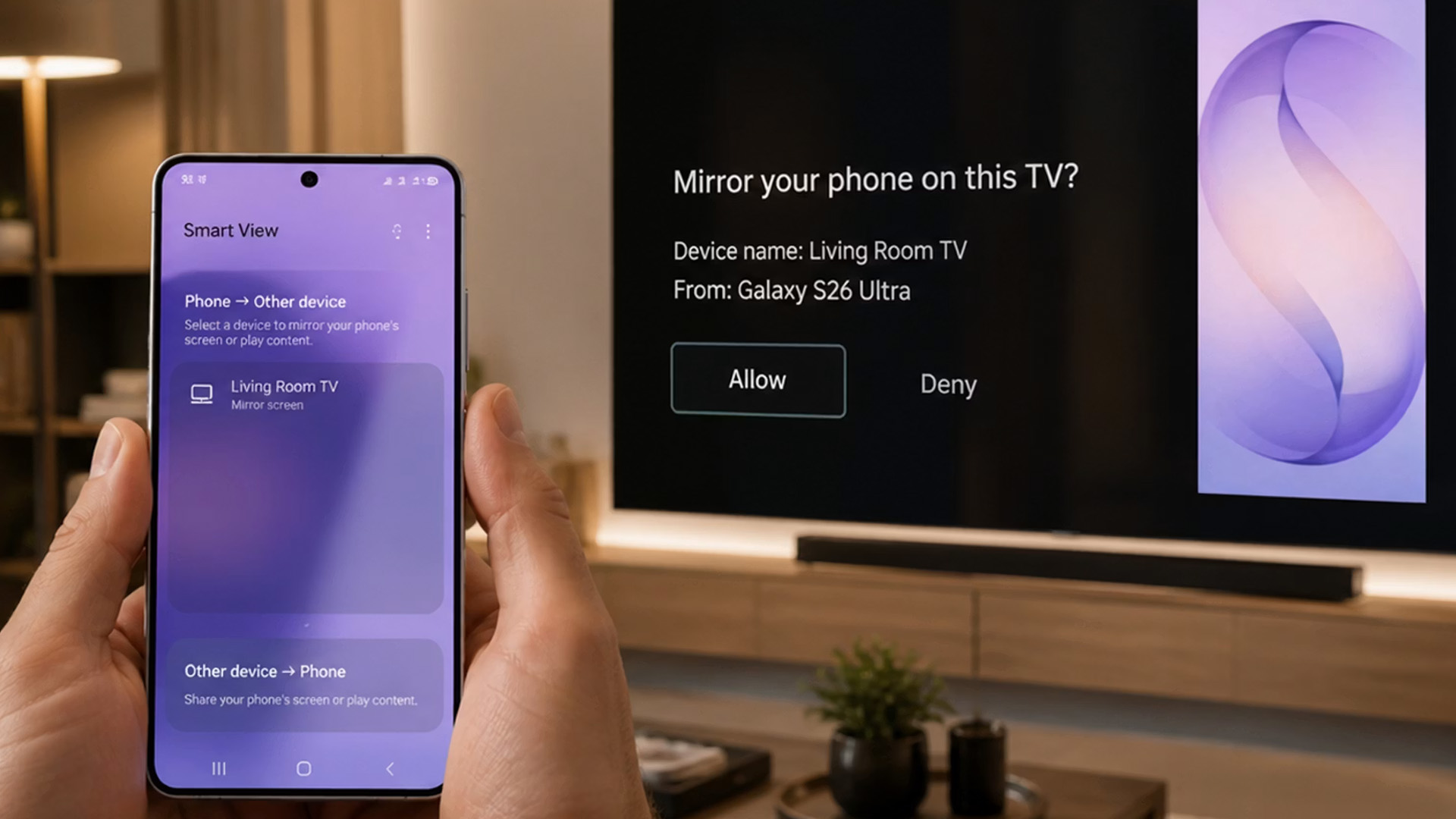
People often use these terms together, but they behave differently. Understanding the difference helps you avoid lag, blank screens, interrupted playback and confusion at home.
What Is Screen Mirroring?
Screen mirroring shows everything from your device on the TV. That includes the home screen, menus, browser tabs, notifications and any app you open.
This is the best choice for screen sharing in meetings, showing documents, browsing websites or guiding someone through a setting. It is also useful when an app does not have a Cast button.
The downside is privacy. If a message pops up on your phone, it can appear on the TV as well.
What Is Casting?
Casting sends content from a supported app to the TV. Your phone or tablet becomes a controller, while the TV or streaming device handles playback.
This is usually smoother for YouTube, Netflix, BBC iPlayer, Spotify and many subscription apps. You can often lock your phone or use it for something else without stopping playback.
Some apps restrict casting or mirroring because of licensing or content protection. If one app fails but others work, the problem may be the app rather than your TV.
Before You Start: Compatibility, Wi-Fi and Privacy Checks
A few checks solve most connection problems before they happen. Confirm support, update apps and use a private home network before you begin at home.
Check Device Compatibility
Before you try screen mirroring to TV, check three things:
- Your TV supports AirPlay, Google Cast, Miracast, Smart View, Wi-Fi Direct or another mirroring feature.
- Your phone, tablet or laptop is updated.
- Both devices can connect to the same home Wi-Fi network.
- Your TV input is set correctly if you are using a cable.
- Any streaming stick is powered from the mains if the TV USB port is not strong enough.
- Your work or school device does not block wireless display features.
Some hotel, office, student accommodation and public Wi-Fi networks use client isolation. That can stop devices from finding each other, even when both appear connected.
Check Privacy Before Mirroring
Close private tabs, banking apps, WhatsApp chats and work files before mirroring. Turn on Do Not Disturb if notifications could be awkward.
For a shared home, clear old allowed devices from your TV or streaming stick. Only approve requests from devices you recognise.
Check The Room Setup
Keep your device, router and TV reasonably close together for wireless screen mirroring. Thick walls, busy 2.4 GHz Wi-Fi and old routers can cause stuttering.
If the TV is mainly for work, gaming or long calls, a cable is less faff. A basic HDMI cable usually costs around £5 to £15 in the UK, while USB-C video adapters often cost around £10 to £35 depending on brand and resolution.
How To Mirror or Cast from an iPhone or iPad
Apple devices usually work best with AirPlay-compatible TVs, Apple TV boxes or Roku devices that support AirPlay. A cable is better for travel and holidays.
Use AirPlay Wirelessly
Use this method to mirror iPhone to TV or stream a video from an app.
- Connect your iPhone or iPad and TV to the same Wi-Fi network.
- Open Control Centre.
- Tap Screen Mirroring.
- Select your Apple TV, AirPlay-compatible smart TV or supported streaming device.
- Enter the passcode shown on the TV if asked.
- To stop, open Control Centre, tap Screen Mirroring, then choose Stop Mirroring.
For video apps, open the app first and tap the AirPlay icon if available. This streams the content without showing your full phone screen.
Some video apps do not support AirPlay. In that case, use the TV app directly, try a different service, or connect by cable if allowed.
Use A Wired iPhone or iPad Connection
A wired setup is helpful when Wi-Fi is weak, blocked or shared with too many devices.
Use these options:
- iPhone 15 or newer: USB-C to HDMI adapter or USB-C Digital AV adapter.
- Recent iPad with USB-C: USB-C to HDMI adapter.
- Older iPhone or iPad: Lightning Digital AV Adapter plus HDMI cable.
Official Apple adapters cost more than many third-party options. For example, Apple’s USB-C Digital AV Multiport Adapter is listed at £69 in the UK, so check whether you need charging and USB ports before paying extra.
If your video shows but sound does not, check the TV audio output and the app volume. Also make sure the HDMI cable is fully seated.
You can compare compatible mobile phones if your current handset lacks the ports, software support or battery life you need for regular casting.
How To Mirror or Cast from Android Phones and Tablets
Android phones and tablet PCs can usually mirror or cast to a TV through Google Cast, Smart View, Screen Cast or Wireless Display, depending on the brand and TV model.
Use Google Cast from Apps
To cast phone to TV from a supported app:
- Connect your Android device and TV or Chromecast device to the same Wi-Fi network.
- Open a Google Cast-enabled app.
- Tap the Cast icon.
- Choose your TV, Google TV Streamer or Chromecast device.
- Control playback from the phone.
- Tap the Cast icon again to disconnect.
This method is ideal for streaming apps because the TV plays the content directly. It is usually better than full mirroring for battery life and playback quality.
Use Built-In Android Mirroring
For Android screen mirroring, swipe down from the top of your screen and look for Cast, Screen Cast, Smart View, Wireless Display or a similar tile.
Tap it, choose your TV and approve the connection on the TV. Rotate your phone to landscape for photos, videos and slides.
If your TV does not appear, check both devices are on the same Wi-Fi name. Also disable VPNs temporarily because they can stop local device discovery.
Use Samsung Smart View or SmartThings
Samsung phones and tablets often use Smart View for mirroring to Samsung TVs. Newer Samsung setups may also use SmartThings to find and manage the TV.
Connect both devices to the same Wi-Fi, open Smart View from Quick Settings, then choose the TV. Approve the prompt on the TV when asked.
Samsung TVs made from recent years may support multiple options, including SmartThings, AirPlay on selected models, built-in casting and HDMI adapters. That flexibility is handy if one route fails.
How To Mirror or Cast from a Windows Laptop or Tablet
Windows gives you two strong options: Wireless Display for compatible TVs and HDMI for the most stable connection. Choose based on reliability and fewer surprises.
Use Wireless Display on Windows 11
To cast laptops and tablets to TV on Windows 11:
- Turn on the TV and enable Screen Mirroring, Wireless Display or Miracast mode if required.
- On your keyboard, press Windows key + K.
- Choose your TV or wireless display from the list.
- Accept the prompt on your TV.
- Press Windows key + P to choose Duplicate, Extend or Second screen only.
Duplicate mirrors your laptop exactly. Extend turns your TV into a second display, which is useful for spreadsheets, editing, research and multitasking.
If your TV does not appear, update Wi-Fi and graphics drivers. Some older laptops do not support Miracast, even if they run Windows 11.
Use HDMI from Windows
For the least lag, connect an HDMI cable to TV and laptop. If the laptop has USB-C only, use a USB-C to HDMI adapter that supports video output.
Then press Windows key + P and choose:
- Duplicate: show the same thing on both screens.
- Extend: use the TV as extra desktop space.
- Second screen only: use the TV as the main display.
If the picture looks cropped, check the TV aspect ratio, overscan, PC mode or Just Scan setting. For gaming, turn on Game Mode on the TV to reduce input lag.
If you regularly work across bigger screens, browse monitors with HDMI, DisplayPort or USB-C support for a desk-friendly setup.
How To Mirror or Cast from a MacBook Or iMac
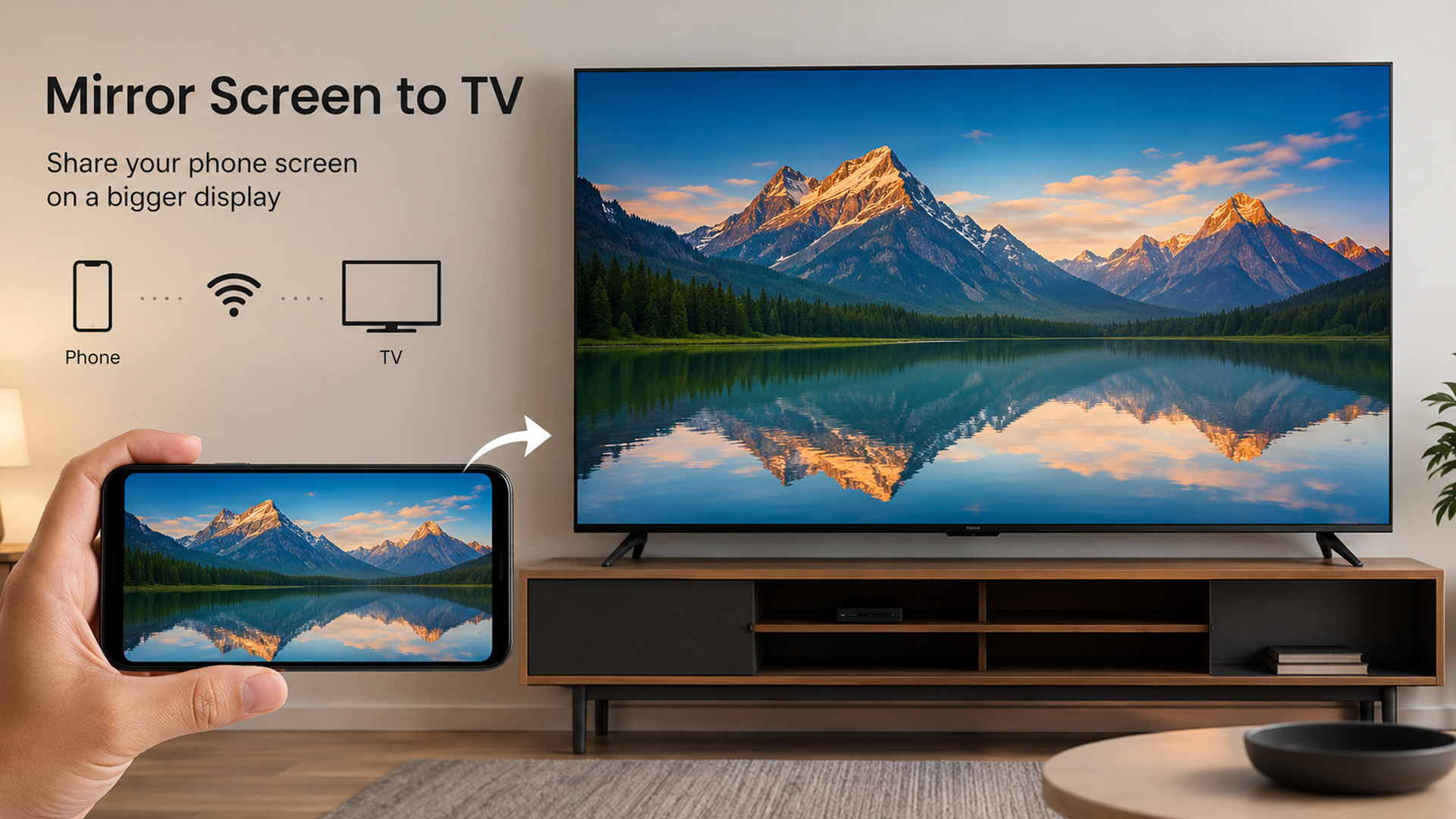
Mac users normally get the neatest wireless results through AirPlay. Wired USB-C, Thunderbolt or HDMI still wins for long sessions, quality or presentations at home.
Use AirPlay from macOS
To mirror from a Mac:
- Connect the Mac and TV or Apple TV to the same Wi-Fi.
- Open Control Centre on the Mac.
- Click Screen Mirroring.
- Select your Apple TV or AirPlay-compatible TV.
- Choose whether to mirror or use the TV as a separate display.
AirPlay is useful for web videos, family photos and presentations. If the image does not fit properly, check display scaling or the TV picture size setting.
Use a Wired Mac Connection
Many recent MacBooks use USB-C or Thunderbolt ports, so you may need an adapter. Some Mac mini and older MacBook models include HDMI.
For sharp results, match the adapter to the TV resolution and refresh rate. A 4K TV may need a 4K 60 Hz capable cable or adapter for smoother motion.
If sound still plays from the Mac, open Sound settings and choose the TV as the output device.
How To Mirror to an Older Non-Smart TV
An older TV can still work well if it has HDMI. A streaming stick or cable can add modern casting without replacing it in minutes.
Use Chromecast or Google TV Streamer
Plug the Chromecast or Google TV Streamer into HDMI, power it from the supplied mains adapter and set it up with the Google Home app.
Once configured, cast from supported apps or use Chromecast screen mirroring from a compatible Android device. Make sure the phone and streaming device use the same Wi-Fi.
Use Roku or Fire TV
Many Roku devices support mirroring from Android and Windows. iPhone, iPad and Mac users should check whether their Roku model supports AirPlay.
Fire TV devices may offer Display Mirroring for compatible phones and tablets. Open the Fire TV display settings, enable mirroring, then select the Fire TV from your mobile device.
Compatibility varies, so check your exact model. Do not rely on dodgy casting apps promising premium content, as they can create security and legal problems.
Use a Cable Instead
If your older TV has HDMI, a cable is usually the simplest option. Use HDMI from a laptop, or the correct phone or tablet adapter.
If your TV is very old and only has VGA or composite inputs, results may be poor. In that case, upgrading to a used or budget smart TV may be easier than stacking adapters.
Wired Vs Wireless: Which One Should You Choose?
Wireless is convenient for everyday sharing, while wired connections are better for stability, gaming and blocked networks. Choose based on the task and your room.
|
USE CASE |
BEST CHOICE |
WHY |
|
Watching YouTube or catch-up TV |
Casting |
Smooth app playback and easy phone controls |
|
Showing private work documents |
Wired HDMI |
Fewer network issues and less chance of wrong-device sharing |
|
Gaming |
HDMI |
Lower input lag than most wireless mirroring |
|
Family photos |
AirPlay or mirroring |
Easy full-screen sharing from a phone or tablet |
|
Hotel or public Wi-Fi |
HDMI |
Public networks often block device discovery |
|
Presentations |
HDMI or Wireless Display |
HDMI is safer, Wireless Display is tidier |
|
Using TV as a second screen |
HDMI, AirPlay or Windows Extend |
Lets you separate laptop and TV content |
Choose wired if performance matters. Choose wireless if convenience matters and the Wi-Fi is reliable.
For most homes, it is worth keeping a spare HDMI cable and a compact adapter in a drawer. They solve problems when wireless pairing plays up.
Troubleshooting: What To Do When Screen Mirroring Does Not Work
Most failures come from network discovery, permissions, outdated apps or unsupported content. Work through these checks before buying anything new or wasting money at home.
The TV Does Not Show in the Device List
Try these fixes:
- Make sure both devices use the same Wi-Fi name.
- Turn off mobile data temporarily on phones.
- Restart the TV, phone, laptop and router.
- Disable VPN or private relay features briefly.
- Update the TV firmware and mobile app.
- Turn on AirPlay, Cast, Smart View or Miracast in TV settings.
- Move closer to the router.
- Check that guest Wi-Fi is not being used.
- Rename the TV so it is easier to identify.
If you are on student halls, office Wi-Fi or hotel Wi-Fi, the network may block local discovery. Use HDMI instead.
The Picture Lags, Stutters or Looks Soft
Move the device closer to the router and TV. If possible, use 5 GHz Wi-Fi for short distances and 2.4 GHz for longer range.
Close background apps, stop downloads and pause cloud backups. Lower the video resolution if the app allows it.
For gaming, use HDMI. Wireless mirroring often adds delay, which can make games feel off.
The TV Shows a Black Screen
A black screen can mean the app blocks mirroring for protected video. Try the TV’s native app, official streaming stick app or another legal playback method.
If using HDMI, try another cable or HDMI port. Check that the adapter supports video, not just charging or data.
For Windows, press Windows key + P and choose Duplicate or Extend again. For Mac, check Display settings and reconnect the cable.
There Is No Sound
Check the TV volume, app volume and mute controls. On Windows or macOS, choose the TV as the audio output.
With HDMI, audio should usually travel through the same cable. If not, reconnect the cable after both devices are switched on.
The Connection Keeps Dropping
Restart both devices and forget old connections. Keep the phone awake during setup and avoid switching between Wi-Fi networks.
If your router has separate 2.4 GHz and 5 GHz network names, put both devices on the same one. This small fix often saves a lot of hassle.
Security, Quality and Buying Tips For 2026
Screen mirroring is simple when the kit is compatible, but small buying decisions matter. Ports, standards and adapter quality affect daily reliability in real homes.
Buy For the Devices You Actually Use
Check which ecosystem you use most:
- Mostly iPhone, iPad and Mac: look for AirPlay support.
- Mostly Android and Chrome: look for Google Cast support.
- Mostly Windows: look for Miracast or reliable HDMI.
- Mixed household: choose a TV with several casting standards.
If your current setup is old, focus on ports first. HDMI is still the easiest universal fallback for laptops, streaming sticks and games consoles.
Choose The Right Adapter
Not every USB-C port outputs video. Check your device specs for DisplayPort Alt Mode, Thunderbolt or video output before buying an adapter.
For 4K TVs, choose an adapter and cable that support the resolution and refresh rate you want. Many cheaper adapters are fine for 1080p, but not ideal for smooth 4K.
Be Careful with Public and Shared Networks
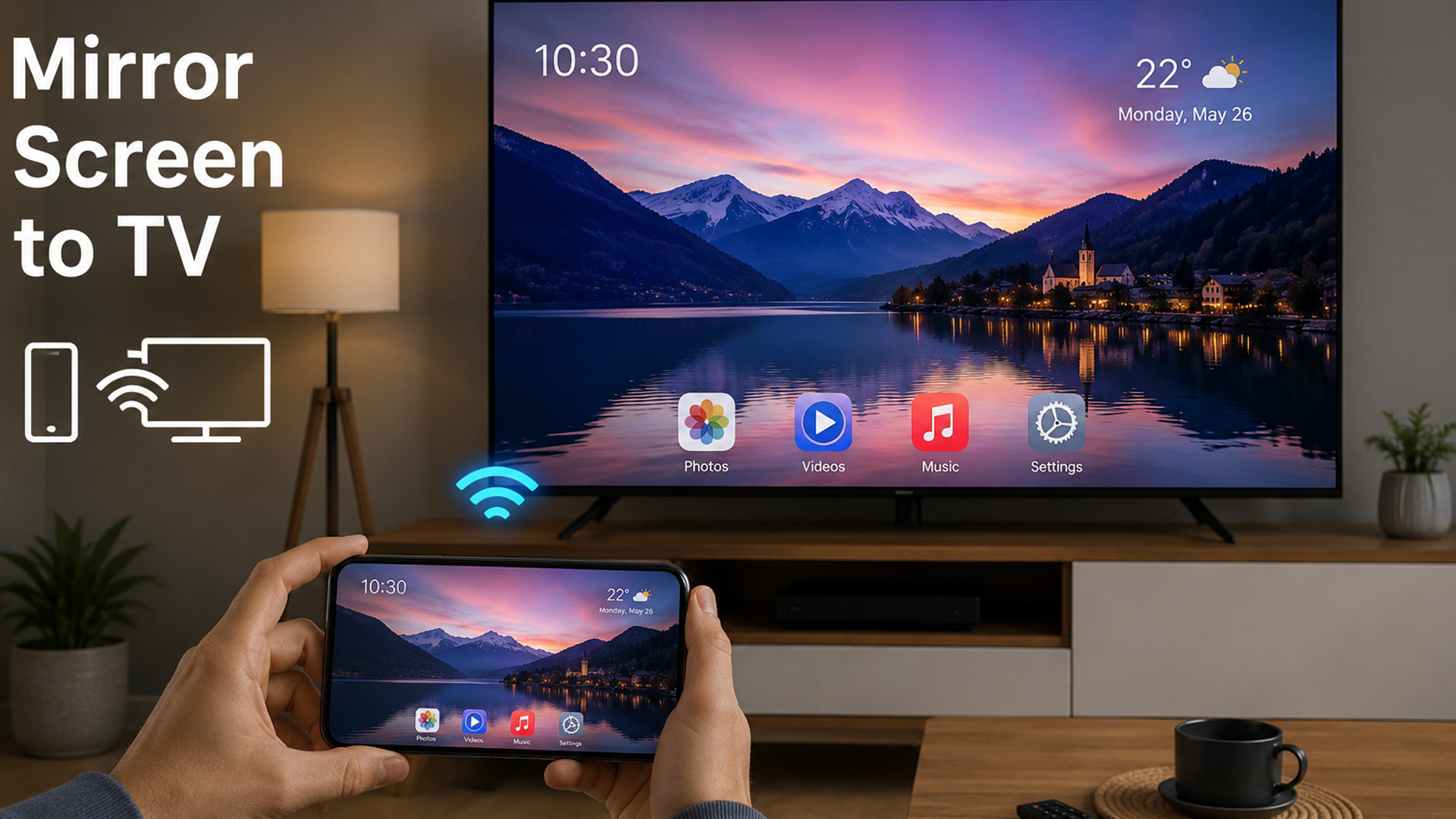
Avoid mirroring sensitive work, medical, banking or school information on public screens. Use a cable where privacy matters.
When guests use your TV, choose Allow once rather than Always allow. Remove old devices from the allowed list when people move out or sell a phone.
Do Not Ignore App Restrictions
Some streaming services are changing how they support casting. If a Cast button disappears, check the app’s help page and use the TV app directly.
This is not always a fault with your phone, TV or Wi-Fi. App owners can limit casting, AirPlay or mirroring for rights, security or product reasons.

Screen Mirroring to TV Made Simple
Screen mirroring to TV is an easy way to show your phone, tablet or laptop on a bigger screen. For everyday streaming, use AirPlay, Google Cast, Smart View or your TV’s built-in casting option. For gaming, work meetings or weak Wi-Fi, use an HDMI cable because it is usually more stable.
Always check both devices are on the same Wi-Fi, keep apps updated, and close private tabs before mirroring. If wireless sharing fails, restart your devices or switch to a cable. With the right method, casting becomes simple, secure and reliable for home, work and family use every day too.

A Few Things to Clear Up
What is the easiest way to mirror a screen to a TV?
The easiest method is built-in casting or AirPlay on the same Wi-Fi. Use HDMI if wireless pairing is unreliable or unavailable.
Can I mirror my phone to a TV without Wi-Fi?
Yes, use a compatible USB-C to HDMI, Lightning to HDMI or MHL adapter. Some Miracast devices also work directly without internet access.
Why can I cast but not mirror?
Casting depends on app support, while mirroring depends on device and TV compatibility. Your app may cast even when full-screen mirroring is unsupported.
Does screen mirroring use Bluetooth?
No, most screen mirroring uses Wi-Fi, Wi-Fi Direct, AirPlay, Google Cast or Miracast. Bluetooth is usually for remotes, audio and pairing.
Can I cast from a laptop to any TV?
Only if the TV supports the right wireless standard or has a streaming device. Otherwise, use HDMI from the laptop to the TV.
Is HDMI better than wireless mirroring?
HDMI is usually steadier for gaming, work and video calls. Wireless mirroring is more convenient, but Wi-Fi congestion can cause lag.
Why is there a black screen when casting Netflix?
Some services block mirroring or limit casting because of content protection. Use the official TV app, updated mobile app or HDMI where permitted.
| Read More: |
| Do USB to Ethernet Adapters Work? Everything You Need to Know |
| Bluetooth Not Connecting on Laptop? Here’s How to Fix It |
| Choosing the Right Display Cable: HDMI vs DisplayPort vs VGA vs USB-C |
Related Articles


Last Updated: May 25, 2026
Choosing the right tablet starts with understanding its screen size, yet many buyers misunderstand what tablet screen size actually means. If you’ve ever wondered how to measure tablet screen size properly, you’re not alone. Whether you’re comparing 7 inch tablets, 8 inch tablets, or larger 10, 11, and 12 inch tablets, knowing how screen sizes are measured will help you make a confident buying decision.
In this comprehensive UK guide, we’ll explain exactly how tablet screen size is measured, what the numbers really represent, how to measure your own tablet at home, and how different tablet sizes compare in real-world use. By the end, you’ll be able to choose the right tablet size for your needs, without confusion.
What Does Tablet Screen Size Actually Mean?
Tablet screen size refers to the diagonal measurement of the display, taken from one corner of the screen to the opposite corner. This measurement is always expressed in inches, which is why you’ll see categories such as 7 inch tablets,

Last Updated: January 21, 2026
Let’s be honest - most of us don’t work (or study, or relax) in just one way anymore. One minute you’re typing notes, the next you’re scrolling, watching something, sketching ideas, or replying to emails from the sofa.
That’s exactly why convertible tablets exist.
Also called 2-in-1 laptops, laptop tablets, or the very literal notebook two-in-one, these devices are designed to adapt to how you use tech throughout the day - not force you into one setup.
But choosing the right 2 in 1 laptop convertible isn’t always straightforward. Some lean more laptop. Some feel more like tablets. And some just… try to do everything and don’t quite nail it.
This guide breaks it all down in a way that actually makes sense.
What Is a Convertible Tablet (And Why Do People Buy Them)?
A convertible tablet is a hybrid device that combines:
- A laptop’s power (keyboard, trackpad, desktop software)
- A tablet’s flexibility (touchscreen, pen input, portability)
Most convertible tablets run Windows, which means you’re
Last Updated: February 13, 2026
You press the power button, hear the familiar hum of the fan, and wait for the logo to appear. But this time, nothing happens. Your screen stays as dark as a midnight sky. A laptop screen not working is more than a technical glitch; it feels like your entire digital life has been put on hold.
Before you panic and start looking for a replacement, take a breath. From laptop screen flickering to total blackouts, many display issues are actually software-bound and easily fixed at home. This guide will help you diagnose the problem and find a black laptop screen fix without the expensive repair bill.
Common Laptop Display Issues
Before jumping into repairs, it is helpful to identify exactly what is happening with your screen. Not every "blank" screen is caused by the same fault.

The Black Screen of Death
A laptop display not turning on at all is the most common complaint. You might hear the fans spinning or see the power lights glowing, but the panel remains lifeless.
Screen Flickering or

Published: March 12, 2026
The 2026 edition of the Zenbook Duo is a significant step up from its predecessor. It brings Intel's latest Core Ultra Series 3 processor, a redesigned hinge, brighter OLED panels, and a much larger battery.
But here’s the real question… do you actually need it?
This ASUS Zenbook Duo review breaks it down. You will get the full picture on performance, display quality, battery life, build quality, and most importantly, whether the dual-screen design is worth your money.
Design and Build Quality: Smaller, Stronger, and More Refined
At first glance, the Zenbook Duo looks deceptively ordinary. Closed up, it resembles a slightly chunky premium laptop. Open it, and the picture changes entirely. This section of our ASUS Zenbook Duo review looks at just how well-built this machine really is.
Ceraluminum Chassis
ASUS has built the entire chassis, including the hinge, kickstand, and screen surrounds, from Ceraluminum. This is their proprietary material that is 30% lighter and three times stronger
Published: April 13, 2026
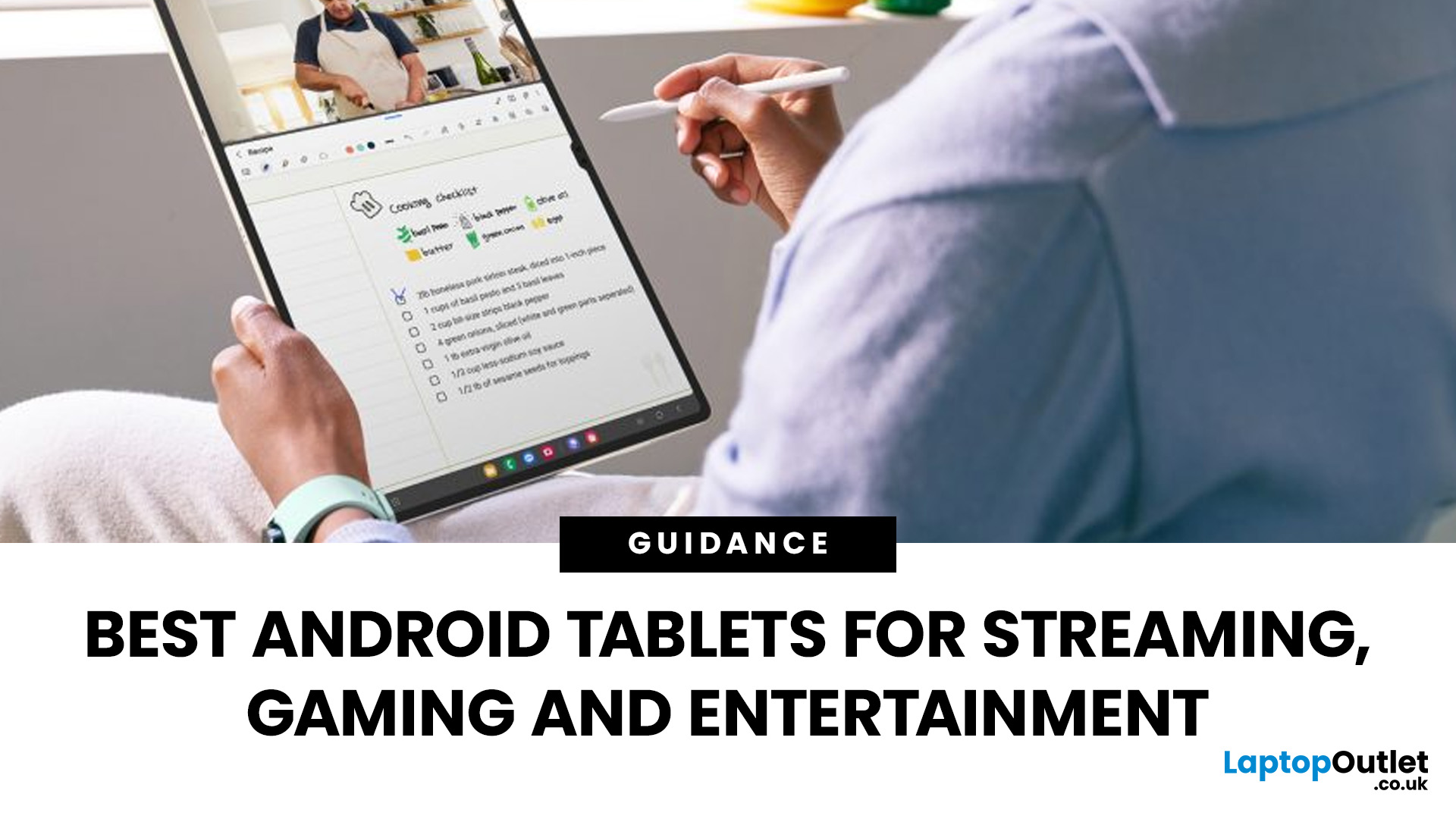
Looking for a tablet that’s built more for watching, playing, and relaxing than working? You’re not alone, Android tablets have quietly become some of the best-value options for streaming and gaming in 2026.
- Big-screen Android tablets are now sharper, louder, and more immersive
- Mid-range processors comfortably handle streaming and casual gaming
- Battery life and audio quality now matter more than raw performance
Streaming, gaming, and genera l entertainment are now the main reasons people pick up tablets again. While flagship devices still exist, most buyers today are leaning toward practical, well-balanced options that deliver strong visuals, solid audio, and long battery life, without pushing into premium pricing.
What actually makes a tablet good for streaming and gaming?
Before jumping into specific models, it helps to understand what separates a good tablet from a great entertainment device.
A strong Android tablet for streaming and gaming isn’t just about specs, it’s about how everything
Last Updated: April 23, 2026
A blue screen of death fix isn't as daunting as it looks. That sudden blue screen and cryptic stop code are Windows' way of flagging a critical system error - and in most cases, it's something you can sort yourself without professional help.
This guide covers every cause, diagnostic method, and practical solution to get your machine running smoothly again.
What Is a Blue Screen of Death?
The blue screen of death (BSOD) is a critical stop error built into Windows. When the operating system encounters a fault it cannot safely recover from, it halts everything, logs the crash, and forces a restart - rather than risking data corruption or further damage. Think of it as a failsafe, not just a fault.
What Does It Look Like?
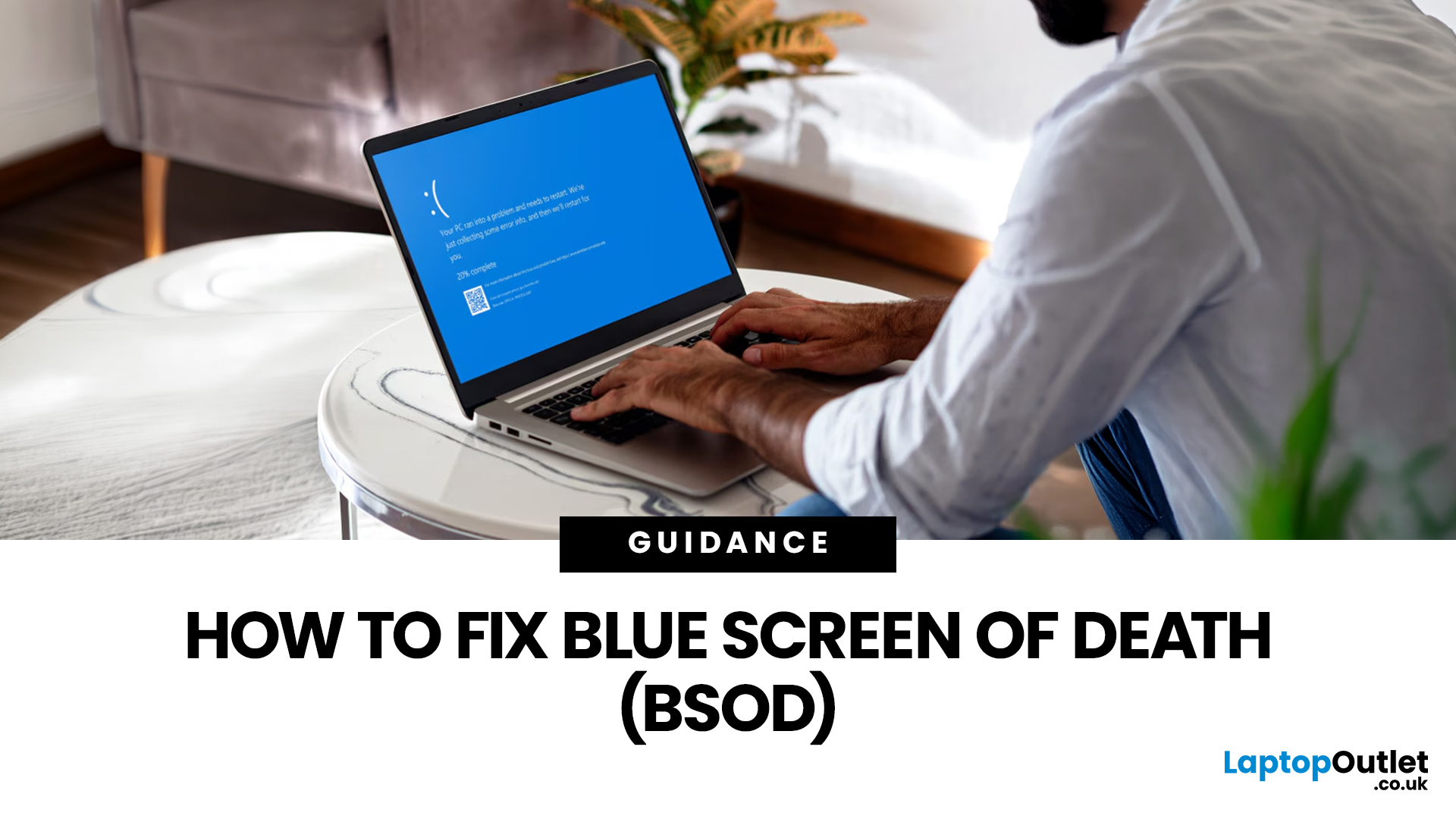
Depending on your version of Windows and the type of crash, a BSOD may show:
- A stop code identifying the error
- A message explaining that Windows ran into a problem
- A progress indicator while diagnostic information is collected
- Sometimes a QR code or additional troubleshooting
Last Updated: May 22, 2026
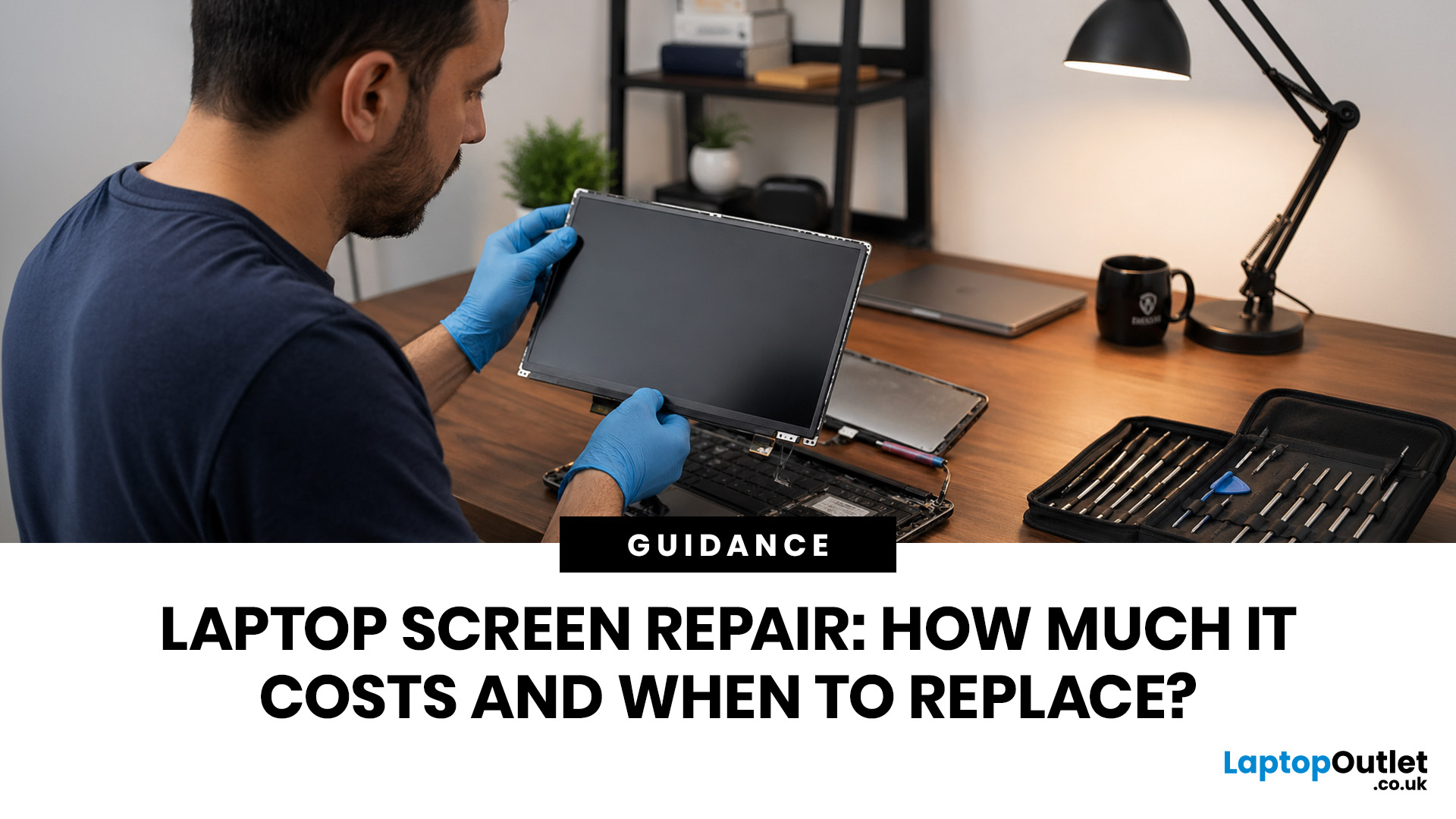
Laptop screen repair cost in the UK usually ranges from £50 to £300 for a standard 15.6-inch screen, depending on the laptop model, screen type, damage level, and labour cost. Basic LCD replacements are usually cheaper, while touchscreen, OLED, gaming laptop, and MacBook screen repairs can cost more. If your laptop is still fast and the repair costs less than half its value, fixing the screen is usually worth it. If the laptop is old, slow, or the repair is close to the price of a replacement, upgrading may be the smarter choice.
So, your laptop screen has cracked, flickered, gone black, or started showing strange lines - and now you are probably wondering one thing:
How much does laptop screen repair cost in the UK, and is it even worth fixing?
The answer depends on your laptop model, screen type, and damage level. A standard laptop screen repair or replacement in the UK usually costs around £50 to £300, while touchscreens, OLED displays, gaming laptops, and MacBooks can cost more.
This
Last Updated: August 20, 2026
Last Updated: June 10, 2026
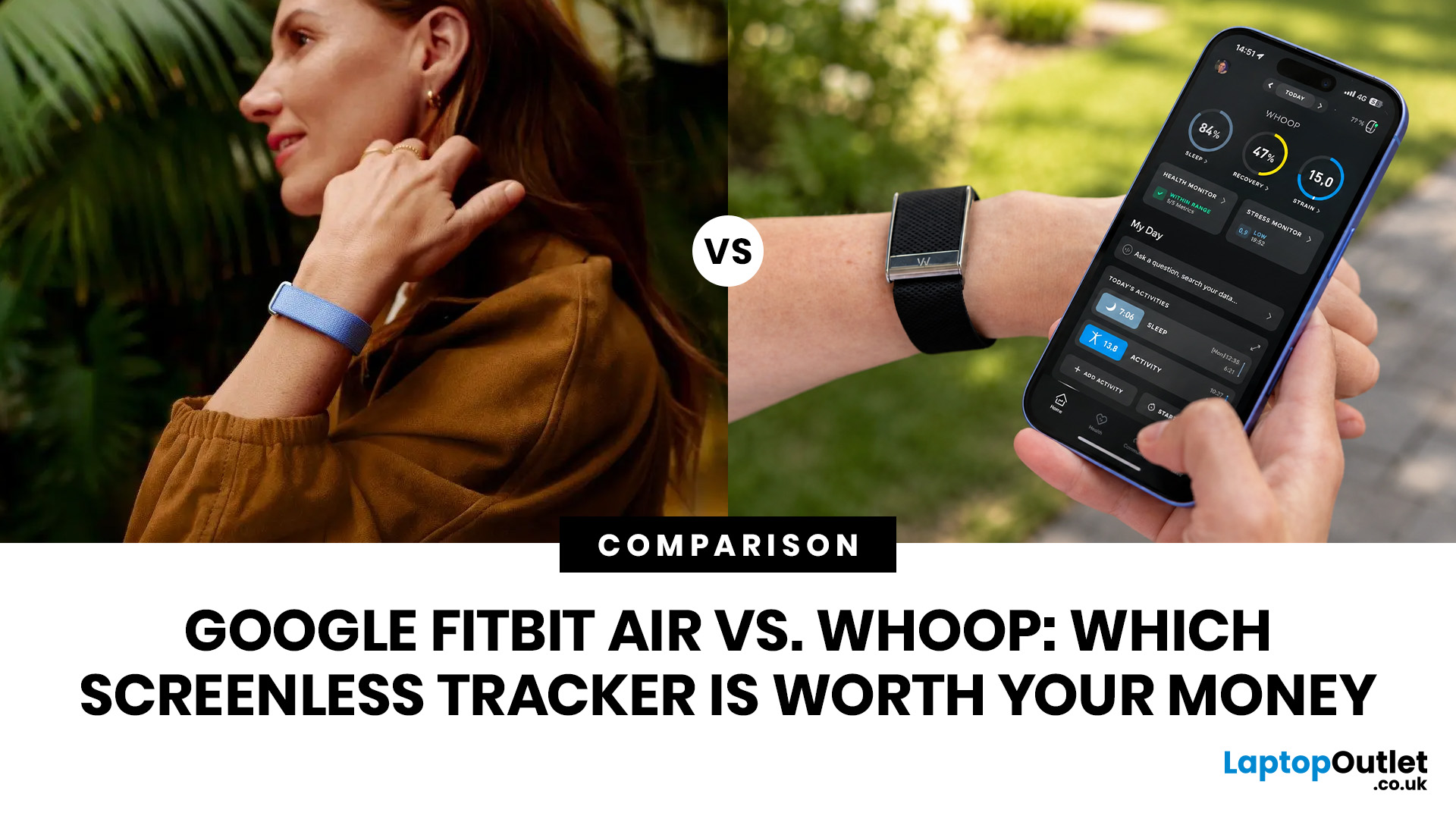
The Google Fitbit Air (£84.99 one-off) suits everyday health tracking without ongoing costs. WHOOP (from £169/year subscription) is designed for serious athletes who need deep recovery tracking and strain analysis. Both are screenless fitness bands, but they serve different users, budgets, and goals. The Fitbit Air vs WHOOP debate ultimately comes down to price model and how deep you want to go with your data.
If you are trying to decide between the two, this guide covers everything to help you make the right decision. Let’s get into it.
What Are the Google Fitbit Air and WHOOP 5.0, and Who Are They For?
Before getting into the detailed WHOOP vs Fitbit Air comparison, it helps to understand what each device is actually trying to do and who it is built for. Both are screenless health tracking wearables, but their philosophies are quite different.
Google Fitbit Air at a Glance
The Fitbit Air is Google's first screenless wearable and the smallest tracker in the current Fitbit lineup. It
Last Updated: June 10, 2026
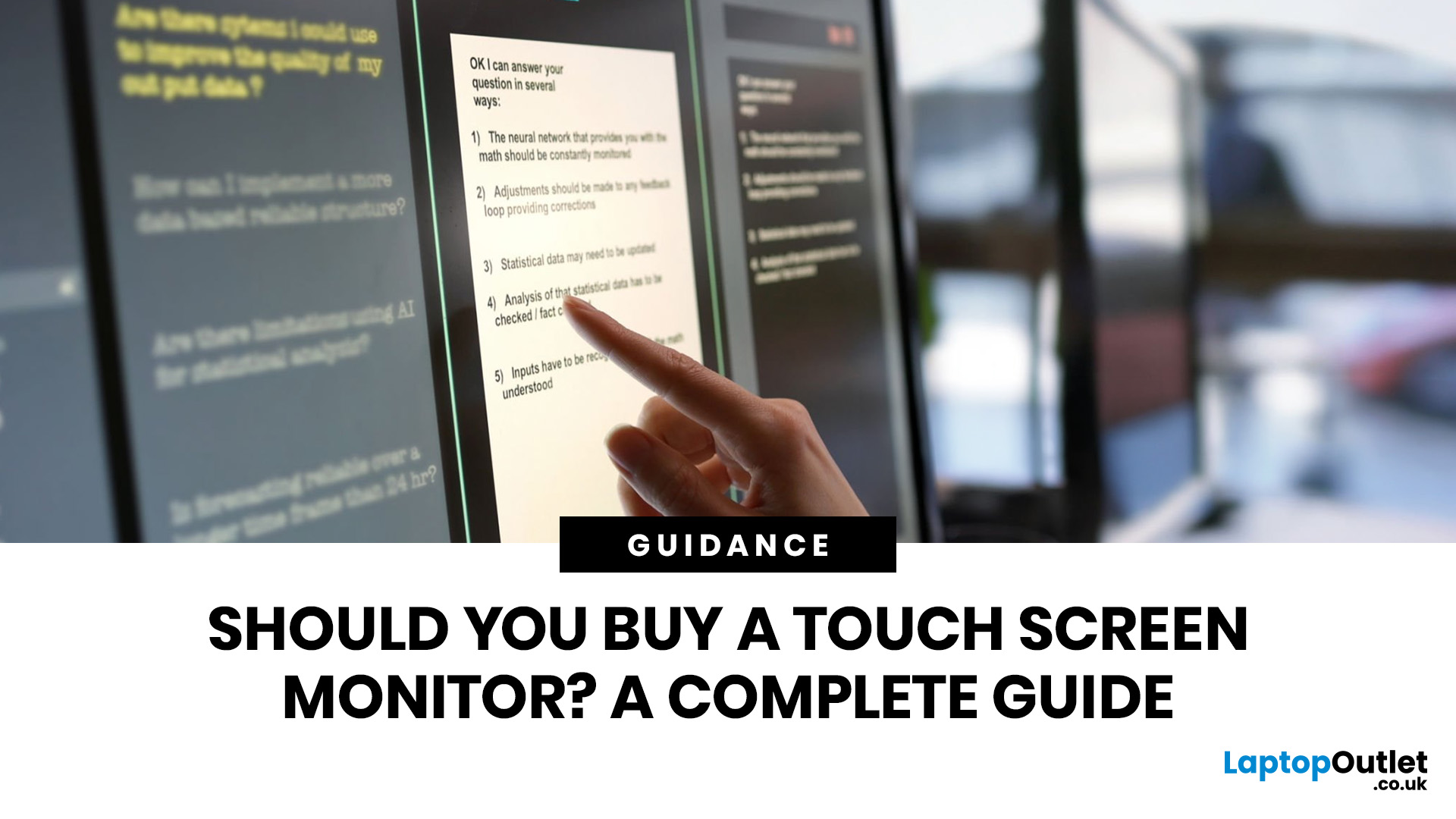
Quick Answer: Yes, touch screen monitors are worth it if you need a more interactive display for work, business, education, presentations, creative tasks or customer-facing setups. They let you tap, swipe, scroll, zoom and sometimes draw directly on the screen, which can feel much more natural than using only a mouse and keyboard.
A touch screen monitor sounds cool. You can tap apps, swipe through pages, pinch to zoom, sign documents, control presentations and interact with your PC like it is a giant tablet. Very futuristic. Very clean setup energy. But before you spend extra, it is worth asking: should I buy a touch screen monitor, or would a standard display do the job better?
The answer depends on how you use your computer. For business, education, creative work and interactive setups, touch can be genuinely useful. For spreadsheets, typing, gaming and everyday browsing, it may be more of a nice bonus than a must-have. This touch screen monitor buying guide breaks down the benefits,

