



How to Edit Halloween Photos on a Laptop: Low-Light Tips for 2026
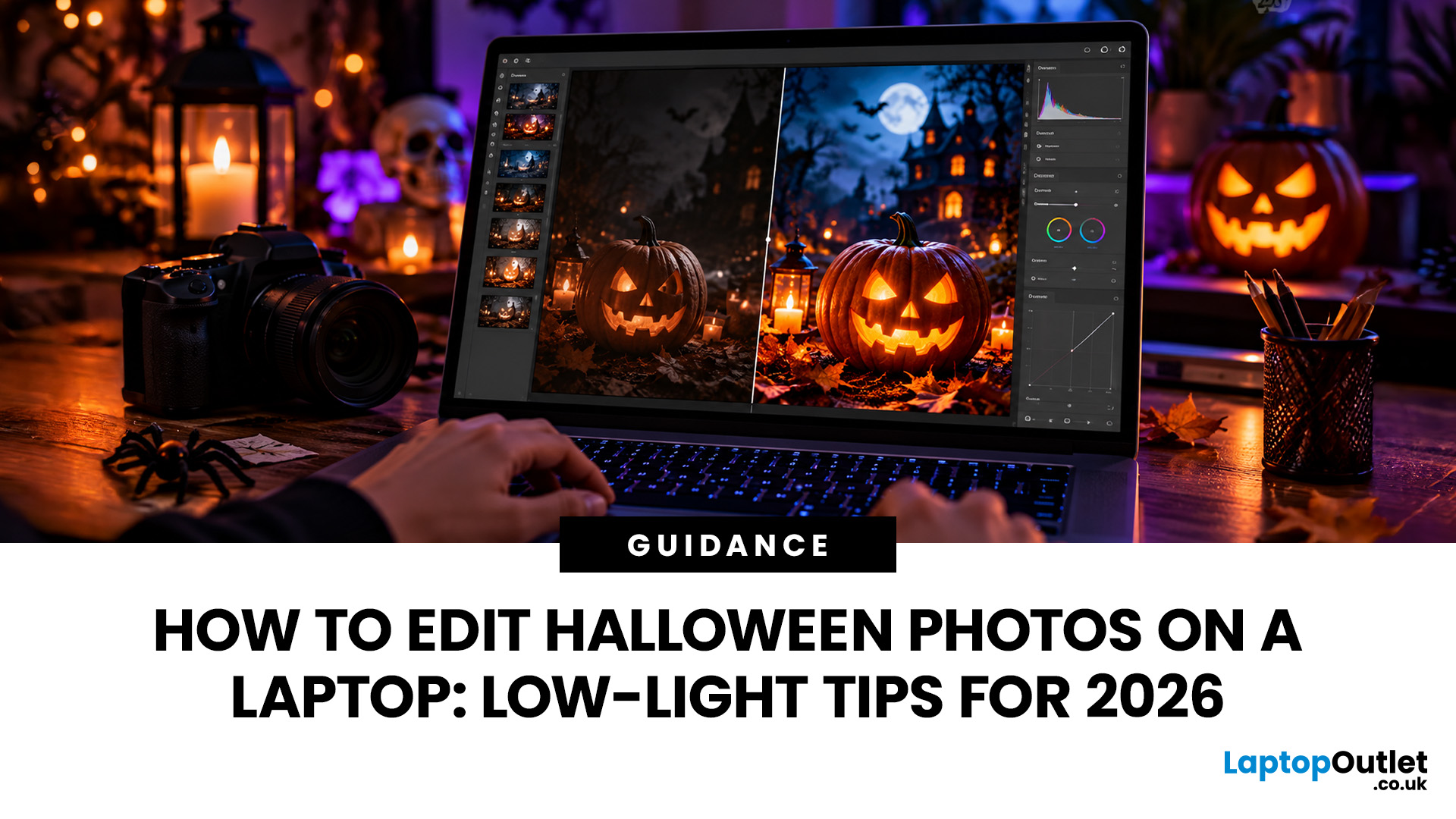
Halloween photographs can be tricky to get right. Glowing pumpkins look brilliant in person, but appear washed out on camera. Costumes lose their detail in dark rooms, while party pictures often turn out grainy or blurry.
Fortunately, you don't need professional photography skills to improve them.
With the right Halloween photo editing techniques, you can brighten dark pictures, reduce unwanted noise and create an eerie atmosphere without ruining the original shot.
This guide explains how to edit low-light photos on your laptop, including practical Lightroom and Photoshop methods, free editing tools and creative effects for Halloween 2026.
Why Do Halloween Photos Look Dark, Grainy or Blurry?
Halloween photographs are often captured in difficult lighting conditions, including candlelit rooms, dark gardens, colourful LEDs and evening parties.
Three common problems affect the results:
- Underexposure: Insufficient light makes faces, costumes and decorations difficult to see.
- Image noise: High ISO settings and brightened shadows can produce grainy textures or coloured speckles.
- Motion blur: Moving subjects or camera shake during exposure can leave details looking smeared.
Mixed lighting creates another challenge. Orange pumpkins, blue LEDs and warm indoor lights can make colours look unnatural.
Understanding these issues is important because each requires a different adjustment. Increasing brightness might reveal hidden details, but it won't automatically remove grain or restore sharpness.
Some information may also be permanently lost in heavily underexposed or severely blurred photographs.
Which Halloween Photo Editing Apps Work Best on a Laptop?
You don't necessarily need expensive software for Halloween photo editing. Several applications offer useful tools for correcting lighting, improving colours and adding seasonal effects.
|
Editing software |
Best for |
Key features |
|
Adobe Lightroom |
Low-light correction |
Exposure, colour grading, masking and noise reduction |
|
Adobe Photoshop |
Advanced editing |
Layers, background replacement, retouching and creative effects |
|
Photopea |
Free browser-based editing |
Layers, masks, filters and colour adjustments |
|
Microsoft Photos |
Quick everyday fixes |
Cropping, brightness adjustments and filters |
Which should you choose?
Lightroom is particularly useful for editing large collections of photographs, while Photoshop offers greater control over individual images and complex effects.
For beginners, Microsoft Photos provides an accessible starting point. Photopea is another option if you want more advanced editing features without installing a large application.
You can also create Halloween photo effects free online using browser-based tools, although available features vary between services.
How to Edit Low-Light Halloween Photos: 6 Essential Steps
The trick to successful Halloween photo editing is improving visibility without removing the darkness that makes the photograph atmospheric.
Before starting, keep an untouched copy of your original image so you can reverse any unwanted changes.
Step 1: Adjust Exposure Without Losing the Halloween Atmosphere
Exposure controls the overall brightness of your photograph.
Open your image in an editing application and locate the Exposure or Brightness adjustment. Increase it gradually until important details become visible.
For example, if you're editing a photograph of someone standing beside a glowing pumpkin, aim to reveal their face without making the background unnecessarily bright.
Avoid increasing exposure too aggressively. This can make dark scenes look flat and reveal additional image noise.
Quick tip: Check the photograph at its intended viewing size. An image that looks slightly dark when enlarged might appear perfectly balanced on a phone screen.
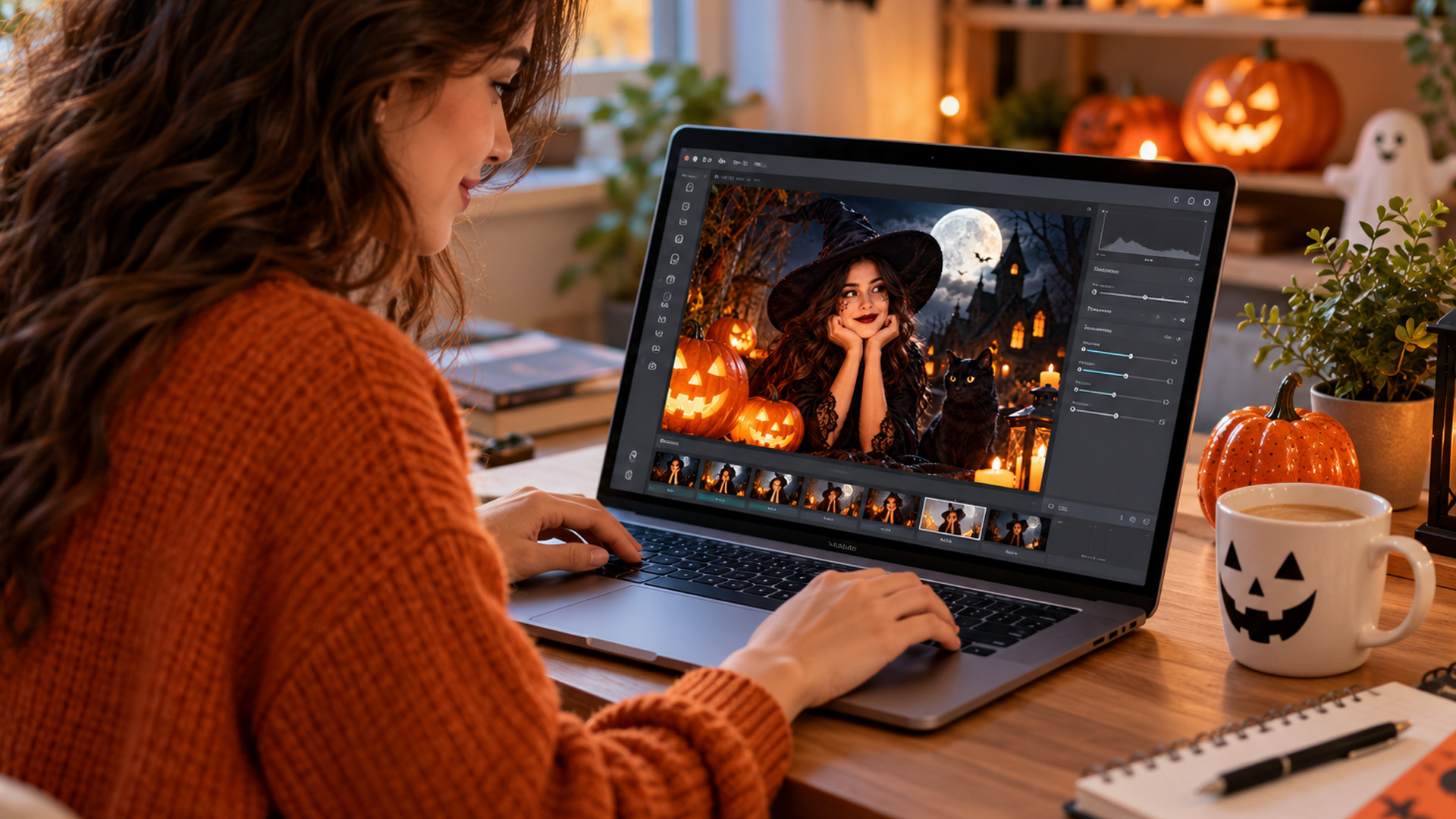
Step 2: Recover Shadow Detail and Control Bright Highlights
Halloween photographs often contain bright decorative lights surrounded by darkness. Increasing overall exposure can make those lights appear excessively bright.
Instead, use the Shadows and Highlights controls separately.
- Increase Shadows to reveal details hidden in dark costumes, faces and decorations.
- Reduce Highlights to control overly bright areas, such as illuminated pumpkins and LED lights.
- Adjust Blacks to retain enough depth and contrast for a naturally dark appearance.
A useful approach is to brighten the subject while keeping the surrounding environment darker.
Remember that completely black areas or clipped highlights may contain no recoverable detail.
Step 3: Correct Colours and White Balance
Halloween lighting rarely produces neutral colours.
Orange fairy lights can make skin appear excessively warm, while blue and green decorations may create unnatural colour casts.
Use the Temperature and Tint controls to correct these issues.
For example, you might slightly cool an overly orange photograph while keeping the pumpkin's warm glow. Alternatively, you could retain purple lighting in the background but correct the colour of someone's face.
Avoid removing every unusual colour. Halloween photography often benefits from dramatic lighting.
Screen quality matters when making these decisions. Photographers frequently favour IPS displays for accurate photo colours , although actual colour accuracy also depends on the panel's colour coverage and calibration.
Step 4: Reduce Grain and Image Noise
Dark photographs often contain visible noise, particularly when captured using high ISO settings.
Most editing applications offer two main types of noise reduction:
- Luminance noise reduction: Helps smooth grainy brightness variations.
- Colour noise reduction: Helps remove unwanted coloured speckles.
Start with moderate adjustments and inspect faces, hair and clothing textures closely.
Excessive noise reduction can make skin appear unnaturally smooth or remove fine costume details.
For supported RAW images, Lightroom also offers AI-powered Denoise. However, standard noise reduction controls remain useful for everyday JPEG photographs.
The goal is a cleaner image, not one that looks completely artificial.
Step 5: Sharpen Important Details and Improve Composition
Once you've controlled image noise, apply a small amount of sharpening to improve visible edges and textures.
Pay particular attention to eyes, costume accessories, carved pumpkin patterns and other important details.
Avoid excessive sharpening, as it can emphasise remaining noise and create unnatural outlines.
Next, crop distracting background objects and straighten the image if necessary. Position your main subject where it naturally draws attention.
When inspecting high-resolution images, detailed 4K displays for photo editing can make fine details easier to examine, although they don't improve the original photograph's resolution.
Remember: Sharpening can improve apparent detail, but it cannot completely correct severe motion blur or missed focus.
Step 6: Use Selective Adjustments to Highlight Your Subject
Sometimes only one part of a Halloween photograph needs brightening.
Rather than changing the entire image, use a masking tool to select the subject.
For example, you could:
- Brighten someone's face while leaving their surroundings dark.
- Increase contrast on a carved pumpkin without affecting the background.
- Add a subtle glow around decorations while keeping nearby shadows intact.
Lightroom and Photoshop offer masking tools for these adjustments.
Keep the transitions soft so the edited areas blend naturally into the photograph.

How to Edit Low-Light Photos in Lightroom and Photoshop
Both applications offer effective low-light correction, but their editing workflows are slightly different.
How to Edit Low-Light Photos in Lightroom
Lightroom is particularly useful when you have several Halloween photographs that need similar lighting and colour corrections.
Follow these steps:
- Import your photograph and open it in the editing workspace.
- Open the Light controls and adjust Exposure, Shadows, Highlights and Contrast.
- Use the Colour controls to correct white balance and refine the image's overall tone.
- Open the Detail controls to apply noise reduction and sharpening.
- Use Masking to brighten faces, decorations or other important subjects independently.
- Export your edited photograph in a suitable format and resolution.
On supported RAW files, Lightroom's AI Denoise can help reduce noise while retaining fine details. This feature is not available for every image format, including ordinary JPEGs.
For a spooky finish, experiment with cooler shadow tones while preserving the warm colours of pumpkins and candles.
How to Edit Low Light Photos in Photoshop
Photoshop offers more flexibility for detailed corrections, background replacements and layered Halloween effects.
Start with these steps:
- Open your photograph and duplicate the original image layer.
- Select Filter > Camera Raw Filter for exposure, shadow and colour adjustments. RAW files may open in Camera Raw directly.
- Use the Detail controls to reduce visible noise and refine sharpness.
- Add adjustment layers or masks to brighten selected areas without changing the entire photograph.
- Use selection tools and layer masks for more advanced effects or background editing.
- Save an editable PSD file before exporting your finished image.
Photoshop is especially helpful when combining multiple images or adding realistic lighting effects.
For frequent RAW editing and complex layered projects, laptops suited to creative projects can help provide the processing power and memory needed for smoother workflows.
How to Add Spooky Halloween Photo Effects Without Overediting
Once you've corrected the lighting, you can experiment with creative effects that make ordinary photographs feel more unsettling.
The secret to convincing scary photo editing is making the effect complement the original lighting.
Create an Eerie Look with a Halloween Photo Filter
A Halloween photo filter can quickly change the atmosphere of a photograph.
Try slightly cooler shadows, reduced saturation or subtle purple and green tones to create a mysterious appearance.
For pumpkin photographs, retain warm orange highlights while introducing cooler colours into the background.
You can also experiment with a gentle vignette to darken the corners and draw attention towards the main subject.
Avoid applying a strong filter to every photograph. Different lighting conditions require different adjustments, and excessive colour grading can make skin tones look unnatural.
Add Fog, Shadows and Ghostly Lighting
Fog and soft lighting effects can make an ordinary garden, hallway or costume portrait appear more mysterious.
In Photoshop or Photopea, you can create these effects using layers.
For example, add a soft grey or white fog overlay, blur it slightly and lower its opacity until it blends into the scene.
You could also introduce a subtle coloured glow around a pumpkin or decoration.
For realistic results, consider where the original light is coming from. Added effects should follow the photograph's existing lighting direction rather than appearing randomly placed.
Transform the Background for a Haunted Atmosphere
Halloween background photo editing can change the appearance of a photograph without altering its main subject.
For example, you might replace an ordinary wall with a dark woodland scene or make a busy background less distracting.
Use a selection tool to isolate the subject, place the new background on a separate layer and refine the mask around hair, clothing and costume accessories.
Match the brightness, colour temperature and sharpness of both images.
A slightly darker background often looks more believable than an elaborate scene filled with unrealistic effects.
What Laptop Features Matter for Halloween Photo Editing?
You don't need a high-end laptop to brighten photographs or apply basic filters. However, demanding editing projects can benefit from stronger hardware.
Display Quality and Colour Accuracy
A good display helps you judge shadow detail, brightness and colour more reliably.
Look for suitable brightness, consistent colour reproduction and adequate screen resolution. An accurate display is particularly useful when editing photographs containing different lighting colours.
If your laptop screen feels too small, reduced-price monitors for photo editing may offer additional workspace. Check the monitor's colour specifications rather than relying on resolution alone.
Processor, RAM and Graphics Performance
Basic cropping, exposure corrections and filters generally work on everyday laptops.
If you're considering an upgrade, Halloween offers on everyday laptops may include suitable options for casual editing, provided they meet your software requirements.
For more demanding tasks:
- Processor: Helps with importing, processing and exporting photographs.
- RAM: 16GB provides useful headroom for multitasking and larger editing projects.
- Graphics processor: Can accelerate supported AI features, GPU-based effects and certain editing operations.
A dedicated graphics card isn't essential for basic photo adjustments, although demanding features may benefit from one.
Storage and File Organisation
RAW photographs, layered Photoshop projects and exported images can occupy considerable storage space.
An SSD helps with loading and saving files, while portable SSDs for storing photos provide additional capacity for larger collections.
Organise photographs into clearly named folders and keep backups of important originals.
For sharing, JPEG files in the sRGB colour space are generally a practical choice. Keep an editable project file or original RAW image if you expect to make further changes.

Make Your Halloween Photos Look Their Best
Great Halloween photo editing isn't about making every image brighter or applying the strongest filters. It's about controlling light, preserving important details and maintaining the atmosphere that makes Halloween photography distinctive.
Start with exposure, colour and noise reduction before experimenting with spooky effects.
If your existing setup struggles with larger projects, seasonal savings on creative technology may be worth considering. Otherwise, a few thoughtful adjustments on your current laptop can make a noticeable difference.

Still in the Dark? Let's Clear Things Up
Can I edit Halloween photos for free on my laptop?
Yes. Microsoft Photos provides basic editing features, while Photopea offers more advanced tools through a web browser. You can adjust brightness, colours and contrast without purchasing professional software. Available effects and features vary between applications.
How can I brighten a dark Halloween photo without making it grainy?
Increase exposure gradually and use the Shadows control to reveal important details. Apply moderate noise reduction if grain becomes noticeable. Avoid excessively brightening underexposed areas, as this can reveal noise and reduce the photograph's natural contrast.
Which is better for low-light photo editing, Lightroom or Photoshop?
Lightroom is particularly effective for exposure correction, noise reduction and editing multiple photographs. Photoshop offers greater flexibility for detailed retouching, background replacement and layered effects. Both can improve low-light photographs, so the better option depends on your editing needs.
Can I add Halloween photo effects online without downloading software?
Yes. Browser-based applications such as Photopea support filters, layers and masks for creating Halloween effects free online. You can experiment with colour grading, fog overlays and background adjustments without installing desktop editing software.
Can photo editing fix blurry Halloween pictures?
Editing software can improve slightly soft photographs through sharpening and certain restoration tools. However, severe motion blur and missed focus are difficult to correct convincingly. Sharpening cannot reliably recover details that were never captured.
Should I use RAW or JPEG files for editing Halloween photos?
RAW files usually provide greater flexibility for recovering shadows, adjusting white balance and reducing noise. JPEG files are smaller and convenient for quick edits and sharing. If your camera supports RAW, it is generally preferable for demanding low-light editing.
| Read More: |
| How to Set Up a Halloween Horror Movie Night at Home in 2026 |
| DIY Halloween Photo Booth: Laptop, Webcam and Monitor Setups |
| Halloween: The Game | System Requirements for PCs and Laptops |
Related Articles


Last Updated: October 16, 2026
Halloween is bringing fresh opportunities to upgrade your tech, whether you need a laptop for work, a gaming PC, a new smartphone or a better monitor. At Laptop Outlet, you can explore discounted devices from ASUS, HP, Lenovo, Acer, MSI, Samsung and other leading brands, with options for different budgets and requirements.
Our Halloween tech deals UK guide brings together five featured offers, gaming upgrades, refurbished devices and practical buying advice. Compare specifications, prices and savings across laptops, PCs, phones, monitors and components to find an upgrade that suits you.
Best Halloween Laptop Deals for Gaming, Work and Everyday Use
A laptop is one of the most versatile upgrades you can make during October. Whether your priority is gaming performance, portability or professional productivity, comparing the hardware is more useful than looking at the discount percentage alone.
Gaming Laptops with NVIDIA RTX Graphics
Gaming laptops with dedicated NVIDIA graphics are worth exploring

Last Updated: October 16, 2026

Last Updated: October 15, 2026
October isn't just about costumes, pumpkins, and spooky films. It's also a good opportunity to refresh your tech before the busy end-of-year shopping season. Whether your laptop is slowing down, your gaming setup needs more power, or you're considering a new smartphone, Halloween tech offers are worth checking.
At Laptop Outlet, our Halloween Sale brings together selected laptops, monitors, PC components, and accessories from leading brands. You'll find options for work, university, gaming and everyday use, including new and refurbished devices.
Top Reasons to Upgrade Your Tech This Halloween
1. Early Access to Seasonal Discounts
You don't always need to wait until November to find reduced prices on electronics. Halloween falls on 31 October 2026, giving you an opportunity to check seasonal offers before the main Black Friday shopping period. Our Halloween tech sale features selected products across several categories, including:
- Laptops: Everyday Windows 11 notebooks, business machines

Last Updated: October 16, 2026
A better monitor can make a noticeable difference to your daily setup, whether you're working across several windows, editing detailed images or playing fast-paced games. With Halloween monitor deals available this October, there's an opportunity to upgrade your screen while spending less.
We've selected 12 brand-new monitors on sale, featuring ASUS, LG, Philips, AOC, Samsung, Acer and MSI. From compact 15.6-inch portable displays to expansive 49-inch ultrawides, our selection covers Full HD, QHD and 4K resolutions, with refresh rates ranging from 60Hz to 400Hz.
Below, we break down what each monitor offers, who it's best suited for and how much you could save, helping you find the right upgrade for your needs.
1. ASUS ZenScreen MB166C – 15.6-inch 60Hz Portable Monitor

- Display: 15.6-inch IPS, Full HD (1920 × 1080)
- Refresh rate: 60Hz, 5ms response time
- Connectivity: USB-C
- Price:
£119£94 | Save £25
The ASUS ZenScreen MB166C adds a second workspace beside your laptop without needing

Last Updated: October 16, 2026
Looking for a laptop upgrade without spending more than you need to? The Halloween Sale 2026 at Laptop Outlet brings together laptops for work, university, home computing and entertainment, with options from Lenovo and ASUS.
Whether you're buying your first Windows laptop or replacing an older machine, it pays to check more than the price. Processor performance, RAM, SSD capacity, and screen size all affect how well a laptop suits your daily routine.
We've selected models from our Halloween laptop sale , including two options under £600 and higher-spec alternatives for shoppers who need extra performance.
Best Budget Laptops Under £600 This Halloween
You don't necessarily need an expensive laptop for browsing, coursework, spreadsheets, video calls or everyday productivity. The following options offer 16GB RAM and Windows 11, making them practical choices for typical home, office, and academic workloads.
1. Lenovo V15 G4: Best for Everyday Work and Home Use

Halloween sale price:

Last Updated: April 02, 2026
Black Friday is nearly here, and if you’re hoping to pick up a reliable tablet without breaking the bank, this is the moment to start doing your homework. Every year, the market floods with “bargain” black Friday tablet deals under 250 pounds, and some are genuinely impressive, others barely worth unboxing. Knowing the difference can save you a lot of regret later.
This guide takes you through what to expect from a tablet in this price range, the standout models to look out for, and where Laptop Outlet fits into the picture with its Black Friday tablet deals.
What to Expect from a £250 Tablet in 2025

A few years ago, a £250 tablet meant a compromise on nearly every front. That’s no longer the case. Entry-level Android tablets have become much more capable, especially with MediaTek and Snapdragon mid-range chips powering smooth day-to-day use. At this price, you can expect decent performance for web browsing, streaming, social media, and light productivity tasks.
However, the specifications

Last Updated: October 02, 2026
Black Friday 2026 falls on Friday 27 November, followed by Cyber Monday on 30 November. For Apple buyers, the smartest approach is to track the exact MacBook, iPhone or iPad specification before November, then judge the sale price against its usual selling price. New releases will attract attention, but recent generations and refurbished Apple devices could prove just as worthwhile.
Apple has changed a lot of its hardware since last Black Friday. MacBook Neo has joined the laptop family, MacBook Air has moved to M5, MacBook Pro now stretches from M5 through to M5 Pro and M5 Max, while iPhone 18 Pro has arrived ahead of the first foldable iPhone, the iPhone Duo.
The iPad range has moved forward as well, with M4 powering the latest iPad Air and M5 inside iPad Pro. That makes Black Friday 2026 particularly interesting because shoppers are likely to see brand-new hardware sitting alongside capable previous-generation models.
This guide breaks down the Apple products worth watching, the specifications

Last Updated: October 15, 2026
Published: October 19, 2026
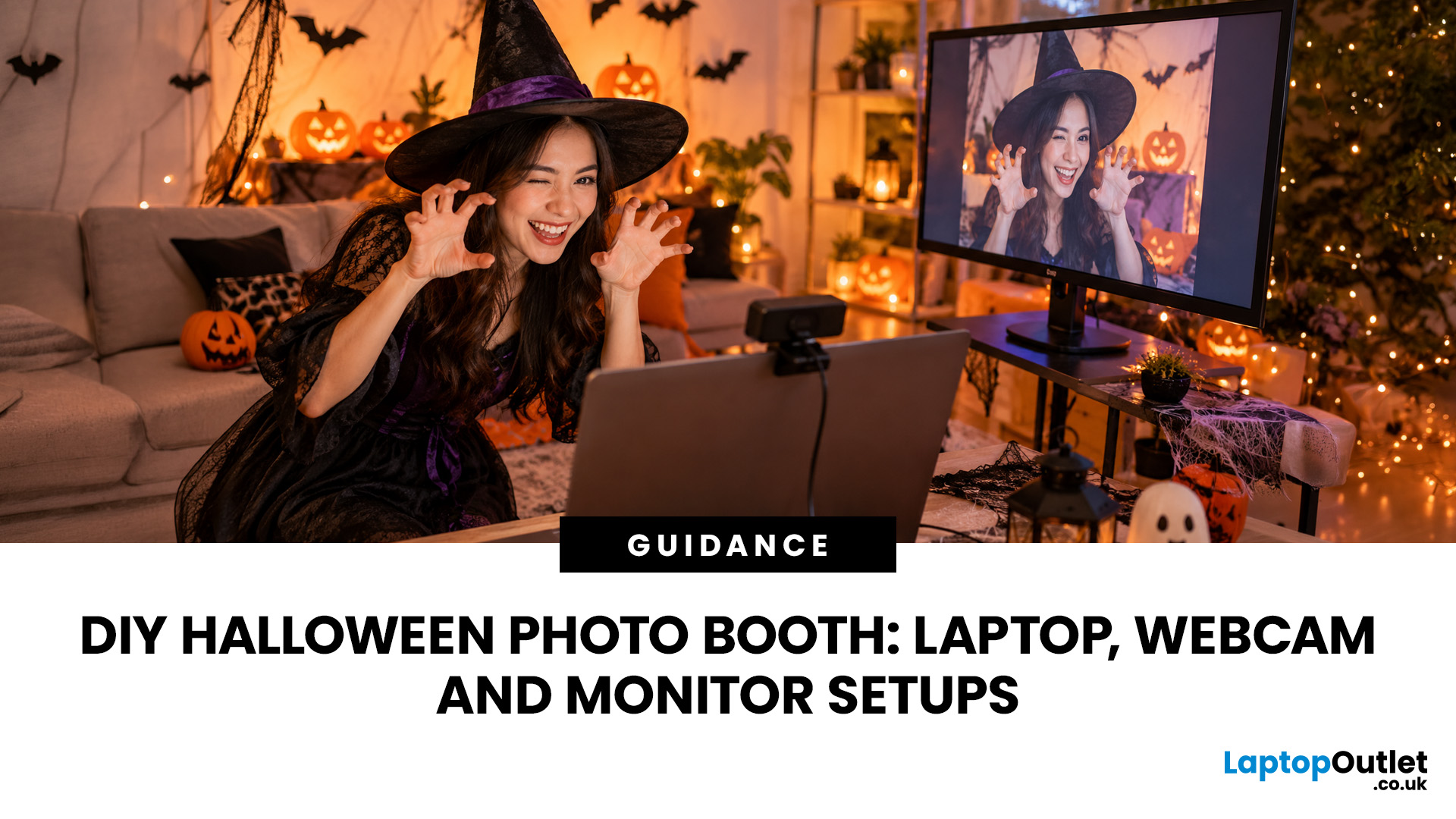
A spooky photo booth gives guests somewhere to show off costumes, try ridiculous poses and leave with photos from the night. Better still, you do not need professional photography equipment to build one.
A laptop, webcam, screen, a little lighting, and a suitably creepy backdrop can turn a spare corner into a working DIY Halloween photo booth. You can keep things simple with your laptop's built-in camera or create a more polished setup using an external webcam and separate monitor. Here is how to put everything together without turning your party into an IT project.
What Do You Need for a Halloween Photo Booth?
The key is making the setup reliable. Guests should be able to walk up, pose and take a picture without adjusting cables or camera settings every time. Start with equipment you may already have:
- Laptop or desktop computer
- Built-in or USB webcam
- Monitor or portable display
- Tripod, webcam mount or stable surface
- LED lamp, ring light or another soft light source
- Halloween backdrop
- Props
Published: October 20, 2026
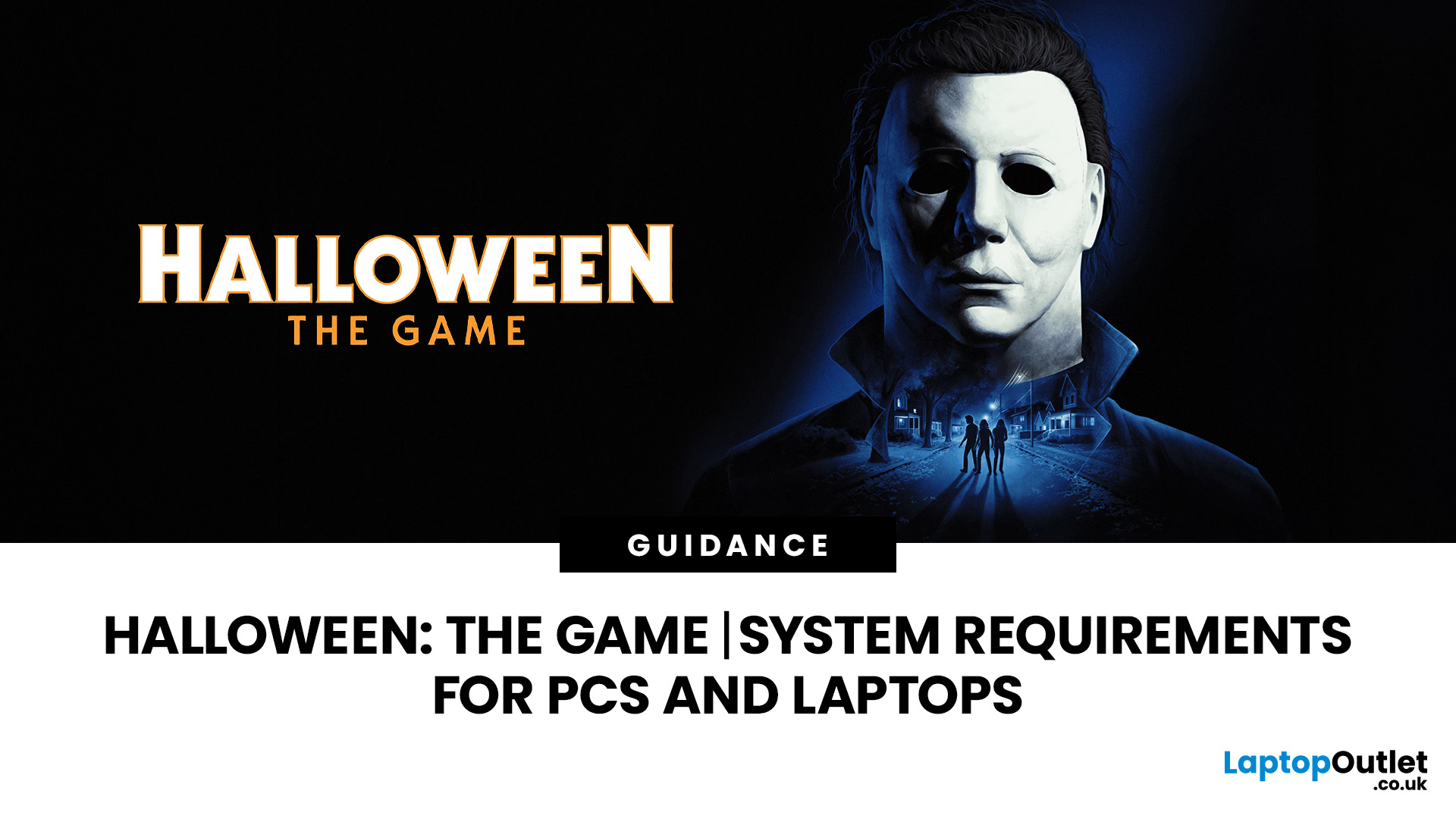
Michael Myers is back, and this time, he's coming for your gaming setup!
Halloween: The Game brings the terror of Haddonfield to PCs and consoles. With eerie neighbourhoods, unsettling shadows, and a relentless masked killer, every second could mean the difference between escaping and becoming Michael's next victim.
But before you enter the nightmare, there's one thing to check: can your PC or laptop handle it?
We've broken down the official Halloween the game PC requirements, recommended hardware, graphics settings, and practical performance fixes. Whether you're playing on a desktop or gaming laptop, here's how to prepare your system for a night of scares.
Halloween: The Game: What is it About?
Developed by IllFonic, Halloween: The Game is an asymmetrical survival horror experience inspired by John Carpenter's original 1978 film. The game takes you back to Haddonfield, where the seemingly peaceful streets have become Michael Myers' hunting ground.
In its 1v4 multiplayer mode, one player

