



Laptop Screen Not Working? Common Causes & Quick Fixes
You press the power button, hear the familiar hum of the fan, and wait for the logo to appear. But this time, nothing happens. Your screen stays as dark as a midnight sky. A laptop screen not working is more than a technical glitch; it feels like your entire digital life has been put on hold.
Before you panic and start looking for a replacement, take a breath. From laptop screen flickering to total blackouts, many display issues are actually software-bound and easily fixed at home. This guide will help you diagnose the problem and find a black laptop screen fix without the expensive repair bill.
Common Laptop Display Issues
Before jumping into repairs, it is helpful to identify exactly what is happening with your screen. Not every "blank" screen is caused by the same fault.

The Black Screen of Death
A laptop display not turning on at all is the most common complaint. You might hear the fans spinning or see the power lights glowing, but the panel remains lifeless.
Screen Flickering or Blinking
If your image keeps jumping or flashing, you are likely dealing with laptop screen flickering. This is usually linked to refresh rate settings or a damaged display cable.
Lines and Distortions
Vertical or horizontal lines across the glass suggest physical damage or laptop LCD problems. If the lines change when you move the lid, a loose cable connection is the most likely suspect.
Dim or Faint Images
Sometimes, the screen isn't black, but it is so dark you can barely see the Windows or Mac logo. This usually indicates screen backlight issues. The display is actually "working", but the light behind the panel has failed.
Quick Troubleshooting: The First Steps
When your laptop display is not turning on, start with these low-risk steps. Often, the solution is much simpler than you think.
1. Check Your Brightness Settings
It sounds simple, but check your function keys. You might have accidentally bumped the brightness down to zero. Press the brightness up key (usually F11 or F12) to ensure the backlight is actually engaged.
2. Perform a Hard Reset
Static electricity can sometimes "lock" the hardware.
- Shut down the laptop completely.
- Disconnect the power adapter and remove the battery (if it is removable).
- Hold the power button down for 30 to 60 seconds.
- Plug the power back in and try to boot up.
3. Test with an External Monitor
This is the most important diagnostic step. Plug your laptop into a TV or a separate monitor using an HDMI cable.
- If the external monitor works: Your laptop’s internal screen or the internal video cable is faulty.
- If the external monitor is also black: The problem lies with your motherboard or graphics card (GPU), not the screen itself.
4. Disconnect External Accessories
Sometimes, a faulty USB drive, printer, or docking station can interfere with the boot process. Unplug everything—mice, keyboards, and webcams included—and try a restart.
5. Adjust the Lid Sensor
Laptops have a small sensor (magnetic or physical) that tells the system to turn off the screen when the lid is closed. Sometimes this sensor gets stuck. Try opening and closing the lid slowly several times. If a magnet is near the sensor (like a smartwatch or speakers), move it away.
Practical Fixes for Laptop Display Issues
If the basics didn't work, it is time to dig a little deeper. Here is how to fix laptop screen problems ranging from software bugs to physical connections.
Fix 1: Wake Up the Display
Sometimes Windows simply loses track of the monitor. Press Windows Key + Ctrl + Shift + B simultaneously. This shortcut restarts your graphics driver. You should hear a beep, and the screen may flash. This is a common black laptop screen fix for software-related hangs.
Fix 2: Update or Roll Back Your Graphics Drivers
Corrupted or incompatible drivers can cause the laptop display not turning on correctly after a sleep cycle or system update.
- Boot into Safe Mode (if you can't see anything, use an external monitor).
- Right-click the Start button and select Device Manager.
- Expand Display Adapters.
- Right-click your graphics card and select Properties.
- Open the Driver tab.
- If the issue started after a recent update, click Roll Back Driver.
- Otherwise, choose Update Driver and check for newer versions.
Restart your machine after making changes.
Fix 3: Reset the BIOS
If your screen stopped working after a system update, your BIOS settings might be scrambled. Turn off the laptop, and as you turn it back on, repeatedly tap the BIOS key (usually F2, F10, or Del). If the BIOS screen appears, your hardware is fine, and the issue is with your Operating System. Try "Load Setup Defaults" within the BIOS menu.
Fix 4: Try Windows Recovery Mode (If You Can See the Logo)
If your screen turns black after the Windows logo appears, or you briefly see the login screen before it disappears, the issue may be related to Windows startup files or a recent update.
To access Recovery Mode:
- Turn the laptop on and off three times during startup (hold the power button once the Windows logo appears).
- On the third attempt, Windows should enter Automatic Repair.
- Select Advanced Options > Troubleshoot > Startup Repair.
You can also choose System Restore if the problem began after a recent update or software installation.
If you never see the Windows logo at all, the problem is more likely hardware-related rather than a Windows fault.
Fix 5: Reseating the RAM
Oddly enough, loose memory (RAM) can prevent a laptop from displaying an image. If you feel comfortable opening the bottom panel, remove the RAM sticks, wipe the gold contacts with a soft cloth, and click them back into place firmly.
Fix 6: The Hinge Cable (Advanced)
Every time you open and close your laptop, the delicate ribbon cable inside the hinge flexes. Over time, this cable can loosen or fray. If your screen flickers when you move the lid, this is a strong indicator of cable wear.
Important: Accessing the display cable requires partial disassembly of the laptop, including removing the screen bezel and internal panels. This should only be attempted by experienced users with the correct tools. Improper handling can damage the panel or motherboard. In most cases, this repair is best handled by a professional technician.
Fix 7: Adjust Refresh Rate
For flickering issues, the refresh rate might be set too high for the screen to handle (common if you have been tweaking settings for gaming).
- Go to Settings > System > Display > Advanced Display.
- Check the refresh rate. If it's at 144Hz or higher, try lowering it to 60Hz to see if the flickering stops.
Fix 8: Check for Overheating
If the screen works for a few minutes and then goes black, the system might be overheating. Dust in the fans can cause the graphics chip to shut down to prevent permanent damage. Use compressed air to clear out the vents.
When to Seek Professional Help for Laptop Screen Issue

Some laptop screen repair tips are too complex for a home DIY approach. You should contact a professional technician if:
- The glass is cracked: There is no software fix for a physically smashed LCD.
- Persistent backlight failure: Modern LED backlights or display assemblies often require specialist replacement and delicate internal repair.
- Motherboard issues: If the external monitor test failed, you might have a blown capacitor on the motherboard.
- Burning smell: If you smell smoke or ozone, turn the device off immediately and seek help.
If your current device is several years old and the repair costs are high, it might be more cost-effective to browse for affordable laptops that offer modern performance and reliability.
Prevention Tips to Protect Your Laptop Display
Prevention is always better than a cure. To avoid laptop LCD problems in the future, follow these simple habits:
- Don't Lift by the Screen: Always lift your laptop by the base. Grabbing the screen puts immense pressure on the hinges and the delicate layers of the LCD.
- Keep Magnets Away: Strong magnets can interfere with the hall-effect sensor (the lid sensor) and cause display glitches.
- Avoid Liquids: Even a small drop of water seeping into the bottom bezel can short out the display controller.
- Close the Lid Gently: Slamming the lid can cause the ribbon cable to pinch or the glass to crack.
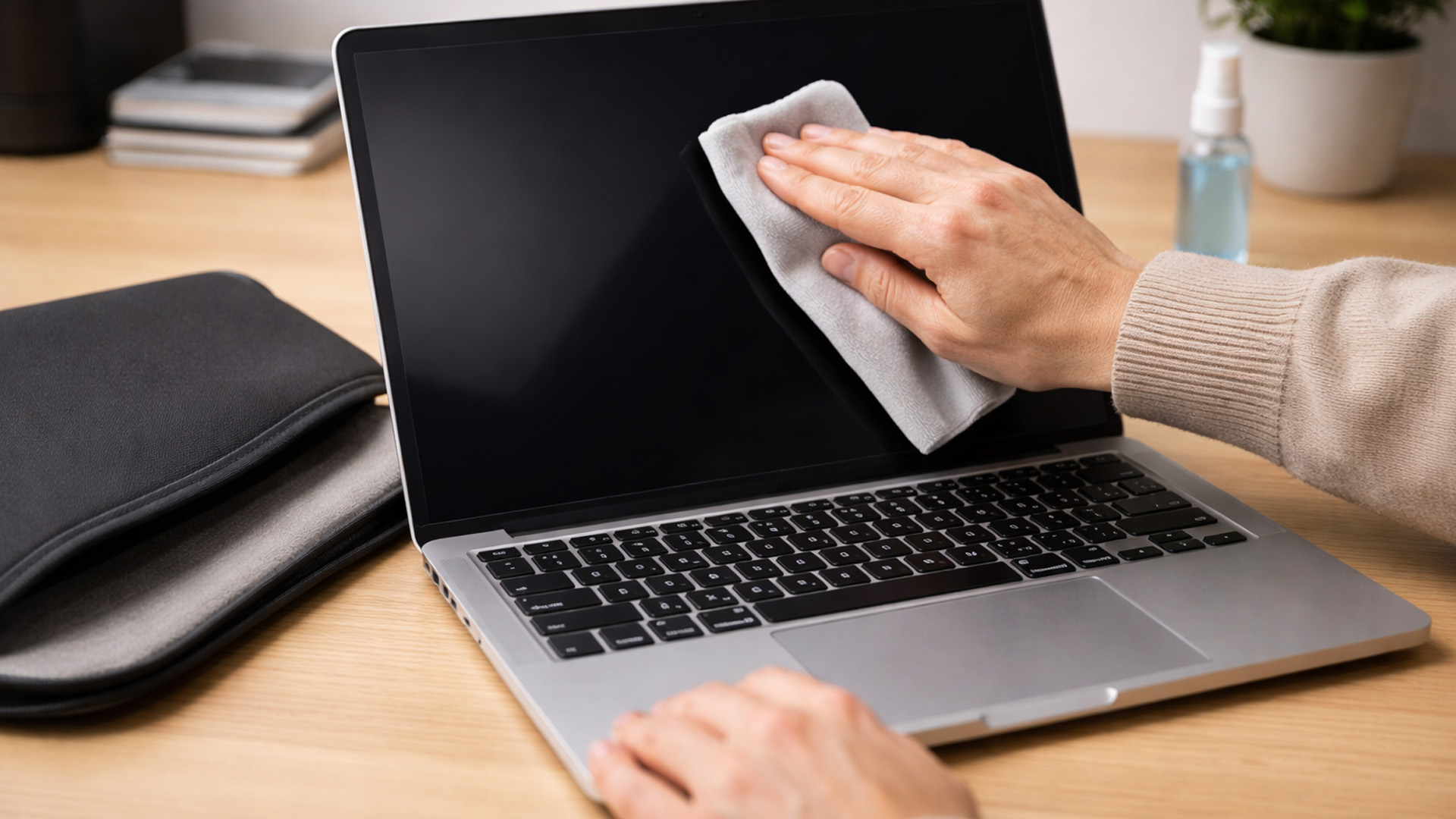
- Clean Properly: Use a dry microfibre cloth. Never spray cleaning fluids directly onto the glass.
For those who want the best durability and visual clarity, upgrading to OLED laptops can offer a more robust and vibrant viewing experience compared to traditional older panels.

Get Your View Back on Track
Dealing with a laptop screen not working is frustrating, but it isn't always a death sentence for your computer. By following this laptop screen troubleshooting guide, you can often resolve the issue at home.
However, if the hardware has simply reached the end of its life, upgrading to a newer model with a more vivid display can be a great investment. Modern panels offer much better durability and eye-care features than older tech.

Just a Few More Bits and Bytes...
What are common display issues?
Common issues include flickering, dead pixels, vertical lines, and the "Black Screen of Death." These usually stem from driver bugs, loose internal cables, or physical panel damage.
How can I fix a flickering laptop screen?
Flickering is usually caused by outdated graphics drivers or a loose display cable. Update your drivers first; if it persists, the internal connection may need tightening.
What does it mean if my laptop screen goes black only when gaming?
Overheating during intensive graphics processing causes this. Your system shuts down the display to protect components. Use a cooling pad, ensure vents are clear, and close background programmes before gaming.
How can I prevent screen damage?
Avoid placing heavy objects on the lid and never pick up the laptop by the display. Use a protective sleeve and keep the keyboard clear of debris.
Can a software update cause display issues?
Yes, faulty or incompatible graphics drivers can lead to black screens or glitches. Rolling back or updating your display adapter driver usually resolves this software conflict.
Can a laptop screen be repaired if it’s cracked?
No, a cracked LCD or OLED panel cannot be repaired. The entire screen assembly must be replaced by a professional technician or an experienced DIYer.
Related Articles

Last Updated: January 28, 2026
Let’s be honest — when your tech lets you down, waiting is the last option you want. Maybe your laptop stopped working the night before a deadline, your PC failed mid-project, or you’ve just realised you need a new device now, not next week. That’s exactly where Laptop Outlet next-day / priority delivery comes in. If you need fast, reliable tech delivery in the UK, this guide explains how Laptop Outlet’s next-day service works, what you can order, and why it’s the smart choice for urgent tech needs.
Why Speed Matters When Ordering Tech Online
When your laptop or PC breaks, everything slows down — work, study, gaming, even staying connected. Waiting days for a replacement just isn’t practical. With next-day laptop delivery, you don’t have to put life on pause. Laptop Outlet’s express service is built for:
- Last-minute replacements
- Urgent work-from-home setups
- Business and study deadlines
- Time-sensitive gifts or upgrades
If speed matters to you, Laptop Outlet Express shipping delivers when

Last Updated: January 28, 2026
Let’s be real — waiting around all day for a delivery is no one’s idea of fun. You’ve got meetings, errands, school runs, and about a million other things going on. The last thing you want is to be stuck at home wondering “Will it arrive now… or later?” That’s exactly why customers love Laptop Outlet book-a-slot delivery.
This delivery option puts you in control, letting you choose when your tech arrives, not the other way around. Here’s how it works, why it’s so popular, and whether it’s the right choice for your next order.
What is Laptop Outlet Book-a-Slot Delivery?
Laptop Outlet’s book-a-slot delivery service is a scheduled tech delivery service that allows you to pick a specific delivery day and time slot at checkout. Instead of waiting around all day, you get a clearly defined delivery window, so you know exactly when your order is arriving. In short:
- You choose the day, time, and location
- The courier delivers within that slot
- Your tech arrives when it suits you
It’s one of Laptop

Last Updated: June 17, 2026
Valentine’s Day is basically a high-pressure speedrun of “prove you know me.” Flowers are fine. Chocolate is predictable. But if you want a gift that lands (and lasts), tech is the move.
This year, we’re making it easy to shop Valentine’s Day laptop gifts and other Valentine’s Day tech gifts that feel personal, useful, and genuinely exciting, without paying full-price panic-tax. At Laptop Outlet, we stock both new and refurbished tech in the UK, so you can pick something premium, practical, and still stay in your budget.
Why a Laptop is a Top-Tier Valentine’s Gift in 2026
A laptop gift for Valentine’s Day isn’t just “a laptop.” It’s a whole lifestyle upgrade. It’s better WFH days, smoother university deadlines, cleaner creative projects, cosier film nights, and finally not fighting with a slow machine that sounds like it’s trying to take off.
And because 2026 is not the year to overpay, laptop deals for Valentine’s Day (especially on refurbished models) can get you more performance for

Last Updated: September 04, 2026
If you’re shopping for a new laptop this year, HP continues to be one of the most reliable and exciting brands to watch. From premium Ultrabooks and powerful gaming machines to flexible 2-in-1 devices built for modern work and study, the latest releases bring something for everyone.
In this guide, we’ll explore the latest HP laptops you shouldn’t miss in 2026, highlighting what makes them stand out, which users they suit best, and why HP remains a top choice for shoppers across the UK. Whether you’re upgrading your home setup, buying for university, or looking for a performance machine that keeps up with your workload, these HP laptop models are worth considering.
Top HP Laptop Models You Can Choose in 2026
The latest HP laptops in 2026 are redefining versatility, performance and AI-enabled productivity across the board. Let’s explore few of them:
HP OmniBook X FlipNGAI 14-fm0005na – Compact AI-Ready Performance
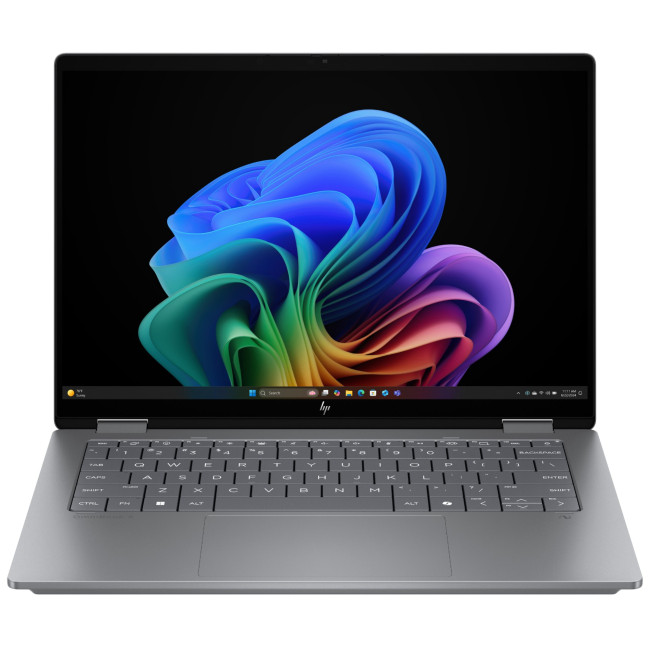
The HP OmniBook X FlipNGAI 14-fm0005na Intel® Core™ Ultra 5 226V

Last Updated: February 13, 2026
Because nothing kills the vibe faster than a laptop, that suddenly decides your fingers are irrelevant.
You sit down. You open your laptop. You’re mentally prepared to be productive (or at least pretend). And then .....boom... your laptop touchpad is not working. Or your laptop keyboard is not working. Or worse… both.
At this point, your laptop isn’t broken; it’s personally offended by you.
Before you rage-buy a new device or spiral into tech despair, here’s the good news: most laptop keyboard problems and touchpad issues are completely fixable. And no, you don’t need a computer science degree or a sacrifice to the tech gods.
This guide is not one of those vague “restart your device” articles and call it a day. This is a deep-dive, all-reasons, all-solutions, no-BS troubleshooting guide, written in human language, with enough detail to actually solve the problem.
We’ll cover:
- Software vs hardware problems (and how to tell the difference)
- Every common and uncommon reason your laptop input

Last Updated: February 13, 2026
Few things are more frustrating than a laptop running slow when you’re trying to work, study, stream, or simply browse the web. Whether it’s taking ages to boot up, freezing mid-task, or lagging when you open everyday apps, slow performance can quickly drain your productivity and patience.
The good news? A sluggish laptop doesn’t always mean it’s time to replace it. In many cases, there are clear reasons why a laptop is slow, and there are practical steps you can take to fix it. In this guide, we’ll walk you through the most common causes of laptop lagging, how to identify what’s slowing your device down, and how to improve laptop performance without unnecessary upgrades.
Why is My Laptop Running Slow?
Slow laptop performance usually comes from a combination of factors working against your system over time. Laptops naturally collect digital clutter, outdated software, background processes, and even hardware wear. Add demanding modern apps and websites into the mix, and performance can

Last Updated: February 17, 2026
Storage problems aren’t just annoying; they’re productivity killers. Studies show that nearly 60% of laptop slowdowns are linked to storage-related issues, whether it’s low disk space, corrupted files, or failing SSDs. When your drive is over 85% full, performance can drop significantly because your system has less room to manage temporary files and virtual memory. Add disk errors or early SSD/HDD failure into the mix, and suddenly your “quick task” turns into a 30-minute meltdown.
Laptop storage issues don’t just slow things down, they risk your data, crash your apps, and test your patience.
The good news? Most storage problems are fixable in real time. In this guide, we’ll break down exactly what’s happening, why it’s happening, and how to fix it step-by-step, no tech degree required.
SSD vs HDD: What’s Actually Inside Your Laptop (And Why It Matters)

Before you panic about laptop storage issues, you need to know what you’re working with. Not all drives fail the same way and the fix

Last Updated: February 17, 2026
Few things trigger instant panic like pressing the power button… and nothing happens. Or worse, your laptop turns on, shows the logo, and then just sits there. Stuck. Frozen. Judging you.
Laptop boot problems are one of the most common technical issues users face. From a laptop not booting at all to BIOS boot problems, startup errors, and endless boot loops, these issues can feel dramatic, but they’re often fixable. In many cases, Windows boot issues are caused by corrupted updates, drive errors, or simple configuration mistakes.
The key is knowing where the problem starts: power, BIOS, or operating system.
In this guide, we’ll walk you through real, step-by-step solutions to fix laptop boot loop errors, startup failures, and laptops that won’t turn on, no tech wizardry required.
What Are Laptop Boot Problems? (And Why They Feel So Stressful)
Laptop boot problems basically mean one thing: your laptop isn’t starting the way it’s supposed to. You press the power button expecting your system

Last Updated: February 13, 2026
It is a common frustration. You settle down to work at a café or prepare for a long flight, only to see your power percentage plummet. If you find your laptop battery draining fast, you aren't alone.
Modern laptops are powerful, but that power requires energy. From hidden background apps to ageing hardware, several factors can cut your cordless time short. This guide explores why laptop battery drains so quickly and provides actionable steps to improve laptop battery performance today.
Understanding the Basics: Why is My Laptop Battery Draining Fast?
Before we jump into the fixes, we need to understand the root causes. Why does a battery that used to last eight hours now struggle to last two?
Generally, laptop battery life problems stem from three main categories:
- Software & System Settings: Screen brightness, background processes, and unoptimised power plans.
- Hardware & Usage: Connected peripherals, overheating, and heavy workloads (like gaming or video editing).
- Battery Health: Physical

Last Updated: February 13, 2026
If you’ve ever fired up a video, joined a call, or cranked up your music only to be met with silence, you know how maddening laptop audio problems can be. One minute everything’s fine, the next you’re dealing with laptop sound not working, crackling speakers, or a laptop microphone not working that makes you sound like you’re in a tunnel. These issues pop up on all kinds of machines, whether it’s a budget Windows laptop, a high-spec gaming rig, or even a MacBook, and they rarely mean your hardware is dead.
Most laptop sound troubleshooting steps are straightforward and take just a few minutes. In this guide, we’ll walk you through the most common causes and fixes, from the obvious (yes, check the volume) to the slightly more technical (driver updates, audio services, Bluetooth quirks). Follow along in order, and you’ll have sound back in no time.
Common Laptop Audio & Sound Problems
Before diving into solutions, it helps to understand the most common laptop audio problems users face:

