



Laptop Camera Not Working in Windows 11? Try These Quick Fixes
Quick Answer:
If your laptop camera is not working in Windows 11, check the physical camera shutter or keyboard switch first. Then open Settings > Privacy & security > Camera and enable camera access. Test the Windows Camera app, restart your laptop and update the webcam driver through Device Manager. If the issue persists, investigate app conflicts, Windows updates and manufacturer-specific camera settings before considering hardware repairs.
Your laptop camera is working fine one day, then suddenly disappears just as you're joining a meeting or starting a video call. Sometimes, the screen goes black. Other times, Windows cannot detect the webcam at all.
Fortunately, a laptop camera problem doesn't always mean something is broken. A disabled privacy setting, outdated driver or app conflict could be responsible. Before considering repairs, try these practical Windows 11 fixes to get your webcam working again.
Why Is My Laptop Camera Not Working?
Your built-in webcam relies on several hardware and software components working together. When something interrupts that connection, Windows may display a black screen, show an error message or fail to recognise the camera.
The most common causes include:
- Disabled camera: A physical shutter, privacy switch or keyboard shortcut has turned off the webcam.
- Windows privacy restrictions: Camera access is blocked for the device or individual applications.
- Driver problems: Missing, outdated or corrupted camera drivers prevent Windows from communicating with the hardware.
- Application conflicts: Another programme may be using the camera or preventing an app from accessing it.
- Windows updates: A recent update may have introduced a driver compatibility issue.
- Hardware faults: The camera module or its internal connection may be damaged.
One useful clue is whether the problem affects every application or only one. For example, if the webcam works in the Windows Camera app but not Microsoft Teams, the problem is more likely to involve Teams settings or permissions than a defective camera.
Quick tip: Test your camera in at least two applications before changing drivers. It helps establish whether the issue is system-wide or limited to one programme.
10 Quick Fixes for a Laptop Camera Not Working in Windows 11
Work through these checks in order, starting with the simplest solutions.
1. Check the Physical Camera Shutter or Privacy Key
Many laptops include a physical privacy feature that blocks or disables the built-in webcam. Before changing Windows settings, inspect the area around the camera at the top of your screen.
Look for:
- A sliding privacy shutter covering the lens.
- A dedicated camera on/off key.
- A keyboard key with a camera symbol, sometimes used with Fn.
- A physical camera switch along the laptop's side.
If the shutter is closed, slide it open. If your keyboard has a camera-disable key, press it using the combination specified for your model. Some laptops disable the camera electronically rather than simply covering the lens. When this happens, Windows may report that no camera is available.
Verdict: A closed shutter or disabled privacy switch is one of the easiest camera problems to identify and fix. Check it before reinstalling any software.
2. Enable Camera Access in Windows 11 Privacy Settings
Windows 11 gives you control over which applications can access your camera. If permission is disabled, your webcam may appear unavailable even though the hardware works.
Here's how to turn the camera on in Windows 11:
- Press Windows + I to open Settings.
- Select Privacy & security.
- Scroll down and open Camera.
- Turn on Camera access.
- Enable Let apps access your camera.
- Check that camera permission is enabled for the relevant apps.
Also ensure Let desktop apps access your camera is enabled if you use desktop applications such as Zoom or a web browser.
Not all desktop programmes appear individually in the permissions list, so the separate desktop-app setting is important. If a camera permission is greyed out, the setting may be managed by an administrator. This is especially relevant for company-owned laptops.
Quick tip: If your webcam stopped working immediately after a Windows update, check privacy permissions before assuming the driver is faulty.
3. Test the Webcam Using the Windows Camera App
The built-in Camera app provides a straightforward way to determine whether Windows can use your webcam.
Follow these steps:
- Open the Start menu.
- Type Camera into the search bar.
- Select the Camera application.
- Allow camera access if Windows requests permission.
- Check whether your image appears.
If the Camera app displays a live image, your webcam hardware and its basic Windows connection are functioning. The problem may be limited to another application. If the Camera app shows an error, note the message or error code before continuing.
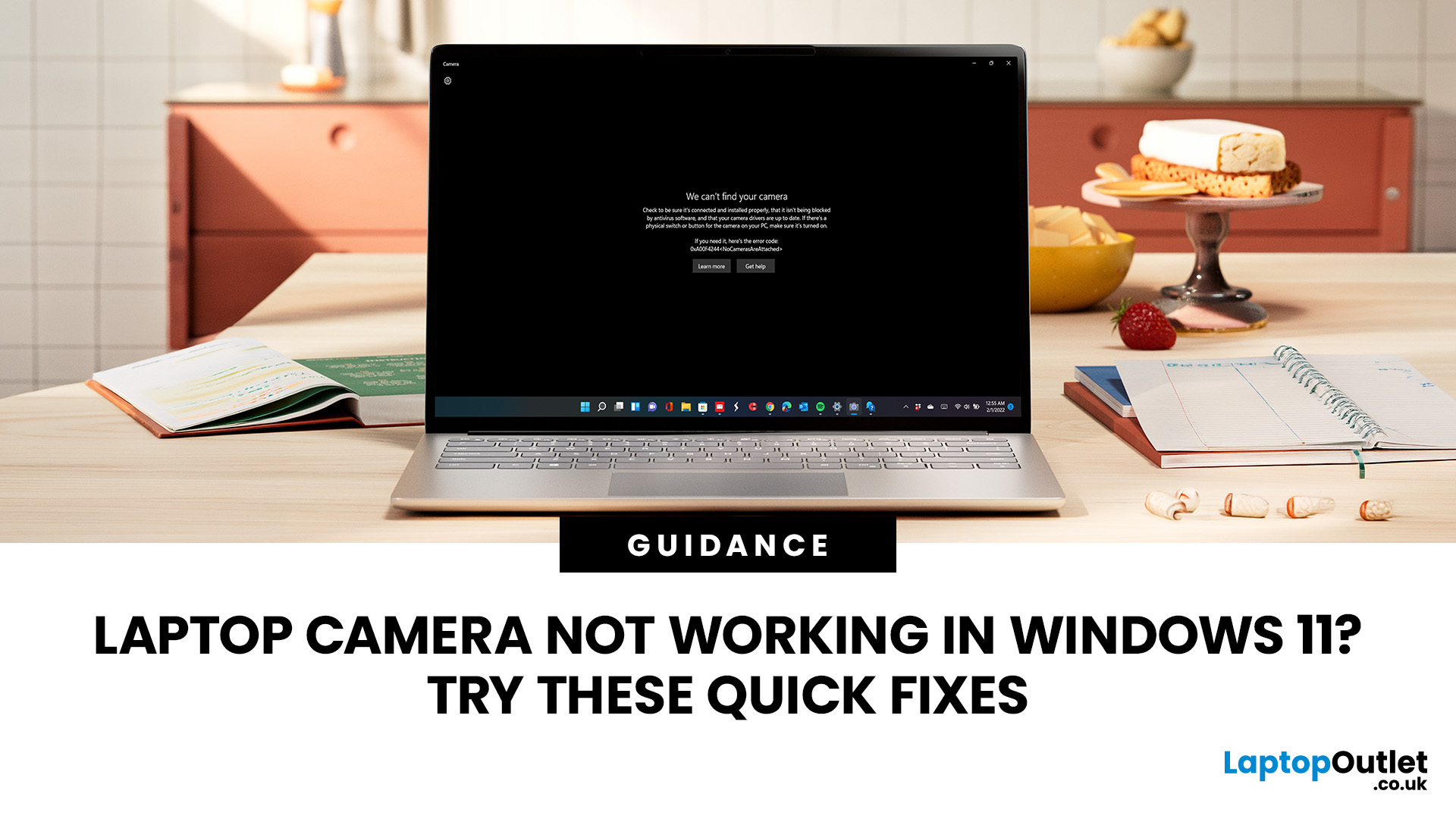
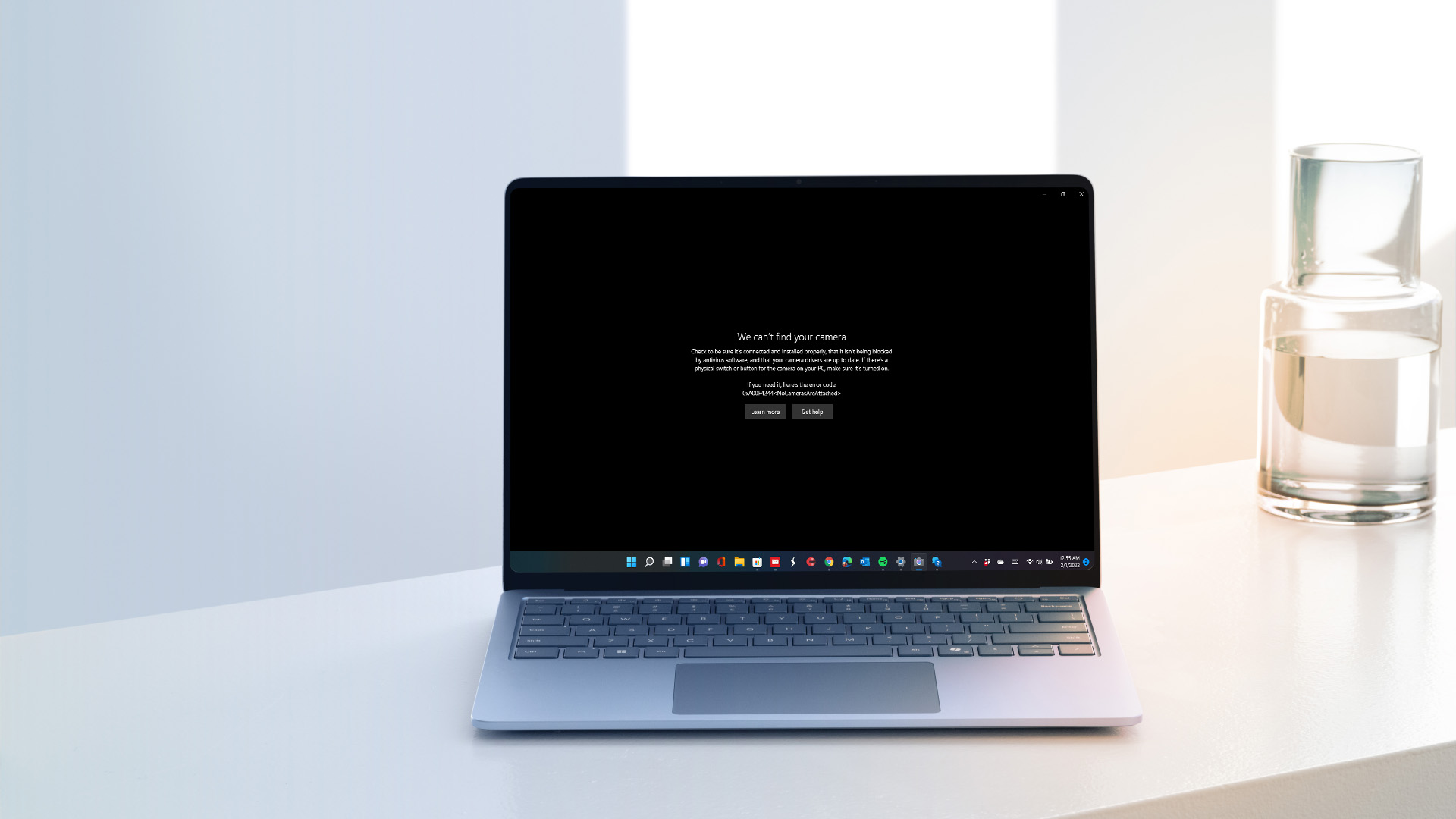
For example, error 0xA00F4244 (NoCamerasAreAttached) indicates that Windows cannot find an available camera. This can happen because the camera is disabled, its driver is missing or the hardware is not being detected. If you regularly use video calls for work or study, our range of Windows 11 laptops includes models with integrated webcams and different connectivity options.
Verdict: If your camera works in the Windows Camera app, troubleshoot the affected video-calling application before making system-wide changes.
4. Restart Your Laptop and Close Conflicting Applications
A temporary software fault can prevent the camera from initialising correctly. Another programme may also be accessing the webcam.
Start by closing applications that could use the camera, including:
- Microsoft Teams
- Zoom
- Google Meet browser tabs
- Discord
- Video recording and streaming software
Then restart your laptop using Start > Power > Restart.
A full restart is preferable to simply closing the lid or putting the laptop into sleep mode. If the camera still fails in one application, open that programme's video settings and make sure the correct camera is selected. For browser-based calls, also check the camera permissions granted to the website. Browser permissions are separate from some Windows camera settings.
Quick tip: If you have connected an external webcam, your meeting application may have selected it instead of the laptop's built-in camera.
5. Update or Reinstall the Webcam Driver
A webcam software driver allows Windows to communicate with your camera hardware.
If the driver becomes corrupted, incompatible or unavailable, the laptop may stop detecting the webcam.
How to Update the Camera Driver
- Right-click the Start button.
- Select Device Manager.
- Expand Cameras.
- Right-click your integrated camera.
- Select Update driver.
- Choose Search automatically for drivers.
- Follow the instructions and restart if necessary.
Your webcam may also appear under Imaging devices or Sound, video and game controllers, depending on the hardware. If Windows reports that the best driver is already installed, this does not necessarily mean a newer manufacturer driver is unavailable.
Check the official support website for your laptop model.
How to Reinstall the Camera Driver
If updating doesn't help:
- Open Device Manager.
- Right-click your webcam.
- Select Uninstall device.
- Confirm the removal.
- Select Action > Scan for hardware changes or restart your laptop.
- Allow Windows to detect the camera again.
Avoid selecting an option to remove the driver package unless you have a suitable replacement driver available or the manufacturer's instructions specifically require it.
Important: Download camera drivers only from Windows Update or your laptop manufacturer's official support website. Generic driver-download utilities can create compatibility problems.
6. Check Whether Your Camera Is Disabled in Device Manager
Sometimes, the webcam is installed correctly but disabled within Windows.
To check:
- Open Device Manager.
- Expand the Cameras section.
- Locate your integrated webcam.
- Right-click the device.
- Select Enable device, if available.
If the menu instead displays Disable device, the camera is already enabled in Device Manager. If the camera is missing entirely, select View > Show hidden devices, then check the relevant device categories.
A greyed-out camera entry may represent hardware that Windows detected previously but cannot detect at present. You can also select Action > Scan for hardware changes to request a fresh hardware scan. If the camera still does not appear, check the manufacturer's privacy controls and firmware configuration.
Verdict: A camera missing from Device Manager is not automatically broken. Driver, firmware and privacy-switch problems can also prevent detection.
7. Run the Windows 11 Camera Troubleshooter
Windows 11 includes automated diagnostics that can help identify certain camera problems. Microsoft provides camera troubleshooting through the Get Help app.
To run it:
- Open the Start menu.
- Search for Get Help.
- Open the application.
- Search for camera troubleshooting or camera not working.
- Follow the suggested diagnostic steps.
The troubleshooter can check for certain configuration problems and guide you through relevant fixes. If it cannot resolve the issue, continue with the manual checks below.
You should also check Windows Update:
Settings > Windows Update > Check for updates
Install applicable updates, then look under Advanced options > Optional updates for relevant driver updates, where available.
If your laptop webcam stopped working after a recent driver update, open the camera's Properties in Device Manager and check whether Roll Back Driver is available under the Driver tab. Rolling back can help when a newly installed driver introduced the problem.
8. Check Antivirus and Security Software
Some security applications provide webcam protection features designed to prevent unauthorised access. These features are useful for privacy, but an incorrect configuration can stop trusted applications from using the camera.
Open your installed security software and look for settings relating to:
- Webcam protection
- Camera access control
- Application permissions
- Privacy protection
Check whether the affected application has been blocked. If your security software supports per-application permissions, allow access for the trusted programme you want to use.
Avoid permanently disabling security protection just to restore webcam access. On work laptops, camera access may also be restricted through organisational policies. Contact your IT administrator if these settings are managed centrally.
Quick tip: If Windows Camera works but a particular application is blocked, investigate that application's permissions before changing your security configuration.
9. Reset the Windows Camera App
If the built-in Camera app crashes, freezes or displays a blank preview, its application data may be causing problems. Windows 11 allows you to repair or reset supported applications without reinstalling the entire operating system.
Follow these steps:
- Open Settings > Apps > Installed apps.
- Find Camera.
- Select the three-dot menu and choose Advanced options, if available.
- Select Repair.
- Open the Camera app and test it again.
If Repair doesn't help, return to the same screen and choose Reset. Resetting removes the app's stored settings and application data. It does not normally delete photographs and videos saved separately in your Pictures folder.
Remember that resetting the Camera app only addresses problems with that application. It will not repair a disconnected camera module or missing hardware driver.
10. Check BIOS Settings and Hardware Detection
If the camera is still missing after the previous checks, it may be disabled at firmware level. Some laptops allow the integrated webcam to be enabled or disabled in BIOS or UEFI settings. The procedure varies by brand and model.
Generally, you need to:
- Restart the laptop.
- Enter BIOS or UEFI using the manufacturer's specified key.
- Look for camera-related settings under Security, Integrated Devices or a similar menu.
- Confirm that the integrated camera is enabled, if the option exists.
- Save any changes and restart.
Not every laptop offers a camera setting in BIOS. Avoid changing unrelated security, storage or boot options while investigating. If the camera is enabled but remains undetected, the next step may involve manufacturer diagnostics or professional hardware inspection.
Verdict: Consider hardware repairs only after checking camera privacy controls, Windows settings, drivers and firmware options.
Camera Not Working on HP, Lenovo or Dell Laptops?
The general Windows 11 fixes apply across laptop brands, but some manufacturers include additional camera controls or diagnostic tools.
HP Laptop Camera Not Working
Some HP laptops feature camera privacy shutters or dedicated keyboard controls. If your HP webcam is unavailable, first inspect the camera area and keyboard for a privacy switch.
Then check Windows camera permissions and Device Manager. For model-specific assistance, use HP's official support website and identify your laptop by its product number. Depending on the model, HP's diagnostic utilities may also offer relevant hardware checks.
If you're considering a laptop for work, study or everyday use, our HP laptops include different webcam, display and performance configurations.
Lenovo Laptop Camera Not Working
Certain Lenovo laptops have a physical camera shutter, while some models provide camera privacy controls through Lenovo Vantage or dedicated keyboard shortcuts.
If your notebook webcam is not working:
- Check the physical camera shutter.
- Review the camera privacy settings available on your model.
- Confirm Windows camera access is enabled.
- Check Lenovo Vantage or the official Lenovo support website for applicable updates.
Camera features vary across ThinkPad, ThinkBook, IdeaPad and Yoga devices. Our collection of Lenovo laptops covers different work, study and everyday computing requirements.
Camera Not Working on a Dell Laptop
If your Dell webcam fails, check Windows permissions, Device Manager and any physical privacy shutter first. Dell also provides model-specific diagnostic and driver support through its support website.
On supported systems, the integrated camera can be disabled through BIOS settings. Some newer Dell laptops use MIPI camera technology and require particular manufacturer-provided drivers. Use your exact Dell model or Service Tag to locate the correct support information.
For those looking to replace an ageing device, we offer Dell laptops across different professional and everyday computing ranges.
What Do Common Windows 11 Camera Errors Mean?
Camera error messages can provide useful clues about where to investigate.
|
Error code |
What it generally indicates |
First thing to check |
|
0xA00F4244 |
Windows cannot find an available camera |
Shutter, Device Manager and drivers |
|
0xA00F4243 |
Camera access or availability problem |
Other apps and permissions |
|
0x80070005 |
Access denied |
Windows privacy and security permissions |
|
0xA00F4292 |
Camera access restriction |
Privacy settings or organisational policy |
These codes are diagnostic clues rather than proof of one specific cause.
Tip: Write down the complete error message, not just its code. This makes it easier to find the correct support instructions for your laptop.
When Does a Laptop Camera Need Repair or Replacement?
A hardware fault becomes more likely when the integrated camera remains undetected after checking privacy switches, drivers, Windows settings and manufacturer diagnostics.
Possible hardware problems include a damaged camera module or an internal cable connection fault. However, you should not attempt to dismantle your laptop simply because Windows cannot detect the webcam.
Opening the display assembly can damage delicate cables, screen components or the surrounding casing. If your laptop is still under warranty, contact the manufacturer or retailer before arranging repairs.
For older devices, consider the cost of professional repair against the laptop's remaining performance, condition and suitability for your needs. An external USB webcam may also provide a practical alternative when the rest of the laptop works properly.
If you're considering a replacement for frequent online meetings, our business laptops include options with integrated webcams, microphones and features suited to professional communication.

Final Thoughts
A camera not working on a laptop can disrupt meetings, online classes and everyday communication, but it doesn't always require a repair.
Start with the physical privacy shutter and Windows 11 permissions. Then test the Camera app, close conflicting programmes and investigate drivers if the webcam remains unavailable.
For persistent problems, use your laptop manufacturer's diagnostic tools before assuming the camera hardware has failed.
At Laptop Outlet, we stock laptops from HP, Lenovo, Dell and other leading brands for work, study and everyday use. If your existing device is no longer practical to repair, you can browse our range to find a suitable replacement with the connectivity and camera features you need.

Frequently Asked Questions
How Do I Turn On the Camera on My Laptop?
Open the Windows Camera app and check Settings > Privacy & security > Camera to enable access. Also inspect your laptop for a physical shutter or camera-disable key. Some models have additional privacy controls.
Why Is My Laptop Camera Showing a Black Screen?
A black webcam preview can result from a closed privacy shutter, blocked camera access, an app conflict or a driver issue. Test the Windows Camera app and check the physical shutter before reinstalling drivers.
Why Did My Laptop Webcam Suddenly Stop Working?
A recent Windows update, changed privacy setting, temporary application fault or driver problem may be responsible. Restart the laptop, confirm that the camera is enabled and check whether it works in another application.
Why Is My Camera Working in Windows but Not in Zoom or Teams?
The application may be using the wrong camera or lack permission to access it. Check its video settings, Windows camera permissions and whether another application is using the webcam.
Can I Fix a Laptop Webcam Without Replacing It?
Yes. Many webcam problems involve software settings rather than hardware damage. Checking permissions, restarting Windows, updating drivers and inspecting privacy controls can often restore camera functionality without replacing the module.
Can a Windows 11 Update Cause Camera Problems?
Yes. Driver incompatibilities or changes introduced during updates can sometimes interrupt camera functionality. Check for additional updates and use the driver rollback option if available and appropriate.
Related Articles

Last Updated: February 24, 2026
Choosing the right gaming laptop in 2025 comes down to striking a balance between raw power, intelligent features, and future-ready design. With Windows 11 now fully optimised for AI-powered performance, Auto HDR, and DirectStorage 1.2, gaming has never been smoother or more immersive. Pair that with the latest NVIDIA RTX 40 and 50-series GPUs, and you get a portable machine that rivals desktop-level experiences.
This guide explores the best Windows 11 gaming laptops with RTX graphics, helping you understand which models deliver the most value for gamers in different categories — from budget RTX 4060 machines to ultra-premium RTX 5090 rigs. Whether you’re into esports, AAA titles, or content creation alongside gaming, these laptops are designed to keep up with your demands.
Why Windows 11 Gaming Laptops with RTX Graphics Stand Out
AI-Driven Gaming Features
Windows 11 laptops in 2025 integrate Windows Game Mode, Copilot, and AI-based resource management. Together, they ensure your CPU

Published: October 08, 2025
Choosing the right laptop in 2025 can be overwhelming, given the wide range of options available across budgets, designs, and performance levels. With Microsoft’s Windows 11 becoming the most optimised OS for hybrid work, gaming, and everyday use, selecting the right device is more important. In this Windows 11 laptops buying guide, we’ll cover everything you need to know before purchasing. From Windows 11 laptop comparisons to use-case specific recommendations for students, business users, and gamers, this guide ensures you make an informed decision.
Why Choose a Windows 11 Laptop?
Enhanced Performance
In 2025, Windows 11 is fully optimised for the latest Intel Core Ultra (Meteor Lake) and AMD Ryzen 8000/9000 series processors. These chips integrate dedicated NPUs (Neural Processing Units), which offload AI workloads from the CPU and GPU, resulting in:
- Faster multitasking across productivity apps like Microsoft 365, Adobe Creative Suite, and Teams.
- Improved power efficiency, extending
Last Updated: April 08, 2026
Remember when using a laptop was all about speed and specs i.e. faster processors, bigger storage, sharper screens? Those things still matter, but in 2025, the real game-changer is AI built directly into your PC. Microsoft’s new Windows 11 Copilot+ PCs are designed for exactly that.
Instead of just running apps faster, these laptops think alongside you. They can find files you barely remember creating, relight a photo as if you’re in a studio, or even recall what you were working on hours ago with a simple search. In short, they’re not just computers anymore - they’re collaborators.
In this post, we’ll dive into what makes Copilot+ special, unpack the latest AI tools in Windows 11, and show how customers can best benefit from these features.
What Makes a Copilot+ PC Different?
A Copilot+ PC is more than just a Windows 11 device. At its core is a Neural Processing Unit (NPU), a chip designed specifically to handle AI tasks. With this hardware in place, features like Recall and Windows

Last Updated: October 09, 2025
Think back a few years... when you bought a laptop, what did you care about most? Probably the processor, maybe RAM, and the graphics card if you were into gaming. The display? It was usually just “good enough.”
Fast forward to 2025, and the screen has become just as important as the hardware inside. Whether you’re streaming, gaming, editing photos, or juggling multiple apps, the display is what you interact with most — and it shapes your entire experience.
This is especially true with Windows 11 laptops, as the operating system is designed to take full advantage of modern display technologies. Its sharper interface, multitasking layouts, HDR support, and gaming optimisation features really shine when paired with quality screens.
That’s why today’s Windows 11 laptop display comparison often comes down to three main types: OLED, IPS, and Microsoft’s PixelSense. Each has unique strengths, trade-offs, and ideal use cases. Understanding them will help you pick the best display type for Windows
Last Updated: June 15, 2026
Choosing the right laptop has never been more important. Whether you are studying for exams, editing videos, or managing a full workload from home, the laptop you use makes a real difference. And right now, Windows 11 laptops are setting the standard for what a modern, capable machine should look and feel like.
Windows 11 brings a cleaner interface, better multitasking tools, improved security features, and built-in support for the latest AI-powered workflows. Add to that the wide range of hardware options available — from budget-friendly everyday machines to high-performance creative workstations — and it is clear why Windows 11 remains the go-to platform for most users in 2026.
But with so many options out there, knowing where to start can feel overwhelming. That is exactly why we put together this guide. We have split the best Windows 11 laptops into three clear categories — students, professionals, and creators — so you can find the right fit quickly.
The Best Windows 11 Laptops for
Last Updated: October 15, 2025
If you still rely on a Windows 10 laptop, you're standing right on a deadline. Support for Windows 10 ends on 14 October 2025, which means no more free security updates or bug fixes via Windows Update. Your machine will continue to run, but it will steadily become more exposed online. Microsoft's own guidance is straightforward: "move to Windows 11 on supported hardware or consider a managed path to extend security while you transition".
Below,we have compiled a practical guide on Windows 11 vs. Windows 10 laptops, comparing their performance, gaming, security, features, and hardware requirements.
A Quick Verdict If You're a Busy Reader!

- If your laptop meets Windows 11 requirements, upgrade and carry on. You'll gain modern security defaults (TPM 2.0, virtualisation-based protections), ongoing feature updates (25H2/24H2), and gaming tech like Auto HDR and DirectStorage without changing your hardware.
- If your laptop is too old for Windows 11, you can subscribe to the Extended Security

Last Updated: November 04, 2025
In today’s connected world, security is a top priority, especially for businesses handling sensitive data and remote workflows. Microsoft’s latest operating system brings advanced protection designed for the modern workforce. Windows 11 security features deliver multiple layers of defence, offering a robust shield against cyber threats, ransomware, and data breaches.
Compared to its predecessor, Windows 11 vs Windows 10 security shows clear improvements in encryption, authentication, and hardware-based protection. Whether you’re an enterprise leader or a small business owner, investing in Windows 11 laptops with advanced security ensures your data, devices, and users remain protected, wherever work happens.
What Makes Windows 11 the Most Secure OS Yet
Enhanced Hardware-Based Protection
Windows 11 is built for zero-trust security, meaning protection starts from the chip level. All certified Windows 11 business laptops include:
- Trusted Platform Module (TPM) 2.0 – A secure crypto-processor

Published: October 15, 2025
So, you’ve just cracked open a shiny new Windows 11 laptop, maybe something sleek from ASUS or one of the new-gen ultrabooks from the Windows 11 laptop range and you’re ready to dive in.
But before you start downloading Spotify, Chrome, or every game-on-game pass, let’s get one thing straight: Windows 11 runs beautifully… when it’s set up properly.
Out of the box, most laptops are loaded with trialware, telemetry, and services you’ll never use, all quietly eating battery and slowing things down. The good news? You can sort it all out in under an hour with the right steps.
This isn’t one of those “just click next” guides. This is your no-fluff, Gen Z-approved, tech-expert walkthrough, from the first boot to a fully optimised, smooth, private, and battery-efficient setup.
Let’s go.
First Boot: Don’t Just Click Next — Be Smarter Than Setup
The Windows 11 first boot is full of small traps. Microsoft really wants you to sign into a Microsoft Account, connect to Wi-Fi, and enable every cloud

Published: October 15, 2025
When it comes to choosing your next laptop, the debate between Windows 11 and macOS remains one of the most important decisions. Both operating systems offer sleek design, advanced performance, and productivity features, but they cater to very different kinds of users. Whether you’re a student, professional, or gamer, knowing how Windows 11 vs macOS comparison stacks up can help you find the right fit for your workflow.
In this guide, we’ll compare Windows 11 and macOS across key areas, including productivity, performance, gaming, user interface, and security, so you can decide which OS works best for your everyday needs.
Windows 11 vs macOS: Overview
Windows 11, released in 2021 and continuously updated through 2025, represents Microsoft’s vision of a modern, intelligent, and AI-integrated operating system. macOS, on the other hand, continues Apple’s tradition of seamless integration with its ecosystem, known for its stability and clean design.
Both systems focus on user experience,
Published: October 21, 2025
Simple ways to boost speed, improve battery life, and keep your Windows 11 laptop running smoothly.
Windows 11 has brought a modern, elegant design and a range of improvements that make computing smoother, smarter, and more secure. However, even the best laptops can slow down over time if not maintained properly. Whether the laptop is brand new or has been used for a while, a few clever Windows 11 laptop performance tweaks can make a big difference to speed, responsiveness, and battery life.
Thinking about upgrading but not sure if Windows 11 is really worth it? Find out how it compares to Windows 10 in terms of speed, features and everyday performance in our full breakdown on Windows 11 vs Windows 11 laptop.
This guide covers easy, practical Windows 11 laptop tips to help you speed up your laptop and keep it performing at its best.
Why Laptop Performance Slows Down
Over time, laptops may take longer to boot, apps can lag, and multitasking can feel sluggish. This is usually caused by

