



What Is TPM 2.0 and Why Windows 11 Needs It
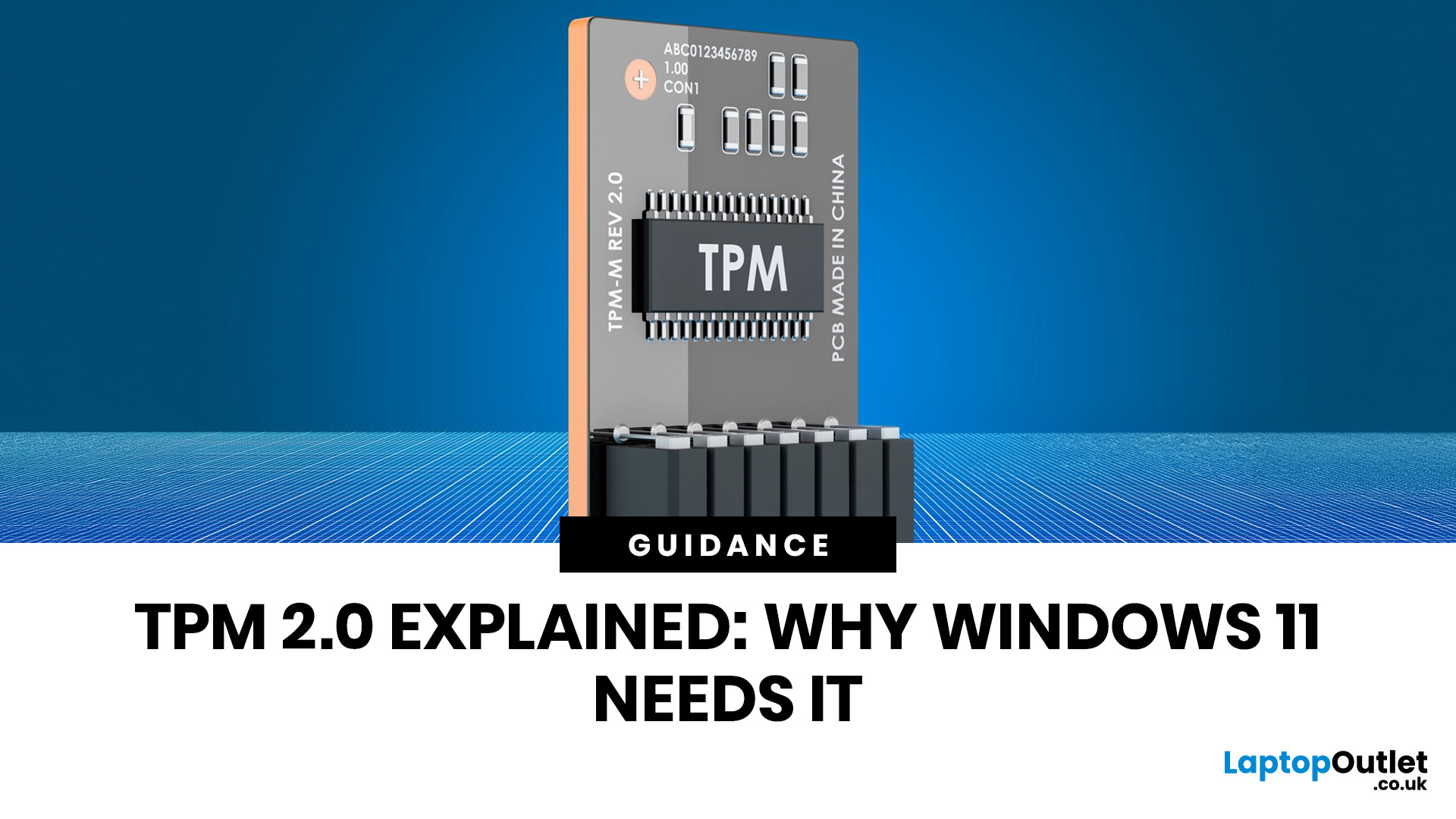
You go to upgrade your PC, everything seems fine, and then Windows 11 drops the digital equivalent of “not you, mate” with a message about TPM 2.0. Suddenly you are searching TPM 2.0 Windows 11, opening BIOS menus you have not touched since the Stone Age, and wondering if your laptop has secretly become ancient overnight. Microsoft’s official Windows 11 minimum requirements still include TPM 2.0, plus UEFI firmware and Secure Boot capability, so this is not some random pop-up glitch. It is part of the platform’s baseline security setup.
If you have been asking what is TPM in computer, do I need TPM for Windows 11, or why this tiny bit of hardware suddenly matters so much, this guide breaks it down in plain English. No jargon soup, no lecture mode, just what TPM is, what it does, why Windows 11 wants it, and what to do if your PC says TPM is missing or disabled.
| Quick answer: TPM 2.0 is a security component built into many modern PCs. It stores cryptographic keys, helps verify system integrity during boot, and supports Windows security features like BitLocker and Windows Hello. Microsoft requires TPM 2.0 for Windows 11 because it strengthens the security baseline across supported devices. |
TPM 2.0 explained in normal human language
So, TPM 2.0 explained without the robotic nonsense: TPM stands for Trusted Platform Module. It is a security-focused crypto-processor designed to handle sensitive cryptographic operations. In simple terms, it is the part of your computer that helps lock down keys, verify trusted startup behaviour, and protect security features from being messed with by normal software or malware. Microsoft describes it as hardware-based security that is tamper-resistant and built to carry out cryptographic operations safely.
That is why people also call it the TPM security chip Windows uses to anchor key protection. Some systems have a discrete physical chip on the motherboard. Others use firmware-based versions built into modern platforms, like Intel PTT or AMD fTPM, which still provide TPM functionality for Windows. Microsoft notes that newer TPM implementations can be integrated into the chipset while maintaining logical separation similar to a dedicated chip.
The short version? TPM is not there to make your PC feel fancy. It is there to make your PC harder to tamper with.
TPM in one line: it is the trusted lockbox for some of your computer’s most important security jobs.
If you want a wider look at keeping your system running smoothly, our complete Windows guide covers everything from setup to updates and common fixes.
What does a TPM chip do?
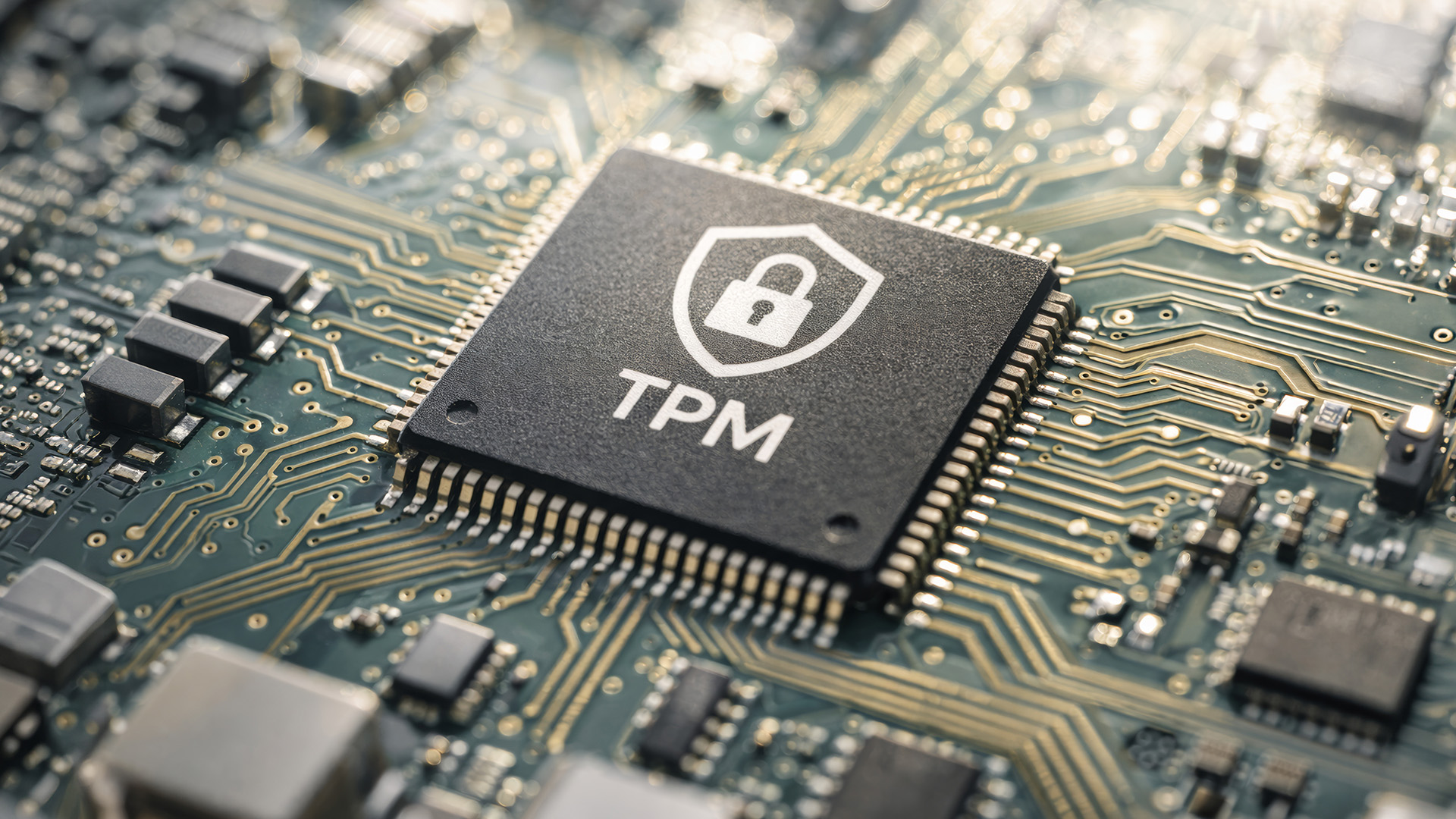
The main TPM chip functions are less flashy than a new processor or GPU, but far more important than they look. Microsoft lists three big jobs: it can generate, store, and limit the use of cryptographic keys; it can support device authentication using a unique key tied to the TPM; and it can help verify platform integrity by storing security measurements from the boot process.
That matters because modern Windows security is built on trust. If the device could prove it started correctly, if the keys used for encryption stay protected, and if credentials are tied to hardware rather than floating around in software space, the whole system becomes harder to attack. Microsoft also notes that some TPM-based keys can be configured so they cannot be exported from the TPM, which reduces the risk of key theft and copy-based attacks.
This is where TPM encryption Windows conversations usually begin. TPM does not encrypt every file by itself like some magical force field. What it does is protect the keys used by security features, which is a huge part of how Windows can protect data with TPM in a way that is harder to bypass.
Why TPM 2.0 is important for Windows 11
The big question is not just “what is TPM?” It is why TPM 2.0 is important enough for Microsoft to make it part of the Windows 11 minimum requirement. Microsoft says TPM 2.0 is required as an important building block for security-related features in Windows 11, and it specifically points to Windows Hello for identity protection and BitLocker for data protection.
That gives you the real answer to the Windows 11 TPM requirement. Microsoft wanted Windows 11’s baseline to start from a stronger security position, not from a best-case guess. The company’s support pages say the minimum requirements were shaped around reliability, security, and compatibility, and TPM 2.0 sits right in the middle of that. It is not there for decoration. It is part of the foundation.
So if you are asking about the TPM 2.0 requirement for Windows 11, the answer is simple: Microsoft wants supported Windows 11 devices to have hardware-backed security from the start. That includes protection for credentials, encryption keys, boot integrity, and identity features used across the operating system.
If the issue started after a recent update, our guide on fixing Windows 11 update problems can help you sort out the update side of it first.
Trusted Platform Module Windows 11: why it matters in real life
It is easy to read all this and think, “Cool, but what does that mean for me?” Fair question.
In day-to-day terms, Trusted Platform Module Windows 11 support helps your system do a better job protecting sign-in credentials, keeping encryption keys safer, and confirming that the device booted in a trusted state. That matters for home users, students, remote workers, and businesses because a lot of modern attacks target credentials, startup processes, or stolen devices. Hardware-backed protection is not unbeatable, but it raises the bar in a very useful way.
This is also why Windows 11 security features TPM gets talked about so much. TPM supports major features people already use, like Windows Hello and BitLocker, rather than sitting in the background doing nothing. You may never see it in daily use, but it is part of the reason those features can be more secure.
Do I need TPM for Windows 11?
If your goal is a fully supported Windows 11 install, yes - you do need TPM for Windows 11. Microsoft’s current system requirement pages still list Trusted Platform Module version 2.0 as a minimum requirement for supported devices.
That does not always mean you need to buy a separate chip. In many cases, the hardware already supports TPM 2.0, but it is disabled in firmware. Microsoft says many PCs shipped in the last five years are capable of running TPM 2.0, and that some retail motherboards used in self-built PCs often ship with TPM turned off by default even when support is available.
So, the problem is often not “my PC has no TPM at all.” The problem is more like “my PC has it, but it is hiding in the BIOS like it pays rent there.”
Secure Boot and TPM 2.0: not the same thing
A lot of people lump these together, so here is the clean version of Secure Boot and TPM 2.0.
Secure Boot is about making sure the system boots using trusted software and firmware paths. TPM is the hardware-backed security module that can store keys and measurements tied to that trusted startup and other security features. Windows 11 requires both TPM 2.0 and UEFI firmware with Secure Boot capability, but they are not interchangeable.
|
Feature |
What it does |
|---|---|
|
TPM 2.0 |
Stores and protects cryptographic keys, supports device authentication, and records integrity measurements |
|
Secure Boot |
Helps ensure the PC starts using trusted firmware and boot components |
|
Why Windows 11 cares |
Together, they help create a more secure startup and stronger platform security baseline |
The easiest way to think about it is this: Secure Boot checks the front door, while TPM helps protect the keys and security record once you are inside.
How to check if your PC has TPM 2.0
If you are trying to confirm tpm Windows 11 compatibility, Microsoft gives two easy ways to check.
The first is through Windows Security. Go to Settings > Update & Security > Windows Security > Device Security. If you see Security processor details, open them and check the specification version. If it says 2.0, you are good on the TPM version front. If that section is missing, the TPM may be disabled.
The second is the old-school route: press Windows key + R, type tpm.msc, and hit Enter. If the console says a compatible TPM cannot be found, the TPM may be disabled or unavailable. If it shows the TPM is ready for use, check the specification version to confirm it is 2.0.
That makes TPM 2.0 for beginners a lot less intimidating. You are not guessing. You are checking directly.
Activating TPM 2.0 in BIOS or UEFI
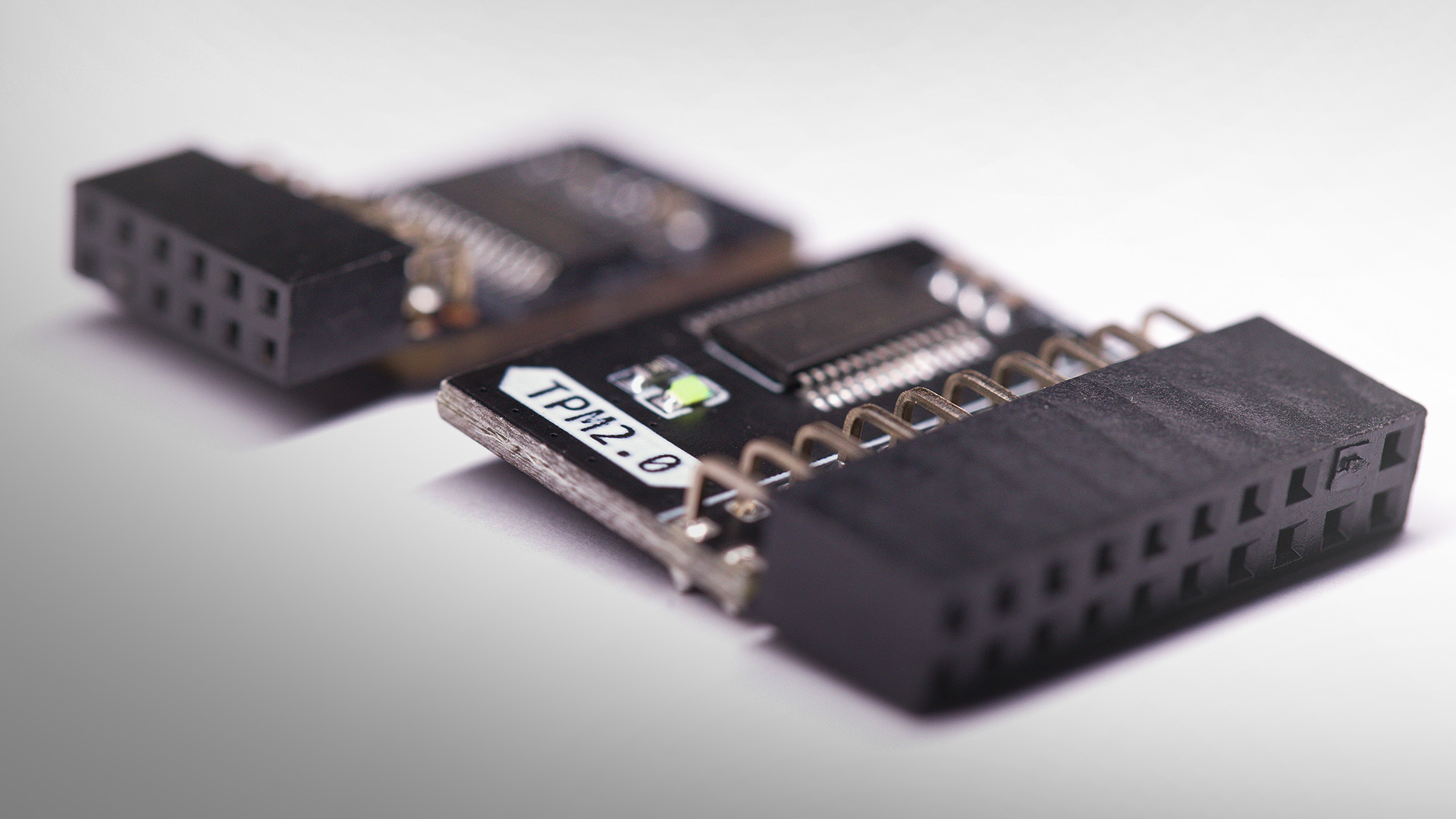
This is the section most people end up needing, because activating TPM 2.0 is often the fix.
Microsoft says TPM settings are usually managed through the UEFI BIOS, and the exact menu path varies by manufacturer. You can reach firmware settings through Windows recovery options, then restart into UEFI to make changes. The setting may sit under menus like Advanced, Security, or Trusted Computing.
Microsoft also notes that the TPM option may appear under several different names, including:
- Security Device
- Security Device Support
- TPM State
- AMD fTPM Switch
- AMD PSP fTPM
- Intel PTT
- Intel Platform Trust Technology
So, if you went into BIOS looking for a giant label saying “TPM 2.0 windows 11 button here,” and found nothing, that is normal. Manufacturers love hiding useful settings behind names that sound like side quests.
TPM 2.0 not enabled error: what it means
The TPM 2.0 not enabled error usually means one of three things: your PC supports TPM 2.0 but the feature is disabled, the system has an older TPM version that does not meet the requirement, or the hardware simply does not support TPM 2.0 at all. Microsoft’s guidance says that if your system shows no security processor in Windows Security or says no compatible TPM is found in TPM Management, the TPM may be disabled; if the specification version is below 2.0, it does not meet the Windows 11 requirement.
If you hit this error, do these first:
- Check tpm.msc
- Check Windows Security > Device Security
- Open UEFI/BIOS and look for TPM, Intel PTT, or AMD fTPM
- Save the change, reboot, and check again
This is where most fix TPM issues Windows searches land. It sounds serious, but in plenty of cases it is just a setting that needs turning on.
TPM missing in BIOS: should you panic?
Not straight away.
If you are dealing with TPM missing in BIOS, the first thing to know is that the setting may not literally be called TPM. On many devices it shows up as Intel PTT or AMD fTPM instead. On others, it sits inside a deeper security menu. Microsoft explicitly lists those alternative labels, so it is worth checking carefully before deciding your machine is missing support.
If you still cannot find anything, there are a few likely reasons. The motherboard may not support TPM 2.0. The system may have an older TPM version. The firmware may need an update from the manufacturer. Or the hardware may simply be too old for a supported Windows 11 setup. Microsoft recommends checking with your PC manufacturer if you are unsure how to find or enable TPM settings.
So no, missing TPM in BIOS does not always mean game over. It just means the next move is checking the model-specific guidance before assuming the worst.
If you are setting up a new device, our guide on activating Windows and Microsoft Office can help you get everything running properly from day one.
Windows 11 TPM requirement bypass: can you do it?
This is the part people search at 1am after the PC Health Check app ruins the mood.
Yes, people do look for a Windows 11 TPM requirement bypass. Microsoft’s official position is clear: installing Windows 11 on devices that do not meet the minimum system requirements is unsupported and not recommended. Microsoft also says unsupported devices are not guaranteed to receive updates, including security updates, may run into compatibility issues, and should be rolled back to Windows 10 if Windows 11 was installed against the requirements.
So, if you are tempted to dodge the requirement, the smarter answer is this: use the supported path if your device can meet it and skip the hacky workaround route if it cannot. You do not want your operating system held together by forum posts, crossed fingers, and one suspicious registry to edit from 2022.
What if your PC still does not meet the Windows 11 TPM requirement?
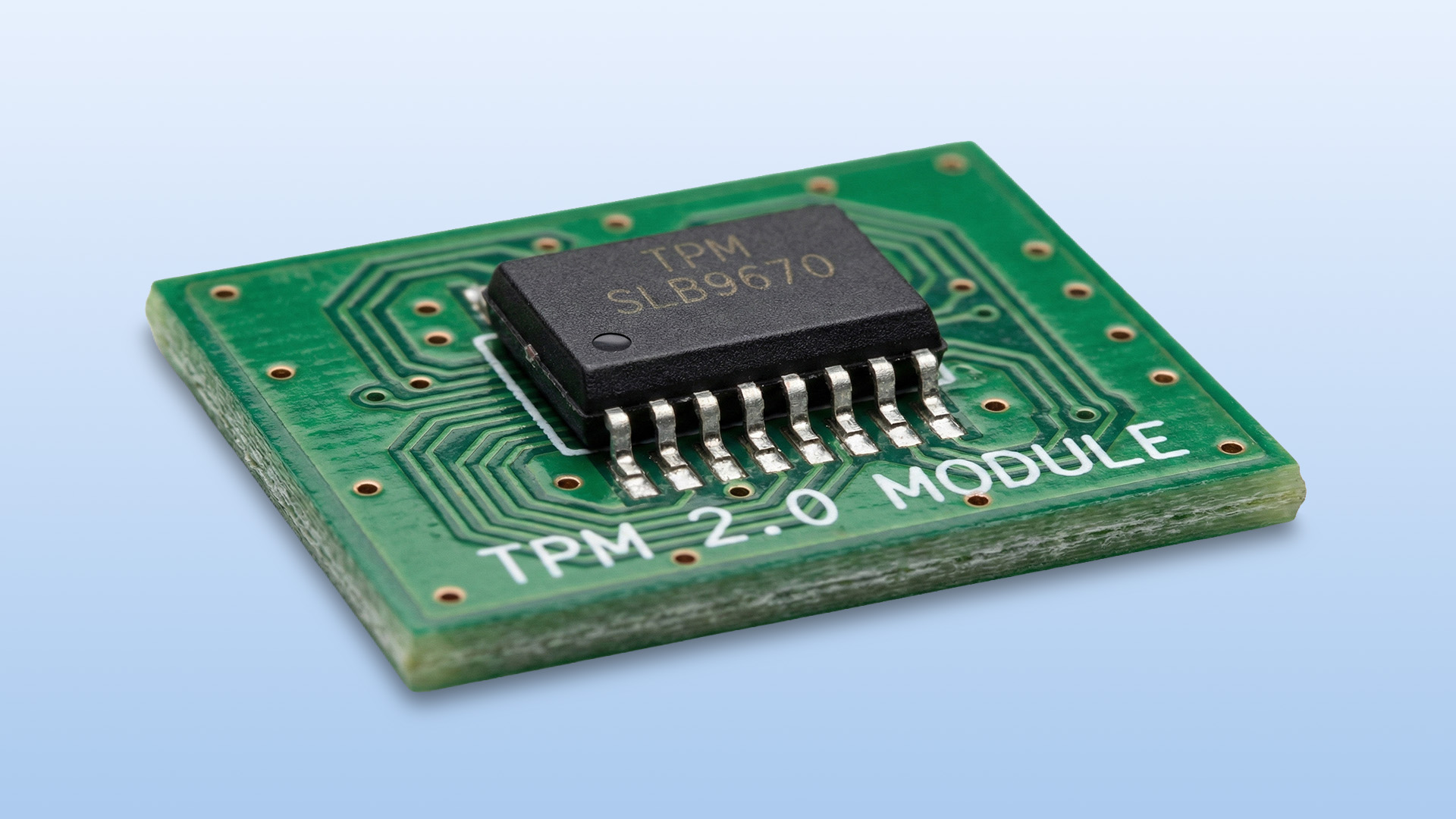
If you have checked Windows Security, run tpm.msc, searched the BIOS, looked for Intel PTT or AMD fTPM, and the device still does not have supported TPM 2.0, then the PC may simply fall outside the Windows 11 support line. At that point, the clean options are to stay on a supported setup that fits your hardware or upgrades to a newer device that meets the requirement properly. Microsoft’s requirement pages still point out users with incompatible hardware towards checking compatibility and considering newer hardware.
If your current machine is due for replacement anyway, it can make more sense to move on than to keep fighting old firmware menus for sport. Browsing Affordable Windows 11 laptops can be the quicker route if you want a device that is already built around the Windows 11 security baseline.
Does TPM slow down your PC?
This one comes up a lot because anything security-related gets blamed for performance problems at some point.
For most users, TPM is not some dramatic speed-killer lurking in the background. Its job is security, key handling, and trust measurements, not chewing through your day-to-day performance. Microsoft’s TPM documentation focuses on security, authentication, boot integrity, and protected key use, not on TPM as a performance-heavy feature running centre stage all the time.
So, if your laptop feels slow, TPM is rarely the star of that story. You are more likely looking at storage, RAM, background apps, thermal limits, or old hardware.

Final thoughts
The whole TPM 2.0 requirement for Windows 11 can look annoyingly technical at first, but the idea behind it is pretty simple. Microsoft wants Windows 11 devices to start from a stronger security baseline, and TPM 2.0 is one of the key pieces in that plan. It helps protect cryptographic keys, supports features like BitLocker and Windows Hello, and works with the wider boot security chain to make supported PCs more secure from the ground up.
So, if your PC throws up a TPM error, do not assume the machine is finished. Check if TPM is enabled, look for Intel PTT or AMD fTPM, and confirm the version before you do anything dramatic. A lot of the time, the fix is tucked away in firmware settings, not hidden behind some expensive hardware upgrade.
And if your system truly does not support the requirement, at least you know the reason now. Not random. Not personal. Just Windows 11 drawing a very firm line around modern security.

FAQ's
What is TPM in computer terms?
TPM is a Trusted Platform Module, a hardware-based security component that handles cryptographic operations, protects keys, supports authentication, and stores integrity measurements from the boot process.
Do I need TPM for Windows 11?
For a supported Windows 11 installation, yes. Microsoft’s current minimum system requirements still include Trusted Platform Module version 2.0.
Can I turn on TPM myself?
In many cases, yes. Microsoft says TPM can often be enabled through UEFI or BIOS settings, and the option may appear under names like TPM, Intel PTT, AMD fTPM, or Security Device Support.
What does TPM 2.0 do for security?
It helps generate and store cryptographic keys, supports device authentication, and records security measurements during boot. Windows also uses TPM for features like Windows Hello and BitLocker.
Is Secure Boot the same as TPM?
No. Secure Boot and TPM 2.0 work together, but they do different jobs. Secure Boot helps ensure trusted startup components are used, while TPM protects keys and supports integrity and authentication functions.
If you want, I can also turn this into a more commercial version with stronger buyer intent and cleaner product-link placement.
Related Articles

Last Updated: October 15, 2025
If you still rely on a Windows 10 laptop, you're standing right on a deadline. Support for Windows 10 ends on 14 October 2025, which means no more free security updates or bug fixes via Windows Update. Your machine will continue to run, but it will steadily become more exposed online. Microsoft's own guidance is straightforward: "move to Windows 11 on supported hardware or consider a managed path to extend security while you transition".
Below,we have compiled a practical guide on Windows 11 vs. Windows 10 laptops, comparing their performance, gaming, security, features, and hardware requirements.
A Quick Verdict If You're a Busy Reader!

- If your laptop meets Windows 11 requirements, upgrade and carry on. You'll gain modern security defaults (TPM 2.0, virtualisation-based protections), ongoing feature updates (25H2/24H2), and gaming tech like Auto HDR and DirectStorage without changing your hardware.
- If your laptop is too old for Windows 11, you can subscribe to the Extended Security

Last Updated: November 04, 2025
In today’s connected world, security is a top priority, especially for businesses handling sensitive data and remote workflows. Microsoft’s latest operating system brings advanced protection designed for the modern workforce. Windows 11 security features deliver multiple layers of defence, offering a robust shield against cyber threats, ransomware, and data breaches.
Compared to its predecessor, Windows 11 vs Windows 10 security shows clear improvements in encryption, authentication, and hardware-based protection. Whether you’re an enterprise leader or a small business owner, investing in Windows 11 laptops with advanced security ensures your data, devices, and users remain protected, wherever work happens.
What Makes Windows 11 the Most Secure OS Yet
Enhanced Hardware-Based Protection
Windows 11 is built for zero-trust security, meaning protection starts from the chip level. All certified Windows 11 business laptops include:
- Trusted Platform Module (TPM) 2.0 – A secure crypto-processor

Published: October 15, 2025
So, you’ve just cracked open a shiny new Windows 11 laptop, maybe something sleek from ASUS or one of the new-gen ultrabooks from the Windows 11 laptop range and you’re ready to dive in.
But before you start downloading Spotify, Chrome, or every game-on-game pass, let’s get one thing straight: Windows 11 runs beautifully… when it’s set up properly.
Out of the box, most laptops are loaded with trialware, telemetry, and services you’ll never use, all quietly eating battery and slowing things down. The good news? You can sort it all out in under an hour with the right steps.
This isn’t one of those “just click next” guides. This is your no-fluff, Gen Z-approved, tech-expert walkthrough, from the first boot to a fully optimised, smooth, private, and battery-efficient setup.
Let’s go.
First Boot: Don’t Just Click Next — Be Smarter Than Setup
The Windows 11 first boot is full of small traps. Microsoft really wants you to sign into a Microsoft Account, connect to Wi-Fi, and enable every cloud

Published: October 15, 2025
When it comes to choosing your next laptop, the debate between Windows 11 and macOS remains one of the most important decisions. Both operating systems offer sleek design, advanced performance, and productivity features, but they cater to very different kinds of users. Whether you’re a student, professional, or gamer, knowing how Windows 11 vs macOS comparison stacks up can help you find the right fit for your workflow.
In this guide, we’ll compare Windows 11 and macOS across key areas, including productivity, performance, gaming, user interface, and security, so you can decide which OS works best for your everyday needs.
Windows 11 vs macOS: Overview
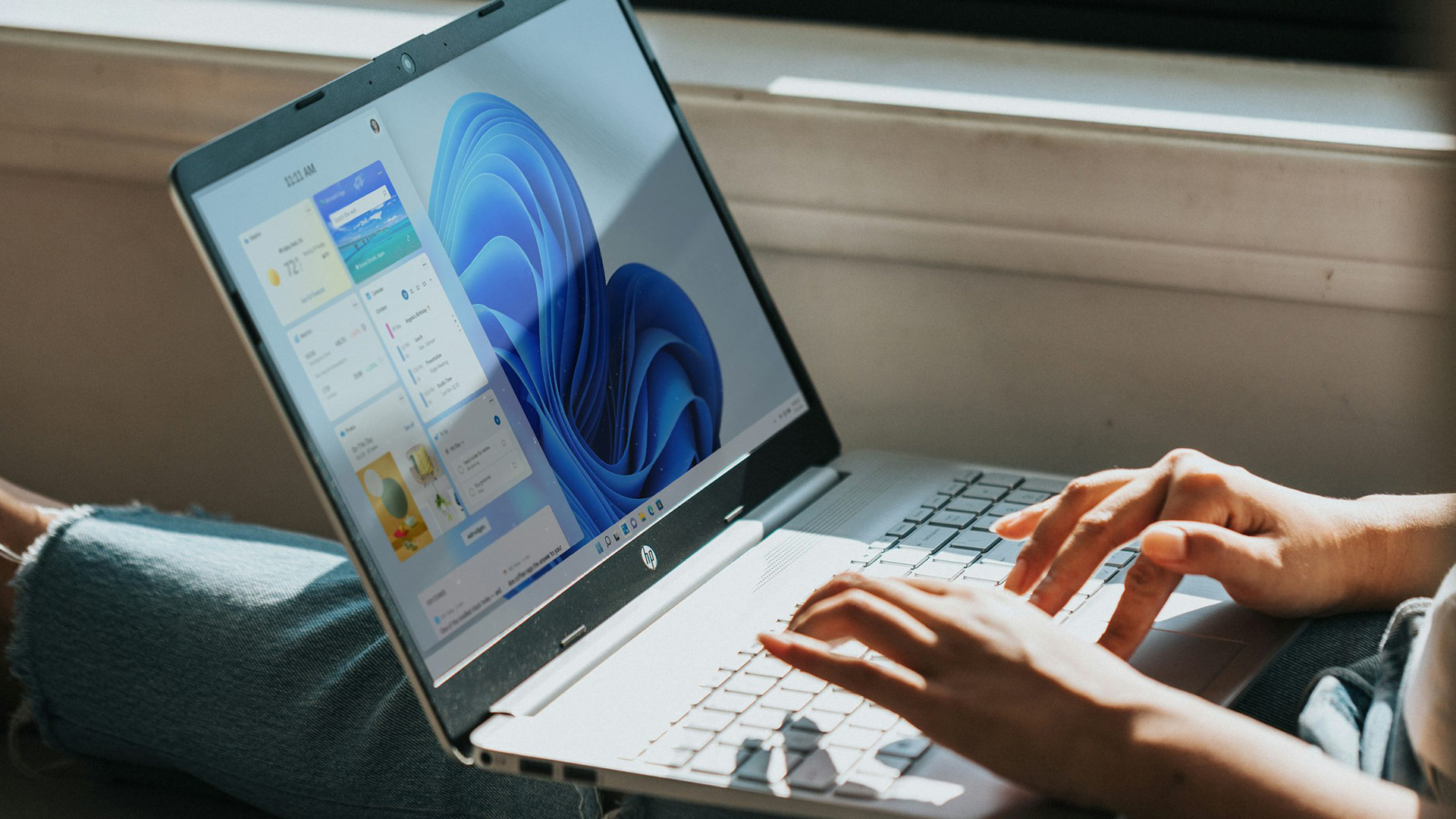
Windows 11, released in 2021 and continuously updated through 2025, represents Microsoft’s vision of a modern, intelligent, and AI-integrated operating system. macOS, on the other hand, continues Apple’s tradition of seamless integration with its ecosystem, known for its stability and clean design.
Both systems focus on user experience,
Published: October 21, 2025
Simple ways to boost speed, improve battery life, and keep your Windows 11 laptop running smoothly.
Windows 11 has brought a modern, elegant design and a range of improvements that make computing smoother, smarter, and more secure. However, even the best laptops can slow down over time if not maintained properly. Whether the laptop is brand new or has been used for a while, a few clever Windows 11 laptop performance tweaks can make a big difference to speed, responsiveness, and battery life.
Thinking about upgrading but not sure if Windows 11 is really worth it? Find out how it compares to Windows 10 in terms of speed, features and everyday performance in our full breakdown on Windows 11 vs Windows 11 laptop.
This guide covers easy, practical Windows 11 laptop tips to help you speed up your laptop and keep it performing at its best.
Why Laptop Performance Slows Down
Over time, laptops may take longer to boot, apps can lag, and multitasking can feel sluggish. This is usually caused by
Last Updated: May 06, 2026
Your Apple AirPods are a brilliant piece of kit, but sometimes the default name – usually something like '[Your Name]'s AirPods' – just doesn't feel personal enough.
Perhaps you have multiple pairs, or maybe you've bought them second-hand and want to shake off the previous owner's tag. Whatever your reason, learning how to rename AirPods is a simple process that helps you personalise your wireless earbuds.
This comprehensive guide will walk you through the simple steps to rename AirPods across all the common platforms.
Renaming Your AirPods on iPhone or iPad (The Easiest Way)
Renaming your AirPods on an iOS or iPadOS device is arguably the simplest method. The change will then update automatically on any other Apple device you own that uses the same Apple ID.
Steps to Rename Your AirPods on iPhone or iPad
- Ensure Connection: Make sure your AirPods are connected to your iPhone or iPad. The quickest way to do this is to open the AirPods case lid near your unlocked device, or place the AirPods

Last Updated: January 21, 2026
For a long time, tablets were seen as secondary devices. Great for Netflix, decent for browsing, but not serious enough for work or study.
That perception is officially outdated.
In 2026, Windows tablets have evolved into some of the most versatile devices you can buy. They’re no longer just tablets that can do work, they’re powerful, flexible computers that happen to be touch-first.
Whether you’re a student, a professional, or someone who wants one device that does everything, this guide breaks down the top Windows tablets in the UK 2026, how they perform in real life, and which models actually make sense to buy right now.
No hype. No spec-sheet dumping. Just clarity.
Why Windows Tablets Matter More Than Ever in 2026

The biggest reason Windows tablets have taken off again is simple: people want flexibility without compromise.
Windows tablets sit in a unique position between laptops and Android tablets. They give you:
- Full desktop software
- Proper multitasking
- Touch and pen support
- Detachable

Last Updated: January 21, 2026
Windows tablets have quietly become one of the most practical tech buys in the UK, especially if you want proper laptop features without paying laptop money. Whether you’re studying, working remotely, or just need a flexible everyday device, a Windows tablet (or budget 2 in 1 Windows tablet) can often do the job of both a tablet and a laptop.
In this 2026 guide, we’re breaking down the best Windows tablets in the UK by price, under £300, and £500 and explaining what you can realistically expect at each level. No hype, no spec overload, just clear advice to help you spend smart.
Why Choose a Windows Tablet Instead of Android or iPad?

Before diving into budgets, it’s worth understanding why people choose Windows tablets in the first place.
A Windows tablet gives you:
- A full desktop operating system
- Proper file management (folders, drives, downloads)
- Compatibility with Microsoft Office and desktop apps
- Keyboard and mouse support
- Often, a 2-in-1 experience with detachable or foldable keyboards
Last Updated: March 09, 2026
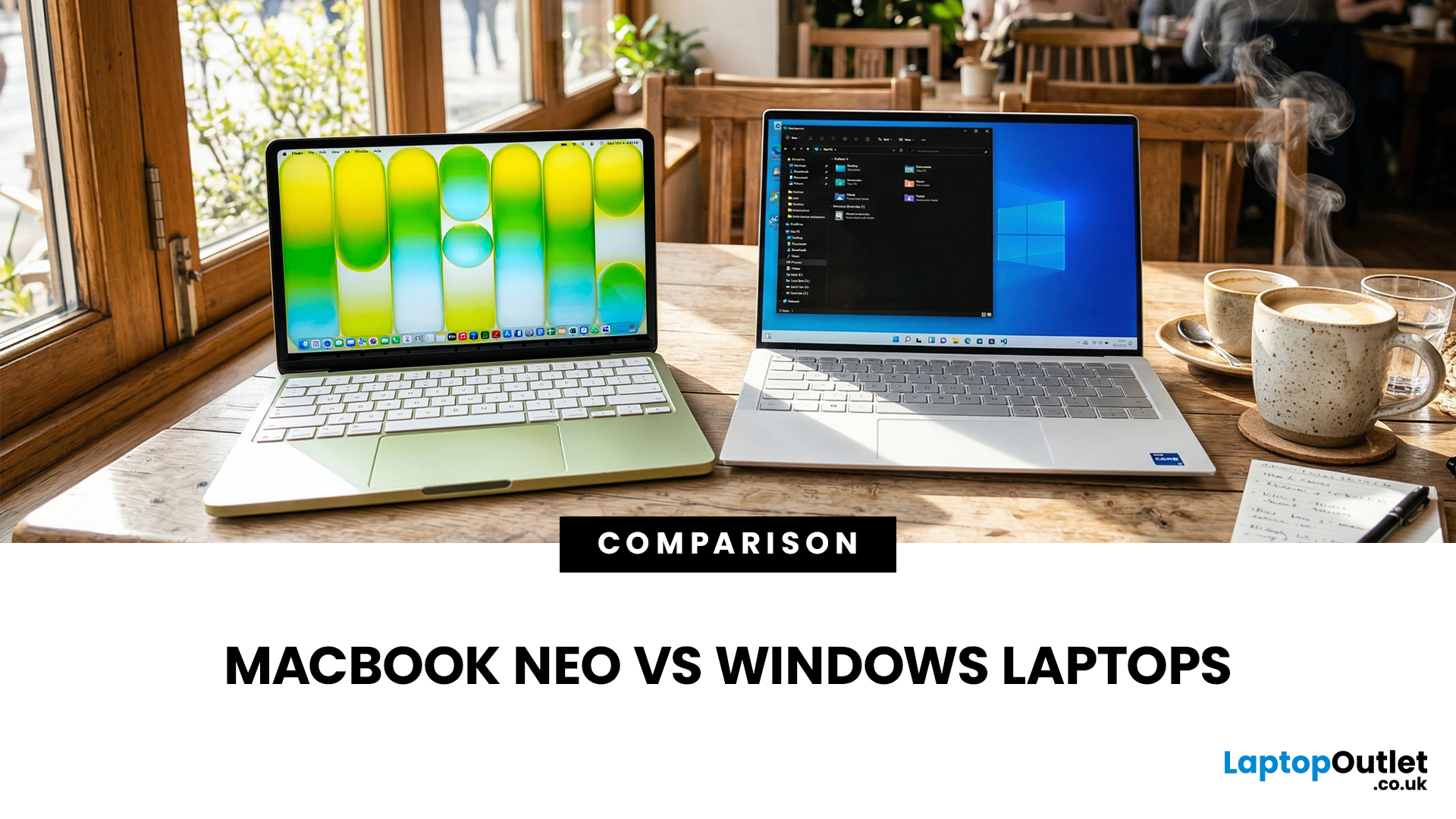
If you are comparing MacBook Neo vs Windows laptops, you are really asking one question: should you buy Apple’s cheapest Mac, or get a budget Windows laptop with more ports and more choice?
MacBook Neo is new, starts at £599, and is designed to be a simple, premium-feeling everyday laptop with macOS, long battery life, and strong call quality.
Budget Windows laptops can offer more screen sizes, more ports, and sometimes better upgrade options. But quality is inconsistent in this price range, and that’s where Neo tries to win.
Below is the practical, buyer-focused breakdown.
10-Second Answer Box
Choose MacBook Neo if
- You want the cleanest everyday experience for browsing, school, docs, and calls
- You value build quality and trackpad feel
- You want a laptop that stays fast and quiet for years, without tweaking settings
Choose a budget Windows laptop if
- You want more ports like HDMI and USB-A built in
- You need a bigger screen for the money
- You want the flexibility of Windows software and lots
Published: March 06, 2026
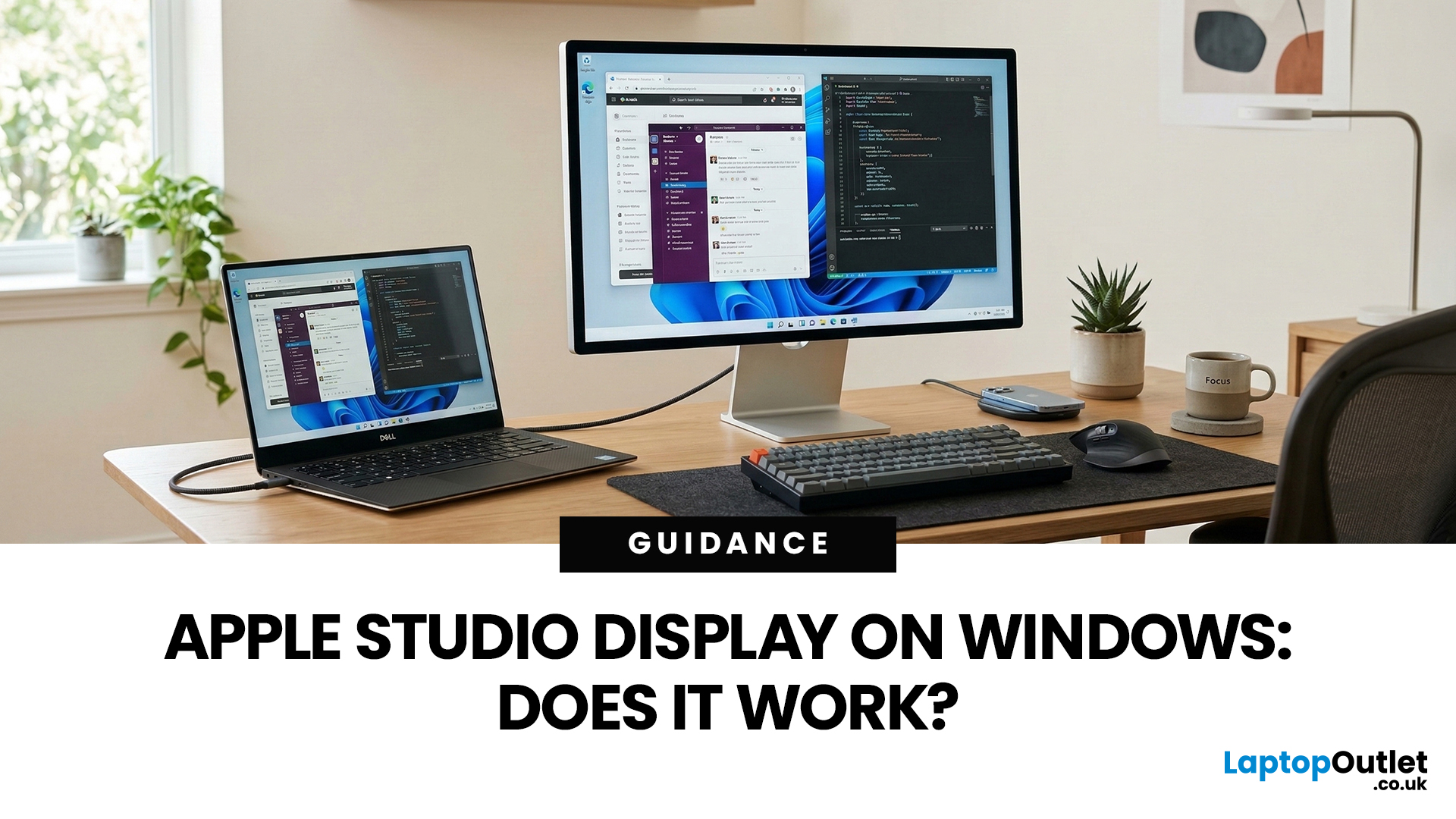
You’ve seen the Apple Studio Display. It’s sleek, stupidly sharp, and it makes your desk look like you’ve got your life together. But you’re on Windows. So, the big question is: Does Apple Studio Display work with Windows PCs? Yes, it can. But you won’t always get the full “Apple magic” experience on Windows.
Apple Studio Display + Windows: What Works vs What Doesn’t
Core Monitor Functions (generally work)
The good news: the basics are solid.
- You’ll get a picture (yep, it’s a monitor)
- Resolution and scaling can be adjusted in Windows settings
- It can act as an audio device (the built-in speakers often show up as an output option)
In other words: for day-to-day “I need a stunning screen”, you’re fine.
Features that May be Limited or Not Supported on Windows
Here’s where the “Apple ecosystem” bit starts showing:
- Center Stage (auto-follow webcam feature): usually not available as intended on Windows
- True Tone (auto colour temperature shifts): Generally not supported
- Firmware updates: typically

