



How to Connect Two Monitors to a Laptop?
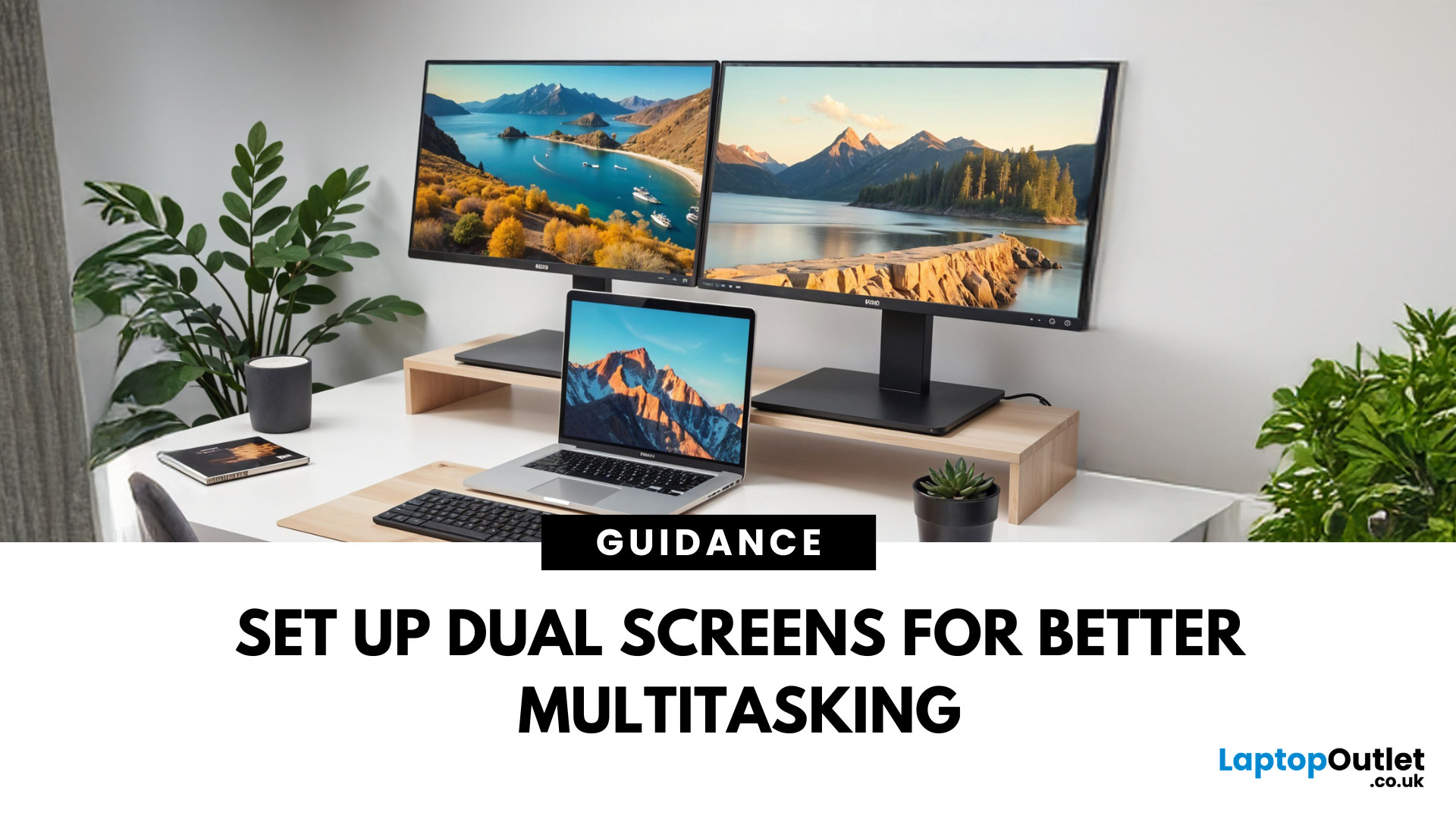
Feeling cramped on your laptop screen? Whether you’re a creative pro, a remote worker, or just need more screen real estate for multitasking—dual monitors are a total game-changer. Here’s how to connect two monitors to your laptop and level up your workspace.
What You’ll Need to Connect Two Monitors
Before you dive in, make sure you’ve got:
- A laptop with multiple display outputs (HDMI, USB-C, DisplayPort, Thunderbolt)
- Two external monitors
- Compatible cables or adapters (HDMI, VGA, USB-C, DisplayPort)
- Optional: Docking station for easier setup
Step-by-Step: How to Connect Two Monitors to a Laptop
1. Check Your Laptop’s Ports
Look at the sides of your laptop—do you have two separate video outputs (e.g., HDMI + USB-C)? If not, you might need a USB-C hub, docking station, or display splitter.
2. Plug in the First Monitor
- Connect your first monitor to the laptop using an HDMI, VGA, or DisplayPort cable.
- Turn on the monitor and make sure it’s set to the correct input source.
3. Plug in the Second Monitor
- Use another available port (e.g., USB-C, Thunderbolt) or plug the second monitor into a docking station.
- Again, make sure the monitor is on and set to the right input source.
4. Configure Display Settings (Windows or macOS)
On Windows:
- Right-click on the desktop > Display settings
- Scroll down to Multiple displays > Click Detect if needed
- Choose Extend desktop to this display for both monitors
- Arrange the monitors by dragging and dropping them into place
On macOS:
- Go to System Settings > Displays
- Click Arrangement
- Drag displays to match your physical setup and uncheck "Mirror Displays"
Tips for a Smooth Dual-Monitor Setup
- Adjust the resolution and orientation of each monitor
- Set your main display (where the taskbar/dock lives)
- Use matching monitor sizes/resolutions for a seamless experience
- Use a monitor stand or mount to organise your desk setup
Troubleshooting: If It’s Not Working
- Check for driver updates (graphics/display drivers)
- Make sure cables and ports are working (try different ones)
- Restart your laptop after connecting both monitors
- If your laptop only supports one display natively, consider a USB Display Adapter
Final Thoughts: Expand Your View, Boost Your Productivity
Once you go dual-screen, there’s no going back. From spreadsheets to streaming, dual monitors help you get more done—faster. And if your current display setup’s holding you back…
Laptop Outlet’s top deals on dual monitors, laptops, hubs, and accessories. Don’t miss out.
FAQs: Quick Answers to Common Monitor Connection Questions
1. Can I connect two monitors to any laptop?
Only if your laptop supports dual external displays—check your GPU and available ports.
2. What if my laptop only has one HDMI port?
Use a USB-C to HDMI adapter, a docking station, or a display splitter.
3. Do I need the same brand or size monitors?
Nope! As long as the resolution and connections are compatible, mix and match away.
4. Why won’t my second monitor show up?
Make sure it's turned on, set to the right input, and try clicking Detect in Display Settings.
5. Will dual monitors slow down my laptop?
Not unless you’re pushing a low-spec laptop—most modern machines handle two displays like a champ.
Watch our Video: How to Connect Two Monitors to a Laptop?
Read More:
| Why Curved Monitors Are a Game-Changer? |
| What are Some Ways to Connect an Xbox to a PC Monitor? |
| Best Monitor for Video and Photo Editing |
Related Articles


Last Updated: October 02, 2025
Screen Flipped? Don’t Panic!
Accidentally hit a key combo and now your screen’s upside down? Or maybe you actually need to rotate your monitor for work or reading mode? Either way, we’ve got you. Here’s how to rotate your monitor screen on purpose—or fix it if you didn’t.
How to Rotate Your Monitor Screen on Windows
There are two quick ways to rotate your screen on a Windows laptop or PC:
Option 1: Use a Keyboard Shortcut
- Ctrl + Alt + Up Arrow – Normal landscape
- Ctrl + Alt + Down Arrow – Upside-down
- Ctrl + Alt + Left Arrow – Rotate left
- Ctrl + Alt + Right Arrow – Rotate right
Pro Tip: These shortcuts work on most Windows PCs with Intel graphics.
Option 2: Use Display Settings
- Right-click anywhere on the desktop
- Click Display Settings
- Scroll to Display orientation
- Choose Landscape, Portrait, Landscape (flipped), or Portrait (flipped)
- Click Keep changes to confirm
How to Rotate Your Screen on macOS
Rotating your screen on a Mac is easy too—but not all Macs

Last Updated: August 25, 2026
Size Matters for the Ultimate Display
So, you’re shopping for a new monitor and keep seeing things like 24-inch, 27-inch, or 32-inch LCD—but what do those numbers actually mean? If you’ve ever wondered how monitor size is measured (and what matters most), we’ve got you. This guide breaks it down in a way that makes sense.
How Monitor Size Is Measured
Monitor size refers to the diagonal length of the screen—not the width or the height. This is measured in inches, from one corner of the viewable screen area to the opposite corner.
Quick Tip: Bezel (the plastic frame around the screen) isn’t included in the measurement—only the actual display area counts.
How Are LCD Screens Measured?
- LCD (Liquid Crystal Display) screens are measured exactly the same way as other monitors: diagonally from corner to corner.
- Whether it's a laptop screen, external monitor, or TV—if it’s an LCD, it’s measured diagonally.
- The measurement doesn’t include the casing—just the visible screen.
Example:
Last Updated: March 05, 2026
Struggling to choose between saving money and getting top-tier performance? The buyer’s dilemma—budget vs. quality—can make or break your gaming experience.
You’ve finally decided to upgrade your workstation or gaming setup. You dream of crisp visuals, smooth performance, and a sleek design. But when you check the prices of new high-resolution monitors, your excitement quickly fades.
A top-tier monitor can easily cost hundreds, if not thousands, of dollars. You could settle for a lower-end display, but that often means sacrificing essential features. And if you’re a gamer, designer, or professional, compromising on display quality just isn’t an option.
So, what’s the smart move? Buy refurbished monitors. These displays offer the same premium performance, reliability, and features—but at a fraction of the cost. Whether you’re looking for a gaming monitor, 4K display, or an ultra-wide screen, refurbished options let you upgrade without breaking the bank.
But are they worth it? Let’s
Last Updated: July 01, 2025
Imagine this: You’ve just snagged what seemed like an absolute steal on a refurbished monitor. You’re feeling pretty good about saving some cash. But the moment you set it up—bam! Dead pixels, faded colours, flickering screen. Suddenly, that "amazing deal" feels like a waste of money. Sound familiar?
Here’s the thing: not all refurbished monitors are created equal. Some are fantastic value-for-money finds, while others; well, let’s just say they don’t belong on. So, how do you make sure you’re getting a quality monitor that actually works? We’ve got you covered.
This refurbished monitor buying guide will walk you through everything you need to check before you click that ‘Buy Now’ button—so you get a deal that’s worth every penny.
Let’s get into it!
Understanding Refurbished Monitors: What You Need to Know
First things first—what does “refurbished” actually mean?
“A refurbished monitor isn’t just a used one. It’s a monitor that has been returned (for various reasons like minor

Last Updated: August 25, 2026
You’ve been dealing with laggy performance, dim colours, or that one stubborn dead pixel. It’s time for an upgrade—but brand-new monitors come with a hefty price tag. Meanwhile, refurbished monitors cost up to 50% less, but are they reliable? Is it really a smart deal?
Monitors for work, gaming, and entertainment are your gateway to productivity and enjoyment, but when it’s time to buy, one question always comes up—should you go for a new monitor or a refurbished one?
If you're hunting for the best budget monitors in the UK, you've probably come across refurbished options that promise serious savings. But are refurbished monitors worth it? Do they perform just as well as new ones, or is it better to invest in something straight from the factory?
We’ve got the answers. Let’s break it down.
New vs. Refurbished Monitor Comparison: Quick Look
| Feature | New Monitor | Refurbished Monitor |
| Price | Expensive, full retail price | 20-50% cheaper than new |
| Warranty | Full manufacturer |

