



Build a Complete, Stylish, and Affordable Gaming PC at Laptop Outlet
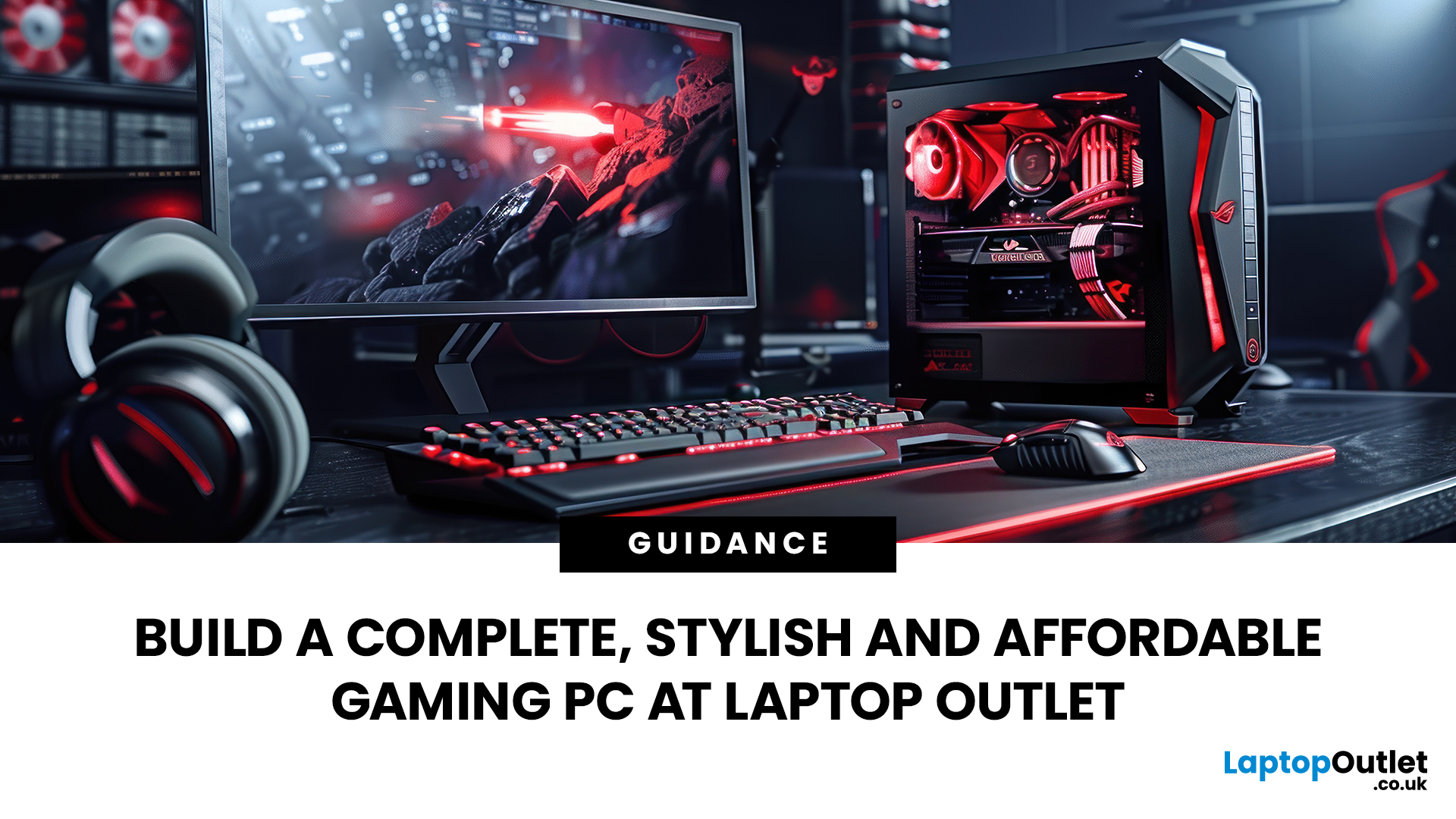
Quick Answer: Building your own gaming PC gives you control over performance, appearance, and, importantly, where your budget goes. Instead of paying extra for specifications you may never use, you can choose the parts that matter for the games, resolution, and frame rates you actually want.
A successful gaming PC build is not about buying the most expensive component in every category. Your processor, graphics card, motherboard, memory, storage, cooling, and power supply need to work as one balanced system. At Laptop Outlet, you can shop components for your gaming PC build across different performance levels and price points, helping you put together a system without sourcing every part from a different retailer.
This guide covers the essential gaming PC components, the compatibility checks worth making and the smaller parts that are easy to forget before you start building.
Start with the Performance You Actually Need
A system for competitive games at 1080p does not need the same hardware as a machine intended for demanding AAA games at 1440p or 4K. Streaming, video editing, modding, and other workloads can also change how much CPU performance, memory, and storage capacity make sense.
Set a total budget first, then allocate the largest share to the components that affect your gaming experience most. In most builds, that means the graphics card and processor.
Expert Tip: Work backwards from your monitor. Resolution and refresh rate give you a much clearer performance target than simply trying to build the "fastest" PC your budget allows.
1. Choose a Graphics Card Around Your Gaming Resolution
The GPU usually has the greatest influence on gaming performance, so it makes sense to choose it early.
Current gaming graphics cards cover a wide range of targets, from accessible 1080p gaming to high-refresh 1440p and demanding 4K setups. We have NVIDIA GeForce RTX and AMD Radeon RX options across several performance tiers. When browsing graphics cards for gaming , consider:
- Your monitor resolution
- Target frame rate
- VRAM capacity
- Ray-tracing performance
- Upscaling and frame-generation support
- Physical card dimensions
- Recommended PSU capacity
- Display outputs
Do not buy a higher-tier GPU purely because it fits the budget. If you mainly play lighter esports titles at 1080p, that money could be more useful elsewhere in the build. If you are still deciding between GPU tiers, our graphics card buying guide explains how resolution, VRAM, power requirements, and case clearance should influence your choice.
2. Match the Processor to the GPU
Your CPU handles game logic, background processes and many of the calculations that keep a game running smoothly. Pairing a very powerful graphics card with an underpowered processor can leave performance on the table, particularly at lower resolutions and high frame rates.
When looking at the latest processors, consider core count, gaming performance, power requirements, motherboard platform and how long you intend to keep the system. We stock Intel and AMD processors , including options suitable for affordable systems through to higher-performance gaming rigs.
AMD's current AM5 platform supports Ryzen 7000, 8000 and 9000 Series processors, with DDR5 support across the platform. Ryzen 9000 Series desktop CPUs also support PCIe 5.0 and DDR5 memory.
Expert Tip: Avoid choosing your CPU in isolation. Check what GPU you plan to use and what resolution you intend to play at before spending heavily on additional cores you may rarely use.
3. Get the Motherboard Compatibility Right
Your motherboard connects practically every major component in the system. That makes compatibility more important than flashy specifications. When shopping for gaming motherboards, start with the CPU socket and chipset. An AMD processor cannot simply be fitted to an Intel board, and even processors from the same manufacturer can use different sockets across generations.
Our range of motherboards for your PC build includes ATX, Micro-ATX and Mini-ITX boards with different sockets, chipsets, memory standards, expansion slots and connectivity options. You should check:
- CPU socket
- Chipset support
- DDR4 or DDR5 compatibility
- Number of M.2 slots
- PCIe expansion slots
- Wi-Fi and Ethernet requirements
- USB connectivity
- Fan and RGB headers
- Case form-factor support
Some older boards may also require a BIOS update before they can support a newer compatible processor, so check the motherboard manufacturer's CPU support list before ordering.
4. Decide Between DDR4 and DDR5 RAM
Memory affects multitasking, background applications and how comfortably your PC handles modern games.
For a new system, 16GB remains workable for many gaming setups, while 32GB gives you considerably more breathing room for newer games, streaming, browsers and other applications running alongside them.
The correct memory generation depends on your platform. You cannot install DDR5 modules into DDR4 slots or vice versa. If you are building around an established DDR4-compatible platform, DDR4 RAM can still make sense for a cost-conscious build. For newer platforms, DDR5 RAM gives you access to current memory standards and a wider upgrade path.
Once you have chosen DDR5, specifications such as timings can make the next decision less obvious, so our guide to DDR5 CL30 vs CL36 explains what those latency figures actually mean for gaming.
5. Use an SSD for Your Operating System and Games
Modern game installations can consume a substantial amount of space, especially once updates, DLC, launchers and recorded gameplay are included. High storage SSDs therefore make sense if you keep several large titles installed at the same time.
For most new builds, an NVMe M.2 drive provides a neat installation and fast transfer speeds without requiring additional data cables. Our internal SSD storage range includes SATA and NVMe drives across multiple capacities.
Faster NVMe drives can generate more heat under sustained workloads, so check whether your NVMe SSD needs a heatsink before adding separate SSD cooling to the build.
6. Pick a Case That Fits the Hardware, Not Just the Theme
Your case determines more than how the finished PC looks. Good Gaming PC cases provide enough room for your motherboard, GPU, CPU cooler, and power supply while allowing air to move through the system effectively. When choosing from gaming PC cases , check:
- Motherboard form factor
- Maximum GPU length
- CPU cooler clearance
- Radiator mounting positions
- Included fan locations
- PSU support
- Cable-management space
- Front-panel connectivity
If you want a stylish build, choose a theme early. Matching the case, cooler, RAM and fans is normally more effective than buying unrelated RGB components and trying to coordinate them afterwards.
If the case supports alternative GPU layouts, our guide to vertical vs horizontal GPU mounting can help you weigh appearance against clearance, installation requirements and airflow.
7. Give the System Enough Power
Power Supplies are not the part of a gaming PC to choose on price alone. The PSU needs enough capacity for the CPU, GPU and the rest of the system, but wattage is only part of the decision. Efficiency rating, build quality, connector availability, and modular cabling also matter.
Browse PC power supplies after you have selected your CPU and GPU so you can base the decision on the hardware you are actually using.
Check the GPU manufacturer's recommended PSU specification and make sure the unit has the required connectors. Leaving sensible headroom can also accommodate transient power demands and modest future upgrades. A modular or semi-modular PSU can make cable management easier because unused cables do not need to stay inside the case.
8. Plan Cooling Before You Assemble the PC
Every processor generates heat, which needs to be transferred away efficiently. CPU Coolers generally fall into two main categories: air coolers and all-in-one liquid coolers. Either can work well when appropriately sized for the processor.
You can browse CPU cooling options , including tower air coolers and AIO liquid cooling systems in different radiator sizes. Before buying, check:
- CPU socket compatibility
- Cooler height
- RAM clearance
- Radiator support
- Fan size
- Pump and fan headers
Do not assume a bigger cooler automatically makes the PC better. A sensible air cooler may be all an efficient gaming CPU needs.
9. Use Case Fans to Create Proper Airflow
Case Fans help move cool air into the chassis and warm air out. A common arrangement uses front or lower fans as intake, with rear or upper fans exhausting heat. The exact layout will depend on your case.
More fans do not automatically mean lower temperatures. Poor fan positioning can create turbulence without improving airflow, while unnecessarily high fan speeds can make the system louder. Check how many fans your case already includes before ordering extras.
10. Don't Forget Thermal Paste
Thermal Paste sits between the CPU and cooler's contact plate, helping heat transfer across tiny surface imperfections.
Many new coolers arrive with paste either pre-applied or supplied in the box. Check before buying an extra tube.
When installing a cooler yourself, follow the cooler manufacturer's guidance rather than applying excessive paste. More thermal compound does not automatically improve cooling.
11. Check Every Connector Before Building
A PC can contain completely compatible core hardware and still cause frustration if you overlook one cable or header. Before assembly, confirm the required Connectors for:
- Motherboard power
- CPU power
- Graphics card power
- SATA devices
- Case fans
- RGB or ARGB lighting
- Front USB ports
- Front audio
- Power and reset buttons
It is especially worth checking whether your motherboard has enough fan and lighting headers if you are planning a heavily RGB-focused build.
12. Choose Your Operating System
Hardware is only part of a complete PC. You will also need an Operating System, with Windows 11 being the obvious choice for many current gaming systems.
Microsoft currently requires, among other specifications, a compatible 64-bit processor, at least 4GB of RAM, 64GB of storage, UEFI Secure Boot capability, and TPM 2.0 for Windows 11. Your actual gaming hardware will normally exceed the minimum CPU, memory, and storage requirements by a wide margin.
Make sure features such as TPM and Secure Boot are configured correctly in the BIOS before installation if required.
13. Have the Right Tools Ready
You do not need a workshop full of specialist Tools to assemble a gaming PC. For most builds, you will want:
- A suitable Phillips screwdriver
- Cable ties or reusable straps
- A clean, well-lit workspace
- Small container for screws
- Anti-static precautions
- Your motherboard and case manuals
Keep drinks away from the work area and avoid assembling the system directly on carpet where possible.
Your motherboard manual is particularly useful for front-panel connectors, RAM slot configuration, storage installation and fan headers, so keep it nearby instead of relying purely on memory.
Gaming PC Build Checklist
Before placing your orders, run through the complete list of parts for a gaming PC build:
|
Component |
What to Check |
|
Processor |
Socket, performance and power requirements |
|
Graphics card |
Resolution target, dimensions, VRAM and PSU recommendation |
|
Motherboard |
Socket, chipset, memory type and form factor |
|
RAM |
DDR generation, capacity, frequency and supported configuration |
|
SSD |
Capacity, M.2/SATA interface and available slots |
|
Case |
Motherboard, GPU, PSU and cooler clearance |
|
PSU |
Wattage, quality, efficiency and connectors |
|
CPU cooler |
Socket support, clearance and thermal capacity |
|
Case fans |
Size, quantity, headers and airflow direction |
|
Operating system |
Licence and hardware requirements |
|
Thermal paste |
Whether your cooler already includes it |
|
Tools |
Screwdriver, cable ties and organised workspace |
Doing this compatibility check before buying is much easier than discovering halfway through assembly that your graphics card does not fit the case or your memory does not match the motherboard.
Where Should You Spend More and Where Can You Save?
A balanced gaming PC does not need premium hardware everywhere.
Spend more where it directly supports your target performance. That usually means the GPU first, followed by a suitable processor and dependable PSU. You can often save by choosing a simpler case, skipping excessive RGB, selecting a motherboard without specialist features you will never use or starting with fewer storage drives.
At the same time, avoid false economy. Buying an undersized PSU, low-capacity SSD or inadequate cooler and replacing it shortly afterwards can cost more than choosing the appropriate specification from the beginning.

Build Your Gaming PC with Laptop Outlet
A good gaming PC build should reflect how you actually play rather than simply following the most expensive specifications available.
Start with the GPU and processor combination that suits your resolution and frame-rate target. Build around them with a compatible motherboard, enough RAM, fast storage, reliable power delivery and cooling that fits both the processor and case.
Laptop Outlet brings the main gaming PC components together across different budgets, making it easier to build a complete system while keeping performance, appearance, and affordability in balance.

How long does it take to build a gaming PC for the first time?
A first gaming PC build can take around two to four hours, depending on your experience and case layout. Allow extra time for cable management, software installation, driver updates and checking that every component is detected correctly.
Should I buy all my gaming PC parts at the same time?
Buying your main components together can make compatibility checks easier and reduces the risk of return windows expiring before you test everything. If you buy gradually, prioritise parts with stable pricing and leave fast-changing components such as GPUs until later.
Can I upgrade a custom gaming PC later?
Yes. One of the biggest advantages of a custom gaming PC is upgrade flexibility. Depending on your motherboard, case and power supply, you may be able to add more storage, increase memory, replace the graphics card or upgrade other components without rebuilding the whole system.
Do gaming PCs need Wi-Fi built into the motherboard?
Not necessarily. A motherboard with built-in Wi-Fi is convenient if you cannot use Ethernet, but it is not essential. You can also add wireless connectivity later using a PCIe Wi-Fi card or compatible USB adapter.
Should I test my PC before completing cable management?
Yes. It is sensible to perform an initial boot test before fully securing cables and closing the case. Confirm that the system reaches the BIOS, recognises the CPU, RAM, and storage, and that the fans operate correctly before finishing the build.
| Read More: |
| Gaming Desktop PC Overheating? How to Fix High Temperatures |
| CPU_OPT vs CPU_FAN vs AIO_PUMP: Where Should You Connect Your Cooler? |
| PSU Fan Not Spinning: Normal Zero-RPM Mode or a Fault? |
Related Articles

Last Updated: July 03, 2026
Published: July 08, 2026
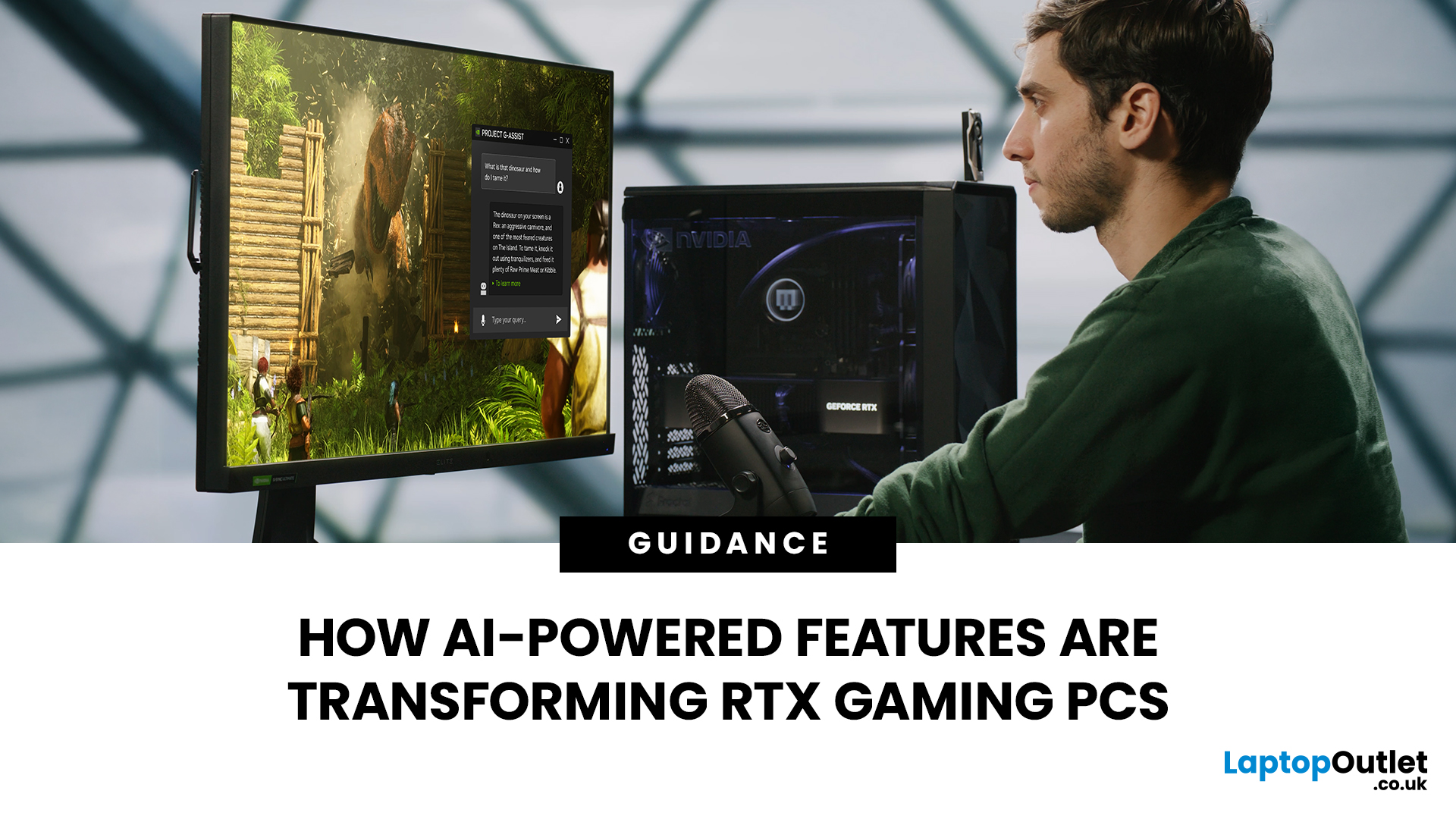
AI RTX gaming PCs can deliver real value, but only when their features align with how you actually play.
| AI-powered RTX gaming PCs use NVIDIA RTX AI features like DLSS upscaling, Frame Generation, ray tracing, and Reflex to boost FPS, improve visual quality, and reduce input lag. They are worth buying when matched to your games, monitor, and budget, especially for 1080p high-refresh, 1440p, streaming, and creator workloads. For UK gamers, prioritise RTX 5050/5060 or higher, 16GB RAM, a strong CPU, and 1TB SSD to get smoother gameplay, better ray tracing, and future-ready performance. |
Modern RTX gaming PCs use AI features like DLSS, Frame Generation, ray tracing, and NVIDIA Reflex to boost FPS, improve visuals, and reduce input lag. But the real value depends on your games, monitor, budget, and specs.
This guide explains what AI-powered RTX gaming actually means, which features matter, and how UK gamers can choose the right RTX PC without falling for marketing hype.
What Does “AI RTX Gaming
Last Updated: July 13, 2026
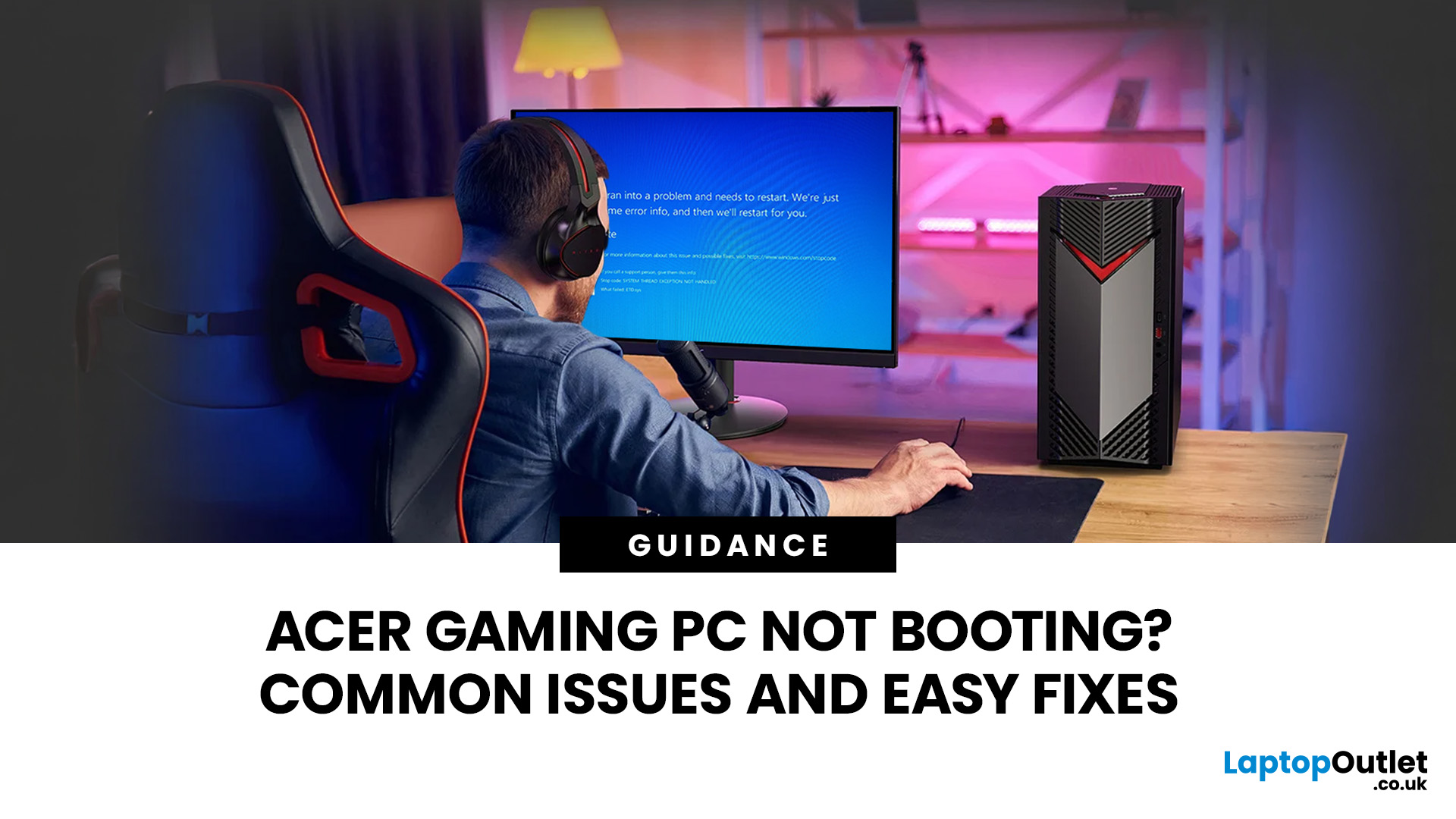
An Acer gaming PC not booting can feel like instant panic mode, especially when you were ready to jump into a game, finish work, or just chill. One minute everything is fine, and the next your PC turns on but no display appears, the monitor says no signal, or the screen stays completely black.
The good news? A PC not booting does not always mean something major is broken. Sometimes it is a loose cable, a monitor input issue, a RAM problem, or a BIOS setting that needs a reset. In this guide, we will walk through the most common Acer desktop startup issues, what they usually mean, and the easy fixes you can try before heading straight to a repair shop.
Is Your Acer PC Actually Not Booting, or is There No Display?
Before you start unplugging parts, it helps to know what problem you are really dealing with. A PC can fail in different ways, and each one points to a different cause.
If your Acer PC is not starting up that means there are no lights, no fans, and no sound at all, it may be a power
Last Updated: September 03, 2026
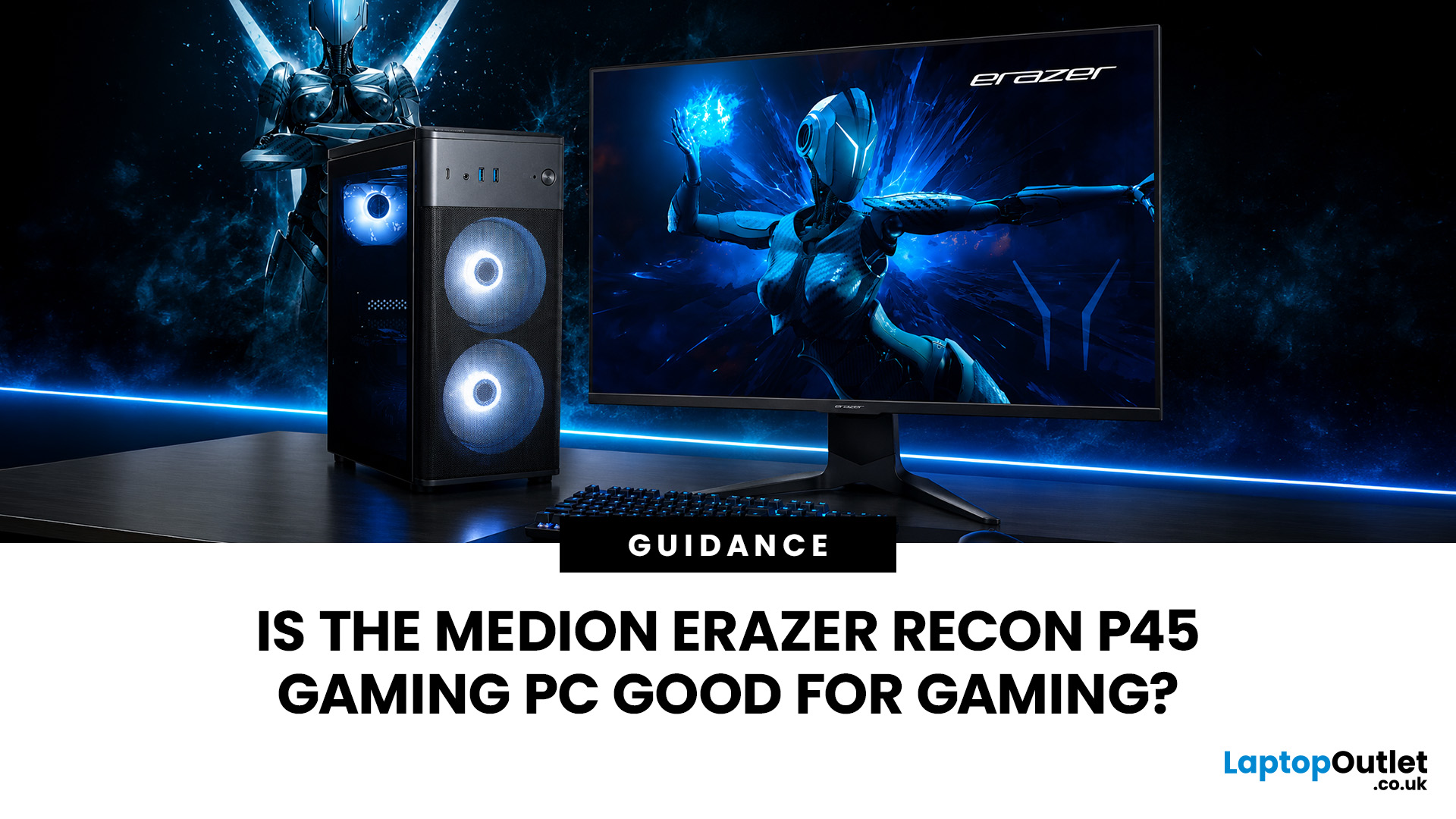
Yes, the Medion Erazer Recon P45 is a good gaming PC for players who want smooth everyday gaming, strong 1080p performance, fast loading times and a ready-to-use desktop without building a PC from scratch.
At Laptop Outlet, current Medion Erazer Recon P45 Gaming PC options include configurations with an AMD Ryzen 5 5500, 1TB SSD, Windows 11 Home, and dedicated NVIDIA RTX graphics, including RTX 5060 and RTX 5050 variants. The RTX 5060 model also includes 32GB RAM in the listed specification, while the RTX 5050 model is listed with 16GB RAM.
Is the Medion Erazer Recon P45 Worth it?
For most UK gamers, the Medion Recon P45 PC makes sense if you want a capable prebuilt gaming desktop that can handle modern games, multitasking, streaming, schoolwork, everyday browsing, and entertainment. It is especially suitable for:
| User Type | Is it a Good Fit? | Why |
| Beginner gamers | Yes | No PC-building knowledge needed |
| 1080p players | Yes | RTX graphics and Ryzen 5 power are well matched |
| Students | Yes | Good for gaming, |
Last Updated: September 01, 2026
In gaming, your PC is the engine - but your accessories are the steering wheel, tyres, mirrors, and dashboard. You can have all the power in the world, but if your mouse feels sluggish, your monitor looks choppy, your headset misses key sound cues, or your desk is a cable jungle, the whole setup feels off.
Your PC might be built to run the latest games, but your accessories decide how well you actually experience them. A lightweight mouse can sharpen your aim, a mechanical keyboard can clean up your inputs, a gaming headset can help you catch every footstep, and a high refresh rate
Last Updated: September 02, 2026
AAA games can be absolutely stunning, but they are not shy about demanding serious hardware. High-resolution textures, dense open worlds, ray-traced lighting, advanced physics, and background asset streaming can push an ordinary desktop to its limits. If your computer is short on graphics power, memory or cooling capacity, the result may be stuttering, inconsistent frame rates and a graphics menu full of compromises.
That's where an OMEN gaming PC comes in. An HP OMEN desktop combines dedicated gaming graphics, modern processors, SSD storage, and performance-focused cooling in a pre-built system. But not every configuration delivers the same experience, one OMEN gaming desktop may be ideal for 1080p gaming, while another is built for high-refresh 1440p or demanding 4K gameplay. This guide breaks down the HP OMEN specs that actually matter and how to match them to the way you play.
Is an OMEN Gaming PC Actually Good for AAA Games?
Yes. A correctly configured OMEN PC for AAA games can deliver
Published: July 21, 2026
For 1080p, an RTX 5060 is the sensible mainstream pick. For 1440p, step up to an RTX 5060 Ti 16GB or RTX 5070. For 4K, the RTX 5080 is the best-balanced choice for most people, with the RTX 5090 reserved for buyers who genuinely need its 32GB of memory or maximum settings at every resolution.
Picking one of the best RTX gaming PCs isn't about flexing the priciest GPU - it's about matching your rig to your setup and the games you actually play. A competitive player on a 1080p 240Hz display needs strong CPU performance and low latency. Someone playing cinematic single-player games on a 4K screen needs more GPU power, VRAM, and cooling. A 1440p buyer usually wants the strongest balance of image quality, speed, and price.
Getting this right prevents two expensive mistakes: overspending on performance your display can't show, or buying a PC that leans too heavily on generated frames to hit numbers it can't sustain natively. The most common upgrade enquiry we see at Laptop Outlet is from 1080p
Last Updated: July 21, 2026
Last Updated: July 27, 2026
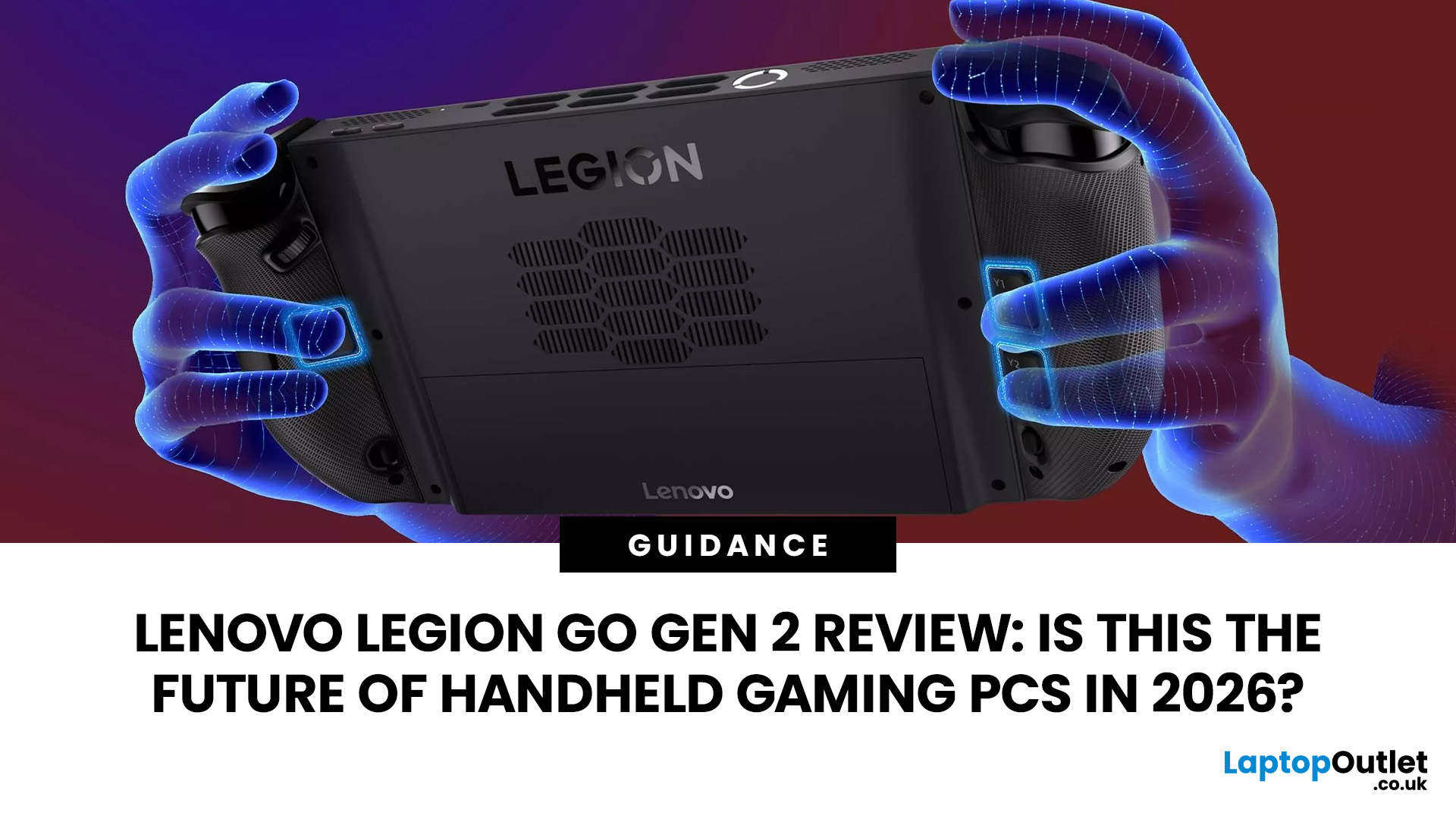
The Lenovo Legion Go Gen 2 takes almost everything that made the original handheld exciting and pushes it further. You get a huge 8.8-inch OLED display, smoother variable refresh rate gaming, upgraded AMD processing power and redesigned detachable controllers. It is powerful, flexible and packed with features, but it is also one of the biggest and most expensive handheld PCs available.
So, does this premium portable gaming PC represent the future of handheld gaming, or has Lenovo built more machine than most gamers need? This review examines its performance, battery, display, software, and competition.
Lenovo Legion Go Gen 2 Overview: What Makes This Handheld Gaming PC Different?
Lenovo officially markets the device as the Legion Go (8.8", 2), although Legion Go Gen 2 and Legion Go 2 are the names most gamers use. You may also see it shortened to Lenovo Go Gen 2, but it belongs firmly to Lenovo’s Legion gaming range. Its standout features include:
| Specification | Lenovo Legion Go Gen 2 |
| Processor |
Last Updated: August 17, 2026
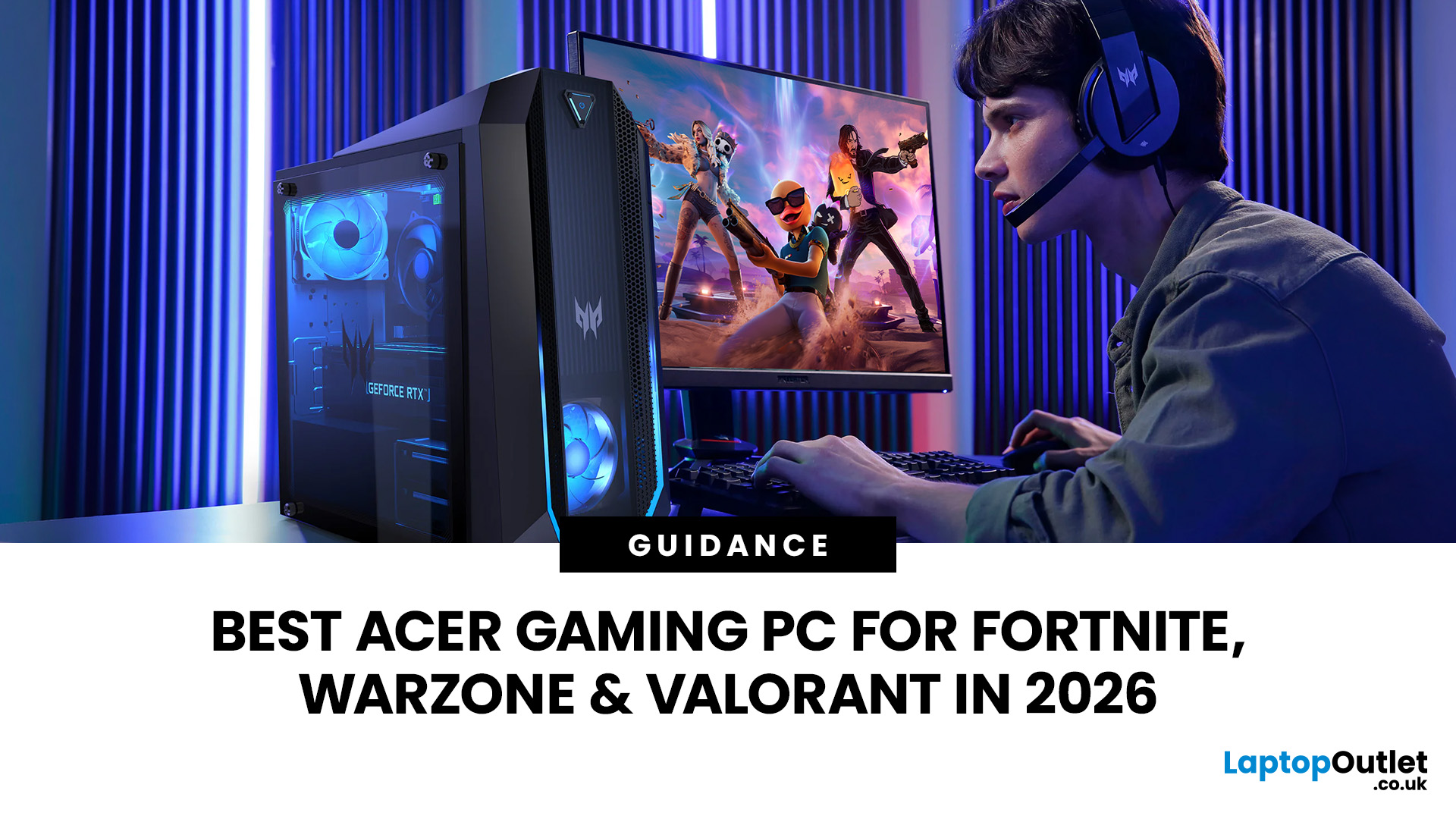
An Acer gaming PC can run Fortnite, Call of Duty: Warzone and Valorant, but the frame rate you get depends heavily on the graphics card, processor, resolution and in-game settings.
If you are comparing Acer gaming PC FPS, the biggest difference comes from whether you choose an entry-level RTX 3050 system, a newer RTX 5060 setup or a more powerful RTX 5070 desktop. Fortnite and Valorant are relatively accessible, while Warzone places much greater demands on your GPU, memory, and storage.
The Acer Nitro N20 and Predator PO3-665 desktops currently available from Laptop Outlet cover all three of these performance levels, so let’s look at what their specifications actually mean when you start playing.
Fortnite, Warzone, and Valorant PC Requirements in 2026
Before choosing a PC, compare its components against what the developers currently recommend.
| Game | Current PC Hardware Guidance | What You Should Aim For |
| Fortnite | Recommended: GTX 960-class GPU, Core i5-7300U/Ryzen 3 3300U and 16GB RAM. Epic |

