



How to Stop a Laptop from Overheating - Cool It Down Fast
Quick Answer
If your laptop is overheating, move it to a hard, flat surface, close heavy apps, switch Windows 11 to Balanced mode, clear dust from the vents, and let it cool if performance drops or it shuts down. Persistent overheating can point to blocked airflow, a failing fan, battery problems or ageing thermal paste, so repeated symptoms need proper diagnosis promptly.
A warm laptop is not automatically an overheating laptop. Gaming, video editing, charging and other demanding tasks can make the CPU and GPU run hotter, which can also make the fans louder.
The warning signs are more useful than surface warmth alone. Repeated slowdowns under load, sudden shutdowns, unusually loud or silent fans, heat during light use, or a battery that is swelling all deserve attention.
First, Is Your Laptop Actually Overheating?
Modern processors protect themselves when temperatures become too high by reducing performance, a behaviour known as thermal throttling. Some systems may eventually shut down if cooling is no longer sufficient.
If you are still trying to identify the cause, start with our guide to why your laptop is overheating. This page focuses on the practical steps to cool it down and stop the problem returning.
|
What you notice |
What it may mean |
What to do first |
|
Warm during gaming or editing |
Often normal if performance stays stable |
Improve airflow and monitor behaviour |
|
Fan becomes loud under heavy load |
Often normal |
Check that vents are clear |
|
Gets hot while almost idle |
Needs investigation |
Check Task Manager and background activity |
|
Performance drops after a few minutes |
Possible thermal throttling |
Reduce load and check cooling |
|
Repeated thermal shutdowns |
Serious warning sign |
Stop heavy use and diagnose the cooling system |
|
Case bulging or trackpad lifting |
Possible swollen battery |
Stop using the device and arrange service |
How to Stop a Laptop from Overheating
1. Move It to a Hard, Flat Surface
Start with airflow. Beds, sofas, cushions and thick blankets can cover intake vents underneath the laptop and trap warm air around the chassis.
Move the laptop to a desk or other firm surface and leave clear space around the vents. A stand can help if it lifts the machine without covering the intake areas.
2. Close Heavy Apps and Check Task Manager
If the laptop is hot while you are doing very little, check whether the system is actually idle. Press Ctrl + Shift + Esc in Windows 11 to open Task Manager, then review the Processes tab for unusually high CPU, GPU, memory or disk activity.
Close apps you recognise and no longer need. Do not end unfamiliar Windows processes at random. If a browser, game launcher, cloud sync tool or update is creating sustained load, dealing with that process can reduce heat quickly.
3. Switch Windows 11 Away from Best Performance
Windows 11 lets you change power mode under Settings > System > Power & battery. Best performance can increase power use and may make a laptop run warmer, so Balanced is a sensible everyday starting point when you do not need maximum performance.
Best power efficiency can reduce consumption further, although it may also reduce peak performance. Use the setting that fits the workload rather than permanently forcing the laptop into maximum performance mode.
4. Let an Extremely Hot Laptop Cool Properly
If performance suddenly collapses, the laptop repeatedly shuts down, or the cooling system appears unable to recover, save your work and shut it down. Place it somewhere dry and well ventilated until it has cooled.
Do not use a fridge, freezer, ice pack or other extreme cooling method. Rapid temperature changes and condensation can create a different hardware problem.
5. Clean the Vents Safely
Dust, hair and lint can restrict the path that cool air needs to enter and hot air needs to leave. Power the laptop off, unplug the charger and clear visible dust from external vents with a soft brush or short, controlled bursts of canned compressed air.
Keep the can upright and avoid powerful workshop air compressors. If you can see the fan, do not deliberately spin it at very high speed with airflow.
For a safer model-agnostic cleaning routine, see our step-by-step guide to clean laptop fans and vents.
6. Update Windows, Drivers and Firmware Carefully
Unexpected fan behaviour or high background activity can sometimes follow software or driver problems. Install normal Windows updates, then check the laptop manufacturer for approved chipset, graphics, power-management and firmware updates for your exact model.
BIOS updates should only come from the manufacturer and should be installed according to its instructions. Avoid random driver utilities or firmware downloads from third-party sites.
If you need the Windows steps, our guide explains how to update drivers on Windows 10 and 11 using trusted sources.
7. Use a Stand or Cooling Pad as Support, Not a Cure
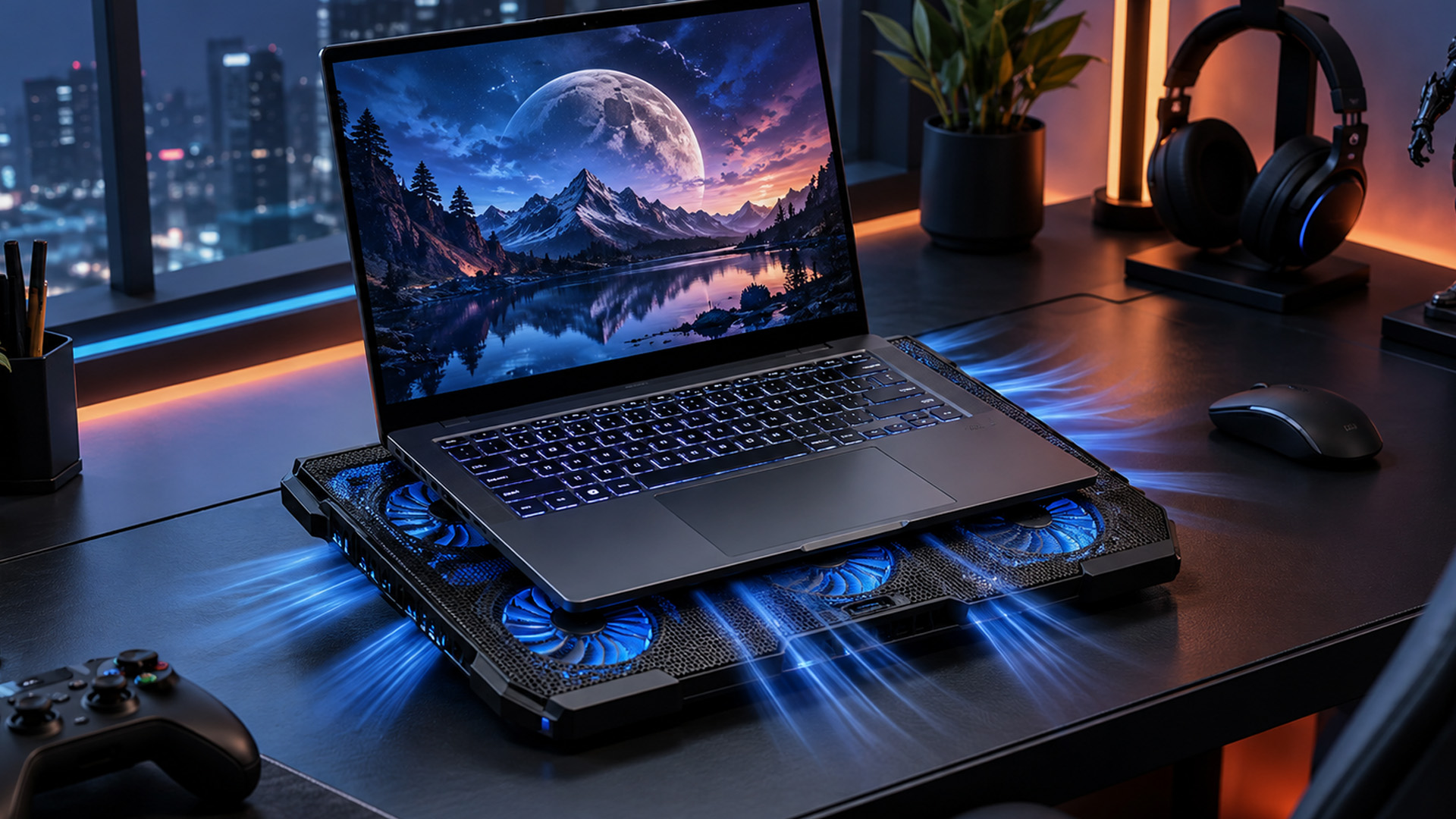
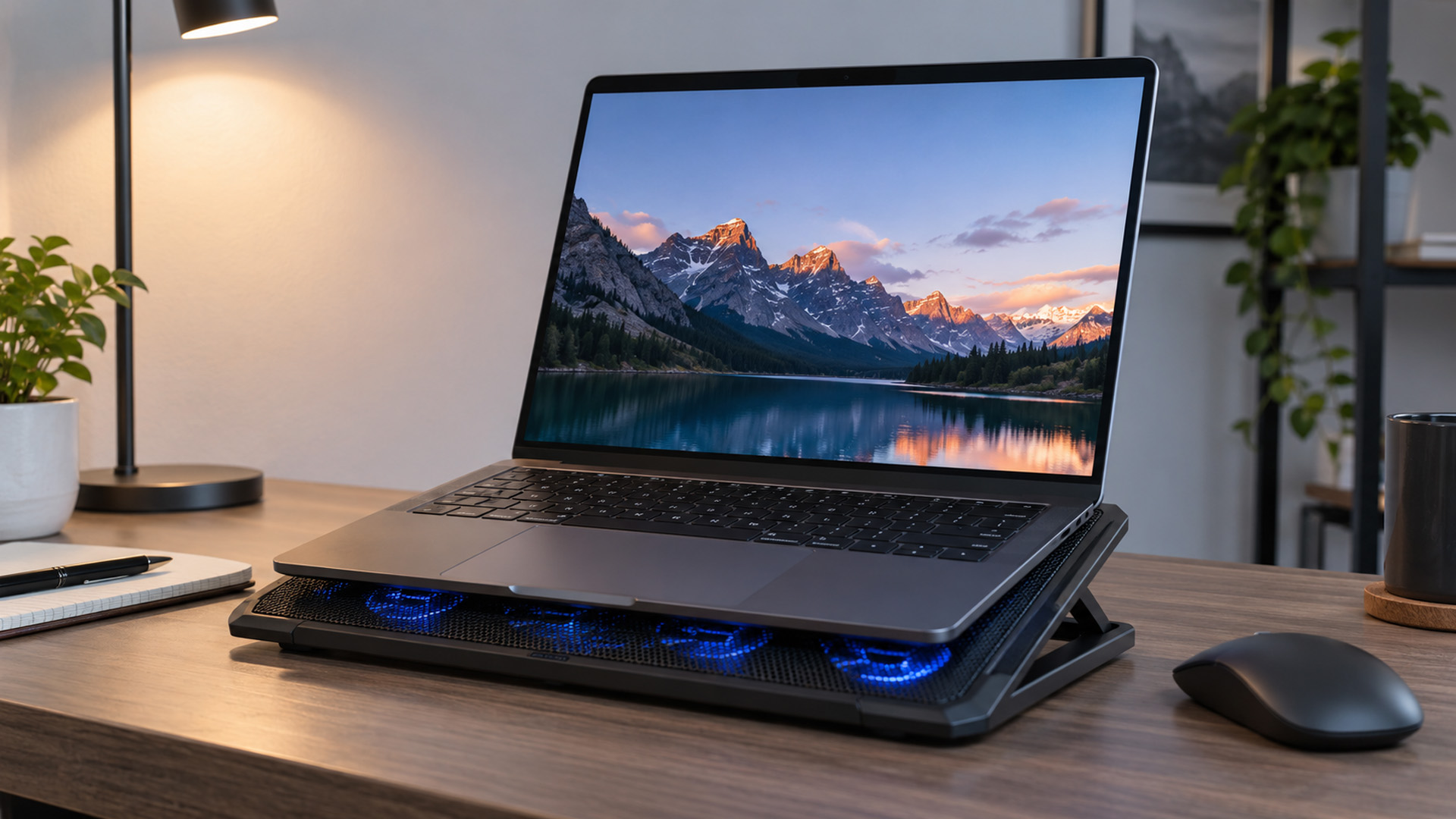
A stand can improve clearance beneath the laptop, while an active cooling pad may help some models, especially when their intake vents are on the underside. Results vary because laptop vent layouts and cooling systems differ.
A cooling pad will not fix a failed fan, clogged heatsink, swollen battery or poor heatsink contact. Treat it as an airflow aid, not a substitute for repairing an underlying fault.
If you are considering one, compare the practical differences in our guide to laptop cooling pads. You can also compare laptop accessories for stands and desk setup options.
8. Reduce Unnecessary Gaming or Creative Load
A laptop that is stable during web browsing but gets much hotter during gaming, rendering or video editing may simply be working near its designed performance limits. That does not automatically mean it is faulty.
If you are seeing throttling or stutter, try lowering the most demanding game settings, capping frame rate where appropriate, closing background recording tools and avoiding simultaneous heavy workloads. The aim is stable performance, not making a performance laptop feel cold.
9. Check the Battery and Charger
Charging creates additional heat, and some laptops also use more aggressive performance settings when connected to mains power. That does not mean you must routinely unplug a healthy laptop, but the charger, battery and power mode should be checked if overheating happens mainly while plugged in.
Use a compatible charger and pay attention to physical battery warning signs. A raised trackpad or keyboard, widening case seams, a bulging base or a screen that no longer closes properly can indicate battery swelling.
If the battery is visibly swollen, stop using the device and do not press, puncture or try to flatten it. Arrange professional battery service or follow the manufacturer’s safety instructions.
For battery diagnostics, you can also learn how to check laptop battery health using Windows battery information.
10. Consider Internal Cleaning or Thermal Paste Only When Needed
If airflow is clear, software load is normal and the fan is working but the laptop still throttles or shuts down, the fault may be deeper inside. Dust can collect in the heatsink fins, fans can wear out, and thermal interface material can lose effectiveness.
Thermal paste should not be replaced just because a laptop has reached a certain age. Consider it after simpler causes have been ruled out, especially if temperatures deteriorated over time or the heatsink has been removed.
Our thermal paste replacement guide explains the risks, tools and situations where professional servicing is the safer option.
How to Tell If Heat Is Reducing Performance
Thermal throttling happens when a processor reduces its operating speed because it has reached a thermal limit. The exact limit varies by CPU, GPU and laptop design, so a single internet temperature number is not a reliable rule for every machine.
Look for a pattern instead: performance starts normally, temperatures rise, clock speeds or frame rates fall, and performance returns after the laptop cools. Repeated shutdowns are a stronger warning sign than a warm keyboard or palm rest alone.
If you want to measure rather than guess, use our guide on how to check CPU and GPU temperatures, then compare the readings with the limits published for your exact laptop or processor.
When Should You Stop Troubleshooting and Get Help?
Stop DIY troubleshooting and arrange service if the laptop repeatedly shuts down, the fan has stopped or is grinding, there is a burning smell, the case is swelling, liquid has entered the device, or overheating began immediately after an internal repair.
You should also be cautious if the laptop is still under warranty. Opening the chassis or disturbing the heatsink can complicate service, and compact laptops may use model-specific thermal pads, screws or liquid-metal cooling that are not suitable for a general DIY guide.
How to Prevent Laptop Overheating
- Use the laptop on a firm surface that leaves the vents open.
- Keep visible vents free from dust and clutter.
- Use Balanced power mode for ordinary work when maximum performance is unnecessary.
- Check Task Manager if the fan is loud while the laptop appears idle.
- Install Windows, driver and firmware updates from official sources.
- Avoid leaving the laptop in direct sunlight or a very hot room.
- Use the correct charger and inspect the battery if the case begins to bulge.
- Treat new rattling, grinding, repeated shutdowns or sudden throttling as faults worth investigating.
When Laptop Repair No Longer Makes Sense
Overheating does not automatically mean a laptop needs replacing. Cleaning a blocked cooling system, replacing a worn fan or repairing a battery can be sensible if the rest of the machine still meets your needs.
Replacement becomes more reasonable when the device continues to overheat after proper servicing, repair costs are high relative to its age, the battery and cooling system both need work, or performance no longer suits your workload.
If you reach that point, explore our current collection of laptops by workload and cooling design rather than upgrading purely because a newer processor is available.

Keep Your Laptop Cool Without Guesswork!
To stop laptop overheating, start with the low-risk fixes: improve airflow, reduce unnecessary load, use a sensible Windows 11 power mode and clean external vents carefully. Then monitor whether the laptop returns to stable behaviour under the same workload.
If the problem persists, investigate the battery, fan, heatsink and thermal interface rather than repeatedly buying cooling accessories. The safest fix is the one that matches the cause, and persistent shutdowns, swelling or hardware noise are signs to stop experimenting and arrange proper service.

Common Questions About Laptop Overheating
How can I cool my laptop down quickly?
Move it to a hard surface, close demanding apps, switch to Balanced mode and improve airflow around the vents. If performance is still dropping or the system shuts down, save your work, power it off and let it cool.
Is it normal for a laptop to get hot?
Some warmth is normal during gaming, charging, video calls and creative work. Worry more about repeated throttling, crashes, shutdowns, heat during light use, abnormal fan behaviour or a swollen battery than surface warmth alone.
Do laptop cooling pads really stop overheating?
A cooling pad can improve airflow on laptops with suitable underside vents, but results vary. It cannot repair a failed fan, blocked heatsink, swollen battery or poor thermal contact, so persistent overheating still needs diagnosis.
Does keeping a laptop plugged in cause overheating?
Not by itself. Charging adds heat and some laptops use higher performance settings on mains power, but a healthy system should manage this. Investigate the charger, battery, ventilation and power mode if overheating mainly happens while plugged in.
When should I replace laptop thermal paste?
Consider thermal paste after airflow, software load, fan operation and dust have been checked, particularly if cooling performance has worsened over time. Do not repaste solely because of age, and check warranty or service guidance first.
| Read More: |
| Laptop Battery Draining Fast? Reasons & Easy Solutions |
| Laptop Specs Explained: CPU, RAM, GPU & Storage Guide for Beginners |
| Everything You Need to Know About Gaming Laptops |
Related Articles

Last Updated: September 09, 2025
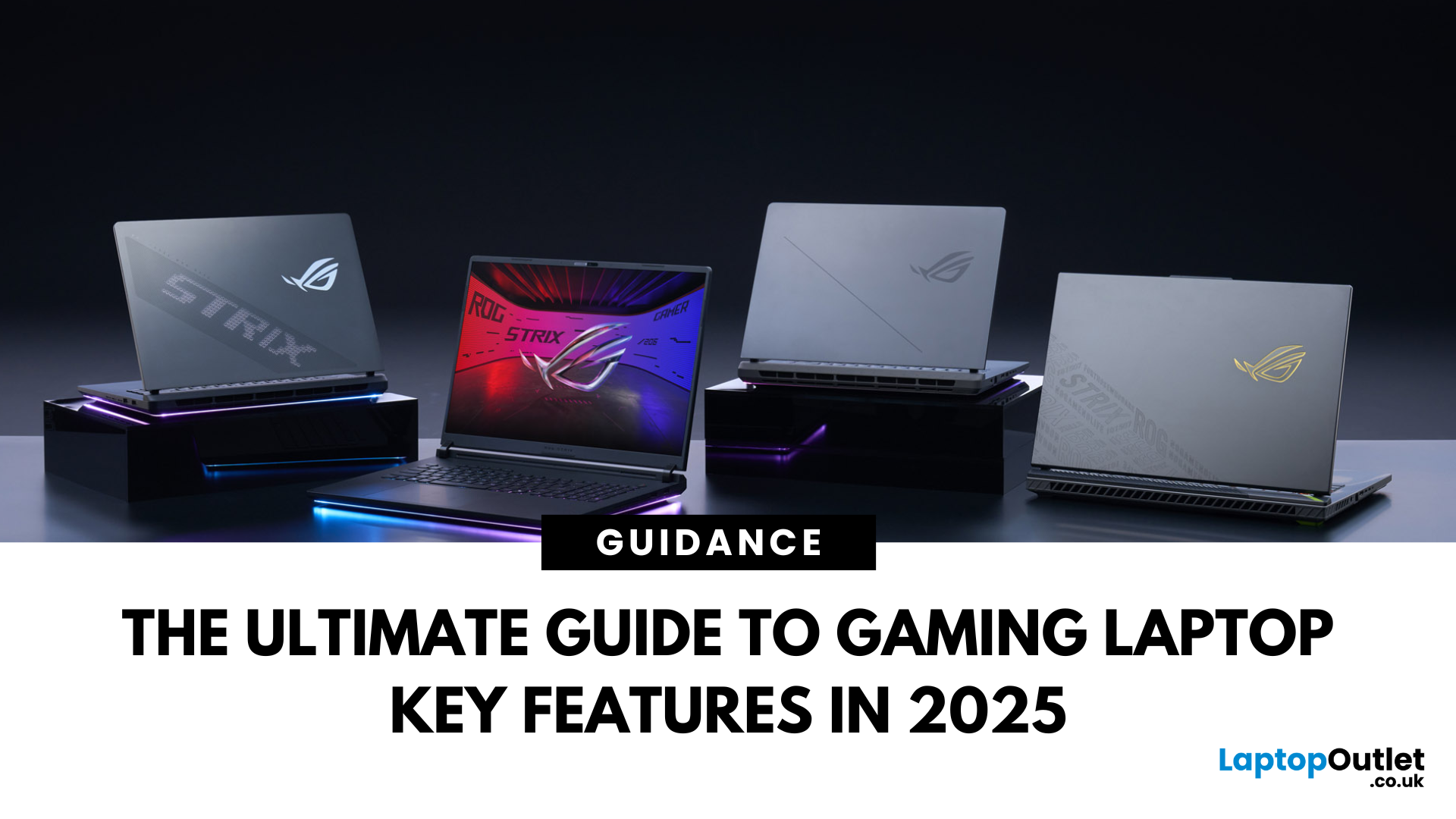
Choosing a gaming laptop today is all about understanding the gaming laptop key features that move the needle foryourgames and workflow. In 2025, the big shifts are real: next‑gen GPUs with AI frame generation, smarter CPUs with onboard NPUs, faster storage that feeds data straight to the GPU, premium displays (OLED/Mini‑LED) at esports‑grade refresh rates, and cooling systems that can keep all of it performing sustainably.
However, what does all of that actually mean when you just want smooth gameplay and a machine that lasts? Below, we have you covered with a clear, up‑to‑date walkthrough of what to look for in a gaming laptop with the evidence to back it. Whether you’re looking at entry-level models around £900, mid-range workhorses at £1,500, or premium powerhouses above £2,000, this guide focuses on the essential gaming laptop key features.
If you’d like a broader perspective from budgeting to comparisons, you can check out our full gaming laptop buying guide.
GPU: the first decision
Last Updated: October 08, 2025
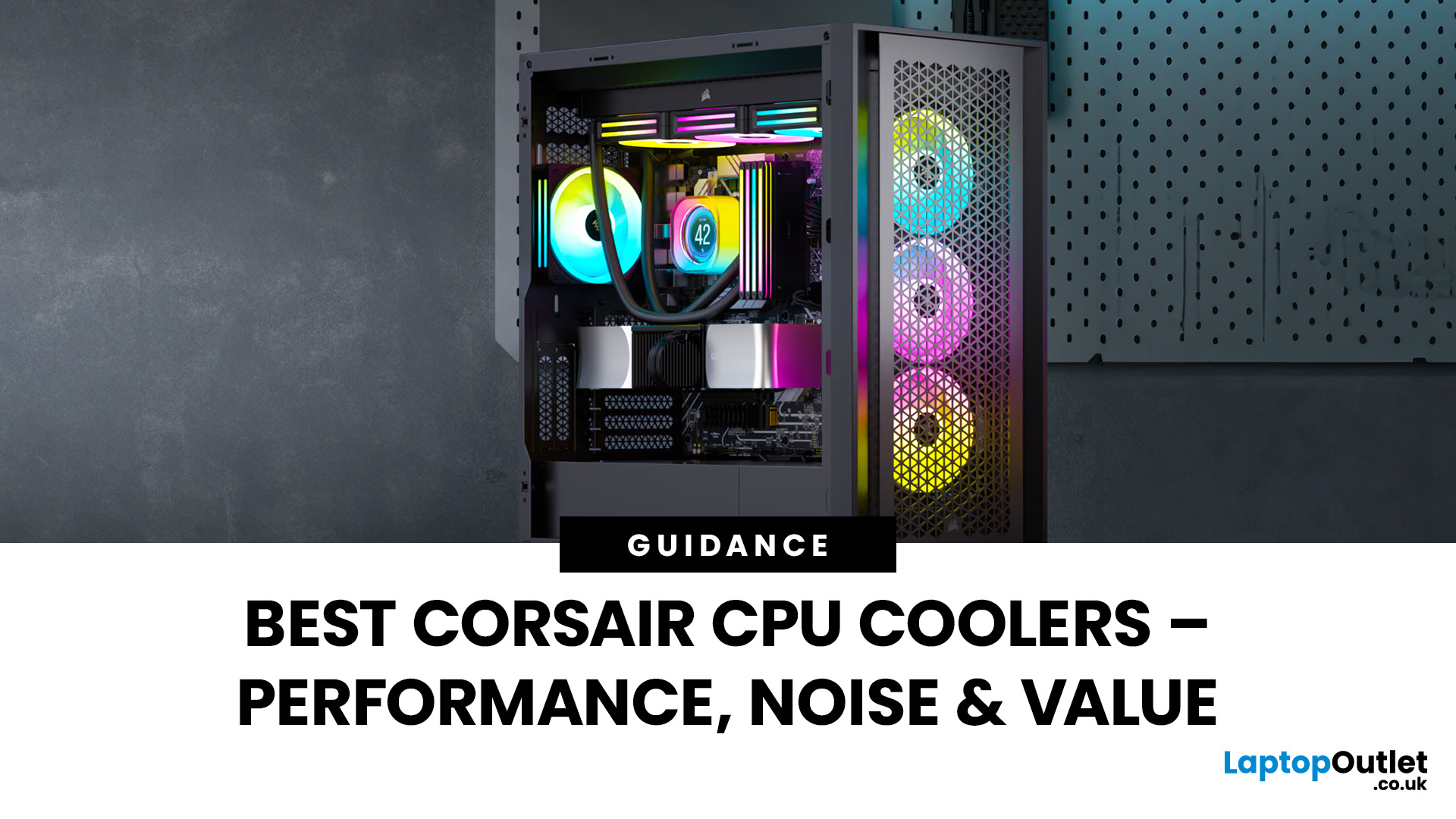
Keeping your PC cool is one of the most important factors in maintaining performance, extending hardware lifespan, and ensuring a stable computing experience. Processor of a gamer, or a professional creative generates heat that must be managed effectively. Air cooling may be sufficient for entry-level builds, but high-performance desktops and overclocked CPUs demand more advanced solutions. This is where Corsair steps in.
Corsair has earned a strong reputation for delivering reliable and innovative cooling systems. Let’s explore the best Corsair CPU cooler options in 2025, review their performance, noise levels, installation process, and software features.
Why Choose a Corsair CPU Cooler?
Before diving into the product reviews, it’s important to understand why Corsair CPU coolers continue to dominate the PC cooling market in 2025. Corsair has consistently evolved its product line to meet the demands of modern processors, gaming rigs, and workstation builds.
Proven Reliability and Build
Last Updated: October 24, 2025
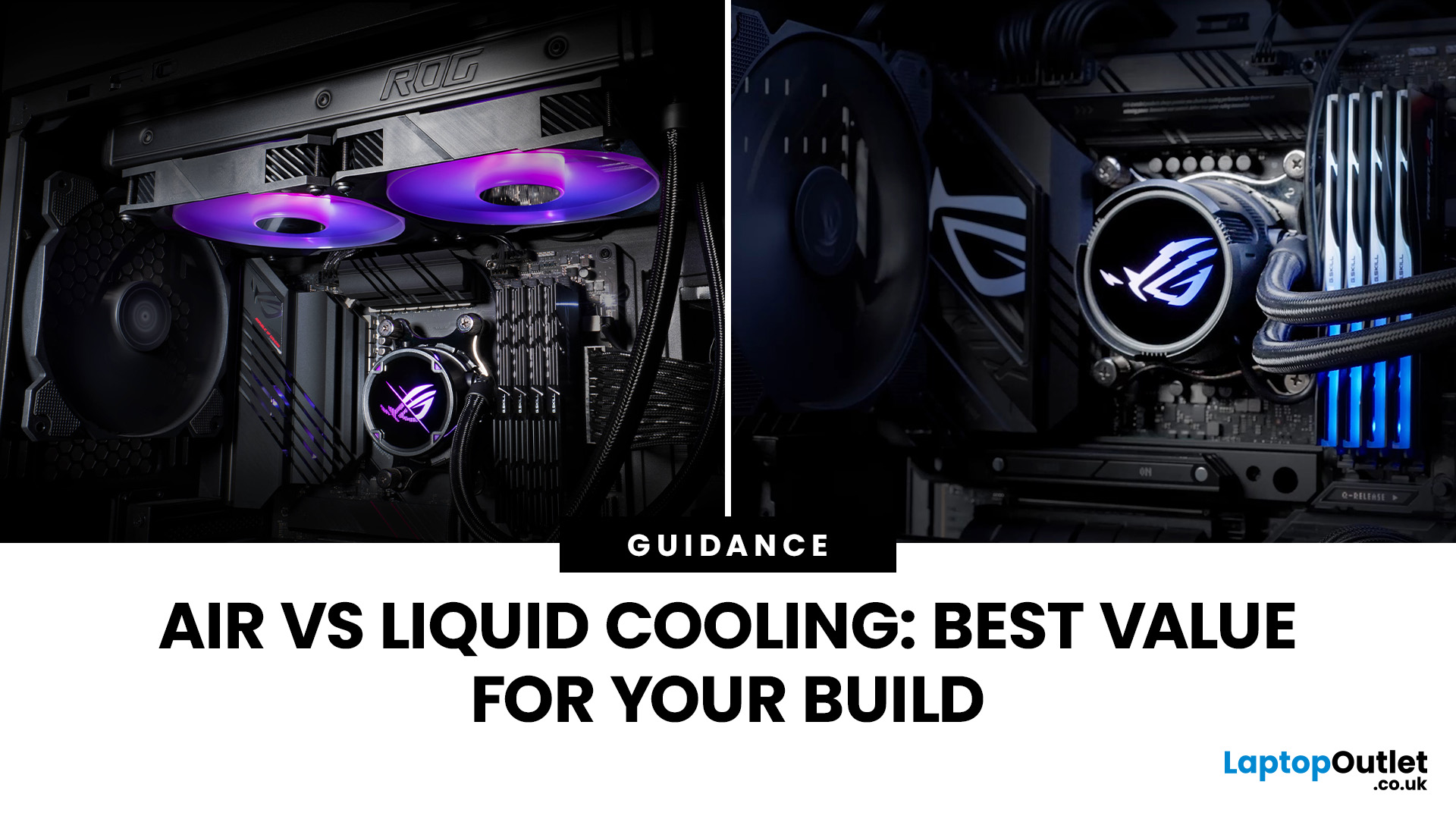
Whether you’re building your dream gaming rig or configuring a high-performance workstation, one of the biggest decisions you’ll face is how to keep your system cool. With modern CPUs and GPUs pushing the limits of performance, thermal management is more important than ever. The debate between air vs liquid cooling PC solutions is one that no serious builder can ignore. In this article, let’s discuss how both cooling methods work, their pros and cons, and which one may be best suited to your particular use case.
How PC Cooling Works: Basics & Why it Matters
To understand the difference between methods, it helps to go back to fundamentals.
Heat Generation in Modern PCs
Every time your CPU or GPU does work, it consumes electrical energy. Inevitably, some of that becomes heat. If that heat isn’t effectively carried away, component temperatures will rise, leading to thermal throttling or even permanent damage.
As such, effective PC cooling solutions are essential for maintaining performance,
Published: October 27, 2025
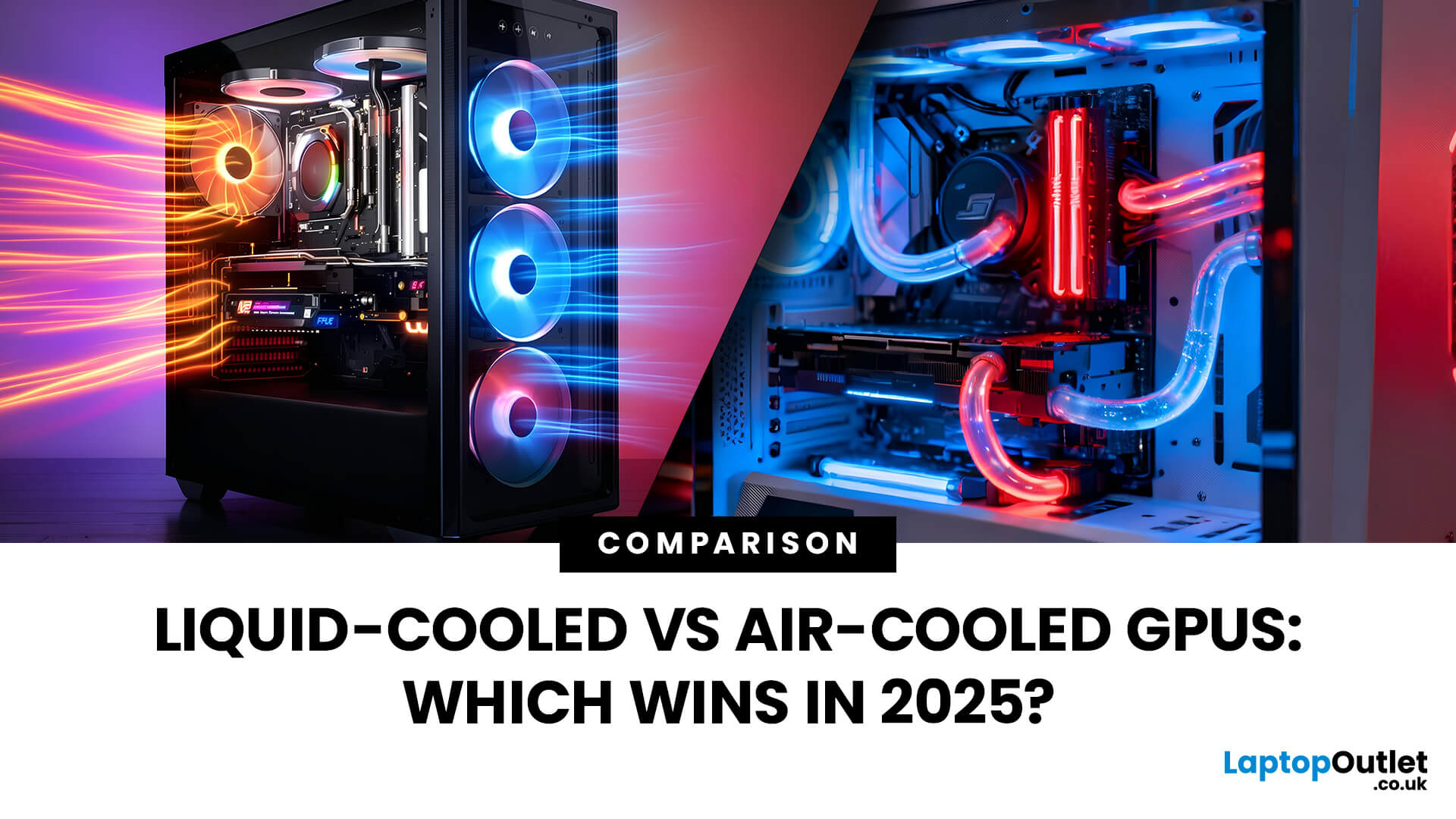
Modern GPUs are more powerful than ever, and with that power comes heat, a lot of it. Whether you’re gaming in 4K, pushing frame rates in competitive titles, or overclocking for maximum performance, cooling plays a crucial role in how well your graphics card performs and lasts. The debate of Liquid-Cooled vs Air-Cooled GPUs has never been more relevant, especially for high-end builds running the latest NVIDIA and AMD cards.
This guide breaks down how each cooling method works, their pros and cons, and which one offers the best balance of performance, noise, and reliability. If you’re planning a premium setup in 2025, understanding your GPU’s cooling system is just as important as choosing the GPU itself.
Why GPU Cooling Matters More Than Ever
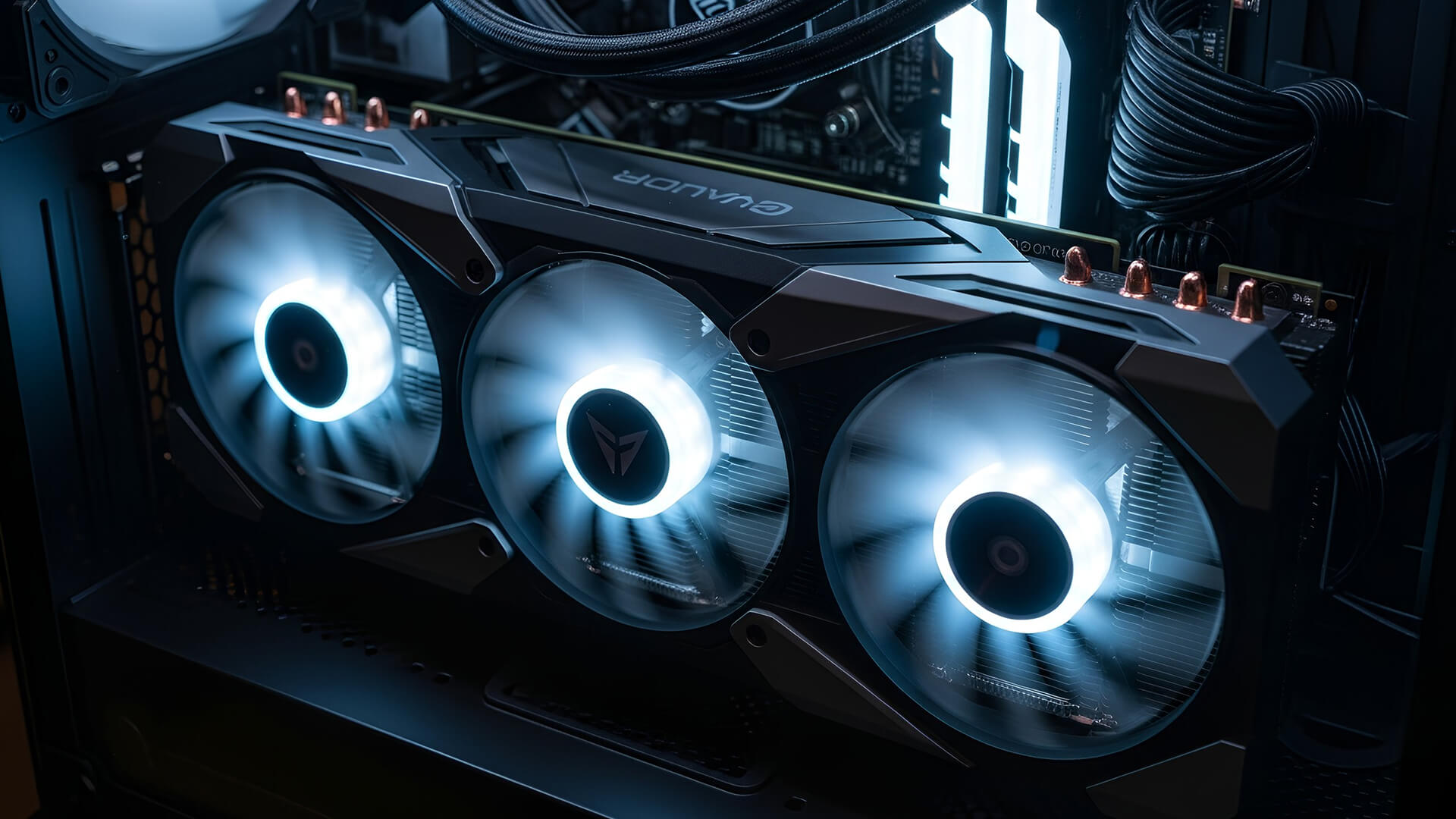
Modern GPUs have evolved into high-performance powerhouses, often rivaling CPUs in complexity and power to draw. Cards like the RTX 5090 or RX 7900 XTX can consume 400W or more, and that energy translates directly into heat. If that heat isn’t managed
Last Updated: May 22, 2026
A laptop usually overheats because of blocked airflow, dust, heavy apps, dried thermal paste, charging heat, or a faulty fan. To cool it down fast, place it on a hard surface, close demanding programs, clean the vents, switch to Balanced mode, and let it rest. If it keeps overheating or shutting down, it may need internal cleaning, thermal paste replacement, or repair.
Your coffee could be hot, but it doesn't work for a laptop to be honest. A little warmth is normal during gaming, charging, video calls, or heavy work, but if your laptop is overheating, slowing down, shutting off, or making loud fan noise, something needs fixing. This guide explains the fastest laptop overheating fix, why your laptop is running hot, and how to cool it down before the problem gets worse.
First, Is Your Laptop Actually Overheating?
Before you panic, it is important to know the difference between a laptop that is simply warm and a laptop that is truly overheating.
Laptops are compact machines. The processor,
Published: June 04, 2026
Gaming laptops are built to push frames, load heavy worlds, and keep up with long sessions. But when temperatures climb, performance can take a hit. That is where the right cooling setup matters.
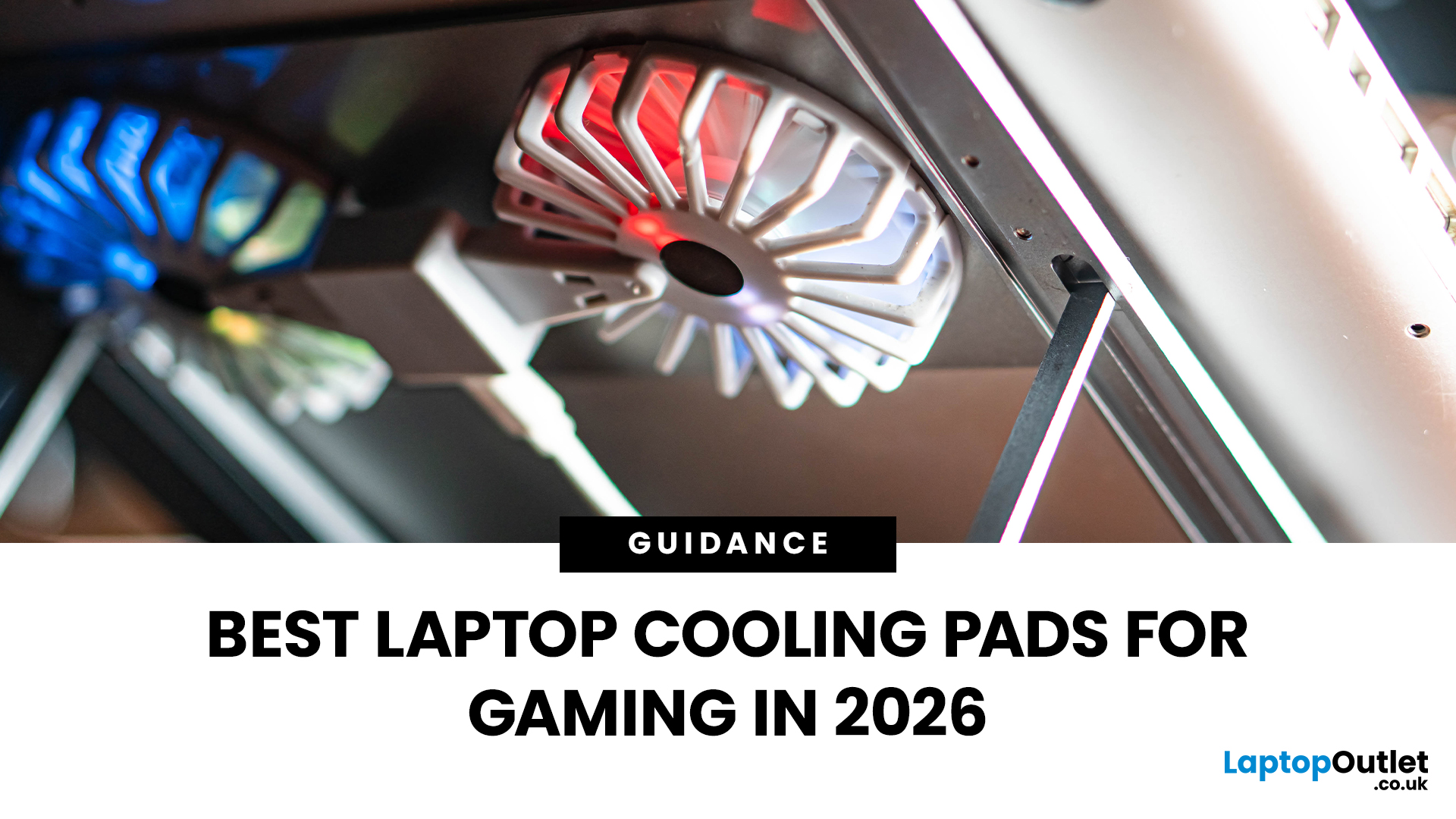
A gaming laptop cooling pad can help improve airflow around your laptop, raise it into a better position, and reduce heat build-up during long gaming sessions. For more advanced setups, PC builders may also look at liquid coolers, CPU coolers, and performance cooling fans to keep gaming rigs running cooler and more consistently.
In this guide, we break down the Best laptop cooling pads UK shoppers should look for in 2026, what features actually matter, and the top cooling picks to upgrade your gaming space.
Why Laptop Cooling Matters for Gaming
Gaming pushes your laptop harder than everyday browsing or streaming. The CPU and GPU work together to deliver smooth frame rates, detailed graphics, and fast response times. More power means more heat.
When your laptop gets too hot, it may reduce performance
Last Updated: June 15, 2026
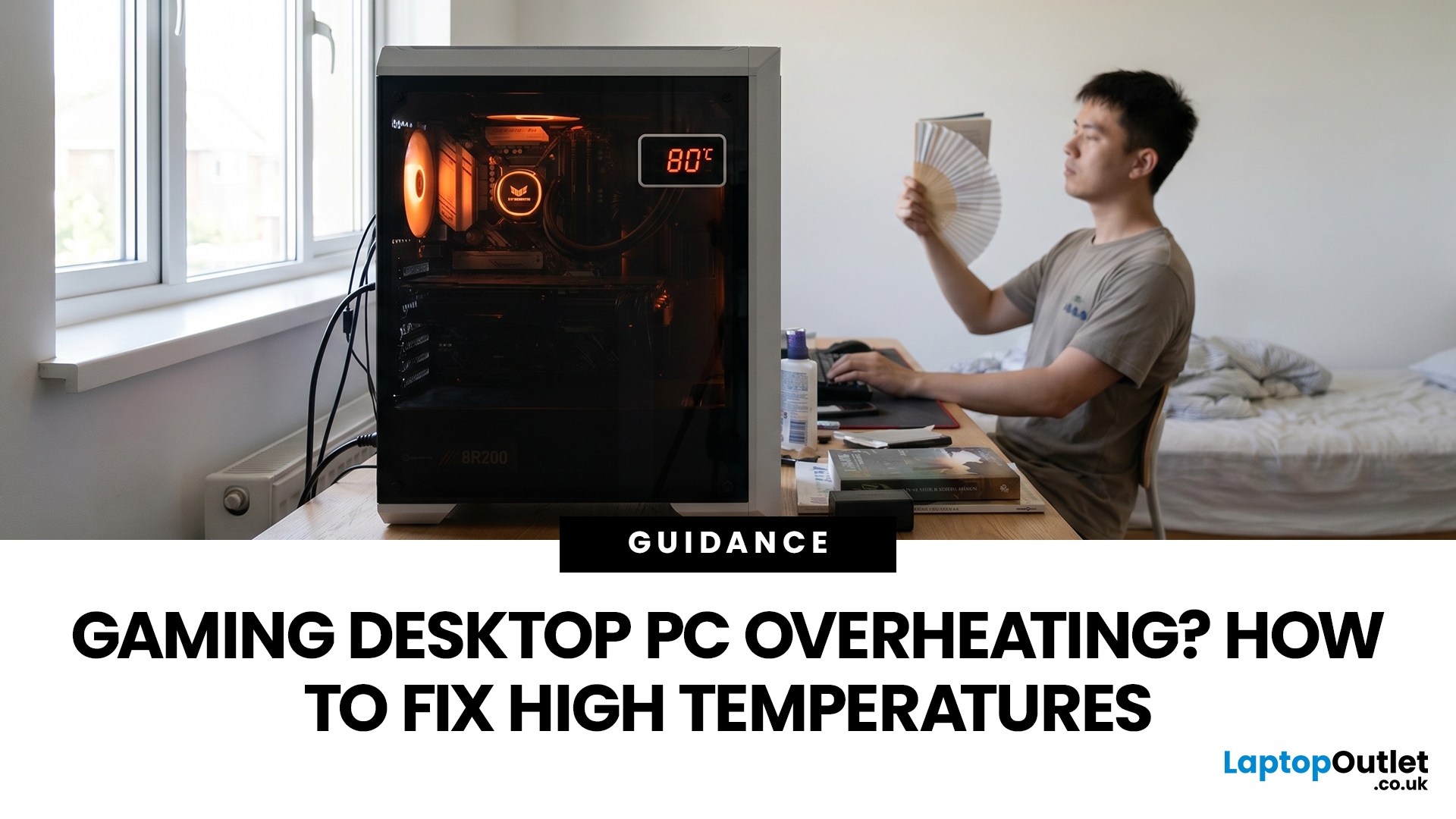
A gaming PC overheating usually comes down to one of five things: blocked airflow, dust build-up, weak cooling, aggressive game settings, or poor contact between the CPU/GPU and its cooler.
| Here is the fast version:
|
Gaming PC Overheating: What It Means and Why It Matters
You’re mid-match. Your FPS is smooth. Then suddenly, the game stutters, the fans sound like a jet engine, and your PC feels like it could toast bread.
That is not “just gaming PC life”.
A hot gaming desktop is normal. An overheating
Last Updated: June 15, 2026
Overheating can slow down your PC, crash games, and damage key components. Checking CPU and GPU temperature helps spot heat issues early, compare readings with safe ranges, and choose the right fix, from cleaning vents to upgrading cooling fans, coolers, processors, or graphics cards for smoother everyday performance and overall stability.
Is your laptop sounding like it’s about to take off? Or does your PC randomly slow down, crash, or shut itself off? Yeah, that’s usually not a vibe. It could mean your system is overheating.
Doing a quick check CPU GPU temperature laptop test can help you spot heat issues before they turn into expensive damage. Whether you game, edit videos, stream, or just multitask like a boss, keeping an eye on your processor’s and graphics cards temperature is a smart move.
Here’s how to check both easily.
Signs Your PC or Laptop is Overheating
Your device usually gives you clues before things get serious. Watch out for:
- Loud fans running non-stop
- Sudden lag or freezing
Last Updated: July 17, 2026
Last Updated: July 28, 2026

