



Best Laptop Cooling Pads for Gaming in 2026
Gaming laptops are built to push frames, load heavy worlds, and keep up with long sessions. But when temperatures climb, performance can take a hit. That is where the right cooling setup matters.
A gaming laptop cooling pad can help improve airflow around your laptop, raise it into a better position, and reduce heat build-up during long gaming sessions. For more advanced setups, PC builders may also look at liquid coolers, CPU coolers, and performance cooling fans to keep gaming rigs running cooler and more consistently.
In this guide, we break down the Best laptop cooling pads UK shoppers should look for in 2026, what features actually matter, and the top cooling picks to upgrade your gaming space.
Why Laptop Cooling Matters for Gaming
Gaming pushes your laptop harder than everyday browsing or streaming. The CPU and GPU work together to deliver smooth frame rates, detailed graphics, and fast response times. More power means more heat.
When your laptop gets too hot, it may reduce performance to protect internal components. This is commonly known as thermal throttling. The result can feel like sudden FPS drops, louder fans, stutters, or slower performance during demanding games. Cooling pads can help most when a laptop has underside ventilation and is used for heavy workloads such as gaming or creative tasks.
A cooling pad for a laptop is not a magic fix for dust, old thermal paste, or poor internal cooling. But it can be a smart upgrade if your laptop gets hot on your desk, lap, or soft surfaces.
Do Cooling Pads for Laptops Work?
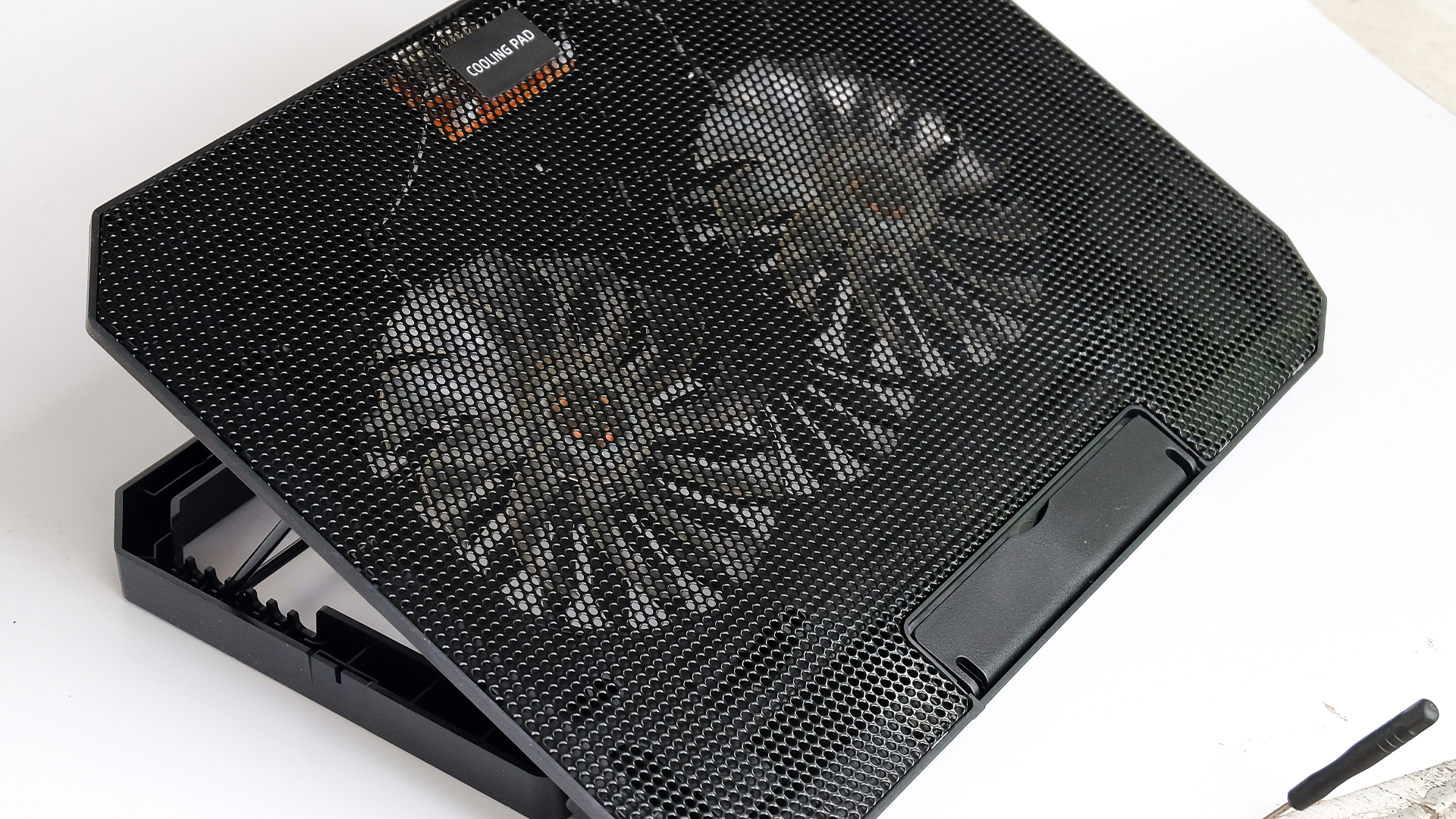
Yes, cooling pads can work, but the results depend on your laptop design, the fan layout, and how much heat your machine produces.
So, do cooling pads for laptops work for gaming? In many cases, yes. A good performance cooling fan for laptop helps by pushing cooler air toward the laptop base, improving ventilation, and lifting the laptop away from heat-trapping surfaces.
And do cooling pads help laptops that already have strong internal fans? They can still help with comfort, airflow, and desk ergonomics, though the biggest gains are usually seen on gaming laptops with bottom vents and higher heat output.
Look for a laptop stand with cooling fan if you want better screen height, improved posture, and airflow in one accessory.
What Makes the Best Laptop Cooling Pads UK Buyers Should Consider?
Before choosing a cool pad for laptop computer setups, focus on practical features instead of just RGB lights.
-
Fan Size and Placement
A strong laptop cooler cooling pad should line up well with your laptop’s air intake vents. Large fans can move more air at lower speeds, while multiple smaller fans can target wider areas. -
Adjustable Height
A laptop stand cooling pad or cooling pad stand for laptop gives you better viewing angles and more airflow underneath. This is ideal for gaming, studying, streaming, or working from a desk. -
Noise Level
The coolest laptop cooling pad is not always the loudest one. For gaming, choose a cooling pad that balances airflow with quiet operation so it does not compete with your headset or speakers. -
Size Compatibility
Always check the supported laptop size. Some good cooling pads for laptops are designed for 15.6-inch laptops, while others support 17-inch or larger gaming laptops. -
Extra USB Ports
Many cooling pads laptop users like models with built-in USB passthrough. This helps when your laptop already has limited ports for a mouse, keyboard, headset, or controller.
Pair your cooling pad with the best laptop accessories to build a cleaner, more comfortable gaming setup.
Top Cooling Picks for Gaming Setups in 2026
The products below are strong cooling choices for users upgrading their wider gaming setup. Some are advanced CPU liquid coolers and PC cooling solutions rather than traditional laptop cooling pads, making them ideal for gaming PCs, desk builds, and high-performance setups.
For broader upgrades, explore PC cooling accessories, performance cooling fans, gaming laptop accessories, everyday tech accessories, and gaming setup accessories.
1. MSI MAG CORELIQUID A13 360 White
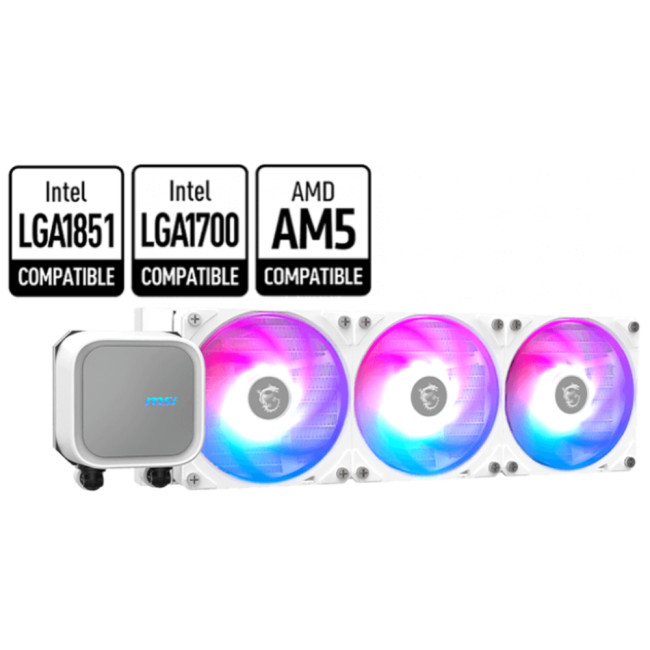
Highlights:
- Customisable RGB lighting with ARGB GEN2
- 3-pin Fan | 3-pin ARGB | 3-pin Pump Connector
- White Colour
A strong pick for gamers building a clean white setup. This 360mm liquid cooler is designed for serious cooling performance, making it a great choice for high-performance gaming PCs.
2. ASUS PRIME LC 360 ARGB
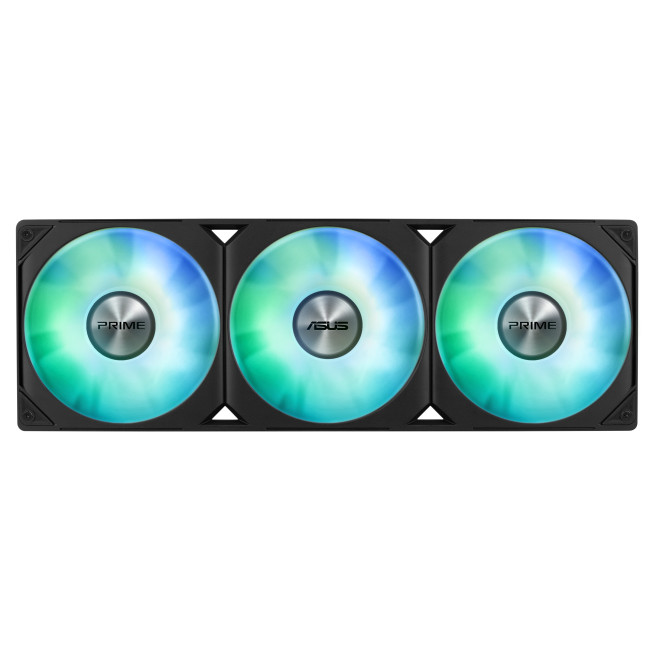
Highlights:
- ARGB Lights
- Max Speed: 2200 RPM
- Static Pressure:3.2 mmH2O
- 4 Pin PWM Fan
- Black Colour
A sleek 360mm ARGB liquid cooler for users who want reliable thermal performance with a polished ASUS design. It fits well into modern RGB gaming setups.
3. MSI MAG CORELIQUID E360 Black
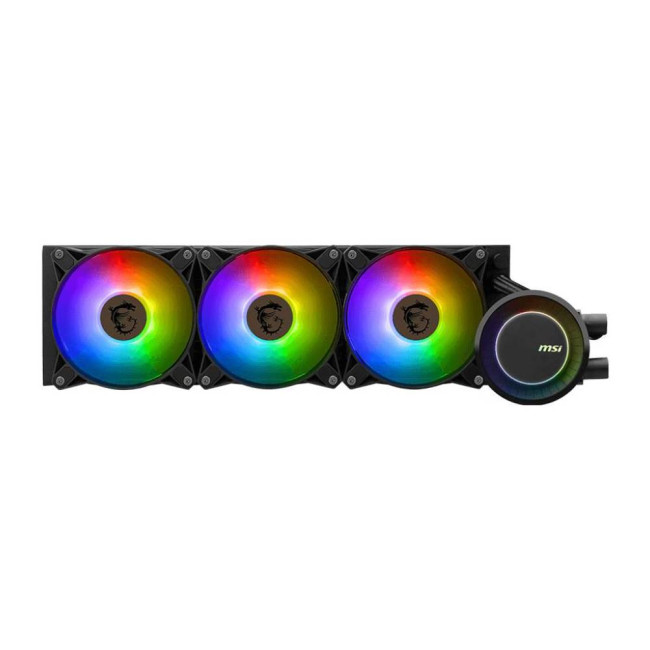
Highlights:
- Suitable location - Motherboard, Processor
- Fan connector - 4-pin
- Pump motor speed - 3000 RPM
- 4-pin
- Black Colour
A strong black-build option for gamers who want a clean, low-profile look with liquid cooling power. Ideal for gaming PCs that need stable performance during long sessions.
4. be quiet! Silent Loop 3 420mm
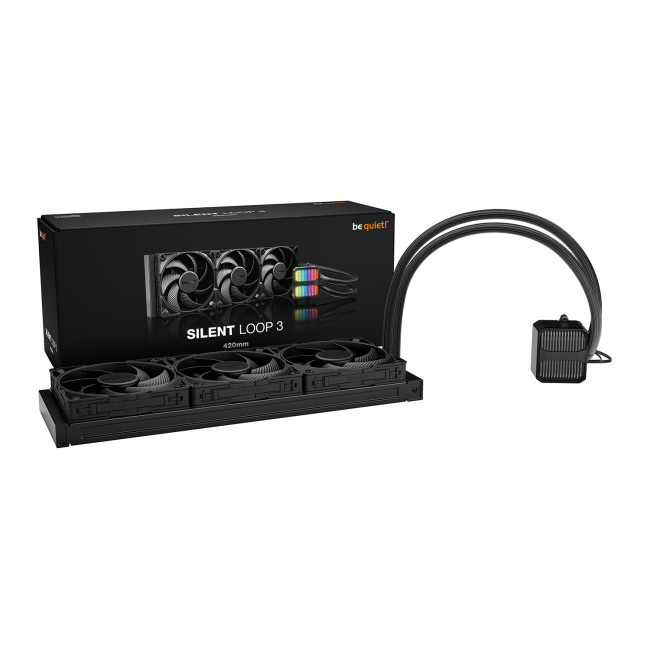
Highlights:
- Silent Wings PWM | 3 x 120mm
- Thermal Interface Material
- Fan Speed: 1900rpm
- 3-Pin RGB | 4-pin PWM
- Black Colour
A premium pick for users who care about quieter cooling. The 420mm radiator size makes it suitable for larger builds where thermal headroom matters.
5. ASUS ROG STRIX LC III 360 ARGB LCD
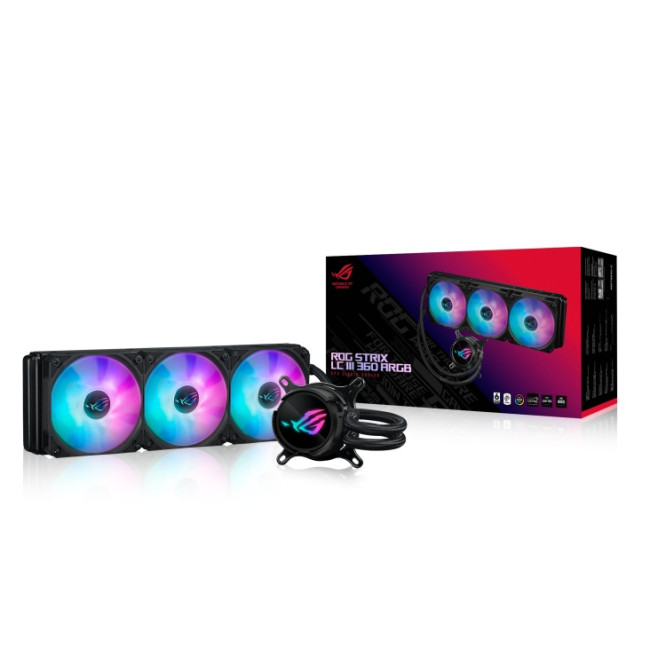
Highlights:
- 3x 120mm ARGB Fans
- Aura Sync
- 2.1" IPS LCD Screen
- Black Colour
A high-end choice for gamers who want performance and aesthetics. The LCD display gives the build a more personalised look, while the 360mm radiator supports serious cooling.
6. ASUS ROG Ryujin III 360 ARGB Extreme
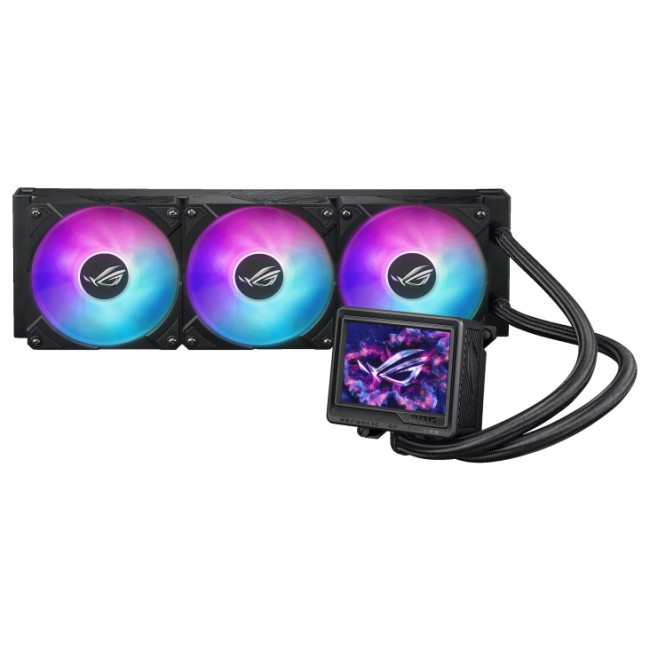
Highlights:
- Addressable RGB Lighting
- Aluminium Fins
- Copper Base
- 4-pin PWM | 3-pin ARGB
- Black Colour
A premium ROG cooler made for enthusiast setups. It is a strong choice for gamers, streamers, and creators building around powerful processors.
7. MSI MAG CORELIQUID A13 240 White
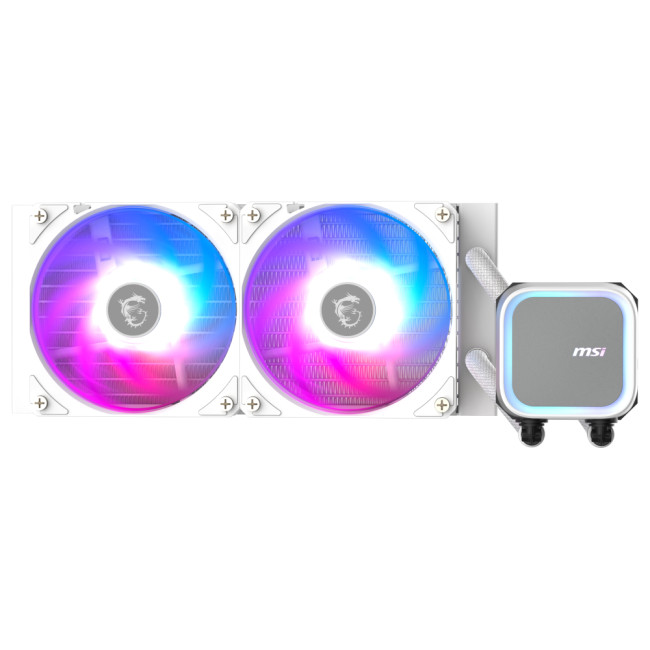
Highlights:
- Supports Intel LGA 1700 / 1851 and AMD AM5 / AM4 sockets
- 240mm radiator with dual 120mm fans
- Customisable RGB lighting with ARGB GEN2
- White Colour
A compact white liquid cooler for smaller gaming builds. It is a good option if you want a clean setup without going for a larger 360mm radiator.
8. ASUS PRIME LC 240 ARGB

Highlights:
- LCD Screen | Low-evaporation Rubber | Sleeved Tubing
- 37.6 dBA | 3.2 mm H²O
- High-performance pre-installed ARGB fans
- Black Colour
A balanced 240mm liquid cooler with ARGB styling. It suits gamers who want dependable cooling without taking up as much space as a 360mm option.
9. DeepCool Mystique 240mm ARGB

Highlights:
- 240mm All-In-One Liquid Cooler
- 2 x 120mm ARGB Fluid Dynamic Bearing Fans
- 72.45 cfm | 4.32 mmH2O
- Fan connector: 4-pin | Pump connector: 3-pin
- Black Colour
A stylish 240mm cooler for gamers who want a mix of performance and visual impact. Good for builds where space and aesthetics both matter.
10. Valkyrie Dragonfang 240 ARGB Black
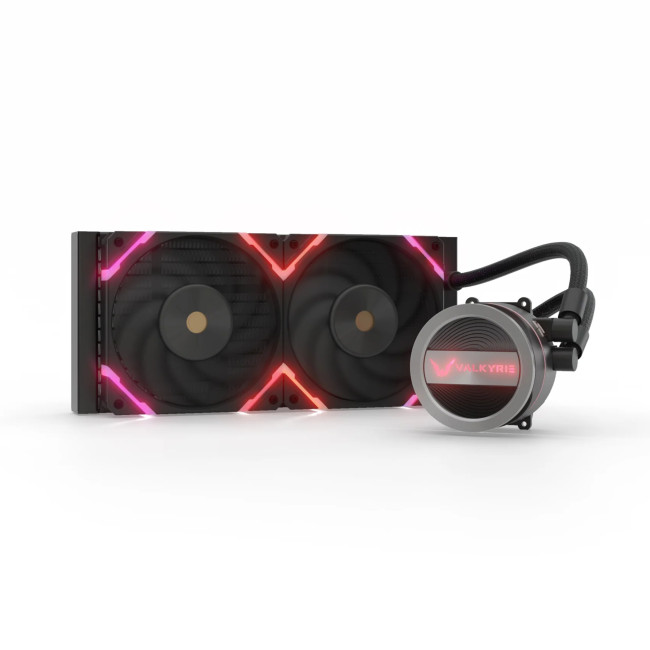
Highlights:
- Fan speed (max) : 2150 RPM
- Number of fans : 2 fan(s)
- 4-pin
- Black Colour
A budget-friendly 240mm ARGB option for users upgrading from basic cooling. Great for keeping a gaming setup clean, functional, and visually sharp.
Laptop Cooling Pad vs PC Cooler: What Should You Buy?

Choose a gaming laptop cooling pad if you use a gaming laptop and want better airflow, a raised screen angle, and more comfort during long sessions.
Choose a CPU cooler or liquid cooler as everyday tech accessories if you are upgrading a gaming desktop, building a new PC, or replacing stock cooling.
A laptop best cooling pad is about external airflow and comfort. A PC cooler is direct CPU temperature control inside a desktop system. Both support better performance, but they solve different cooling problems.
Best Features to Look for in a Gaming Laptop Cooling Pad
When shopping for the best laptop cooling pads UK gamers can rely on, look for:
- Adjustable fan speed
- Strong airflow
- Quiet operation
- USB-powered design
- Stable stand structure
- Support for 15.6-inch to 17-inch laptops
- Mesh surface for better ventilation
- Extra USB ports
- Height adjustment for comfort
The best option is usually the one that fits your laptop size, vent layout, and gaming habits. Once your laptop is raised, wireless keyboards and mice can make gaming and work feel smoother and more flexible.

Final Verdict
A good cooling setup can make gaming feel smoother, cleaner, and more comfortable. For laptop users, a cooling pad for a laptop helps improve airflow and desk ergonomics. For desktop gamers, liquid coolers and advanced fans offer deeper performance cooling for demanding builds.
Whether you need a simple laptop stand cooling pad, a stronger laptop cooling fan pad, or full PC cooling accessories, the right upgrade can help your setup stay cooler under pressure.
For 2026, the smart move is simple: match the cooling solution to your device, your workload, and your setup style. Then the game is longer, cleaner, and cooler.

Some Common Questions Every Buyer Asked
Do cooling pads for laptops work?
Yes, cooling pads for laptops can work, especially for gaming laptops that heat up during long sessions. A cooling pad helps improve airflow under the laptop, which can reduce heat build-up and make gaming feel more stable. Results depend on the laptop’s vent placement, the cooling pad design, and how demanding the game is.
Do cooling pads help laptops perform better?
Cooling pads can help laptops maintain better performance when heat is causing slowdowns or FPS drops. They do not upgrade your laptop’s hardware, but they can support cooler operation by improving airflow. For gamers, a good gaming laptop cooling pad can be useful during longer sessions, especially if the laptop runs hot on a desk or soft surface.
What is the best laptop cooling pad for gaming?
The best laptop cooling pad for gaming is one that matches your laptop size, vent layout, and cooling needs. Look for strong fans, adjustable height, quiet operation, a stable surface, and support for larger gaming laptops. A laptop stand with cooling fan is also a smart choice if you want better airflow and a more comfortable screen angle.
Is a laptop stand cooling pad better than a normal laptop stand?
A laptop stand cooling pad is better if your laptop gets hot while gaming, streaming, or multitasking. A normal stand improves posture and raises the laptop, but a cooling pad stand for laptop setups adds active airflow through built-in fans. This makes it more useful for gaming laptops and performance-heavy use.
What should I look for in the best laptop cooling pads UK?
When choosing the best laptop cooling pads UK, check laptop size compatibility, fan speed control, noise level, USB power, build quality, and height adjustment. The coolest laptop cooling pad is not just the one with the most fans. It should offer steady airflow, comfortable positioning, and reliable support for your laptop.
Related Articles

Last Updated: May 22, 2026
Laptop screen repair cost in the UK usually ranges from £50 to £300 for a standard 15.6-inch screen, depending on the laptop model, screen type, damage level, and labour cost. Basic LCD replacements are usually cheaper, while touchscreen, OLED, gaming laptop, and MacBook screen repairs can cost more. If your laptop is still fast and the repair costs less than half its value, fixing the screen is usually worth it. If the laptop is old, slow, or the repair is close to the price of a replacement, upgrading may be the smarter choice.
So, your laptop screen has cracked, flickered, gone black, or started showing strange lines - and now you are probably wondering one thing:
How much does laptop screen repair cost in the UK, and is it even worth fixing?
The answer depends on your laptop model, screen type, and damage level. A standard laptop screen repair or replacement in the UK usually costs around £50 to £300, while touchscreens, OLED displays, gaming laptops, and MacBooks can cost more.
This
Last Updated: May 22, 2026
A thin layer of dust can make your laptop work harder than it should. When vents get blocked, heat stays trapped inside, the fan spins louder, and performance can drop during everyday tasks.
The simple tip? Start from the outside. In most cases, you can clean laptop fan vents safely with a soft brush, a microfibre cloth, and short bursts of compressed air - no risky disassembly needed.
This easy DIY guide shows you how to clean laptop fan and vent areas, what to avoid, and when it is smarter to call a professional.
Quick Checklist: How to Clean Laptop Fan Safely
Use this simple checklist whenever you clean the laptop:
- Shut down the laptop fully
- Unplug the charger and accessories
- Let the laptop cool
- Find the real vents
- Brush away visible dust
- Use compressed air in short bursts
- Keep the air can upright
- Avoid spinning the fan too fast
- Wipe the exterior gently
- Restart and check temperature and noise
This is the safest routine for most users who want to clean the laptop without opening it.
Last Updated: June 10, 2026
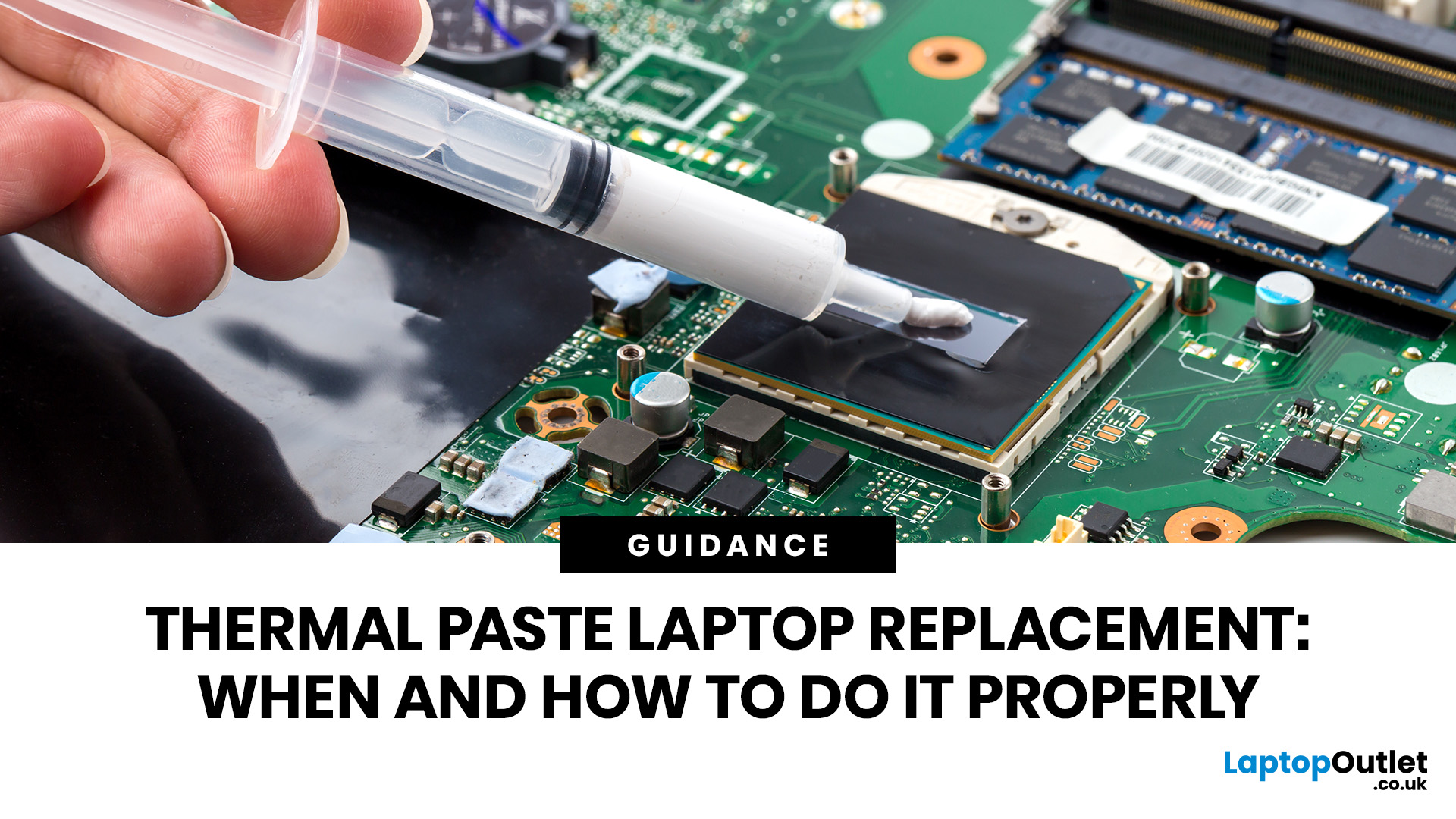
Thermal paste laptop replacement is needed when your laptop overheats, runs loud, slows down under load, or shuts down unexpectedly even after cleaning the fans and vents. Thermal paste helps transfer heat from the CPU or GPU to the heatsink, but it can dry out over time. Replacing it properly can improve cooling, reduce thermal throttling, and help your laptop perform more consistently.
A hot, loud, or slow laptop may be struggling with dust, poor airflow, heavy software, or ageing thermal paste. If temperatures stay high even after cleaning the vents, thermal paste laptop replacement can help restore cooling performance.
Thermal paste transfers heat from the CPU or GPU to the heatsink, but it can dry out or lose effectiveness over time. This guide explains when to replace it, how to apply it safely, how much to use, and when to get professional help.
What Is Thermal Paste in a Laptop?
Thermal paste, also called thermal grease, CPU paste, cooling paste, thermal compound, or thermal

Last Updated: June 10, 2026
The 2026 RAM crunch is being driven by AI data centre demand. Memory makers are shifting capacity towards high-bandwidth memory, server DDR5, and enterprise SSDs, leaving less supply for consumer laptops. As a result, laptop RAM and SSD costs may rise, making many 2026 laptops more expensive or less generously specified.
If you were hoping laptop prices would settle down in 2026, the RAM market may have other plans.
The AI boom is pushing huge demand for memory chips, including DDR5, SSD storage, and high-bandwidth memory used in data centres. As manufacturers prioritise these high-margin AI products, consumer laptops could face tighter supply and higher component costs.
For UK buyers, that may mean more expensive laptops in 2026, fewer strong discounts, and budget models with weaker specs than before.
What Is the 2026 RAM Crunch?
The 2026 RAM crunch is a global memory shortage caused by rising demand for AI servers, high-bandwidth memory, DDR5 server memory, and enterprise SSDs.
In

Last Updated: June 10, 2026
The best free AI apps that work offline include Ollama, LM Studio, GPT4All, Jan, Msty Studio, AnythingLLM, PocketPal AI, llamafile, Upscayl, and DiffusionBee. These tools help users run offline chatbots, local AI assistants, AI writing apps, document Q&A tools, and AI image tools without relying on the internet after setup.
Looking for the best free AI apps offline? You are not alone. More users now want AI tools that can work without constant internet access, protect private data, and run directly on a phone or laptop.
Offline AI apps are especially useful for writing, coding, document chat, transcription, image generation, image upscaling, and personal productivity. Instead of sending every prompt to the cloud, these local AI tools use models stored on your own device.
What Are Offline AI Apps?
Offline AI apps are tools that run AI models directly on your device instead of depending fully on cloud servers. Once installed and configured, they can perform tasks like chatting, summarizing,

Last Updated: July 15, 2026
Ethernet is faster, more stable, and lower-latency than Wi-Fi for laptops, making it the better choice for gaming, video calls, and large file transfers. Wi-Fi wins on convenience and flexibility, especially for everyday browsing and light tasks where a physical cable is not practical. The right connection depends on your specific use case.
The debate around Ethernet vs WiFi is one that most laptop users run into at some point, whether you are setting up a home office, getting into PC gaming, or just trying to stop your video calls from dropping out mid-meeting.
Both connection types are perfectly capable of getting you online, but they work in very different ways and perform quite differently depending on what you are doing. This guide breaks everything down clearly so you can make the right call for your setup.
How Does Each Connection Actually Work?
Before comparing the two, it helps to understand the basics of how each technology functions. Knowing this makes it much easier to understand
Last Updated: July 15, 2026
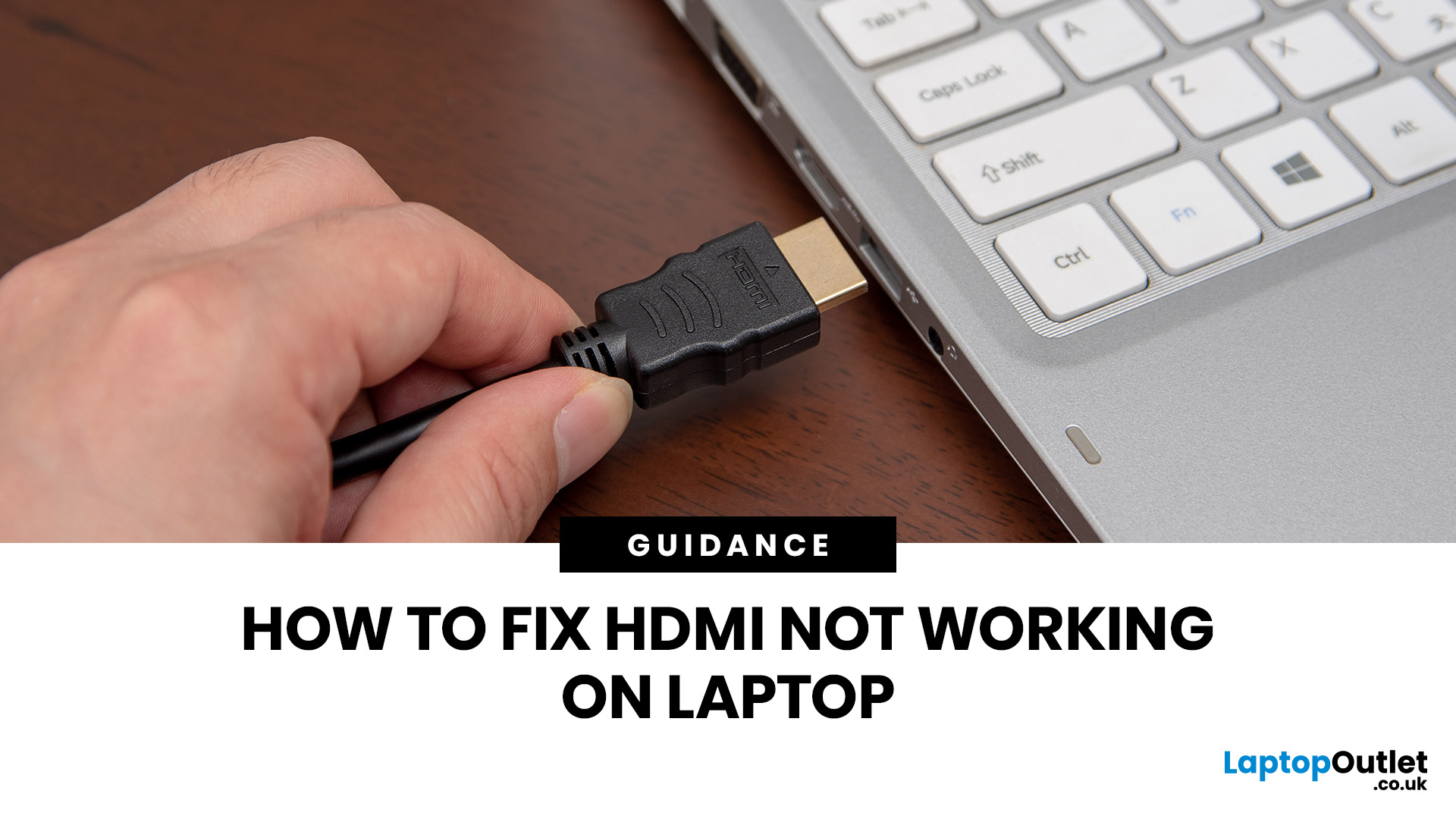
If HDMI is not working on your laptop, start by checking the cable and port for damage, then select the correct input on your monitor or TV. Press Windows + P to choose your display mode. If the screen stays blank, update or reinstall your graphics driver in Device Manager. Most HDMI not working laptop issues are resolved by these steps alone, without needing any specialist help.
There are few things more frustrating than plugging in your HDMI cable and being greeted by a black screen or a "No Signal" message. Whether you are connecting your laptop to a smart TV, an external monitor, or a projector, the issue can almost always be sorted without a trip to a repair shop.
This guide covers most common HDMI not working laptop fixes, from the simplest physical checks right through to driver reinstalls and BIOS settings. Work through the steps in order and you will find your fix quickly.
Why Is Laptop Not Connecting to HDMI?
Before diving into fixes, it helps to understand what causes
Last Updated: June 10, 2026
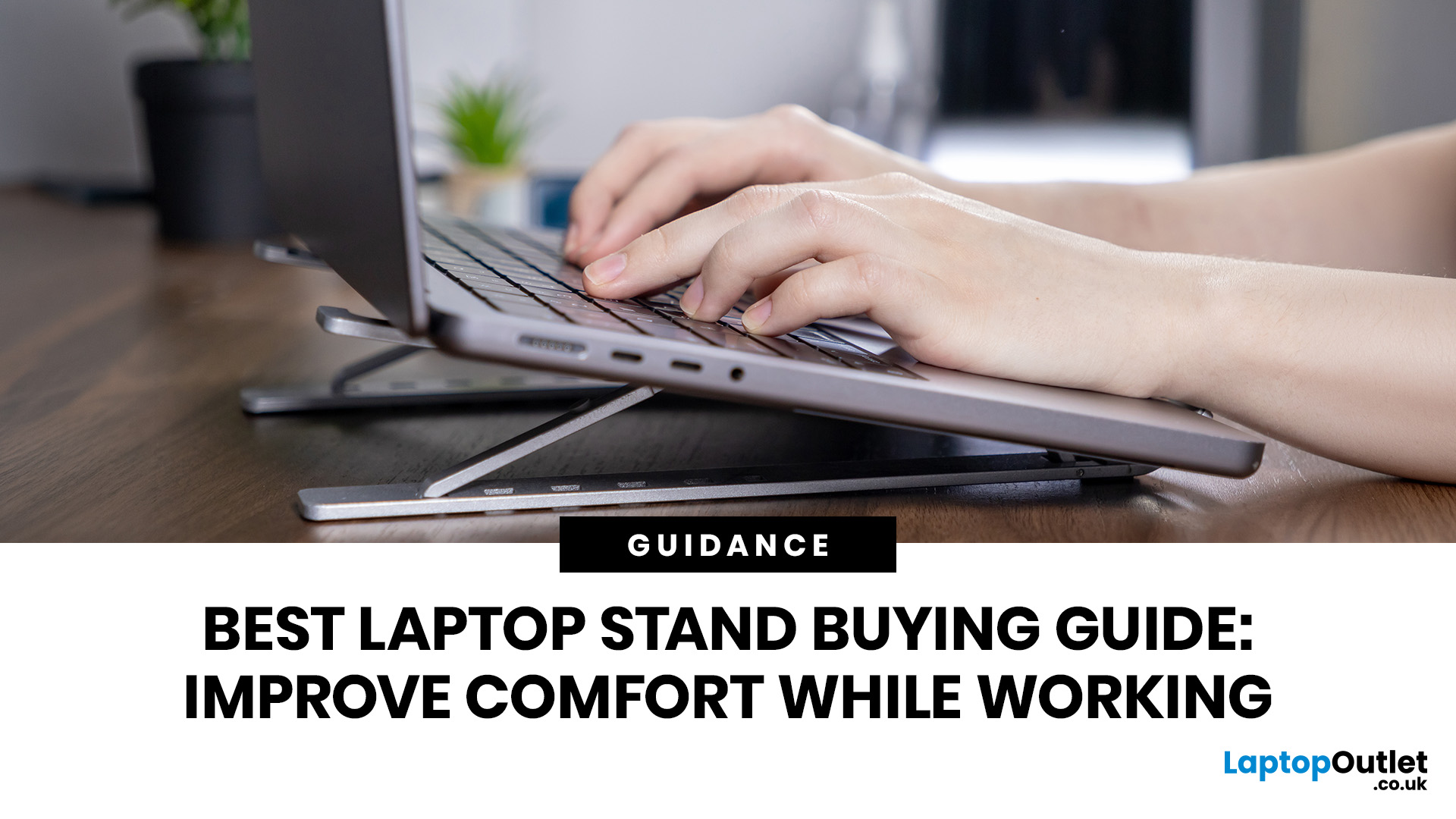
Looking for the best laptop stands UK buyers can choose for better comfort and posture? A good laptop stand raises your screen to a more natural viewing height, helping reduce neck strain, improve desk setup and make long working hours more comfortable. This guide explains how to choose the right laptop stand for desk use, adjustable setups, bed or couch working, travel, standing desks and dual-screen workstations.
A laptop is convenient, portable and easy to use anywhere, but it is not always the most comfortable device for long working hours. When your laptop sits flat on a desk, bed or couch, the screen is usually too low, which can make you bend your neck, hunch your shoulders and sit in an awkward position.
That is where a good laptop stand can make a big difference. Whether you need a laptop stand for desk use, an adjustable laptop stand for flexible working, a portable laptop stand for travel or a laptop table for bed, the right setup can help you work more comfortably every day.
Last Updated: July 15, 2026
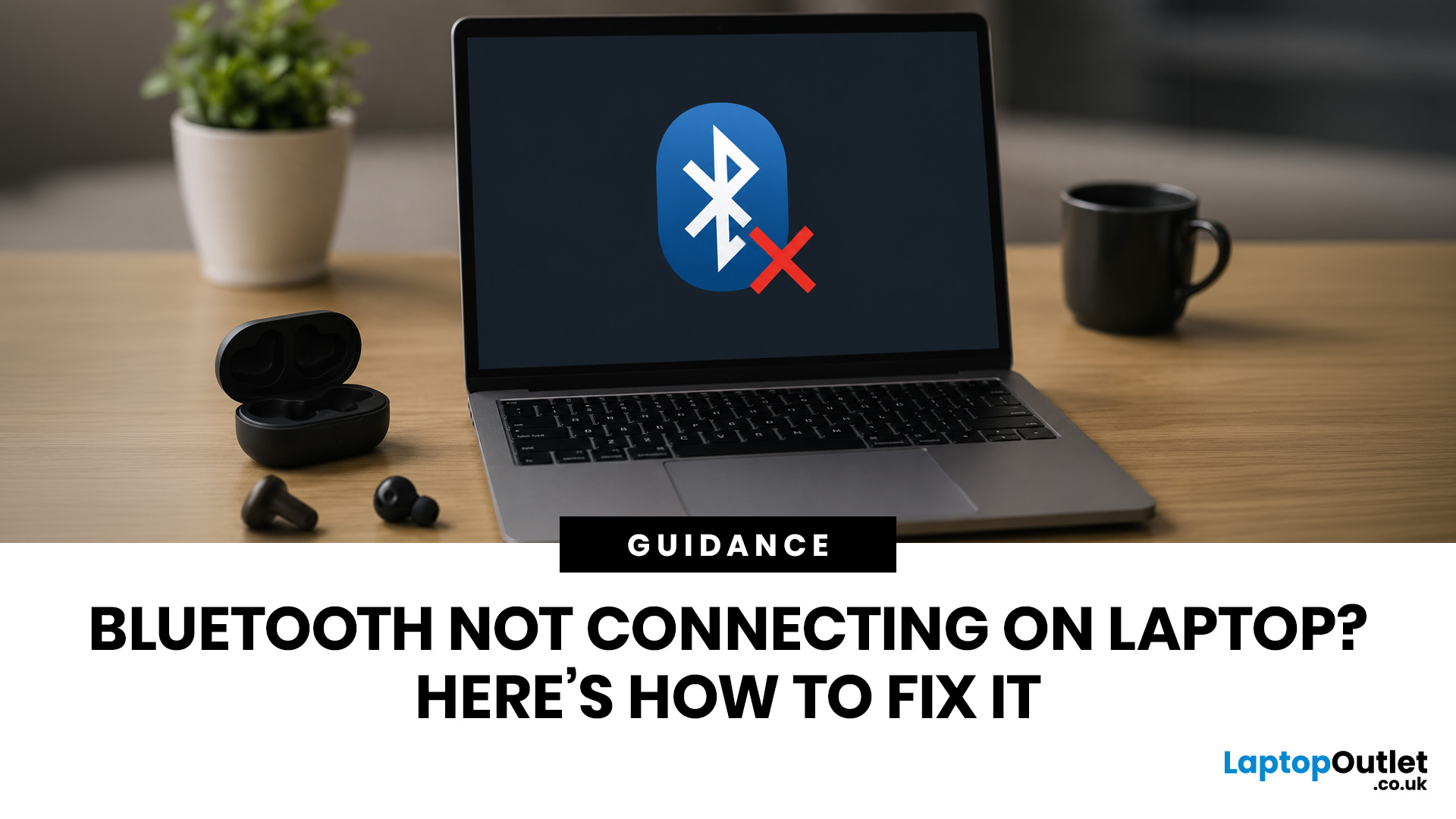
To fix Bluetooth connection issues on your laptop, start by turning Bluetooth off and on, restarting your laptop, removing the problem device, and pairing it again. If that fails, update or reinstall your Bluetooth driver on Windows, or forget and reconnect the device on macOS.
A “Bluetooth not connecting laptop fix” is one of the most searched tech support queries, and it is easy to see why. One minute your wireless mouse, keyboard, or headphones are working fine, and the next they simply will not pair. It is frustrating, especially when you have work to get done.
The good news? Most Bluetooth issues can be resolved at home without spending a penny. This guide will walk you through every step to get you back online.
Why Is Bluetooth Not Connecting on Your Laptop?
The question “why is my Bluetooth not working” has more than one answer. Bluetooth connection problems can stem from a wide range of causes, both software and hardware related.
The Most Common Causes
- Bluetooth is switched
Last Updated: May 22, 2026
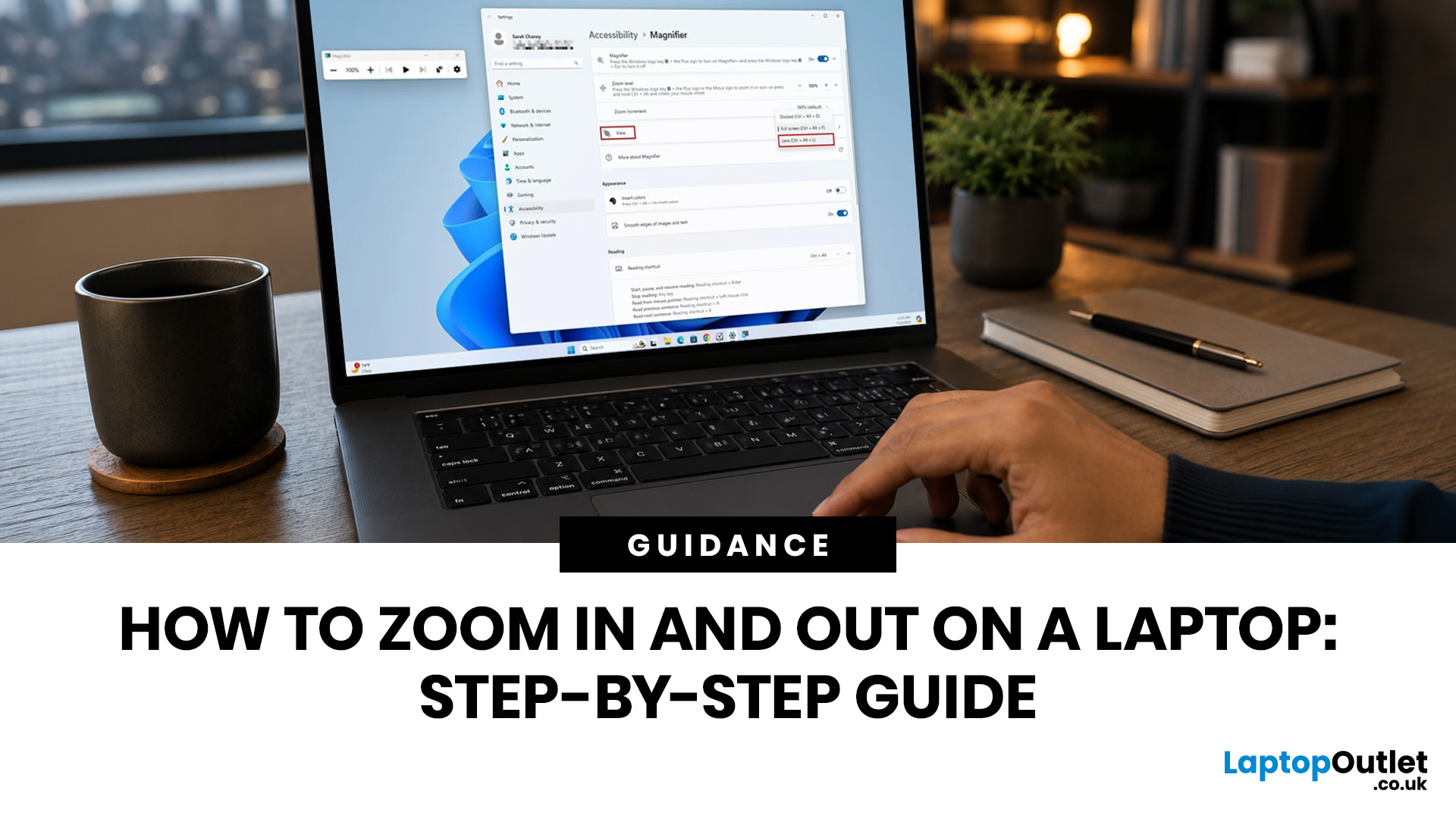
To zoom in and out on a laptop, press Ctrl + + to zoom in and Ctrl + - to zoom out in most browsers, documents, PDFs, pictures, and apps. To reset a webpage to normal size, press Ctrl + 0. If you need to quickly zoom out on a laptop screen, this shortcut is usually the fastest fix.
If the whole Windows screen is zoomed in, press Windows key + Esc to turn off Magnifier. If everything on your laptop still looks too big or too small, open Settings > System > Display and check Scale and Display resolution.
Most laptop Zoom problems happen in one of 5 places: the browser, an app, Windows Magnifier, display scale, or display resolution. The quickest fix depends on what exactly looks too large or too small.
Quick Answer: Laptop Zoom Shortcuts
| WHAT YOU WANT TO DO | SHORTCUT OR SETTING | USE THIS WHEN |
|---|---|---|
| Zoom in on a webpage, document, PDF, or picture | Ctrl + + | Text, images, or details are too small |
| Zoom out on a webpage, document, PDF, or picture | Ctrl + - | A page, file, or app looks too large |
| Reset browser |

