



Why Your Laptop Is Overheating (How to Fix it Fast)
A laptop usually overheats because of blocked airflow, dust, heavy apps, dried thermal paste, charging heat, or a faulty fan. To cool it down fast, place it on a hard surface, close demanding programs, clean the vents, switch to Balanced mode, and let it rest. If it keeps overheating or shutting down, it may need internal cleaning, thermal paste replacement, or repair.
Your coffee could be hot, but it doesn't work for a laptop to be honest. A little warmth is normal during gaming, charging, video calls, or heavy work, but if your laptop is overheating, slowing down, shutting off, or making loud fan noise, something needs fixing. This guide explains the fastest laptop overheating fix, why your laptop is running hot, and how to cool it down before the problem gets worse.
First, Is Your Laptop Actually Overheating?
Before you panic, it is important to know the difference between a laptop that is simply warm and a laptop that is truly overheating.
Laptops are compact machines. The processor, graphics chip, battery, storage, RAM, and cooling system are all packed into a slim body. Because of that, heat is expected. But there is a line between normal heat and dangerous heat.
Here is a simple way to understand it:
|
LAPTOP SITUATION |
USUALLY NORMAL |
WARNING SIGN |
|
Browsing the internet |
Slightly warm base |
Fan always loud or keyboard very hot |
|
Charging |
Mild warmth near battery area |
Battery area becomes extremely hot |
|
Gaming or editing |
Hot but stable |
Sudden shutdowns or major lag |
|
Sitting idle |
Cool to slightly warm |
Laptop getting hot with no apps open |
|
Used on bed or sofa |
Gets warm faster |
Vents blocked and heat trapped |
|
Video calls |
Warm with fan noise |
Freezing, lagging, or overheating quickly |
If your computer is running hot only during heavy work, it may simply be under pressure. But if your laptop gets hot during basic tasks, stays hot after closing apps, or shuts down suddenly, you need to investigate.
A laptop computer overheating repeatedly can lead to performance throttling, shorter battery life, hardware stress, and in serious cases, permanent damage, even on reliable options like MacBook or Samsung laptops used for work.
How to Cool Your Laptop Instantly
If your laptop feels too hot, act quickly to reduce the temperature before damage or slowdown occurs.
- Improve Airflow Immediately
Move your laptop to a hard, flat surface like a desk. Avoid beds, cushions, or laps, as they block vents and trap heat. If possible, slightly lift the back of the laptop to help air circulate better. - Close Heavy Apps
Open Task Manager (Windows) or Activity Monitor (macOS) and shut downapps using high CPU, GPU, memory, or disk power, such as games, editing software, or too many browser tabs. Reducing workload can quickly lower heat. - Unplug the Charger (If Very Hot)
Charging adds extra heat, especially during heavy use. If your laptop is overheating, unplug it for a few minutes to let it cool down. - Switch to Balanced Mode
Performance mode can push your system harder than necessary. Switching to Balanced or Power Saver mode reduces heat without a major drop in usability. - Restart the Laptop
A quick restart can stop background processes or glitches that may be causing high CPU usage and heat. - Let It Cool Down
If the laptop is extremely hot, shut it down and let it rest for 10–15 minutes. Avoid extreme cooling methods like putting it in a fridge, as moisture can damage internal components.
Quick Laptop Overheating Fix Based on Symptoms
Not every overheating laptop has the same problem. The fastest way to find the cause is to look at the symptom.
|
SYMPTOM |
POSSIBLE CAUSE |
QUICK FIX |
|---|---|---|
|
Laptop gets hot while gaming |
CPU/GPU load, high graphics settings |
Lower graphics, limit FPS, use cooling pad |
|
Laptop heats while charging |
Battery heat, power settings, adapter issue |
Use Balanced mode, check charger |
|
Fan is loud but laptop still hot |
Dust, blocked vents, weak fan |
Clean vents and improve airflow |
|
Laptop is hot with no apps open |
Background apps, malware, updates |
Check Task Manager or Activity Monitor |
|
Laptop shuts down suddenly |
Thermal protection kicking in |
Stop using it and let it cool |
|
Laptop overheats after cleaning |
Fan cable, thermal paste, heatsink issue |
Recheck internal assembly |
|
Bottom of laptop gets very hot |
Blocked intake vents |
Use a hard surface or stand |
|
Laptop is hot but fan is quiet |
Fan not spinning, silent mode, sensor issue |
Check fan settings or repair |
This is why the best laptop overheating fix depends on the cause. A cooling pad may help a gaming laptop, but it will not solve dried thermal paste. Closing background apps may help with software-related heat, but it will not fix a broken fan, especially when using affordable Core i5 laptops, which may have limited cooling capacity under heavy workloads.
You need to match the fix to the problem.
How Hot Is Too Hot for a Laptop?
Laptop temperatures vary depending on the model, processor, graphics card, room temperature, and cooling design. A thin ultrabook, gaming laptop, business laptop, and older budget laptop can all behave differently.
Still, these general ranges can help:
|
LAPTOP ACTIVITY |
NORMAL TEMPERATURE RANGE |
WARNING RANGE |
|---|---|---|
|
Idle |
35–55°C |
65°C+ |
|
Browsing or office work |
45–70°C |
80°C+ |
|
Video calls |
50–75°C |
85°C+ |
|
Gaming or editing |
70–90°C |
95°C+ |
|
Heavy CPU load |
80–95°C |
100°C+ |
|
Sudden shutdowns |
Not normal |
Serious warning |
If your laptop CPU overheating happens only during demanding tasks, it may be manageable with better airflow and lower settings. But if your laptop reaches high temperatures while idle or during light browsing, something is wrong.
Also, do not judge overheating by touching alone. Some laptops have metal bodies that spread heat across the surface, so they feel hotter than plastic laptops, including many modern smart AI laptops for productivity, which often use slim metal designs for better performance and portability. However, if the laptop is painful to touch, shuts down, freezes, or smells burnt, stop using it and get it checked.
Why Is My Laptop Running Hot? The Real Answer
Most people ask the same question in different ways:
“Why is my laptop heating?”
“Why is my laptop running hot?”
“Why my laptop so hot?”
“Why is my computer overheated?”
The answer usually falls into one of three categories:
1. The Laptop Cannot Breathe
This includes blocked vents, dust, poor airflow, soft surfaces, and bad placement.
2. The Laptop Is Working Too Hard
This includes gaming, editing, heavy browsing, background apps, malware, updates, and high-performance mode.
3. The Cooling System Is Not Working Properly
This includes dried thermal paste, weak fans, damaged heatsinks, bad thermal pads, or repair mistakes.
Once you know which category your laptop belongs to, fixing the issue becomes much easier.
Now let’s break the causes down in a more practical way.
The 7 Types of Laptop Overheating Problems
Instead of listing 100 causes one by one, let’s look at the most common overheating patterns. Most laptops fit into one of these categories.
Think of this as a laptop overheating diagnosis clinic.
1. The Dusty Veteran
This is the laptop that has been with you for years: assignments, office work, Netflix nights, gaming sessions, and probably a few dusty corners.
At first, it worked fine. Then the fan became louder, the base got warmer, apps started lagging, and eventually, the laptop began overheating during simple tasks.
This is usually the classic dust-and-age problem.
Common Causes
- Dust inside the vents
- Dust around fan blades
- Blocked heatsink fins
- Pet hair inside the laptop
- Dried thermal paste
- Weak fan bearings
- Old thermal pads
Dust blocks airflow, so even if the fan is spinning, hot air may not escape properly.
Signs
- Fan is louder than before
- Laptop heats during light use
- Hot air barely comes out
- Performance drops quickly
- Laptop has not been cleaned for years
Best Fixes
Clean the outer vents carefully and use compressed air with caution. If the laptop is badly clogged, internal cleaning may be needed. For older laptops, replacing dried thermal paste can also help reduce CPU overheating issues. If dust is blocking airflow, follow our guide on how to clean laptop fans and vents before trying advanced repairs.
2. The Gamer Under Pressure
This laptop is not overheating because it is lazy. It is overheating because it is working hard.
Gaming, video editing, 3D rendering, streaming, and AI-based workloads can push the CPU and GPU to high temperatures. If your laptop only overheats during heavy tasks, performance load is usually the main cause.
Common Causes
- High graphics settings
- Unlimited FPS
- Heavy CPU/GPU usage
- Gaming while charging
- Poor cooling design
- Dusty vents
- Old thermal paste
- Hot room temperature
Gaming laptops can run warm, but the problem starts when heat causes FPS drops, lag, shutdowns, or serious performance throttling.
Signs
- Laptop is fine while browsing but overheats during games
- Fans get very loud
- FPS drops after a few minutes
- Keyboard area becomes hot
- Laptop cools down and performs better again
Best Fixes
Lower graphics settings, limit FPS, use a laptop stand or cooling pad, and check for dust. If the laptop is older, thermal paste replacement may help. The goal is not to make a gaming laptop cold, but to keep it stable and safe.
3. The Bed-and-Blanket User
This is one of the most common and most avoidable overheating problems.
Beds, sofas, carpets, blankets, pillows, and laps feel comfortable, but they are terrible for airflow. Most laptops pull cool air from the bottom or sides, and soft surfaces can block those vents.
That is when you start wondering how to stop your laptop from overheating, even though the fix may be as simple as changing the surface.
Common Causes
- Using the laptop on bed
- Blocking vents with blankets
- Placing it on a sofa or carpet
- Keeping a sleeve underneath
- Poor airflow around the base
- Hot room temperature
Signs
- Laptop gets hot quickly on bed
- Works better on a desk
- Bottom feels extremely hot
- Fan gets loud fast
- Heat reduces when the laptop is lifted
Best Fixes
Use the laptop on a hard, flat surface like a desk or table. If you work from bed, use a lap desk or stand that keeps the vents open. This is one of the easiest ways to prevent laptop from overheating without spending much.
4. The Silent Background App Problem
Sometimes the laptop is not overheating because of dust or gaming. Sometimes something in the background is quietly eating system resources.
This is the type of issue that makes people say:
“My laptop is hot even when I’m doing nothing.”
But the laptop may not actually be doing nothing.
Common Causes
- Too many startup apps
- Browser tabs and extensions
- Windows updates
- Cloud syncing
- Antivirus scans
- Malware
- Search indexing
- Driver bugs
- Unknown high-CPU processes
This kind of laptop overheating is tricky because the screen looks calm, but the processor is working hard behind the scenes.
Signs
- Laptop gets hot while idle
- Fan spins loudly after startup
- Battery drains quickly
- Task Manager shows high CPU usage
- Laptop cools after closing certain apps
- Heat started after installing new software
Best Fixes
Open Task Manager on Windows or Activity Monitor on macOS. Sort apps by CPU and memory usage. Disable unnecessary startup apps, remove suspicious extensions, run a malware scan, and close browser tabs you do not need.
If your computer is overheating with no obvious reason, software should be one of the first things you check. A faulty display will not usually cause overheating, but if your device has heat damage and screen issues together, check our laptop screen repair cost guide to decide whether repair or replacement makes sense.
5. The Charging Heat Case
Some laptops stay normal on battery but get hot as soon as the charger is plugged in. A little warmth is normal, but extreme heat is not.
When charging, the battery creates heat. At the same time, many laptops switch to higher performance mode, which makes the CPU work harder. If you are gaming, editing, or multitasking while plugged in, the heat can build up fast.
Common Causes
- High-performance mode
- Faulty or cheap charger
- Ageing battery
- Gaming while charging
- Poor ventilation
- Damaged charging port
- Background apps
Signs
- Laptop gets hotter only when plugged in
- Heat is strongest near the battery or charging port
- Charger brick gets very hot
- Laptop slows down or shuts off while charging
Best Fixes
Use the original charger or a trusted replacement. Switch to Balanced mode and avoid gaming or editing on soft surfaces while plugged in. If the battery area feels dangerously hot, smells strange, or looks swollen, stop using the laptop and get it checked.
6. The Recently Repaired Laptop
Sometimes a laptop starts overheating after cleaning, fan replacement, or thermal paste work. That does not always mean the laptop is finished. It may mean something was not fitted correctly.
Laptop cooling depends on proper contact between the fan, heatsink, thermal paste, thermal pads, and screws. One small mistake can trap heat.
Common Causes
- Too much or too little thermal paste
- Heatsink not seated properly
- Fan cable loose
- Wrong replacement fan
- Missing thermal pad
- Loose screws
- Dust pushed deeper inside
Signs
- Overheating started after repair
- Fan does not spin
- Laptop gets hot faster than before
- CPU temperature rises quickly
- Laptop shuts down under light use
Best Fixes
Do not keep forcing the laptop to run. If you opened it yourself, recheck the fan and heatsink only if you know what you are doing. Otherwise, return it to the technician and explain that the overheating started after repair. Outdated graphics, chipset, or power drivers can sometimes make your laptop run hotter, so use our Windows driver update guide to keep everything working properly.
7. The Thin Modern Laptop Problem
Modern laptops are slim, powerful, and easy to carry, but thin designs often have less space for large fans and wide air channels.
This does not mean thin laptops are bad. It simply means they may feel warmer during video calls, multitasking, charging, or heavy work.
Common Causes
- Slim body with limited airflow
- Powerful processor in compact space
- Quiet fan profile
- Metal body spreading heat
- Small heatsink
- Heavy multitasking
- Long video calls
Signs
- Keyboard or palm rest feels warm
- Laptop heats during calls or charging
- Fan stays quiet but body gets hot
- Performance drops under heavy tasks
- Heat is worse in summer
Best Fixes
Use a laptop stand, keep vents clear, avoid soft surfaces, and choose Balanced mode for daily use. If your laptop keeps overheating despite cleaning and repairs, it may be time to compare models from the latest laptops collection with better cooling and performance.
How to Stop a Laptop from Overheating: Easy to Advanced Fixes
Now that you know the causes, start with the simple fixes first. Do not open your laptop or replace parts before checking the basics.
Easy Fixes You Can Try First
- Place your laptop on a hard, flat surface so the vents can breathe. Close heavy apps, restart the system, reduce browser tabs, and switch from Performance mode to Balanced mode.
- Also, clean the visible vents, avoid direct sunlight, and raise the back of the laptop slightly for better airflow.
These small steps can solve many common laptop overheating problems.
Medium Fixes for Regular Overheating
- If the heat keeps coming back, try a cooling pad or laptop stand. Disable unnecessary startup apps, scan for malware, update drivers, and improve room airflow.
- For gaming, limit FPS and lower graphics settings to reduce CPU and GPU heat.
If your laptop still struggles with basic office work, you may want to compare top laptops for office use or explore Samsung laptops for work.
Advanced Fixes for Serious Overheating
- If basic fixes do not work, the problem may be internal. Your laptop may need fan cleaning, fresh thermal paste, new thermal pads, a fan replacement, battery inspection, or heatsink cleaning.
These fixes are not always safe for beginners. If your laptop smells burnt, has a swollen battery, shuts down repeatedly, or becomes too hot to touch, stop using it and get it checked by a professional.
Find the Cause of Your Overheating Laptop in 60 Seconds
Use this quick decision tree.
Is your laptop hot even when idle?
Yes → Check Task Manager or Activity Monitor. Look for background apps, updates, malware, or high CPU usage.
No → Continue.
Does it overheat only while gaming, editing, or rendering?
Yes → Lower graphics settings, limit FPS, use a stand or cooling pad, and check CPU/GPU temperatures.
No → Continue.
Is the fan loud but the laptop still hot?
Yes → Dust may be blocking the vents or heatsink. Clean the airflow path.
No → Continue.
Does it overheat while charging?
Yes → Check the charger, battery health, and power mode. Avoid heavy work while charging on soft surfaces.
No → Continue.
Did overheating start after repair or cleaning?
Yes → The fan cable, thermal paste, heatsink, or thermal pads may need to be checked again.
No → Continue.
Does the laptop shut down suddenly?
Yes → Stop using it heavily. This may be thermal shutdown, and it needs urgent attention.
If your laptop overheated and shut down before you saved your work, our deleted file recovery guide can help you try to restore lost files.
How to Prevent Laptop from Overheating Again
- Keep vents clear and avoid blocking them with blankets, cushions, sleeves, or your lap.
- Clean dust regularly to maintain proper airflow.
- Use a laptop stand to lift the device and improve ventilation.
- Avoid hot rooms and direct sunlight during heavy use.
- Close apps you do not need to reduce CPU load.
- Update drivers and software from official sources only.
- Disable unnecessary startup apps.
- Do not ignore loud fan noise, sudden heat, or shutdowns.
- Replace thermal paste when needed, especially on older laptops.
- Avoid damaged or low-quality chargers.
If you use your laptop for demanding productivity, AI tools, multitasking, or creative work, choosing the right machine matters. You can explore our premium Apple laptops depending on your workload and budget.
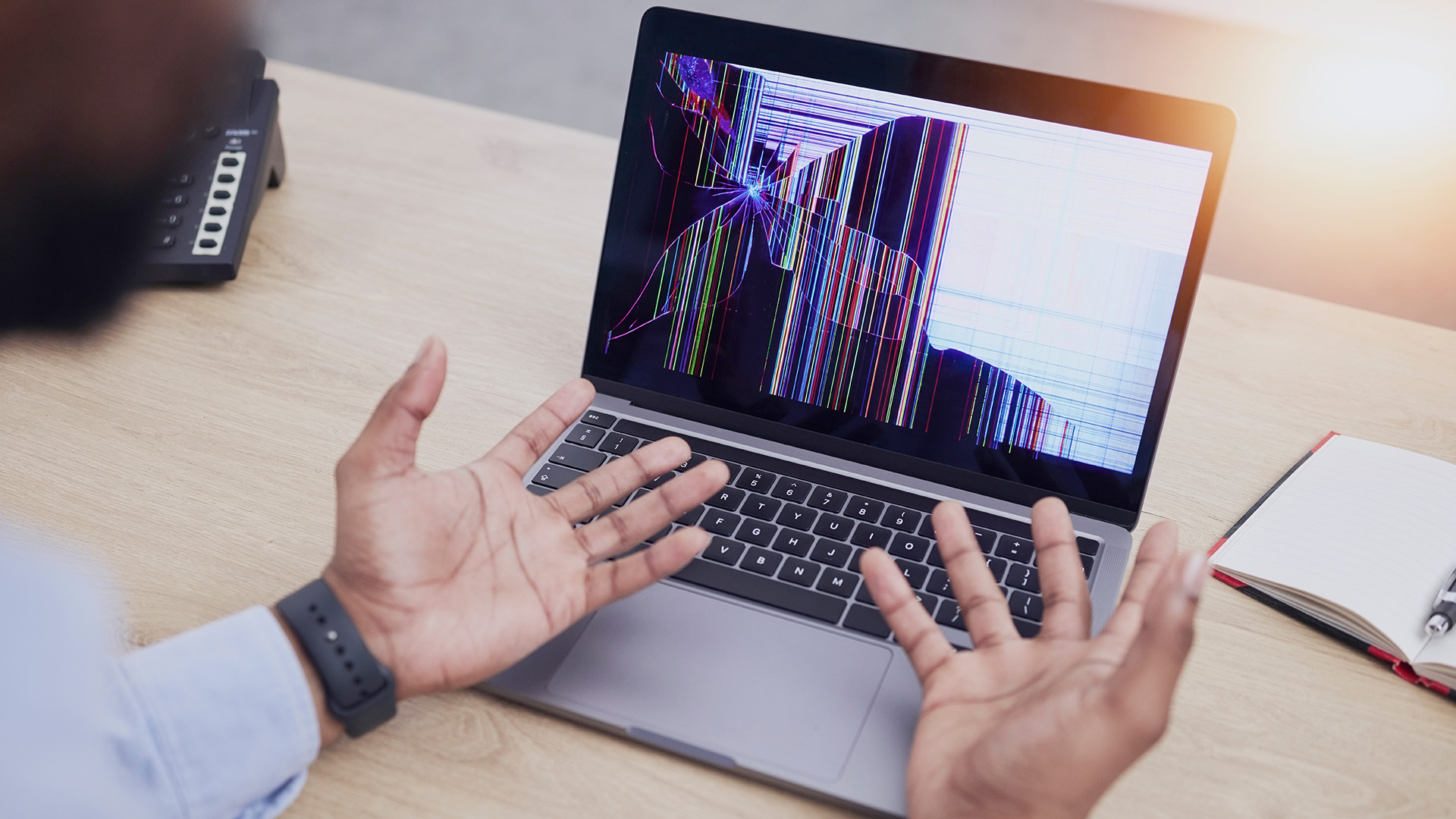
Repair makes sense if the problem is simple, and the laptop still performs well.
You should consider repair if:
- The fan is dusty
- Thermal paste is old
- The battery needs replacement
- The fan is faulty
- The laptop is still fast enough for your needs
- The repair cost is reasonable
Replacement may make more sense if:
- The laptop is very old
- It overheats even after repairs
- It is slow for your daily tasks
- The battery life is poor
- Repair costs are too high
- You need better performance for work, study, or creative tasks
An overheating laptop is not always ready for retirement. But if you have tried cleaning, software fixes, thermal paste replacement, and professional repair, and the computer is still running hot, upgrading may be the smarter long-term choice.

Final Thoughts
Laptop overheating is usually a warning sign, not a random problem. It can happen because of blocked vents, heavy CPU/GPU usage, background apps, dust, old thermal paste, or a weak fan.
Start with simple fixes: use a hard surface, close heavy apps, clean the vents, improve airflow, and switch to Balanced mode. If your laptop still runs hot or shuts down, check the fan, battery, thermal paste, or get it repaired before the damage gets worse.

FAQs About Laptop Overheating
1. What is the best laptop overheating fix?
The best fix depends on the cause. Start by using a hard surface, closing heavy apps, cleaning the vents, and switching to Balanced mode.
2. How can I cool my laptop down quickly?
Move it to a desk, close demanding programs, unplug the charger if it is very hot, improve airflow, and let it rest for a few minutes.
3. Why is my laptop hot when no apps are open?
Background apps, updates, malware, browser processes, cloud syncing, or startup programs may still be using the CPU.
4. Can overheating damage a laptop?
Yes. Repeated overheating can reduce battery life, slow performance, cause shutdowns, and damage internal parts over time.
5. When should I stop using an overheating laptop?
Stop using it if it shuts down, smells burnt, feels too hot to touch, has a swollen battery, or the fan is not working properly.
| Read More |
| How to Clean Laptop Fans and Vents: Easy DIY Methods |
| Laptop Screen Repair: How Much it Costs and When to Replace? |
| How to Update Drivers on Windows 10 & 11 (Complete Guide) |
Related Articles


Last Updated: February 13, 2026
Few things are more frustrating than a laptop running slow when you’re trying to work, study, stream, or simply browse the web. Whether it’s taking ages to boot up, freezing mid-task, or lagging when you open everyday apps, slow performance can quickly drain your productivity and patience.
The good news? A sluggish laptop doesn’t always mean it’s time to replace it. In many cases, there are clear reasons why a laptop is slow, and there are practical steps you can take to fix it. In this guide, we’ll walk you through the most common causes of laptop lagging, how to identify what’s slowing your device down, and how to improve laptop performance without unnecessary upgrades.
Why is My Laptop Running Slow?
Slow laptop performance usually comes from a combination of factors working against your system over time. Laptops naturally collect digital clutter, outdated software, background processes, and even hardware wear. Add demanding modern apps and websites into the mix, and performance can

Last Updated: February 17, 2026
Storage problems aren’t just annoying; they’re productivity killers. Studies show that nearly 60% of laptop slowdowns are linked to storage-related issues, whether it’s low disk space, corrupted files, or failing SSDs. When your drive is over 85% full, performance can drop significantly because your system has less room to manage temporary files and virtual memory. Add disk errors or early SSD/HDD failure into the mix, and suddenly your “quick task” turns into a 30-minute meltdown.
Laptop storage issues don’t just slow things down, they risk your data, crash your apps, and test your patience.
The good news? Most storage problems are fixable in real time. In this guide, we’ll break down exactly what’s happening, why it’s happening, and how to fix it step-by-step, no tech degree required.
SSD vs HDD: What’s Actually Inside Your Laptop (And Why It Matters)

Before you panic about laptop storage issues, you need to know what you’re working with. Not all drives fail the same way and the fix

Last Updated: February 17, 2026
Few things trigger instant panic like pressing the power button… and nothing happens. Or worse, your laptop turns on, shows the logo, and then just sits there. Stuck. Frozen. Judging you.
Laptop boot problems are one of the most common technical issues users face. From a laptop not booting at all to BIOS boot problems, startup errors, and endless boot loops, these issues can feel dramatic, but they’re often fixable. In many cases, Windows boot issues are caused by corrupted updates, drive errors, or simple configuration mistakes.
The key is knowing where the problem starts: power, BIOS, or operating system.
In this guide, we’ll walk you through real, step-by-step solutions to fix laptop boot loop errors, startup failures, and laptops that won’t turn on, no tech wizardry required.
What Are Laptop Boot Problems? (And Why They Feel So Stressful)
Laptop boot problems basically mean one thing: your laptop isn’t starting the way it’s supposed to. You press the power button expecting your system
Last Updated: February 13, 2026
Few things are more irritating than a laptop that insists it cannot connect to Wi-Fi, especially when your phone and tablet are happily online. The good news is that most Wi-Fi faults fall into a handful of predictable categories, and you can usually narrow it down in 10 to 15 minutes with a calm, methodical check.
This guide covers the most common laptop Wi-Fi connection issues and how to fix them. Let’s start with the quickest checks, then move into deeper fixes, and finish with the point where it makes sense to involve your broadband provider or consider hardware.
Start by Identifying the Best Possible “Laptop Wi-Fi Connection Issues”

A laptop can have “Wi-Fi Connection Issues” in several different ways. If you choose the wrong fix for the wrong symptom, you can waste time.
Here’s a quick symptom map so you can match what you’re seeing:
| What you’re seeing | What it usually means | Best first move |
| No networks appear at all | Wi-Fi is switched off, Aeroplane mode is on, adapter is disabled, |
Last Updated: February 13, 2026
Laptops are essential to modern life. Whether you’re working from home, studying, gaming, streaming, or running a business, your device needs to perform reliably every single day. But even the best machines can run into trouble. From frustrating slowdowns to sudden shutdowns, understanding common laptop problems can save you time, stress, and unnecessary expense.
In this comprehensive laptop troubleshooting guide, we’ll walk you through the most common laptop issues and fixes, explain what causes them, and show you practical steps to get your device back on track. Whether you’re using everyday notebook laptop or a gaming laptop, this guide will help you stay in control.
1. Slow Performance and Freezing
One of the most frustrating common laptop problems is sluggish performance. Over time, even premium notebook laptops can slow down if they’re not properly maintained. If your laptop takes ages to boot up, struggles to open applications, or freezes mid-task, you’re likely dealing with performance
Last Updated: February 17, 2026
Lenovo laptops are widely trusted across the world, from ThinkPads in corporate offices to IdeaPads in student halls and Legion machines built for gaming. They’re generally dependable, however, even well-built machines can develop faults over time.
We regularly see the same issues cropping up across different Lenovo ranges, and in most cases the fix is simpler than people expect.
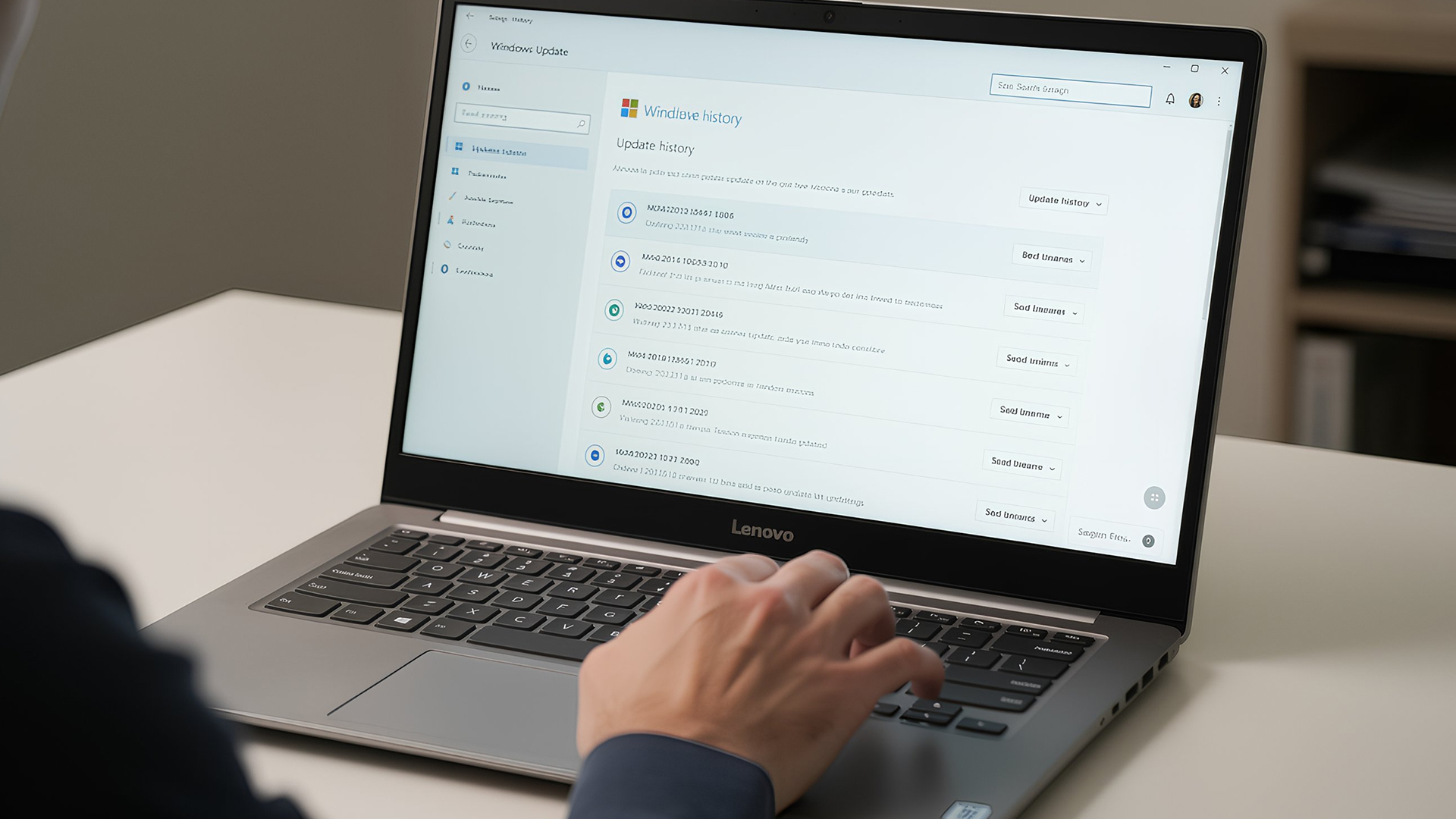
Before assuming your device is finished, it’s worth slowing down and checking a few things properly. Many common Lenovo laptop issues are software-related or power-related rather than serious hardware faults.
Below are some of the most common Lenovo laptop issues, why they occur, and what you can realistically do to solve them.
Quick Diagnostic Check Before You Start
Before diving into specific faults, ask yourself:
- Did this issue begin after a Windows update?
- Has the laptop recently overheated?
- Was it dropped or exposed to liquid?
- Is the battery older than three years?
- Does the problem occur only on battery

Last Updated: May 01, 2026
By the end of 2025, buying a laptop had become a bigger decision than ever. Global PC shipments climbed to more than 270 million units in 2025, with the final quarter alone reaching 71.5 million units.
On the surface, that sounds like good news: more innovation, more models, more choice. But for buyers, it also means more noise. Bigger spec sheets, bolder marketing claims, AI-ready labels everywhere, and a growing chance of paying for power you do not need or missing the features you actually do.
That is what makes choosing a laptop in 2026 tricky. The best option is not always the most expensive, the most powerful, or the newest on the page. It is the one that fits the way you work, study, stream, create, or game without compromise.
This guide cuts through the clutter and helps you choose with confidence. So, get yourself ready to buy the laptop you are looking for.
How to Choose the Right Laptop in 2026
If you want the quick answer, here’s how to choose the right laptop without overthinking
Published: April 14, 2026
Remote work is no longer a temporary perk. In 2026, it has become a steady work pattern for many UK employees, and the laptop has effectively turned into the main workplace tool, meeting room, and travel companion rolled into one.
That shift is changing what people prioritise when they buy. Price still matters, but buyers are more likely to pay for reliability, better video-call hardware, stronger security, and a setup that works just as well at home as on the train.
Hybrid Work is Pushing Standards Up, Not Down
UK hybrid working is best understood as a long-term rebalancing rather than a short-lived trend. In Great Britain, the Office for National Statistics has shown how hybrid working varies across demographic groups, reinforcing that it is embedded unevenly but persistently across the workforce rather than disappearing.
Employer practice points in the same direction. The CIPD’s research on flexible and hybrid working practices reports that a large share of organisations have hybrid

Last Updated: May 01, 2026
Video editing has become one of the most demanding everyday laptop workloads. Even relatively simple projects can involve high-resolution footage, multiple layers, colour work, motion graphics, audio cleanup, and export-heavy timelines. That means the best laptop for video editing is not just the one with the biggest headline spec. It is the one that fits the kind of editing you do, whether that is short-form social content, YouTube videos, client work, documentary edits, or more advanced professional production.
This guide includes mainstream creator laptops, premium ASUS ProArt models, mobile workstations, and a few higher-powered gaming machines that are relevant because video editing often benefits from the same strengths: strong sustained performance, capable graphics, fast storage, and displays built for visual work.
What Makes a Good Video Editing Laptop in 2026?
A good video editing laptop needs to do three things well:
- Handle demanding timelines smoothly,
- Stay responsive under
Last Updated: July 06, 2026
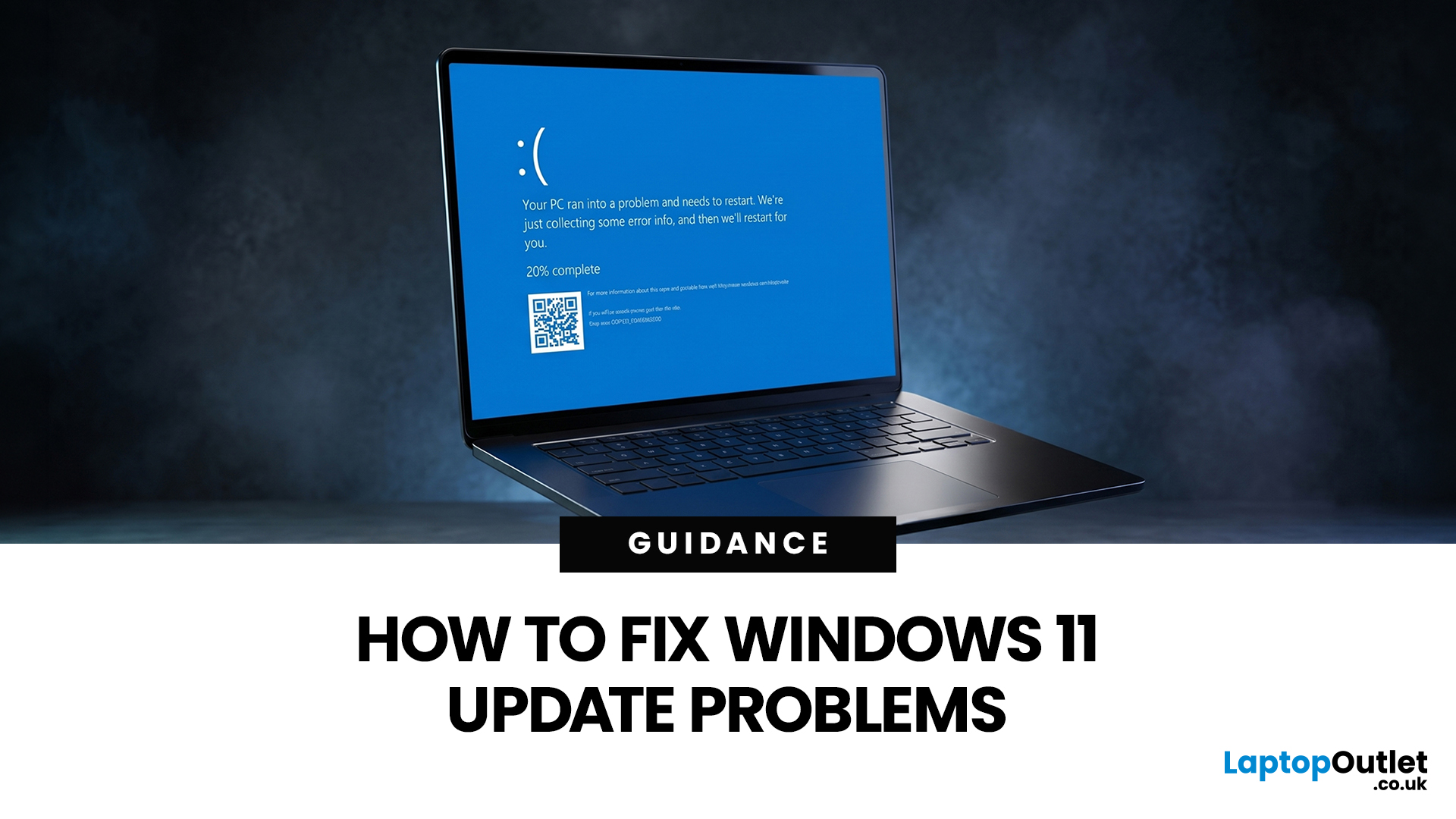
If your PC has decided that today is the day it will freeze at 61%, throw out a random error code, or restart at the worst possible time, you are very much not alone. Windows 11 update issues are one of those annoyingly common problems that can feel dramatic in the moment, but a lot of them are fixable with the right steps.
The good news is that most Windows 11 update problems usually come down to a handful of familiar causes: not enough storage, damaged update files, a disabled service, app conflicts, or a known issue that Microsoft is already tracking. Microsoft’s own support guidance still points users first to the built-in Windows Update troubleshooter and its broader update troubleshooting flow, which is usually the fastest place to start.
Why Windows 11 update fails in the first place
Let’s keep it real: when a Windows 11 update failed message pops up, it does not tell you much. The actual cause is usually one of these:
A Windows 11 update stuck during download or install can be linked

