



Gaming Desktop PC Overheating? How to Fix High Temperatures
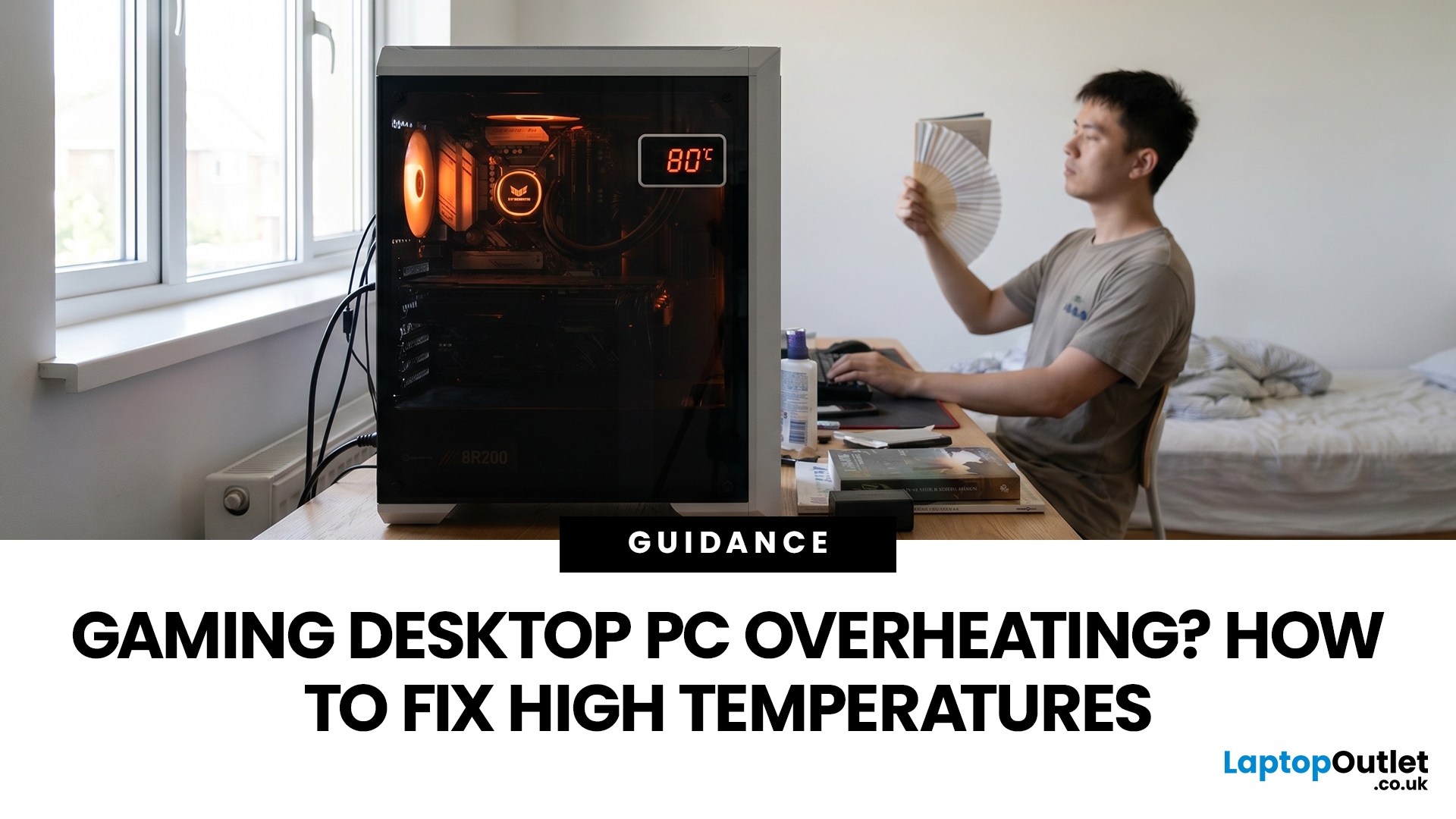
A gaming PC overheating usually comes down to one of five things: blocked airflow, dust build-up, weak cooling, aggressive game settings, or poor contact between the CPU/GPU and its cooler.
|
Here is the fast version:
|
Gaming PC Overheating: What It Means and Why It Matters
You’re mid-match. Your FPS is smooth. Then suddenly, the game stutters, the fans sound like a jet engine, and your PC feels like it could toast bread.
That is not “just gaming PC life”.
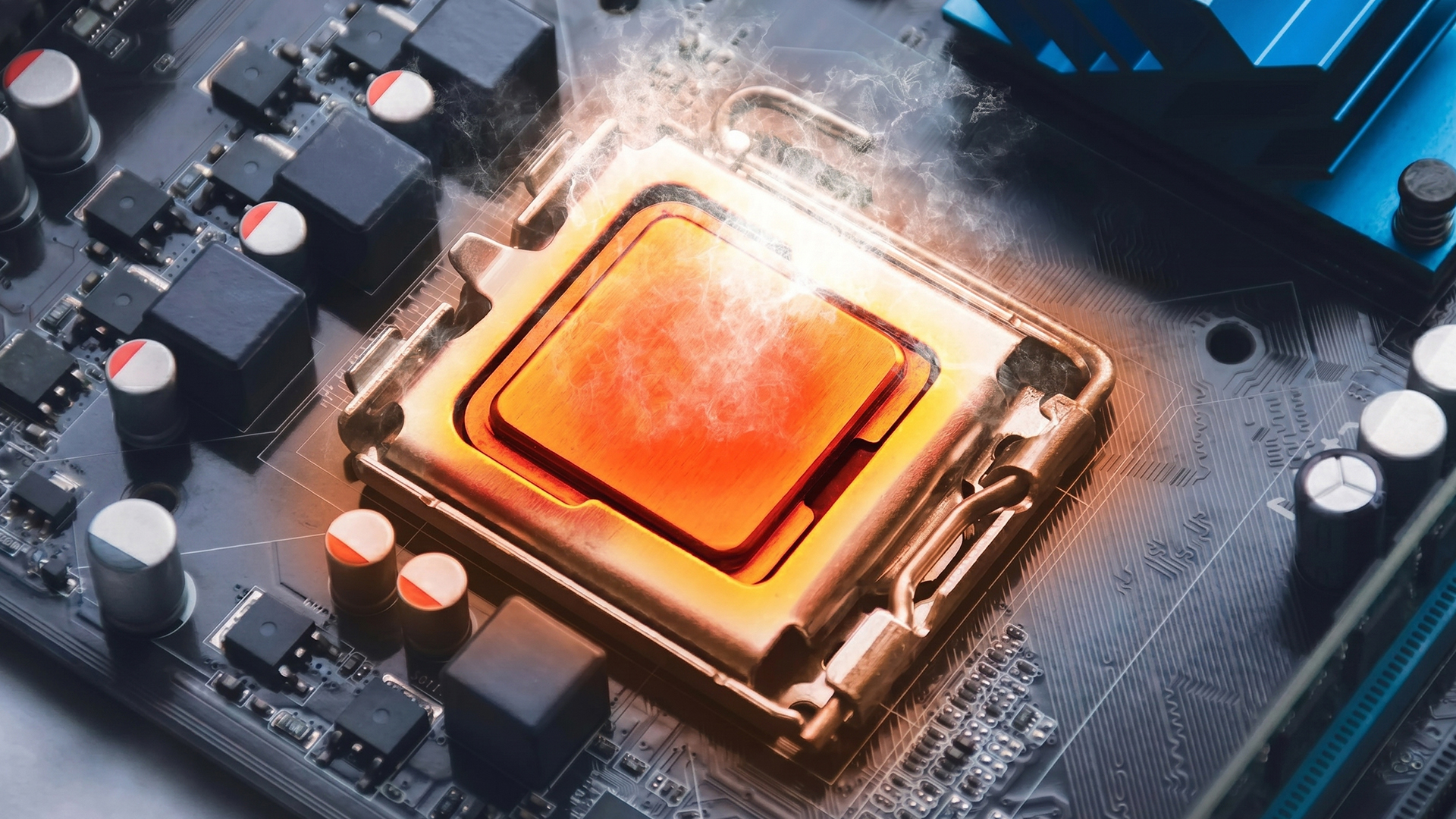
A hot gaming desktop is normal. An overheating gaming desktop is not.
When a gaming PC gets too hot, it can:
- Reduce performance through thermal throttling
- Cause random shutdowns or restarts
- Create loud fan noise
- Shorten component lifespan over time
- Make games unstable
- Trigger blue screens or crashes
- Make your room warmer during long sessions
Modern CPUs and GPUs are designed to protect themselves. For example, AMD explains that CPU temperature depends on cooler quality, airflow, ambient temperature, settings, and workload, and that when a processor reaches its specified maximum operating temperature, power and performance are also at their limit. NVIDIA also states that if a GPU reaches its maximum specified operating temperature, the driver will throttle performance to bring the temperature back under specification.
In simple terms: your PC slows itself down to avoid damage.
This guide will show you how to diagnose the issue, how to cool down gaming PC safely, stop pc overheating occasionally and when it makes sense to upgrade parts instead of endlessly tweaking settings.
What Temperature Is Too Hot for a Gaming PC?
Before you panic, check the numbers.
A gaming PC high temperatures reading is only a problem if it is consistently too high under normal gaming loads, not if it spikes briefly during loading screens, shader compilation, or heavy scenes.
General Gaming PC Temperature Guide
|
COMPONENT |
NORMAL IDLE RANGE |
NORMAL GAMING RANGE |
CONCERNING RANGE |
ACTION NEEDED |
|---|---|---|---|---|
|
CPU |
30°C–50°C |
60°C–85°C |
90°C+ sustained |
Check cooler, airflow, paste, fan curve |
|
GPU |
35°C–55°C |
65°C–85°C |
85°C–90°C+ sustained |
Check GPU fans, case airflow, dust |
|
SSD |
30°C–50°C |
50°C–70°C |
75°C+ sustained |
Improve airflow or add heatsink |
|
Motherboard/VRM |
30°C–60°C |
50°C–80°C |
90°C+ sustained |
Improve case airflow |
These are general ranges, not universal limits. Always check your exact CPU and GPU model because maximum operating temperatures vary by product. Intel’s product specification database is the best place to confirm Intel CPU thermal specifications by model, while AMD and publish specifications and support guidance for their own parts.
⚠️ Quick Takeaway
If your CPU or GPU briefly hits a high temperature and then drops, that may be normal. If it sits near the limit for minutes, crashes, throttles, or makes games stutter, you need a gaming PC overheating fix.
Common Signs Your Gaming PC Is Overheating
Not every performance problem is heat-related. But overheating has a few giveaway signs.
Your PC may be overheating while gaming if you notice:
- FPS starts high, then drops after 10–20 minutes
- Fans suddenly run at maximum speed
- Games crash during demanding scenes
- The PC shuts down without warning
- The case feels unusually hot
- Your CPU or GPU sits above 85°C–90°C for long periods
- You see “thermal throttling” in monitoring software
- Your system is fine on desktop but unstable in games
- Performance improves when the side panel is removed
That last one is a big clue. If removing the side panel lowers temperatures noticeably, your case of airflow is probably restricted.
If it happens after several minutes of gameplay, heat is more likely. If it happens instantly, you may also be dealing with driver issues, unstable overclocks, low RAM, failing storage, or game-specific bugs.
Why Is My Gaming PC Overheating?
A gaming desktop PC overheating is usually not caused by one dramatic failure. More often, it is a stack of small issues.
A little dust. A weak fan curve. A hot room. A GPU pushed to 99% usage. A case with a glass front panel and poor airflow.
Together, those small issues can turn a decent build into a space heater.
1. Dust Is Blocking Airflow
Dust is the classic villain.
It builds up on:
- Front mesh panels
- Dust filters
- Case fans
- CPU heatsinks
- GPU heatsinks
- Radiators
- Power supply vents
Noctua notes that fans and heatsinks accumulate dust over longer use and should be cleaned regularly to maintain maximum performance. Corsair also explains that dust on fans and radiators can impede airflow, reduce cooling efficiency, and cause higher temperatures inside the PC.
2. Poor Case Airflow
Your PC case needs a path for cool air to enter and hot air to leave.
A typical gaming desktop airflow setup looks like this:
- Front/bottom fans: intake cool air
- Rear/top fans: exhaust hot air
- CPU cooler: pushes heat toward the exhaust path
- GPU fans: pull air through the graphics card cooler
If your intake fans are blocked by glass panels, dust filters, cables, or a closed desk compartment, hot air gets trapped.
Corsair describes positive airflow as a setup where intake fans draw in more air than exhaust fans expel, helping bring fresh air into the system and reduce dust entering through unfiltered gaps.
For most gaming PCs, a slight positive pressure setup works well:
- 2–3 front intake fans
- 1 rear exhaust fan
- 1–2 top exhaust fans, if your case supports them
This is not a rigid rule. Compact PCs, high-end GPUs, and liquid cooling setups may need different fan layouts. But for most UK gamers using mid-tower desktop gaming computers, front-to-back airflow is the easiest win.
3. The CPU Cooler Is Not Mounted Properly
A poorly mounted CPU cooler can make temperatures shoot up fast.
Common causes include:
- Uneven mounting pressure
- Loose screws
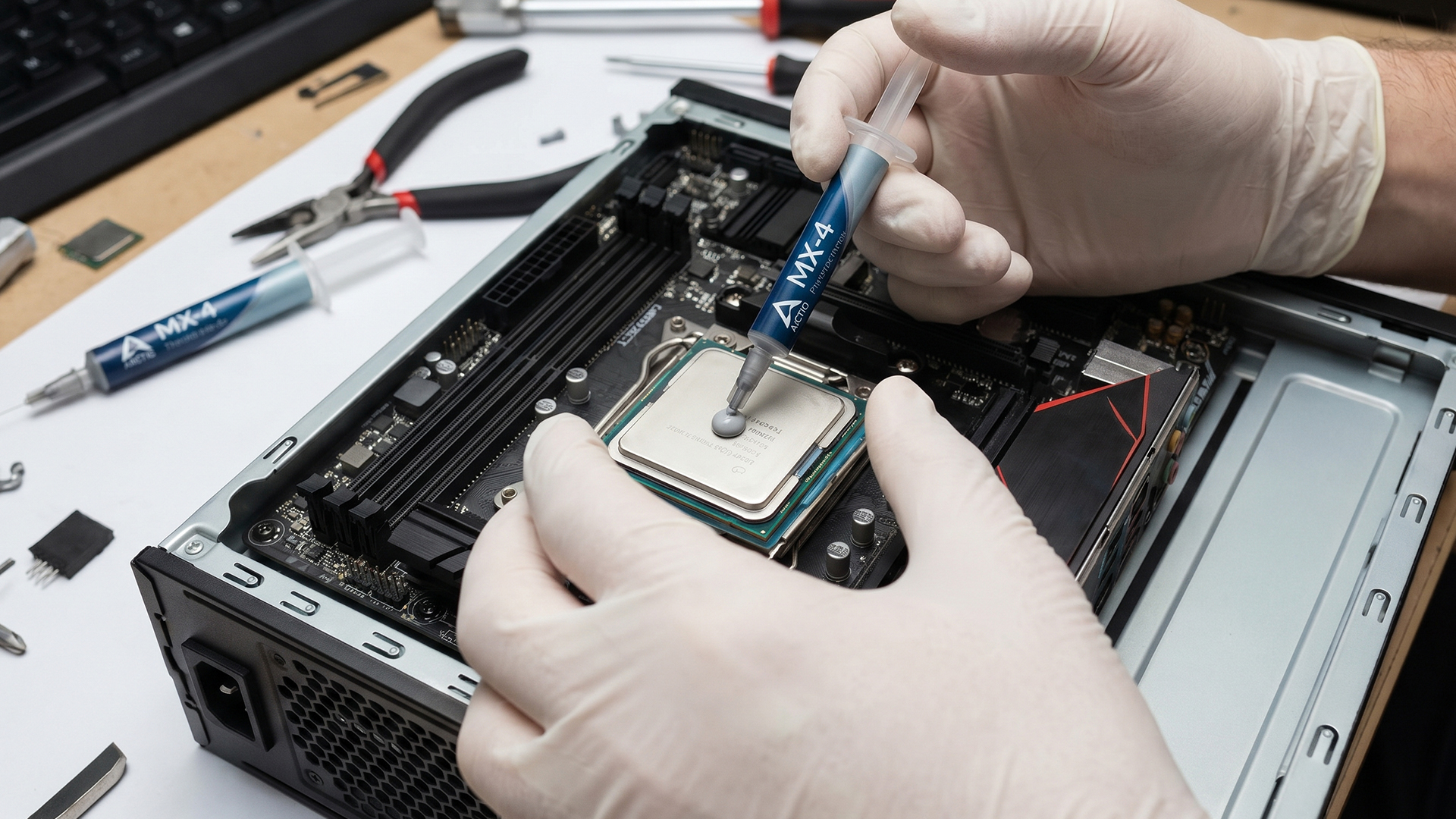
- Too much thermal paste
- Too little thermal paste
- Old thermal paste
- Plastic film left on the cooler base
- Cooler not powerful enough for the CPU
- AIO pump not connected or running correctly
Yes, the plastic film mistake still happens. Even experienced builders have done it once.
If your CPU jumps from 40°C to 90°C within seconds of starting a game or benchmark, suspect cooler contact before blaming the case.
4. Your GPU Is Dumping HeatIntothe Case
Modern graphics cards can consume a lot of power. That power becomes heat.
If your GPU is running hot, the rest of the PC also gets warmer. This can increase CPU temperature, SSD temperature, motherboard temperature, and fan noise.
This is especially common when:
- The GPU is large and close to the side panel
- The case has limited front intake
- The GPU has a vertical mount with little clearance
- The front panel is glass with narrow side vents
- You play at uncapped FPS
- You use high ray tracing or ultra settings
A powerful GPU in a poor airflow case is like putting a gaming console inside a drawer and wondering why it screams.
5. Fan Curves Are Too Quiet
Many gaming PCs are configured to stay quiet at low and medium temperatures. That sounds good until fans react too late.
A lazy fan curve means your PC allows heat to build up before cooling aggressively. By the time fans ramp up, your CPU or GPU may already be near its thermal limit.
Better fan curves can reduce temperature spikes without needing new hardware.
A good approach:
- Start fans gently at idle
- Increase fan speed earlier around 60°C–70°C
- Ramp more aggressively after 75°C–80°C
- Avoid sudden jumps that cause annoying noise spikes
The goal is not “maximum fans all the time”. The goal is stable cooling before heat gets out of control.
6. Your Room Temperature Is High
UK homes are not always designed with gaming thermals in mind. During summer, a small bedroom, poor ventilation, and a powerful gaming rig can create a heat loop.
Your PC cannot cool components below room temperature using normal air cooling. If your room is 28°C, your idle and gaming temperatures will be higher than they were in winter.
This matters more than people think.
A PC that runs fine in January may overheat in July.
7. Overclocking orHigh-PowerLimits
Overclocking increases heat. So do aggressive motherboard power settings.
Some motherboards automatically push CPUs harder than official baseline behaviour. Some GPUs also run factory overclocks that prioritise performance over acoustics and thermals.
This is not always bad. But if you are trying to fix overheating gaming pc, return to stock settings first.
Disable or reduce:
- CPU overclocks
- GPU overclocks
- Excessive voltage settings
- Unnecessary motherboard enhancement modes
- Extreme power profiles
- Too-aggressive RAM overclocking if unstable
You can always tune later once temperatures are under control.
How to Stop PC From Overheating When Playing Games: Step-by-Step Fix
Here is the practical troubleshooting order. Follow it from top to bottom. Do not start by buying parts unless you already know what is failing.
Step 1: Monitor Temperatures Properly
You cannot fix what you cannot measure.
Use temperature monitoring software and check:
- CPU package temperature
- Individual CPU core temperatures
- GPU temperature
- GPU hotspot temperature, if available
- GPU memory temperature, if available
- Fan speed
- CPU and GPU usage
- Clock speeds
- Power draw
- Thermal throttling flags
How to Test
- Open your monitoring tool.
- Start your game.
- Play normally for 15–30 minutes.
- Note maximum and average CPU/GPU temperatures.
- Check whether clock speeds drop when temperatures rise.
Do not rely only on idle temperatures. Everything looks fine on desktop and still PC overheating while gaming.
Pattern Interrupt: Do This Before You Clean Anything
Take a photo or screenshot of your temperatures before making changes.
Why? Because after cleaning or changing fan settings, you can compare results instead of guessing.
That is how you move from “it feels cooler” to “my GPU dropped by 8°C”.
Step 2: Clean Dust from Your Gaming PC
This is the cheapest gaming PC overheating fix and often the most effective.
What You Need
- Compressed air or electric air duster
- Microfibre cloth
- Soft brush
- Isopropyl alcohol for stubborn residue, if needed
- Anti-static care
- Patience
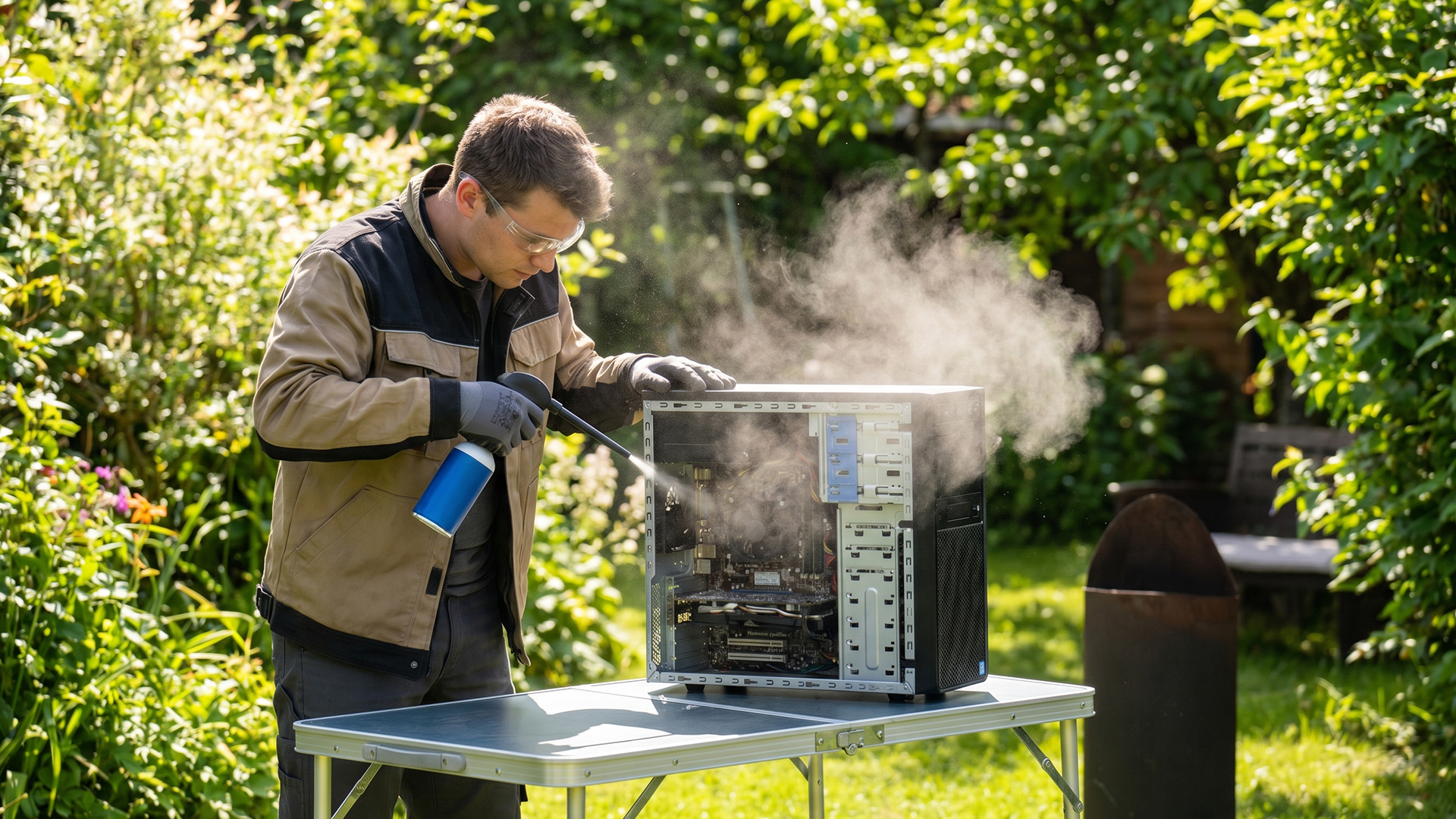
How to Clean Safely
- Shut down the PC.
- Switch off the power supply.
- Unplug the power cable.
- Move the PC to a well-ventilated area.
- Remove side panels.
- Hold fan blades still.
- Blow dust out of fans, filters, heatsinks, and radiators.
- Clean the front panel mesh and dust filters.
- Check the GPU heatsink area.
- Reassemble and test temperatures again.
Do Not Do This
- Do not use a household vacuum directly on components.
- Do not spray liquid cleaners into the PC.
- Do not spin fans at silly speeds with compressed air.
- Do not forget the power supply dust filter.
- Do not clean only the outside of the case.
Mini-Summary
Dust cleaning should be your first fix if your PC has not been cleaned in months. It costs little, reduces heat, and can make fans quieter.Step 3: Improve Case Airflow
If dust is not the issue, airflow is next.
Good Airflow Looks Like This
Cool air should enter through filtered intakes, pass over hot components, and exit through exhaust fans.
A simple airflow layout:
|
CASE AREA |
FAN DIRECTION |
PURPOSE |
|---|---|---|
|
Front |
Intake |
Pulls cool air into the case |
|
Bottom |
Intake |
Feeds cool air to the GPU |
|
Rear |
Exhaust |
Removes CPU heat |
|
Top |
Exhaust |
Removes rising warm air |
Common Airflow Mistakes
- All fans set as exhaust
- All fans set as intake
- Front fans blocked by a solid glass panel
- PC pushed against a wall
- PC placed inside a tight desk cubby
- Cables blocking front intake
- Radiator mounted in a way that traps heat inside
- Dust filters never cleaned
- Side panel pressed too close to a vertical GPU
Quick Test
Remove the side panel and play for 15 minutes.
If temperatures drop significantly, your case needs better airflow. That may mean adjusting fan direction, adding fans, improving cable management, or moving to a better airflow case.
If your current case is cramped, old, or mostly sealed, upgrading to modern airflow-focused gaming PC cases can make a bigger difference than adding more fans to a bad layout.
Step 4: Adjust Fan Curves
Fan curves decide how fast your fans spin at specific temperatures.
You can usually adjust them in:
- BIOS/UEFI
- Motherboard software
- GPU software
- Fan controller software
Example CPU Fan Curve
|
CPU TEMPRATURE |
FAN SPEED |
|---|---|
|
40°C |
25% |
|
60°C |
45% |
|
70°C |
65% |
|
80°C |
85% |
|
90°C |
100% |
Example Case Fan Curve
|
SYSTEM/GPU TEMPRATURE |
FAN SPEED |
|---|---|
|
35°C |
25% |
|
50°C |
40% |
|
65°C |
60% |
|
75°C |
80% |
|
85°C |
100% |
A more responsive fan curve can stop heat soak during long sessions in games like Warzone, Fortnite, Cyberpunk 2077, Valorant, GTA, Helldivers, Minecraft with shaders, or heavily modded titles.
Pro Tip
Do not tune only for idle silence. Tune for gaming stability.A fan curve that is silent at desktop but useless under load is not a good gaming fan curve.
Step 5: Check CPU Cooler Mounting and Thermal Paste
If your CPU is the hot component, inspect the cooler.
Signs of Poor Cooler Contact
- CPU hits 90°C+ very quickly
- One or two cores are much hotter than the rest
- Idle temperatures are unusually high
- Cooler feels loose
- Fans spin fast but temperature does not improve
- AIO tubes or radiator behave oddly
- Pump speed reads zero or very low
How to Reapply Thermal Paste
- Remove the CPU cooler carefully.
- Clean old paste from the CPU and cooler base using isopropyl alcohol.
- Let surfaces dry.
- Apply a pea-sized dot or small line of paste.
- Reinstall the cooler evenly.
- Tighten screws gradually in a cross pattern.
- Recheck temperatures.
Too Much vs Too Little Paste
|
Thermal Paste Mistake |
What Happens |
|---|---|
|
Too little paste |
Poor contact, hot spots |
|
Too much paste |
Messy overflow, less efficient transfer |
|
Uneven spread |
Some cores run hotter |
|
Old dry paste |
Higher temperatures over time |
Thermal paste is not magic, but if your paste is old, dry, badly applied, or disturbed during cooler installation, replacing it can help.
Step 6: Lower Heat-Heavy Game Settings
Sometimes your PC is not broken. Your settings are just asking too much.
Settings that increase heat include:
- Ray tracing
- Path tracing
- Uncapped frame rates
- Ultra shadows
- High volumetric effects
- High resolution scaling
- Supersampling
- Very high texture packs on limited VRAM
- Heavy mods
- Poorly optimised launch-day games
Best Settings to Reduce Heat Without Ruining Visuals
Try this order:
- Cap FPS slightly below your monitor refresh rate.
- Use DLSS, FSR, or XeSS where available.
- Reduce ray tracing quality.
- Lower shadows from Ultra to High or Medium.
- Lower volumetrics.
- Disable unnecessary background recording.
- Reduce render scale only if needed.
Example
If you have a 144Hz monitor and your game is running at 220 FPS in menus or lighter scenes, your GPU may be working harder than necessary. Capping FPS to 144, 120, or even 90 can reduce heat, noise, and power draw while still feeling smooth.
This is one of the easiest ways to cool down gaming PC without opening the case.
Step 7: Undervolt the GPU or CPU
Undervolting means reducing voltage while keeping similar performance.
Done correctly, it can lower temperatures and noise with little or no FPS loss. Done badly, it can cause crashes.
Pros of Undervolting
- Lower temperatures
- Lower fan noise
- Lower power draw
- Often similar gaming performance
- Useful for hot GPUs
Cons of Undervolting
- Requires testing
- Can cause instability
- Settings may reset after driver updates
- Not every chip responds the same way
For beginners, start with simple power limit reductions before manual voltage tuning.
For example, reducing a GPU power limit by 5–10% can sometimes cut heat noticeably while reducing FPS only slightly.
Key Takeaway
Undervolting is not mandatory. It is a smart advanced fix after cleaning, airflow, and fan curves are sorted.Step 8: Upgrade Cooling Fans
If your case has only one rear fan, weak stock fans, or no front intake, better fans can help.
Look for:
- Correct fan size: usually 120mm or 140mm
- Good airflow rating
- Low noise level
- PWM control
- Static pressure fans for radiators or dense filters
- Airflow fans for open case positions
- Reliable bearings
120mm vs 140mm Fans
|
FAN SIZE |
BEST FOR |
PROS |
CONS |
|---|---|---|---|
|
120mm |
Most cases and radiators |
Widely compatible, high pressure options |
May need higher RPM |
|
140mm |
Larger cases |
Moves more air at lower RPM |
Not supported everywhere |
If your PC has poor intake, adding quality cooling fans for gaming PCs can improve airflow and reduce temperatures without replacing the whole system.
Beginner-Friendly Fan Setup
For most mid-tower gaming PCs:
- 2 front intake fans
- 1 rear exhaust fan
Better setup:
- 3 front intake fans
- 1 rear exhaust fan
- 1 top exhaust fan
Avoid adding random fans without thinking about direction. More fans can create turbulence if airflow is badly planned.
Step 9: Upgrade the CPU Cooler
If your CPU cooler is too weak for your processor, no amount of case tweaking will fully solve the issue.
This matters especially for high-power CPUs used in gaming, streaming, content creation, or multitasking.
Air Cooler vs Liquid Cooler
|
COOLER TYPE |
BEST FOR |
PROS |
CONS |
|
Stock cooler |
Entry-level CPUs |
Cheap, included with some CPUs |
Limited cooling, louder under load |
|
Tower air cooler |
Most gaming PCs |
Reliable, good value, low maintenance |
Needs case clearance |
|
Dual-tower air cooler |
High-performance CPUs |
Strong cooling, durable |
Large size may block RAM |
|
240mm AIO liquid cooler |
Mid/high-end CPUs |
Good cooling, clean look |
Pump can fail over time |
|
280mm/360mm AIO |
High-end CPUs |
Strong thermal capacity |
Needs radiator space, costs more |
AIO liquid coolers are popular, but they are not automatically better than high-quality air coolers. A premium air cooler can beat a weak liquid cooler.
If your CPU regularly runs near its thermal limit, compare your processor’s power demands with suitable gaming PC cooling solutions.
Step 10: Consider a Better PC Case
This is the fix people delay for too long.
A poor airflow case can make every component hotter. You can add expensive fans and still struggle if the front panel barely lets air in.
Signs You Need a Better Case
- Temperatures drop a lot with the side panel removed
- Front panel is mostly solid glass or plastic
- GPU is starved for air
- Cable management blocks airflow
- Radiator support is limited
- Fans are loud but temperatures stay high
- Dust filters are restrictive or hard to clean
- The case is too small for modern parts
A good gaming case should offer:
- Mesh or ventilated front panel
- Multiple intake fan mounts
- Rear and top exhaust options
- GPU clearance
- CPU cooler clearance
- Radiator support if needed
- Easy-to-clean dust filters
- Good cable management space
If your case is the bottleneck, moving the same components into better gaming PC cases can improve thermals, noise, and future upgrade flexibility.
Step 11: Check Your Processor and GPU Match
Sometimes overheating is a build-balance problem.
For example:
- A high-end CPU with a basic cooler
- A powerful GPU in a compact case
- A hot processor on a motherboard with weak VRM cooling
- A gaming PC upgraded with a new graphics card but no airflow improvements
If you are building or upgrading, match your cooling to the heat output of your parts.
When choosing processors for gaming PCs, consider more than core count and clock speed. Also check:
- Power consumption
- Cooling requirements
- Case compatibility
- Motherboard support
- Typical gaming workload
- Whether you also stream, edit, or render
For many gamers, the smartest CPU is not the hottest flagship. It is the one that delivers strong FPS without needing extreme cooling. If you are planning a full upgrade instead of fixing an old thermal setup, our gaming desktop PC buying guide can help you compare specs, GPUs, CPUs, cooling needs, and performance expectations before you choose your next system.
Step 12: Know When to Upgrade the Whole System
If your gaming desktop is old, cramped, noisy, and struggling with modern games, replacing individual parts may become poor value.
Upgrade the full system if:
- The case has bad airflow
- The CPU runs hot and bottlenecks performance
- The GPU overheats and underperforms
- The power supply is old or low quality
- The motherboard limits upgrade options
- You need better performance for newer titles
- You want warranty-backed reliability
A prebuilt or upgraded gaming desktop can be a cleaner route if you do not want to troubleshoot every thermal issue manually. Browse modern desktop gaming computers if your current setup needs more than a simple cooling fix.
Quick Fixes vs Hardware Fixes
Not every overheating issue needs money thrown at it.
Use this table to decide your next move.
|
PROBLEM |
FREE/LOW COST FIX |
HARDWARE FIX |
|---|---|---|
|
Dust build-up |
Clean fans, filters, heatsinks |
Better dust-filtered case |
|
Poor airflow |
Move PC, manage cables, change fan direction |
Add fans or replace case |
|
Weak CPU cooling |
Reseat cooler, reapply paste, adjust fan curve |
Upgrade CPU cooler |
|
Hot GPU |
Clean GPU, cap FPS, undervolt |
Better airflow case or GPU support |
|
Loud fans |
Custom fan curve |
Quieter PWM fans |
|
Hot room |
Improve room ventilation |
More efficient components |
|
Old PC |
Clean and optimise |
New gaming desktop |
Key Takeaway
Start free. Measure results. Upgrade only when you know the bottleneck.That is how you fix an overheating gaming PC without wasting money.
Gaming PC Cooling Tips That Actually Work
Here are practical gaming PC cooling tips that apply to both beginners and experienced builders.
Keep the PC Off Carpet
Carpet blocks bottom vents and traps dust.
Use:
- A desk
- A hard floor stand
- A raised platform
- A PC trolley
- A solid board under the tower
This matters even more if your PSU intake is at the bottom.
Leave Space Around the Case
Your PC needs breathing room.
Avoid placing it:
- Tight against a wall
- Inside a closed cabinet
- Next to a radiator
- Under thick curtains
- Against soft furniture
- In direct sunlight
Give the rear and top exhaust areas enough clearance.
Cap Your FPS
Uncapped FPS can make your GPU work harder than needed.
Good caps:
- 60 FPS for casual or story games
- 90 FPS for smooth single-player gaming
- 120 FPS for high-refresh gaming
- 144 FPS for 144Hz monitors
- 165 FPS for 165Hz monitors
If you play esports titles, you may prefer higher FPS for lower latency. But for many games, an FPS cap is a free temperature reduction.
Keep Drivers Updated, But Be Sensible
GPU drivers can affect power behaviour, fan control, and game optimisation.
Update drivers if:
- A new game performs badly
- You have crashes
- GPU usage seems abnormal
- Fan behaviour changed after an update
But do not update blindly five minutes before a tournament or ranked session. Test first.
Use Balanced Power Settings
Extreme power modes can increase heat.
For everyday gaming, balanced or manufacturer-recommended settings often make more sense than maximum performance modes.
You want stable frame rates, not unnecessary heat.
Do Not Ignore Cable Management
Messy cables rarely destroy airflow by themselves, but they can restrict front intake in smaller cases.
Focus on:
- Keeping front intake clear
- Routing thick cables behind the motherboard tray
- Avoiding cable bundles under the GPU
- Keeping radiator tubes positioned safely
Clean airflow does not need to look like a showroom build. It just needs a clear path.
Beginner Troubleshooting Checklist
Use this if you are new to PC gaming.
If Your PC Is Overheating While Gaming, Do This
- Check CPU and GPU temperatures.
- Clean dust filters and fans.
- Move the PC off carpet.
- Make sure front fans pull air in.
- Make sure rear/top fans push air out.
- Cap FPS in-game.
- Lower ray tracing and ultra settings.
- Increase fan curves.
- Recheck temperatures.
- Consider better fans, cooler, or case if still hot.
Stop Here If…
Your temperatures are now stable, games no longer crash, and fan noise is acceptable.
You do not need to chase ultra-low temperatures for no reason.
Advanced Troubleshooting Checklist
Use this if you already know your way around BIOS, fan curves, and monitoring tools.
Advanced Fixes
- Check CPU package power under load
- Compare stock vs overclocked settings
- Check GPU hotspot delta
- Check VRAM temperature if available
- Review motherboard power enhancement settings
- Undervolt CPU or GPU
- Repaste CPU
- Repaste GPU only if experienced and warranty-safe
- Test with side panel removed
- Test with front panel removed
- Compare open-air vs closed-case temperatures
- Check AIO pump RPM
- Try different radiator orientation
- Update BIOS if thermal behaviour is abnormal
- Reset unstable overclocks
Watch Out For
A GPU core temperature may look fine while hotspot or memory temperature is too high. If your monitoring tool shows hotspot temperature far above the core temperature, the cooler may have uneven contact or poor thermal pad performance.This is more advanced territory. If the GPU is under warranty, avoid disassembly unless you know the warranty implications.
What Not to Do When Your Gaming PC Overheats
Some fixes sound tempting but cause more problems.
Do Not Remove Side Panels Permanently
It may lower temperatures temporarily, but it also exposes your PC to dust, pets, spills, and accidental knocks. It can also disrupt designed airflow.
Use it as a test, not a permanent solution.
Do Not Set Every Fan to 100% Forever
It works, but it is loud, annoying, and unnecessary.
A good fan curve is smarter than brute force.
Do Not Keep Gaming Through Shutdowns
If your PC shuts itself down, stop.
Repeated thermal shutdowns are a warning sign. Check temperatures, cooling, and power stability before launching the game again.
Do Not Buy Random Parts Without Diagnosis
Buying a new CPU cooler will not fix a GPU airflow problem. Buying more fans will not fix a badly mounted cooler. Buying thermal paste will not fix a sealed case.
Diagnose first. Upgrade second.
Best Upgrade Path for an Overheating Gaming PC
If you have tried cleaning and settings but still need better cooling, upgrade in this order.
1. Add or Replace Case Fans
Best for:
- Weak airflow
- Hot GPU
- Noisy stock fans
- Cases with empty fan slots
Start with intake and exhaust balance.
Recommended direction: front intake, rear/top exhaust.
2. Upgrade the CPU Cooler
Best for:
- CPU overheating
- Fast CPU temperature spikes
- Loud stock cooler
- High-end processors
- Streaming or multitasking while gaming
Choose a cooler that fits your case and CPU power needs.
3. Upgrade the Case
Best for:
- Big temperature drop when side panel is removed
- Restricted front panel
- Poor cable space
- Large GPU with limited airflow
- Future upgrades
A better case can improve the whole system, not just one component.
4. Upgrade the Processor or Gaming Desktop
Best for:
- Old systems
- Poor efficiency
- Repeated performance bottlenecks
- Modern games pushing the whole PC too hard
- Users who want a cleaner, warranty-backed setup
If your PC needs a new case, new cooler, new fans, and new core components, compare that cost with a newer gaming desktop.
How to Cool Down a Gaming PC During a Long Session
Need quick results before your next match?
Try this:
- Restart the PC before gaming.
- Close unnecessary background apps.
- Open your monitoring software.
- Cap FPS.
- Lower ray tracing or shadows.
- Increase fan curve.
- Make sure the room has airflow.
- Move the tower away from walls or carpets.
- Clean front filters if dusty.
- Take breaks during heatwaves.
This will not replace proper maintenance, but it can stop your gaming PC overheating during a long evening session. Using a gaming laptop instead of a desktop? The cooling setup is very different, so follow our guide on how to stop a laptop from overheating if your portable gaming machine is getting too hot during long sessions.

Final Thoughts: Fix the Heat, Keep the FPS
A gaming PC overheating is frustrating, but it is usually fixable.
Start with the basics: measure temperatures, clean dust, check airflow, tune fan curves, and reduce unnecessary heat from game settings. Then move to hardware only when you know what is limiting your cooling.
The smartest gaming PC overheating fix is not always the most expensive one. Sometimes it is a cleaned dust filter, a better fan curve, or moving your tower off the carpet. Other times, it is a clear sign that your case, fans, cooler, or full system needs an upgrade.
Keep the heat under control, and your PC can stay faster, quieter, and more reliable for every match, mission, raid, and late-night gaming session.

Gaming PC Overheating FAQ
Why is my gaming PC overheating?
Your gaming PC is likely overheating because heat is not being removed fast enough. The most common causes are dust build-up, poor case airflow, weak cooling fans, a badly mounted CPU cooler, old thermal paste, high room temperature, uncapped FPS, overclocking, or a case that restricts fresh air.
How do I stop PC overheating when playing games?
To stop a PC from overheating when playing games, monitor CPU and GPU temperatures, clean dust, improve airflow, adjust fan curves, cap FPS, lower heat-heavy graphics settings, check cooler mounting, and upgrade fans, CPU cooler, or case if needed.
Is 90°C too hot for a gaming PC?
It depends on the component and model. Some modern CPUs can operate near gaming PC high temperatures limits by design, but sustained 90°C+ during gaming is worth investigating, especially if performance drops, fans are extremely loud, or the PC crashes. GPUs running near 90°C for long periods may throttle depending on the model.
Is it normal for a gaming PC to get hot?
Yes, gaming PCs get hot because CPUs and GPUs use a lot of power under load. Warm air from the case is normal. Overheating, throttling, crashing, or shutting down is not normal.
How can I cool down my gaming PC without buying anything?
You can cool down gaming PC for free by cleaning dust, moving it off carpet, improving room ventilation, changing fan curves, capping FPS, closing background apps, lowering demanding settings, and making sure the case has space to breathe.
Do more fans always mean better cooling?
No. More fans only help if they improve airflow direction and balance. Poorly placed fans can create turbulence, increase noise, or disrupt the path of cool air. Fan quality, placement, direction, and case design matter more than simply filling every fan slot.
Should I remove the side panel to cool my PC?
Only as a test. If removing the side panel dramatically lowers temperatures, your case airflow needs improvement. Leaving it off permanently increases dust exposure and risk of accidental damage.
Can overheating damage my gaming PC?
Modern CPUs and GPUs usually throttle or shut down to protect themselves, but repeated overheating is still bad for stability, performance, and long-term reliability. Treat crashes, shutdowns, and sustained high temperatures as warning signs.
Should I use liquid cooling for my gaming PC?
Liquid cooling can help, especially for high-end CPUs, but it is not always required. A strong air cooler is often enough for many gaming PCs. Choose based on your CPU, case space, noise preference, budget, and maintenance expectations.
When should I replace my gaming PC case?
Replace your case if temperatures drop significantly with the side panel removed, if the front panel is restrictive, if GPU airflow is poor, if cable management blocks intake, or if the case cannot support the cooling hardware your components need.
Related Articles

Last Updated: June 15, 2026
The world of gaming desktops has never been more exciting. In 2026, gamers can enjoy next-level performance powered by Intel Core 14th Gen and AMD Ryzen 9000-series processors, paired with NVIDIA RTX 40 and 50-series GPUs. Whether you’re after an entry-level setup or a high-end machine for 4K gaming and VR, today’s best gaming desktop 2026 options offer something for every type of player. This guide breaks down the top categories, performance, features, and ideal users, to help you buy the best gaming desktop PC for your needs.
Best Budget Gaming Desktops in 2026
If you’re new to PC gaming or shopping on a budget, 2026 offers plenty of affordable options that deliver reliable 1080p performance.
Budget Highlights
- Processor: Intel Core i5-14400F / AMD Ryzen 5 8600G
- Graphics: NVIDIA RTX 50 series / AMD Radeon RX 7000 series XT
- RAM & Storage: 16GB DDR5, 512GB – 1TB SSD
Top Choices
| Model Image | Model | Processor | Graphics Capability | Memory (RAM) | Storage | Operating System | Special Features |
 | Lenovo |

Last Updated: June 05, 2026
If you’re upgrading your gaming rig or building one from scratch in 2025, the motherboard you choose is going to set the tone for your entire PC. Whether you’re aiming for an affordable setup or an ultra-high-end powerhouse, the motherboard is the foundation - determining not just what components you can use today, but how future-ready your system will be.
This guide takes you through the best motherboards for gaming PCs in 2025, handpicked for performance, features, and value. You’ll find AMD and Intel options, from budget boards with modern DDR5 support to premium PCIe 5.0 powerhouses. Every recommendation is researched using up-to-date 2025 benchmarks, market data, and UK availability, ensuring you can make an informed purchase that fits your budget and build goals.
Why the Motherboard Matters in 2025

With the launch of AMD’s Ryzen 9000 and Intel’s 15th-gen “Arrow Lake” CPUs, the motherboard landscape has changed considerably. New chipsets like AMD B650E and Intel Z890 bring cutting-edge
Last Updated: February 26, 2026
If you're looking to elevate your gaming experience in 2026, HyperX is one of the most exciting names to watch. Now operating under HP, HyperX is known for its premium gaming accessories and enthusiast-grade components, and it is now making a strong mark in the desktop PC space. This complete breakdown covers HyperX gaming PC specs, performance capabilities, and feature sets.
Best HyperX Gaming PCs in 2026: Top Picks
If you’re after powerful, prebuilt desktops that deliver high-end gaming performance and match or even surpass many systems often paired with HyperX accessories, it’s important to note that HyperX itself does not manufacture gaming PCs. Instead, HP, the parent company behind HyperX, produces some of the strongest desktop gaming machines on the market. Among them, the two HyperX OMEN towers below stand out. They offer top-tier specs, modern cooling solutions, and excellent upgrade potential.
OMEN 35L GT16-0034na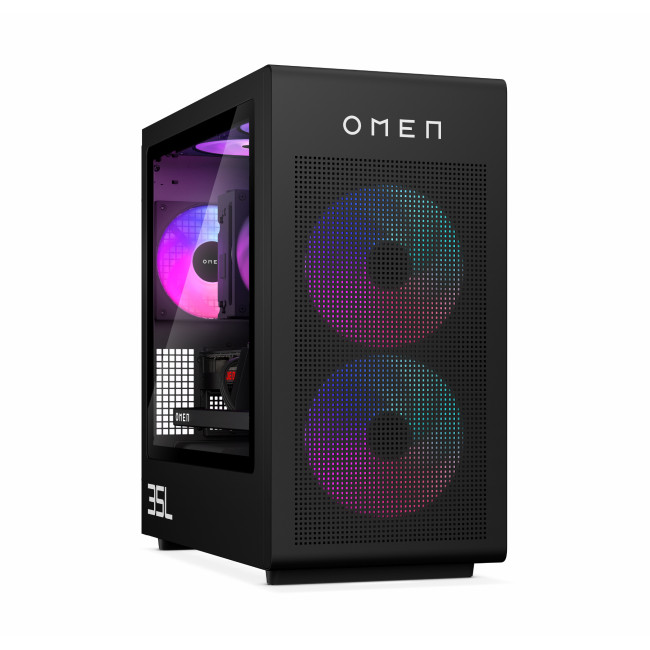
- CPU: Intel Core Ultra 7 265K (20-core)
- GPU: NVIDIA

Last Updated: June 10, 2026
Hades II has arrived, and it’s already proving itself as one of the most stylish, addictive, and fast-paced roguelikes of the year. Supergiant Games has taken everything players loved from the first title and given it more flair, more depth, more chaos, and far more visual punch. And with all that comes the question many players are quietly asking: what are the best gaming PCs and laptops for Hades II?
Whether you're upgrading your battlestation, grabbing a powerful yet portable gaming laptop, or hunting a cheap refurbished gaming laptop for Hades 2, this guide breaks down real, current system requirements, recommended modern hardware, and the best deals you can jump on right now.
Let’s dig in.
Why Gaming PCs and Laptops for Hades II Matters?
Although Hades II is beautifully optimised, it is still more demanding than the original game. More spell effects, more enemies on screen, more layered environments, higher-resolution assets and a broader range of animations mean your hardware needs

Last Updated: February 19, 2026
A new year is the perfect excuse to retire the sluggish desktop that wheezes when you open five tabs or the “gaming PC” that now struggles to hold stable FPS in modern titles. New Year desktop PC deals are one of the best windows to upgrade because prices tend to be sharper, stock gets refreshed, and you can often jump up a whole performance tier for less than you’d expect.
If you’re shopping from the UK, this is also the season where desktop PC New Year deals UK searches explode for a reason: people want a better PC for less, and they want it delivered quickly and safely. Laptop Outlet’s New Year event is built for that kind of upgrade run, tech across categories, limited-time promos, and a straightforward way to browse by what you actually need. You can start with huge savings in New Year tech sale while you compare options and decide your budget.
What counts as a “great deal” in 2026?
The best New Year desktop PC Deals don’t just mean “lowest price.” A great deal in 2026 is one where
Last Updated: January 27, 2026
Over the past decade, AMD has transformed from an underdog in the CPU market to a dominant force in gaming PCs.
With its Ryzen series, AMD has consistently delivered processors that combine high performance, competitive pricing, and innovative features. For UK gamers, this has meant more choice, better value, and the ability to build powerful rigs without overspending.
In this guide, we’ll explore exactly how AMD processors work in gaming PCs, the key features that make them stand out, and the benefits they bring to gamers.
Understanding AMD Processors in Gaming PCs
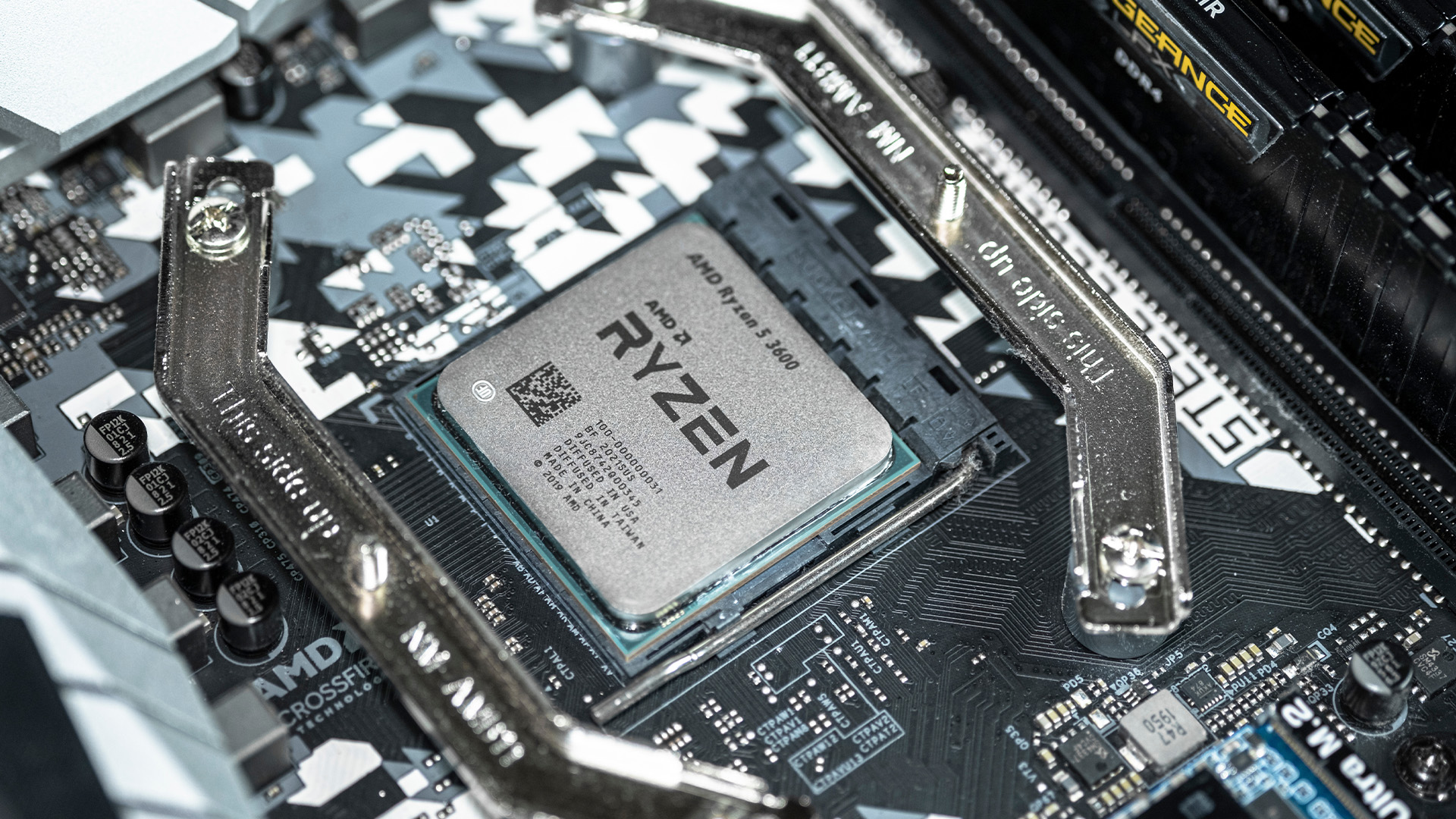
In any gaming setup, the Central Processing Unit (CPU) acts as the primary coordinator. It handles complex AI logic, processes game physics, and manages all background system tasks while your graphics card renders the visuals.
AMD has revolutionised this space by moving away from traditional "monolithic" chip designs where everything is on one piece of silicon. Instead, the modern AMD CPU architecture uses a modular

Last Updated: January 27, 2026
The world of PC gaming has changed forever thanks to a massive leap in graphics innovation. If you have looked at modern gaming desktop PCs recently, you have likely seen the term "RTX" everywhere.
But what is NVIDIA RTX technology exactly? It is not just a fancy label on a box. It represents a total shift in how your computer creates the images you see on screen.
By combining clever artificial intelligence with raw power, NVIDIA has made games look like Hollywood films while keeping them running smoothly.
Introduction to NVIDIA RTX Technology
NVIDIA RTX (Ray Tracing Texel eXtreme) is more than just a brand name. it is a high-end computing platform. It combines specialized hardware cores with advanced software to create lifelike visuals.
A Brief History of NVIDIA Graphics Cards
Before RTX, we had the GTX (Giga Texel Shader eXtreme) series. These cards were powerful, but they relied on "rasterisation." This is a method where a 3D scene is squashed into 2D pixels on your screen. It worked

Last Updated: January 27, 2026
Building or buying a high-end gaming PC is an exciting journey for any enthusiast. The market moves fast, and staying updated on the latest hardware is essential for the best experience.
In this gaming desktop PC breakdown, we will explore the core parts that make a machine powerful. We will look at the latest processors from AMD and Intel, the incredible graphics power of NVIDIA RTX and Radeon RX, alongside other core components.
Whether you want to play the newest AAA titles or compete in esports, understanding these parts is vital. Let us dive into the modern world of gaming PC technologies.
Understanding Gaming Desktop PCs
A gaming desktop PC is a high-performance computer designed specifically to handle demanding video games. Unlike standard PCs, these machines focus on graphical power and fast processing speeds. They use specialised parts that can handle high heat and heavy workloads.
While gaming laptops and consoles are popular, the desktop remains the "gold standard" for several

Last Updated: February 03, 2026
Choosing a new processor used to be a simple choice between raw power and budget value. However, as we move through 2026, the landscape has shifted.
The rivalry of Intel vs AMD desktop processors has reached a fever pitch, with both "Team Blue" and "Team Red" offering incredible technology that caters to very specific types of users.
This guide breaks down everything you need to know about the current market to help you decide which brand deserves a spot in your desktop PC.
The State of the Market in 2026
As we move through 2026, both manufacturers have moved beyond simple core-count wars.
Intel has doubled down on its "Arrow Lake" and "Nova Lake" architectures, focusing heavily on integrated AI NPUs (Neural Processing Units) and a refined tiled architecture.
Meanwhile, AMD continues to dominate the enthusiast market with its Zen 5 architecture, led by the legendary 3D V-Cache technology.
Intel’s Current Strategy: The AI PC Era
Intel has successfully transitioned to its LGA 1851 socket.

Published: February 04, 2026
Your desktop PC is a key part of daily life. It handles work, gaming, and more. But how long can it last? Many users worry about desktop PC lifespan.
The good news is you can extend it to five years or beyond. With smart choices and simple habits, your setup stays reliable. This guide shares practical steps. It covers everything from processor picks to daily care.
Understanding Desktop PC Lifespan
Desktop PCs don't have a fixed expiry date. Their lifespan depends on build quality, usage, and maintenance. On average, a well-kept desktop lasts 5-8 years. But push it right, and you can hit 10 years or more. Why care? A longer desktop computer lifespan saves money and reduces waste.
Key Factors Affecting Longevity
Several elements play a role in how long your desktop endures. First, hardware quality matters most. Cheap parts wear out fast. Second, heat buildup shortens life—poor cooling is a killer. Third, software updates keep things secure and efficient. Finally, your habits, like overworking

