



Laptop Battery Draining Fast? Reasons & Easy Solutions

It is a common frustration. You settle down to work at a café or prepare for a long flight, only to see your power percentage plummet. If you find your laptop battery draining fast, you aren't alone.
Modern laptops are powerful, but that power requires energy. From hidden background apps to ageing hardware, several factors can cut your cordless time short. This guide explores why laptop battery drains so quickly and provides actionable steps to improve laptop battery performance today.
Understanding the Basics: Why is My Laptop Battery Draining Fast?
Before we jump into the fixes, we need to understand the root causes. Why does a battery that used to last eight hours now struggle to last two?
Generally, laptop battery life problems stem from three main categories:
- Software & System Settings: Screen brightness, background processes, and unoptimised power plans.
- Hardware & Usage: Connected peripherals, overheating, and heavy workloads (like gaming or video editing).
- Battery Health: Physical degradation of the lithium-ion cells over time.
If your laptop is brand new and still dying quickly, it is likely a software configuration issue. If the laptop is three to five years old, the battery itself might be reaching the end of its life.
Phase 1: Immediate Settings to Check and Change
If you need to improve laptop battery performance immediately, start with these simple adjustments. These are the "low-hanging fruit" of battery optimisation.
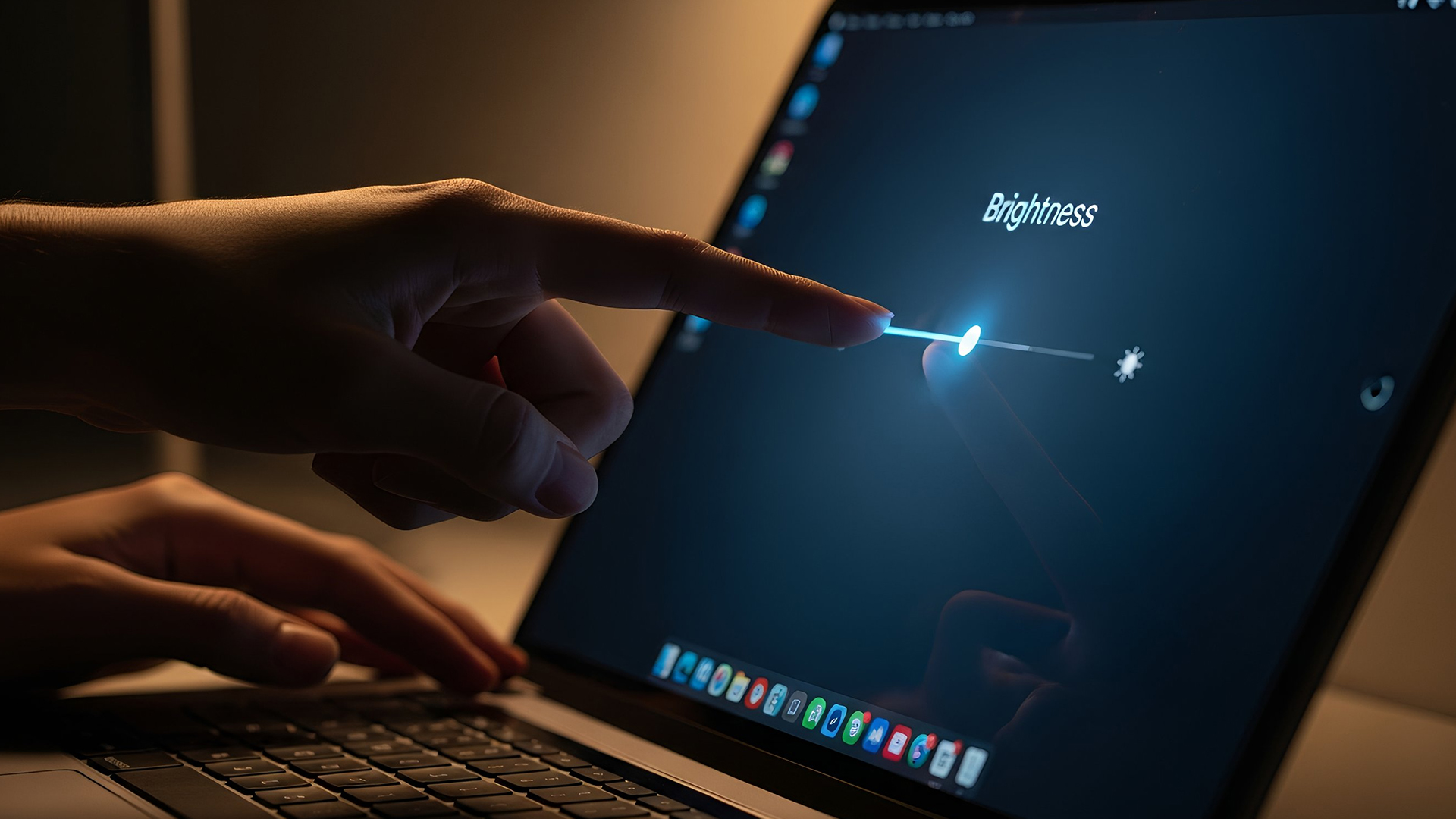
1. Lower Your Screen Brightness and Refresh Rate
The display is arguably the biggest power hog on any laptop. Running your screen at 100% brightness constantly is a surefire way to kill your battery.
- The Fix: Lower your brightness to around 50-60%. It is usually sufficient for indoor use.
- Refresh Rate: Many modern laptops come with 120Hz or 144Hz screens. While they look smooth, they consume significantly more power. If you are just typing documents, drop the refresh rate back to 60Hz in your display settings.
2. Adjust Keyboard Backlighting
Backlit keyboards look great, but they are an extra drain on your resources.
- The Fix: Turn the backlight off during the day. Most laptops have a dedicated function key (like F5 or F6) to toggle this.
3. Check Your Power Plan Settings
Windows and macOS both attempt to manage power for you, but the default settings aren't always perfect.
- Windows: Go to Settings > System > Power & battery. Ensure your "Power mode" is set to "Balanced" or "Best power efficiency." Avoid "Best performance" unless you are plugged in.
- macOS: Go to System Settings > Battery. Enable "Low Power Mode" if you are running low.
Phase 2: Software & App Management
If your settings are fine but you are still facing laptop power issues, it is time to look at what is running under the bonnet. Background apps are silent killers of battery life.
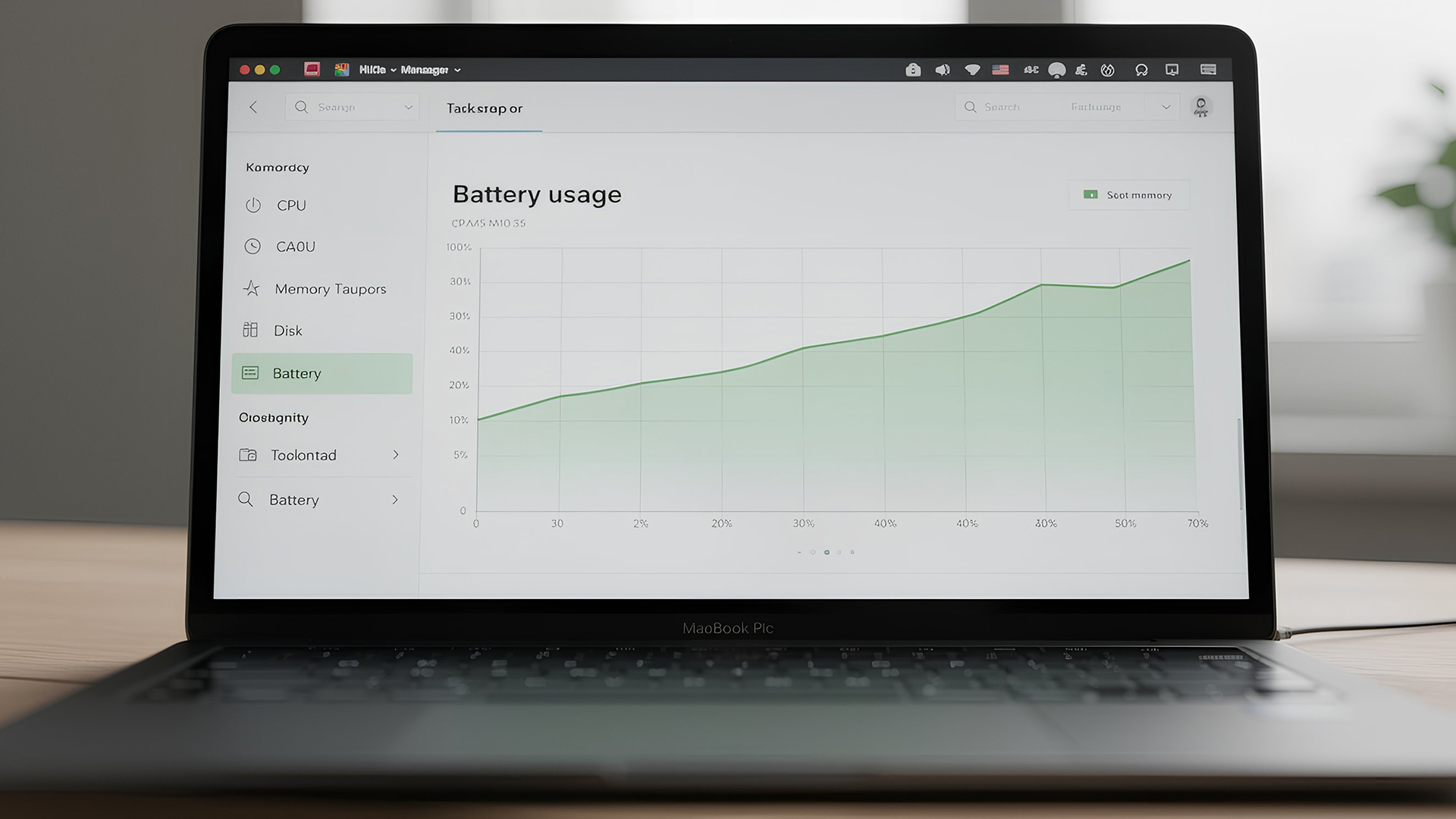
Identify Battery-Hogging Applications
You might have applications running that you didn't even open.
- For Windows: Open Settings > System > Power & battery. Look for the "Battery usage" section. It will show you exactly which apps are consuming the most power. If you see an app you aren't using (like a background updater or a heavy browser tab), close it.
- For Mac: Click the battery icon in the menu bar. It will often list "Apps using significant energy." Alternatively, open Activity Monitor and check the "Energy" tab.
Manage Startup Apps
Every app that launches when you boot your computer sits in the RAM and consumes CPU cycles, contributing to battery drain.
- The Fix: Open Task Manager (Ctrl + Shift + Esc) and go to the "Startup apps" tab. Disable anything you don't need immediately upon login, such as Spotify, Steam, or cloud storage sync clients.
Update Your Operating System
It might sound cliché, but keeping Windows or macOS updated is crucial to fix laptop battery issues. Developers frequently release patches that optimise how the operating system talks to the hardware, making it more efficient.
Phase 3: Hardware Checks and Maintenance
Sometimes, the issue isn't what's on the screen, but the physical state of the machine itself.
Disconnect Unnecessary Peripherals
Did you know that leaving a USB mouse, external hard drive, or even a webcam plugged in can drain power? The motherboard has to supply voltage to these devices even when they aren't actively being used.
- Solution: Unplug everything you aren't currently using.
The Impact of Overheating
Heat is the enemy of efficiency. When your laptop gets hot, the fans have to spin faster. Fans are mechanical motors that use a surprising amount of energy. Furthermore, hot batteries degrade faster.
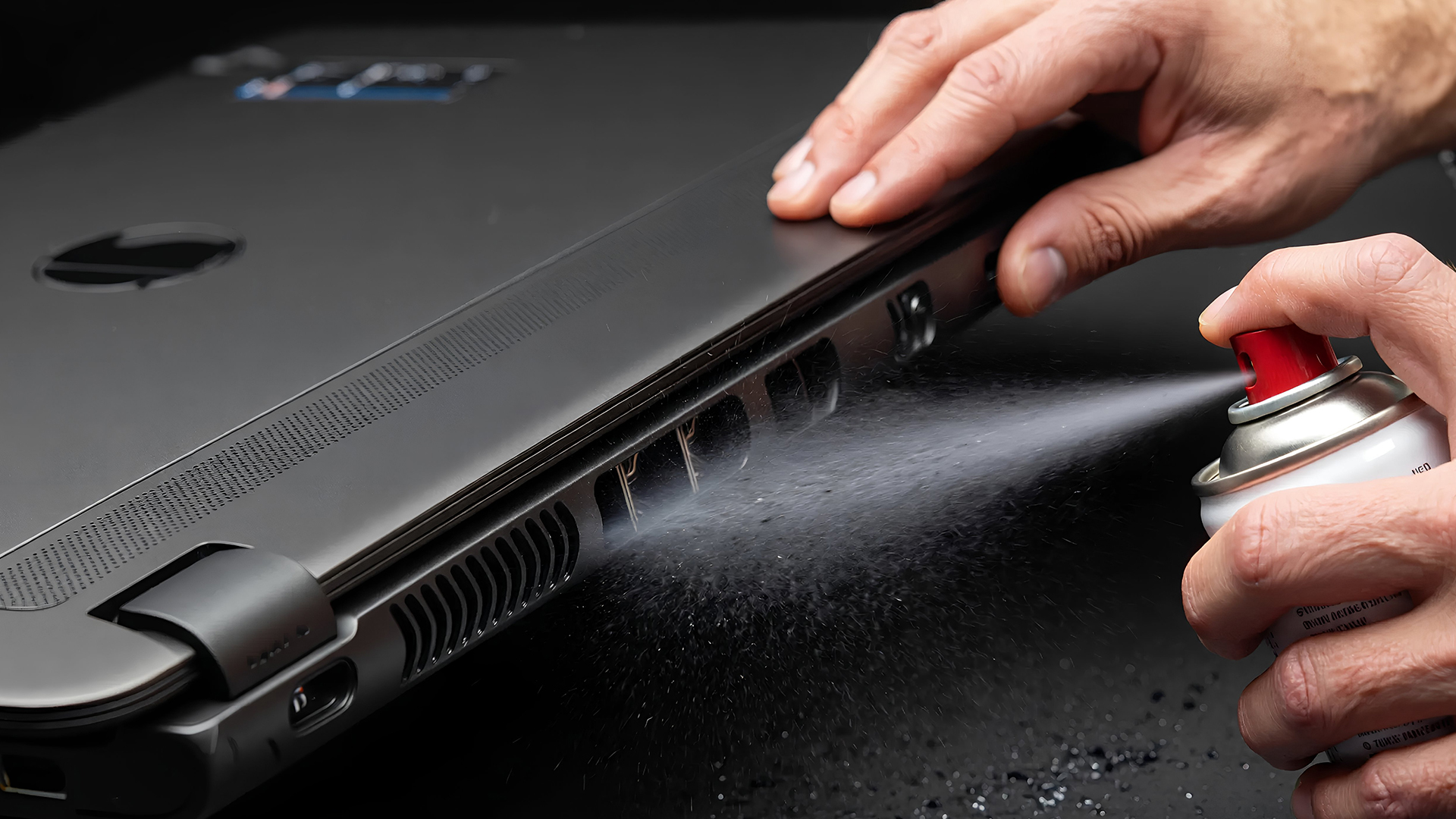
- Check your vents: Ensure the air vents aren't blocked by dust. Use a can of compressed air to clean them out.
- Surface: Don't use your laptop on a pillow or blanket. This traps heat. Use a flat desk or a laptop cooling pad.
Phase 4: Deep Dive – Battery Health Diagnostics
If you have tried all the above and the issue persists, you need to check the physical health of your battery. Lithium-ion batteries degrade over time; they hold less charge as they age.
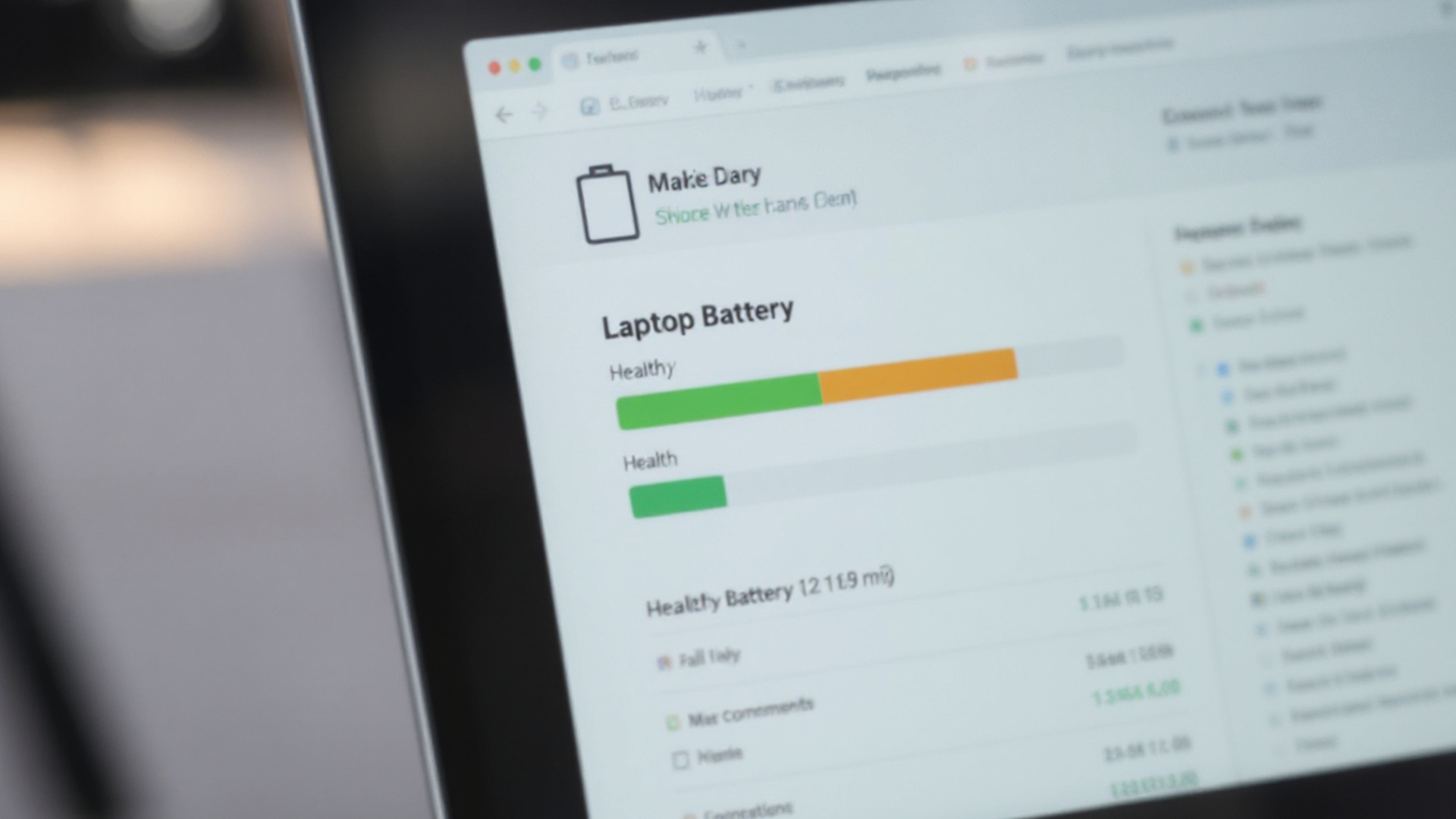
How to Check Battery Health on Windows
You don't need third-party tools for this. Windows has a built-in "Battery Report" feature.
- Open the Command Prompt as Administrator.
- Type: powercfg /batteryreport and hit Enter.
- It will save an HTML file to your user folder. Open it.
- Look for "Design Capacity" versus "Full Charge Capacity."
- If the Full Charge Capacity is significantly lower than the Design Capacity (e.g., 50% less), your battery is physically worn out. No amount of software tweaking will fix this.
How to Check Battery Health on Mac
- Hold the Option key and click the Apple menu > System Information.
- Go to Hardware > Power.
- Look for "Cycle Count" and "Condition."
- If the condition says "Service Recommended" or "Replace Now," it is time for a new battery.
Phase 5: Advanced Troubleshooting & Calibration
For those comfortable with slightly more technical steps, these methods can resolve laptop battery troubleshooting mysteries where the software reads the battery percentage incorrectly.
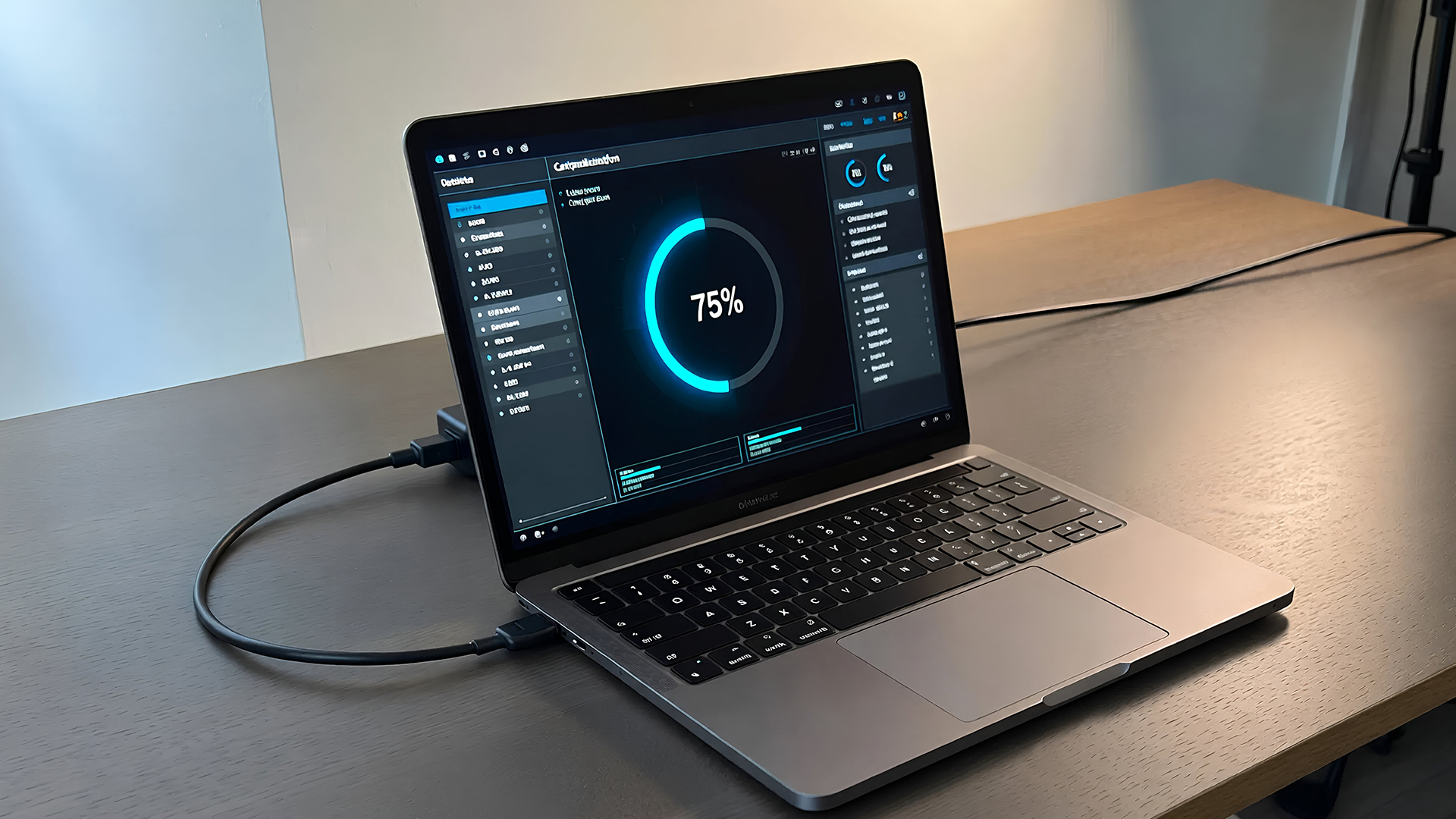
Calibrate Your Battery
Sometimes, your laptop thinks it is empty when it actually has 20% left, or vice versa. This is a calibration error. How to calibrate:
- Charge your laptop to 100% and leave it plugged in for two more hours.
- Unplug and use the laptop until it dies completely and shuts down.
- Leave it off for a few hours (to ensure the battery is fully drained).
- Charge it back up to 100% without interruption. This resets the battery gauge, giving you a more accurate reading.
Update Device Drivers
Outdated drivers, specifically for the chipset or BIOS, can cause power management glitches.
- Download the latest BIOS and Chipset drivers.
- Install them and restart. This can often solve laptop not charging issues or phantom drains.
Good Habits to Extend Laptop Battery Life
Prevention is better than cure. Once you have fixed the immediate drain, adopt these habits to keep your battery healthy for years.
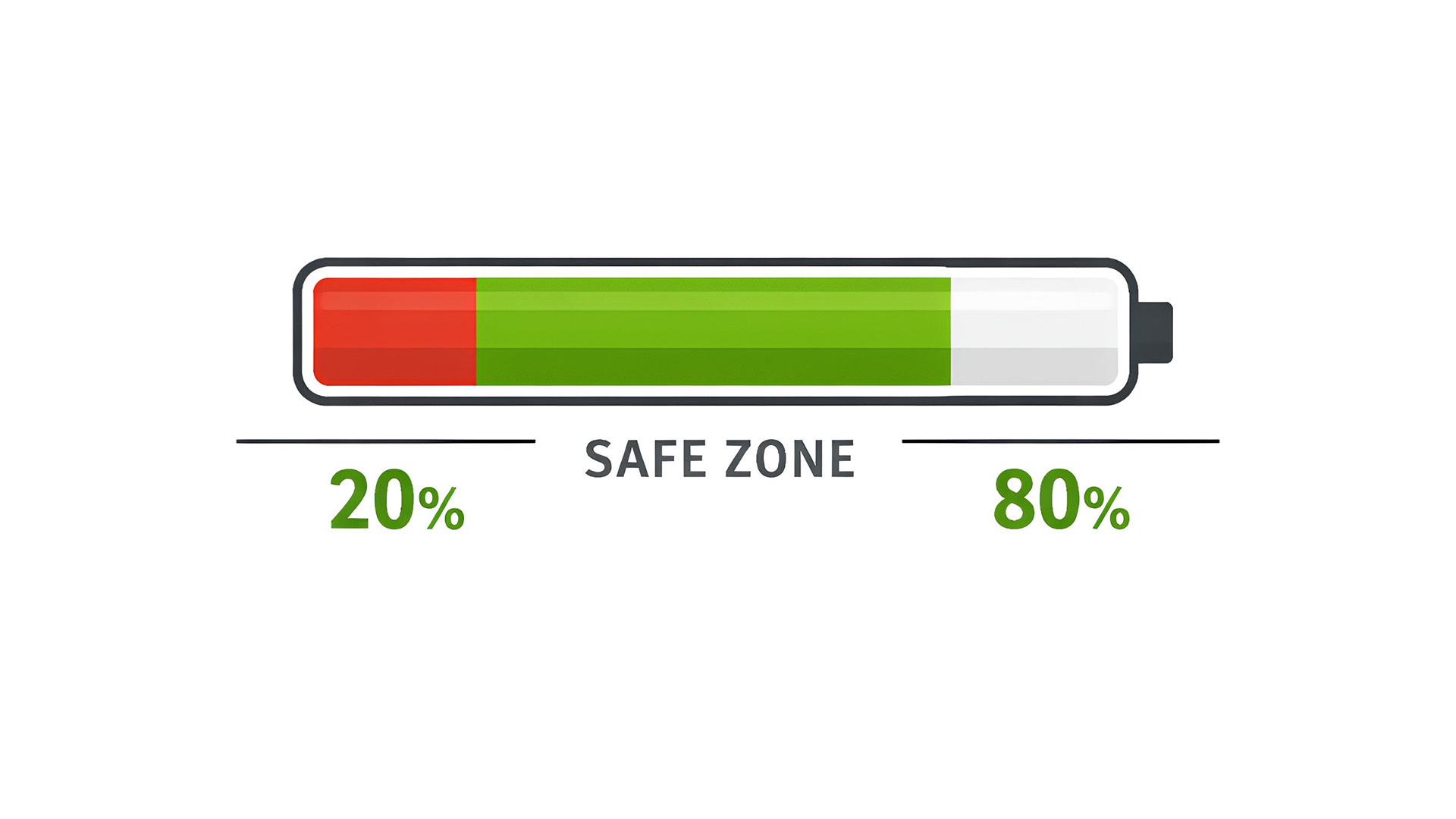
The 20-80% Rule
Avoid letting your laptop drop to 0% or keeping it at 100% all the time. Lithium-ion batteries are happiest between 20% and 80%. Many modern laptops have a "Smart Charging" feature in the BIOS or companion app that limits charging to 80% automatically.
Store it Correctly
If you aren't going to use your laptop for a week, don't leave it with a flat battery. Charge it to 50% and turn it off completely. Storing a battery at 0% can cause it to fall into a deep discharge state, rendering it unable to hold a charge ever again.
Avoid Extreme Temperatures
Never leave your laptop in a car on a hot day or in freezing conditions. Extreme heat permanently damages battery capacity.
When to Upgrade Your Machine?
If your battery report shows severe degradation, or if your laptop is over five years old, you are fighting a losing battle. Modern software requires more power than older hardware can efficiently provide.
Investing in a new machine can save you time and frustration. If you are looking for modern devices optimised for efficiency, you can browse best laptops to find a model that suits your needs.
For those who prioritise mobility and need a machine that can genuinely last a full work day without a charger, specifically look for long battery life laptops. These devices utilise newer processor architectures (like Apple Silicon or Intel Core Ultra) designed specifically to maximise runtime.

Your Checklist to Fix Battery Drain
To recap, if you find your laptop battery draining fast, follow this logical path:
- Check Display: Dim brightness and lower refresh rate.
- Close Apps: End background processes and startup apps.
- Power Plan: Switch to "Balanced" or "Efficiency" mode.
- Disconnect: Unplug USB devices.
- Diagnose: Run a battery health report to check for physical damage.
- Calibrate: Reset the battery gauge if percentages are erratic.
- Upgrade: If the battery is degraded, replace the battery or consider upgrading to long battery life laptops.
By following these steps, you can significantly improve laptop battery performance and stop being tethered to the wall socket.

Things You Might Be Wondering...
Why is my laptop battery draining so fast all of a sudden?
It is likely due to high screen brightness, too many background apps, or a recent software update that hasn't been optimised yet.
How do I check my laptop battery health?
On Windows, use Command Prompt and type powercfg /batteryreport. On Mac, check System Information > Power to see cycle count and condition.
Can overcharging damage my laptop battery?
Modern laptops have protection circuits to stop overcharging, but keeping it at 100% constantly generates heat, which can degrade battery capacity over time.
Does dark mode save battery on laptops?
Yes, but mostly on laptops with OLED screens. On standard LCD/LED screens, the saving is minimal, though it is easier on your eyes.
Does Chrome drain more battery than other browsers?
Chrome is known for high RAM and CPU usage. Switching to a more power-efficient browser like Microsoft Edge or Safari can often help fix laptop battery issues.
Can a dusty laptop cause battery drain?
Yes. Dust blocks vents, causing the laptop to overheat. This forces internal fans to run faster and longer, which consumes significantly more battery power.
Related Articles


Last Updated: December 24, 2025
Technology never stands still, and if the past few years have taught us anything, it’s that innovation moves fast. As we look ahead, tech trends 2026 are shaping up to be smarter, faster and more user-focused than ever before. From AI-powered laptops to next-level PCs and sustainable tech, the future is all about performance with purpose. So, whether you’re upgrading your setup, planning ahead, or just love staying in the know, here’s a breakdown of the biggest tech trends set to define 2026.
AI Everywhere: Smarter Devices, Smarter Decisions
Artificial Intelligence is no longer a “nice to have” by 2026, it’s expected to be built into almost every device we use. We’re talking about laptops that learn your preferences, PCs that optimise performance in real time, and software that adapts to how you work or play.
AI-driven features such as predictive battery management, real-time security monitoring and intelligent multitasking will become standard. For users, this means less time managing

Published: December 24, 2025
Heading into 2026, the student laptop vibe is basically: lightweight enough to carry all day, fast enough to handle 27 Chrome tabs + a Zoom call, and affordable enough that you can still buy snacks. Whether you’re doing GCSE homework, uni essays, coding projects, or just living in Google Docs, this blog on Student Laptops 2026 breaks down what matters (and what’s just marketing fluff).
What to look for in Student Laptops 2026 (aka the “don’t get scammed” checklist)

1) RAM (memory):
- 8GB = the realistic minimum for 2026 if you want smooth multitasking.
- 16GB = the “I’m serious about this degree” upgrade (especially for creative apps, coding, or heavy research).
2) Storage:
- 256GB is okay, but 512GB is comfy if you keep lots of files, downloads, photos, and videos.
- If you see 128GB, it can work for light use - but you’ll want cloud storage habits.
3) Screen size:
- 14" laptop = the sweet spot (portable, still comfy for essays).
- 15" laptop = bigger and nicer for split-screen, but less “throw-it-in-your-bag”
Last Updated: April 21, 2026
The world of computing is changing fast. We are no longer just looking for faster processors or thinner designs. Today, the focus has shifted to intelligence.
To understand this shift, we need to look at a new category of devices: Copilot+ Laptops. These are not just standard computers; they are AI-powered laptops designed to think, learn, and assist you in real-time.
Whether you are a busy professional, a digital artist, or a student, Windows Copilot+ PCs offer a new way to interact with technology. By integrating hardware and software more tightly than ever before, these machines handle complex tasks with ease.
In this guide, we will explore why these next-generation Windows laptops are the ultimate choice for your next upgrade.
What are Copilot+ Laptops?
Copilot+ Laptops are a new class of Windows 11 laptops with dedicated hardware for advanced Artificial Intelligence (AI) tasks. They offer enhanced performance, security, and unique features that run locally on the device.
Unlike

Last Updated: January 21, 2026
Let’s be honest - most of us don’t work (or study, or relax) in just one way anymore. One minute you’re typing notes, the next you’re scrolling, watching something, sketching ideas, or replying to emails from the sofa.
That’s exactly why convertible tablets exist.
Also called 2-in-1 laptops, laptop tablets, or the very literal notebook two-in-one, these devices are designed to adapt to how you use tech throughout the day - not force you into one setup.
But choosing the right 2 in 1 laptop convertible isn’t always straightforward. Some lean more laptop. Some feel more like tablets. And some just… try to do everything and don’t quite nail it.
This guide breaks it all down in a way that actually makes sense.
What Is a Convertible Tablet (And Why Do People Buy Them)?
A convertible tablet is a hybrid device that combines:
- A laptop’s power (keyboard, trackpad, desktop software)
- A tablet’s flexibility (touchscreen, pen input, portability)
Most convertible tablets run Windows, which means you’re

Last Updated: April 28, 2026
Struggling to find HP laptop deals that don’t feel overpriced, outdated, or just not worth it? Yeah — scrolling through endless specs, inflated prices, and “fake” discounts can be frustrating, especially when you just need a laptop that actually works for study, work, or everyday life.
The problem? Too many laptops either cost way too much or cut corners where it matters. Slow performance, tiny storage, poor screens, not the vibe. And when you’re on a budget, finding reliable HP laptops UK shoppers can trust shouldn’t feel like a gamble.
That’s where Laptop Outlet comes in. We’ve rounded up some of the best HP laptops on sale in the UK, with prices starting from just £149.99. From cheap HP laptops for everyday use to powerful business-ready machines, our handpicked HP laptop offers give you serious value without compromising on quality.
HP 15-fc0045na – Everyday Power for You
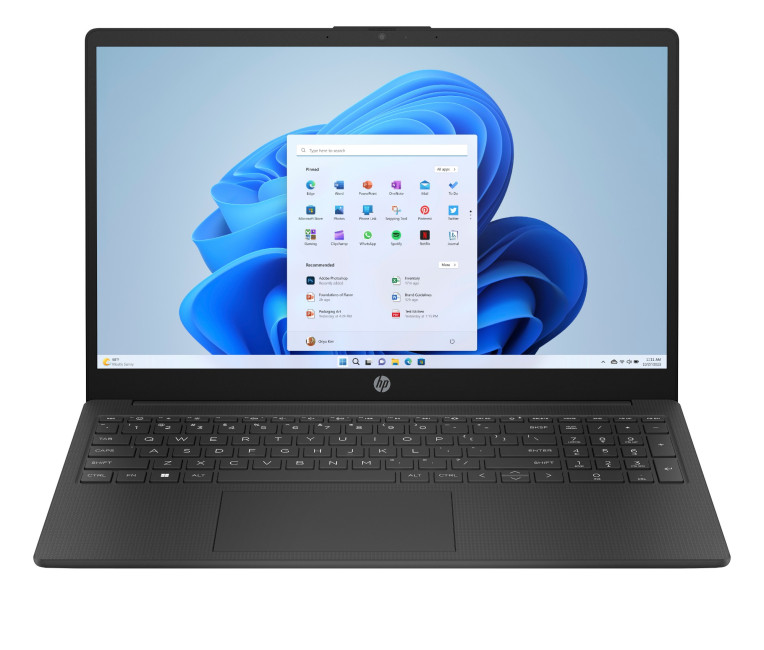
- The HP 15-fc0045na is a well-balanced 15.6-inch laptop that perfectly blends performance with everyday
Last Updated: January 28, 2026
We don’t usually abandon a tech purchase because of the price. It’s the delivery that makes us hesitate to move the things from whislist to place the order. Unexpected charges, unclear arrival dates, or slow dispatch can stop us right at checkout. And it feels unfair and cruel that we need to sacrifice our favourite gadget due to this delivery obstacle.
That’s why Laptop Outlet’s free standard delivery is kept clear and upfront, so you know exactly what you’re paying and when your order will arrive before you commit.
Let’s make it simple for you to understand that how free standard delivery by Laptop Outlet works, explore the key shipping benefits, and explain why it’s one of the smartest ways to stretch your tech budget further.
What Is Laptop Outlet’s Free Standard Delivery?
Free standard delivery by Laptop Outlet is designed to keep things simple, transparent, and affordable for customers across the UK.
Here’s how it works:
- Spend over £200 and your order qualifies for free standard
Last Updated: January 28, 2026
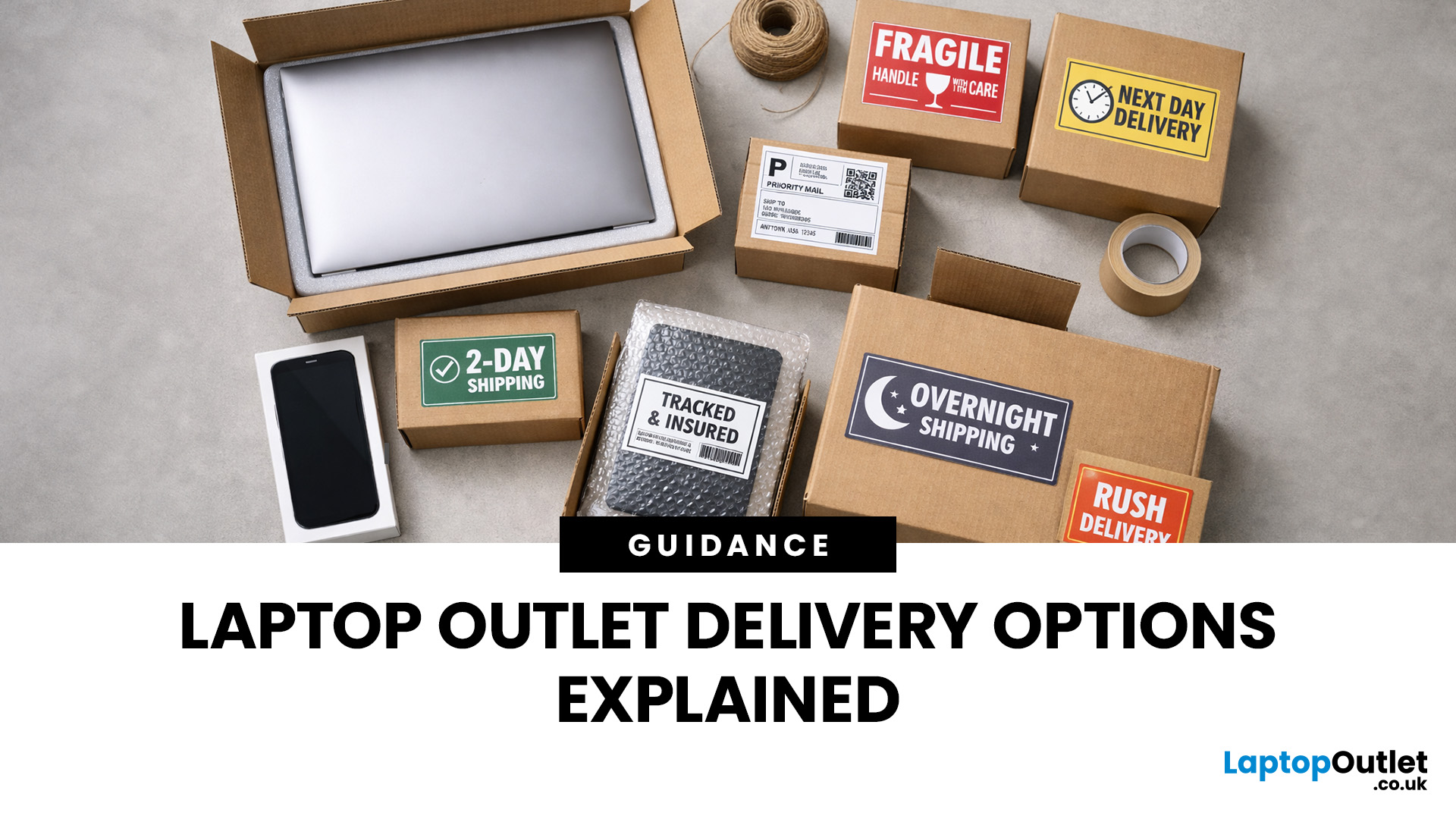
Buying tech online isn’t just about specs and price; delivery speed, flexibility, and reliability matter just as much. Whether you’re replacing a broken work laptop, upgrading your home setup, or ordering a last-minute gift, knowing your delivery options can make all the difference. In this guide, we explain Laptop Outlet delivery services options, how they work, and which service is best for your needs, from free standard delivery to next-day and book-a-slot delivery.
What Delivery Options Does Laptop Outlet Offer?
Laptop Outlet provides multiple delivery services designed to suit different customer needs, budgets, and timeframes. Each option is clearly shown at checkout, so you can choose the delivery speed and convenience level that works best for you. These include:
- Free Standard Delivery
- Next-Day/Priority Delivery
- Book-a-Slot Scheduled Delivery
How Does Laptop Outlet Delivery Work?
For full details, customers can always refer to the dedicated delivery info page. Laptop Outlet’s
Last Updated: January 28, 2026
Let’s be honest — when your tech lets you down, waiting is the last option you want. Maybe your laptop stopped working the night before a deadline, your PC failed mid-project, or you’ve just realised you need a new device now, not next week. That’s exactly where Laptop Outlet next-day / priority delivery comes in. If you need fast, reliable tech delivery in the UK, this guide explains how Laptop Outlet’s next-day service works, what you can order, and why it’s the smart choice for urgent tech needs.
Why Speed Matters When Ordering Tech Online
When your laptop or PC breaks, everything slows down — work, study, gaming, even staying connected. Waiting days for a replacement just isn’t practical. With next-day laptop delivery, you don’t have to put life on pause. Laptop Outlet’s express service is built for:
- Last-minute replacements
- Urgent work-from-home setups
- Business and study deadlines
- Time-sensitive gifts or upgrades
If speed matters to you, Laptop Outlet Express shipping delivers when

Last Updated: January 28, 2026
Let’s be real — waiting around all day for a delivery is no one’s idea of fun. You’ve got meetings, errands, school runs, and about a million other things going on. The last thing you want is to be stuck at home wondering “Will it arrive now… or later?” That’s exactly why customers love Laptop Outlet book-a-slot delivery.
This delivery option puts you in control, letting you choose when your tech arrives, not the other way around. Here’s how it works, why it’s so popular, and whether it’s the right choice for your next order.
What is Laptop Outlet Book-a-Slot Delivery?
Laptop Outlet’s book-a-slot delivery service is a scheduled tech delivery service that allows you to pick a specific delivery day and time slot at checkout. Instead of waiting around all day, you get a clearly defined delivery window, so you know exactly when your order is arriving. In short:
- You choose the day, time, and location
- The courier delivers within that slot
- Your tech arrives when it suits you
It’s one of Laptop

Last Updated: June 17, 2026
Valentine’s Day is basically a high-pressure speedrun of “prove you know me.” Flowers are fine. Chocolate is predictable. But if you want a gift that lands (and lasts), tech is the move.
This year, we’re making it easy to shop Valentine’s Day laptop gifts and other Valentine’s Day tech gifts that feel personal, useful, and genuinely exciting, without paying full-price panic-tax. At Laptop Outlet, we stock both new and refurbished tech in the UK, so you can pick something premium, practical, and still stay in your budget.
Why a Laptop is a Top-Tier Valentine’s Gift in 2026
A laptop gift for Valentine’s Day isn’t just “a laptop.” It’s a whole lifestyle upgrade. It’s better WFH days, smoother university deadlines, cleaner creative projects, cosier film nights, and finally not fighting with a slow machine that sounds like it’s trying to take off.
And because 2026 is not the year to overpay, laptop deals for Valentine’s Day (especially on refurbished models) can get you more performance for

