



Best Corsair CPU Coolers Reviewed: Performance, Noise & Value
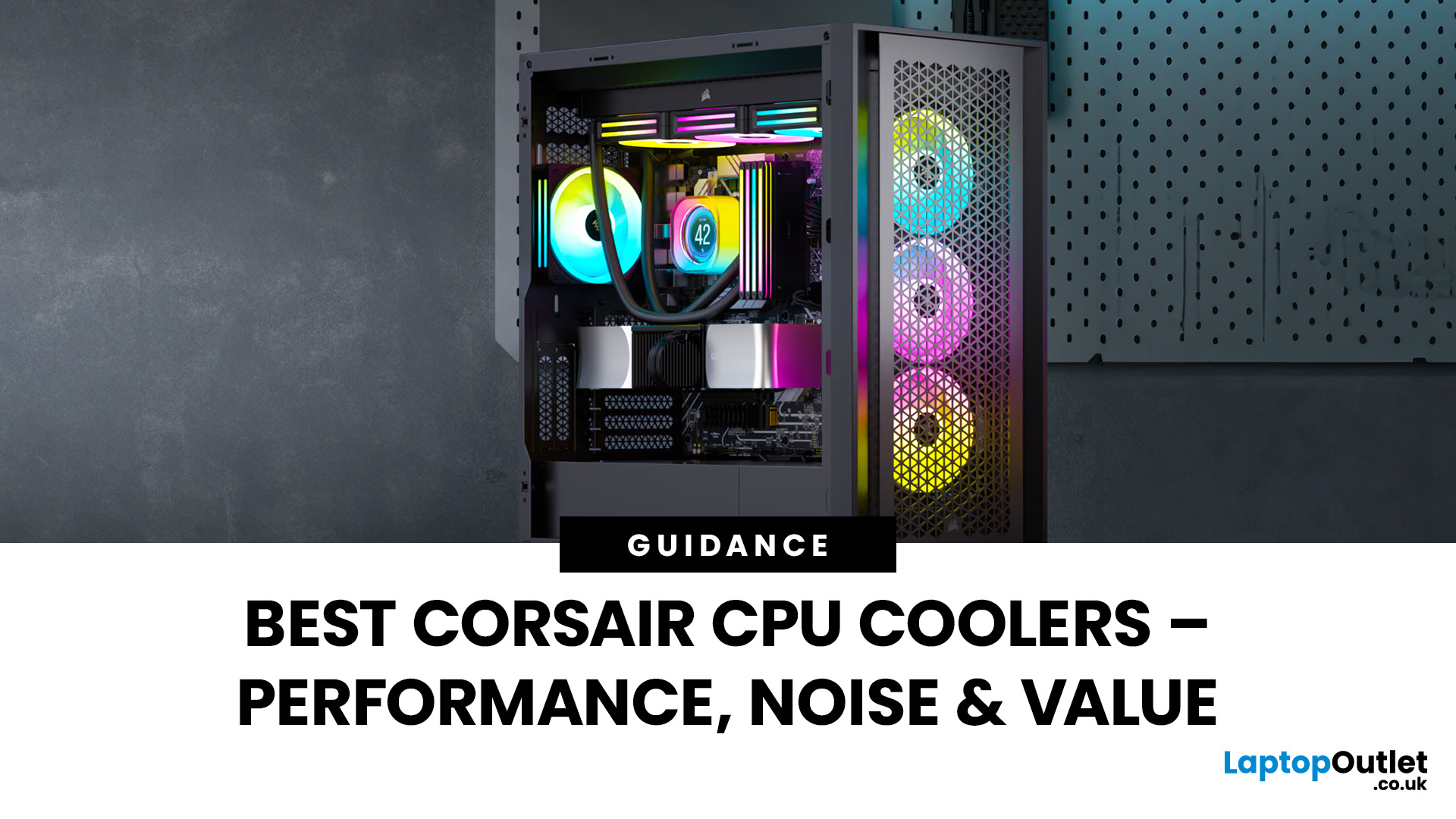
Keeping your PC cool is one of the most important factors in maintaining performance, extending hardware lifespan, and ensuring a stable computing experience. Processor of a gamer, or a professional creative generates heat that must be managed effectively. Air cooling may be sufficient for entry-level builds, but high-performance desktops and overclocked CPUs demand more advanced solutions. This is where Corsair steps in.
Corsair has earned a strong reputation for delivering reliable and innovative cooling systems. Let’s explore the best Corsair CPU cooler options in 2025, review their performance, noise levels, installation process, and software features.
Why Choose a Corsair CPU Cooler?
Before diving into the product reviews, it’s important to understand why Corsair CPU coolers continue to dominate the PC cooling market in 2025. Corsair has consistently evolved its product line to meet the demands of modern processors, gaming rigs, and workstation builds.
Proven Reliability and Build Quality
Corsair coolers are known for their exceptional durability. With next-gen magnetic levitation (ML) fans, improved pump designs, and reinforced tubing, their AIO (all-in-one) liquid coolers offer reliable performance for years. Most models now come with 5–7 years warranties, reflecting confidence in long-term stability. They are built to handle extended workloads such as 4K rendering, AI workloads, and marathon gaming sessions.
Wide Compatibility
In 2025, Corsair has updated mounting kits to support the latest Intel LGA 1851 and AMD AM5 platforms, while maintaining backward compatibility with older sockets like LGA 1200 and AM4. This makes Corsair coolers a flexible choice whether you’re upgrading an older PC or building a cutting-edge system. Some models even support workstation CPUs such as AMD Threadripper via TR4 brackets.
Powerful Cooling Performance
Corsair offers solutions for every tier of user:
- 240mm radiators for compact and mid-range builds.
- 280mm and 360mm models optimised for high-performance gaming PCs.
- 420mm radiators designed for overclockers and enthusiasts who push their CPUs to the limit.
Advanced features such as liquid-metal thermal interface materials and high-static-pressure fans ensure lower CPU temperatures, even when overclocking Intel Core i9 or AMD Ryzen 9 processors.
iCUE Software Integration
One of the strongest advantages Corsair has been the iCUE ecosystem. In 2025, iCUE has evolved into a unified control centre, offering:
- Pump speed and fan curve adjustments for precision cooling.
- Real-time monitoring of CPU/GPU temperatures and coolant flow.
- Dynamic RGB synchronisation across coolers, case fans, RAM, and even Corsair peripherals.
- Smart profiles that automatically adjust cooling and noise levels based on workload (e.g., gaming vs idle).
This tight hardware-software integration makes Corsair coolers not only effective but also user-friendly, even for beginners.
Types of Corsair CPU Coolers
Air vs Liquid Cooling
- Air Coolers
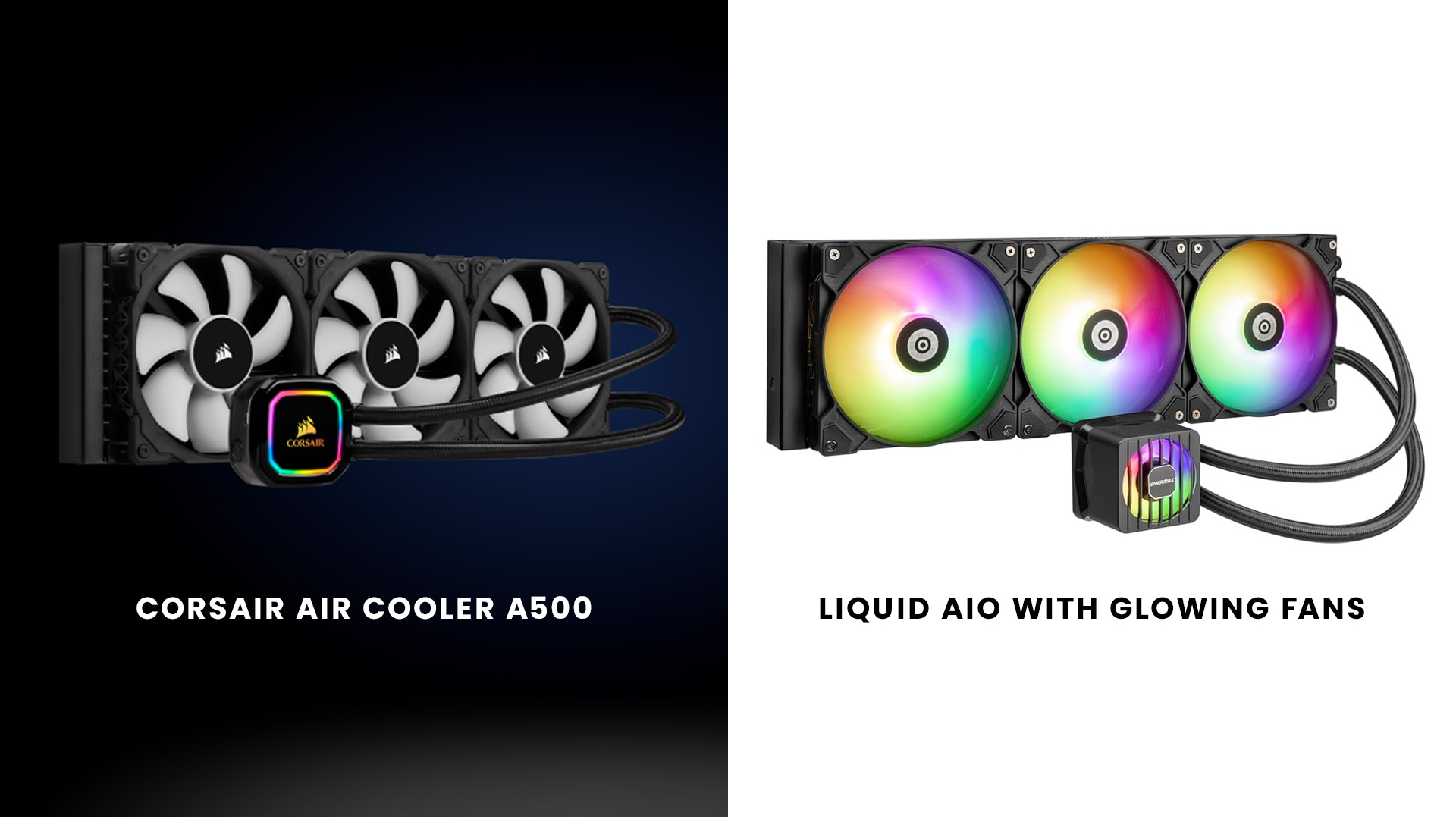
Air coolers rely on large heatsinks and fans to draw heat away from the CPU. Corsair’s flagship A500 air cooler is designed with dual magnetic levitation fans that provide quiet yet consistent airflow. While generally more affordable and easier to maintain, air coolers are less effective for overclocked processors. They’re an excellent choice for mid-tier builds and users who prioritise low maintenance.
- Liquid AIO Coolers
Corsair is best known for its AIO liquid cooling systems, which combine a pump, tubes, and radiator into a closed-loop design. These deliver superior heat dissipation, especially for high-core-count CPUs. Such models are equipped with RGB fans, improved pump designs, and iCUE software support, giving users advanced cooling, visual customisation, and real-time monitoring.
Liquid coolers are slightly more expensive and require more installation effort, but they’re the go-to choice for overclocking, heavy gaming, and professional workloads.
Radiator Sizes Explained
Corsair’s coolers come in different radiator sizes, allowing flexibility for different PC case types and performance needs:
- 240mm Radiators:
Perfect for compact and mid-tower cases. A 240mm Corsair cooler is sufficient for most mid-range CPUs, delivering strong performance without taking up too much space.
- 280mm Radiators:
The sweet spot for many builders. 280mm models offer more surface area than 240mm options, balancing thermal performance with quieter operation thanks to dual 140mm fans.
- 360mm Radiators:
The performance standard for high-end PCs in 2025. Ideal for Intel Core i9, AMD Ryzen 9, and even workstation CPUs, they provide enough cooling headroom for sustained overclocking.
- 420mm Radiators:
Available on Corsair’s latest models, these are designed for extreme builds with large full-tower cases. They offer unmatched cooling potential for Threadripper systems or water-cooled gaming rigs that push hardware to its absolute limits.
Corsair Cooler Installation Guide
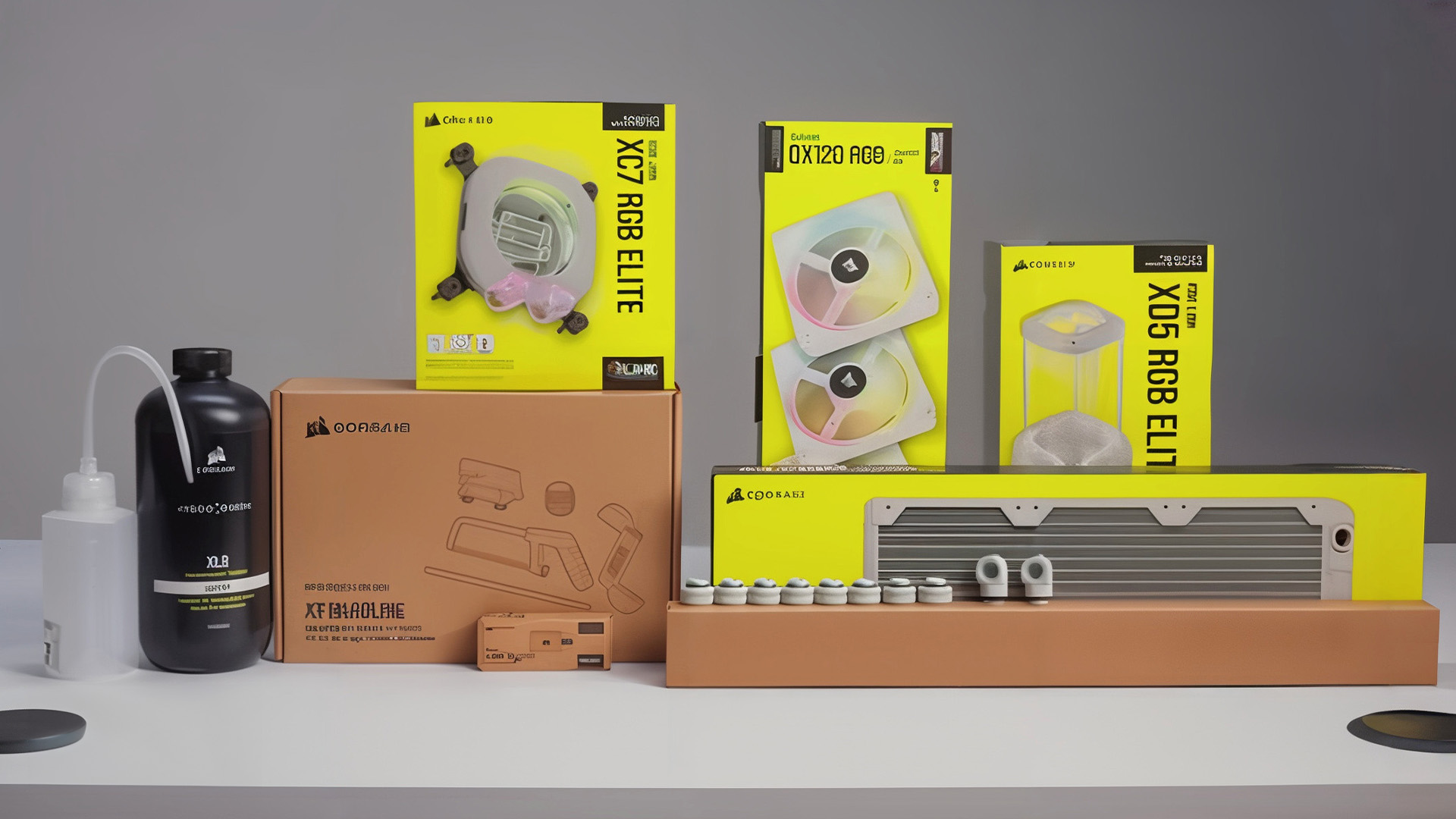
Installing a Corsair CPU cooler is simpler than ever thanks to Corsair’s updated modular bracket systems and enhanced compatibility with the latest Intel and AMD platforms. Whether you’re a first-time builder or an experienced PC enthusiast, the process has become more user-friendly in 2025.
Preparation
- Check Case Compatibility: Confirm your PC case supports the cooler’s radiator size (240mm, 280mm, 360mm, or 420mm). Corsair’s iCUE LINK ecosystem now offers slim radiator options for tighter builds.
- Gather Tools & Accessories: Most Corsair AIOs come with pre-applied thermal paste, but keeping an extra tube of high-quality paste is a good backup.
- Update Firmware & Drivers: Before installation, download the latest Corsair iCUE software to ensure full control over pump speed, fan curves, and RGB lighting once installed.
Step-by-Step Installation
Attach the Backplate:
- For Intel 1700/1851 and AMD AM5 sockets, Corsair now includes universal backplates with adjustable standoffs, simplifying compatibility.
- Align and secure the backplate behind the motherboard.
Secure the Pump Head:
- Position the pump block directly over the CPU.
- Tighten evenly in a diagonal pattern to ensure optimal contact with the pre-applied thermal paste.
- For custom applications, apply a pea-sized drop of paste before seating the cooler.
Mount Radiator and Fans:
- Decide on airflow direction (intake for lower temps, exhaust for balanced airflow).
- Use high-static-pressure fans for better radiator performance.
- Ensure cables are oriented toward the case’s cable-management cutouts for a clean build.
Connect Power & Control Cables:
- Plug the pump power cable into the CPU_FAN or dedicated AIO_PUMP header.
- Connect RGB and fan headers to the included iCUE Controller Core or iCUE LINK hub, which reduces clutter by daisy-chaining components.
- Double-check connections to avoid startup errors.
Configure in Corsair iCUE Software:
- After booting into Windows, launch iCUE to fine-tune cooling performance.
- Adjust fan curves, pump speeds, and RGB profiles.
- Enable smart profiles that auto-adjust based on CPU temperature, workload, or even specific apps (e.g., higher cooling during gaming, quieter during browsing).
Pro Installation Tips for 2025
- Top-Mount vs Front-Mount: Corsair recommends top-mounted radiators as exhaust for the best thermal efficiency in most modern cases.
- Cable Management: Using Corsair’s iCUE LINK ecosystem can reduce up to 60% of cabling compared to older setups.
- Firmware Updates: Many new Corsair coolers ship with firmware updates. Apply these via iCUE after installation for optimal pump and fan performance.
Noise Levels and Quiet Operation
One of the top concerns in any Corsair cooler review is noise output. In 2025, Corsair has further refined its cooling technology to strike the right balance between thermal efficiency and quiet operation.
- Zero RPM Mode: Many Corsair AIOs now feature enhanced Zero RPM profiles where radiator fans shut off completely at idle or during light workloads, delivering a silent PC experience.
- Pump Speed Control: Through iCUE, users can set precise pump curves — from whisper-quiet operation at low temps to maximum speed during overclocking. New-gen pumps also use improved bearings for smoother, quieter function.
- Magnetic Levitation (ML) Fans: Updated ML Elite fans reduce vibration and friction, lowering noise while maintaining static pressure for efficient heat dissipation.
- Noise Benchmarks: Premium models operate at under 25 dBA during typical gaming loads, making them quieter than many air coolers.
If you’re after a quiet PC cooling solution, Corsair coolers outperform most competitors while maintaining excellent thermals.
RGB Lighting and iCUE Software
Beyond cooling, Corsair is renowned for its customisable RGB and iCUE ecosystem. In 2025, iCUE has evolved into a more intuitive and feature-rich platform:
- Unified Lighting Sync: Synchronise RGB effects seamlessly across Corsair coolers, RAM, keyboards, case fans, and even smart lighting strips.
- Advanced Monitoring: Track CPU/GPU temps, pump speed, fan RPM, and coolant levels in real time with an easy-to-read dashboard.
- Dynamic Profiles: Create custom performance profiles that auto-adjust cooling and lighting depending on workload — for example, low-noise mode for office use and max cooling with red RGB during gaming.
- Custom Screens: Some premium LCD models allow users to display system stats, GIFs, or brand logos directly on the pump head.
Corsair cooler RGB options provide not only aesthetic appeal but also functional integration with system health monitoring.
Compatibility with Intel and AMD CPUs
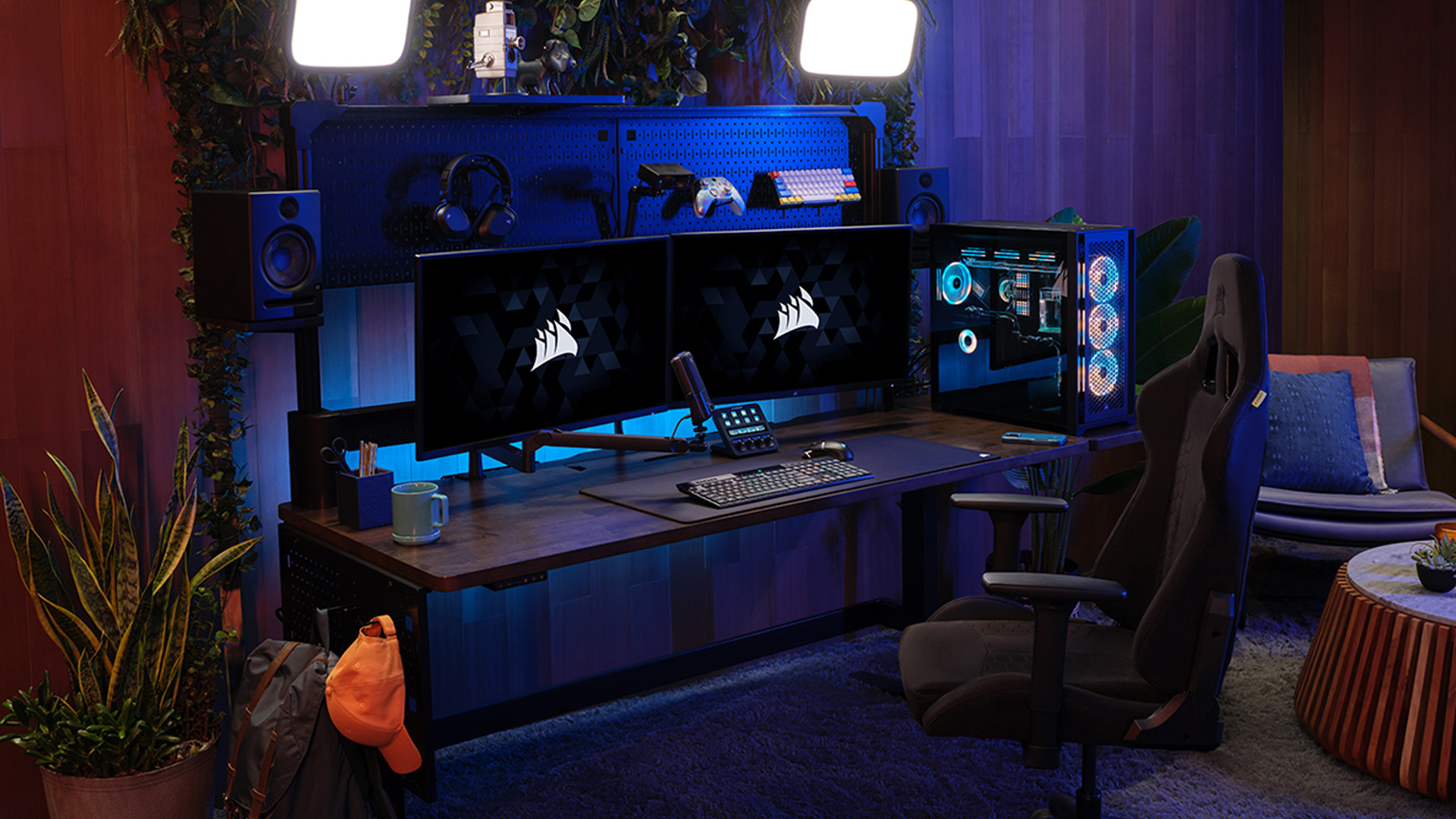
Corsair continues to lead in broad CPU platform support. In 2025, mounting kits have been upgraded to align with the newest processor releases.
- Intel: Compatible with LGA 115x, 1200, 1700, and the new LGA 1851 sockets used in Intel’s 15th Gen CPUs.
- AMD: Supports AM4 and AM5 sockets, as well as TR4/sTRX4 brackets for Threadripper and workstation processors.
- Ease of Setup: Tool-free modular brackets included with most models make switching between Intel and AMD platforms faster and easier than ever.
This flexibility ensures Corsair coolers are a safe choice whether you’re upgrading an older rig or building with the latest CPUs.
Maintenance and Longevity
Corsair coolers are designed for minimal upkeep, but a few simple steps will help extend their service life.
Low Maintenance Design
- All Corsair liquid AIOs are closed-loop systems — no refilling or bleeding required.
- Premium tubing materials now offer greater kink resistance and anti-leak technology, ensuring long-term reliability.
Longevity Tips
- Dust Management: Clean radiator fins and fans every few months to maintain optimal airflow.
- Thermal Paste Refresh: Replace CPU thermal paste every 2–3 years for maximum conductivity.
- Performance Monitoring: Use iCUE to monitor pump RPM and coolant temperature. Early detection of anomalies can prevent failures.
- Expected Lifespan: With proper care, Corsair AIOs can last 5–7 years or more, even under heavy workloads.
By following these Corsair cooler maintenance practices, your cooler will continue to deliver reliable performance long after installation.
Corsair vs Other Brands
Compared to DeepCool Mystique 360
- Corsair: Better iCUE software integration, premium build.
- DeepCool: More aggressive pricing.
Compared to Bequiet Cooling Fans
- Corsair: Brighter RGB, more powerful cooling.
- Bequiet: Superior silence, less emphasis on aesthetics.
Corsair remains the leader for users seeking balance between performance, noise levels, and RGB flair.

Endnote
A Corsair CPU cooler is a long-term investment in your PC’s performance and stability. It offers solutions for every budget and build. Their coolers combine thermal efficiency, quiet operation, and aesthetic customisation, making them some of the most reliable options on the market.
If you’re serious about PC performance, whether for gaming, content creation, or professional work, a Corsair cooler ensures your system stays efficient, quiet, and future-proof.

Still Confused?
Are Corsair CPU coolers hard to install?
No. Most Corsair coolers come with pre-applied thermal paste and modular mounting systems, making installation beginner-friendly.
How long does a Corsair liquid cooler last?
With proper care, most AIO Corsair coolers last 5–7 years without issues.
Are Corsair coolers noisy?
No. With zero-RPM modes and magnetic levitation fans, Corsair coolers maintain low noise levels even under load.
Do I need Corsair iCUE software?
While not essential, iCUE enables pump speed adjustments, performance profiles, and synchronised RGB lighting for complete control.
What radiator size should I choose?
240mm suits most builds, 280mm balances noise and cooling, while 360mm or larger are ideal for overclocked high-end CPUs.
| Read More: |
| Essential Features to Look for in a Gaming Laptop (GPU, CPU, Cooling, Display, Storage) |
| How to Stop a Laptop from Overheating – Cool It Down Fast |
| What Is a Processor |
Related Articles

Last Updated: April 08, 2026
Last Updated: July 01, 2025
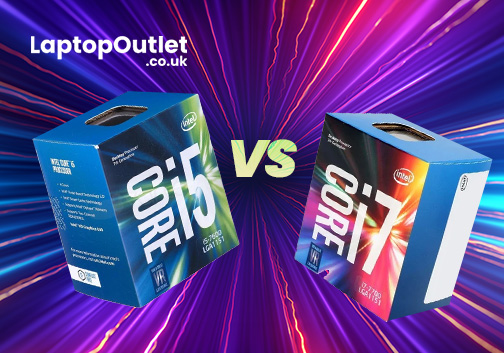
The Intel Core i5 and Core i7 processors are highly efficient and high-performance laptops found on most laptops and personal computers in the present era. Initially, the i5 held the title of the fastest processor for an extended period until the introduction of the i7, which then took the lead. Subsequently, the i9 emerged as the new frontrunner. The processor market is characterised by its dynamic nature, constantly evolving and presenting recent advancements.
i5 are dual or quad-core processors, optimal for gaming and productivity. A few notches up from its predecessor, the Core i3, the i5 lacks hyper-threading but does better in most other domains. Contrarily, the Core i7 is a high-end CPU with eight cores and higher clock speeds compared to the Core i5 processor. It is perfect for resource-intensive tasks such as CAD, gaming, running other high-end software, and video editing. Better in memory, speed, clock speed, and cache, it provides a whole new experience compared to its predecessor,
Last Updated: September 24, 2026
Quick Answer
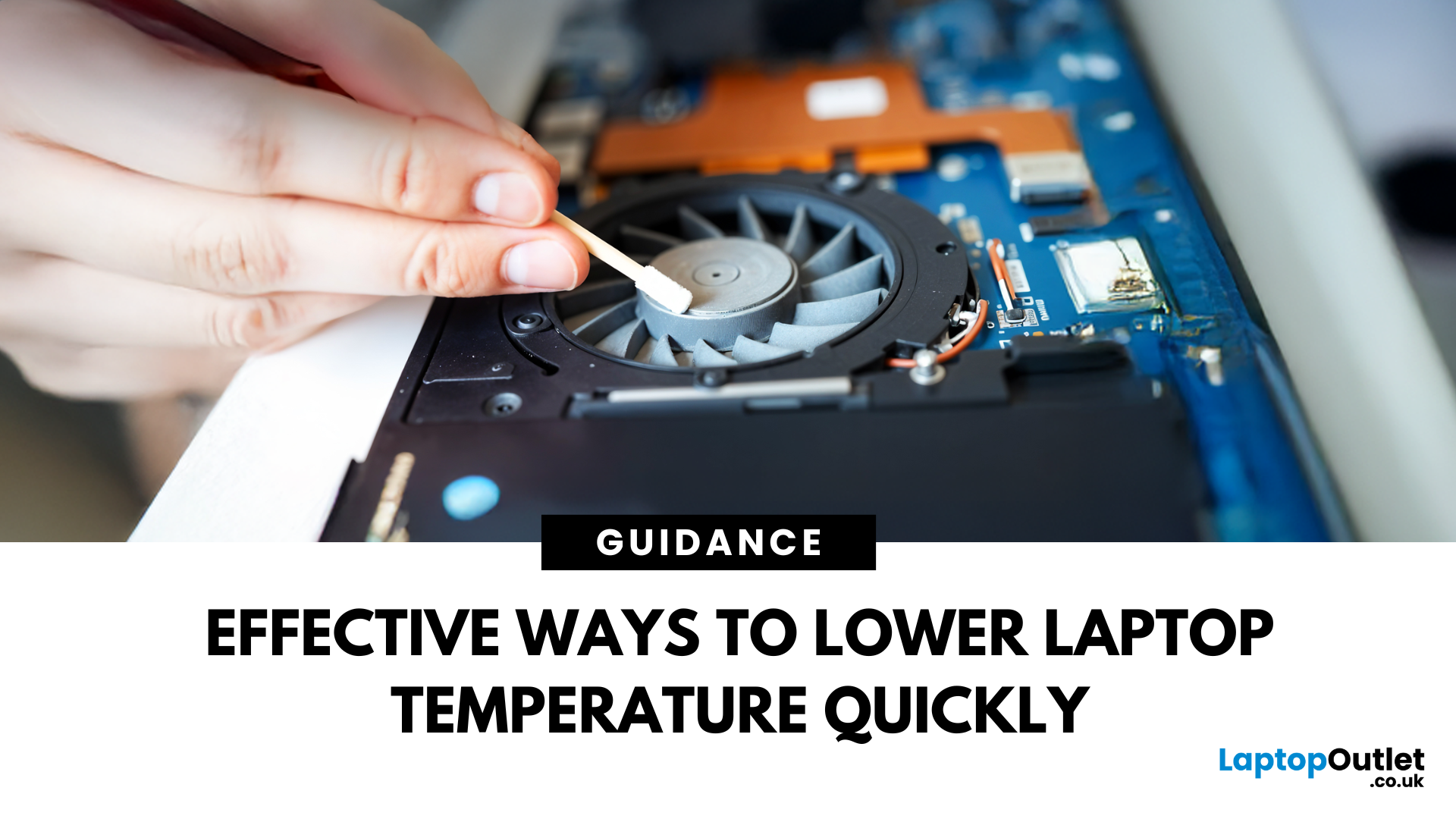
If your laptop is overheating, move it to a hard, flat surface, close heavy apps, switch Windows 11 to Balanced mode, clear dust from the vents, and let it cool if performance drops or it shuts down. Persistent overheating can point to blocked airflow, a failing fan, battery problems or ageing thermal paste, so repeated symptoms need proper diagnosis promptly.
A warm laptop is not automatically an overheating laptop. Gaming, video editing, charging and other demanding tasks can make the CPU and GPU run hotter, which can also make the fans louder.
The warning signs are more useful than surface warmth alone. Repeated slowdowns under load, sudden shutdowns, unusually loud or silent fans, heat during light use, or a battery that is swelling all deserve attention.
First, Is Your Laptop Actually Overheating?
Modern processors protect themselves when temperatures become too high by reducing performance, a behaviour known as thermal throttling. Some systems may eventually shut down

Last Updated: September 09, 2025
When selecting a suitable PC processor, finding the sweet spot between price and performance can be tricky. An ideal scenario would be a processor that fulfils your requirements while remaining within your budget.
In this comprehensive guide, we’ll walk you through some of the best budget processors available today for office work and everyday use. This blog will examine different AMD and Intel processors to identify which ones deliver maximum performance at affordable prices.
So, let’s get into it. Your search for a low-cost processor concludes here. Whether you want to build a new system or are going for an upgrade, here’s what you need to know.
What Makes a Processor "Budget-Friendly"?
Understanding the criteria which define a budget-friendly processor necessitates an initial discussion regarding processor attributes. A processor is considered budget-friendly when it provides excellent performance at competitive costs. Budget processors need to strike a sensible balance between price
Last Updated: September 09, 2025
The Brain Behind Your Computer
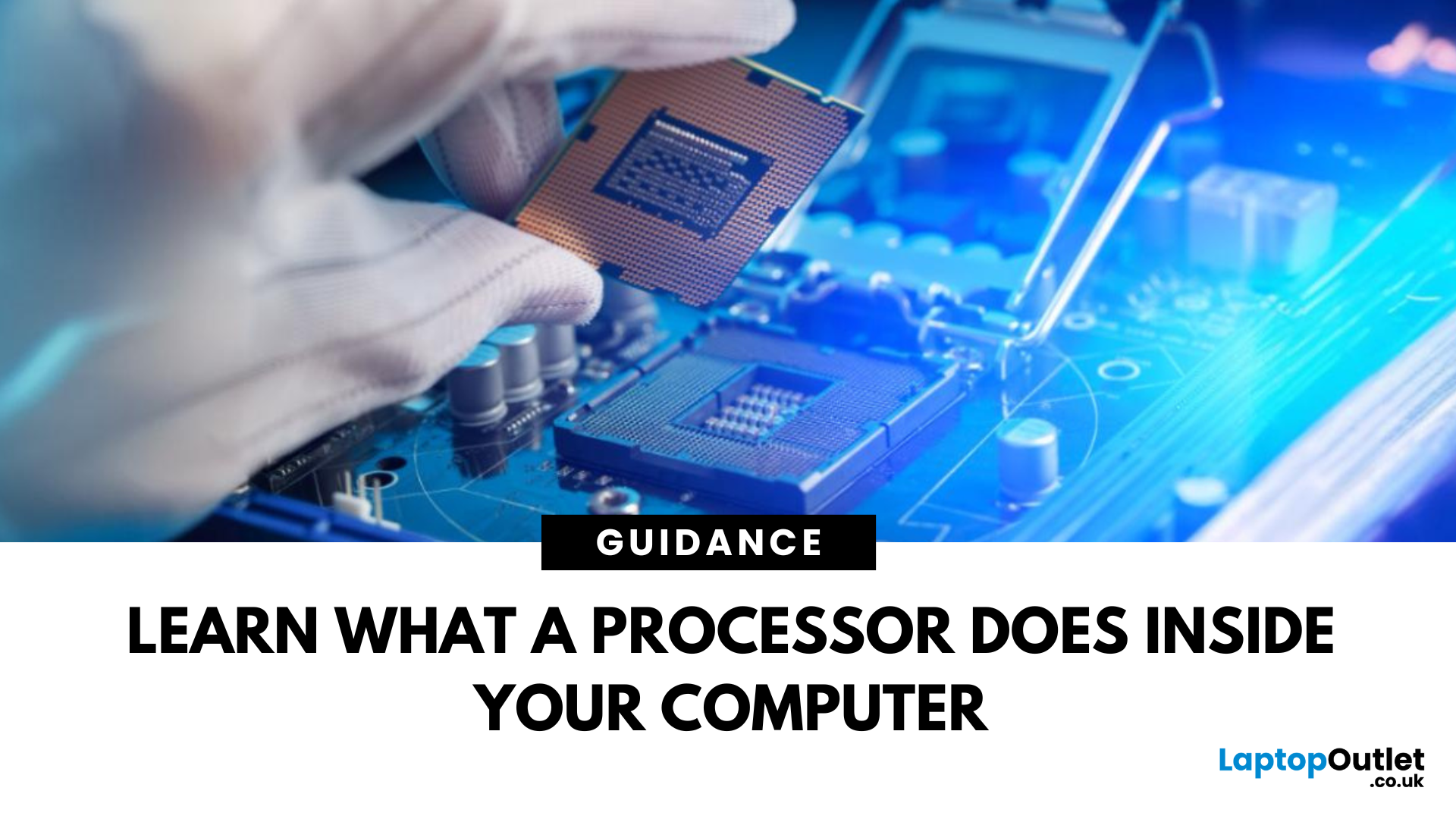
Every laptop, PC, tablet, or smartphone relies on one powerful chip to function smoothly—the processor. But what is a processor, exactly? Here’s a beginner-friendly guide to understanding what a CPU does and why it’s critical for your device’s performance.
What Is a Processor? (CPU)
A processor, also known as a CPU (Central Processing Unit), is the main chip in your device that handles all instructions from software and apps.
Think of it as the brain of your computer—it interprets, calculates, and executes commands to keep everything running.
What Does a Processor Do?
- Executes program instructions (open apps, load files, browse the web)
- Performs millions of calculations per second
- Coordinates tasks between memory, storage, and graphics
Processor Specs to Know
Cores:
- More cores = better multitasking
- Dual-core, quad-core, hexa-core, octa-core, etc.
Threads:
- Virtual cores that boost efficiency
- More threads improve performance in multitasking
Last Updated: October 15, 2025
Choosing the right processor can transform your computing experience, whether you're building a high-performance gaming rig or crafting a workstation for creative projects and demanding tasks. With so many options available, selecting the best processor for both gaming and productivity can be overwhelming.
Our picks below will show you the best processor for gaming and other resource-demanding tasks. From AMD's latest Ryzen 9000 Series to Intel's groundbreaking Core Ultra 5, this guide will help you confidently navigate your next processor upgrade.
Let's explore these processors to discover which perfectly balances gaming brilliance and productivity prowess.
AMD Ryzen 9 7900: The Multitasking Powerhouse
The AMD Ryzen 9 7900 is a superb choice for users seeking a harmonious blend of high gaming CPU performance and productivity capabilities. With 12 cores and 24 threads, this processor for gaming is built to handle everything from fast-paced games to complex multitasking workloads.
-
Max Boost
Last Updated: September 09, 2025
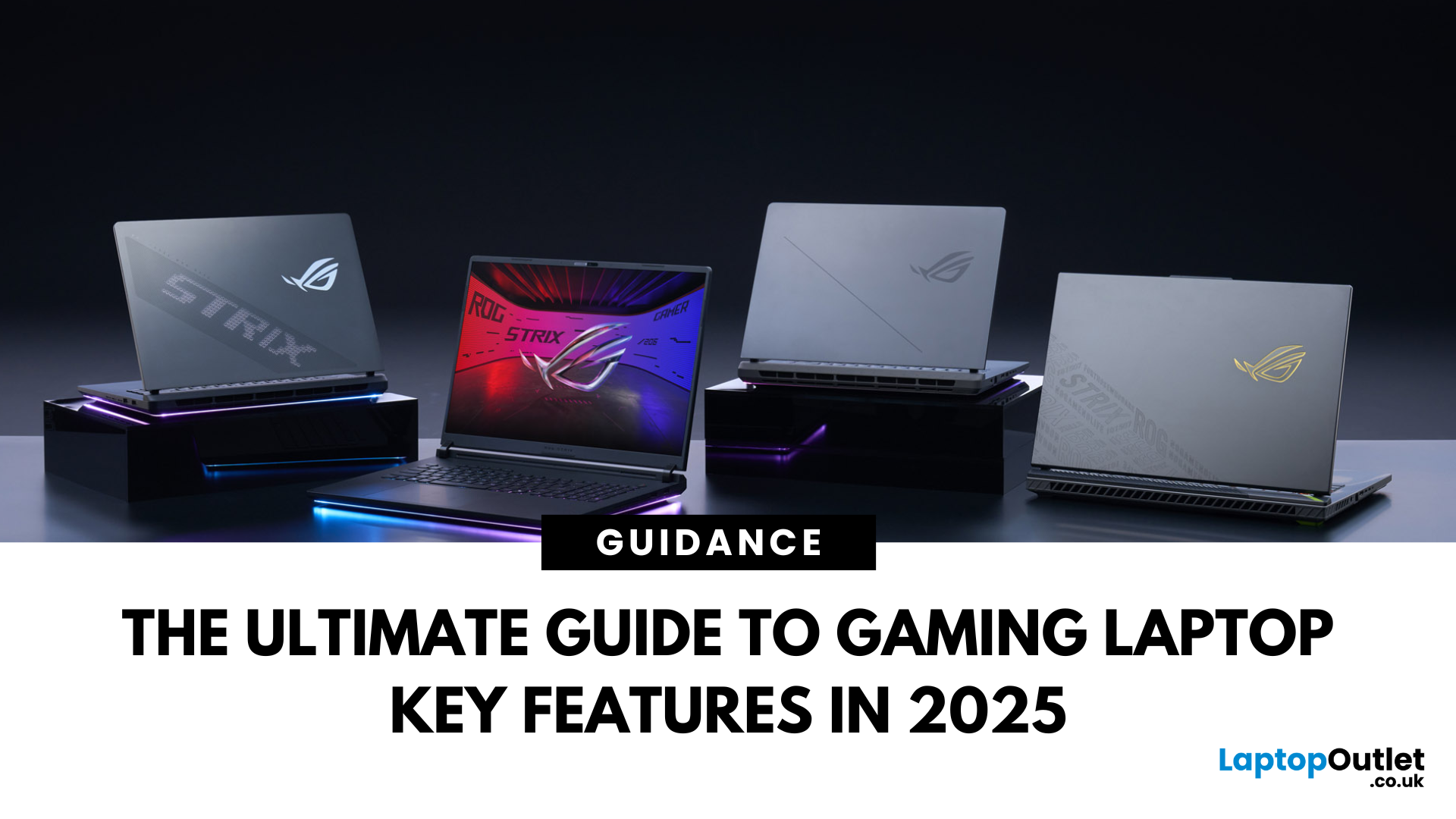
Choosing a gaming laptop today is all about understanding the gaming laptop key features that move the needle foryourgames and workflow. In 2025, the big shifts are real: next‑gen GPUs with AI frame generation, smarter CPUs with onboard NPUs, faster storage that feeds data straight to the GPU, premium displays (OLED/Mini‑LED) at esports‑grade refresh rates, and cooling systems that can keep all of it performing sustainably.
However, what does all of that actually mean when you just want smooth gameplay and a machine that lasts? Below, we have you covered with a clear, up‑to‑date walkthrough of what to look for in a gaming laptop with the evidence to back it. Whether you’re looking at entry-level models around £900, mid-range workhorses at £1,500, or premium powerhouses above £2,000, this guide focuses on the essential gaming laptop key features.
If you’d like a broader perspective from budgeting to comparisons, you can check out our full gaming laptop buying guide.

